The Smell of Molten Projects in the Morning

Ed Nisley's Blog: Shop notes, electronics, firmware, machinery, 3D printing, laser cuttery, and curiosities. Contents: 100% human thinking, 0% AI slop.

Tag: Thing-O-Matic

Using and tweaking a Makerbot Thing-O-Matic 3D printer

  • Thing-O-Matic: Wiper Rebuild Doodles

    Unlike most folks, it seems, I’m a big fan of automatic wiping at the start of each print. It’s particularly important with the Z-min platform height switch, because a little ABS snot on the end of the nozzle changes the initial layer thickness in a bad way: additional height at the switch reduces the first layer thickness.

    The problem is that the default wiper position at the right front corner of the platform requires a cutout in the build plates and the wiper gets in the way of the first several layers of very large objects.

    I’m thinking of moving the wiper to the center rear of the platform, sticking out beyond the plates. There’s a convenient hole in the HBP platform for a mounting bracket, it won’t hit either of the Z axis rods at either end of the X axis travel, and maybe it’ll be low enough to stay out of the way.

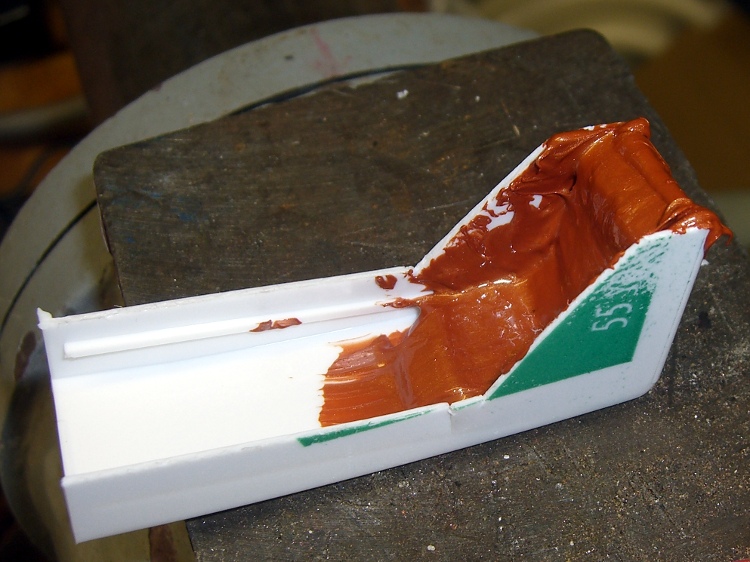
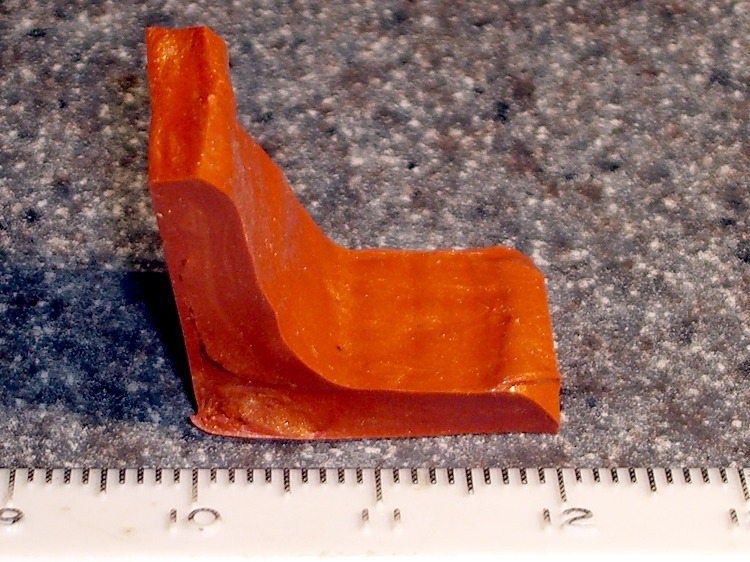
    In the nature of a prototype, I smoothed a layer of Permatex copper-loaded silicone gasket compound into the corner of an old dental floss container to get a more-or-less right-angled shape:

    Silicone-copper wiper - curing
    Silicone-copper wiper – curing

    That’s much thicker than the usual gasket that you’re supposed to make from this stuff, so I let it cure for a few days before popping it out, then another few days to get into that big lump in the corner. As expected, it doesn’t stick to polyethylene at all.

    After trimming, it looks more like a wiper blade, albeit with Orc Engineering artistic sensibilities:

    Trimmed wiper
    Trimmed wiper

    It’s fairly soft stuff, which is what you want in a gasket, so it’ll require support on the bottom and back. Right now, I’m not sure which is which, which is why I troweled the stuff into the mold with one thick side and one thin side.

    A simple bent-metal bracket should do the trick, with a screw in a hole punched through the wiper blade mounting the whole affair to the HBP plywood. Of course, it’d be even better with a printed bracket.

    The silicone’s temperature rating goes up to 700 C for intermittent use, which sounds about right for this application.

  • Thing-O-Matic: Bicolored Prints

    This isn’t rocket science and it’s certainly not original, but I finally screwed up enough courage to start routinely swapping in a new filament color without pulling out the old one. The trick is to cut both ends flush (with a flush-cutting wire cutter) and maintain gentle pressure on the new filament so it slides right into the grip of the extruder drive gear.

    Seeing as how I need tchotchkes in a big way, I run off a plate of Chalk People whenever it’s time for a new color:

    Multicolored Chalk People
    Multicolored Chalk People

    The transition between yellow and black was rather weird. Fortunately, the gory details remain hidden inside that quartet of Chalk Women.

    These have all the right attributes for a tchotchke: fast printing, not much plastic, smooth edges, a little fill to show how it works, a few small defects for education.

  • Reversal Zits: Temperature Variations

    Just for completeness, it turns out that extrusion temperature doesn’t have any effect on Reversal zits. A while back I dropped the standard temperature from 210 °C to 190 °C in one fell swoop and it didn’t change anything worth mentioning, let alone the zittage.

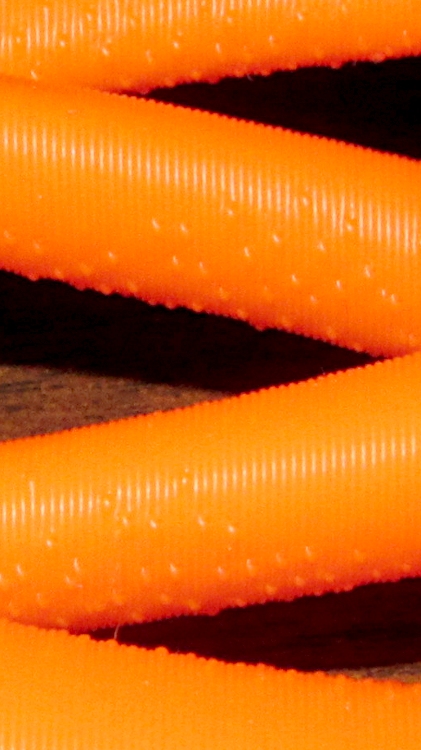
    The white one was hotter, the orange one is cooler:

    Octopodes - Temperature variation
    Octopodes – Temperature variation

    The zits are pretty much due to Reversal followed by in-plane motion, it seems to me.

    A dramatically lower extrusion temperature works fine for smaller objects, but I’d expect very large objects to delaminate like crazy. The Barbie Pistol was, IIRC, printed at 220 °C, and it had some troubles.

    It’s also worth noting that the indicated temperature has only a casual relationship to the actual extrusion temperature. I’ve put considerable effort into electrically insulating and thermally bonding the thermocouple to the Thermal Core, so I think it’s a good indicator, but your results will certainly differ.

  • Reversal Zits: Speed Variations

    The Vica Illusion Sculpture provides an interesting data point: Reversal zits aren’t much of a problem at very slow extrusion speeds.

    This view shows it lying down, with focus on the the zits along facing edges of the columns.

    Vica Illusion - Reversal zits
    Vica Illusion – Reversal zits

    They’re annoying, but not nearly as obvious as the ones on the Pink Panther Woman I examined yesterday.

    The nominal speed is 30 mm/s with 100 mm/s moves, but the actual printing speed for those layers works out to maybe 15 mm/s because they’re so small.

    In round numbers the extruder runs at half the previous speed, too, which means its internal pressure will be lower. I’m sure that’s a breathtakingly nonlinear process, so it’s not half the pressure.

    Low speed isn’t the complete answer, though, because I’ve also done octopodes at 20 mm/s that looked essentially identical to those at 30 mm/s. Yes, it’s nonlinear, but I doubt it falls off a cliff under 15 mm/s.

    I set Reversal to 25 rev/min and 125 ms quite some time ago as the smallest values that would eliminate drooling between separate parts. The only thing for it will be to explore the Reversal parameter space again; at least now I know what I’m looking for.

  • Reversal Zits: Analysis

    The Pink Panther Woman provided a clear view of the Reversal zit problem. With Clip = 0.1, she has what looks like a horrible surgical scar on her left side that extends from groin to, uh, bosom, with the defect punching inward:

    PPW - Clip gaps
    PPW – Clip gaps

    From bosom to collarbone, however, the scar consists of the usual Reversal zits extending outward:

    PPW - Reversal zits
    PPW – Reversal zits

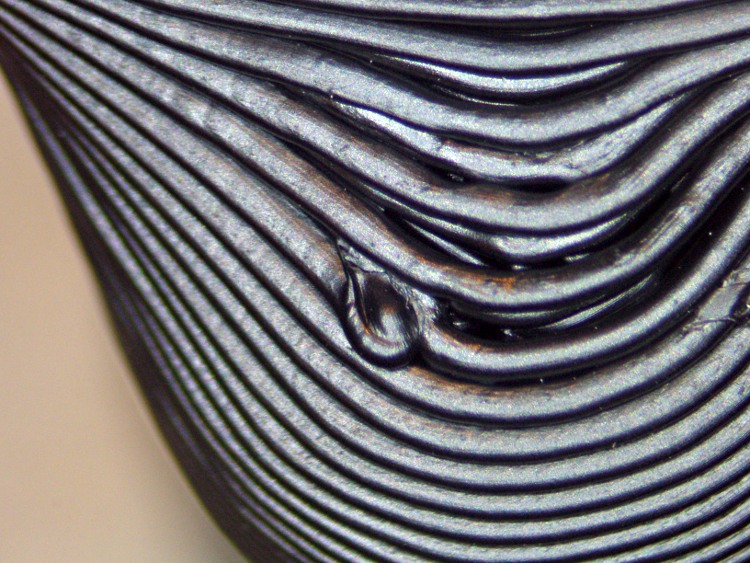
    This microscope shot shows the outie zits in grisly detail:

    PPW - outie zits
    PPW – outie zits

    And another on her right side that’s nicely isolated:

    PPW - outie - right
    PPW – outie – right

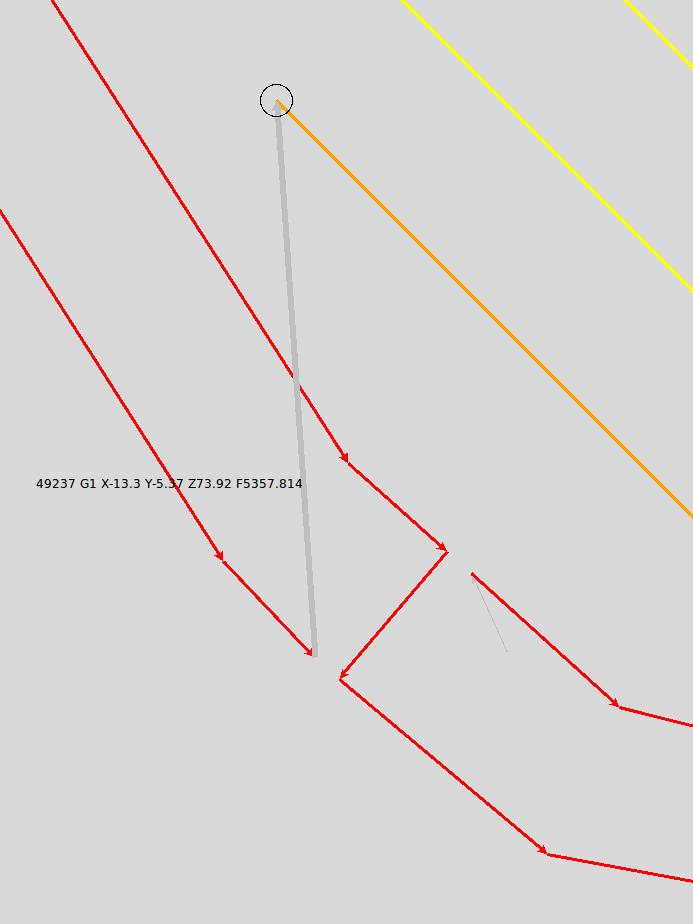
    Skeinlayer shows the nozzle motions around that zit:

    PPW outie zit - right breast top - skeinlayer
    PPW outie zit – right breast top – skeinlayer

    The corresponding G-Code:

    G1 X-13.14 Y-7.69 Z73.92 F1607.344
    M108 R25.0
    M102
    G04 P125.0
    M103
    (</perimeter>)
    (</boundaryPerimeter>)
    G1 X-13.3 Y-5.37 Z73.92 F5357.814
    M108 R25.0
    M101
    G04 P125.0
    M108 R1.786
    G1 X-11.21 Y-7.46 Z73.92 F1607.344
    M108 R25.0
    M102
    G04 P125.0
    M103
    G1 X-0.81 Y16.67 Z73.92 F5357.814
    M108 R25.0
    M101
    G04 P125.0
    M108 R1.786
    G1 X-0.1 Y16.9 Z73.92 F1607.344
    

    The three highlighted lines correspond to the last Perimeter thread, the gray move to the Infill, and the first Infill thread. This was printed at 30 mm/s with 100 mm/s moves, so the Cool plugin has reduced the speeds from 1800 mm/min and 6000 mm/min to what appears in the code.

    Reversal is doing exactly what it should: inhaling the thread at the end of the Perimeter, moving, then exhaling before starting the Infill. The result isn’t nearly as good as you’d (well, I’d) expect, though.

    However, here’s what Skeinlayer shows for an innie zit at her waist:

    PPW inne zit - left waist - skeinlayer
    PPW inne zit – left waist – skeinlayer

    The corresponding G-Code:

    G1 X6.1 Y-12.63 Z49.5 F582.649
    M108 R25.0
    M102
    G04 P125.0
    M103
    (</perimeter>)
    (</boundaryPerimeter>)
    (</nestedRing>)
    M104 S190.0
    M108 R2.0
    (</layer>)
    (<layer> 49.83 )
    M104 S188.654
    (<nestedRing>)
    (<boundaryPerimeter>)
    ... snippage of XML baggage ...
    (<loop> outer )
    M108 R0.654
    G1 X5.81 Y-11.93 Z49.83 F1962.126
    M108 R25.0
    M101
    G04 P125.0
    M108 R0.654
    G1 X7.09 Y-11.11 Z49.83 F588.638
    

    The first highlighted line is the last Perimeter thread on the previous layer, the second is the gray highlighted move to this layer’s Loop, and the third is the first Loop thread. The speeds here are even lower than you saw above; she has a rather slender waist.

    As before, Reversal properly inhales the filament at the end of the previous layer. What’s new & different, though, is that the nozzle moves upward 0.33 mm immediately after finishing the Reversal motion. The result is a very small outward zit, plus the gap (probably) caused by the Clip setting.

    What I don’t yet understand is why an in-plane motion causes such a large blob of ABS. It seems that there’s not much left, if a 0.33 mm upward motion can thin it to nearly nothing, but the outie zits seem to have plenty of plastic hanging out.

    One obvious cause would be an inordinate delay between the end of the thread and the start of the Reversal action. The Arduino must (receive and) decode and execute the M108 G25.0 (or, more precisely, the S3G binary equivalent) before decoding and executing the M102 that starts the extruder motor, which could account for at least some of the problem. I want to blink an LED during the dead time between each command, slap that trace on a scope, and eyeball the command latency; given the number of I/O pins on an Arduino Mega, there should be plenty available.

    Another possibility is mechanical backlash caused by the extruder’s 7:51 gear train. I’m not convinced that’s an issue, as herringbone gears do a good job of eliminating backlash and it feels eminently tight. I need a testcase that puts the backlash on a visible thread.

    More study is obviously needed, huh?

  • Canon SX230HS Image Stabilization vs. Tripod

    Just got a new pocket camera (a Canon SX230HS) to replace that one, read the manual (I can’t help it), and discovered that they recommend turning image stabilization off for tripod shots. A bit of rummaging turns up conflicting advice, so I figured a quick test was in order.

    [Edit: it’s really the Canon SX230HS, not the 320 as I originally mistyped. I’m not changing the post’s permalink, for obvious reasons, and I’m stuck with bogus filenames. Grumble, etc.]

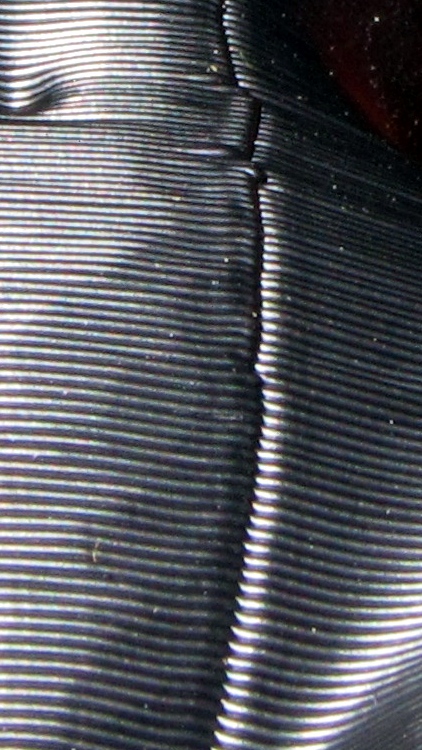
    This is a dot-for-dot crop from two images of the torso of the Pink Panther Woman in black ABS, showing the rather nasty seam produced with Clip = 0.1. The pix are seconds apart at f/8 with manual focus and flash illumination, so they’re as alike as I can make them. Clicky for more dots.

    Pop quiz: which side has stabilization turned on?

    Canon SX320HS Image Stabilization
    Canon SX320HS Image Stabilization

    Answer: left = ON, right = OFF. Yeah, I was surprised, too; even the dust specks look the same.

    So, as nearly as I can tell, image stabilization doesn’t add any jitter to a tripod shot. At least not on the scale I’m using, which is a Good Thing: turning it on & off requires a trip through the menus.

  • Reversal Zits: Clip Variations

    The Skeinforge Clip plugin trims the ends of closed loops to eliminate the overlap. I’ve found that setting Clip > 0.1 causes openings in small circles that shows up in the Polyholes testpiece, so I generally run with Clip = 0.0.

    Here’s a pair with Clip = 0.1 and Clip = 0.0:

    Octopodes - Clip variations
    Octopodes – Clip variations

    As before, pretty much no difference.