The Smell of Molten Projects in the Morning

Ed Nisley's Blog: Shop notes, electronics, firmware, machinery, 3D printing, laser cuttery, and curiosities. Contents: 100% human thinking, 0% AI slop.

Tag: Thing-O-Matic

Using and tweaking a Makerbot Thing-O-Matic 3D printer

  • Skeinforge: Simplified Plugin Selection Page

    The Skeinforge Craft window presents a formidable array of buttons, one for each possible plugin:
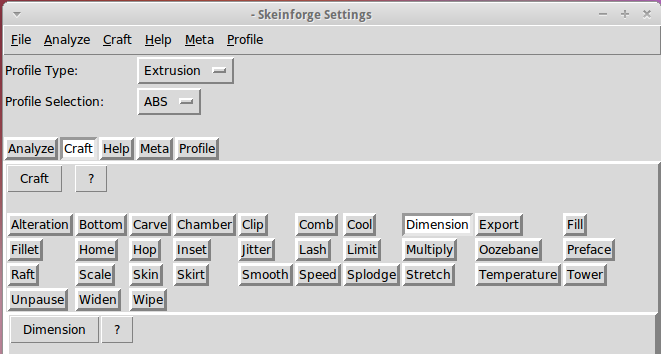
    Skeinforge standard
    Skeinforge standard

    I’ve disabled many of those plugins because, for example, limiting Z-axis speed isn’t relevant on my printer. If you’re sure you won’t use some of the plugins, remove them by editing /where-it's-installed/skeinforge_application/skeinforge_plugins/profile_plugins/extrusion.py thusly…

    In getCraftSequence(), located at about the midpoint of that file, duplicate the line that lists the plugins and add an octothorpe (OK, a hash) to make one line a Python comment, then remove the plugins you don’t care about from the other line:

    def getCraftSequence():
    	'Get the extrusion craft sequence.'
    #	return 'carve scale bottom preface widen inset fill multiply speed temperature raft skirt chamber tower jitter clip smooth stretch skin comb cool hop wipe oozebane splodge home lash fillet limit unpause dimension alteration export'.split()
    	return 'carve scale preface inset fill multiply speed temperature raft skirt jitter clip smooth skin cool dimension alteration export'.split()
    

    This being Python, do not change the indentation. If you get overenthusiastic and toss something useful overboard or just pine for the Good Old Days, swap the octothorpe to your modified line to restore the original plugin assortment.

    Save the result and you’ll see only the useful buttons:
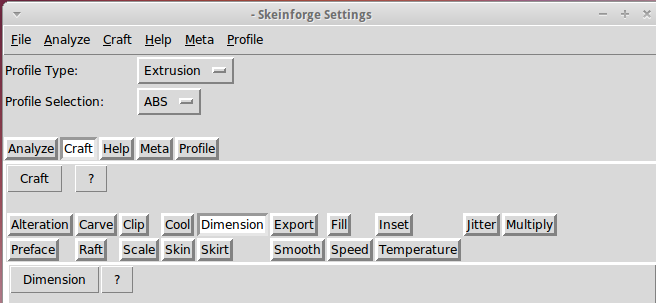
    Skeinforge simplified
    Skeinforge simplified

    There, now, wasn’t that easy?
  • Enabling Remote Desktop Sharing in Xubuntu

    I set up Xubuntu 11.10 on the Dell 531S driving the Thing-O-Matic, as the Unity UI seems surprisingly like crippleware: every feature that isn’t mandatory is prohibited. However, Xubuntu’s XFCE UI also has a long list of things that should be easy and aren’t, such as enabling remote desktop sharing. Gotta have that so I can fire up the printer and monitor progress from upstairs.

    It turns out that the Vino server is installed, but not enabled, so you must start by firing up vino-preferences in a terminal to set some preferences:

    This is a local machine behind a firewall, so a moderately secure password with no confirmation will suffice. Your paranoia may vary.

    Then drill down through the menu from Settings Settings ManagerSession and Startup to the Application Autostart tab, then Add the Vino VNC Server to the list: /usr/lib/vino/vino-server. You can start it manually if you have the hots for immediate sharing.

    This seems to be impossible in Unity, trivially easy in GNOME, and unduly mysterious in XFCE.

  • Thing-O-Matic: Filament Melt Zone

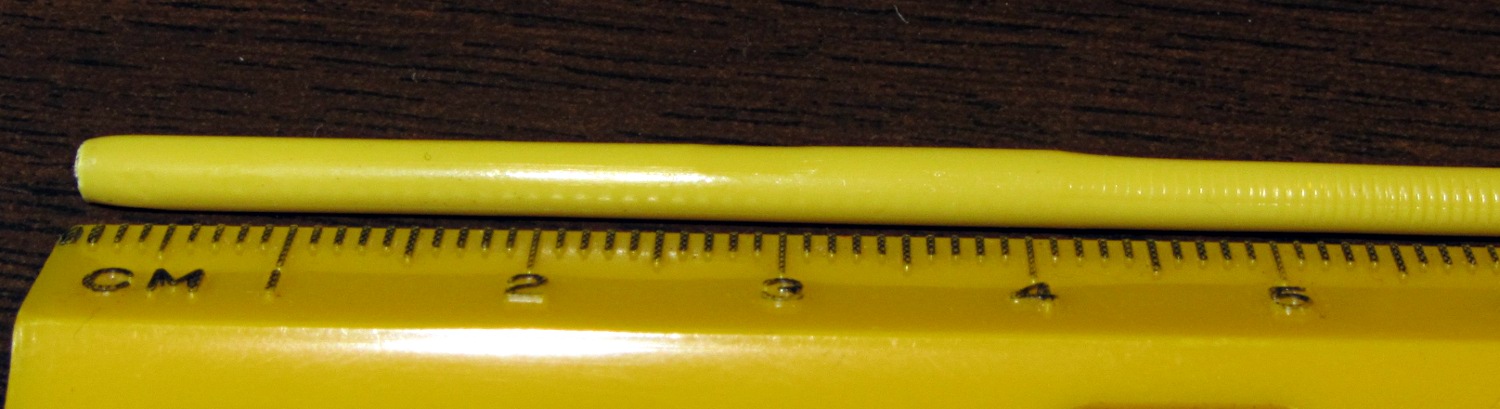
    The 0.5 mm nozzle came off the hot end with surprisingly little effort; the high-temperature lube did its job! I dismantled the tensioner, clipped the filament at the top of the drive wheel, and extracted it (with the red PTFE insulation / guide tube) through the bottom of the Thermal Core. Getting the filament out of the tube required the gentle suasion of a pin punch, but eventually I found this:

    Filament melt zone - overview
    Filament melt zone – overview

    Although you can’t tell from the picture, the filament seems completely melted for about 20 mm, well-softened for another 20 mm, and soft for about 10 mm. Here’s a detail of the transition from well-softened to soft to hard:

    Filament melt zone - detail
    Filament melt zone – detail

    Notice how the notches from the drive wheel gradually fade out over about 10 mm, whereupon the filament expands to fill the PTFE tube. You can’t see the shallow depression from an air pocket offscreen at about 30 mm, but it suggests the filament isn’t quite molten from 20 mm onward. Given that the distance from the nozzle tip to the top of the Thermal Core is about 40 mm, all this makes sense, particularly when you figure the filament was stationary as the Core cooled off after the last print: the melted-to-melty sections are inside the Core and the softened section is just above the Core.

    In round numbers, the Thermal Core supplies enough heat through the PTFE tube to fully melt the filament for about 20 mm above the nozzle when printing at 2 rev/min. The effective drive diameter is 9.6 mm, so 1 rev = 9.6 π = 30 mm and the Core must melt 60 mm/min = 1 mm/s. This is obviously a grossly nonlinear situation, but if you get only 20 mm of molten filament at 1 mm/s, the maximum speed can’t be much more than 4 mm/s or so.

    The rest of the Thing-O-Matic’s mechanics set an upper limit for, say, printed octopi at 80 mm/s and 4 rev/min = 2 mm/s, but the extruder will definitely be the limiting factor for speeds over, say, 150 mm/s. Not much risk of that happening here, I’d say.

    I’ve settled on Reversal for 125 ms at 25 rev/min, so the retraction distance is:

    1.6 mm = (30 mm/rev) (0.125 s) (25 rev/min) / (60 s/min)

    That’s somewhat smaller than the 3 mm of pushback I’ve seen when swapping filaments in mid-print, but it’s in the right ballpark.

    Now, to install the 0.4 mm nozzle and recalibrate the software yet again…

  • RCA Alarm Clock Dimming

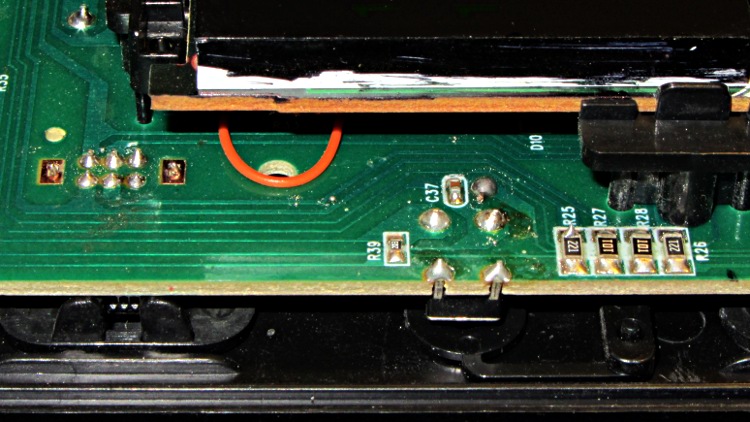
    Mary prefers dim digits on the bedroom alarm clock, far below what the usual DIM switch setting provides. I’d slipped a two-stop neutral density filter in front of our old clock’s VFD tube, but the new one has nice green LED digits that ought to have a tweakable current-setting resistor behind the switch. Indeed, a bit of surgery revealed the switch & resistors:

    RCA clock - DIM switch and resistors
    RCA clock – DIM switch and resistors

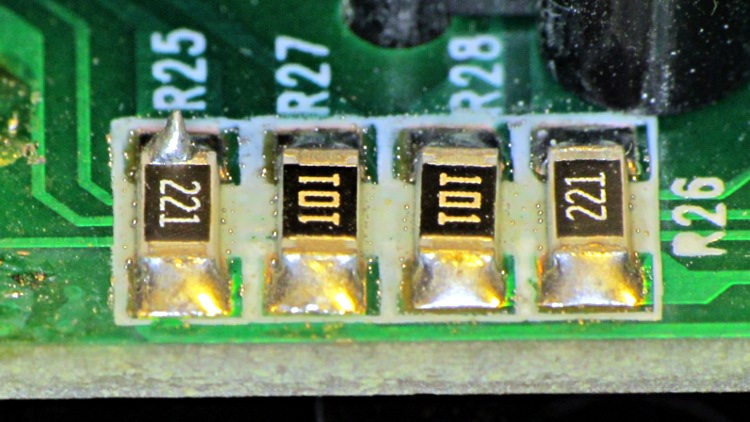
    It turns out that the 220 Ω resistors set the DIM current, with the 100 Ω resistors in parallel to set the BRIGHT current. Weirdly, the display operates in two halves: one resistor for the lower and middle segments, the other for the top segments. The resistor numbers give a hint of what the schematic might look like:

    RCA clock - LED current-set resistors
    RCA clock – LED current-set resistors

    The current control isn’t all that good, because the brightness varies with the number of active segments. With 470 Ω resistors (yes, from that assortment) in place, the variation became much more obvious; the LEDs are operating far down on their exponential I-vs-V curve. We defined the result to be Good Enough for the purpose.

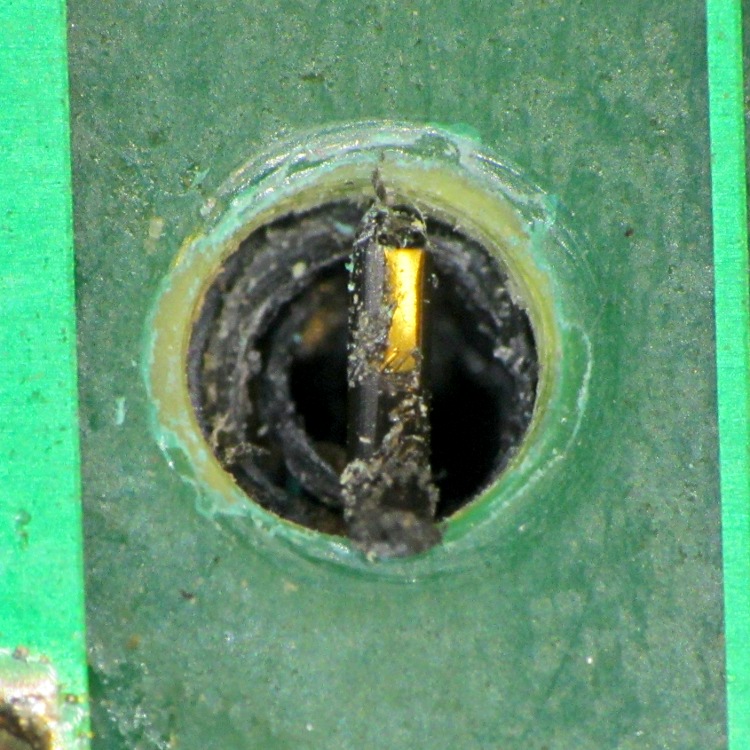
    Four short screws hold the circuit board in place, but one of them arrived loosely held in a pre-stripped hole. I cut eight lengths of black Skirt filament, anointed them with solvent adhesive, dropped two apiece into each screw hole, and ran the screws back in place. I likely won’t be back in there, so it should be a lifetime fix:

    RCA clock - ABS filament in screw hole
    RCA clock – ABS filament in screw hole

    Done!

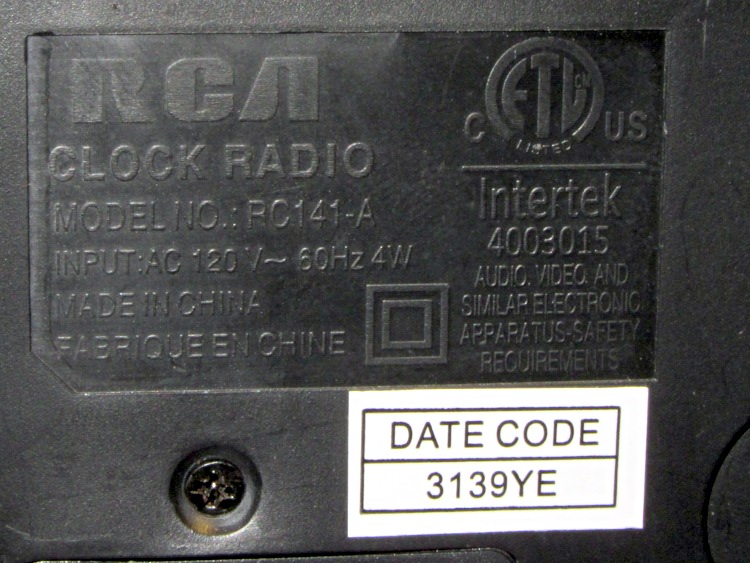
    As with all the trade names you remember from back in the Old Days, the present incarnation of “RCA” has nothing whatosever to do with the original Radio Corporation of America:

    RCA clock - data plate
    RCA clock – data plate
  • Tux Cookie Cutter: It Works!

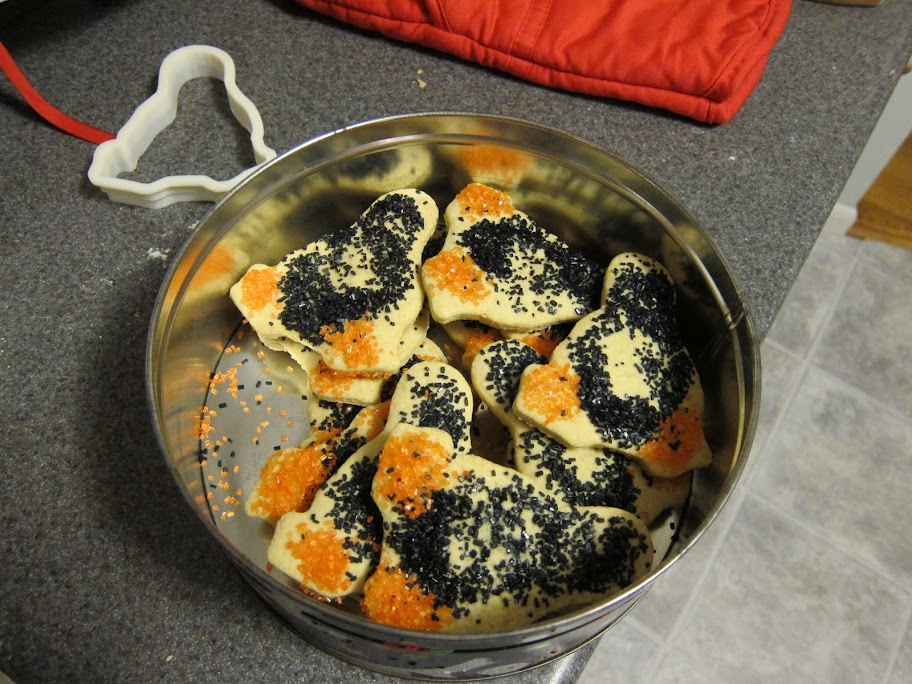
    Sean reports that the first field test of the Tux Cookie Cutter went well:

    Tux Cookies
    Tux Cookies

    I obviously need a few samples for QC purposes…

  • Harbor Freight Digital Thickness Gauge: Lubrication Thereof

    Picked up a Harbor Freight thickness gauge to measure Thing-O-Matic filaments and suchlike; it has a plastic piston and anvil, so it’s not well-suited to measure anything other than plastic parts. In fact, it’s all plastic and the various sliding surfaces produced a remarkable amount of friction.

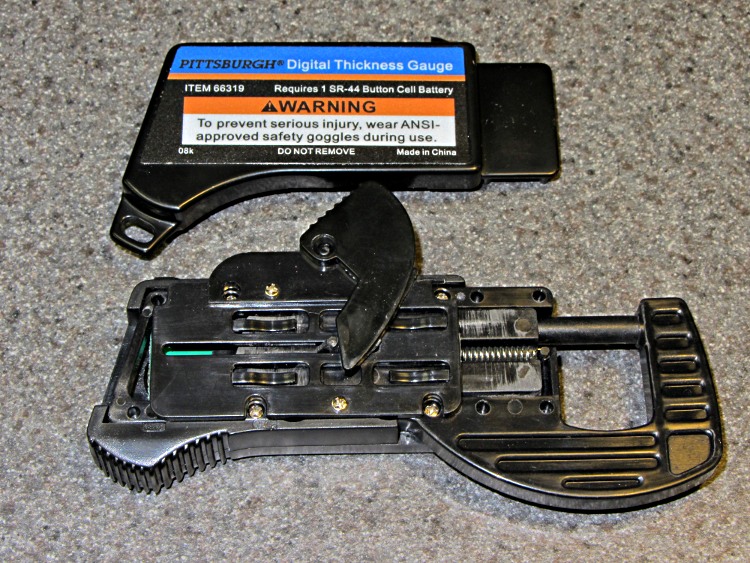
    Fortunately, the back cover pops off without too much of a struggle:

    Harbor Freight Digital Thickness Gauge - cover removed
    Harbor Freight Digital Thickness Gauge – cover removed

    Dabs of silicone lube at all the contact points considerably improved its disposition.

    The display offers 0.01 mm resolution, but I don’t believe that rightmost digit for an instant. The stated accuracy is ±0.1 mm, which is probably closer to the truth, and it agrees reasonably well with my considerably better quality digital caliper.

  • GPS+Voice Interface for Wouxun KG-UV3D: PCB in a Box!

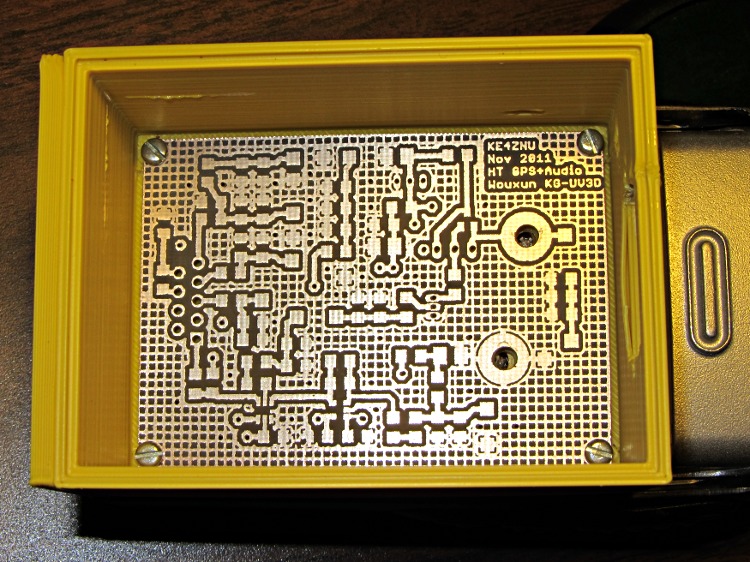
    It always feels good when the parts fit together, even if they don’t actually do anything yet…

    Bare PCB in Wouxun HT battery case
    Bare PCB in Wouxun HT battery case

    That’s the bare PCB in the first-pass 3D-printed battery case adapter, both of which need quite a bit more work. In particular, the case desperately needs some sort of latch to hold the yet-to-be-built contacts against the HT’s battery terminals.

    Amazingly, all the holes lined up spot on, although I think the lower battery contact could move half a millimeter closer to the base of the radio. The battery case contacts are large enough to work as-is and, for what it’s worth, the Wouxun battery cases seem to differ slightly among themselves, too.

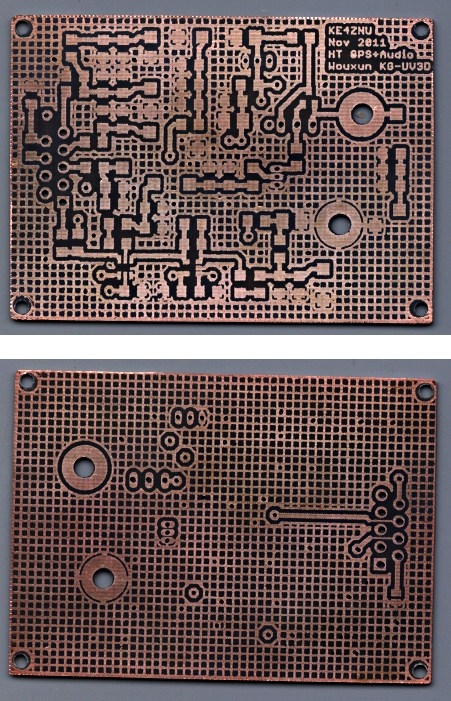
    The PCB itself came out about as well as any homebrew PCB I’ve ever made, after getting the Logitech Joggy Thing working again to line the Sherline up for hole drilling:

    Wouxun HT GPS-Audio PCB - copper
    Wouxun HT GPS-Audio PCB – copper

    The circuit has provision for pairs of SMD caps on all the inputs, with which I hope to squash RFI from both the VHF and UHF amateur bands by choosing their self-resonant frequencies appropriately.