Ed Nisley's Blog: Shop notes, electronics, firmware, machinery, 3D printing, laser cuttery, and curiosities. Contents: 100% human thinking, 0% AI slop.
The ancient and much–repaired Sears humidifier works better in its new location across the living room with its front raised a few millimeters, which may have something to do with its plastic housing supporting a pair of heavy water containers for a few decades.
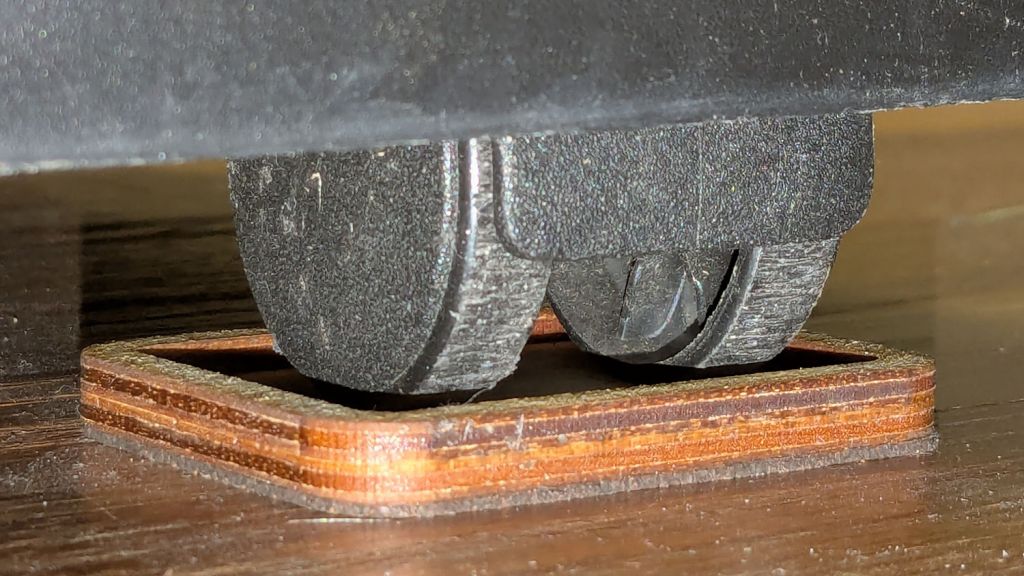
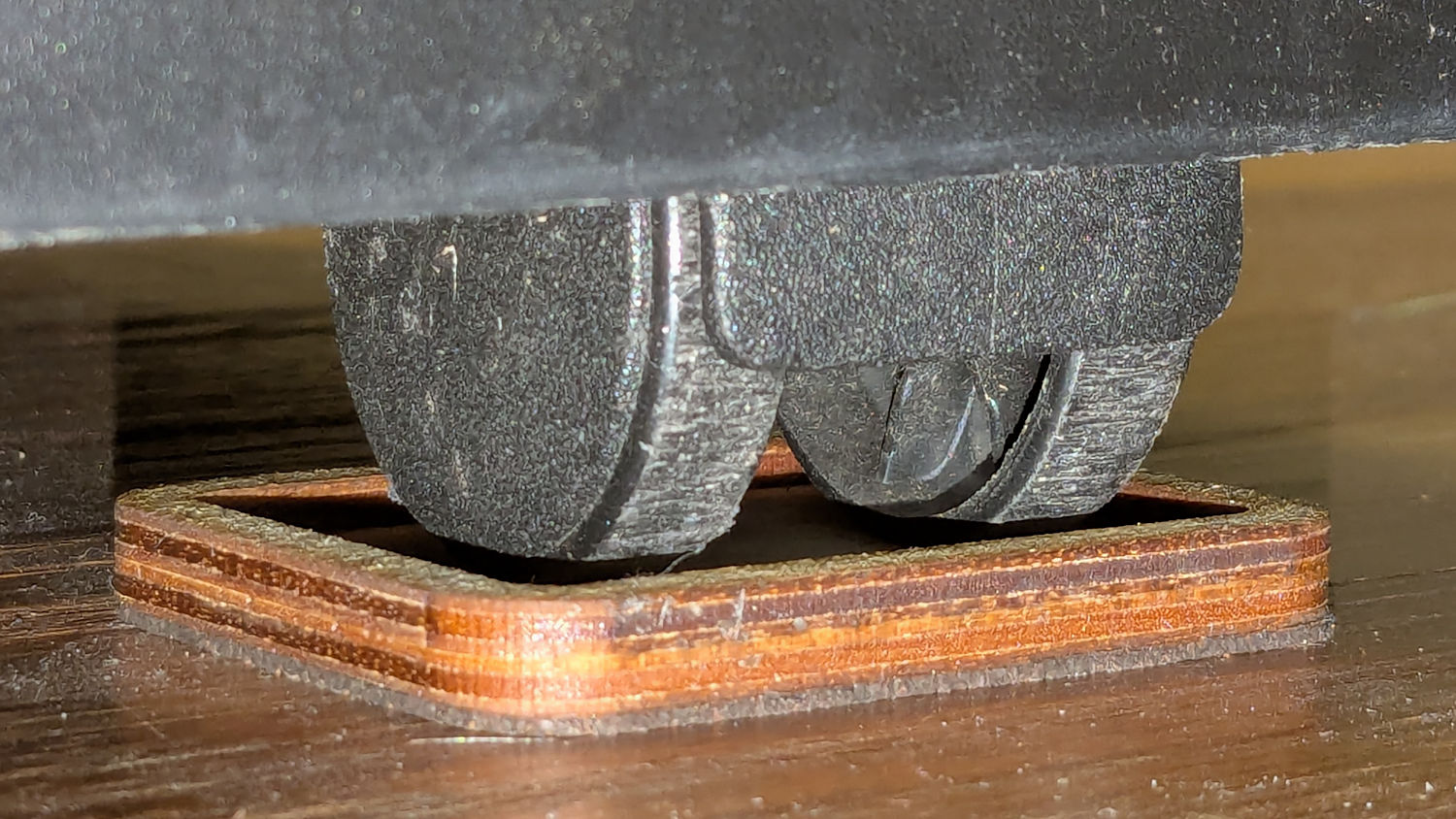
After fiddling around with shims to find the proper height, these feet descended from the Husky workbench feet:
Humidifier Caster Feet – installed
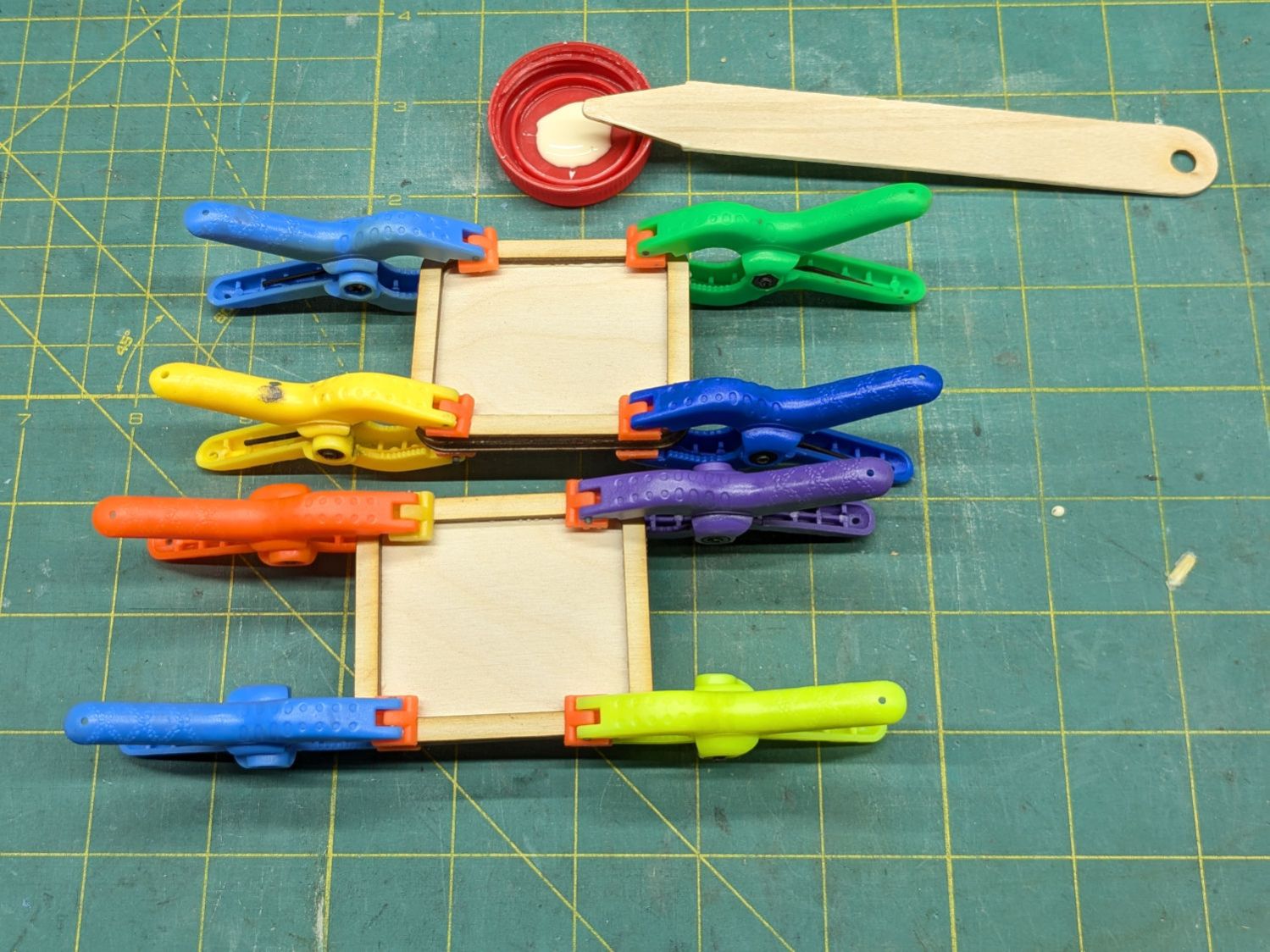
They’re glued up from 3 mm plywood sitting on a 1 mm layer of cork:
Humidifier Caster Feet – clamping
The humidifier seems much happier with its casters 4 mm above the floor. Seems awfully fussy to me, but there’s no arguing with success.
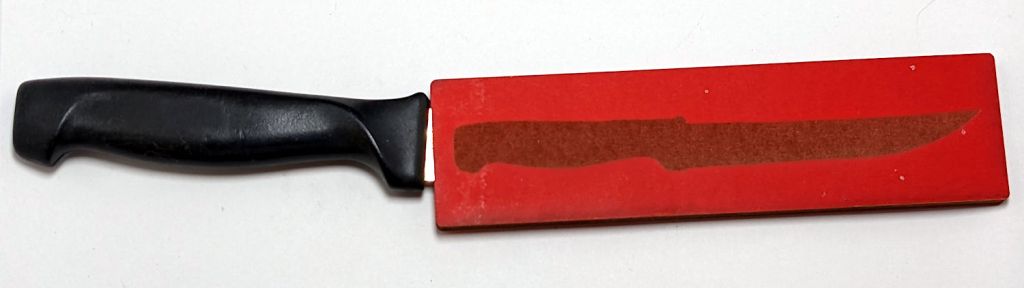
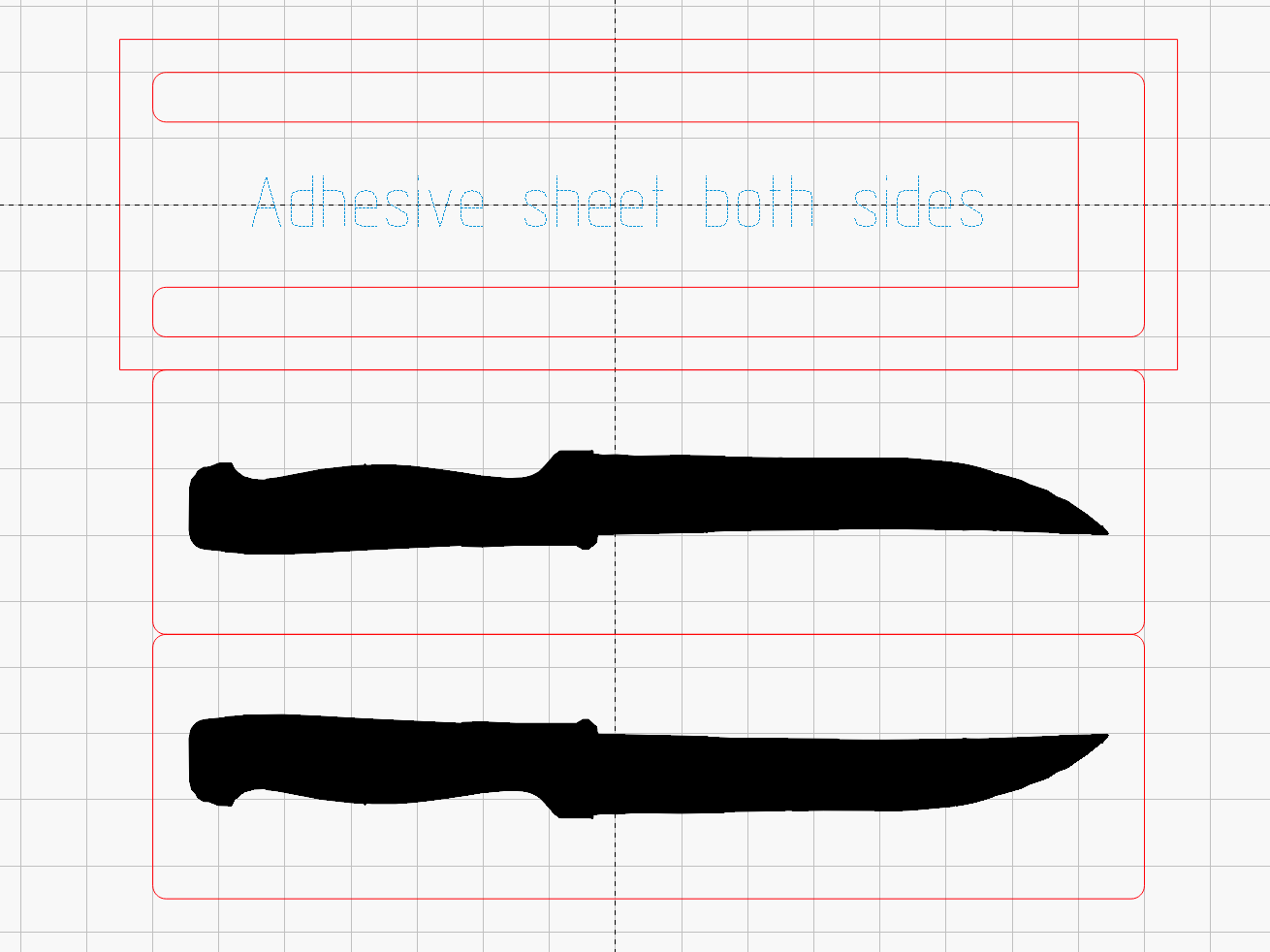
The knife’s silhouette came from a few minutes with GIMP, because cleaning up the edges on a graphics tablet is easier than fiddling with precise spline curves. Export the selection as an SVG, import into LightBurn, set to Fill, and Fire The Laser:
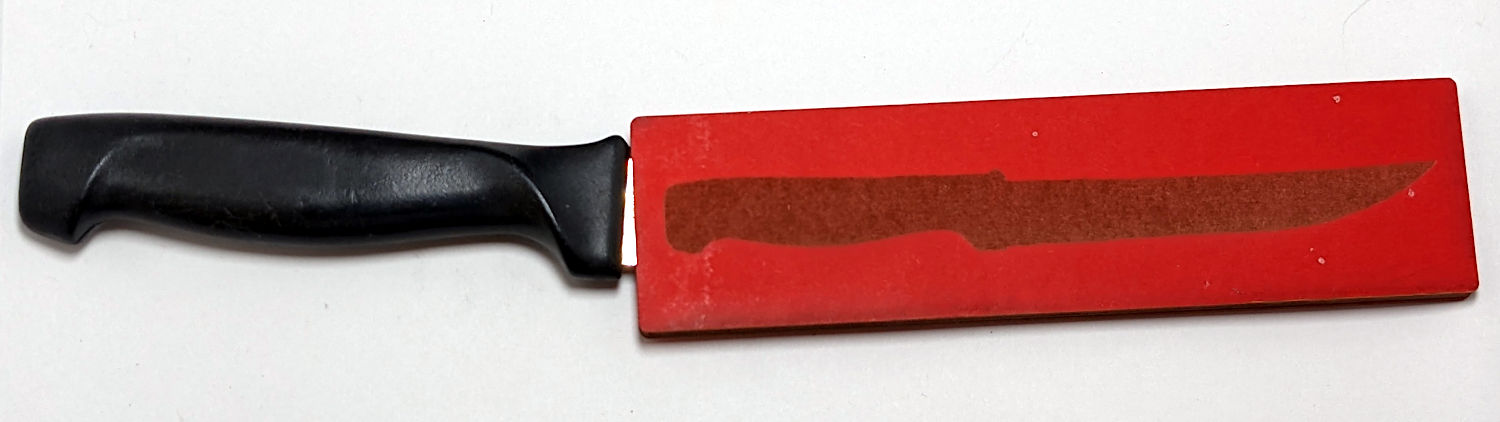
Garden knife sheath
The upper block in the LightBurn layout is an oversized rectangle so I could cut that out first, stick craft adhesive on both sides, trim the edges, drop it back into the hole, then cut the middle part of the sheath.
It’s made of recycled through-dyed chipboard and it won’t last forever, but that’s not a problem because these things tend to wander off before they disintegrate.
I must do a few more for the other garden bucket, but those should be straightforward.
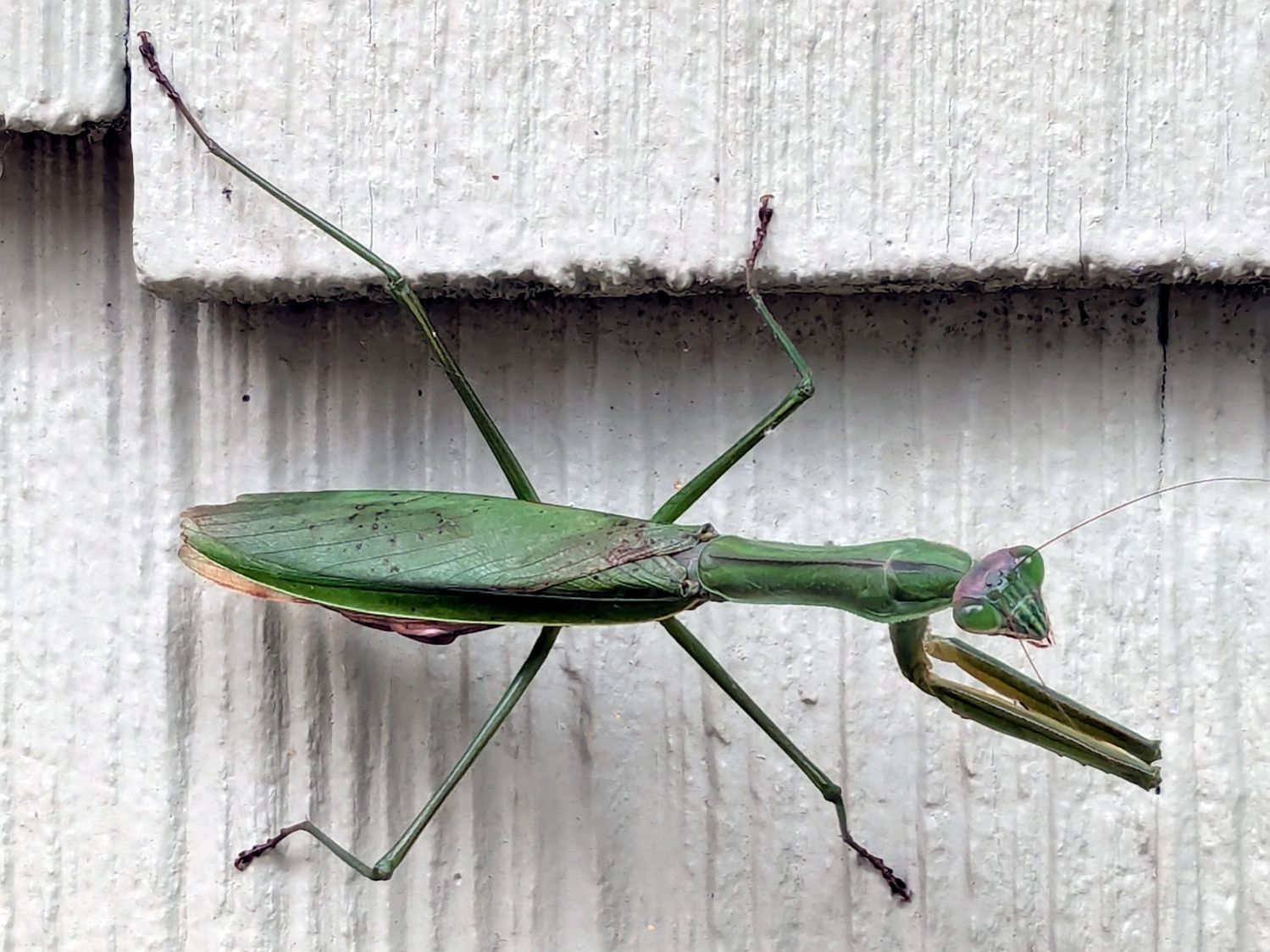
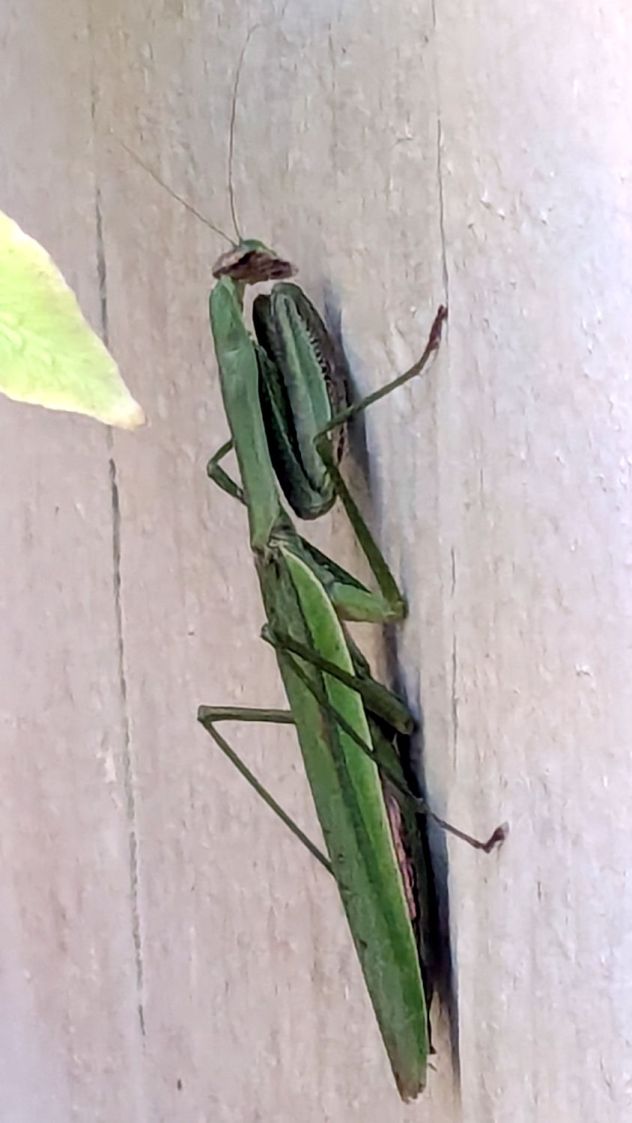
The next morning found it huddled against the cold:
Mantis – chilled
It had reached operating temperature and gone about its business a few hours later.
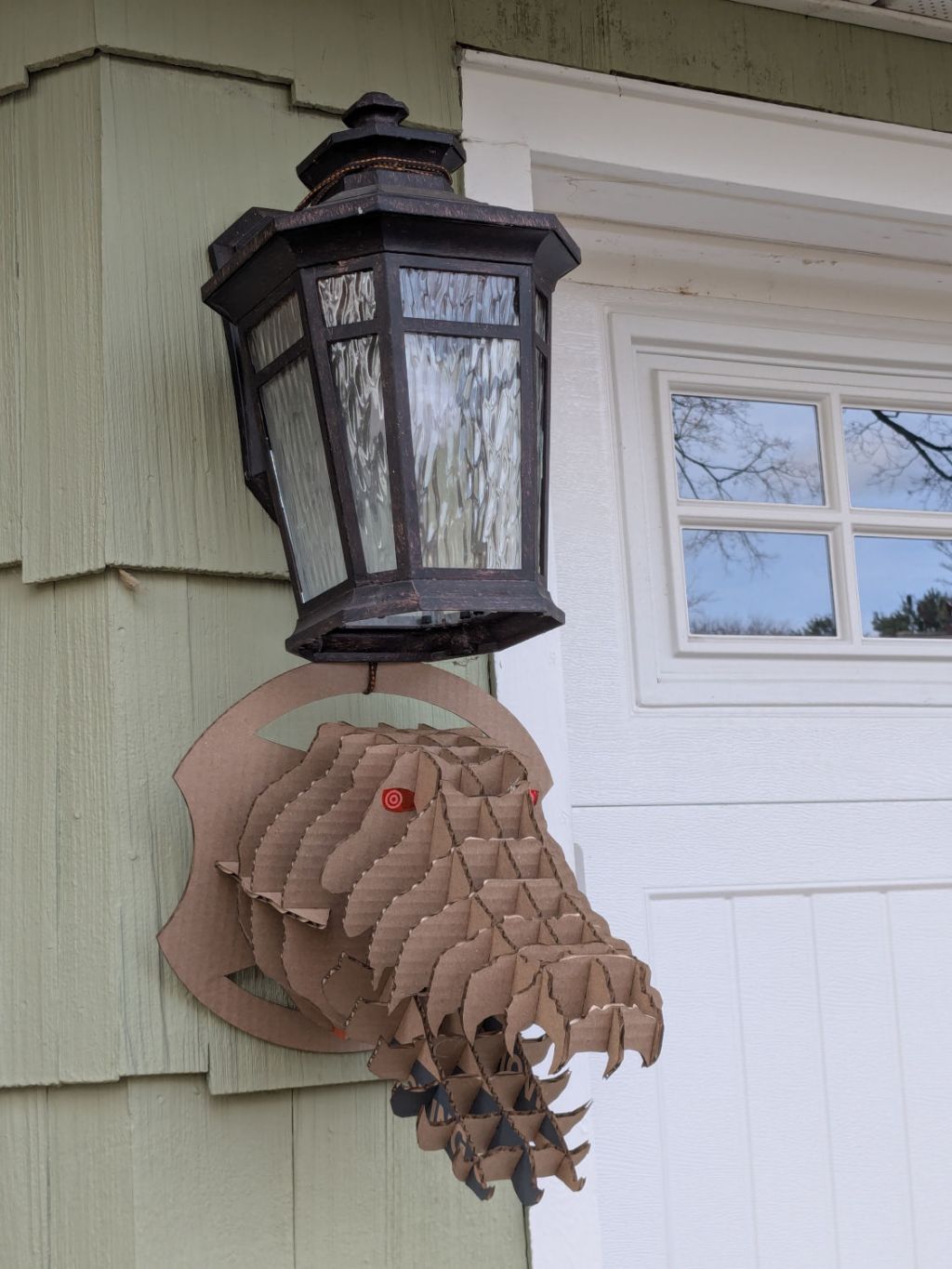
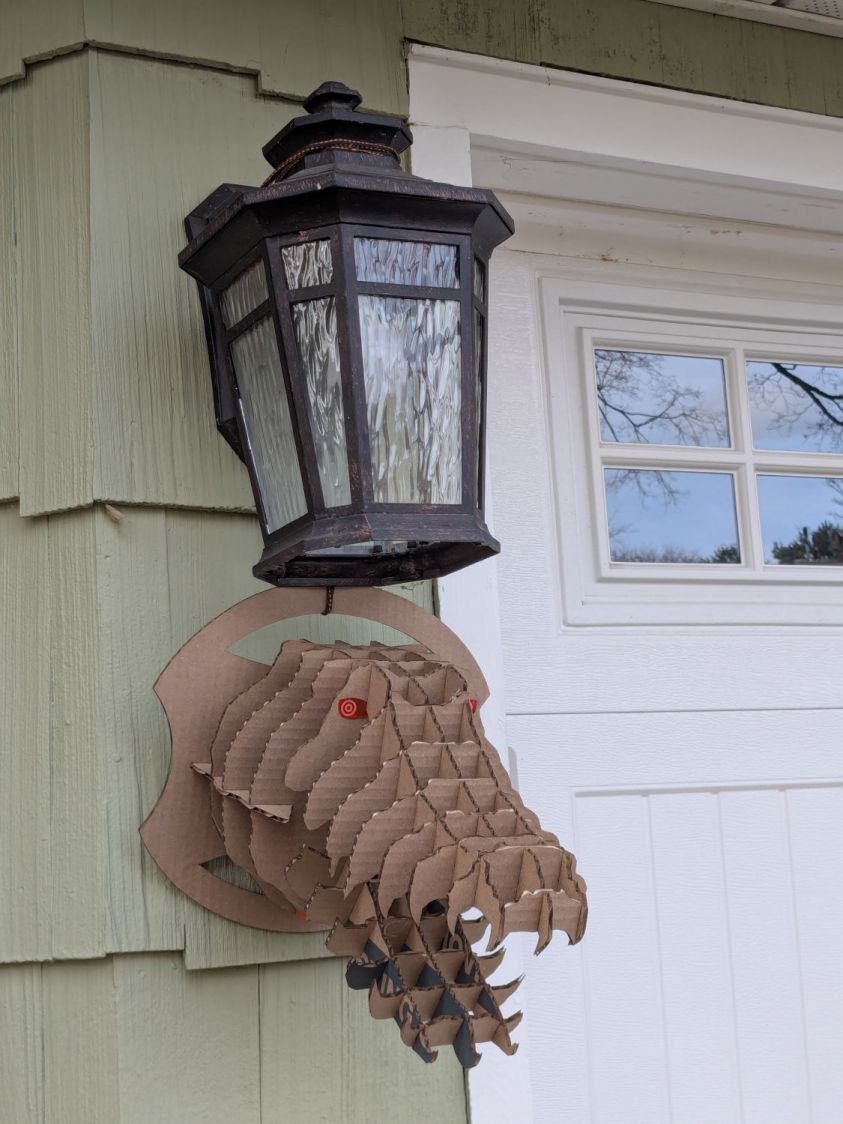
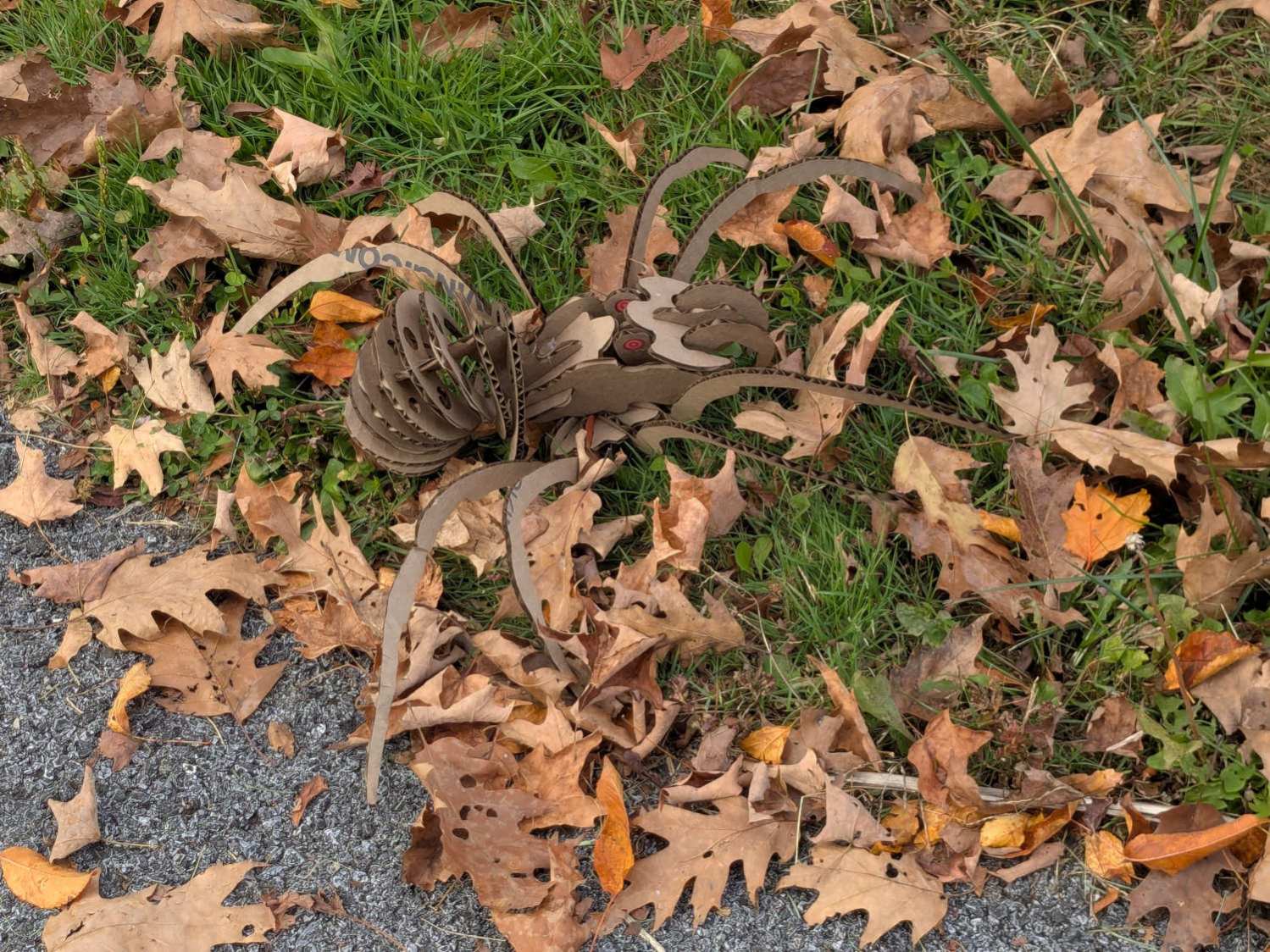
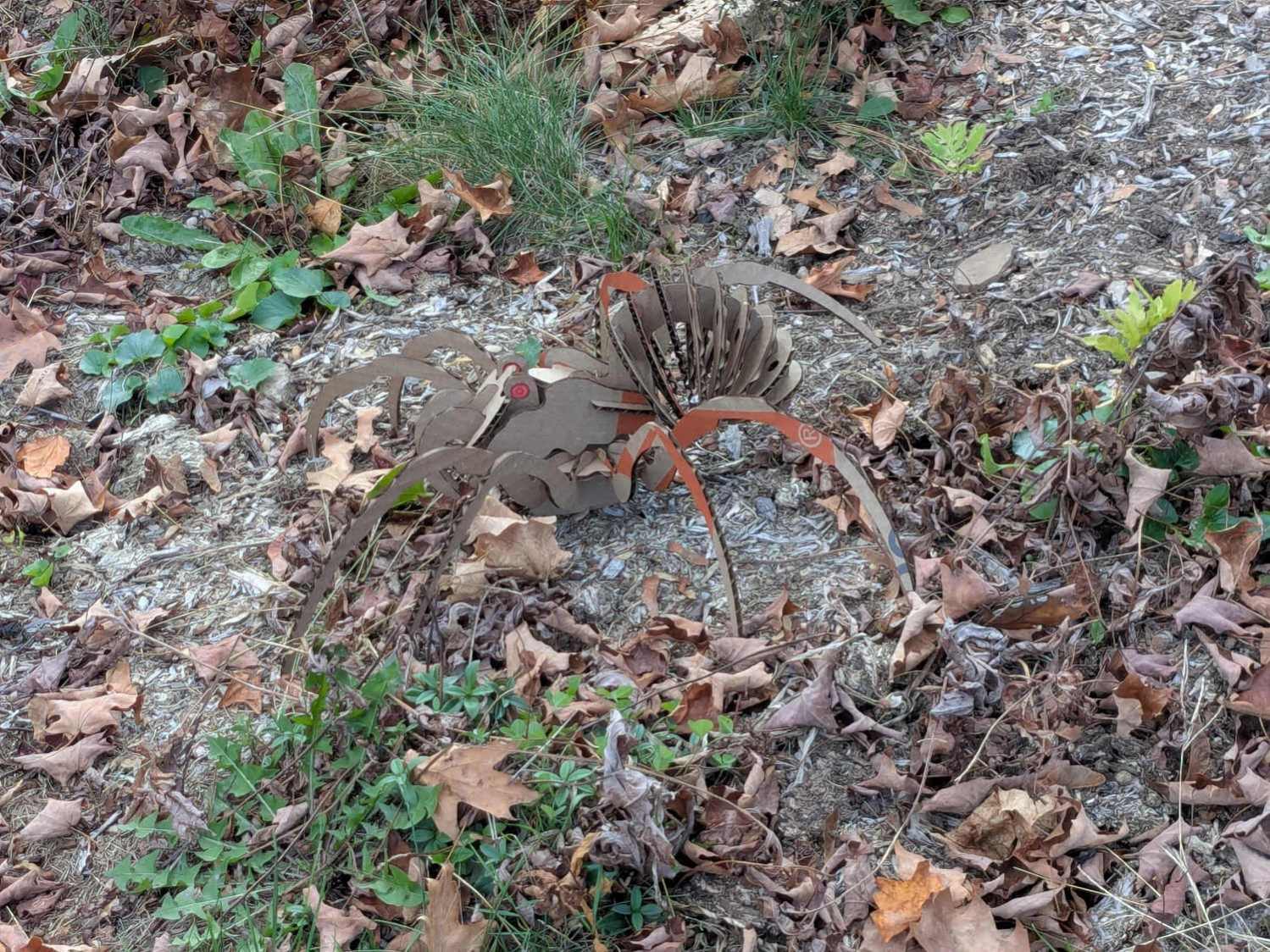
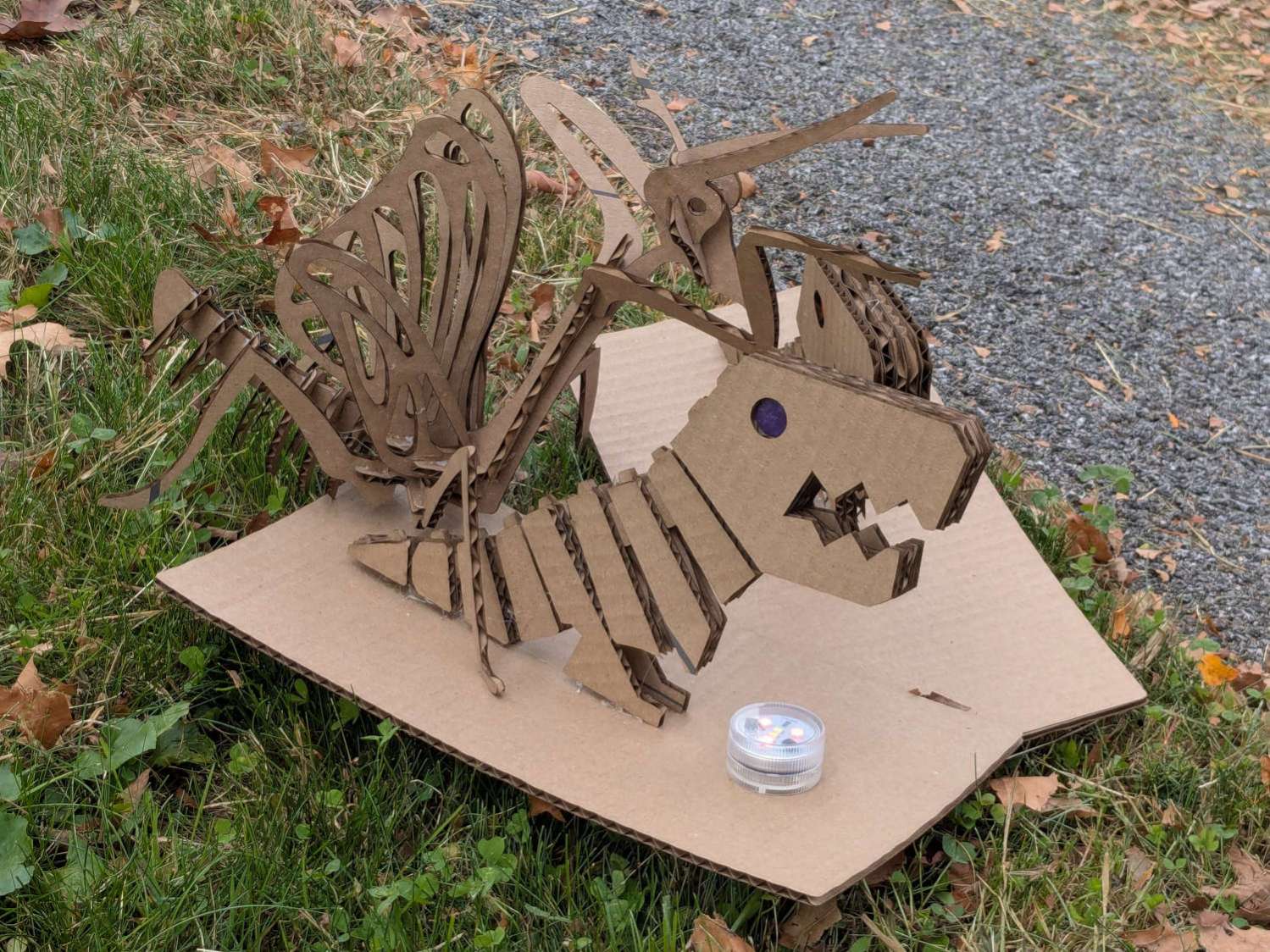
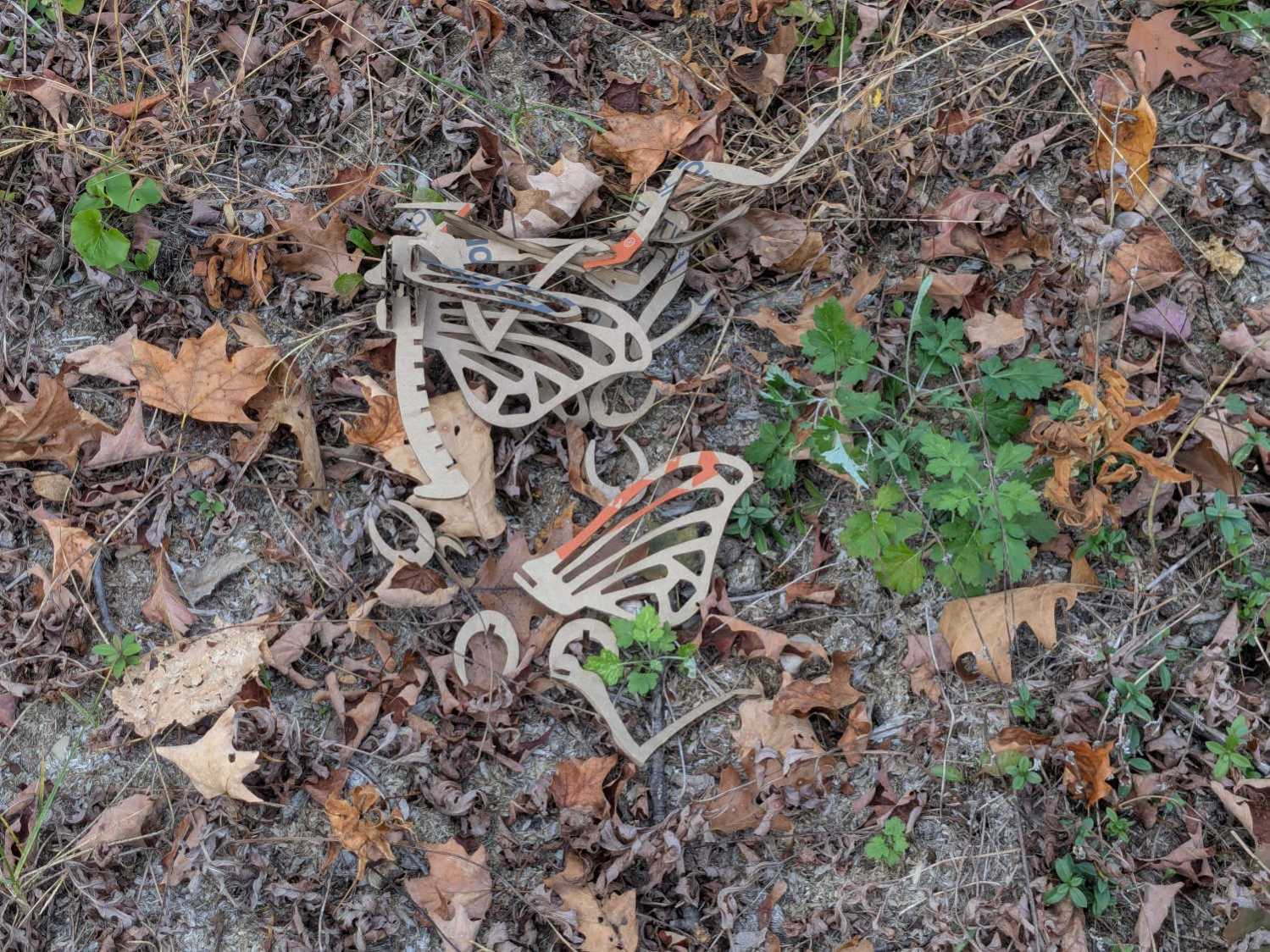
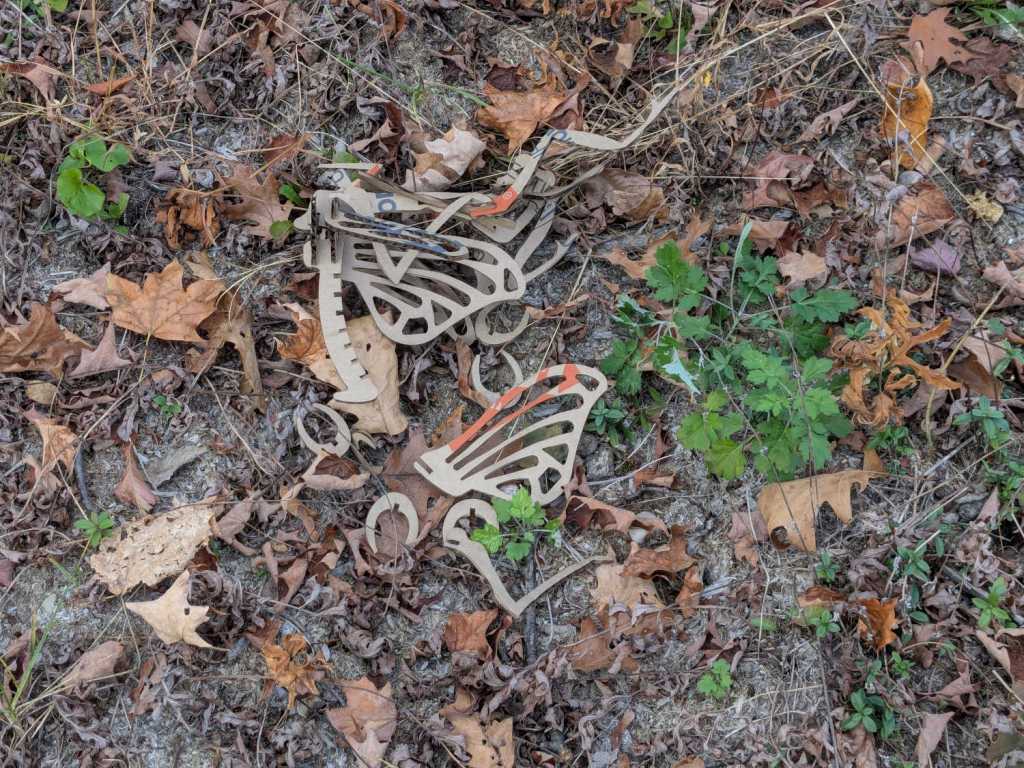
I deployed a cardboard Mantis in its honor as a seasonally appropriate yard decoration, but mine didn’t survive the night nearly as well as the real one:
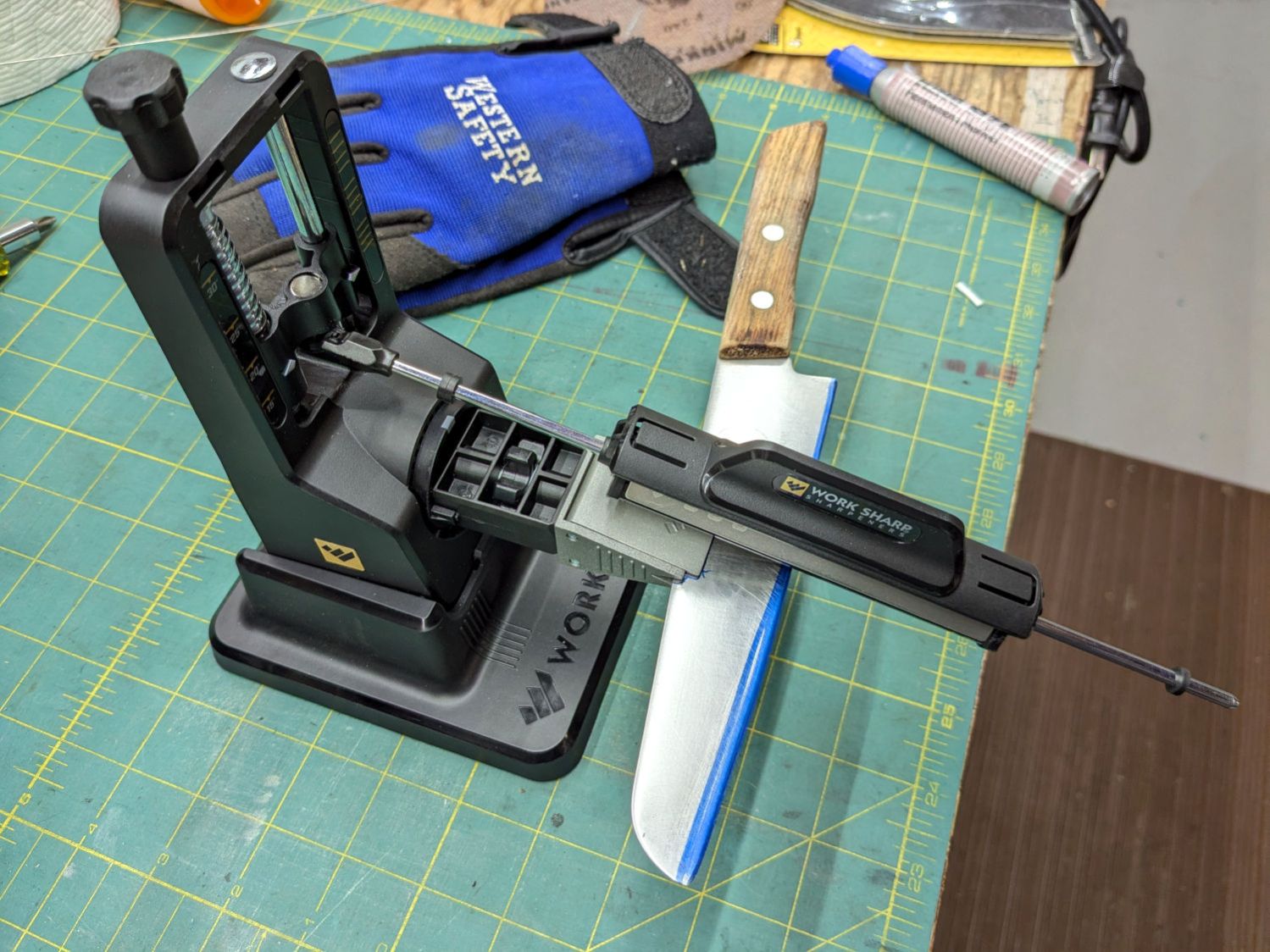
Protip: Wear gloves, because you’re working in front of an unprotected and eventually very sharp blade.
The blade-holding clamp snaps magnetically into a rotating chuck so you can flip the knife over, at least if it’s not quite as long as that one. The chuck index has a spring-loaded release button:
Work Sharp Knife Sharpener – rear view
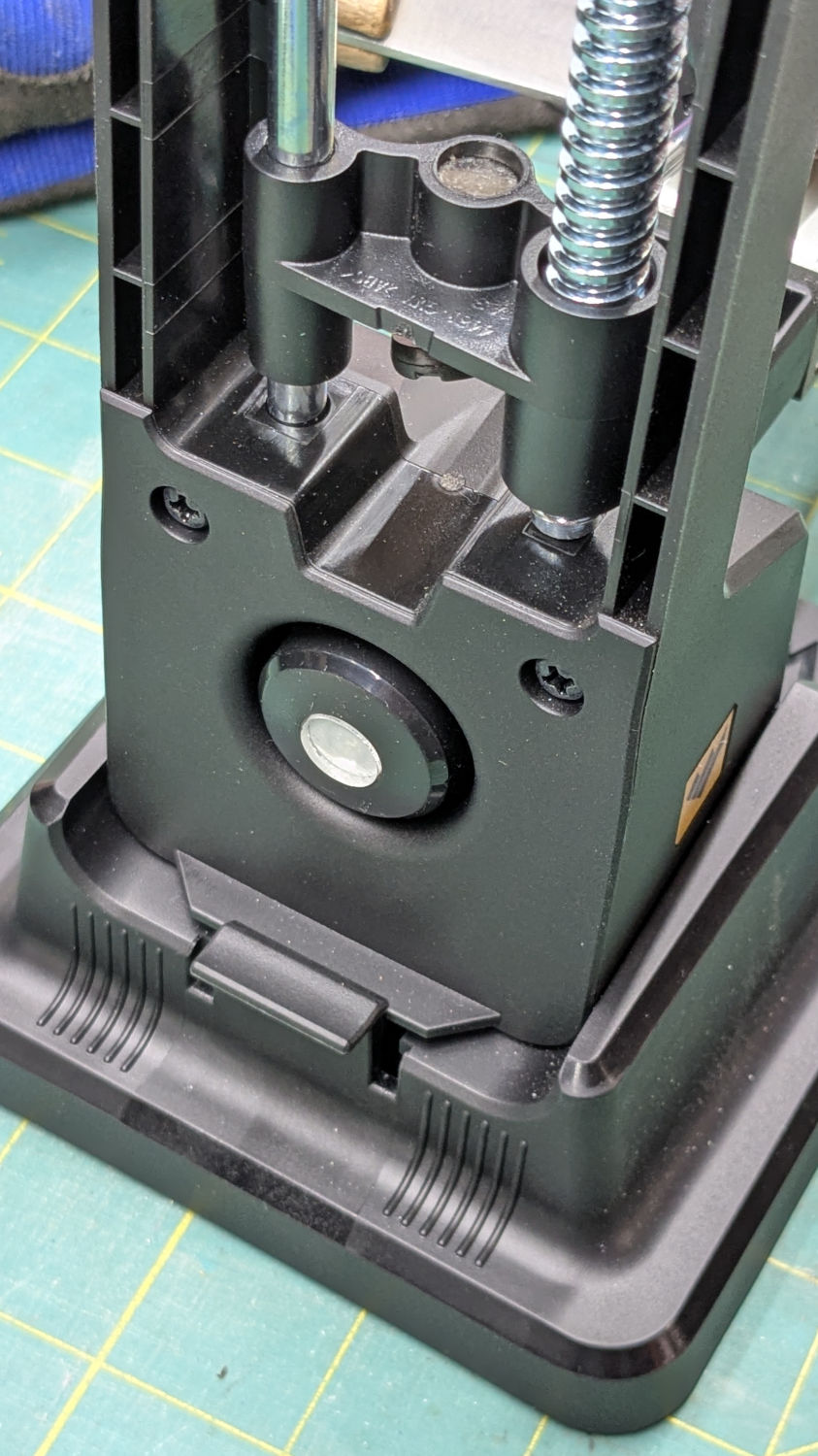
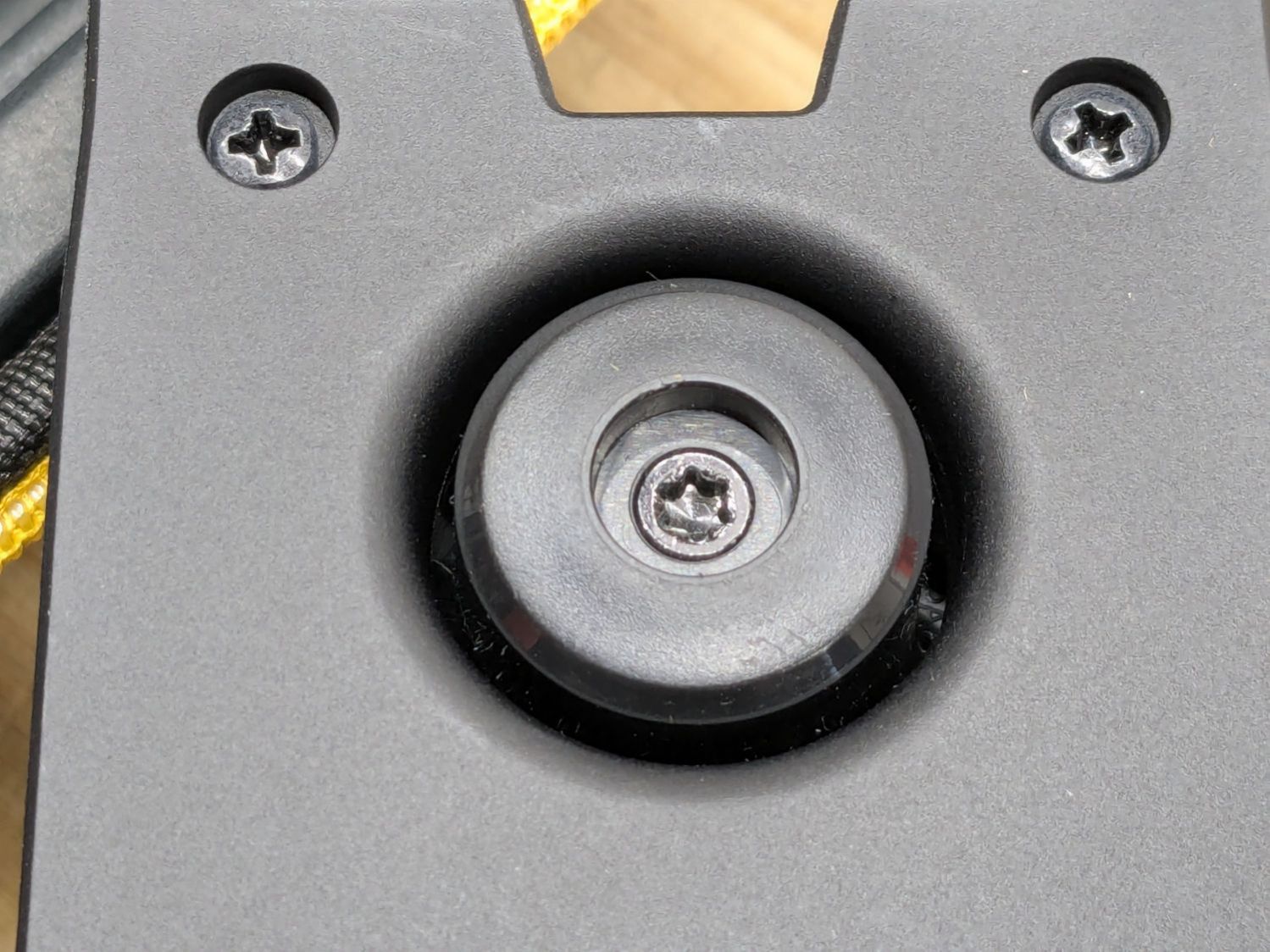
The spring is powerful and the button arrived with a recess around the screw holding the chuck together:
Work Sharp Knife Sharpener clamp button – as received
Pressing the button hard enough to release the chuck hurt my index finger, but their Tech Support said it’s like that and that’s the way it is. Turning the screw adjusts the spring compression, but I think this situation calls for “more secure” rather than “easy to push”.
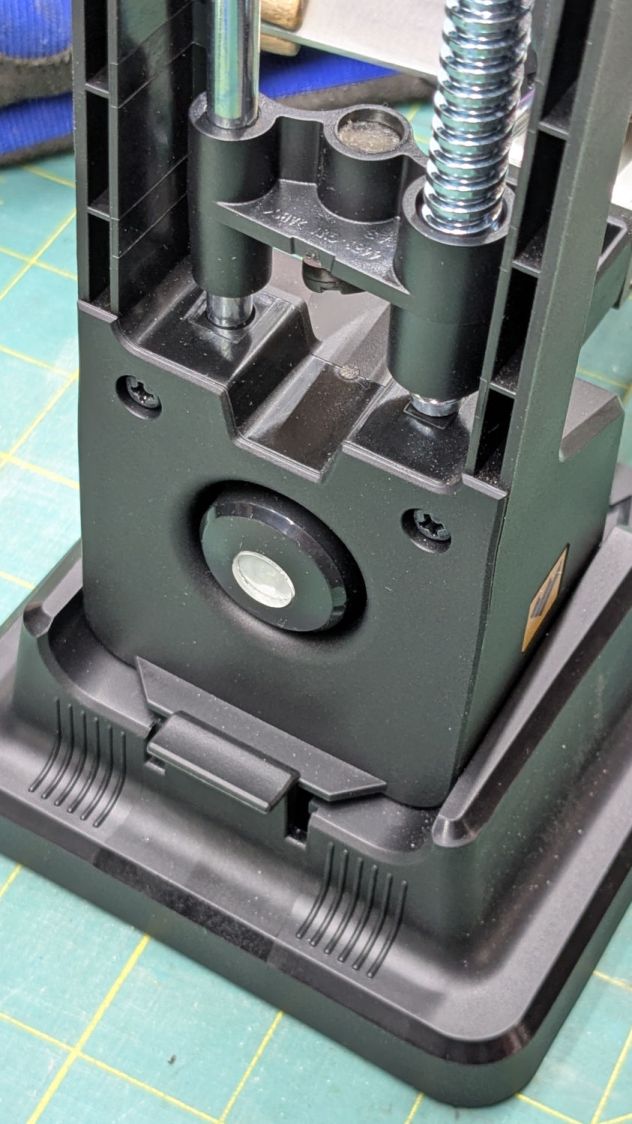
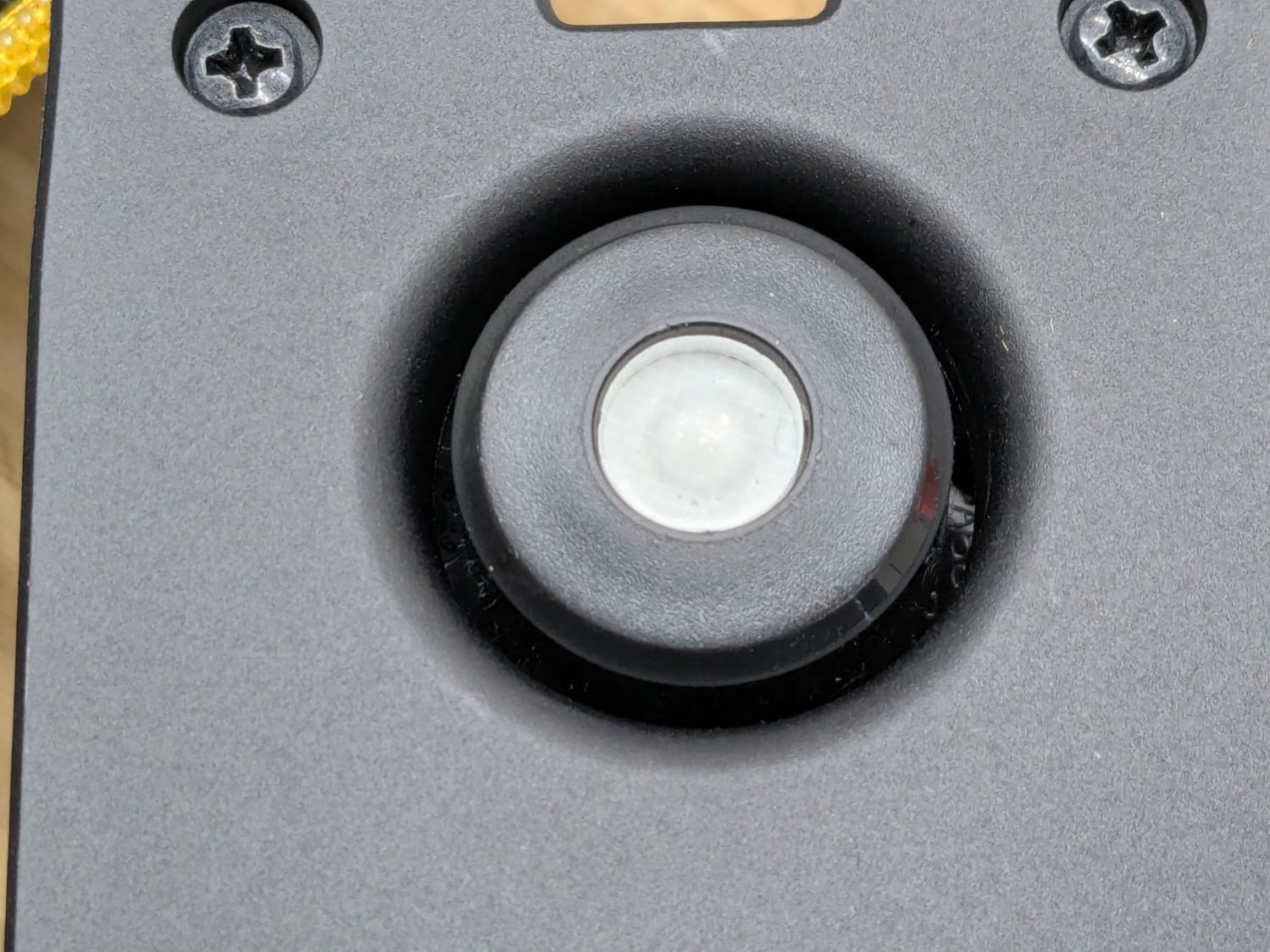
Fortunately, I have a laser cutter and know how to use it:
Work Sharp Knife Sharpener clamp button – filled
Despite appearances, it’s a 10 mm disk of 4.3 mm clear acrylic stuck to the screw head with a snippet of white double-sided tape and flush with the surrounding plastic surface.
A smooth button makes my index finger much happier …
A sheet of craft adhesive holds them together; stick a generous rectangle of adhesive on the cork, then cut them at the same time. However, given the irregular perimeter, it’s basically impossible (for me, anyway) to align the cork + adhesive with the printed frame.
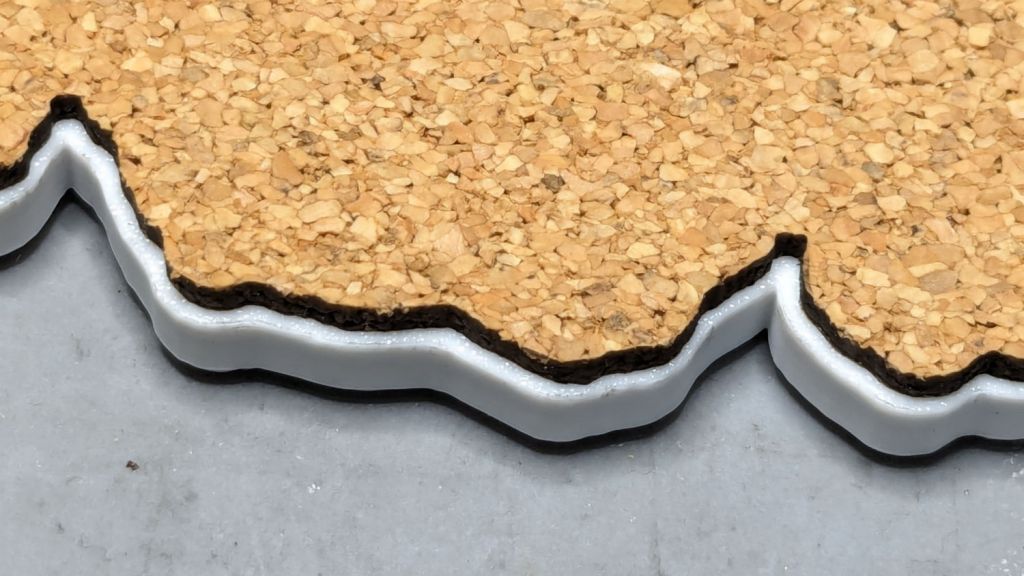
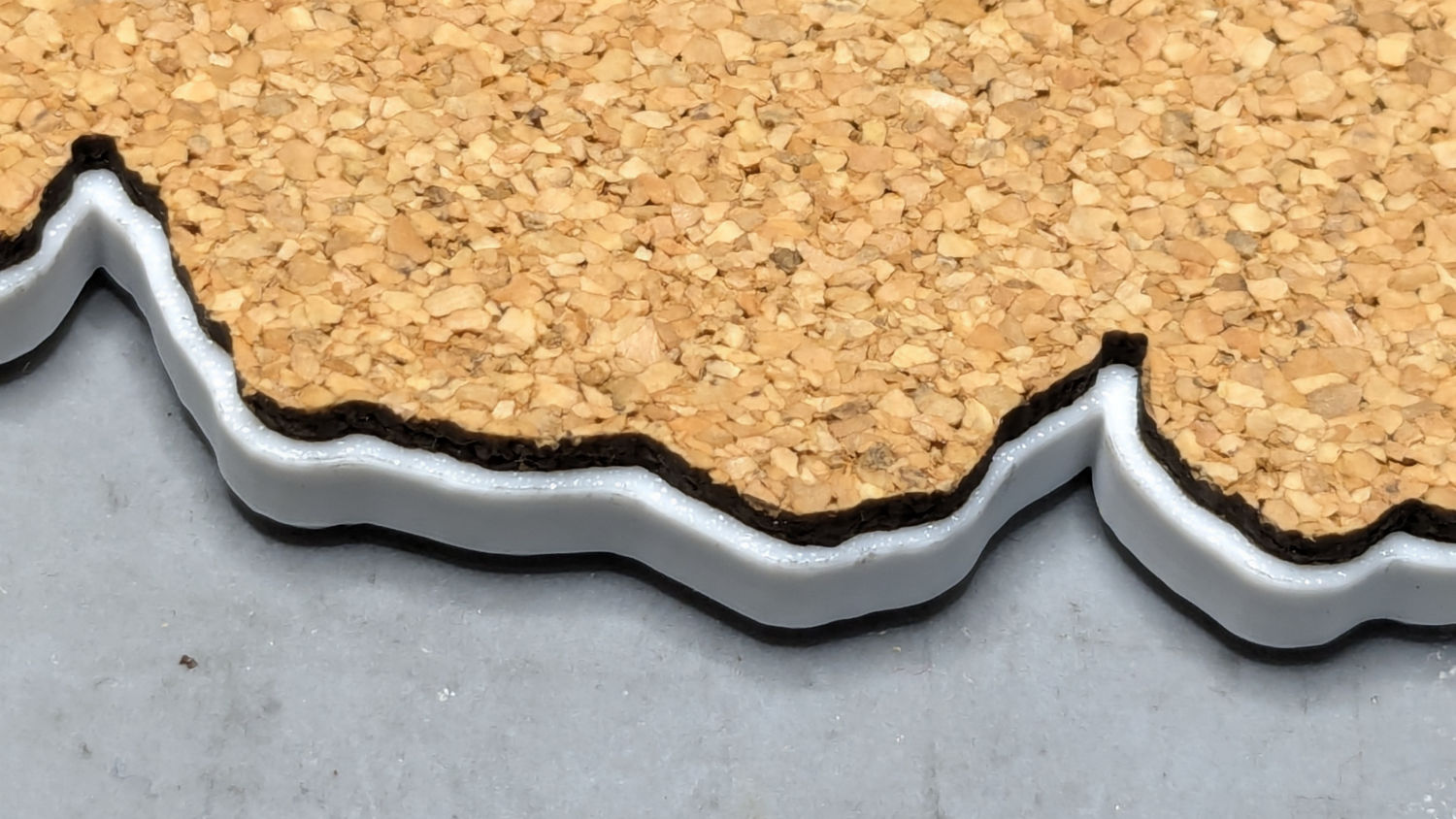
A single-use fixture made from corrugated cardboard make that task trivially easy:
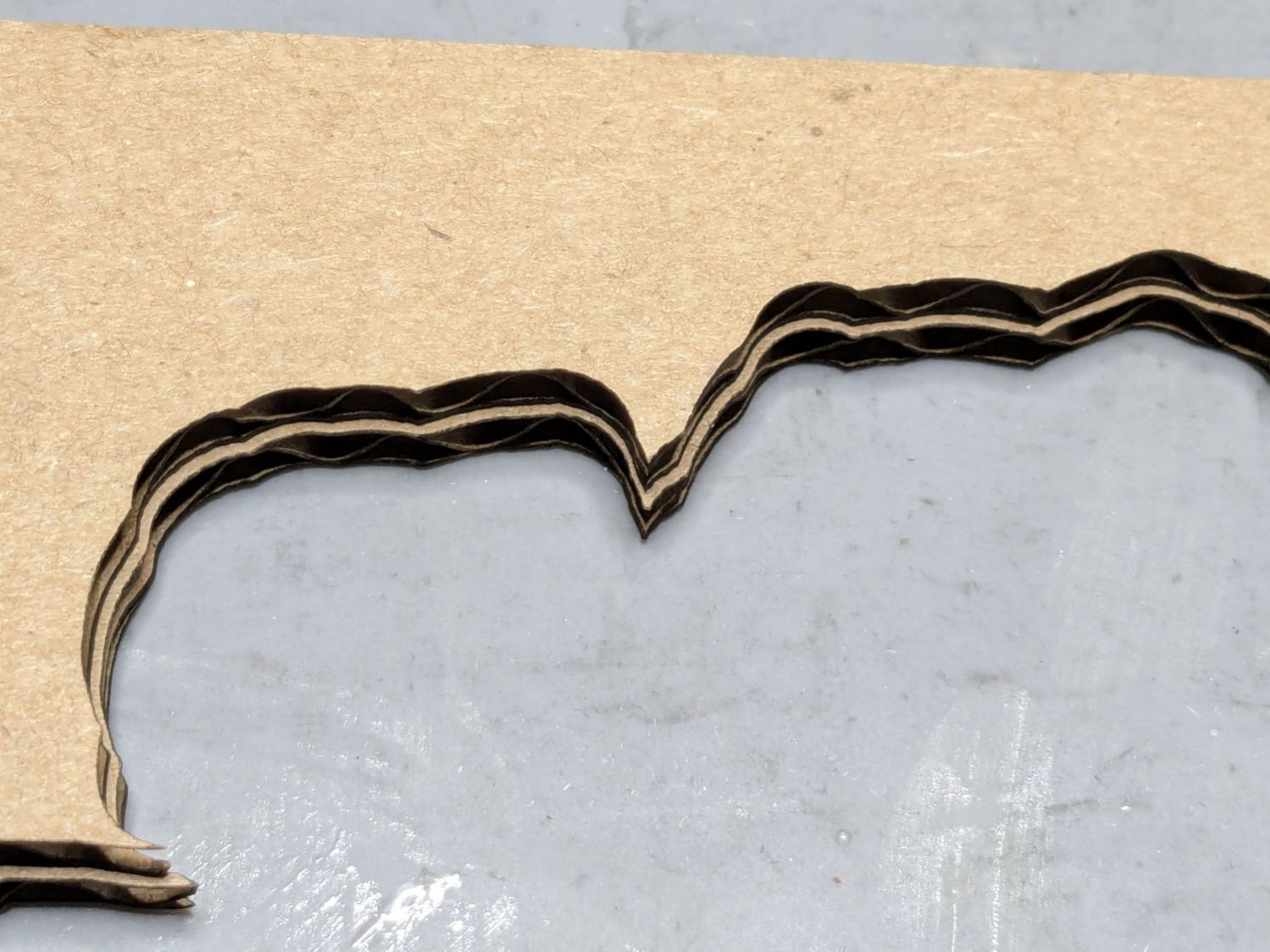
Printed Coaster – cork alignment fixture – detail
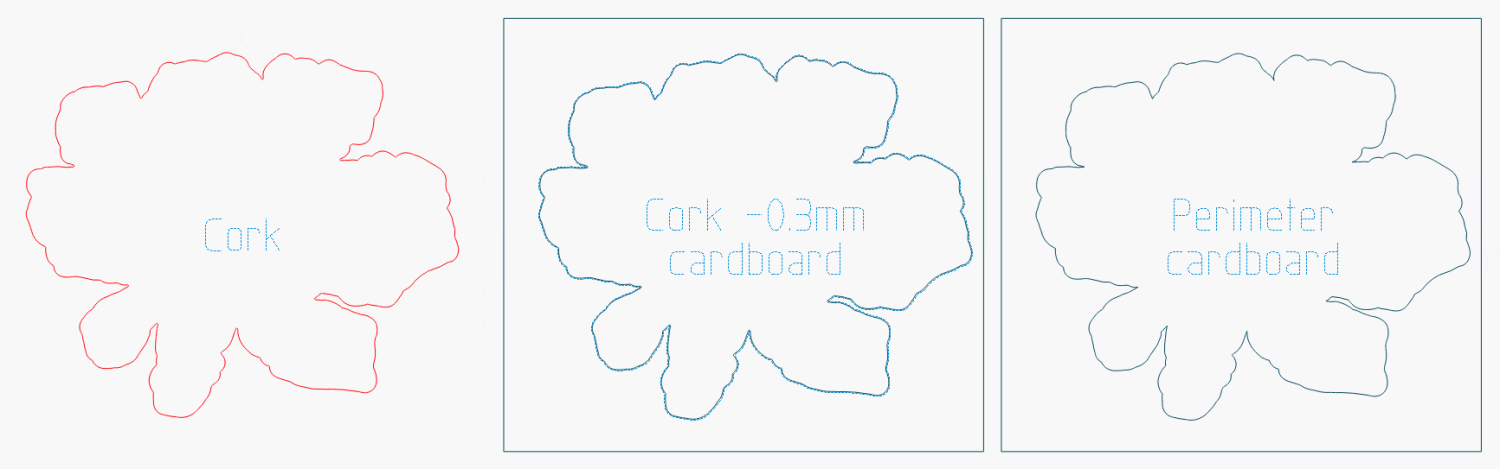
The LightBurn layout shows the cork layer and the two fixture pieces:
The cork shape is offset 0.5 mm inward from the Perimeter shape, but I found offsetting the cardboard cut by only 0.3 mm inward produced a snug fit around the cork. The other piece of cardboard gets cut with the exact Perimeter shape and no offset, with the laser kerf providing just enough clearance for a very snug fit on the printed shape.
Align the two pieces of cardboard by eye to match their inner shapes as shown in the picture, tape them together, and the fixture is ready. In principle, the outer edges should exactly coincide: Trust, but verify.
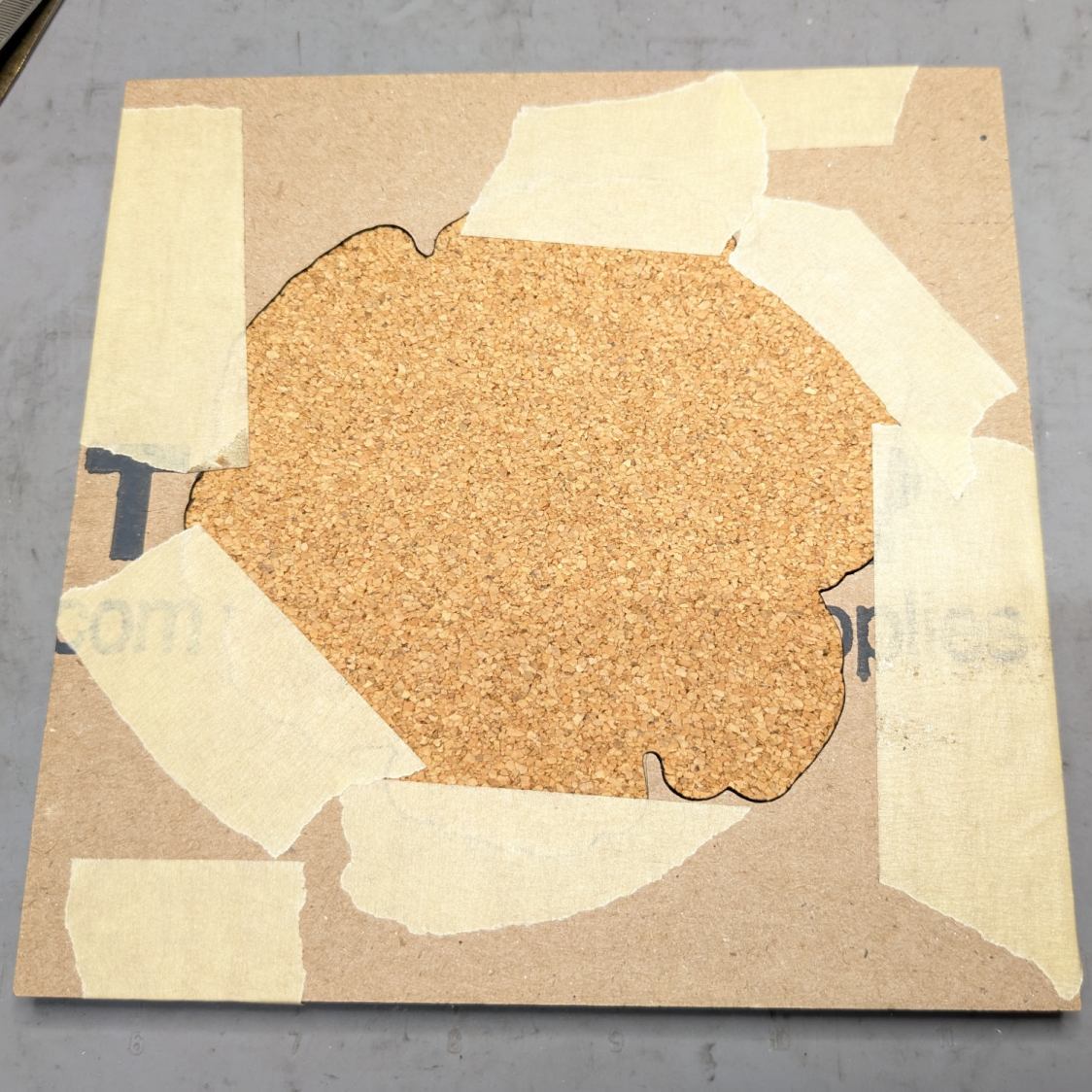
Peel off the craft adhesive paper and put the cork in the bottom of the fixture. The cork comes off a roll and really wants to roll up again, making the masking tape holding it flat mandatory:
Printed Coasters – cork alignment template
Yes, that’s a different coaster.
Flip the fixture over, drop the coaster in place, press firmly together, peel the tape, and pull out the finished coaster:
Printed Coasters – white PETG finished
The fixture goes in the recycling bin, as those fragments will never pass this way again.
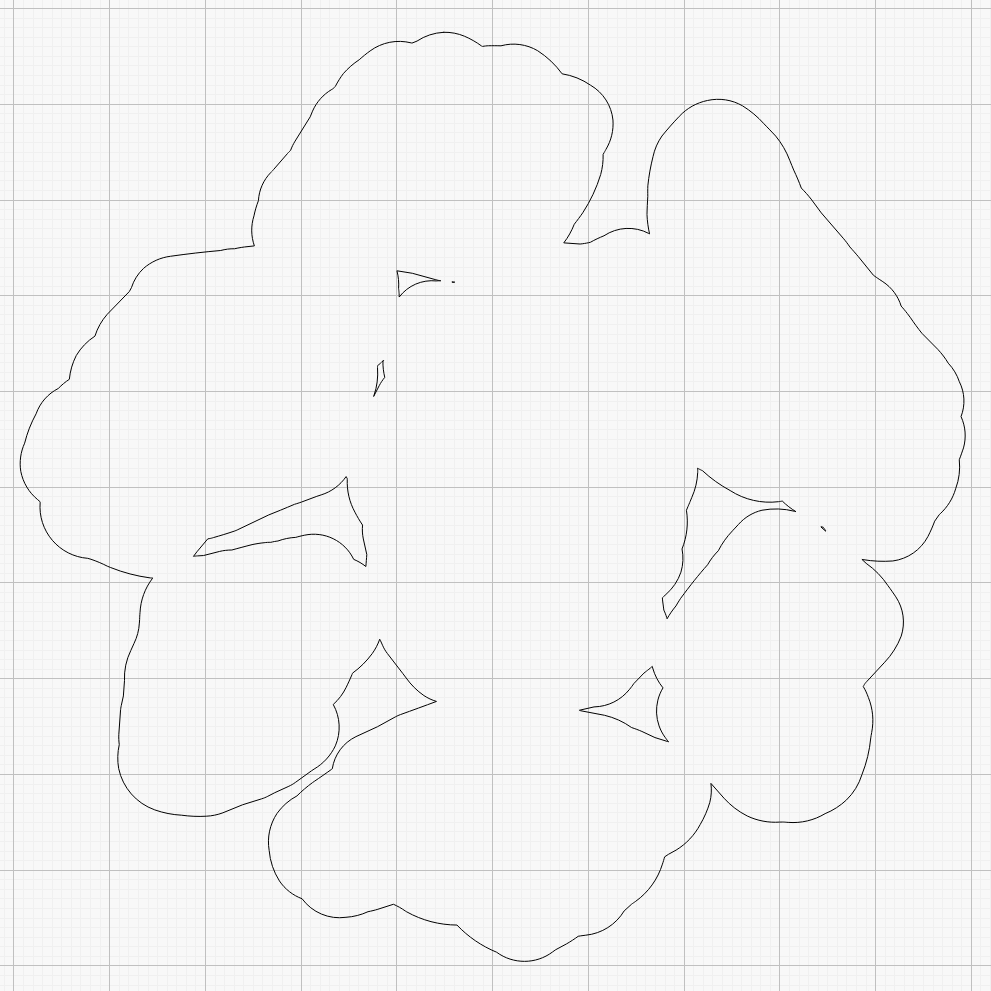
Create the perimeter path as an offset around all the fragments in LightBurn
Because the fragments have irregular shapes and spacing, creating the perimeter path may also produce small snippets of orphaned geometry which must be manually selected and deleted. I also edit the path to remove very narrow channels between adjacent fragments.
Which is why you can’t generate that path automatically:
Printed Coaster Layout – 100 mm Set G – LightBurn perimeter geometry
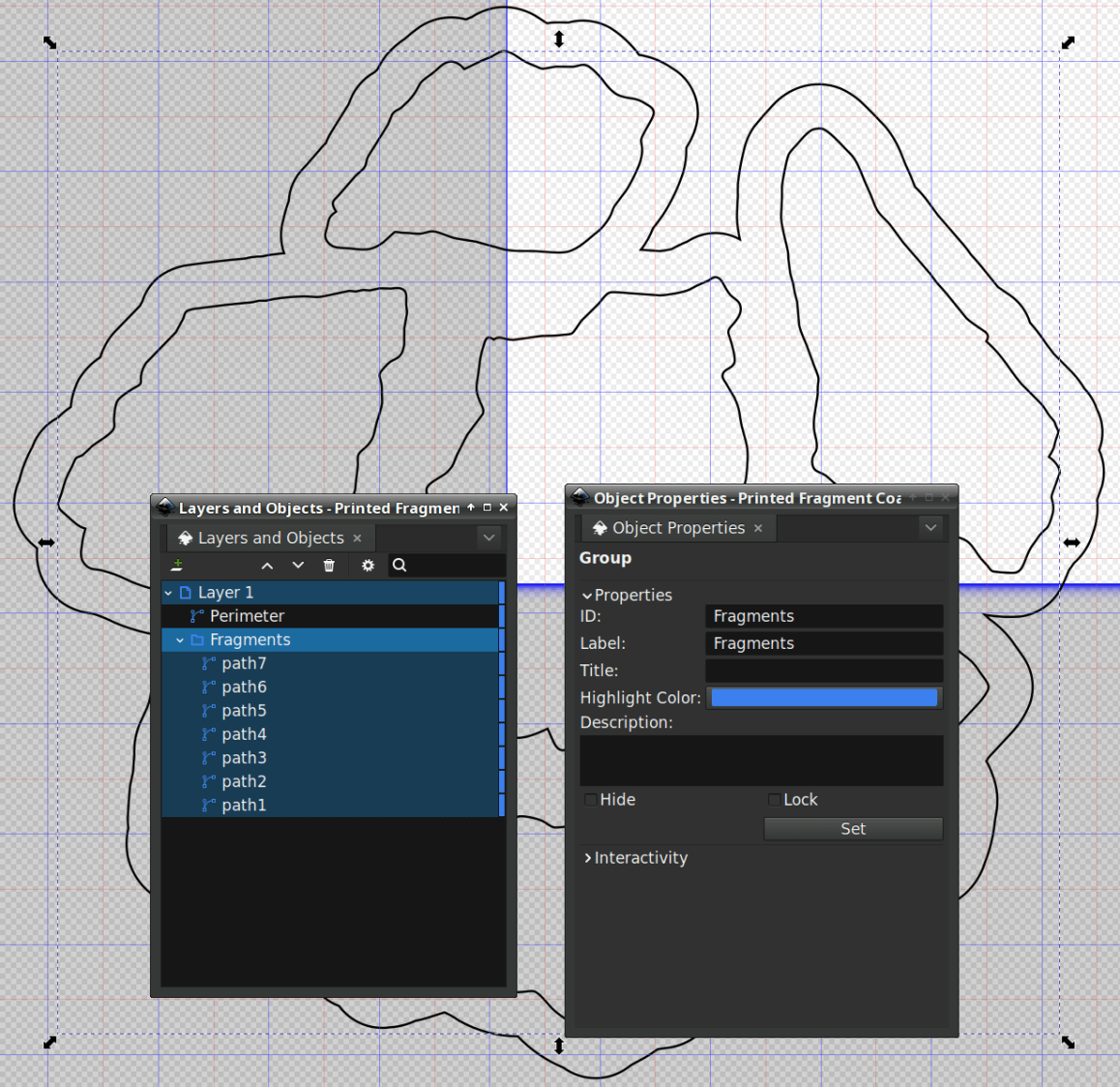
Because LightBurn doesn’t have the ability to name the various paths, the next step requires Inkscape. After importing the LightBurn paths saved as an SVG, group all the fragments and name the group Fragments, then name the perimeter path Perimeter:
Printed Coaster Layout – 100 mm Set G – Inkscape layer and IDs
Inkscape still crashes unpredictably while doing what seems to be a simple process, which may be due to the tremendous number of points in the hand-traced fragment outlines. Unfortunately, simplifying the curves in either LightBurn or Inkscape tends to round off the extreme points and increases the likelihood of the fragment not fitting into its recess.
OpenSCAD generates all the other features in the solid model with paths plucked from that file:
include <BOSL2/std.scad>

fn = "Printed Fragment Coaster - 100 mm Set G - Inkscape paths.svg";

FragmentThick = 3.8;

BaseThick = 1.0;
RimHeight = 1.0;

union() {

  linear_extrude(h=BaseThick)
    import(fn,id="Perimeter");

   color("Green")
  up(BaseThick)
    linear_extrude(h=FragmentThick)
      difference() {
        import(fn,id="Perimeter");
        offset(delta=0.2)
          import(fn,id="Fragments");
      }

  color("Red")
  up(BaseThick)
    linear_extrude(h=FragmentThick + RimHeight)
      difference() {
        offset(delta=2.5)
          import(fn,id="Fragments");
        offset(delta=1.2)
          import(fn,id="Fragments");
      }


}
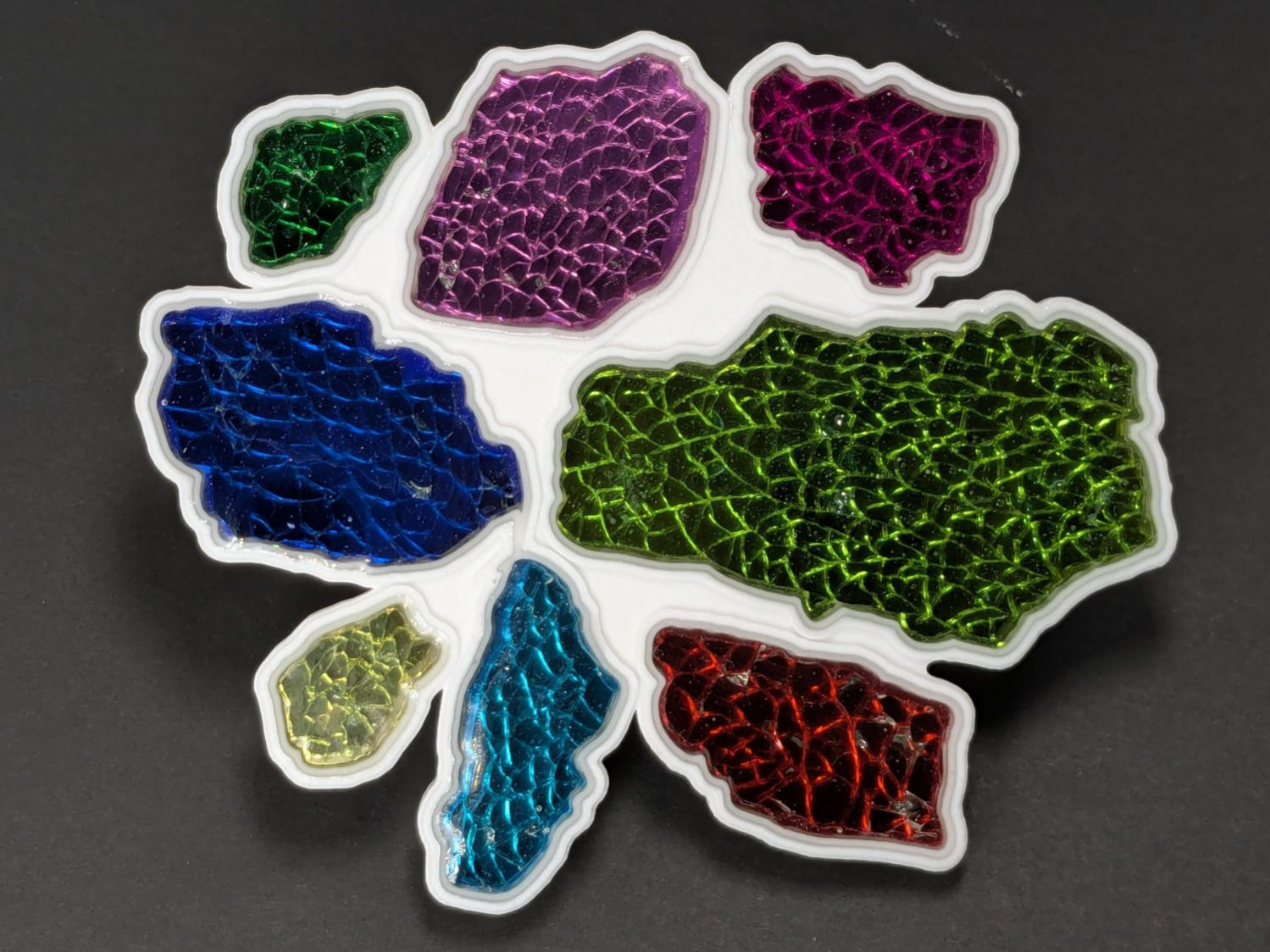
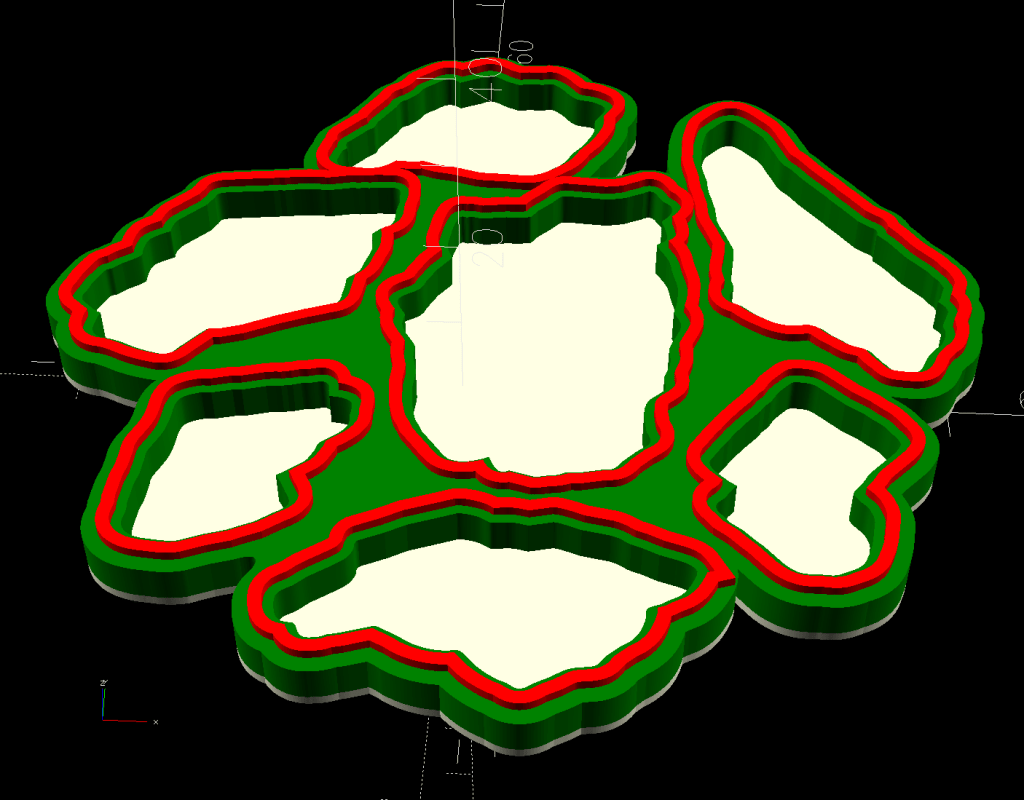
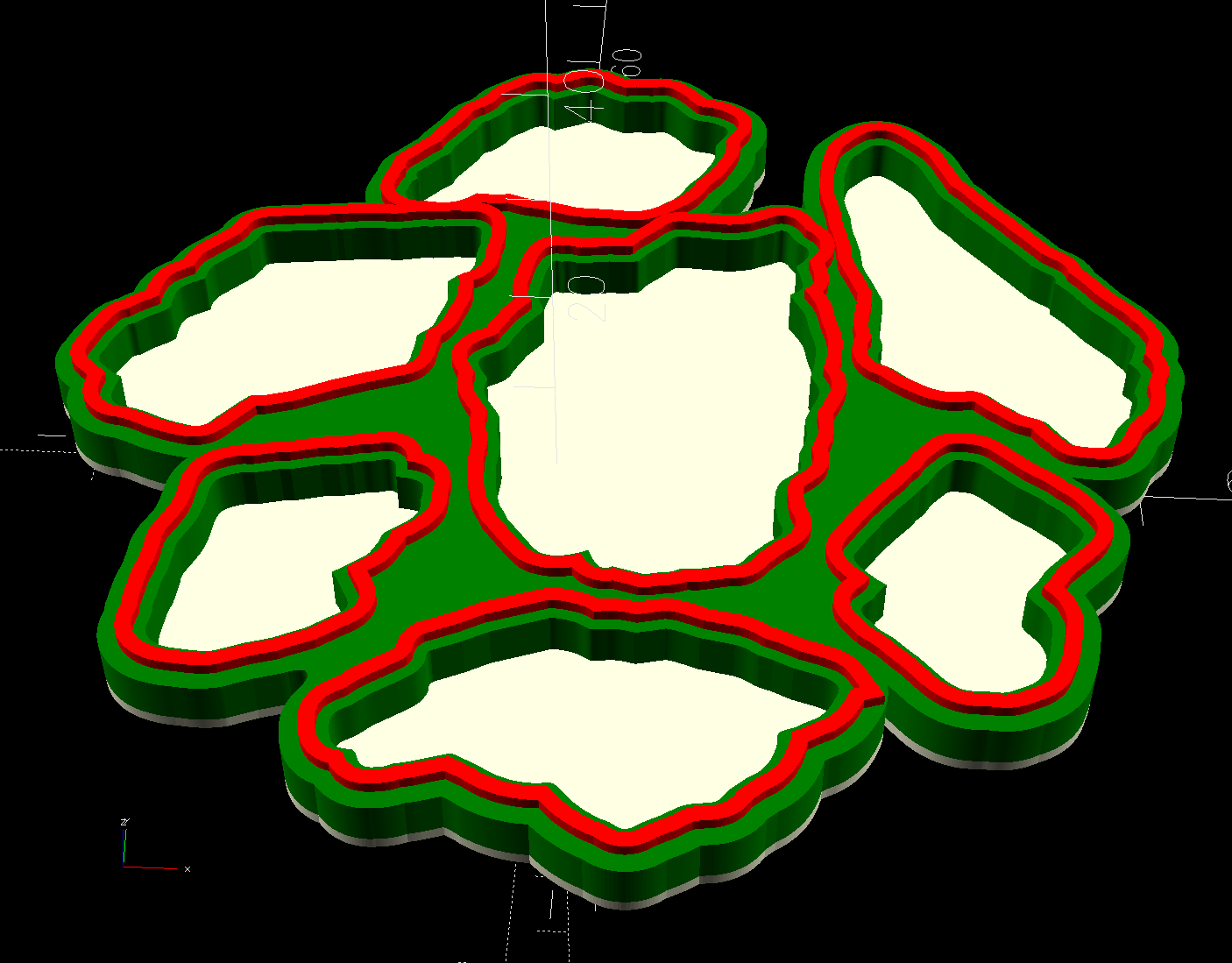
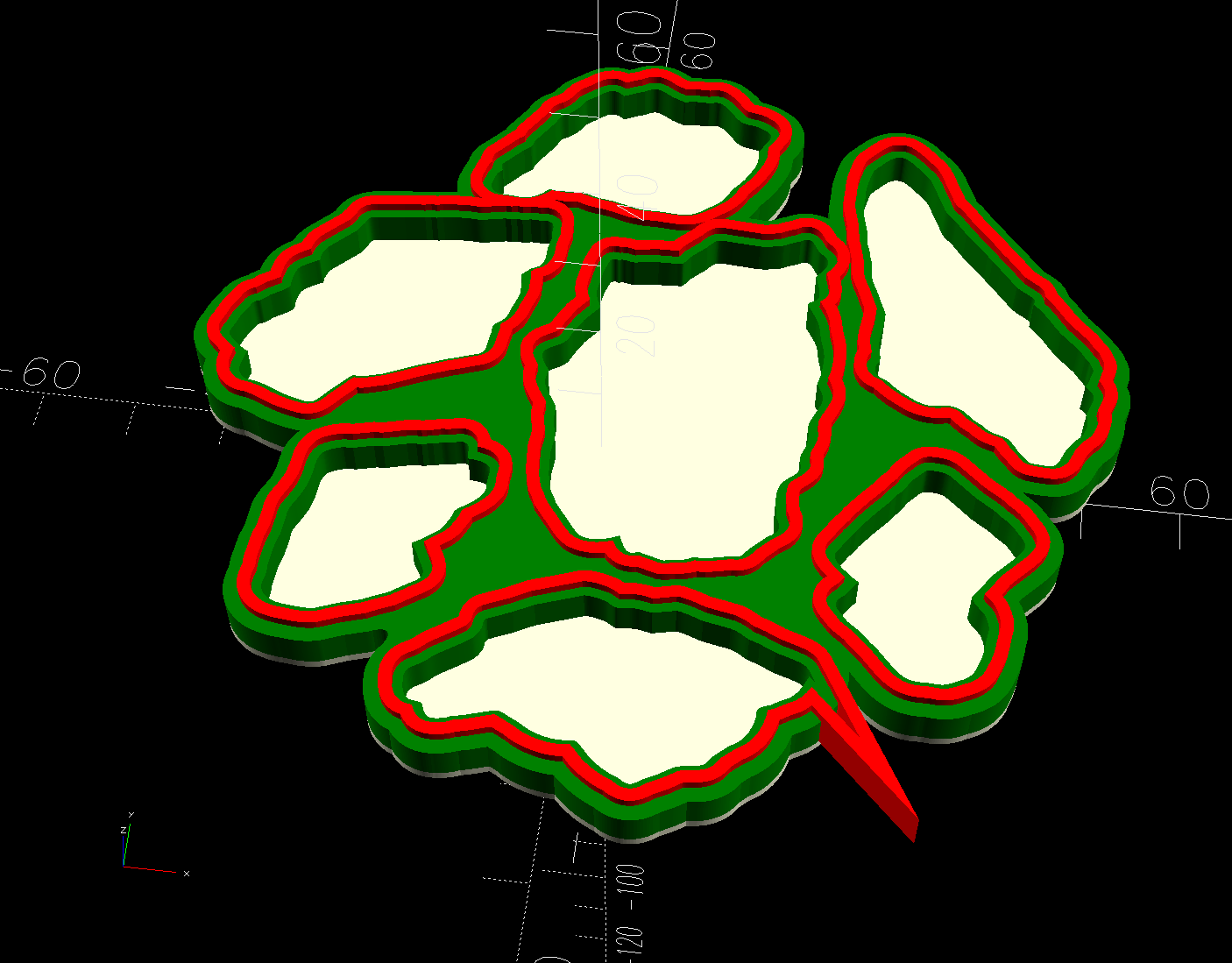
The Perimeter path defines the overall shape of the coaster as a 1.0 mm thick slab, visible as the white-ish line around the edge and at the bottom of all the fragment recesses.
Atop that, the green shape is the same Perimeter shape, with the Fragment shapes removed after the offset() operation enlarges them by 0.2 mm to ensure enough clearance.
Finally, the red walls containing the epoxy above each fragment are 1.3 mm wide, the difference of the two offset() operations applied to the Fragments.
Because the outer edge of the wall is 2.5 mm away from the edge of its fragment:
The Perimeter path must be offset at least 2.5 mm from the Fragments in LightBurn. I used 4.0 mm to produce a small lip around the outside edge of the coaster.
The fragment shapes must be placed at least 5.0 mm apart to prevent the walls from overlapping. I set Deepnest to exactly 5.0 mm spacing, but you can see a few places where the fragments come too close together. I think this happens due to an approximation deepnest uses while rotating the paths, but it may be better to manually adjust the errant fragments than increase the average space.
While this still requires manually tracing the glass fragments and fiddling a bit with Inkscape, the overall process isn’t nearly as burdensome as getting all the offsets correct every time.
However, some oddities remain. OpenSCAD produced this result during the first pass through the process for this coaster:
Printed Coaster Layout – 100 mm Set G – spurious point
As far as I can tell, the spurious point came from a numeric effect, because telling Inkscape to store only five decimal places in the SVG file reduced the spike to the small bump seen in the first picture. I cannot replicate that effect using the same files and have no explanation.

 The Smell of Molten Projects in the Morning