The Smell of Molten Projects in the Morning

Ed Nisley's Blog: Shop notes, electronics, firmware, machinery, 3D printing, laser cuttery, and curiosities. Contents: 100% human thinking, 0% AI slop.

Tag: Laser Cutter

  • Punched Card Production

    Punched Card Production

    For reasons I cannot divulge at the moment, I have undertaken a project requiring Old School punched cards, although they will never be fed through a card reader. Because we live in the future, punched cards are no longer a cheap and readily available resource; I will always deeply regret trashing an entire box back in the day.

    However, living in the future does confer some advantages:

    Punched cards - Apollo 11 CM
    Punched cards – Apollo 11 CM

    The process involves a vast number of moving parts, not all of which I fully understand, but I can (generally) produce consistent results and that must suffice. This post is an overview; I will go into the moving parts in more detail so I can remember why I did what I did.

    A Python program converts a line of text into an SVG file that contains either the card’s printable contents or the paths required to cut its holes & perimeter. A handful of command-line switches determines the outcome, so you run the program twice with different switches for each line of text to get a matched pair of SVG files.

    A Bash script read a text file and hands each line to the Python program, producing two SVG files for each card. It then invokes Inkscape to convert the printable SVG into a PNG image, uses Imagemagic to composite the logo behind the card contents & scale the result to make my printer’s output match the laser’s dead-on positioning, then properly position the card image in a Letter-size PNG image that’s apparently the only way to print it accurately on a punched card:

    Composited Letter layout - exvb-00000710-lt
    Composited Letter layout – exvb-00000710-lt

    That’s not full size.

    N.B.: there’s no such thing as a blank card that will be punched later, because the printed card includes the text across the top. The program also suppresses the row digits where a punch will appear, thus making slight misalignments less painful and mismatched SVG files more obvious.

    Print all the card images on precut 1/3 Letter size sheets of heavy cardstock:

    Ext Verb cards - 0280 skewed print
    Ext Verb cards – 0280 skewed print

    Yes, the printing on the middle card is slightly skewed with respect to the precut card blank. The overall process must handle about two millimeters of positioning inaccuracy and whatever angular skew comes from the printer’s paper feed rollers / guides.

    A DOS Windows BAT file feeds the SVG files with the holes & outline paths to LightBurn, one by one. No lie.

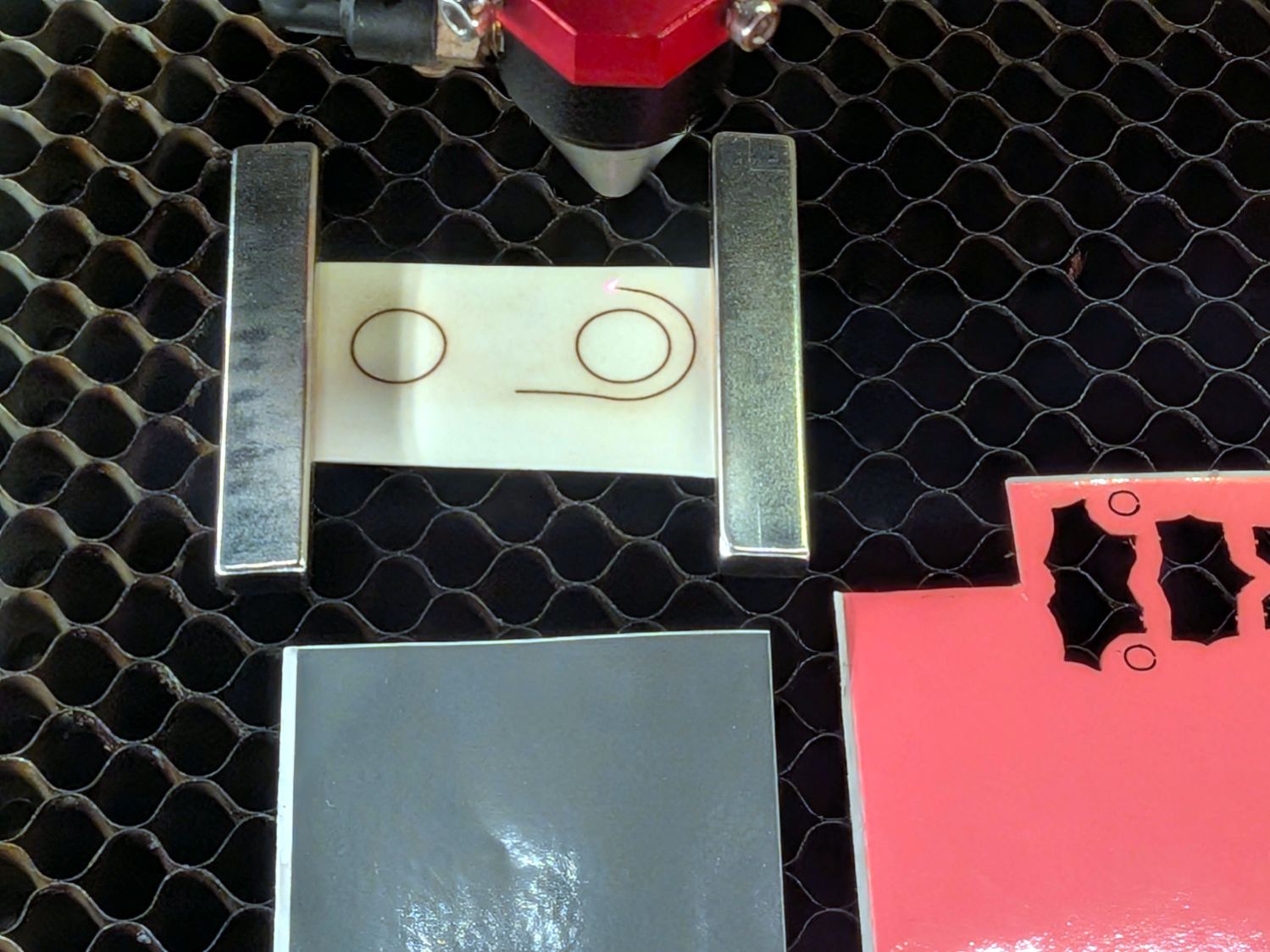
    Put each printed card in a fixture and align its targets, whereupon LightBurn evaporates the holes and cuts the outline:

    Punched cards - laser fixture overview
    Punched cards – laser fixture overview

    In my somewhat biased opinion, the results look good:

    Ext Verb cards - 0270-0290 punched
    Ext Verb cards – 0270-0290 punched

    The Python program also produces cards with test patterns useful for wringing out the process:

    Punched cards - character tests
    Punched cards – character tests

    “Punching” a lace card is no problem and, given an all-blank text line, the result looks like a blank card:

    Punched cards - lace and blank tests
    Punched cards – lace and blank tests

    If you happen to have a card punch, be my guest.

    The source text for the cards comes from the Apollo Guidance Computer in the Apollo 11 Command Module, via an amazing GitHub repository. You can run a virtual AGC in the privacy & comfort of your own home.

    Useful links:

  • OMTech Laser Cutter: Custom Air Fitting Wrench

    OMTech Laser Cutter: Custom Air Fitting Wrench

    Changing the lens on the laser requires unscrewing the nozzle after removing the assist air fitting that collides with the focus pen holder:

    Laser head - assist air vs focus pen
    Laser head – assist air vs focus pen

    All the 12 mm open-end wrenches in my Drawer o’ Spare Wrenches being much too large, I finally got around to making a custom wrench:

    Air fitting wrenches
    Air fitting wrenches

    The plywood wrench came from a traced scan of a similar wrench, then adjusting the jaw opening to 12 mm. It served to verify the overall shape & size, then became a template for the real wrench atop a scrap of 1/8 inch aluminum sheet with flaking paint.

    Some bandsawing and filing later:

    Air fitting wrench - at nozzle
    Air fitting wrench – at nozzle

    A little wrench makes swapping the lens somewhat less tedious, which is a Good Thing™.

    Protip: Remember to adjust the Focus Distance by the difference between the two lenses.

  • Plywood Coaster Warpage

    Plywood Coaster Warpage

    This is what happens to an uncoated plywood coaster with fairly deep laser engraving after about half a year of use:

    Warped plywood coaster - front
    Warped plywood coaster – front

    The poor thing went all potato chip:

    Warped plywood coaster - side
    Warped plywood coaster – side

    I swapped it for one with polyurethane sealant, much like those fancier coasters with the same layout, and we’ll see if it survives longer …

  • Ortur YRC-1 Chuck: Tube Reinforcement

    Ortur YRC-1 Chuck: Tube Reinforcement

    Tuck a neatly laser-cut disk into a flimsy cardboard tube:

    Ortur YRC-1 - cardboard tube reinforcement
    Ortur YRC-1 – cardboard tube reinforcement

    Put a big conical center in the tailstock:

    Ortur Chuck Rotary conical center - front
    Ortur Chuck Rotary conical center – front

    Whereupon the tube remains nicely tubular on both ends and aligned along the chuck axis:

    Ortur YRC-1 - chucked cardboard tube
    Ortur YRC-1 – chucked cardboard tube

    Which is why you save all that scrap material …

    Yes, it’s the core from a toilet paper roll, which is way cheaper than burning through tumblers / mugs / shot glasses / whatever while figuring this stuff out.

  • OMTech Laser Cutter vs. Ortur YRC-1 Rotary: Job Checklist

    OMTech Laser Cutter vs. Ortur YRC-1 Rotary: Job Checklist

    The process of switching the laser cutter from “normal” operation to the Ortur YRC-1 rotary and back again requires a checklist:

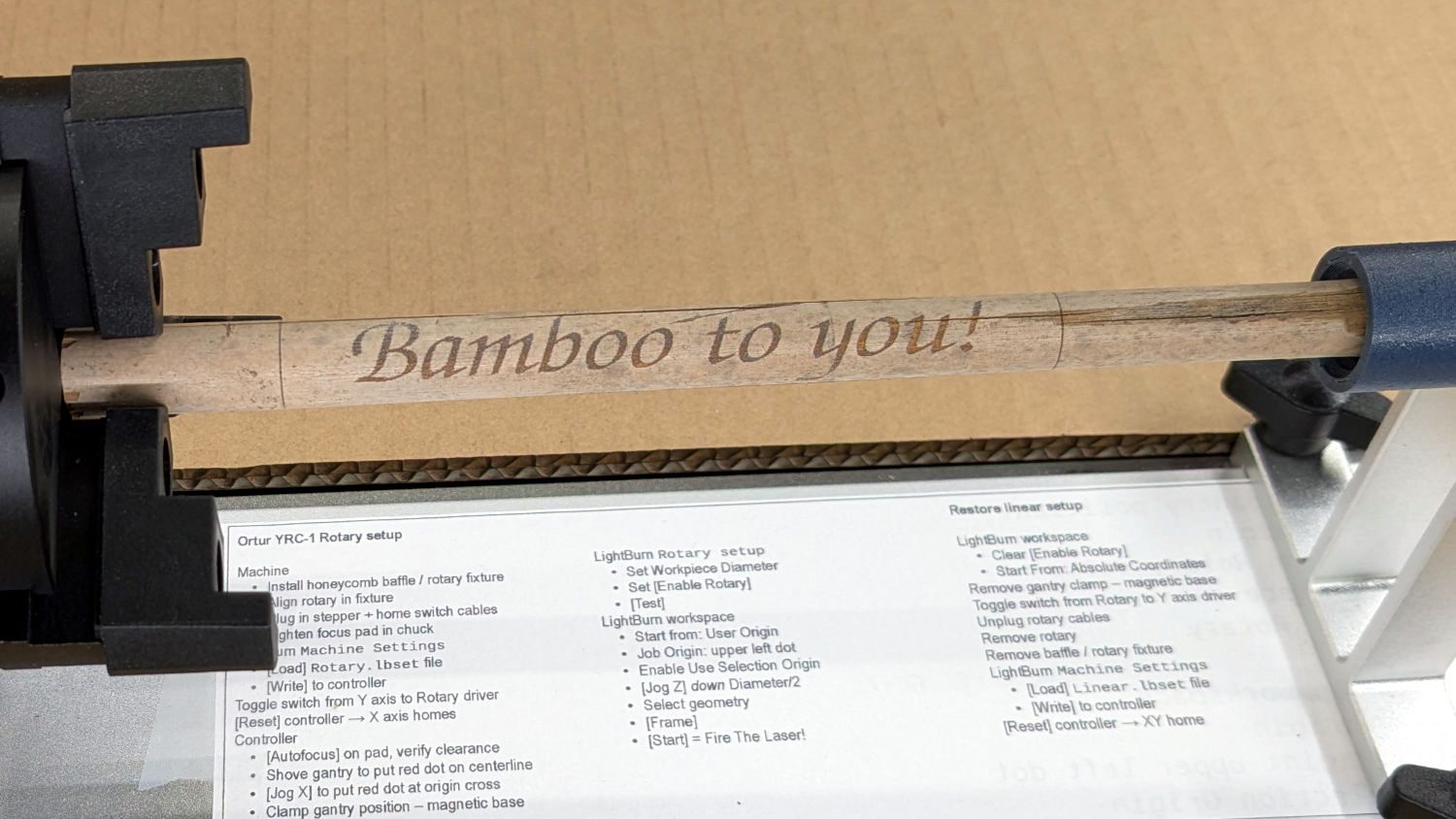
    Ortur YRC-1 Setup Checklist - installed
    Ortur YRC-1 Setup Checklist – installed

    Which looks like this:

    Ortur YRC-1 Setup Checklist
    Ortur YRC-1 Setup Checklist

    The same thing as a PDF will be more printable or readable.

    Previous posts cover what goes into making it work:

    Notes:

    • Always disable the rotary’s stepper driver before connecting or disconnecting its cable.
    • The Ortur YRC-1 rotary has a pulley ratio of 1:3, so the step/rev value is three times the DIP switch setting on the stepper driver. For this setup, 1600 → 4800 step/rev.
    • The honeycomb frame is a parallelogram, not a rectangle. I align the cardboard baffle / fixture to the bottom edge of the frame and the rotary to the bottom edge of the fixture opening, but your machine will be different. The angular alignment may not be off by enough to matter, but consistency is a virtue.
    • The Rotary.lbset and Linear.lbset files live on a file server with daily backups. Such backups will come in handy when you inadvertently overwrite one of those files with the other one. Trust me on this.
    • The Rotary.lbset file does not have Rotary Mode enabled, because the KT332N does not home the Y axis in that mode. If your rotary lacks a home switch, then it doesn’t matter and you’re on your own.
    • The KT332N controller has a [Reset] button that allegedly does a power-on reset and reloads all the changed Machine Settings. This sometimes does not work as expected: power-cycling the controller is the only way to be sure.
    • The autofocus operation must hit the focus pad, which can be ensured by positioning the pen near the pad, jogging the platform a few millimeters under the pen, tweaking X and the gantry while peering down parallel to the pen, then doing the autofocus.
    • The focus pad has a crosshair clearing the chonky Ortur 3-step jaws, but I set the controller’s [Origin] at the foot of the pad’s base for more elbow room.
    • The Z axis distance field in LightBurn’s Move window does not accept formulas, so you must divide the workpiece diameter by two. Using a focus stick to verify the ensuing nozzle-to-workpiece distance is a Good Idea™.
    • The LightBurn Job Origin dot must be on the top row, because the KT332N does not go into regions with negative coordinates. With the chuck on the left and the [Origin] just to its right, the upper left dot locks the LightBurn selection to the physical limits.
    • Selecting [Use Selection Origin] puts the Job Origin at the upper left (per the dot) of whatever you’ve selected, not everything on the LightBurn workspace. [User Origin] then locks the selection to the [Origin] set on the controller.

    As the saying goes, it works for me …

  • Ortur YRC-1: Petite Chuck Jaws

    Ortur YRC-1: Petite Chuck Jaws

    The standard jaws for the Ortur Rotary loom over small-diameter workpieces:

    Ortur Rotary Focus Pad - home offset adjustment
    Ortur Rotary Focus Pad – home offset adjustment

    Some measuring and modeling produced petite 3D printed jaws:

    Ortur Rotary - printed jaws
    Ortur Rotary – printed jaws

    Admittedly, those jaws aren’t doing much of anything, but they’re not nearly as much in the way. You (well, I) can screw them in closer to the center to overlap the chuck jaws or another hole outward for slightly larger cylinders.

    The solid model looks about the same:

    Ortur Rotary Jaws - 2-3 show view
    Ortur Rotary Jaws – 2-3 show view

    They build face-down with a little support under the screw recesses for a clean fit on the chuck:

    Ortur Rotary Jaws - Prusaslicer
    Ortur Rotary Jaws – Prusaslicer

    Teeny jaws might be handy:

    Ortur Rotary Jaws - 2-2 show view
    Ortur Rotary Jaws – 2-2 show view

    Screwing them in one hole outward lets them grip medium cylinders without sticking out from the chuck jaws:

    Ortur Rotary - small printed jaws
    Ortur Rotary – small printed jaws

    The OpenSCAD code lets you pick which screw holes you want, but it does not error-check the perverse choices.

    The OpenSCAD source code as a GitHub Gist:

    // Ortur Rotary Focus Pad
    // Ed Nisley – KE4ZNU
    // 2026-01-04
    include <BOSL2/std.scad>
    Style = "Show"; // [Build,Show,Chuck,ChuckJaw,Jaw]
    InnerScrew = 1; // [0:3]
    OuterScrew = 3; // [2:4]
    /* [Hidden] */
    ID = 0;
    OD = 1;
    LENGTH = 2;
    HoleWindage = 0.2;
    Protrusion = 0.1;
    Gap = 5.0;
    NumSides = 8*3*4;
    $fn=NumSides;
    WallThick = 2.0;
    ScrewHead = [4.0 + HoleWindage,7.0 + HoleWindage,4.0];
    ChuckOD = 66.0;
    ChuckThick = 10.0;
    ChuckBCR = [3.5,7.5,15.0,22.5,30.0]; // M4 tapped in chuck jaws
    ChuckJawOA = [ChuckOD/2,8.0 + HoleWindage,3.5];
    JawBlock = [0,15.0,2*WallThick + ScrewHead[LENGTH]]; // .x will be variable
    JawRound = 1.0; // tip rounding
    //—–
    // Single chuck jaw with holes
    module ChuckJaw(Holes=true) {
    difference() {
    intersection() {
    cuboid(ChuckJawOA,anchor=BOTTOM+LEFT);
    cyl(ChuckJawOA.z,d=ChuckOD,anchor=BOTTOM);
    linear_extrude(h=ChuckJawOA.z)
    hexagon(od=ChuckOD,rounding=2.0,anchor=LEFT);
    }
    if (Holes)
    for (i = [0:len(ChuckBCR)-1])
    right(ChuckBCR[i])
    down(Protrusion)
    cyl(2*ChuckJawOA.z,d=ScrewHead[ID],anchor=BOTTOM);
    }
    }
    // Chuck layout
    module Chuck(Holes=true) {
    cyl(ChuckThick,d=ChuckOD,anchor=TOP) position(TOP)
    for (a = [0:120:360])
    zrot(a)
    ChuckJaw(Holes);
    }
    // Gripping jaw
    module Jaw(Screws=[1,3]) {
    HoleOC = ChuckBCR[Screws[1]] – ChuckBCR[Screws[0]];
    JawOAL = HoleOC + ScrewHead[OD] + 2*WallThick + (JawBlock.y/2)/cos(30);
    difference() {
    left(JawOAL/2)
    intersection() {
    cuboid(JawBlock + [JawOAL,0,0],anchor=BOTTOM+LEFT);
    linear_extrude(h=JawBlock.z)
    hexagon(od=ChuckOD,rounding=JawRound,anchor=LEFT);
    right(JawOAL)
    linear_extrude(h=JawBlock.z)
    hexagon(od=ChuckOD,rounding=JawRound,anchor=RIGHT);
    }
    right(0*JawOAL/2)
    for (i=[-1,1])
    right(i*HoleOC/2) {
    down(Protrusion)
    cyl(JawBlock.z,d=ScrewHead[ID],anchor=BOTTOM);
    up(2*WallThick)
    cyl(JawBlock.z,d=ScrewHead[OD],anchor=BOTTOM);
    }
    down(Protrusion)
    cuboid([JawOAL,ChuckJawOA.y,WallThick + Protrusion],anchor=BOTTOM);
    }
    }
    //—–
    // Build things
    if (Style == "Chuck") {
    Chuck();
    }
    if (Style == "Show") {
    xrot(180)
    yrot(90) {
    color("Gray",0.8)
    Chuck();
    up(ChuckJawOA.z – WallThick)
    for (a = [0:120:360])
    zrot(a)
    right((ChuckBCR[InnerScrew] + ChuckBCR[OuterScrew])/2)
    Jaw(Screws=[InnerScrew,OuterScrew]);
    }
    }
    if (Style == "ChuckJaw")
    ChuckJaw();
    if (Style == "Jaw") {
    Jaw(Screws=[InnerScrew,OuterScrew]);
    }
    if (Style == "Build")
    for (j=[-1:1])
    fwd(j*(JawBlock.y + Gap))
    up(JawBlock.z) xrot(180)
    Jaw(Screws=[InnerScrew,OuterScrew]);
  • Ortur YRC-1: Autofocus Pad

    Ortur YRC-1: Autofocus Pad

    Ruida laser controllers do not allow the platform to rise above the U=0 origin set by the autofocus pen = switch. While this isn’t a problem for flat surfaces, focusing on the exact top of a horizontal cylinder, particularly a small rod, may be overly difficult.

    So a focusing pad seems like a Good Idea™:

    Ortur Rotary Focus Pad - focus pen positioning
    Ortur Rotary Focus Pad – focus pen positioning

    The general idea:

    • Align a flat horizontal surface with the rotary chuck’s axis
    • Do the autofocus operation with a well-defined landing zone under the pen
    • The Focus Distance puts the laser head at the proper height for a focused spot on the pad
    • Jogging the head upward (= platform downward) by the workpiece radius puts the focused spot exactly at the right height
    • Remove the focus pad
    • Install the workpiece
    • Fire The Laser

    The solid model:

    Ortur Rotary Focus Pad - solid model
    Ortur Rotary Focus Pad – solid model

    Features of note:

    • The chuck jaws fit into the recesses on the left end for a firm grip with good alignment
    • The lengthwise notch lies on the rotary axis parallel to the laser’s X axis
    • The crosswise notch is juuust rightward of the chuck jaws, marking the leftmost end of whatever you’re engraving

    Because I added a home switch to the Ortur YRC-1 case, Jaw 1 automagically ends up on top after homing, thus automagically making the focus pad horizontal. Getting that right required fine-tuning the rotary’s home switch trip point, which turned out to be easier to do using the Home Offset configuration value after I replaced the cam I thought would work:

    Ortur Chuck Rotary home switch - pulley cam
    Ortur Chuck Rotary home switch – pulley cam

    Instead, a simple M4 setscrew (standing proud of the pulley surface in one of the tapped holes for the real setscrew securing the pulley to the shaft) trips the switch much more repeatably :

    Ortur Rotary Focus Pad - home trip setscrew
    Ortur Rotary Focus Pad – home trip setscrew

    The setscrew on the right sits flush with the surface to prevent the switch roller from falling into the hole. The real setscrew underneath it locks the pulley to the shaft’s flat.

    With that in place, a quick binary search settled on a Y axis Home Offset = 1.75 mm to put the pad level with the top of the rotary’s case, which is Level Enough™ due to my tweaking the machine’s foot elevations after jacking the whole machine up on risers:

    Ortur Rotary Focus Pad - home offset adjustment
    Ortur Rotary Focus Pad – home offset adjustment

    The Home Offset value:

    The speed and acceleration values are much lower than used with the linear Y axis, because apparently Ruida computes the corresponding step values using the workpiece diameter in the Rotary section. Small diameters produce impossibly fast motions, which suggests they expect you to set the optimum values based on back-calculations from the object diameter; ain’t nobody got time for that.

    Anyhow.

    After autofocusing, the red-dot pointer now indicates the laser spot position, so jog the X axis and drag the gantry to put the spot on the axis mark:

    Ortur Rotary Focus Pad - gantry positioning
    Ortur Rotary Focus Pad – gantry positioning

    The orange rim on the red-dot pointer cuts down the beam intensity to make a smaller dot and provides easier position tweaks.

    Then jog the X axis to put the dot at the transverse mark just beyond the chuck jaws:

    Ortur Rotary Focus Pad - red dot at origin
    Ortur Rotary Focus Pad – red dot at origin

    Hit the Ruida Origin button to set that as the user origin, so you can reference the LightBurn design to the hardware position.

    Move the platform down by the workpiece radius, jog the nozzle along the X axis to get it out of the way, remove the focus pad, install the workpiece, and you’re good to go. The checklist visible beyond the bubble level shows it’s not quite that simple, but we’re getting there.

    The OpenSCAD source code as a GitHub Gist:

    // Ortur Rotary Focus Pad
    // Ed Nisley – KE4ZNU
    // 2026-01-04
    include <BOSL2/std.scad>
    Style = "Show"; // [Build,Show]
    /* [Hidden] */
    ID = 0;
    OD = 1;
    LENGTH = 2;
    HoleWindage = 0.2;
    Protrusion = 0.1;
    NumSides = 8*3*4;
    $fn=NumSides;
    // Magic numbers to fit Ortur jaws
    PadOAL = 60.0; // clear assist air fitting
    PadIR = 7.0; // jaw tip 35 mm above this point
    JawOAL = 14.0; // clear large jaws
    Reticle = [0.7,0.7,PadOAL];
    OriginOffset = 28.0; // X origin from chuck plate
    //—–
    // Pad to give autofocus probe a flat landing zone
    module FocusPad() {
    difference() {
    linear_extrude(PadOAL)
    hexagon(ir=PadIR,realign=true,rounding=3.0);
    up(JawOAL) {
    cube(PadOAL,anchor=BOTTOM+LEFT);
    cube(Reticle,spin=45,anchor=BOTTOM);
    }
    up(OriginOffset)
    cube(Reticle,spin=45,orient=FRONT,anchor=CENTER);
    for (a=[0:120:360])
    rotate(a)
    down(Protrusion)
    linear_extrude(JawOAL + 2*Protrusion)
    right(PadIR + 15 – 2) // eyeball fit
    hexagon(or=15,rounding=0.5);
    }
    }
    //—–
    // Build things
    if (Style == "Show")
    yrot(90)
    zrot(180)
    FocusPad();
    if (Style == "Build")
    FocusPad();