The Smell of Molten Projects in the Morning

Ed Nisley's Blog: Shop notes, electronics, firmware, machinery, 3D printing, laser cuttery, and curiosities. Contents: 100% human thinking, 0% AI slop.

Tag: Laser Cutter

  • SJCAM M20 Camera: Battery Case Salvage

    SJCAM M20 Camera: Battery Case Salvage

    Remove the spicy pillow from an M20 battery case and carve a notch in one side to see if this might work:

    SJCAM M20 Battery Replacement - battery interior
    SJCAM M20 Battery Replacement – battery interior

    The circuit board is the charge controller for the evicted high-voltage lithium pouch cell, but I started by connecting an ordinary lithium cell with a Schottky diode to the PCB’s battery terminals.

    This worked about as poorly as you’d expect, because the lower battery voltage minus the forward drop of the diode minus whatever happens in the PCB put the final voltage below the camera’s instant low-battery shutdown.

    The terminals connecting to the camera in the rectangular bump are soldered to the back of the PCB, but the whole affair snaps out of the battery case. Unsoldering the PCB from the terminals, gingerly soldering directly to them, and adding a bulk storage capacitor produced a better result:

    SJCAM M20 Battery Replacement - circuitry
    SJCAM M20 Battery Replacement – circuitry

    The cap stores just enough energy to keep the camera happy while writing to the Micro-SD card, although the LCD screen dims slightly during each pulse.

    Cut a pad from a sheet of closed-cell foam that happened to be exactly the right thickness:

    SJCAM M20 Battery Replacement - wrapper layout
    SJCAM M20 Battery Replacement – wrapper layout

    The elaborate thing below the case is a cardboard pad atop the sticky side of a PSA non-PVC vinyl sheet, laser-cut to fit:

    SJCAM M20 Battery Replacement - case wrapper top
    SJCAM M20 Battery Replacement – case wrapper top

    The bottom view, showing the latch retaining the contact block:

    SJCAM M20 Battery Replacement - case wrapper bottom
    SJCAM M20 Battery Replacement – case wrapper bottom

    Admittedly, that’s the last iteration of the wrapper, starting with a hand-trimmed Kapton tape version and three paper versions to get the dimensions right before trying vinyl. Looks good to me!

    The final geometry has a 0.5 mm radius on all the corners:

    SJCAM M20 Car-Mode Battery Hack - battery wrapper
    SJCAM M20 Car-Mode Battery Hack – battery wrapper

    The fillets reduced (but did not eliminate) mechanical oscillations while slinging the laser gantry around those corners. If I don’t point them out, maybe nobody will notice.

    The PSA vinyl is marginally thicker than the original plastic wrapper, so the battery fits very snugly into the camera. On the other paw, getting the swollen battery out required a major effort; this one should not get tighter.

  • SJCAM M20 Camera: Car Mode Battery Hack

    SJCAM M20 Camera: Car Mode Battery Hack

    The last lithium cell (a.k.a. battery) for the longsuffering SJCAM M20 transformed itself into a spicy pillow:

    SJCAM M20 - spicy pillow lithium battery
    SJCAM M20 – spicy pillow lithium battery

    SJCAM no longer sells those batteries and nobody else does, either, surely because the +4.35V marking shows they’re a special-formula high-voltage lithium mix that doesn’t work with ordinary chargers. Worse, you can’t substitute an ordinary (i.e. cheap) battery, because applying a high-voltage charger to a 4.2 V cell makes Bad Things™ happen.

    Putting the M20 camera in Car Mode makes it begin recording when it sees 5 V on its USB input and shut down a few seconds after the USB input drops to 0 V. Without the internal battery, the camera’s clock doesn’t survive when the external power vanishes, which seems critical for a camera sitting on a dashboard.

    Mashing all that together, I wondered if I could use one of the many leftover low-voltage NP-BX1 batteries from the Sony AS30V helmet camera without starting a dashboard fire, by preventing the camera from charging the battery, while still using it when the USB input is inactive (which, for our car, is pretty nearly all the time).

    The circuitry, such as it is, uses a cheap 1S USB charge controller and a Schottky diode:

    SJCAM M20 Car-Mode Battery Hack - circuit doodle
    SJCAM M20 Car-Mode Battery Hack – circuit doodle

    Power comes in on the left from a USB converter plugged into the Accessory Power Outlet in the center console and goes out to the camera’s USB jack, using a butchered cable soldered to the charge controller’s pads in the middle. The controller manages the NP-BX1 battery as usual, but a diode prevents the camera from trying to send charge current into the controller.

    This should just barely work, as the diode reduces the battery voltage by a few hundred millivolts, so the camera will see the fully charged low-voltage battery as a mostly discharged high-voltage battery.

    Suiting action to words:

    SJCAM M20 Battery Replacement - circuitry
    SJCAM M20 Battery Replacement – circuitry

    It’s built inside the gutted remains of an M20 battery case. The 100µF tantalum cap provides local buffering to prevent the camera from browning out during bursts of file activity while recording. The wire emerges through holes gnawed in the battery case and the camera housing:

    SJCAM M20 Battery Replacement - camera cable exit
    SJCAM M20 Battery Replacement – camera cable exit

    The charge controller on the other end of the wire lives in a layered laser-cut acrylic case attached to a modified version of the venerable 3D printed NP-BX1 battery holder:

    SJCAM M20 Battery Replacement - charger wiring
    SJCAM M20 Battery Replacement – charger wiring

    More on the cases tomorrow.

    Putting it all together, the lashup goes a little something like this:

    SJCAM M20 Battery Replacement - trial install
    SJCAM M20 Battery Replacement – trial install

    The battery pack will eventually get stuck to the dashboard underneath the overhang, out of direct sunlight. Things get hot in there, but with a bit of luck the battery will survive.

    The rakish tilt puts the hood along the bottom of the image, although raising the camera would reduce tilt and cut down on the skyline view:

    SJCAM M20 Car-Mode Battery Hack - test ride
    SJCAM M20 Car-Mode Battery Hack – test ride

    The battery icon instantly switches from “charging” to “desperately low” when the USB power drops, which is about what I expected, but the camera continues to record for about ten seconds before shutting down normally.

    The NP-BX1 battery in the holder comes from the batch of craptastic BatMax batteries with a depressed starting voltage. An actual new cell with a slightly higher voltage would keep the camera slightly happier during those last ten seconds, but … so far, so good.

    Another possibility would be a trio of 1.5 V bucked lithium AA cells, with the diode to prevent charging and minus the charger.

  • LightBurn: Nesting Shapes

    LightBurn: Nesting Shapes

    A question on the LightBurn forum about packing shapes onto an irregular piece of leather let me work out the details of a LightBurn feature I thought I understood but had trouble explaining.

    Start with an irregular shape:

    Random fabric - overview
    Random fabric – overview

    That’s made of rags from the box o’ wipes out of view on the right, laid out in no particular order, on a contrasting background to simplify the next step.

    The camera tucked into the lid shows the view from above:

    Random fabric - LB camera overlay
    Random fabric – LB camera overlay

    Tap the Trace button and fiddle with the sliders to get a nice solid outline, along with other junk off the edge of the cardboard:

    Random fabric - LB trace
    Random fabric – LB trace

    All of the traced vectors will be in a group:

    Random fabric - LB shapes
    Random fabric – LB shapes

    Ungroup them, select the outline in the middle, invert the selection, and mass-delete the junk around the edges.

    If you don’t move anything, the outline will be exactly over the shape on the platform. This will come in handy later.

    Import all the shapes you want nested inside the outline, group them with the outline, and hand them to the Arrange → Nest Selected tool:

    Random fabric - LB nesting setup
    Random fabric – LB nesting setup

    LightBurn saves the selected objects as an SVG file with the file name in the clipboard and fires up a browser tab at https://svgnest.com/. Upload the SVG and let the nesting algorithm chew away for a while:

    Random fabric - LB nested
    Random fabric – LB nested

    The weird triangles come from the Dot Mode perforations that ought not be there; inner shapes get subtracted from outer ones, which makes perfect sense. Your shapes will differ.

    Download the nested shape SVG, load it back into LightBurn at the prompt generated after exporting the shapes, and LightBurn will apply the transforms to the original shapes. Put the outer shape on a tool layer and the inner shapes on whatever cutting layer you like, snap the outer shape (with the nested shapes inside) to the previously undisturbed outline of the stuff on the platform, and Fire The Laser!

    Now there’s a pretty good chance I can do that again …

  • Laser Perforations

    Laser Perforations

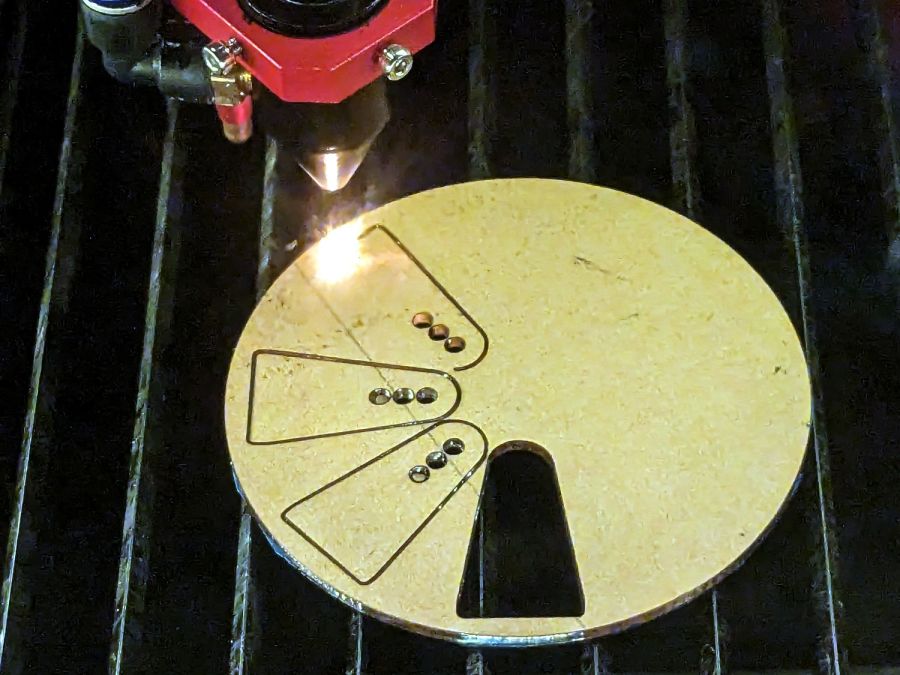
    A discussion on the LightBurn forum produced a hacky way to laser-cut pinholes at precise locations:

    Laser-cut pinhole - aligned exit
    Laser-cut pinhole – aligned exit

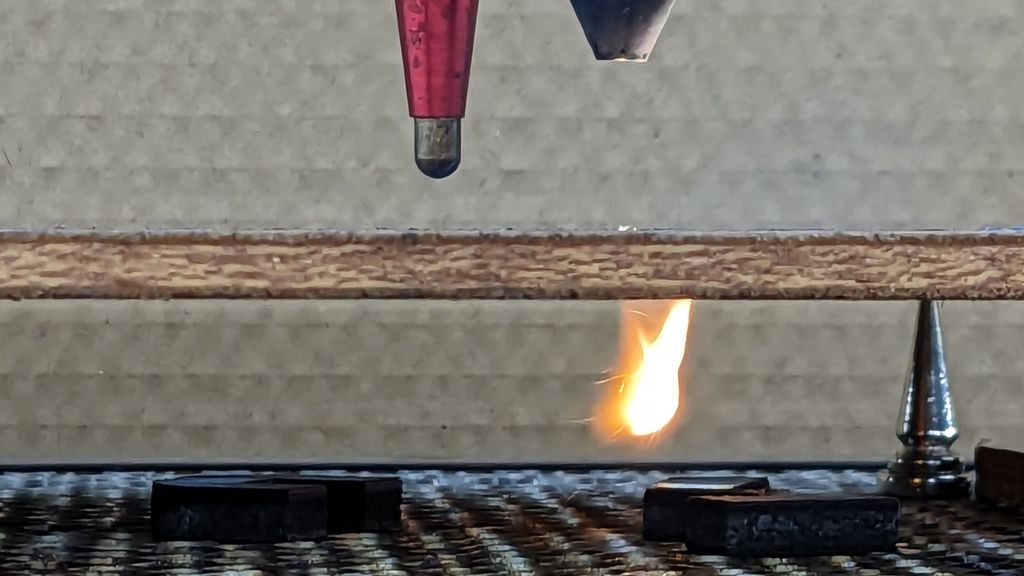
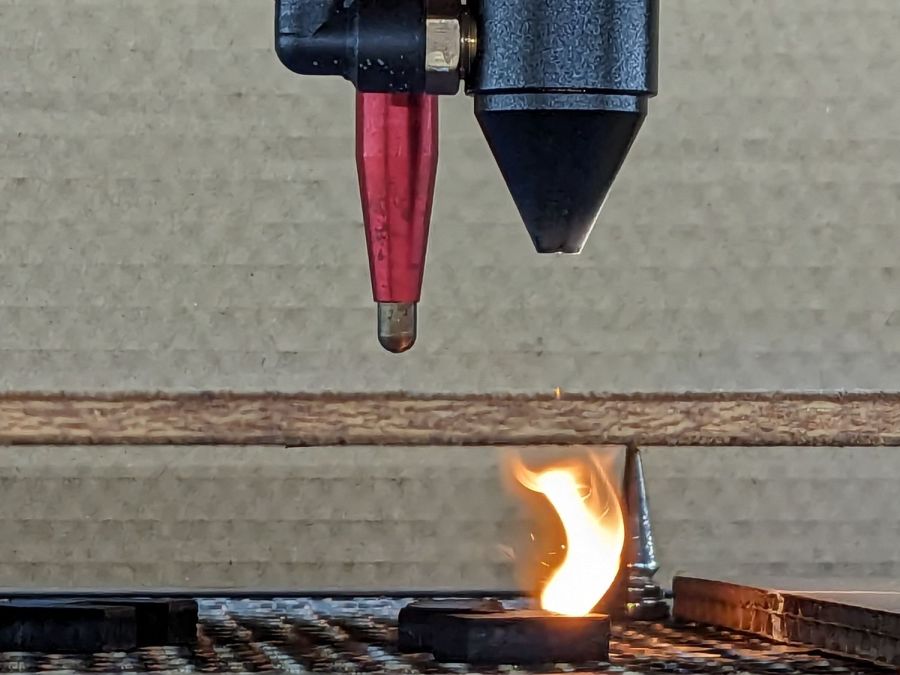
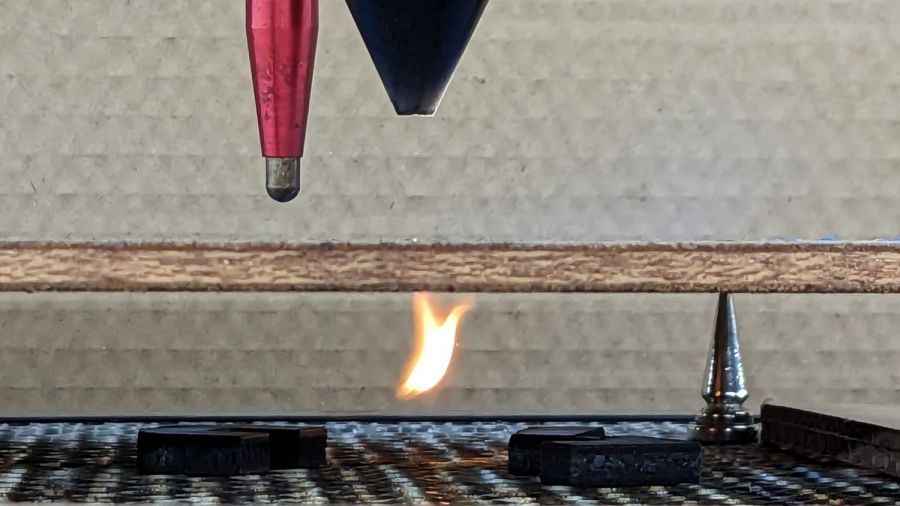
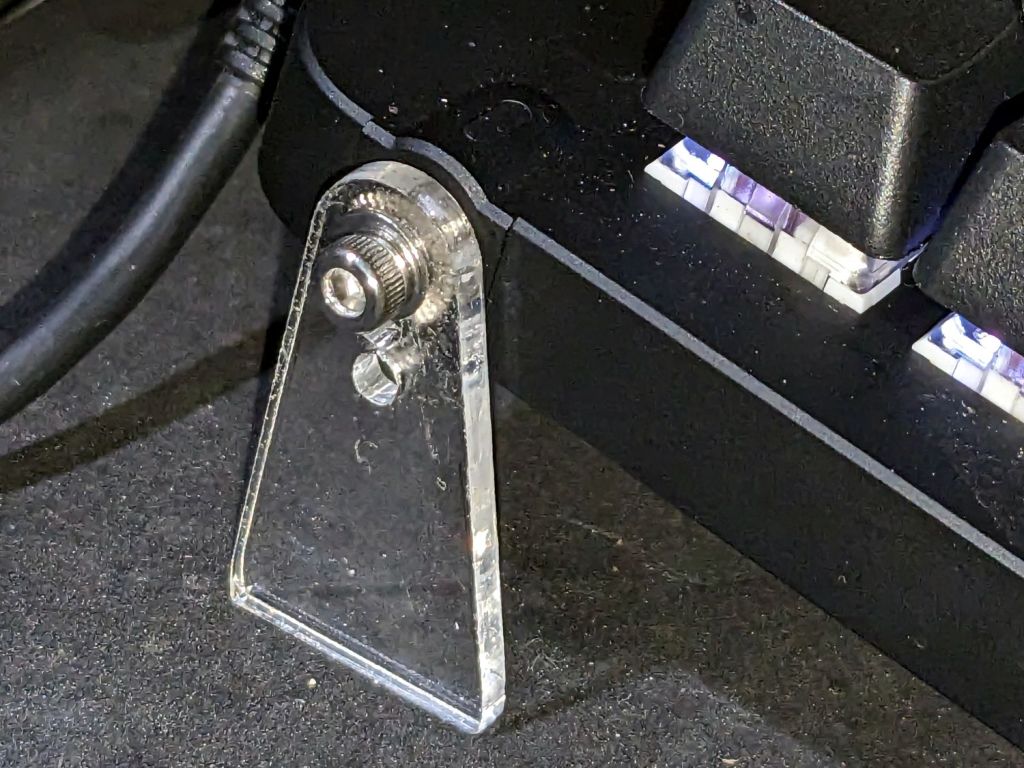
    That’s the 0.3 mm exit wound in 3 mm acrylic, one of the mini-lathe chuck stops, carefully hand-held to align the channel.

    Squinting at similar holes through clear acrylic shows they’re smoothly melted (as you’d expect), but not exactly perpendicular to the surface. I’m sure the acrylic gas pushes the beam around and erodes the sides of the channel as it boils out of the progressively deepening hole.

    The entry wound is about half a millimeter:

    Laser-cut pinhole - entry
    Laser-cut pinhole – entry

    The heat-distorted strip around the perimeter is less obvious in real life without magnification. The protective plastic film over the surface melts easily and, although it does keep the fumes from condensing, causes a bit of damage.

    Each pinhole comes from a single dot in LightBurn’s Dot Mode, so you must arrange the dot spacing to match the path:

    Lathe Chuck Stop - Pinhole distance
    Lathe Chuck Stop – Pinhole distance

    The pockets are on a 40 mm BCD, so they’re out 20 mm from the center and the hole-to-hole distance is:

    34.64 mm = 2 × 20 mm × cos(30°)

    Set the dot distance to that exact number and It Just Works.

    The laser turns on for a specific number of milliseconds at each dot. In this case, I used 50 ms with the layer set to 70% PWM. You could surely optimize the values.

    The starting pinhole gets drilled twice, which happens because Dot Mode expects to make a line of perforations with one dot at each end. In this case, the end of the last line overlaps the start of the first line; two lines would work better than a triangle.

    You could make a square array from a single line with (many) dots at the desired spacing, separating the lines by the same spacing.

    A circular array might work, too, with a straight line joining successive holes.

    Undo would definitely be my copilot while figuring those out.

    This could make an easily clogged trash strainer or a filter for small chunks.

  • Laser Power Measurement: Geometric Beam Absorber

    Laser Power Measurement: Geometric Beam Absorber

    CO₂ laser power meters seem to depend on a flat-black absorbing surface to soak up a (typically unfocused) beam pulse, backed by a known metal mass with a thermocouple to measure the temperature rise above ambient. Knowing the pulse width, the temperature rise, the absorber mass and specific heat capacity, you can compute the pulse energy and average power during the pulse.

    Previous tinkering with an old Gentec ED-200 showed this works well, although the absorber surface took something of a beating because it was definitely not rated for the OMTech’s 60 W (claimed) beam power.

    Rather than using a spendy absorber surface with a durable coating, perhaps a geometric absorber using reflective surfaces arranged to channel the energy into the material, rather than away from it, might suffice.

    Consider a pack of ordinary utility knife blades:

    Beam absorber - utility blades - overview
    Beam absorber – utility blades – overview

    Seen kinda-sorta perpendicular to the sharpened side of the blade edge, they’re wonderfully reflective:

    Beam absorber - utility blades - edge flat
    Beam absorber – utility blades – edge flat

    Seen perpendicular to the edge itself, they’re dead black:

    Beam absorber - utility blades - edge-on
    Beam absorber – utility blades – edge-on

    Well, pretty close to dead black. It’s darker in real life, with glimmers along the edge and the rest of it a deep black. The edges are sharp, but utility knife blades will lead a rough life and they don’t start out Scary Sharp.

    Xacto blades come closer to an ideal razor edge:

    Beam absorber - Xacto 11 blades - edge-on
    Beam absorber – Xacto 11 blades – edge-on

    The only things you (well, I) see is dust on the edges. The rest is dead black, because light hitting any shiny surface is reflected deeper into the notch between two blades and eventually absorbed.

    Double-edge razor blades are sharper and would likely be even blacker, particularly cheap ones without fancy lubricating coatings.

    Bonus: the wavelength of CO₂ laser IR light is 10-20× that of visible light, which makes the surfaces that much more reflective. The geometry still channels the reflections into the block and nothing comes out.

    There are some fairly obvious reasons why nobody uses a stack of razor blades as a beam absorber in real life:

    • Lethally sharp cutting hazard
    • Impossible to clean without wrecking the edge

    But for personal use, why not?

    Some doodles:

    Steel has a specific heat around 0.47 J/g·K and a stack of utility blades weighing 140 g is 23 mm across. Soaking up a 60 W beam will raise the temperature of the stack by:

    0.91 K/s = 60 J/s / (0.47 J/g·K × 140 g)

    Which seems reasonable: fire a 10 s burst, measure the temperature rise, and multiply by 0.91.

    Similarly, a stack of Xacto #11 weighing 15 g is 11 mm across and the temperature will rise 8.5 °C/s. You’d use that for lower power beams.

    You could clamp the blades into a larger heatsink, perhaps with a thermocouple / thermistor in a hole drilled into the block.

    Calibrate the stack / heatsink with an embedded cartridge heater: voltage × current × pulse width gives the power dumped into the block, so measuring the temperature rise gives you the temperature-power relation.

    This feels like a great Arduino project, although it’s nowhere near getting started.

    At least I got that scrap of paper off my desk …

  • Mini-Lathe Chuck Stops: Better Next Time

    Mini-Lathe Chuck Stops: Better Next Time

    The story so far:

    Daubing urethane adhesive into each pocket, sliding a tiny magnet atop the goo, and flipping them over onto a sheet of plastic atop the surface plate to let them cure went about the way you’d expect. Given the state of my fingertips, however, I was not about to fiddle with the phone / camera / anything, but it really did happen.

    The final result:

    Lathe Chuck Stops - on-lathe storage
    Lathe Chuck Stops – on-lathe storage

    The alert reader will notice the slight gap under the left leg of the first orange stop, which provides a good introduction for a few things that should happen differently the next time I do something like this.

    To my credit, I got all but one of the 54=3×6×3 magnets into their pockets in the same orientation. That’s gotta count for something and, hey, that orange stop sticks to the chuck just fine.

    That one also suffered from my failure to switch the Axis UI to metric units before touching off the Z axis at 0.1 mm, thereby putting the Z=0.0 level 2.53 mm below the surface. Fortunately, the 3 mm MDF baseplate prevented that error from creating three pockets in the tooling plate, although it did produce holes instead of pockets in the stop.

    I dropped the magnets into the thru-cut stop on the surface plate and dabbed some adhesive atop the magnets to bond them into their holes. This worked fine and led me to suspect the easiest way to make these stops would be to just laser-cut the holes and skip the whole CNC thing.

    The disadvantage of cutting the holes through is that adhesive will inevitably ooze out around the magnet and mess up the bottom surface of the stop. Sticking both the stop and the magnets onto kapton tape seems like it should seal well, but liquid always finds a way.

    In any event, the two-part urethane adhesive (JB Plastic Bonder) expands slightly as it cures, which is great for gap filling and not so good for precision bonding. With the pockets in the other 17 stops arranged open-side down, the magnets held themselves firmly to the plastic sheet atop the surface plate and the expanding urethane pushed the acrylic stop upward, leaving the magnets standing slightly proud of the stop’s surface:

    Lathe Chuck Stops - protruding magnet
    Lathe Chuck Stops – protruding magnet

    Not by much, mind you, but not what I wanted, having painstakingly cut the pockets 2.2 mm deep for a 2.0 mm magnet.

    Next time, dot some slow-cure clear pouring epoxy in each pocket, put the stop on the surface plate with the pocket facing up, then drop the magnet in place. The magnet pulls itself into the pocket, the epoxy doesn’t expand, any overflow will fill in over the magnet, and anything sticking out can be sanded off.

    The fixtures worked well and aligned perfectly on the Sherline’s tooling plate. The 0.1 mm outset around the stops in the chipboard probably wasn’t needed, although the total repeatability seemed to be around 0.2 mm and pocket position errors are visible only on the smallest (red) stops:

    Lathe Chuck Stops - misaligned pocket
    Lathe Chuck Stops – misaligned pocket

    All in all, this turned out pretty well. Next time will be even better!

    And, perhaps, making the stops with 3D printing would be even better than that, at the cost of the usual gnarly surface finish.

  • Mini-Lathe Chuck Stops: Pocketing Fixture

    Mini-Lathe Chuck Stops: Pocketing Fixture

    Putting pockets in the legs of the mini-lathe chuck stop blanks requires a fixture to align them in the Sherline mill:

    Lathe Chuck Stops - pocketing setup
    Lathe Chuck Stops – pocketing setup

    Because it need not withstand much lateral force and will get used only a dozen-ish times, the base is MDF and the stop alignment happens in three matching chipboard layers:

    Lathe Chuck Stops - Pocketing Fixture - LB layout
    Lathe Chuck Stops – Pocketing Fixture – LB layout

    The three stops (over on the right) are copy-pasta from the originals. A 0.1 mm outset in the chipboard (center) lets the acrylic shapes drop into the chipboard sheets with Good Enough™ alignment accuracy. The MDF layer (left) provides some overshoot comfort below the chipboard.

    The chipboard layers each have four alignment targets at (±30,±20):

    Lathe Chuck Stops - pocketing fixture touchoff
    Lathe Chuck Stops – pocketing fixture touchoff

    Touch off the lower-left target at (-30,-20) and G0 X30 Y30 should drop the laser dot in the middle of the upper-right target. With the (0,0) origin at the geometric center of the stop, LinuxCNC’s polar notation picks out the three pockets:

    G0 @20 ^-60
    G0 @20 ^180
    G0 @20 ^60
    

    The plywood disk under the Sherline’s clamp has a glued ring to put the clamping force out near the ends of the legs. I started with just the aluminum clamp, but the legs needed a bit more stability; a laser cutter makes impromptu widgets like that trivially easy.

    Next: write the G-Code to make the pockets.

    The LightBurn SVG layout as a GitHub Gist:

    Loading
    Sorry, something went wrong. Reload?
    Sorry, we cannot display this file.
    Sorry, this file is invalid so it cannot be displayed.