Ed Nisley's Blog: Shop notes, electronics, firmware, machinery, 3D printing, laser cuttery, and curiosities. Contents: 100% human thinking, 0% AI slop.
Tag: Improvements
Making the world a better place, one piece at a time
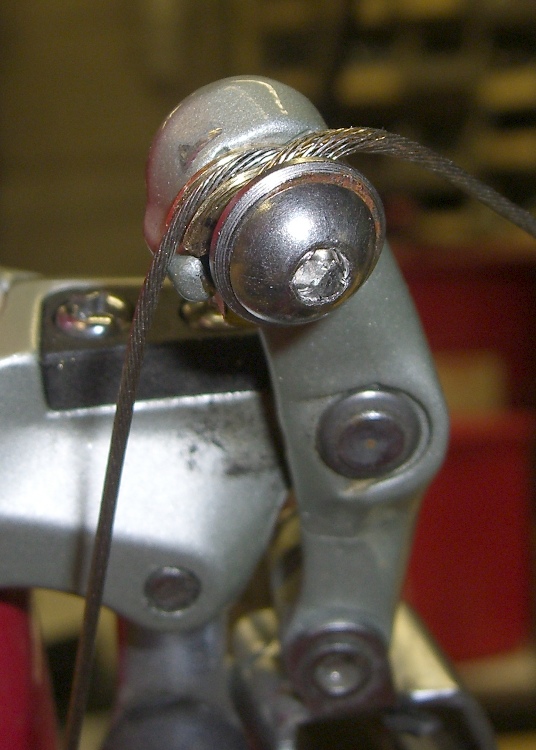
This cable guide / pulley may work better than the one described there, because it puts the cable a bit closer to the original location.
To recap, the problem is that the cable bends around the small finger at about 8 o’clock on the derailleur arm. After a few zillion shifts, the concentration of stress at that point breaks the cable, strand by strand, until it snaps at the most inconvenient moment.
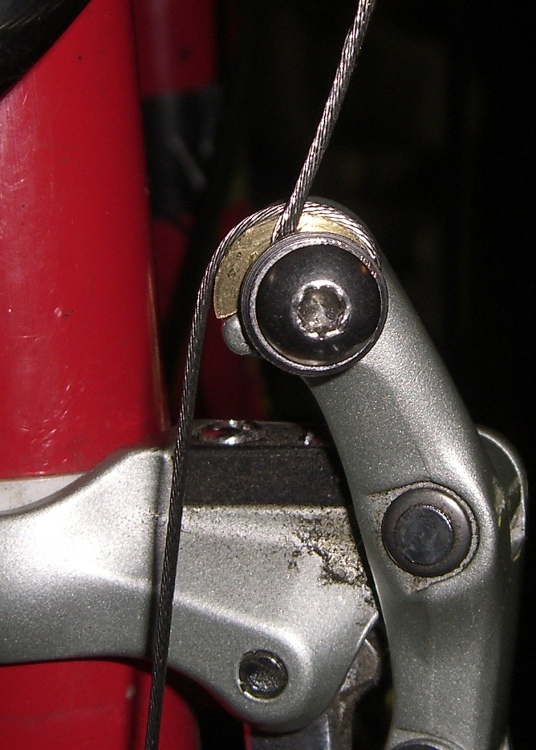
The small brass disk (about 0.43″ dia) has a groove machined around the perimeter that’s roughly the size of the shifter cable. The hole (Number 8 or 9 drill) is a slip fit for the 5 mm bolts, but it’s off-center enough that the cable passes roughly where it would without the disk.
A notch in the side of the disk rests on the finger, guiding the cable over the finger without (I hope) bending it at that point.
The cable just wraps around the screw under the original stainless-steel washer, which pretty much crushes the poor thing flat.
Shift at Large Chainring
Here’s another look with the derailleur pretty much over the large chainring. You can see the disk and groove in action.
This was another quick-and-dirty lathe project, with everything done to eyeballometric accuracy. If it works better than the previous half-assed effort, I might actually get around to making a third one and recording the dimensions.
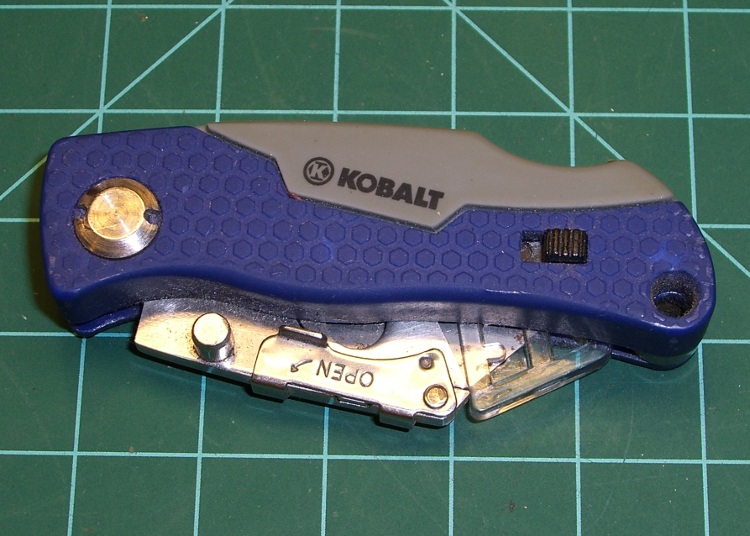
I added a miniature razor knife to my belt pack a while ago and was struck by the fact that the blade didn’t lock shut. While having it pop completely open is unlikely, just the thought of a razor blade sliding around next to my hip was unsettling.
But that’s easy to fix…
Blade closed in notch
With the knife closed, use a carbide scriber to mark the blade holder at the end of the locking lever that extends across the back of the knife. You’ll be grinding / filing a notch in the blade holder behind that, just large enough for the locking cam to snap into when the blade is closed. The only vital measurement is the line you just scribed.
Lock the blade holder open, then remove the sharp blade before you do something truly stupid.
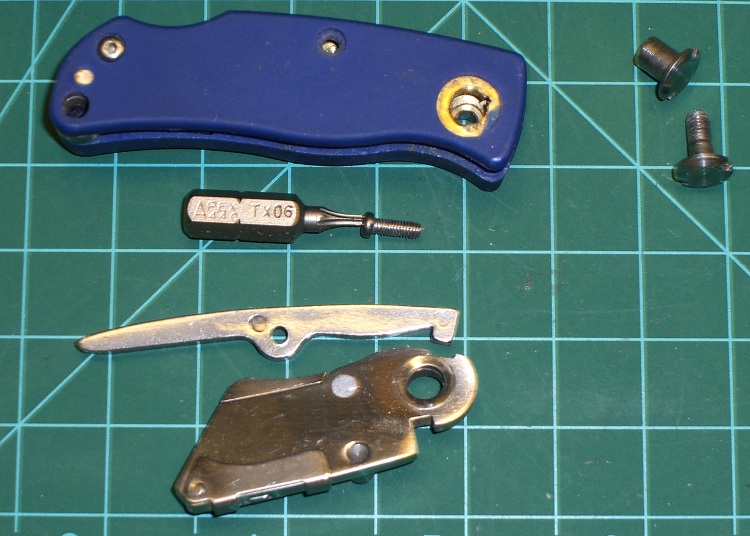
Unscrew the Torx-06 screw that holds the locking lever in place, then remove the lever. It’s spring-loaded and will probably bind on the screw, so display some adaptability.
Knife parts
Use a pin spanner to unscrew the blade pivot bolt from the front panel of the knife; hold the corresponding rear nut in position with another spanner or just jam a screwdriver blade into one of the notches. Pretty much everything falls apart at that point, although you may have to do some wiggly-jiggly to get the blade holder out. The washer seems to be swaged into the blade holder hole on my knife, which may be poor production QC.
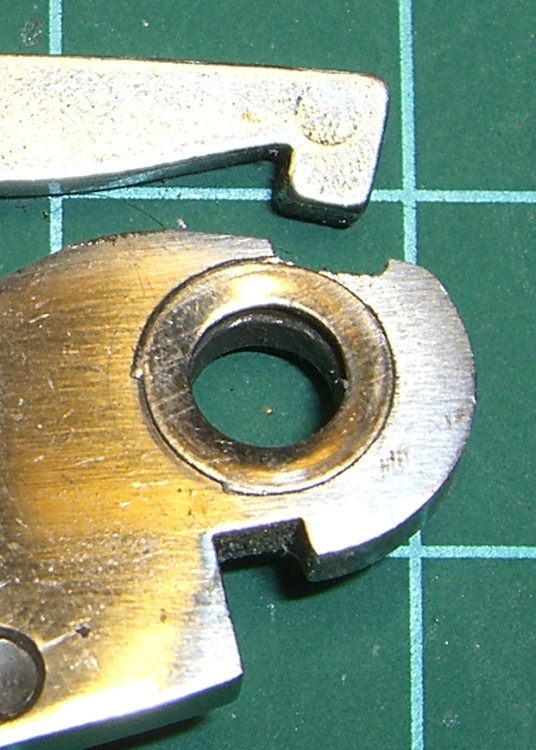
Using a file or a Dremel-class grinder, gnaw a notch into the back of the blade holder that just barely accepts the cam on the locking lever. This will probably take a few trial assemblies to get right; the notch on mine is slightly too long on the body side (left in the pix), which is OK because the blade holder doesn’t pivot in that direction. If you go beyond the line you scribed earlier (to the right in the pix), the blade holder can pivot open just slightly… and it turns out that the point of the razor blade isn’t all that far inside the knife body.
Notch detail
Anyhow, here’s a detail of the notch. It’s not nearly as pretty as the notch on the other side of the hole that locks the blade open, but it works just fine.
When you get everything back together, the blade holder should snap into the new notch when you close the blade. To open the knife, press down on the far end of the locking lever to pull the cam out of the notch, open it as usual, and the cam should snap into the old notch to hold the blade open as usual.
I keep the goofy plastic safety dingus on the blade anyway, being a belt-and-suspenders kind of guy about that sort of thing.
For what it’s worth, you can’t get into concerts with one of these in your belt pack… for well and good reason, I suppose. They let me hotfoot it back to the van, rather than confiscate it, which is probably one benefit of being an Olde Farte.
We have a bunch of Hobo Data Loggers recording various & sundry temperatures, humidities, and light levels around the house; as the saying goes, “If you observe something long enough, it turns into science.”
Normally the things run on single CR2032 lithium cells, which last for a good long time. However, Something Happened to the one that’s collecting groundwater temperatures at the water inlet pipe from the town supply: it started eating lithium cells like potato chips.
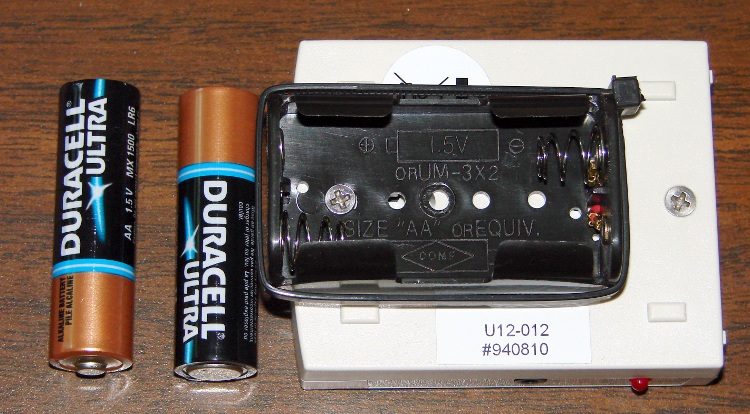
Hobo Battery Mod – Inside View
It was still producing good data, so I was loathe to toss it out. Instead, I figured all it needed was more battery, as a high current for a lithium cell doesn’t amount to much for an AA cell. A pair of alkaline AA cells produces just about exactly 3 V and the data logger can’t tell the difference.
So I opened the logger one last time, soldered the wires from a dual AA cell holder to the appropriate points on the circuit board, affixed the holder to the back with one of the case screws, and it’s been working fine ever since.
However, this seems like one more application where whatever plastic they thought would last doesn’t: the AA holders routinely split at the ends. Maybe the joint should be thicker, maybe it’s the wrong plastic for the job, but without the cable tie acting as a belly band one end of the holder splits off in a year or so. Bah!
Update: Maybe I got a batch of bad CR2032 cells, as the logger’s current seems to be just about right. Read the comments and then check the followup there.
We spent four days biking along the Pine Creek Valley rail trail with a Rails-to-Trails Conservancy group ride on our Tour Easy recumbent bikes. Because a crushed-stone path creates a lot of noise that the fairings direct right into our ears and because we weren’t going very fast, we left the fairings at home. As a result, the bikes were wonderfully quiet.
Some years ago, Mary sewed up “bubble wraps” to store our fairings on those rare occasions when they’re not on the bikes. She had some red flannel left over from another project and a hank of cheery Christmas-themed edging, so they turned out to be rather conspicuous.
The trick is to get the size right when the fairing is rolled up. With the fairing in its natural bubble shape, the wrap is rather limp, so you need pockets on both ends to hold the wrap in place. The toes are, she admits, an affectation, but didn’t take much figuring to get right. The width is just slightly more than the fairing’s flat width; you find that by rolling it up and measuring the roll.
She actually made a paper template first to sort out all the curves, then transferred that to the flannel for final cutting.
Tuck in the fairing’s head & toes, roll it up toes first, tie the (attached) strap in a neat bow, and it’s done!
We have three fairings and they roll up together, each in its own wrap, into one tidy, albeit rather heavy, package.
We’ve been using Cateye Astrale “computers” on our bikes for decades, mostly to get the cadence function. After all this time, we pretty much know how fast to pedal, but old habits die hard.
The cadence sensor counts pedal revolutions per minute, which requires a magnet on the crank arm. They provide a small plastic-encased magnet with a sticky-tape strip that’s worked fine on our previous crank arms.
Our daughter’s Tour Easy arrived with fancy curved pedal crank arms that put the cadence sensor magnet much too far from the frame. You really want the magnet & sensor close to the bottom bracket so that it doesn’t get kicked and doesn’t snag anything as you pedal, but that just wasn’t going to work out here.
A turd of JB Weld epoxy putty solved the problem: mix up a generous blob, shape it into a pedestal, glom the magnet atop it, adjust so the magnet is parallel to and properly spaced from the sensor, then smooth the contours a bit.
Add the cable tie for extra security; you don’t want to lose the magnet by the side of the road!
The black electrical tape is mildly ugly, but serves the purpose of keeping the cable from flapping in the breeze. The adhesive lasts about a year, then it’s time for routine maintenance anyway.
Although recumbent bikes use ordinary bicycle components, they tend to have somewhat different frame geometries (to put it mildly). Our Tour Easy ‘bents seem to put a particular strain on the front derailleur cables, perhaps because the cable enters from a different angle than the derailleur designers expected. The little finger that’s supposed to guide the cable actually concentrates all the bending force at one spot… precisely where the cable breaks.
If you look carefully, you’ll see a little brass disk (between the derailleur body and cable) that cradles the cable. I made that for the previous derailleur, but this one has Yet Another Geometry. I know there’s a difference between “high pull” and “low pull” front derailleurs, and perhaps this is the wrong one for this application, but there seems no algorithmic way to sort this stuff out.
Cable guide pulley
The solution is to make Yet Another Cable Guide Pulley, with a groove around the perimeter, an off-center hole, and a notch to clear the finger. It’s not exactly a pulley, but I’m not sure what else to call it. Maybe just a cable guide?
This was a quick-and-dirty manual lathe project, two days before leaving on a trip: turn down some brass stock, put a groove around the perimeter, part it off, drill a hole, and cut the notch. Not a trace of CNC to be found: all done by guess and by gosh, marked out with Sharpies on the actual part in real time running.
The general notion is that the cable rides the groove smoothly throughout the derailleur’s entire travel range and, thus, doesn’t bend around the finger. This changes the shift geometry just slightly, but, fortunately, long-wheelbase ‘bents have a sufficiently relaxed chainline that indexed front shifting isn’t much of a problem even with slightly misplaced positions. Besides, that’s why SRAM grip-shifter have all those clicky stops, right?
(The shifting is actually a bit goobered, with the outer chainring shift a bit too close to the middle. When we get back, I’ll re-do this with somewhat more attention to detail.)
Pulley in action
Here’s what it looks like in action. I’ve had good success with this sort of thing over the years, so I think this one will work just fine, too. It simply takes one broken cable on each new derailleur to spin up enough enthusiasm for making Yet Another Pulley…
The front ball joint on the mirror on Mary’s helmet loosened enough that the mirror blew out of position every time we got up to a decent traveling speed. I’ve repaired these mirrors several times before; they’re plastic and tend to fracture / wear out / break at inconvenient moments.
The first pic shows the mirror (the black surface is reflecting the dark floor joists overhead) with an old blob of epoxy that repaired a break in the outer socket. The socket originally had stylin’ curves joining it to the mirror, which proved to be weak spots that required epoxy fortification.
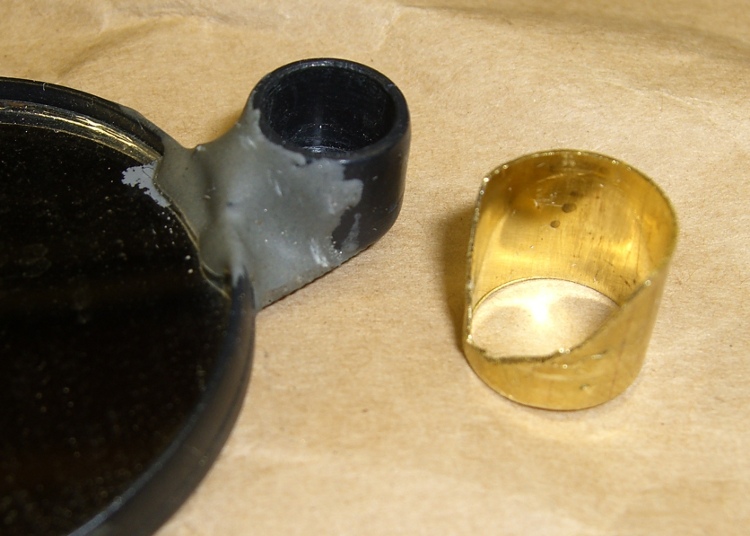
This time the socket split axially on the side away from the mirror, which released the pressure on the ball socket that seats into it. I found a chunk of brass tube that fit snugly over the socket, then carved some clearance for the existing epoxy blob. The key feature is that the tube remains a ring, rather than a C-shaped sheet. to maintain pressure around the socket.
Clamping the reinforcement ring
Here are the various bits, with the reinforcing ring clamped in place. I coated the socket exterior with JB Weld epoxy, slipped the ring in place, and tapped it down with a brass hammer to seat flush with the front face of the socket. That left gaps between the socket opening and the tube that I eased more epoxy into with an awl. A bit more epoxy around the exterior smoothed over that ragged edge.
The strut at the bottom of the picture ends in a ball joint held by a socket that slips into the mirror socket. The loose brass ring above the mirror is some shim stock that I added some years ago to take up slop between the ball socket and the mirror socket and tighten the ball joint. I suppose that pressure eventually split the outer socket, but so it goes.
Repaired mirror joint
The clamp squished the outer socket enough to snug it around the ball socket, so when I reassembled the mirror it was fine. To be sure, I dunked the ball in my lifetime supply of Brownell’s Powdered Rosin for a bit more non-slip stickiness.
I have a box full of defunct bike helmet mirrors, dating back to those old wire-frame square mirrors that clamped onto the original Bell helmets. The newer plastic ones just don’t last; we ride our bikes a lot and even fancy engineering plastic isn’t nearly durable enough. A few bits of metal here and there would dramatically improve the results!
I’m going to build some durable wire-frame mirrors, but … this will keep us on the road for a while. I suppose I should make a preemptive repair on my helmet mirror while I’m thinking of it…






 The Smell of Molten Projects in the Morning