Ed Nisley's Blog: Shop notes, electronics, firmware, machinery, 3D printing, laser cuttery, and curiosities. Contents: 100% human thinking, 0% AI slop.
Tag: Improvements
Making the world a better place, one piece at a time
Lining the shield support box with copper foil tape turned out to be surprisingly easy:
Electrometer amp – shield – end view
The flat surface is two overlapping strips of 2 inch wide copper tape. I traced the exterior of the support box on the tape, cut neatly along the lines, slit the corners, bent the edges upward, peeled off the backing paper, stuck the tape into the box, pressed the edges into the corners, and didn’t cut myself once.
Applying 1 inch wide tape to the wall went just as smoothly, after I realized that I should cut it into strips just slightly longer than the hexagon’s sides.
The tape along the rim is adhesive copper mesh that’s springy enough to make contact all around the edge. I cut the 1 inch wide tape in half, which was just barely wide enough to reach::
Electrometer amp – shield – mesh soldering
Although you’re supposed to join the entire length of each seam for best RF-proofing, I tacked the corners and the middle of the long edge, then hoped for the best. The copper mesh seems to be plated on plastic threads that requires a fast hand to solder without melting, but I’m getting better at it. The adhesive is said to be conductive, but I loves me some good solder blob action.
The resistance from the flat bottom to the side panels and the fabric on the edge started out at a few ohms before soldering and dropped to 0.0 Ω after soldering, so I’ll call it a success. Didn’t even melt the outside of the PETG box, but I admit I didn’t take it apart to see what the copper-to-PETG surface looks like.
Covering the foil on the sides with 1 inch Kapton tape completed the decoration. I didn’t bother to cover the flat surface, because none of the circuitry should reach that far, and didn’t worry about covering the fabric tape for similar reasons. As madbodger pointed out, this violates the no-plastic-on-the-inside rule, but I’m still hoping for better results than having the entire plastic structure with all its charges on the inside.
A strip of horribly clashing orange plastic tape (which might be splicing tape for reel-to-reel recording tape) covers the outside edges of the fabric, prevents fraying, and gives the black electrical tape that holds the box down a solid grip:
Electrometer amp – shield – exterior
Yeah, like you’d notice mismatched colors around here.
Using black tape as an anchor seemed easier and better than messing with nesting pins & sockets. The copper fabric tape makes good contact with the rim of the PCB all the way around the perimeter and the black tape holds it firmly in place.
Early reports suggest the shield works pretty well…
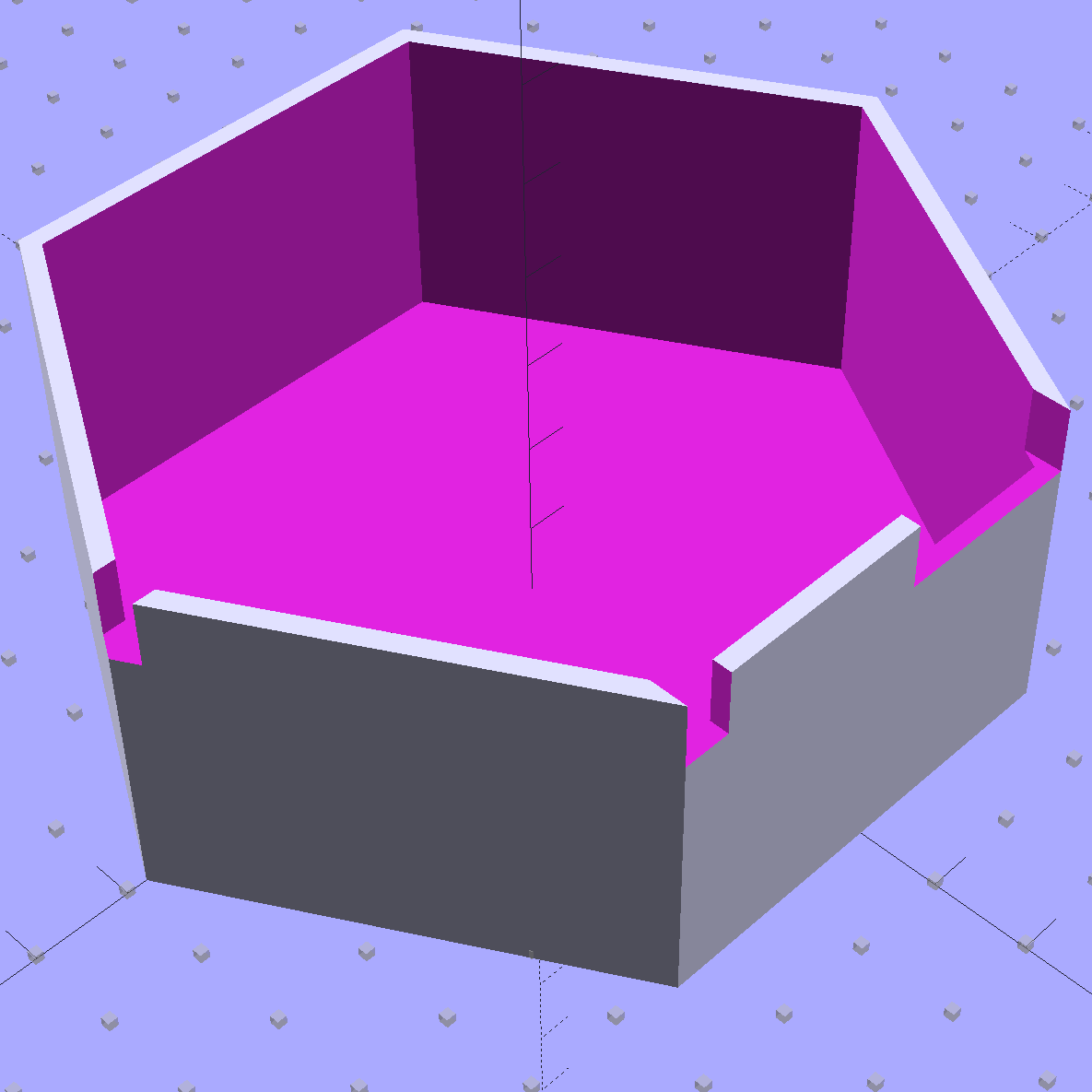
Although I’d thought of a Mu-metal shield, copper foil tape should be easier and safer to shape into a simple shield. The general idea is to line the interior with copper tape, solder the joints together, cover with Kapton tape to reduce the likelihood of shorts, then stick it in place with some connector pin-and-socket combinations. Putting the tape on the outside would be much easier, but that would surround the circuitry with a layer of plastic that probably carries enough charge to throw things off.
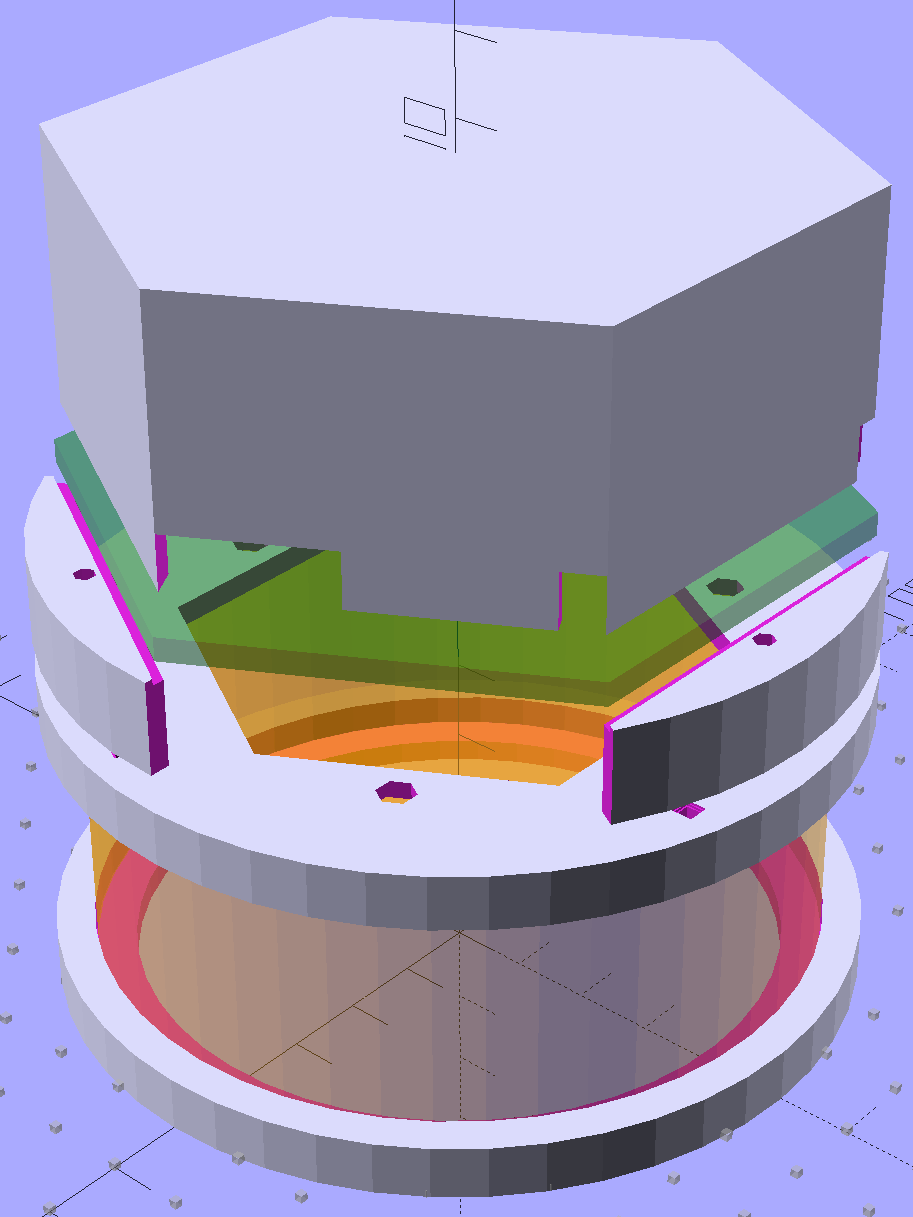
Anyhow, the hexagonal circuit board model now sports a hexagonal cap to support the shield:
Victoreen 710-104 Ionization Chamber Fittings – Show with shield
The ad-hoc openings fit various switches, wires, & twiddlepots:
If white LED strips had existed in the early 1980s, the engineers responsible for the HP 7475A plotter would surely have done this:
HP 7475A Plotter – LED paper illumination
Not, that’s not stretched vertically: I bought a ream of B-size paper (11×17 inches) just for plotter demos.
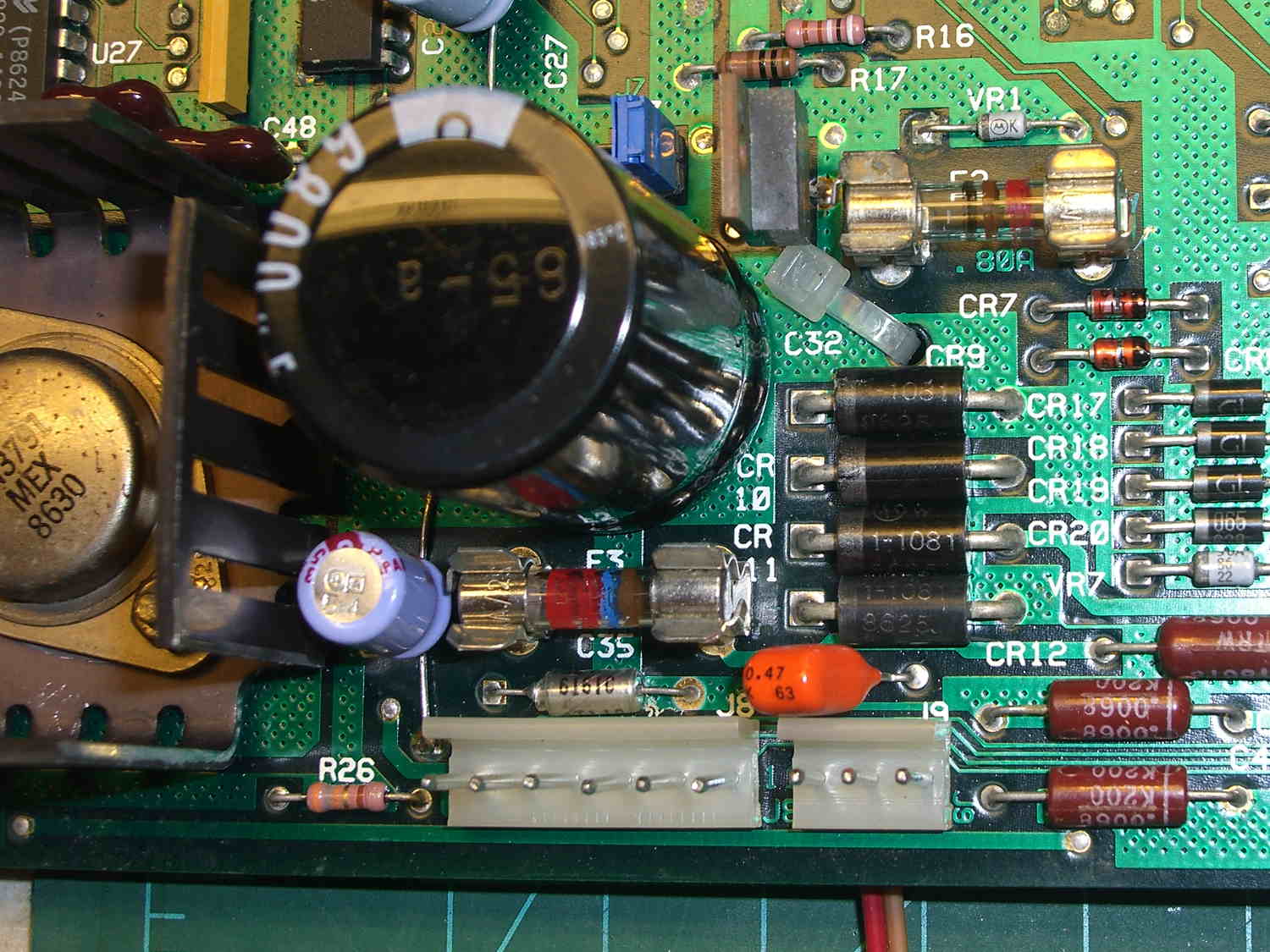
Although the power supply does have a +12 V output, it comes from a TO220 transistor without a heatsink. The +5 V supply uses a robust TO3 transistor on a huge quad heatsink that can surely dissipate another watt or two without getting any sweatier.
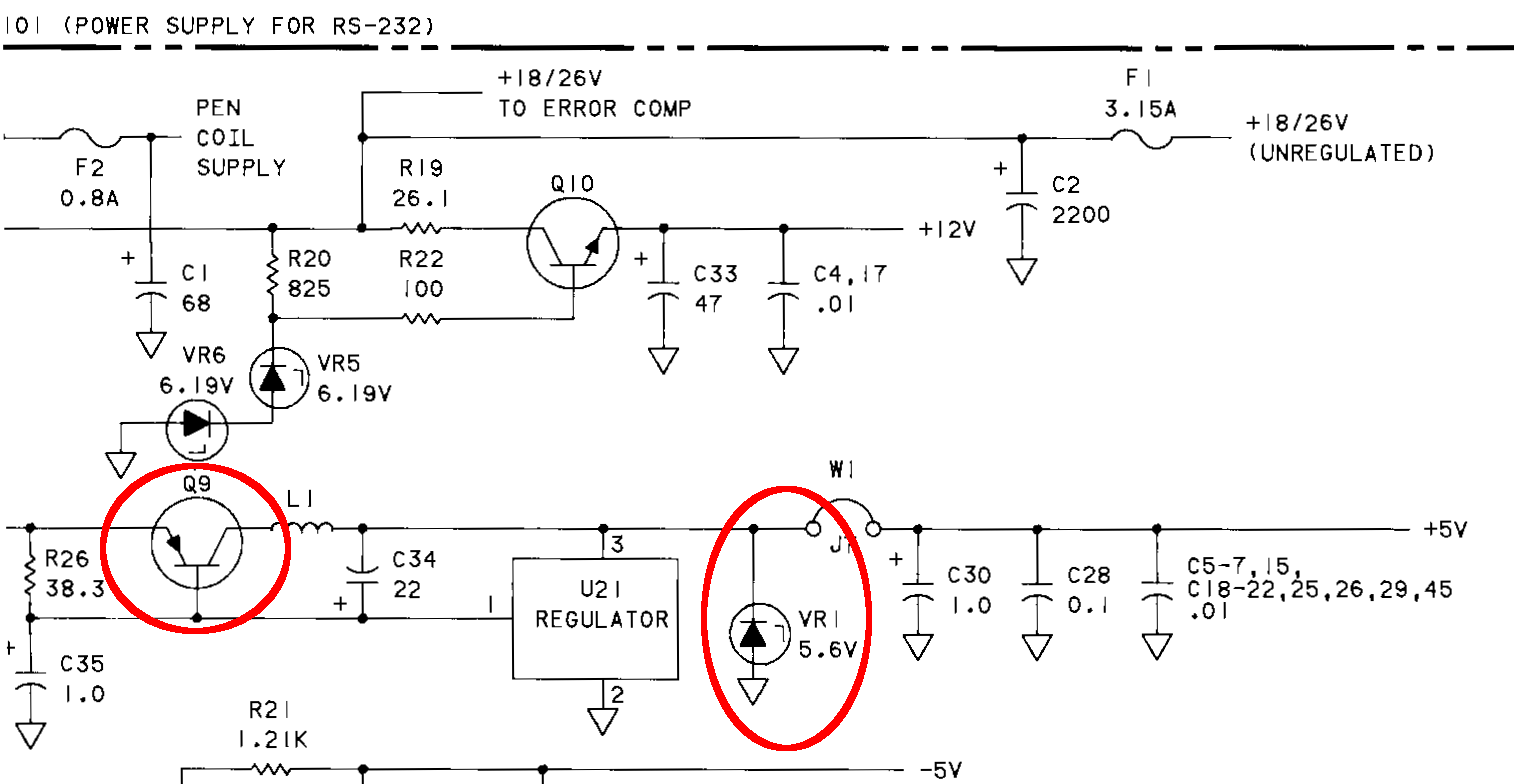
I powered the LEDs from a dirt-cheap boost converter that provides a convenient brightness adjustment; it’s set to 10.5 V and that’s plenty bright enough. The converter attaches to pair of wires soldered across VR1, which is probably a crowbar that blows F3 (not shown) in the event the regulator fails hot:
HP 7475A – LED power tap – schematic
They don’t make power supplies like that any more.
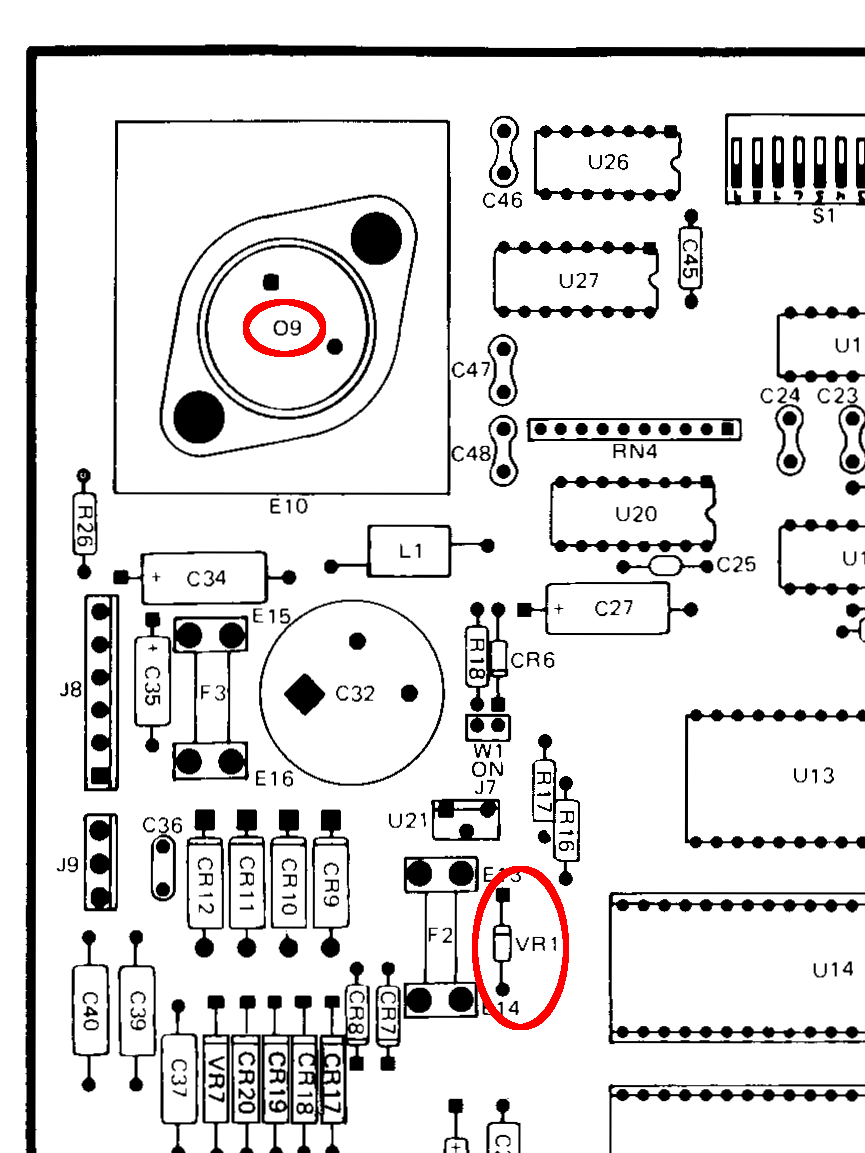
The part locations (“O9” looks like a typo):
HP 7475A – LED power tap
The PCB has holes in exactly the right spot for a zip tie anchoring the wires exiting to the bottom:
HP 7475A Plotter – LED power tap – PCB top
This vertiginous view shows the inside of the case atop the chassis, with the boost converter affixed to the galvanized steel pan with foam tape and the LED wires stuck down with Gorilla Tape:
HP 7475A Plotter – LED strip and boost converter
Red silicone tape around a PCB-mount coax jack rounds out a true hack job.
Although I didn’t bring the plotter to the CNC Workshop, that venue’s dim light reminded me that you can never have enough light when you’re showing off your toys: the LED panels on the M2 and the LED light bars on the Model 158 sewing machine were the brightest spots to be seen.
An embossed sheet of my Geek Scratch Paper carried the valve knob sizes home from the garden, which prompted a comment from Mike about The Good Old Days in sunny California. Because I’ve disabled comments on old posts due to the spam load, here it is:
Ed has made references to his “geek scratch paper”… which brought back memories.
Gullivers Restaurant in Orange county, CA has been around since at least 1974. Back then they catered to the moderately expensive out-for-dinner crowd in the evenings and on the weekends, but during lunchtime they had a businessmans luncheon special in the main dining room that was oriented towards a decent meal and in-and-out-in-an-hour. The side rooms were for those that were doing longer lunches or business deals over lunch.
The key was that Gullivers was smack dab in the middle of Orange County’s tech region and right across the street from the large airport (now called John Wayne Airport). It’s also very close to Interstate 5, Interstate 405, and state highway 55… all 4-lane-each-direction major freeways.
During those lunch hours it was not unusual to see ID badges from over 20 companies in the main dining room. Several new products and at least one new company were formed over those lunches.
But the topic was “geek scratch paper”… well… Gullivers lunchtime paper placemats back in the 1970s were printed with graph paper on the back side!!!
Imagine: Geek scratch paper at every table provided by a thoughtful restaurant!!! And this was forty years ago!!!
I worked at one of the design houses in the area for over two years. I personally know of at least four new circuit designs, a half dozen new sheet metal designs, a number of circuit board re-designs, several new or modified software routines and at least six Product Change Notices and Engineering Change Orders that were started on the back of a Gullivers place mat (or three, or four…).
For a long time my resume had a bullet point that read “Able to convert lunchtime scratch paper engineering sketches into formal documentation and engineering change orders”.
I’ve not been inside Gullivers since 1981 – in over thirty years I’ve not been in that area except to drive on Interstate 5 on the way from Los Angeles to San Diego. The restaurant may be gone or remade itself into something else. But the next time I’m in that part of southern California I’ll make a special stop and check, and if their placemats still have graph paper on the back side, I’ll email you a photo or three.
On a different but similar topic… At one time the local ham radio club members used to choose which restaurant to migrate to after the monthly meetings by which ones had a blank back side on the place mats…. especially for the planning sessions prior to major events.
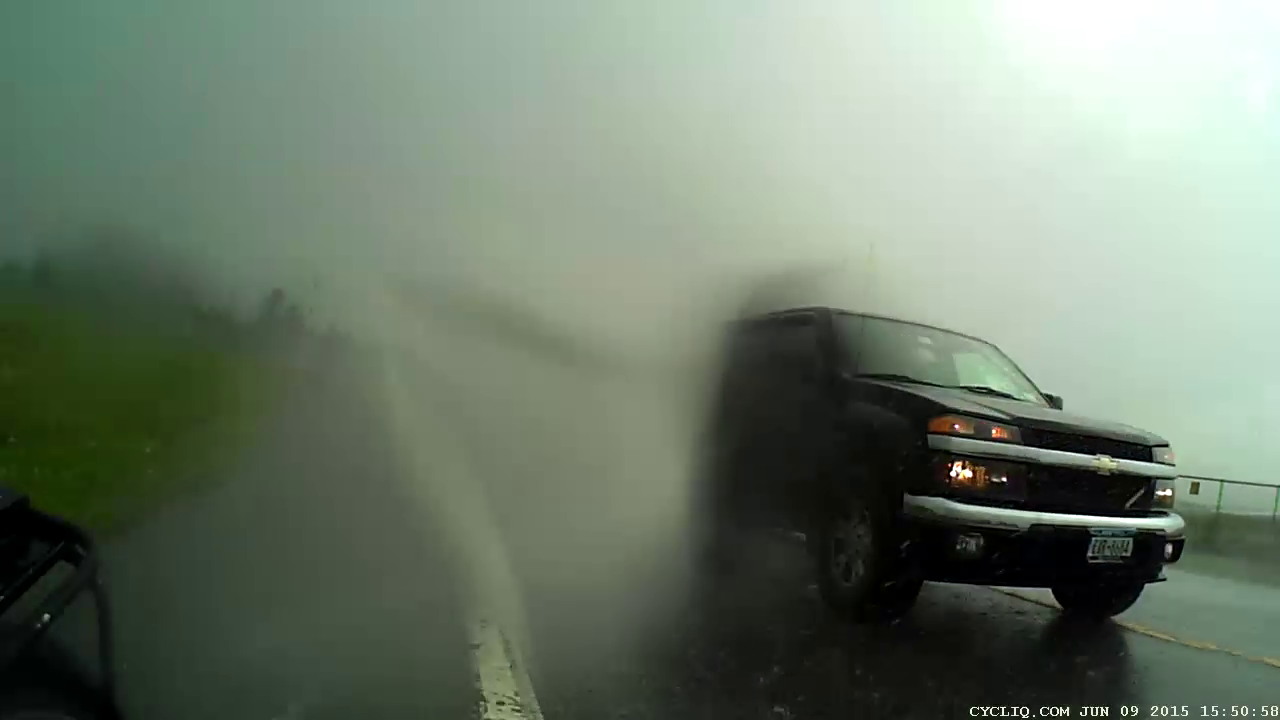
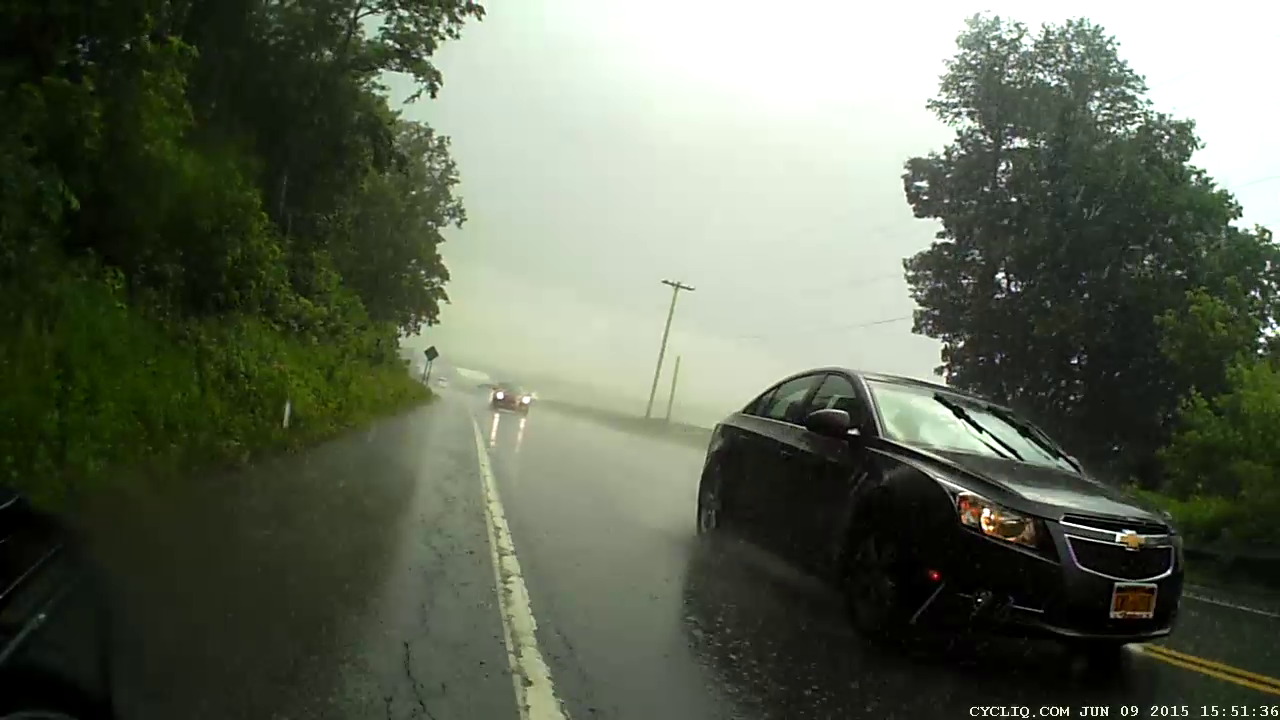
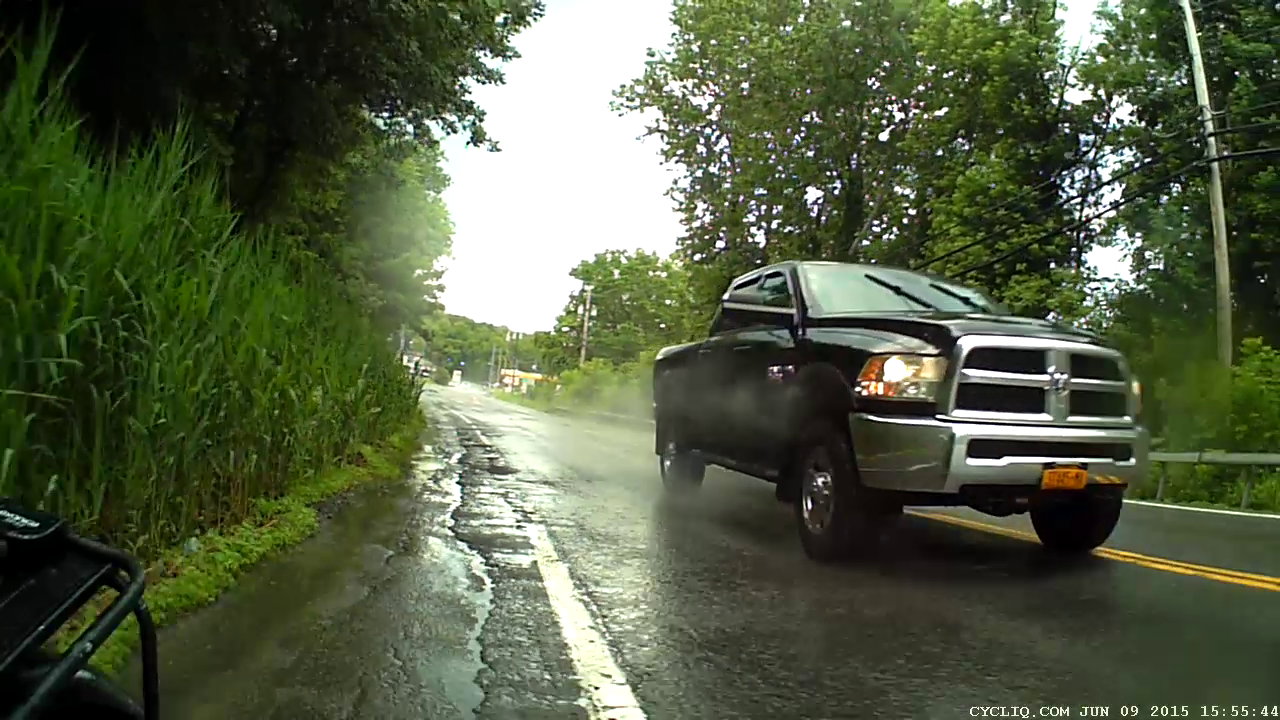
Cycliq says “Using the latest nanotechnology, Fly6 is safeguarded against any wet weather nature can throw at you.” That’s not quite the same as saying it’s waterproof, but the plastic lens cover sheds water surprisingly well.
We were caught in a brief downpour on a recent ride and, not unexpectedly, water covered the rear-facing lens:
Fly6 – Rain 1
A larger drop ran down the left side, merged with the previous drop, and blurred two thirds of the image:
Fly6 – Rain 2
Three seconds and a few major jolts later, the lens was mostly clear:
Fly6 – Rain 3
Half a minute later, it’s looking even better:
Fly6 – Rain 4
The jolts come from the deteriorated paving and poor patches along Rt 376, but at least they shake the water off the lens:
Fly6 – Rain 5
Ten minutes after the first image, both the lens and the sky were almost completely clear:
Fly6 – Rain 6
A pleasant surprise!
That transverse crack just behind me? Charlie Brown’s First Principle of Puddles applies: you cannot tell how deep a puddle is from the top. That sucker goes down through at least three layers of paving:
Crack – Red Oaks Mill
I forgot to put the Sony HDR-AS30V helmet camera in its waterproof housing before we left, so I put it in the (not exactly waterproof, either) underseat pack when the first drops fell. Sony makes no pretense that the bare camera can survive a rainstorm, but the packs are good for our simple needs.
Ed’s First Principle of Rain Riding: After the first five minutes, you don’t get any wetter.
After a bit of sorting, I had a quartet of “disposable” liquid ink pens with contents ranging from desiccated to gummy. With nothing to lose (and having already cut a clearance slot in the plotter case), I drilled a small hole in the top of each reservoir, squirted some inkjet printer ink into the void, and taped the hole closed.
Surprisingly, a little liquid love restored all but the black pen to working condition, if not perfect heath:
HP7475A disposable liquid pen – refilled
I think the blurred white disk floating in the reservoir sealed the end where you jam the tip in place to activate the pen. The blob of dark gunk shows the reservoir didn’t start with yellow ink, but I had nothing to lose.
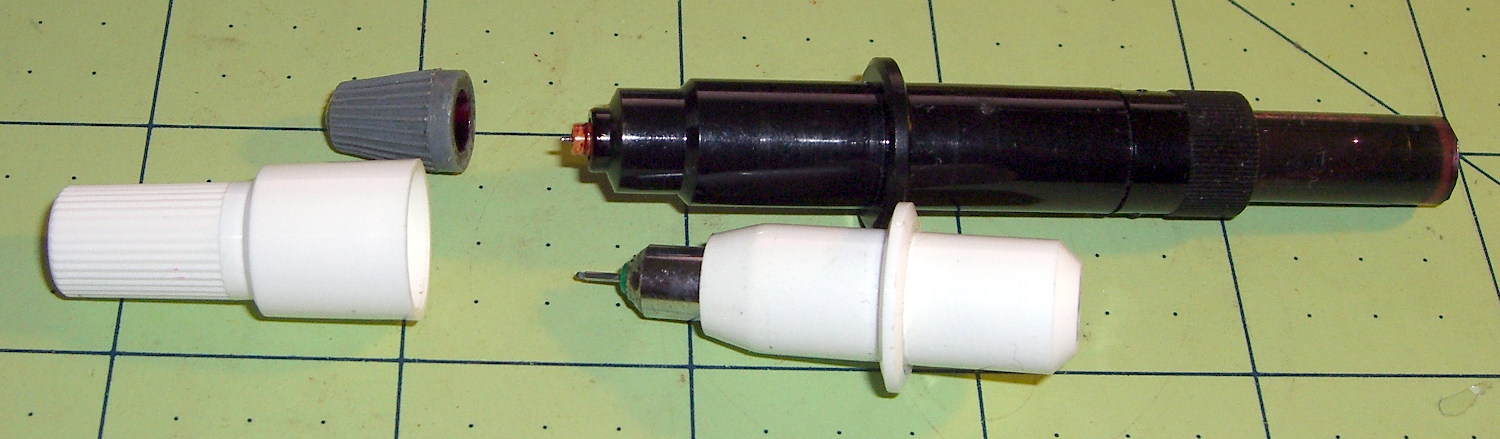
The top pen in this picture is another style / brand with a smaller reservoir:
HP7475A pens – disposable liquid and ceramic tip
The white pen in the foreground has a 0.3 mm ceramic tip, contains its original green ink, and works as well as it ever did; it might be refillable, too.
The liquid-ink pens have a serpentine vent in the tip. This is a Genuine New-Old-Stock pen in a four-pen case labeled HP 5061-7566:
HP7475A disposable liquid pen – new
The serpentine path connects the exterior vent opening (facing you) to a tiny hole (on the other side of the blue shaft) into the ink chamber. As it turns out, a new hole drilled in the reservoir admits enough air to drain the (freshly refilled) liquid ink through the serpentine path all over the workbench. Having some experience with refilling inkjet cartridges, I deployed a towel decorated with colorful splotches in anticipation of such an unexpected event, although my fingers looked considerably more cheerful than usual for a few days.
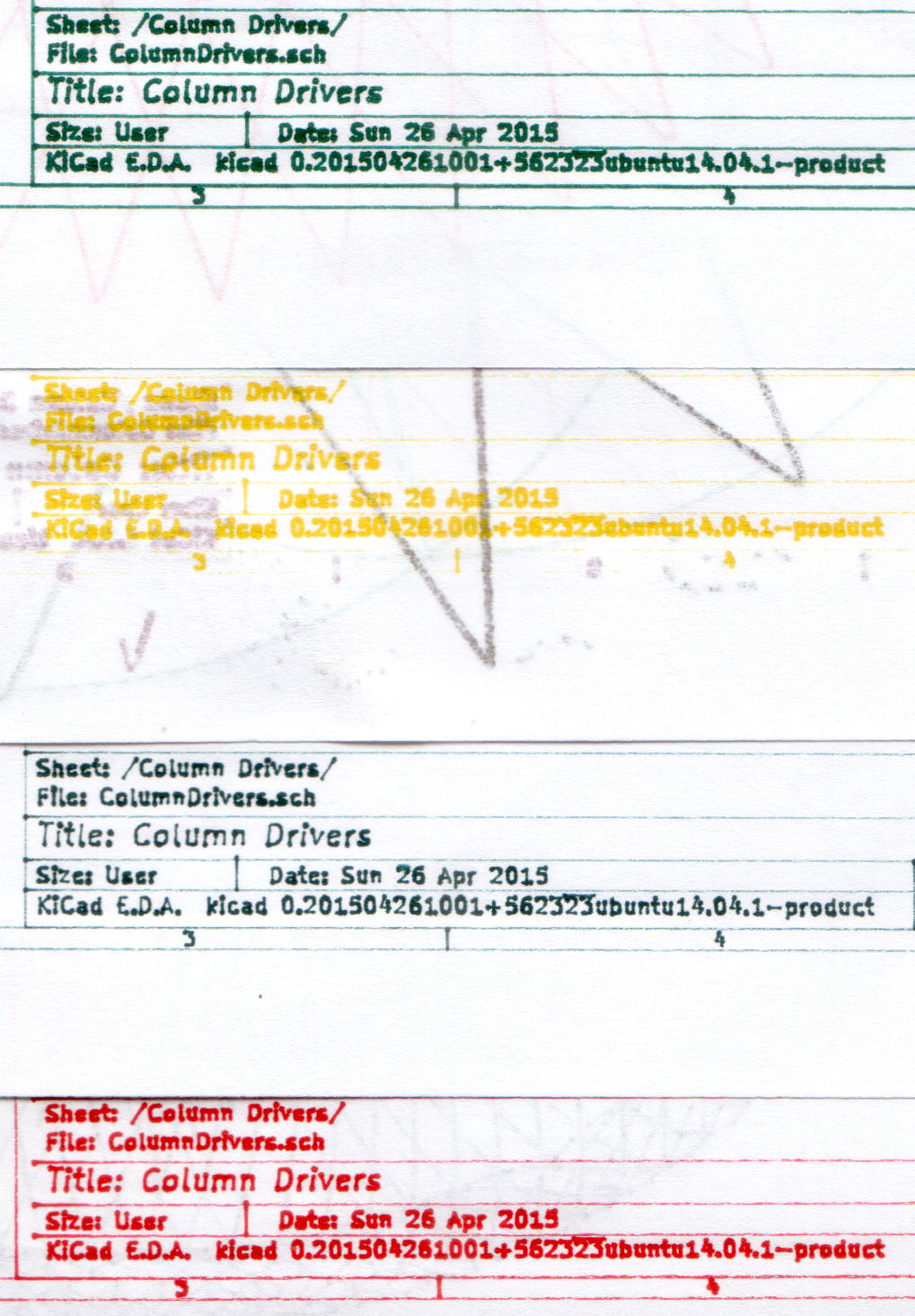
The black pen never worked quite right, but the other three did fine. The ceramic pen is at the top:
HP7475A – KBR to YCM Refilled disposable pens – G ceramic pen
Protip: the blown contrast and rear-surface bleedthrough behind the yellow ink should tell you it isn’t visible in normal room light. I must mix yellow with another color if I ever refill that pen that again.
KiCad uses only one pen for the entire schematic, even when you select “plot in color”, suggesting nobody has sent the “plotter” output stream to an actual plotter in a long, long time.
Despite the charm of watching the plotter crank out an entire schematic page, it’s not a compelling enough user experience to replace an inkjet printer. For an art project, one might be seeking an entirely different user experience and the answer might be different, too.
A sampling of the various Y connectors and manifolds that water Mary’s gardens:
Y valve 1
Y valve 2
Garden hose manifold
Those little handles don’t turn nearly as easily as they should and some require far more finger pressure than Mary can exert. Lubrication being unavailing, the solution is to apply torque through a wrench, rather than fingertips, but fiddling around to match the proper wrench with the valve in hand isn’t acceptable.
The first pass at a Universal Wrench:
Hose Valve Knob – with measurements
The embossed sheet (the back of my Geek Scratch Paper) carried the knob shapes & dimensions from the garden to the desk, where I measured & laid out the wrench:
Hose Connector Knob – Build layout
I filched the knob design from the OXO Can Opener Handle, made it somewhat taller, and applied a scale() operation to mash it into an ellipse aligned with the wrench slot. That huge hexagonal socket in the middle bridged just fine, even though the threads came out as distinct cylinders:
Adding one thread width of clearance around the stem to form the socket produced a slip fit, with a dollop of fast-cure epoxy holding the pieces together.
The wrench fits the largest valve knob with enough clearance to eliminate fiddling. A cylinder punched into the middle of the slot accommodates those teardrop handles:
Hose Connector Knob – Show layout – bottom view
It’s oversized for the smallest “knob”, a vicious triangular stalk that’s murder on the fingers (and not shown here), but fits well enough that, should we deploy any of those, she’ll be ready.
The stem diameter can’t be any larger, because the knobs on Valve 1 don’t allow any clearance. It could be more circular, but I doubt that buys anything. The open ends of the slot won’t let mulch pack into the recesses.
I expect a wrench jaw will eventually snap off as the layers delaminate. In that case I’ll either sink a pair of steel pins into each jaw or, more likely, combine the handle & stem into one object, split the whole affair across the jaws, print the two halves, and glue them together so that the threads run in the proper direction to meet the stress.
Be that as it may, as of right now this is The Best Thing I’ve Ever Built…
The OpenSCAD source code:
// Hose connector knob
// Ed Nisley KE4ZNU - June 2015

Layout = "Build";				// Show Build Knob Stem

//- Extrusion parameters - must match reality!

ThreadThick = 0.25;
ThreadWidth = 0.40;

function IntegerMultiple(Size,Unit) = Unit * ceil(Size / Unit);

Protrusion = 0.1;

HoleWindage = 0.2;

//------
// Dimensions

StemOD = 30.0;					// max OD for valve-to-valve clearance

BossOD = 16.0;					// single-ended handle boss

SlotWidth = 13.0;
SlotHeight = 10.0;

StemInset = 10.0;
StemLength = StemInset + SlotHeight + 25.0;
StemSides = 2*4;

KnobOD1 = 70;						// maximum dia without chamfer
KnobOD2 = 60;						// top dia

KnobSides = 4*4;

DomeHeight = 12;					// dome shape above lobes

KnobHeight = DomeHeight + 2*SlotHeight;

DomeOD = KnobOD2 + (KnobOD1 - KnobOD2)*(DomeHeight/KnobHeight);

DomeArcRad = (pow(KnobHeight,2) + pow(DomeOD,2)/4) / (2*DomeHeight);

//- Adjust hole diameter to make the size come out right

module PolyCyl(Dia,Height,ForceSides=0) {			// based on nophead's polyholes

  Sides = (ForceSides != 0) ? ForceSides : (ceil(Dia) + 2);

  FixDia = Dia / cos(180/Sides);

  cylinder(r=(FixDia + HoleWindage)/2,h=Height,$fn=Sides);
}

//-- Stem for valve handles

module Stem() {

	difference() {
		rotate(0*180/StemSides)
			cylinder(d=StemOD,h=StemLength,$fn=StemSides);
		translate([0,0,SlotHeight/2 - Protrusion/2])
			cube([2*StemOD,SlotWidth,(SlotHeight + Protrusion)],center=true);
		translate([0,0,-Protrusion])
			cylinder(d=BossOD,h=SlotHeight,$fn=2*StemSides);
	}

}

//-- Hand-friendly knob

module KnobCap() {
	difference() {
		scale([1.0,0.75,1.0])
		intersection() {
			translate([0,0,(KnobHeight-DomeArcRad)])
				rotate(180/KnobSides)
					sphere(r=DomeArcRad,$fa=180/KnobSides);
				rotate(180/KnobSides)
					cylinder(r1=KnobOD1/2,r2=KnobOD2/2,h=KnobHeight,$fn=KnobSides);
				rotate(180/KnobSides)
					cylinder(r1=KnobOD2/2,r2=KnobOD1/2,h=KnobHeight,$fn=KnobSides);
		}
		translate([0,0,-Protrusion])
			rotate(0*180/StemSides)
				cylinder(d=(StemOD + 2*ThreadWidth),h=(StemInset + Protrusion),$fn=StemSides);
	}
}

//- Build it

if (Layout == "Knob")
	KnobCap();

if (Layout == "Stem")
	Stem();

if (Layout == "Build") {
	translate([-KnobOD1/2,0,0])
		KnobCap();
	translate([StemOD/2,0,StemLength])
		rotate([180,0,0])
			Stem();
}

if (Layout == "Show") {
	translate([0,0,0])
		Stem();
	translate([0,0,StemLength - StemInset])
		KnobCap();
}