Ed Nisley's Blog: Shop notes, electronics, firmware, machinery, 3D printing, laser cuttery, and curiosities. Contents: 100% human thinking, 0% AI slop.
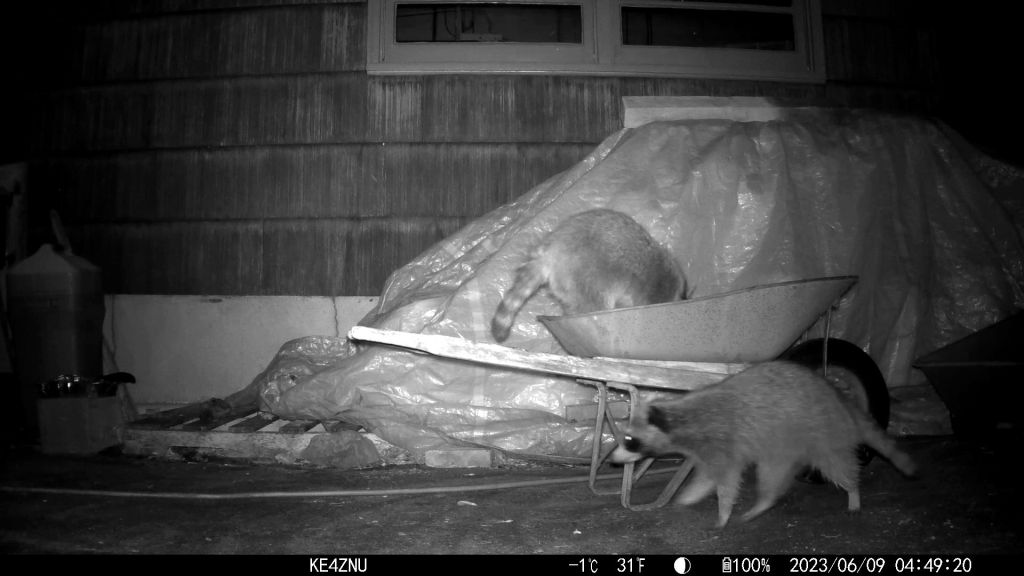
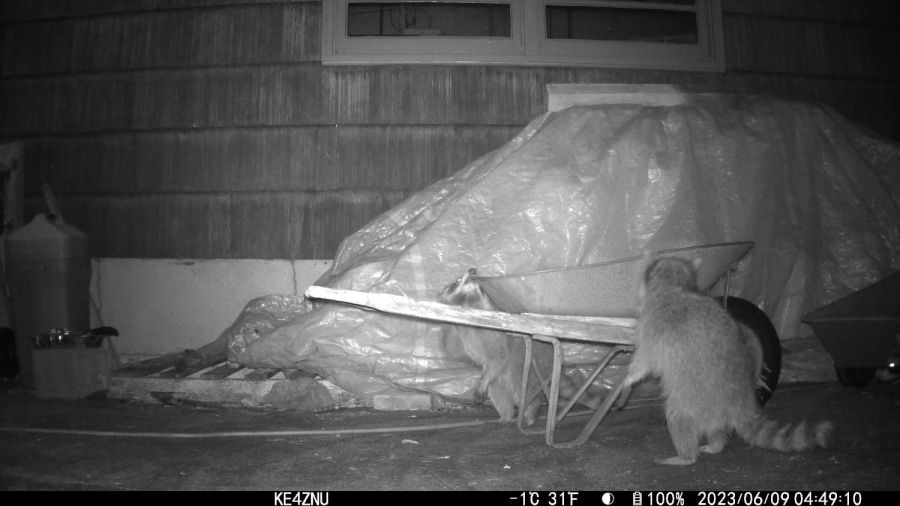
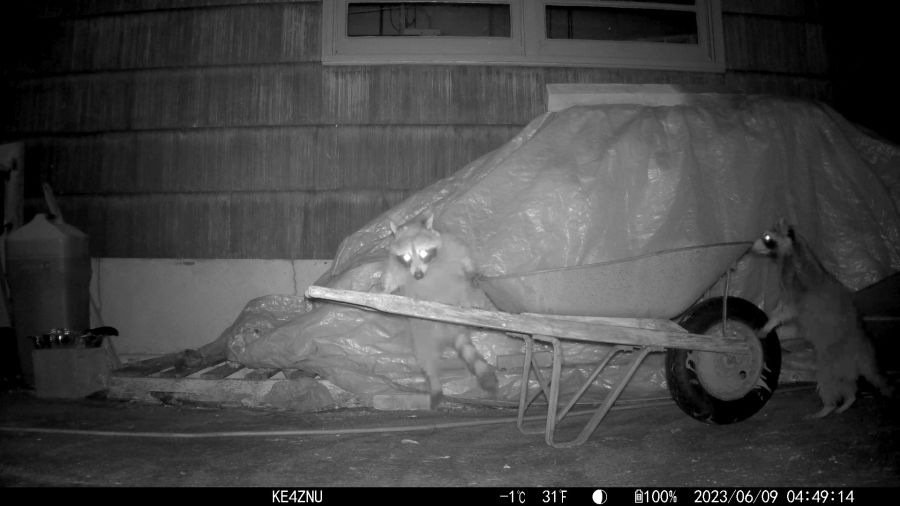
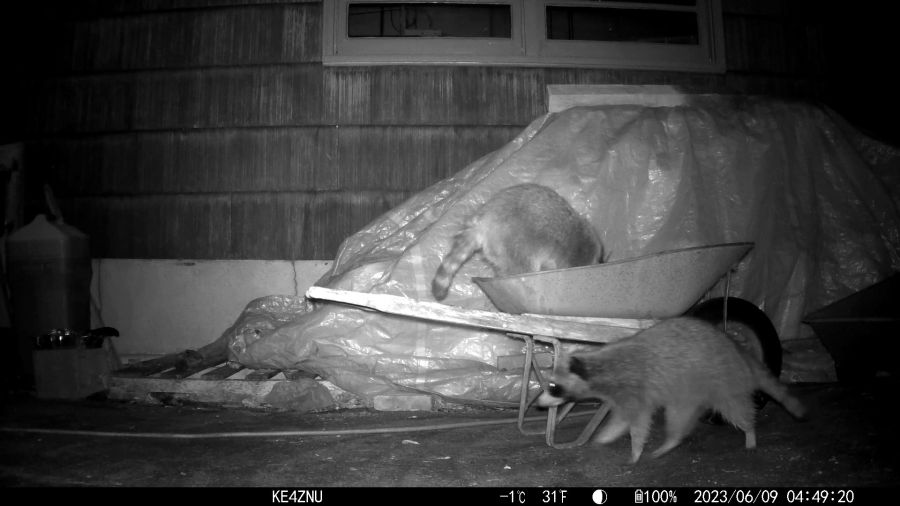
The only reason we haven’t seen a standing raccoon is because we’re not awake when it happens:
Raccoons vs wheelbarrow – 2023-06-09
The glowing dot over on the far right is a third raccoon!
They are athletic critters:
Raccoons in wheelbarrow – 2023-06-09
Mary puts garden clippings in the wheelbarrow before hauling them over the hill to our organic dumping ground. Something must smell pretty good in there:
Raccoons around wheelbarrow – 2023-06-09
The wire mesh over the new plantings in the garden seems to be holding them at bay, but it must come off before it snares the growing plants. We hope whatever is in the fertilizer will have worn off by then!
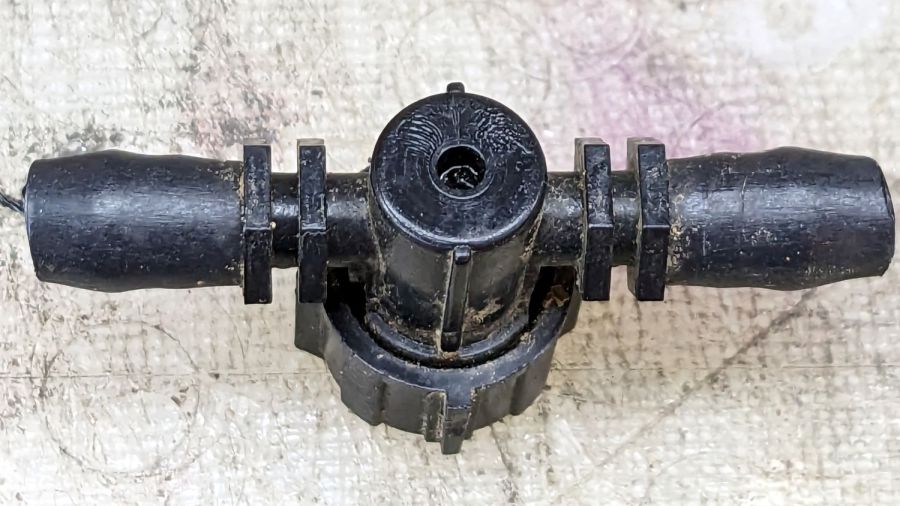
One of the Dripworks Micro-Flow valves in Mary’s garden started spraying water through the mold mark in the middle of the bottom:
Dripworks valve – bottom view
The autopsy produced a handful of pieces and inconclusive results: no visible holes or cracks.
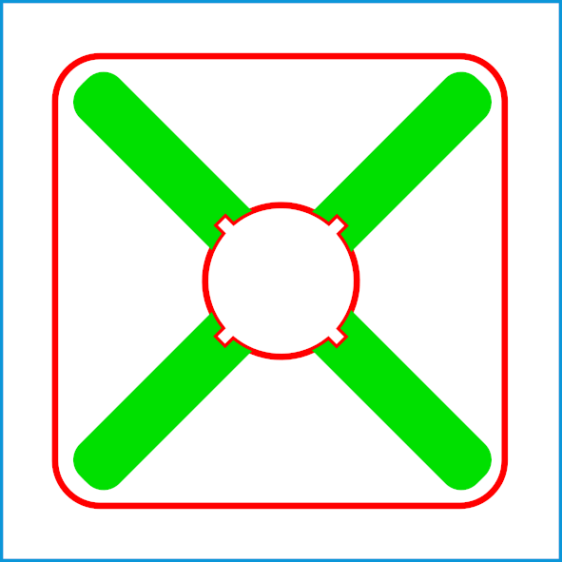
Having replaced it with a new (and drilled out) valve, I scanned the underside of the severed valve knob, blew out the contrast, imported it into LightBurn, and got a reasonable approximation to the outline:
LightBurn geometry over image
A few more tweaks, weld the outline together, add some markers, and it’s ready for cutting:
Dripworks valve helper – LB layout
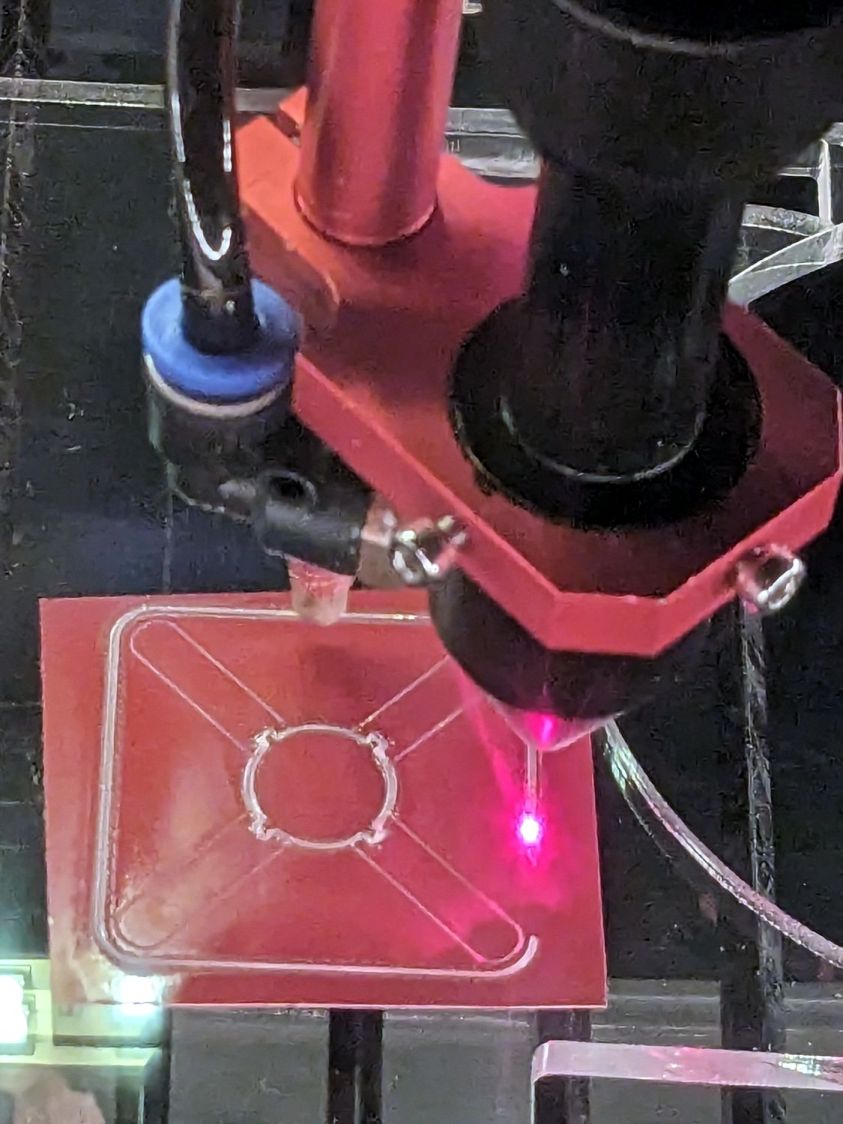
Having just done some earrings with PSA vinyl figures, I changed the (green) engraved layer to a kiss cut and Fired The Laser:
Dripworks valve helper – cutting
The mess in the vinyl around the through cuts in the ¼ inch acrylic sheet suggest engraving will work better. Lesson learned.
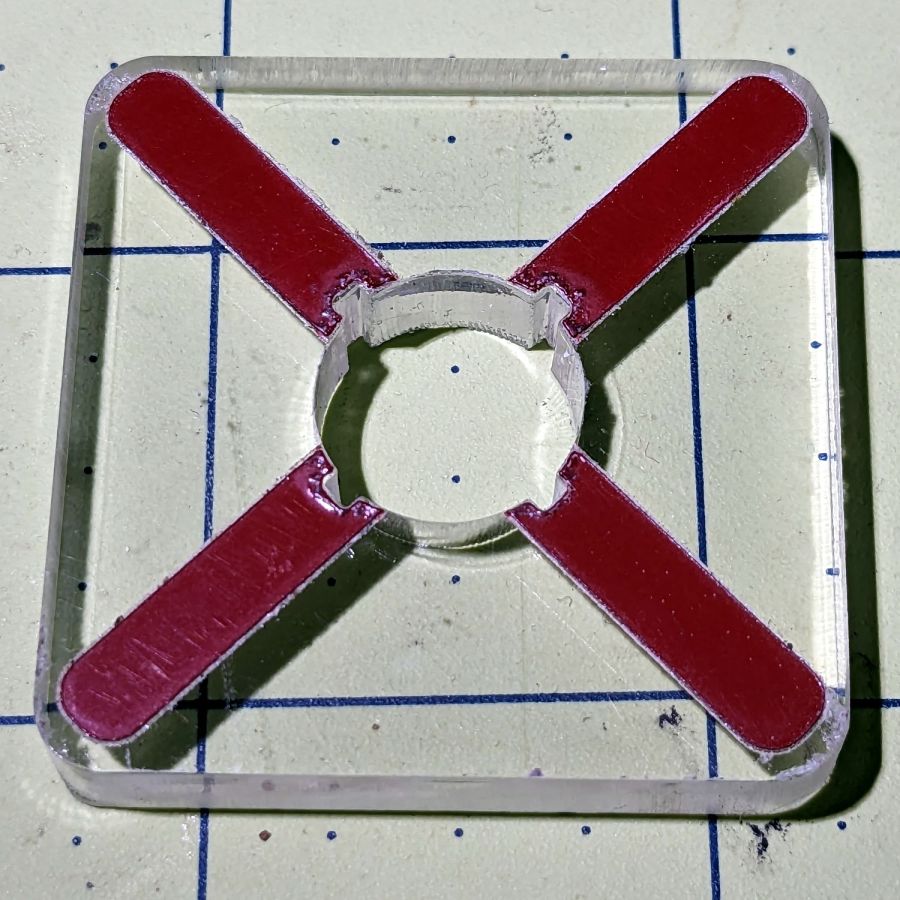
A few minutes of weeding produced a finger-friendly helper with scorches around the central ends of the vinyl:
Dripworks valve helper
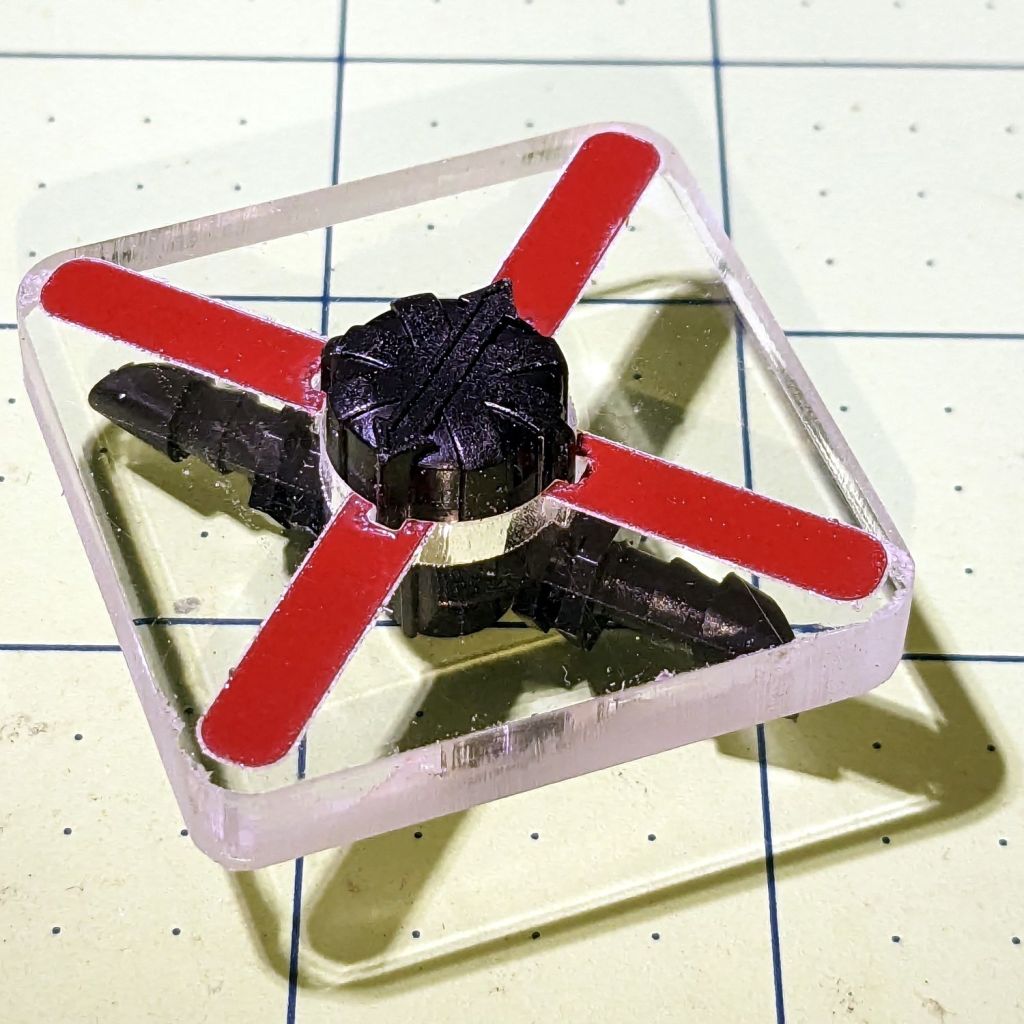
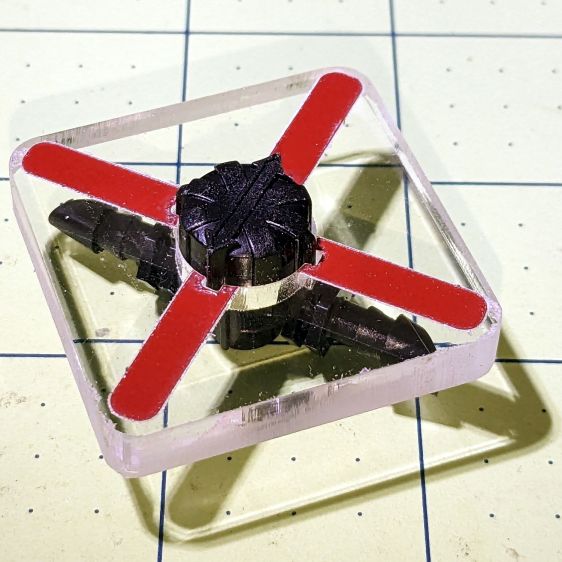
But it fits right over the knob, which was the whole point of the exercise:
Dripworks valve helper – in use
Now Mary can adjust the valve without squinting at obscure black-on-black shapes atop the knob.
I decided keying the helper to the knob so it fit in only one orientation on the knob would be a hindrance, because there’s no easy way to determine their mutual orientation without the aforementioned squinting. Now it’s a matter of putting the helper over the knob, turning it at most a quarter-turn until it drops around the knob, then making another quarter of a turn to put the other red marks parallel to the hose: if it was on, it’s now off, and vice versa.
After the PSA vinyl peels away, I’ll make another one with engraved lines and any other improvements.
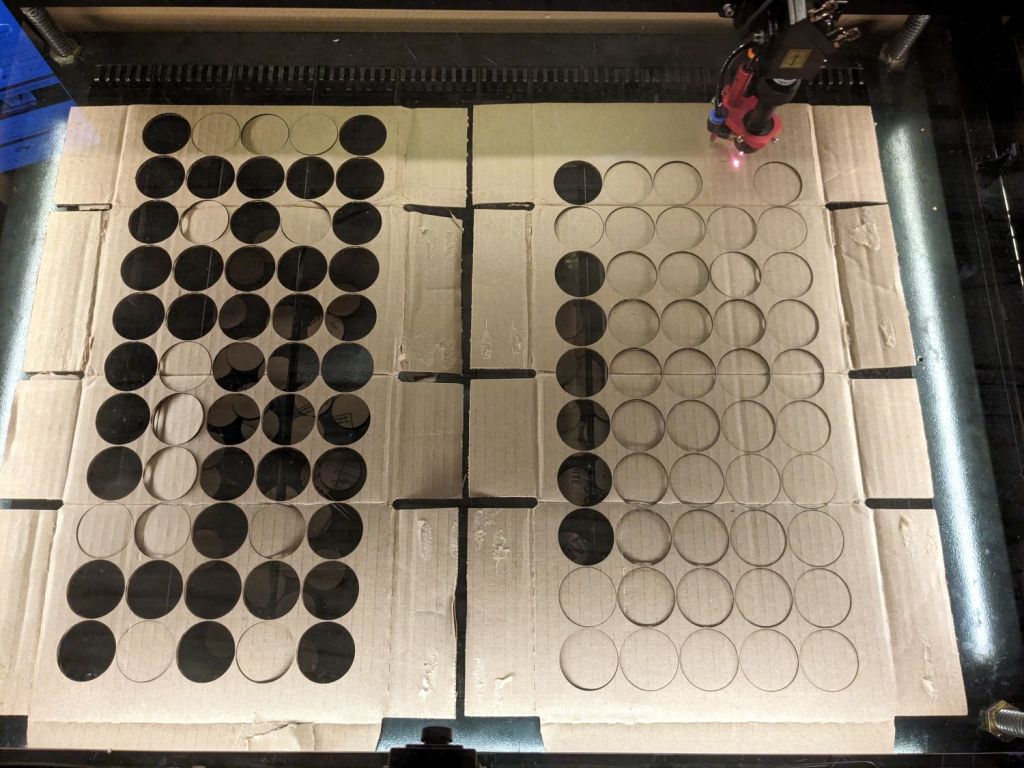
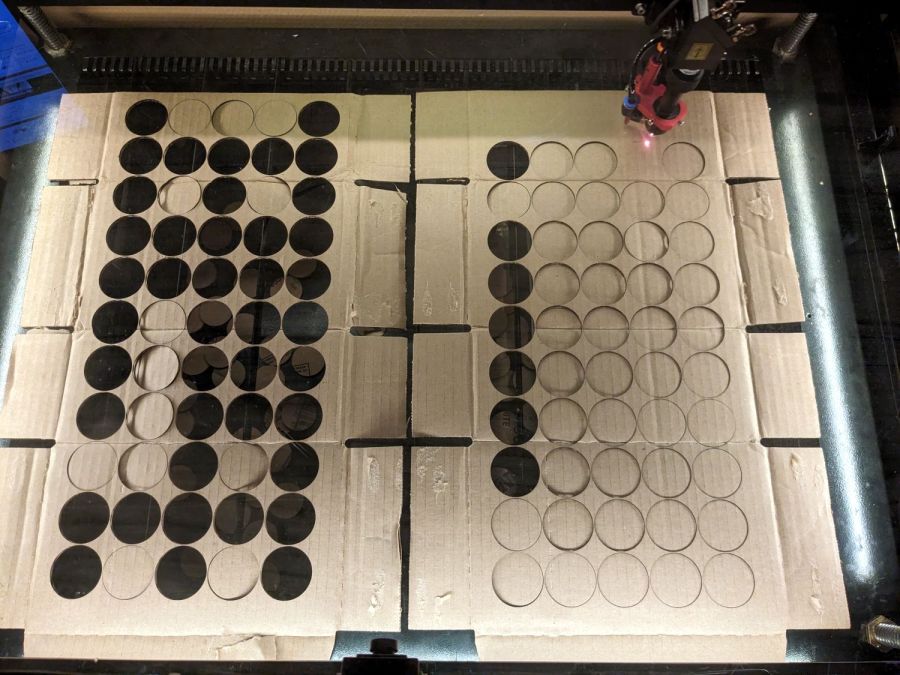
Draw a 42 mm circle, set the layer to cut corrugated cardboard, turn the circle into suitable arrays, flatten some boxes from the heap, and Fire the Laser:
Seedling starter pot bottoms
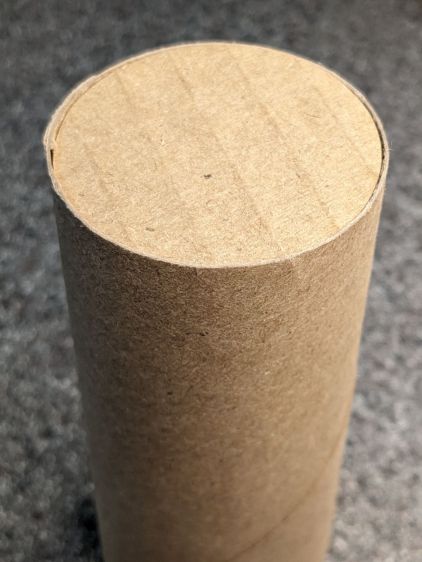
Collect the fallen disks from the chip tray and jam one in place as a serving suggestion, where it fits like it was custom-made:
TP roll seedling starter pot bottom
You’d still want to fold some flaps over the disk to keep it in place, but now your pot has a real bottom.
I have no idea if 42 mm is a Galactic Constant, but it worked for the pile of tubes we had on hand.
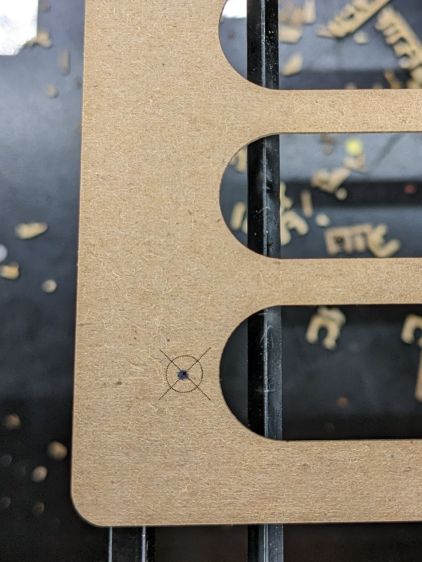
Jog the laser to the upper-right target on the fixture, click the upper-right target in the template, and tell P-n-C that’s the First Target. Jog to the lower-left target, click the lower left target, and that’s the Second P-n-C Target:
Craft Stick Markers – fixture target detail
The colored circles indicate the targets on the template:
Craft Stick Markers – LB PnC layout
Select the Align No Scaling option, because the template and the fixture are exactly the same size.
Click-n-drag to select the entire template (because you should always use Cut Selected Graphics), then frame it Just To Be Sure. The red dot pointer (or whatever you use) should kiss the fixture’s perimeter all the way around.
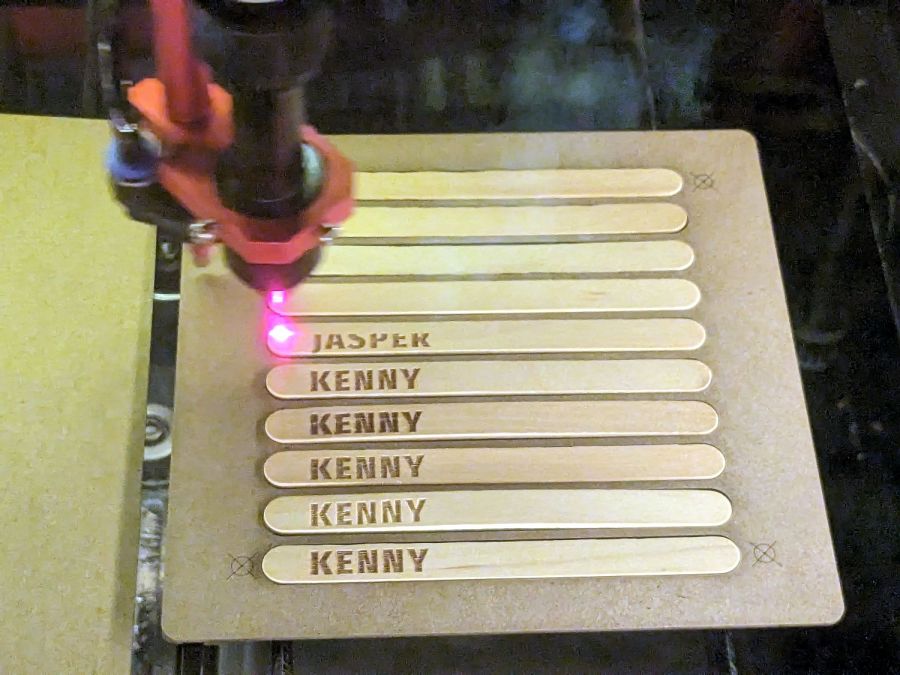
Make sure the fill layer happens before the cut layer, then Release The Laser:
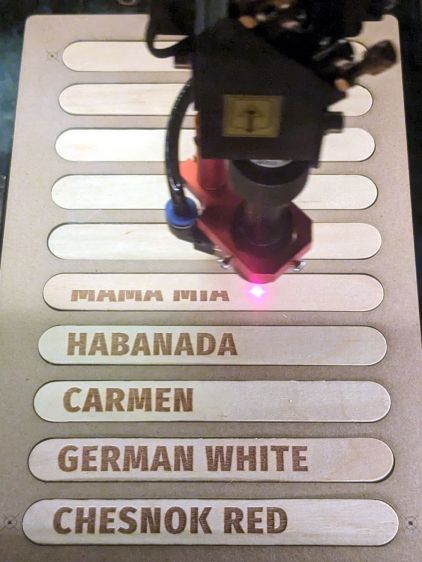
Craft Stick Markers – engraving
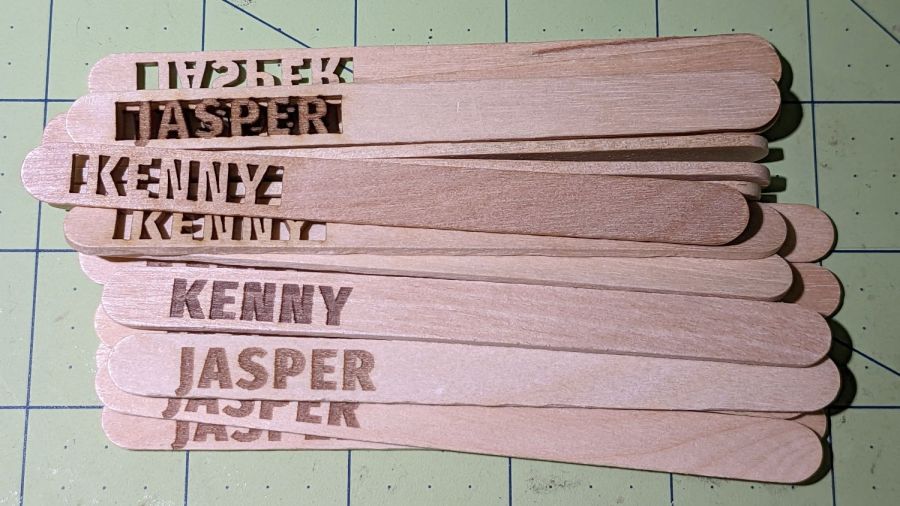
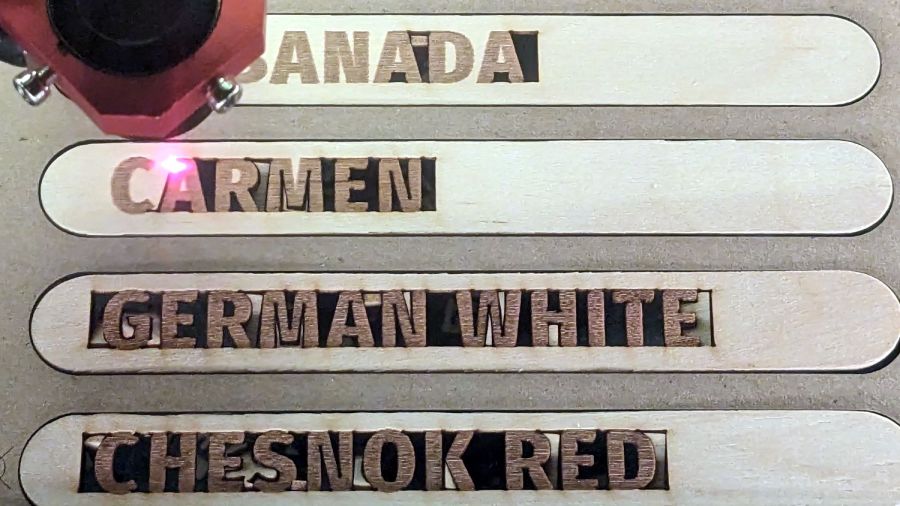
The cut layer trims around the engraved letters to leave them standing in the rectangle:
Craft Stick Markers – cutting
Some of the smaller bits won’t fall out as they’re cut, but a sharp thwack ejects them easily enough.
Producing a set of ten sticks takes maybe seven minutes:
Craft Stick Markers – fixture second fill
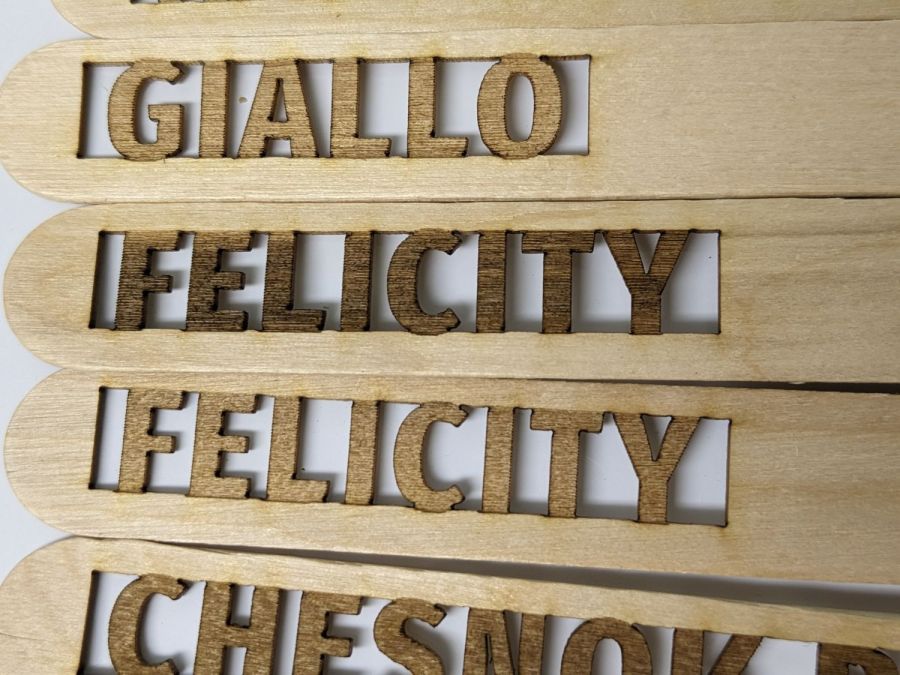
Because craft sticks aren’t intended for fine woodworking, don’t expect consistent engraving results:
Craft Stick Markers – wood engraving difference
Applying a finish would definitely improve their appearance, but most such chemicals don’t belong in an organic vegetable garden.
Putting the entire fixture layout onto a tool layer produces a template to align the text on the sticks:
Craft Stick Plant Markers – fixture layout
The rectangles mark where you put cut layer rectangles around the text in each stick. The sticks are 18 mm wide, so a 10 mm cutout leaves what should be enough wood along the edges. The rectangle length is a serving suggestion, as you must adjust the cut rectangle to fit the text.
Group everything except the four targets into a single object so you won’t inadvertently move only a part of it. The targets must remain separate to work with the Print-and-Cut alignment. With that set up, Lock the position of the entire layout to prevent you from moving any part of it.
Starting with a blank tag in the template:
Craft Stick Markers – LB template – base
Draw a rectangle in a cut layer to match the template, which is easy if you have Object Snap set up properly:
Craft Stick Markers – LB template – rectangle
Add your text in a chunky font like Fira Sans Condensed Heavy, set to 15 mm tall with 5 mm horizontal spacing:
Craft Stick Markers – LB template – lowercase text
LightBurn aggressively snaps a new text cursor to the nearest pre-existing text, so you may be forced to click far away from where you want to place the text, type the text, then move the finished string. LightBurn will also snap the text to the display grid as you drag it around, so hold the Ctrl key down to disable snapping while you eyeball the proper alignment with the rectangle. Leave about 2 mm between the left edge of the rectangle and the first letter to make an easily visible space.
Although you can use lowercase letters, uppercase letters have the compelling advantage of being attached both top and bottom, so retype the text if you forgot about the Caps Lock key:
The 15 mm font height I’m using seems to be the overall maximum from the top of the tallest letter to the bottom of the lowest descender, not the height of any specific capital letter, all of which extend beyond the cut rectangle by about half a millimeter. That’s crucial to make this thing work, so tune the font and its height appropriately.
Select the text string when you have it properly aligned:
Craft Stick Markers – LB template – text selected
Hit Ctrl-D to duplicate the text, tap the ↑ (Up) arrow key to move the copy out of the way, and set it to the fill layer.
Now the magic happens.
Select the rectangle, Shift-select the text, and Boolean Subtract (Alt minus) the text from the rectangle:
Craft Stick Markers – LB template – subtracted text
Realize that you have screwed up by not shortening the right side of the rectangle to leave about 2 mm of open space. Bang on Ctrl-Z to undo the last step, shorten the rectangle, Shift-select the text again, then subtract the text from the rectangle:
Craft Stick Markers – LB template – properly subtracted text
Select the filled copy and whack the ↓ (Down) arrow key to move it back over the cut layer:
Craft Stick Markers – LB template – overlaid text
Now the filled layer will toast the characters to a nice brown and the cut layer will remove the background rectangle.
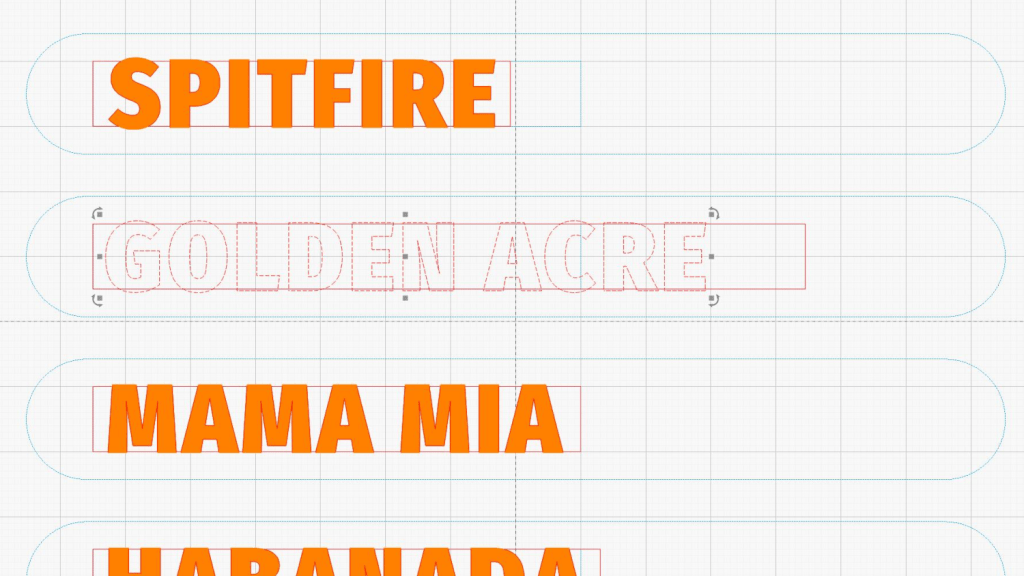
After finishing the text dance for all the markers, the template should look something like this:
Craft Stick Markers – LB PnC layout
The cheerful circles come from LightBurn’s Print-and-Cut Wizard aligning the template with the fixture holding the craft sticks on the laser platform, about which more tomorrow.
A good rule of thumb says never do any more work than absolutely necessary, so the rest of the fixture comes from linear arrays replicating the stick slots and targets:
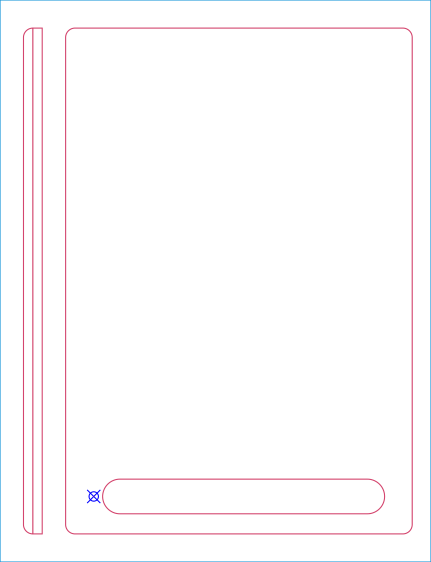
Craft Stick Plant Markers – fixture cut layout – full
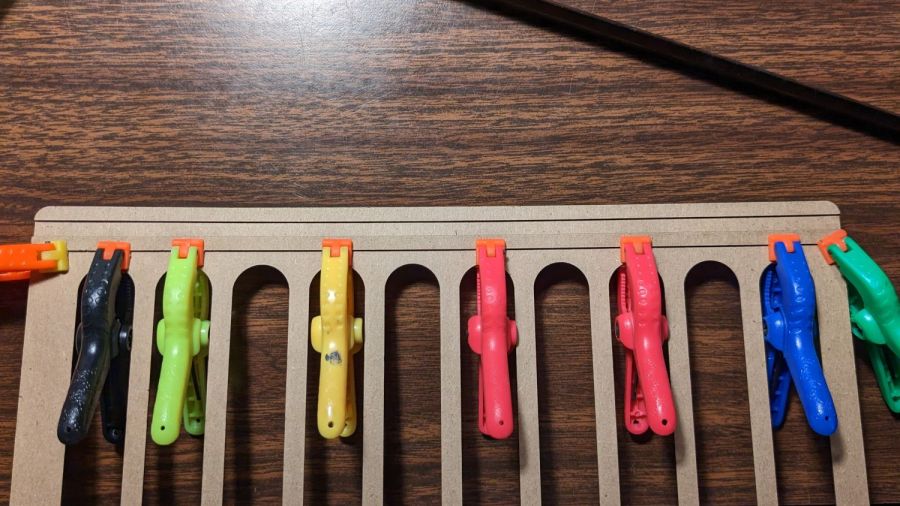
The two strips over on the left (with a common cut down the middle) get glued to the underside of the fixture:
Craft Stick Markers – fixture rail gluing
They’re exactly 5 mm apart to bracket one of the knife-edge bars supporting the fixture. The bar is upside-down to put its flat side upward:
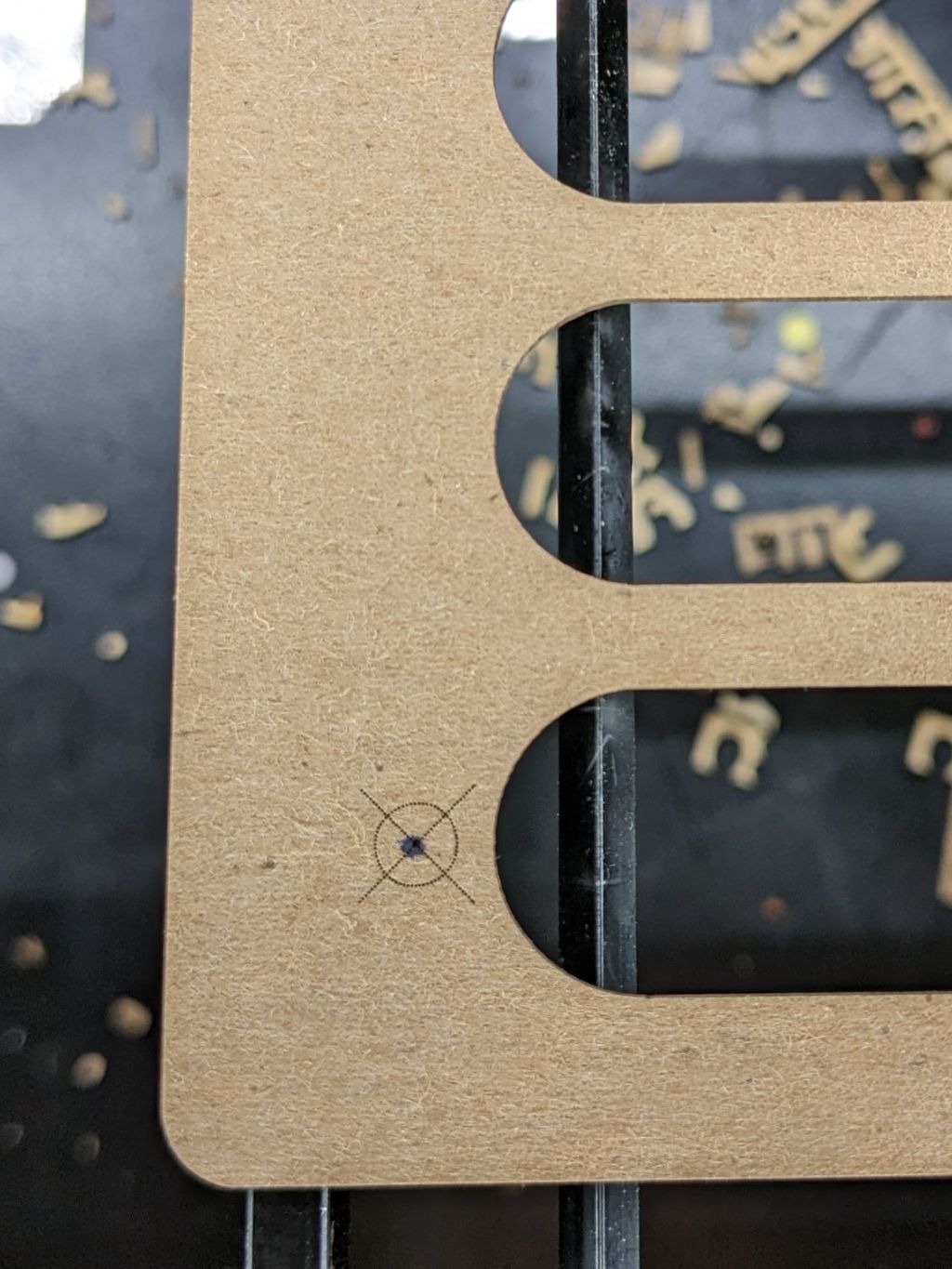
Craft Stick Markers – fixture target detail
Yes, the fixture is made of chipboard, mostly because it’s about the same thickness as a craft stick and it’s cheap & readily available. Each target gets an ink blot to make it more conspicuous; there is also a tiny hole burned through the chipboard at the center to mark the other side for the strips.
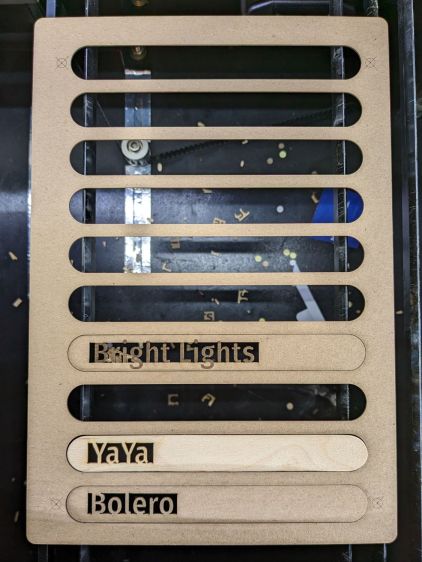
Two knife-edge bars (sharp side up) support the sticks near their ends, well out of the cutting path, to prevent scorch marks:
Craft Stick Markers – fixture overview
It’s worth noting the knife-edge bars are 5 mm wide and the platform spaces them on 3/8 inch = 9.525 mm centers. Not 10 mm, not 9.5 mm, exactly 3/8 inch. Kinda like the platform leadscrews: a 4 mm lead thread driven by a belt with 0.2 inch pitch. Only in America.
This doodle captures the key dimensions down there in the corner to work out where the strips should go:
Craft Stick Plant Markers – fixture vs laser bar spacing doodle
Now, to convert names from a garden map into plant markers …











 The Smell of Molten Projects in the Morning
