Ed Nisley's Blog: Shop notes, electronics, firmware, machinery, 3D printing, laser cuttery, and curiosities. Contents: 100% human thinking, 0% AI slop.
It turns out that attaching some, but not all, of the PCs around here to the Arduino Pro board controlling the Totally Featureless Clock cause the WWVB receiver to drown in a sea of noise. In fact, just touching the USB cable’s shield to the FTDI Basic USB-to-serial adapter would bring the noise.
So this is a quick-and-dirty circuit to see if optical isolation will reduce the problem enough to be bearable.
The schematic is pretty simple: two bits in, two bits out.
Optical Isolate Schematic
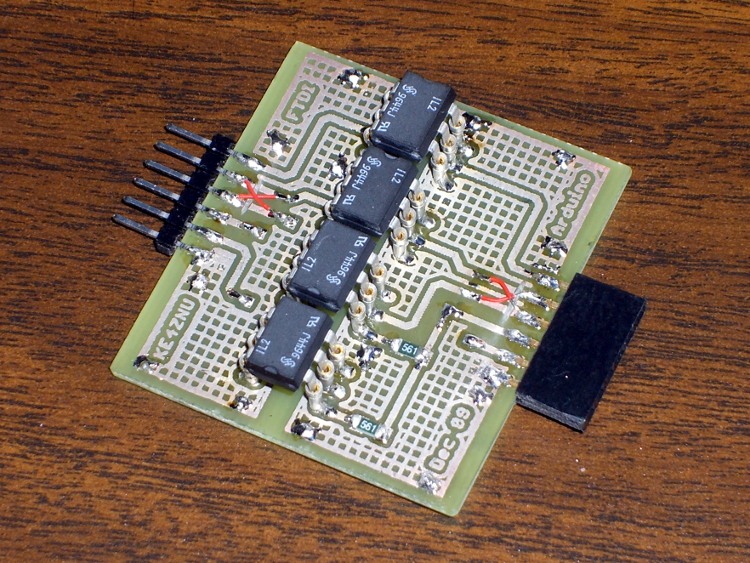
The layout puts the DIP isolators on the top and the SMD resistors on the bottom. I used fancy screw-machine IC socket pins, just because I had some, but you could solder the isolators directly to the board. The FTDI Basic connects through header pins and the Arduino connects through female header sockets, both soldered sideways to the top of the board. I’ll eventually reinforce them with some epoxy, never fear.
Double-size PCB layout:
PCB Layout
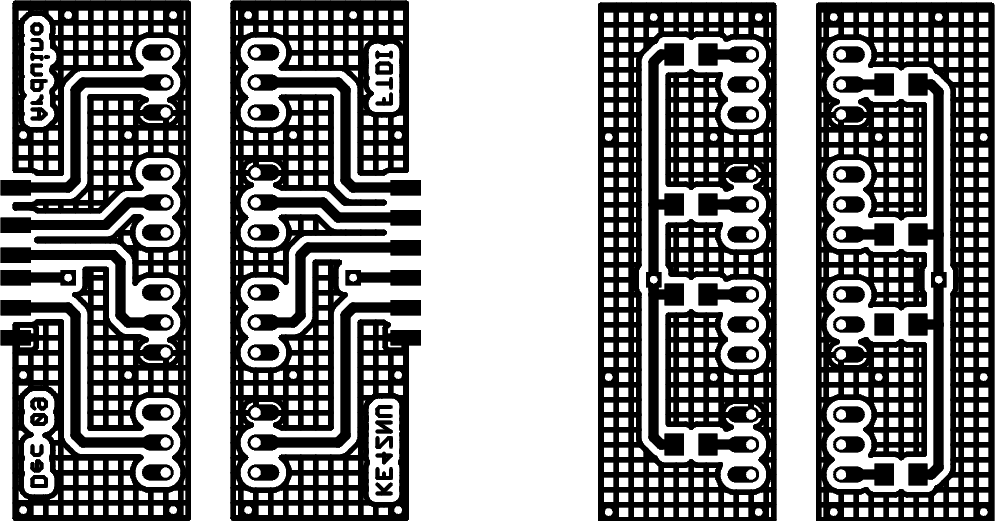
Actual-size copper images. Remember that the top copper is flipped left-to-right here so it comes out properly after toner-transfer imaging.
Copper
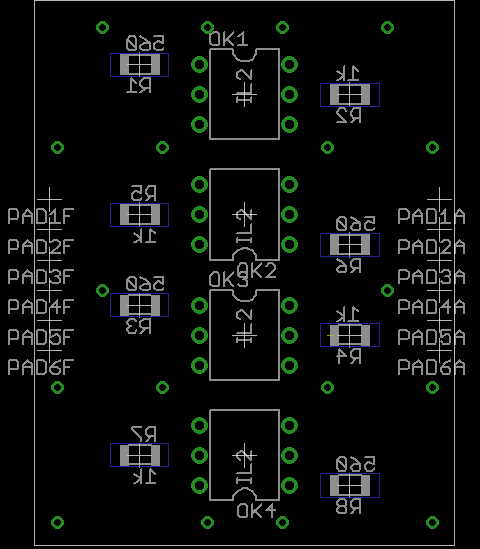
And the placement info showing where the parts wind up. This is sort of the silkscreen for the top and bottom, both together: the backwards stuff goes on the bottom side.
Top and Bottom Silkscreen
The alert reader will note that the photo doesn’t match the rest of the images. Nay, verily, eagle-eyed readers will have picked out a few resistors on the top and two embarrassing little red-wire Xes at the connectors. Somehow, I managed to swap the RxD and TxD pins, even with an FTDI board on the desk next to me. I hate it when that happens… so I fixed the schematic & layout for the next time around.
The resistors push a lot of current through the LEDs and phototransistors, which is what you need to get decent 19200 b/s serial data pulses. Here’s what the data stream out of the TxD isolator looks like:
Optoisolator – TXD
I have the Eagle files and the CNC drill file for my Sherline mill if you must have them, but you can go from those images above directly to the hardware. It’s an evening’s work, more or less.
You might want to kludge a jumper into the Reset line so it’s impossible to accidentally reset the Arduino. Sometimes you don’t want a reset, like after a few days of data collection…
Now, does it actually do what I expected? The early reports are good, but I’m at the mercy of the atmosphere and must collect a few days (actually, nights) worth of data to find just how far down the noise went.
I needed a brass tube with a lengthwise slit to serve as an electrostatic shield around a ferrite bar antenna. There are many wrong ways to do this, all of which produce terrible results, pose a serious risk of personal injury, or both. I say that with some confidence, having tried some of them over the years.
Here’s one right way: fill the tube with Wood’s Metal, thus turning it into a solid rod, then cut the slit with a slitting saw.
Wood’s Metal is a moderately toxic alloy that melts in hot water, which turns casting into a simple workbench operation. You might not want to cast it in the kitchen, but that’s your call. Clean up the scraps, wash the counter even though you used newspaper, wash your hands, and don’t suck your thumb.
As shown, I just poured the molten metal into the brass tube atop a steel block, broke off whatever seeped out, and remelted the scraps. Turns out I had just barely enough for the job.
Slitting brass tubing – overview
My buddy Eks gave me a stack of slitting saws a while ago and I modified a standard Sherline holder to fit them. Turns out there’s just barely enough room for everything within the mill’s working envelope; the saws are a bit over 3 inches in diameter.
So I cut the back of the tubing, making the pictures somewhat disorienting.
The tubing fit neatly into an old V-block (evidently homebrewed by a better machinist than I), held down by ordinary Sherline clamps on perilously long studs screwed into the tooling plate. The saw had just enough reach to clear the rather broad V-block’s shoulder.
The tubing is 0.630 OD with a 15-mil wall and the saw blade is pretty nearly 32 mils thick. I touched off Z=0.331 (630/2 + 32/2) with the blade atop the tubing, then jogged away to Y=+1 and drove down to Z=0 to cut exactly through the middle of the tube.
Slit 0.015 inch deep
The V-block is aligned with the front of the table, but I did a bit of nudging to persuade it into final alignment. Of course, the saw wasn’t quite centered on the holder, so a blade or three tinged on the tubing when I did a Y=0 trial pass at low RPM.
For lack of anything smarter, I cut at 500 RPM and fed at 5 inch/min. That’s painfully slow, but correspondingly boring… remember, in machine shop work, boring is good.
I did five passes: one trial at Y=0, three cuts at 5-mil steps, and a cleanup cut. The picture shows the 15-mil pass left a very thin web at the far end. A final 2-mil cut removed that web, leaving only a few burrs. You could do it in one pass, but I wanted to minimize the depth-of-cut into the Wood’s Metal.
Unclamp, discover that the cast metal rod slides right out, touch up the edges with a file, and it’s all good. A lovely slit, perfectly aligned, without bent metal or bloodshed.
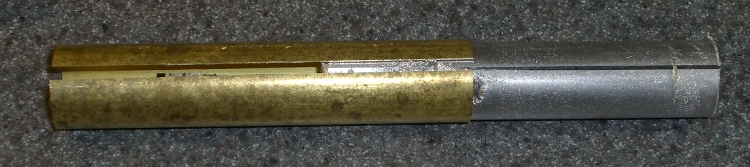
As a bonus, I get a nice Wood’s Metal ingot out of the operation. The line along the rod is just barely perceptible with a fingernail; it’s more of a polished line than an actual cut.
Slit tube with Wood's Metal ingot
Turns out the shield works a bit too well: it cuts out the WWVB signal, too. I think the tubing is too close a fit to the ferrite rod and detunes the winding. More experimentation is in order…
I use the Standard edition of Cadsoft’s EAGLE schematic capture & PCB layout program, which puts a 160×100 mm upper limit on circuit boards. That meshes nicely with the capabilities of my Sherline CNC mill, which I use to drill component holes.
I’m currently making a set of PCBs that are pretty close to that maximum size. They’re awkward to clamp, difficult to peel off from double-sided tape, and require careful positioning to ensure they don’t hit the mill column. Been there, done that, time for something better.
The simple acrylic sheet platen shown here seems to work well. The PCB is a 5×8-inch sheet, clamped along three sides with some aluminum U-channel from the heap. That’s why two of the rails have random holes: it came pre-drilled for something else.
Platen with 5×8-inch PCB
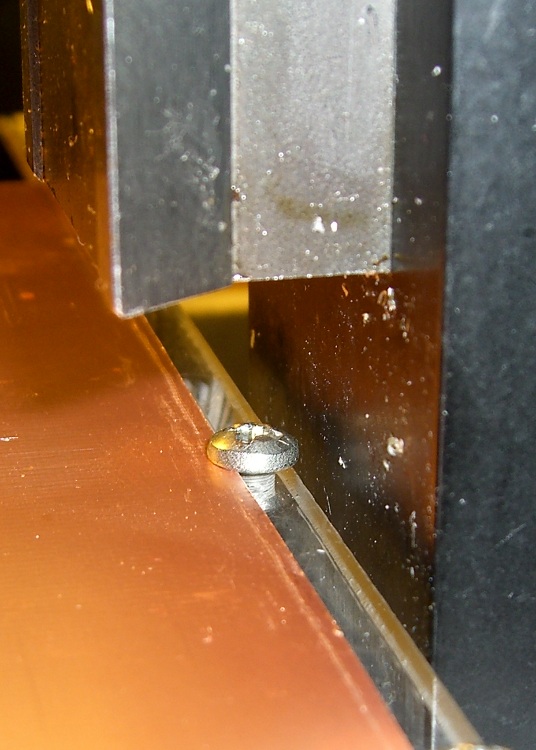
The rear edge (closest to the mill column) has three screws that serve multiple purposes:
They clamp the edge of the sheet firmly to the platen
The two end screws protrude through the platen and align it along the rear edge of the mill table
The middle screw is an origin alignment marker
Rear clearance
My mill has slightly less than the absolute maximum Y-axis travel because I added a bushing to capture the end of the leadscrew, as described there. The picture shows the clearance between the back of the platen and the mill column: 2 mm, more or less. The 6-32 screw head is flush with the rear edge of the platen.
Alignment along the Y-axis is easy: jog rearward until the stepper motor stalls, ease away a smidge, then touch off at Y=3.8 inches. Stalling the motor is bad practice with servos or husky steppers, but on this sort of low-power machine it’s perfectly OK. (One could argue for limit switches, but in vain.)
Slap the platen on the mill table tooling plate (turns out that the Z-axis reach is marginal for the shortest carbide drill when it’s in a collet, oops), adjust more-or-less to the middle of the X-axis scale on the front of the table, line up the hold-down clamps, then crunch the U-channels down on the circuit board. That holds everything in place very firmly; the front overhang doesn’t get much torque because the mill can only reach 4 inches from the rear edge, just beyond the mill table underneath.
That center screw is eyeballometrically in the middle of the platen’s width, so X-axis alignment is also easy: put the laser dot (visible in the top picture if you squint) on the near-side edge of the screw and touch off X=3.2 inches.
That alignment puts the X=Y=0 origin at the front-left corner, about 1/4″ in from the left-side clamp and an inch behind the front clamp.
The mill’s X axis reach goes beyond the clamps, but the 160 mm = 6.30 inch extent of an EAGLE board fits neatly inside.
The Y-axis reach is barely over 3.8 inches, just shy of EAGLE’s 100 mm = 3.94 inches, but that’s close enough for what I need to do. Getting that last 0.14 inch would require a very, very thin clamp at the rear, minus the Y-axis bushing. There wouldn’t be much clearance from the holes to the edge of the board, either.
The generous Y-axis clearance on the front allows for the trickery needed to run toner-transfer sheets through the fuser; you want margins all around the drilled area. More about that there, plus search for PCB to unearth other posts.
Remember that the way I make PCBs, the holes act as alignment points for the toner transfer sheet. That means I don’t really care about absolute alignment with respect to the raw PCB sheet: just clamp it down and start drilling.
For reasons that shouldn’t require the least bit of explanation by now, I had to dismantle(*) an old 2-D-cell Maglite. The operative word here is old, because you can find plenty of instructions & pix telling you how to dismantle the newer (post-2001, evidently), cheapnified Maglites. Mine dates back to the early days.
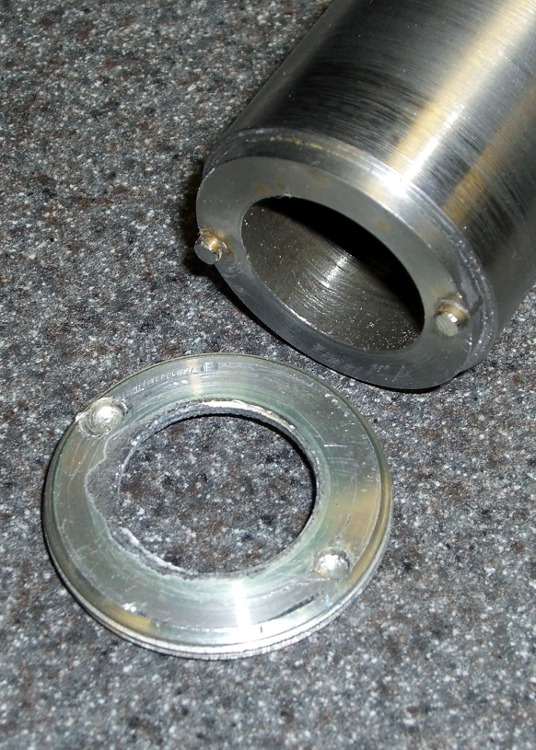
Unlike new(er) Maglites, the switch assembly in this one comes out through the front. An aluminum retaining nut holds it in place, as shown in the first picture. You’ll find directions telling you to unscrew the nut by jamming a pair of needle-nose pliers into the holes, but that’s not how it’s done.
The job calls for a pin wrench!
Measuring the dimensions is no BFD after you’ve got the damned thing apart, but I didn’t have that luxury. Given this was an American product from back in the Olde Days, I assumed everything was denominated in inches, which turned out to be close enough.
Pin Wrench Dimensions
The “Max” dimensions at the bottom are the actual ID measurements from the housing after disassembly, using telescoping gages. I made the wrench to the dimensions on the line just above and they worked fine.
Believe it or not, I found a steel cylinder in my scrap heap that was just exactly what I needed, right down to the 7/8″ bore in the middle. Not only that, it was free-machining steel. Whew!
The inner bore must clear the brass screw head sticking out of the lamp tower in the middle (which rides in a slot as part of the sliding focus mechanism). Once you’ve extricated the switch assembly, you remove that screw with a 2 mm (so much for hard inch dimensions) hex key. If you’re desperate, you can probably worry the screw out by goobering it with the aforementioned needle-nose pliers; it has an ordinary right-hand thread.
I turned the cylinder down in the lathe, then drilled the pin holes. That’s a mistake: the outside edge of the pins is exactly even with the OD of the wrench nose. If you do this, clean up the stock OD & face the ends to get a nice cylinder, drill the pin holes, then turn down the barrel clearance and nose. It need not be perfectly concentric, so stop worrying.
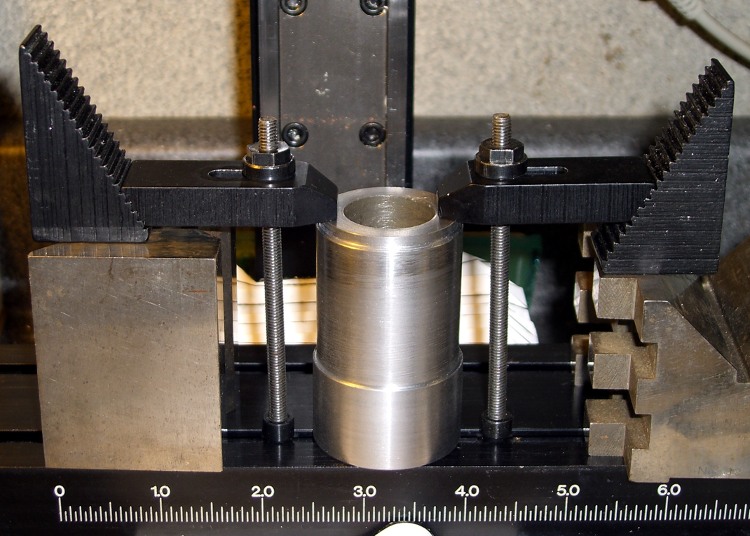
Pin Wrench Drill Clamping
I did the drilling using manual CNC on the Sherline mill, mostly because that’s the only way I could poke the holes in the right spots. The mill doesn’t have a lot of vertical headroom, so I clamped the wrench directly to the table and touched off the X and Y axes to put the origin in the center.
I got it all clamped down, removed the right-hand clamp to touch off on the +X side, then re-clamped it.
Drilling Pin Wrench
Center drill to fix the hole location. Drill 1/8″ about 0.250 deep: 3000 rpm, 10 ipm feed, use a little cutting lube. Do those both in sequence at each hole.
I sliced two overly long stubs from some 1/8″ drill rod with a Dremel cutoff wheel, dabbed JB Weld in the holes, and poked them in. The next morning I sliced them down to about the right length, cleaned up the ends with a file, broke the edges, and the wrench was good to go. The pin length in the drawing was what I’d have used if I could have measured the holes before taking it apart.
The pins were actually on the long side of 60 mils, just an itsy too much to keep the wrench flat on the nut. The next picture shows some gouging on one of the holes, due entirely to not engaging the wrench quite enough at first.
Pin Wrench and Maglite Retaining Nut
I thought about putting flats on the wrench, but simply grabbed it in the bench vise, swallowed it with the flashlight, engaged pins with holes, leaned into the wrench, and unscrewed the ring. It took a lot more force to get those threads turning than I expected, but the ring eventually spun out easily. Right-hand threads, of course; obvious after the fact.
Before you can remove the switch assembly, you must pry off the rubber switch cover, stick that 2 mm hex wrench down the hole thus revealed, and unscrew the setscrew ‘way down inside there. That backs the setscrew out of a recess in the housing that makes electrical contact with the negative end of the bottom D cell. Do that before you remove the ring, lest you forget.
Switch Housing and Lamp Tower Parts
Surprisingly, the blue plastic switch housing seems to be slightly soluble in potassium hydroxide. Who knew?
With the switch assembly out, you (well, I) can proceed to beat the corroded cells out by chucking the housing in the lathe (it exactly seats on the three-jaw chuck’s front face!) and ramming a fat dowel up its snout with a two-pound hammer.
Yeah, genuine Ray-O-Vac Maximum D cells: they all leak if you leave ’em in there long enough. This flashlight worked fine, right up to the point where I checked inside to see how long the cells had been in there. Oops.
I’m thinking of rebuilding it with some killer LED clusters up front; scrap the reflector, rework the switch assembly. Certainly that’d have better heatsinking than those absurd 3-watt LED bulb-like thingies.
(*) Yes, Maglite has a lifetime replacement warranty that even covers death due to battery corrosion. Now, I ask you, what’s the fun in that?
Here’s an example of the dimensional accuracy you can get from toner-transfer PCBs in real life.
I drill the holes with a CNC-ed Sherline mill, so they’re pretty much spot on. Drilling the holes by hand simply isn’t practical: there’s no way to get both global alignment and local accuracy.
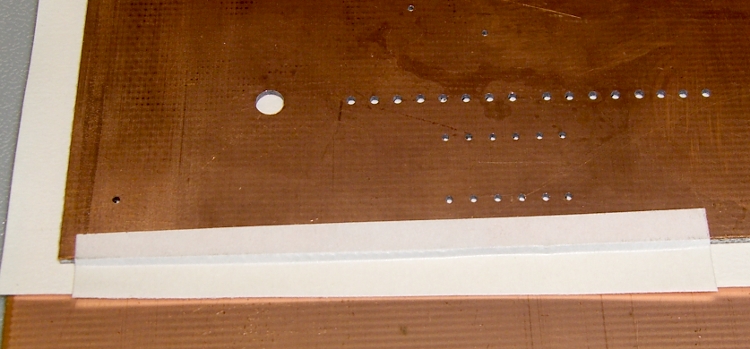
The toner transfer sheet, printed on a laser printer, gets aligned to the existing holes atop a light table. The paper stretches & shrinks and moves around while printing, but I can generally average out the errors so that the 24-mil holes (the smallest I generally use) across the board have no more than a few mils of error: the pads don’t show more than that inside the drilled holes. In the picture below, you can see a dark rim around the corner alignment hole that looks worse than it really is due to the perspective.
I put the toner transfer sheet on the light table, toner-side up, lay the PCB atop the paper, and adjust for best overall alignment. I then tape them together along one edge with strips of laser-printer address labels: guaranteed to hold up to high temperatures, which is more than you can say for most tapes.
PCB alignment and taping
Here’s the board after etching both sides, with the black toner and green sealant film still in place. The toner & film are slightly smeared from the solvent I used to clean off the other side before etching it. The brownish dabs on the green areas come from a brown Sharpie that works fine as a touch-up etching resist.
WWVB Simulator – Top surface toner mask
The narrowest traces are 16 mils, most of the others are 32 mils, and the fat ones down the middle of the chip are 40 mils. Click on the images for bigger versions; you’ll get some JPG compression artifacts, but the resolution is good enough to see what’s going on.
Here’s the same area with the toner removed and a touch of silver plating applied to make it pretty and more easily solderable. The colors aren’t particularly reliable; in real life, it’s a lot more silvery.
Top surface copper
Fairly obviously, the alignment isn’t nearly as good as you’d expect from the initial taping. In round numbers, the pads to the left side seem offset by about the diameter of the holes; call it 25 mils. The holes in the DIP pads are off by perhaps 10 mils.
The bottom surface looks pretty much the same, with similar alignment issues.
Bottom surface copper
The misalignments are not uniform, as you’d expect if the toner transfer sheet moved across the board during fusing. The sheet deforms during the fusing process in a completely unpredictable way, despite my trying all of the usual tricks:
Pre-shrinking the transfer paper by running it through the printer with a pure-white image (so no toner gets applied)
Fusing quickly after printing to prevent moisture absorption (there’s a limit to how fast I can work)
Taping more than one edge to lock the paper in place
It’s fair to say you (well, I) can get within 25 mils of a board hole for sure, less than that most of the time, and be spot on over much of the board. I use large pads and vias for anything I have control over, as witness the pads surrounding the DIP, and avoid very fine features near holes.
Anyhow, it’s good enough for what I do, but you shouldn’t get your hopes up that toner-transfer circuit boards come anywhere close to commercial quality. If you’re doing a lot of pure surface-mount work, it’ll probably be good enough because there’s no need for global alignment to holes in the underlying board. Obviously, the smaller the board, the better off you’ll be.
I etched this board by rubbing ferric chloride on it with a sponge (wearing forearm-length rubber gloves and a shop apron!), renewing the solution as it turned black and gooey. Works like a charm, gives good control of the process, doesn’t erode the Sharpie masking, doesn’t over-etch the traces (much, anyway), and uses less etchant than soaking the board in a bath.
I have other posts describing the process in more detail. Search for PCB, toner-transfer, and other keywords to unearth those entries.
I don’t do any fancy 3D milling, so it takes a lot of Z-axis backlash to get my attention. While setting up for some circuit-board drilling, I finally noticed that the backlash far exceeded even my slovenly specs: something like 20 mils.
The Z-axis backlash adjusting nut on the saddle was as snug as it usually is. Heaving on the saddle, though, pulled it up & down and moved the handwheel on the top of the Z-axis motor.
Ah-ha! That says the leadscrew itself is moving, which shouldn’t be possible because it’s captured at the bearings in the stepper motor mount.
Some tedious disassembly later, the top picture shows the Z-axis leadscrew and motor mount, with the nut obviously too far away from the lower ball bearing housing. The nut was finger-loose and I moved it while extracting the leadscrew; it’s supposed to be snug against the bearing in normal operation.
The solution is a drop of Loctite, which should be applied to the canonical “clean and dry” threads. Hosing this part of the leadscrew down with solvents isn’t a good idea, because you don’t want any inside the lower bearing in the motor mount, so I spent some Quality Shop Time spinning the threads against a (dry) rag, running the nut to the other end (all of a few millimeters), and repeating until most of the oil was gone.
Properly adjusted nut
Sherline documents how to assemble & install the motor mounts, so there’s not much mystery involved. I loosened the preload nut until the housing spun freely on the shaft, then tightened it a teensy bit; the housing still spun freely and there’s no detectable end play.
Reinstallation requires putting the motor mount at the same spot on the Z-axis column as before. I moved the saddle to the top of the column, ran the leadscrew into the saddle nut, and then tightened the motor mount screws. That allows the mount to move to suit the saddle nut’s position, rather than going through the tedious saddle alignment process I mentioned as part of the gib adjustment.
It’s all good… call it 3 mils of backlash on all three axes.
Memo to Self: It’s possible to run the Z-axis backlash adjusting nut off the top of the leadscrew thread, then re-engage it without removing the motor mount. The trick is to hold the anti-backlash nut firmly against the saddle nut while turning the leadscrew to engage the thread. Remember that it’s a left-hand thread…
Bezel bottom 3.3 mm thick, excluding depression on bottom surface
Screw head sticks out of depression 0.9 mm
Some deft work on the bezel installed in the camera, using the blunt end of a transfer punch, a pin vise, and a calculator reveals these protrusions:
1.4 mm does not trigger anything
2.1 mm triggers the half-pushed focus action
2.4 mm reliably triggers the shutter
So the new stem can stick out about 1.4 mm when the button is released and must not stick out more than 2.4 mm with the button fully depressed: a whopping 1 mm of travel!
Eyeballing the shutter release on my DSC-H5, that seems to be about right. I think it has more travel between “released” and “half pressed” than those measurements indicate, but it’s close. And sloppy, too: the H5’s button has a lot of side-to-side wobble, indicating that the stem is not a close fit in the bezel hole.
The screw head is 3 mm dia after being turned down and that’s about the right size for the nut that will adjust the travel distance, as it must fit into the recess in the bezel. The nut sets the protrusion when the shutter button is released: 1.4 mm.
The distance from the shutter button’s bottom to the bezel sets the travel from “released” to “click”: 1 mm, more or less. They’re held apart by the spring, so that’s the default state.
Circular Milling the Nut
I re-centered the 3-jaw chuck under the spindle, put a 1-72 nut on the turned-down screw, and applied some gentle manual CNC to convert the nut from a hex to a disk. The trick is to approach the nut from the right side (the +X side) and go clockwise around it (climb milling), so that the cutting force tends to jam the nut against the screw head. Do it the other way and the nut will zip downward away from the cutter
Surprisingly, I got that right the first time.
Using a 2 mm end mill and figuring a 2.9 mm final diameter, the radius of the circle to move the end mill around the nut is: R = (2.9 + 2.0) / 2
So the G-code for one pass looks like:
#<R>=[[2.9+2.0]/2]
G1 X#<R> F150
G2 I[0-#<R>]
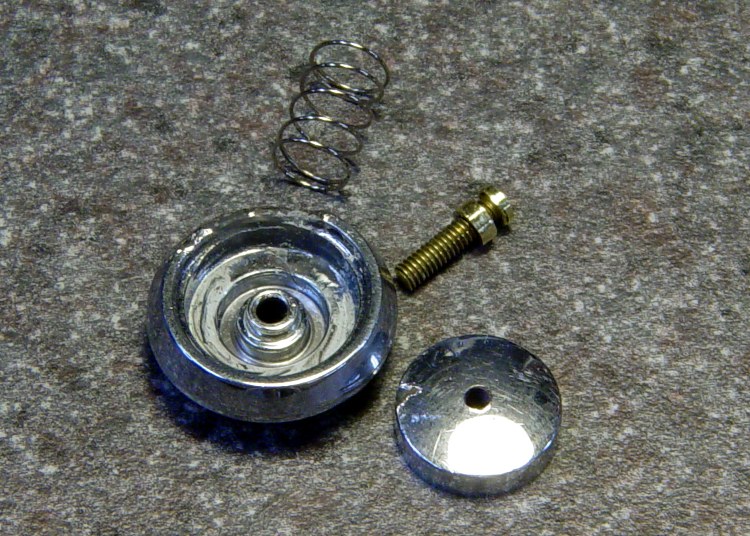
Shutter Button Parts
Now, given the fragility of that setup, you don’t cut it all at once. You start from a diameter of maybe 4 mm and go down by 0.2 mm until you hit 3.0, then make a final pass at 2.9 mm. EMC2’s AXIS MDI mode makes this easy enough: type in the commands for a pass at 4.0 mm, then click on the previous command, change 4.0 to 3.8, and then just clickety-click.
Spindle far too slow at 3000 RPM, feed at 150 mm/min seemed fine. Sissy cuts worked out OK.
After the first few passes, my dim consciousness became aware of the fact that this is how I should have turned down the screw head…
Button Assembly – Top
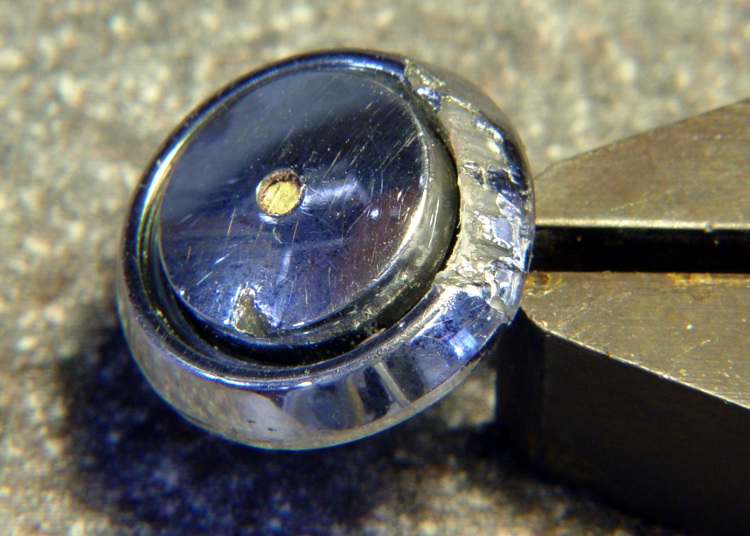
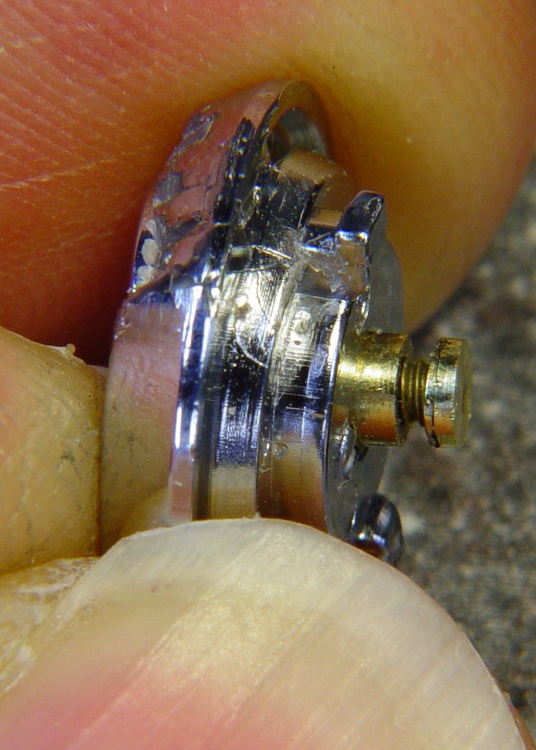
I cleaned up the bezel by putting it in an ultrasonic cleaner to shake the crud off, put it on a warm firewall router overnight to dry it out, then slobbered some Plastruct solvent adhesive into the cracks and clamped it for another night. The bezel was slightly out-of-round from the damage, so I hand-trimmed the bent plastic using a “high speed cutter” (#193, basically an end mill) in a Dremel flexible shaft at about 1/3 max speed until the shutter button bottomed out smoothly within the inner recess. Not a bit of CNC to be seen: hand held all the way.
Button Assembly – Bottom
Then loosen the nut a bit, poke the screw through the bezel, put the spring on, and screw the shutter button in place. Adjust the nut so the screw head is 1.4 – 1.5 mm from the bottom of the bezel with the nut resting in the recess.
Button Assembly – Pressed
Twiddle the shutter button until the screw head protrudes 2.4 mm from the bezel with the button pressed down.
That’s measured with the hole-depth tang of a caliper, sitting atop the screw head. I don’t believe there’s 0.1 mm accuracy in the measurements, but they’re close enough. I did file off a few mold flash bumps from the shutter button & bezel during this adventure.
Mark the screw threads above the button, unscrew it, chop the screw off with a stout diagonal cutter (it’s brass and not very thick, it’s OK), file the end flat, clean up the threads.
The trick seems to be that the button must rest just below the inner ring of the bezel, so that it bottoms out smoothly when pressed. If it’s above the ring, then one side will hang up. The ring depth thus seems to limit the maximum travel, although I can’t say whether this is the way it’s supposed to work or not.
I iterated & filed until the screw was flush with the top of the button with it screwed down to the proper position. It helped to figure out that one turn of the shutter button on the screw changed the “pressed” protrusion by 1/72″ = 0.35 mm.
Urge some low-strength Loctite under the nut and into the shutter button’s hole, reassemble everything, and you’re done.
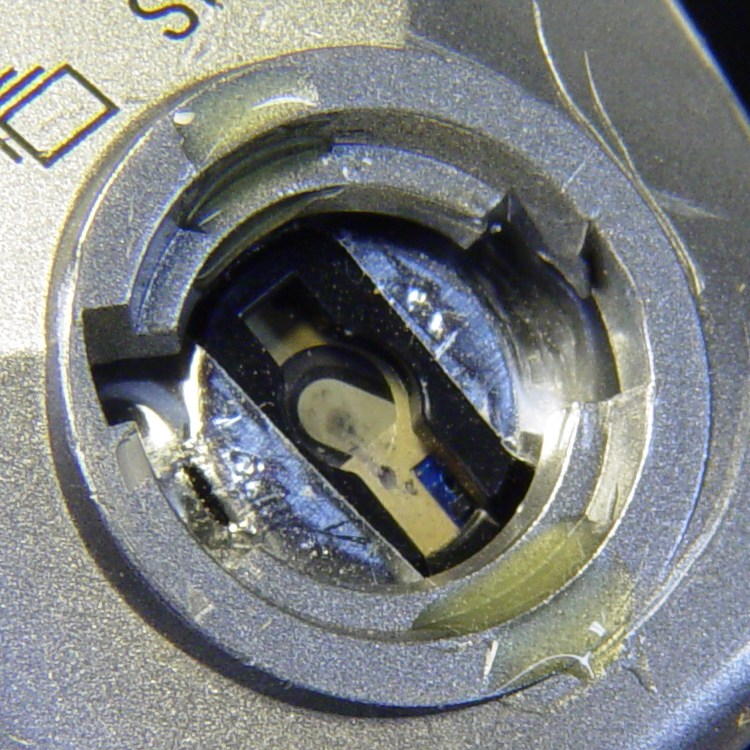
Urethane Adhesive on Body Socket
The fall bent the bezel tabs so they no longer latch firmly in the camera body. I put two dabs of urethane adhesive on the socket in the body. The adhesive expands (foams!) as it cures; I hope it will lock the bezel in place while still allowing it to be removed if needed.
I dabbed off most of the adhesive you see in the picture before installing the bezel; it’s not as awful as it looks!
The final result has slightly less travel than the (undamaged, original) shutter button in my DSC-H5, but it works perfectly: half-press to focus, full press to trigger the shutter.













 The Smell of Molten Projects in the Morning