The Smell of Molten Projects in the Morning

Ed Nisley's Blog: Shop notes, electronics, firmware, machinery, 3D printing, laser cuttery, and curiosities. Contents: 100% human thinking, 0% AI slop.

Tag: CNC

Making parts with mathematics

  • Ugliest Tool Length Probe Switch: Repeatability

    Probe Repeatability Setup
    Probe Repeatability Setup

    Given the overall slovenliness of the recently kludged tool length probe switch on my Sherline CNC mill, you have to have to ask yourself… does that thing actually work?

    This boils down to a simple test: repeatedly poke the switch and record the Z-axis trip point. If it’s the same every time, then the switch is repeatable and life is good. If not, then the switch is moving: not good.

    One good measurement being worth a thousand expert opinions, I devoted some Quality Shop Time to measuring the switch. The picture shows the simpleminded setup.

    There’s a broken carbide cutter (I have a disturbing number of these) held in a collet, with its blunt end downward. The spindle isn’t turning, for obvious reasons.

    The probe switch is as far in the -X direction as I can conveniently put it, screwed down to one of the T-nuts holding the tooling plate in place. The G30.1 tool change position is a few inches directly above the switch position.

    The dial test indicator grabbed in the vise has 0.5 mil graduations, so it’s eyeballable to more-or-less 0.1 mil, although I have my doubts about the mechanical repeatability in that range. The arm is horizontal, with the XYZ origin set to the top of the ball.

    The G-Code (shown below) probes the switch to establish & display the tool’s reference length. Actually, what we’re displaying is the Z-axis coordinate where the switch trips, then computing the new tool length from those values.

    Then it does these steps 10 times:

    1. Go XY=0.0 Z=5, just above the indicator ball
    2. Go to Z=0.0. The indicator should read 0.0, too.
    3. Prompt me to write down the indicator reading
    4. G30 to the tool change location
    5. Probe the (unchanged) tool & display the new Z-axis value

    So I did that and here’s the result. The second column is the indicator reading in mils, with negative numbers being further down toward the tooling plate. The third column is the Z-axis coordinate of the probe switch trip in mm.

    Iteration Z @ Origin (mils) Tool Z @ Probe (mm)
    0 0.0 -50.008042
    1 0.0 -50.008873
    2 0.0 -50.010536
    3 0.0 -50.012032
    4 -0.1 -50.013526
    5 0.0 -50.014193
    6 -0.2 -50.014857
    7 -0.1 -50.016686
    8 -0.1 -50.016852
    9 -0.1 -50.017185
    10 -0.1 -50.018514
    Probe drift -0.010472

    Now, that just cries out for a graph, doesn’t it?
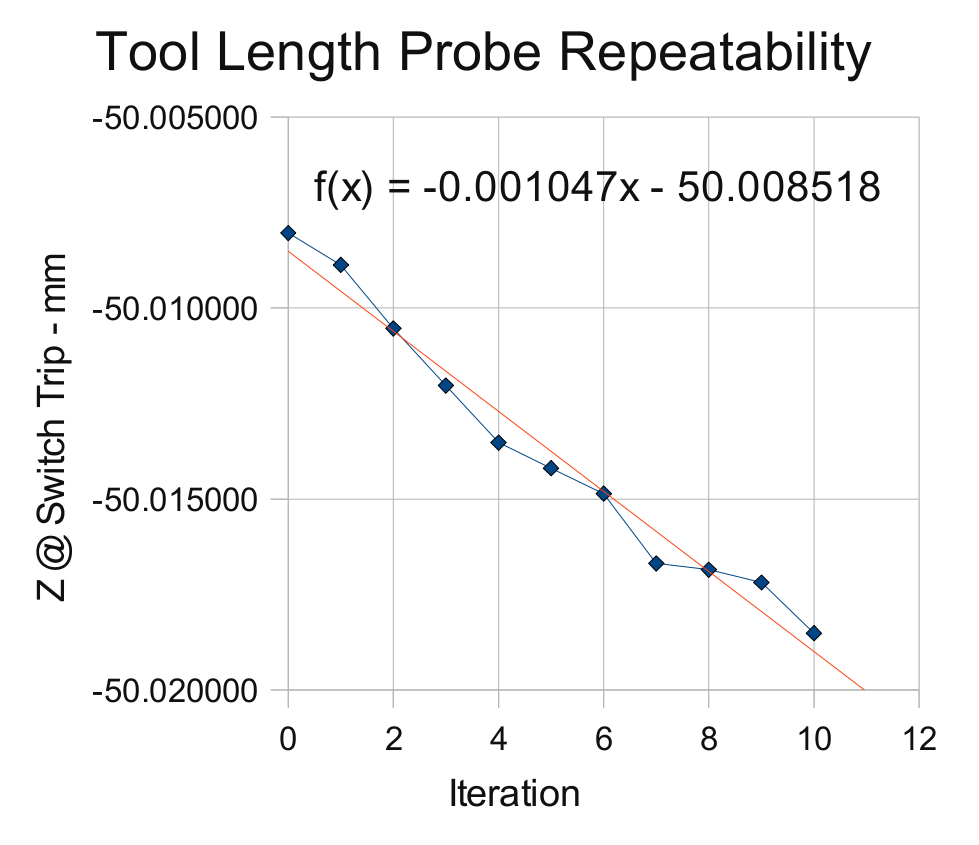
    Probe Switch Repeatability
    Probe Switch Repeatability

    The slope of the regression line says the switch is tripping about one wavelength of infrared light (1 micron) further down at each probe. Well, now, that’s not too bad, is it?

    After ten probes, it’s descended about 10 microns, call it 0.3 mils, which is somewhat more than what the dial test indicator reports: 0.1 mil or just slightly more than the width of the indicator’s needle away from the 0.0 line.

    It turns out that the switch doesn’t have any mechanical overtravel whatsoever, so when the switch contacts close, the button is already pretty much bottomed out.

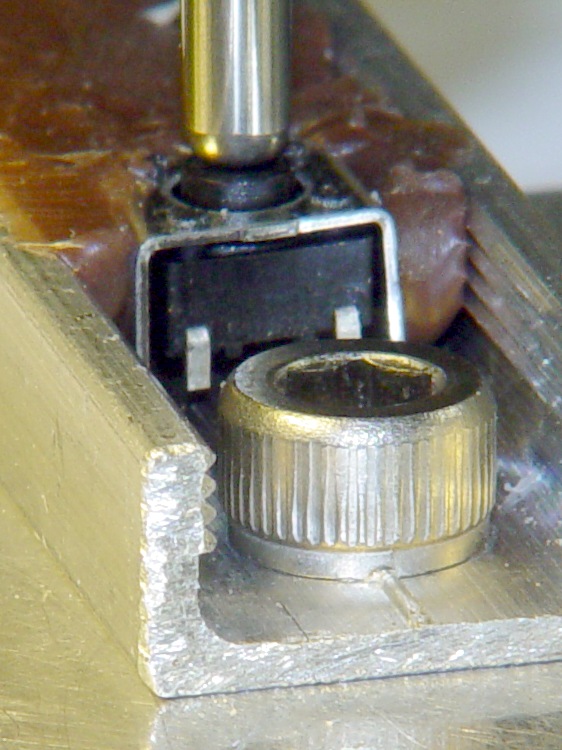
    Switch Released
    Switch Released
    Switch Over-pushed
    Switch Over-pushed

    The left picture shows the tool a few millimeters over the switch. Notice that the top of the black plastic switch body is snug against the metal frame. Although you can’t see it here, there’s nothing but air below the body; the brown hot-melt glue secures the sides and submerges the terminals & wiring.

    The right pictures shows the situation after probing the switch at 300 mm/min. The switch body is pushed slightly downward from the metal shell, showing that the Z axis drive didn’t screech to an instant halt after the switch tripped.

    My back of the envelope said it’d stop in about 7 mils from 12 in/min (call it 0.2 mm from 300 mm/min, which is what I actually used here). Turns out it’s more like 15 mils, about 0.4 mm. So much for the back of the envelope…

    On the other hand, what’s a binary order of magnitude among friends?

    The routines below do an initial probe at 300 mm/min, back off about 1 mm, then probe again at 10 mm/min. The theory was that the switch overtravel would soak up the initial probe and the second, more gentle, probe would always trip at the same Z-axis level.

    Another good theory all shot to hell…

    I should do the initial probe at, say, 100 mm/min and (to speed things up) put the tool change location as close to the switch as the longest tool will allow. That should cut the overtravel down to 5 mils, which ought not be a real problem.

    However, I think the switch is usable as-is. It’s certainly more accurate than my manual tool height adjustment and I really don’t do many jobs that require more than a few tool changes, separated by long periods of chewing away at the part.

    I suspect the switch gradually oozes back to its original position after being rudely poked, but I ought to check that, too.

    The G-Code to make the tests happen:

    (Tool length probing test)
    
    (--------------------)
    ( Initialize first tool length at probe switch)
    ( assumes metric units!)
    
    O<Probe_Init> SUB
    
    G49					( clear tool length compensation)
    G30					( to probe switch)
    G91					( relative mode for probing)
    
    G38.2 Z-90 F300		( trip switch on the way down)
    
    G0 Z1				( back off the switch)
    G38.2 Z-10 F10		( trip switch slowly)
    
    #<_ToolRefZ> = #5063	( save trip point)
    
    G90					( absolute mode)
    G30					( return to safe level)
    
    O<Probe_Init> ENDSUB
    
    (--------------------)
    ( Initialize new tool length at probe switch)
    ( assumes metric units!)
    
    O<Probe_Tool> SUB
    
    G49					( clear tool length compensation)
    G30					( to probe switch)
    G91					( relative mode for probing)
    
    G38.2 Z-90 F300		( trip switch on the way down)
    
    G0 Z1				( back off the switch)
    G38.2 Z-10 F10		( trip switch slowly)
    
    #<_ToolZ> = #5063				( save new tool length)
    
    G43.1 K[#<_ToolZ> - #<_ToolRefZ>]	( set new length)
    
    G90					( absolute mode)
    G30					( return to safe level)
    
    O<Probe_Tool> ENDSUB
    
    (--------------------)
    ( Set up first tool)
    
    G21					( metric units)
    
    (msg,Verify origin at indicator ball, hit Resume)
    M0
    (msg,Verify G30.1 above tool change switch, hit Resume)
    M0
    (msg,Verify blunt tool installed, hit Resume)
    M0
    
    O<Probe_Init> CALL
    
    (debug,Initial tool length = #<_ToolRefZ>)
    
    O100 REPEAT [10]
    
    G0 X0 Y0
    G0 Z0
    (msg,Record indicator Z-axis reading, hit Resume)
    M0
    
    G0 Z5				(get air)
    G30					(to tool change position)
    
    O<Probe_Tool> CALL
    (debug,Tool length offset = #<_ToolZ>)
    
    O100 ENDREPEAT
    
    M2
    

    And here you thought that switch was a total piece of crap, didn’t you?
  • EMC2: Ugliest Tool Length Probe Station… Ever

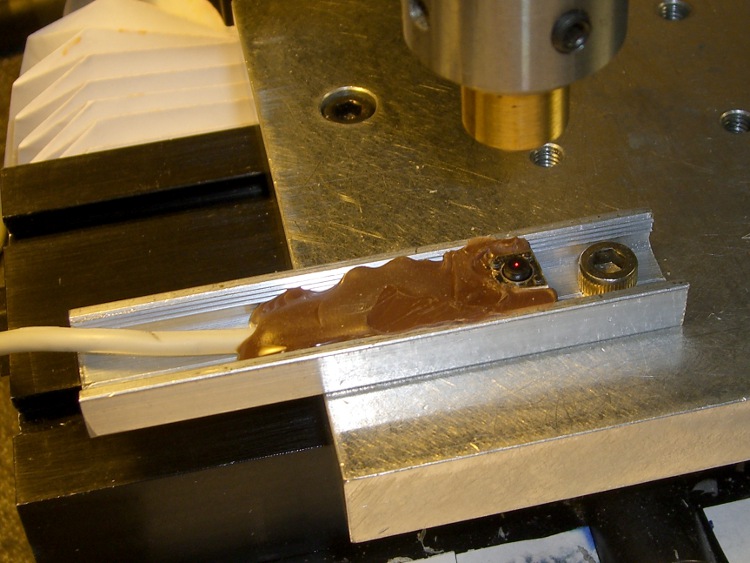
    Tool length probe switch
    Tool length probe switch

    Having hacked a jack in the Sherline motor driver box, this is what goes on the other end of the cable: the simplest possible tool length switch.

    I’ve seen all manner of exceedingly fancy and painstakingly constructed tool length switch stations, but it seems ordinary snap-action / tactile-feedback switches are repeatable enough for most purposes. I selected a switch from my stash with these qualifications:

    • physically small — fits on Sherline table
    • plastic button — avoid nicking the cutters
    • many more in the stash — not a special-order item
    • cheap – ’nuff said

    A few snippets of heat stink shrink tubing later…

    Switch detail
    Switch detail

    After puzzling over the mounting, I snagged a chunk of aluminum U-channel from the heap, poked a 10-32 clearance hole in one end, and held the switch in place while slobbering brown hot-melt glue over it. The glue is rigid when cool, so the switch isn’t going anywhere, but it’s mounted with some air space below to allow crushing when the probe routine screws up.

    The button stands slightly proud of the U-channel, so even wide tools have side clearance. If the tool doesn’t stop when the switch trips (it could happen!), the entire switch will bend downward until the Z-axis drive stalls as the tool crushes the rubble or snags on the side of the U-channel.

    At which point I just cut the cable, hammer the hot-melt glue and switch rubble out of the U-channel, solder up another switch, blob it in place, and continue the mission… from scratch, though, because the stored tool height reference value will be kaput.

    The U-channel can be screwed down to a T-nut, clamped directly to the table, or affixed wherever it’s needed. If the Sherline had home switches, it’d be better to mount the probe switch in a fixed location somewhere, then use a fixture offset for the part, but I’m not there yet.

    The switch doesn’t have much overtravel: when the contacts activate with a tactile click, the button is pretty much bottomed out. However, unless you’re driving the tool into the switch at a dead run, it ought to stop moving fairly quickly.

    Back of the envelope: I have the Z axis acceleration set to (a sluggish) 3.0 in/s/s. Approaching the switch at 12 in/min = 0.2 in/s , it’ll screech to a halt in 67 ms = (0.2 in/s)/(3.0 in/s/s). Assuming the average velocity while stopping is 0.1 in/s, the distance works out to 7 mils, which shouldn’t pose a problem.

    Then drive up off the switch enough to clear the backlash and drive down at nose-pickin’ speed, so the axis stops pretty much instantly when the switch clicks.

    Some not-very-exhaustive testing suggests the repeatability for a single tool is well within 0.03 mm, about 0.001 inch, which is entirely satisfactory for my purposes.

    [Update: It’s pretty good, all things considered. A simple experiment is there.]

    The overall procedure:

    • Laser align XY to the part origin, home X&Y axes
    • Execute G49 to clear any existing tool length compensation
    • Insert first tool, align to Z=0 on part, home Z axis
    • Eyeball align XY to the switch with the tool just above
    • Jog Z comfortably high, execute G30.1 to set tool change location
    • Fire up your program!

    The program probes the first tool length and saves that as the reference length. Each subsequent tool change gets probed and the tool offset becomes the difference between the new length and the reference length.

    The initial probing routine:

    O<Probe_Init> SUB
    
    G49					( clear tool length compensation)
    G30					( to probe switch)
    G91					( relative mode for probing)
    
    G38.2 Z-90 F300		( trip switch on the way down)
    G0 Z1				( back off the switch)
    G38.2 Z-10 F10		( trip switch slowly)
    
    #<_ToolRefZ> = #5063	( save trip point)
    
    G90					( absolute mode)
    G30					( return to safe level)
    
    O<Probe_Init> ENDSUB
    

    Note that the G30 coordinates are stored in native units, which are inches for my Sherline mill. To get to that Z height (for safety, before moving) while using metric units:

    G0 Z[#5183 * 25.4]

    The G38.2 coordinates are stored in whatever units the G20/G21 mode calls for, so they can be applied directly to tool length compensation. That seems odd, as EMC assumes the tool table uses native units.

    There does not seem to be any way to determine which unit mode is active, although the probe speed depends on that setting. although I suppose I could set a global variable to the desired probe speed and leave it up to the G-Code program(mer) to get it right. Yeah, like that’ll work…

    Anyhow, each subsequent tool gets probed thusly:

    O<Probe_Tool> SUB
    
    G49					( clear tool length compensation)
    G30					( to probe switch)
    G91					( relative mode for probing)
    
    G38.2 Z-90 F300		( trip switch on the way down)
    G0 Z1				( back off the switch)
    G38.2 Z-10 F10		( trip switch slowly)
    
    #<_ToolZ> = #5063				( save new tool length)
    
    G43.1 K[#<_ToolZ> - #<_ToolRefZ>]	( set new length)
    
    G90					( absolute mode)
    G30					( return to safe level)
    
    O<Probe_Tool> ENDSUB
    

    With those two routines in hand, this demo code shows how it’s done…

    G21					( metric units)
    
    (msg,Verify origin at proper location, hit Resume)
    M0
    (msg,Verify G30.1 at tool change switch, hit Resume)
    M0
    (msg,Verify first tool installed, hit Resume)
    M0
    
    O<Probe_Init> CALL
    
    G0 X0 Y0 Z0
    (msg,Verify return to origin, hit Resume)
    M0
    
    M6 T2
    O<Probe_Tool> CALL
    
    G0 X0 Y0 Z0
    (msg,Verify return to origin, hit Resume)
    M0
    
    M6 T3
    O<Probe_Tool> CALL
    
    G0 X0 Y0 Z0
    (msg,Verify return to origin, hit Resume)
    M0
    
    M6 T4
    O<Probe_Tool> CALL
    
    G0 X0 Y0 Z0
    (msg,Verify return to origin...)
    M2
    

    The M6 Tx commands make use of a

    TOOL_CHANGE_AT_G30 = 1

    line in Sherline.ini, which tells the Axis automagic manual tool changer routine to traverse to the G30 position and pop up a prompt to (manually) change the tool. When you click OK, the subsequent CALL command invokes the tool length probe routine and away it goes.

    This whole lashup doesn’t have a lot of power-on hours, but I really like how it works!

    A tip o’ the cycling helmet to the folks behind EMC2…

  • Sherline Tool Length Probe: Adding a Jack

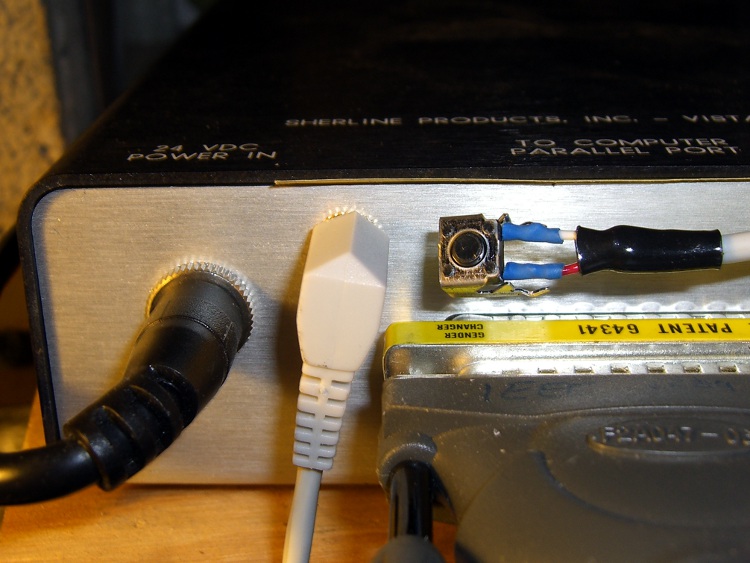
    Probe jack and switch
    Probe jack and switch

    I’ve been mulling over adding a tool length probe for a while and finally decided that the simplest approach might be the best: a momentary-contact pushbutton switch that pulls a parallel port input pin to ground.

    The motivation is that a simple switch seems to be repeatable enough for tool length probing and it’s cheap enough that I won’t form a deep emotional bond to it. When a probe crashes the switch, I can just pop another one in place without any heartache or putzing around for a day or three to build another over-elaborate probe station.

    The catch is that the Sherline motor driver box doesn’t include connections for any of the parallel port input pins.

    The choices seem to boil down to:

    • Adding a breakout board between the parallel port and the driver box or
    • Hacking the driver box to get access to the port pins

    Well, I’ve already pretty well hacked up my controller, as I wrote up in Circuit Cellar magazine (Aug & Oct 2004), so I don’t have much to lose… and the box is already in the shop!

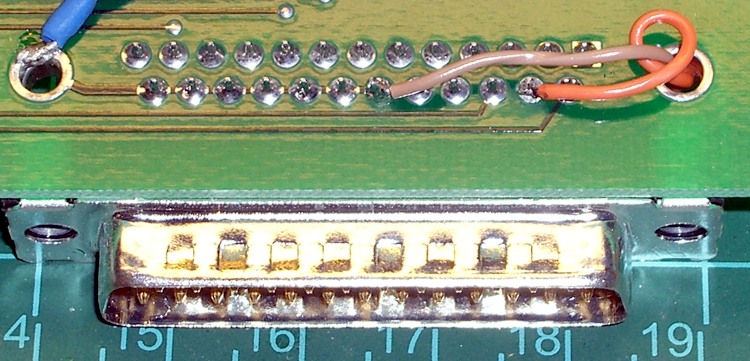
    Probe to port pin 15
    Probe to port pin 15

    This picture shows the connection to pin 15 of the parallel port on the Sherline driver PCB. The driver doesn’t use that input pin (or any of the others, for that matter), which means the PCB doesn’t have a trace leading anywhere convenient. I ran the new wires through the connector mounting hole, rather than around the edge, and soldered them directly to the connector pins on the bottom of the board.

    The jack is an ordinary 1/8″ (3.5 mm, these days) stereo (3 conductor) jack, with lah-dee-dah gratuitous gold-flavored flashed plating; anything similar will work just fine.

    Connections:

    • Sleeve -> driver box
    • Ring -> circuit ground (pin 19 is convenient)
    • Tip -> pin 15, the probe input

    The cable shield connects only at the plug into the driver box, not at the switch end. That ensures there’s no current flowing through it and it can do a marginally better job of shielding the two conductors within. I’m reasonably sure that makes no difference whatsoever in this application.

    The cable got chopped out of an AV-interconnect dingus with all sorts of fancy connectors on the other end. It’s a surplus find, cost maybe a buck, and has the redeeming feature of sporting molded plugs that I don’t have to solder.

    The switch connections are soldered and insulated with heat stink shrink tubing. The general idea is that the driver box provides all the power, there’s no electrical contact with the mill table or spindle, and thus no reason to use fancy circuitry to solve a problem that’s not there.

    I did not add a capacitor across the switch contacts, figuring that I’d solve that problem when it happened. The common practice of putting a honkin’ big cap across switch contacts is bad practice: it effectively shorts the power supply across the contacts for a brief moment every time the switch closes. Some stored energy is good (it keeps the contacts clean), too much simply burns them away. ‘Nuff said.

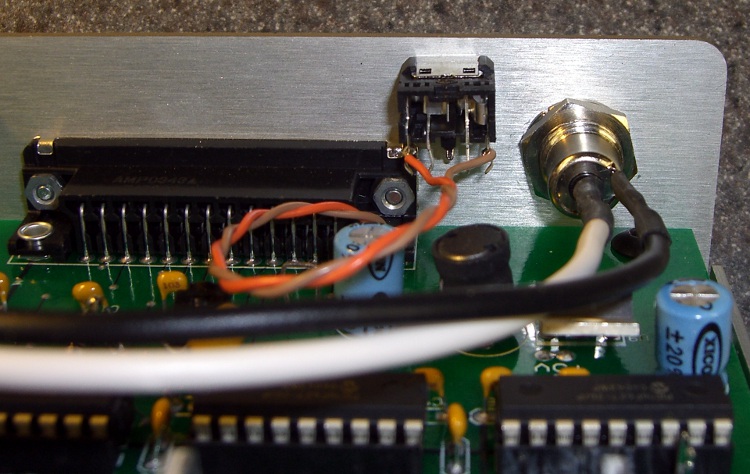
    Probe jack - inside
    Probe jack – inside

    I marked a hole on the front panel symmetric with the LED, eased the circuit board out of the case and wrapped it in a shop rag to keep the swarf out, propped the case on the drill press table, and rammed a 1/4″ hole through the spot marked X with a step drill. Yeah, hand-held on the table, just like you’re never supposed to do.

    The force is strong with me…

    The (well, my) Sherline.hal file connects pin 15 to the probe sense input (maybe I defined that when I set things up; I don’t recall now), but it assumes the pin will be high when active. The parallel port pin has a built-in pullup resistor and a switch to ground makes it active when low. These two lines in my custom_postgui.hal file disconnect the high-active pin signal and connect the low-active pin signal.

    unlinkp parport.0.pin-15-in
    net probe-in parport.0.pin-15-in-not
    

    You do it that way to avoid changing the Sherline.hal file, which will be overwritten if you ever run the automagic configuration program again.

    If you’re doing this from scratch, just configure the whole thing using the configuration tool, it’ll set the HAL file properly and you won’t need any of that fiddling around.

    Tweak the Sherline.ini file to add support for tool changing with the G30 command:

    [EMCIO]
    TOOL_CHANGE_AT_G30 = 1
    

    Button everything up, then do a quick

    G91 G38.2 Z-10 F10

    and poke the button while the Z axis is in motion. The Z axis should stop instantly. If not, check your wiring.

    Now, some Orc Engineering is in order: I need a low-budget fixture to put the switch in harm’s way.

  • Making a Clock Colon: Post Milling

    Finished colon dots
    Finished colon dots

    I used a pair of blue LEDs for the colon in the Totally Featureless Clock. Each one has a brass tube to define the dot and a white plastic diffuser to eliminate hotspots.

    Some rummaging in the brass cutoff assortment produced a pair of tubes with a 0.300 inch ID that closely matched the width of the LED segment bars. The catch is that I don’t have a core drill that spits out 0.300 inch slugs…

    Milling the dots
    Milling the dots

    So I taped a chunk of translucent acrylic to some plywood scrap and milled the dots. Helix milling on the lesser of a 4% slope or 1/5 of the cutter diameter, 15 inches/min, no cooling, maybe 1500 rpm.

    The resulting disks were snug slip fits into the tubes, although I added a dot of cyanoacrylate to ensure they didn’t get any ideas about perpetrating an escape.

    It took two disks to remove all the hotspots, which reduced the light intensity to the point where I had to increase the LED current, which really heated up the linear regulator driving the dots. Fooey! In retrospect, I think frosting the LED lens would eliminate the need for a second diffuser without decreasing the intensity much at all.

    The code is available as an OpenOffice file there, too.

    (Post milling)
    (Ed Nisley KE4ZNU - Feb 2010)
    (Origin = center of post at surface)
    (Double-stick tape holding acrylic sheet to sacrificial plate)
    
    (-- Dimensions)
    
    #<_PostDia>	= 0.300				(post OD)
    #<_PostRad>	= [#<_PostDia> / 2]
    
    #<_Thickness>	= 0.120			(sheet thickness)
    
    #<_MillDia>	= 0.250				(cutter diameter)
    #<_MillSpeed>	= 15				(cutting speed)
    
    #<_MaxCutDepth>	= [#<_MillDia> / 5]	(max cutting depth)
    #<_MaxCutSlope>	= 0.04			(max cutting slope)
    
    #<_TraverseZ>	= 0.300				(safe travel height)
    #<_TraverseSpeed> = 25			(safe traverse speed)
    
    G20					(inches!)
    
    (-- Figure cut depth per helix pass)
    
    #<_PassCut> = [#<_MaxCutSlope> * 3.142 * [#<_PostDia> + #<_MillDia>]]		(limit max cut for each pass)
    
    O9000 IF [#<_PassCut> GT #<_MaxCutDepth>]
    #<_PassCut> = #<_MaxCutDepth>		(limit max cut for each pass)
    O9000 ENDIF
    
    (-- Set up cutter comp)
    
    G0 Z#<_TraverseZ>
    
    G0 X[0 - 3 * #<_PostRad>] Y0		(get to entry point)
    
    G42.1 D#<_MillDia>
    G2 X[0 - #<_PostRad>] I#<_PostRad> F#<_TraverseSpeed>
    
    (-- cut down through sheet)
    
    #<CurrentZ> = 0.0
    
    G0 Z#<CurrentZ>
    
    F#<_MillSpeed>
    
    O1000 DO
    
    #<NextZ> = [#<CurrentZ> - #<_PassCut>]	(figure ending level)
    
    G3 I#<_PostRad> Z#<NextZ>		(once around)
    
    #<CurrentZ> = #<NextZ>
    
    O1000 WHILE [#<CurrentZ> GT [0 - #<_Thickness>]]
    
    G3 I#<_PostRad>					(clear final ramp)
    
    G40			(comp off)		
    
    G0 Z#<_TraverseZ>
    G0 X0 Y0
    
    M2
    
    
  • Tailstock Center: Laser Alignment Thereof

    Laser spot on tailstock center
    Laser spot on tailstock center

    I finally made a test bar to line up the (vertically mounted) rotary table and tailstock on the Sherline milling machine. It’s a ground-and-polished 0.500-inch rod from a defunct HP2000C inkjet printer; the print head zipped back and forth along the rod while printing, so you know it’s pretty smooth. You could probably salvage something similar from any dead inkjet printer.

    Making the bar is simple: saw off a suitable length, stick it in the lathe, face off the end, chamfer the edge, poke a center drill into it, and it’s all good.

    If you’re a tool-and-die jig-boring high-precision kind of machinist, you better stop reading right about now before you catch a heart attack.

    Lining the bar up is almost trivially easy with a laser spot coming down the spindle bore. Move the table so the spot grazes the side of the bar and casts a shadow on the table, jog X to the other end of the bar, and tweak the angle for the same picture on the table.

    Repeat until satisfied.

    The trouble comes at the tailstock end, where the ram extends about 1.5 inches, tops. That’s good enough for the Sherline, but it also means the test bar must be pretty close to the length of whatever you’ll be machining, rather than as long as possible to get the best alignment.

    However, after you get Sherline tailstock aligned to the end of the bar, vertically, horizontally, and angularly, the magic happens

    The ram is quite stable, with very little radial play, so the point moves along the X axis (assuming you did a good job aligning the tailstock). Retract the ram a bit, jog X and Y to put the laser spot on the tip of the center (which should correspond to the Y axis coordinate of the center of the bar), and you’ll see a defocused spot on the table (I put a white card on the table to improve the contrast). Jog Z until there’s a nice triangular image of the dead center’s point in that bright round spot.

    It turns out that the laser beam in the top picture is about 10 mils wide at the dead center axis, so you can easily see a difference of 1 mil in the Y coordinate. That’s perfectly accurate for the sort of work I do.

    Now, remove the test bar, unclamp the tailstock, move it to wherever you need it for the actual thing-to-be-made, snug it down, and jog the table in X (only!) to move the spot over there, too. Move the tailstock around to align the image of the center point in the middle of the laser spot again and you can be sure it’s aligned to the same Y coordinate. Verify that the tailstock has the same angular alignment. Mine is consistent with the T-nuts pressed against the front of the table slots and it’s easy to slide it carefully along the Y axis to get the point in the spot.

    Because the bar was parallel to the X axis to start with, the point is now aligned with the axis of the rotary table.

    Laser spot focused on tip
    Laser spot focused on tip

    The minimum spot size depends on the beam width and the lens, but it turns out that for my setup, twiddling the Z position of the lens can shrink the spot down to essentially the width of the dead center point. As nearly as I can tell, the beam width is 3 mils and the point pretty much occludes the beam when it’s properly aligned.

    The picture shows that situation; the spot is half-occluded because the point now looks like the side of a barn. It’s difficult to tell, but the lens (on the brass snout in the endmill holder) is lower in this picture.

    All that jogging, particularly creeping up on the proper alignment, goes much easier with a joggy thing!

  • EMC2 Gamepad Pendant: Joystick Axis Lockout

    Nothing like sleeping on a problem. It turns out that a chunk of HAL code can do a nice job of locking out an inactive joystick axis.

    The general idea:

    • A priority encoder selects one axis when both go active simultaneously
    • The prioritized outputs set flipflops that remember the active axis
    • The active axis locks out the other one until they’re both inactive

    That way, you can start to jog either axis on a knob without worrying about accidentally jogging the other axis by moving the knob at a slight diagonal. I hate it when that happens.

    The other tweak is that the quartet of buttons on the right act as a “hat” for the Z and A axes, jogging them at the current maximum speed.

    Because it’s tough to accidentally push two buttons at once, there’s no need to lock them out. So you can jog diagonally by deliberately pushing adjoining buttons, but you must want to do that.

    Rather than dumping the whole program again, here are the key parts…

    Figuring out if a joystick axis is active uses the window comparators. It seems the idle counts value varies slightly around 127, so I relaxed the window limits. Should the window comparator go active with the knob centered, the buttons for that axis won’t produce any motion.

    net		x-jog-count-int	input.0.abs-x-counts	conv-s32-float.0.in
    net		x-jog-count-raw	conv-s32-float.0.out	wcomp.0.in
    setp	wcomp.0.min		125
    setp	wcomp.0.max		130
    net		X-inactive		wcomp.0.out				not.0.in
    net		X-active		not.0.out
    

    The priority encoder is just a gate that prevents Y (or A) from being selected if X (or Z) is simultaneously active. Here’s a sketch for the ZA knob:

    Axis priority encoder
    Axis priority encoder

    The active and inactive signals come from the window detectors. The sketch gives the K-map layout, although there’s not a whole lot of optimization required.

    The corresponding code:

    net		Z-inactive		and2.5.in0
    net		A-active		and2.5.in1
    net		A-select		and2.5.out				# select A only when Z inactive
    
    net		Z-inactive		and2.6.in0
    net		A-inactive		and2.6.in1
    net		ZA-Deselect		and2.6.out				# reset flipflops when both inactive
    
    net		Z-active		and2.7.in0				# set Z gate when knob is active
    net		A-gate-not		and2.7.in1				# and A is not already gated
    net		Z-set			and2.7.out					flipflop.2.set
    
    net		ZA-Deselect		flipflop.2.reset		# reset when neither is active
    net		Z-gate			flipflop.2.out				not.6.in
    net		Z-gate-not		not.6.out
    
    net		A-select		and2.8.in0				# set A gate when knob is active
    net		Z-gate-not		and2.8.in1				# and Z is not already gated
    net		A-set			and2.8.out					flipflop.3.set
    
    net		ZA-Deselect		flipflop.3.reset		# reset flipflop when both inactive
    net		A-gate			flipflop.3.out				not.7.in
    net		A-gate-not		not.7.out
    

    The flipflops remember which axis went active first and lock out the other one. When both axes on a knob return to center, the flipflops reset.

    The quartet of buttons produce binary outputs, rather than the floats from the Hat, so a pair of multiplexers emit -1.0, 0.0, or +1.0, depending on the state of the buttons, for each axis.

    setp	mux2.6.in0	0.0
    setp	mux2.6.in1	-1.0
    net		A-btn-neg		input.0.btn-trigger		mux2.6.sel
    net		A-btn-neg-value	mux2.6.out				sum2.1.in0
    
    setp	mux2.7.in0	0.0
    setp	mux2.7.in1	1.0
    net		A-btn-pos		input.0.btn-thumb2		mux2.7.sel
    net		A-btn-pos-value	mux2.7.out				sum2.1.in1
    
    net		A-jog-button	sum2.1.out
    
    net		A-btn-neg		or2.1.in0
    net		A-btn-pos		or2.1.in1
    
    net		A-btn-any		or2.1.out				or2.2.in0
    net		A-gate			or2.2.in1
    net		A-motion		or2.2.out
    

    The A-motion signal is true when either of the A jog buttons or the A joystick axis is active. That gates the MAX_ANGULAR_VELOCITY value to halui.jog-speed, rather than the default MAX_LINEAR_VELOCITY. Or, depending on the state of the toggle from the two joystick push switches, 5% of that maximum. A mere 5% may be too slow for the A axis, but it’ll take some experience to determine that.

    With that in hand, the final step is gating either the knob or the button values to halui.jog.*.analog.

    net		Z-jog-button	mux2.8.in0
    net		Z-jog-knob-inv	mux2.8.in1
    net		Z-gate			mux2.8.sel
    net		Z-jog			mux2.8.out				halui.jog.2.analog
    
    net		A-jog-button	mux2.9.in0
    net		A-jog-knob		input.0.abs-z-position	mux2.9.in1
    net		A-gate			mux2.9.sel
    net		A-jog			mux2.9.out				halui.jog.3.analog
    

    The complete source file (Logitech Dual Action Gamepad – joystick axis lockout – custom_postgui-hal.odt) is over on the G-code and Suchlike page, so you can download it as one lump. It’s an OpenOffice document because WordPress doesn’t allow plain text files.

    I loves me my new joggy thing!

  • Logitech Dual Action Gamepad as EMC2 Pendant

    Gamepad Pendant
    Gamepad Pendant

    Just got this working and it’s downright slick!

    The general idea:

    The Hat jogs X and Y at the current maximum speed.

    The Left Knob jogs X and Y proportionally to the Knob displacement.

    The Right Knob jogs Z (Up-Down) and A (Left-Right) proportionally to the Knob displacement.

    Press either Knob downward to toggle the maximum jog speed between MAX_LINEAR_VELOCITY (as defined in the Sherline.ini file) and 5% of that value. The slow speed is useful for creeping up on alignment points: the first active level of the joysticks runs at a nose-pickin’ pace.

    The left little button (labeled 9) switches to Manual mode, although the AXIS display does not update to indicate this. Same as “F3” on keyboard, minus the GUI update.

    The right little button (labeled 10) continues a G-Code program by activating the Resume function. Same as “S” on the keyboard.

    The Mode button switches the functions of the Hat and Left Knob. That button does not generate an output and the Mode cannot be controlled programmatically. Swapping those functions doesn’t seem particularly useful in this application, so the LED should never be ON.

    Buttons 1-4 are not used for anything yet.

    On the back:

    • Pressing the left-hand pair of buttons (labeled 5 and 7) activates E-stop. Yes, I know all about why you shouldn’t have E-stop run through software. This is a Sherline mill. Work with me here.
    • The right-hand buttons (labeled 6 and 8) do nothing yet.

    The code…

    In Sherline.ini:

    [HAL]
    HALUI=halui
    

    In custom.hal:

    loadusr -W hal_input -KA Dual
    

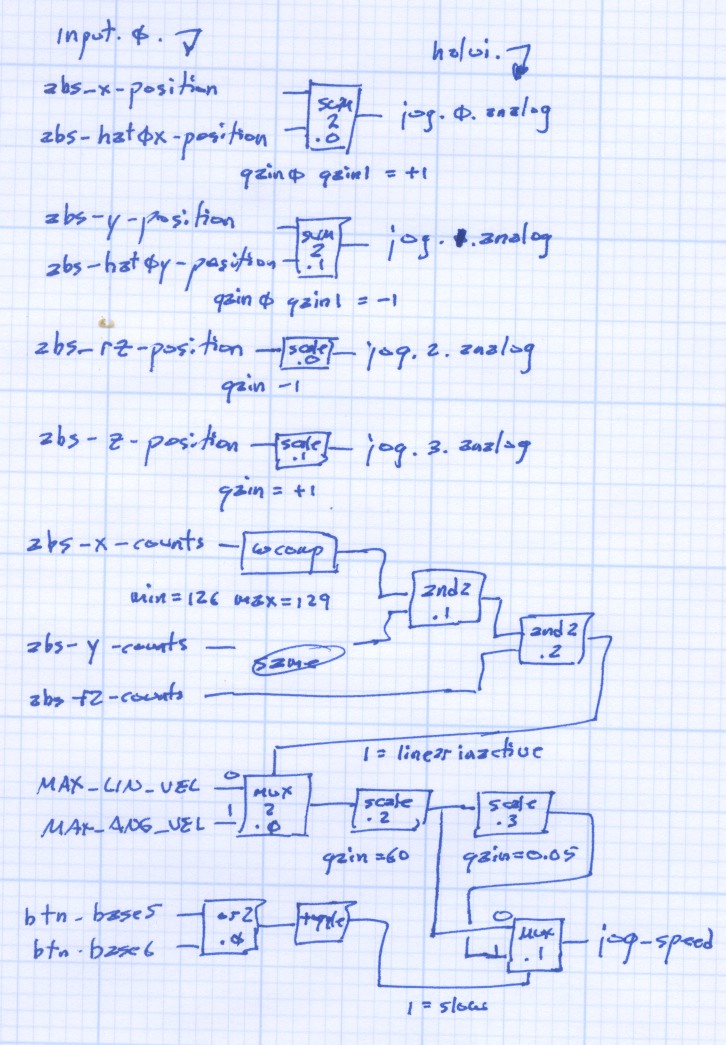
    All the heavy lifting happens in custom_postgui.hal. As nearly as I can tell, HAL is basically a write-only language, so there’s block diagram of the major chunks of “circuitry” down at the bottom.

    First, some setup and the simple buttons:

    #--------------
    # Logitech Dual Action joypad
    
    loadrt	and2 count=3
    loadrt	conv_s32_float count=3
    loadrt	mux2 count=2
    loadrt	or2 count=1
    loadrt	scale count=4
    loadrt	sum2 count=2
    loadrt	toggle count=1
    loadrt	wcomp count=3
    
    #-- central buttons activate manual mode and restart the program
    
    net 	mode-manual		input.0.btn-base3		halui.mode.manual
    
    net		pgm-resume		input.0.btn-base4		halui.program.resume
    
    #-- left-hand rear buttons active estop
    
    addf	and2.0 servo-thread
    
    net		pgm-estop-0		input.0.btn-base		and2.0.in0
    net		pgm-estop-1		input.0.btn-top2		and2.0.in1
    net		pgm-estop		and2.0.out				halui.estop.activate
    

    Because the Left Knob and Hat will never be active at the same time, a sum2 block combines the two controls into single value (separate for X and Y, of course). Each sum2 input has a separate gain setting, which is a convenient place to adjust the Y axis sign.

    #-- left knob runs XY at variable rate
    #   hat runs XY at full throttle
    
    addf	sum2.0 servo-thread
    
    net		x-jog-knob		input.0.abs-x-position		sum2.0.in0
    setp	sum2.0.gain0	+1.0
    net		x-jog-hat		input.0.abs-hat0x-position	sum2.0.in1
    setp	sum2.0.gain1	+1.0
    net		x-jog-total		sum2.0.out				halui.jog.0.analog
    
    addf	sum2.1 servo-thread
    
    net		y-jog-knob		input.0.abs-y-position		sum2.1.in0
    setp	sum2.1.gain0	-1.0
    net		y-jog-hat		input.0.abs-hat0y-position	sum2.1.in1
    setp	sum2.1.gain1	-1.0
    net		y-jog-total		sum2.1.out				halui.jog.1.analog
    

    The Right Knob values go through scale blocks to adjust the polarity. Note that the Gamepad’s rz axis controls the EMC2 Z axis and Gamepad z controls the EMC2 A axis. Basically, it made more sense to have up-down control Z and left-right control A.

    #-- right knob runs Z at variable rate (front-back)
    #                   A                 (left-right)
    
    addf	scale.0 servo-thread
    
    net		z-jog-knob		input.0.abs-rz-position		scale.0.in
    setp	scale.0.gain	-1
    
    net		z-jog-total		scale.0.out				halui.jog.2.analog
    
    addf	scale.1 servo-thread
    
    net		a-jog-knob		input.0.abs-z-position		scale.1.in
    setp	scale.1.gain	+1
    
    net		a-jog-total		scale.1.out				halui.jog.3.analog
    

    There’s only a single halui.jog-speed setting, but the jog speeds for the linear axes and the angular axes differ by so much that Something Had To Be Done. As above, I assumed that only one of the axes would be jogging at any one time, so I could set halui.jog-speed to match the active axis.

    A window comparator on each linear axis detects when the joystick is off-center; the output is 1 when the axis is centered and 0 when it’s pushed. Combining those three signals with and2 gates gives a combined linear-inactive signal.

    A mux2 block selects the MAX_ANGULAR_VELOCITY from the ini file when linear-inactive = 1 (linear not active) and MAX_LINEAR_VELOCITY when it is 0 (any linear axis off-center).

    Done that way, rather than detecting when the angular axis is off-center, means that inadvertently activating the angular axis during a linear jog doesn’t suddenly boost the linear speed. Given that the max linear is about 28 inch/minute and the max angular is 2700 degree/min, it’s a pretty abrupt change.

    I’m thinking about adding + shaped gates to at least the Right Knob so I can’t inadvertently activate both Z and A. I’m sure there’s a HAL lashup to do the same thing, though.

    #-- set jog speed by toggle from either knob button
    #   press any knob button to toggle
    
    addf	and2.1 servo-thread
    addf	and2.2 servo-thread
    addf	conv-s32-float.0 servo-thread
    addf	conv-s32-float.1 servo-thread
    addf	conv-s32-float.2 servo-thread
    addf	mux2.0 servo-thread
    addf	mux2.1 servo-thread
    addf	or2.0 servo-thread
    addf	scale.2 servo-thread
    addf	scale.3 servo-thread
    addf	toggle.0 servo-thread
    addf	wcomp.0 servo-thread
    addf	wcomp.1 servo-thread
    addf	wcomp.2 servo-thread
    
    #-- determine if any linear knob axis is active
    
    net		x-jog-count-int	input.0.abs-x-counts	conv-s32-float.0.in
    net		x-jog-count-raw	conv-s32-float.0.out	wcomp.0.in
    setp	wcomp.0.min		126
    setp	wcomp.0.max		128
    net		x-jog-inactive	wcomp.0.out				and2.1.in0
    
    net		y-jog-count-int	input.0.abs-y-counts	conv-s32-float.1.in
    net		y-jog-count-raw	conv-s32-float.1.out	wcomp.1.in
    setp	wcomp.1.min		126
    setp	wcomp.1.max		128
    net		y-jog-inactive	wcomp.1.out				and2.1.in1
    
    net		xy-active		and2.1.out				and2.2.in0
    
    net		rz-jog-count-int	input.0.abs-rz-counts	conv-s32-float.2.in
    net		rz-jog-count-raw	conv-s32-float.2.out	wcomp.2.in
    setp	wcomp.2.min		126
    setp	wcomp.2.max		128
    net		z-jog-inactive	wcomp.2.out				and2.2.in1
    
    #-- convert ini file unit/sec to unit/min and scale for slow jog
    
    setp	mux2.0.in0 [TRAJ]MAX_LINEAR_VELOCITY
    setp	mux2.0.in1 [TRAJ]MAX_ANGULAR_VELOCITY
    net		linear-inactive	and2.2.out				mux2.0.sel
    

    The ini file velocities are in units/second, so a scale block multiplies by 60 to get units/minute.

    Another scale block multiplies by 0.05 to get slow-speed jogging. Obviously, that value is a matter of taste: tune for best picture.

    Those two values go into a mux2 driven by the output of a toggle triggered by the or2 of the two buttons under the Knobs. Pushing either Knob down flips the toggle.

    setp	scale.2.gain	60
    net		jog-per-sec		mux2.0.out				scale.2.in
    net		jog-per-min		scale.2.out				mux2.1.in0
    net		jog-per-min		scale.3.in
    
    setp	scale.3.gain	0.05
    net		jog-per-min-slow scale.3.out			mux2.1.in1
    
    net		xy-button		input.0.btn-base5		or2.0.in0
    net		za-button		input.0.btn-base6		or2.0.in1
    net		xyza-button		or2.0.out				toggle.0.in
    
    net		xyza-slowmode	toggle.0.out			mux2.1.sel
    
    net		axis-jog-speed	mux2.1.out				halui.jog-speed
    

    When the jog speed is at the maximum allowed, it still gets trimmed by the per-axis limits, so you can’t over-rev the motors no matter how hard you try. Even better, changing the values in the ini file automagically affect the gamepad jog speeds.

    Now, to make some chips!

    The block diagram; click for a bigger image.

    HAL Gamepad Block Diagram
    HAL Gamepad Block Diagram