The Smell of Molten Projects in the Morning

Ed Nisley's Blog: Shop notes, electronics, firmware, machinery, 3D printing, laser cuttery, and curiosities. Contents: 100% human thinking, 0% AI slop.

Tag: CNC

Making parts with mathematics

  • Thing-O-Matic: X and Z Axis Rod Alignment

    Many of the discussions in the Makerbot Operators Google Group involve bad prints due to “missing steps”, overheated stepper motors, and other motion-related maladies. The proposed cures generally don’t address the real problem, which has nothing to do with slipping belts, inadequate motor current, or general hygene.

    The problem is rod alignment, which is not guaranteed by the laser-cut plywood frame.

    The Thing-O-Matic guides all its moving parts with bronze bushings sliding on polished steel rods to ensure low friction and exceedingly long life. Unfortunately, you can easily assemble a TOM with X and Z (and sometimes Y) stages you can barely push by hand: I’ve done it!

    The symptoms involve the actual position gradually departing from the commanded position: a G0 X10 Y20 command might actually put the extrusion nozzle at X=9.9 Y=20. That error produces a small offset along the X axis that gets worse on successive layers and eventually causes the object to resemble the Leaning Tower of Pisa. The TOM can’t correct the error, because it doesn’t know where the stage actually stops after a command: the steppers run open-loop.

    This can’t be due to a slipping belt, because a toothed timing belt can only skip by multiples of the tooth pitch: a one-tooth “skip” means a 2 mm positioning error that’s immediately obvious. In any event, if the belts are that loose, you have other problems.

    It could be a loose belt drive pulley on the motor shaft, but that will produce random offsets in both directions as the setscrew gradually chews a slot around the motor shaft. If that’s the symptom, fix it now because you won’t be able to get that pulley off after the setscrew finishes raising a burr around the shaft.

    The errors generally happen in the X direction because the X stage slides on two rods, each of which is fixed at four places: both ends of the Y stage and both ends of the X stage. The tech term for this is “overconstrained”: two points determine a line, but here we have a line that must pass through four points.

    If the rod-to-rod spacing in those four places isn’t exactly equal, then the X stage bushings will bind on the rods. Alas, tolerance creep in the plywood and maybe a bit of off-center sanding when you fitted the bushings into the plywood can produce exactly that situation.

    The Y stage doesn’t have this problem, because the right side rides on bushings and the left side rides on three ball bearings, making it not so sensitive to
    horizontal misalignments.

    Diagnosing this in an assembled Thing-O-Matic presents a major nuisance, but is well worth the effort. Release the X stage drive belt by loosening the X axis motor bolts (or, if you haven’t modified those bolts, by dismounting the idler pulley, which means extracting the whole XY assembly from the TOM and taking it apart) so the carriage can slide without moving the belt and turning the motor.

    If you can move the X stage back and forth along the entire length of its travel by pushing gently with one fingertip, it’s all good. Most likely, you must apply far more force than that, as was the case in my TOM after I first assembled it: moving the X stage required quite a shove and it definitely didn’t slide freely.

    Fixing this is straightforward, at least with the entire X and Y assembly out of the TOM. There are two steps:

    • Align the X stage bushings so the rods move freely
    • Align the Y stage mounting points to match the X stage spacing

    To begin…

    Remove the X stage from the Y stage, then remove the base plate so you can see the inside end of all the bushings. Slide each rod out of one bushing, then try to slide it back. I predict it’ll look something like this:
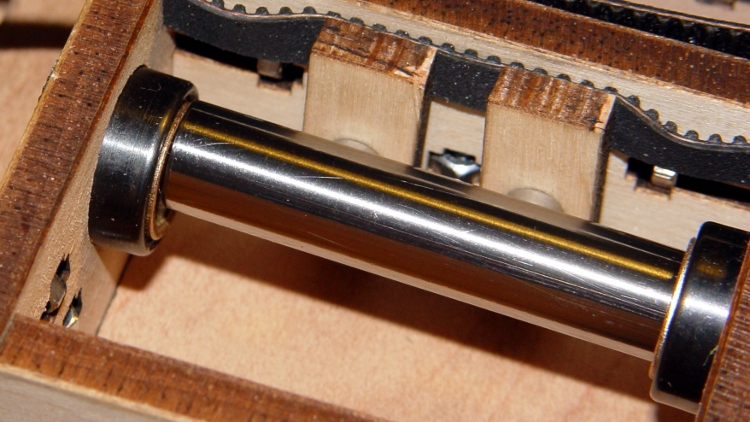
    Misaligned X Axis bushing
    Misaligned X Axis bushing

    The rod wants to avoid the hole in the left bushing. Orbit it around in the right-side bushing until it’s well centered on the left bushing. You want it to look like this when it approaches that bushing:

    Aligned X Axis bushing
    Aligned X Axis bushing

    When it’s properly aligned, slide it in. You should then be able to bat the rod back and forth with your fingertips; if it doesn’t slide freely, slide it out of one bushing, apply more wiggly jiggly action, and get it aligned. Bat the rod back and forth a few times to get a feel for free motion, then repeat for the other rod.

    About lubrication: the bronze bushings are self-lubricating, but a bit of oil won’t do any harm. Machine oil is good, cooking oil is bad, butter is terrible. If the rods feel nice and slippery, it’s fine.

    When both rods slide freely, pop the X stage back into the Y stage. This is actually possible with both rods in the X stage, although now that you know what you’re looking for, you can slide them out, put the X stage inside, then slide the rods back in again. Remember, you want free rod motion within the X stage itself.

    With the rod ends captured in the Y stage, put the front end caps on to hold that rod in place. Slide the X carriage to the right end of its travel (hold the loose rear rod!), then push the rear rod out of the one end piece by pushing it into the plywood while supporting the X carriage. Most likely, the rod will go spung a fraction of a millimeter horizontally as it exits the end piece (you control the vertical offset by supporting the carriage).

    That’s the rod’s way of telling you that the end hole is in the wrong position. If the rod slides easily in and out of that hole, then it’s all good. If it doesn’t, then sand the offending side of the hole until the rod slides easily into the hole.

    I wrapped a length of sandpaper around a brass tube so the sandpaper formed a cylinder nearly the same diameter as the rod, which prevents sanding a notch into the plywood that makes things worse. Remove wood from the side of the hole, not the top or bottom:
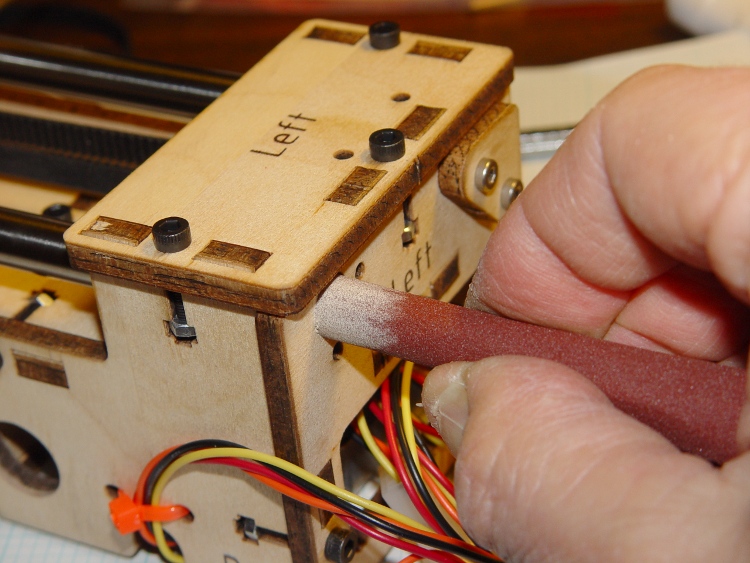
    Adjusting rod hole position
    Adjusting rod hole position

    When the rod slides freely into the hole with the X stage at that end, slide the stage to the other end and repeat the process. You must do both ends of travel to get all four constraining points lined up properly.

    Recheck the rod fit at both ends of travel, then install the end caps.

    The X stage should now slide back and forth with just light finger pressure.

    If you overdo the sanding, shim the loose side of the hole with aluminum foil and a dab of adhesive. If the rod rattles around, that’s bad; add an all-around shim and put a very thin slice of foam under the end cap to calm it down.

    Verily, it is far better to sand a little and check a lot!

    You can apply the same process to the Z axis stage and rods. Remove the bolts holding the motor to the top plate, then verify that:

    • The Z stage freely slides up and down the rods
    • The rods align with their mounting holes with the Z stage each end

    Sand the holes for one of the rods to make that answer come out right, too.

    Those bronze bushings work wonderfully well, but only when the rods are
    exactly parallel and properly spaced.

    [This post is a revised, corrected, and expanded version of a comment I posted on the MBO group.]

  • Installing OpenSCAD on Arch Linux

    This was more tedious than it ought to be, but OpenSCAD now runs on my desktop box and uses OpenGL 2.2, courtesy of a not too obsolete nVidia GeForce 9400 dual-head card.

    OpenSCAD has a slew of pre-reqs, most of which were already installed. However, the openscad and cgal non-packages live in the Arch AUR collection, so they required manual twiddling to install.

    The pre-reqs:

    • cgal, which in turn requires cmake via pacman
    • opencsg

    The recommended PKGBUILD patch is easy enough to do by hand.

    The final build step takes ten minutes using both cores, but the final result uses OpenCSG the way it should.

    Oddly, the OpenSCAD rendering process for the few objects I’ve checked takes longer than on the laptop. Weird.

    This does not get the most recent build from the developers, but it’s close enough for my simple needs right now. The mailing list archive is invaluable.

    Then there was the laptop saga. Maybe the reason the laptop is faster is that it’s not actually using OpenCSG at all.

  • Thing-O-Matic: Arduino Mega Heatsinking

    The Thing-O-Matic Motherboard rides atop an Arduino Mega (with the auto-reset option disabled), drawing most of its power from the hulking ATX connector at one end. The Mega draws power from the ATX +12 V supply and produces +5 V through its on-board regulator.

    As I noted there, that regulator runs surprisingly hot when fed from +12 V, even without any additional current flowing to the Mega’s pins. The solution here required another search through the parts heap, which eventually disgorged a small heatsink that was, I think, intended for a 16-pin DIP, although I obviously added the hole for some other, long-forgotten purpose.

    Motherboard regulator heatsink
    Motherboard regulator heatsink

    A bit of fin-bending to clear the (unused) power entry jack, a dab of JB Kwik epoxy, and a clamp to keep it in place while the epoxy cures:

    Clamping the Motherboard regulator heatsink
    Clamping the Motherboard regulator heatsink

    You won’t have such a heatsink, but any similarly shaped chunk of metal, even without fins, should suffice. Nothing critical about it, as long as it clears the Motherboard that will be plugged atop the Mega; you’re just increasing the surface area for heat dissipation.

    The Motherboard and Mega sit in the large opening across the Thing-O-Matic’s baseplate from the ATX supply’s fan intake, where they get plenty of cooling air. Do a before-and-after test with a fingertip on the regulator to feel the improvement for yourself.

    This is, admittedly, just a feel-good tweak, but a cool regulator is a happy regulator. Spread the joy…

  • Improved Sherline Probe Length Switch Repeatability: Selah!

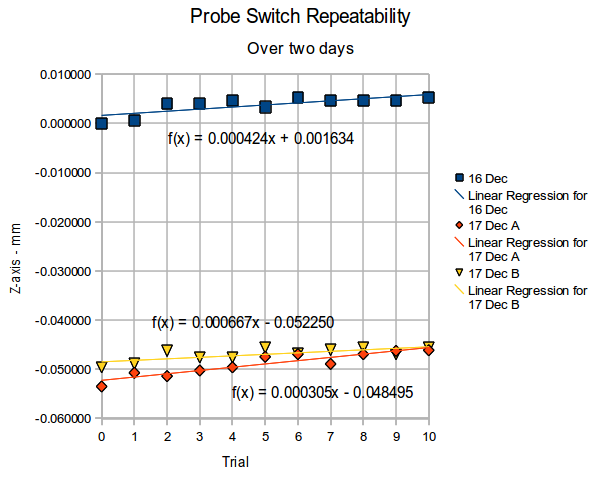
    Re-running that probe length switch test a few weeks later produced these results for three trials over the course of two days.

    Probe Repeatability - Dec 2010
    Probe Repeatability – Dec 2010

    The Z-axis differences are all relative to the first reading on the first day, so this includes whatever Z-axis changes take place without doing anything else on the mill in between the tests. I turned the power off after making the first set of measurements, so the steppers restarted with up to a plus-or-minus one full step offset; that works out to:

    (0.050 inch) * (1 rev / 200 steps) = 0.00025 in = 0.0064 mm
    

    Because EMC2 doesn’t actually know where the stepper is, any uncommanded motion will show up as an offset when the probe switch trips, which is exactly what we see here.

    Two things of interest:

    • The -0.05 mm offset between the two days could well be part of a single step offset
    • Successive probe positions during a single test don’t change by hardly anything at all

    Conclusion: a cheap mechanical switch works just fine and an even cheaper switch was still good enough.

    The dataset looks like this…

    Trial	16 Dec	16 Dec	17 Dec A	17 Dec A	17 Dec B	17 Dec B
    0	25.859616	0.000000	25.806118	-0.053498	25.810032	-0.049584
    1	25.860282	0.000666	25.808900	-0.050716	25.810696	-0.048920
    2	25.863610	0.003994	25.808214	-0.051402	25.813354	-0.046262
    3	25.863610	0.003994	25.809368	-0.050248	25.812028	-0.047588
    4	25.864276	0.004660	25.810032	-0.049584	25.812025	-0.047591
    5	25.862945	0.003329	25.812162	-0.047454	25.814018	-0.045598
    6	25.864941	0.005325	25.812690	-0.046926	25.812719	-0.046897
    7	25.864276	0.004660	25.810696	-0.048920	25.813540	-0.046076
    8	25.864276	0.004660	25.812690	-0.046926	25.814012	-0.045604
    9	25.864276	0.004660	25.813354	-0.046262	25.812690	-0.046926
    10	25.864941	0.005325	25.813477	-0.046139	25.814018	-0.045598
    

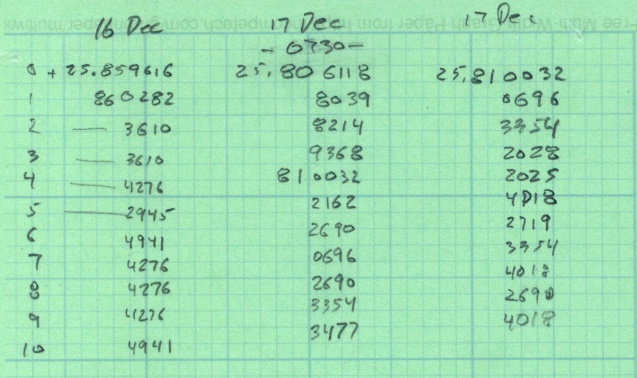
    The raw data, just for completeness…

    Probe test data - Dec 2010
    Probe test data – Dec 2010

    Selah!

    (I’m giving a talk and show-n-telling my Sherline CNC milling machine at Cabin Fever Expo right about now, so having this data readily available seemed prudent. The talk & handouts are there.)

  • Thermocouple Calibration: Isothermal Block

    Verily it is written:

    • The man with one thermometer knoweth the temperature
    • The man with many thermometers knoweth not the temperature
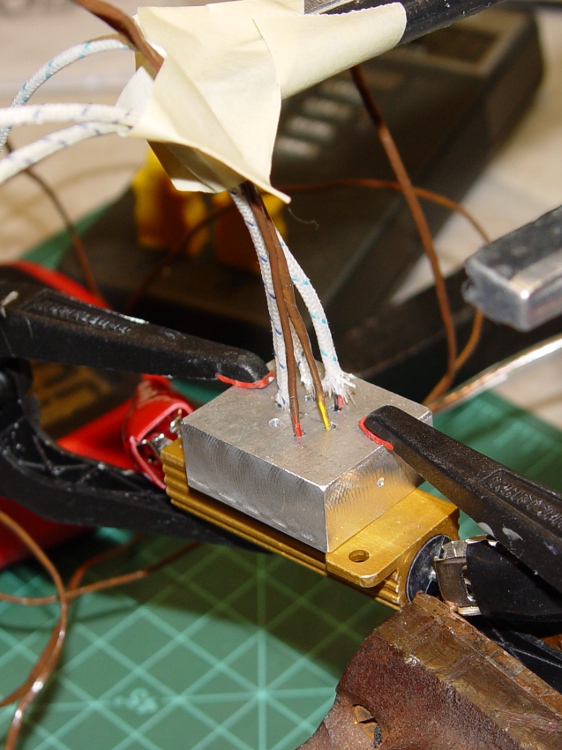
    Drilling the isothermal block
    Drilling the isothermal block

    Given the five thermocouples and their meters shown there, plus the Thing-O-Matic’s thermocouple, I had six different temperatures. They’re close, but we can do better than that.

    The general idea is to put all the thermocouple beads in close proximity so they share the same temperature, record their opinions to various temperatures, then figure out an equation that adjusts their disparate opinions to reflect consensus reality.

    I cranked out an isothermal block on the Sherline mill, using EMC2’s exceedingly handy polar coordinate notation to get a nice hexagon. Touch off XYZ=0 at the middle of the block, then center-drill and drill:

    G0 Z3
    G0 @5 ^0
    G83 Z-5 R3 Q1 F100
    G0 ^60
    G83 Z-5 R3 Q1 F100
    G0 ^120
    ... etc ..
    

    For lack of anything better, 3000 rpm with a drill matching the ID of the brass tubes, plus dripping cutting fluid as needed.

    Thermocouples in block
    Thermocouples in block

    I used a 6 Ω 50 W resistor (the adult version of the resistors on the Thing-O-Matic / MK5 head) as a heat source, clamping the block to the resistors with plastic clamps to provide mechanical force and thermal isolation. Good idea, bad implementation: as you’ll see, those little red tips melt at a rather low temperature.

    The TOM thermocouple bead will fit into the empty hole.

    Next step: numbers!

  • Thing-O-Matic / MK5 Extruder: Static Control

    The Thing-O-Matic touches the plastic filament in three places:

    • Filament Drive Frame
    • Extruder Thermal Core
    • Automated Build Platform Belt

    In each case, the plastic filament slides (or oozes) along another plastic surface, which is the classic way to generate a charge of static electricity. Think of a running a comb through your hair, rubbing a cat on a balloon, shuffling across a carpet in your fuzzy slippers, or pulling off an acrylic sweater.

    In addition, the X and Y stepper motors each drive a rubber-ish timing belt around a plastic roller. Non-conductive belt on plastic pulley = static charge, with metal motor pulley collecting it on the motor shaft, thence to the motor frame. The motor shafts and frames do not connect to any of the motor conductors, because in most machines the stepper motors mount to a metal chassis. The Thing-O-Matic insulates its motors on plywood or plastic sheets with no conductive path to ground.

    None of those metal parts has any provision to control a static charge accumulation, which means the charge will increase until one of two events transpires:

    • The charge reaches an equilibrium with leakage through the air
    • The potential reaches air’s breakdown voltage and arcs to an adjoining metal object closer to ground potential

    The former situation may be tolerable (and is most likely during the humid summer months), but the latter causes those annoying random crashes and, sometimes, hardware failures. In round numbers, air’s breakdown voltage exceeds 1 kV / mm (25 kV / inch), which explains that blue-hot spark from your fingertip to the screw on the light switch.

    I added drain wires to all of those locations, using wire stripped from an old ribbon cable. There’s no particular current involved, so thin wire will work just fine. Double it over a few times to fill the barrel of the solderless connectors, though, and use some heatshrink tubing for strain relief.

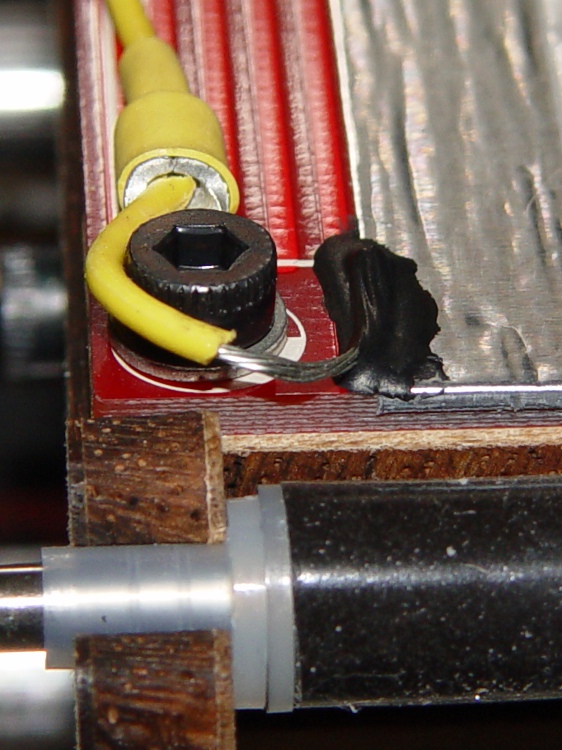
    The ABP platform heat spreader underneath the belt looks like a huge (and completely isolated) capacitor plate with respect to the plastic accumulating atop the belt. The wire attaches to the far right rear of the spreader and trails off with all the other ABP cabling. Yes, those are the wooden side plates, not the acrylic ones, for a reason I’ll explain when I work through my embarrassment.

    ABP Heat Spreader static drain
    ABP Heat Spreader static drain

    There’s no good way to attach a wire to the metal foil, so I used a dab of Wire Glue. The cured carbon-rich blob probably isn’t rated for protracted use at 125 °C, though, and perhaps a mechanical flange captured under one of the socket-head cap screws will be a better idea. This is a detail of the contact end; I threaded the wire through the solderless ring terminals for strain relief.

    ABP static drain - detail
    ABP static drain – detail

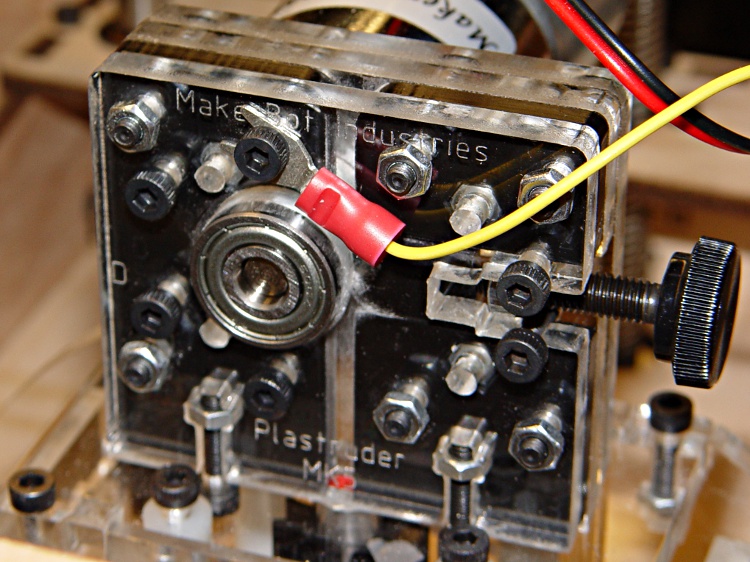
    The Extruder DC motor has bolts passing entirely through the Filament Drive, so I captured a solderless connector under one head. After taking this picture, I realized that the lower motor bolt on the left side is a better location, as that one aims the connector’s open end up and to the right. Make it so.

    Extruder motor static drain
    Extruder motor static drain

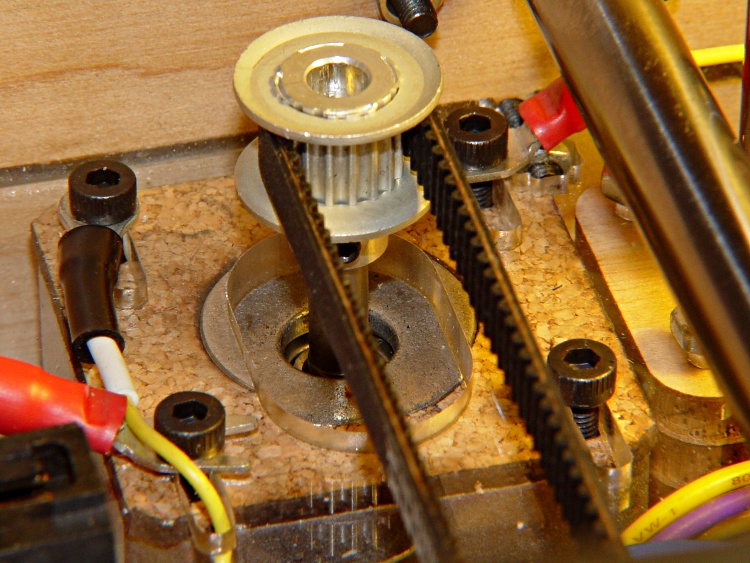
    The X axis stepper motor drain wire dunks down through a motor mount slot and follows the motor winding conductors out of the housing.

    X Axis static drain
    X Axis static drain

    The Y axis stepper motor frame serves as the connection point for the Extruder Motor and X-axis drain wires, each secured under a separate motor mounting bolt. The third wire (with black and white heatstink tubing) snakes down through the left-front motor mounting slot in the acrylic sheet above the electronics bay.

    Y Axis motor with static drains
    Y Axis motor with static drains

    The Z axis stepper has only metal-to-metal sliding contact, so it’s presumably free of static buildup. If you’re being fussy, ground that one, too.

    The Extruder Thermal Core also requires a drain wire, but that one must also handle the fault current from a resistor failure that shorts the +12 V supply directly to the Thermal Core; I’ll discuss that situation separately in a few days.

    The ABP and Y Axis drain wires join a hacked-together ground point secured to the metal case of the ATX power supply metal case. You could, of course, connect these to a DC common supply lead (any Black wire), but these are, by definition, non-current-carrying leads that ought not be mixed with the power distribution. The case is a known-good grounding point that’s bonded to the AC line’s earth-ground conductor, exactly where static charges want to go.

    Static drain to ATX supply connector
    Static drain to ATX supply connector

    The connector is obviously from a cut-off Molex-style hard drive power cable with all four sockets wired together; I sacrificed a handful of Y-splitter power cables for another project a while ago. The pins are lengths of 12 AWG copper wire harvested from a length of Romex house wire, with the drain wires soldered to one end, then covered with heatstink tubing. This is a kludge, but a workable solution.

    Although I think static discharge is a relatively minor contributor to the random crashes and failures, it’s easy enough to eliminate with no side effects… as long as you leave enough wire to reach the far end of the axis travel range.

  • Thing-O-Matic: Stepper Driver Logic Supply

    Just as with the Extruder Controller, the Thing-O-Matic stepper motor driver boards derive their logic supply from the +12 V line through a 7805 linear regulator. While that works in the ideal case, it makes the logic supply vulnerable to glitches induced by motor current switching.

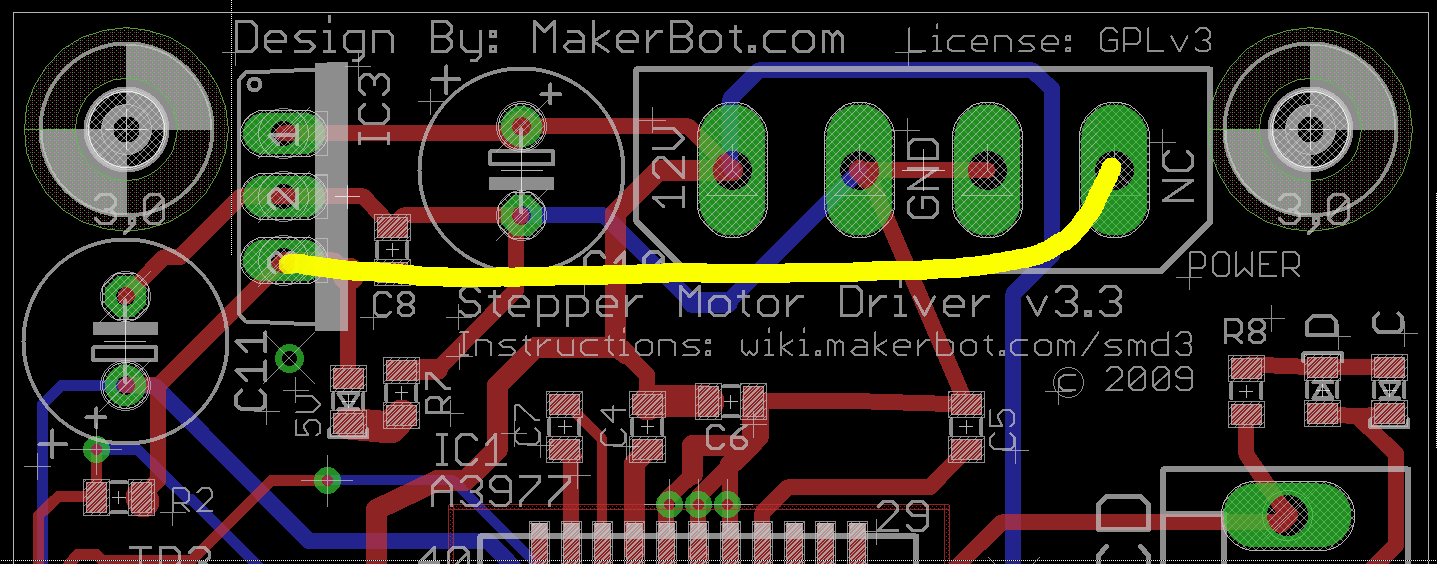
    This modification gives the stepper controller chip a clean +5 V supply from the Thing-O-Matic’s ATX power supply, by the simple expedient of removing the 7805 regulator chip and connecting the +5 V from the power supply Molex-style connector to the circuit pad that was the regulator’s output pin.

    This is what the modification looks like on the PCB layout.

    Stepper driver board modification
    Stepper driver board modification

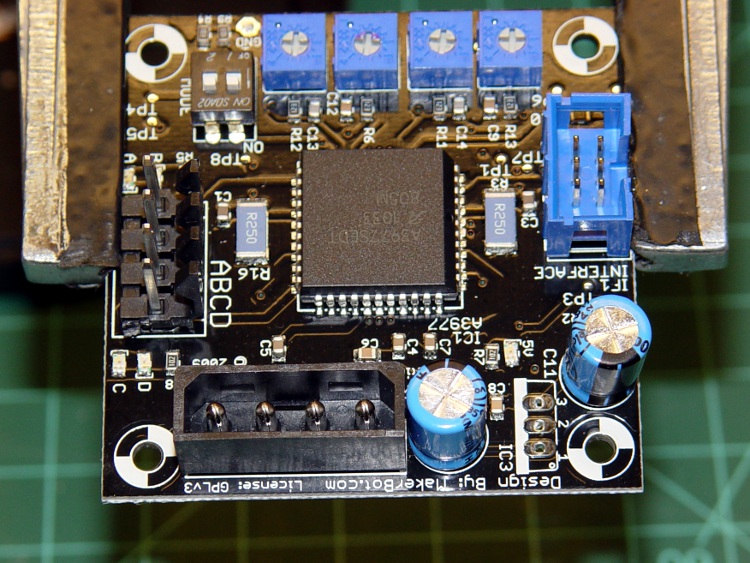
    Use solder wick and a big soldering iron to de-solder the connections, then yank (gently!) the regulator off the board; you can see the outline printed on the board near the lower-right corner, between the two blue capacitors. This picture is rotated half a turn from the PCB layout shown above.

    TOM stepper driver minus 7805 regulator
    TOM stepper driver minus 7805 regulator

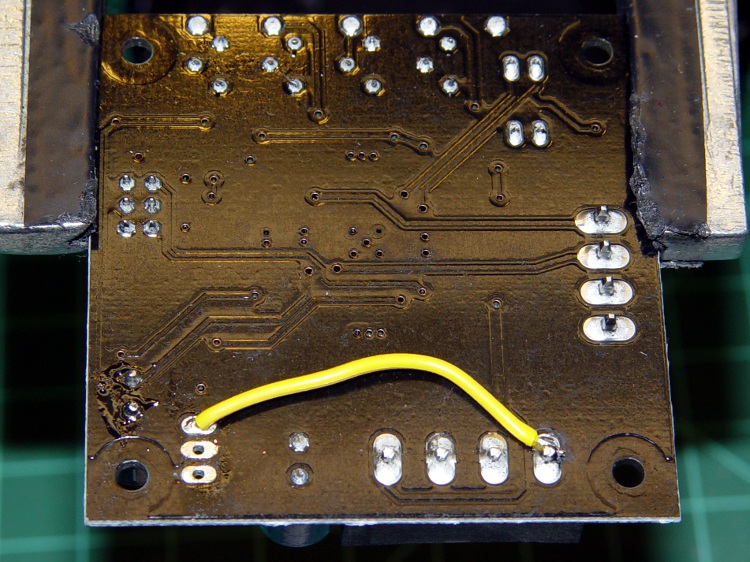
    Connect a jumper from the Molex connector’s +5 V pin to Pin 3 of the 7805 regulator outline. The wire can be any size, because it carries minimal current to the driver chip’s logic circuitry; I used a strand stripped from a ribbon cable.

    Put the wire on the bottom of the board, because the connector pin isn’t accessible from the top and the traces at the regulator output pad are on the top where they’ll be easy to solder.

    TOM stepper driver with 5 V jumper
    TOM stepper driver with 5 V jumper

    Repeat for all three stepper motor controller boards.

    Reinstall in your Thing-O-Matic and rejoice that nothing seems to have changed. This modification should reduce the number of weird motor-control problems, although it will not prevent lost steps due to mechanical overload or excessive traverse speed.