Ed Nisley's Blog: Shop notes, electronics, firmware, machinery, 3D printing, laser cuttery, and curiosities. Contents: 100% human thinking, 0% AI slop.
While pondering whether I should use the carcass of an old Dell PC to house the stepper drivers and control logic for the LinuxCNC M2 project, I bandsawed a scrap of aluminum sheet to about the right size. It had some truly nasty gouges and bonded-on crud, so I chucked up a wire brush cup in the drill press and had at it:
Machine jeweled baseplate
It’s obvious I haven’t done jeweling in a long time, isn’t it? Even a crude engine jeweling job spiffs things right up, though, even if a cough showcase job like this deserves straighter lines and more precise spacing. The aluminum sheet is far too large for the Sherline, which put CNC right out of consideration, and I’m not up for sufficient crank spinning on the big manual mill.
I match-marked mounting holes directly from the harvested motherboard and drilled them, whereupon I discovered that the aluminum is a dead-soft gummy alloy that doesn’t machine cleanly: it won’t become the final baseplate.
Memo to Self: Use the shop vacuum with the nozzle spinward of the brush, fool.
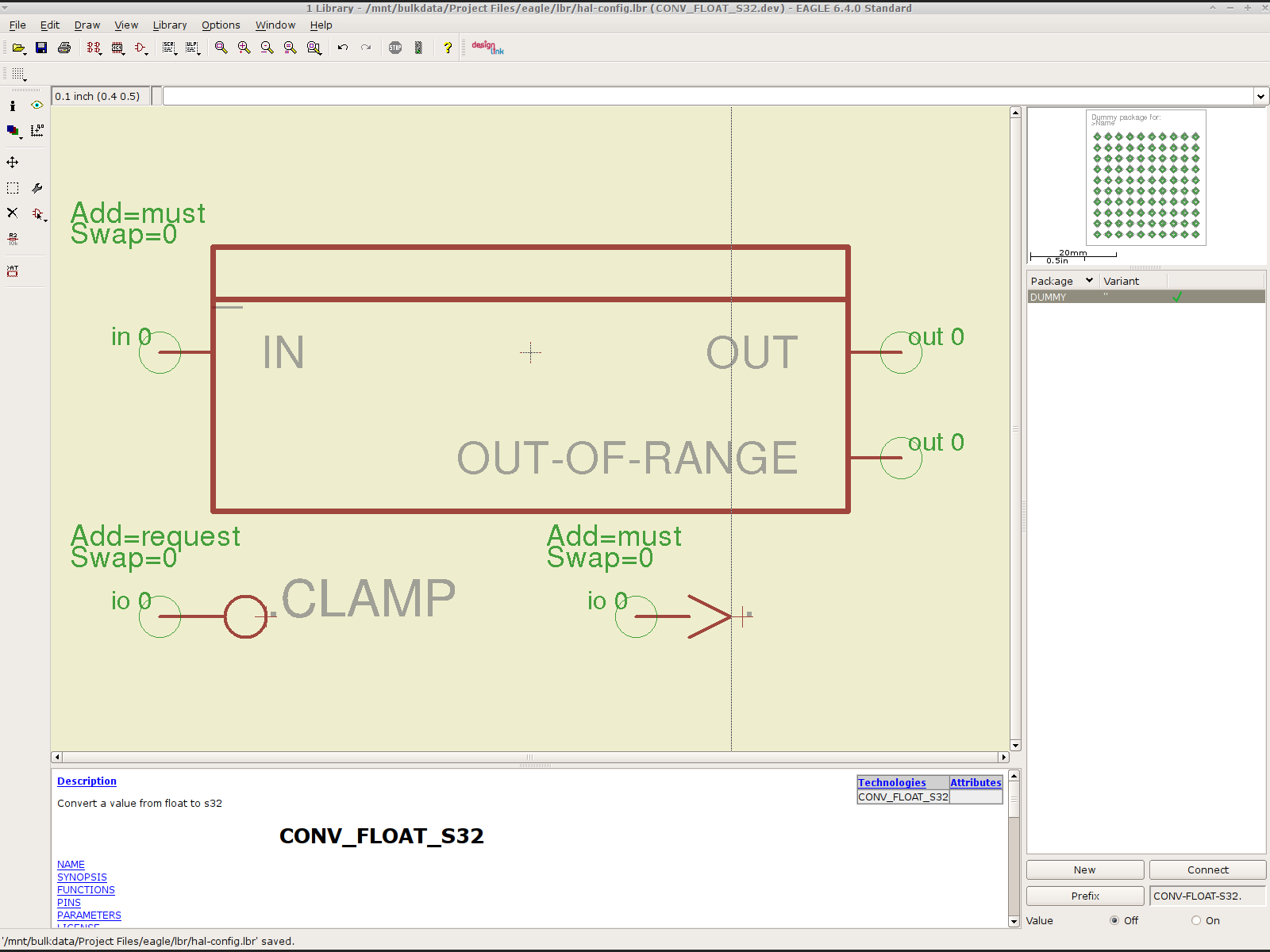
To that end, here’s a checklist for creating a new Eagle device corresponding to a HAL module.
Remember: although this process has a tremendous number of moving parts, you do it exactly once when you need a device that doesn’t already exist. After that, you just click to add an existing device to your schematic, wire it up, then the tedious write-only HAL overhead happens automagically.
Cross-check the documentation with the actual component code!
The man page lists the names, pins, parameters, and suchlike, but may have typos. This isn’t a criticism, it’s a fact of life.
Before investing a ton o’ time creating an Eagle device, load the module and find out what’s really there:
halrun
halcmd: loadrt conv_float_s32
halcmd: show all
Loaded HAL Components:
ID      Type  Name                                      PID   State
     4  RT    conv_float_s32                                  ready
     3  User  halcmd2395                                 2395 ready

Component Pins:
Owner   Type  Dir         Value  Name
     4  float IN              0  conv-float-s32.0.in
     4  s32   OUT             0  conv-float-s32.0.out
     4  bit   OUT         FALSE  conv-float-s32.0.out-of-range

... snippage ...

Parameters:
Owner   Type  Dir         Value  Name
     4  bit   RW          FALSE  conv-float-s32.0.clamp
     4  s32   RO              0  conv-float-s32.0.time
     4  s32   RW              0  conv-float-s32.0.tmax

... snippage ...

Exported Functions:
Owner   CodeAddr  Arg       FP   Users  Name
 00004  fc0a9000  fc0630b8  YES      0   conv-float-s32.0
... snippage ...
Achtung!
The module name uses underscores as separators: loadrt conv_float_s32
The function name uses h-y-p-h-e-n-s as separators: conv-float-s32.0
Unlike in the Linux kernel, the two characters are not equivalent
Add the HAL Module to the Conversion Script
The hal-write.ulp script contains a table of all the module names, so you must update the script in parallel with the hal-config.lbr Eagle library.
However, you can create an Eagle device that is not a HAL module by omitting it from the script. In that case, the Eagle device name will become part of the net names that define and interconnect the pins, but the script will not create a statement to load a module. For example, the hal_input userspace program creates a set of pins for each input device that start with input.n, but there’s no corresponding HAL module. I’ll put up an example of all this in a bit.
Create a Schematic Symbol
The name of the symbol is not critical: CONVERT.sym
use either dashes or hyphens as you prefer
The >NAME string must be on layer 95-Names
No need for a >VALUE string, but put it on layer 96-Values if present
HAL pins become symbol pins
Use the HAL pin name, with hyphens
Set Visibility to Pin
Set Direction to in / out / io to match the HAL description
Set Function to None to indicate an ordinary net connection
Verify the pins against the HAL device!
Create a HAL Schematic Device
The new device name must match the HAL module name, with underscores, as entered in the conversion script table
CONV_FLOAT_S32.dev
Set the Prefix to the HAL function name, plus a trailing period, with hyphens
CONV-FLOAT-S32.
Create the Description using copy-and-paste from the HTML source: use the man page in the LinuxCNC doc
Ctrl-U in Firefox reveals the HTML source, Ctrl-A and Ctrl-C, flip windows, then Ctrl-V
Delete all the boilerplate at the top, leave the centered Title, ditch the reference links
Add the symbol you created earlier or reuse an existing symbol
Set the symbol NAME to a single underscore: _
Change the Add level to must
Add a PIN_FUNCTION symbol to the device
Change the symbol name from G$1 (or whatever) to a single period: .
Change the Add Level to must
Add PIN_PARAMETER symbols as needed
Change the symbol name from G$1 (or whatever) to the parameter name preceded by a single period: .CLAMP
Change the Add Level to request
Change the Direction as needed
Add the DUMMY physical package, then connect all the pins to pads
Create a non-HAL Schematic Device
The new device name may be anything that’s not in the conversion script table
The Prefix must match the desired pin names, plus a trailing period. For hal_input pins:
INPUT.
Create the Description as above
Add the symbol you created earlier
Set the symbol NAME to a single underscore: _
Change the Add level to must
Do not add a PIN_FUNCTION symbol, because it has no corresponding module
Add PIN_PARAMETER symbols as needed
Change the symbol name from G$1 (or whatever) to the parameter name preceded by a single period: .CLAMP
Change the Add Level to request
Change the Direction as needed
Add the DUMMY physical package, then connect all the pins to pads
Devices may have multiple Symbols, with different Add Level options; can seems appropriate. As nearly as I can tell, you must name each Symbol as a suffix to the full name to differentiate them within the Device; I use a hyphen before the suffix, so that -KEYS generates INPUT.0-KEYS. Those suffixes don’t appear elsewhere in the generated HAL configuration file.
Save the library, update it in the schematic editor (Library → Update ...), and you’re set.
Although it’s tempting, do not include a version number in the library file name, because Eagle stores the file name inside the schematic file along with the devices from that file. As a result, when you bump the library version number and use devices from the new library file, the schematic depends on both library files and there’s no way within Eagle to migrate devices from one library to the other; you must delete the existing devices from the schematic and re-place them from the new library. Or you can do like I did: hand-edit the XML fields inside the library file.
Eagle HAL Device
You’ll almost certainly drive this procedure off the rails, so let me know what I’ve screwed up. It does, in fact, work wonderfully well and, as far as I’m concerned, makes HAL usable, if only because HAL is a write-only language to start with and now you need not read it to modify it.
Just to see what’s inside, I took those HB-415M drivers apart. They’re not all identical inside:
HB-415M Driver – interior top
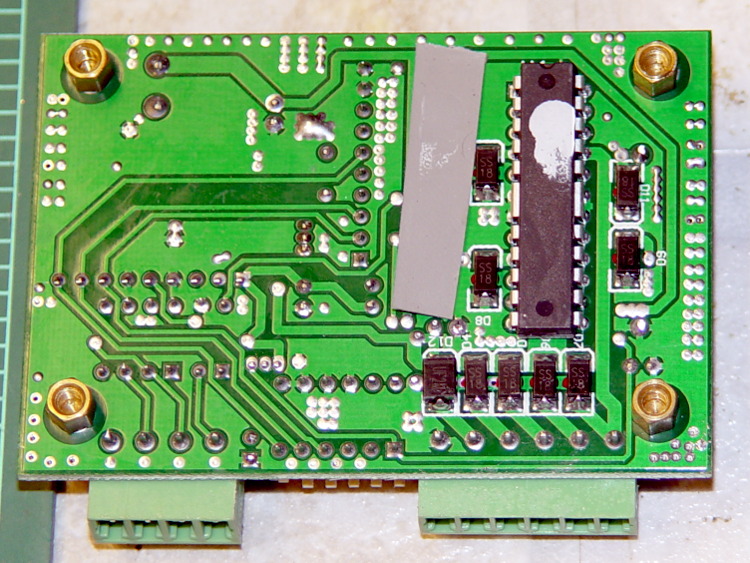
The other side shouldn’t come as much of a surprise:
HB-415M Driver heatsinking
Now, admittedly, I’ve applied a heatsink to the top of an epoxy package, but that DIP package has thermal tabs that should connect to the heatsink through a low-thermal-resistance path. A dab (!) of heatsink grease and what might be a thermally conductive plastic sheet atop the package seem, well, insufficient.
The driver chip sports an Allegro A3992 marking that might be genuine. The datasheet goes into some detail as to how you should lay out the PCB; none of its recommendations made it into the finished product. In particular, the hulking current sense resistors surely have more inductance than you’d like.
The resistor color code seems odd: black red red silver brown.
HB-415M current sense resisors
Using black as the first band is unexpected, but it’s probably the only way to indicate a low-value resistance without printing the numbers: 0.22 Ω ±1%.
A (formerly Belkin, now Razer, which is evidently unrelated to Mazer Rackham) Nostromo N52 SpeedPad might not be a perfect CNC pendant, but it does have plenty of buttons and an (oddly oriented) XY joypad that might be useful for, say, a 3D printer controller running LinuxCNC.
Belkin Nostromo N52 SpeedPad
Following the same path as with the Logitech Dual Action Gamepad that became the Joggy Thing, we find that the N52 reports itself as a keyboard and a mouse:
udevadm info --query=all --attribute-walk --name=/dev/bus/usb/002/004

Udevadm info starts with the device specified by the devpath and then
walks up the chain of parent devices. It prints for every device
found, all possible attributes in the udev rules key format.
A rule to match, can be composed by the attributes of the device
and the attributes from one single parent device.

  looking at device '/devices/pci0000:00/0000:00:02.0/usb2/2-10':
    KERNEL=="2-10"
    SUBSYSTEM=="usb"
    DRIVER=="usb"
    ATTR{configuration}==""
    ATTR{bNumInterfaces}==" 2"
    ATTR{bConfigurationValue}=="1"
    ATTR{bmAttributes}=="80"
    ATTR{bMaxPower}==" 90mA"
    ATTR{urbnum}=="1354"
    ATTR{idVendor}=="050d"
    ATTR{idProduct}=="0815"
    ATTR{bcdDevice}=="0210"
    ATTR{bDeviceClass}=="00"
    ATTR{bDeviceSubClass}=="00"
    ATTR{bDeviceProtocol}=="00"
    ATTR{bNumConfigurations}=="1"
    ATTR{bMaxPacketSize0}=="8"
    ATTR{speed}=="1.5"
    ATTR{busnum}=="2"
    ATTR{devnum}=="4"
    ATTR{version}==" 1.10"
    ATTR{maxchild}=="0"
    ATTR{quirks}=="0x0"
    ATTR{authorized}=="1"
    ATTR{manufacturer}=="Honey Bee "
    ATTR{product}=="Nostromo SpeedPad2 "

... snippage ...
Note the trailing blank in the manufacturer and product values.
Create a new rules file /etc/udev/rule/90-Nostromo.rules to change the group and permissions:
# Belkin Nostromo N52 SpeedPad controller for LinuxCNC
# Ed Nisley - KE4ZNU - February 2013

ATTRS{product}=="Nostromo SpeedPad2",GROUP="plugdev",MODE="0660"
Note that the file name must start with a number around 90- to avoid being clobbered by a rule in /lib/udev/rules.d/50-udev-default.rules that (re)sets the permissions to 0640; the doc suggests that rules without numbers happen after all the number rules, so perhaps you could just use meaningful names. That took an embarrassingly long time to figure out…
There’s no need for the trailing blank in that rule, as the match proceeds left-to-right and stops at the end of the test string.
You must, perforce, be in the plugdev group. If not, add yourself.
You need not unplug the N52 to test the rule. Just use:
The + prefix tells HAL to capture the named device and prevent its events from reaching X. The KRL codes suggest which functions you’re interested in for that particular device. The suffix digit selects successive devices for multiple gadgets matching the same name string.
Apparently, the N52 reports it can produce all the usual keyboard and mouse values & buttons, even if they’re not connected to physical hardware. I suspect it has generic keyboard / mouse controllers inside, with just a few of the usual matrix crosspoints connected to switches.
The basic key mapping, sorted by the Nostromo functions:
Type
Dir
Name
Nostromo key
bit
OUT
input.0.key-tab
F1
bit
OUT
input.0.key-q
F2
bit
OUT
input.0.key-w
F3
bit
OUT
input.0.key-e
F4
bit
OUT
input.0.key-r
F5
bit
OUT
input.0.key-capslock
F6
bit
OUT
input.0.key-a
F7
bit
OUT
input.0.key-s
F8
bit
OUT
input.0.key-d
F9
bit
OUT
input.0.key-f
F10
bit
OUT
input.0.key-leftshift
F11
bit
OUT
input.0.key-z
F12
bit
OUT
input.0.key-x
F13
bit
OUT
input.0.key-c
F14
bit
OUT
input.0.key-space
F15
bit
OUT
input.0.key-leftalt
Orange button
bit
OUT
input.0.key-right
Pad bottom
bit
OUT
input.0.key-down
Pad front
bit
OUT
input.0.key-up
Pad rear
bit
OUT
input.0.key-left
Pad top
bit
OUT
input.1.btn-middle
Wheel press
s32
OUT
input.1.rel-wheel-counts
Scroll wheel
bit
IN
input.1.led-numl
Red LED
bit
IN
input.1.led-capsl
Green LED
bit
IN
input.1.led-scrolll
Blue LED
The bit pins also have inverted values available on the corresponding -not pins. The LEDs have an -invert that flips the sense of the input pin. The rel-wheel pin has other useful tidbits as suffixes; the count changes by ±1 for each wheel detent.
The Tab key and all the letters auto-repeat, the various Shift and Alt keys do not. That seems to make no difference to the bit values reported by HAL.
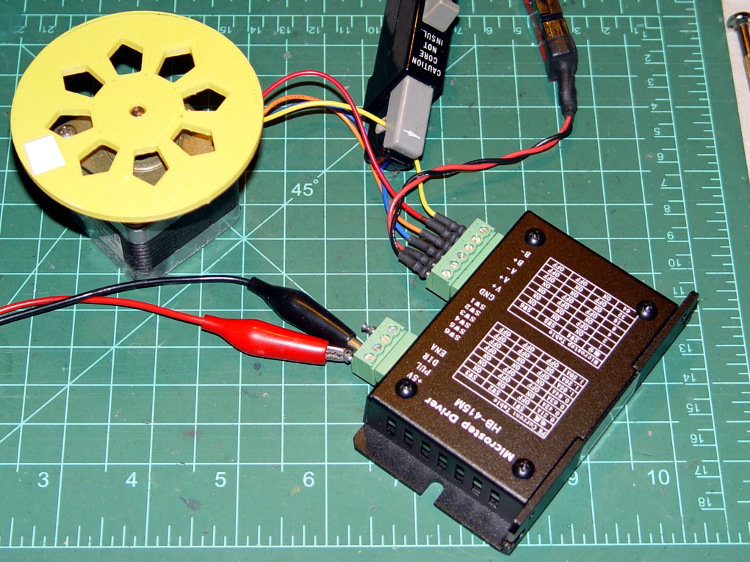
As mentioned there, the usual eBay vendor shipped HB-415M drivers instead of the advertised 2M415 drivers. Based on the Chinese datasheet and some poking around, I got a test setup working with a bench supply, a signal generator, and a NEMA 17 stepper motor with 2 Ω windings.
First observation: the ENA input is active high. Pulling it low to turn on the optocoupler disables the drive output, which is exactly the opposite of what’s shown in the datasheet, which means that the driver will run quite happily with nothing connected to the ENA pin. The optoisolator current runs about 11 mA from a 5 V supply, close enough to the 10 mA typical spec, but the signal generator thinks it’s providing a TTL pulse output.
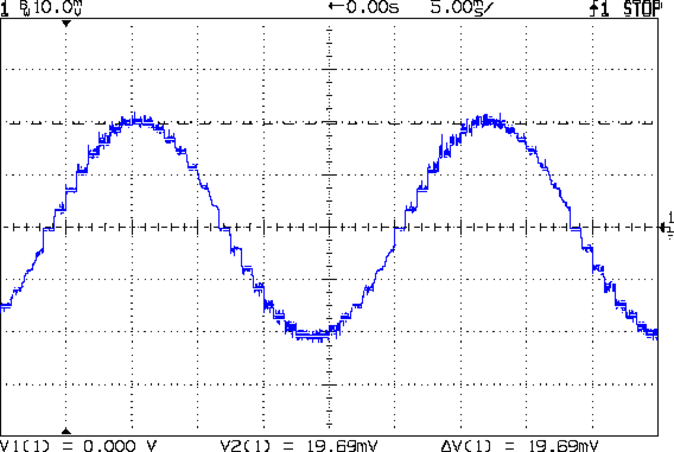
Second observation: the driver’s actual winding current doesn’t match the DIP switch setting.
Here’s the 1/8 microstep winding current for the 1.50 A peak setting, with a 0.5 A/div vertical calibration:
HB-415M 8-step 1.5A 20V
Sure looks like 1 A peak, doesn’t it?
The ratio seems close to 0.707 and remains consistent across all current settings, so I’d lay long money that the designer confused “peak” and “RMS” values, then figured the current sense resistor or chose the internal coefficients to produce the corresponding RMS current for the peak value.
The reduced current produces not very much torque at all; negotiations are in progress for a partial refund based on eBay’s “item not as described” process…
Turns out that the anonymous parallel port breakout board isn’t compatible with an optoisolated stepper driver: each output has a 1 kΩ series resistor that limits the current well below the driver optocoupler’s expectations. The driver has an internal 300 Ω resistor on each input, too, which doesn’t help in this situation.
A detailed look at the resistors lined up in front of the connectors:
Anonymous parallel breakout board – series resistors
The breakout board would work fine with non-isolated drivers, like the Pololu breakout boards, so it’s not really at fault. The fact that there’s no doc anywhere to be found means you (well, I) couldn’t discover this without buying it first, but … I suppose it’ll come in handy for something.
One could short across the resistors, but I intended to use this board for the initial bringup and all that soldering defeats the purpose.
Parallel port breakout boards of this ilk run about $14, complete with cable, on eBay:
5 axis parallel port breakout board
The PCB has no part number and the inferred URL isn’t productive. The “driver CD” accompanying it has doc for every possible board the vendor might sell and, absent a part number, the file names aren’t helpful. An exhaustive search suggests it corresponds to the HY-JK02-M 5-axis interface board manual.doc file.
Despite any implication to the contrary, the board does not have optoisolators between the parallel port pins and the outside world. The stepper driver bricks should, but the input signals from limit switches and suchlike connect directly to the guts of your PC.
This overview (from the manual) shows the physical pin layout (clicky for more dots) and reveals the hidden silkscreen legend:
HY-JK02-M Breakout Board – overview
It looks like the board I got added a spindle relay driver transistor, plus a few resistors over by the manual control connector on the right.
Notice that the fourth terminal on each axis is GND, not the positive supply required for the optoisolators on the 2M415-oid driver bricks, which means you can’t just run a section of ribbon cable from the breakout board to the brick. You’ll need a separate +5 V (or whatever) power supply wire for each brick, with a common return to the system ground for this board. Those terminals are firmly bonded to the top and bottom ground planes on the board, so there’s no practical way to re-route them.
The small switch in the upper left, just to the right of the parallel port connector, selects +5 V power from the USB port (which has no data lines) or the power connector in the lower left. The LED near the switch won’t light up until you have both the parallel port cable and the USB cable plugged in.
The doc includes a timing diagram with no numeric values. I established that it can’t keep up with a 500 kHz pulse train and seems content at 100 kHz, but that’s conjecture. Setting the timing to match whatever the stepper driver bricks prefer will probably work. The diagram suggests the setup and hold times for direction changes are whatever you use for the minimum time between step pulses.
This shows the functional labels:
HY-JK02-M Breakout Board – function labels
The parallel port connector output pins, sorted by function:
Pin
9
1
2
14
16
3
7
8
6
5
4
17
Function
Spindle
motor
Enabled
X step
X dir
Y step
Y dir
Z step
Z dir
A step
A dir
B step
B dir
The parallel port connector input functions, sorted by pin:
X -Limit
Y- Limit
Z- Limit
A- Limit
Emerg Stop
10
11
12
13
15
The table uses Chinese for Pin 15: 急停.
It’s not clear whether the pins on the manual control connector are inputs or outputs, nor what the three separate Enabled lines do:
P1
P2
P3
P4
P5
P6
P7
P8
P9
P10
P11
P12
P13
P14
P15
B step
B dir
A dir
Z step
Y step
X step
X dir
Enabled
5V/VDD
5V/GND
A step
Z dir
Y dir
Enabled
Enabled
The three white connectors in the middle drive an LED readout board that’s probably most useful as a DRO for CNC-converted manual mills using the pendant for positioning.
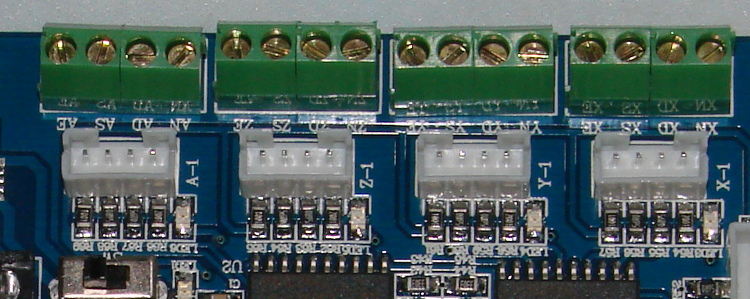
The small white connectors duplicate the functions of the green screw terminals. They’re probably useful in a small machine that I’m not building.
This isn’t the board I intend to use in the final setup, because I need far more I/O pins, but it’ll serve for the short term.






 The Smell of Molten Projects in the Morning