Ed Nisley's Blog: Shop notes, electronics, firmware, machinery, 3D printing, laser cuttery, and curiosities. Contents: 100% human thinking, 0% AI slop.
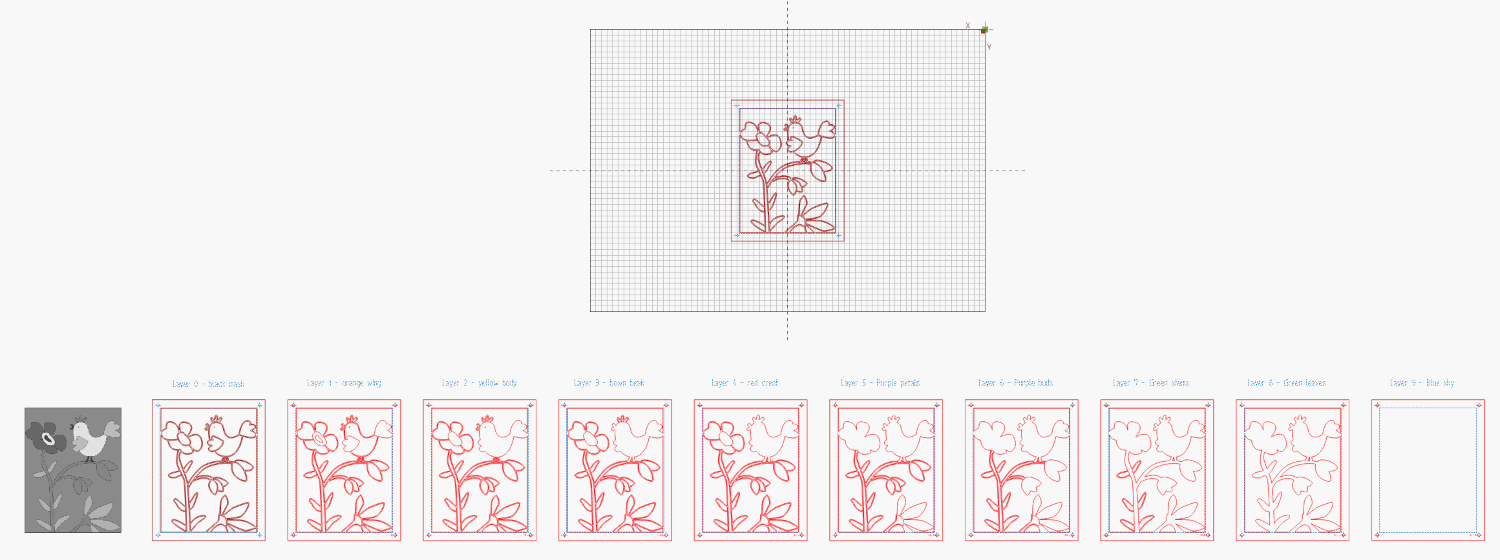
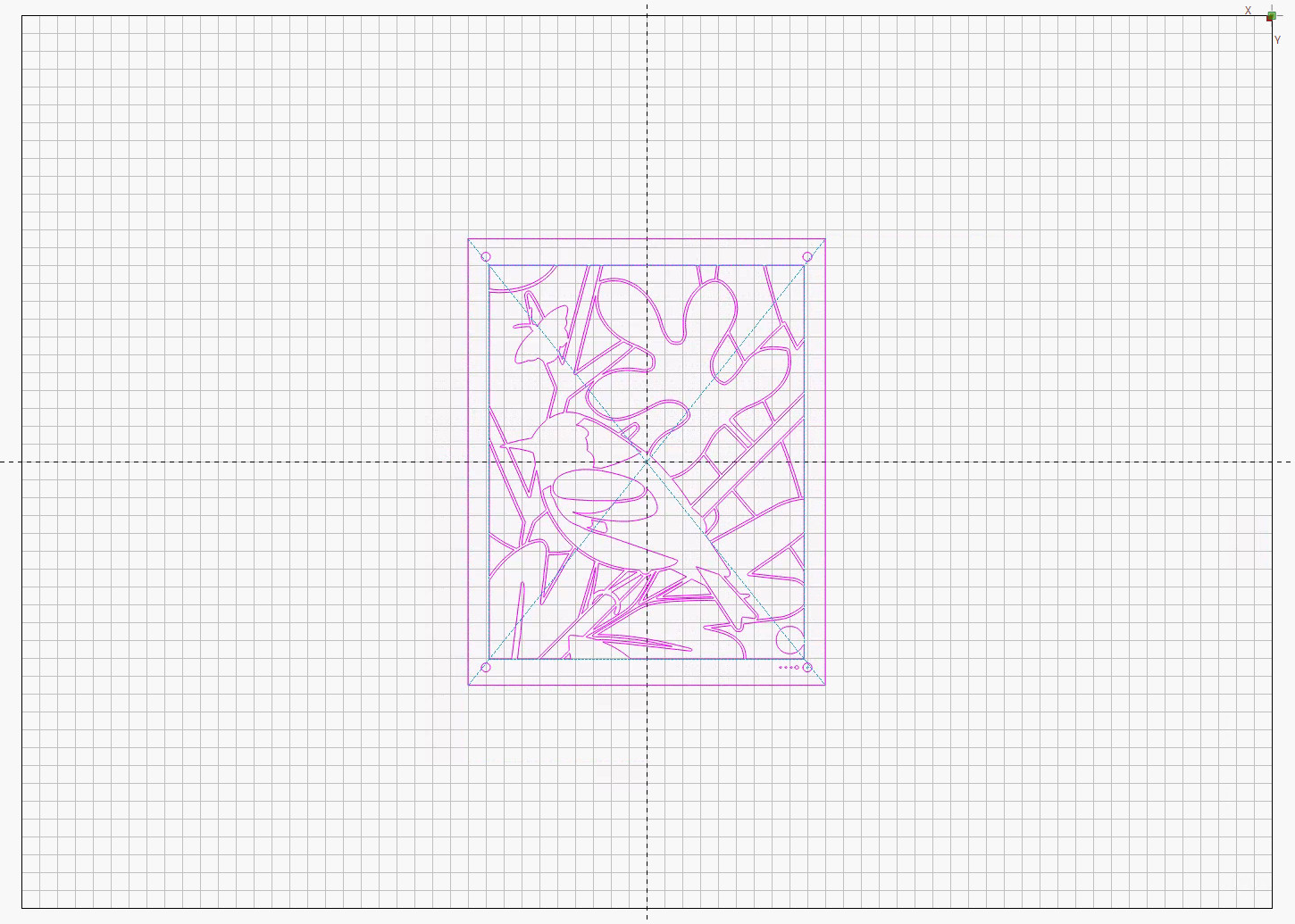
With all the layers laid out, duplicating and plunking one in the middle of the LightBurn workspace looks like this:
Page 4 – Layer 1 – Lightburn centered layout
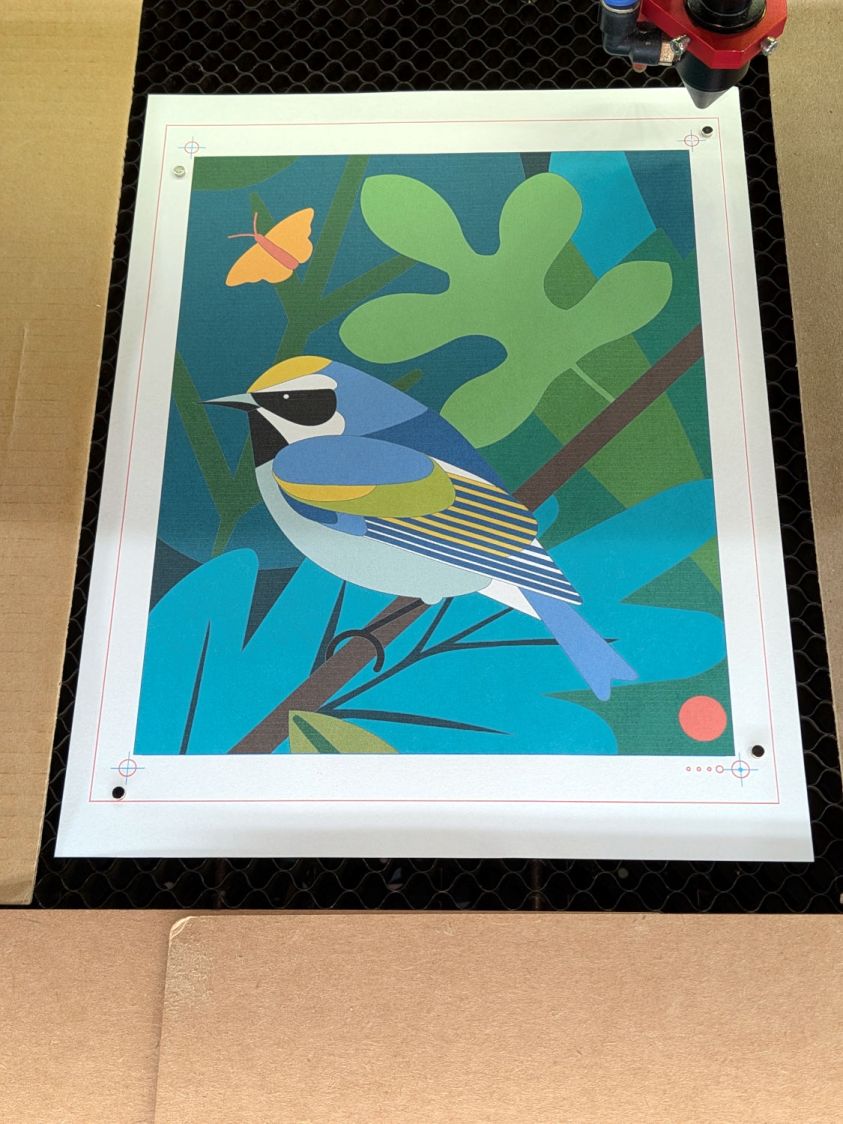
In Absolute Coordinates mode the laser will cut it at the center of the platform, so put a sheet right there:
Print vs cut – 100.3pct plain paper – setup
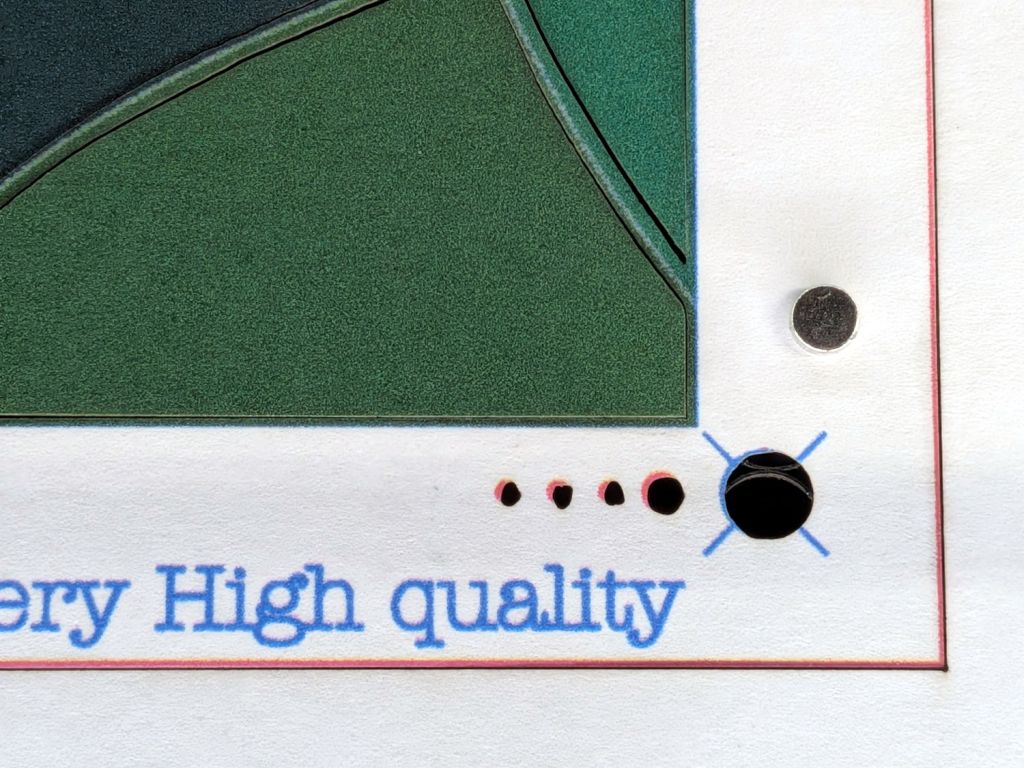
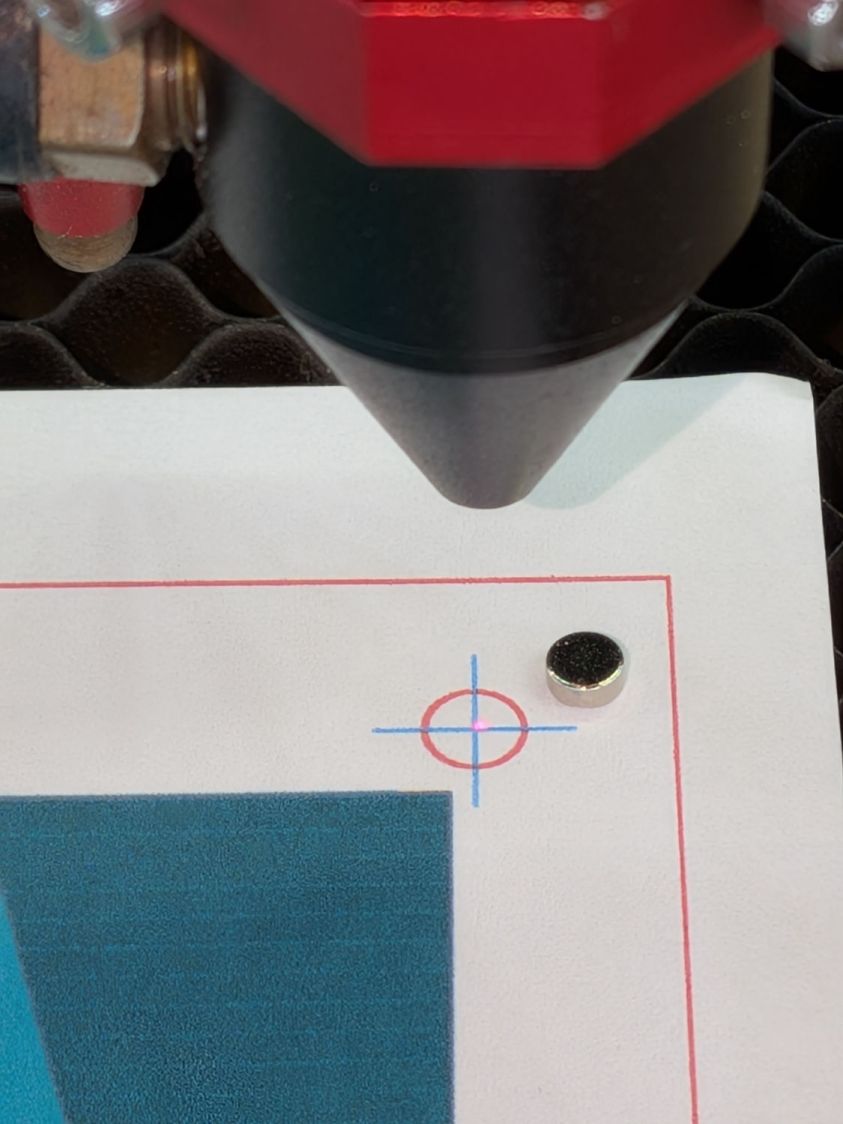
The Position Laser tool puts the laser head at a selected location in the design, with the picture showing it at the center of the upper right target. The trick is to slide the paper on the platform to put that target directly under the red-dot pointer:
Print vs cut – 100.3pct plain paper – UR align
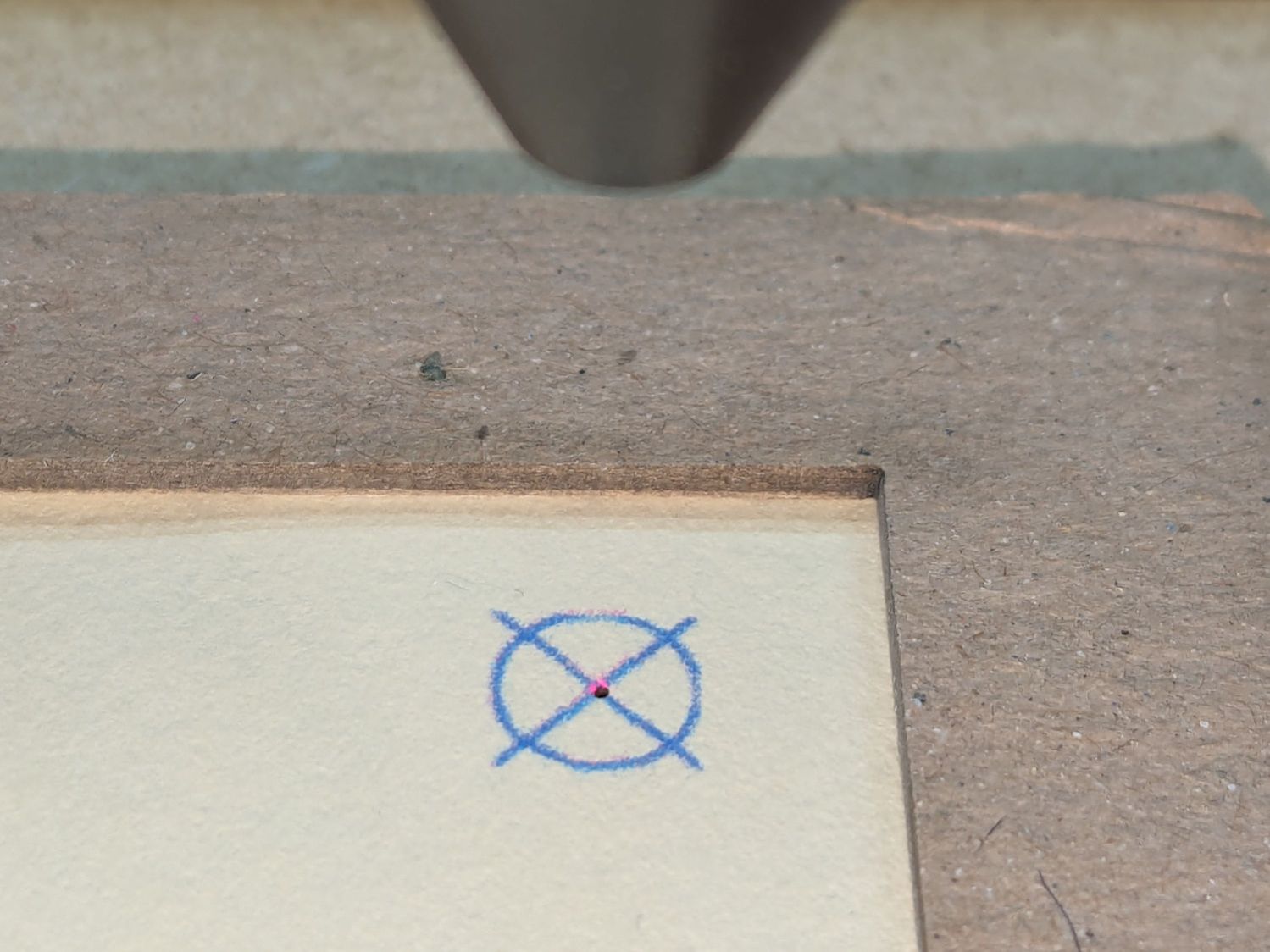
I occasionally fire a test pulse to verify the CO₂ laser hits the red dot:
Red dot vs printed target vs laser spot alignment
Do the same for the target in the lower left corner, rotating the paper around the upper right target, and iterating until both targets match.
Because the printer does not produce accurately sized output, this can happen:
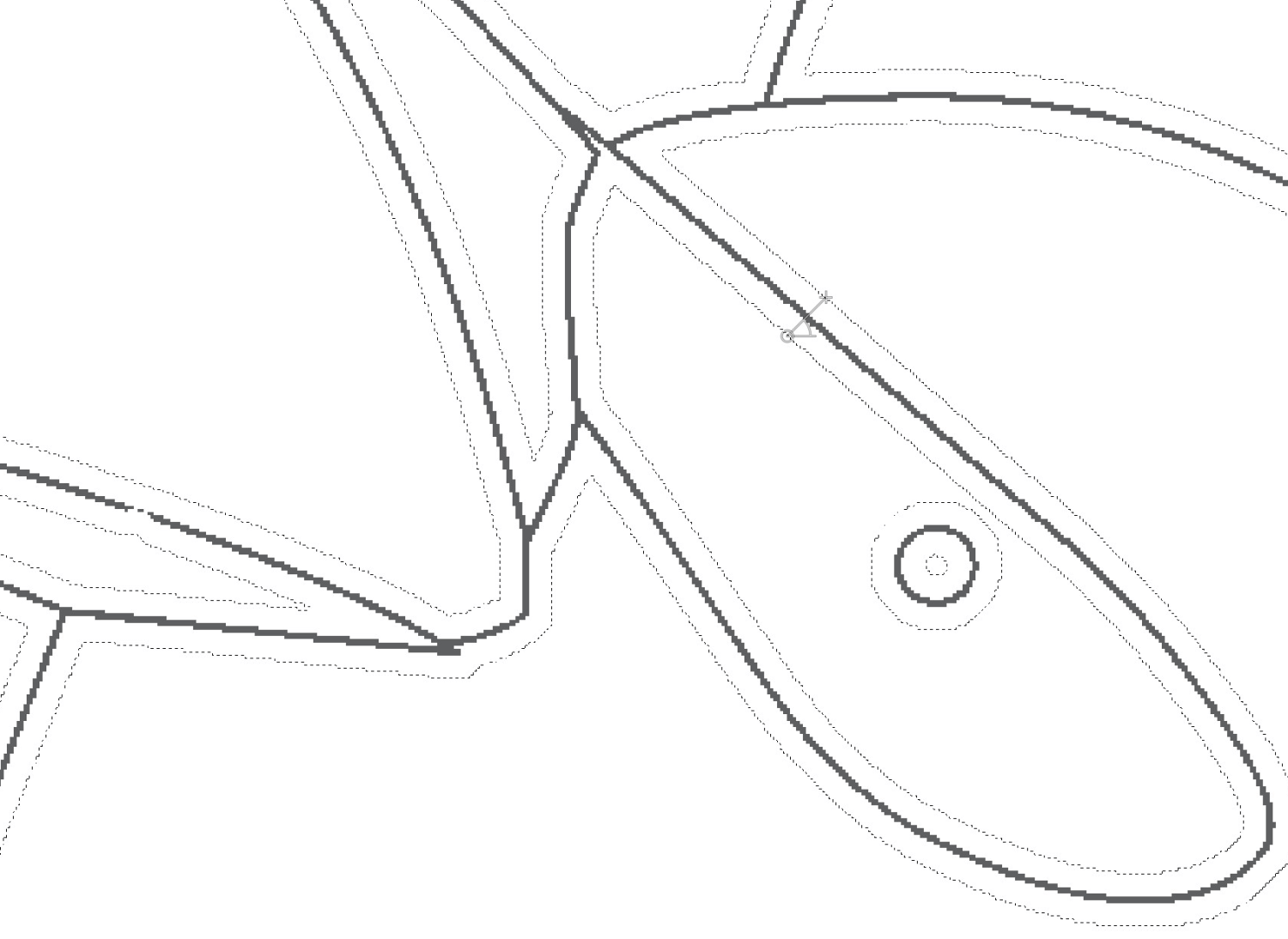
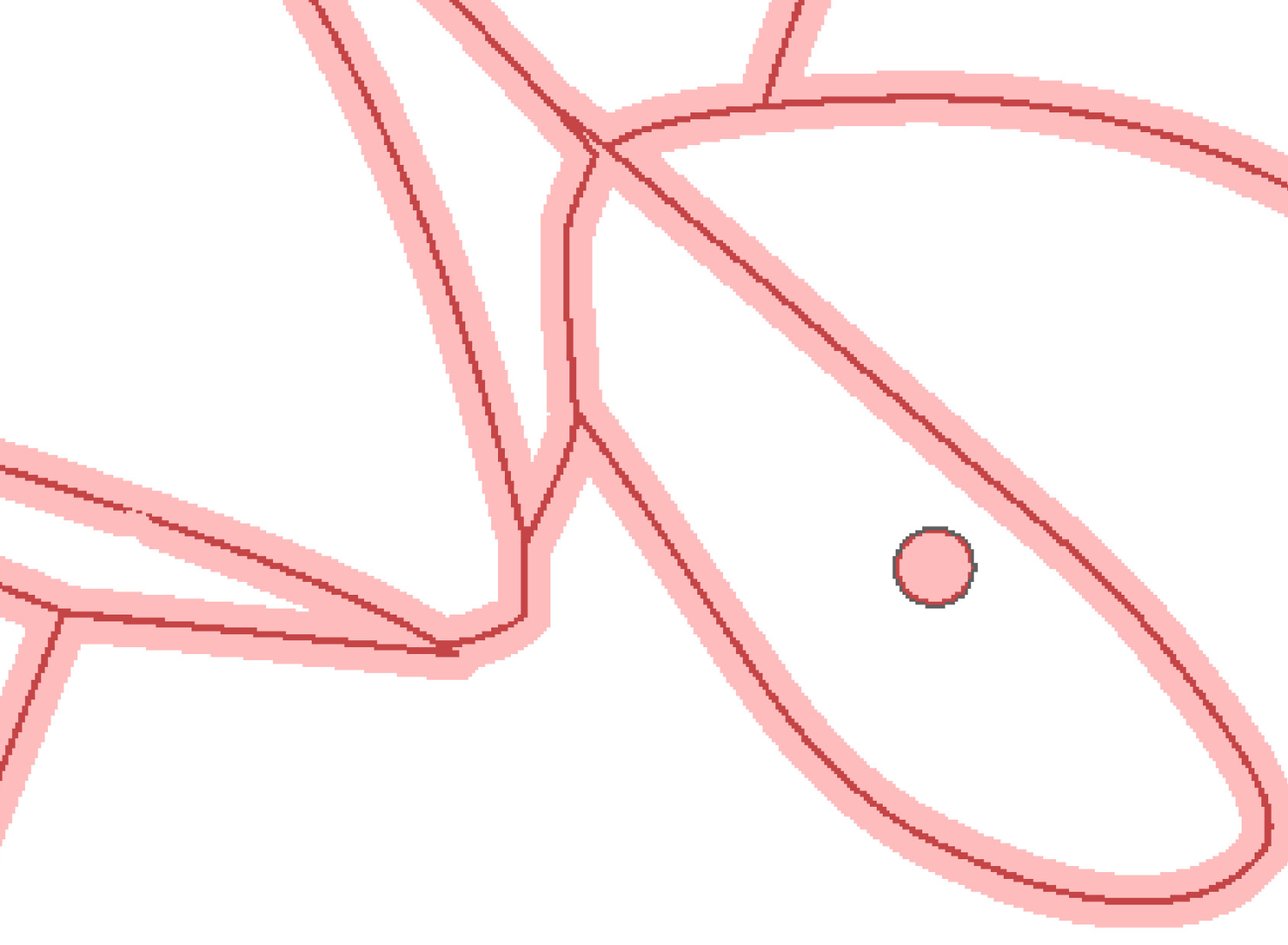
Print vs cut – 100.3pct plain paper – LR
You’ll get a hint of the problem when it’s impossible to put the targets under the the laser head at the lower targets, although it may look close enough to work.
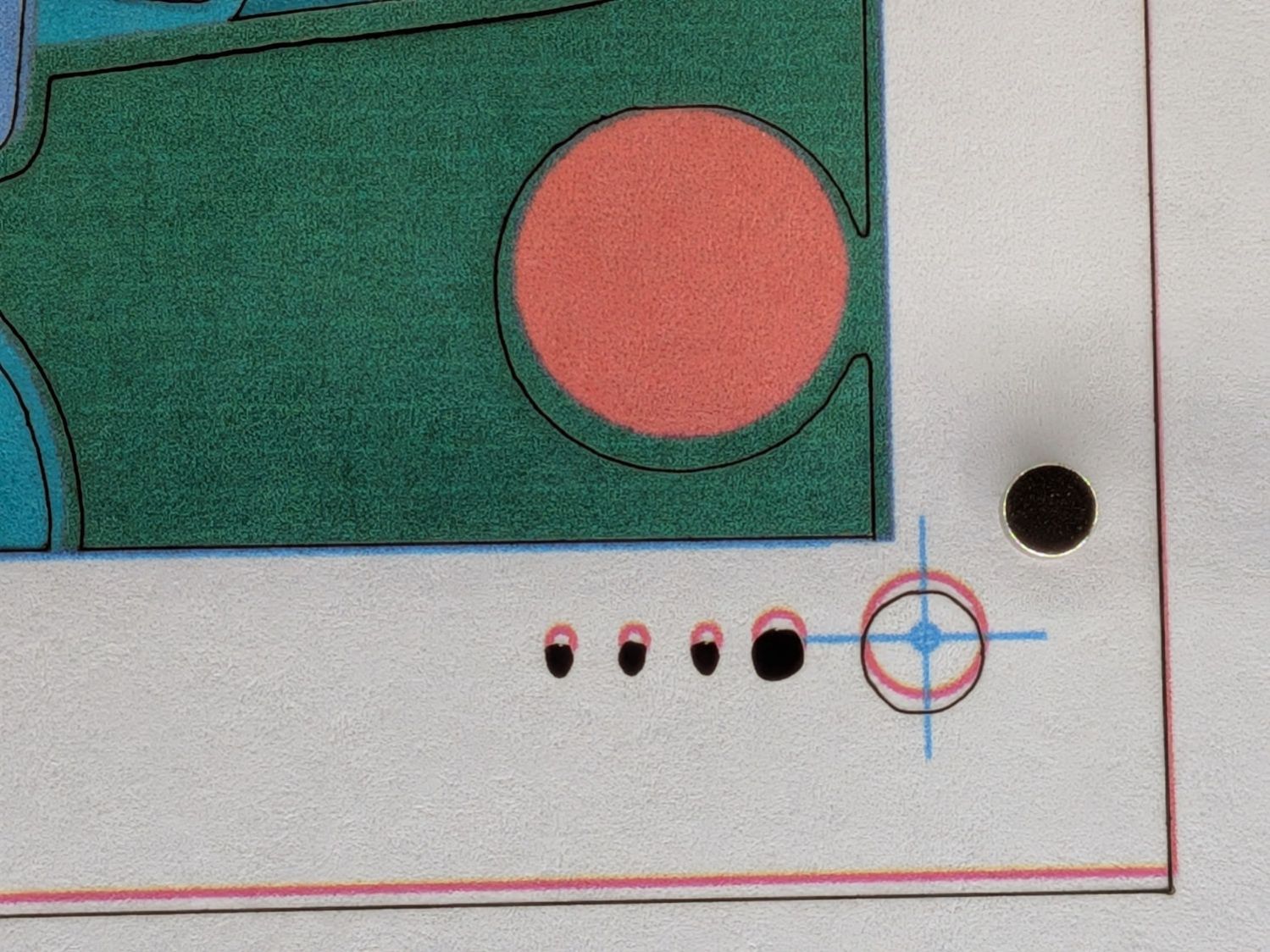
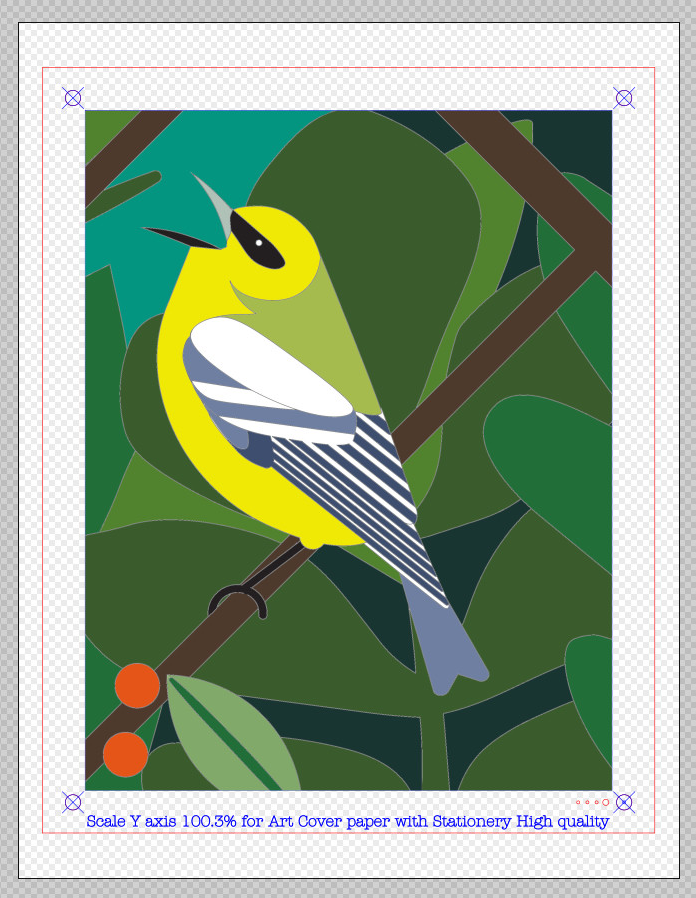
That offset was on plain paper with the output scaled by 100.3% vertically. Applying the same scaling (to the Happy Bird picture, but with the same page template) and printing on Art Cover paper produces this result:
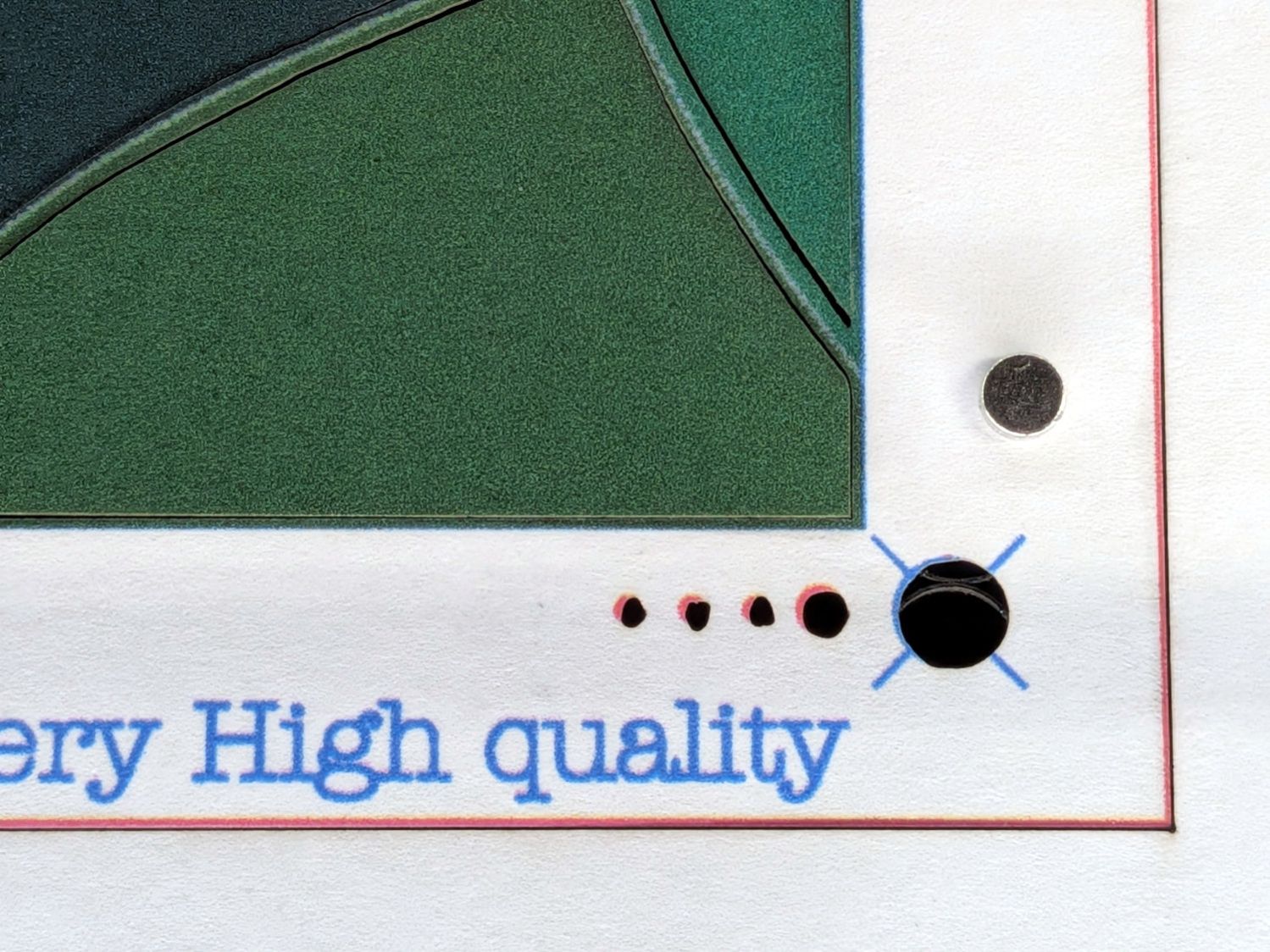
Print vs cut – 100.3pct Art Cover – LR
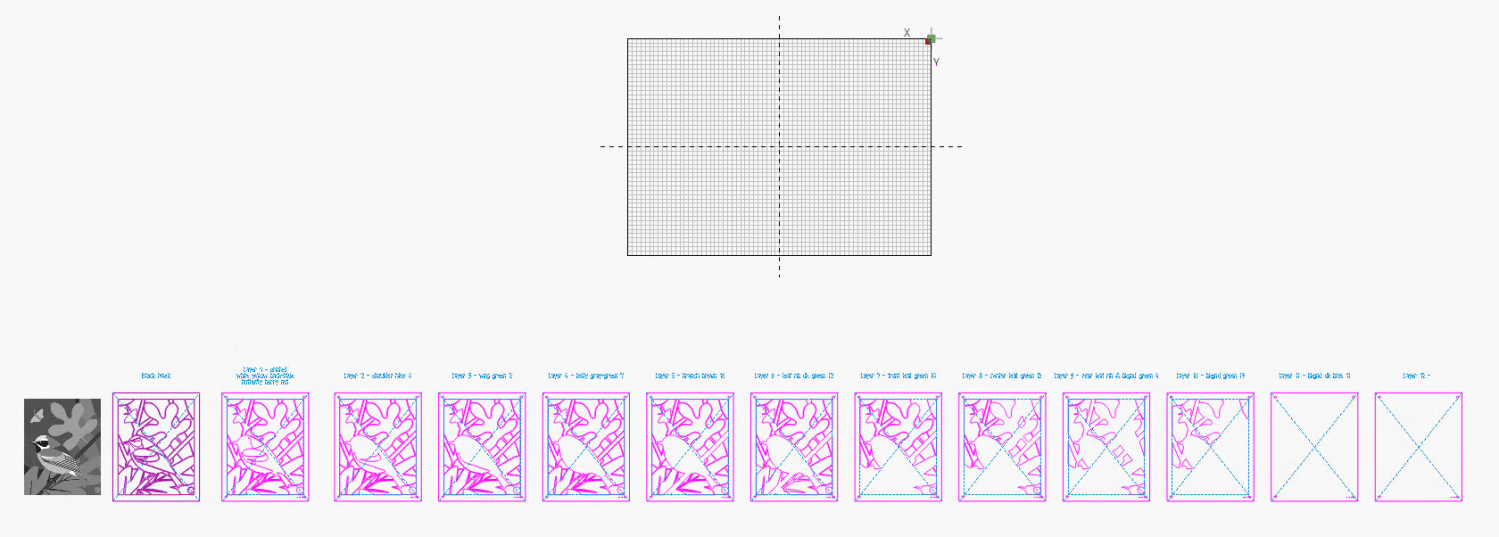
Eventually, I can find a suitable scale factor to make the printed image come out right and the cuts align properly:
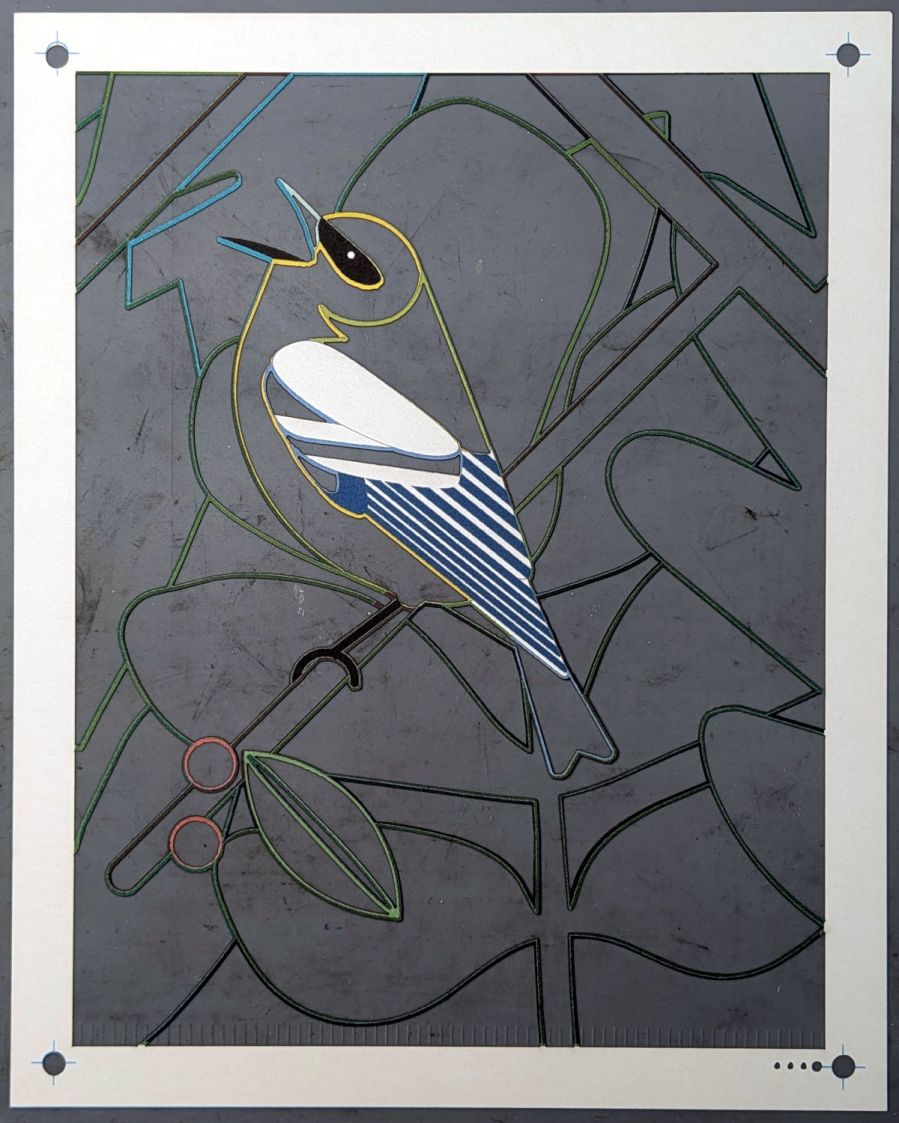
Page 5 – Test piece – as cut
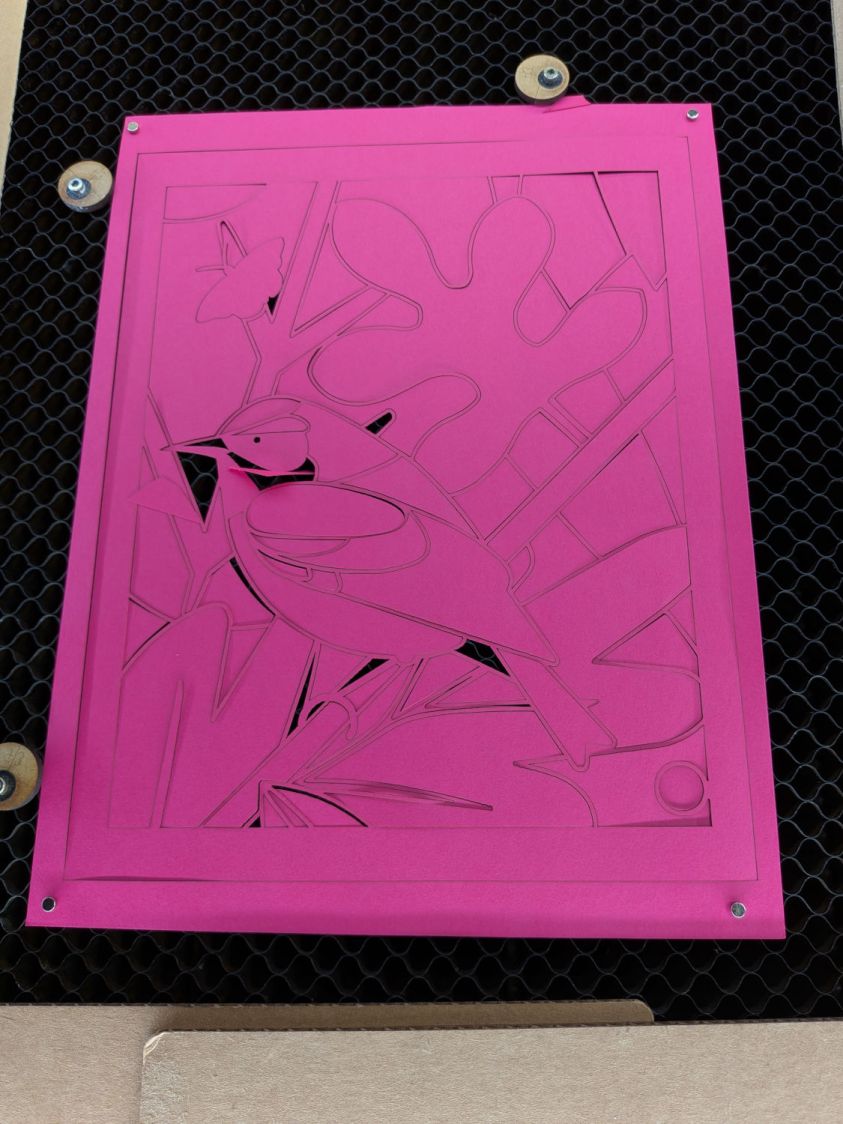
Those tenuous paper strands show why I couldn’t use the Letter page fixture and had to cut the sheets directly on the honeycomb: the weight of the uncut sections distorted the remaining sheet beyond belief. The squat silver cylinders in the pictures are neodymium magnets holding the paper flat on the honeycomb.
All the other layers have trivial positioning, because the cuts need not line up with anything on the sheet:
Layered paper alignment
Just frame the first layout, center the sheet around it, set the MDF stops to kiss the edges of the paper, and all the other sheets will come out just fine.
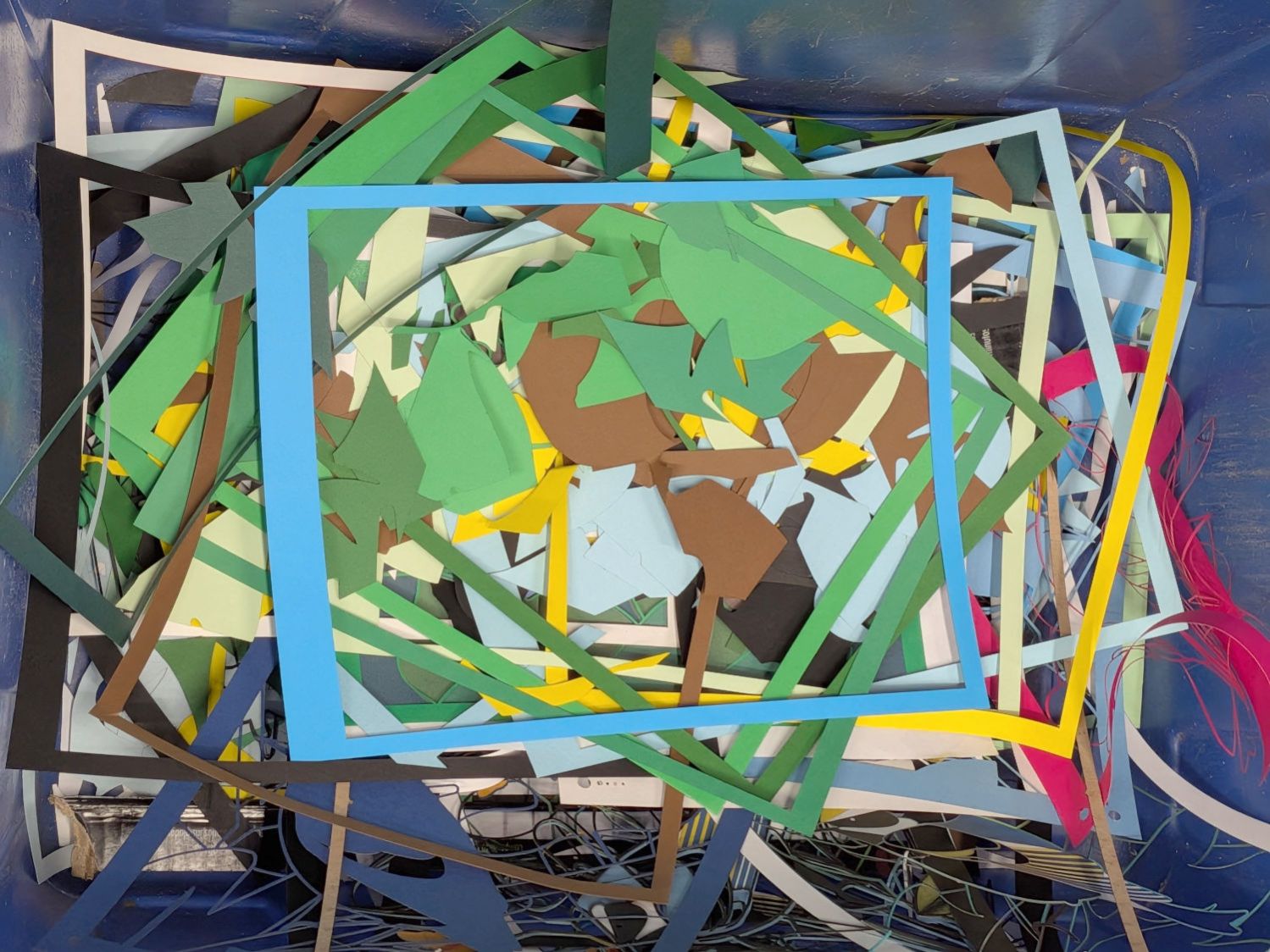
One side effect of all this cutting is the happiest scrap bin ever:
Happy Laser Scrap Bin
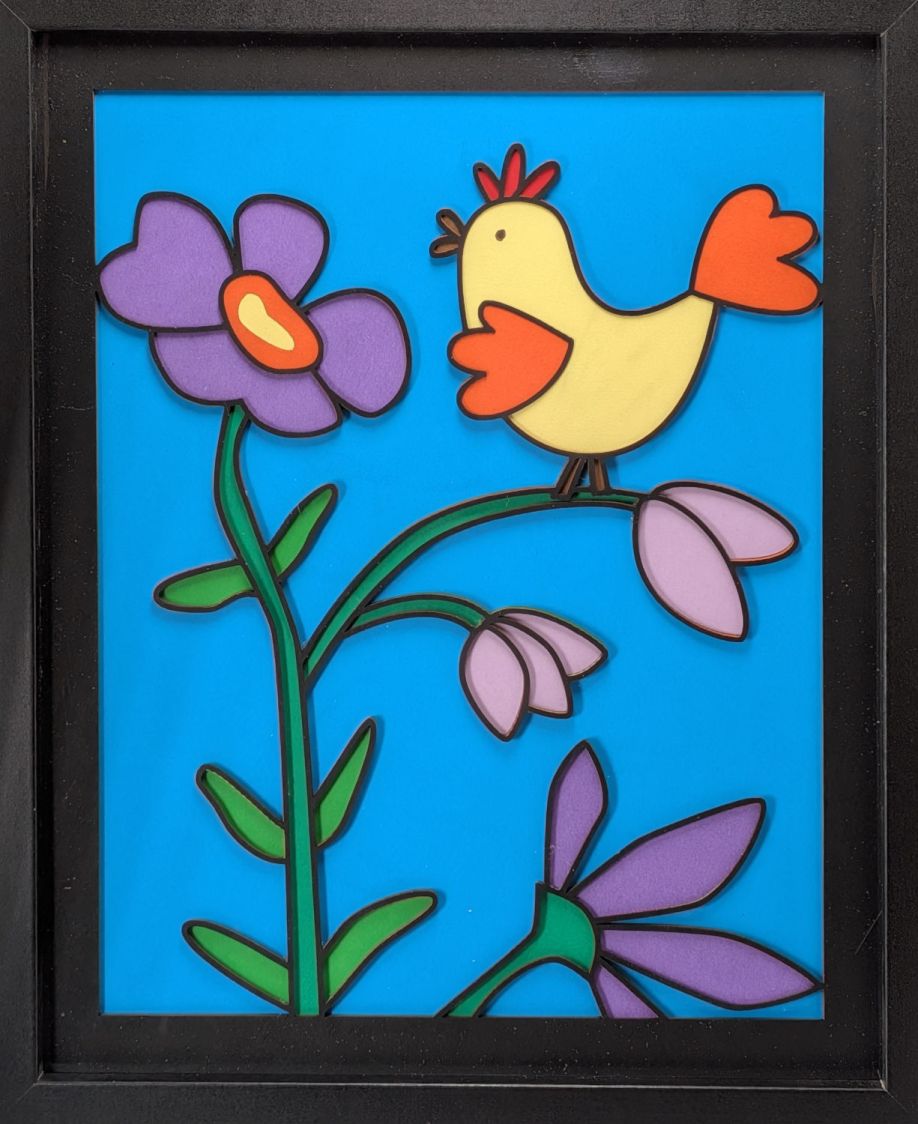
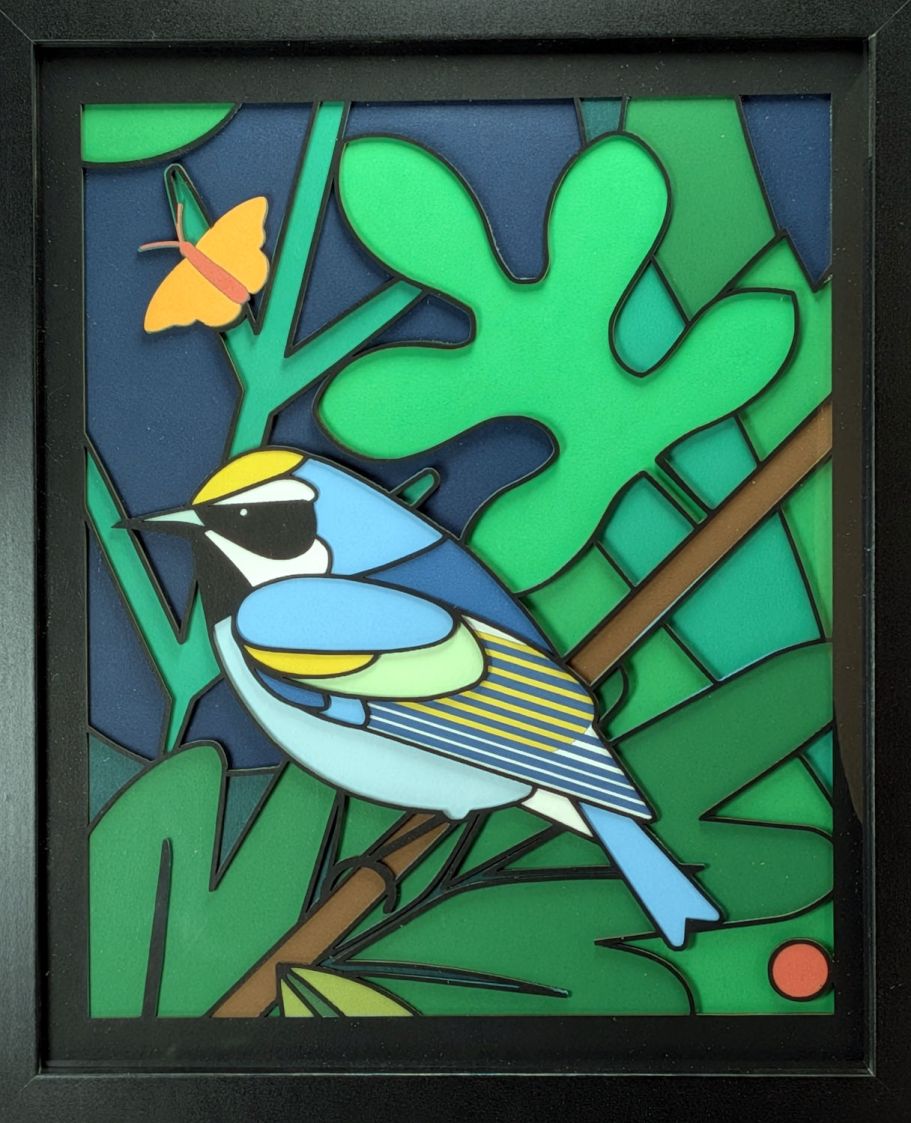
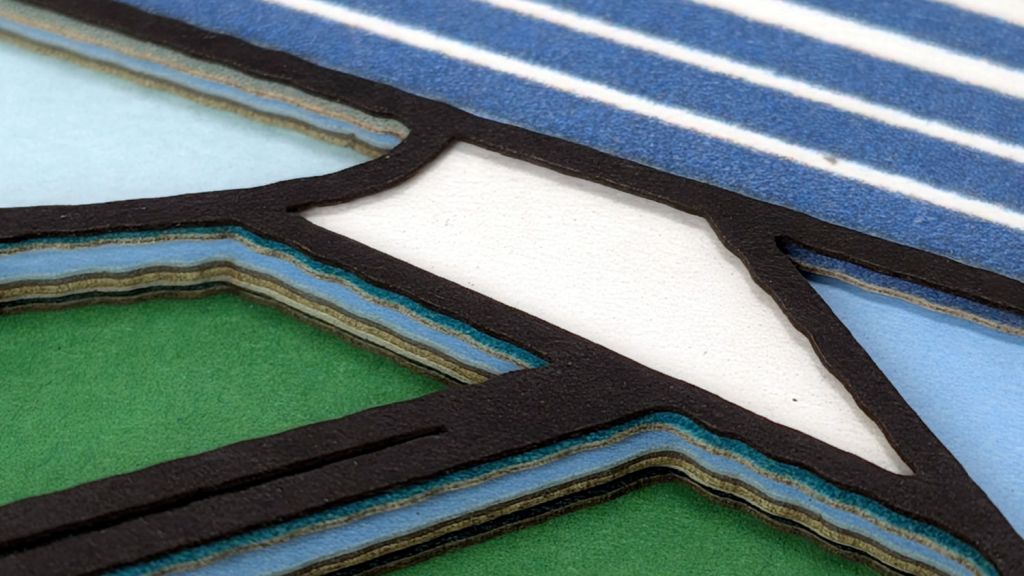
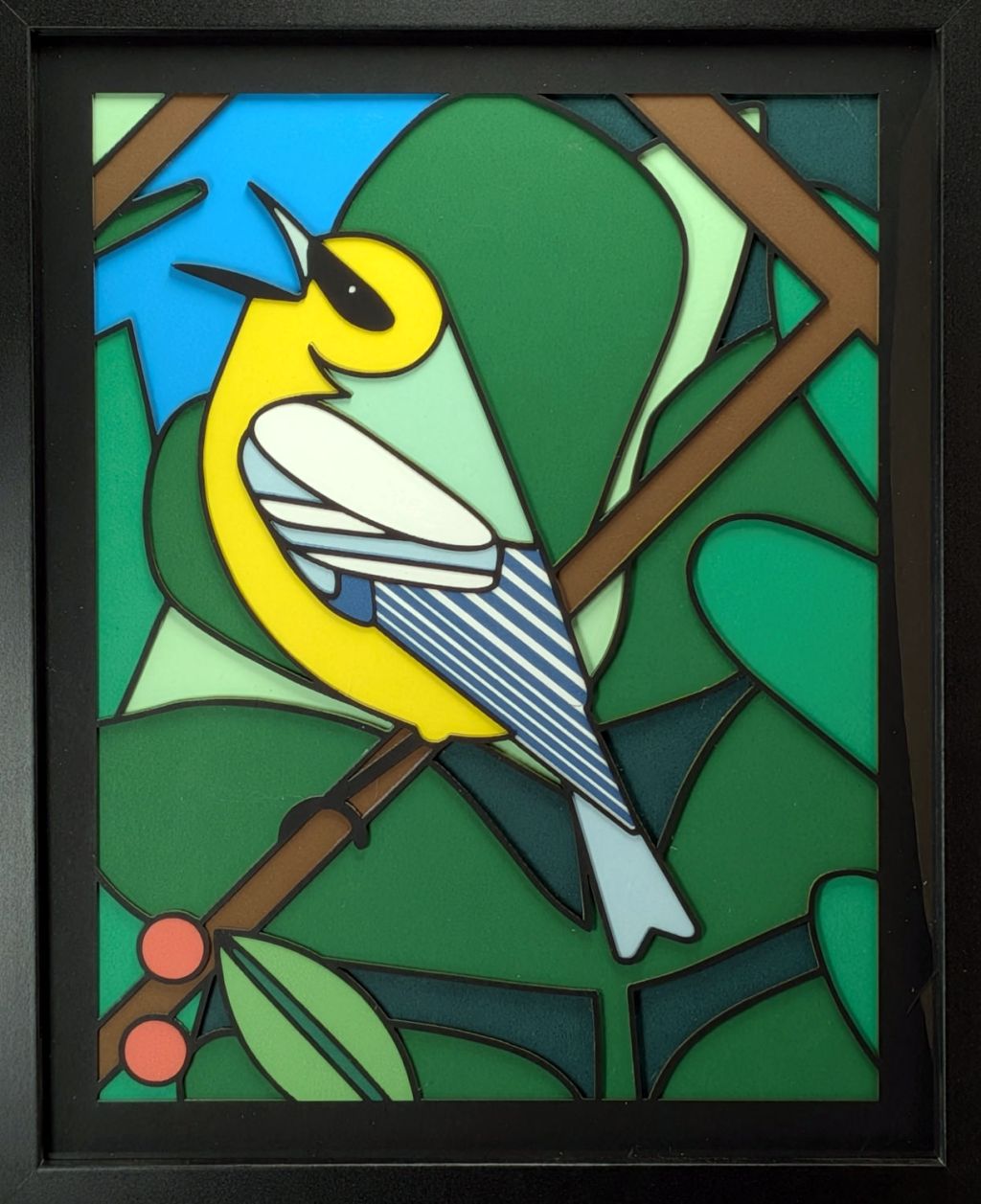
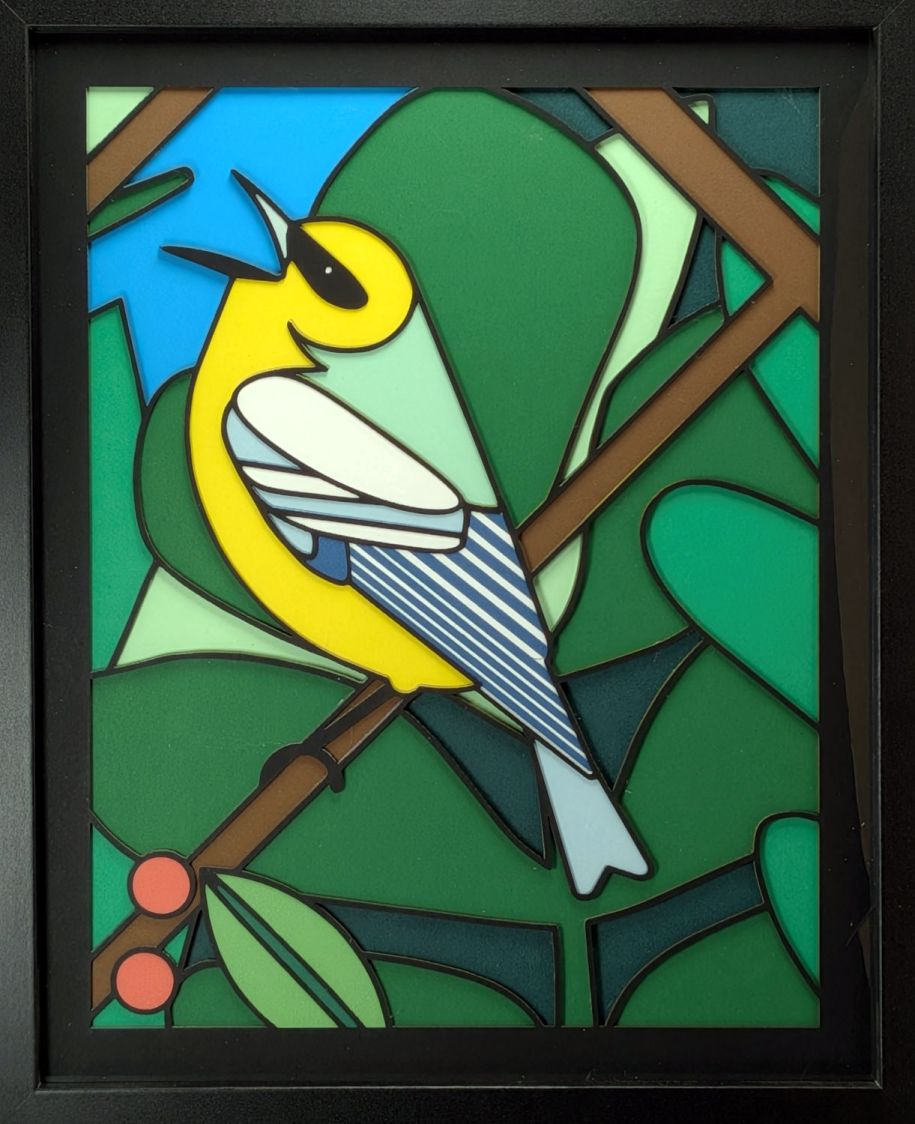
With all the layers cut out, assemble them face-down in the gluing fixture, align the black mask on the front by hand, put the stack into a suitable frame, and it’s ready to show off:
Cornell Warblers – page 4
That wasn’t exactly easy, but next time I can make different mistakes.
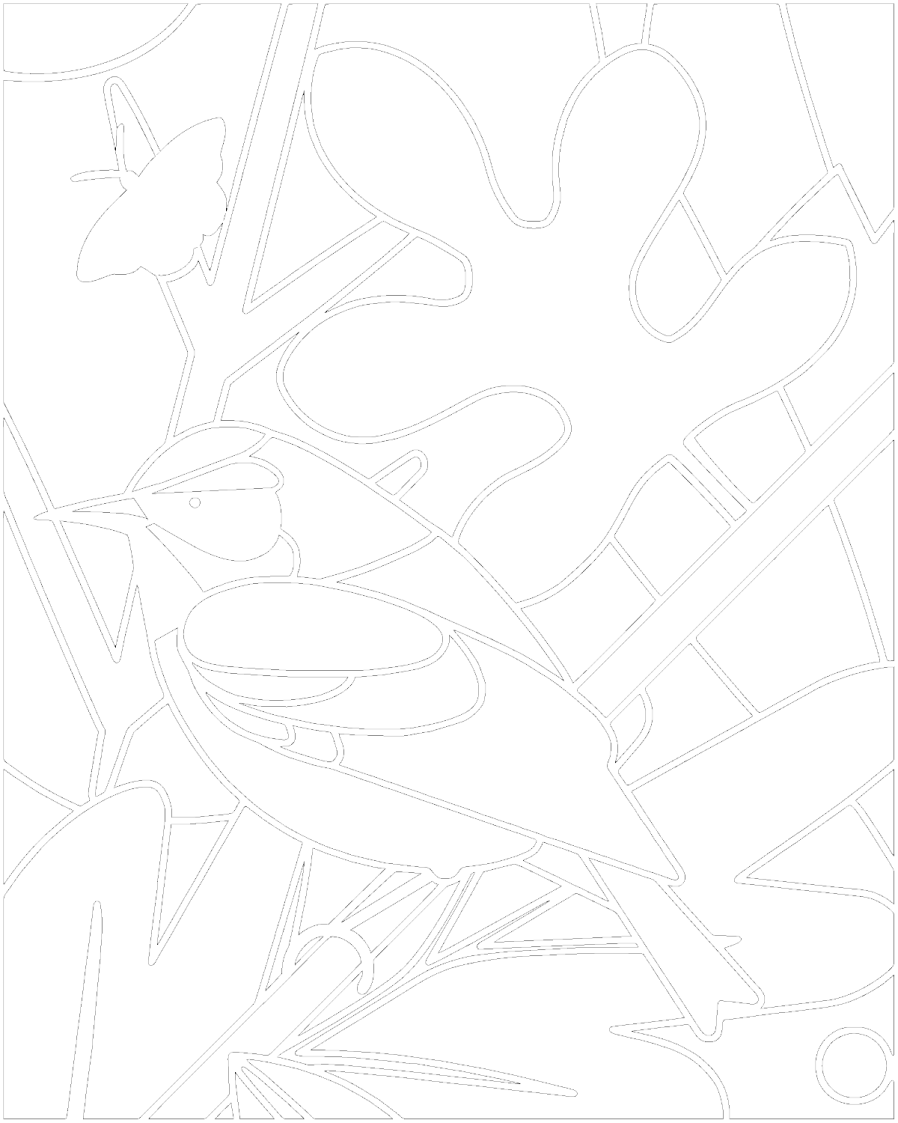
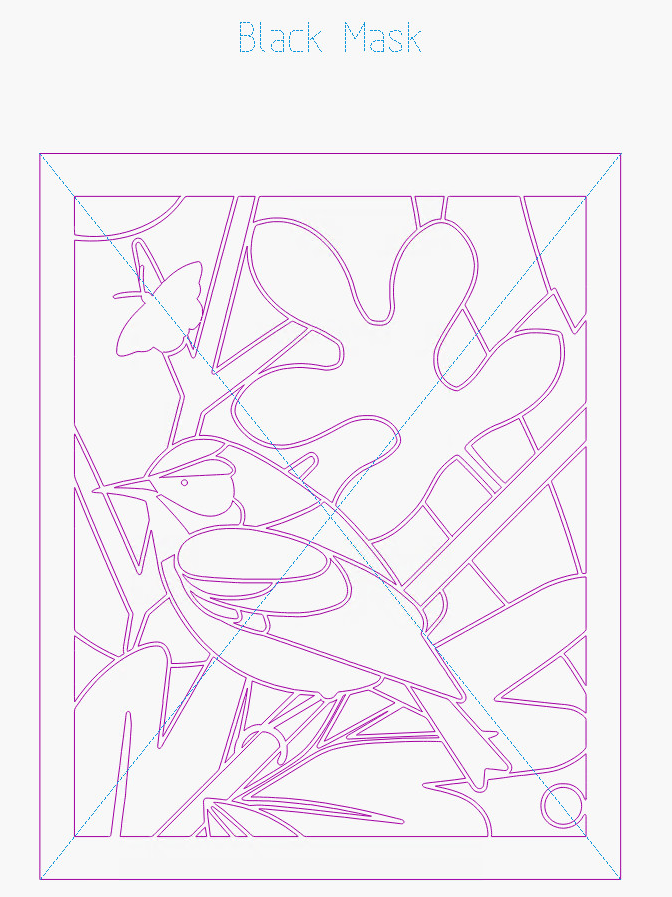
And an SVG file with shapes matching the regions to be cut out:
Page 4 – black mask
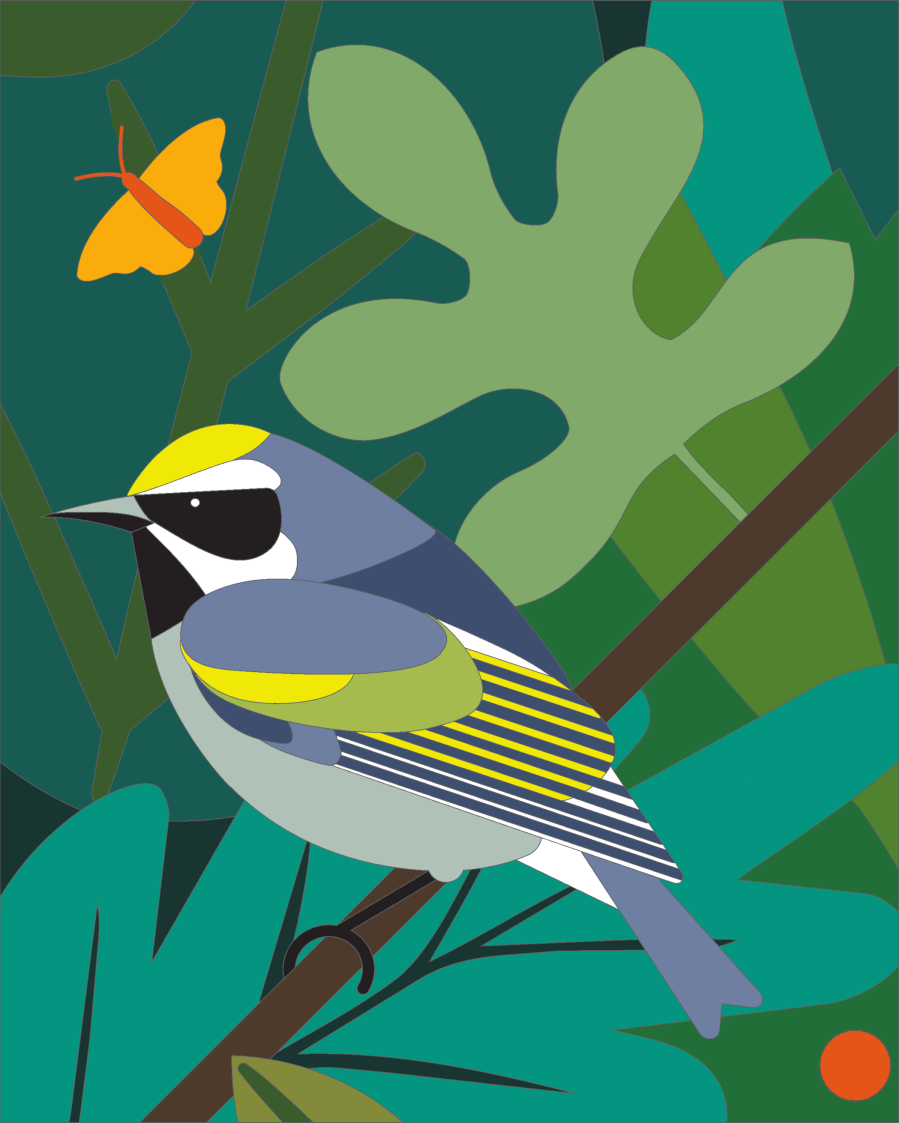
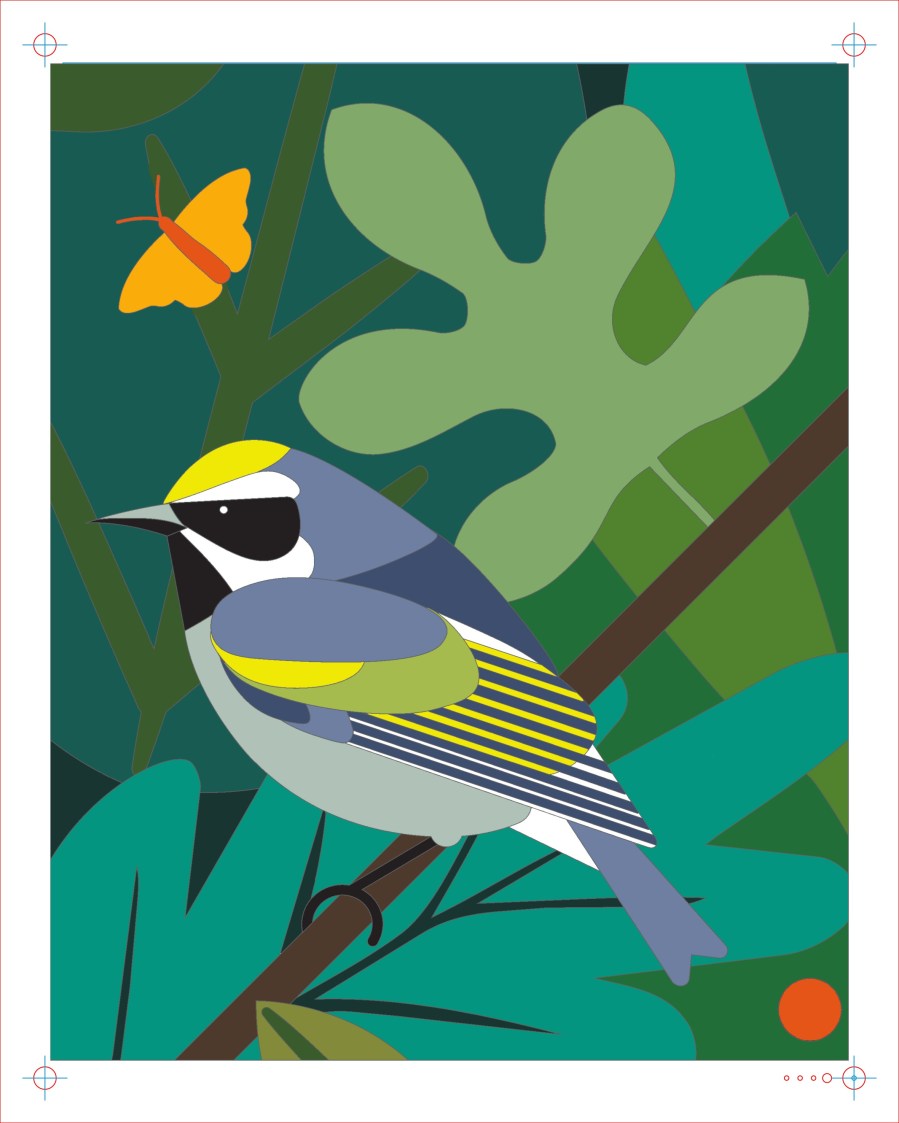
Both of those derive from the same PDF page, cropped to emphasize the bird, then scaled to match the 172×220 mm rectangle in the middle of the LightBurn template corresponding to the alignment fixture:
Printed sheet template – 8×10 – 172×220
A key point: the blue outline around the image must be centered within the red outline marking the sheet cutout, because that dramatically simplifies the overall alignment process.
Protip: Crop the image in GIMP with a fixed aspect ratio of 172:220 before scaling the result to match the 172×220 frame, then derive both the PNG and SVG from the result.
The alert reader will recall the SVG shapes exclude the 6 pixel = 0.5 mm border closing the outlines, so the overall SVG size is 1 mm smaller than the PNG image. This will not be a problem, for reasons to become obvious.
Because Inkscape can handle both SVG shapes and color PNG images (LightBurn turns them into grayscale):
Export the LightBurn template as an SVG
Open with Inkscape
Make the Tool layer elements visible
Import the PNG
Without further ado, the PNG is automagically centered in both the blue and red rectangles:
Page 4 – Layer 1 – Inkscape print layout
Print it, measure the vertical and horizontal distances between the corner target centers, scale the overall image to make the printed result come out exactly right, then iterate until satisfied. Scaling it 100.3% vertically worked for what’s called Art Cover paper printed with Stationery High Quality in an Epson ET-3830 printer. Your mileage will be different.
Protip: Save the unscaled page as an Inkscape SVG, because the scale factor(s) depend on the paper / print quality setting / moon phase and you will print it several times under different conditions.
In LightBurn:
Tweak a copy of the sheet template to eliminate the corner holes & suchlike
Import the Black Mask SVG into LightBurn
Drag-n-drop it at the center of the template
Set the speed / power to cut black Art Cover paper
Which becomes the Black Mask layer:
Page 4 – Layer 0 – Lightburn layout
The alert reader will note the slightly different template layout: it’s been undergoing continuous process improvement and I’m not re-capturing all the details.
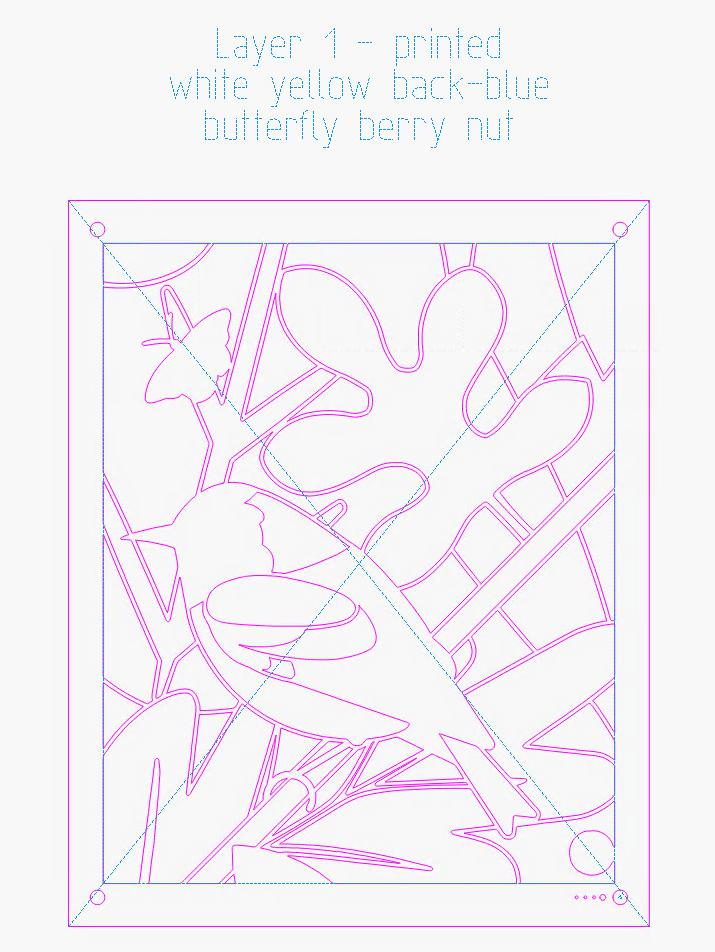
The Black Mask SVG contains all the shapes-to-be-cut, so it forms the basis for all the sheets under the top mask. Drag-n-drop a copy of the Black Mask SVG at the center of a copy of the template, ungroup it, delete the outlines of all the shapes on the printed layer, and set the speed / power for ordinary Art Cover paper:
Page 4 – Layer 1 – Lightburn layout
The shapes on each layer will be the same as the one above it, minus whatever shapes have the color of that layer. After you finish each layer, select all its shapes, duplicate them, drop them at the center of the next sheet template, and iterate.
Or just set up a line of templates spaced (say) 240 mm apart using the Grid Array tool:
The wing feathers and butterfly require finer resolution than the black mask layer allows, so the first layer is printed on white paper. I put the berries and nut-like objects on that layer, too, mostly to reduce the number of layers.
After considerable fumbling, it turns out GIMP provides a straightforward way to create the outlines required for the top Black Mask, from which all the other layers descend.
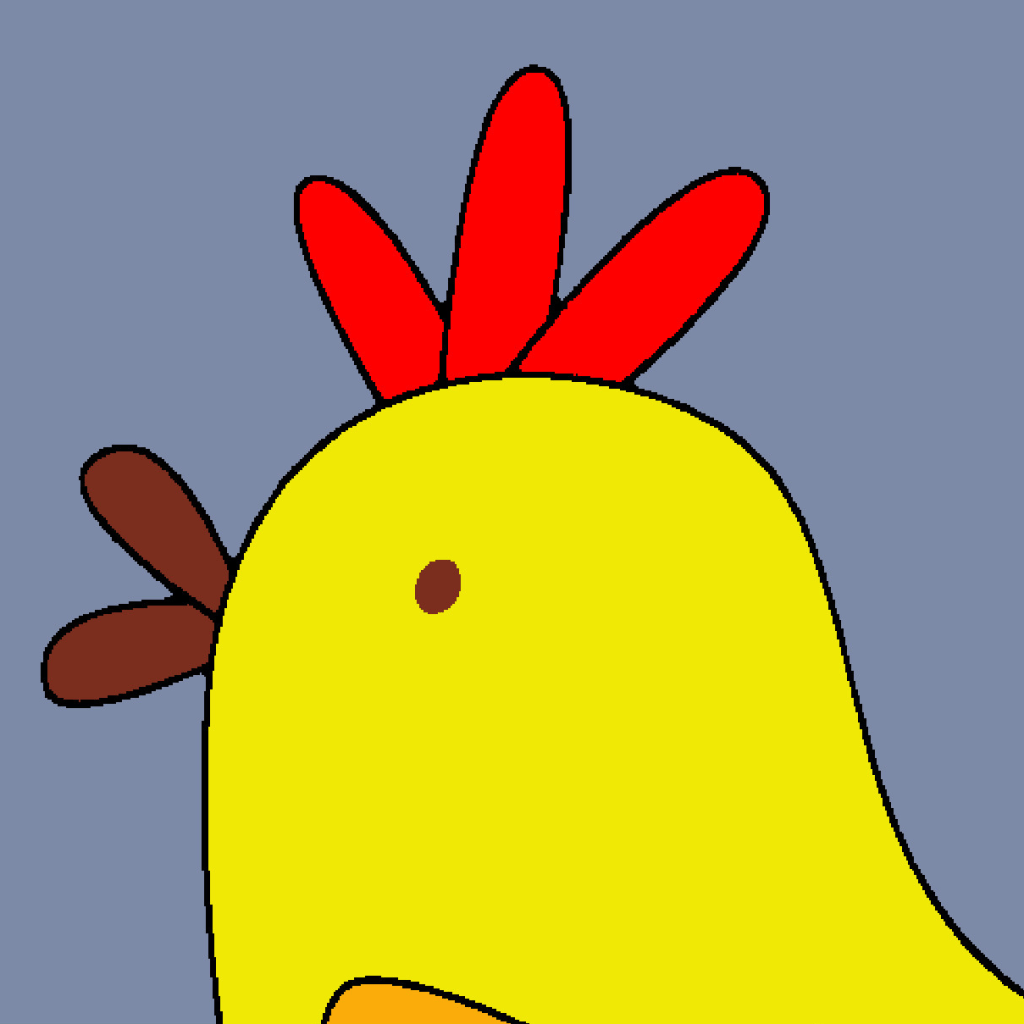
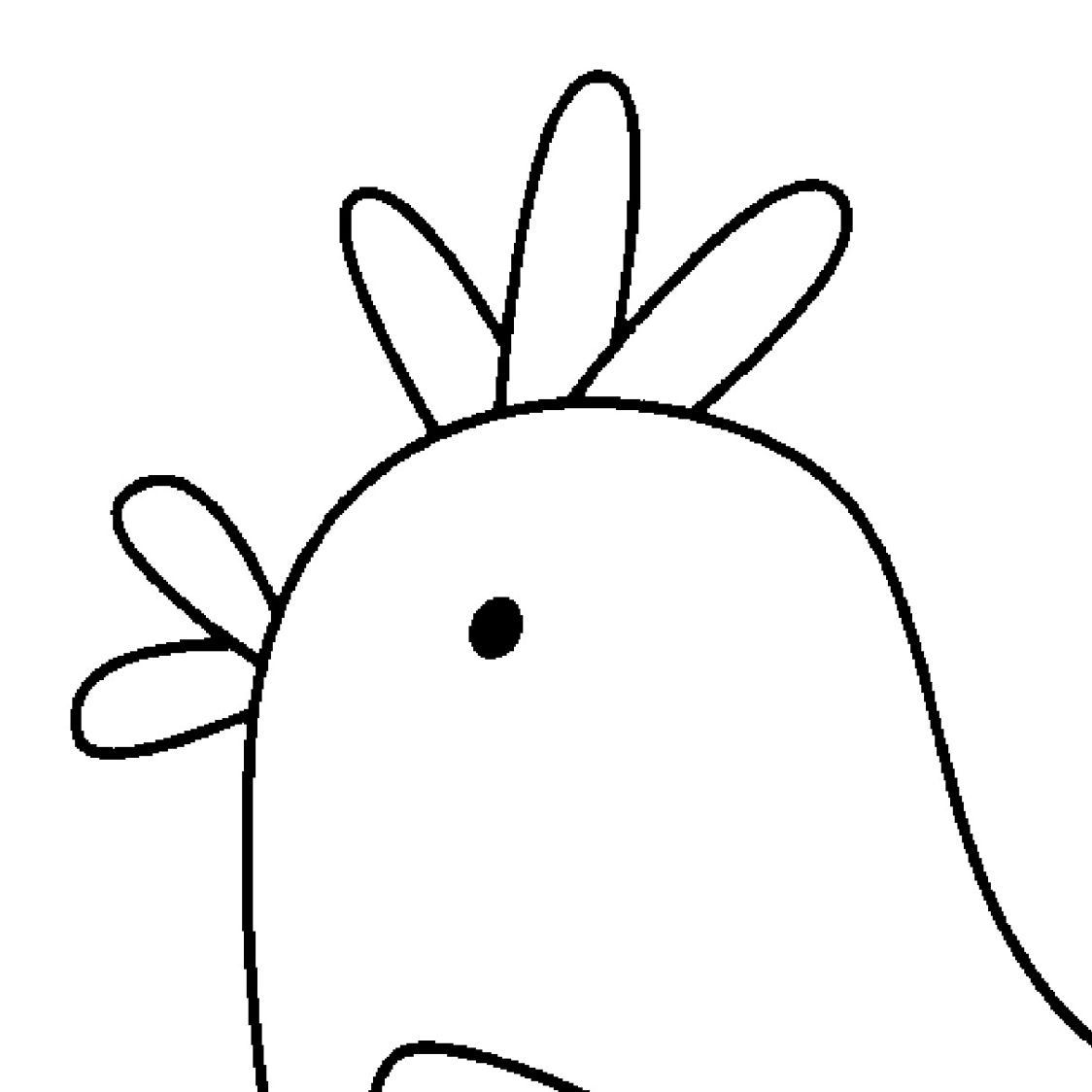
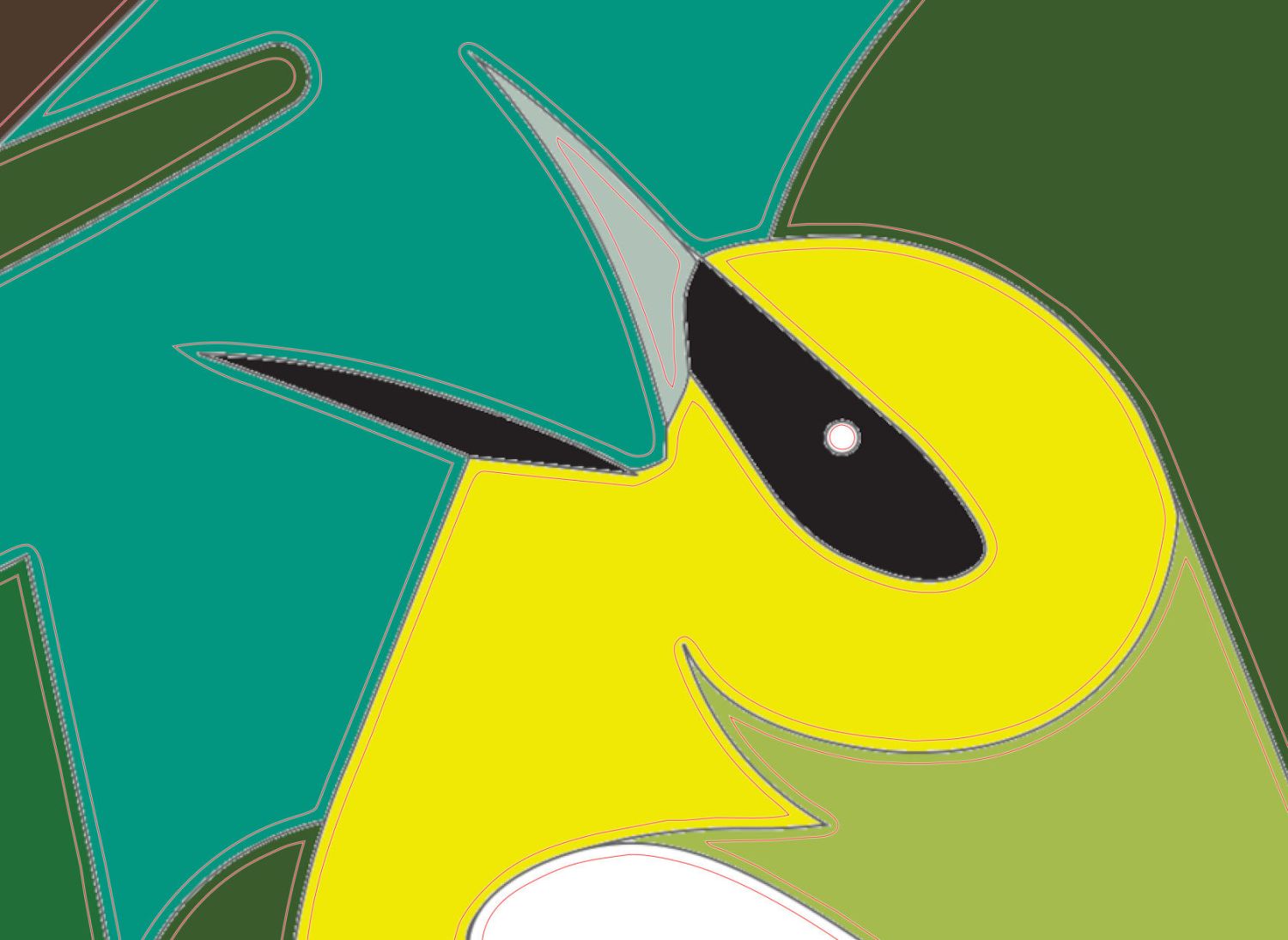
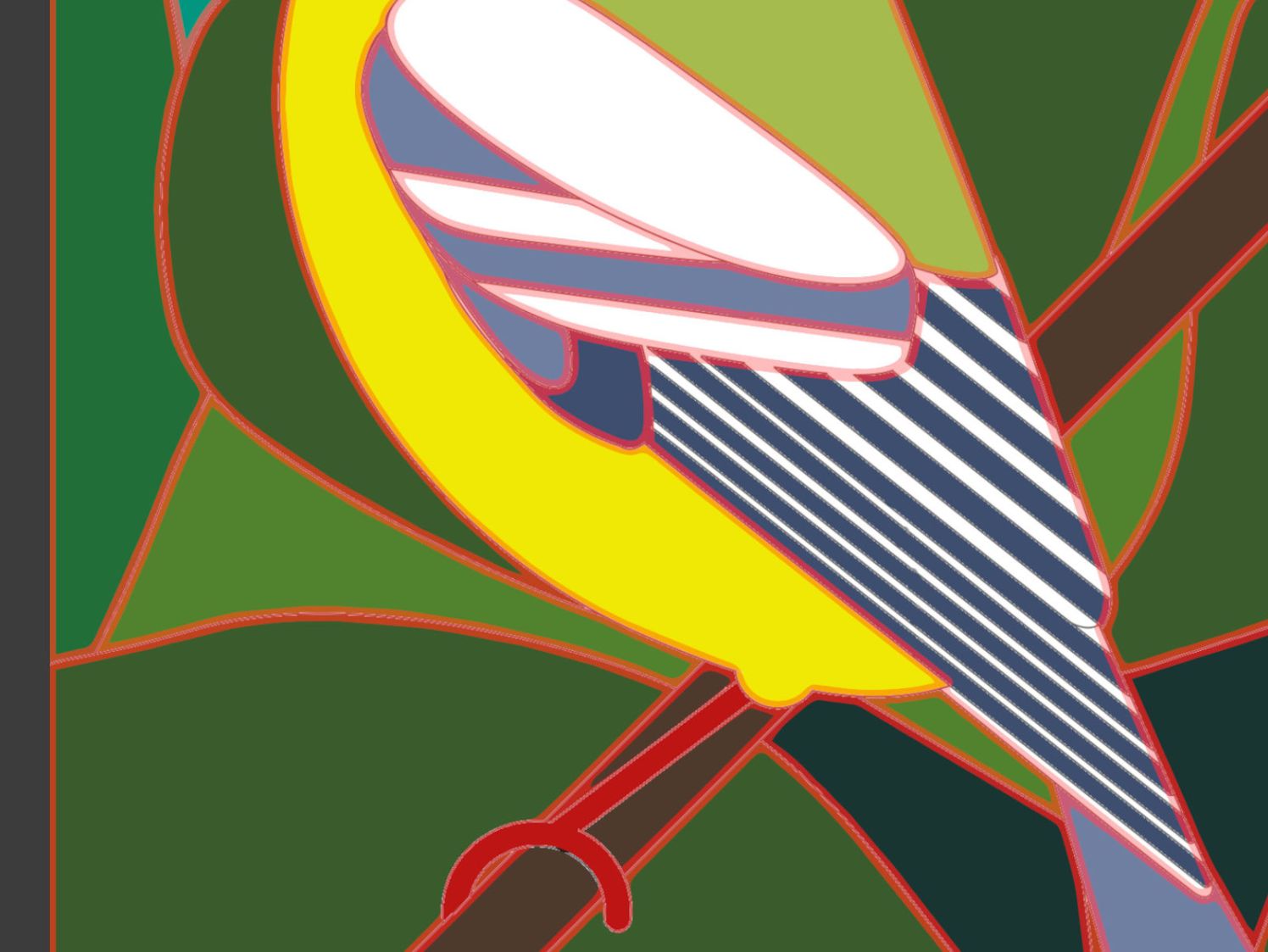
A closeup of Happy Bird’s head as imported into GIMP from the PDF at 300 DPI = 11.8 pixel/mm:
Page 5 – PDF line – detail
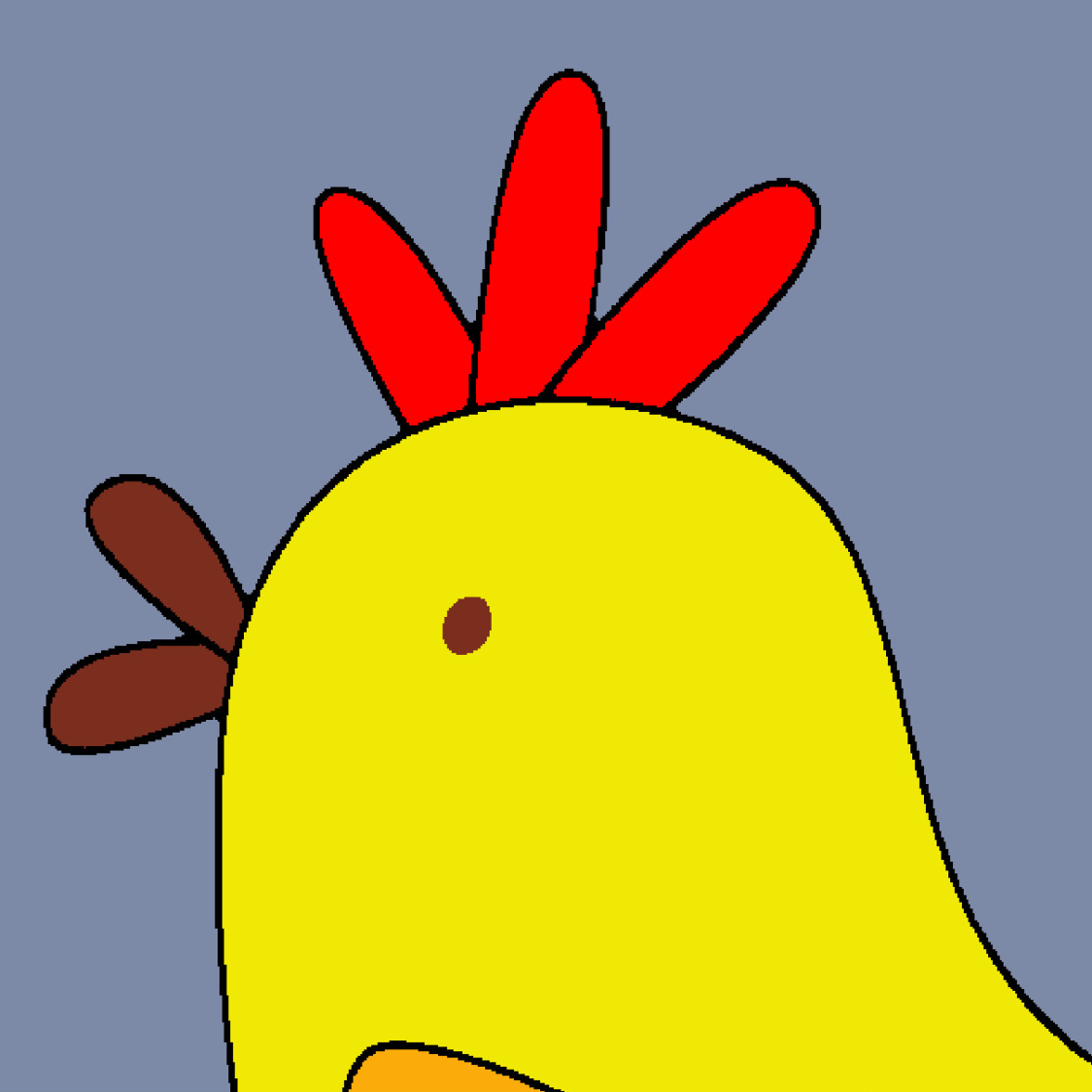
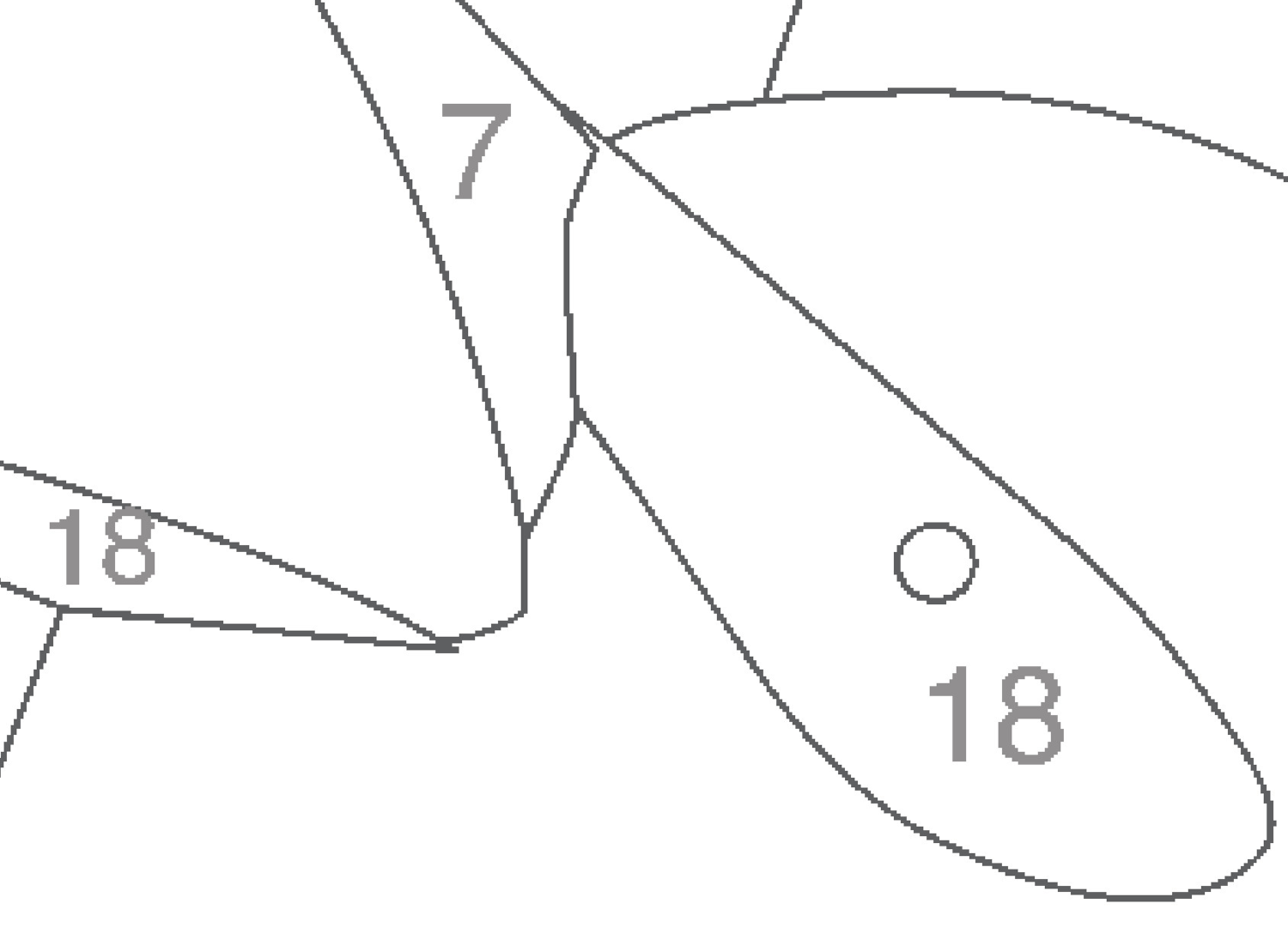
Because the Cornell Warblers were intended as a paint-by-number project, the PDF has (gray) color numbers in (most of the) regions. Selecting the numbers with GIMP’s Select by Color tool and hitting Delete clears the region for Bucket Fill colors copied from the key sheet with the Color Picker tool:
Page 5 – Inkscape print layout
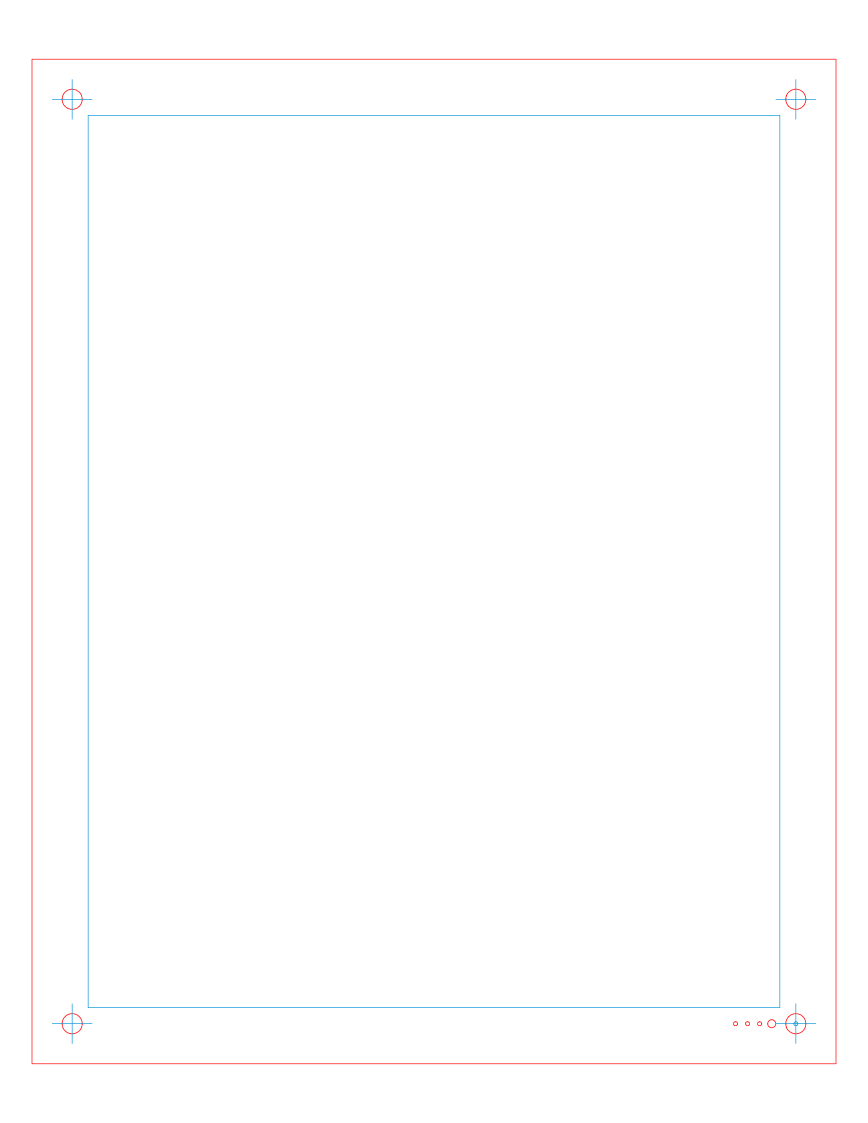
I cropped the images to emphasize the birds and scaled the result to fit the 8×10 inch frame size. The picture is 172×220 mm within the red 200×250 mm frame cut from Letter size sheets of Art Cover paper stock. The corner targets come into play while aligning the paper with the laser pattern.
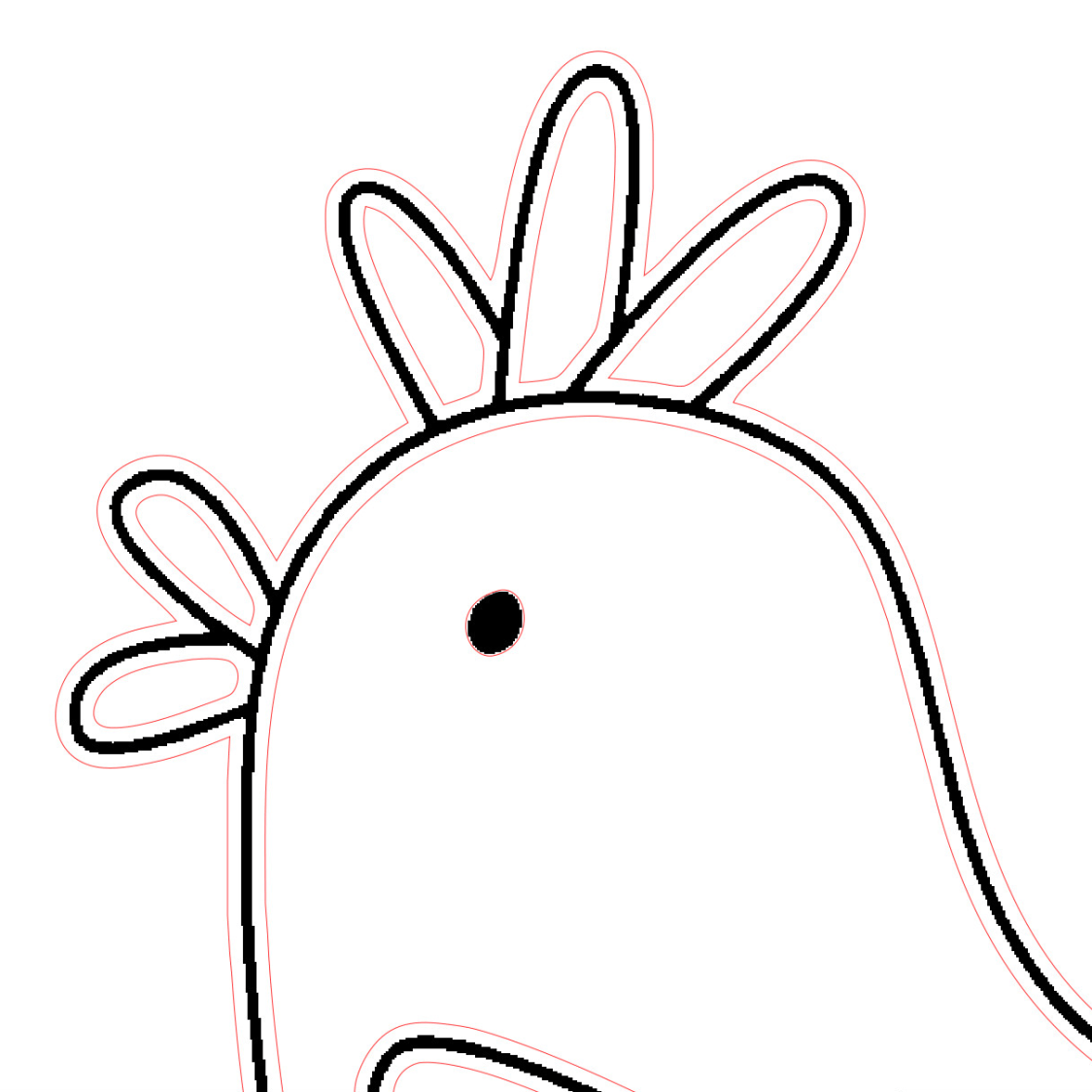
Creating the Black Mask layer also starts from the cropped / scaled image. Select the black lines by color, then Growthe selection by 7 pixels = 0.6 mm to make the selection about 1.5 mm wide:
Page 5 – PDF line – 1.5mm selection
Use Quick Mask to edit the selection. For example, I reduced the eye to a cutout through the mask revealing the white spot on the printed layer:
Page 5 – PDF line – inverted quick mask
Eventually the selection will neatly bracket the borders between the colors:
Page 5 – PDF line – fill colors – mask overlay
The black legs and feet must be edited down to their original size, as became obvious on the first iteration:
Page 5 – Test piece – stack oblique view
The fixed-up Quick Mask looks like this:
Page 5 – PDF line – selection – printed areas
The mask includes a 6 pixel = 0.5 mm border line around the perimeter of the image which serves as the outer edge of the cut-out areas and helps match the selections to the image.
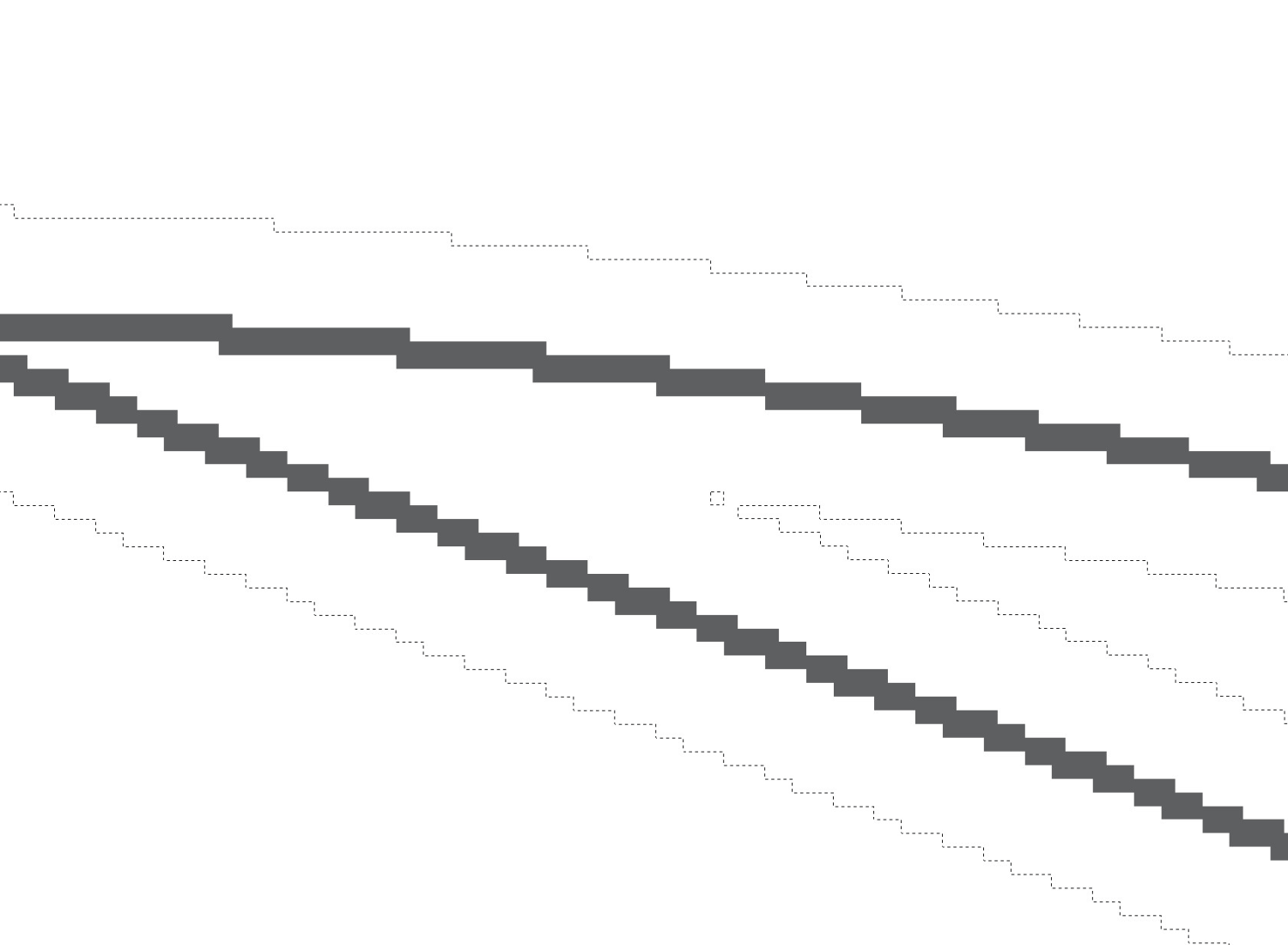
The process of growing & tweaking the selection will create orphan pixels:
Page 5 – PDF line – orphan pixel selection
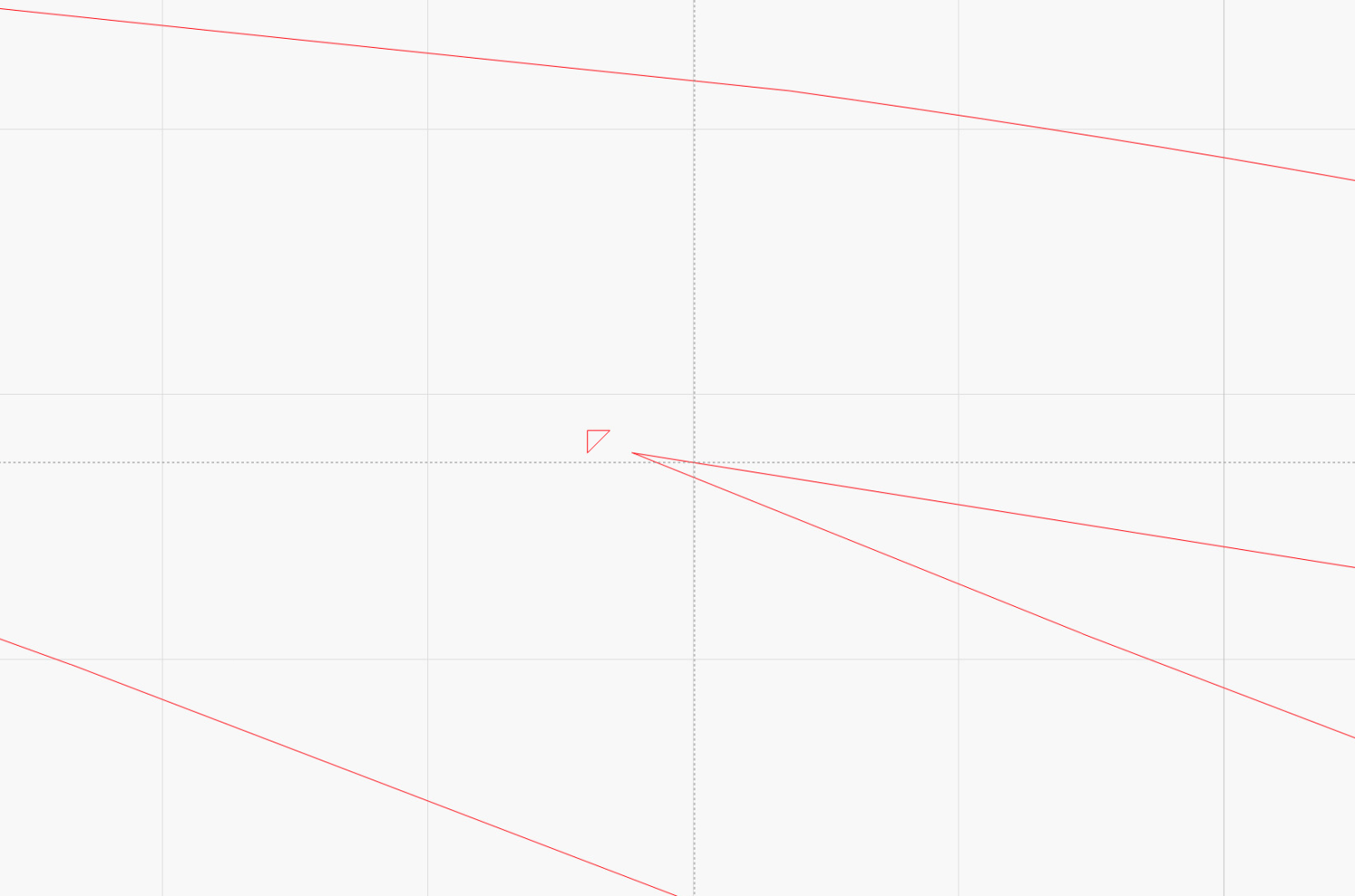
Each orphan pixel becomes a tiny triangle when imported into LightBurn:
Page 5 – PDF line – orphan pixel – LighBurn vectors
You’ll first notice those when the laser hesitates while cutting the outlines, which may overcook the adjacent paper. I cannot reliably detect these other than by watching the laser, because a single pixel is simply too small to see on-screen at normal zoom sizes. You can delete them in the LightBurn file or, if you prefer a single source of truth, in GIMP to regenerate the whole thing.
The end result of all this is a single, rather complex, Selection that you must convert into a Path, which you then export to an SVG file and import into LightBurn for laser cuttery.
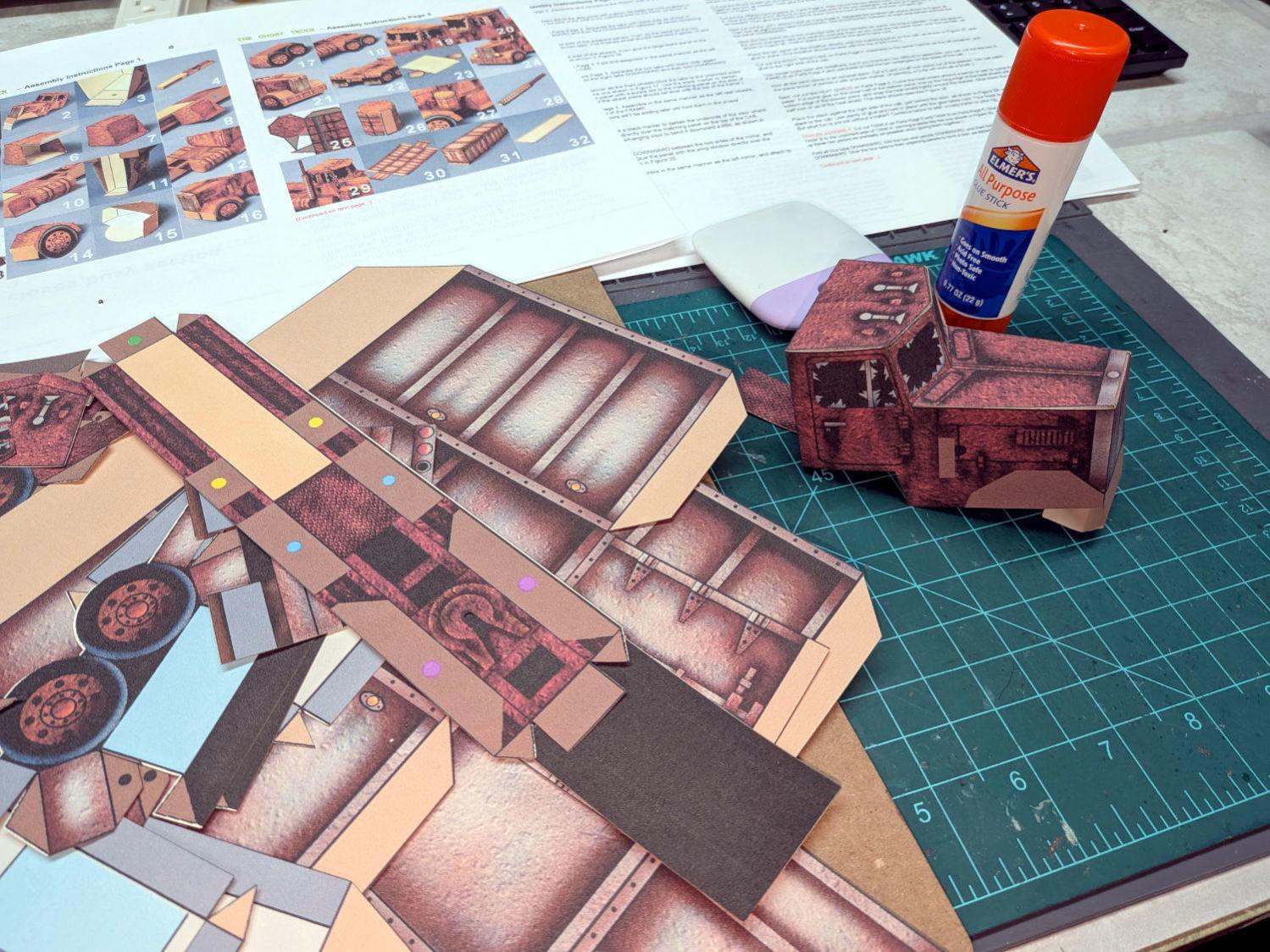
Having admired the paper craft at RavensBlight and with some experience in simple paper cuttery, I had to try my hand at the Ghost Truck. Rather than using an X-Acto knife and straight edge around the perimeter, I set it up for laser cutting.
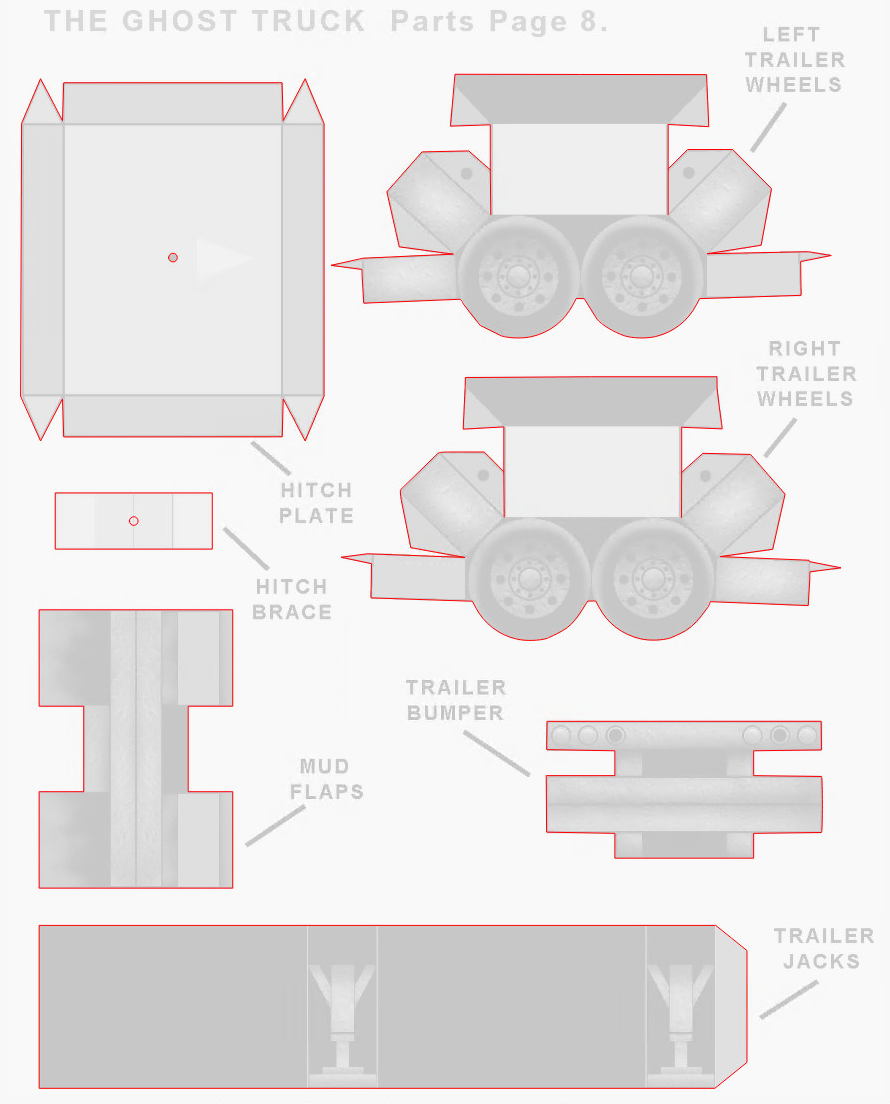
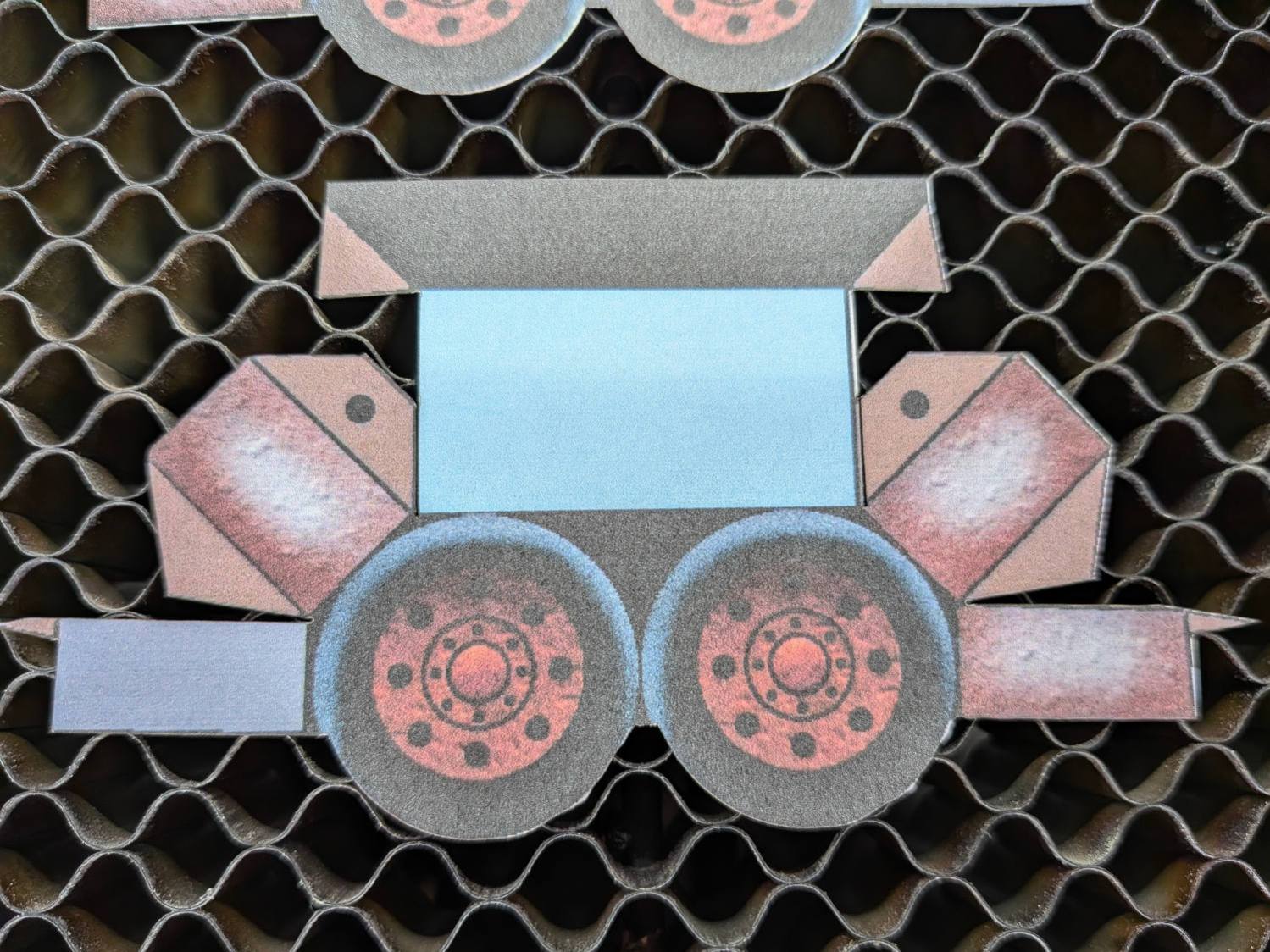
The instructions & layouts are images in PDF files, so it’s straightforward to import them into LightBurn and trace the outlines:
Ghost Truck – LightBurn vectors
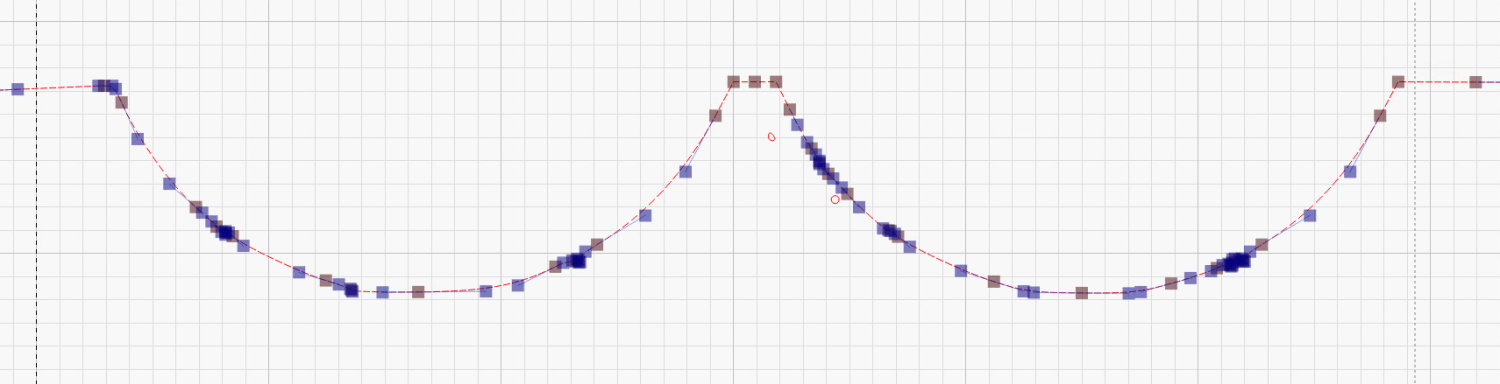
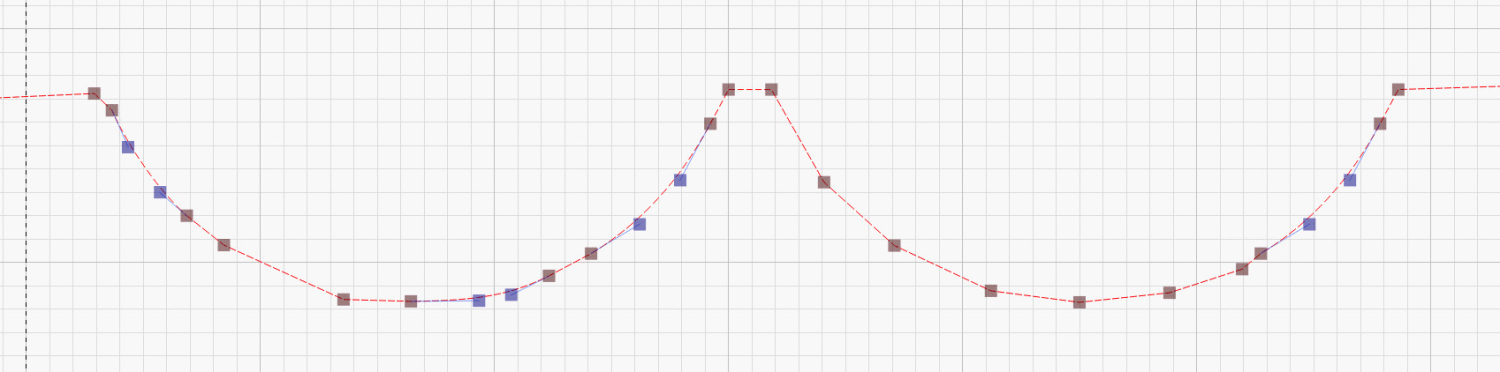
Tracing produces short vectors and irregular curves:
You must manually add any cuts buried in the pattern, as in the Trailer Wheels parts shown above, so pay attention to the instructions.
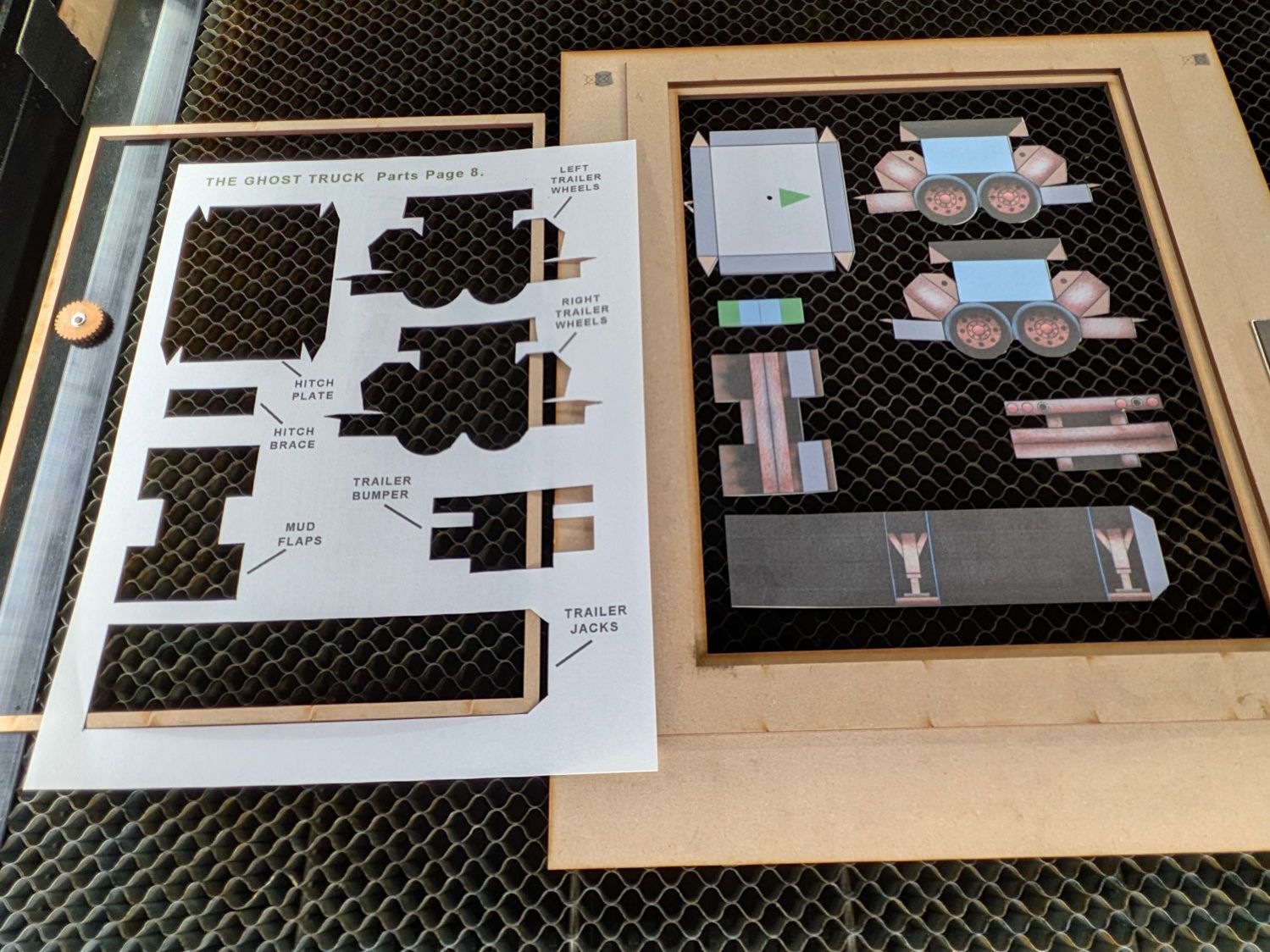
Use the Move Laser tool to put the laser head at an obvious point on the layout, then skootch the printed page (in a Letter size fixture) to put that point under the beam. Repeat for another point, iterate until satisfied, then Fire The Laser:
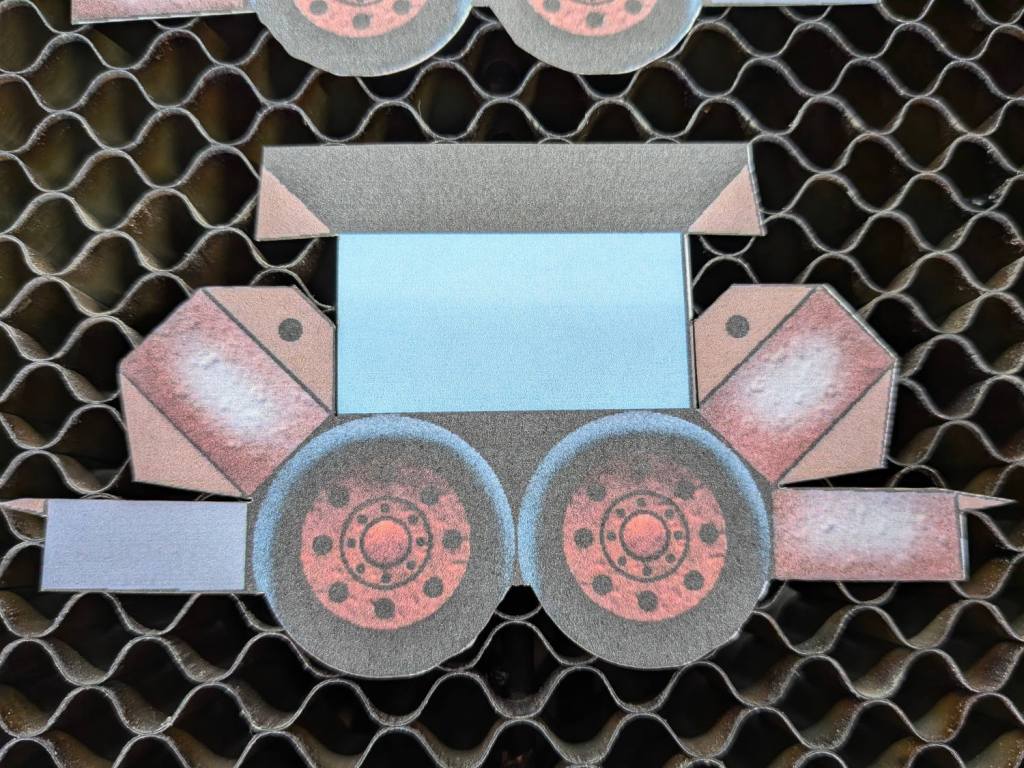
Ghost Truck – cutout overview
Some irregularities peek around the edges:
Ghost Truck – cutout detail
On the whole, it’s much better than I could do with a knife.
Repeat for the other seven pages of parts:
Ghost Truck – Assembly
With some diligence I may have it ready for All Hallows Eve …
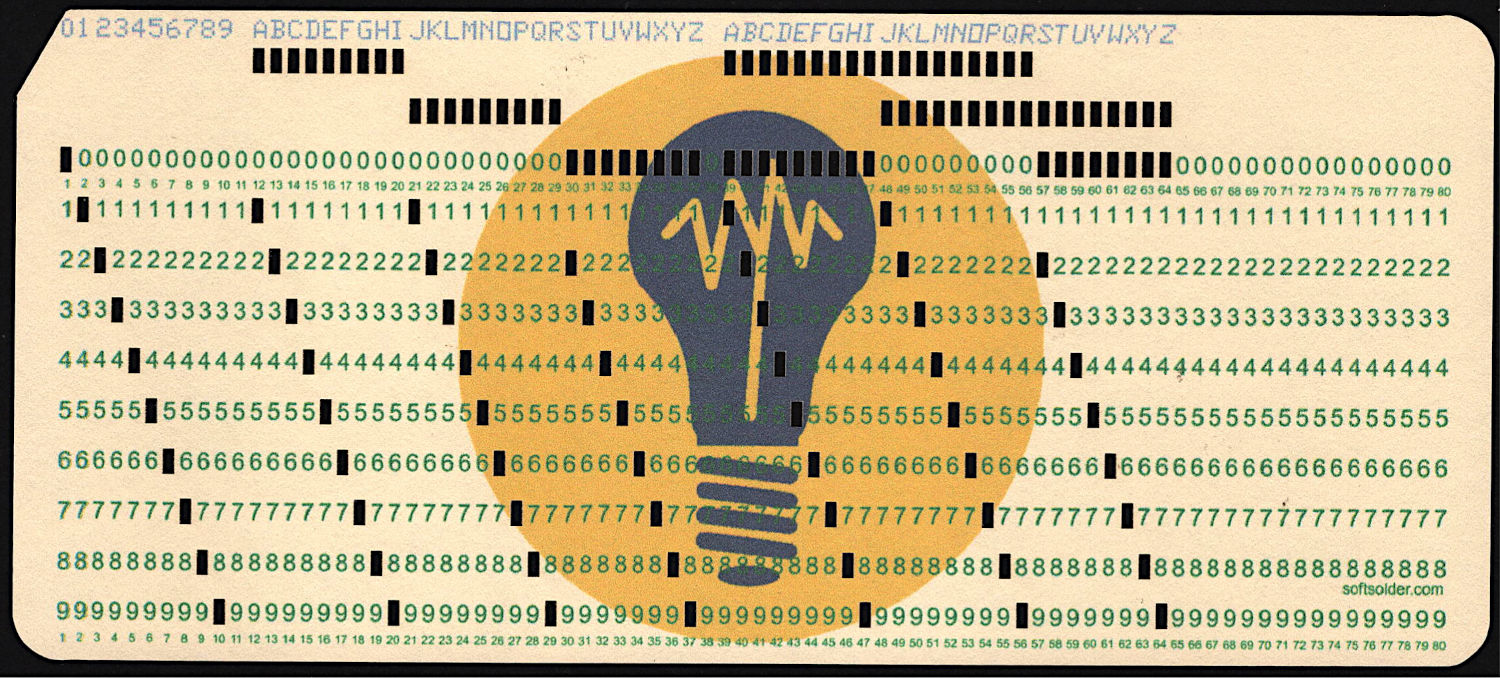
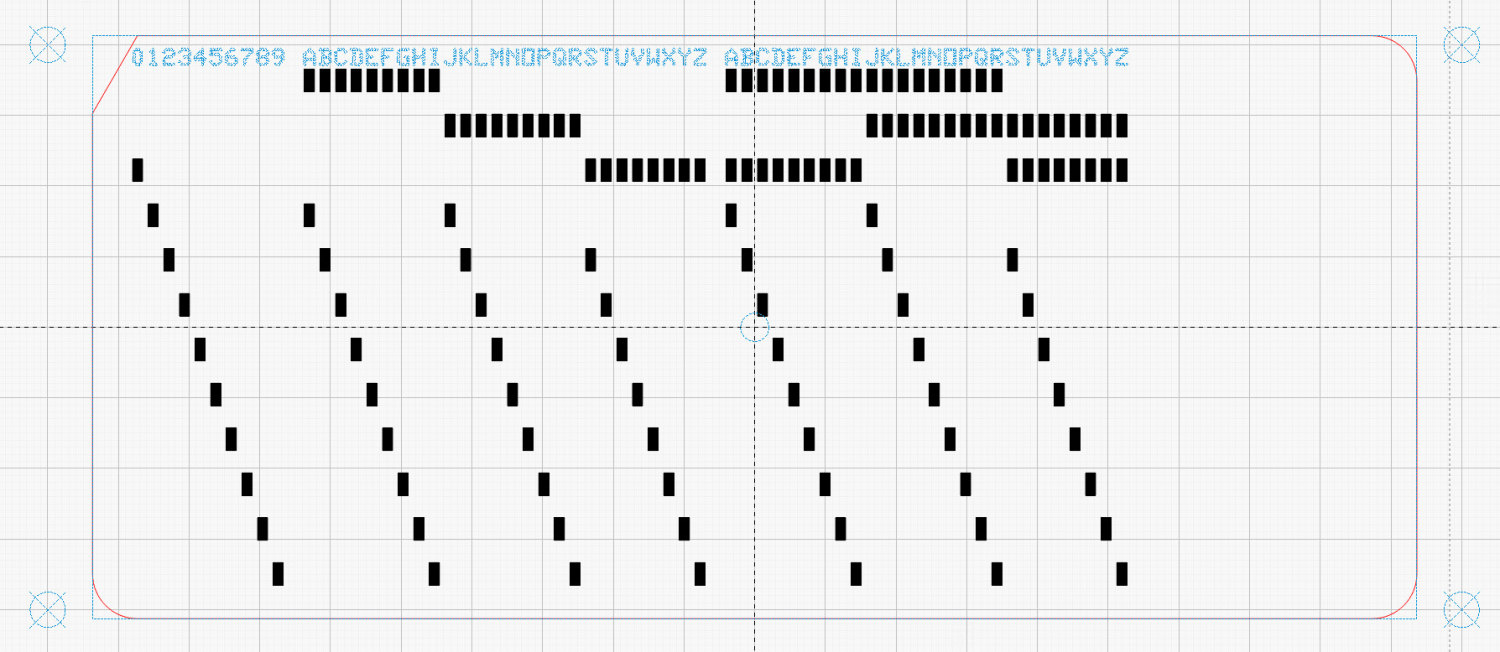
At last, I can make plausible-looking punched cards:
Test Card 3 – punched
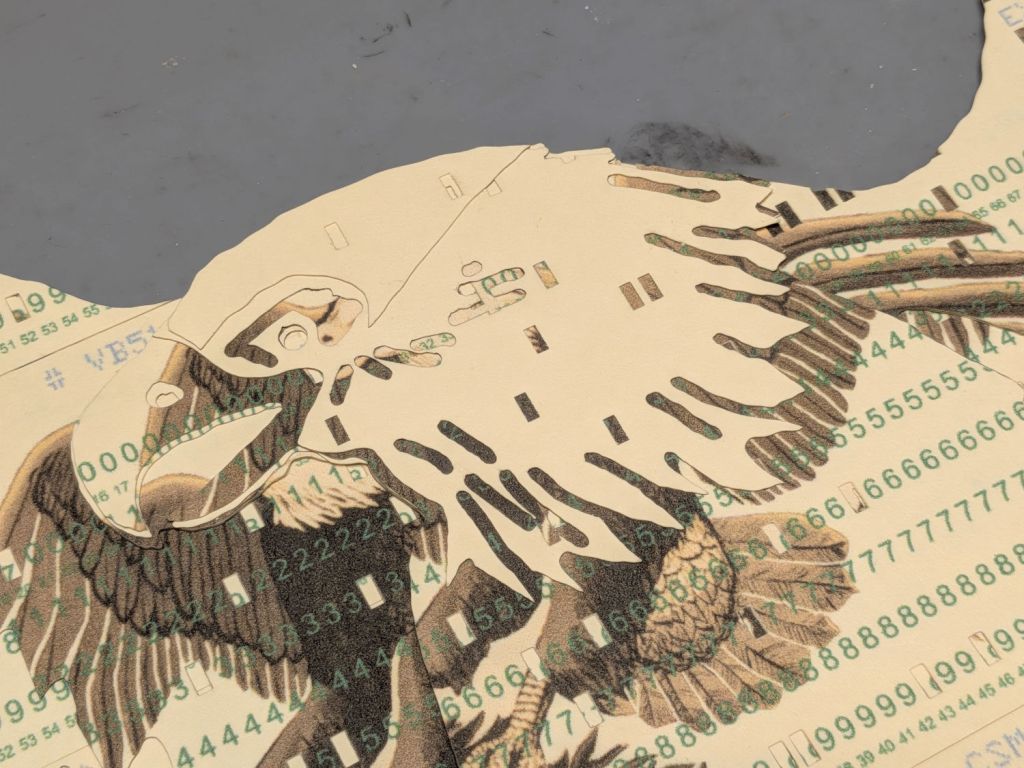
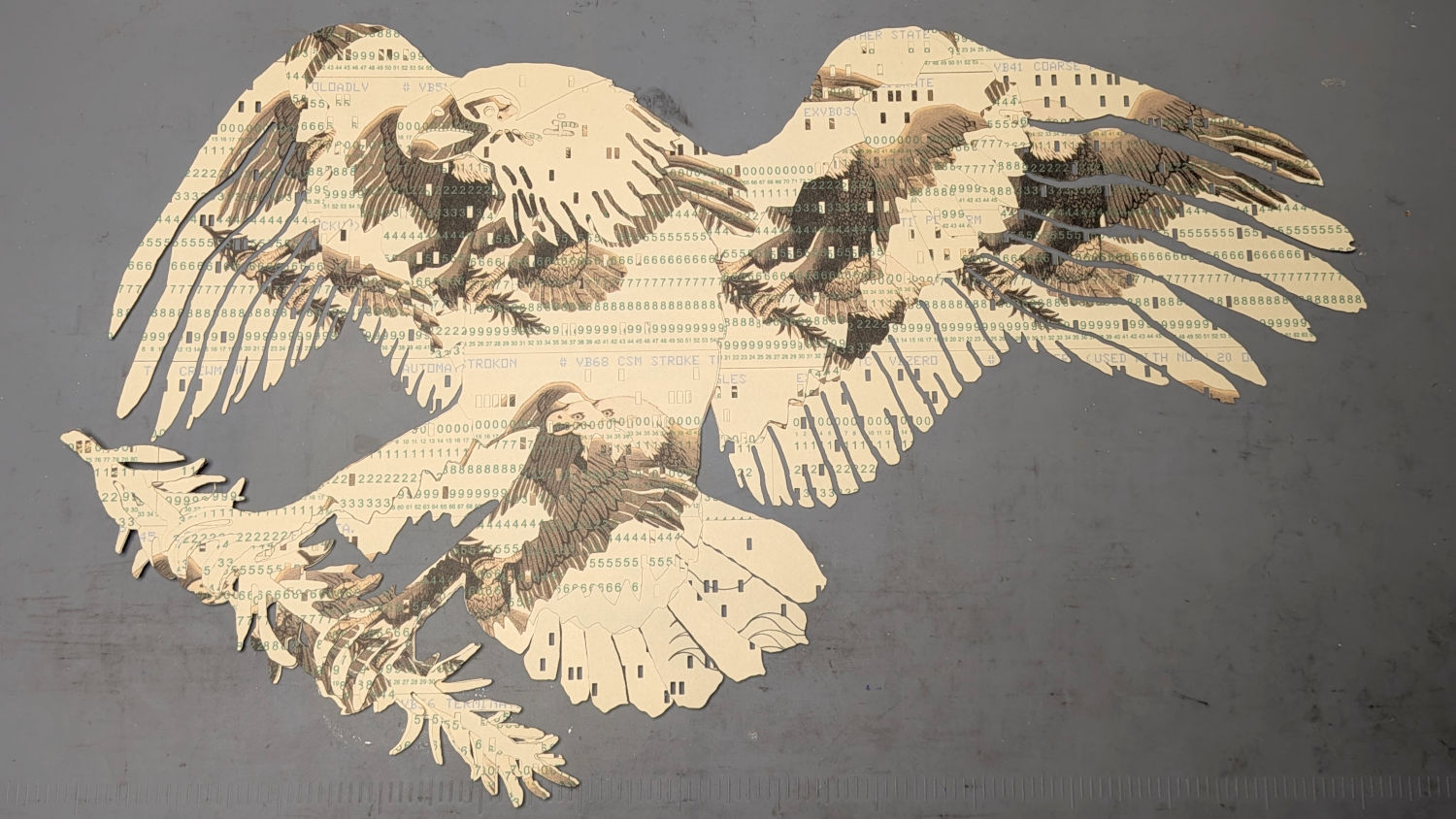
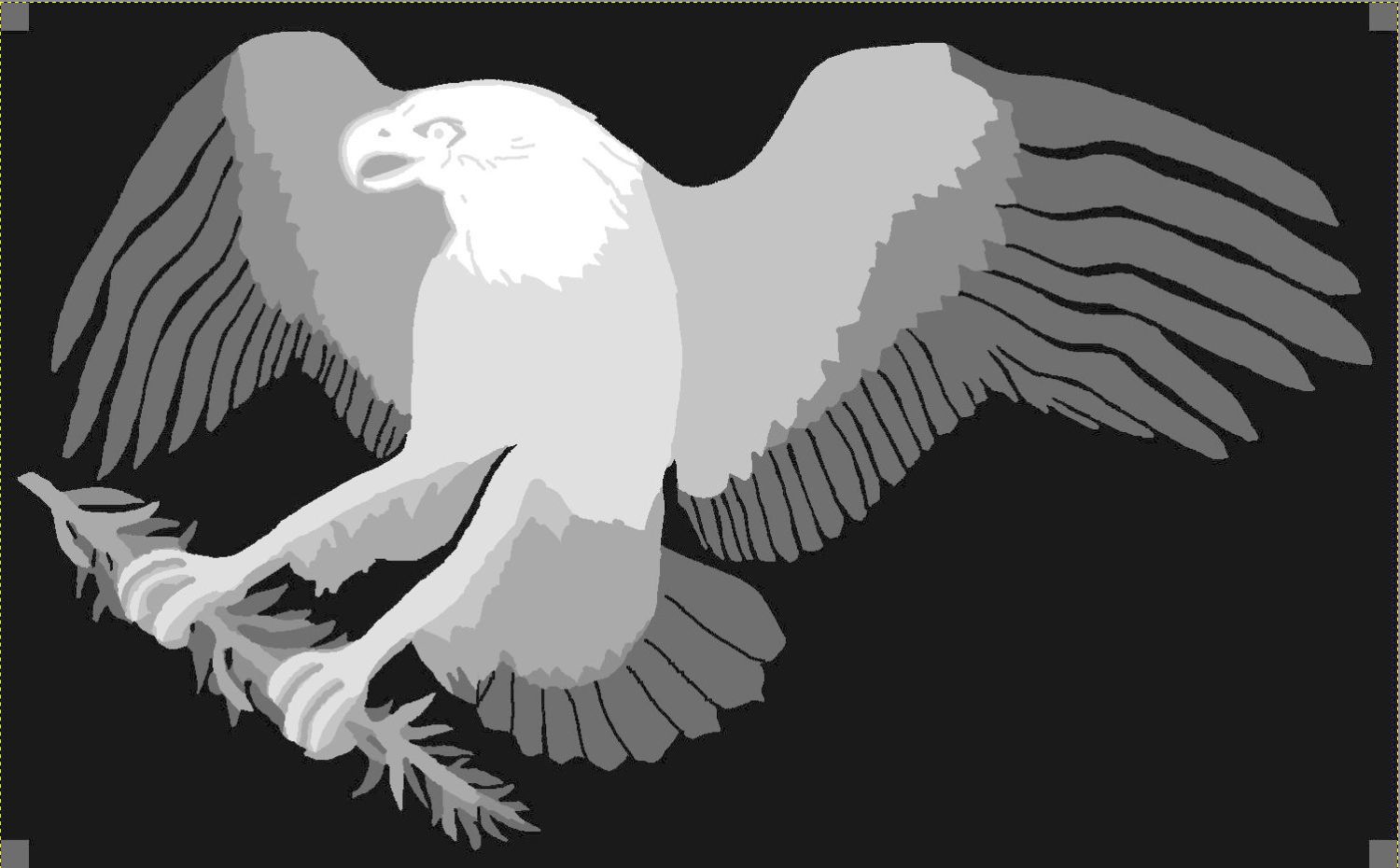
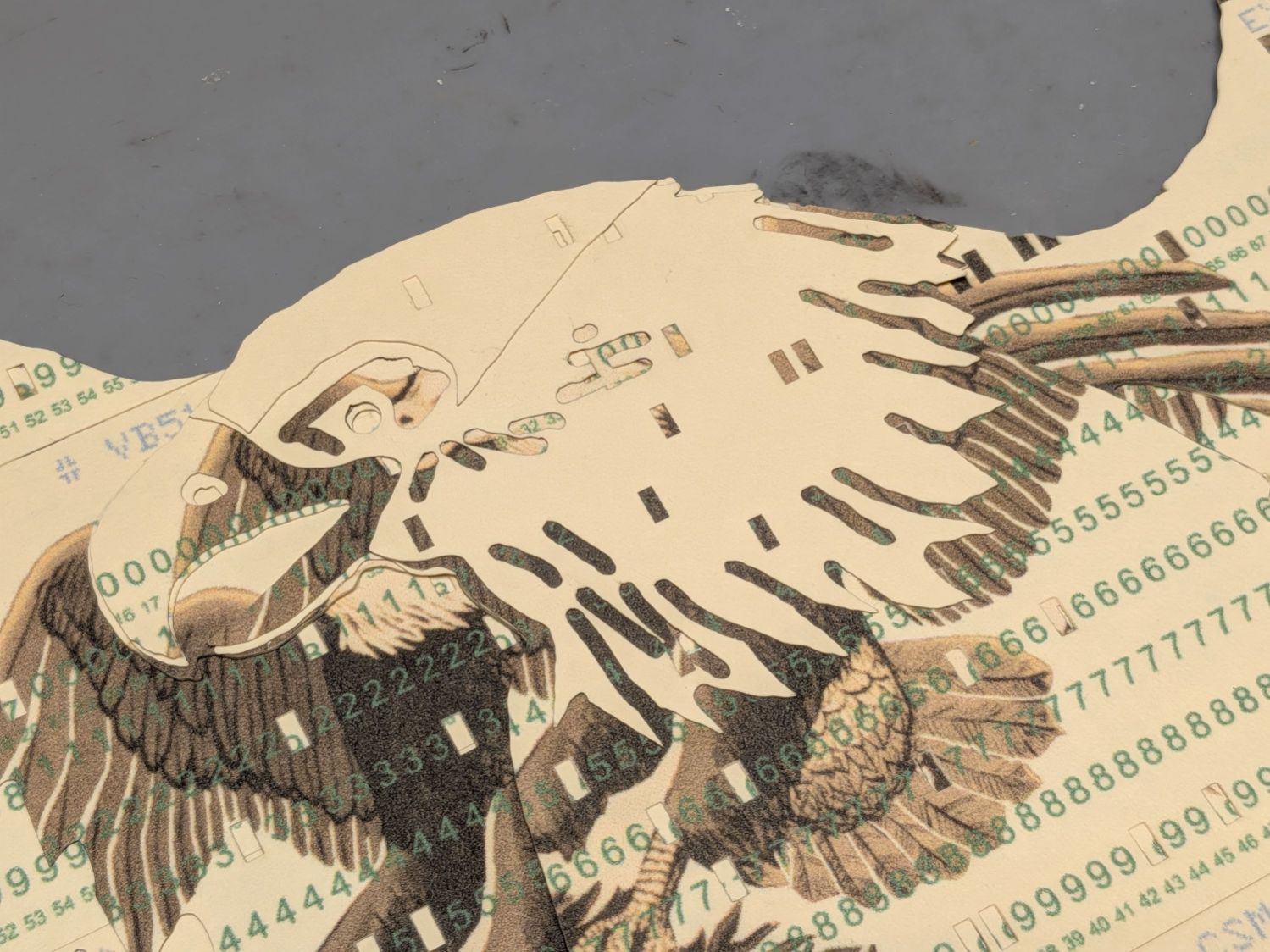
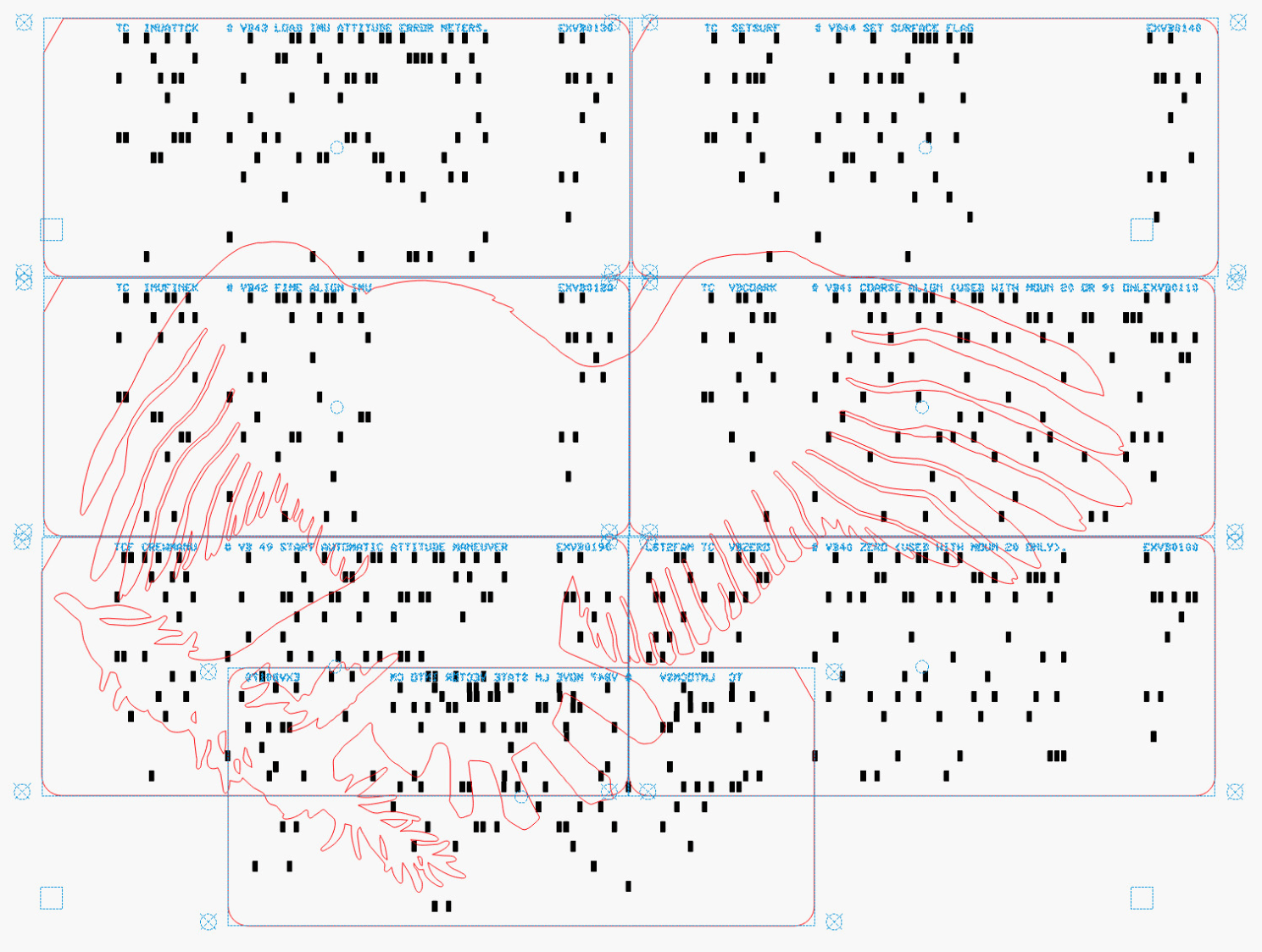
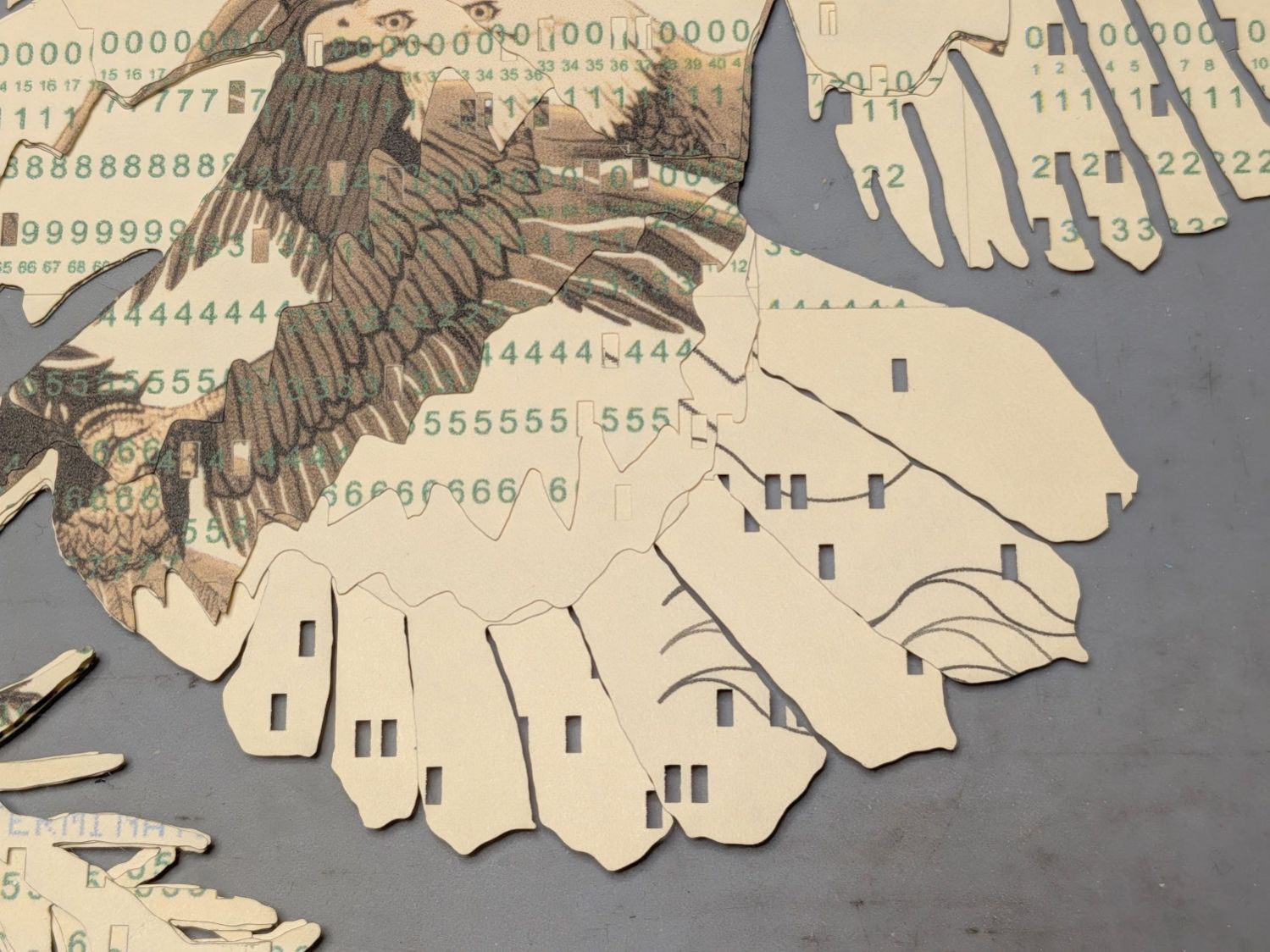
Then chop most of them up to make a layered eagle:
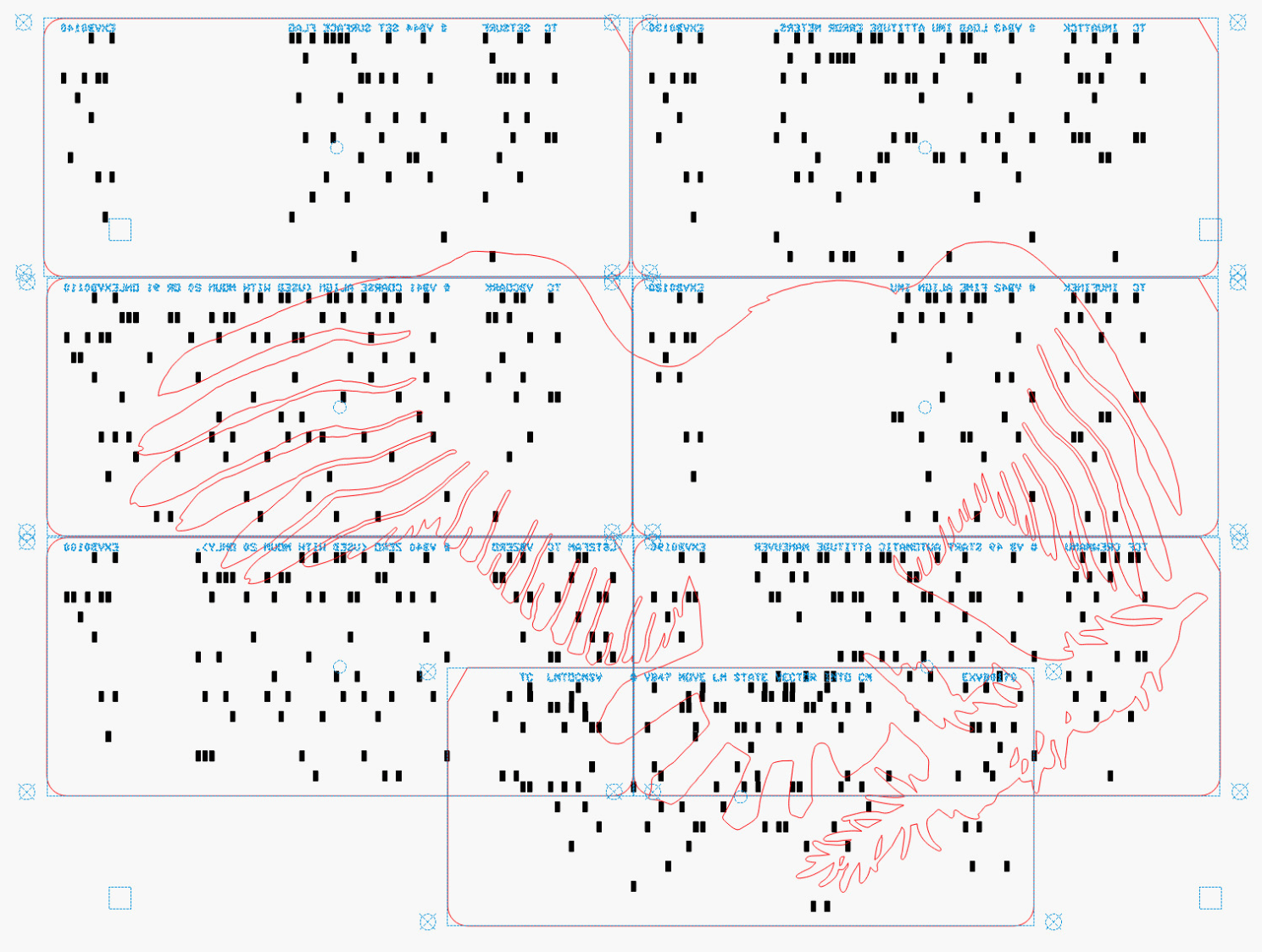
Apollo Eagle – V3 – overview
Back in the beginning, the grand overview explained the card production process, but now I can pull all the blog posts into a more coherent story.
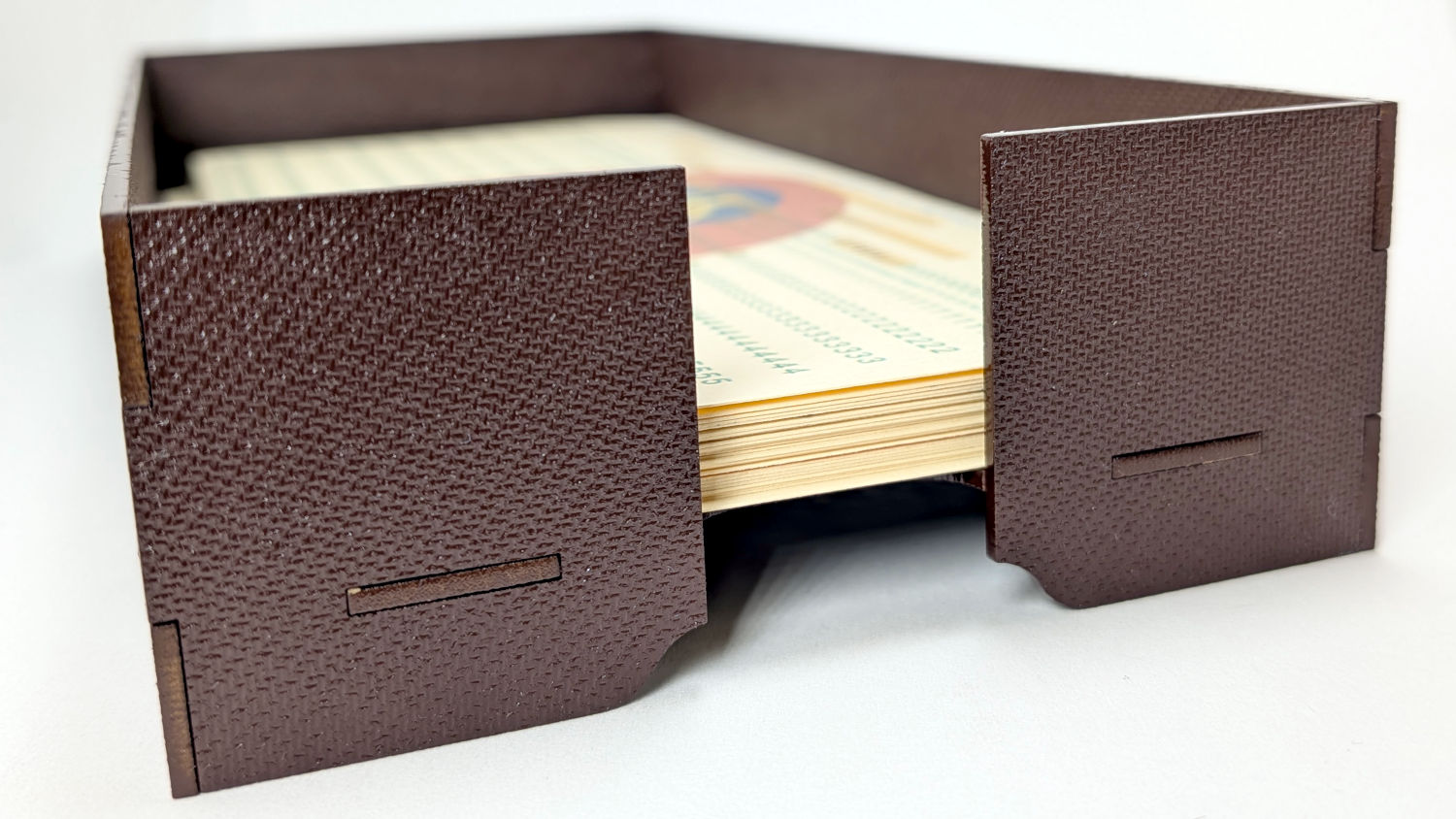
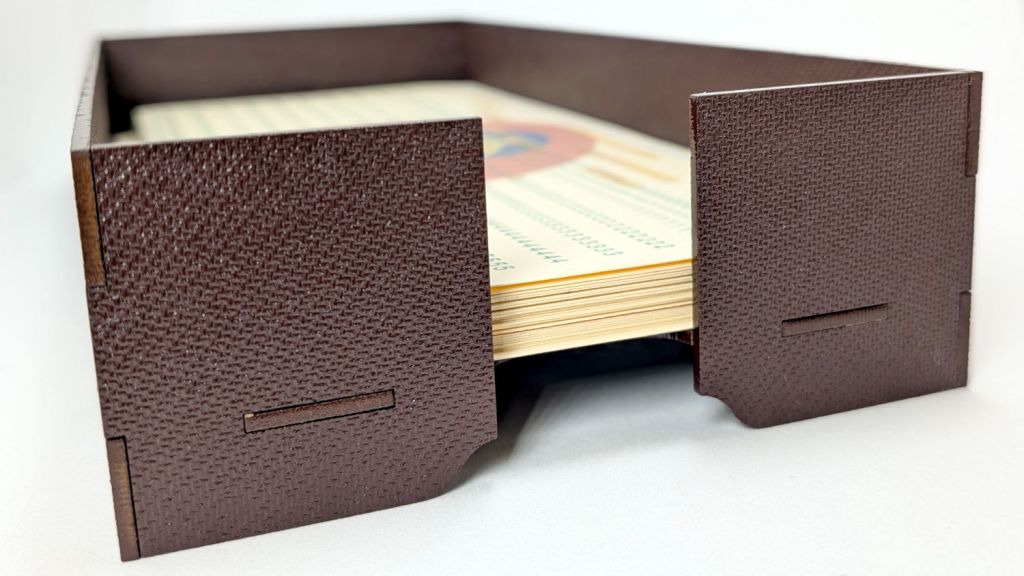
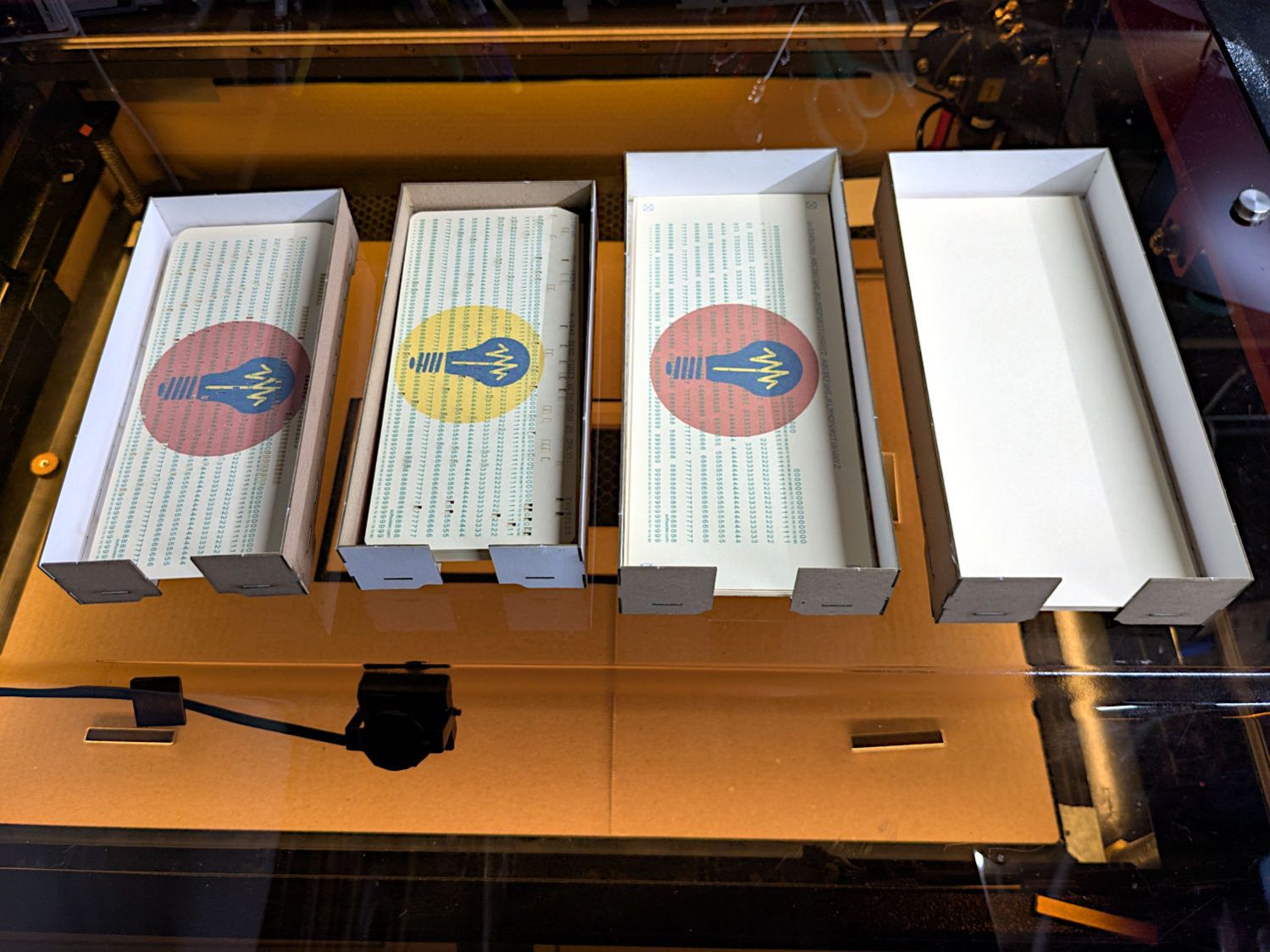
Start by making trays to hold the 1/3 Letter sized printed cards and the final cut cards. A coat of paint improves the result:
Card Storage Tray – front
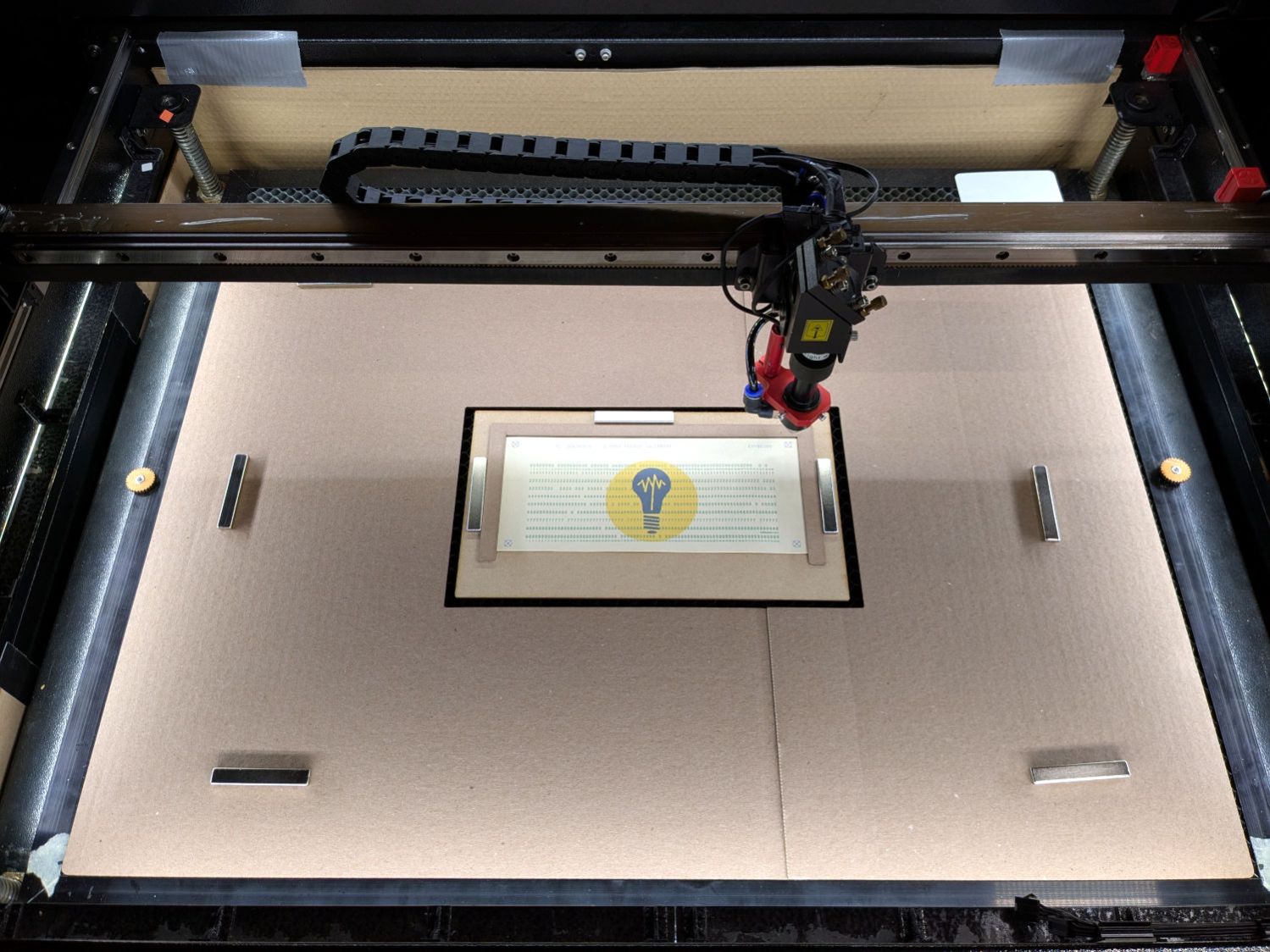
Then make a fixture to position the 1/3 Letter printed cards in the laser and a simple cover for the honeycomb to direct the air flow:
Punched cards – laser fixture overview
The current versions of the Python program to convert a line of text into the SVG images required to print and punch the cards, plus the Bash scripts handling all the command line parameters, are now in a single GitHub Gist . I used the source code from the Apollo 11 CSM AGC for historic reasons.
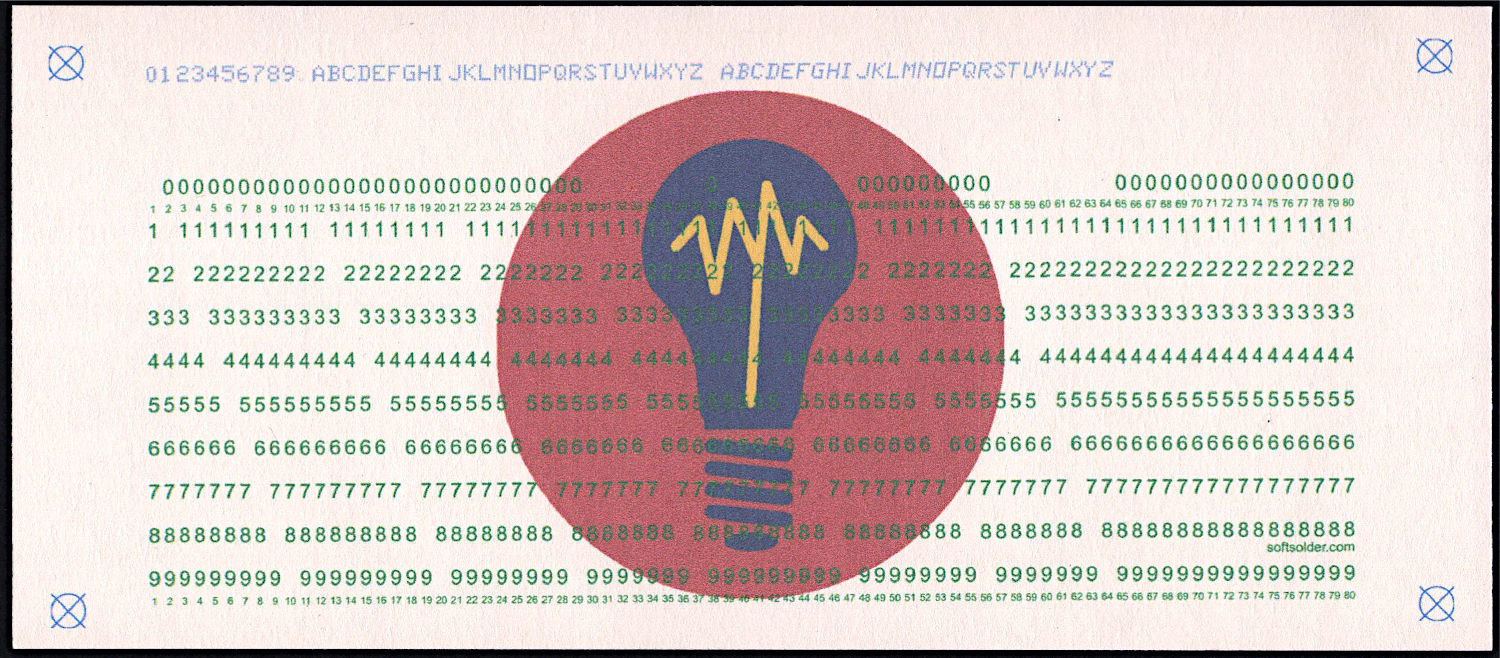
The Bash scripts invoke the Python program twice to produce both the printed layout:
Punched Cards – test card – printed
And “punched” holes surrounded by the perimeter cut for the laser:
Because my printer produces slightly off-size printed images, the script uses Inkscape to convert the SVG into a PNG, then downscales the image by a few percent (a different percent on each axis). It composites the card logo onto the PNG and slams the result onto a Letter page in the proper place to hit the 1/3 Letter sheets.
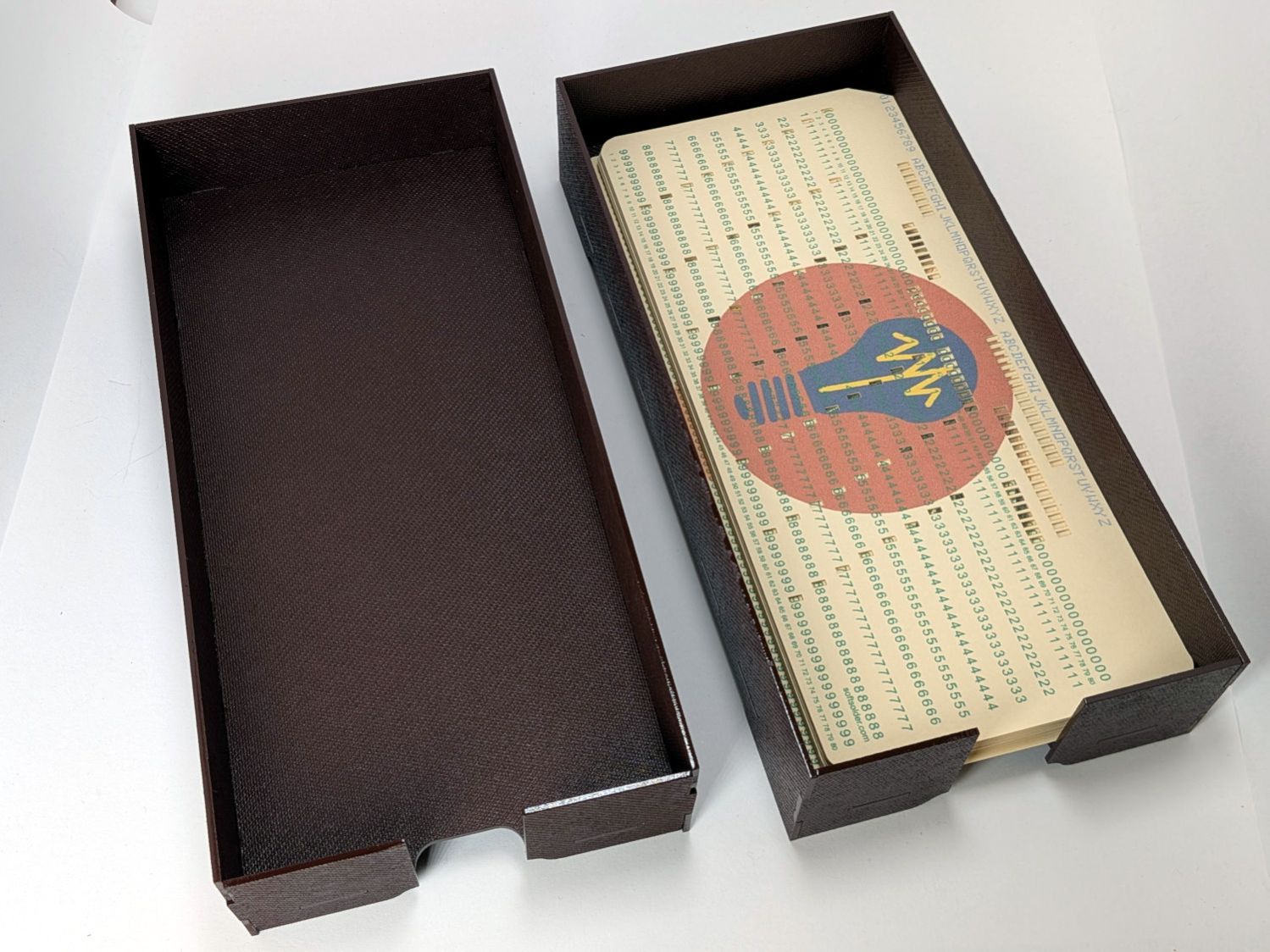
If you must have a stack of punched cards on your desk, a nice tray does wonders for the office decor:
Card Storage Tray – overview
That’s a coat of Rustoleum Painter’s Touch 2x [many more adjectives] Kona Brown Gloss rattlecan paint atop Trocraft Eco board. I sprayed the separate parts on a sheet of newspaper, waited 20 minutes, flipped them over, sprayed the other side, gave them another 20 minutes, and got them inside out of the wind for a day of curing.
They’re held together by cyanoacrylate adhesive dots between the tabs, with accelerator daubed on the other side of the joint to encourage prompt curing. In general I do not like cyanoacrylate, but sometimes it seems like the right hammer for the job.