Ed Nisley's Blog: Shop notes, electronics, firmware, machinery, 3D printing, laser cuttery, and curiosities. Contents: 100% human thinking, 0% AI slop.
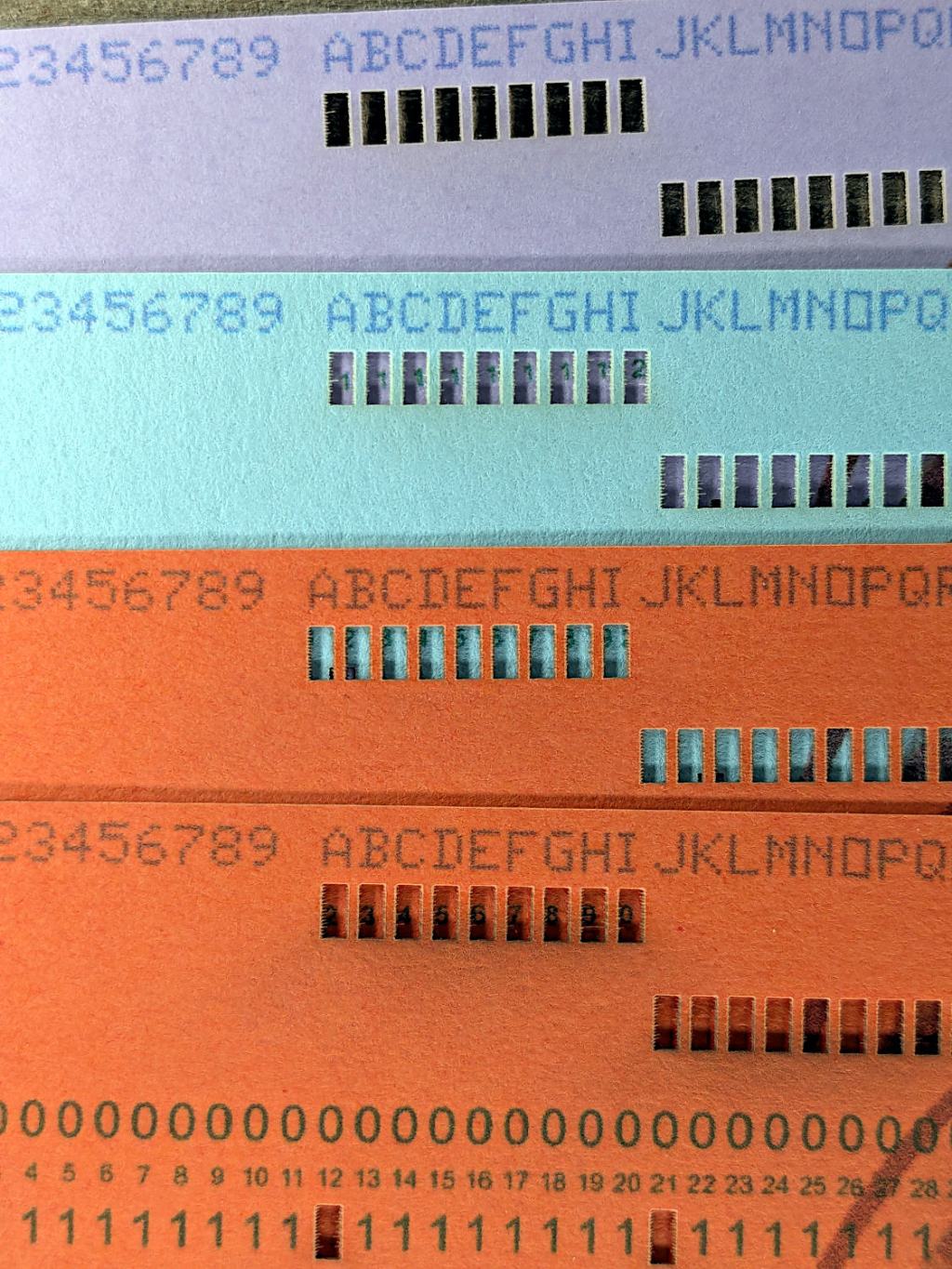
Using different card colors makes it easy to find your program deck in the Comp Center’s output bins:
Punched Cards – paper color vs smoke stains
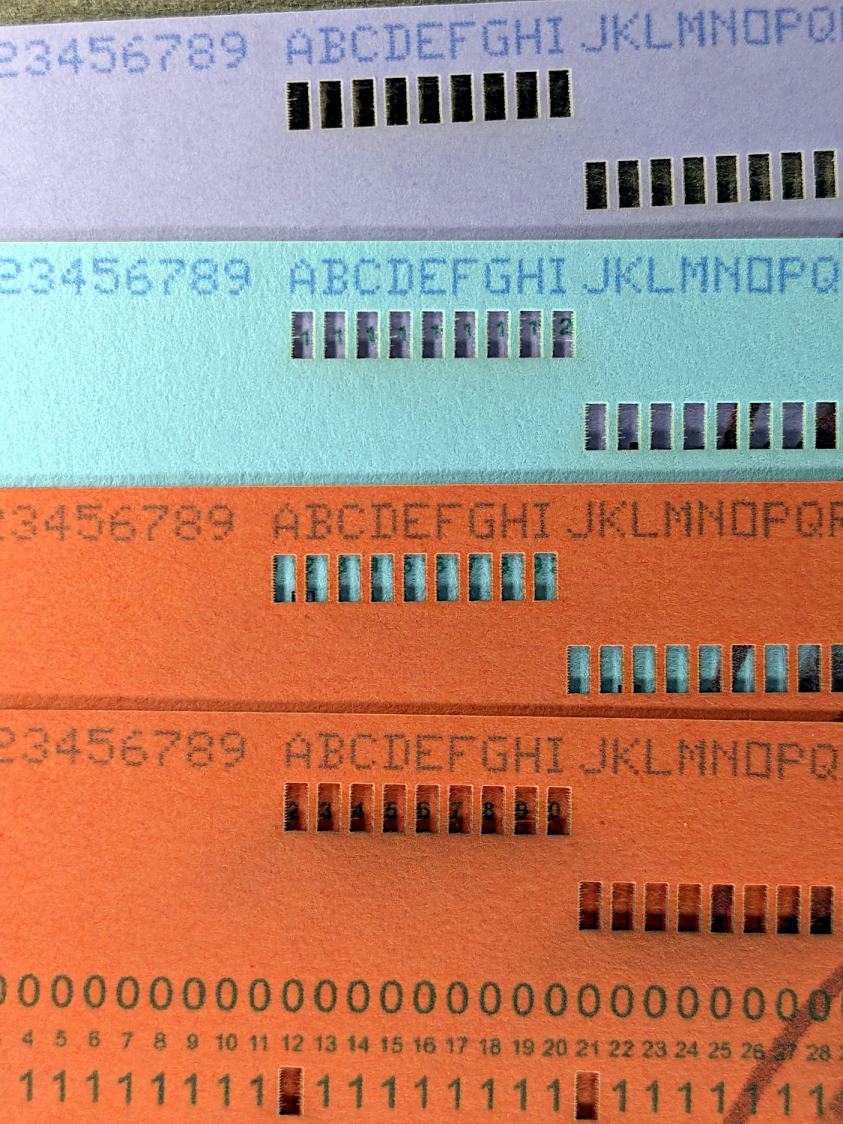
The smoke stains on the bottom orange card came from the same LightBurn settings used with the purple (violet?) and blue (teal?) cards: 400 mm/s, 35% power, and assist air enabled.
The conventional wisdom is that you *do not* use assist air while engraving, to avoid pushing the smoke / soot down onto the material, and I’ve generally followed that rule. Apparently evaporating holes in the other colors doesn’t generate much smoke and I had no reason to notice the air was enabled.
The upper orange card differs from the lower one only in having the assist air turned off, so I have definitely learned my lesson!
Readers of long memory will recall the dual-path assist air setup that pushes 2 l/m through the nozzle when the LightBurn layer has AIR disabled, specifically to keep smoke out of the nozzle and away from the lens; that gentle breeze doesn’t push smoke into the paper.
FWIW, that’s why I run a set of test cards before I do anything fancy for the first time.
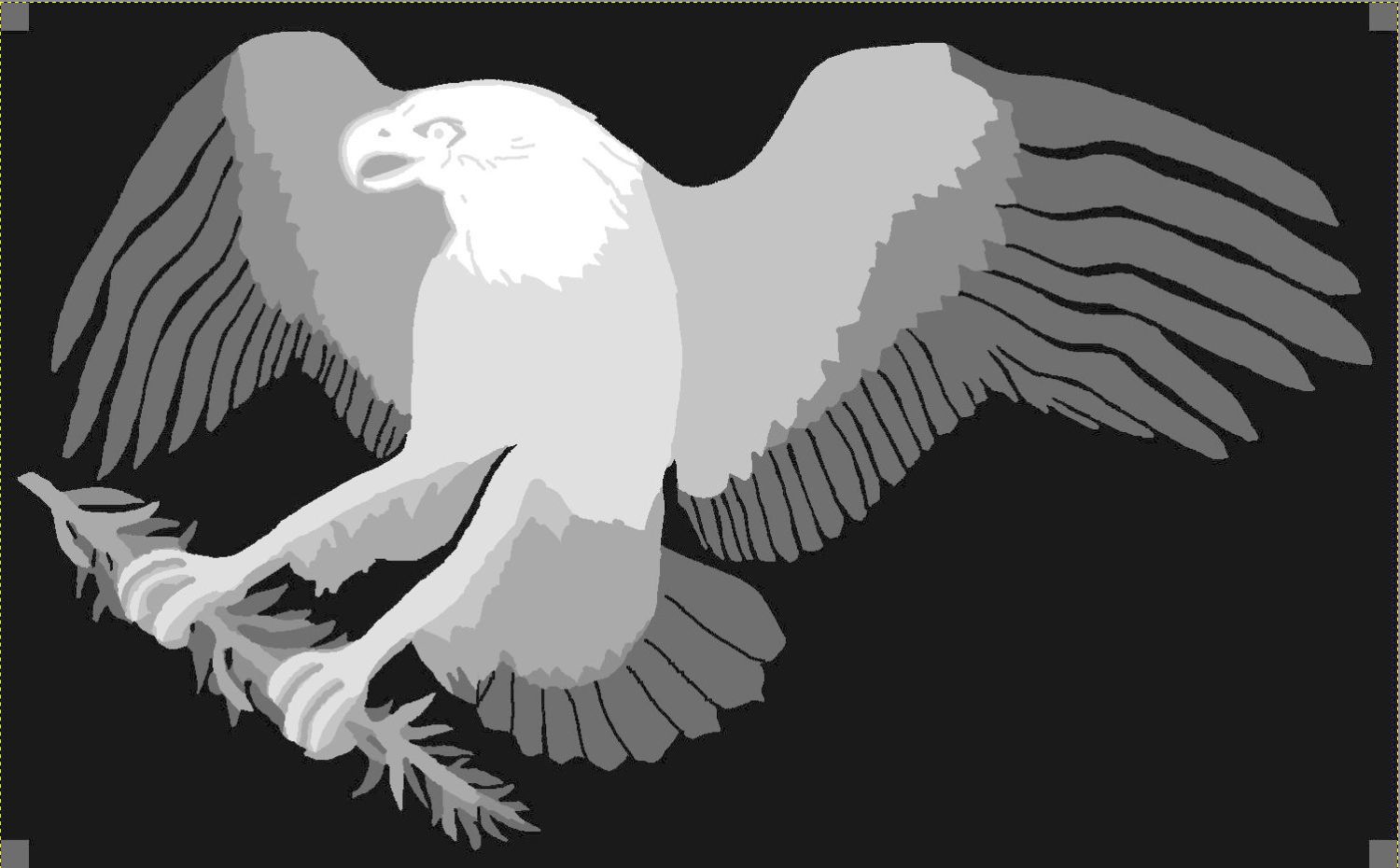
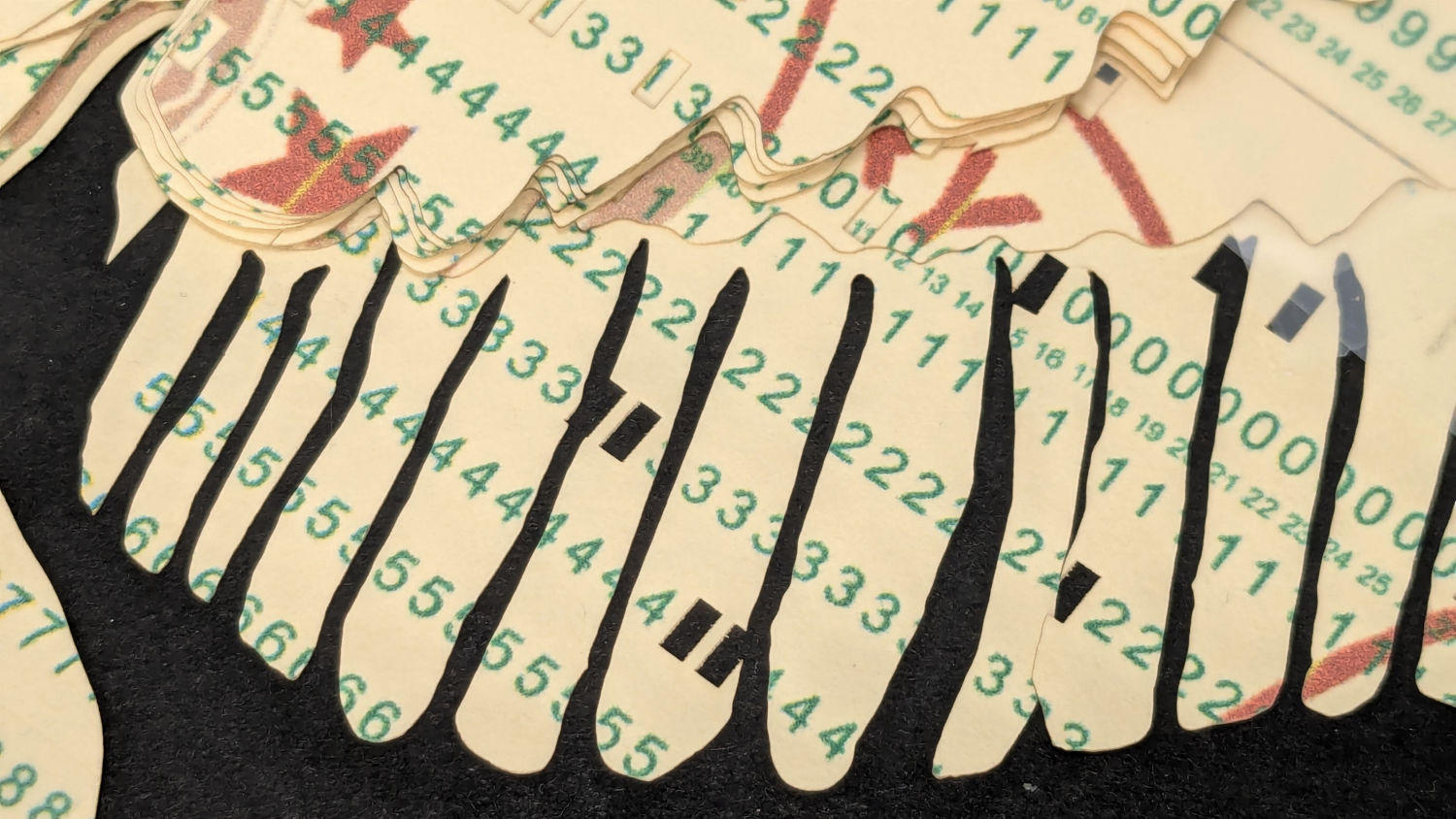
After considerable faffing, a few of the fifteen layers look like this in GIMP:
Apollo 11 Patch – eagle layers
Each layer is a connected white region defining the cut perimeter, which will expose some part of the layer(s) below it in the stack. The small squares in the corners provide a bounding box to make all the layers snap to the same location.
Put outlines on a cut layer, corner squares on a tool layer
Burn each layer separately
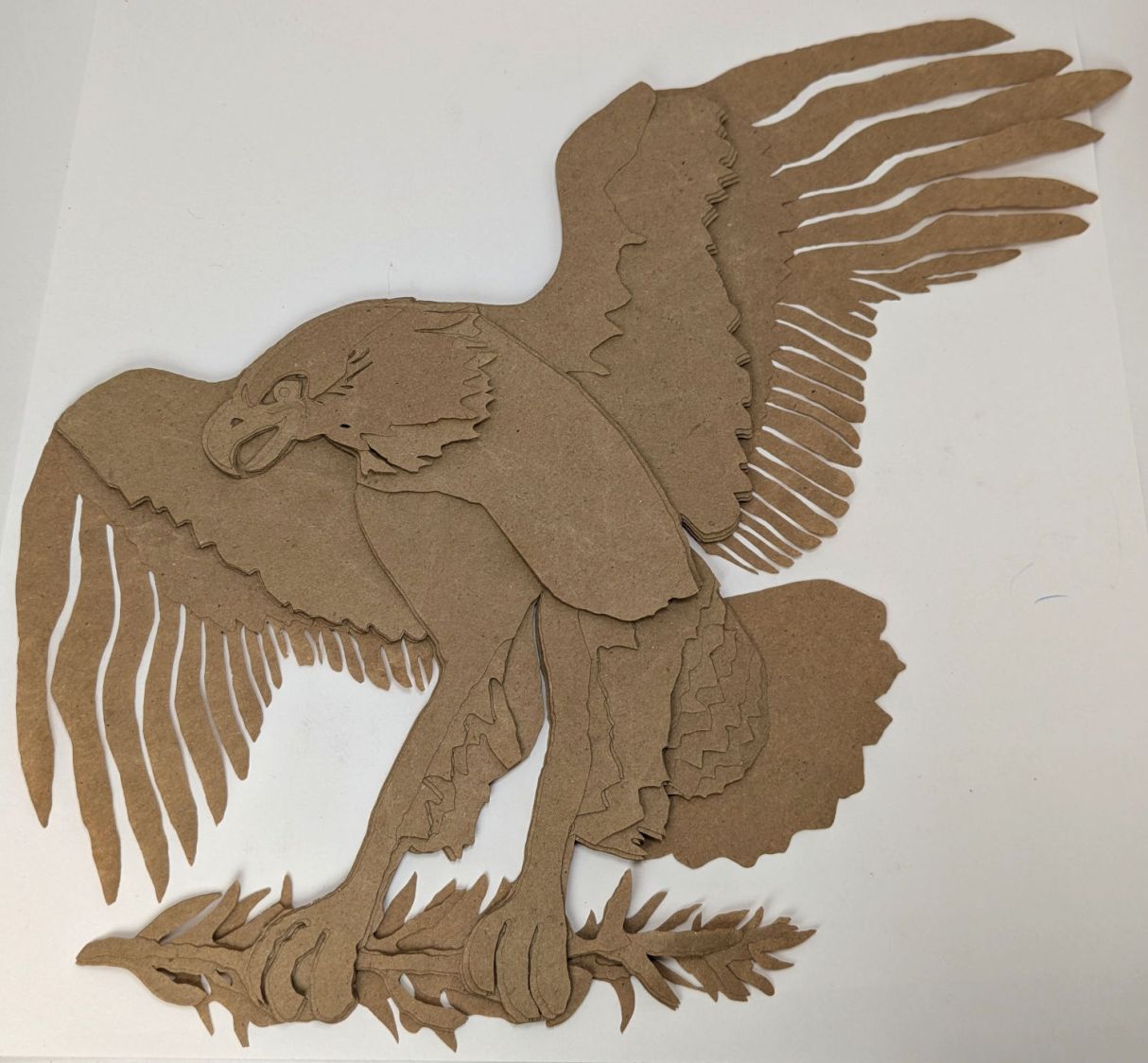
Testing the concept with packing paper looked surprisingly good:
Apollo 11 Eagle – layer test piece
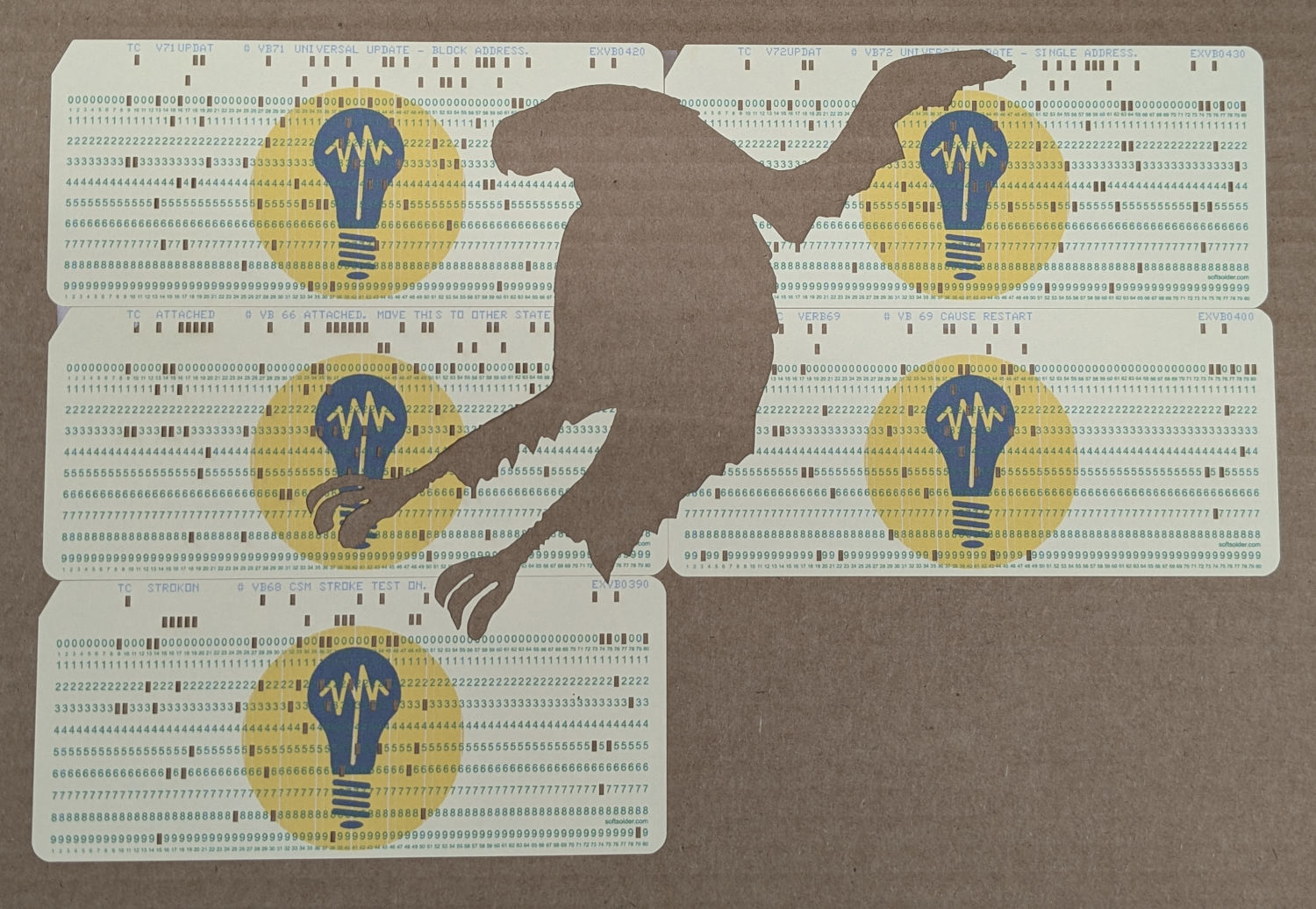
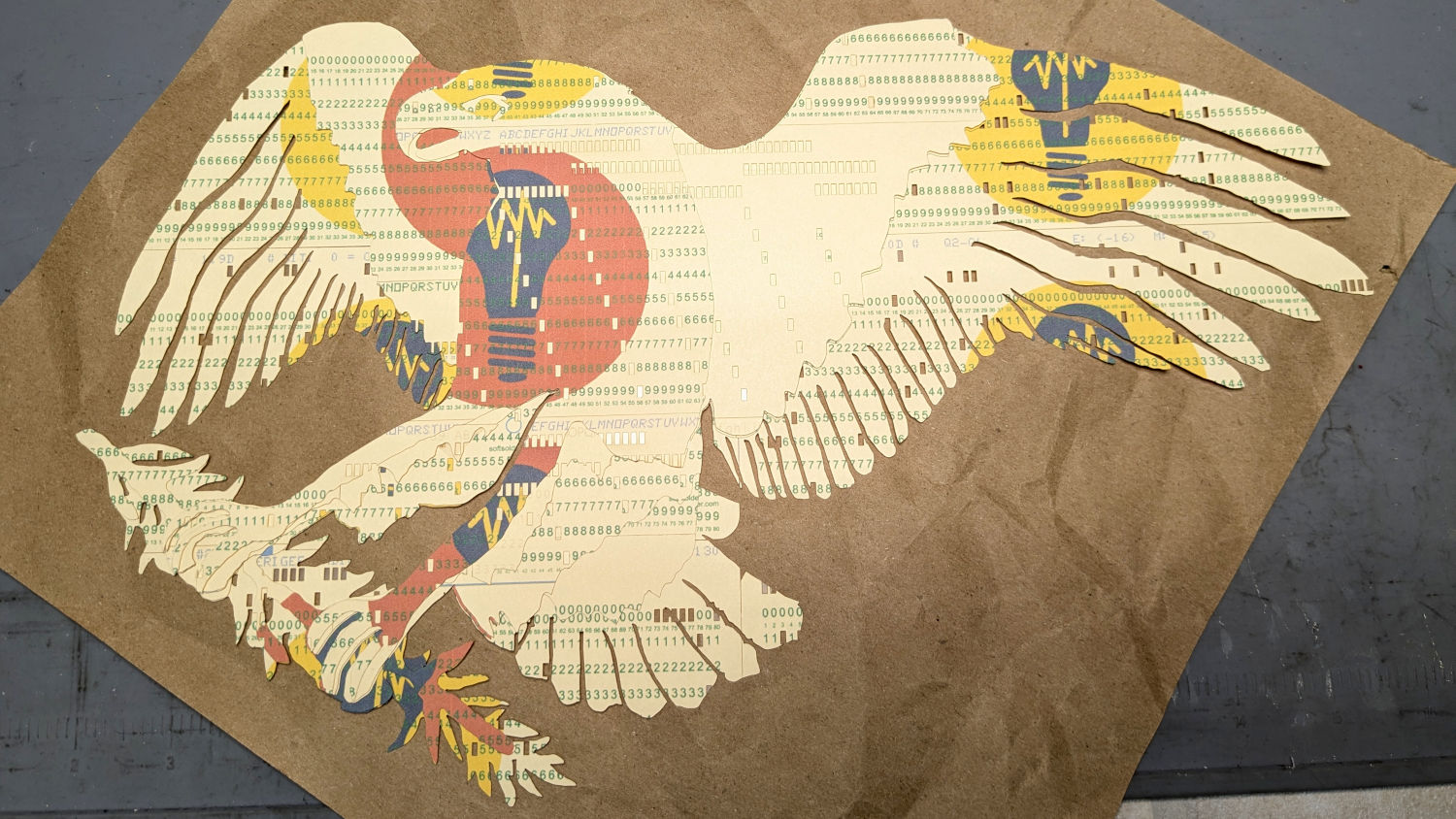
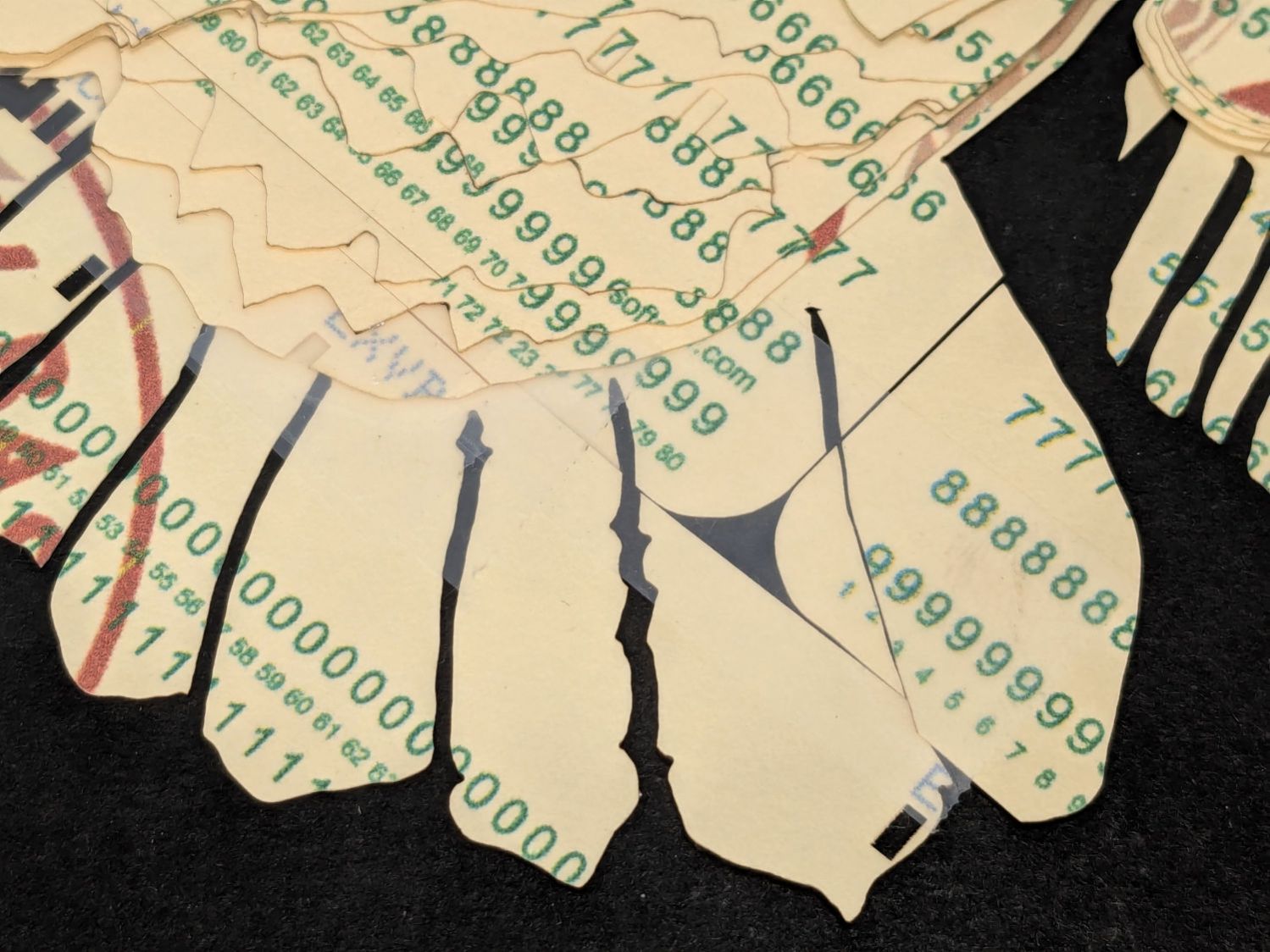
A few key layers on punched cards:
Apollo 11 Eagle – card partial test piece
The changes for each of those iterations required tweaking the original layer images to eliminate obvious-in-retrospect problems, recreating the SVG files, and importing into LightBurn. This is a relentlessly manual process.
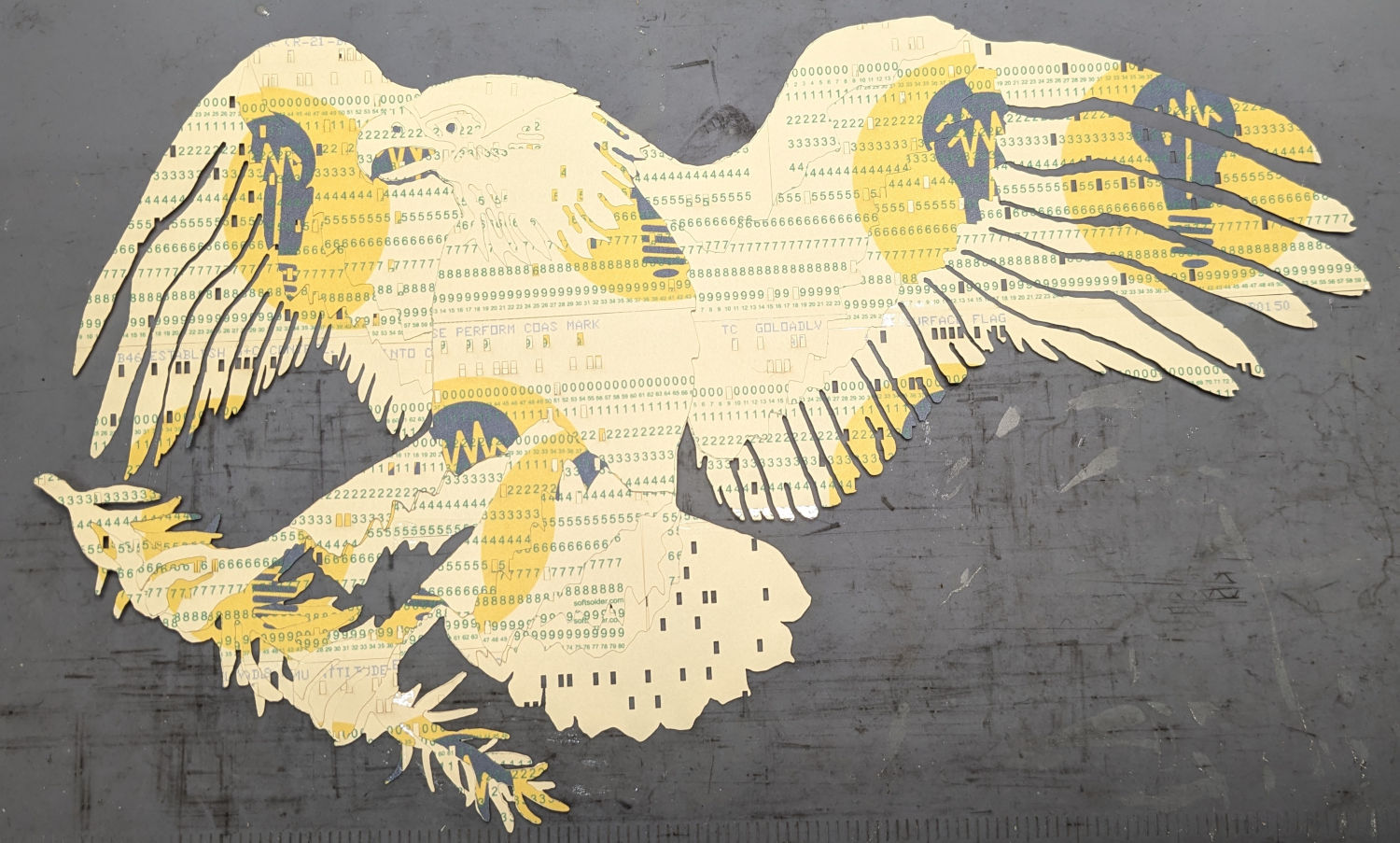
Then I ran a full-up test of all fifteen layers on cards punched with the Apollo source code.
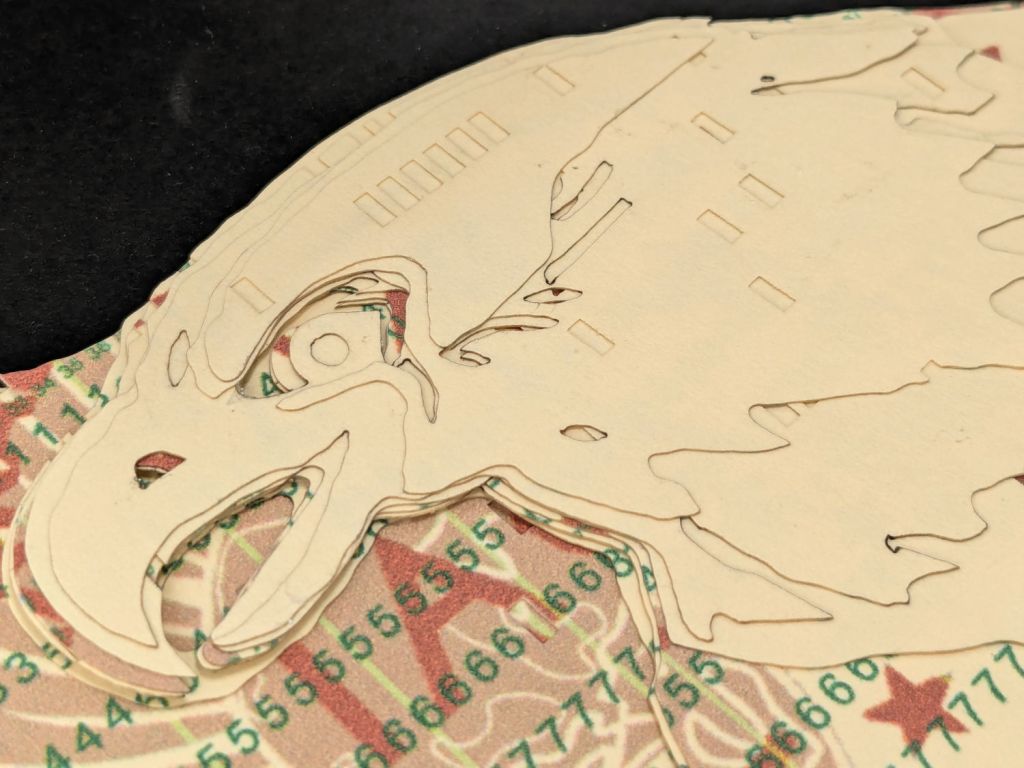
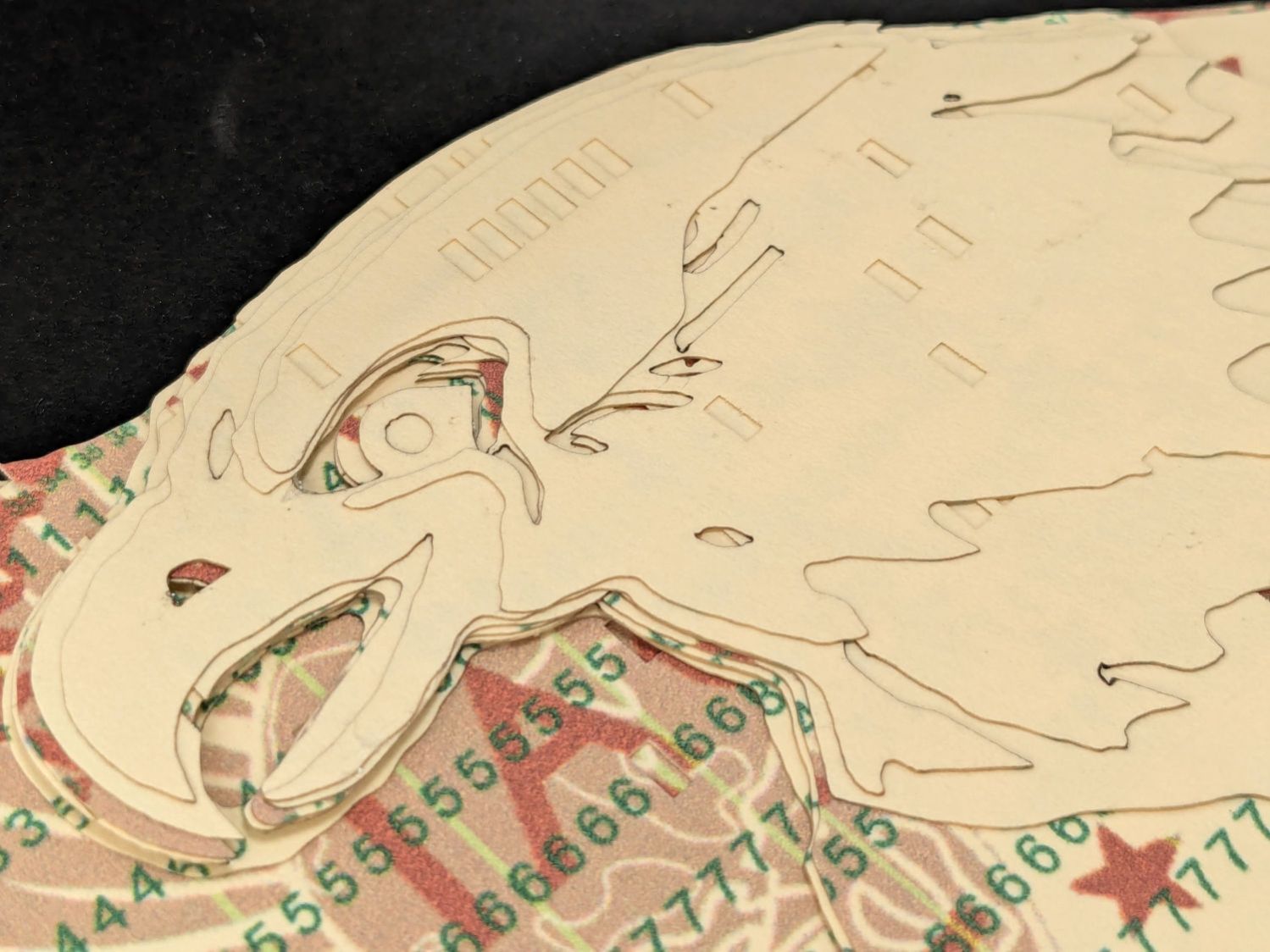
Cutting the head layers from face-down cards made them sufficiently white, although it’d be nice to have a different beak color and darker eyes :
Apollo 11 Eagle patch – layer test – head
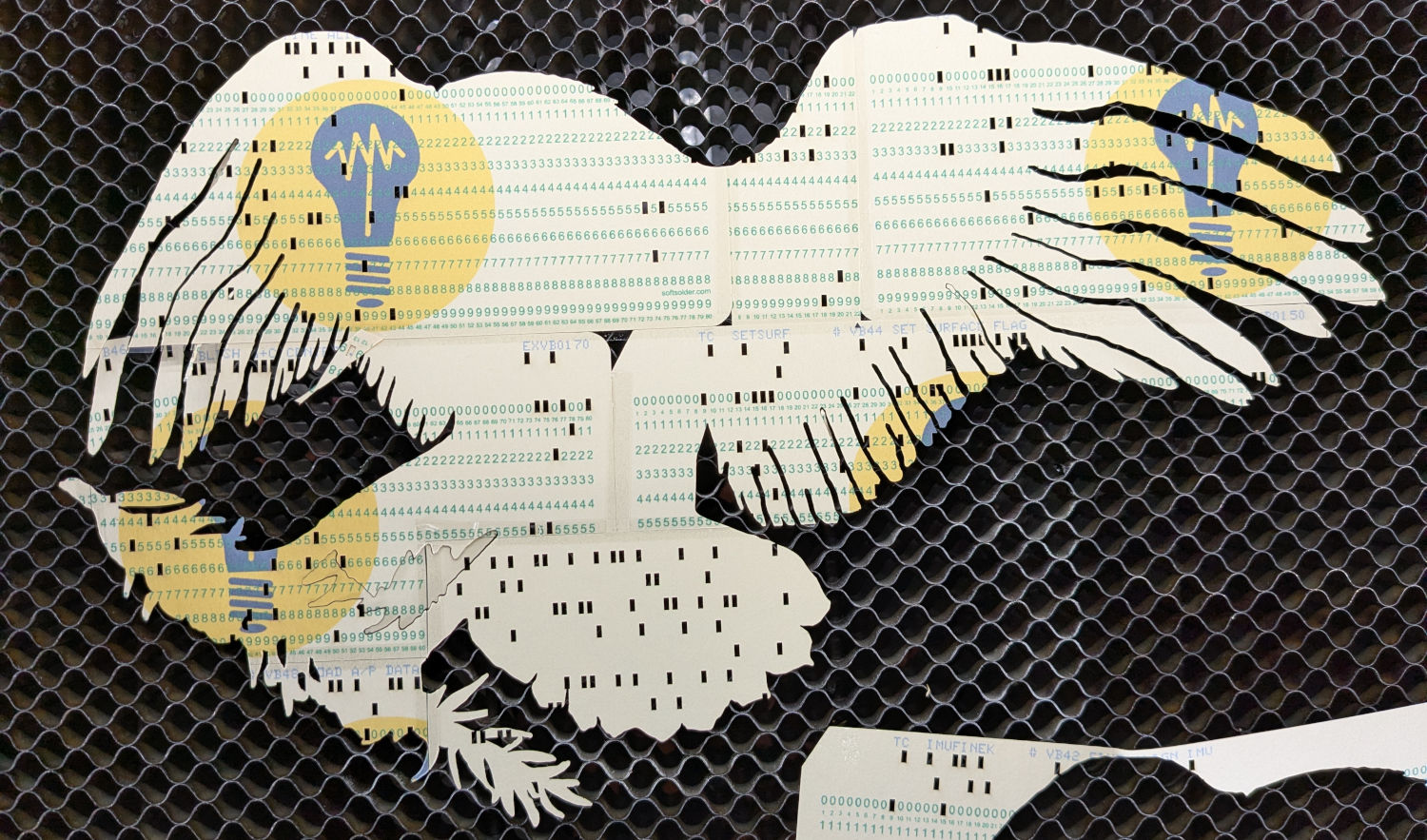
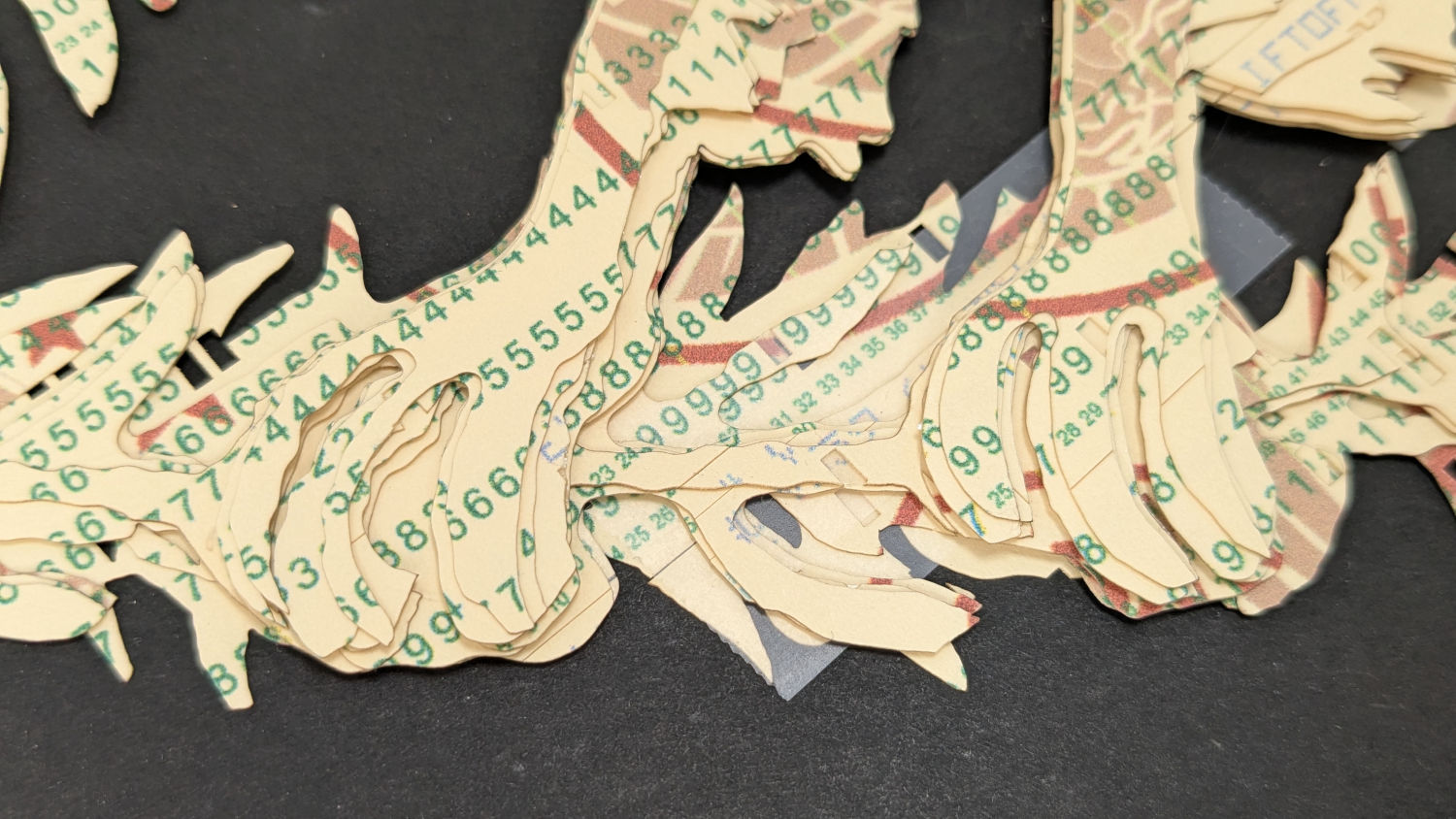
I must arrange the cards with text to put more holes in the wings, although too many will cause fragile feathers:
Apollo 11 Eagle patch – layer test – wing
The white tail should be also done with face-down cards, more holes, and the three-way joint between the cards shifted under the tail layers to its left:
Apollo 11 Eagle patch – layer test – tail
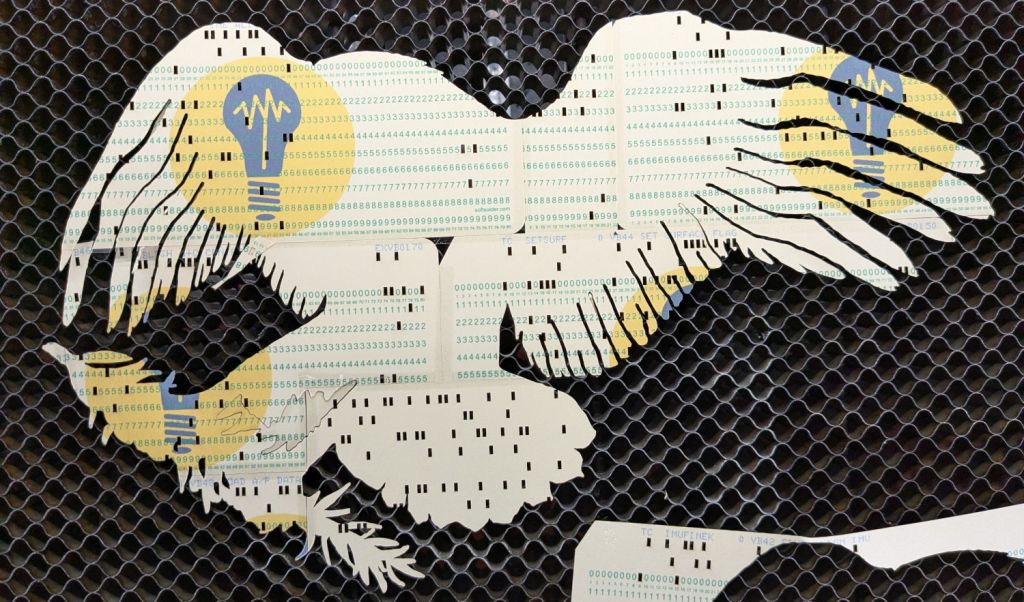
The feet and olive branch were a total faceplant, as successive layers did not register accurately enough to overlay the leaves:
Apollo 11 Eagle patch – layer test – feet
Not to mention those ug-u-lee claws.
The wing layers need more rounding along their edges, perhaps with some thin cuts to emphasize the feathers.
The gotcha lies in Step 3, which requires mousing & clicking through a tedious file selection dialog. For whatever reason, Windows / LightBurn does not remember your place in the file directory, so you must not only remember which card you just punched, but maneuver to the next card in the sequence.
It turns out there exists a lightly documentedSendUDP.exe command-line program to send a file to the running LightBurn instance, which will (in the case of an SVG file) import it and center the layout at the middle of the workspace.
Which means a Windows batch file can feed SVG files, one at a time, in order, to LightBurn. Before importing the file, however, LightBurn verifies you want to blow away the previous layout:
LightBurn – Confirm import
Tapping D lets the import proceed.
The feed-lb.bat batch file:
@echo off
for %%f in (%1) do (
    echo Sending: %%f
    "c:\Program Files\LightBurn_Prerelease\sendudp" "%CD%\%%f"
    pause
)
echo Done!
Because the SVG files have convenient sequential names, this does what’s needed:
…snippage…>.\feed-lb.bat Cards\Tests\test-?-lb.svg
Sending: Cards\Tests\test-1-lb.svg
Press any key to continue . . .
Sending: Cards\Tests\test-2-lb.svg
Press any key to continue . . .
Set up the process:
Start LightBurn with the proper layer defaults
Start a Command Prompt
Get to the proper directory
Run feed-lb.bat aimed at the SVG files
Align the first card
Click in LightBurn window
Alt-S to start cutting
When the cutting is done, the loop continues:
Replace / align card
Click the Command Prompt window
Hit (almost) any key to send the next file
Click the LightBurn window
D to discard old layout / import next SVG
Alt-S to start cutting
Iterate
Assuming you don’t spend too much time aligning a card, punching it can take up to four minutes. This process is definitely not competitive with an experienced operator on a real IBM 029 keypunch machine, but it’s as good as it gets in the Basement Shop.
One wrinkle: The imported SVG file uses LightBurn layer colors, so the various shapes appear on those layers with their default speed / power cut settings. It’s your responsibility to make the cut setting defaults match the cardstock, because that’s the only way (short of per-card clicking) to make it happen.
Another wrinkle: the Command Prompt window opens at your Windows home directory, thus requiring a little setdir.bat file in there to get you where you want to go:
@echo off
z:
cd "\Project Files\Laser Cutter\Punched Cards\Programs\"
dir
Now it’s just a matter of punching and stacking cards:
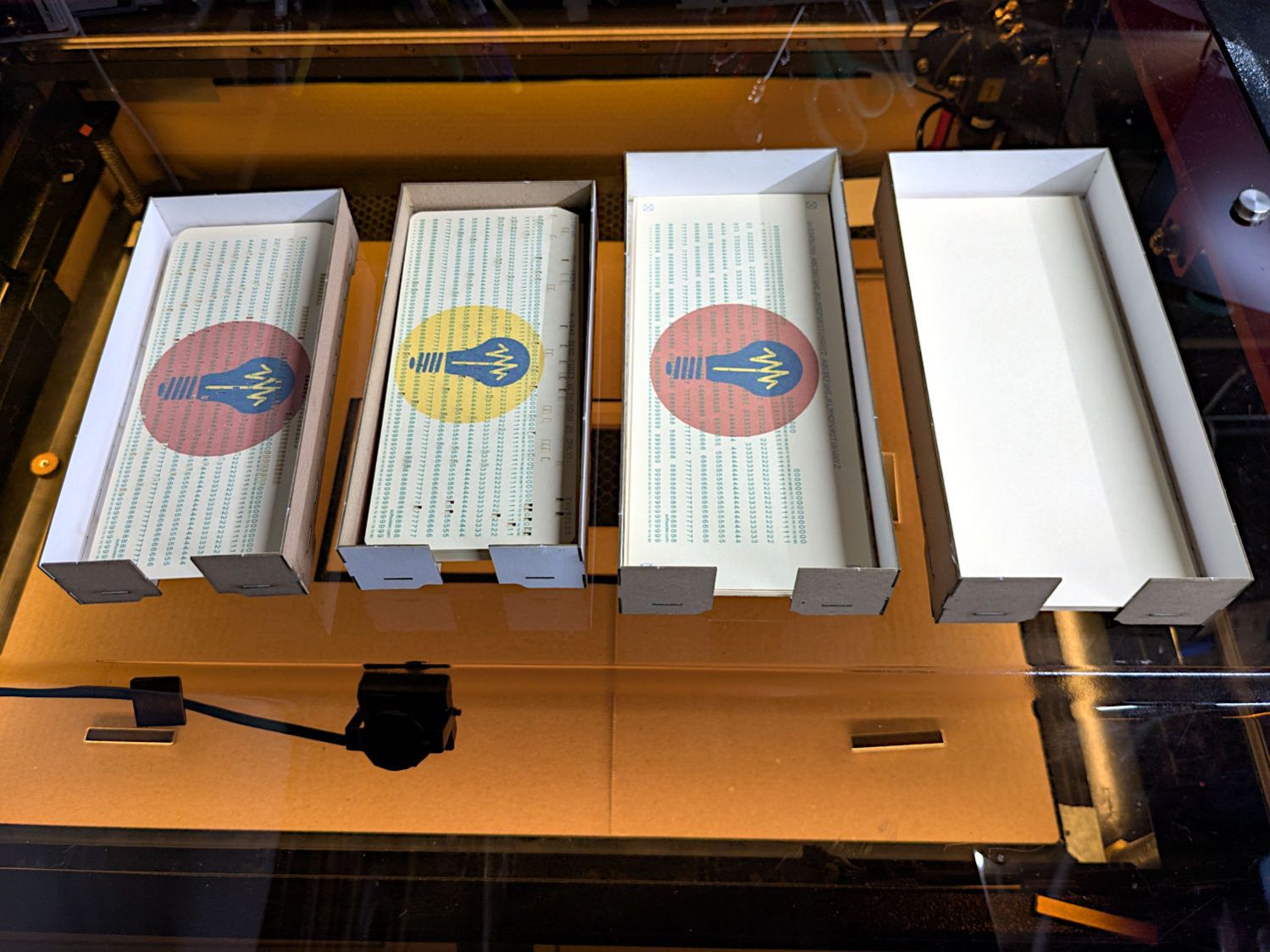
Punched cards – storage trays
It’ll take a while before I’m ready for the next step …
The 1/3 Letter sheets aren’t exactly (11 inch)/3 tall, because neither the paper cutter nor my cutting hand have any particular accuracy
The printer’s feed rollers don’t maintain the sheet’s angular or positional alignment as it travels through the printer
A fractional-millimeter misalignment between the printed characters and the evaporated holes is obvious
Performing an intricate alignment dance on each card guarantees at least an occasional misstep
I initially thought “Well, of course, I’ll just use LightBurn’s Print and Cut tool to match them up.” After some fumbling around, PnC is entirely too heavyweight for the problem at hand and a much simpler / faster / easier technique works better.
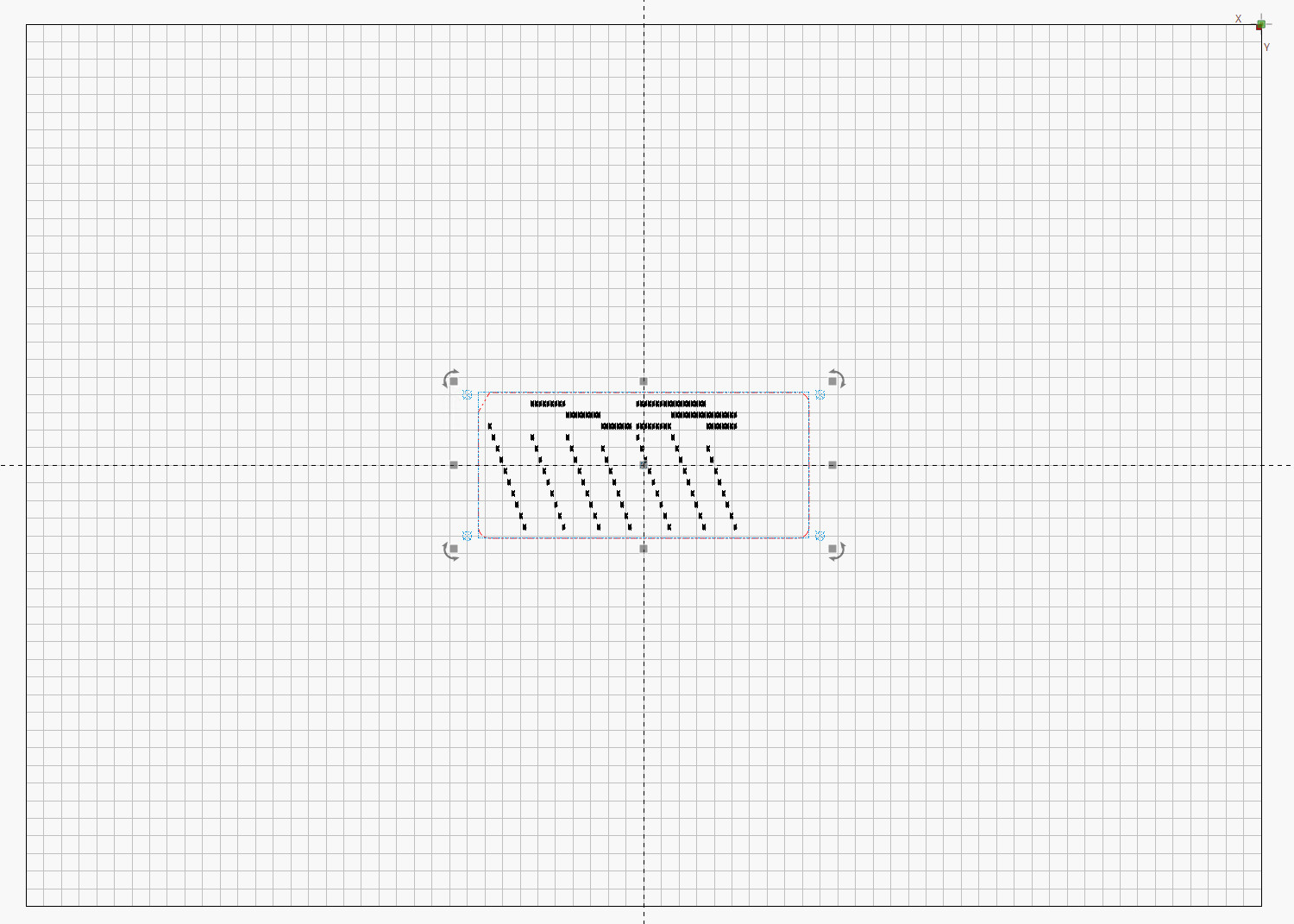
It turns out LightBurn imports SVG files centered on the layout grid representing the laser platform:
LightBurn – imported SVG layout
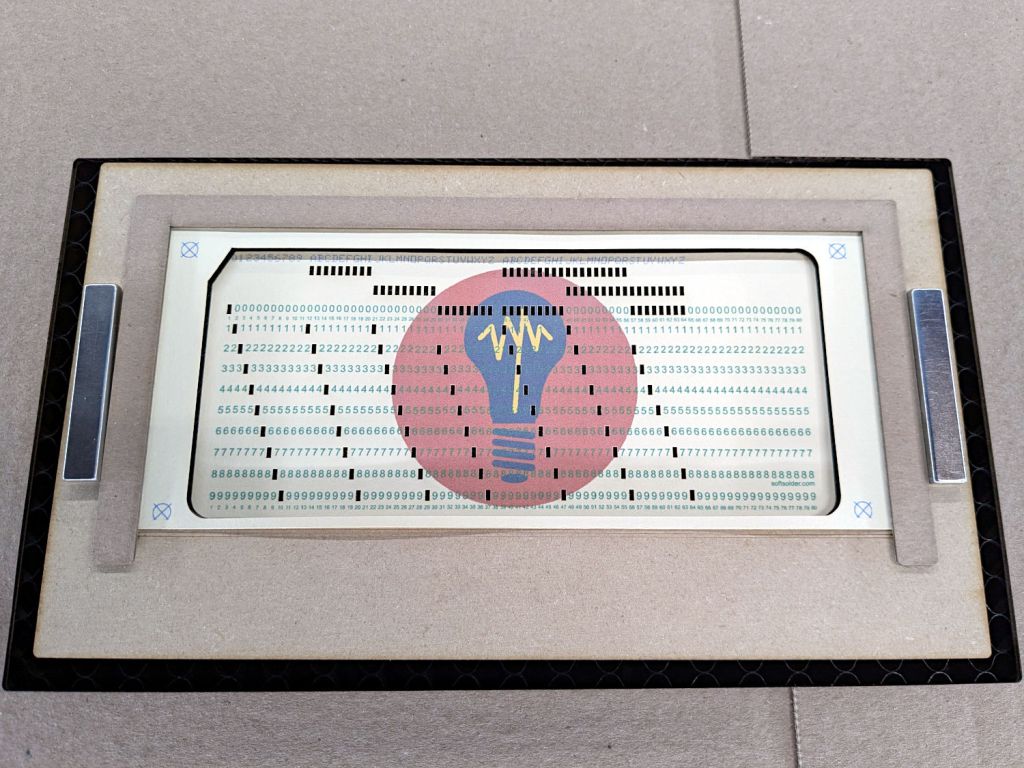
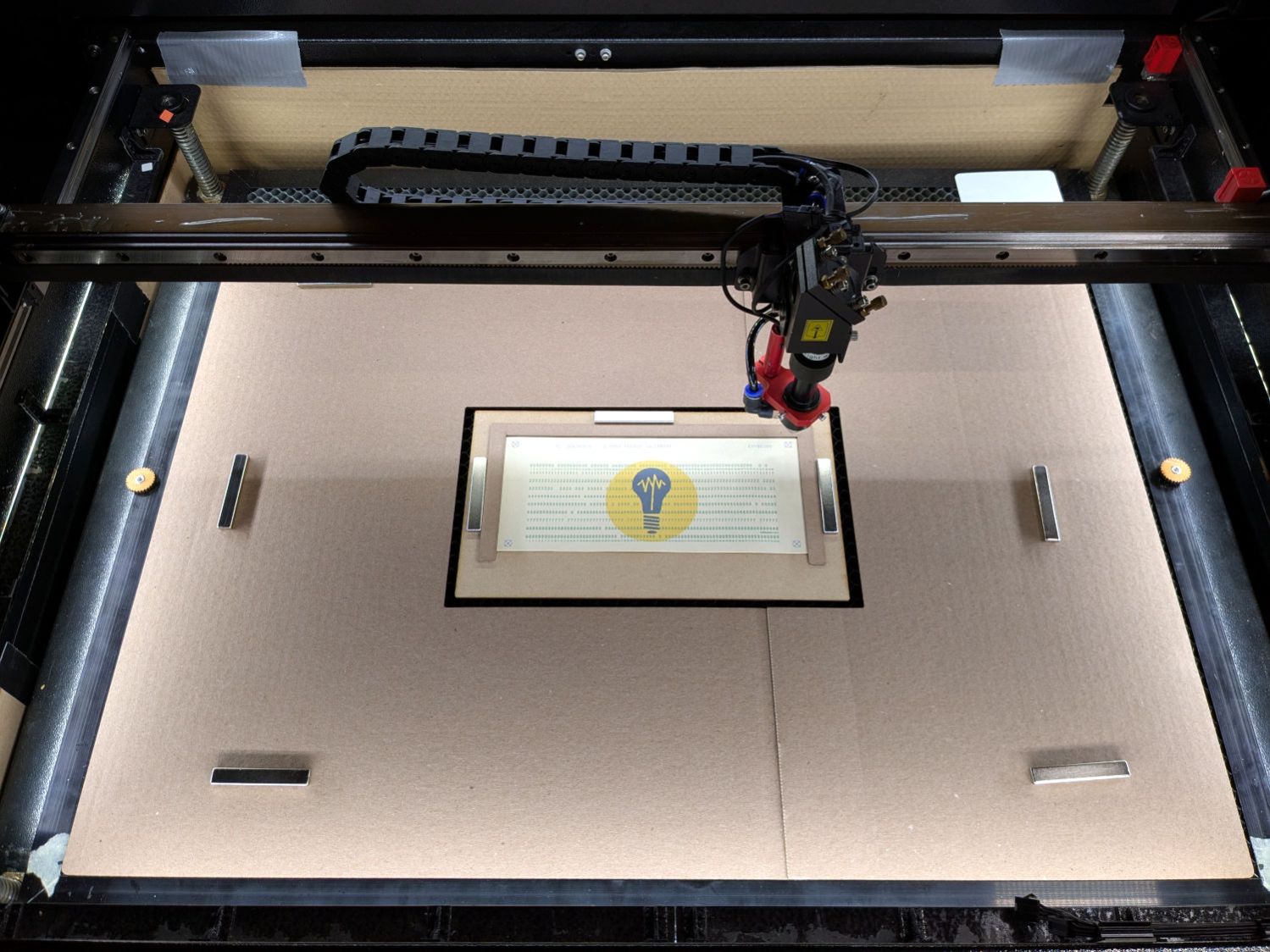
So putting the card fixture dead-center on the platform lines them up pretty closely:
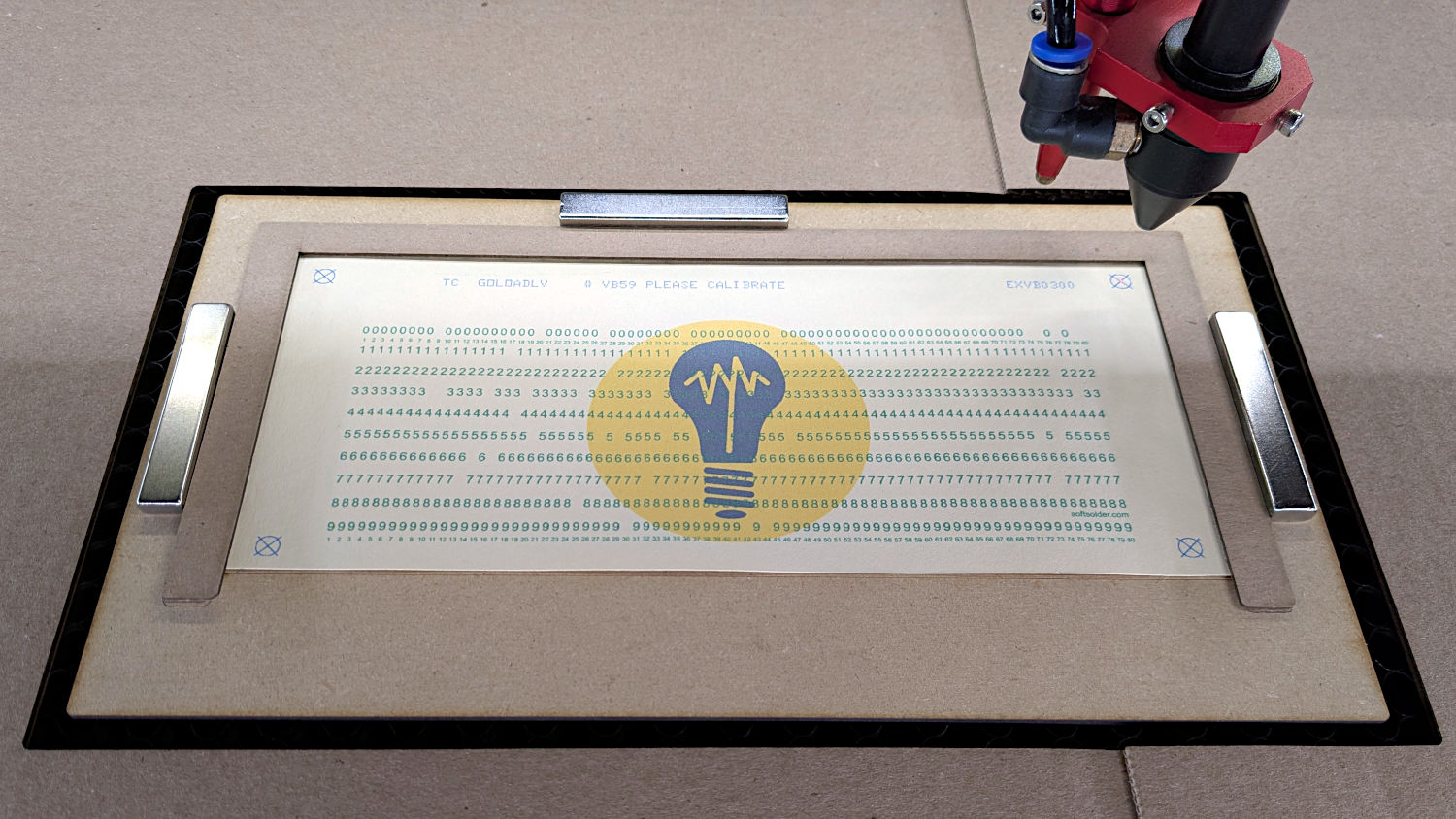
Punched cards – laser fixture overview
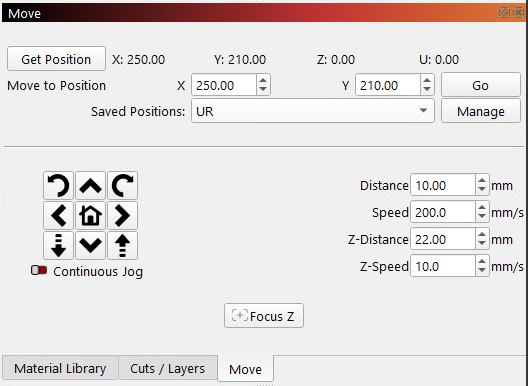
After importing an SVG, use Move Laser to Selection to put it in the middle of the upper right target, then create a Saved Position imaginatively called UR:
LightBurn – Move window UR position
Repeat for the lower left target to create the LL position.
Because the targets are on 200×80 mm centers and the middle of the platform is at (350,250), the target positions will be nice round numbers:
UR = (250,210)
LL = (450,290)
Yes, the coordinates run backwards, because that’s how Ruida controllers deal with a home position in the rear right corner of the platform.
You define those positions once, because all the cards are the same size and end up in the same location on the platform.
Although I expected to slide the cards under the fixture’s retaining lip from the front, it turns out an easier way is:
Gently buckle the card center upward
Align it against the rear edge
Slide the left edge under its lip
Lower the center while sliding the right edge under its lip
Tuck the card under the rear lip
Verify the front edge aligns with the marked lines, which means it’s properly in the fixture
The magnets hold the fixture against the honeycomb:
Punched cards – laser fixture alignment
The fixture can still slide with firm finger pressure and the card can move a little bit within the fixture. Note that leaning on the honeycomb will press it (and the fixture) downward enough to put the dot at a slightly different position; if you align while leaning, recheck the dot’s position after you unlean.
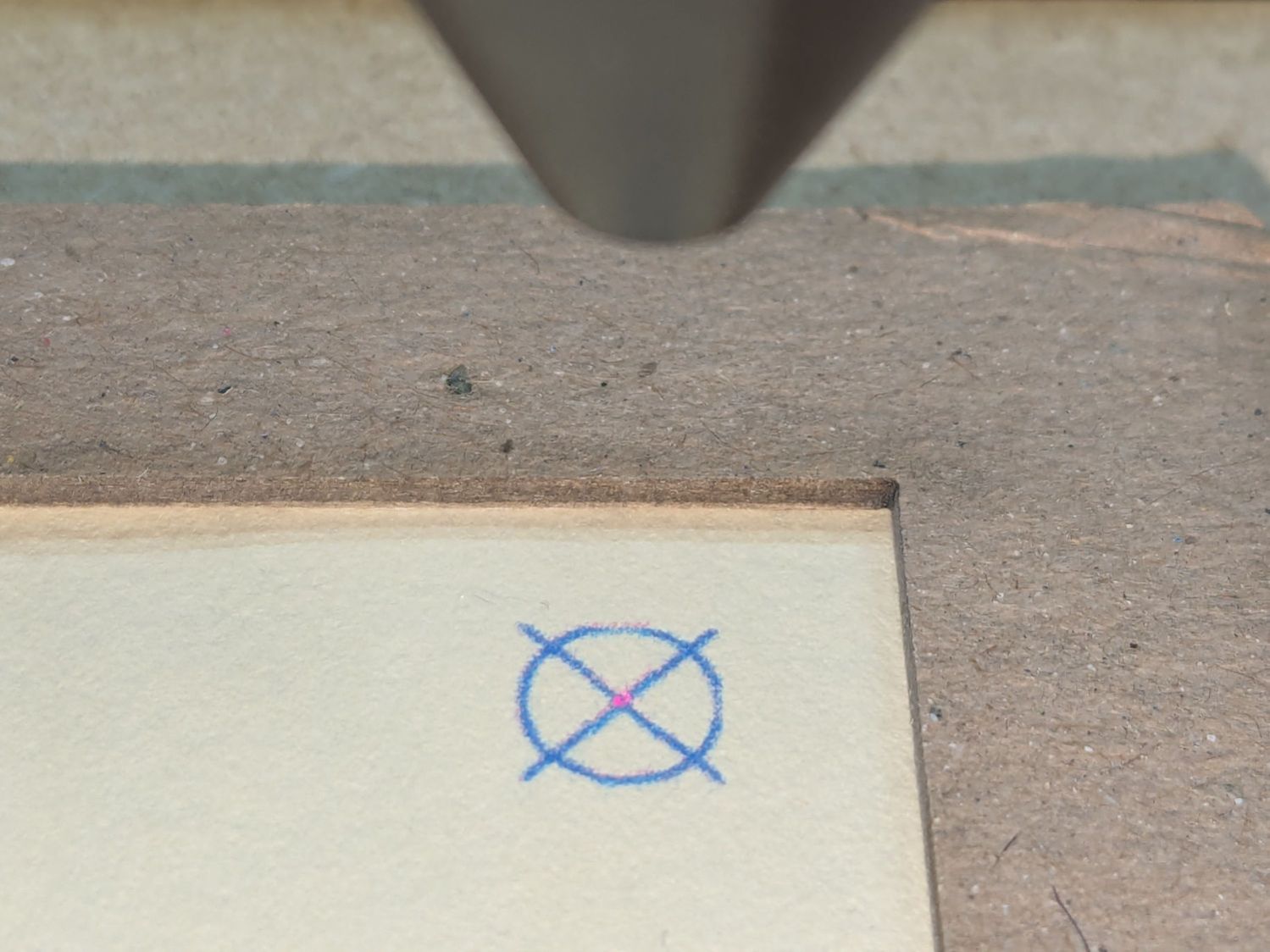
Move the laser to the UR position and skooch the fixture to align the upper right target to the red dot:
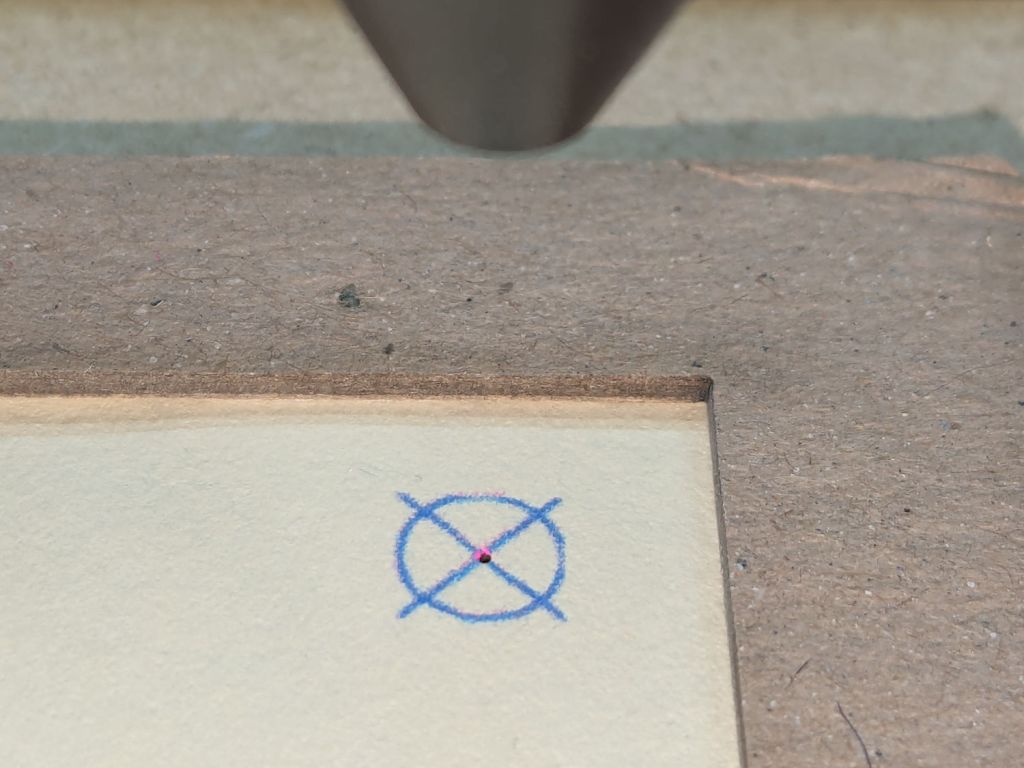
Red dot vs printed target alignment
The blue lines are nominally 0.2 mm wide and actually about 0.3 mm wide, so the red dot is 0.3 mm diameter. If your red dot is larger, better focus and a polarizing filter will help.
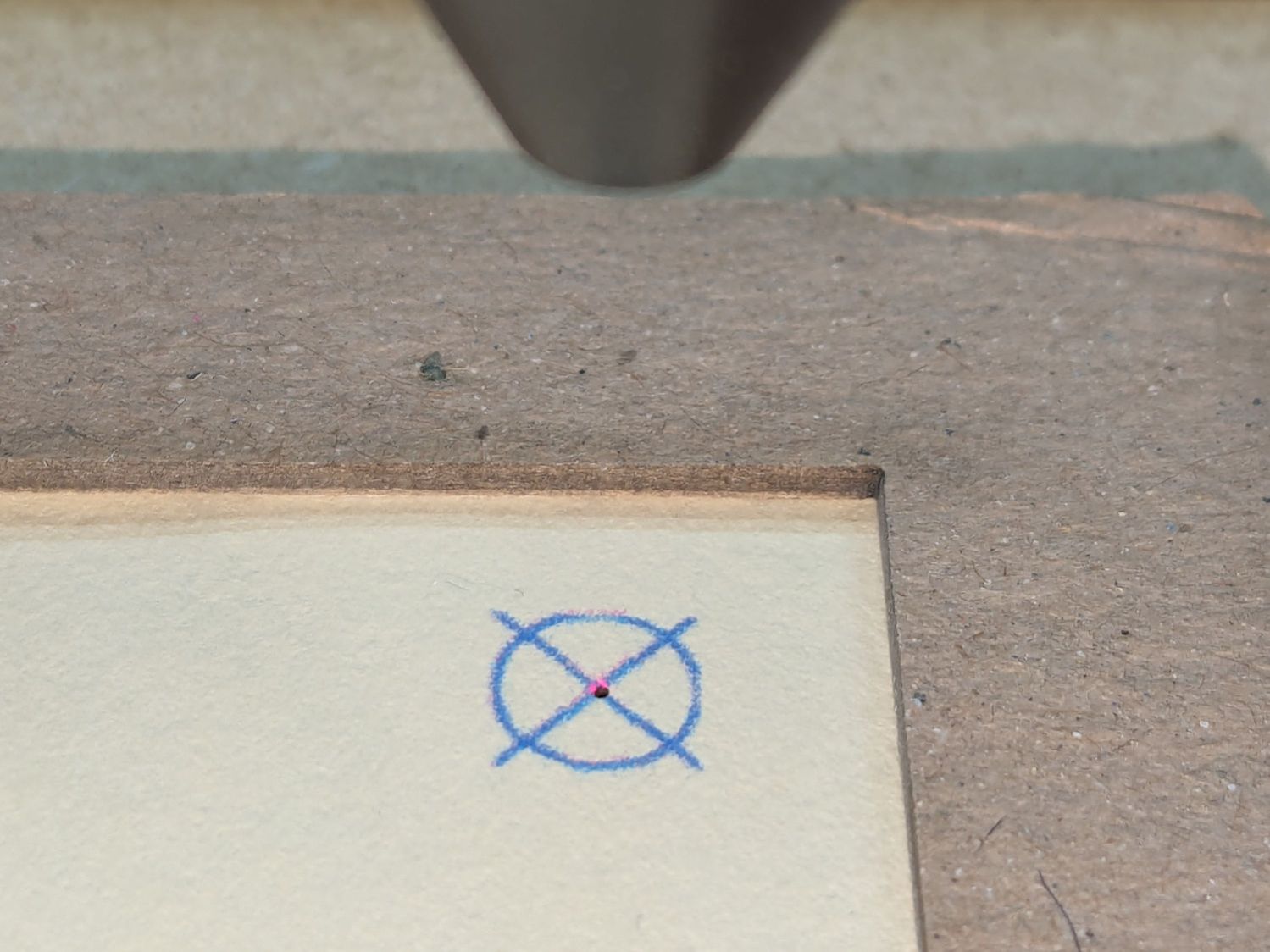
I periodically fire a test pulse to verify the red dot matches the actual laser beam position:
Red dot vs printed target vs laser spot alignment
That slight mismatch adds to the overall positioning error.
Repeat for the LL target, recheck UR to make sure it didn’t move, iterate as needed.
The printed card is now aligned to the hole pattern about to be burned into it.
Although this sounds like a lot of faffing, it goes surprisingly quickly because all the cards are Pretty Close™ to identical and the adjustments are very small. Although it’s possible to park the laser head at the UR position, I prefer to have it out of the way while unloading & loading the cards, then move it directly to UR to check the new card.
Fire The Laser:
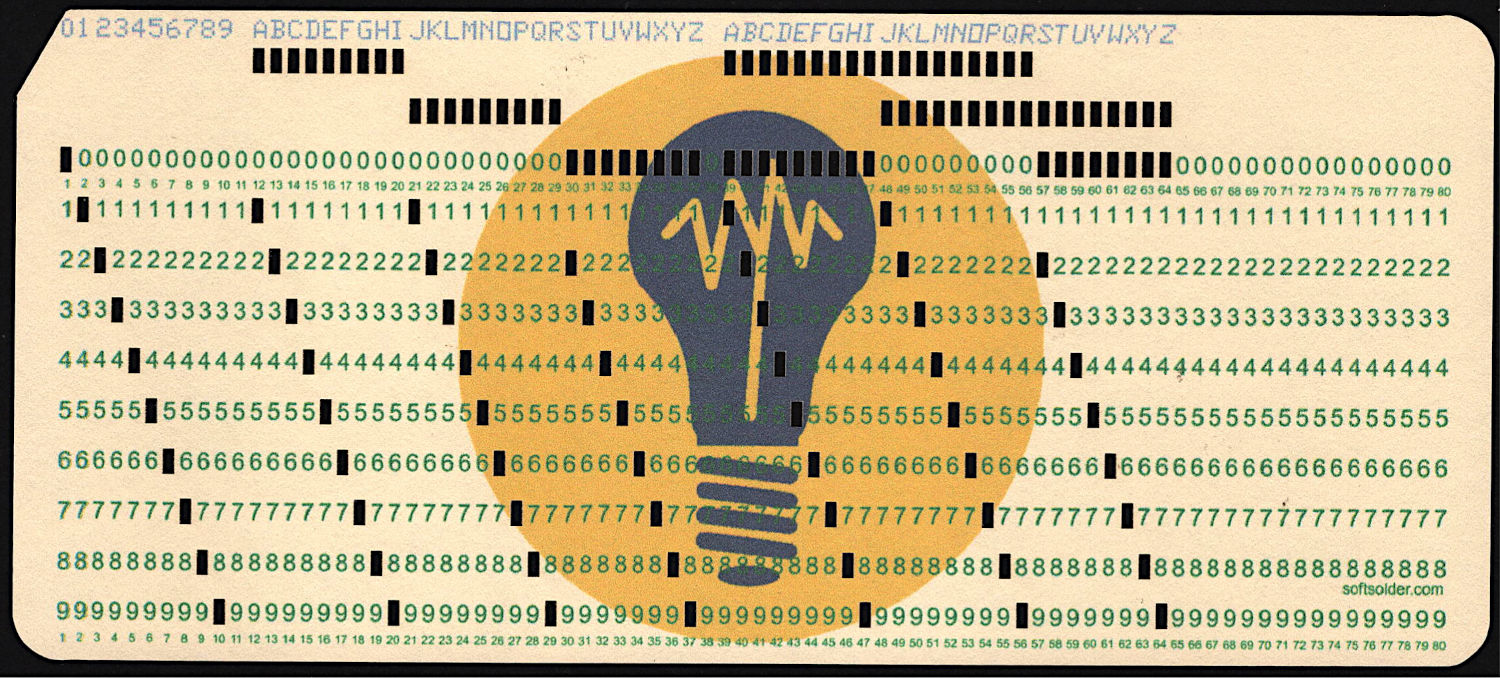
Test Card 3 – punched
I love it when a plan comes together:
Test Card 3 – punched – detail
A dash of automation helps when doing more than one card, which, believe it or not, involves a Windows batch file …
Although the script could print the final PNG for each card as it’s generated, I prefer to print them after eyeballing the results to fix the inevitable bloopers:
Using ImageMagick to slam PNG images around was significantly less complex and more direct than trying to contort the SVG file to produce the same result. In particular:
Uniformly scaling the logo image to fit the card height actually worked, as opposed to specifying the logo file as an image in SVG file.
Scaling the card PNG while compositing it onto the final page PNG worked much consistently, which counts for a lot.
Hitting the middle of a 1/3 Letter blank fed from the printer’s paper tray required tedious trial-and-error.
The Cards/Tests/ output directory lives in the Programs directory with the Bash and Python programs, which made sense at the time.
The Card logo.png file also lives in Cards/Tests/ so I can have a different logo for each set of cards. A symlink to the appropriate logo file in Logos simplifies changing the artwork.
None of the constants will match your setup, so have fun.
With SVG scaling more-or-less settled, converting a line of text into the SVG layouts for printing and punching is reasonably straightforward feasible.
The Python program contains several test patterns:
TestStrings = ( " " * NumCols,      # blank card for printing
                "█" * NumCols,      # lace card for amusement
                "0123456789 ABCDEFGHIJKLMNOPQRSTUVWXYZ abcdefghijklmnopqrstuvwxyz",
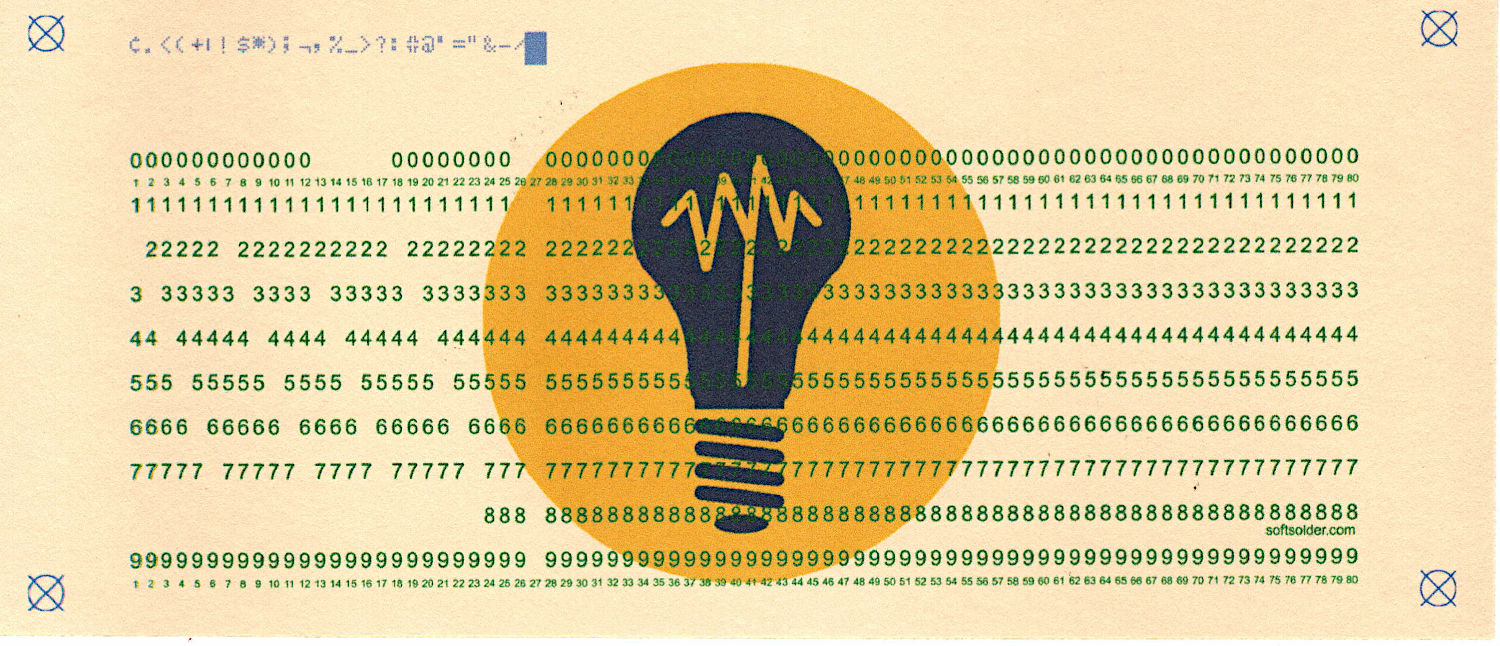
                "¢.<(+|!$*);¬,%_>?:#@'=" + '"' + "&-/█",
                "▯" * NumCols,      # hack for row number alignment
                )
A Contents string contains the characters going onto the card, which can come from either the command line or TestStrings:
if args.test:       # test patterns used without changes
    Contents = TestStrings[args.test - 1].ljust(NumCols,' ')

else:               # real cards need cleaning
    Contents = ''.join(itertools.chain(*args.contents))

    if args.seq:
        nl = 8 - len(args.prefix)
        Contents = Contents.ljust(NumCols - 8,' ')[:(NumCols - 8)]
        Contents = Contents + f"{args.prefix}{args.seq:0{nl}d}"
    else:
        Contents = Contents.ljust(NumCols,' ')[:NumCols]

    if not args.lower:
        Contents = Contents.upper()
The args.seq command line option gives either the starting sequence number or, when zero, leaves the original text unchanged. Adding sequence numbers to the Apollo AGC source code is non-canon; so be it. All of the adjusting turns Contents into an 80 character string.
The CharMap converts each Unicode character in Contents into a list of the holes to be punched in that column:
CharMap = {
    " ": (),
    "0": (0,),
    "1": (1,),
… snippage …
    "Z": (10,9),
    "a": (12,10,1),
… snippage …
    "&": (12,),
    "-": (11,),
    "/": (10,1),
    "█": (12,11,10,1,2,3,4,5,6,7,8,9),      # used for lace card test pattern
    "▯": (12,10,2,4,6,8),      # used for alignment tests with hack for row numbers
}
The numbers in the list are effectively “row names” which must be translated into the physical row index (from the top of the card, because Y coordinates increase downward in SVG files):
RowMap = (2,3,4,5,6,7,8,9,10,11,2,1,0)
The top three card rows are named “12 / 11 / 10”, with the “10 row” in the same place as the “0 row” = third row from the top = index 2, which is why the mapping is not one-to-one.
Whereupon punching the holes goes a little something like this:
if args.layout == "laser":
    for c in range(len(Contents)):
        glyph = Contents[c]
        if not (glyph in CharMap):
            glyph = ' '
        for rn in CharMap[glyph]:
            r = RowMap[rn]
            HoleEls.append(
                svg.Rect(
                    x=svg.mm(BaseHoleAt[X] + c*HoleOC[X] - HoleSize[X]/2),
                    y=svg.mm(BaseHoleAt[Y] + r*HoleOC[Y] - HoleSize[Y]/2),
                    width=svg.mm(HoleSize[X]),
                    height=svg.mm(HoleSize[Y]),
                    stroke=HoleCut,
                    stroke_width=svg.mm(DefStroke),
                    fill="none",
                )
            )
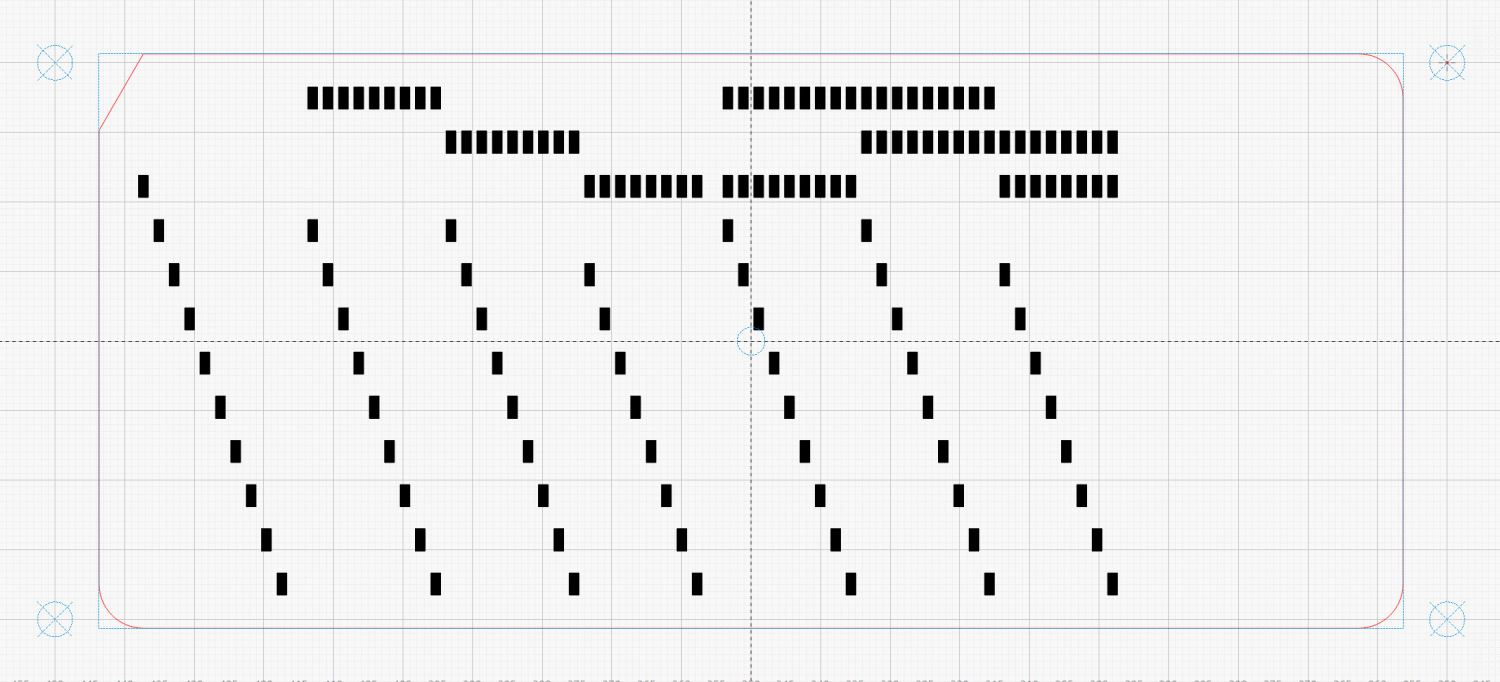
Mercifully, everything is in millimeters and LightBurn plunks the holes exactly where they should be:
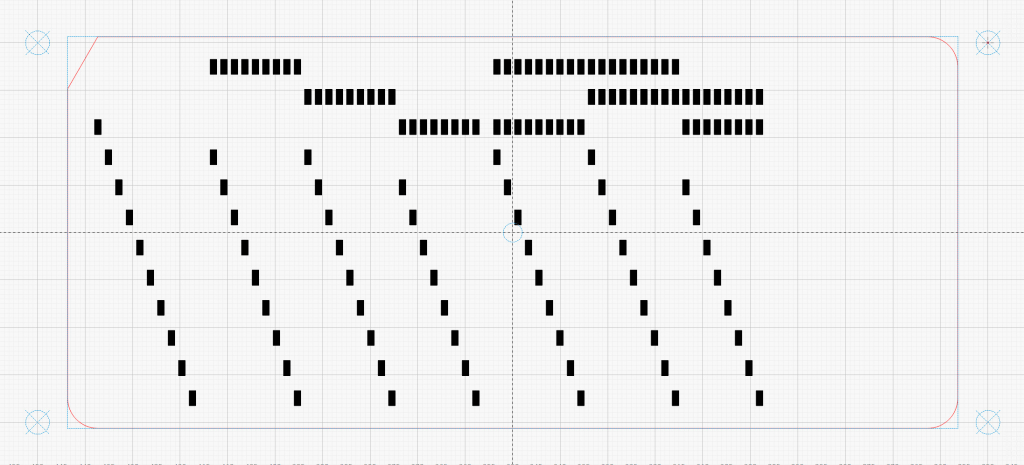
Punched Cards – laser SVG layout
That’s the LightBurn layout with the rectangles on the black layer set to Fill. The SVG rectangles have fill="none" because LightBurn uses only the vector stroke, so you’ll see hollow rectangles in any other program. The card outline goes on the red layer set to Line for cutting.
Punching evaporating those holes must happen on the printed card made with the same text string, which requires another pass through the program with different command-line parameters.
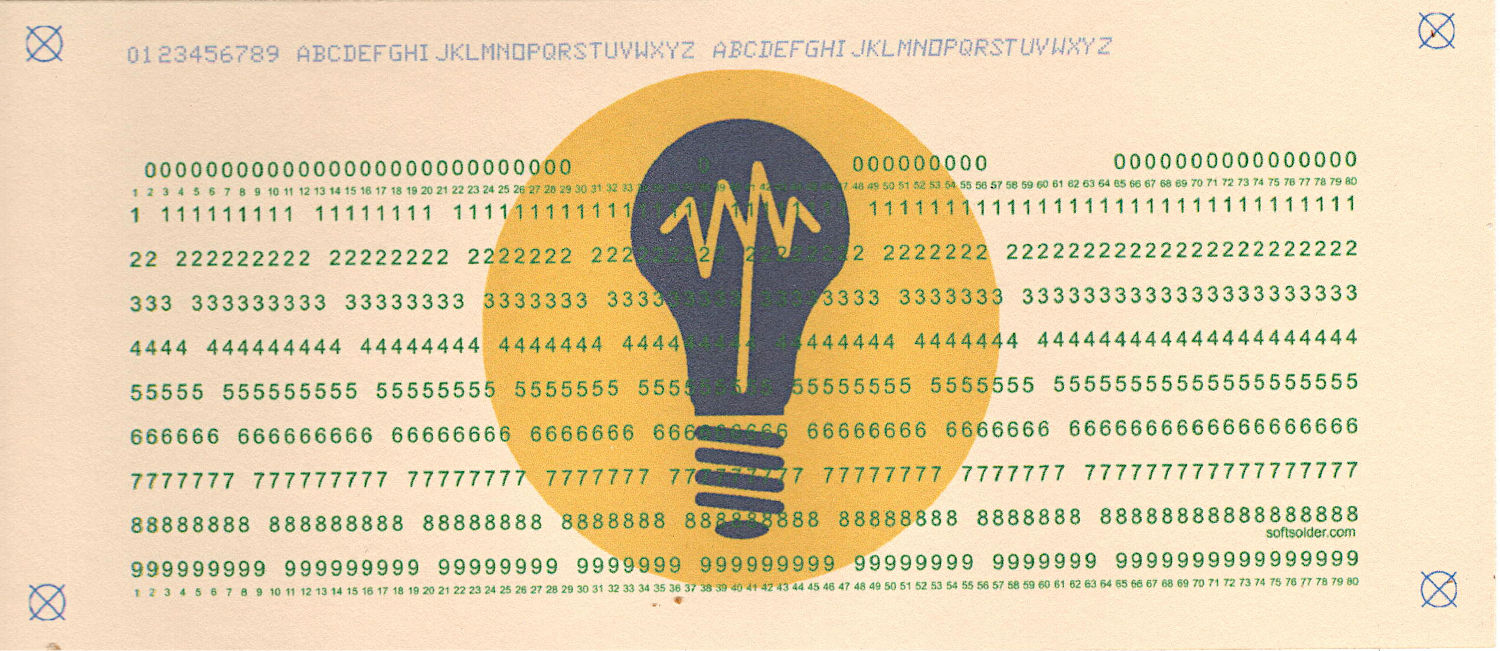
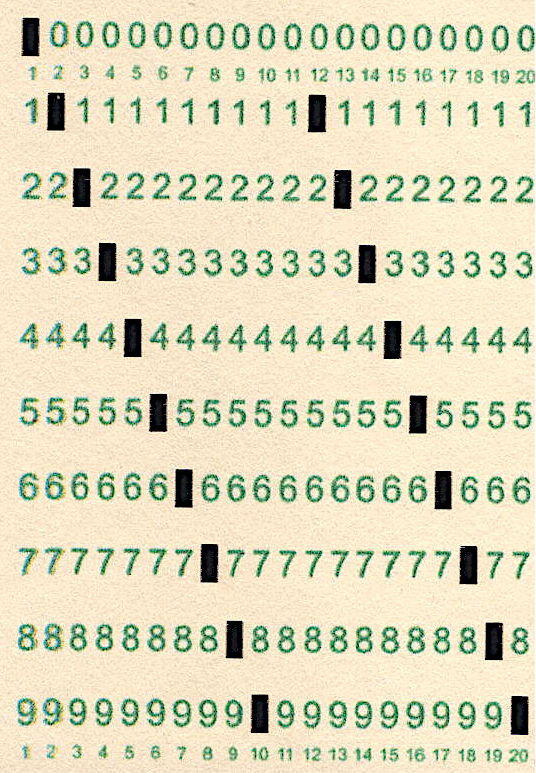
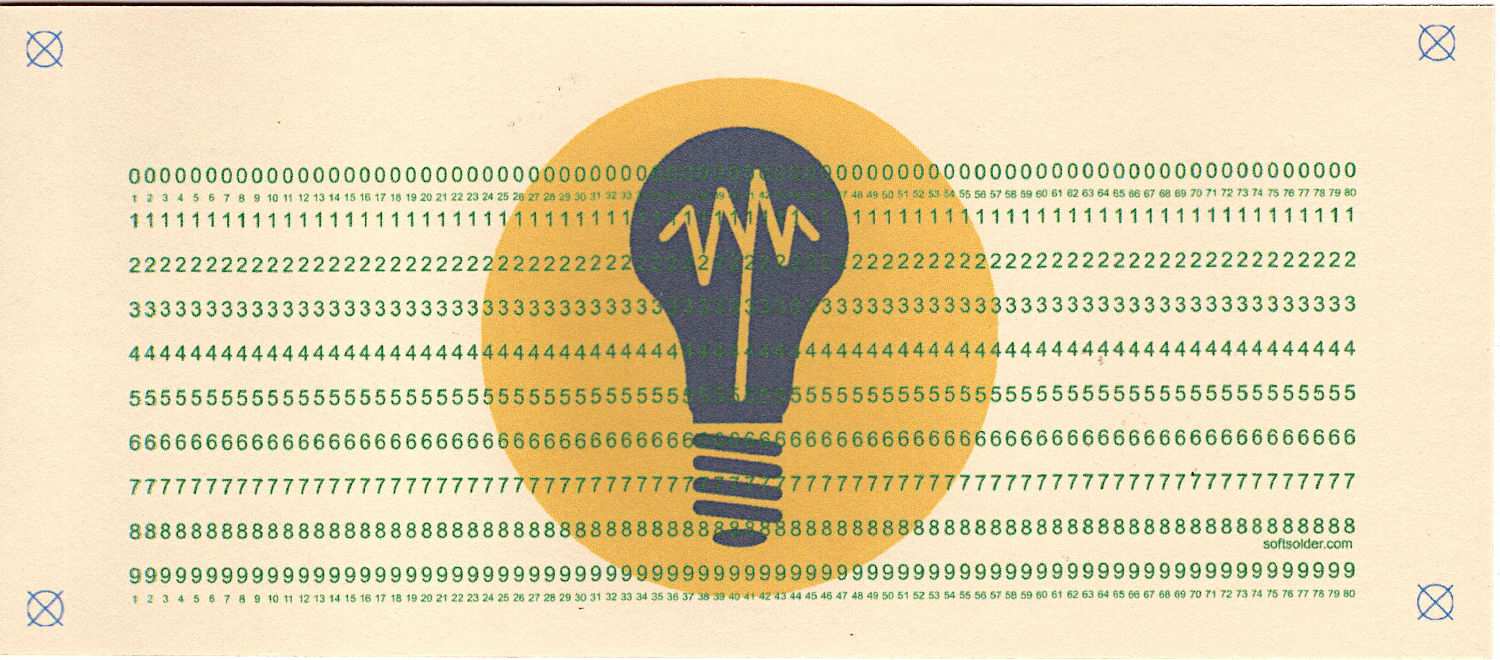
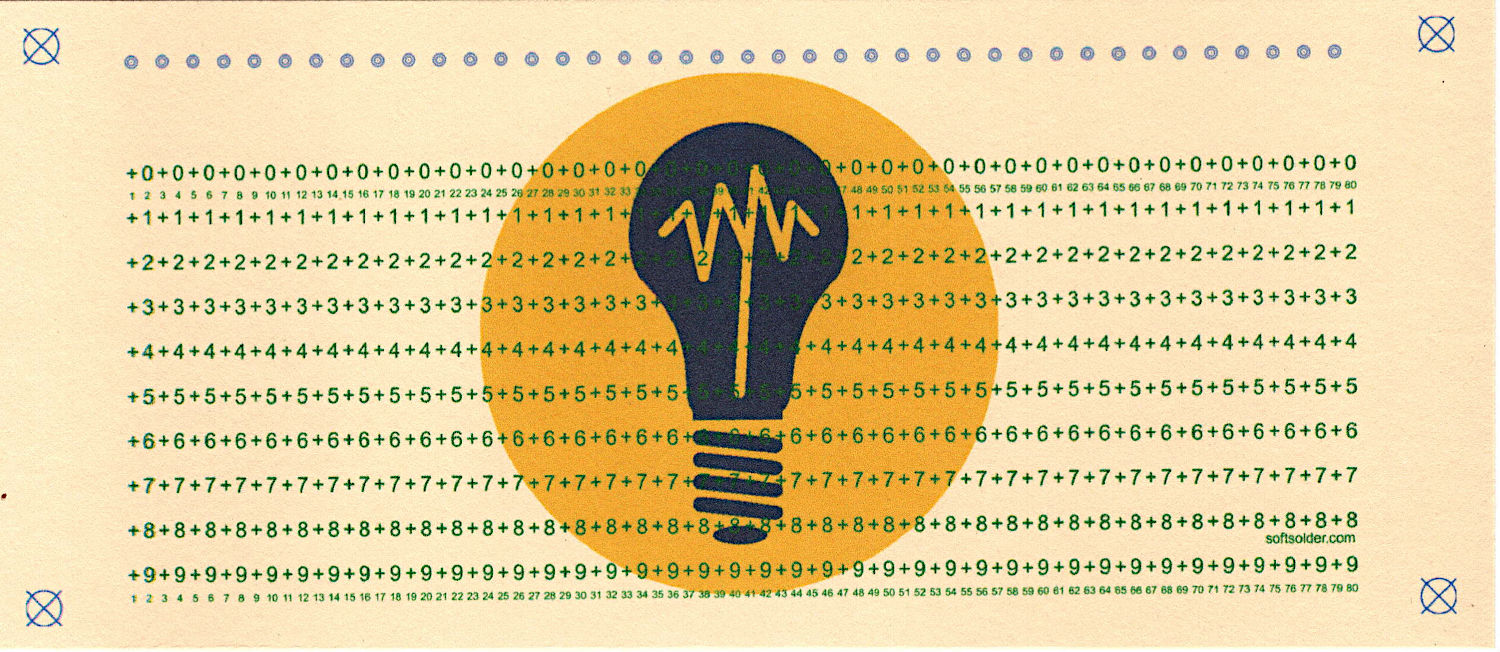
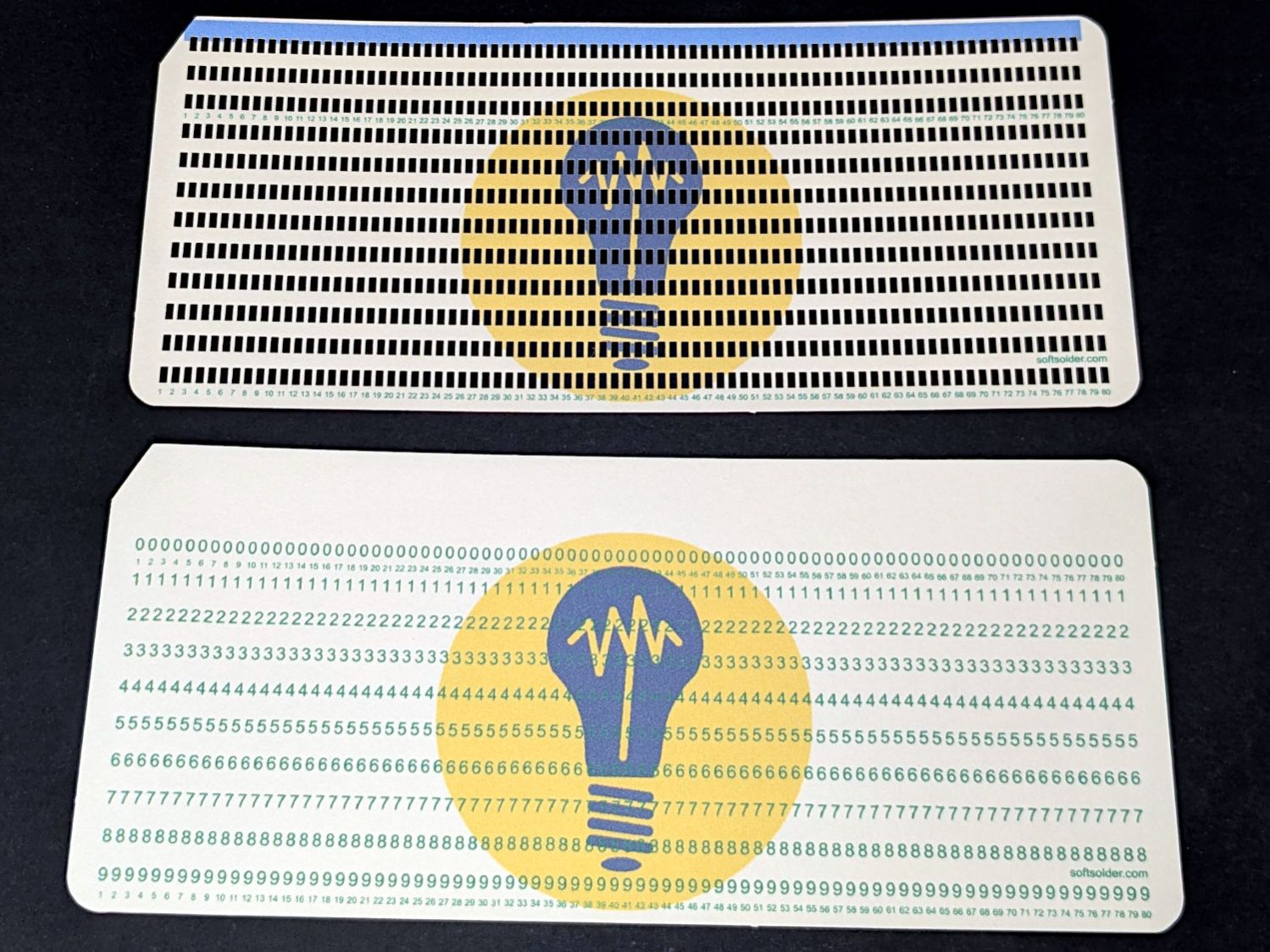
A real blank card has a digit corresponding to the row name printed in every column, much like the bottom card:
Punched cards – lace and blank tests
In these cards, the digits aren’t printed at the positions where holes will appear:
Punched Cards – print SVG layout
Preventing a digit sliver from peeking around the edge of a hole makes the text-to-hole alignment look better than it really is. As a bonus, if the holes evaporated in the 9 row don’t match up with the missing digits, poking the STOP button on the laser minimizes the damage; for these cards, I can tolerate a slight punching error.
FWIW, back in the day you could get cards printed with any ink color you wanted, as long as you were buying a million or two. While green ink is non-canon for the cards I remember, it was possible.
Not printing a digit requires some gyrations:
if args.layout == "print":
    xoffset = 0.3                  # tiny offsets to align chars with cuts
    yoffset = 1.5
    for c in range(NumCols):
        glyph = Contents[c]
        rnx = CharMap[glyph]        # will include row name 10 aliased as row name 0
        for rn in range(10):
            pch = RowGlyphs[rn]     # default is digit for row
            if ((rn in rnx) or ((rn == 0) and (10 in rnx))):  # suppress punched holes
                pch = RowGlyphs[-1] if glyph == "▯" else " "  # except for alignment tests
            r = RowMap[rn]
            TextEls.append(
                svg.Text(
                    x=svg.mm(BaseHoleAt[X] + c*HoleOC[X] + xoffset),
                    y=svg.mm(BaseHoleAt[Y] + r*HoleOC[Y] + yoffset),
                    class_=["holes"],
                    font_family="Arial",        # required by LightBurn
                    font_size="3.0mm",          # required by LightBurn
                    text_anchor="middle",
                    text=pch
                )
            )
The xoffset and yoffset values come from empirical measurements and will likely not match whatever your printer produces.
The text and hole layout assume the corner targets have been aligned, so the final alignment depends on at least:
Eyeballometric positioning of red dot at target center
Red dot pointer to actual laser spot alignment
Correct focus distance
Printer stability in both X and Y
The font gets selected by the class_ and font_family attributes, with Inkscape requiring the former and LightBurn the latter. Just to keep things interesting, each program ignores the other attribute. The class_ attribute selects one of the Style entries emitted while blurting out the accumulated SVG elements:
The print(canvas) statement squirts the SVG text to stdout, where the Bash script directs it into a suitable file.
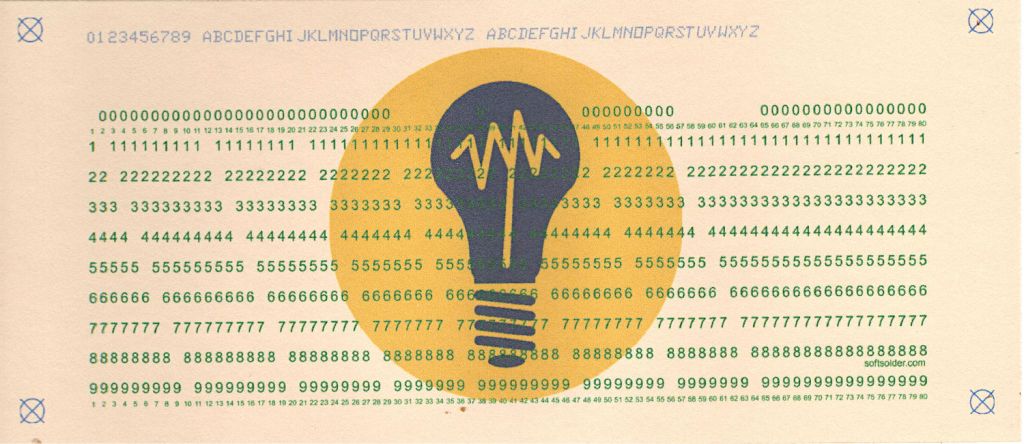
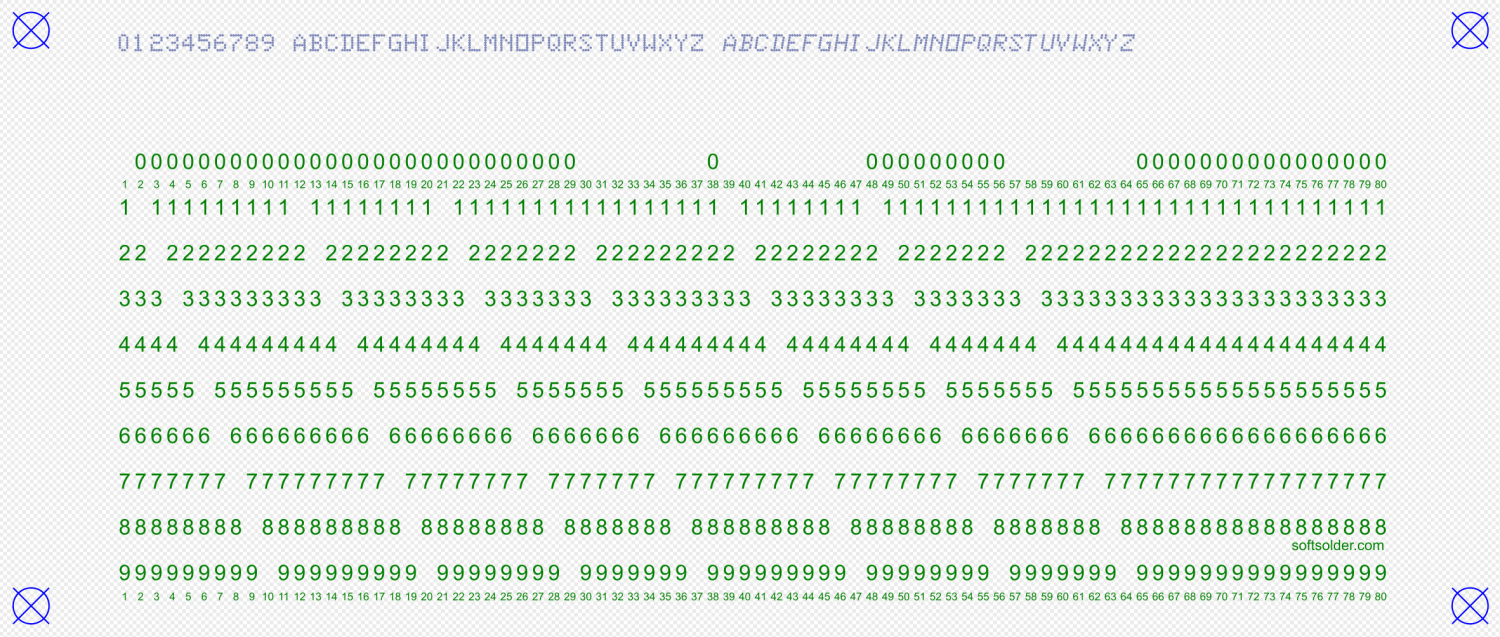
The Contents string appears across the top of the card in a dark-ish gray-ish color resembling a well-worn IBM 029 keypunch machine ribbon, with the KEYPUNCH029 font providing gritty 5×7 verisimilitude:
if args.layout == "print":
    xoffset = 0.3
    for c in range(len(Contents)):
        glyph = Contents[c]
        if not (glyph in CharMap):
            glyph = ' '
        fc = "dottylc" if curses.ascii.islower(glyph) else "dotty"
        glyph = svg.escape(glyph)               # escape the characters that wreck SVG syntax
        TextEls.append(
            svg.Text(
                x=svg.mm(BaseHoleAt[X] + c*HoleOC[X] + xoffset),
                y=svg.mm(5.0),                  # align just below card edge
                class_=[fc],
                font_family="KEYPUNCH029",      # required by LightBurn
                font_size="4.0mm",              # required by LightBurn
                text_anchor="middle",
                text=glyph
            )
        )
Although lowercase letters on a punched card are definitely non-canon, the args.lower command-line switch applies italic to them and the font maps them to uppercase.
Dumping unfiltered text into an SVG file allows code injection attacks, which I discovered when this test card passed through:
Two passes through the program with appropriate switches and the same text will produce two matching SVG files. Although they’re scaled to the same size, the SVG-to-be-printed requires considerable processing before the printer sees it …








 The Smell of Molten Projects in the Morning