Ed Nisley's Blog: Shop notes, electronics, firmware, machinery, 3D printing, laser cuttery, and curiosities. Contents: 100% human thinking, 0% AI slop.
Category: Software
General-purpose computers doing something specific
Some geometry review and a bit of fiddling with LightBurn produced regularized patterns suitable for laser cuttery:
Danger Zone Earrings – radioactive – handful
A key trick: circumscribe the figure with a circle on a tool layer, then group the whole mess together, so that the center of the circle coincides with the desired center of the figure. In particular, the geometric center of an equilateral triangle is not at the center of its vertical extent:
Danger Zone Earrings – radioactive – LB layout
The dark blue layer engraves the surface, the red layer cuts through 3 mm acrylic, and the light blue layer is the tooling.
I like the edge-lit ones, although the simplicity of laser-cut clear acrylic is hard to beat:
Danger Zone Earrings – radioactive – white light
Wearing them in a place flooded with UV radiation would set you apart:
Danger Zone Earrings – radioactive – GITD UV
The careful observer will note stress cracking in the two clear earrings in the middle row. Those came from the vintage paper-covered acrylic sheet and I used alcohol to clean off the not-quite-vaporized glue just to see if isopropyl alcohol would behave differently than denatured alcohol. Nope, the cracks appear instantly.
Peeling the paper and engraving the bare surface produced the clear-frosted earring in the upper right, with the radiation symbol cut out of the sheet. Engraving without surface protection tends to deposit vaporized acrylic dust everywhere, so it would require hand cleaning without the cutouts.
The cutouts get 0.1 mm inward offsets to slightly increase the wall thickness around that central circle.
One combination I didn’t try: engrave the triangle perimeter for emphasis and cut out the symbol for contrast with edge-lit acrylic.
Dropping other symbols into place should be straightforward, with the center of the circumcircle as the snap target.
Using Bash arrays is an exercise in masochism, but I got to recycle most of the oddities from the previous script, so it wasn’t a dead loss.
The cameras use individually unique / screwy / different filesystem layouts, so the script must have individual code to both copy the file and decapitalize the file extensions. This prevents using a single tidy function, although laying out the code in case statements keyed by the camera name helps identify what’s going on.
My previous approach identified the MicroSD cards by their UUIDs, which worked perfectly right up until the camera reformats the card while recovering from a filesystem crash and installs a randomly generated UUID. Because there’s no practical way to modify an existing UUID on a VFAT drive, I’m switching to the volume label as needed:
In particular, note the two UUIDs for the M20 camera: there’s a crash and reformat in between those two lines. The two C100 cameras started out with labels because the M20 taught me the error of my ways.
The script simply iterates through a list array of the cameras and tries to mount the corresponding MicroSD card for each one: the mount points are cleverly chosen to match the camera names in the array. Should the mount succeeds, an asynchronous rsync then slurps the files onto the bulk video drive.
With all the rsync operations running, the script waits for all of them to complete before continuing. I don’t see much point in trying to identify which rsync just finished and fix up its files while the others continue to run, so the script simply stalls in a loop until everything is finished.
All in all, the script scratches my itch and, if naught else, can serve as a Bad Example™ of how to get the job done.
A picture to keep WordPress from reminding me that readers respond positively to illustrated posts:
This file contains hidden or bidirectional Unicode text that may be interpreted or compiled differently than what appears below. To review, open the file in an editor that reveals hidden Unicode characters.
Learn more about bidirectional Unicode characters
That’s built directly from the original specs to get the spacing and symmetries correct. The freebies I could find all suffered from various degrees of bad design & layout.
Shrunken down to 25 mm OD, the tips become vanishingly small:
Biohazard earring – vinyl sample
It’s the same laser-safe polyurethane vinyl as the SD card reader, this time applied to 3 mm black acrylic. The “gold” ring is just parked in place, as this one wasn’t presentation-quality.
Contrary to the usual transfer-tape method of applying PSA vinyl, I stuck the sheet to the acrylic before cutting, then weeded it directly off the acrylic:
Biohazard earring – vinyl weeding
Kiss-cutting the vinyl with dot mode ate into the acrylic, but the soon-to-be-weeded areas protected the surroundings and the result came out looking pretty good. To me, anyhow.
Flushed with success, I tried some almost certainly not laser safe glow-in-the-dark tape:
Biohazard earring – GITD weeding fail
The mess in the upper left is the tape’s double-sided adhesive intended to hold the glowy layer in place forever. Of course it weeded poorly!
Seen in its natural environment, however, weeding may not be necessary:
Biohazard earring – GITD tape glow
Engraving the rebated rim leaves quite a bit of debris & scorch marks around the perimeter. A mask layer atop the GITD tape seems like a Good Idea™.
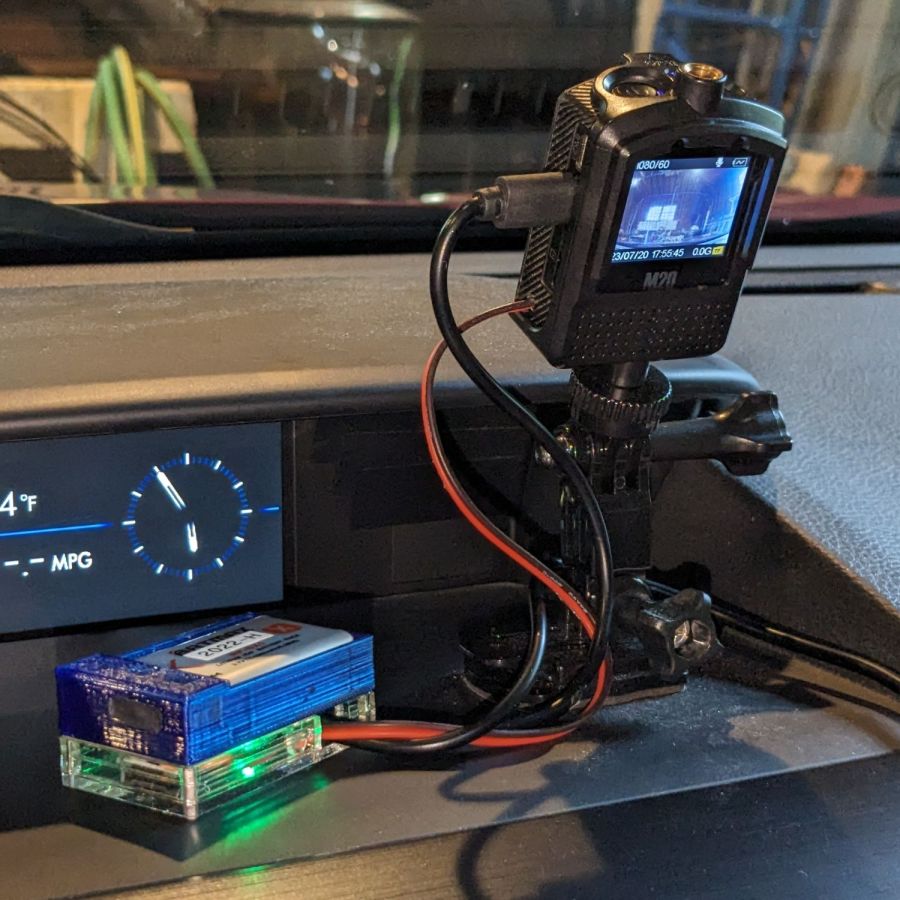
As expected, the internal battery does not last for our usual hour-long rides, so the cameras now operate in “car mode”: recording starts when we plug in the USB battery pack and stops shortly after unplugging.
I started with the waterproof case on my bike:
Tour Easy – SJCAM C100 mount – installed
Which (obviously) does not allow for an external battery, so they’re now in the “frame” mount. The hatch covering the MicroSD card and USB Micro-B connector (and a Reset button!) is on the bottom of the camera, but (fortunately) the whole affair mounts up-side-down and the settings include an image flip mode.
The ergonomics / user interface of this whole setup is terrible:
The camera’s flexible hatch is recessed inside the frame far enough that it cannot be opened without using a small & sharp screwdriver
The USB jack is slightly off-center, so lining the plug up with the camera body doesn’t align it with the jack
The MicroSD card is in a push-to-release socket, but its raised ridge faces the hatch flap and cannot be reached by a fingernail. I added a small tab that helps, but it’s difficult to grasp.
Extracting the video files from the camera through the app is an exercise in frustration. Having already figured out how to do this for the other cameras in the fleet, it’s easier to fumble with the MicroSD card.
I devoutly hope we never really need any of the videos.
It’s more properly called a “chain guide” and is basically a shifter cage minus the mechanism:
Chain Catcher – side view
Because the Tour Easy frame has a 25 mm tube where the guide’s clamp expects a minimum 31.8 mm tube, a 3D printed adapter fills the gap:
Chain Catcher adapter ring – solid model
The hole is off-center because it seemed like a good idea, although it’s not strictly necessary. The flange helps align the pieces while tightening the clamp screw.
The guide cage clears the chain on all sides while up on the work stand, but there’s nothing like getting out on the road to find out why something doesn’t work as you expect.
This file contains hidden or bidirectional Unicode text that may be interpreted or compiled differently than what appears below. To review, open the file in an editor that reveals hidden Unicode characters.
Learn more about bidirectional Unicode characters
When the chain falls off the top of the chainring toward the motor, the part remaining engaged with the chainring will inevitably drag the rest into the gap between the motor and the chainring spider, whereupon it will jam firmly in place and be almost impossible to extract. Preventing this means filling the gap, which required several iterations:
Bafang motor gap filler – prototypes
The Bafang motor has a cover held in place by seven M3 flat-head screws, shown here below a test filler using pan head screws:
Bafang motor gap filler – installed
Contrary to what you might think, the five screws that obviously sit on five points of a hexagon do not in fact sit 60° apart. How you find this out is by making the obvious layout, including the two screws bracketing the pinion gear in the lower right, then applying windage:
Bafang motor housing gap filler – hole adjustments
That’s one of the paper templates seen above, with laser-cut holes 60° apart and ugly holes punched at the actual screw locations. Then you scan and overlay that image with the LightBurn layout and twiddle the hole locations to make the answer come out right:
Bafang motor housing gap filler – hole adjustments – LB overlay
With that in hand, I cut a 1 mm acrylic shape to measure the clearance between the motor + filler and the chainring spider, with pan-head screws replacing the original flat-head screws:
Bafang motor gap filler – top view
That’s a single piece of 2.5 mm acrylic I used after discovering a pair of the 1 mm acrylic shapes fit with space to spare: hooray for rapid prototyping.
A test chain drop suggested it might suffice:
Bafang motor gap filler – test
If I were so inclined, 3 mm acrylic with countersunk holes and slightly longer flat-head screws would probably work, but I’ll use this until it fails to prevent a chain snag.
The careful observer will have noted the stress crack extending radially inward from the upper-right screw, which I am carefully avoiding doing anything about, pending the aforementioned failure.
Jog the laser to the upper-right target on the fixture, click the upper-right target in the template, and tell P-n-C that’s the First Target. Jog to the lower-left target, click the lower left target, and that’s the Second P-n-C Target:
Craft Stick Markers – fixture target detail
The colored circles indicate the targets on the template:
Craft Stick Markers – LB PnC layout
Select the Align No Scaling option, because the template and the fixture are exactly the same size.
Click-n-drag to select the entire template (because you should always use Cut Selected Graphics), then frame it Just To Be Sure. The red dot pointer (or whatever you use) should kiss the fixture’s perimeter all the way around.
Make sure the fill layer happens before the cut layer, then Release The Laser:
Craft Stick Markers – engraving
The cut layer trims around the engraved letters to leave them standing in the rectangle:
Craft Stick Markers – cutting
Some of the smaller bits won’t fall out as they’re cut, but a sharp thwack ejects them easily enough.
Producing a set of ten sticks takes maybe seven minutes:
Craft Stick Markers – fixture second fill
Because craft sticks aren’t intended for fine woodworking, don’t expect consistent engraving results:
Craft Stick Markers – wood engraving difference
Applying a finish would definitely improve their appearance, but most such chemicals don’t belong in an organic vegetable garden.