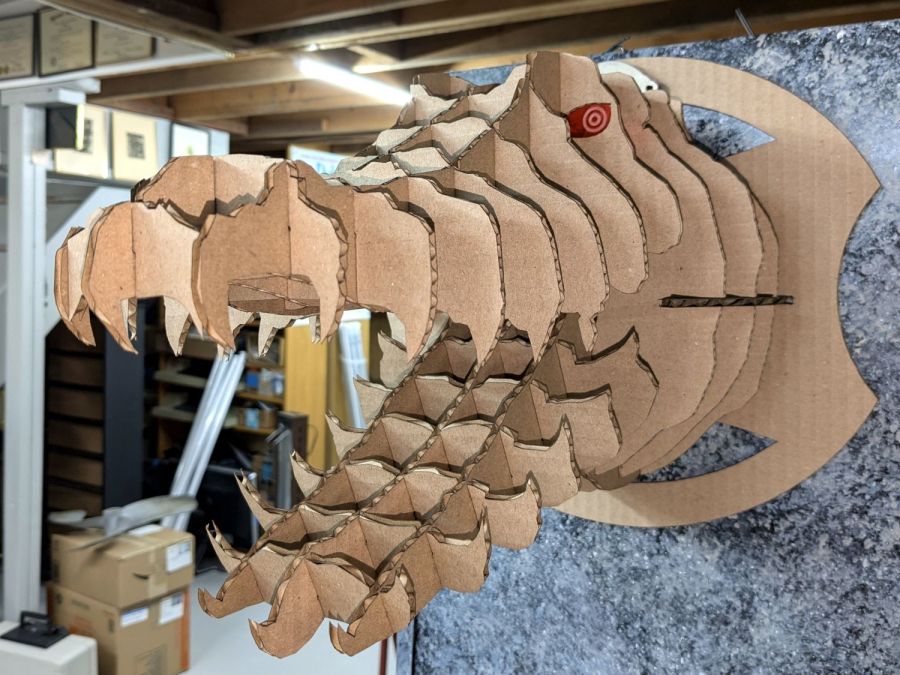
An alligator head should look good at the front door in late October:
The printing on the moving boxes makes it a bit less scary on the other side:
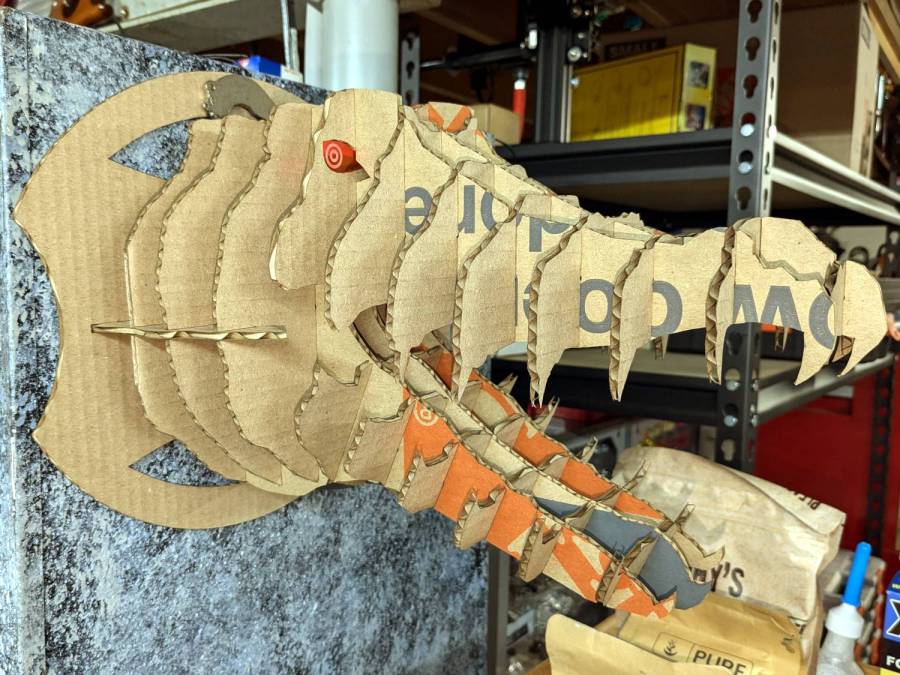
Perhaps those are gang tats!
The eyes are fluorescent acrylic and definitely improve the thing.
The Smell of Molten Projects in the Morning
Ed Nisley's Blog: Shop notes, electronics, firmware, machinery, 3D printing, laser cuttery, and curiosities. Contents: 100% human thinking, 0% AI slop.
General-purpose computers doing something specific
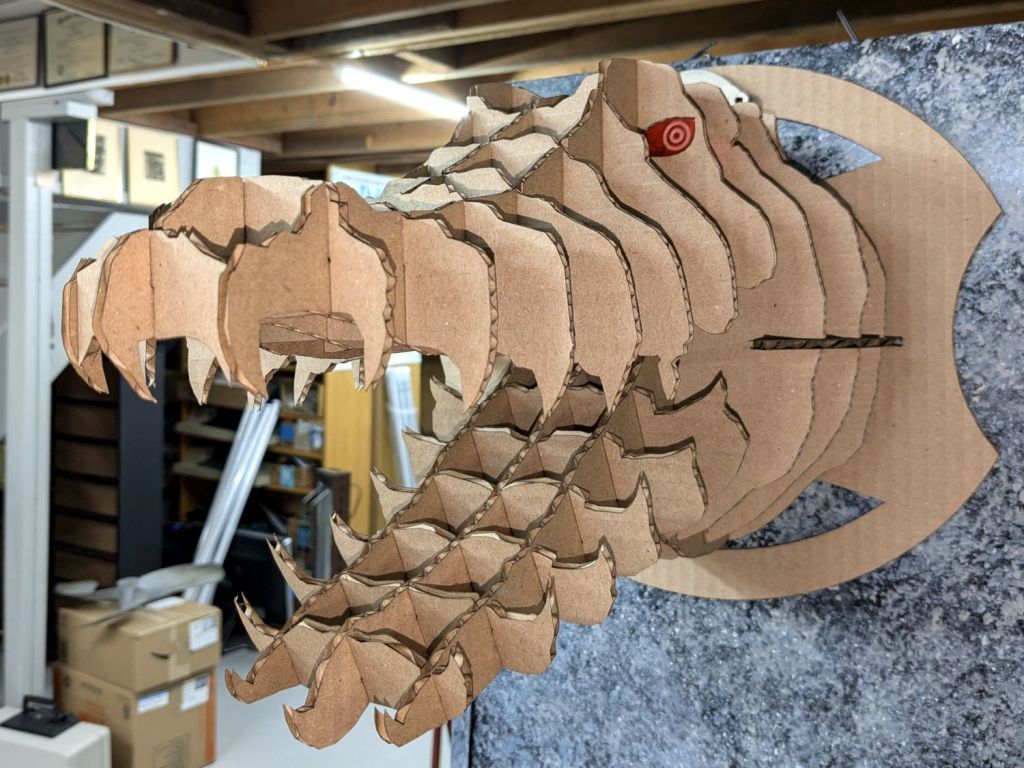
An alligator head should look good at the front door in late October:
The printing on the moving boxes makes it a bit less scary on the other side:
Perhaps those are gang tats!
The eyes are fluorescent acrylic and definitely improve the thing.
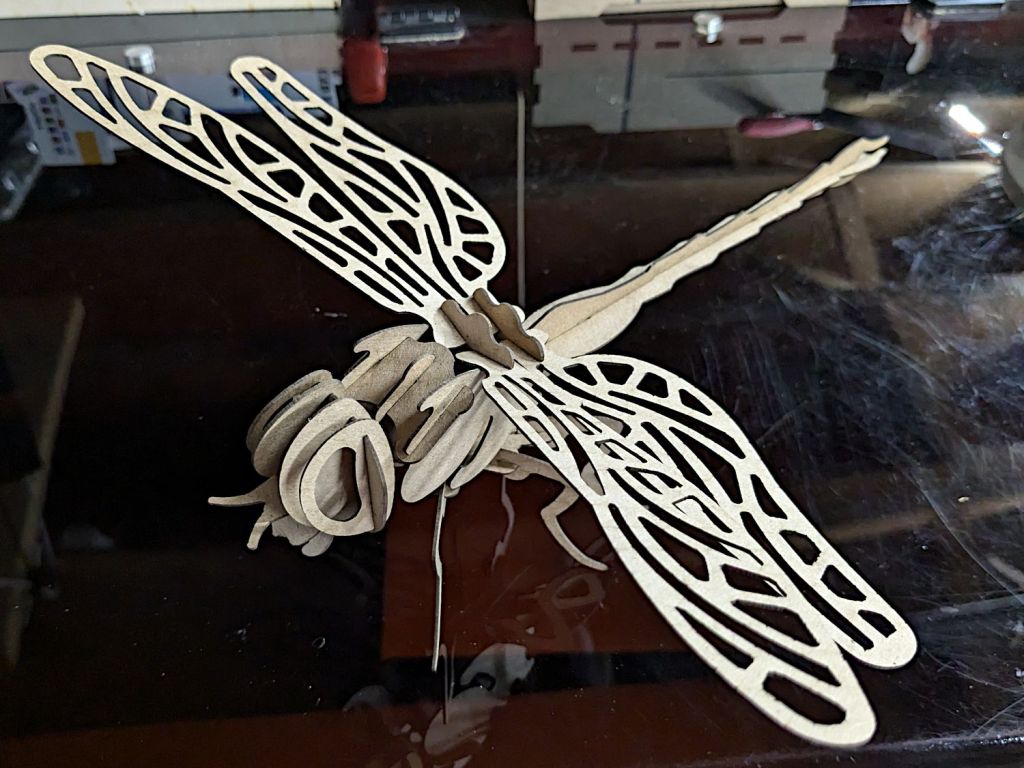
Continuing the theme of Halloween decorations (and slots-n-tabs resizing), a Dragonfly took shape:

It’s about a foot long, which makes one think of those prehistoric insects flying in dense, oxygen-rich air.
Of course, a Dragonfly needs prey, for which a Mosquito should suffice:

It’s about five inches from needle tip to tail and would certainly put up a stiff fight.
They’re both made from chipboard, with original model slot sizing being Close Enough that I could just resize the whole thing to fit the available sheets.
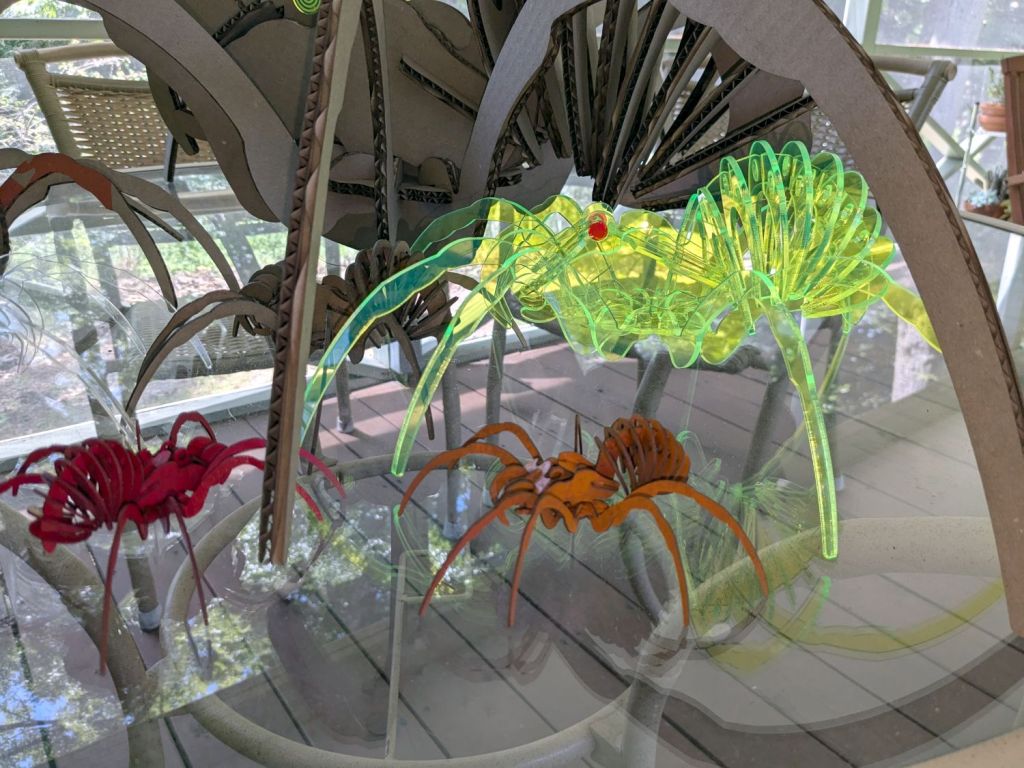
Starting from an SVG file set up for 3 mm material, apply the usual optimizations & tweaks to get a usable LightBurn file, then go nuts:
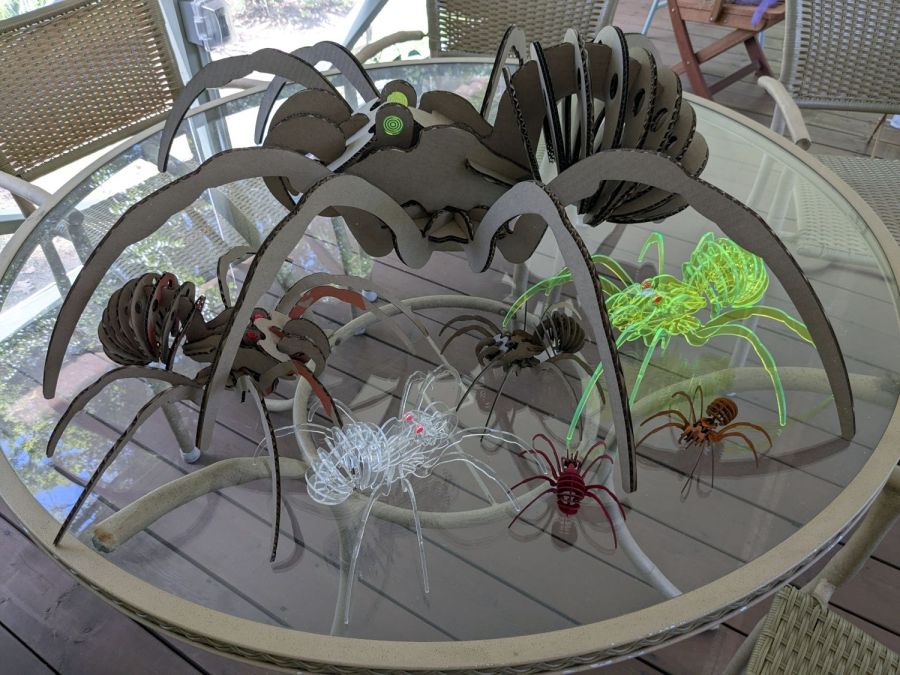
The big one is two cross-laid layers of corrugated cardboard using up the better part of three Home Depot Large moving boxes:

That little bitty grid is the 700×500 mm laser cutter platform, so I just slap a sheet of cardboard in place, update the workspace from the camera, select the next layout, drag it over the cardboard, and Fire The Laser.
The smaller cardboard spider over on the left is built with a single cardboard layer and succumbed to the square-cube law: the legs are entirely too bendy for the weight of the body. Although it’s not obvious from the pictures, both cardboard spiders have a keel plate I added under the body to support most of their weight.
The brightly colored little spiders got a coat of rattlecan paint without any underlying primer and definitely look like that happened:

The edge-lit fluorescent green spider is sized around 2.9 mm material, the clear spider uses 2.3 mm acrylic, and the chipboard one in the background is at 1.8 mm:

The eyes are fluorescent red or green acrylic with concentric circles engraved to catch the light. They’re more effective than I expected, although they won’t look like much after dark.
We now live in a neighborhood with youngsters and Halloween this year will be so much fun …
The WordPress AI image generator caught the general idea of “cardboard spiders”:
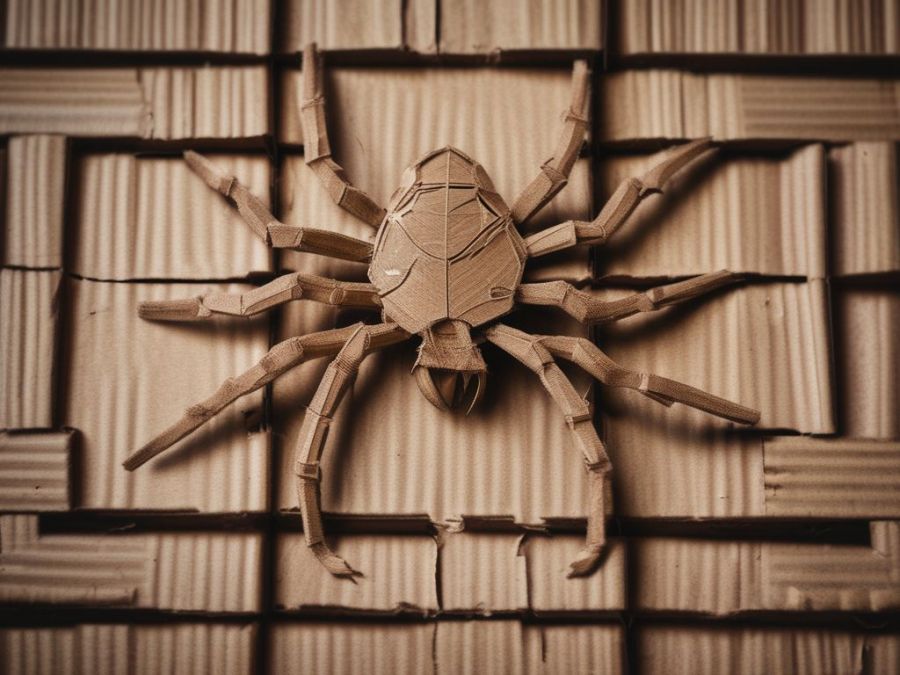
So. Many. Legs.

Continuing the theme of slot resizing & overall scaling:
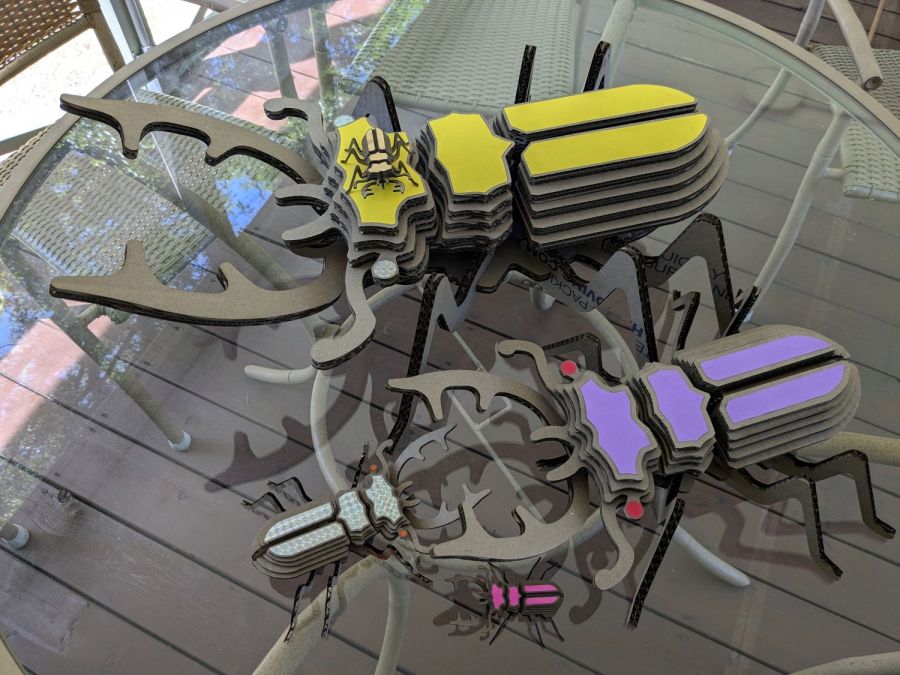
The original model has 3.0 mm slots and arrived in CorelDraw format requiring a bank shot off InkScape to create an SVG file suitable for LightBurn. After the usual cleanup & optimization, I applied global rescaling to match the available material.
The smallest beetles use 1.9 mm chipboard:
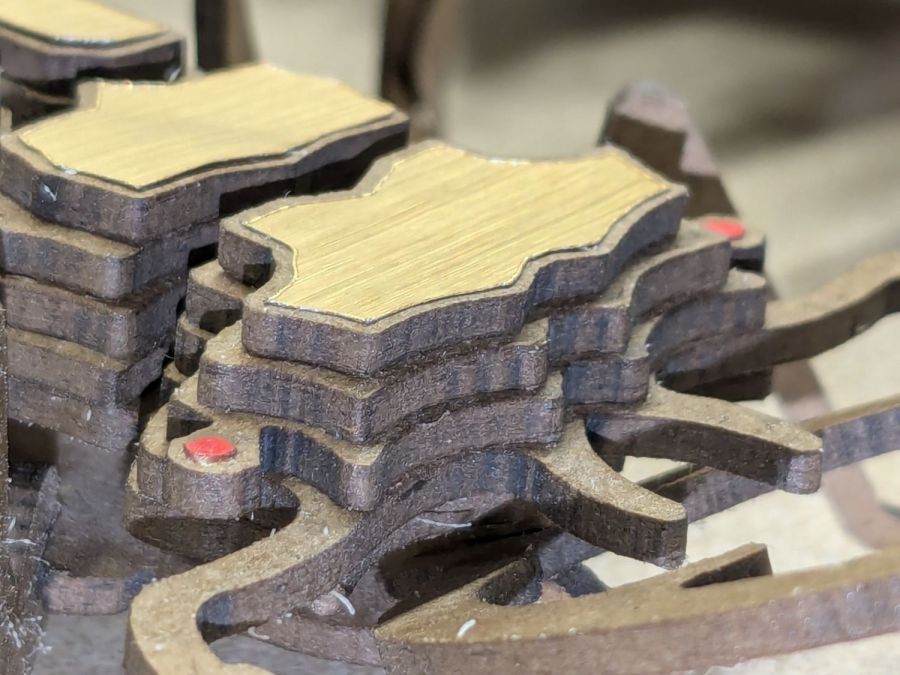
Everything is held together by ordinary wood glue, squeezed together for a few moments until the two parts no longer slide around.
One layer of 3.9 mm corrugated cardboard:
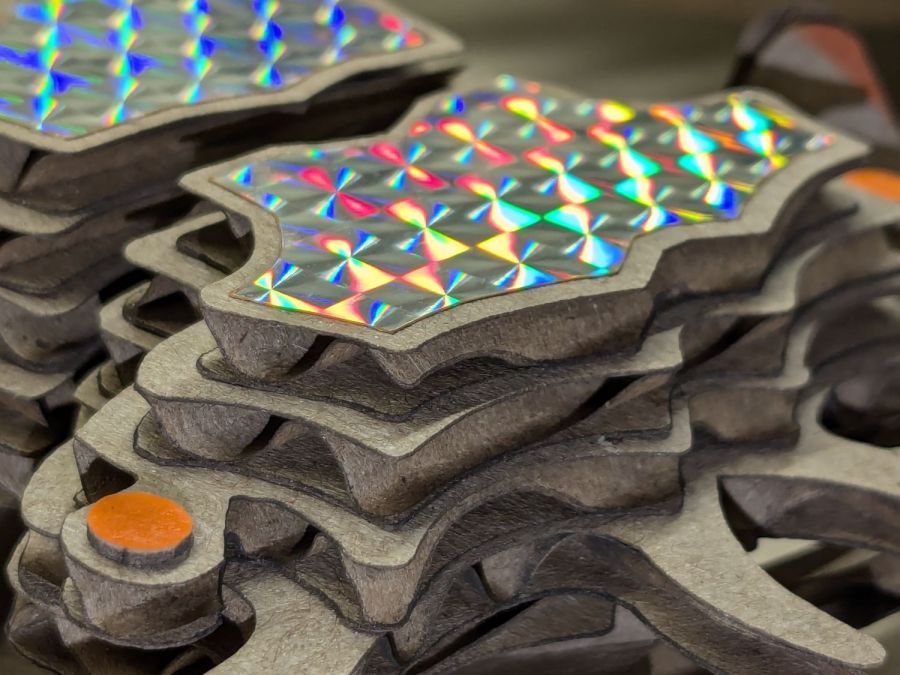
The fancy gold & hologram decorations come from what’s surely non-laser-safe PSA vinyl sheets, cut by offsetting the top layer shapes inward a reasonable amount. The eyes come from random colored paper or painted chipboard.
Two layers of cardboard add up to 8 mm:
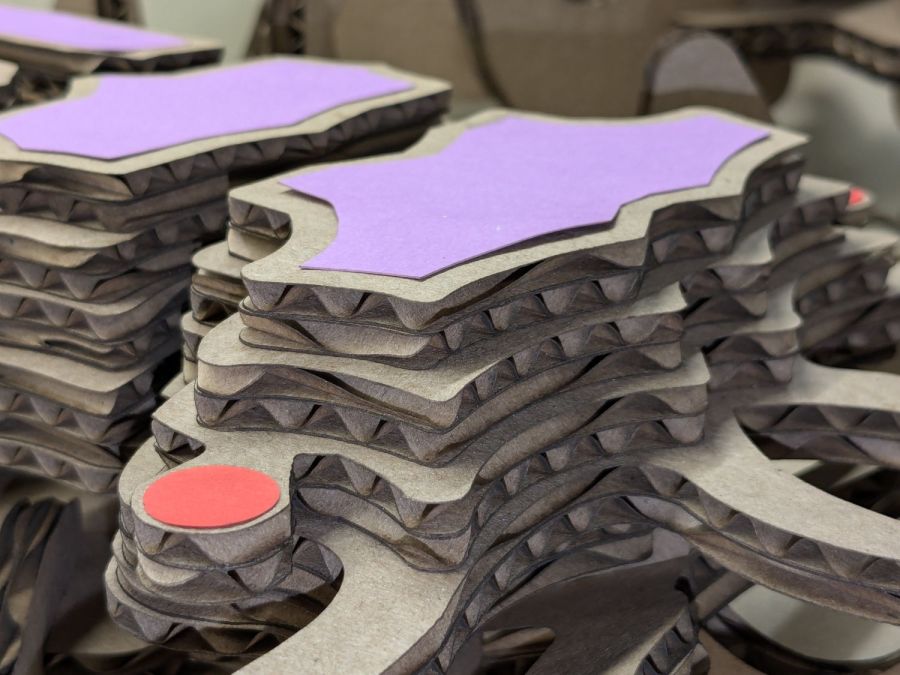
That’s purple paper left over from the layered paper quilt blocks and, obviously, my glue stick hand is weak.
Three layers of cardboard makes each part half an inch thick:

That bad boy needs black stripes on yellow in the universal “Fear me! I am a seriously dangerous creature!” danger marking.
The layers are laid out with crossed corrugations to make the part less bendy, which is more necessary for the relatively slender legs.
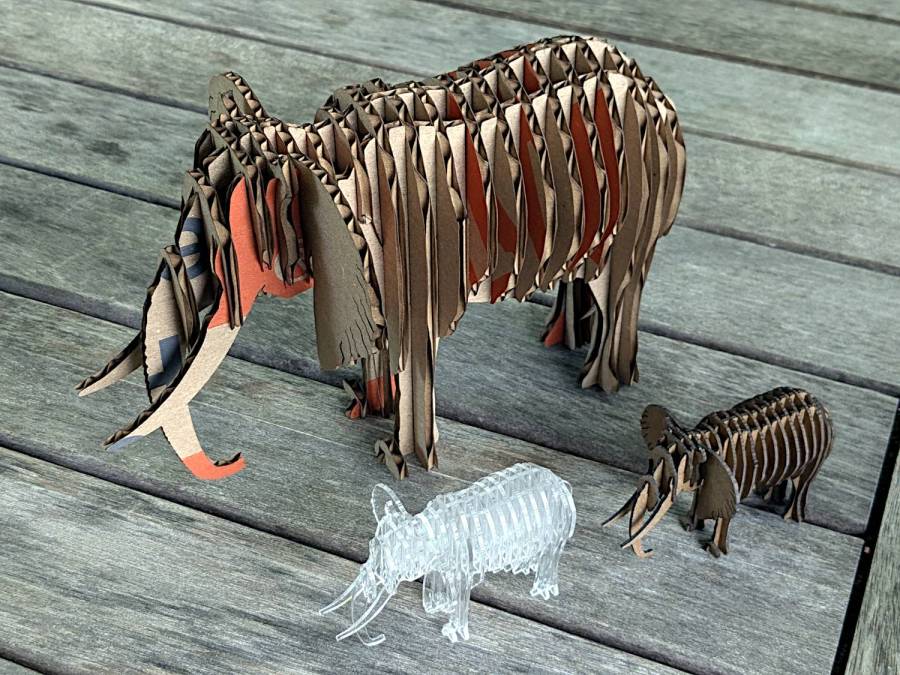
It’s two feet long and chewed up the better part of two Home Depot Extra Large moving boxes:
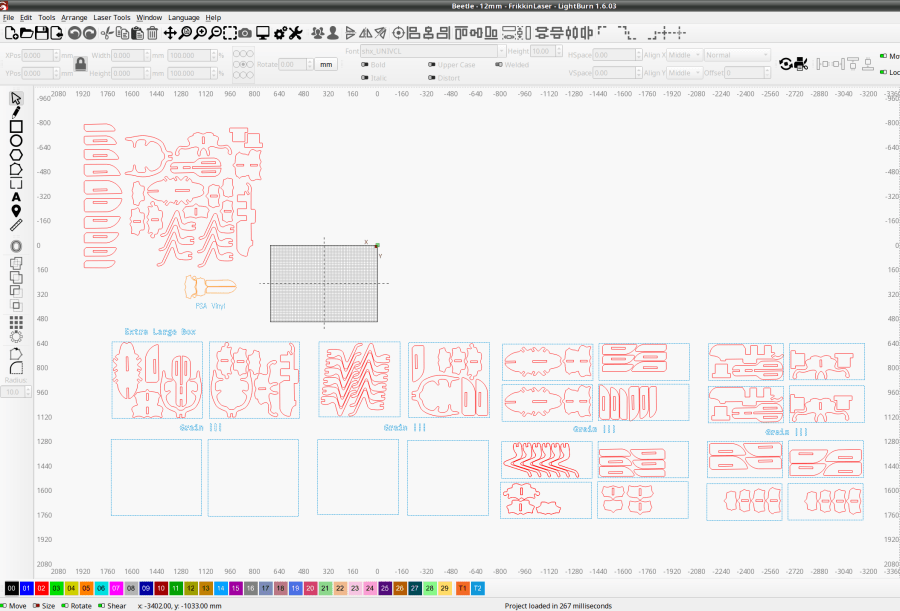
The gridded rectangle represents the 700×500 mm laser platform.
The little ones are kinda cute and not too threatening:

Yes, that is one of the Goldbug Variations.

Continuing the theme of slot resizing for various materials:
The DXF pattern imports directly into LightBurn and requires the usual joining / closing / optimization before all the slots resize in unison. Doing the resize changed the slots from the original 3.0 mm to the 3.9 mm required to convert a cardboard moving box into a pachyderm.
The leg sections turned out to be a bit too thin for corrugated cardboard, so the corrugations came loose from the surface sheets, although the tail looked much more realistic. Stipulated: corrugated cardboard is the wrong material, but I really didn’t need a big MDF elephant looming over everything else.
The smaller elephants, both in 1.5 mm thick materials, come from a global resize applied through the LightBurn Numeric Edit toolbar:
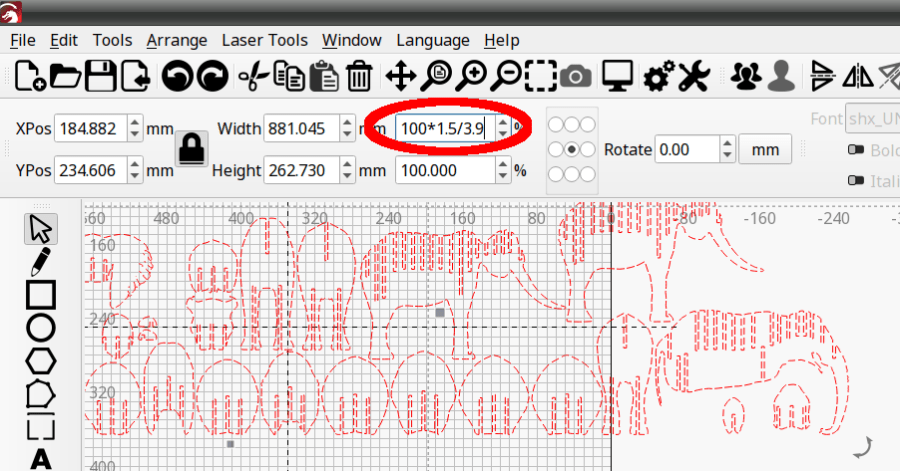
The ratio makes the slots become the new size, with the entire rest of the design scaled around them. This works if you don’t much care about the overall size, but is rare in actual practice where you need a model “that big” with the slots fitting “that material”.
But the pieces just slid together:
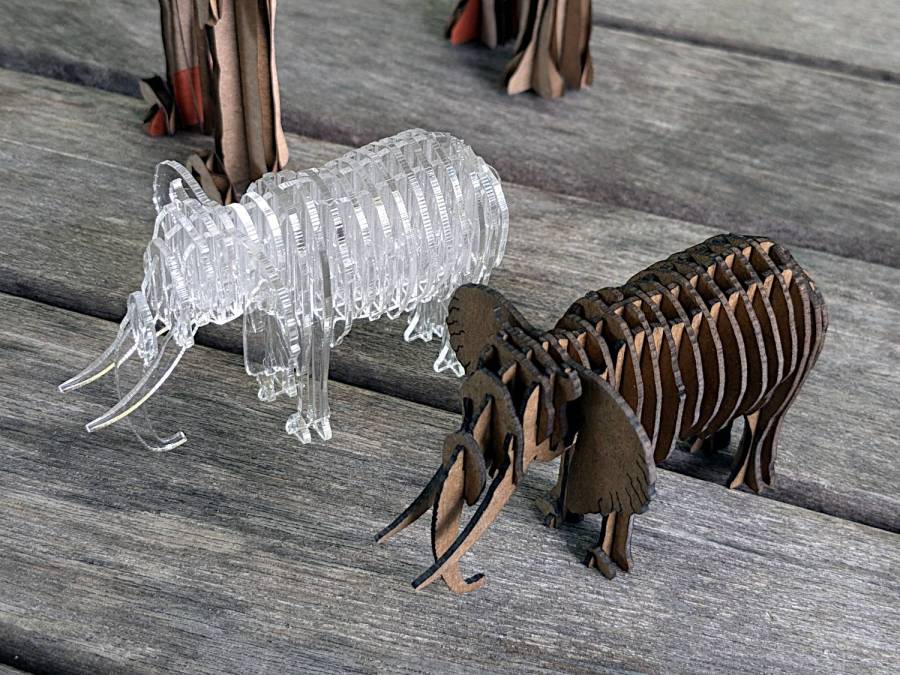
I put dots of cyanoacrylate in the acrylic joints, although the vapors scarred the surface enough to remind me why that’s the wrong adhesive for the job when you care about surface quality. Dots of wood glue hold the chipboard elephant together, with a quick shot of clear rattlecan paint to knock down the smell of the charred edges; I’d say the color came out about right.
All in all, they worked out rather well.

With the new battery mount & buck converter box installed on Mary’s bike, I updated the running light circuitry to match the ones on my bike. The original wiring just supplied 6.3 V from the headlight circuit, but now the four wire ribbon cable from the electronics box carries 6.3 VDC from the buck converter and a 6 VDC signal going high when the DPC-18 display’s “headlight” output goes active. The latter goes into an optoisolator pulling down Pin 2, telling the running light to stay on continuously.
The optoisolator sits next to the Arduino Nano’s Reset button:

The black wire barely visible below the optoisolator jumpers Pin 3 to ground, telling the firmware that this is the front running light.
The black & white wires from the top of the optoisolator connect directly to the ribbon cable entering on the other side:

The gray wrap of clear silicone tape mummifies the wire-to-wire soldered connectors.
The firmware now pays attention to the jumper input, so I need only one source file for both front and rear lights:
    if (digitalRead(PIN_POSITION) == HIGH) {
        Blinks = String("i e  ");             // rear = occulting
        Polarity = true;
    }
    else {
        Blinks = String("n e  ");             // front = blinking
        Polarity = false;
    }
It just doesn’t get much easier than that!
The Arduino source code as a GitHub Gist:
| // Tour Easy Running Light | |
| // Ed Nisley – KE4ZNU | |
| // September 2021 | |
| // 2023-03 preprocessorize for front/rear lights | |
| // 2024-06 input bit for front/rear | |
| // https://github.com/markfickett/arduinomorse | |
| #include <morse.h> | |
| // Bafang headlight output pulls pin low | |
| #define PIN_LIGHTMODE 2 | |
| // Jumper pin low for front light | |
| #define PIN_POSITION 3 | |
| // Current regulator Enable: positive to turn on | |
| #define PIN_OUTPUT 13 | |
| String Blinks; | |
| boolean Polarity; | |
| // second param: true = active low output | |
| MorseSender *Morser; | |
| void setup() | |
| { | |
| pinMode(PIN_LIGHTMODE,INPUT_PULLUP); | |
| pinMode(PIN_POSITION,INPUT_PULLUP); | |
| if (digitalRead(PIN_POSITION) == HIGH) { | |
| Blinks = String("i e "); // rear = occulting | |
| Polarity = true; | |
| } | |
| else { | |
| Blinks = String("n e "); // front = blinking | |
| Polarity = false; | |
| } | |
| Morser = new LEDMorseSender(PIN_OUTPUT,Polarity,(float)10.0); | |
| Morser->setup(); | |
| Morser->setMessage(String("qst de ke4znu ")); | |
| Morser->sendBlocking(); | |
| Morser->setSpeed(75); | |
| Morser->setMessage(Blinks); | |
| } | |
| void loop() | |
| { | |
| if (!Morser->continueSending()) | |
| if (digitalRead(PIN_LIGHTMODE) == HIGH) | |
| Morser->startSending(); | |
| else | |
| digitalWrite(PIN_OUTPUT,HIGH); // constantly turn on in headlight mode | |
| } |

LightBurn includes a Slot & Tab Resizer tool that automagically finds and resizes joints to adapt a design for whatever material thickness you might be using. To judge from the LightBurn forum threads, it doesn’t deal well with random designs fetched from the Interwebs, which suggests those designs were either never intended for laser cuttery or just badly laid out.
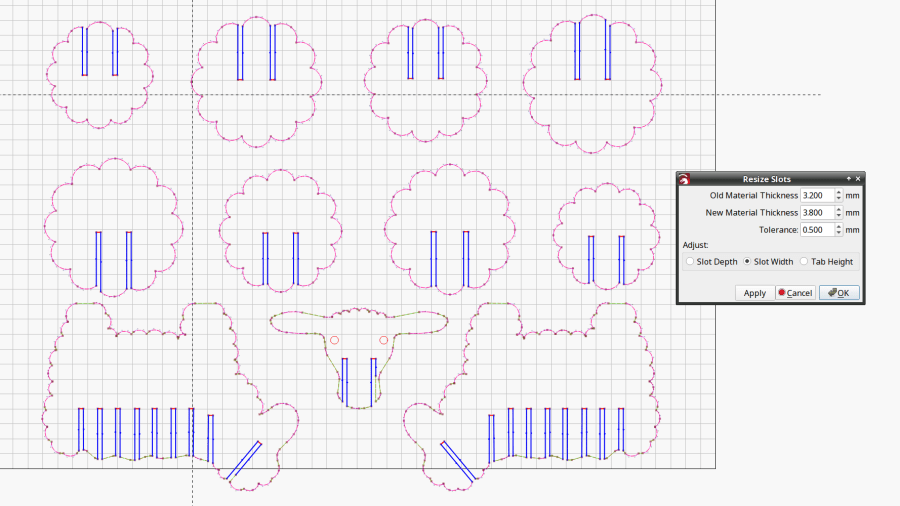
So I fetched a sheep from a typical sketchy source and attempted to resize its slots:
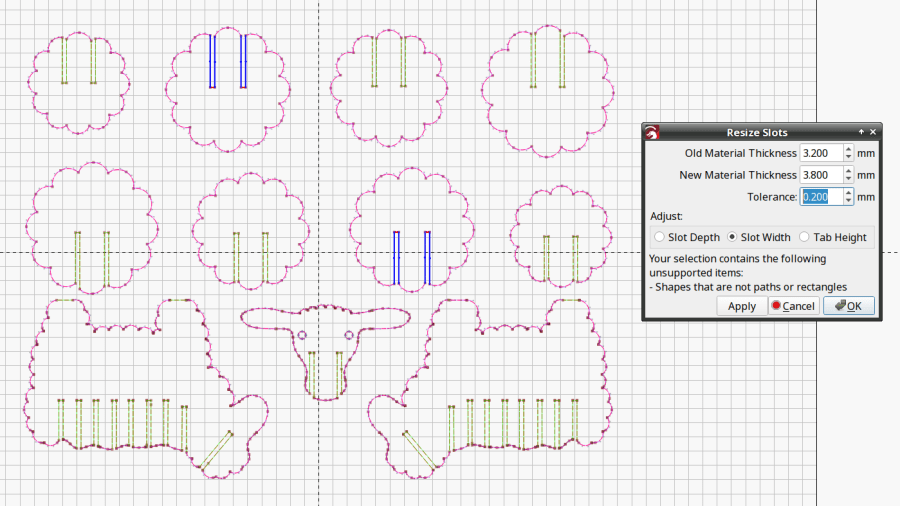
The tool looks for rectangular shapes within the Tolerance of the Old Material Thickness width, then marks their narrow ends with red highlights and their length with blue. Obviously, not all of the slots we humans see count as slots.
A closer look at one of the body shapes with a slightly larger Tolerance shows some of the problems:

Using the Node Editor tool reveals two stray nodes near the bottom of the second slot from the left:

Zooming in and blowing out the contrast:

Manually deleting those nodes doesn’t solve the problem, because two more errant nodes lurk at the top of the slot:

You probably didn’t notice those at first glance, either. Those nodes may be very close together, but they still confuse the issue.
Rather than tracking down and deleting / adjusting those nodes one by one, you can apply the Optimize Shapes tool to squash the superfluous nodes into straight lines:
Don’t smooth the shapes or fit them to arcs at this point, because both of those operations will round off the corners.
That may still leave a few nodes requiring manual intervention, as on the face shape:

But at least the problem becomes tractable:

As the Bard put it, all’s well that ends well.

