Ed Nisley's Blog: Shop notes, electronics, firmware, machinery, 3D printing, laser cuttery, and curiosities. Contents: 100% human thinking, 0% AI slop.
Category: Software
General-purpose computers doing something specific
Most of my machining involves one-off setups and simple cuts, so I usually type G-Code directly into EMC2’s Axis interface: CNC hits precise locations and makes smoother cuts than I ever could. Most of the time, that works really well.
Occasionally, though, I think one thing and type something else.
The reason I didn’t see the yellow low-overheat LED blink on when the Thermal Core ran away was that I’m usually upstairs except when actually printing.
My modus operandi involves sitting at my upstairs desk, fiddling with an OpenSCAD solid model until I like it, then exporting the STL file. This PC has larger screens, better graphics hardware, a fast CPU, a Comfy Chair, and ready access to the kitchen.
The Thing-O-Matic lives in the Basement Laboratory, connected to a dual-core Atom D520 PC running Ubuntu 10.04 LTS with ReplicatorG to control the printer. That PC dual-boots into the RTAI-patched kernel that runs EMC2 for the Sherline mill and is firmly cabled to the Sherline driver box. That PC’s monitor is up on the wall, the chair is a modified lab stool, and the miniature keyboard is barely suited for hunt-and-poke controls. Not a good place to sit and type.
That PC also has a USB webcam showing an interior view of the printer. I run XawTV, a minimal video capture program, to put that view on the PC’s desktop. I could set it up as a webserver camera, but that seems like too much work.
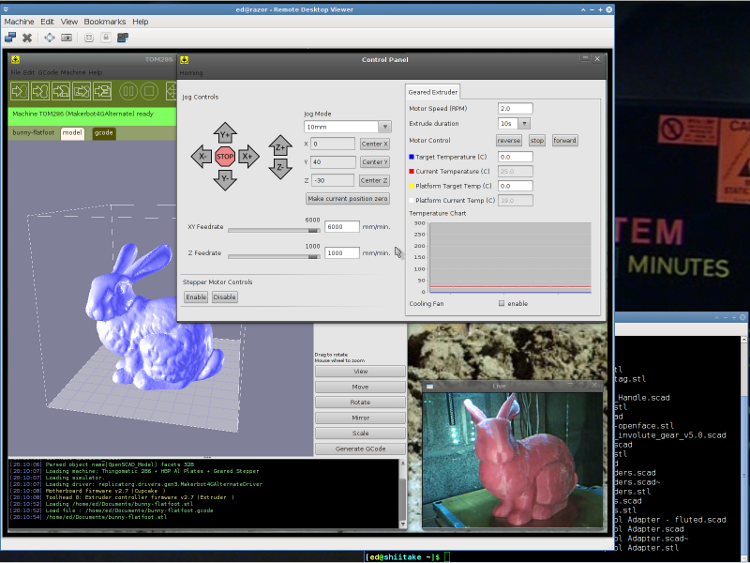
I use the Ubuntu desktop-sharing program to view / control the downstairs programs in a window on my (larger) upstairs monitor, so I can fiddle with RepG from the Comfy Chair. There’s a moderate lag due to stuffing the GUI through the network, but it’s tolerable for small changes & tweaks. The webcam view occupies one corner of the screen.
This is a staged reenactment showing the remote “downstairs” desktop in the left, with the “upstairs” desktop visible to the right:
Remote Desktop Screenshot – lowres
All the files live on our simpleminded server, which sits in the Basement Laboratory’s Computer Wing, and the PCs mount NFS shares from the server. I do all the bulk text editing & file fiddling from the Comfy Chair.
So I save the STL file from the upstairs PC, flip to the window showing the downstairs machine’s desktop, copy the STL to a local drive to avoid lag during operation, run RepG to open the STL and slice it into G-Code, fire the Thing-O-Matic, and trot downstairs to watch the proceedings.
As a rule, I don’t run the printer unattended, but now it looks like it’s a Bad Idea to run the heaters without being nearby. You knew that already, right?
As it turned out, though, that part wasn’t the first attempt.
Caliper part – heavy blobbing
Even switching to red filament didn’t help:
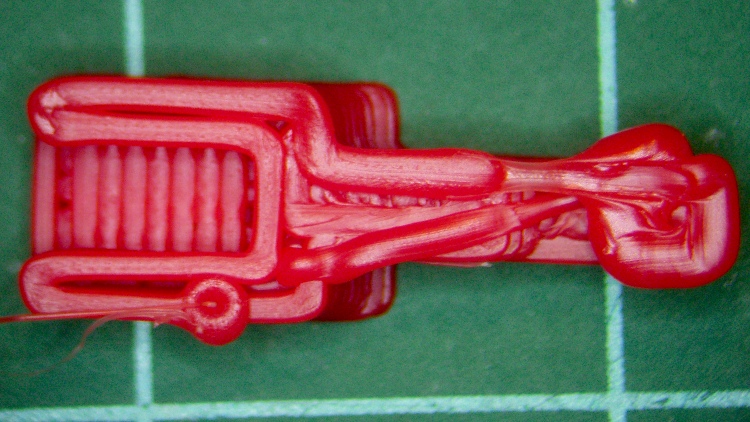
Extrusion blob – top view
That, in fact, was when the light dawned: it always failed at exactly the same point for a given set of G-Code.
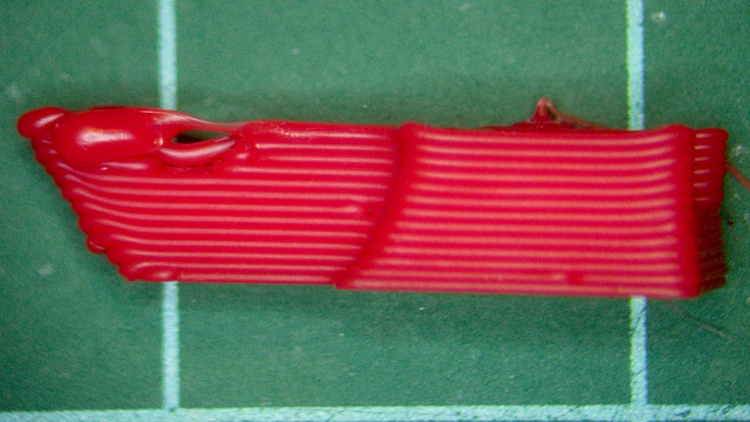
Come to find out that, for some parts printed with certain options, the Skeinforge Reversal plugin dependably produces huge blobs of plastic after a move. The extruder reverses properly, the XY stages move, then the extruder starts running forward at the Reversal speed while the XY stages move at whatever rate they’re supposed to for the next thread, producing a prodigious blob.
Extrusion blob – side view
Most parts have much more interior than they do exterior and, with any luck, the blobs vanish inside. However, this little bitty thing has no room to hide a blob. Several parts went down the drain, but at least it had a countable number of layers!
You need that program, because ordinary grep only searches within a single line. In this case, the G-Code pattern extends over several lines. The pcre stands for Perl Compatible Regular Expressions and the -M turns on multi-line matching.
You can count the number of blobs with the -cl options.
Having found the blobs, edit the file, jump to the indicated lines, copy the nearest preceding forward extruder move, including the speed setting, and paste it in front of the M101 that starts the extruder. If my sed-fu were stronger, I could automate that process.
Unleashing pcregrep on my collection of G-Code files shows a bunch of ’em with blobs and a few without. Note that this has nothing to do with the firmware running on the printer, because the G-Code has the error.
What happens, I think, is that Reversal emits a correct reverse at the end of a thread, does a fast move to the start of the next thread, notices that (at least) the first G1 of the new thread falls below the length threshold that would activate the un-reversal action, and incorrectly assumes that it need not run the extruder forward to restore working pressure. The to-be-printed G1 commands all seem to be very short in the failing G-Code files I’ve examined.
Setting the reversal threshold to 0.0 should avoid triggering this error. I’ve verified that it produces correct G-Code for two parts that didn’t work before, but that’s not conclusive proof.
I’ve looked into reversal.py and fixing (heck, finding) this error lies beyond my abilities.
Wouldn’t it be great if you could export all that stuff to a text file in a readable format? The CSV files come close, but they’re not really meant for human consumption.
Subject to revision, your mileage may vary, past performance is no indication of future yield, perfectly safe when used exactly as directed, shake before using, don’t touch that dial!
While printing up handouts for my talk at Cabin Fever, I finally tracked down why Adobe Reader was producing such crappy colors.
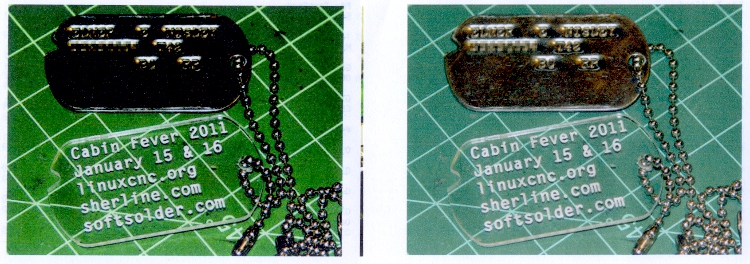
The left is before and the right is after the fix, scanned at the same time with the same image adjustments:
Oversaturated vs normal printing
All of the print settings appeared correct (plain paper, 720 dpi, normal contrast, etc, etc), but Adobe Reader (and only Adobe Reader) looked like it was trying to print on vastly higher quality paper than I was using. Too much ink, too much contrast, generally useless results.
The solution was, as always, trivial, after far too much fiddling around.
In Reader’s Print dialog, there’s a button in the lower-left corner labeled Advanced. Clicky, then put a checkmark in the box that says Let printer determine colors.
And then It Just Works.
Equally puzzling: ask for 25 copies of a two-page document, check the Collate box, and you get 25 page 1, 25 page 2, then more page 1 starts coming out. I bet I’d get 25 x 25 sheets of paper by the time it gave up.
I have no idea what’s going on, either.
Memo to Self: verify that the box stays checked after updates.
This was more tedious than it ought to be, but OpenSCAD now runs on my desktop box and uses OpenGL 2.2, courtesy of a not too obsolete nVidia GeForce 9400 dual-head card.
OpenSCAD has a slew of pre-reqs, most of which were already installed. However, the openscad and cgal non-packages live in the Arch AUR collection, so they required manual twiddling to install.
The pre-reqs:
cgal, which in turn requires cmake via pacman
opencsg
The recommended PKGBUILD patch is easy enough to do by hand.
The final build step takes ten minutes using both cores, but the final result uses OpenCSG the way it should.
Oddly, the OpenSCAD rendering process for the few objects I’ve checked takes longer than on the laptop. Weird.
This does not get the most recent build from the developers, but it’s close enough for my simple needs right now. The mailing list archive is invaluable.
Then there was the laptop saga. Maybe the reason the laptop is faster is that it’s not actually using OpenCSG at all.
With the thermistors nestled all snug in their wells, I turned on the heat and recorded the temperatures. I picked currents roughly corresponding to the wattages shown, only realizing after the fact that I’d been doing the calculation for the 5 Ω Thing-O-Matic resistors, not the 6 Ω resistor I was actually using. Doesn’t matter, as the numbers depend only on the temperatures, not the wattage.
This would be significantly easier if I had a thermocouple with a known-good calibration, but I don’t. Assuming that the real temperature lies somewhere near the average of the six measurements is the best I can do, so … onward!
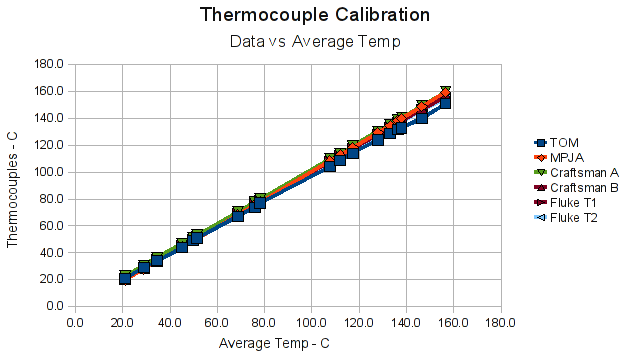
Plotting the data against the average at each measurement produces a cheerful upward-and-to-the-right graph:
Data vs Ensemble Average
So the thermocouples seem reasonably consistent.
Plotting the difference between each measurement and the average of all the measurements at that data point produces this disconcertingly jaggy result:
Difference from Ensemble Average
The TOM thermocouple seems, um, different, which is odd, because the MAX6675 converts directly from thermocouple voltage to digital output with no intervening software. It’s not clear what’s going on; I don’t know if the bead was slightly out of its well or if that’s an actual calibration difference. I’ll check it later, but for now I will simply run with the measurements.
Eliminating the TOM data from the average produces a better clustering of the remaining five readings, with the TOM being even further off. The regression lines show the least-squares fit to each set of points, which look pretty good:
Difference from Average without TOM
Those regression lines give the offset and slope of the best-fit line that goes from the average reading to the actual reading, but I really need an equation from the actual reading for each thermocouple to the combined average. Rather than producing half a dozen graphs, I applied the spreadsheet’s SLOPE() and INTERCEPT() functions with the average temperature as Y and the measured temperature as X.
That produced this table:
                    TOM     MPJA  Craftsman A  Craftsman B   Fluke T1  Fluke T2
M = slope        1.0534   0.5434       0.5551       0.5539     1.0112    1.0154
B = intercept   -1.6073 -15.3703     -19.4186     -16.9981    -0.7421   -0.3906
And then, given a reading from any of the thermocouples, converting that value to the average requires plugging the appropriate values from that table into good old
y = mx + b
For example, converting the Fluke 52 T1 readings produces this table of values. The Adjusted column shows the result of that equation and the Delta Avg column gives the difference from the average temperature (not shown here) for that reading.
The Max Avg Error (the largest value of the absolute difference from the average temperature at each point) after correction is 0.78 °C for this set. The others are less than that, with the exception of the TOM thermocouple, which differs by 1.81 °C.
So now I can make a whole bunch of temperature readings, adjust them to the same “standard”, and be off by (generally) less than 1 °C. That’s much better than the 10 °C of the unadjusted readings and seems entirely close enough for what I need…