Ed Nisley's Blog: Shop notes, electronics, firmware, machinery, 3D printing, laser cuttery, and curiosities. Contents: 100% human thinking, 0% AI slop.
Category: Software
General-purpose computers doing something specific
OpenSCAD grumps about not finding OpenGL 2.0 whenever it starts up on my ancient laptop, which is tedious: that situation just isn’t going to change. Not a fatal error, although I do wonder what the OpenCSG rendering would look like.
Anyhow, a bit of rummaging turns up a hack that’ll cause OpenSCAD to STFU and just start up. That doesn’t make OpenCSG work, which is pretty much not a problem for my simple needs.
On Ubuntu-flavored distros, install driconf, then activate two options (in the Performance and Debugging tabs, respectively):
Enable limited ARB_fragment_shader support on 915/945
Enable stub ARB_occlusion_query support on 915/945
Once again I’m planning to attend the Cabin Fever Expo in York; my shop assistant says this year she won’t barf in the kitchen sink Thursday evening just before bedtime…
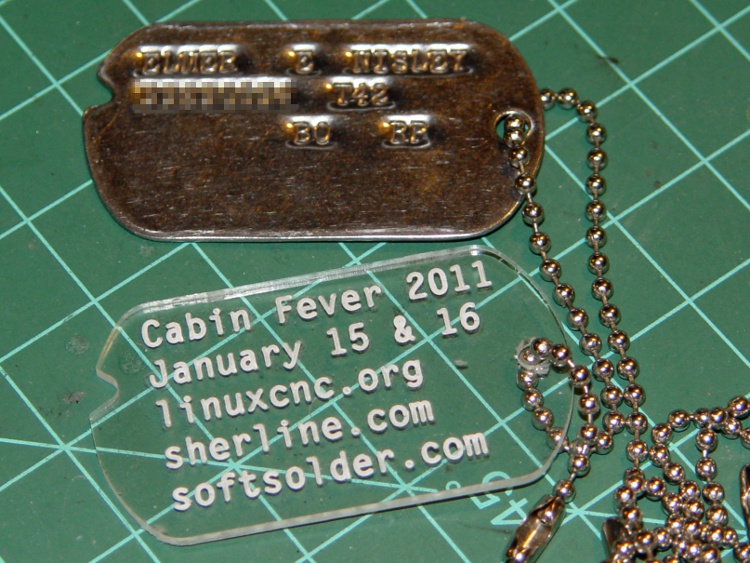
If I’m going to haul a Sherline CNC setup that far and spend all day talking machining, I must have some tchotchkes / swag to talk about. We figured a small plastic dog tag with relevant URLs would be appropriate.
Cabin Fever Dog Tag
I modeled the tag after my father’s WWII tag, including the mysterious notch. The rounded ends actually have three curves: two small fairing arcs blend the sides into the end cap.
The G-Code routine figures out all the coordinates and suchlike from some basic physical measurements & guesstimates, so tweaking the geometery is pretty straightforward. There was a blizzard going on while I wrote it: a fine day to spend indoors hacking code.
My assistant fired up Inkscape, laid out the text, figured out how to coerce G-Code out of Inkscape using the cnc-club.ru extension, then aligned it properly with the center of the chain hole as the origin on the right side. My routine calls the text G-Code file as a subroutine.
The extension’s header and footer files wrap EMC2’s SUB / ENDSUB syntactic sugar around the main file. The default files include an M2 that kills off the program; took a while to track that one down.
The header file:
O<dogtagtext> SUB
And the matching footer file:
O<dogtagtext> ENDSUB
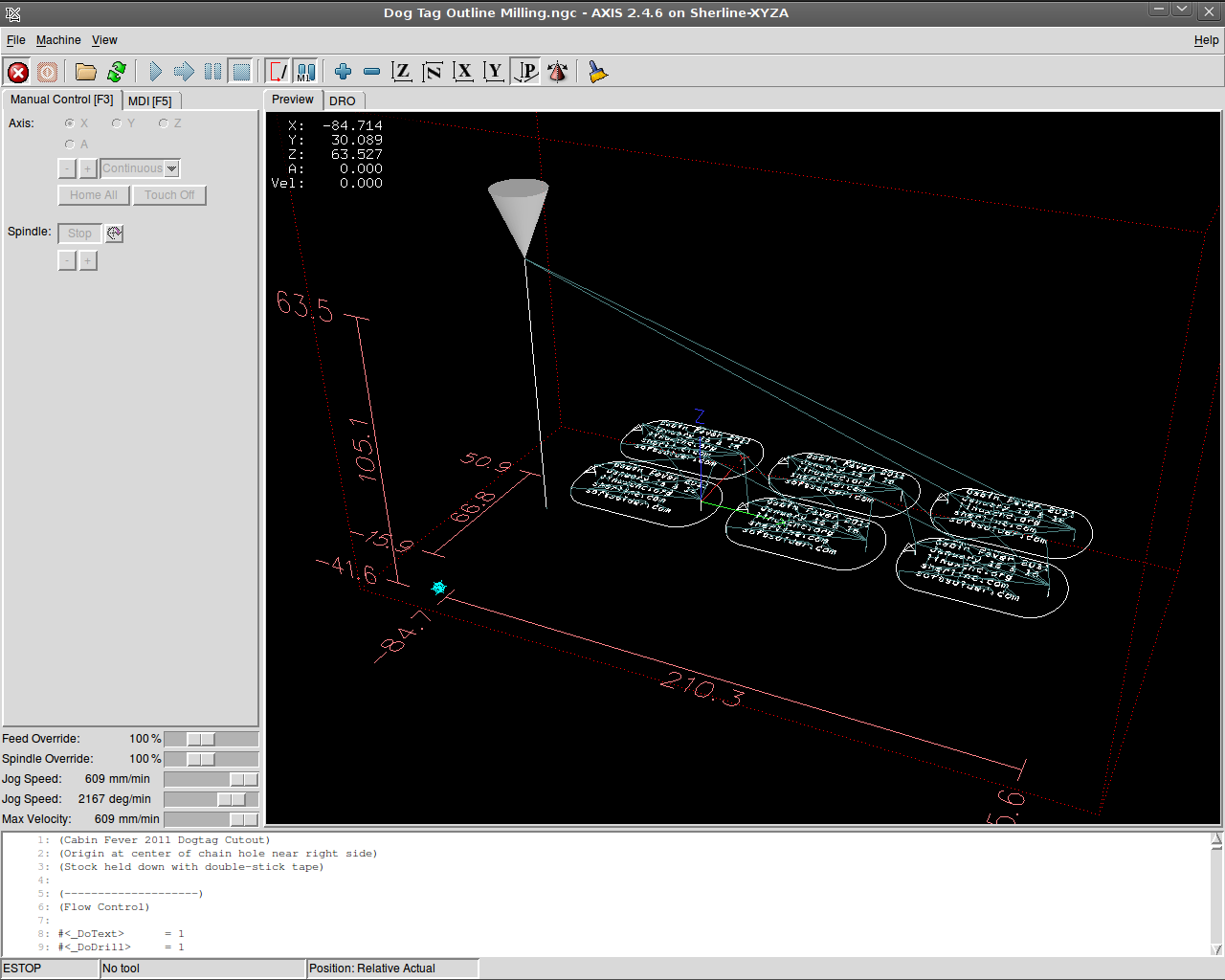
The Inkscape-to-gcode instructions come out with absolute coordinates relative to the origin you define when you create the layout. The nested loops in my wrapper slap a G55 coordinate offset atop each label in turn, then call the subroutine.
The result is pretty slick:
Screenshot: AXIS Dog Tags
I carved out that proof-of-concept label atop double-sided adhesive tape, but peeling off the goo is a real pain; a 2×3 array will be much worse. I’d rather do that than figure out how to clamp the fool things to the sacrificial plate, though.
The engraving is 0.2 mm deep with a Dremel 30 degree tool. My shop assistant describes it as “disturbing” the acrylic, not actually engraving a channel. This isn’t entirely a Bad Thing, as the font isn’t quite a stick font and the outline of each character mushes together. We must fiddle with the font a bit more; she favors a boldified OCR-A look.
Some lessons:
The Kate G-Code syntax highlighter isn’t down with EMC2’s dialect
Be very sure you touch off the workpiece origin in G54, not G55
Xylene doesn’t bother acrylic and works fine on tape adhesive
Symlinks aimed across an NFS link work fine in ~/emc2/nc_files/
That 2×3 array may be too big for the Sherline’s tooling plate
Tool length probing FTW!
The G-Code:
(Cabin Fever 2011 Dogtag)
(Ed Nisley - KE4ZNU - December 2010)
(Origin at center of chain hole near right side)
(Stock held down with double-stick tape)

(--------------------)
(Flow Control)

#<_DoText>      = 1
#<_DoDrill>     = 1
#<_DoMill>      = 1

( Sizes and Shapes)

(-- Tag array layout)

#<_NumTagsX>    = 3                         (number of tags along X axis)
#<_NumTagsY>    = 2                         ( ... Y axis)

#<_TagSpaceX>   = 60                        (center-to-center along X axis)
#<_TagSpaceY>   = 35                        ( ... Y axis)

(-- Tag Dimensions)

#<_TagSizeX>    = 50.8                      (2.0 inches in WWII!)
#<_TagSizeY>    = 28.6                      (1-1/8 inches)
#<_TagSizeZ>    = 2.0

#<_HoleOffsetX> = 4.0                       (hole center to right-side tag edge)

#<_NotchSizeX>      = 3.5                   (locating notch depth from far left edge)
#<_NotchCtrY>       = 5.0                   (locating notch from Y=0)

#<_NotchAngleBot>   = 30                    (lower angle in notch)
#<_NotchAngleTop>   = 45                    (upper angle in notch)

(-- Fairing Curve Dimensions as offsets from end arc center)

#<_EndFairR>    = [0.68 * #<_TagSizeY>]
#<_CornerFairR> = [0.25 * #<_TagSizeY>]

#<_PCRadius>    = [#<_EndFairR> - #<_CornerFairR>]
#<_PCY>         = [[#<_TagSizeY> / 2] - #<_CornerFairR>]
#<_PCTheta>     = ASIN [#<_PCY> / #<_PCRadius>]
#<_PCX>         = [#<_PCRadius> * COS [#<_PCTheta>]]

#<_P1Y>         = [#<_TagSizeY> / 2]                    (top / bottom endpoint)
#<_P1X>         = #<_PCX>

#<_P2X>         = [#<_EndFairR> * COS [#<_PCTheta>]]
#<_P2Y>         = [#<_EndFairR> * SIN [#<_PCTheta>]]

(-- Tooling)

#<_TraverseZ>   = 1.0                       (safe clearance above workpiece)

#<_DrillDia>    = 3.2                       (drill for hole and notch)
#<_DrillNum>    = 1                         ( ... tool number)
#<_DrillRadius> = [#<_DrillDia> / 2]
#<_DrillFeed>   = 200                       (drill feed for holes)
#<_DrillRPM>    = 3000

#<_MillDia>     = 3.2                       (mill for outline)
#<_MillNum>     = 1                         ( ... tool number)
#<_MillRadius> = [#<_MillDia> / 2]
#<_MillFeed>    = 150                       (tool feed for outlines)
#<_MillRPM>     = 5000

#<_TextDia>     = 0.1                       (engraving tool)
#<_TextNum>     = 1
#<_TextFeed>    = 600                       (tool feed for engraving)
#<_TextRPM>     = 10000

(-- Useful calculated values)

#<_TagRightX>   = #<_HoleOffsetX>           (extreme limits of tag in X)
#<_TagLeftX>    = [#<_TagRightX> - #<_TagSizeX>]

#<_EndFairRtX>  = [#<_TagRightX> - #<_EndFairR>]
#<_EndFairLfX>  = [#<_TagLeftX> + #<_EndFairR>]

#<_NotchCtrX>   = [#<_TagLeftX> + #<_NotchSizeX> - #<_DrillRadius>]

(--------------------)
(--------------------)
( Initialize first tool length at probe switch)
(    Assumes G59.3 is still in machine units, returns in G54)
( ** Must set these constants to match G20 / G21 condition!)

#<_Probe_Speed>     = 400            (set for something sensible in mm or inch)
#<_Probe_Retract>   =   1            (ditto)

O<Probe_Tool> SUB

G49                     (clear tool length compensation)
G30                     (move above probe switch)
G59.3                   (coord system 9)

G38.2 Z0 F#<_Probe_Speed>           (trip switch on the way down)

G0 Z[#5063 + #<_Probe_Retract>]     (back off the switch)

G38.2 Z0 F[#<_Probe_Speed> / 10]    (trip switch slowly)

#<_ToolZ> = #5063                    (save new tool length)

G43.1 Z[#<_ToolZ> - #<_ToolRefZ>]    (set new length)

G54                     (coord system 0)
G30                     (return to safe level)

O<Probe_Tool> ENDSUB

(-------------------)
(-- Initialize first tool length at probe switch)

O<Probe_Init> SUB

#<_ToolRefZ> = 0.0      (set up for first call)

O<Probe_Tool> CALL

#<_ToolRefZ> = #5063    (save trip point)

G43.1 Z0                (tool entered at Z=0, so set it there)

O<Probe_Init> ENDSUB

(--------------------)
(Start machining)

G40 G49 G54 G80 G90 G94 G97 G98     (reset many things)

G21                                 (metric!)

(msg,Verify G30.1 position in G54 above tool change switch)
M0
(msg,Verify XYZ=0 touched off at left front tag hole center on surface)
M0

O<Probe_Init> CALL
T0 M6                           (clear the probe tool)

(-- Engrave Text)

O<DoText> IF [#<_DoText>]

(msg,Insert engraving tool)
T#<_TextNum> M6         (load engraving tool)
O<Probe_Tool> CALL

F#<_TextFeed>
S#<_TextRPM>

(debug,Set spindle to #<_TextRPM>)
M0

G0 X0 Y0                (get safely to first tag)
G0 Z#<_TraverseZ>       (to working level)

G10 L20 P2 X0 Y0 Z#<_TraverseZ>         (set G55 origin to 0,0 at this point)
G55                                     (activate G55 coordinates)

O3000 REPEAT [#<_NumTagsX>]

O3100 REPEAT [#<_NumTagsY>]

O<dogtagtext> CALL

G0 X0 Y0
G10 L20 P2 Y[0 - #<_TagSpaceY>]         (set Y orgin relative to next tag in +Y direction)

O3100 ENDREPEAT

G10 L20 P2 X[0 - #<_TagSpaceX>] Y[[#<_NumTagsY> - 1] * #<_TagSpaceY>] (next to +X, Y to front)

O3000 ENDREPEAT

G54                                     (bail out of G55 coordinates)

(-- Drill holes)

O<DoDrill> IF [#<_DoDrill>]

T0 M6
(msg,Insert drill)
T#<_DrillNum> M6
O<Probe_Tool> CALL

F#<_DrillFeed>
S#<_DrillRPM>

#<_DrillZ> = [0 - #<_TagSizeZ> - #<_DrillRadius>]

(debug,Set spindle to #<_DrillRPM>)
M0

G0 X0 Y0                (get safely to first tag)
G0 Z#<_TraverseZ>       (to working level)

#<IndexX> = 0
O1000 DO

#<IndexY> = 0
O1100 DO

#<TagOriginX> = [#<IndexX> * #<_TagSpaceX>]
#<TagOriginY> = [#<IndexY> * #<_TagSpaceY>]

G81 X#<TagOriginX> Y#<TagOriginY> Z#<_DrillZ> R#<_TraverseZ>
G81 X[#<TagOriginX> + #<_NotchCtrX>] Y[#<TagOriginY> + #<_NotchCtrY>] Z#<_DrillZ> R#<_TraverseZ>

#<IndexY> = [#<IndexY> + 1]
O1100 WHILE [#<IndexY> LT #<_NumTagsY>]

#<IndexX> = [#<IndexX> + 1]
O1000 WHILE [#<IndexX> LT #<_NumTagsX>]

G30     (go home)

O<DoDrill> ENDIF

(-- Machine outlines)

O<DoMill> IF [#<_DoMill>]

T0 M6                   (eject drill)
(msg,Insert end mill)
T#<_MillNum> M6         (load mill)
O<Probe_Tool> CALL

F#<_MillFeed>
S#<_MillRPM>

(debug,Set spindle to #<_MillRPM>)
M0

G0 X0 Y0                (get safely to first tag)
G0 Z#<_TraverseZ>       (to working level)

G10 L20 P2 X0 Y0 Z#<_TraverseZ>         (set G55 origin to 0,0 at this point)
G55                                     (activate G55 coordinates)

O2000 REPEAT [#<_NumTagsX>]

O2100 REPEAT [#<_NumTagsY>]

G0 X[#<_NotchCtrX>] Y[#<_NotchCtrY>]     (get to center of notch hole)
G0 Z[0 - #<_TagSizeZ>]                      (down to cutting level)

G91                                         (relative coordinate for notch cutting)
G1 X[0 - #<_NotchSizeX>] Y[0 -  #<_NotchSizeX> * TAN [#<_NotchAngleBot>]]
G1 X[0 + #<_NotchSizeX>] Y[0 +  #<_NotchSizeX> * TAN [#<_NotchAngleBot>]]
G1 X[0 - #<_NotchSizeX>] Y[0 +  #<_NotchSizeX> * TAN [#<_NotchAngleTop>]]
G90                                         (back to abs coords)

G42.1 D#<_MillDia>                          (cutter comp to right)
G1 X[#<_TagLeftX>] Y0                       (comp entry move to tip of left endcap)

G3 X[#<_EndFairLfX> - #<_P2X>] Y[0 - #<_P2Y>] I[#<_EndFairR>] J0    (left endcap front half)

G3 X[#<_EndFairLfX> - #<_P1X>] Y[0 - #<_P1Y>] I[#<_P2X> - #<_PCX>] J[#<_P2Y> - #<_PCY>]

G1 X[#<_EndFairRtX> + #<_P1X>]                                      (front edge)

G3 X[#<_EndFairRtX> + #<_P2X>] Y[0 - #<_P2Y>] I0 J[#<_CornerFairR>]

G3 X[#<_EndFairRtX> + #<_P2X>] Y[#<_P2Y>] I[0 - #<_P2X>] J[#<_P2Y>]    (right endcap)

G3 X[#<_EndFairRtX> + #<_P1X>] Y[#<_P1Y>] I[#<_PCX> - #<_P2X>] J[#<_PCY> - #<_P2Y>]

G1 X[#<_EndFairLfX> - #<_P1X>]                                      (rear edge)

G3 X[#<_EndFairLfX> - #<_P2X>] Y[#<_P2Y>] I0 J[0 - #<_CornerFairR>]

G3 X[#<_EndFairLfX> - #<_P2X>] Y[0 - #<_P2Y>] I[#<_P2X>] J[0 - #<_P2Y>]    (left endcap complete)

G0 Z#<_TraverseZ>

G40

G0 X0 Y0
G10 L20 P2 Y[0 - #<_TagSpaceY>]         (set Y orgin relative to next tag in +Y direction)

O2100 ENDREPEAT

G10 L20 P2 X[0 - #<_TagSpaceX>] Y[[#<_NumTagsY> - 1] * #<_TagSpaceY>] (next to +X, Y to front)

O2000 ENDREPEAT

G54                                     (bail out of G55 coordinates)

G30         (go home)

O<DoMill> ENDIF

M2
This is a stick in the ground for the current config files I’m using with EMC 2.4.5. Even the automagically generated files may have some tweakage, which is why I’m putting them here…
[Update: this is for a Dell Dimension 4550 with a latency around 10 µs, occasional glitches to 20 µs, and a very rare burp to 80 µs. Worked fine, but those rare burps were disturbing.]
# Include your customized HAL commands here
# This file will not be overwritten when you run stepconf again

#--------------
# Get buttons and joysticks from Logitech Dual Action gamepad

loadusr -W hal_input -KA Dual

#--------------
# Home switches are all in parallel, active low

net homeswitches <= parport.0.pin-10-in-not
net homeswitches => axis.0.home-sw-in
net homeswitches => axis.1.home-sw-in
net homeswitches => axis.2.home-sw-in

#--------------
# Probe input is active low

net probe-in <== parport.0.pin-15-in-not
net probe-in ==> motion.probe-input
custom_postgui.hal
#-- empty
Logitech_Gamepad.hal
# HAL config file automatically generated by Eagle-CAD ULP:
# [/mnt/bulkdata/Project Files/eagle/ulp/hal-write-array.ulp]
# (C) Martin Schoeneck.de 2008
# Mods Ed Nisley 2010
# Path        [/mnt/bulkdata/Project Files/eagle/projects/EMC2 HAL Configuration/]
# ProjectName [Logitech Gamepad]
# File name   [/mnt/bulkdata/Project Files/eagle/projects/EMC2 HAL Configuration/Logitech_Gamepad.hal]
# Created     [11:51:27 10-Nov-2010]

####################################################
# Load realtime and userspace modules
loadrt constant		count=16
loadrt and2		count=17
loadrt flipflop		count=4
loadrt mux2		count=5
loadrt mux4		count=1
loadrt not		count=8
loadrt or2		count=10
loadrt scale		count=7
loadrt timedelay		count=1
loadrt toggle		count=1
loadrt wcomp		count=6

####################################################
# Hook functions into threads
addf toggle.0		servo-thread
addf wcomp.1		servo-thread
addf wcomp.2		servo-thread
addf wcomp.3		servo-thread
addf and2.0		servo-thread
addf and2.4		servo-thread
addf and2.3		servo-thread
addf and2.2		servo-thread
addf and2.1		servo-thread
addf constant.6		servo-thread
addf constant.5		servo-thread
addf constant.4		servo-thread
addf constant.3		servo-thread
addf constant.2		servo-thread
addf constant.1		servo-thread
addf constant.0		servo-thread
addf constant.7		servo-thread
addf constant.8		servo-thread
addf scale.1		servo-thread
addf scale.2		servo-thread
addf scale.3		servo-thread
addf mux4.0		servo-thread
addf mux2.0		servo-thread
addf scale.4		servo-thread
addf scale.0		servo-thread
addf wcomp.5		servo-thread
addf wcomp.4		servo-thread
addf wcomp.0		servo-thread
addf flipflop.1		servo-thread
addf flipflop.0		servo-thread
addf and2.5		servo-thread
addf and2.6		servo-thread
addf and2.7		servo-thread
addf and2.8		servo-thread
addf flipflop.2		servo-thread
addf flipflop.3		servo-thread
addf or2.4		servo-thread
addf or2.8		servo-thread
addf or2.7		servo-thread
addf or2.6		servo-thread
addf or2.5		servo-thread
addf or2.3		servo-thread
addf or2.2		servo-thread
addf or2.1		servo-thread
addf or2.0		servo-thread
addf not.1		servo-thread
addf not.2		servo-thread
addf not.3		servo-thread
addf not.4		servo-thread
addf not.5		servo-thread
addf not.6		servo-thread
addf not.7		servo-thread
addf not.0		servo-thread
addf constant.9		servo-thread
addf mux2.1		servo-thread
addf mux2.2		servo-thread
addf mux2.3		servo-thread
addf mux2.4		servo-thread
addf constant.10		servo-thread
addf constant.11		servo-thread
addf scale.5		servo-thread
addf scale.6		servo-thread
addf constant.12		servo-thread
addf constant.13		servo-thread
addf timedelay.0		servo-thread
addf constant.14		servo-thread
addf constant.15		servo-thread
addf and2.16		servo-thread
addf and2.15		servo-thread
addf and2.14		servo-thread
addf and2.13		servo-thread
addf and2.12		servo-thread
addf and2.11		servo-thread
addf and2.10		servo-thread
addf and2.9		servo-thread
addf or2.9		servo-thread

####################################################
# Set parameters

####################################################
# Set constants
setp constant.0.value	+0.02
setp constant.1.value	-0.02
setp constant.2.value	60
setp constant.3.value	1.00
setp constant.4.value	0.10
setp constant.5.value	0.50
setp constant.6.value	0.10
setp constant.7.value	+0.5
setp constant.8.value	-0.5
setp constant.9.value	0.0
setp constant.10.value	[TRAJ]MAX_LINEAR_VELOCITY
setp constant.11.value	[TRAJ]MAX_ANGULAR_VELOCITY
setp constant.12.value	-1.0
setp constant.13.value	0.1
setp constant.14.value	0.020
setp constant.15.value	0.000

####################################################
# Connect Modules with nets
net a-button-minus input.0.btn-trigger or2.2.in0 and2.15.in0
net a-button-plus input.0.btn-thumb2 or2.2.in1 and2.16.in0
net a-buttons-active or2.2.out or2.3.in0 or2.4.in1
net a-disable not.7.out and2.5.in1
net a-enable or2.4.in0 flipflop.3.out not.7.in mux2.4.sel
net a-jog wcomp.2.in input.0.abs-z-position mux2.4.in1
net a-knob-active not.2.out and2.7.in1
net a-knob-inactive wcomp.2.out not.2.in and2.6.in1
net a-select and2.8.in0 and2.7.out
net a-set flipflop.3.set and2.8.out
net angular_motion or2.4.out mux2.0.sel
net any-buttons-active mux4.0.sel0 or2.8.out
net az-buttons-active or2.3.out or2.8.in1 or2.9.in0
net az-reset flipflop.2.reset and2.6.out flipflop.3.reset
net button-crawl scale.4.out mux4.0.in3
net button-fast scale.2.out mux4.0.in1 scale.4.in
net jog-crawl toggle.0.out mux4.0.sel1
net jog-speed halui.jog-speed mux4.0.out
net knob-crawl mux4.0.in2 scale.3.out
net knob-fast mux4.0.in0 scale.1.out scale.3.in
net n_1 constant.10.out mux2.0.in0
net n_2 and2.0.in0 input.0.btn-top2
net n_3 and2.0.in1 input.0.btn-base
net n_4 and2.0.out halui.abort
net n_5 halui.mode.manual input.0.btn-base3
net n_6 wcomp.0.max wcomp.1.max wcomp.2.max wcomp.3.max constant.0.out
net n_7 halui.program.resume input.0.btn-base4
net n_8 wcomp.0.min wcomp.1.min wcomp.2.min wcomp.3.min constant.1.out
net n_9 mux2.0.in1 constant.11.out
net n_10 constant.12.out scale.5.gain scale.6.gain
net n_11 input.0.btn-base5 or2.0.in0
net n_12 input.0.btn-base6 or2.0.in1
net n_13 constant.9.out mux2.1.in0 mux2.2.in0 mux2.3.in0 mux2.4.in0
net n_14 mux2.1.out halui.jog.0.analog
net n_15 toggle.0.in or2.0.out
net n_16 constant.2.out scale.0.gain
net n_17 constant.5.out scale.1.gain
net n_18 constant.3.out scale.2.gain
net n_19 constant.4.out scale.3.gain
net n_20 scale.4.gain constant.6.out
net n_21 halui.jog.1.analog mux2.2.out
net n_22 mux2.2.in1 scale.5.out
net n_23 scale.6.out mux2.3.in1
net n_24 constant.13.out halui.jog-deadband
net n_25 wcomp.4.max constant.7.out wcomp.5.max
net n_26 constant.8.out wcomp.4.min wcomp.5.min
net n_27 mux2.3.out halui.jog.2.analog
net n_28 halui.jog.3.analog mux2.4.out
net n_29 timedelay.0.out and2.9.in1 and2.10.in1 and2.12.in1 and2.11.in1 and2.13.in1 and2.14.in1 and2.16.in1 and2.15.in1
net n_30 and2.9.out halui.jog.0.minus
net n_31 or2.9.out timedelay.0.in
net n_32 constant.14.out timedelay.0.on-delay
net n_33 constant.15.out timedelay.0.off-delay
net n_34 and2.10.out halui.jog.0.plus
net n_35 and2.11.out halui.jog.1.minus
net n_36 halui.jog.1.plus and2.12.out
net n_37 and2.13.out halui.jog.2.minus
net n_38 and2.14.out halui.jog.2.plus
net n_39 and2.15.out halui.jog.3.minus
net n_40 and2.16.out halui.jog.3.plus
net vel-per-minute scale.0.out scale.1.in scale.2.in
net vel-per-second mux2.0.out scale.0.in
net x-buttons-active or2.7.in0 or2.5.out
net x-disable not.4.out and2.4.in1
net x-enable not.4.in flipflop.0.out mux2.1.sel
net x-hat-jog wcomp.4.in input.0.abs-hat0x-position
net x-hat-minus wcomp.4.under or2.5.in1 and2.9.in0
net x-hat-plus or2.5.in0 wcomp.4.over and2.10.in0
net x-jog wcomp.0.in input.0.abs-x-position mux2.1.in1
net x-knob-active not.0.out and2.1.in0
net x-knob-inactive wcomp.0.out not.0.in and2.2.in0 and2.3.in0
net x-set and2.1.out flipflop.0.set
net xy-buttons-active or2.7.out or2.8.in0 or2.9.in1
net xy-reset flipflop.0.reset and2.2.out flipflop.1.reset
net y-buttons-active or2.6.out or2.7.in1
net y-disable not.5.out and2.1.in1
net y-enable flipflop.1.out not.5.in mux2.2.sel
net y-hat-jog input.0.abs-hat0y-position wcomp.5.in
net y-hat-minus wcomp.5.under or2.6.in1 and2.12.in0
net y-hat-plus or2.6.in0 wcomp.5.over and2.11.in0
net y-jog wcomp.1.in input.0.abs-y-position scale.5.in
net y-knob-active not.1.out and2.3.in1
net y-knob-inactive not.1.in wcomp.1.out and2.2.in1
net y-select and2.4.in0 and2.3.out
net y-set flipflop.1.set and2.4.out
net z-button-minus input.0.btn-thumb or2.1.in0 and2.13.in0
net z-button-plus or2.1.in1 input.0.btn-top and2.14.in0
net z-buttons-active or2.1.out or2.3.in1
net z-disable not.6.out and2.8.in1
net z-enable not.6.in flipflop.2.out mux2.3.sel
net z-jog wcomp.3.in input.0.abs-rz-position scale.6.in
net z-knob-active not.3.out and2.5.in0
net z-knob-inactive not.3.in wcomp.3.out and2.7.in0 and2.6.in0
net z-set and2.5.out flipflop.2.set
Sherline.hal
# Generated by stepconf at Sat Aug 23 12:10:22 2008
# If you make changes to this file, they will be
# overwritten when you run stepconf again
loadrt trivkins
loadrt [EMCMOT]EMCMOT base_period_nsec=[EMCMOT]BASE_PERIOD servo_period_nsec=[EMCMOT]SERVO_PERIOD traj_period_nsec=[EMCMOT]SERVO_PERIOD key=[EMCMOT]SHMEM_KEY num_joints=[TRAJ]AXES
loadrt probe_parport
loadrt hal_parport cfg=0xecd8
setp parport.0.reset-time 60000
loadrt stepgen step_type=0,0,0,0
loadrt pwmgen output_type=0

addf parport.0.read base-thread
addf stepgen.make-pulses base-thread
addf pwmgen.make-pulses base-thread
addf parport.0.write base-thread
addf parport.0.reset base-thread

addf stepgen.capture-position servo-thread
addf motion-command-handler servo-thread
addf motion-controller servo-thread
addf stepgen.update-freq servo-thread
addf pwmgen.update servo-thread

net spindle-cmd <= motion.spindle-speed-out => pwmgen.0.value
net spindle-enable <= motion.spindle-on => pwmgen.0.enable
net spindle-pwm <= pwmgen.0.pwm
setp pwmgen.0.pwm-freq 100.0
setp pwmgen.0.scale 1166.66666667
setp pwmgen.0.offset 0.114285714286
setp pwmgen.0.dither-pwm true
net spindle-cw <= motion.spindle-forward

net estop-out => parport.0.pin-01-out
net xdir => parport.0.pin-02-out
net xstep => parport.0.pin-03-out
setp parport.0.pin-03-out-reset 1
setp parport.0.pin-04-out-invert 1
net ydir => parport.0.pin-04-out
net ystep => parport.0.pin-05-out
setp parport.0.pin-05-out-reset 1
setp parport.0.pin-06-out-invert 1
net zdir => parport.0.pin-06-out
net zstep => parport.0.pin-07-out
setp parport.0.pin-07-out-reset 1
net adir => parport.0.pin-08-out
net astep => parport.0.pin-09-out
setp parport.0.pin-09-out-reset 1
net spindle-cw => parport.0.pin-14-out
net spindle-pwm => parport.0.pin-16-out
net xenable => parport.0.pin-17-out

setp stepgen.0.position-scale [AXIS_0]SCALE
setp stepgen.0.steplen 1
setp stepgen.0.stepspace 0
setp stepgen.0.dirhold 60000
setp stepgen.0.dirsetup 60000
setp stepgen.0.maxaccel [AXIS_0]STEPGEN_MAXACCEL
net xpos-cmd axis.0.motor-pos-cmd => stepgen.0.position-cmd
net xpos-fb stepgen.0.position-fb => axis.0.motor-pos-fb
net xstep <= stepgen.0.step
net xdir <= stepgen.0.dir
net xenable axis.0.amp-enable-out => stepgen.0.enable

setp stepgen.1.position-scale [AXIS_1]SCALE
setp stepgen.1.steplen 1
setp stepgen.1.stepspace 0
setp stepgen.1.dirhold 60000
setp stepgen.1.dirsetup 60000
setp stepgen.1.maxaccel [AXIS_1]STEPGEN_MAXACCEL
net ypos-cmd axis.1.motor-pos-cmd => stepgen.1.position-cmd
net ypos-fb stepgen.1.position-fb => axis.1.motor-pos-fb
net ystep <= stepgen.1.step
net ydir <= stepgen.1.dir
net yenable axis.1.amp-enable-out => stepgen.1.enable

setp stepgen.2.position-scale [AXIS_2]SCALE
setp stepgen.2.steplen 1
setp stepgen.2.stepspace 0
setp stepgen.2.dirhold 60000
setp stepgen.2.dirsetup 60000
setp stepgen.2.maxaccel [AXIS_2]STEPGEN_MAXACCEL
net zpos-cmd axis.2.motor-pos-cmd => stepgen.2.position-cmd
net zpos-fb stepgen.2.position-fb => axis.2.motor-pos-fb
net zstep <= stepgen.2.step
net zdir <= stepgen.2.dir
net zenable axis.2.amp-enable-out => stepgen.2.enable

setp stepgen.3.position-scale [AXIS_3]SCALE
setp stepgen.3.steplen 1
setp stepgen.3.stepspace 0
setp stepgen.3.dirhold 60000
setp stepgen.3.dirsetup 60000
setp stepgen.3.maxaccel [AXIS_3]STEPGEN_MAXACCEL
net apos-cmd axis.3.motor-pos-cmd => stepgen.3.position-cmd
net apos-fb stepgen.3.position-fb => axis.3.motor-pos-fb
net astep <= stepgen.3.step
net adir <= stepgen.3.dir
net aenable axis.3.amp-enable-out => stepgen.3.enable

net estop-out <= iocontrol.0.user-enable-out
net estop-out => iocontrol.0.emc-enable-in

loadusr -W hal_manualtoolchange
net tool-change iocontrol.0.tool-change => hal_manualtoolchange.change
net tool-changed iocontrol.0.tool-changed <= hal_manualtoolchange.changed
net tool-number iocontrol.0.tool-prep-number => hal_manualtoolchange.number
net tool-prepare-loopback iocontrol.0.tool-prepare => iocontrol.0.tool-prepared
Having gotten a spectrometer image from the crude camera lashup, the next task is to (figure out how to) extract some meaningful data. The general idea is to use ImageMagick and Gnuplot as much as possible, so as to avoid writing any actual software.
The original image is the high-res version of this:
First light – warm-white CFL – no adjustments
Use ImageMagick to crop out a slice across the middle and convert it to lossless PNG:
I can’t figure out how to reset the image size using -extract, but -crop gets the job done.
The default ImageMagic PNG compression is 75, so I should include a -quality 100 option, too.
Because we have colors separated spatially, all we need is a grayscale intensity plot. The easy and, alas, wrong way to convert the color image to grayscale goes like this:
That grayscale value is a weighted sum of the RGB components that preserves human-vision luminosity:
Gray = 0.29900*R+0.58700*G+0.11400*B
I think it’s better to simply add the RGB components without the weights, because we care more about the actual spectral intensity. That might allow overly high intensity in some peculiar situations, but I’ll figure that out later. First, get the red / green / blue channels into separate files:
That looks better: the intensities resemble the original colors.
Then add those three files together, pixel by pixel, to produce a single grayscale file:
convert -compose plus dsc00273-strip-chan0.png dsc00273-strip-chan1.png -composite dsc00273-strip-chan2.png -composite dsc00273-strip-spect.png
dsc00273-strip-spect.png
Extract a one-pixel row from the middle and write it as a raw binary file. You could extract the row from the original image, but I think some blurring might be appropriate, so later is better. There’s no point in trying to display a one-pixel-tall image, so I won’t bother.
Fire up Gnuplot and have it plot the grayscale intensities:
gnuplot
plot 'dsc00273-line.bin' binary format="%uint8" record=2500x1 using 1 with lines lt 3
And there’s the spectrogram…
Gnuplot – dsc00270 – CFL
A quick-and-dirty bash script to persuade ImageMagick to make something similar to that happen, including all the commented-out cruft that I’ve been copying forever so I don’t forget the magick incantations when I need them again:
#!/bin/sh
base=${1%%.*}
echo Base name is ${base}
convert -crop 2500x100+0+1000! $1 ${base}-strip.png
convert -separate ${base}-strip.png ${base}-strip-chan%d.png
convert -compose plus ${base}-strip-chan0.png ${base}-strip-chan1.png -composite ${base}-strip-chan2.png -composite ${base}-strip-spect.png
convert -crop 2500x1+0+50 ${base}-strip-spect.png gray:${base}-line.bin
export GDFONTPATH="/usr/share/fonts/TTF/"
gnuplot << EOF
set term png font "arialbd.ttf" 18 size 950,600
set output "${base}-spect.png"
set title "${base} Spectrum"
set key noautotitles
unset mouse
set bmargin 4
#set grid xtics ytics
#set xrange [0:1400]
set xlabel "Red <- Colors -> Violet"
#set format x "%3.0f"
#set logscale y
set ylabel "Light intensity"
#set format y "%3.0f"
#set yrange [0:60]
#set ytic 5
#set datafile separator "\t"
#set label 1 "mumble" at 1600,0.300 font "arialbd,18"
plot	\
	"${base}-line.bin" \
	binary format="%uint8" record=2500x1 \
	using 1 with lines lt 3
EOF
display ${base}-spect.png
Observations & ideas:
It turns out that the flat topped peak in the middle was in the original green channel data: that color was overexposed.
If I had a camera that could do RAW images, this whole thing would work even better. Using 16-bit intensity channels would be exceedingly good; the original JPG file has only 8-bit channel resolution: 1/256 = -24 dB, which isn’t anywhere near good enough. That’s assuming the camera + JPG compression has 24 dB dynamic range, which I doubt.
That blue / violet peak over on the right looks great: the optical focus is fine & dandy. I focused the spectrometer at roughly infinity, set the camera to infinity, then tweaked the spectrometer to make the answer come out right.
FWIW, I think that deep blue-violet line is the mercury G-line emission at 435 nm, which would explain why it’s so narrow. The others are rather broad phosphor emissions from the CFL tube’s surface.
LEDs can provide spectral wavelength calibration markers, although their peaks are rather broad in comparison to mercury emission lines. A 400-450 nm “UV” LED puts out a broad blue-violet blur on the left (reddish) side of the emission line. Maybe it’s really the mercury emission H-line at 404 nm?
An IR LED puts a line on the far left side, about twice the distance to the left of the red line as the green line is to its right. I don’t know the exact wavelength, but it’s around 900 nm. The camera (my old DSC-F717) can do IR + visual images, but it insists on auto-setting the exposure and focus, which wipes out the other lines. The line is barely visible with the camera’s internal (and highly effective) hot mirror in place. Maybe with a more stable setup that would work.
Diode lasers in IR, red, green, and blue? Hmmm…
ImageMagick (probably) can’t detect those LED markers and scale the output file width, as it deals with intensity over a regular XY grid. A Python script could swallow the output binary file and spit out a scaled binary file with the bump peaks set to known locations. Actually, I’d be willing to bet there’s a perverse way to get IM to do X-axis scaling, but I’m even more certain the command-line syntax would be a wonder to behold.
Inject the LED images with a beamsplitter or teeny mirror across the bottom of the spectrometer slit and get intensity calibration, too. Vary the LED intensity with a known current for decent calibration over several orders of magnitude. That could compensate for the crappy dynamic range: as long as the LEDs aren’t saturated, you can correct them to a known peak value. IM can probably do that automagically, given known regions on the input curve.
Blur the strip image to get rid of color noise and irregularities in the slit. Perhaps a vertical sum in each channel along (part of?) the entire strip, then divide by the strip height, which would completely avoid blurring along the horizontal axis. If, of course, the entrance slit is exactly vertical with respect to the camera sensor.
IM knows how to deskew / rotate images. Apply that before summing, so as to correct small misalignments?
Different cameras have different entrance pupils. A quick check shows the DSC-H5 has a much smaller entrance pupil at full zoom: the spectrum covers more than the full screen, so the spectroscope won’t work well with that camera. Normally, you’d like to fill the entrance pupil with the image, but …
Getting all the optical machinery supported and aligned and oriented will require an optical bench of some sort. Perhaps my surface plate with magnetic sticky bases?
Minor tweaks to the Lyx document settings I used there for the Trinity robot contest rules.
Controlling line numbering with the lineno package:
\linenumbers
\nolinenumbers
A two-column layout with change bars seems to stretch the machinery to the limit; the varioref package (sucked in automagically by something else) often complains (quite properly) about changed blocks spanning boundaries that might cause an infinite loop. Save the file, then turn the error message into a non-fatal warning to see what actually happens. Turn it back into a fatal error when done:
\vrefwarning
\vrefshowerrors
It seems impossible to alter change bar colors from the default blue and red in PDF documents, so I tweaked the PDF link colors instead. Use the xcolors package in place of colors, then pick a different color from the Base Colors set (to avoid having to figure out how to specify another set) in the Additional options part of the PDF Properties tab:
urlcolor=teal,linkcolor=teal
In principle, changing the \dvipost options should work, but not with PDFs created through pdflatex. For example, this has no effect:
\dvipost{cbstart color push Magenta}
\dvipost{cbend color pop}
Saving a file under a new name with File → Save As completely confuses a subsequent HTML conversion; the .html file loses all the internal formatting and becomes one giant line of text. Save the .lyx file with the new name, close Lyx, start it up again, reload the file, and it’s all good.
Memo to Self: Convert \vrefwarning back to \vrefshowerrors before it bites you!
Another pass at my Logitech Dual-Action Gamepad used as an EMC2 control pendant, but this time using an Eagle ULP (User Language Program) that converts a schematic into EMC2 HAL code.
I tweaked Martin Schöneck’s original ULP a bit, added (some of the) new devices found in EMC2.4, added the corresponding Eagle symbols & devices to the library, then drew up a schematic based on my hand-hewn HAL code with some improvements. Ran the script and shazam the HAL code worked just fine (after a bit of debugging the infrastructure, of course).
The new ULP and library are not quite ready for prime time, but this is a stick in the ground to mark some progress. You can certainly use the HAL code directly, without fiddling around in the schematic: stuff the whole program (at the end of the post) in your existing (but likely empty) custom_postgui.hal file.
The schematic is, of course, much fluffier than the corresponding code, particularly because I chopped it into five easily printed pages. Here’s the Big Picture overview of what’s going on in each page; click the pix for bigger images.
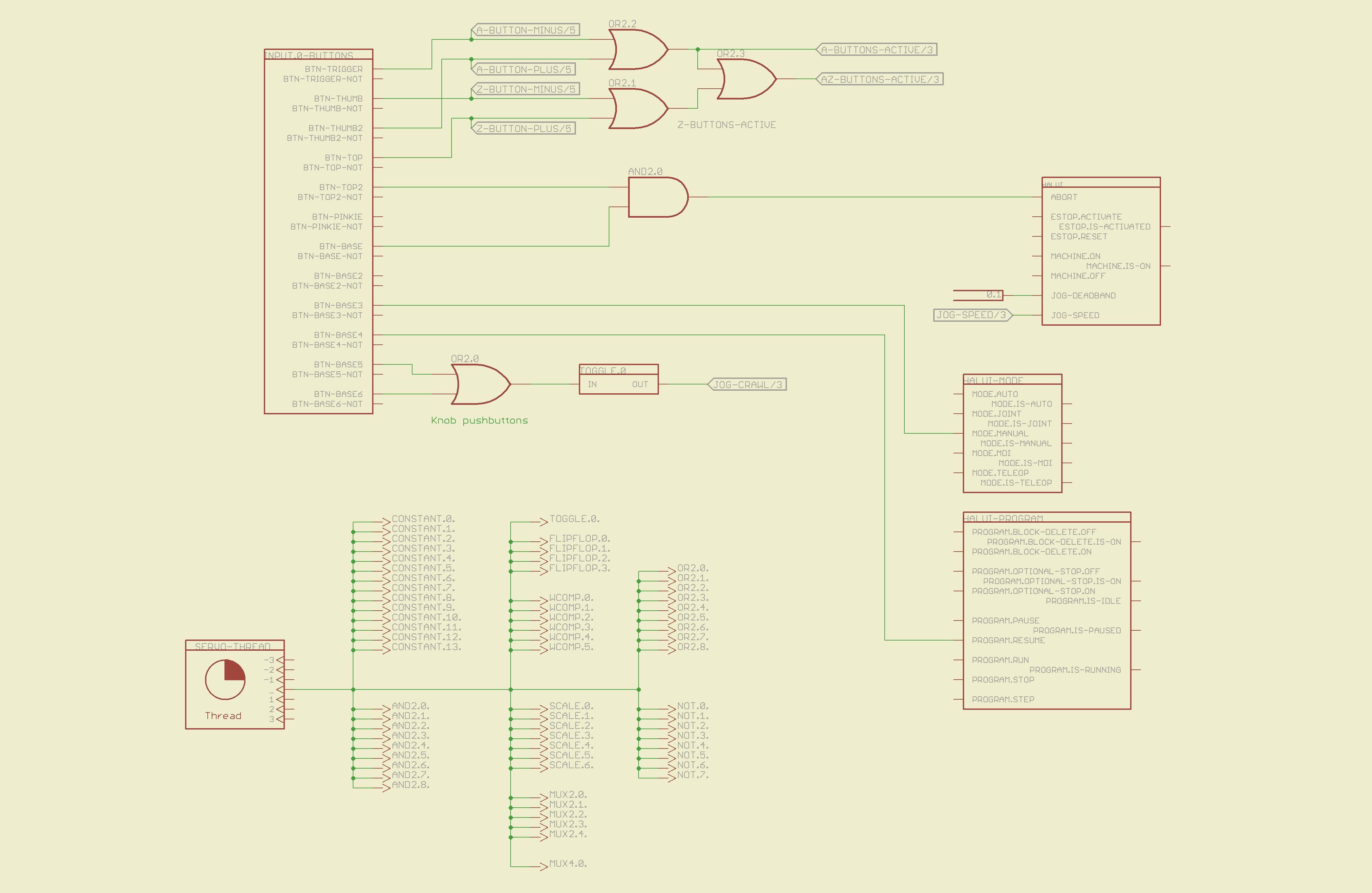
The servo thread interface device in the lower left provides the halui timing. The big block in the upper left has all the Logitech gamepad buttons, including the four big ones used for Z and A axis jogging. I changed the two left-rear buttons to activate the Abort signal rather than Estop, not that I use them all that much anyway.
The two joystick knobs have pushbuttons, which I combine and use to toggle a flipflop that will select the jogging speed: fast or crawl.
I also cut the jog deadband from 0.2 to 0.1, which makes the joysticks much more responsive.
Logitech Gamepad HAL Schematic – Page 1
The big block on the left has all the gamepad’s analog axes. The HAT0X and HAT0Y axes correspond to the top-hat pushbuttons; they’re not really analog at all, although they take on -1.0 / 0.0 / + 1.0 floating point values. The window comparators determine which joystick axes are active, which comes in handy later on.
Logitech Gamepad HAL Schematic – Page 2
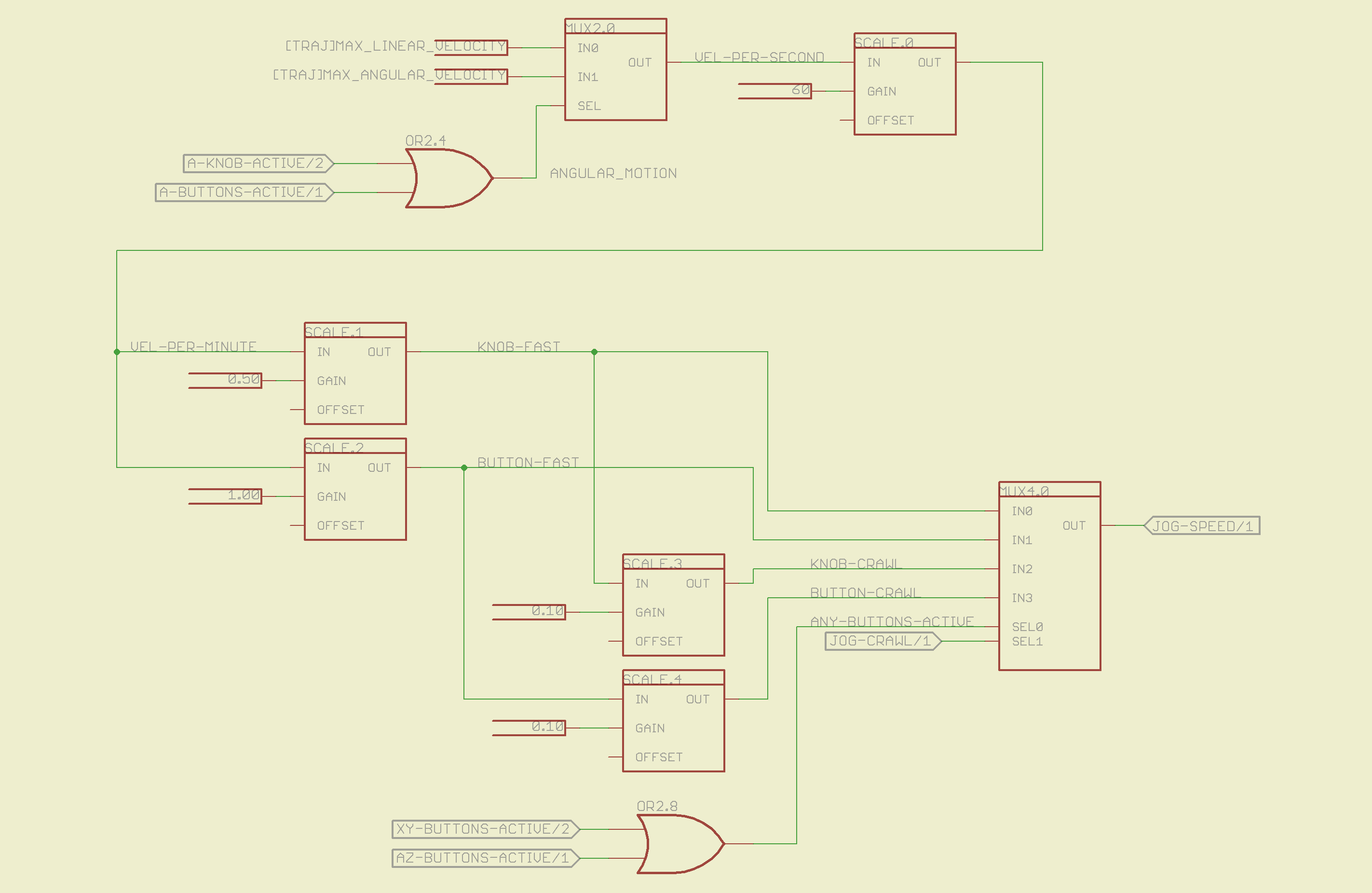
The HAL jogging control has a single input that sets the default speed, but the proper value is vastly different depending on whether you’re jogging with linear or angular motion. This page picks out which ini file MAX_VELOCITY value to use, converts from units/sec to units/min, then does Cool Thing #1: scales the speed so that the fast/crawl speeds work out nicely.
I use the buttons to jog rapidly from here to there, then creep up on the alignment point using the joysticks. Pressing the joysticks downward switches from Fast to Crawl speeds, which provides sort of a gearshift that’s useful for coarse / fine adjustments.
The buttons run at two speeds:
Fast: the maximum speed for the axis
Crawl: 10% of that value
The joysticks have a lower top speed:
Fast: half the maximum speed of the axis
Crawl: 10% of that value
All those values go into the mux4 block and thence to the HAL jog speed control.
Logitech Gamepad HAL Schematic – Page 3
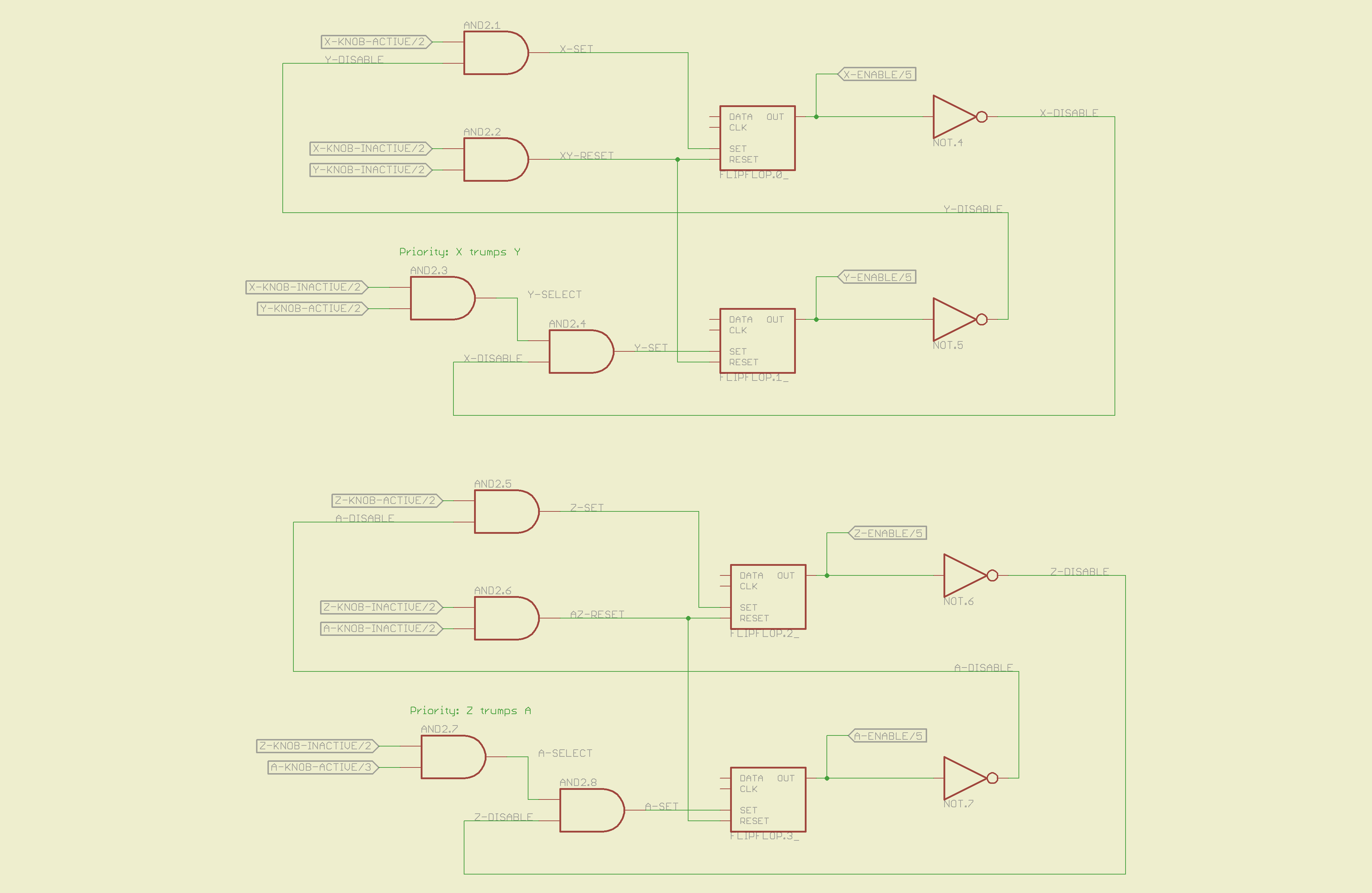
This page does Cool Thing #2: prioritize the joystick axes and lock out the one that started moving last. The general idea is that it’s painfully easy to move the joysticks diagonally, which is great for gaming and terrible for milling machine control. A pair of flipflops for each joystick remember which axis started moving first.
If you want to move diagonally, just press the buttons; they’re not locked out, so you can do what you want.
Logitech Gamepad HAL Schematic – Page 4
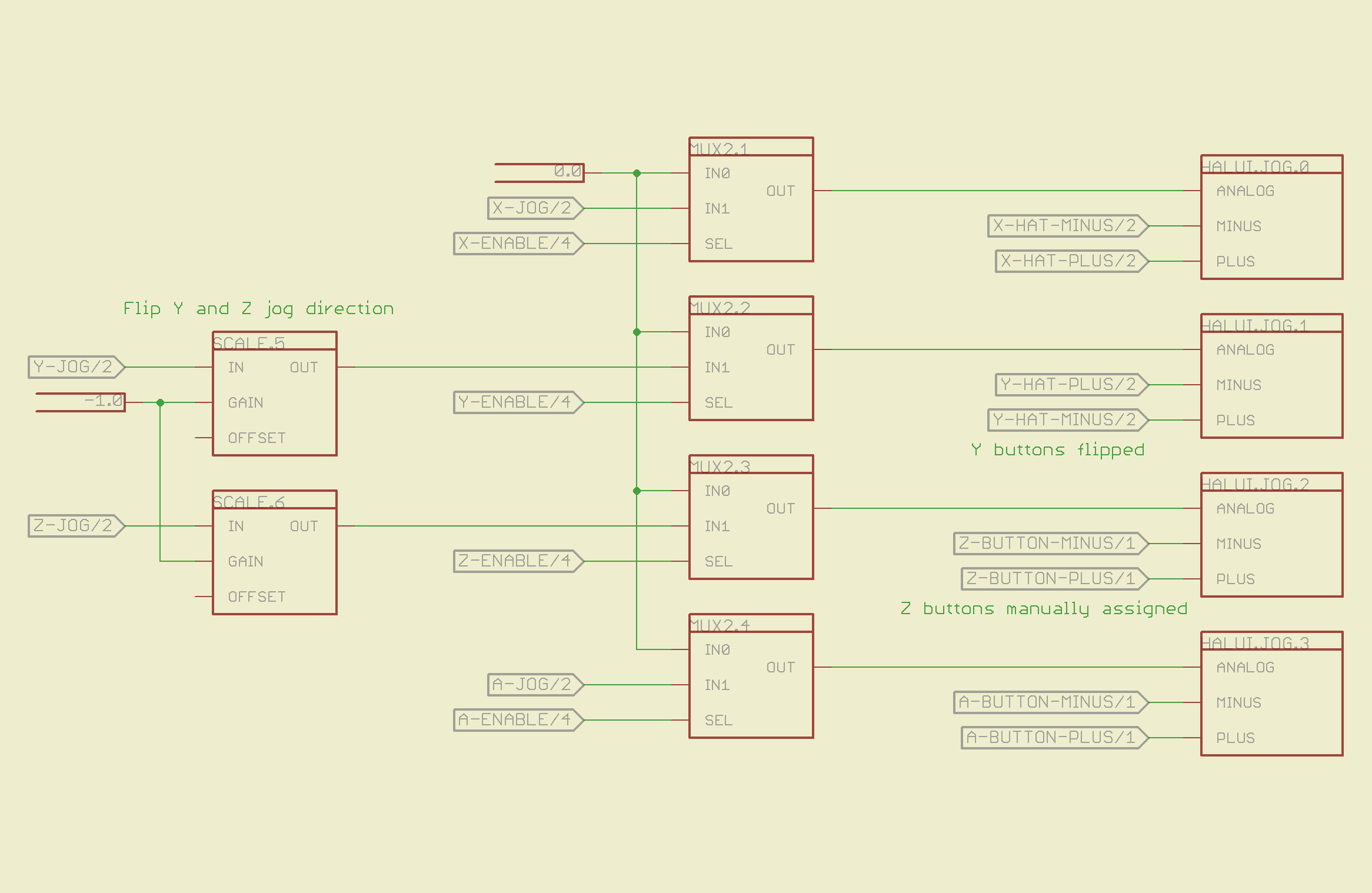
The motion comes together on the last page, where scale blocks flip the direction of the Y and Z joystick axes so positive motion is upward. The multiplexers allow only the active axis of each joystick to reach the HAL analog jog inputs; you can vary the speed of that axis up to the maximum as you’d expect. The buttons drive the digital inputs that jog at that maximum speed; the Y and Z button directions get sorted out appropriately.
Logitech Gamepad HAL Schematic – Page 5
Those five pages boil down into the following code, which I manually insert into my custom_postgui.hal file, along with the tool length probe pin definition.
# HAL config file automatically generated by Eagle-CAD hal-write.ulp
# (C) Martin Schoeneck.de 2008
# Mods Ed Nisley 2010

# Path: [/mnt/bulkdata/Project Files/eagle/projects/EMC2 HAL Configuration/]
# ProjectName: [Logitech Gamepad]
# File name: [/mnt/bulkdata/Project Files/eagle/projects/EMC2 HAL Configuration/Logitech Gamepad.hal]

####################################################
# Load realtime and userspace modules
loadrt constant	count=14
loadrt and2	count=9
loadrt flipflop	count=4
loadrt mux2	count=5
loadrt mux4	count=1
loadrt not	count=8
loadrt or2	count=9
loadrt scale	count=7
loadrt toggle	count=1
loadrt wcomp	count=6

####################################################
# Hook functions into threads
addf toggle.0	servo-thread
addf wcomp.1	servo-thread
addf wcomp.2	servo-thread
addf wcomp.3	servo-thread
addf and2.0	servo-thread
addf and2.4	servo-thread
addf and2.3	servo-thread
addf and2.2	servo-thread
addf and2.1	servo-thread
addf constant.6	servo-thread
addf constant.5	servo-thread
addf constant.4	servo-thread
addf constant.3	servo-thread
addf constant.2	servo-thread
addf constant.1	servo-thread
addf constant.0	servo-thread
addf constant.7	servo-thread
addf constant.8	servo-thread
addf scale.1	servo-thread
addf scale.2	servo-thread
addf scale.3	servo-thread
addf mux4.0	servo-thread
addf mux2.0	servo-thread
addf scale.4	servo-thread
addf scale.0	servo-thread
addf wcomp.5	servo-thread
addf wcomp.4	servo-thread
addf wcomp.0	servo-thread
addf flipflop.1	servo-thread
addf flipflop.0	servo-thread
addf and2.5	servo-thread
addf and2.6	servo-thread
addf and2.7	servo-thread
addf and2.8	servo-thread
addf flipflop.2	servo-thread
addf flipflop.3	servo-thread
addf or2.4	servo-thread
addf or2.8	servo-thread
addf or2.7	servo-thread
addf or2.6	servo-thread
addf or2.5	servo-thread
addf or2.3	servo-thread
addf or2.2	servo-thread
addf or2.1	servo-thread
addf or2.0	servo-thread
addf not.1	servo-thread
addf not.2	servo-thread
addf not.3	servo-thread
addf not.4	servo-thread
addf not.5	servo-thread
addf not.6	servo-thread
addf not.7	servo-thread
addf not.0	servo-thread
addf constant.9	servo-thread
addf mux2.1	servo-thread
addf mux2.2	servo-thread
addf mux2.3	servo-thread
addf mux2.4	servo-thread
addf constant.10	servo-thread
addf constant.11	servo-thread
addf scale.5	servo-thread
addf scale.6	servo-thread
addf constant.12	servo-thread
addf constant.13	servo-thread

####################################################
# Set parameters

####################################################
# Set constants
setp constant.0.value	+0.02
setp constant.1.value	-0.02
setp constant.2.value	60
setp constant.3.value	1.00
setp constant.4.value	0.10
setp constant.5.value	0.50
setp constant.6.value	0.10
setp constant.7.value	+0.5
setp constant.8.value	-0.5
setp constant.9.value	0.0
setp constant.10.value	[TRAJ]MAX_LINEAR_VELOCITY
setp constant.11.value	[TRAJ]MAX_ANGULAR_VELOCITY
setp constant.12.value	-1.0
setp constant.13.value	0.1

####################################################
# Connect Modules with nets
net a-button-minus input.0.btn-trigger or2.2.in0 halui.jog.3.minus
net a-button-plus input.0.btn-thumb2 or2.2.in1 halui.jog.3.plus
net a-buttons-active or2.2.out or2.3.in0 or2.4.in1
net a-disable not.7.out and2.5.in1
net a-enable flipflop.3.out not.7.in mux2.4.sel
net a-jog wcomp.2.in input.0.abs-z-position mux2.4.in1
net a-knob-active not.2.out or2.4.in0 and2.7.in1
net a-knob-inactive wcomp.2.out not.2.in and2.6.in1
net a-select and2.8.in0 and2.7.out
net a-set flipflop.3.set and2.8.out
net angular_motion or2.4.out mux2.0.sel
net any-buttons-active mux4.0.sel0 or2.8.out
net az-buttons-active or2.3.out or2.8.in1
net az-reset flipflop.2.reset and2.6.out flipflop.3.reset
net button-crawl scale.4.out mux4.0.in3
net button-fast scale.2.out mux4.0.in1 scale.4.in
net jog-crawl toggle.0.out mux4.0.sel1
net jog-speed halui.jog-speed mux4.0.out
net knob-crawl mux4.0.in2 scale.3.out
net knob-fast mux4.0.in0 scale.1.out scale.3.in
net n_1 constant.10.out mux2.0.in0
net n_2 and2.0.in0 input.0.btn-top2
net n_3 and2.0.in1 input.0.btn-base
net n_4 and2.0.out halui.abort
net n_5 halui.mode.manual input.0.btn-base3
net n_6 wcomp.0.max wcomp.1.max wcomp.2.max wcomp.3.max constant.0.out
net n_7 halui.program.resume input.0.btn-base4
net n_8 wcomp.0.min wcomp.1.min wcomp.2.min wcomp.3.min constant.1.out
net n_9 mux2.0.in1 constant.11.out
net n_10 constant.12.out scale.5.gain scale.6.gain
net n_11 input.0.btn-base5 or2.0.in0
net n_12 input.0.btn-base6 or2.0.in1
net n_13 constant.9.out mux2.1.in0 mux2.2.in0 mux2.3.in0 mux2.4.in0
net n_14 mux2.1.out halui.jog.0.analog
net n_15 toggle.0.in or2.0.out
net n_16 constant.2.out scale.0.gain
net n_17 constant.5.out scale.1.gain
net n_18 constant.3.out scale.2.gain
net n_19 constant.4.out scale.3.gain
net n_20 scale.4.gain constant.6.out
net n_21 halui.jog.1.analog mux2.2.out
net n_22 mux2.2.in1 scale.5.out
net n_23 scale.6.out mux2.3.in1
net n_24 constant.13.out halui.jog-deadband
net n_25 wcomp.4.max constant.7.out wcomp.5.max
net n_26 constant.8.out wcomp.4.min wcomp.5.min
net n_27 mux2.3.out halui.jog.2.analog
net n_28 halui.jog.3.analog mux2.4.out
net vel-per-minute scale.0.out scale.1.in scale.2.in
net vel-per-second mux2.0.out scale.0.in
net x-buttons-active or2.7.in0 or2.5.out
net x-disable not.4.out and2.4.in1
net x-enable not.4.in flipflop.0.out mux2.1.sel
net x-hat-jog wcomp.4.in input.0.abs-hat0x-position
net x-hat-minus wcomp.4.under or2.5.in1 halui.jog.0.minus
net x-hat-plus or2.5.in0 wcomp.4.over halui.jog.0.plus
net x-jog wcomp.0.in input.0.abs-x-position mux2.1.in1
net x-knob-active not.0.out and2.1.in0
net x-knob-inactive wcomp.0.out not.0.in and2.2.in0 and2.3.in0
net x-set and2.1.out flipflop.0.set
net xy-buttons-active or2.7.out or2.8.in0
net xy-reset flipflop.0.reset and2.2.out flipflop.1.reset
net y-buttons-active or2.6.out or2.7.in1
net y-disable not.5.out and2.1.in1
net y-enable flipflop.1.out not.5.in mux2.2.sel
net y-hat-jog input.0.abs-hat0y-position wcomp.5.in
net y-hat-minus wcomp.5.under or2.6.in1 halui.jog.1.plus
net y-hat-plus or2.6.in0 wcomp.5.over halui.jog.1.minus
net y-jog wcomp.1.in input.0.abs-y-position scale.5.in
net y-knob-active not.1.out and2.3.in1
net y-knob-inactive not.1.in wcomp.1.out and2.2.in1
net y-select and2.4.in0 and2.3.out
net y-set flipflop.1.set and2.4.out
net z-button-minus input.0.btn-thumb or2.1.in0 halui.jog.2.minus
net z-button-plus input.0.btn-top or2.1.in1 halui.jog.2.plus
net z-buttons-active or2.1.out or2.3.in1
net z-disable not.6.out and2.8.in1
net z-enable not.6.in flipflop.2.out mux2.3.sel
net z-jog wcomp.3.in input.0.abs-rz-position scale.6.in
net z-knob-active not.3.out and2.5.in0
net z-knob-inactive not.3.in wcomp.3.out and2.7.in0 and2.6.in0
net z-set and2.5.out flipflop.2.set
The ULP script that eats the schematic and poots out the HAL code:
/******************************************************************************
 * HAL-Configurator
 *
 * Author: Martin Schoeneck 2008
 * Additional gates & tweaks: Ed Nisley KE4ZNU 2010
 *****************************************************************************/
#usage "<h1>HAL-Configurator</h1>Start from a Schematic where symbols from hal-config.lbr are used!";

string output_path =    "./";
string dev_loadrt =     "LOADRT";
string dev_loadusr =    "LOADUSR";
string dev_thread =     "THREAD";
string dev_parameter =  "PARAMETER";

string dev_names[] = {
"CONSTANT",								// must be first entry to make set_constants() work
"ABS",				// 2.4
"AND2",
"BLEND",			// 2.4
"CHARGE-PUMP",		// 2.4
"COMP",
"CONV_S32_FLOAT",	// 2.4
"DDT",				// 2.4
"DEADZONE",			// 2.4
"DEBOUNCE",			// 2.4
"EDGE",
"ENCODER",			// 2.4
"ENCODER-RATIO",	// 2.4
"ESTOP-LATCH",
"FLIPFLOP",
"FREQGEN",			// 2.4
"LOWPASS",
"MULT2",			// 2.4
"MUX2",
"MUX4",				// 2.4
"MUX8",				// 2.4
"NEAR",				// 2.4
"NOT",
"ONESHOT",
"OR2",
"SAMPLER",			// 2.4
"SCALE",			// 2.4
"SELECT8",			// 2.4
"SUM2",
"TIMEDELAY",		// 2.4
"TOGGLE",			// 2.4
"WCOMP",			// 2.4
"XOR2",				// 2.4
""					// end flag
};

string init = "# HAL config file automatically generated by Eagle-CAD hal-write.ulp\n# (C) Martin Schoeneck.de 2008\n# Mods Ed Nisley 2010\n";

/*******************************************************************************
 * Global Stuff
 ******************************************************************************/

string FileName;
string ProjectPath;
string ProjectName;

void Info(string Message) {
	dlgMessageBox(";<b>Info</b><p>\n" + Message);
}

void Warn(string Message) {
	dlgMessageBox("!<b>Warning</b><p>\n" + Message + "<p>see usage");
}

void Error(string Message) {
	dlgMessageBox(":<hr><b>Error</b><p>\n" + Message + "<p>see usage");
	exit(1);
}

string replace(string str, char a, char b) {
	// in string str replace a with b
	int pos = -1;
	do {
		// find that character
		pos = strchr(str, a);
		// replace if found
		if(pos >= 0) {
			str[pos] = b;
		}
	} while(pos >= 0);

	return str;
}

// the part name contains an index and is written in capital letters
string get_module_name(UL_PART P) {
	// check module name, syntax: INDEX:NAME
	string mod_name = strlwr(P.name);
	// split string at the : if exists
	string a[];
	int c = strsplit(a, mod_name, ':');
	mod_name = a[c-1];
	// if name starts with '[' we need uppercase letters
	if(mod_name[0] == '[') {
		mod_name = strupr(mod_name);
	}

	return mod_name;
}

string comment(string mess) {
	string str = "\n\n####################################################\n";
	if(mess != "") {
		str += "# " + mess + "\n";
	}

	return str;
}

// if this is a device for loading a module, load it (usr/rt)
string load_module(UL_PART P) {
	string str = "";

	// it's a module if the device's name starts with LOADRT/LOADUSR
	if((strstr(P.device.name, dev_loadrt) == 0) ||
	   (strstr(P.device.name, dev_loadusr) == 0)) {

		// now add the string to our script
		str += P.value + "\n";
	}

	return str;
}

// count used digital gates (and, or, etc) and load module if neccessary
string load_blocks() {
	string str = "";

	int index;

	int dev_counters[];
	string dname[];

	// count the gates that are used
	schematic(S) { S.parts(P) {
		strsplit(dname,P.device.name,'.');		// extract first part of name
		if ("" != lookup(dev_names,dname[0],0)) {
			for (index = 0;  (dname[0] != dev_names[index]) ; index++) {
				continue;
			}
			dev_counters[index]++;
		}
	} }

// force lowercase module names...

	for (index = 0; ("" != dev_names[index]) ; index++) {
		if (dev_counters[index]) {
			sprintf(str,"%sloadrt %s\tcount=%d\n",str,strlwr(dev_names[index]),dev_counters[index]);
		}
	}

	return str;
}

string hook_function(UL_NET N) {
	string str = "";

	// is this net connected to a thread (work as functions here)?
	int    noclkpins       = 0;
	string thread_name     = "";  // this net should be connected to a thread
	string thread_position = "";
	N.pinrefs(PR) {
		// this net is connected to a clk-pin
		if(PR.pin.function == PIN_FUNCTION_FLAG_CLK) {
			// check the part: is it a thread-device?
			if(strstr(PR.part.device.name, dev_thread) == 0) {
				// we need the name of the thread
				thread_name = strlwr(PR.part.name);
				// and we need the position (position _ is ignored)
				thread_position = strlwr(PR.pin.name);
				thread_position = replace(thread_position, '_', ' ');
			}
		} else {
			// no clk-pin, this is no function-net
			noclkpins++;
			break;
		}
	}

	// found a thread?
	if(noclkpins == 0 && thread_name != "") {
		// all the other pins are interesting now
		N.pinrefs(PR) {
			// this pin does not belong to the thread
			if(strstr(PR.part.device.name, dev_thread) != 0) {
				// name of the pin is name of the function
				//string function_name = strlwr(PR.pin.name);
				string function_name = strlwr(PR.instance.gate.name);
				// if functionname starts with a '.', it will be appended to the modulename
				if(function_name[0] == '.') {
					// if the name is only a point, it will be ignored
					if(strlen(function_name) == 1) {
						function_name = "";
					}
					function_name = get_module_name(PR.part) + function_name;
				}
				str += "addf " + function_name + "\t" + thread_name + "\t" + thread_position + "\n";
			}
		}
	}

	return str;
}

string set_parameter(UL_NET N) {
	string str = "";

	// is this net connected to a parameter-device?
	int    nodotpins       = 0;
	string parameter_value = "";
	N.pinrefs(PR) {
		// this net is connected to a dot-pin
		if(PR.pin.function == PIN_FUNCTION_FLAG_DOT) {
			// check the part: is it a parameter-device?
//			str += "** dev name [" + PR.part.device.name + "] [" + dev_parameter + "]\n";
			if(strstr(PR.part.device.name, dev_parameter) == 0) {
				// we need the value of that parameter
				parameter_value = PR.part.value;
//				str += "**  value [" + PR.part.value +"]\n";
			}
		} else {
			// no clk-pin, this is no function-net
			nodotpins++;
			break;
		}
	}

	// found a parameter?
	if(nodotpins == 0 && parameter_value != "") {
		// all the other pins are interesting now
		N.pinrefs(PR) {
//			str += "** dev name [" + PR.part.device.name + "] [" + dev_parameter + "]\n";
			// this pin does not belong to the parameter-device
			if(strstr(PR.part.device.name, dev_parameter) != 0) {
				// name of the pin is name of the function
				//string parameter_name = strlwr(PR.pin.name);
				string parameter_name = strlwr(PR.instance.gate.name);
				// if functionname starts with a '.', it will be appended to the modulename
//				str += "** param (gate) name [" + parameter_name + "]\n";
				if(parameter_name[0] == '.') {
					// if the name is only a point, it will be ignored
					if(strlen(parameter_name) == 1) {
						parameter_name = "";
					}
					parameter_name = get_module_name(PR.part) + parameter_name;
//					str += "** param (part) name [" + parameter_name + "]\n";
				}
				str += "setp " + parameter_name + "\t" + parameter_value + "\n";
			}
		}
	}

	return str;
}

// if this is a 'constant'-device, set its value
// NOTE: this is hardcoded to use the first entry in the dev_names[] array!
string set_constants(UL_PART P) {
	string str = "";

	// 'constant'-device?
	if(strstr(P.device.name, dev_names[0]) == 0) {
		str += "setp " + get_module_name(P) + ".value\t" + P.value + "\n";
	}

	return str;
}

string connect_net(UL_NET N) {
	string str = "";

	// find all neccessary net-members
	string pins = "";
	N.pinrefs(P) {
		// only non-functional pins are connected
		if(P.pin.function == PIN_FUNCTION_FLAG_NONE) {
			string pin_name =  strlwr(P.pin.name);
			string part_name = strlwr(P.part.name);
			pin_name =  replace(pin_name,  '$', '_');
			part_name = replace(part_name, '$', '_');
			pins += part_name + "." + pin_name + " ";
		}
	}

	if(pins != "") {
		string net_name = strlwr(N.name);
		net_name = replace(net_name, '$', '_');
		str += "net " + net_name + " " + pins + "\n";
	}

	return str;
}

/*******************************************************************************
 * Main program.
 ******************************************************************************/
// is the schematic editor running?
if (!schematic) {
	Error("No Schematic!<br>This program will only work in the schematic editor.");
}

schematic(S) {
	ProjectPath = filedir(S.name);
	ProjectName = filesetext(filename(S.name), "");
}

// build configuration
string cs = init + "\n\n";

FileName = ProjectPath + ProjectName + ".hal";

cs += "# Path: [" + ProjectPath + "]\n";
cs += "# ProjectName: [" + ProjectName + "]\n";
//cs += "# File name: [" + FileName + "]\n\n";

// ask for a filename: where should we write the configuration?

FileName = dlgFileSave("Save Configuration", FileName, "*.hal");

if(!FileName) {
	exit(0);
}

cs += "# File name: [" + FileName + "]\n\n";

schematic(S) {
	// load modules
	cs += comment("Load realtime and userspace modules");
	S.parts(P) {
		cs += load_module(P);
	}

	// load blocks
	cs += load_blocks();

	// add functions
	cs += comment("Hook functions into threads");
	S.nets(N) {
		cs += hook_function(N);
	}

	// set parameters
	cs += comment("Set parameters");
	S.nets(N) {
		cs += set_parameter(N);
	}

	// set constant values
	cs += comment("Set constants");
	S.parts(P) {
		cs += set_constants(P);
	}

	// build nets and connect them
	cs += comment("Connect Modules with nets");
	S.nets(N) {
		cs += connect_net(N);
	}
}

// open/overwrite the target file to save the configuration
output(FileName, "wt") {
	printf(cs);
}
Most of that script is Martin’s work; I just cleaned it up. You can download it by hovering over the code to make the little toolbar pop up near the upper-right corner of the text, then:
click a little button to copy it to the clipboard or
click another little button to view the source, then save that file
You’ll also need the Eagle library that goes along with the script, but WordPress doesn’t like .lbr files. Here’s the hal-config-2.4.lbr file with a totally bogus odt extension. Download it, rename it to remove the .odt extension, and it’s all good.
There is basically no documentation for any of this. I figured out what to do by looking at the source and Martin’s sample schematic, but now you have two sample schematics: the situation is definitely improving!