The Smell of Molten Projects in the Morning

Ed Nisley's Blog: Shop notes, electronics, firmware, machinery, 3D printing, laser cuttery, and curiosities. Contents: 100% human thinking, 0% AI slop.

Category: Software

General-purpose computers doing something specific

  • Automated Cookie Cutters: Fine Tuning

    TuxTrace - grayscale height map
    TuxTrace – grayscale height map

    Running more grayscale images through the cookie cutter process revealed some problems and solutions…

    It seems OpenSCAD (or the underlying CGAL library) chokes while creating a 3D surface from a bitmap image more than about 350-ish pixels square: it gradually blots up all available memory, fills the entire swap file, then crashes after a memory allocation failure. As you might expect, system response time rises exponentially and, when the crash finally occurs, everything else resides in the swap file. The only workaround seems to be keeping the image under about 330-ish pixels. That’s on a Xubuntu 12.04 box with 4 GB of memory and an 8 GB swap partition.

    So I applied 2.5 pixel/mm scaling factor to images intended for a 5 inch build platform:

    317 pixel = (5 inch × 25.4 mm/inch) * 2.5 pixel/mm

    Any reasonable scaling will work. For smaller objects or platforms, use 3 pixel/mm or maybe more. If you have a larger build platform, scale accordingly. I baked the default 2.5 factor into the Bash script below, but changing it in that one spot will do the trick. Remember that you’re dealing with a 0.5 mm extrusion thread and the corresponding 1 mm minimum feature size, so the ultimate object resolution isn’t all that great.

    Tomorrow I’ll go through an image preparation checklist. However, given a suitable grayscale height map image as shown above, the rest happens automagically:

    ./MakeCutter.sh filename.png

    That process required some tweakage, too …

    TuxTrace-press - solid model
    TuxTrace-press – solid model
    TuxTrace-cutter - solid model
    TuxTrace-cutter – solid model

    Auto-cropping the image may leave empty borders: the canvas remains at the original size with the cropped image floating inside. Adding +repage to the convert command shrinkwraps the canvas around the cropped image.

    If the JPG file of the original scanned image has an embedded comment (Created by The GIMP, for example), then so will the PNG file and so will the ASCII PGM files, much to my astonishment and dismay. The comment line (# Created by The GIMP) screwed up my simplistic assumption about the file’s header four-line header layout. The +set Comment squelches the comment; note that the word Comment is a keyword for the set option, not a placeholder for an actual comment.

    It turns out that OpenSCAD can export STL files that give it heartburn when subsequently imported, so I now process the height map and outline images in the same OpenSCAD program, without writing / reading intermediate files. That requires passing all three image dimensions into the program building the cutter and press, which previously depended on the two incoming STL files for proper sizing. This seems much cleaner.

    The original program nested the cookie press inside the cutter on the build platform as a single STL file, but it turns out that for large cutters you really need a T-shaped cap to stabilize the thin plastic shape; the press won’t fit inside. The new version produces two separate STL files: one for the press and one for the cutter, in two separate invocations. The command-line options sort everything out on the fly.

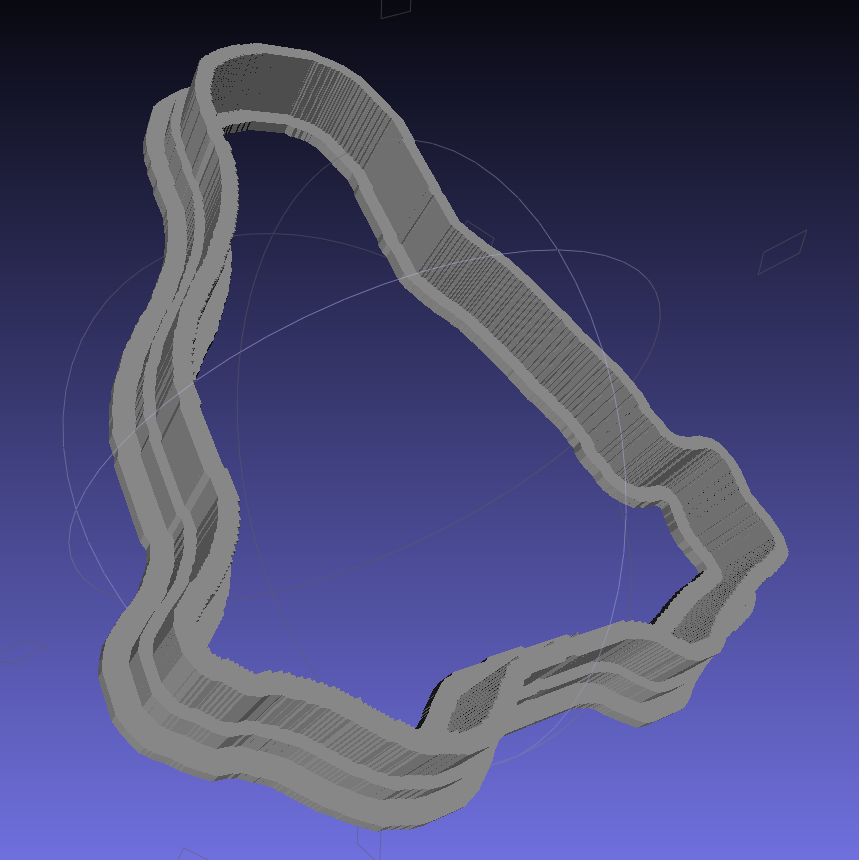
    Because the cutter lip extends outward from the press by about 6 mm, you must size the press to keep the cutter completely on the build platform. The 5 inch outline described above produces a cutter that barely fits on a 5.5 inch platform; feel free to scale everything as needed for your printer.

    The time commands show that generating the press goes fairly quickly, perhaps 5 to 10 minutes on a 3 GHz Core 2 Duo 8400. The multiple Minkowski operations required for the cutter, however, run a bit over an hour on that machine. OpenSCAD saturates one CPU core, leaving the other for everything else, but I wound up getting a cheap off-lease Dell Optiplex 760 as a headless graphics rendering box because it runs rings around my obsolete Pentium D desktop box.

    The MakeCutter.sh Bash script controlling the whole show:

    #!/bin/bash
    DotsPerMM=2.5
    MapHeight=5
    ImageName="${1%%.*}"
    rm ${ImageName}_* ${ImageName}-press.stl ${ImageName}-cutter.stl
    echo Normalize and prepare grayscale image...
    convert $1 -type Grayscale -depth 8 -auto-level -trim +repage -flip -flop -negate +set Comment ${ImageName}_prep.png
    echo Create PGM files...
    convert ${ImageName}_prep.png -compress none ${ImageName}_map.pgm
    convert ${ImageName}_prep.png -white-threshold 1 -compress none ${ImageName}_plate.pgm
    echo Create height map data files...
    ImageX=`identify -format '%[fx:w]' ${ImageName}_map.pgm`
    ImageY=`identify -format '%[fx:h]' ${ImageName}_map.pgm`
    echo Width: ${ImageX} x Height: ${ImageY}
    cat ${ImageName}_map.pgm | tr -s ' \012' '\012' | tail -n +5 | column -x -c $((8*$ImageX)) > ${ImageName}_map.dat
    cat ${ImageName}_plate.pgm | tr -s ' \012' '\012' | tail -n +5 | column -x -c $((8*$ImageX)) > ${ImageName}_plate.dat
    echo Create cookie press...
    time openscad -D BuildPress=true \
    -D fnPlate=\"${ImageName}_plate.dat\" \
    -D fnMap=\"${ImageName}_map.dat\" -D Height=$MapHeight \
    -D ImageX=$ImageX -D ImageY=$ImageY -D DotsPerMM=$DotsPerMM \
    -o ${ImageName}-press.stl Cookie\ Cutter.scad
    echo Create cookie cutter...
    time openscad -D BuildCutter=true \
    -D fnPlate=\"${ImageName}_plate.dat\" \
    -D ImageX=$ImageX -D ImageY=$ImageY -D DotsPerMM=$DotsPerMM \
    -o ${ImageName}-cutter.stl Cookie\ Cutter.scad
    

    The Cookie Cutter.scad OpenSCAD source code:

    // Cookie cutter from grayscale height map using Minkowski sum
    // Ed Nisley KE4ZNU - November 2012
    
    //-----------------
    // Cookie cutter files
    
    BuildPress = false;						// override with -D Buildxxx=true
    BuildCutter = false;
    
    fnMap = "no_map.dat";					// override with -D 'fnMap="whatever.dat"'
    fnPlate = "no_plate.dat";				// override with -D 'fnPlate="whatever.dat"'
    
    DotsPerMM = 2.5;						// overrride with -D DotsPerMM=number
    
    MapHeight = 5.0;						// overrride with -D MapHeight=number
    
    ImageX = 10;							// overrride with -D ImageX=whatever
    ImageY = 10;
    
    MapScaleXYZ = [1/DotsPerMM,1/DotsPerMM,MapHeight/255];
    PlateScaleXYZ = [1/DotsPerMM,1/DotsPerMM,1.0];
    
    echo("Press File: ",fnMap);
    echo("Plate File: ",fnPlate);
    
    echo("ImageX:",ImageX," ImageY: ", ImageY);
    echo("Map Height: ",MapHeight);
    echo("Dots/mm: ",DotsPerMM);
    echo("Scale Map: ",MapScaleXYZ,"  Plate: ",PlateScaleXYZ);
    
    //- Extrusion parameters - must match reality!
    
    ThreadThick = 0.25;
    ThreadWidth = 2.0 * ThreadThick;
    
    //- Cookie cutter parameters
    
    TipHeight = IntegerMultiple(8.0,ThreadThick);		// cutting edge
    TipWidth = 5*ThreadWidth;
    
    WallHeight = IntegerMultiple(4.0,ThreadThick);		// center section
    WallWidth = IntegerMultiple(4.0,ThreadWidth);
    
    LipHeight = IntegerMultiple(2.0,ThreadThick);		// cutter handle
    LipWidth = IntegerMultiple(3.0,ThreadWidth);
    
    PlateThick = IntegerMultiple(4.0,ThreadThick);	// solid plate under press relief
    
    //- Useful info
    
    function IntegerMultiple(Size,Unit) = Unit * ceil(Size / Unit);
    
    Protrusion = 0.1;						// make holes & unions work correctly
    
    MaxConvexity = 5;						// used for F5 previews in OpenSCAD GUI
    
    ZFuzz = 0.2;							// numeric chaff just above height map Z=0 plane
    
    //-----------------
    // Import plate height map, slice off a slab to define outline
    
    module Slab(Thick=1.0) {
    	intersection() {
    		translate([0,0,Thick/2])
    			cube([2*ImageX,2*ImageY,Thick],center=true);
    		scale(PlateScaleXYZ)
    			difference() {
    				translate([0,0,-ZFuzz])
    					surface(fnPlate,center=true,convexity=MaxConvexity);
    				translate([0,0,-1])
    					cube([2*ImageX,2*ImageY,2],center=true);
    			}
    	}
    }
    
    //- Put peg grid on build surface
    
    module ShowPegGrid(Space = 10.0,Size = 1.0) {
    
    	Range = floor(50 / Space);
    
    	for (x=[-Range:Range])
    	  for (y=[-Range:Range])
    		translate([x*Space,y*Space,Size/2])
    			%cube(Size,center=true);
    }
    
    //- Build it
    
    //ShowPegGrid();
    
    if (BuildPress) {
    	echo("Building press");
    	union() {
    		Slab(PlateThick + Protrusion);
    		translate([0,0,PlateThick])							// cookie press height map
    			scale(MapScaleXYZ)
    			difference() {
    				translate([0,0,-ZFuzz])
    					surface(fnMap,center=true,convexity=MaxConvexity);
    				translate([0,0,-1])
    					cube([2*ImageX,2*ImageY,2],center=true);
    			}
    	}
    }
    
    if (BuildCutter) {
    	echo("Building cutter");
    	union() {
    		difference() {
    			union() {										// stack cutter layers
    				translate([0,0,(WallHeight + LipHeight - 1)])
    					minkowski() {
    						Slab(TipHeight);
    						cylinder(r=TipWidth,h=1);
    					}
    				translate([0,0,LipHeight - 1])
    					minkowski() {
    						Slab(WallHeight);
    						cylinder(r=WallWidth,h=1);
    					}
    			}
    			translate([0,0,-1])								// punch central hole for plate
    				Slab(TipHeight + WallHeight + LipHeight + 2);
    		}
    		minkowski() {										// put lip around base
    			difference() {
    				minkowski() {
    					Slab(LipHeight/3);
    					cylinder(r=WallWidth,h=LipHeight/3);
    				}
    				translate([0,0,-2*LipHeight])
    					Slab(4*LipHeight);
    			}
    			cylinder(r=LipWidth,h=LipHeight/3);
    		}
    	}
    }
    

    And then it Just Works…

  • Kindle Fire NTP: Timing Channel Attack

    I’ve completely offloaded remembering my appointments to the Kindle Fire, which now lives in the right thigh pocket of my cargo pants (it’s a sartorial thing). While waiting for a meeting (which it had correctly reminded me of) to start, I did my usual “What do we find in the way of open WiFi networks?” scan, found one, and connected to it. Unfortunately, it was one of those open WiFi networks that subsequently requires a password, but … then I noticed something odd with the time displayed at the top of the screen.

    A bit of tapping produced the Date & Time settings screen:

    Kindle Fire - 0503 1 Jan 1970
    Kindle Fire – 0503 1 Jan 1970

    Evidently, that not-exactly-open WiFi network also features a defunct time server that’s happy to clobber any device asking for a time update. As you might expect, snapping back forty years does horrible things to many Kindle fire apps. The crash handler can only suggest re-downloading the app from the online store, which turns out to not be necessary after a complete shutdown / reboot.

    Ah, if I knew then what I know now… I’d certainly get into much more trouble. Not surprisingly, there’s a book about that; maybe it’s better not to know how things will work out.

    Memo to Self: watch the time!

  • Automated Cookie Cutters: Putting It All Together

    With that musing, image processing, and data reformatting in hand, this now seems to work pretty well…

    This is MakeCutter.sh, the Bash file that controls the overall process:

    #!/bin/bash
    DotsPerMM=3
    MapHeight=5
    ImageName=${1%%.*}
    rm ${ImageName}_* ${ImageName}.stl
    echo Normalize and prepare grayscale image...
    convert $1 -trim -type Grayscale -depth 8 -auto-level -flip -negate -flop ${ImageName}_prep.png
    echo Create PGM files...
    convert ${ImageName}_prep.png -compress none ${ImageName}_map.pgm
    convert ${ImageName}_prep.png -white-threshold 1 -compress none ${ImageName}_plate.pgm
    echo Create height map data files...
    ImageX=`identify -format '%[fx:w]' ${ImageName}_map.pgm`
    ImageY=`identify -format '%[fx:h]' ${ImageName}_map.pgm`
    cat ${ImageName}_map.pgm | tr -s ' \012' '\012' | tail -n +5 | column -x -c $((8*$ImageX)) > {ImageName}_map.dat
    cat ${ImageName}_plate.pgm | tr -s ' \012' '\012' | tail -n +5 | column -x -c $((8*$ImageX)) > ${ImageName}_plate.dat
    echo Create height map STL files...
    time openscad -D DotsPerMM=$DotsPerMM -D Height=$MapHeight -D FileName=\"${ImageName}_map.dat\" -o ${ImageName}_map.stl MakeSurface.scad
    time openscad -D DotsPerMM=$DotsPerMM -D Height=255 -D FileName=\"${ImageName}_plate.dat\" -o ${ImageName}_plate.stl MakeSurface.scad
    echo Create cookie press and cutter...
    time openscad -D fnPress=\"${ImageName}_map.stl\" -D fnPlate=\"${ImageName}_plate.stl\" -D ImageX=$ImageX -D ImageY=$ImageY -o ${ImageName}.stl Cookie\ Cutter.scad
    

    Hand it an image file name and it just does the rest:

    ./MakeCutter.sh jellyfish-high.png
    

    I assume you’ll pick a workable dots/mm resolution and suchlike for your setup, so they’re hardcoded into the script. You could add them to the command line if you like.

    Starting from the same jellyfish.svg file as before, I came up with a slightly different jellyfish-high.png grayscale height map image with more dots (246×260 dots at 3 dot/mm = 82×87 mm). The original 160×169 file required about half an hour to render and, as you’d expect, increasing the number of dots by 1.5 (nearly √2) doubled the time to just over an hour:

    Manually tweaked jellyfish-high.png
    Manually tweaked jellyfish-high.png

    The first convert step turns that into the basic height map jellyfish_prep.png file:

    jellyfish-high_prep.png
    jellyfish-high_prep.png

    The next two convert steps produce two ASCII PGM files:

    • jellyfish-high_map.pgm
    • jellyfish-high_plate.pgm

    The _map file has the grayscale height map data, which is identical to the prepared PNG image:

    jellyfish-high_map
    jellyfish-high_map

    The _plate file defines the outline of the cookie cutter with a completely white interior, which is why the original cookie height map image can’t contain any pure white areas inside the outline (they’d become black here and produce islands). It seems the OpenSCAD minkowski() function runs significantly faster when it doesn’t process a whole bunch of surface detail; all we care about is the outline, so that’s all it gets:

    jellyfish-high_plate
    jellyfish-high_plate

    I originally composited the height maps on a known-size platen and worked with those dimensions, but it’s easier to just extract the actual image dimensions and feed them into the code as needed. As with all ImageMagick programs, identify has a myriad options.

    Those two lines of Bash gibberish reformat the ASCII PGM files into the ASCII DAT arrays required by OpenSCAD’s surface() function.

    The MakeSurface.scad script eats a DAT height map file and spits out a corresponding STL file. The Height parameter defines the overall Z-axis size of the slab; the maximum 255 corresponds to pure white in the image file:

    // Generate object from image height map
    // Ed Nisley - KE4ZNU
    // October 2012
    // This leaves the rectangular slab below Z=0 over the full image area
    //		... reduced in thickness by the Height/255 ratio
    
    FileName = "noname.dat";				// override with -D FileName="whatever.dat"
    Height = 255;						// overrride with -D Height=number
    DotsPerMM = 2;						// overrride with -D DotsPerMM=number
    
    ScaleXYZ = [1/DotsPerMM,1/DotsPerMM,Height/255];
    
    echo("File: ",FileName);
    echo("Height: ",Height);
    echo("Dots/mm: ",DotsPerMM);
    echo("Scale: ",ScaleXYZ);
    
    module ShowPegGrid(Space = 10.0,Size = 1.0) {
      Range = floor(50 / Space);
    	for (x=[-Range:Range])
    	  for (y=[-Range:Range])
    		translate([x*Space,y*Space,Size/2])
    		  %cube(Size,center=true);
    }
    
    //- Build it
    
    ShowPegGrid();
    
    scale(ScaleXYZ)
    	surface(FileName,center=true,convexity=10);
    

    The grid defining the build platform doesn’t show up in the output file; it’s there just for manual fiddling inside the GUI. When run from the command line, OpenSCAD simply creates the output file.

    The _map.stl file has the height map data that will form the cookie press:

    jellyfish-high_map - Model
    jellyfish-high_map – Model

    The _plate.stl file is basically a digital bar cookie that will define the cutter:

    jellyfish-high_plate - Model
    jellyfish-high_plate – Model

    It’s possible to produce the cutter in one shot, starting from the DAT files, but having the two STL files makes it (barely) feasible to experiment interactively within the OpenSCAD GUI.

    This OpenSCAD program produces the cutter and press:

    // Cookie cutter from grayscale height map using Minkowski sum
    // Ed Nisley KE4ZNU - November 2012
    
    //-----------------
    // Cookie cutter files
    
    BuildPress = true;
    BuildCutter = true;
    
    fnPress = "nofile.stl";					// override with -D 'fnPress="whatever.stl"'
    fnPlate = "nofile.stl";					// override with -D 'fnPlate="whatever.stl"'
    
    ImageX = 10;						// overrride with -D ImageX=whatever
    ImageY = 10;
    
    MaxConvexity = 5;					// used for F5 previews in OpenSCAD GUI
    
    echo("Press File: ",fnPress);
    echo("Plate File: ",fnPlate);
    echo("Image X: ",ImageX," Y: ",ImageY);
    
    //- Extrusion parameters - must match reality!
    
    ThreadThick = 0.25;
    ThreadWidth = 2.0 * ThreadThick;
    
    //- Cookie cutter parameters
    
    TipHeight = IntegerMultiple(8,ThreadThick);		// cutting edge
    TipWidth = 4*ThreadWidth;
    
    WallHeight = IntegerMultiple(7,ThreadThick);		// center section
    WallWidth = 8*ThreadWidth;
    
    LipHeight = IntegerMultiple(2.0,ThreadThick);		// cutter handle
    LipWidth = IntegerMultiple(8.0,ThreadWidth);
    
    CutterGap = IntegerMultiple(2.0,ThreadWidth);		// gap between cutter and press
    
    PlateThick = IntegerMultiple(3.0,ThreadThick);		// solid plate under press relief
    
    //- Build platform
    
    PlatenX = 100;						// build platform size
    PlatenY = 120;
    PlatenZ = 120;						// max height for any object
    PlatenFuzz = 2;
    
    MaxSize = max(PlatenX,PlatenY);				// larger than any possible dimension ...
    
    ZFuzz = 0.20;						// height of numeric junk left by grayscale conversion
    ZCut = 1.20;						// thickness of block below Z=0
    
    //- Useful info
    
    function IntegerMultiple(Size,Unit) = Unit * ceil(Size / Unit);
    
    Protrusion = 0.1;					// make holes and unions work correctly
    
    //-----------------
    // Import height map STL, convert to cookie press image
    
    module PressSurface() {
    
    	translate([0,0,-ZFuzz])
    		difference() {
    			import(fnPress,convexity=MaxConvexity);
    			translate([-(ImageX + PlatenFuzz)/2,-(ImageY + PlatenFuzz)/2,-ZCut])
    				cube([(ImageX + PlatenFuzz),(ImageY + PlatenFuzz),ZCut+ZFuzz],center=false);
    		}
    }
    
    //-----------------
    // Import plate STL, slice off a slab to define outline
    
    module Slab(Thick=1.0) {
    	intersection() {
    		translate([0,0,Thick/2])
    			cube([(PlatenX+PlatenFuzz),(PlatenY+PlatenFuzz),Thick],center=true);
    		translate([0,0,-1])
    			import(fnPlate,convexity=MaxConvexity);
    	}
    }
    
    //- Put peg grid on build surface
    
    module ShowPegGrid(Space = 10.0,Size = 1.0) {
    
      Range = floor(50 / Space);
    
    	for (x=[-Range:Range])
    	  for (y=[-Range:Range])
    		translate([x*Space,y*Space,Size/2])
    		  %cube(Size,center=true);
    
    }
    
    //- Build it
    
    ShowPegGrid();
    
    if (BuildPress) {
    	echo("Building press");
    	union() {
    		minkowski() {					// fingernail ridge around press
    			Slab(LipHeight - 1);			//  ... same thickness as cutter lip
    			cylinder(r=CutterGap/2,h=1);
    		}
    		translate([0,0,(LipHeight - Protrusion)])	// solid plate under press
    			Slab(PlateThick - LipHeight + Protrusion);
    		translate([0,0,PlateThick])			// cookie press height map
    			intersection() {
    				import(fnPress,convexity=MaxConvexity);
    				translate([0,0,-Protrusion])
    					Slab(PlatenZ + Protrusion);
    			}
    
    	}
    }
    
    if (BuildCutter) {
    	echo("Building cutter");
    	difference() {
    		union() {					// stack cutter layers
    			translate([0,0,(WallHeight + LipHeight - 1)])
    				minkowski() {
    					Slab(TipHeight - 1);
    					cylinder(r=(TipWidth + CutterGap),h=1);
    				}
    			translate([0,0,LipHeight - 1])
    				minkowski() {
    					Slab(WallHeight - 1);
    					cylinder(r=(WallWidth + CutterGap),h=1);
    				}
    			minkowski() {
    				Slab(LipHeight - 1);
    				cylinder(r=(LipWidth + CutterGap),h=1);
    			}
    		}
    		minkowski() {					// punch out opening for cookie press
    			translate([0,0,-2])
    				Slab(PlatenZ);
    			cylinder(r=CutterGap,h=1);
    		}
    	}
    }
    

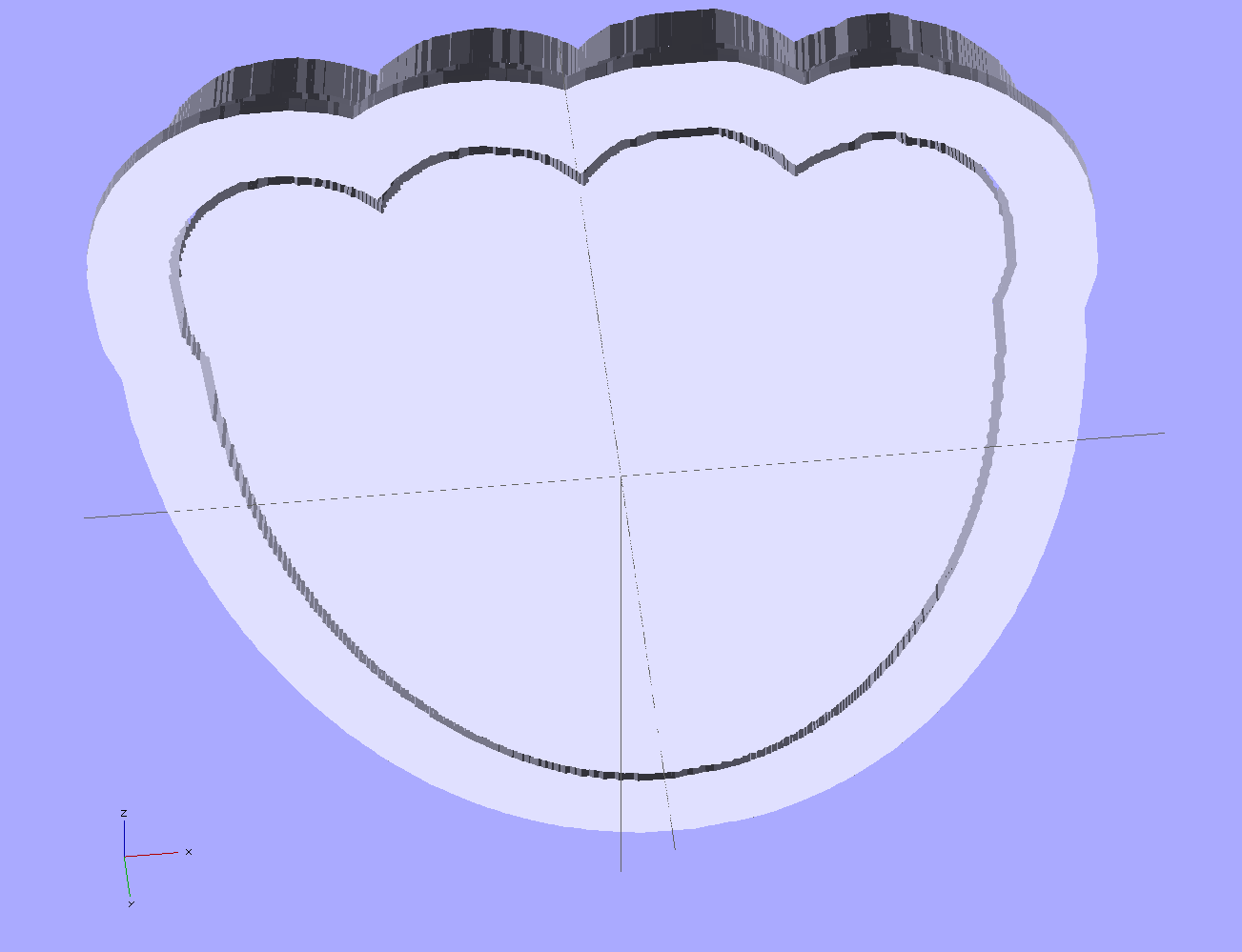
    The top view shows the height map press nested inside the cutter blade, but it’s not obvious they’re two separate pieces:

    jellyfish-high - Cutter and Press - top view
    jellyfish-high – Cutter and Press – top view

    The bottom view shows the 1 mm gap between the two objects:

    jellyfish-high - Cutter and Press - bottom view
    jellyfish-high – Cutter and Press – bottom view

    Now, to print the thing [Update: like that] so I can make some cookies…

    Further musings:

    • Printing separately would allow a tighter fit between the press and the cutter: an exact fit won’t work, but 2 mm may be too much.
    • A knob glued on the flat surface of the press would be nice; the fingernail ridge may get annoying.
    • PLA seems more socially acceptable than ABS for foodie projects. Frankly, I doubt that it matters, at least in this application.
    • A bigger build platform would be nice…
  • Automated Cookie Cutters: Creating the Height Map Data File

    That process produces a grayscale height map PNG image in the proper orientation:

    Jellyfish - prepared image
    Jellyfish – prepared image

    OpenSCAD, however, requires a flat ASCII data file to build a 3D model, as described there.

    It turns out that a PGM (“Portable Graymap”) file is almost exactly what we need: a fixed format header in ASCII text, followed by the pixel data in either ASCII or binary. To get an ASCII-formatted PGM file from that PNG image:

    convert jellyfish_prep.png -compress None jellyfish.pgm
    

    The top of the PGM file looks like this:

    P2
    149 159
    255
    0 0 0 0 0 0 0 0 0 0 0 0 0 0 0 0 0 0 0 0 0 0 0 0 0 0 0 0 0 0 0 0 0 0 0 0 0 0 0
    0 0 0 0 0 0 0 0 0 0 0 0 0 255 255 255 255 255 255 255 255 255 0 0 0 0 0 0 0 0
    0 0 0 0 0 0 0 0 0 0 0 0 0 0 0 0 0 0 255 255 255 255 255 255 255 255 255 255
    ... more data ...
    

    The data isn’t in the XY array layout that OpenSCAD expects; It Would Be Very Nice If OpenSCAD could read PGM files, including the header describing the array size, but it doesn’t. Fortunately, some Bash-fu can handle the reformatting.

    First, store the number of pixels along the X axis in a Bash variable:

    ImageX=`identify -format '%[fx:w]' ${imagename}_prep.png`
    

    Note the backticks around the whole mess that tell Bash to execute what’s inside and return the value. The -format operation returns the width as an integer, which is what we need.

    Now, returning our attention to the PGM file, convert multiple blanks and line ends to single line ends, thus putting one entry on each output line with no other whitespace:

    cat filename.pgm | tr -s ' \012' '\012'
    

    Nota bene: there’s a leading blank in the first character string and the escape sequences should read “reverse-slash zero one two” to denote the Unix-style line end character (ASCII 10 = newline). I think the meta-markup works around the usual WordPress formatting, but ya never know what can go wrong.

    The first four lines then contain the magic number, X size, Y size, and the maximum data value, respectively:

    P2
    149
    159
    255
    

    Those values are all known, because:

    • The magic number is P2 for ASCII PGM files. It would be useful to verify this, but …
    • The XY values correspond to the image size
    • The maximum data value will be 255 because of  the auto-level operation applied to the image’s 8-bit grayscaleness

    Strip off the first four lines and wrap the remaining data into an array corresponding to the image size:

    tail -n +5 | column -x -c $((8*${ImageX})) > filename.dat
    

    The $((8*${ImageX)) magic comes from the way the column command works: it’s right-aligning each data values in an 8 character column, so you specify the total width of the result in character columns. Think of the parameter as specifying the screen width and you’ll be on the right track.

    That fits neatly into a single line of Bash gibberish:

    cat filename.pgm | tr -s ' \012' '\012' | tail -n +5 | column -x -c $((8*${ImageX})) > filename.dat
    

    The first complete line of that file goes on basically forever, but it actually has the right stuff. You can examine it thusly:

    head -1 filename.dat
    

    The file should then Just Work when sucked into OpenSCAD with the surface() function:

    surface("filename.dat",center=true,convexity=10);
    

    And, indeed, it does:

    Jellyfish - surface model
    Jellyfish – surface model

    Note that it’s oriented with the head in the +Y direction, the tentacles (or whatever) in the -Y direction, and the freckle over the eye on the proper side. Here’s the original PNG image of the cookie for reference:

    Jellyfish - height map image
    Jellyfish – height map image

    Using center=true centers the object on the XY plate, but the base of the solid remains at Z=-1. That makes some sense, as the “solid” part of the model lies below the Z values set by the data: the model includes a one unit thick slab below Z=0 for all points.

    The convexity=10 parameter helps OpenSCAD’s quick rendering code (invoked by hitting F5 in the GUI) determine when it can stop looking for intersections between the visible ray and the object. It doesn’t affect the F6 CGAL compilation & export to STL. Because this routine will eventually be used only from the command line, the value doesn’t matter.

    That works and the height map looks OK, but the model is too large in all directions and the slab below Z=0 has got to go. But it’s looking good…

  • Automated Cookie Cutters: Height Map Image File Preparation

    Having established the OpenSCAD can produce a height map from an input array, a bit more doodling showed how to produce such an array from a grayscale image. I certainly didn’t originate all of this, but an hour or two of searching with the usual keywords produced snippets that, with a bit of programming-as-an-experimental-science tinkering, combine into a useful whole.

    Not being much of an artist, I picked a suitable SVG image from the Open ClipArt Library:

    Jellyfish - color
    Jellyfish – color

    That’s pretty, but we need a grayscale image. Some Inkscape fiddling eliminated all the nice gradients, changed the outline to a dark gray, made all the interior fills a lighter gray, and tweaked the features:

    Jellyfish - gray
    Jellyfish – gray

    Admittedly, it looks rather dour without the big smile, but so it goes. This is still an SVG file, so you have vector-mode lines & areas.

    A bit more work changed the grays to produce different heights, duplicated one of the spots for obvious asymmetry, and exported it as a gritty 160×169 pixel PNG image:

    Jellyfish - height map image
    Jellyfish – height map image

    The low resolution corresponds to a 2 pixel/mm scale factor: 169 pixel = 84.5 mm tall. The cutter wrapped around this image will have a lip that adds about 12 mm, a 1 or 2 mm gap separates the press from the cutter, and there’s a skirt around the whole affair. My Thing-O-Matic build platform measures a scant 120 mm in the Y direction, which puts a real crimp on the proceedings.

    That’s assuming the usual 1 unit = 1 mm conversion factor. If your toolchain regards units as inches, then you need a different scale factor.

    Low resolution also speeds up the OpenSCAD processing; you can use as many pixel/mm as you wish, but remember that the extruded filament is maybe 0.5 mm wide, so anything beyond 4 pixel/mm might not matter, even if the motion control could benefit from the smoother sides. Features down near the resolution limit of the model may produce unusual effects for thin walls near the thread width, due to interpolation & suchlike (which is why I got rid of the smile). The processing time varies roughly with the number of pixels, so twice the resolution means four times more thumb-twiddling.

    Caveats:

    • You’re looking at a cookie lying on a table: this is the top view
    • Background surrounding the image should be full white = 255
    • Highest points should be very light gray, not full white, to avoid creating islands
    • Lowest points may be black; I use a very dark gray
    • No need for an outline
    • Smooth gradients are OK, although they’ll become harshly quantized by the layer thickness
    • You can probably use JPG instead of PNG, but these aren’t big files
    • Remember this is a cookie press, not a work of art

    With a suitable PNG image file in hand, use ImageMagick to prepare the image:

    • Crop to just the interesting part: -trim (depends on the four corners having background color)
    • Convert the image to grayscale: -type Grayscale (in case it’s a color image)
    • Make it 8 bit/pixel: -depth 8 (more won’t be helpful)
    • Stretch the contrast: -auto-level (to normalize the grayscale to the full range = full height)
    • Reverse left-to-right to make a cookie press: -flop (think about it)
    • Invert the grayscale to make the cookie press surface: -negate (again, think about it)
    • Reverse top-to-bottom to correct for upcoming OpenSCAD surface() reversal: -flip

    Thusly:

    convert filename.png -trim -type Grayscale -depth 8 -auto-level -flop -negate -flip filename_prep.png
    

    Which produces this image:

    Jellyfish - prepared image
    Jellyfish – prepared image

    Combining -flop and -flip just rotates the image 180° around its center, but I can’t help but believe transposing the bits works out better & faster than actually rotating the array & interpolating the result back to a grid. On the other paw, if there isn’t a special case for (multiples of) right-angle rotation(s), there should be. [grin]

    The prepared image is 149×159, because the -trim operation removed the surrounding whitespace. You can do that manually, of course, keeping in mind that the corners must be full white to identify the background.

    Next: convert that image to a data array suitable for OpenSCAD’s surface() function…

  • Automated Cookie Cutters: OpenSCAD surface() Function

    While pondering the notion of making cookie cutters, it occurred to me that the process could be automated: a grayscale height map image of the cookie should be enough to define the geometry. The existing height map solutions (like William Adams’s fine work) seem entirely too heavyweight, what with custom Windows or Java programs and suchlike. Some doodling indicates that a simpler solution may suffice for my simple needs, although the devil always hides in the details.

    The overall problem with a cookie press involves producing a non-rectangular solid with a bumpy upper surface corresponding to the grayscale values of an image: dark pixels = low points of the surface, light pixels = peaks. The image size controls the XY extent of the solid and the pixel values control the Z, with some known value (likely either black or white) acting as a mask around the perimeter. Given such a solid, you can then wrap a cutter blade and handle around the outline, much as I did for the Tux cutter.

    OpenSCAD has a lightly documented surface() function that reads an ASCII text file consisting of an array of numeric values. Each array element defines a 1 × 1 unit square of the resulting 3D object; the example in the doc shows a 10 x 10 array producing a 10 x 10 unit object. Each numeric value sets the height of the surface at the center of the square.

    This array, slightly modified from the one in the doc, shows how that works:

    9 9 8 7 6 5 5 5 5 1
    9 9 7 6 6 4 3 2 1 0
    8 7 6 6 4 3 2 1 0 0
    7 6 6 4 3 2 1 0 0 0
    6 6 4 3 2 1 1 0 0 0
    6 6 3 2 1 1 1 0 0 0
    6 6 2 1 1 1 9 9 9 0
    6 6 1 0 0 0 9 8 9 0
    3 1 0 0 0 0 9 9 9 0
    9 8 7 6 5 4 3 2 1 0
    

    Feeding that into this OpenSCAD program:

    module ShowPegGrid(Space = 10.0,Size = 1.0) {
    
      Range = floor(50 / Space);
    
    	for (x=[-Range:Range])
    	  for (y=[-Range:Range])
    		translate([x*Space,y*Space,Size/2])
    		  %cube(Size,center=true);
    
    }
    
    ShowPegGrid();
    surface("/tmp/test.dat",center=true,convexity=10);
    

    Produces this object, surrounded by a few non-printing 1 unit alignment cubes on the Z=0 plane for scale:

    Example Object
    Example Object

    Some things to note:

    • The text array looks like it builds downward from the upper left, but the solid model builds from the origin toward the +X and +Y directions, with the first line of the array appearing along Y=0. This reverses the object along the Y axis: the first line of the array is the front side of the object.
    • The “center=true” option centers the object in XY around the Z axis, with a 1 unit thick slab below the entire array; the top surface of that slab (at Z=0) represents the level corresponding to 0 elements in the array.
    • Each array element becomes a square one unit on a side; the RepRap software chain regards units as millimeters
    • The center point of each element’s square is at the nominal height
    • The Z coordinate of the edges of those squares linearly interpolate between adjacent centers
    • Vertical edges become slanted triangular facets

    Remember that STL files contain a triangular tessellation (or whatever you call it in 3D) of the object surface, which means rectangles aren’t natural. The edge interpolation make the whole thing work, because an array of pure square pillars probably won’t be a 2-manifold object: some pillars would share only a common vertical edge. The interpolation does, however, produce a bazillion facets atop the object.

    So the problem reduces to generating such an array from a grayscale image, for which some ImageMagick and Bash-fu should suffice, and then manipulating it into a model that will produce a cookie press and cutter. More on that tomorrow…

    [Update: image file, height map file, solid modeling, printing]

  • Arduino Digital Output Drive vs. Direct-connected LEDs

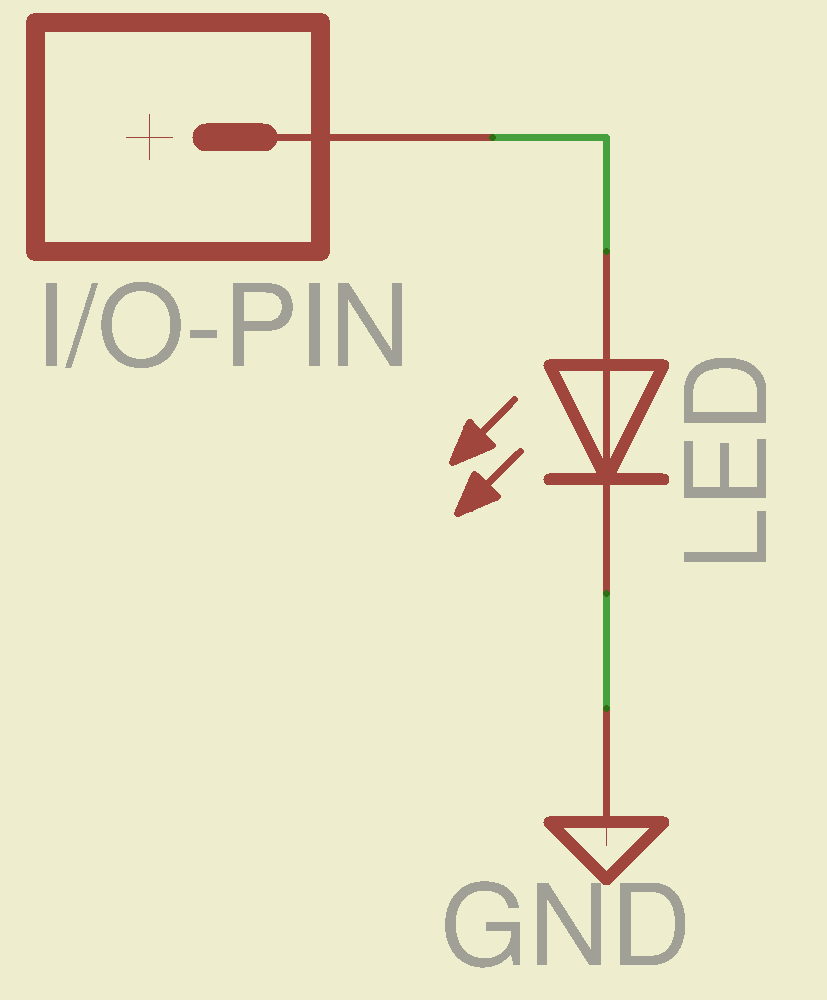
    What happens when you jam an LED into an Arduino digital output and turn it on?

    Direct LED drive - no ballast resistor
    Direct LED drive – no ballast resistor

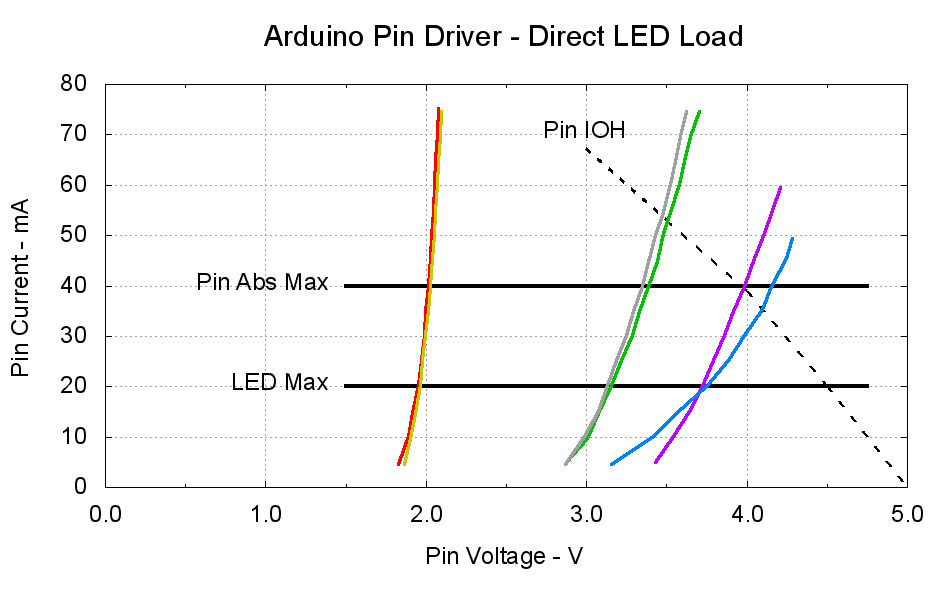
    This plot gives the load-line solution for that situation:

    Arduino Pin Driver - Direct LED Load
    Arduino Pin Driver – Direct LED Load

    The dotted curve comes from Figure 29-22 of the ATmega168 datatsheet and shows the typical source current vs. voltage for a digital output pin on your favorite Arduino.

    The cheerful colored curves show the current vs. voltage characteristics of some random LEDs, with data from the same curve tracer setup as those.

    Given a particular LED directly connected between an Arduino output pin and circuit common (without the formality of a current-limiting ballast resistor), the intersection of the dotted output pin curve with the colored LED curve gives you the current & voltage at the pin. For example, the violet LED would operate at 4 V and 40 mA.

    Some gotchas:

    • Typical 5 mm LEDs, of the sort one might use for this experiment, have a maximum DC current limit of 20 mA
    • Arduino output pins have an absolute maximum current limit of 40 mA

    So all of the direct solutions drive too much current through the LED. Although the blue and violet LEDs don’t quite exceed the output pin limit, the others certainly do. Those old standby red & amber LEDs would have absurdly high intercepts, well beyond the limit of sanity, in the region where the data you see here breaks down, where the pin driver gives up and goes poof, not that that ever stopped anybody from trying.

    You’ve probably seen somebody do it. Next time, aim ’em here in a non-confrontational manner… [grin]

    My Arduino Survival Guide presentation has other info that may help that poor sweating Arduino survive. You don’t get my performance-art patter, but the pictures and captions should carry the tale…

    As part of conjuring up this plot, I discovered that, for whatever reason, Gnuplot’s TrueType font rendering (via gdlib) no longer works in Xubuntu 12.04: the font name has no effect whatsoever, but the point size does.

    The Gnuplot source code:

    #!/bin/sh
    #-- overhead
    export GDFONTPATH="/usr/share/fonts/truetype/msttcorefonts"
    Pinfile="ATmega Pin Driver Data - Source.csv"
    LEDfile="LED Data.csv"
    base="Arduino Pin Driver - Direct LED Load"
    Outfile="${base}.png"
    echo Output file: ${Outfile}
    fontname="Arial"
    echo Font: ${fontname}
    #-- do it
    gnuplot << EOF
    #set term x11
    set term png font "${fontname},18" size 950,600
    set output "${Outfile}"
    set title "${base}" font "${fontname},22"
    set key noautotitles
    unset mouse
    set bmargin 4
    set grid xtics ytics
    set xlabel "Pin Voltage - V"
    set format x "%4.1f"
    set xrange [0:${vds_max}]
    #set xtics 0,5
    set mxtics 2
    #set ytics nomirror autofreq
    set ylabel "Pin Current - mA"
    #set format y "%4.1f"
    set yrange [0:80]
    #set mytics 2
    #set y2label "Drain Resistance - RDS - mohm"
    #set y2tics nomirror autofreq ${rds_tics}
    #set format y2 "%3.0f"
    #set y2range [0:${rds_max}]
    #set y2tics 32
    #set rmargin 9
    set datafile separator "\t"
    set label "Pin IOH" at 3.0,70 center font "${fontname},18"
    set label "Pin Abs Max" at 1.4,40 right font "${fontname},18"
    set arrow from 1.5,40 to 4.75,40 lw 4 nohead
    set label "LED Max" at 1.4,20 right font "${fontname},18"
    set arrow from 1.5,20 to 4.75,20 lw 4 nohead
    plot \
    "${Pinfile}" using 1:3 with lines lt 0 lw 3 lc -1 ,\
    "${LEDfile}" using (\$5/1000):((\$1>0)?\$2/1000:NaN) index 0:0 with lines lw 3 lc 1 ,\
    "${LEDfile}" using (\$5/1000):((\$1>0)?\$2/1000:NaN) index 1:1 with lines lw 3 lc 2 ,\
    "${LEDfile}" using (\$5/1000):((\$1>0)?\$2/1000:NaN) index 2:2 with lines lw 3 lc 0 ,\
    "${LEDfile}" using (\$5/1000):((\$1>0)?\$2/1000:NaN) index 3:3 with lines lw 3 lc 4 ,\
    "${LEDfile}" using (\$5/1000):((\$1>0)?\$2/1000:NaN) index 4:4 with lines lw 3 lc 3 ,\
    "${LEDfile}" using (\$5/1000):((\$1>0)?\$2/1000:NaN) index 5:5 with lines lw 3 lc 7
    EOF
    

    A few early risers got to see a completely broken listing, with all the quotes and brackets and suchlike reduced to the usual HTML escaped gibberish…