The Smell of Molten Projects in the Morning

Ed Nisley's Blog: Shop notes, electronics, firmware, machinery, 3D printing, laser cuttery, and curiosities. Contents: 100% human thinking, 0% AI slop.

Category: Software

General-purpose computers doing something specific

  • Automated Cookie Cutters: Putting It All Together

    With that musing, image processing, and data reformatting in hand, this now seems to work pretty well…

    This is MakeCutter.sh, the Bash file that controls the overall process:

    #!/bin/bash
    DotsPerMM=3
    MapHeight=5
    ImageName=${1%%.*}
    rm ${ImageName}_* ${ImageName}.stl
    echo Normalize and prepare grayscale image...
    convert $1 -trim -type Grayscale -depth 8 -auto-level -flip -negate -flop ${ImageName}_prep.png
    echo Create PGM files...
    convert ${ImageName}_prep.png -compress none ${ImageName}_map.pgm
    convert ${ImageName}_prep.png -white-threshold 1 -compress none ${ImageName}_plate.pgm
    echo Create height map data files...
    ImageX=`identify -format '%[fx:w]' ${ImageName}_map.pgm`
    ImageY=`identify -format '%[fx:h]' ${ImageName}_map.pgm`
    cat ${ImageName}_map.pgm | tr -s ' \012' '\012' | tail -n +5 | column -x -c $((8*$ImageX)) > {ImageName}_map.dat
    cat ${ImageName}_plate.pgm | tr -s ' \012' '\012' | tail -n +5 | column -x -c $((8*$ImageX)) > ${ImageName}_plate.dat
    echo Create height map STL files...
    time openscad -D DotsPerMM=$DotsPerMM -D Height=$MapHeight -D FileName=\"${ImageName}_map.dat\" -o ${ImageName}_map.stl MakeSurface.scad
    time openscad -D DotsPerMM=$DotsPerMM -D Height=255 -D FileName=\"${ImageName}_plate.dat\" -o ${ImageName}_plate.stl MakeSurface.scad
    echo Create cookie press and cutter...
    time openscad -D fnPress=\"${ImageName}_map.stl\" -D fnPlate=\"${ImageName}_plate.stl\" -D ImageX=$ImageX -D ImageY=$ImageY -o ${ImageName}.stl Cookie\ Cutter.scad
    

    Hand it an image file name and it just does the rest:

    ./MakeCutter.sh jellyfish-high.png
    

    I assume you’ll pick a workable dots/mm resolution and suchlike for your setup, so they’re hardcoded into the script. You could add them to the command line if you like.

    Starting from the same jellyfish.svg file as before, I came up with a slightly different jellyfish-high.png grayscale height map image with more dots (246×260 dots at 3 dot/mm = 82×87 mm). The original 160×169 file required about half an hour to render and, as you’d expect, increasing the number of dots by 1.5 (nearly √2) doubled the time to just over an hour:

    Manually tweaked jellyfish-high.png
    Manually tweaked jellyfish-high.png

    The first convert step turns that into the basic height map jellyfish_prep.png file:

    jellyfish-high_prep.png
    jellyfish-high_prep.png

    The next two convert steps produce two ASCII PGM files:

    • jellyfish-high_map.pgm
    • jellyfish-high_plate.pgm

    The _map file has the grayscale height map data, which is identical to the prepared PNG image:

    jellyfish-high_map
    jellyfish-high_map

    The _plate file defines the outline of the cookie cutter with a completely white interior, which is why the original cookie height map image can’t contain any pure white areas inside the outline (they’d become black here and produce islands). It seems the OpenSCAD minkowski() function runs significantly faster when it doesn’t process a whole bunch of surface detail; all we care about is the outline, so that’s all it gets:

    jellyfish-high_plate
    jellyfish-high_plate

    I originally composited the height maps on a known-size platen and worked with those dimensions, but it’s easier to just extract the actual image dimensions and feed them into the code as needed. As with all ImageMagick programs, identify has a myriad options.

    Those two lines of Bash gibberish reformat the ASCII PGM files into the ASCII DAT arrays required by OpenSCAD’s surface() function.

    The MakeSurface.scad script eats a DAT height map file and spits out a corresponding STL file. The Height parameter defines the overall Z-axis size of the slab; the maximum 255 corresponds to pure white in the image file:

    // Generate object from image height map
    // Ed Nisley - KE4ZNU
    // October 2012
    // This leaves the rectangular slab below Z=0 over the full image area
    //		... reduced in thickness by the Height/255 ratio
    
    FileName = "noname.dat";				// override with -D FileName="whatever.dat"
    Height = 255;						// overrride with -D Height=number
    DotsPerMM = 2;						// overrride with -D DotsPerMM=number
    
    ScaleXYZ = [1/DotsPerMM,1/DotsPerMM,Height/255];
    
    echo("File: ",FileName);
    echo("Height: ",Height);
    echo("Dots/mm: ",DotsPerMM);
    echo("Scale: ",ScaleXYZ);
    
    module ShowPegGrid(Space = 10.0,Size = 1.0) {
      Range = floor(50 / Space);
    	for (x=[-Range:Range])
    	  for (y=[-Range:Range])
    		translate([x*Space,y*Space,Size/2])
    		  %cube(Size,center=true);
    }
    
    //- Build it
    
    ShowPegGrid();
    
    scale(ScaleXYZ)
    	surface(FileName,center=true,convexity=10);
    

    The grid defining the build platform doesn’t show up in the output file; it’s there just for manual fiddling inside the GUI. When run from the command line, OpenSCAD simply creates the output file.

    The _map.stl file has the height map data that will form the cookie press:

    jellyfish-high_map - Model
    jellyfish-high_map – Model

    The _plate.stl file is basically a digital bar cookie that will define the cutter:

    jellyfish-high_plate - Model
    jellyfish-high_plate – Model

    It’s possible to produce the cutter in one shot, starting from the DAT files, but having the two STL files makes it (barely) feasible to experiment interactively within the OpenSCAD GUI.

    This OpenSCAD program produces the cutter and press:

    // Cookie cutter from grayscale height map using Minkowski sum
    // Ed Nisley KE4ZNU - November 2012
    
    //-----------------
    // Cookie cutter files
    
    BuildPress = true;
    BuildCutter = true;
    
    fnPress = "nofile.stl";					// override with -D 'fnPress="whatever.stl"'
    fnPlate = "nofile.stl";					// override with -D 'fnPlate="whatever.stl"'
    
    ImageX = 10;						// overrride with -D ImageX=whatever
    ImageY = 10;
    
    MaxConvexity = 5;					// used for F5 previews in OpenSCAD GUI
    
    echo("Press File: ",fnPress);
    echo("Plate File: ",fnPlate);
    echo("Image X: ",ImageX," Y: ",ImageY);
    
    //- Extrusion parameters - must match reality!
    
    ThreadThick = 0.25;
    ThreadWidth = 2.0 * ThreadThick;
    
    //- Cookie cutter parameters
    
    TipHeight = IntegerMultiple(8,ThreadThick);		// cutting edge
    TipWidth = 4*ThreadWidth;
    
    WallHeight = IntegerMultiple(7,ThreadThick);		// center section
    WallWidth = 8*ThreadWidth;
    
    LipHeight = IntegerMultiple(2.0,ThreadThick);		// cutter handle
    LipWidth = IntegerMultiple(8.0,ThreadWidth);
    
    CutterGap = IntegerMultiple(2.0,ThreadWidth);		// gap between cutter and press
    
    PlateThick = IntegerMultiple(3.0,ThreadThick);		// solid plate under press relief
    
    //- Build platform
    
    PlatenX = 100;						// build platform size
    PlatenY = 120;
    PlatenZ = 120;						// max height for any object
    PlatenFuzz = 2;
    
    MaxSize = max(PlatenX,PlatenY);				// larger than any possible dimension ...
    
    ZFuzz = 0.20;						// height of numeric junk left by grayscale conversion
    ZCut = 1.20;						// thickness of block below Z=0
    
    //- Useful info
    
    function IntegerMultiple(Size,Unit) = Unit * ceil(Size / Unit);
    
    Protrusion = 0.1;					// make holes and unions work correctly
    
    //-----------------
    // Import height map STL, convert to cookie press image
    
    module PressSurface() {
    
    	translate([0,0,-ZFuzz])
    		difference() {
    			import(fnPress,convexity=MaxConvexity);
    			translate([-(ImageX + PlatenFuzz)/2,-(ImageY + PlatenFuzz)/2,-ZCut])
    				cube([(ImageX + PlatenFuzz),(ImageY + PlatenFuzz),ZCut+ZFuzz],center=false);
    		}
    }
    
    //-----------------
    // Import plate STL, slice off a slab to define outline
    
    module Slab(Thick=1.0) {
    	intersection() {
    		translate([0,0,Thick/2])
    			cube([(PlatenX+PlatenFuzz),(PlatenY+PlatenFuzz),Thick],center=true);
    		translate([0,0,-1])
    			import(fnPlate,convexity=MaxConvexity);
    	}
    }
    
    //- Put peg grid on build surface
    
    module ShowPegGrid(Space = 10.0,Size = 1.0) {
    
      Range = floor(50 / Space);
    
    	for (x=[-Range:Range])
    	  for (y=[-Range:Range])
    		translate([x*Space,y*Space,Size/2])
    		  %cube(Size,center=true);
    
    }
    
    //- Build it
    
    ShowPegGrid();
    
    if (BuildPress) {
    	echo("Building press");
    	union() {
    		minkowski() {					// fingernail ridge around press
    			Slab(LipHeight - 1);			//  ... same thickness as cutter lip
    			cylinder(r=CutterGap/2,h=1);
    		}
    		translate([0,0,(LipHeight - Protrusion)])	// solid plate under press
    			Slab(PlateThick - LipHeight + Protrusion);
    		translate([0,0,PlateThick])			// cookie press height map
    			intersection() {
    				import(fnPress,convexity=MaxConvexity);
    				translate([0,0,-Protrusion])
    					Slab(PlatenZ + Protrusion);
    			}
    
    	}
    }
    
    if (BuildCutter) {
    	echo("Building cutter");
    	difference() {
    		union() {					// stack cutter layers
    			translate([0,0,(WallHeight + LipHeight - 1)])
    				minkowski() {
    					Slab(TipHeight - 1);
    					cylinder(r=(TipWidth + CutterGap),h=1);
    				}
    			translate([0,0,LipHeight - 1])
    				minkowski() {
    					Slab(WallHeight - 1);
    					cylinder(r=(WallWidth + CutterGap),h=1);
    				}
    			minkowski() {
    				Slab(LipHeight - 1);
    				cylinder(r=(LipWidth + CutterGap),h=1);
    			}
    		}
    		minkowski() {					// punch out opening for cookie press
    			translate([0,0,-2])
    				Slab(PlatenZ);
    			cylinder(r=CutterGap,h=1);
    		}
    	}
    }
    

    The top view shows the height map press nested inside the cutter blade, but it’s not obvious they’re two separate pieces:

    jellyfish-high - Cutter and Press - top view
    jellyfish-high – Cutter and Press – top view

    The bottom view shows the 1 mm gap between the two objects:
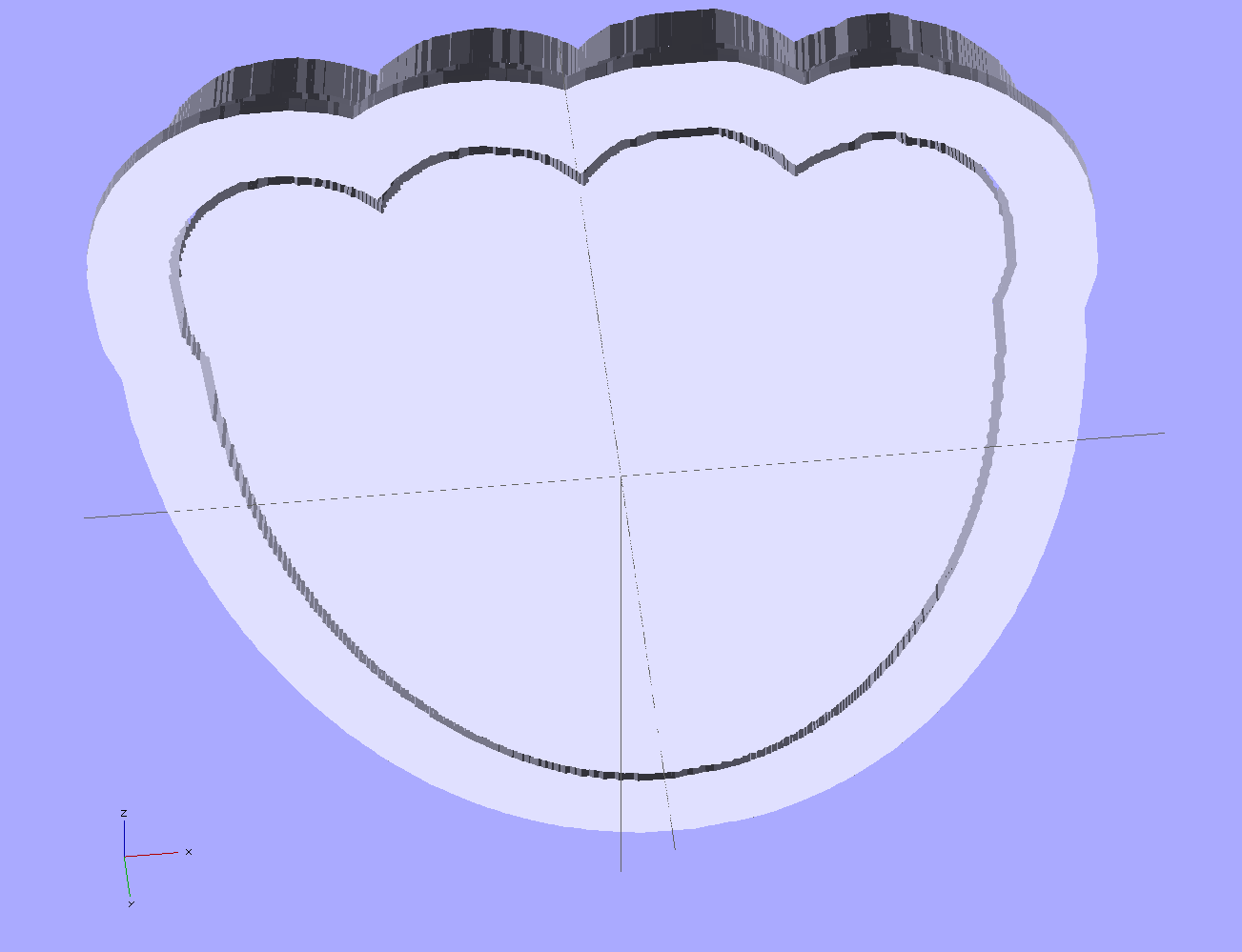
    jellyfish-high - Cutter and Press - bottom view
    jellyfish-high – Cutter and Press – bottom view

    Now, to print the thing [Update: like that] so I can make some cookies…

    Further musings:

    • Printing separately would allow a tighter fit between the press and the cutter: an exact fit won’t work, but 2 mm may be too much.
    • A knob glued on the flat surface of the press would be nice; the fingernail ridge may get annoying.
    • PLA seems more socially acceptable than ABS for foodie projects. Frankly, I doubt that it matters, at least in this application.
    • A bigger build platform would be nice…

  • Automated Cookie Cutters: Creating the Height Map Data File

    That process produces a grayscale height map PNG image in the proper orientation:

    Jellyfish - prepared image
    Jellyfish – prepared image

    OpenSCAD, however, requires a flat ASCII data file to build a 3D model, as described there.

    It turns out that a PGM (“Portable Graymap”) file is almost exactly what we need: a fixed format header in ASCII text, followed by the pixel data in either ASCII or binary. To get an ASCII-formatted PGM file from that PNG image:

    convert jellyfish_prep.png -compress None jellyfish.pgm
    

    The top of the PGM file looks like this:

    P2
    149 159
    255
    0 0 0 0 0 0 0 0 0 0 0 0 0 0 0 0 0 0 0 0 0 0 0 0 0 0 0 0 0 0 0 0 0 0 0 0 0 0 0
    0 0 0 0 0 0 0 0 0 0 0 0 0 255 255 255 255 255 255 255 255 255 0 0 0 0 0 0 0 0
    0 0 0 0 0 0 0 0 0 0 0 0 0 0 0 0 0 0 255 255 255 255 255 255 255 255 255 255
    ... more data ...
    

    The data isn’t in the XY array layout that OpenSCAD expects; It Would Be Very Nice If OpenSCAD could read PGM files, including the header describing the array size, but it doesn’t. Fortunately, some Bash-fu can handle the reformatting.

    First, store the number of pixels along the X axis in a Bash variable:

    ImageX=`identify -format '%[fx:w]' ${imagename}_prep.png`
    

    Note the backticks around the whole mess that tell Bash to execute what’s inside and return the value. The -format operation returns the width as an integer, which is what we need.

    Now, returning our attention to the PGM file, convert multiple blanks and line ends to single line ends, thus putting one entry on each output line with no other whitespace:

    cat filename.pgm | tr -s ' \012' '\012'
    

    Nota bene: there’s a leading blank in the first character string and the escape sequences should read “reverse-slash zero one two” to denote the Unix-style line end character (ASCII 10 = newline). I think the meta-markup works around the usual WordPress formatting, but ya never know what can go wrong.

    The first four lines then contain the magic number, X size, Y size, and the maximum data value, respectively:

    P2
    149
    159
    255
    

    Those values are all known, because:

    • The magic number is P2 for ASCII PGM files. It would be useful to verify this, but …
    • The XY values correspond to the image size
    • The maximum data value will be 255 because of  the auto-level operation applied to the image’s 8-bit grayscaleness

    Strip off the first four lines and wrap the remaining data into an array corresponding to the image size:

    tail -n +5 | column -x -c $((8*${ImageX})) > filename.dat
    

    The $((8*${ImageX)) magic comes from the way the column command works: it’s right-aligning each data values in an 8 character column, so you specify the total width of the result in character columns. Think of the parameter as specifying the screen width and you’ll be on the right track.

    That fits neatly into a single line of Bash gibberish:

    cat filename.pgm | tr -s ' \012' '\012' | tail -n +5 | column -x -c $((8*${ImageX})) > filename.dat
    

    The first complete line of that file goes on basically forever, but it actually has the right stuff. You can examine it thusly:

    head -1 filename.dat
    

    The file should then Just Work when sucked into OpenSCAD with the surface() function:

    surface("filename.dat",center=true,convexity=10);
    

    And, indeed, it does:

    Jellyfish - surface model
    Jellyfish – surface model

    Note that it’s oriented with the head in the +Y direction, the tentacles (or whatever) in the -Y direction, and the freckle over the eye on the proper side. Here’s the original PNG image of the cookie for reference:

    Jellyfish - height map image
    Jellyfish – height map image

    Using center=true centers the object on the XY plate, but the base of the solid remains at Z=-1. That makes some sense, as the “solid” part of the model lies below the Z values set by the data: the model includes a one unit thick slab below Z=0 for all points.

    The convexity=10 parameter helps OpenSCAD’s quick rendering code (invoked by hitting F5 in the GUI) determine when it can stop looking for intersections between the visible ray and the object. It doesn’t affect the F6 CGAL compilation & export to STL. Because this routine will eventually be used only from the command line, the value doesn’t matter.

    That works and the height map looks OK, but the model is too large in all directions and the slab below Z=0 has got to go. But it’s looking good…

  • Automated Cookie Cutters: Height Map Image File Preparation

    Having established the OpenSCAD can produce a height map from an input array, a bit more doodling showed how to produce such an array from a grayscale image. I certainly didn’t originate all of this, but an hour or two of searching with the usual keywords produced snippets that, with a bit of programming-as-an-experimental-science tinkering, combine into a useful whole.

    Not being much of an artist, I picked a suitable SVG image from the Open ClipArt Library:

    Jellyfish - color
    Jellyfish – color

    That’s pretty, but we need a grayscale image. Some Inkscape fiddling eliminated all the nice gradients, changed the outline to a dark gray, made all the interior fills a lighter gray, and tweaked the features:

    Jellyfish - gray
    Jellyfish – gray

    Admittedly, it looks rather dour without the big smile, but so it goes. This is still an SVG file, so you have vector-mode lines & areas.

    A bit more work changed the grays to produce different heights, duplicated one of the spots for obvious asymmetry, and exported it as a gritty 160×169 pixel PNG image:

    Jellyfish - height map image
    Jellyfish – height map image

    The low resolution corresponds to a 2 pixel/mm scale factor: 169 pixel = 84.5 mm tall. The cutter wrapped around this image will have a lip that adds about 12 mm, a 1 or 2 mm gap separates the press from the cutter, and there’s a skirt around the whole affair. My Thing-O-Matic build platform measures a scant 120 mm in the Y direction, which puts a real crimp on the proceedings.

    That’s assuming the usual 1 unit = 1 mm conversion factor. If your toolchain regards units as inches, then you need a different scale factor.

    Low resolution also speeds up the OpenSCAD processing; you can use as many pixel/mm as you wish, but remember that the extruded filament is maybe 0.5 mm wide, so anything beyond 4 pixel/mm might not matter, even if the motion control could benefit from the smoother sides. Features down near the resolution limit of the model may produce unusual effects for thin walls near the thread width, due to interpolation & suchlike (which is why I got rid of the smile). The processing time varies roughly with the number of pixels, so twice the resolution means four times more thumb-twiddling.

    Caveats:

    • You’re looking at a cookie lying on a table: this is the top view
    • Background surrounding the image should be full white = 255
    • Highest points should be very light gray, not full white, to avoid creating islands
    • Lowest points may be black; I use a very dark gray
    • No need for an outline
    • Smooth gradients are OK, although they’ll become harshly quantized by the layer thickness
    • You can probably use JPG instead of PNG, but these aren’t big files
    • Remember this is a cookie press, not a work of art

    With a suitable PNG image file in hand, use ImageMagick to prepare the image:

    • Crop to just the interesting part: -trim (depends on the four corners having background color)
    • Convert the image to grayscale: -type Grayscale (in case it’s a color image)
    • Make it 8 bit/pixel: -depth 8 (more won’t be helpful)
    • Stretch the contrast: -auto-level (to normalize the grayscale to the full range = full height)
    • Reverse left-to-right to make a cookie press: -flop (think about it)
    • Invert the grayscale to make the cookie press surface: -negate (again, think about it)
    • Reverse top-to-bottom to correct for upcoming OpenSCAD surface() reversal: -flip

    Thusly:

    convert filename.png -trim -type Grayscale -depth 8 -auto-level -flop -negate -flip filename_prep.png
    

    Which produces this image:

    Jellyfish - prepared image
    Jellyfish – prepared image

    Combining -flop and -flip just rotates the image 180° around its center, but I can’t help but believe transposing the bits works out better & faster than actually rotating the array & interpolating the result back to a grid. On the other paw, if there isn’t a special case for (multiples of) right-angle rotation(s), there should be. [grin]

    The prepared image is 149×159, because the -trim operation removed the surrounding whitespace. You can do that manually, of course, keeping in mind that the corners must be full white to identify the background.

    Next: convert that image to a data array suitable for OpenSCAD’s surface() function…

  • Automated Cookie Cutters: OpenSCAD surface() Function

    While pondering the notion of making cookie cutters, it occurred to me that the process could be automated: a grayscale height map image of the cookie should be enough to define the geometry. The existing height map solutions (like William Adams’s fine work) seem entirely too heavyweight, what with custom Windows or Java programs and suchlike. Some doodling indicates that a simpler solution may suffice for my simple needs, although the devil always hides in the details.

    The overall problem with a cookie press involves producing a non-rectangular solid with a bumpy upper surface corresponding to the grayscale values of an image: dark pixels = low points of the surface, light pixels = peaks. The image size controls the XY extent of the solid and the pixel values control the Z, with some known value (likely either black or white) acting as a mask around the perimeter. Given such a solid, you can then wrap a cutter blade and handle around the outline, much as I did for the Tux cutter.

    OpenSCAD has a lightly documented surface() function that reads an ASCII text file consisting of an array of numeric values. Each array element defines a 1 × 1 unit square of the resulting 3D object; the example in the doc shows a 10 x 10 array producing a 10 x 10 unit object. Each numeric value sets the height of the surface at the center of the square.

    This array, slightly modified from the one in the doc, shows how that works:

    9 9 8 7 6 5 5 5 5 1
    9 9 7 6 6 4 3 2 1 0
    8 7 6 6 4 3 2 1 0 0
    7 6 6 4 3 2 1 0 0 0
    6 6 4 3 2 1 1 0 0 0
    6 6 3 2 1 1 1 0 0 0
    6 6 2 1 1 1 9 9 9 0
    6 6 1 0 0 0 9 8 9 0
    3 1 0 0 0 0 9 9 9 0
    9 8 7 6 5 4 3 2 1 0
    

    Feeding that into this OpenSCAD program:

    module ShowPegGrid(Space = 10.0,Size = 1.0) {
    
      Range = floor(50 / Space);
    
    	for (x=[-Range:Range])
    	  for (y=[-Range:Range])
    		translate([x*Space,y*Space,Size/2])
    		  %cube(Size,center=true);
    
    }
    
    ShowPegGrid();
    surface("/tmp/test.dat",center=true,convexity=10);
    

    Produces this object, surrounded by a few non-printing 1 unit alignment cubes on the Z=0 plane for scale:

    Example Object
    Example Object

    Some things to note:

    • The text array looks like it builds downward from the upper left, but the solid model builds from the origin toward the +X and +Y directions, with the first line of the array appearing along Y=0. This reverses the object along the Y axis: the first line of the array is the front side of the object.
    • The “center=true” option centers the object in XY around the Z axis, with a 1 unit thick slab below the entire array; the top surface of that slab (at Z=0) represents the level corresponding to 0 elements in the array.
    • Each array element becomes a square one unit on a side; the RepRap software chain regards units as millimeters
    • The center point of each element’s square is at the nominal height
    • The Z coordinate of the edges of those squares linearly interpolate between adjacent centers
    • Vertical edges become slanted triangular facets

    Remember that STL files contain a triangular tessellation (or whatever you call it in 3D) of the object surface, which means rectangles aren’t natural. The edge interpolation make the whole thing work, because an array of pure square pillars probably won’t be a 2-manifold object: some pillars would share only a common vertical edge. The interpolation does, however, produce a bazillion facets atop the object.

    So the problem reduces to generating such an array from a grayscale image, for which some ImageMagick and Bash-fu should suffice, and then manipulating it into a model that will produce a cookie press and cutter. More on that tomorrow…

    [Update: image file, height map file, solid modeling, printing]

  • Arduino Digital Output Drive vs. Direct-connected LEDs

    What happens when you jam an LED into an Arduino digital output and turn it on?

    Direct LED drive - no ballast resistor
    Direct LED drive – no ballast resistor

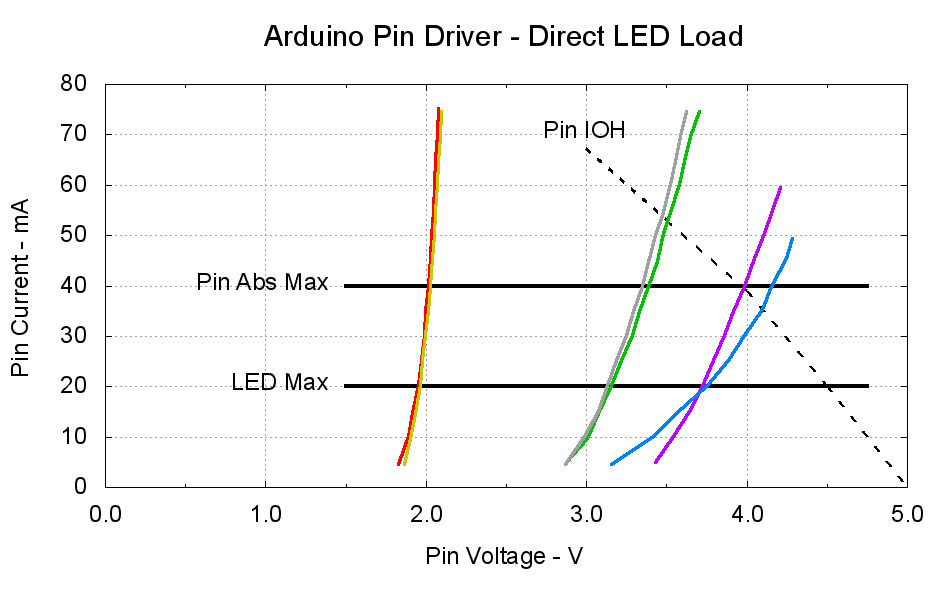
    This plot gives the load-line solution for that situation:

    Arduino Pin Driver - Direct LED Load
    Arduino Pin Driver – Direct LED Load

    The dotted curve comes from Figure 29-22 of the ATmega168 datatsheet and shows the typical source current vs. voltage for a digital output pin on your favorite Arduino.

    The cheerful colored curves show the current vs. voltage characteristics of some random LEDs, with data from the same curve tracer setup as those.

    Given a particular LED directly connected between an Arduino output pin and circuit common (without the formality of a current-limiting ballast resistor), the intersection of the dotted output pin curve with the colored LED curve gives you the current & voltage at the pin. For example, the violet LED would operate at 4 V and 40 mA.

    Some gotchas:

    • Typical 5 mm LEDs, of the sort one might use for this experiment, have a maximum DC current limit of 20 mA
    • Arduino output pins have an absolute maximum current limit of 40 mA

    So all of the direct solutions drive too much current through the LED. Although the blue and violet LEDs don’t quite exceed the output pin limit, the others certainly do. Those old standby red & amber LEDs would have absurdly high intercepts, well beyond the limit of sanity, in the region where the data you see here breaks down, where the pin driver gives up and goes poof, not that that ever stopped anybody from trying.

    You’ve probably seen somebody do it. Next time, aim ’em here in a non-confrontational manner… [grin]

    My Arduino Survival Guide presentation has other info that may help that poor sweating Arduino survive. You don’t get my performance-art patter, but the pictures and captions should carry the tale…

    As part of conjuring up this plot, I discovered that, for whatever reason, Gnuplot’s TrueType font rendering (via gdlib) no longer works in Xubuntu 12.04: the font name has no effect whatsoever, but the point size does.

    The Gnuplot source code:

    #!/bin/sh
    #-- overhead
    export GDFONTPATH="/usr/share/fonts/truetype/msttcorefonts"
    Pinfile="ATmega Pin Driver Data - Source.csv"
    LEDfile="LED Data.csv"
    base="Arduino Pin Driver - Direct LED Load"
    Outfile="${base}.png"
    echo Output file: ${Outfile}
    fontname="Arial"
    echo Font: ${fontname}
    #-- do it
    gnuplot << EOF
    #set term x11
    set term png font "${fontname},18" size 950,600
    set output "${Outfile}"
    set title "${base}" font "${fontname},22"
    set key noautotitles
    unset mouse
    set bmargin 4
    set grid xtics ytics
    set xlabel "Pin Voltage - V"
    set format x "%4.1f"
    set xrange [0:${vds_max}]
    #set xtics 0,5
    set mxtics 2
    #set ytics nomirror autofreq
    set ylabel "Pin Current - mA"
    #set format y "%4.1f"
    set yrange [0:80]
    #set mytics 2
    #set y2label "Drain Resistance - RDS - mohm"
    #set y2tics nomirror autofreq ${rds_tics}
    #set format y2 "%3.0f"
    #set y2range [0:${rds_max}]
    #set y2tics 32
    #set rmargin 9
    set datafile separator "\t"
    set label "Pin IOH" at 3.0,70 center font "${fontname},18"
    set label "Pin Abs Max" at 1.4,40 right font "${fontname},18"
    set arrow from 1.5,40 to 4.75,40 lw 4 nohead
    set label "LED Max" at 1.4,20 right font "${fontname},18"
    set arrow from 1.5,20 to 4.75,20 lw 4 nohead
    plot \
    "${Pinfile}" using 1:3 with lines lt 0 lw 3 lc -1 ,\
    "${LEDfile}" using (\$5/1000):((\$1>0)?\$2/1000:NaN) index 0:0 with lines lw 3 lc 1 ,\
    "${LEDfile}" using (\$5/1000):((\$1>0)?\$2/1000:NaN) index 1:1 with lines lw 3 lc 2 ,\
    "${LEDfile}" using (\$5/1000):((\$1>0)?\$2/1000:NaN) index 2:2 with lines lw 3 lc 0 ,\
    "${LEDfile}" using (\$5/1000):((\$1>0)?\$2/1000:NaN) index 3:3 with lines lw 3 lc 4 ,\
    "${LEDfile}" using (\$5/1000):((\$1>0)?\$2/1000:NaN) index 4:4 with lines lw 3 lc 3 ,\
    "${LEDfile}" using (\$5/1000):((\$1>0)?\$2/1000:NaN) index 5:5 with lines lw 3 lc 7
    EOF
    

    A few early risers got to see a completely broken listing, with all the quotes and brackets and suchlike reduced to the usual HTML escaped gibberish…

  • APRS Position Error

    So there I was, riding along Thornwood Drive in Poughkeepsie, minding my own business, when I teleported into Vassar Farm… and back!

    APRS data error - 2012-10-21 15:20:20
    APRS data error – 2012-10-21 15:20:20

    The aprs.fi database shows these packets around that glitch:

    2012-10-21 15:43:55 EDT: KE4ZNU-9>T1TP3T,WA2YSM-15,WIDE1*,WIDE2-1,qAR,WB2ZII-15:`eSllA=b/"4Q}
    2012-10-21 15:48:41 EDT: KE4ZNU-9>T1TP4U,WA2YSM-15,WIDE1,W2VER-15,WIDE2*,qAR,WB2ZII-15:`eS0mAQb/"4X}
    2012-10-21 15:49:53 EDT: KE4ZNU-9>T1TP5W,WA2YSM-15,WIDE1*,WIDE2,qAR,WB2ZII-15:`eS$l{1b"4U}
    2012-10-21 15:50:20 EDT: KE4ZNU-9>T1TP5V,WA2YSM-15,WIDE1,K2PUT-15*,WIDE2,qAR,WB2ZII-15:`eR lzlb/"4V}
    2012-10-21 15:50:20 EDT: KE4ZNU-9>T1TP5V,WA2YSM-15,WIDE1,K2PUT-15*,WIDE2,qAR,KC2DHU:`eR<0x7f>lzlb/"4V} [Rate limited (< 5 sec)]
    2012-10-21 15:52:31 EDT: KE4ZNU-9>T1TP8T,W2LW-15,W2LV,WIDE2*,qAR,W2GSA:`eR|lz:b/"4T}
    2012-10-21 15:52:53 EDT: KE4ZNU-9>T1TP8S,WA2YSM-15,WIDE1*,WIDE2,qAR,N2MH-12:`eRsm*ub/"4S}
    2012-10-21 15:59:52 EDT: KE4ZNU-9>T1TQ3X,WA2YSM-15,WIDE1*,WIDE2,qAR,K2DLS:`eQ}lz\b/"4N}
    

    The two packets at 15:50:20 represent two different paths from the WA2YSM-15 digipeater to the APRS database: one through WB2ZII-15 and the other through KC2DHU. The “Rate limited” message indicates that the database regarded the two as different packets, which they are: the position data differs by one character. The database discards identical packets without comment, because the network must handle all the packets generated by a single RF transmission from one GPS tracker to multiple receivers, but rejects what it sees as deliberate (or inadvertent) attempts to overwhelm it.

    Decoding the packets provides a bit more information:

    2012-10-21 15:49:53 EDT: KE4ZNU-9>T1TP5W,WA2YSM-15,WIDE1*,WIDE2,qAR,WB2ZII-15:`eS$l{1b/"4U}
       type: location
       format: mice
       srccallsign: KE4ZNU-9
       dstcallsign: T1TP5W
       latitude: 41.67616666666667 °
       longitude: -73.91800000000001 °
       course: 121 °
       speed: 16.668 km/h
       altitude: 62 m
       symboltable: /
       symbolcode: b
       mbits: 101
       posresolution: 18.52 m
       posambiguity: 0
    
    2012-10-21 15:50:20 EDT: KE4ZNU-9>T1TP5V,WA2YSM-15,WIDE1,K2PUT-15*,WIDE2,qAR,WB2ZII-15:`eR lzlb/"4V}
       type: location
       format: mice
       srccallsign: KE4ZNU-9
       dstcallsign: T1TP5V
       latitude: 41.676 °
       longitude: -73.90066666666667 °
       course: 80 °
       speed: 16.668 km/h
       altitude: 63 m
       symboltable: /
       symbolcode: b
       mbits: 101
       posresolution: 18.52 m
       posambiguity: 0
    
    2012-10-21 15:50:20 EDT: KE4ZNU-9>T1TP5V,WA2YSM-15,WIDE1,K2PUT-15*,WIDE2,qAR,KC2DHU:`eR<0x7f>lzlb/"4V} [Rate limited (< 5 sec)]
       type: location
       format: mice
       srccallsign: KE4ZNU-9
       dstcallsign: T1TP5V
       latitude: 41.676 °
       longitude: -73.9165 °
       course: 80 °
       speed: 16.668 km/h
       altitude: 63 m
       symboltable: /
       symbolcode: b
       mbits: 101
       posresolution: 18.52 m
       posambiguity: 0
    
    2012-10-21 15:52:31 EDT: KE4ZNU-9>T1TP8T,W2LW-15,W2LV,WIDE2*,qAR,W2GSA:`eR|lz:b/<4T}
       type: location
       format: mice
       srccallsign: KE4ZNU-9
       dstcallsign: T1TP8T
       latitude: 41.68066666666667 °
       longitude: -73.916 °
       course: 30 °
       speed: 16.668 km/h
       altitude: 61 m
       symboltable: /
       symbolcode: b
       mbits: 101
       posresolution: 18.52 m
       posambiguity: 0


    Feeding the coordinates into Google Maps shows that the first packet (to WB2ZII-15) at 15:50:20 carries the damaged data. The second (to KC2DHU) has the correct position, but was rejected because it arrived just after the first and wasn’t an exact duplicate.

    AX.25 packets carry a checksum and it’s a convolutional code, not a simple XOR, so I think it’s safe to say the packets were received as transmitted; you’ll find an intro to that whole topic, with further references, in the N1VG OpenTracker project. The database doesn’t store complete AX.25 packets, so we can’t run their headers and data through the checksum algorithm to see if they both produce good results. Here’s the raw packet payload:

    2012-10-21 15:50:20 EDT KE4ZNU-9: 75 bytes
    0x00 K E 4 Z N U - 9 > T 1 T P 5 V , W A 2 Y S M - 1 5 , W I D E 1 ,
         4b45345a4e552d393e5431545035562c57413259534d2d31352c57494445312c
    0x20 K 2 P U T - 1 5 * , W I D E 2 , q A R , W B 2 Z I I - 1 5 : ` e
         4b325055542d31352a2c57494445322c7141522c5742325a49492d31353a6065
    0x40 R   l z l b / " 4 V }
         52206c7a6c622f2234567d
    
    2012-10-21 15:50:20 EDT KE4ZNU-9: 72 bytes [Rate limited (< 5 sec)]
    0x00 K E 4 Z N U - 9 > T 1 T P 5 V , W A 2 Y S M - 1 5 , W I D E 1 ,
         4b45345a4e552d393e5431545035562c57413259534d2d31352c57494445312c
    0x20 K 2 P U T - 1 5 * , W I D E 2 , q A R , K C 2 D H U : ` e R 7fl
         4b325055542d31352a2c57494445322c7141522c4b43324448553a6065527f6c
    0x40 z l b / " 4 V }
         7a6c622f2234567d
    

    So it seems the TinyTrak3+ sent out a packet containing bad position data, wrapped with a correct checksum.

    The NMEA-format 4800 baud 8N1 serial data from the GPS receiver puck to the TT3+ has no parity error detection, so I suspect a character or two got clobbered (by RFI?) and produced a bad position. NMEA messages have a simple XOR checksum that’s susceptible to that kind of error. Note that the Mic-E encoded message shown above is not passed from the GPS receiver to the TT3+; we never see the raw GPS data.

    Our TinyTraks use SmartBeaconing to transmit only on significant course changes, so the sequence of events probably went like this:

    • The TT3+ decodes a damaged NMEA message from the GPS receiver
    • It notices an abrupt position change and sends that incorrect position
    • The next NMEA message arrives correctly
    • The TT3+ sees another abrupt jump and sends that position
    • The aprs.fi database rejects the message due to rate limiting
    • The TT3+ remains silent until the next turn

    The map doesn’t show all the turns, because that’s a hilly area and not all RF packets make their way from my bike to an APRS receiver.

    For what it’s worth, although we were riding at a fairly steady pace, I don’t believe the five-significant-figure accuracy of those speeds, either.

  • Xubuntu 12.04: Some Steps Forward, Some Steps Back

    The continuing saga of trying to run a Linux desktop with two monitors (one rotated in portrait mode), separate X sessions, two trackballs, and a Wacom graphics tablet continue with Xubuntu 12.04. KDE continues to not work quite right with dual monitors, Gnome seems to be dead in the water, Unity wants to be a touch-screen UI when it grows up, and Linux Mint introduces yet another not-quite-baked UI. The breathtaking churn in Linux infrastructure continues, rendering everything I’d figured out with respect to FDI / HAL / udev configuration lagely irrelevant.

    For lack of a better alternative, I’ve installed Xubuntu, which is now a deprecated (available, but unsupported) version of Ubuntu. Configuring separate X sessions on two monitors requires the proprietary nVidia driver. The XFCE display configurator falls over dead when confronted with two screens and the xrandr extension seems unworkable. Fortunately, I’d left a bit of commented-out cruft in the xorg.conf file that worked in Xubuntu 10.10 and could copy the whole file over with only one change:

    Section "Screen"
        Identifier     "Portrait"
        Device         "GF9400_1"
        Monitor        "Dell2005FP"
        DefaultDepth    24
        Option         "TwinView" "0"
        Option         "metamodes" "DFP-1: 1680x1050 +0+0"
        Option         "NoLogo" "Off"
    #    Option         "RandRRotation" "On"
        Option         "Rotate" "CCW"
        SubSection     "Display"
            Depth       24
        EndSubSection
    EndSection
    

    Configuring two trackballs with the XFCE utility remains surprisingly easy: the Kensington is left-handed and the Logitech is right-handed.

    Swapping buttons 2 and 3 on the Wacom stylus poses a bit more of a challenge. Doing it on a per-session basis seems straightforward:

    xsetwacom set "Wacom Graphire3 6x8 stylus" button 2 3
    xsetwacom set "Wacom Graphire3 6x8 stylus" button 3 2
    

    You’d put those into a script and tell XFCE to auto-run it when you sign in, but that doesn’t handle hotplugging. I don’t hotplug the tablet, but random static glitches knock the USB hub into a tailspin and cause the same effect, so I jammed the lines that used to be in xorg.conf into /usr/share/X11/xorg.conf.d/50-wacom.conf:

    Section "InputClass"
            Identifier "Wacom class"
            MatchProduct "Wacom|WACOM|Hanwang|PTK-540WL|ISD-V4"
            MatchDevicePath "/dev/input/event*"
            Driver "wacom"
            Option "Button2" "3"
            Option "Button3" "2"
    EndSection
    

    I’m certain there’s a different location for those that fits in with whatever the overall design might be these days, but I’m kinda tired of figuring this stuff out.

    The Wacom drivers in Ubuntu 12.04 no longer permit restricting the tablet’s range to a single X session (xsetwacom set ... MapToOutput "HEAD-0" assumes you’re using xinerama with a single X session across two monitors), which sprawls the tablet’s limited resolution across both screens and leaves a big unusable rectangle in the lower third of the left side. This is not progress in a positive direction, but there’s no workaround.

    That workaround for the upstart Pachinko machine also applies to this box. The minute-long pause while NFS hauls itself to its feet isn’t attractive: you see VT 1 with the bare white-on-black command-line login prompt, but if you actually log in, things get very ugly, very quickly.

    Restoring the usual verbose Unix-oid startup messages requires tweaking /etc/default/grub to set noquiet nosplash, then running update-grub.

    Search the blog with the obvious keywords to get my earlier posts on all these topics…