Ed Nisley's Blog: Shop notes, electronics, firmware, machinery, 3D printing, laser cuttery, and curiosities. Contents: 100% human thinking, 0% AI slop.
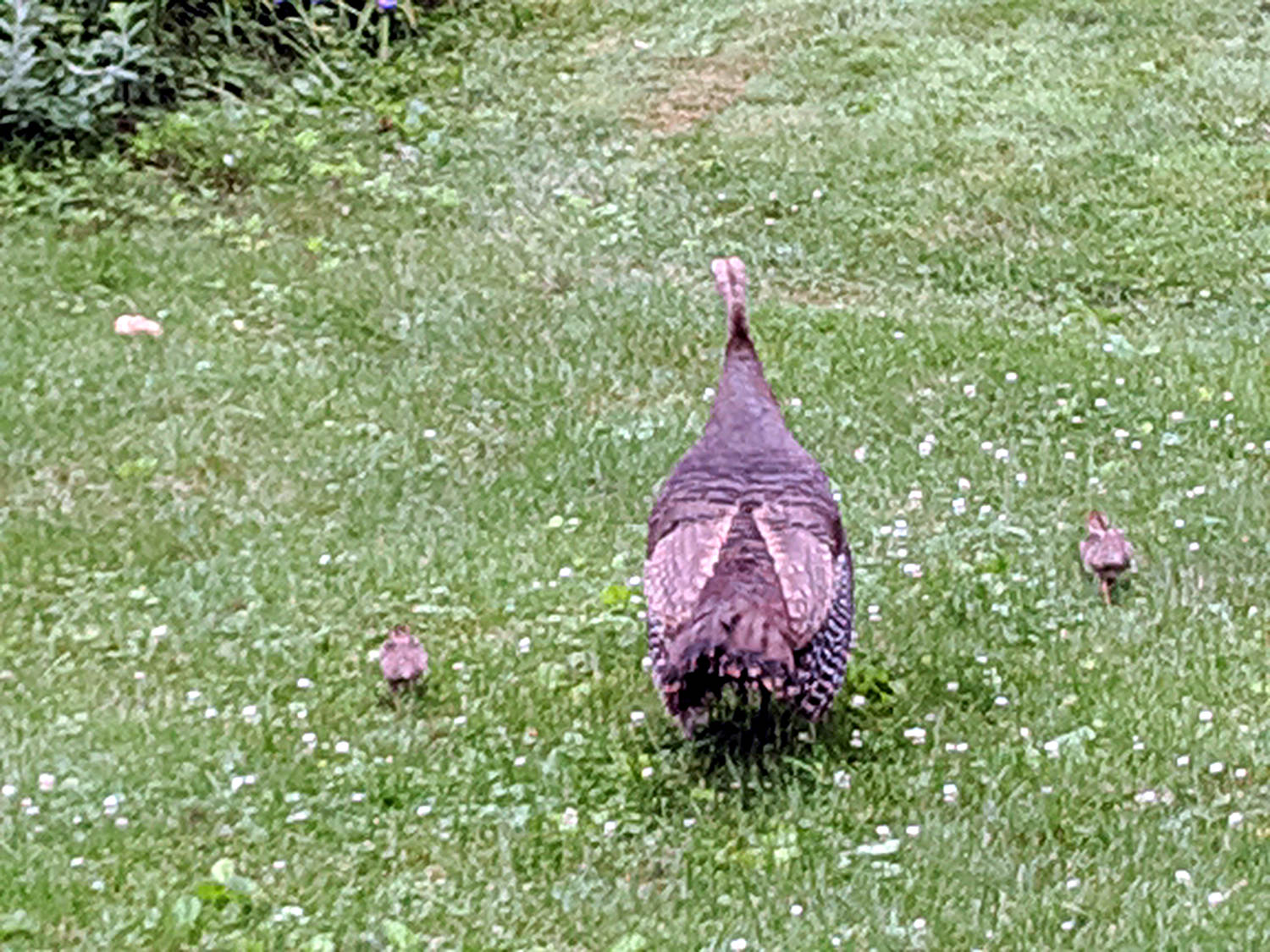
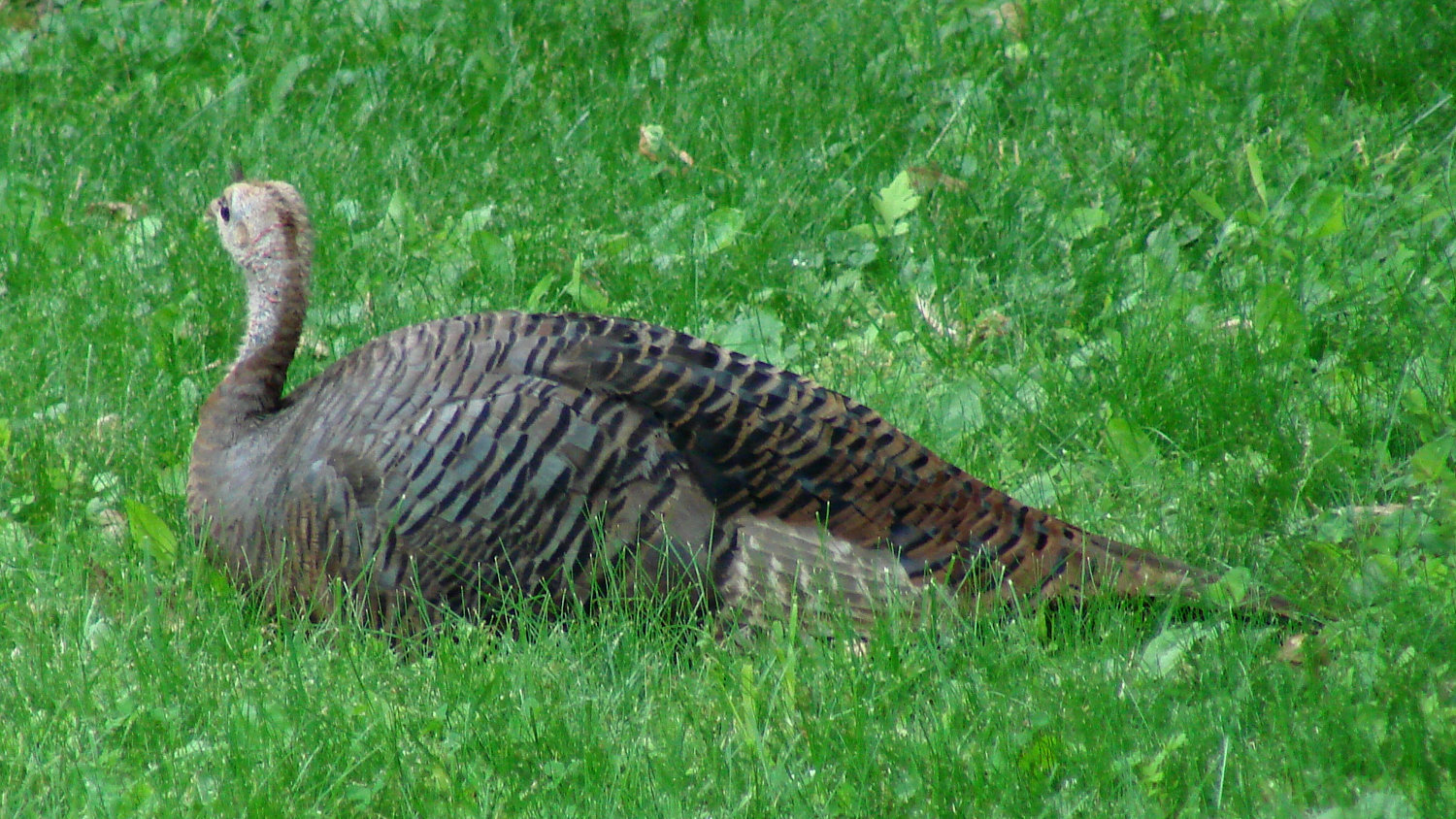
Mary saw a fox trotting behind the garden, gripping a (dead) turkey chick in its jaws, with the hen in hot pursuit. The fox dropped the chick, circled the pine grove, picked up the chick, and departed stage right. The hen eventually led her remaining chicks into the yard, but gathered them underneath while watching for danger:
Turkey hen with chicks – alert
She settled down for a few minutes:
Turkey hen with chicks – resting
With the fox safely departed, she released the chicks:
Turkey hen with chicks – emerging
Then they returned to foraging, with one chick trying out its wings:
Turkey hen with chicks – dispersing
Two days earlier, she led nine chicks through the yard; we think the fox picked off a chick a day. She lost two more during the next four days, suggesting they rapidly improve their ability to scamper out of harm’s way.
The config/hostname.conf file (found under /system/sdcard/when the camera is running) file defines the camera’s name:
Cam4
That file overrides the contents of the usual etc/hostname.conf file, somewhat to my surprise, which remains the default Ingenic-uc1_1.
The bin/hostname utility returns the hostname:
[root@Cam4 ~]# which hostname
/bin/hostname
[root@Cam4 ~]# hostname
Cam4
You can automagically get the hostname in the on-screen display by modifying the OSD formatting variable in config/osd.conf:
OSD="$(/bin/hostname) %Y-%m-%d %H:%M:%S"
Which works because the main OSD script sources the config file to set the variable:
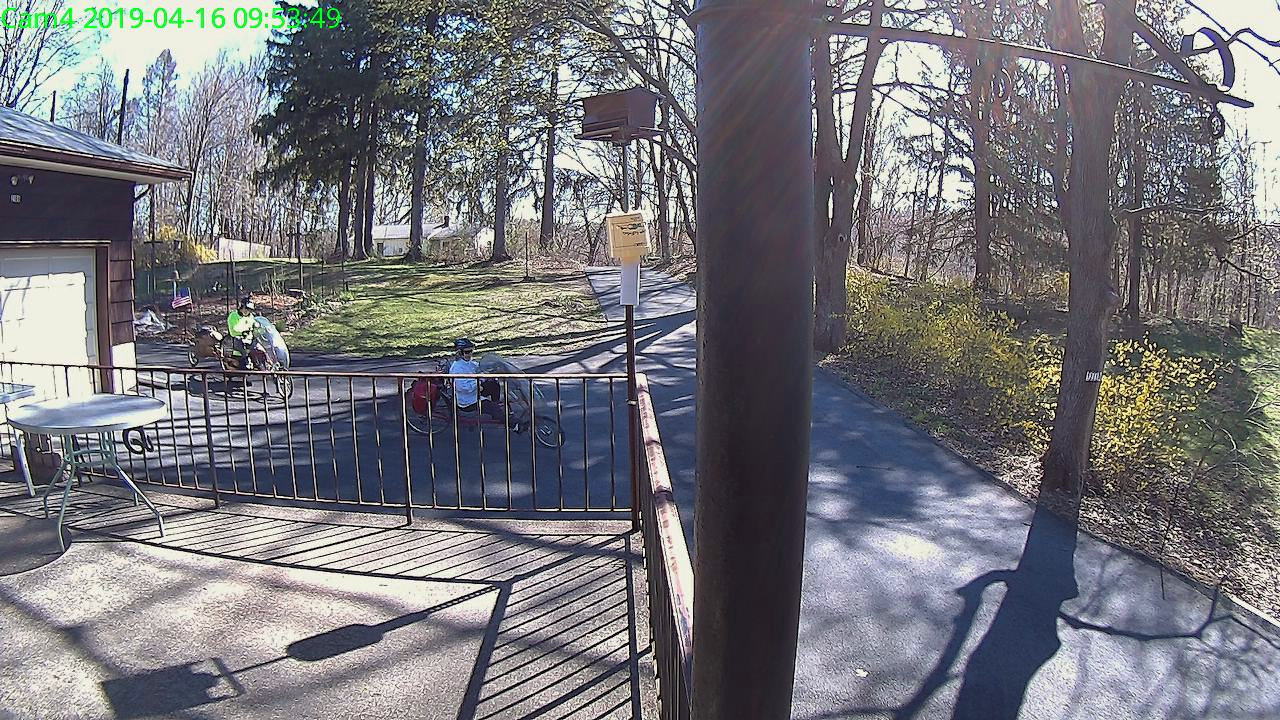
Xiaomi Dafang – 15-04-2019_13.26.18
It’s also helpful (at least for my purposes) to add the hostname to the image filenames. A one-line tweak in the scripts/detectionOn.sh script does the trick:
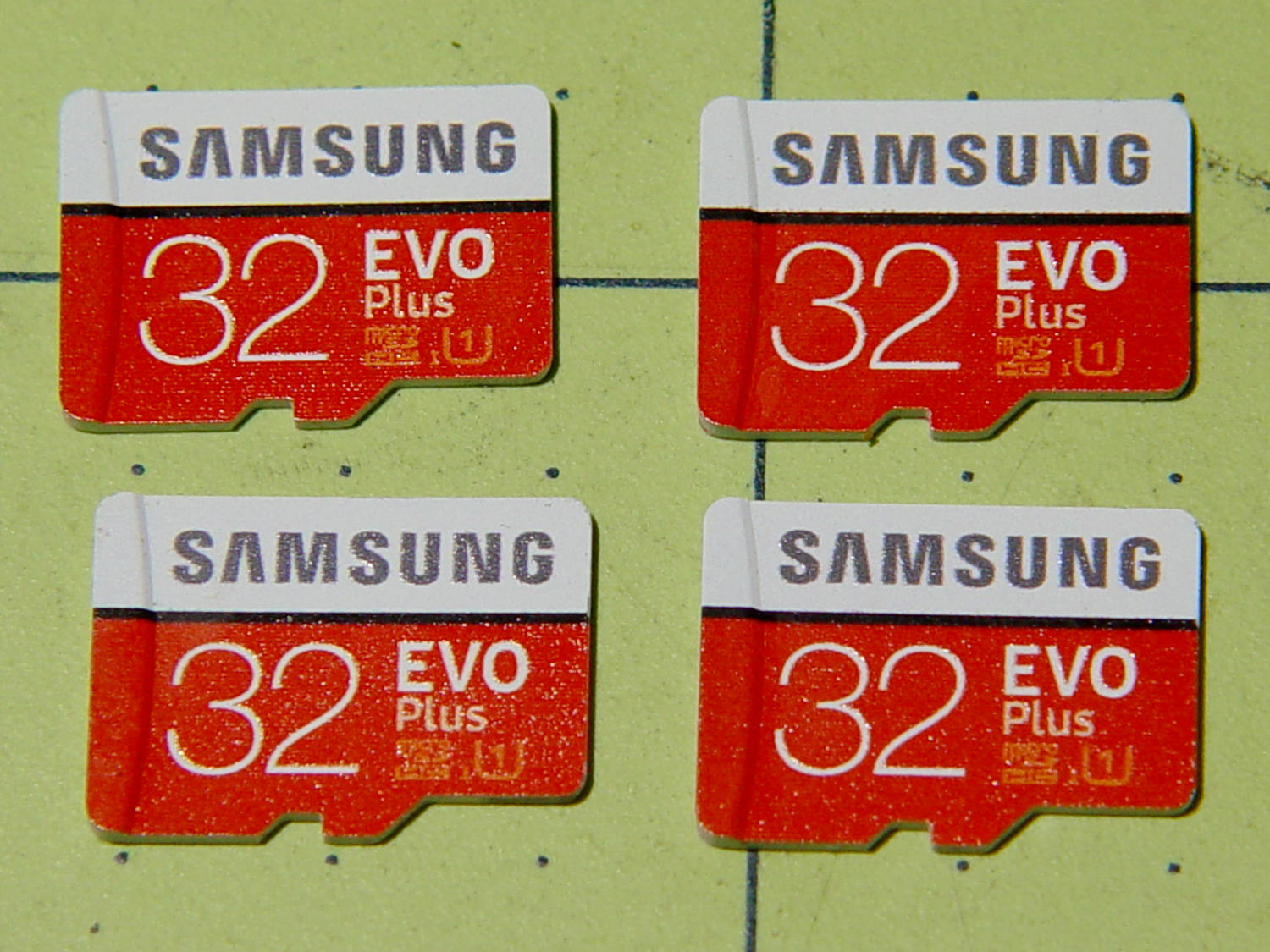
After I finish fiddling with the first camera, I’ll copy its card onto these four, unique-ify the IP addresses / hostnames /suchlike, and bring ’em all online.
Given a camera running Xiaomi Dafang Hacks software, you can set up motion-triggered image capture and save the images either locally or on an FTP server. The latter makes sense, as it automatically plunks the images where they’re more generally available.
Define the FTP server parameters in config/motion.conf:
The FTP server should have the Cam4 directory in place and shared for read-write access before attempting to plunk files therein. Ahem.
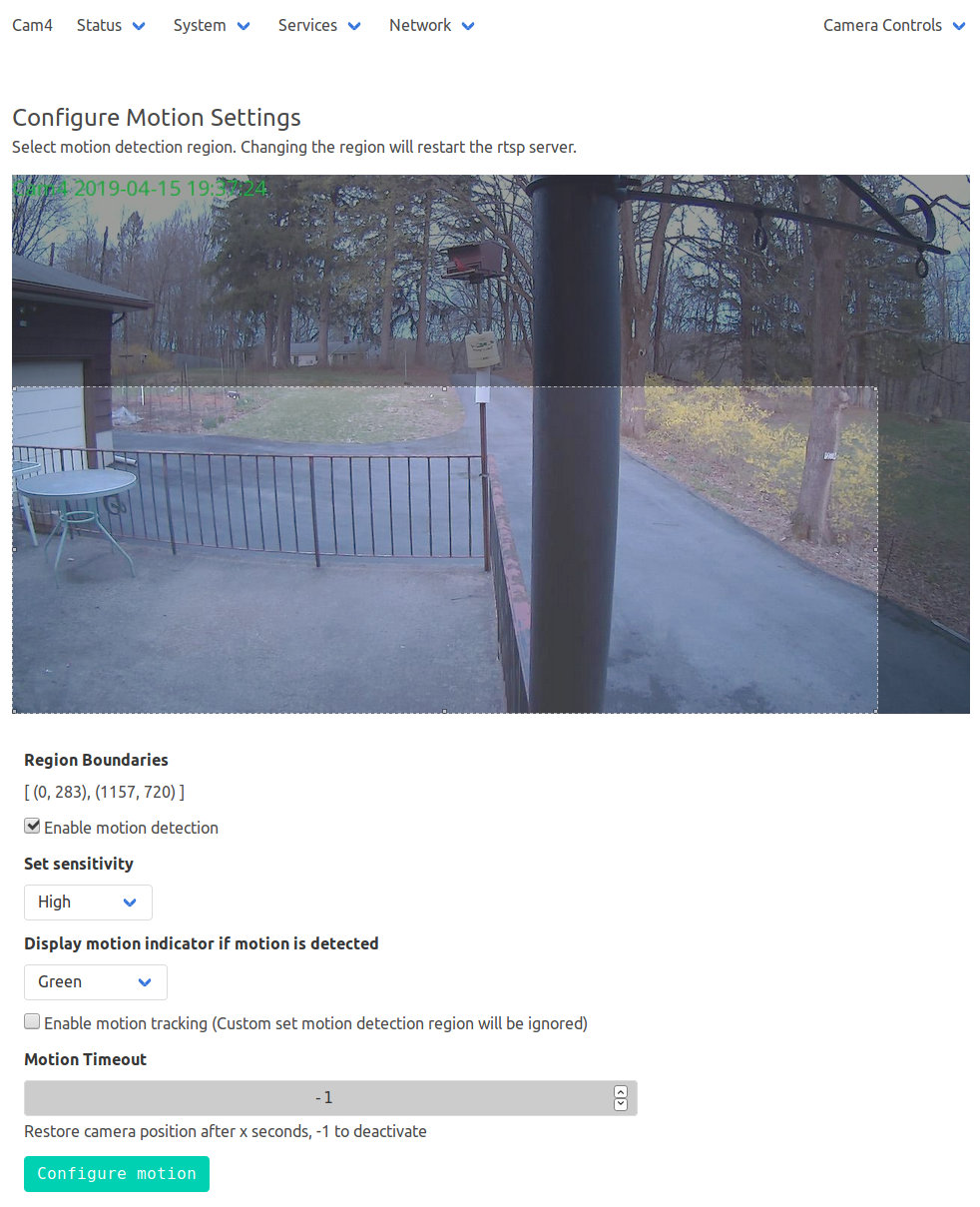
The camera’s Services menu leads to the motion configuration page:
Xiaomi Dafang – Motion Settings page
Limiting the detection region to the lower-left corner cuts out all the waving-in-the-breeze foliage in the yard, while covering the driveway. High sensitivity detects squirrel-sized objects in the foreground, although your mileage will certainly differ.
The camera seems rate-limited at 5 s/image, which may come from FTP transfer overhead; I don’t know if the code includes a built-in delay or if it just works like that. The NAS drive requires upwards of 7 s to spin up if it hasn’t been used for a while, but afterwards the transfers don’t take that long.
Mounting the NAS drive’s CIFS shared directory from my desktop PC works as before:
sudo mount -v -o rw,credentials=/root/.nas-id,vers=1.0,uid=ed -t cifs //192.168.1.10/Cam4 /mnt/part
Then view / edit / delete images as needed:
Xiaomi Dafang – IR motion capture – 15-04-2019_20.02.06
The camera has built-in IR LEDs, but they’re nowhere near powerful enough to illuminate the entire yard.
# Interval between snaps, in seconds
TIMELAPSE_INTERVAL=10
# Duration of the script should run, in minutes, set to 0 for unlimited
TIMELAPSE_DURATION=60
# Save dir config
SAVE_DIR_PER_DAY=1
# Enable compression
COMPRESSION_QUALITY=100
The images, named along the lines of 13-04-2019_191810_001.jpg, appear in the DCIM/timelapse directory, tucked into daily directories with names like 2019-04-13, a mismatch obviously in need of tweaking. There’s also a time_lapse directory which seems like cruft from an earlier revision; you can configure the target directory in scripts/timelapse.sh.
Start the script manually or from a crontab entry, wait until it’s done, then transfer the images to somewhere more convenient with a Bash one-liner:
The -s silences all curl output; omit it until you’re sure the lashup works as you expect. I always forget the backslash before the semicolon terminating the -exec command.
The -n pulls the userID and password from the ~/.netrc file you previously set up for manual ftp sessions:
The IP address corresponds to my ancient NAS drive; your mileage may vary.
From my desktop box, mount the NAS drive:
sudo mount -t cifs -o "credentials=/root/.nas-id,vers=1.0,uid=ed" "//nasty/Timelapse" /mnt/part
The drive’s credentials aren’t particularly secret, but tucking them into /root/.nas-id means you could automount the drive with no hassle. The NAS drive requires the oldest possible CIFS version, of course.
Then view the pix:
Xiaomi Dafang – 15-04-2019_13.26.18
You could set up the camera as an NFS share, but having all the cameras deposit their pix in a common location seems more convenient, particularly after I get around to automating the image transfer. Regrettably, the NAS drive doesn’t support subdirectories.
The Sherline CNC mill setup for sawing around the midline:
Sony NP-FM50 battery – Sherline saw setup
Adjust the saw to cut along the seam, set X=0 at the surface, jog to about X+0.7 mm, jog the saw along the seam, then repeat for the other three sides. No real CNC involved, but it’s much easier than sawing or breaking through the seam by hand.
These two packs came with the camera:
Sony NP-FM50 battery – 2003-era cells
The cells have only lot numbers, no manufacturer ID. Wikipedia sayeth Sony Fukushima started in 2000; perhaps these were early production units with no branding.
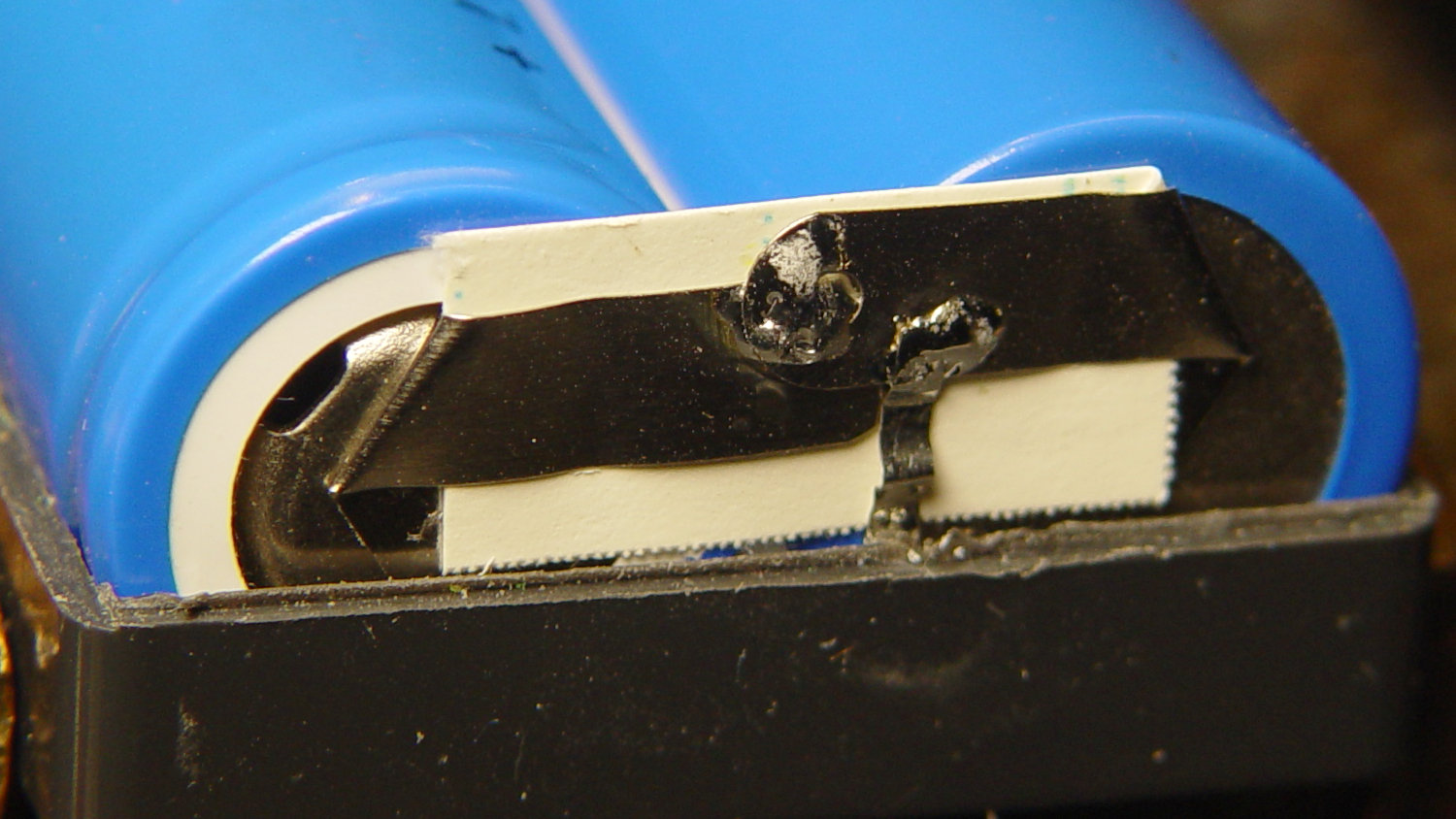
The center strap running the length of the pack didn’t seem long enough, because I mistakenly thought I’d straightened its end while unsoldering it. As it happens, the end was straight and secured to the PCB by structural solder:
Sony NP-FM50 battery – PCB center tab joint
Moral of the story: pay attention, dammit!
The other end of the center strap required a snippet of tin strip to reach the tabs:
Sony NP-FM50 battery – rebuilt center strap
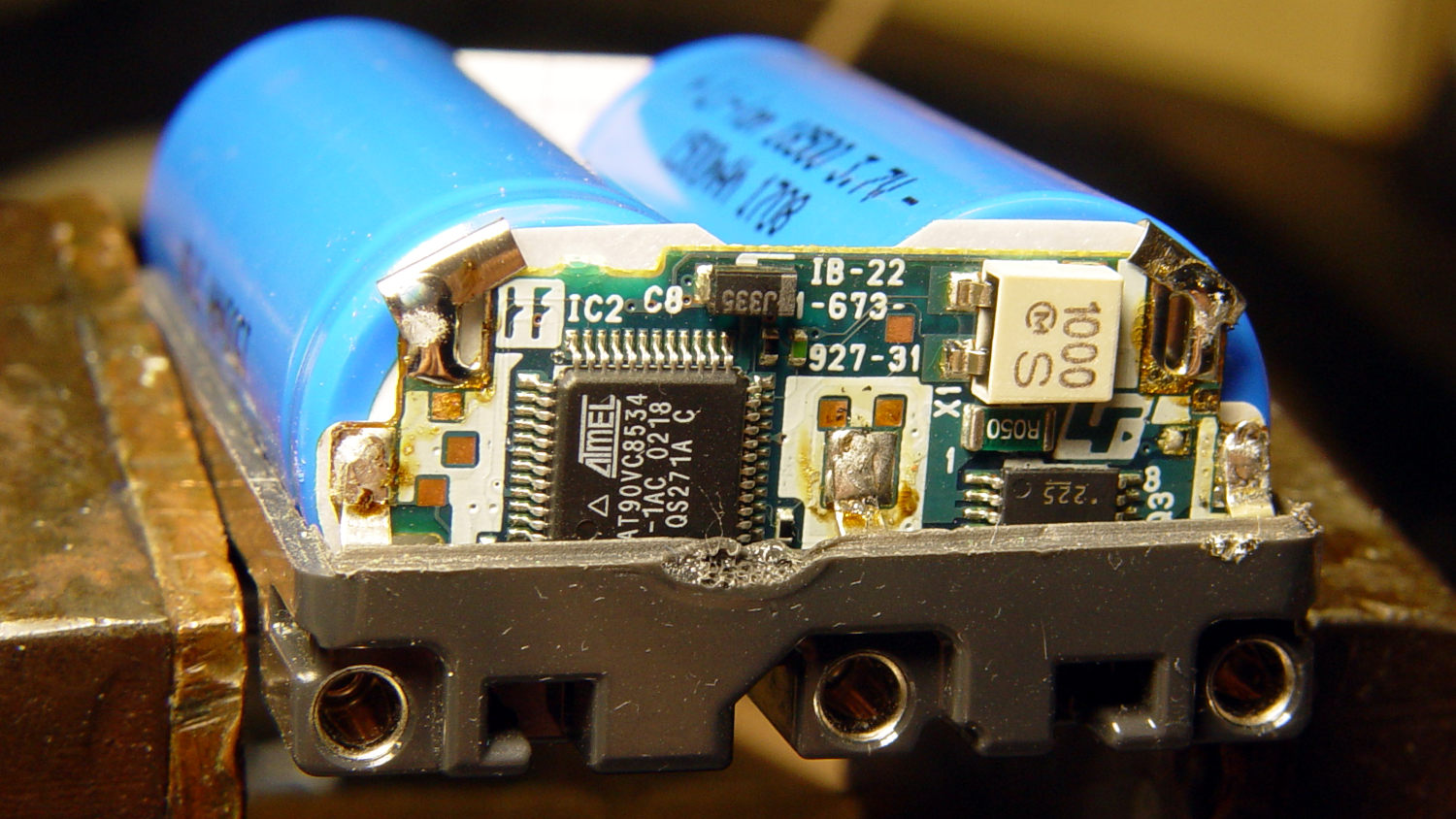
Aligning the cells that way allowed me to just bend the other tabs over the PCB pads and solder them in place:
Sony NP-FM50 battery – rebuilt PCB contacts
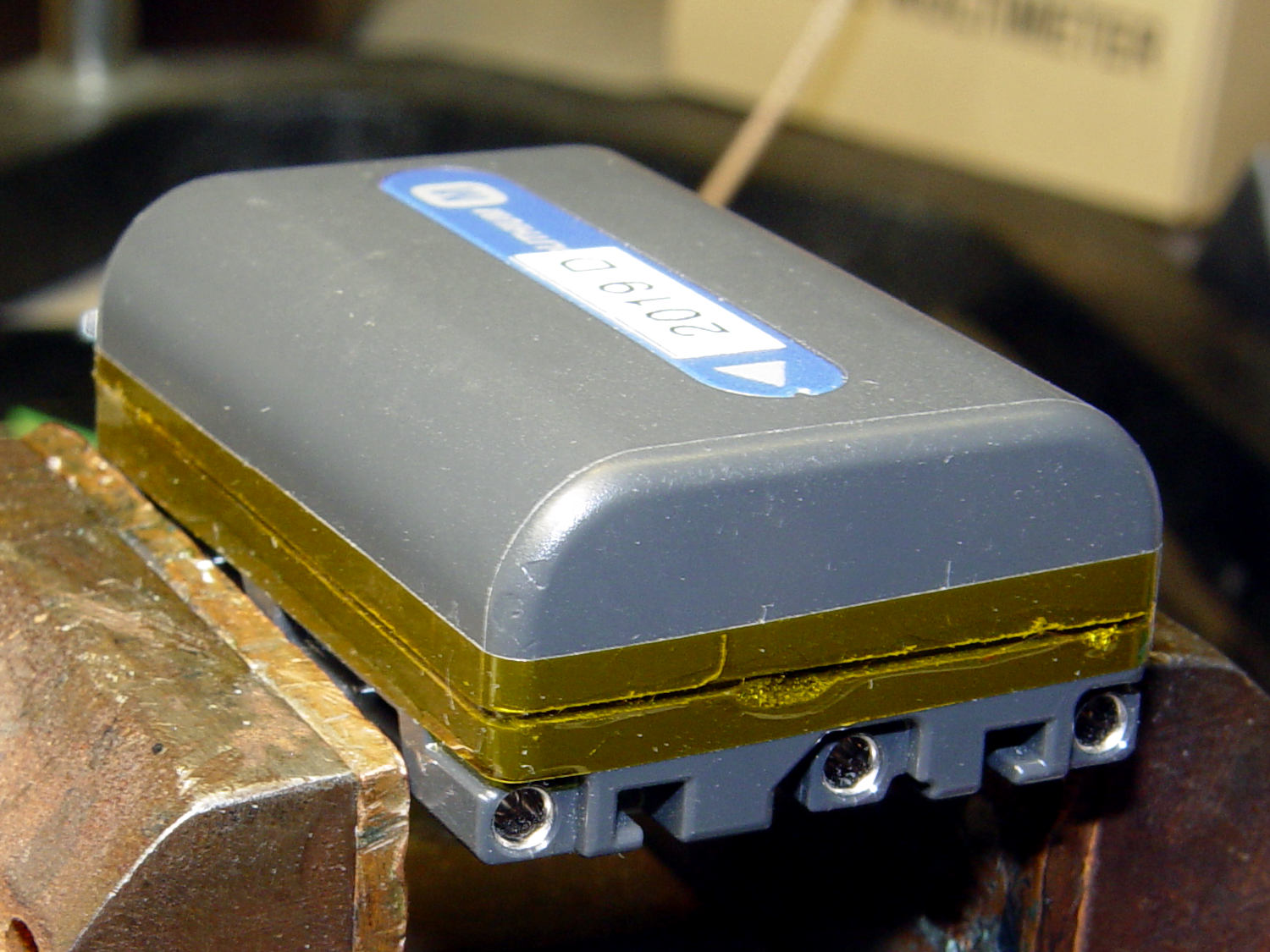
Then a strip of Kapton tape across the kerf holds the case together well enough to survive our gentle usage:
Sony NP-FM50 battery – Kapton belly band
The battery packs require a brief stay in the charger to reset the PCB’s lockout circuitry, after which they work fine:
Sony NP-FM50 – 2019-04-12
The two oldest batteries (OEM 2003 A and OEM 2003 B) have new identities to suit their new innards: 2019 E and 2019 F. The DOA eBay battery retains its 2019 D label after the rebuild, as there’s little room for confusion.
Admittedly, it’d be easier / cheaper / faster to buy third-party NP-FM50 packs directly from eBay or Amazon, but this way I know the cells aren’t complete crap and I get some Quality Shop Time™ out of the deal.







 The Smell of Molten Projects in the Morning