The Smell of Molten Projects in the Morning

Ed Nisley's Blog: Shop notes, electronics, firmware, machinery, 3D printing, laser cuttery, and curiosities. Contents: 100% human thinking, 0% AI slop.

Category: Photography & Images

Taking & making images.

  • Layered Paper: Random Block Generator MVP

    Layered Paper: Random Block Generator MVP

    This definitely isn’t ready for prime time, but it’s already much better than the manual process and a few notes are in order.

    The general idea is to have a Python program generate a set of SVG images, each one describing a single layer of paper in the stack:

    Layered Paper - Random Blocks - MVP - single layer
    Layered Paper – Random Blocks – MVP – single layer

    As expected, there’s a Python SVG library handling the details of creating SVG images.

    Define a bunch of “constants” with all the physical measurements and suchlike:

    PageSize = (round(8.5*INCH,3), round(11.0*INCH,3))
    
    SheetCenter = (PageSize[X]/2,PageSize[X]/2)     # symmetric on Y!
    
    SheetSize = (200,200)           # overall sheet
    
    AlignOC = (180,180)             # alignment pins in corners
    AlignOD = 5.0                    #  … pin diameter
    
    MatrixOA = (170,170)            # outer limit of cell matrix
    
    CellCut = "black"               # C00 Black
    SheetCut = "red"                # C02 Red
    HeavyCut = "rgb(255,128,0)"     # C05 Orange        black mask paper is harder
    HeavyCellCut = "rgb(0,0,160)"   # C09 Dark Blue     ditto
    Tooling = "rgb(12,150,217)"     # T2  Tool
    
    DefStroke = "0.2mm"
    DefFill = "none"
    

    Then marking the middle of the layout with that little circle looks like this:

    ToolEls = []                    # accumulates tooling layout
    # mark center of sheet for drag-n-drop location
    ToolEls.append(
        svg.Circle(
            cx=SheetCenter[X],
            cy=SheetCenter[Y],
            r="2mm",
            stroke=Tooling,
            stroke_width=DefStroke,
            fill="none",
        )
    )
    

    Cutting the perimeter and four alignment holes:

    SheetEls = []                   # accumulates sheet cuts
    # cut perimeter
    SheetEls.append(
        svg.Rect(
            x=as_mm(SheetCenter[X] - SheetSize[X]/2),
            y=as_mm(SheetCenter[Y] - SheetSize[Y]/2),
            width=as_mm(SheetSize[X]),
            height=as_mm(SheetSize[Y]),
            stroke=SheetCut if ThisLayer > 0 else HeavyCut,
            stroke_width=DefStroke,
            fill="none",
        ),
    )
    # cut alignment pin holes except on mask layer
    if ThisLayer > 0:
        for c in ((1,1),(-1,1),(-1,-1),(1,-1)):
            SheetEls.append(
                svg.Circle(
                    cx=as_mm(SheetCenter[X] + c[X]*AlignOC[X]/2),
                    cy=as_mm(SheetCenter[Y] + c[Y]*AlignOC[Y]/2),
                    r=as_mm(AlignOD/2),
                    stroke=SheetCut,
                    stroke_width=DefStroke,
                    fill="none",
                )
            )
    

    Burning the layer ID in binary:

    # cut layer ID holes except on mask layer
    if ThisLayer > 0:
        c = ((1,1))
        h = f'{ThisLayer:0{Layers.bit_length()}b}'
        for i in range(Layers.bit_length()):
            SheetEls.append(
                svg.Circle(
                    cx=as_mm(SheetCenter[X] + c[X]*AlignOC[X]/2 - (i + 2)*AlignOD),
                    cy=as_mm(SheetCenter[Y] + c[Y]*AlignOC[Y]/2),
                    r=AlignOD/4 if h[-(i + 1)] == '1' else AlignOD/8,
                    stroke=SheetCut,
                    stroke_width=DefStroke,
                    fill="none",
                 )
            )
    

    Filling the matrix of blocks with random numbers turned out to be a one-liner:

    CellMatrix = [[randint(1,args.colors) for _ in range(args.height)] for _ in range(args.width)]


    That matrix is a constant for all the layers, which is why you must feed the program the same random number seed to generate the layers.

    Given the layer number and that matrix, deciding what to do for each hole is a walk through the cells:

    MatrixEls = []                  # accumulates matrix cuts
    for i in range(args.width):
        x =i*CellOC[X]
        for j in range(args.height):
            y = j*CellOC[Y]
    
            if ThisLayer == 0:                          # black mask
                s = HeavyCellCut
            elif ThisLayer < CellMatrix[i][j]:          # rest of sheets above color layer
                s = CellCut
            else:
                s = Tooling                             # at or below color layer
    
            MatrixEls.append(
                svg.Rect(
                    x=as_mm(SheetCenter[X] - MatrixOA[X]/2 + x),
                    y=as_mm(SheetCenter[Y] - MatrixOA[Y]/2 + y),
                    width=as_mm(CellSize[X]),
                    height=as_mm(CellSize[Y]),
                    stroke=s,
                    stroke_width=DefStroke,
                    fill="none",
                )
            )
    

    After accumulating all the other elements in similar lists, this creates and emits the entire SVG file to stdout:

    canvas = svg.SVG(
        width=as_mm(PageSize[X]),
        height=as_mm(PageSize[Y]),
        elements=[
            ToolEls,
            SheetEls,
            MatrixEls
        ],
    )
    
    print(canvas)
    

    The whole program has a bit more going on, but those are the high points.

    Invoke the program with a Bash one-liner:

    for i in {00..08} ; do python Layers.py --layernum=$i > Test_$i.svg ; done
    

    That produces nine SVG image files that you import into LightBurn and arrange in a tidy array:

    Layered Paper - Random Blocks - MVP - LightBurn import
    Layered Paper – Random Blocks – MVP – LightBurn import

    I discovered that holding down the Shift key while importing the SVG files stacks them at the workspace origin (the upper-right corner for my machine) in the order of the file names, so clicking on the stack selects successive layers in the right order; just drop each one wherever you need it, then tidy the lineup.

    The Python program sets the vector stroke colors using LightBurn palette values, so that LightBurn automagically assigns them to the appropriate layers. It turns out the black paper I used for the mask requires different speed / power values than the other colored paper.

    I put the alignment features on a different layer than the matrix holes to make them more visible, even though they have the same speed / power values.

    Align the template so the middle of the layer pattern is in the middle of the grid, then use LightBurn’s Print and Cut to align the template with the fixture on the laser platform:

    Layered Paper - Random Blocks - MVP - template
    Layered Paper – Random Blocks – MVP – template

    Then the process requires just a few clicks per layer:

    • Drop a sheet of paper into the fixture
    • Click to select a layer layout
    • Ctrl-D to duplicate it
    • P to snap it to the middle of the grid
    • Alt-S to Fire The Laser
    • Del to delete that layer (which is why it’s a duplicate!)
    • Iterate until done!

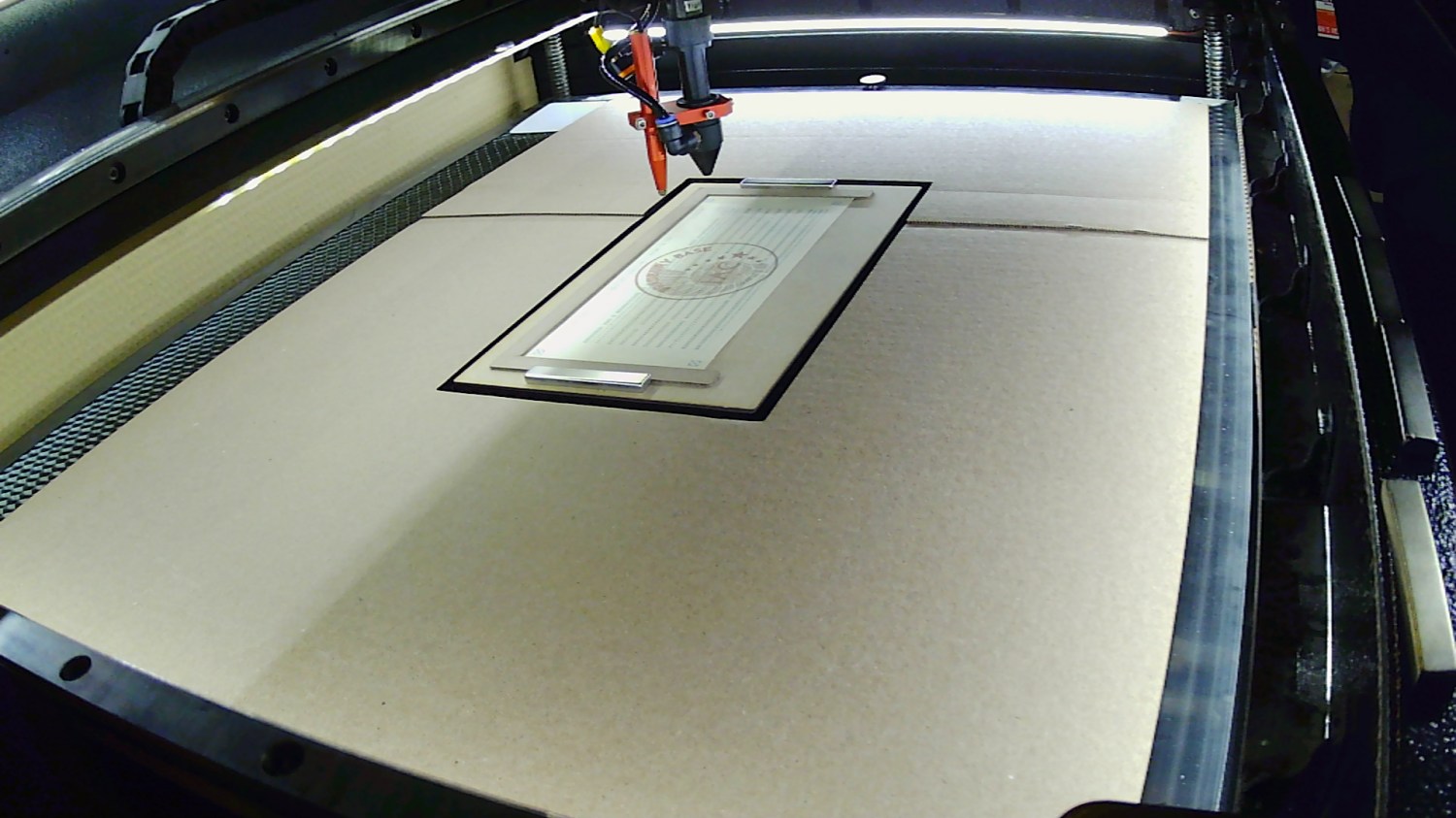
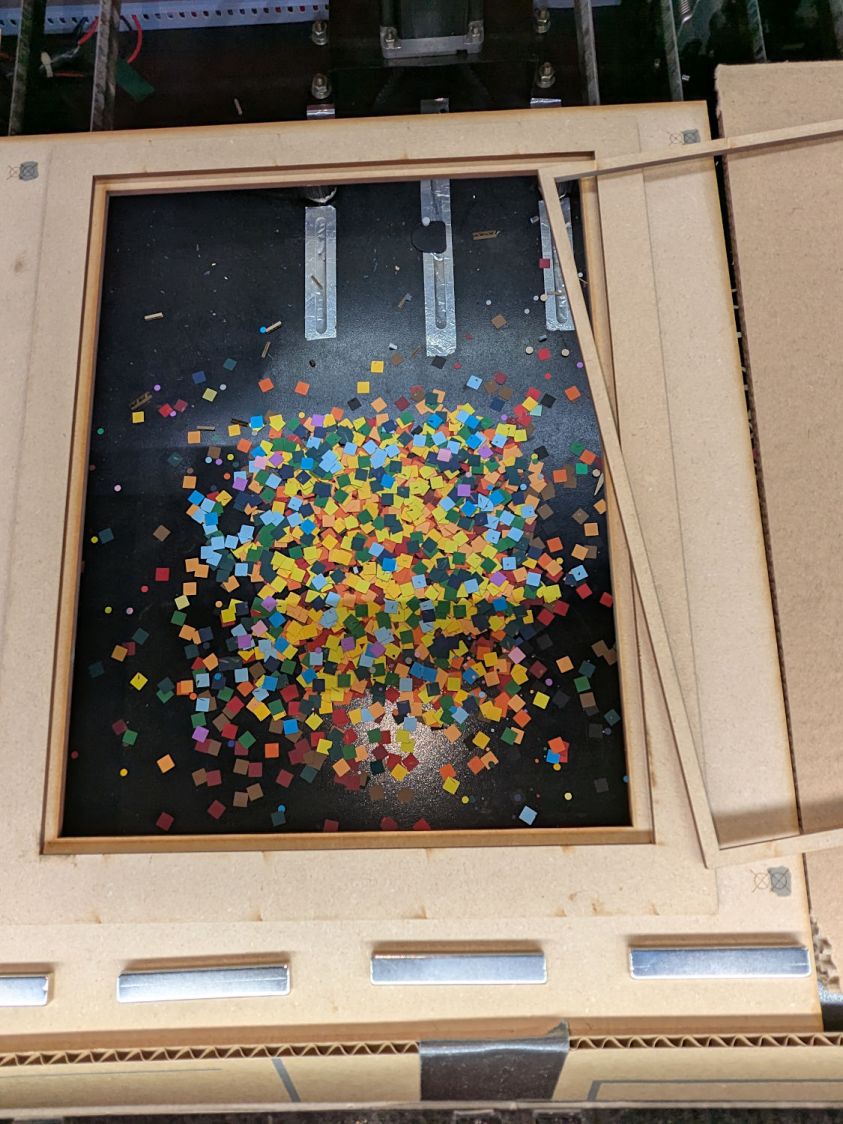
    Which looks pretty much like you’d expect:

    Layered Paper - Random Blocks - cutting
    Layered Paper – Random Blocks – cutting

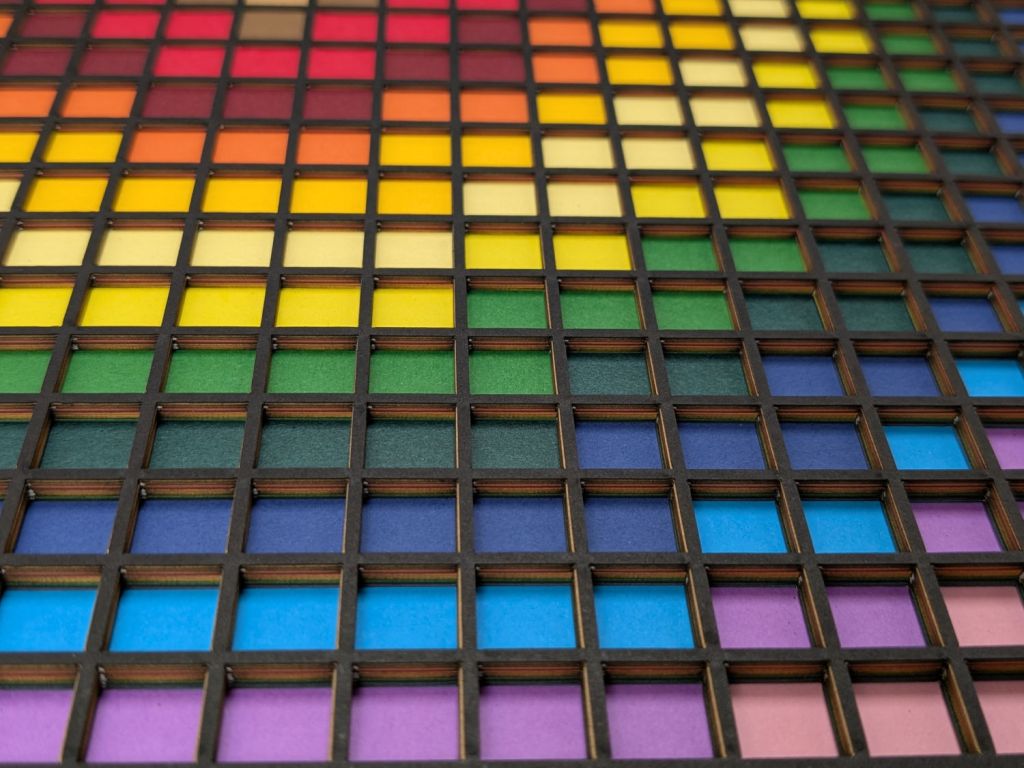
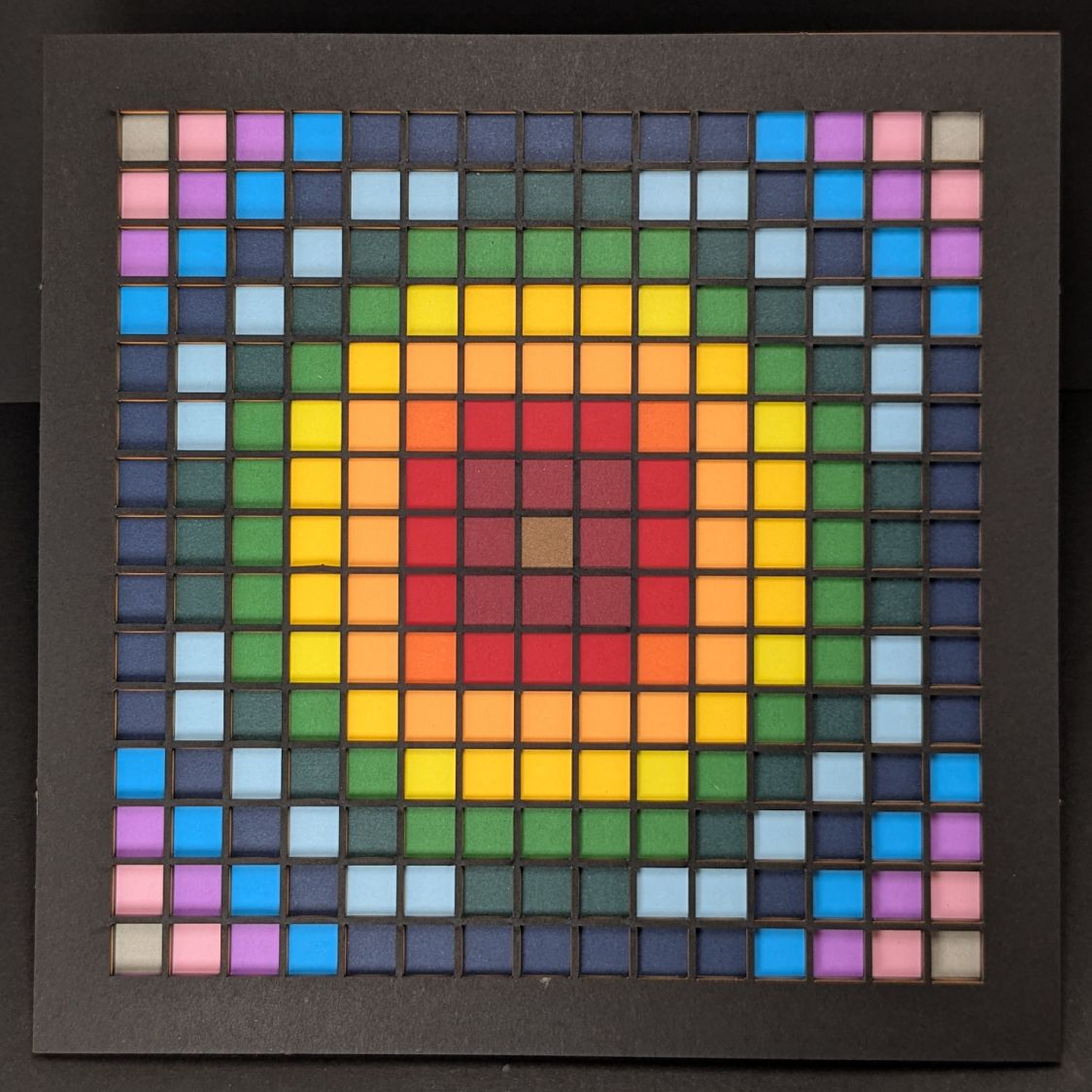
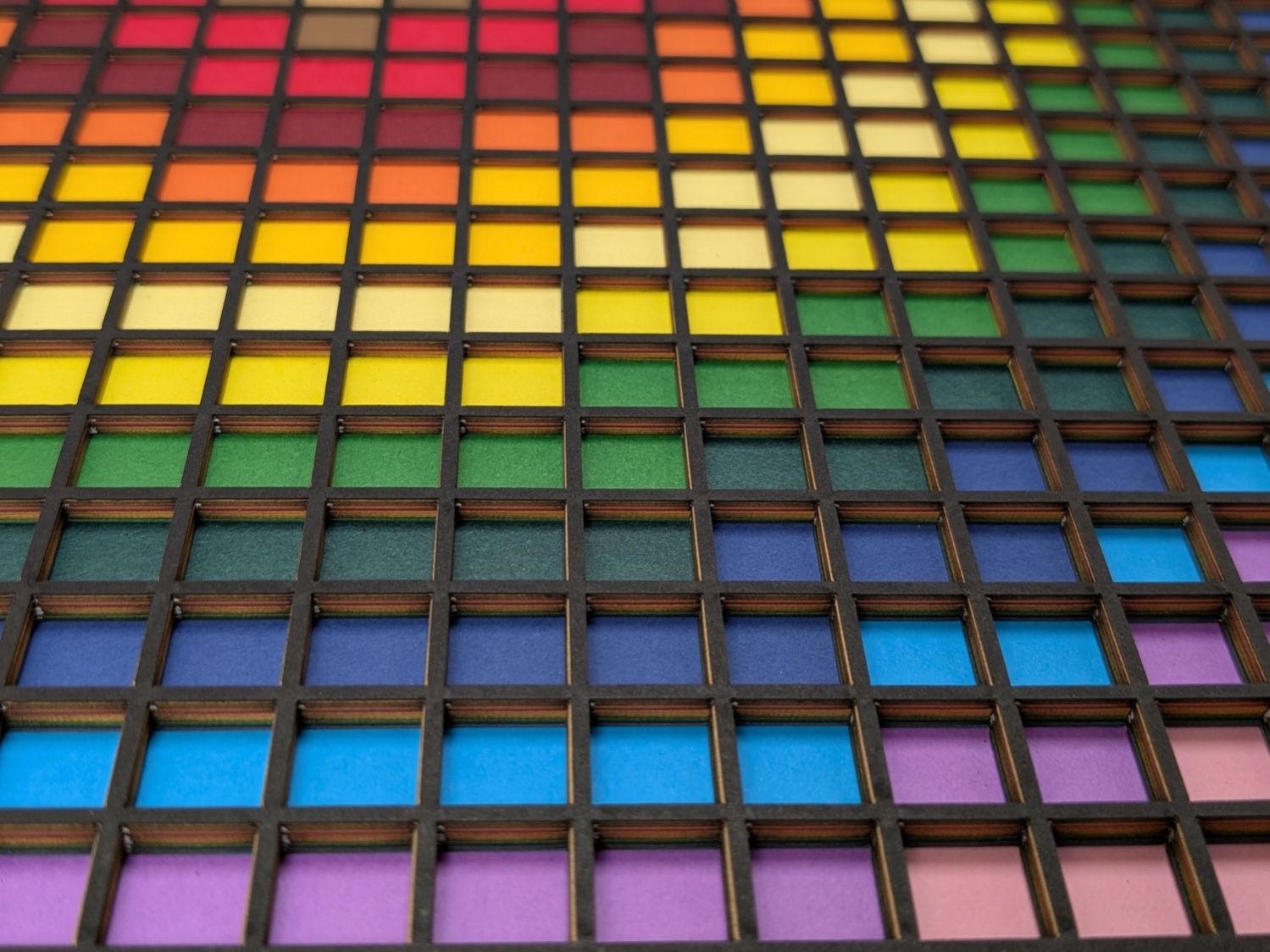
    Take the stack of paper to the workbench, use an Xacto knife to cut the tabs holding the square into the Letter page, apply glue stick, stack in the fixture, and iterate to create a solid sheet with lots of holes:

    Layered Paper - Random Blocks - MVP
    Layered Paper – Random Blocks – MVP

    More refinement is in order, but that’s the overview …

  • Be Careful Where You Hide

    Be Careful Where You Hide

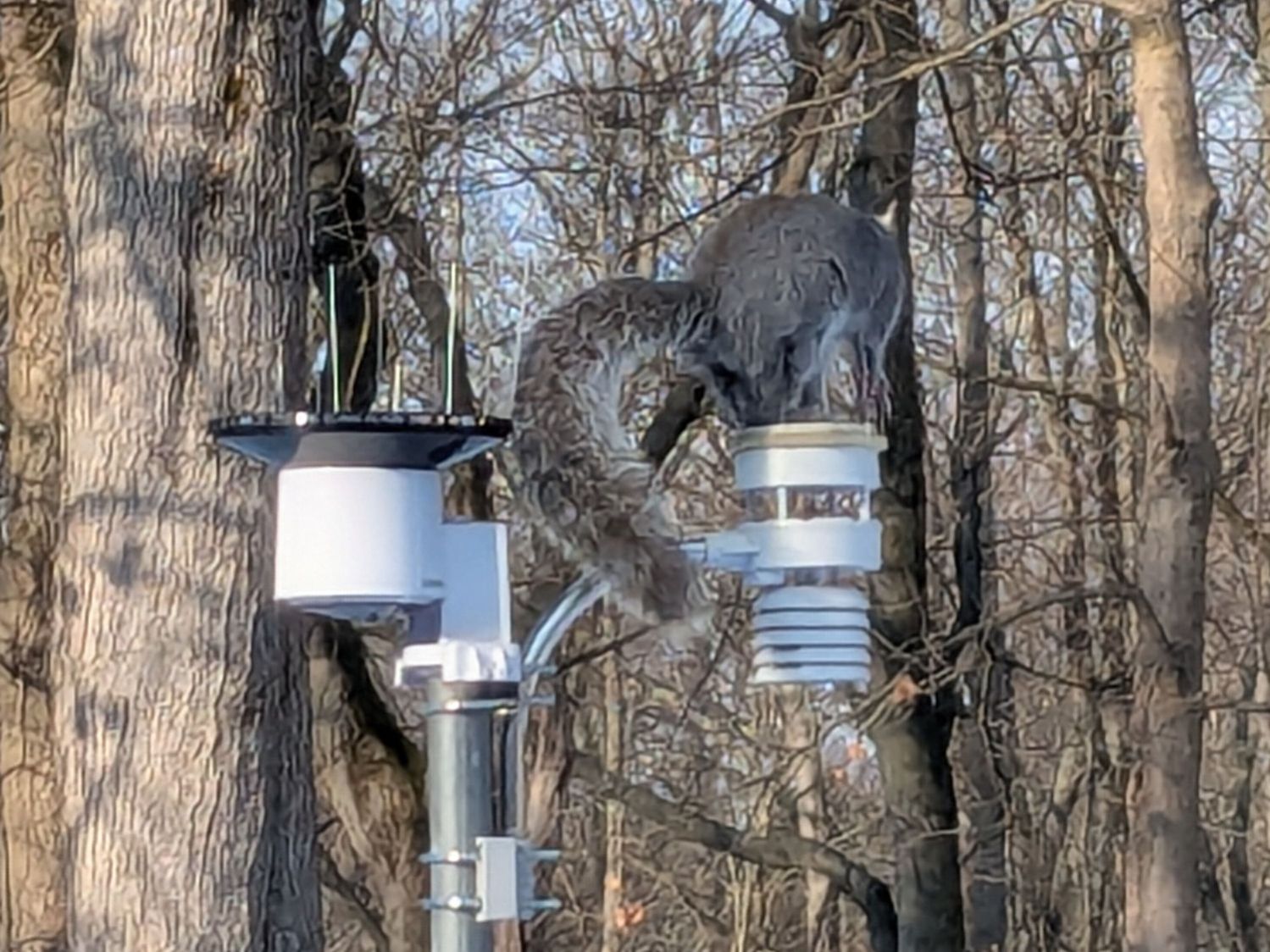
    We’ve seen several new rabbits munching greenery in the back yard, but this little one may be studying auto repair under our neighbor’s car:

    Rabbit - automotive hiding place
    Rabbit – automotive hiding place

    Unlike mice, even a small rabbit won’t take up residence in the air cleaner.

    The weird granulated look comes from a Pixel 6a camera zoomed all the way tight through two layers of 1960-era window glass at an acute angle. The bad camera you have is always better than the good camera you don’t.

  • Newmowa NP-BX1: 2025 Batteries

    Newmowa NP-BX1: 2025 Batteries

    A new sextet of NP-BX1 batteries for the Sony AS-30V helmet camera arrived:

    Newmowa NP-BX1 - 2022 vs 2025
    Newmowa NP-BX1 – 2022 vs 2025

    The traces:

    • Blue = 2025 batteries
    • Red = 2022 batteries when new

    I don’t know what the bump in the middle of the new battery discharge curve means. Something weird in the chemistry, I suppose. Getting good batteries from Amazon surely remains a crapshoot and I now have four chargers.

    Recharging all six batteries required 5488 mA·hr, just over 900 mA·hr apiece. Running the camera on a one-hour bike ride burns 600-ish mA·hr, so that’s comforting.

    Comparing the new results with the 2022 batteries tested last month:

    NP-BX1 - Newmowa 2022 in 2025-06
    NP-BX1 – Newmowa 2022 in 2025-06

    The upper traces appear in red in the first plot, the lower curves come from three years of use.

    I’ll deploy the two best 2022 batteries (D and F) in the SJCAM M20 keeping watch from the Forester’s dashboard.

  • Plastic Spring Clamp Jaw Rod Replacement

    Plastic Spring Clamp Jaw Rod Replacement

    A recent quilt photo shoot degenerated into me chasing several bright orange clamp jaws across the deck as they popped off their clamps hanging from the photo backdrop scaffold. Most clamps have jaws snapping onto actual rods, but these clamps have molded-in-place “rods” much smaller than the 2 mm expected by the jaws and much more irregular than seems reasonable.

    Trace and scan the nose of a clamp:

    Large spring clamp nose outline
    Large spring clamp nose outline

    Curiously, the molded rod is not centered in the nose:

    Large spring clamp nose - pin locatIon
    Large spring clamp nose – pin locatIon

    Use LightBurn to coerce a scan of the first sketch into a suitable path, laser-cut some MDF, and glue up a drill fixture:

    Spring clamp jaw pins - fixture gluing
    Spring clamp jaw pins – fixture gluing

    Align the drill to the center of the off-center hole marked on the bottom layer:

    Spring clamp jaw pins - drill alignment
    Spring clamp jaw pins – drill alignment

    The drilling setup looks casual, but hand-holding the clamps against the rear wall and into the form-fitting nose recess sufficed:

    Spring clamp jaw pins - fixture overview
    Spring clamp jaw pins – fixture overview

    I snipped the plastic “rods” out before drilling the holes, then rammed 2 mm steel rods in place:

    Spring clamp jaw pins - steel
    Spring clamp jaw pins – steel

    They’re really 5/64 inch = 1.98 mm rods from the oil-hardening drill rod stash, but entirely sufficient for the purpose.

    With one clamp in hand, though, there was obviously no reason for the rods to be off-center. So I centered the drill in the nose, punctured the rest of the clamps, and pressed 2 mm carbon fiber rods in place:

    Spring clamp jaw pins - steel vs carbon fiber
    Spring clamp jaw pins – steel vs carbon fiber

    The rods were cut to 20 mm by rolling them across a pad with firm pressure from a utility knife. That was mostly to get some experience cutting carbon fiber, which is obviously overqualified for the job.

    Snap the orange jaws in place and I shall never suffer the embarrassment of chasing them again …

  • GIMP 3.0 vs. XSane vs. gimp-xsanecli

    GIMP 3.0 vs. XSane vs. gimp-xsanecli

    For reasons I do not profess to understand, GIMP 3.0 does not work with plugins written for GIMP 2.0, including the XSane plugin that handles scanning. This seems like an obvious oversight, but after three months it also seems to be one of those things that’s like that and that’s the way it is.

    Protracted searching turned up gimp-xsanecli, a GIMP 3.0 plugin invoking XSane through its command-line interface to scan an image into a temporary file, then stuff the file into GIMP. Unfortunately, it didn’t work over the network with the Epson ET-3830 printer / scanner in the basement.

    It turns out gimp-xsanecli tells XSane to output the filename it’s using, then expects to find the identifying XSANE_IMAGE_FILENAME string followed by the filename on the first line of whatever it gets back:

    if result != 'XSANE_IMAGE_FILENAME: ' + png_out:
      Gimp.message('Unexpected XSane result: ' + result)
      return Gimp.ValueArray.new_from_values([GObject.Value(Gimp.PDBStatusType, Gimp.PDBStatusType.EXECUTION_ERROR)])


    The font ligature that may or may not mash != into is not under my control.

    Protracted poking showed the scanner fires a glob of HTML through proc/stdout into gimp-xsanecli before XSane produces its output, but after the scan completes:

    <!DOCTYPE HTML PUBLIC "-//W3C//DTD HTML 4.01//EN "
    "http://www.w3.org/TR/html4/strict.dtd">
    <html>
    <head>
    … snippage …
    </head>
    <body><noscript>Enable your browser's JavaScript setting.</noscript></body></HTML>XSANE_IMAGE_FILENAME: /tmp/out.png
    

    Complicating the process:

    • The HTML glob only appears on the first scan, after which XSane produces exactly what gimp-xsanecli expects
    • There is no newline separating the glob from the expected output on the last line

    So …

    Insert a while loop into the main loop to strip off the HTML glob line by line by line:

            while True:
                    # Wait until XSane prints the name of the scanned file, indicating scanning is finished
                    # This blocks Python but that is ok because GIMP UI is not affected
    
                    # discard HTML header added by scanner to first scan
                    while True :
    
                            result = proc.stdout.readline().strip()
    
                            if r'</body>' in result :
                                    result = result.partition(r'</HTML>')[-1]
                            #        Gimp.message('Found end of HTML: ' + result)
                                    break
    
                            elif 'XSANE_IMAGE_FILENAME:' in result :
                            #        Gimp.message('Found filename: ' + result)
                                    break
    
                            else :
                            #        Gimp.message('Discarding: ' + result)
                                    continue
    
                    if result == '':
                            # XSane was closed
                            break
    
                    if result != 'XSANE_IMAGE_FILENAME: ' + png_out:
                            Gimp.message('Unexpected XSane result: ' + result)
                            return Gimp.ValueArray.new_from_values([GObject.Value(Gimp.PDBStatusType, Gimp.PDBStatusType.EXECUTION_ERROR)])
    
                    # Open image
                    image = Gimp.file_load(Gimp.RunMode.NONINTERACTIVE, Gio.File.new_for_path(png_out))
                    Gimp.Display.new(image)
    
                    # Remove temporary files
                    os.unlink(png_out)
    
                    if not SCAN_MULTIPLE:
                            proc.terminate()
                            break
    
            os.rmdir(tempdir)
    
            return Gimp.ValueArray.new_from_values([GObject.Value(Gimp.PDBStatusType, Gimp.PDBStatusType.SUCCESS), GObject.Value(Gimp.Image.__gtype__, image)])


    While it’s tempting to absorb the whole thing in one gulp with proc.stdout.read().strip(), that doesn’t work because nothing arrives until the XSane subprocess terminates, which is not what you want.

    A scan to show It Just Works™ :

    I expect it doesn’t work under a variety of common conditions, but … so far so good.

  • Newmowa NP-BX1: Three Years Later

    Newmowa NP-BX1: Three Years Later

    A pair of the 2022 batch of Newmowa NP-BX1 lithium batteries for the Sony AS-30V helmet camera no longer survive a typical hour-long bike ride:

    NP-BX1 - Newmowa 2022 in 2025-06
    NP-BX1 – Newmowa 2022 in 2025-06

    The best four have a capacity down 14% from the good old days and the weakest pair are down 29%.

    The camera uses 1.9 W, so a battery with 2.5 W·hr capacity should last 78 minutes, but about 400 mV of voltage depression causes the camera to give up before using its full capacity.

    So they have a useful lifetime of maybe two years in our regular bike riding schedule and I should have bought replacements last year. I hope the next batch isn’t New Old Stock or recycled cells.

  • Wreath Robins

    Wreath Robins

    Last year, a pair of finches made several nesting attempts in the wreath at our front door, only the first of which succeeded.

    This year, a pair of robins took over:

    Wreath Robin Nest - 2025-05-02
    Wreath Robin Nest – 2025-05-02

    They’re considerably larger and we hoped would be more able to repel attackers. They also seemed to get off to a late start, as we saw young robins hopping around the yard with other adults while these birds were building their nest, so this may have been their second nest of the season.

    The first egg appeared on 5 May:

    Wreath Robin Nest - 2025-05-18
    Wreath Robin Nest – 2025-05-18

    Two weeks later, the first chick pipped:

    Wreath Robin Nest - 2025-05-19
    Wreath Robin Nest – 2025-05-19

    Only a mother could love something like that, but they almost always do:

    Wreath Robin Nest - 2025-05-20
    Wreath Robin Nest – 2025-05-20

    Floppy chicks are (still) floppy one day later:

    Wreath Robin Nest - 2025-05-21
    Wreath Robin Nest – 2025-05-21

    Rapid growth is Job One:

    Wreath Robin Nest - 2025-05-22
    Wreath Robin Nest – 2025-05-22

    Taking shape:

    Wreath Robin Nest - 2025-05-23
    Wreath Robin Nest – 2025-05-23

    And then there were none:

    Wreath Robin Nest - 2025-05-24
    Wreath Robin Nest – 2025-05-24

    The M50 trail camera was defunct, so we don’t know what happened to them. Mary didn’t hear a fuss through the adjacent bedroom window, which suggests something grabbed them while Ms Robin was off getting breakfast.

    We took the wreath down and replaced it with a slate plaque, because we’d rather not know …