The Smell of Molten Projects in the Morning

Ed Nisley's Blog: Shop notes, electronics, firmware, machinery, 3D printing, laser cuttery, and curiosities. Contents: 100% human thinking, 0% AI slop.

Category: Machine Shop

Mechanical widgetry

  • Bike Mirror Re-Repair

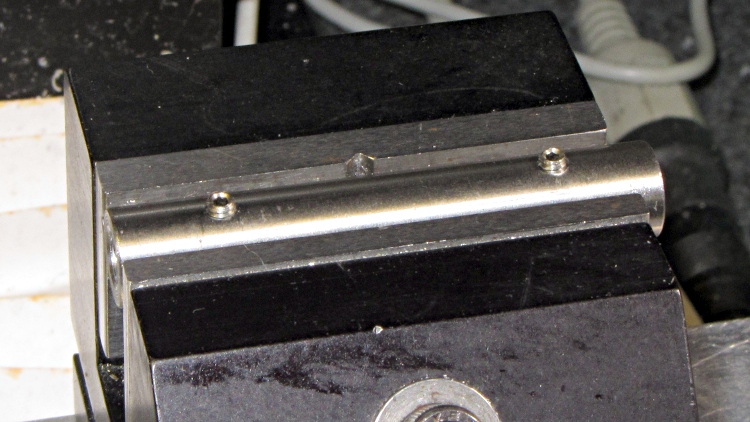
    A gust of wind blew Mary’s bike helmet off the seat and, by the conservation of perversity, it landed on the mirror with predictable results:

    Broken helmet mirror mount
    Broken helmet mirror mount

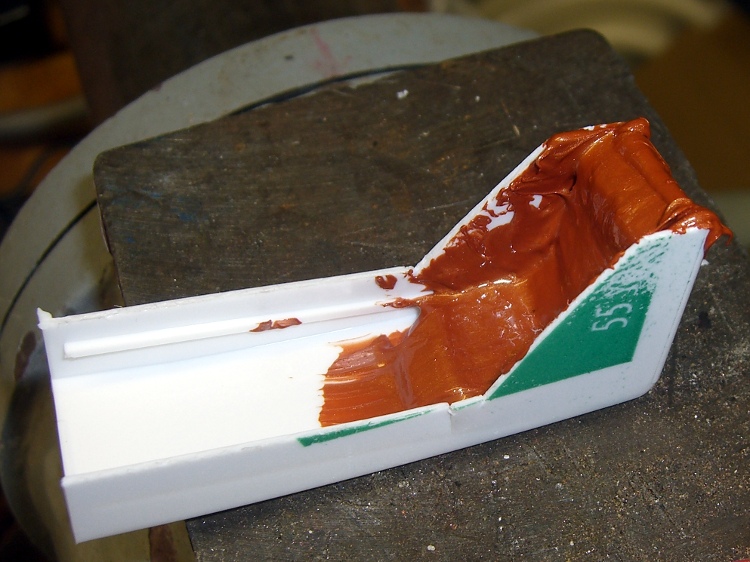
    I affixed the two ends with solvent glue, then epoxied a brass tube around them to stiffen it up. While I had the epoxy and brass out, I added a splint over a previous repair near the mirror ball:

    Re-repaired mirror mount
    Re-repaired mirror mount

    After taking that picture, I heated and bent the remaining shaft just slightly to put the ball near the middle of its range. There’s no possible way this can survive this year’s cycling, so I must get cracking on building some durable mirrors. A 3-D printer should come in handy for something in that project!

  • Stepper Motor Sync Wheel

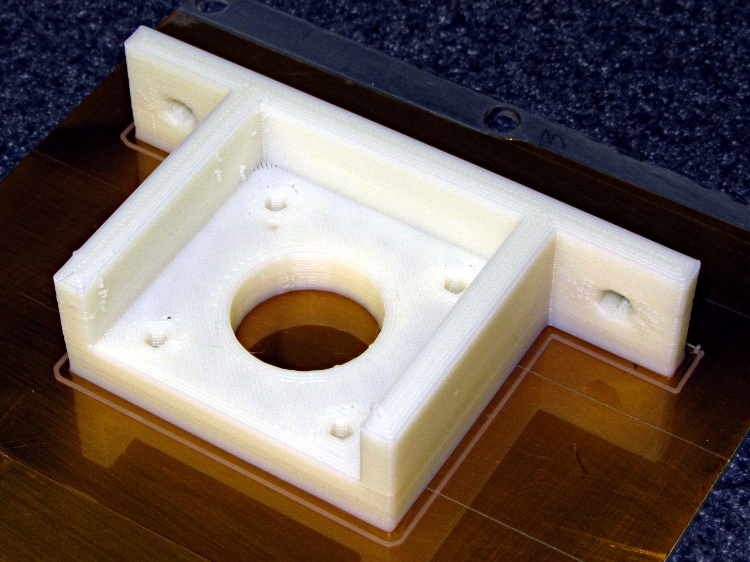
    A need for pix of the current waveforms in a stepper motor produced a need to synchronize to the shaft rotation. Rather than cobble something up using random spare parts, I printed a wheel with a tab:

    Final rotation sync disk
    Final rotation sync disk

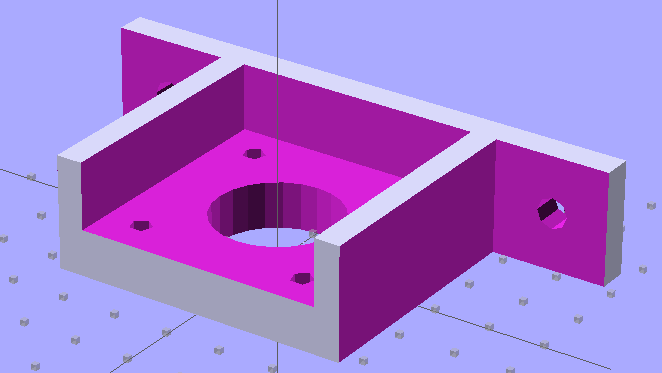
    The model looks about like you’d expect:

    Synch wheel solid model
    Synch wheel solid model

    Those stretched pentagonal holes give it a vaguely religious aspect, don’t they?

    The tab is 2/50 of the circumference, so that the resulting pulse neatly brackets two consecutive groups of four full-step pulses. There’s no way to align the tab with the rotor position, so producing a good scope sync pulse becomes a simple matter of software.

    The tab’s length and radial position corresponds to this carefully engineered bit of mayhem:

    Optical interrupter on stepper isolator bushing
    Optical interrupter on stepper isolator bushing

    The shaft hole will be just slightly too small for the motor shaft, which is perfectly fine. Drill the hole to 5 mm using a #9 drill, working your way up from about #12 to keep the hole concentric.

    Actually, that was the second version. The first was a quick-and-dirty disk with a tab, but it came out too floppy at only 1 mm thick and utterly boring:

    Simple rotation sync disk
    Simple rotation sync disk

    But it served as the prototype to settle the tab dimensions and location:

    First synch disk with optical interrupter
    First synch disk with optical interrupter

    The OpenSCAD source:

    // Optical Interrupter
    // Suited for low speed demonstrations!
    // Ed Nisley KE4ZNU June 2011
    
    //- Extrusion parameters - must match reality!
    //  Print with +2 shells and 3 solid layers
    
    ThreadThick = 0.33;
    ThreadWidth = 2.0 * ThreadThick;
    
    //- Plate dimensions
    
    MotorShaftDia = 5.0;
    MotorShaftDiaSides = 8;
    MotorShaftPolyRadius = (MotorShaftDia/2)/cos(180/MotorShaftDiaSides);
    
    HubDia = MotorShaftDia + 16*ThreadWidth;
    HubThick = ceil(10.0/ThreadThick)*ThreadThick;		// total, not added to plate
    HubSides = 8;
    
    BladeRadius = 31.5;				// to center of optical switch gap
    BladeThick = 2*ThreadWidth;		// measured radially
    BladeAngle = (2/50)*360;		// 50 repeats of 4 full step sequences per rev
    BladeHeight = 7.0;				// beyond ribs
    
    PlateRadius = BladeRadius + 5.0;
    PlateThick = ceil(3.0/ThreadThick) * ThreadThick;
    
    HoleCenterRad = (BladeRadius + HubDia/2)/2;
    HoleDia = 0.75 * (3.14159 * 2 * HoleCenterRad)/HubSides;
    HoleSides = 5;
    
    //- Convenience items
    
    Protrusion = 0.1;
    $fn = 128;						// make large circles very smooth
    
    //- Build it!
    
    difference() {
      union() {
    	cylinder(r=PlateRadius,h=PlateThick);			// base plate
    
    	cylinder(r=HubDia/2,h=HubThick,$fn=HubSides);	// hub
    
    	translate([0,0,PlateThick])						// blade
    	  difference() {
    		cylinder(r=BladeRadius+BladeThick/2,h=BladeHeight);
    		cylinder(r=BladeRadius-BladeThick/2,h=BladeHeight + Protrusion);
    		rotate([0,0,(180 - BladeAngle/2)])
    		  translate([PlateRadius,0,(BladeHeight + Protrusion)/2])
    			cube([PlateRadius*2,PlateRadius*2,BladeHeight+Protrusion],center=true);
    		rotate([0,0,(BladeAngle/2)])
    		  translate([PlateRadius,0,(BladeHeight + Protrusion)/2])
    			cube([PlateRadius*2,PlateRadius*2,BladeHeight+Protrusion],center=true);
    	  }
    
      }
    
      translate([0,0,-Protrusion])						// shaft hole
    	cylinder(r=MotorShaftPolyRadius,
    			 h=HubThick+2*Protrusion,
    			 $fn=MotorShaftDiaSides);
    
      for (Angle = [0:(HubSides-1)])					// beautification holes
    	rotate([0,0,Angle*(360/HubSides)])
    	  translate([HoleCenterRad,0,-Protrusion])
    		rotate([0,0,180])
    		  scale([1.33,1.0,1.0])
    			cylinder(r=HoleDia/2,
    					 h=(PlateThick + 2*Protrusion),
    					 $fn=HoleSides);
    
    }
    

    Yeah, that optical switch really is older than you are…

  • Why Manual CNC Is A Bad Idea

    Crushed tool length probe switch
    Crushed tool length probe switch

    Most of my machining involves one-off setups and simple cuts, so I usually type G-Code directly into EMC2’s Axis interface: CNC hits precise locations and makes smoother cuts than I ever could. Most of the time, that works really well.

    Occasionally, though, I think one thing and type something else.

    Just a typo, happens all the time…

    Better, of course, to write a little program and debug it, but then a simple task starts to look a lot like work.

    Fortunately, I have a bunch of those switches on hand.

  • Auto AC Recharge

    The air conditioning in our Toyota Sienna van emitted some barely cool air during the previous heat wave, which was definitely new news and not to be tolerated. The sight glass showed white foam when running and nothing when stopped, but the compressor hadn’t locked out on low pressure yet. My guess was that everything still worked and that the refrigerant had just slowly leaked away over the last 11.5 years; nothing lasts any more, eh?

    I consulted with my cronies and devoted a few hours to discovering that many seemingly qualified people don’t understand the notion of vapor pressure, but that a DIY recharge wasn’t exactly rocket science. Picked up a Harbor Freight manifold gauge (on sale for 50 bucks, less one of the ubiquitous 20% coupons = $40) and two cans of R134a plus a can tapper from Autozone. Parked the car in the garage and popped the hood to let things cool off overnight.

    The never-sufficiently-to-be-damned Toyota engineers put the low pressure port far back on the inside of the right-side wheel well, where I can barely reach it by standing next to the car facing forward, reaching backwards with my left arm, easing my outstretched hand through the gap between the well and the engine, then feeling around to find and unscrew and not drop the cap. No, I’m not left-handed, I just can’t contort my right hand sufficiently to do more than touch the cap.

    Aligning and securing the low-pressure fitting on that port requires far more agility and strength than should reasonably be expected from one’s weak-side hand. A pox on their backsides!

    Anyway.

    The static pressure started out at 67 psi in the morning, which is roughly correct for R134a in the low 20 °C range: chart or table. That’s a good sign indicating that the sump still had liquid refrigerant, confirmed by the myriad bubbles in the sight glass. Eyeball the outer ring of the low-side gauge to find the R134a temperature corresponding to the pressure on the inner ring.

    Harbor Freight AC Low Pressure Gauge
    Harbor Freight AC Low Pressure Gauge

    That gauge shows whatever pressure was left in the hose after finishing the job a few hours prior to the picture. It seems the manifold / hoses / valves hold pressure quite well, which is not a foregone conclusion given Harbor Freight’s QC.

    The sticker under the hood reports the AC requires about 3 pounds of refrigerant. That’s far more than most cars because the van also has a rear-cabin AC evaporator with one honkin’ big compressor for both.

    2000 Toyota Sienna Refrigerant Sticker
    2000 Toyota Sienna Refrigerant Sticker

    I made the working assumption that if the AC still had some liquid refrigerant, it also had pretty nearly all the OEM oil. Most of the year the AC stays off, so I figure we’ve got a slooowww gas leak past the (usually) non-rotating seals driven by vapor pressure, all of which left the oil down in the sump. In addition, I haven’t the slightest idea if Toyota’s ND-OIL 8 gets along with the current PAG oil and adding too much oil seemed worse than having slightly too little.

    The running pressures were 7 and 75 psi: grossly low.

    So I fired in both cans of R134a: one with UV leak detector and another with leak sealer. That brought the pressures up to 20 / 120 psi: still too low, but at least air from the center vent now came out at 9 °C. The sight glass showed mostly foam, although with bursts of bubbly fluorescein green liquid. No leaks in evidence anywhere I could find without a nose-to-tail under-the-car inspection back to that rear evaporator.

    Another trip (this time by bike) to the Autozone fetched a third can of straight R134a, which gradually cleared up the sight glass and got the pressures up to 35 / 150 psi, roughly matching the actual evaporator and condenser temperatures. I figured a few excess ounces wouldn’t do the least bit of damage; the three cans add up to 35 ounces of refrigerant, so the system was about 3/4 empty.

    Early reports from the current heat wave seem encouraging.

  • Thing-O-Matic: Work Flow

    The reason I didn’t see the yellow low-overheat LED blink on when the Thermal Core ran away was that I’m usually upstairs except when actually printing.

    My modus operandi involves sitting at my upstairs desk, fiddling with an OpenSCAD solid model until I like it, then exporting the STL file. This PC has larger screens, better graphics hardware, a fast CPU, a Comfy Chair, and ready access to the kitchen.

    The Thing-O-Matic lives in the Basement Laboratory, connected to a dual-core Atom D520 PC running Ubuntu 10.04 LTS with ReplicatorG to control the printer. That PC dual-boots into the RTAI-patched kernel that runs EMC2 for the Sherline mill and is firmly cabled to the Sherline driver box. That PC’s monitor is up on the wall, the chair is a modified lab stool, and the miniature keyboard is barely suited for hunt-and-poke controls. Not a good place to sit and type.

    That PC also has a USB webcam showing an interior view of the printer. I run XawTV, a minimal video capture program, to put that view on the PC’s desktop. I could set it up as a webserver camera, but that seems like too much work.

    I use the Ubuntu desktop-sharing program to view / control the downstairs programs in a window on my (larger) upstairs monitor, so I can fiddle with RepG from the Comfy Chair. There’s a moderate lag due to stuffing the GUI through the network, but it’s tolerable for small changes & tweaks. The webcam view occupies one corner of the screen.

    This is a staged reenactment showing the remote “downstairs” desktop in the left, with the “upstairs” desktop visible to the right:

    Remote Desktop Screenshot - lowres
    Remote Desktop Screenshot – lowres

    All the files live on our simpleminded server, which sits in the Basement Laboratory’s Computer Wing, and the PCs mount NFS shares from the server. I do all the bulk text editing & file fiddling from the Comfy Chair.

    So I save the STL file from the upstairs PC, flip to the window showing the downstairs machine’s desktop, copy the STL to a local drive to avoid lag during operation, run RepG to open the STL and slice it into G-Code, fire the Thing-O-Matic, and trot downstairs to watch the proceedings.

    As a rule, I don’t run the printer unattended, but now it looks like it’s a Bad Idea to run the heaters without being nearby. You knew that already, right?

  • Thing-O-Matic: Thermal Runaway!

    Well, it finally happened: the Extruder Controller jammed the extruder heater full on and the Thermal Core temperature went on an uncontrolled rise.

    This changes the thermal runaway scenario from “It can’t happen here” to “Once is happenstance“.

    I’d been tweaking an OpenSCAD model, slicing it, not liking the results shown in Skeinlayer, re-tweaking, re-slicing, and iterating around that loop for quite some time. When I figured I was close to having a good model & G-Code, I turned on the heaters to get the printer ready; heating from a cold start requires about 12 minutes due to the double aluminum build plates and hulking cartridge heater adapters.

    I made several (well, many) more iterations through OpenSCAD and slicing, flipped to the Control Panel, and discovered the Thermal Core temperature was passing through 285 °C on the way up. Now, the temperature doesn’t rise abruptly, but it was already far higher than the original 210 °C setpoint; you cannot set an Extruder temperature over 260 °C (!) without passing through a confirmation dialog.

    Oddly, the setpoint temperatures for both the Extruder and HBP showed 9 °C. The build platform was cooling off, as you would expect for a setpoint far below the actual temperature, but the Thermal Core heater was jammed on.

    An LED indicator on the Z stage shows when the EC switches the cartridge heater on. That LED was lit, so I knew the EC had gone nuts: the heater was on, even though the Thermal Core temperature was far above the setpoint.

    I passed up an opportunity for Science by punching the Emergency Shutdown button on the Thermal Lockout: the Thing-O-Matic went dark. Turned it back on, reconnected RepG, and ran a few yards of smoking hot filament out of the nozzle. Yes, the Thermal Core really was that hot… I ran the filament drive at 25 rev/min for 10 seconds and it sprayed filament like crazy.

    The Thermal Lockout had not tripped, very much as expected. Back when I was figuring out where to mount the thermal switches, those measurements suggested that the Thermal Core would probably exceed 325 °C before the 100 °C NC switch at the top of the Thermal Rise opened. The Core hadn’t gotten close to that temperature, but it was on the way!

    The 40 °C NO switch glued to the base of the filament drive had long since closed and lit the yellow LED, but even I agree that’s an absurdly low temperature for such a warning. I have no idea what the actual temperatures were, but I’m thinking of putting a pair of thermocouples in the obvious spots.

    I’ve devoted considerable time and energy to eliminating erratic operation and glitchy behavior, to the extent that the printer has behaved flawlessly up to this point. Obviously, something glitched the Extruder Controller, which is basically an Arduino-class microcontroller monitoring two temperature sensors and driving two MOSFETs, while chatting with the Arduino Mega that lives under the Motherboard.

    A power glitch will hard-reset the Mega (because I connected +Power Good to -Reset), but the (2.7, anyway) MB firmware has the disturbing property of not resetting the EC when it restarts. You can confirm this by turning the heaters on using the Control Panel, closing it, then blipping the Motherboard Reset button: the heaters remain on. I’ll connect +Power Good to the EC’s -Reset the next time I open the box.

    The Thing-O-Matic worked fine (again) after the shutdown, but, as far as I’m concerned, all the effort I put into the Thermal Lockout on the Extruder Heaters has been justified. If the EC ran away once, it will run away again.

    I don’t have an MBI MK6+ Thermal Core or their Safety Cutout Switch circuit, but a look at the schematic suggests a heads-up if you use that hardware. The Safety Cutout Switch has (IMO, anyway) several design flaws:

    • The relay is not energized during normal operation. If it fails to energize when the thermal switch activates, the heater remains active.
    • By design, the 12 V relay sees only 9 V when the thermal switch operates. The usual wiring resistance and MOSFET resistances, in combination with a sagging power supply,  can reduce the available voltage below the relay’s 8.4 V must-operate voltage: it may not cut off the heater.
    • The relay cannot operate when the ground connection in the Alarm cable isn’t connected, as is the case in a Cupcake without a matching E-Stop jack. In any printer, a disconnected Alarm cable or a broken ground wire will silently prevent the relay from operating.

    I’m willing to be proven wrong on any of those points, but as nearly as I can tell, the cartridge heater in a MK6+ can operate with a completely non-functional “Safety Cutout” and you’ll never know there’s a problem. When installed exactly as directed and with the entire printer working properly, it’ll probably work… but if everything worked properly, you wouldn’t need it.

    [Update: MBI recently issued a slipstream update that put the Safety Circuit at Rev B. The relay now attaches to the Extruder Controller MOSFET, thus eliminating the requirement for the Alarm cable’s ground.  However, the relay now sees the heater’s high-current voltage drop on both terminals. Measure the actual voltage at the Safety Circuit’s input terminals with both heaters running. If that voltage is less than 11.2 V, the relay must operate below its must-operate voltage in order to cut off the Extruder heater.]

    The rant at the bottom of that post gave some features that I considered vital when I was designing the Thermal Lockout for my printer. I thought it went without saying that a safety circuit should fail safe: if the safety circuit does not operate, the protected equipment must not operate. As long as the Thermal Switch functions correctly, my Thermal Lockout will fail safe: an inoperative relay, a broken wire, a disconnected switch, or a weak power supply will prevent the printer from starting.

    My circuit is not completely fail-safe, of course, but the most common problems cause a hard shutdown.

    It really does matter…

    I’m now thinking that a thermal switch on the heated build platform is a Good Thing. I suspect the solder will melt and the connector will fall off before melting the acrylic in an ABP or charring the plywood in an HBP, but it’d be interesting to test that assumption, wouldn’t it?

  • Thing-O-Matic: Filament Diameter

    What with printing this and that and those and some other things, we ran through a pound of red filament in short order. That’s fine with me, because I could never figure out a good combination of settings to photograph the objects; the cameras I have on hand seem blind to saturated red and overexpose the daylights out of it, even with the flash turned down a stop or two.

    We picked yellow as our least favorite of the remaining colors, yanked out the last few feet of red filament as a show-n-tell for presentations, rammed in the yellow, and extruded a red-to-orange-to-yellow plastic tangle over the platform.

    The two filaments had somewhat different diameters:

    • Red: 2.91 mm dia → 6.65 mm2 area
    • Yellow: 3.00 mm dia → 7.07 mm2 area

    The area ratio is 1.06, so the yellow filament puts 6% more plastic through the nozzle at a given extruder speed. I’d been running the red filament at 1.40 rev/min for 20 mm/s feed, so the yellow should produce the same results at 1.40/1.06 = 1.32 rev/min.

    My Shop Assistant designed some beads for a cloak she’s repairing and we tried one at 1.25 rev/min (better to err on the low side, I figured) that came out thoroughly overstuffed. She deemed it usable and whisked it off for painting before I could get a picture.

    I ran another one at 1.15 rev/min that was still a bit overstuffed. A pair (using Multiply) looked better at 1.10 rev/min. This is a group photo:

    Bead - top fill 1.15 1.10 rpm
    Bead – top fill 1.15 1.10 rpm

    So I ran off two polyhole test sheets at 1.15 and 1.10 rev/min, the latter of which looked much better. At 1.10 rev/min, the holes run a consistent 0.3 mm smaller than the programmed diameter: 3% on the 9 mm hole. Close enough!

    Polyholes - yellow 1.15 1.10 rpm
    Polyholes – yellow 1.15 1.10 rpm

    Then it’s time for some things from coasterman’s calibration set.

    A thin-wall box at 1.10 rev/min and 20 mm/s came out with exactly 0.66 mm wall width, so that extrusion speed produces a physical thread that matches the Skeinforge thread parameters used to make the extrusion: 0.33 mm thickness and 2.0 w/t.

    Thin wall box - yellow 1.10 rpm 0.33 x 0.66 mm
    Thin wall box – yellow 1.10 rpm 0.33 x 0.66 mm

    And then a perimeter test box came out perfect. After scraping off some Reversal zits, the small block fits into the recess in all possible orientations. The base is slightly larger than the top, but that just makes for a somewhat more snug fit. The block is upside-down in the recess so you can see both sides of the printed objects:

    Perimeter Calibration Block - yellow 1.10 rpm 0.33 0.66 mm
    Perimeter Calibration Block – yellow 1.10 rpm 0.33 0.66 mm

    So.

    The initial extrusion speed ratio based on the filament area gets you close, but it still takes a few calibration objects to achieve perfect results. What’s really nice: after that calibration, it’s spot on!