Ed Nisley's Blog: Shop notes, electronics, firmware, machinery, 3D printing, laser cuttery, and curiosities. Contents: 100% human thinking, 0% AI slop.
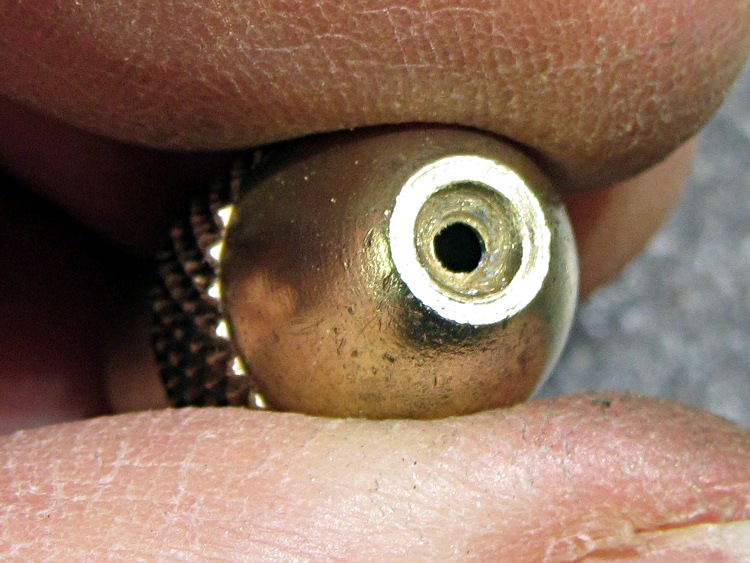
So I finally got around to spraying some 10% bleach on an inconspicuous section of the roof (*) to see whether it would have any effect on that black fungus / mildew / crud. It’s too soon to tell, but in the process I discovered that the sprayer nozzle didn’t produce the nice, round pattern it used to. I completed the mission and took the nozzle to the basement. The problem was obvious:
Sprayer nozzle – with crud
Soaking it in vinegar didn’t have any effect; whatever made those deposits wasn’t soluble in water or mild acid. A few minutes with an awl and a (manually turned!) Dremel grinding point restored it to good condition:
Sprayer nozzle – cleaned
You’d be more careful cleaning the orifice of a fine spray nozzle, but this is for a hand-pumped garden sprayer: Good Enough.
As soon as the weather clears, we’ll see if the situation up on the roof has improved. If so, I get to spray the rest of it.
(*) The whole north slope over the garage, in case you’re in the market…
Our Larval Engineer reports that the current techie-thing-to-do involves having a tattoo artist or other unlicensed medical technician implant a tiny bar magnet in one’s finger, a process that adds a sixth sense to one’s built-in repertoire after the anesthetic shot of whiskey wears off. Evidently, converting magnetic field variations into mechanical force tweaks those little nerve endings wonderfully well, provided that your finger doesn’t subsequently rot off.
I point out that a magnet epoxied to a fingernail would probably get you within a few dB of the same result, minus the back-alley surgery thing. She counters that’s tacky and lacks style.
I point out that her medical insurance (for which, harumph, we are currently paying) probably doesn’t cover self-inflicted damage. She counters that most victims people have no problems at all.
I point out that a steampunk-style wristband incorporating a Hall effect sensor, LEDs, and maybe a vibrating pager motor would be at least as cool and probably marketable, to boot. She returns broadside fire by observing such a device requires power and she knows how I feel about batteries.
Game, set, and match.
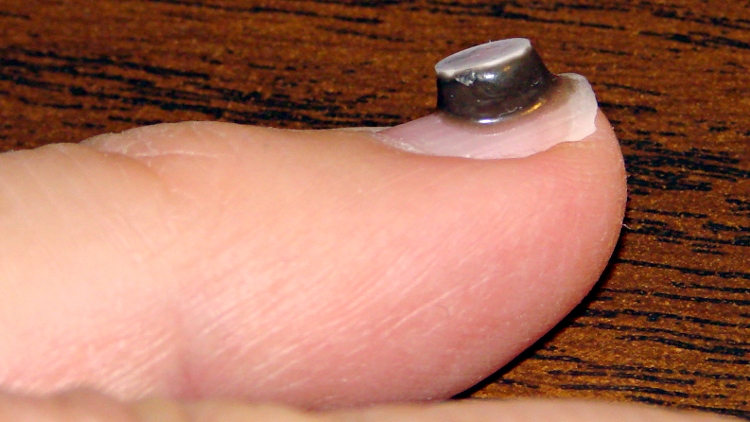
In the interest of science and so as to not be rendered completely obsolete, I’ve epoxied a small neodymium magnet to my left little finger to discover what the world feels like. It’s surrounded by epoxy, which ought to prevent corrosion & deterioration until it eventually falls off or the nail grows out. It came with a white ceramic layer on one pole, which means it’s completely encapsulated:
Neodymium magnet on fingernail
She’s absolutely right: it’s tacky and lacks style.
I used JB KwikWeld fast-setting epoxy. The magnet attracted a tendril of uncured epoxy, so the “steel filled” part of the description seems accurate, and the magnetic field produced a nice smooth coat over the entire side of the disk.
It buzzes gently inside a Sonicare toothbrush handle, snaps firmly to steel surfaces. and is otherwise inoffensive. I must run some calibration tests to figure out what sort of magnetic field intensity a fingernail can detect. I’m certain it’s less sensitive than an implanted magnet, but I’m down with that.
Memo to Self: If you should occasionally use your little finger to ream out your ear or nose, that’s just not going to work any more…
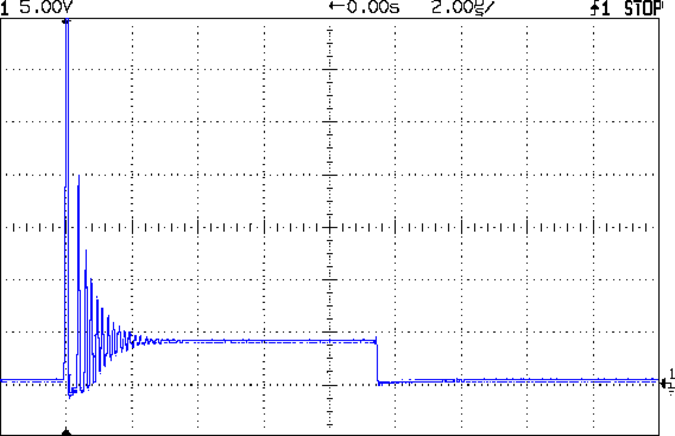
The tech reviewer for my Circuit Cellar columns on the MOSFET tester commented that the 32 kHz PWM frequency I used for the Peltier module temperature controller was much too high:
Peltier Noise – VDS – PWM Shutdown
He thought something around 1 Hz would be more appropriate.
Turns out we were both off by a bit. That reference suggests a PWM frequency in the 300-to-3000 Hz range. The lower limit avoids thermal cycling effects (the module’s thermal time constant is much slower) and, I presume, the higher limit avoids major losses from un-snubbed transients (they still occur, but with a very low duty cycle).
Peltier Turn-Off Transient
The Peltier PWM drive comes from PWM 10, which uses Timer 1. The VDS and ID setpoints come from PWM 11 and PWM 3, respectively, which use Timer 2. So I can just not tweak the Timer 1 PWM frequency, take the default 488 Hz, and it’s all good. That ever-popular post has the frequency-changing details.
With the Bash script and OpenSCAD source in hand, here’s how you go about producing a grayscale image that works as the height map file to produce a cookie press and matching cookie cutter.
The Big Picture description: the grayscale height map image looks a lot like a photo of the final cookie on a plate in front of you. The darkest regions mark the thinnest parts of the cookie: black lines emboss deep trenches. Gray regions denote thicker sections and very light gray will be thickest. Because image files are rectangular, a pure white area surrounds the region that will become the cookie press and acts as a mask to remove the rectangular border.
If you start by hand-drawing the shape of the cookie press at full size inside a 5 inch square (chosen to match the 3D printer’s build platform and in inches because that’s how it got measured; it’s not my printer) with a 1.5 or 2 mm black marker, then the marker lines will be just about exactly the right width to ensure good plastic fill (for a printer producing a 0.5 mm thread width, anyway) and printable walls. You can scale the drawing for smaller (my Thing-O-Matic) or larger (M2, Series One) platforms, but the thread width and minimum wall thickness do not scale: a tiny 1 inch push mold must still have 2 mm walls.
The workflow looks like this:
Draw cookie press lines at full scale with fat black marker on white paper
Scan a 5×5 inch (127×127 mm) square around the image at 300-ish dpi → 1500×1500 pixel image
Convert a full-color scan to grayscale now (better to scan in grayscale)
Resize image to 317×317 pixel, optionally set 2.5 pixel/mm = 63.5 dpi for proper display size
Set color levels to blow out the contrast; auto probably works fine
Threshold to reduce to just two colors: 0% = black and 100% = white
Clean up the image: remove specks and single-pixel bumps, fill small gaps
Some sample images to show what happens along the way…
A hand-drawn image, derived from The Original Tux by crudely tracing the outline with a fat Sharpie, including some areas outside the box for pedagogic purposes:
TuxTrace – raw scan
The interior edge of the black box is exactly 5×5 inches. I created a 5×5 inch blank white image at 300 dpi, enlarged the canvas to 5.2×5.2 inches with the blank white image centered in the middle, set a black background, flattened the image to fill the border, and printed it out. That produces a piece of blank paper with a black square suitable for full-scale drawing.
It does not, however, confer any artistic eptitude whatsoever, so for this drawing I imported one of the Tux drawings, isolated the edges with one of The GIMP’s edge detectors, and traced over the thin lines with the aforementioned fat Sharpie. You can draw whatever you want, however you want it. If you already have an image file, you need not print it out and scan it back in; just resize it appropriately.
Pro tip: Ensuring that the drawing doesn’t touch the black square will greatly simplify the next half hour of your life.
A note on Sharpies. I used a Fine Point Marker, which is much fatter than a Fine Point Pen. The whole, uh, point is to produce a line about 2 mm wide that will become an actual plastic wall; you can’t print anything much finer than that.
A note on blackness. There’s no requirement for any black lines whatsoever. For most cookie presses, however, you want distinct walls that emboss lines into the dough, which is what the black lines will do. If you want to mold a cookie (or anything else, like a butter pat), you can produce a gently curved push mold by using only grayscale areas. For example, a circular area with a radial fill going from very light gray on the exterior to very dark gray in the center will produce a round cookie with a conical dent in the middle.
Given a drawn image, scan the area just inside the black square at 300 dpi to produce a nominally 1500×1500 pixel image, then resize it to 317×317 pixel at 63.5 dpi:
TuxTrace – crop resize
The magic number 317 comes from not wanting OpenSCAD to fall over dead after chewing on a larger image for an hour or two. Given the restriction to maybe 330×330 pixels, max, I picked a nice round 2.5 pixel/mm scaling factor that converts a 5 inch = 127 mm distance into 317 pixels:
317 pixel = 127 mm x 2.5 pixel/mm
The magic number 63.5 comes from wanting the image to print (on paper) and display (on screen) at the proper size:
5 inch = 317 pixel / 63.5 pixel/inch
Given a properly sized image, blow out the contrast so the background is mostly white and the lines are mostly black. This gets rid of background cruft:
TuxTrace – color levels
Then apply a threshold to get rid of all the gray levels. The threshold level determines the line width (the edges shade from black to gray to white), so you can tune for best width. The result doesn’t look much different than the blown contrast version, but the lines will become thinner and more jagged. Remember that you want the lines to be at least three pixels wide:
TuxTrace – threshold
Do whatever cleanup is required; eliminate single-pixel bunps and dents, fatten (or, rarely, thin) lines as needed. If you draw with a 3 pixel wide pen, the line will print just over 1 mm wide, which is about the thinnest possible wall and may encounter problems at corners. Use pure 0% black and pure 100% white.
If you possess powerful art-fu, you can draw that kind of image directly in the graphics program. Those of us with weak art-fu must rescale a found image of some sort. Should you draw a new image or rescale an old one, then:
Start with a 317×317 pixel grayscale canvas in 100% white
Draw lines with a 3 pixel (probably a square) 0% black pen
Now you have a clean black and white image of the cookie press lines; it’s still a grayscale image, but using only two colors.
Use color levels to reduce the white to about 95% gray; this avoids interior islands
Bucket-fill the exterior with 100% white (interior remains 95%): no anti-aliasing or blending
Fill interior regions with grays to set cookie press depths: dark = low, light = high, no 100% white, no anti-aliasing
Save as PNG to avoid compression artifacts
By reducing the overall white level to 95%, you get rid of all that pure white in the whole interior. Remember that pure white marks the area outside of the press, so any white inside the press will produce bizarre islands. You could pour 95% white into all the interior areas, but if you miss one, you have an island.
Having reduced all the whites, pouring pure 100% white around the press restores the exterior mask color. Turn off the anti-aliasing / blending / feathering options, because you want crisp edges rather than nice-looking gray transitions.
If all you want is a press with lines, you’re done. Save the image and proceed to make the cutter & press.
If you want a press that produces a cookie with different thicknesses, do some gray pours. For example:
TuxTrace – grayscale height map
That’s obviously contrived, but the general idea is that the feet and beak will be the thickest part of the cookie, the tummy next, and the body will be the thinnest part. The glint above one eye will become a bizarre peak, but that’s to show why you probably don’t want to do that. It’s not obvious, but the eyeball pupil and sclera areas will be recessed into the body.
If you’re doing a push mold, elaborate grayscaling will make a lot more sense. For a cookie press, black is where it’s at.
That process produces a clean grayscale image. Save it as a PNG file to avoid JPEG image compression artifacts: you want crisp lines and flat areas that define heights, not a small file. It’ll be small enough, anyway, compared to the eventual STL files.
To review, the grayscale height map image must satisfy this checklist:
Maximum 317×317 pixels: smaller is OK and will print at 2.5 pixel/mm; larger may not work
Exterior pure white: 100% = 255/255
Four corners must be 100% white to allow proper auto-cropping
No interior pixels are 100%: at most 99.6% = 254/255 will be fine
All lines at least 3 pixels wide: will print at 1.2 mm = (3 pixel / 2.5 pixel/mm)
No speckles or stray dots
Clean lines with no single-pixel bumps or dents: they’re hard to print
Saved as PNG to preserve crisp lines and areas
Then hand the file to the MakeCutter.sh Bash script, do something else for an hour, and get a pair of STL files.
To get higher resolution, you could use Shapeways’s online 2D-to-3D Converter, although it seems to produce STL files with many reversed normals. The press and cutter would require different height map images, of course, but I betcha ImageMagick could produce them for you. The PNG23D project may be of more than passing interest. Note that their recommended resolution matches up just about exactly with my 2.5 pixel/mm default, so higher resolution may not pay off the way you think.
In any event, for this example the height map file shown above is TuxTrace.png and all the output files use TuxTrace as a prefix.
The cookie press (TuxTrace-press.stl):
TuxTrace-press – solid model
Notice that Tux has been reversed from left-to-right, the darkest parts of the original image correspond to the tallest lines, and that glint over the eye became a triangular depression. All that makes sense when you imagine pressing this shape onto a layer of dough rolled out over the kitchen cutting board.
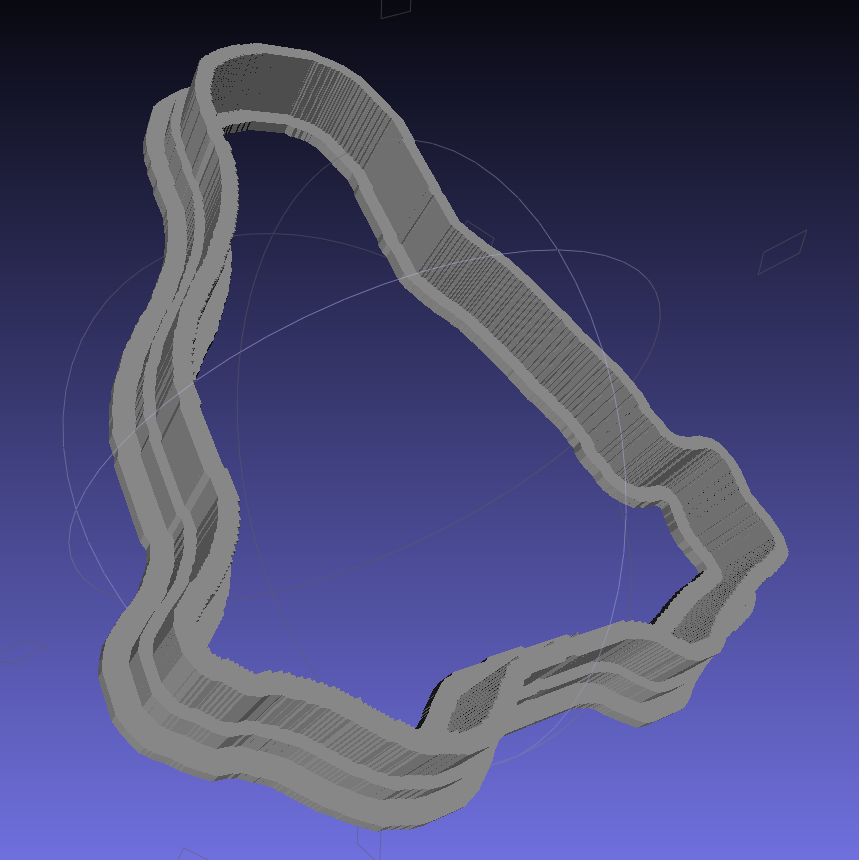
The cookie cutter (TuxTrace-cutter.stl), with a stiffening lip extending on both sides of the cutting blade:
TuxTrace-cutter – solid model
The press probably won’t slide into the cutter, because I set things up to use the same dimensions, and certainly won’t fit inside the inner lip on the build platform. Another Minkowski around the press to add half a millimeter or so would let them nest together, at the cost of even more computation time.
Those nicely shaded blue images come from MeshLab screenshots, which you can (and should!) install on your Linux box without any hassle at all.
The “blade” isn’t particularly sharp, due to the fact that we’re printing blocky pixels. I produced a very thin blade for the original Tux Cutter by using a finicky collection of settings, but that won’t produce a corresponding press.
The surface that OpenSCAD builds from the height map image has slightly tapering walls, because that’s how it ensures a 2-manifold 3D object. The base of the walls will be slightly wider than the grayscale line width and the top will be slightly narrower. This produces a tapered edge, which is probably what you want for a cookie cutter, but it means you must make the lines wide enough to ensure good fill along the top of the wall.
The G-Code produced from the height map image above looks like this at the base of the walls on the press (as always, clicky for more dots):
TuxTrace-press – G-Code Layer 27
The same walls become much thinner on the top layer, including a few single-thread sections:
TuxTrace-press – G-Code Layer 35
Moral of the story: draw with a chunky marker!
Bonus lesson: always analyze the G-Code before you build anything…
The Bash script produces several intermediate images and data files along the way; delete them if you like.
A cropped / rotated / de-commented / contrast-stretched image (TuxTrace_prep.png):
TuxTrace_prep
An image (TuxTrace_plate.pgm and .dat) that defines the outside edge, with no interior detail, to shape the cutter outline:
TuxTrace_plate
An image (TuxTrace_map.pgm and .dat) that defines the height map for the press surface:
TuxTrace_map
That one is actually identical to the incoming PNG file, just converted to an ASCII image file format.
Running more grayscale images through the cookie cutter process revealed some problems and solutions…
It seems OpenSCAD (or the underlying CGAL library) chokes while creating a 3D surface from a bitmap image more than about 350-ish pixels square: it gradually blots up all available memory, fills the entire swap file, then crashes after a memory allocation failure. As you might expect, system response time rises exponentially and, when the crash finally occurs, everything else resides in the swap file. The only workaround seems to be keeping the image under about 330-ish pixels. That’s on a Xubuntu 12.04 box with 4 GB of memory and an 8 GB swap partition.
So I applied 2.5 pixel/mm scaling factor to images intended for a 5 inch build platform:
Any reasonable scaling will work. For smaller objects or platforms, use 3 pixel/mm or maybe more. If you have a larger build platform, scale accordingly. I baked the default 2.5 factor into the Bash script below, but changing it in that one spot will do the trick. Remember that you’re dealing with a 0.5 mm extrusion thread and the corresponding 1 mm minimum feature size, so the ultimate object resolution isn’t all that great.
Tomorrow I’ll go through an image preparation checklist. However, given a suitable grayscale height map image as shown above, the rest happens automagically:
./MakeCutter.sh filename.png
That process required some tweakage, too …
TuxTrace-press – solid modelTuxTrace-cutter – solid model
Auto-cropping the image may leave empty borders: the canvas remains at the original size with the cropped image floating inside. Adding +repage to the convert command shrinkwraps the canvas around the cropped image.
If the JPG file of the original scanned image has an embedded comment (Created by The GIMP, for example), then so will the PNG file and so will the ASCII PGM files, much to my astonishment and dismay. The comment line (# Created by The GIMP) screwed up my simplistic assumption about the file’s header four-line header layout. The +set Comment squelches the comment; note that the word Comment is a keyword for the set option, not a placeholder for an actual comment.
It turns out that OpenSCAD can export STL files that give it heartburn when subsequently imported, so I now process the height map and outline images in the same OpenSCAD program, without writing / reading intermediate files. That requires passing all three image dimensions into the program building the cutter and press, which previously depended on the two incoming STL files for proper sizing. This seems much cleaner.
The original program nested the cookie press inside the cutter on the build platform as a single STL file, but it turns out that for large cutters you really need a T-shaped cap to stabilize the thin plastic shape; the press won’t fit inside. The new version produces two separate STL files: one for the press and one for the cutter, in two separate invocations. The command-line options sort everything out on the fly.
Because the cutter lip extends outward from the press by about 6 mm, you must size the press to keep the cutter completely on the build platform. The 5 inch outline described above produces a cutter that barely fits on a 5.5 inch platform; feel free to scale everything as needed for your printer.
The time commands show that generating the press goes fairly quickly, perhaps 5 to 10 minutes on a 3 GHz Core 2 Duo 8400. The multiple Minkowski operations required for the cutter, however, run a bit over an hour on that machine. OpenSCAD saturates one CPU core, leaving the other for everything else, but I wound up getting a cheap off-lease Dell Optiplex 760 as a headless graphics rendering box because it runs rings around my obsolete Pentium D desktop box.
The MakeCutter.sh Bash script controlling the whole show:
Although it’s common practice to exchange your empty 20 pound propane tank for a full one, I vastly prefer to keep my own tanks: I know where they’ve been, how they’ve been used, and can be reasonably sure they don’t have hidden damage. Two of my tanks have old-style threaded connections, but the barby has a quick-disconnect fitting on the regulator and I’ve been using an adapter on those tanks.
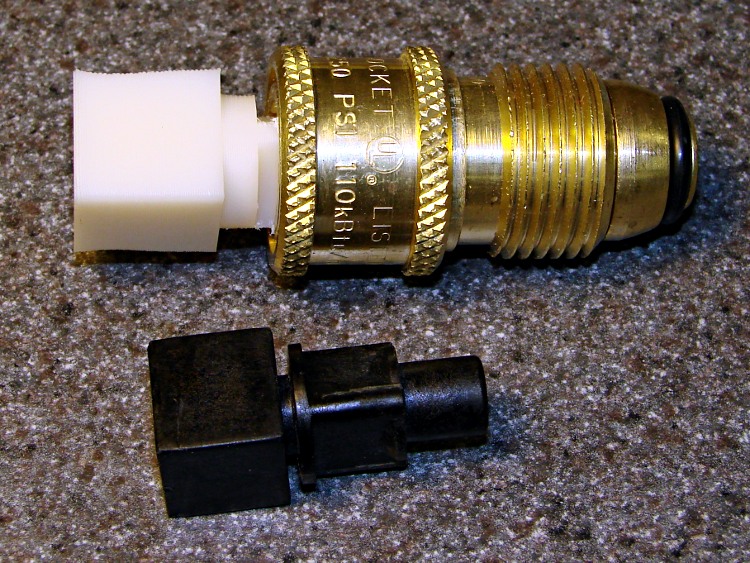
The adapter comes with a plastic tool that you use to install it in the tank valve. In principle, you insert the tool into the adapter, thread the adapter into the valve, then tighten with a wrench until the neck of the plastic tool snaps, at which point you eject the stub and the adapter becomes permanently installed. I don’t like permanent, so I carefully tightened the adapter to the point where the O-ring seals properly and the tool didn’t quite break. I’ve always wanted a backup tool, just in case the original broke, and now I have one:
Propane QD Adapter Tool – in adapter
It fit into both the adapter body and the 5/8 inch wrench (the OEM tool is 9/16 inch) without any fuss at all:
Propane QD Adapters – OEM and printed
The solid model has a few improvements over the as-printed tool above:
Shorter wrench flats
More durable protrusions to engage the locking balls
Propane QD Adapter Tool
It took about an hour to design and another 45 minutes to print, so it’s obviously not cost-effective. I’ll likely never print another, but maybe you will.
The OpenSCAD source code:
// Propane tank QD connector adapter tool
// Ed Nisley KE4ZNU November 2012

include </mnt/bulkdata/Project Files/Thing-O-Matic/MCAD/units.scad>
include </mnt/bulkdata/Project Files/Thing-O-Matic/Useful Sizes.scad>

//- Extrusion parameters must match reality!
//  Print with +1 shells and 3 solid layers

ThreadThick = 0.25;
ThreadWidth = 2.0 * ThreadThick;

HoleWindage = 0.2;

function IntegerMultiple(Size,Unit) = Unit * ceil(Size / Unit);

Protrusion = 0.1;			// make holes end cleanly

//----------------------
// Dimensions

WrenchSize = (5/8) * inch;		// across the flats
WrenchThick = 10;

NoseDia = 8.6;
NoseLength = 9.0;

LockDia = 12.5;
LockRingLength = 1.0;
LockTaperLength = 1.5;

TriDia = 15.1;
TriWide = 12.2;										// from OD across center to triangle side
TriOffset = TriWide - TriDia/2;		// from center to triangle side
TriLength = 9.8;

NeckDia = TriDia;
NeckLength = 4.0;

//----------------------
// Useful routines

module PolyCyl(Dia,Height,ForceSides=0) {			// based on nophead's polyholes

Sides = (ForceSides != 0) ? ForceSides : (ceil(Dia) + 2);

FixDia = Dia / cos(180/Sides);

cylinder(r=(FixDia + HoleWindage)/2,
h=Height,
	   $fn=Sides);
}

module ShowPegGrid(Space = 10.0,Size = 1.0) {

Range = floor(50 / Space);

	for (x=[-Range:Range])
	  for (y=[-Range:Range])
		translate([x*Space,y*Space,Size/2])
		  %cube(Size,center=true);

}

//-------------------
// Build it...

$fn = 4*6;

ShowPegGrid();

union() {

	translate([0,0,(WrenchThick + NeckLength + TriLength - LockTaperLength - LockRingLength + Protrusion)])
		cylinder(r1=NoseDia/2,r2=LockDia/2,h=LockTaperLength);

		translate([0,0,(WrenchThick + NeckLength + TriLength - LockRingLength)])
		cylinder(r=LockDia/2,h=LockRingLength);

	difference() {
		union() {

			translate([0,0,WrenchThick/2])
				cube([WrenchSize,WrenchSize,WrenchThick],center=true);

			cylinder(r=TriDia/2,h=(WrenchThick + NeckLength +TriLength));

			cylinder(r=NoseDia/2,h=(WrenchThick + NeckLength + TriLength + NoseLength));
		}

		for (a=[-1:1]) {
			rotate(a*120)
				translate([(TriOffset + WrenchSize/2),0,(WrenchThick + NeckLength + TriLength/2 + Protrusion/2)])
					cube([WrenchSize,WrenchSize,(TriLength + Protrusion)],center=true);
		}
	}
}
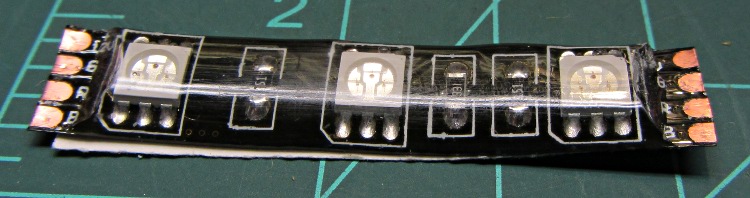
Another package from halfway around the planet brought 5 meters of waterproof RGB LED strip, which may be useful for projects like longboard lighting. Not having worked with a waterproof strip before, I snipped off a segment:
Waterproof RGB LED Strip – one segment
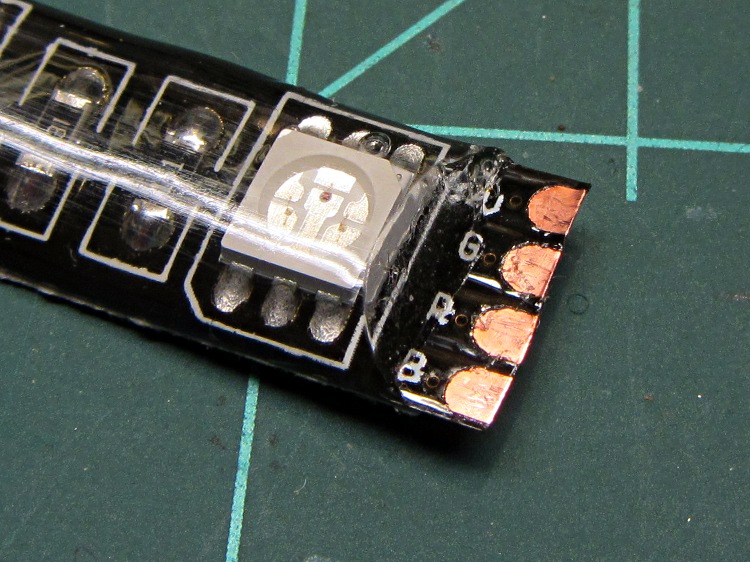
The waterproof coating seems to be a soft silicone or acrylic pour with roughly the consistency of Gummy Bear tummy, so cutting it off requires a delicate touch to avoid slicing the flex circuit board:
Waterproof RGB LED Strip – peeled top
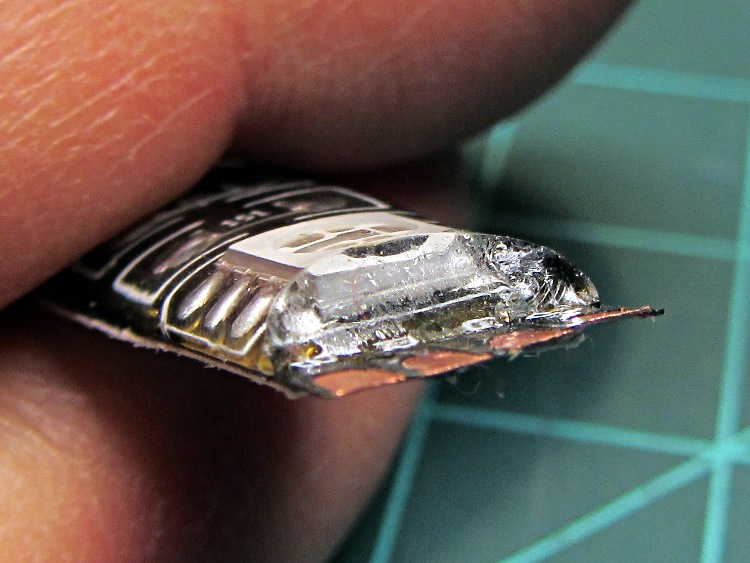
It doesn’t actually bond to the circuit board, though, and if you get a sharp blade underneath, can be peeled away. I suspect this means water will eventually make its way into the circuitry and you shouldn’t expect to submerge the strip in a fish tank. I scraped the contacts clean, which probably isn’t the right way to do it:
Waterproof RGB LED Strip – end view
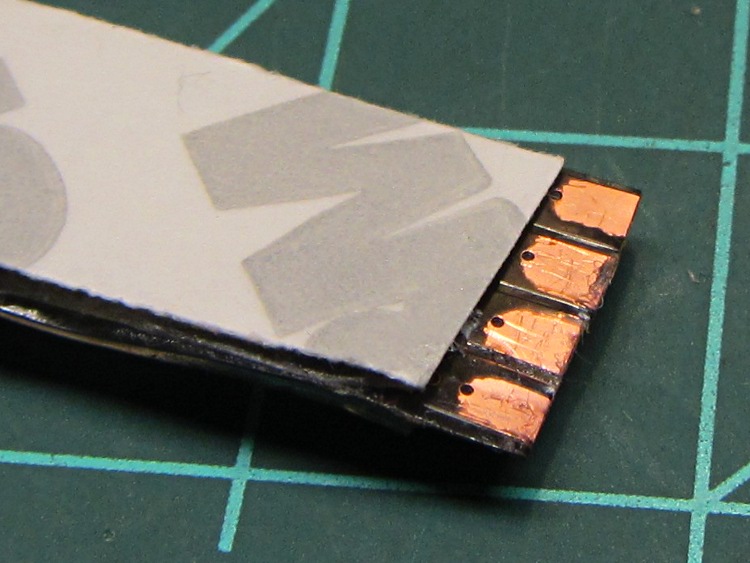
The underside makes no pretension of being waterproof and you can peel / roll / rub the adhesive off the contacts:
Waterproof RGB LED Strip – peeled bottom
Does anyone else doubt the authenticity of that 3M logo? The production values look rather low, but maybe it’s just me.
The trouble with soldering contacts to the bottom is the ensuing lump that prevents good adhesive bonding. The trouble with soldering contacts on the top is the surgery required to remove the coating. You can get punch-through contacts with snake-bite fangs, but even the vendors admit to about a 20% failure rate, which implies it’s pretty much a crapshoot.













 The Smell of Molten Projects in the Morning