The Smell of Molten Projects in the Morning

Ed Nisley's Blog: Shop notes, electronics, firmware, machinery, 3D printing, laser cuttery, and curiosities. Contents: 100% human thinking, 0% AI slop.

Category: Electronics Workbench

Electrical & Electronic gadgets

  • HQ Sixteen: Handlebar Control Button Caps

    HQ Sixteen: Handlebar Control Button Caps

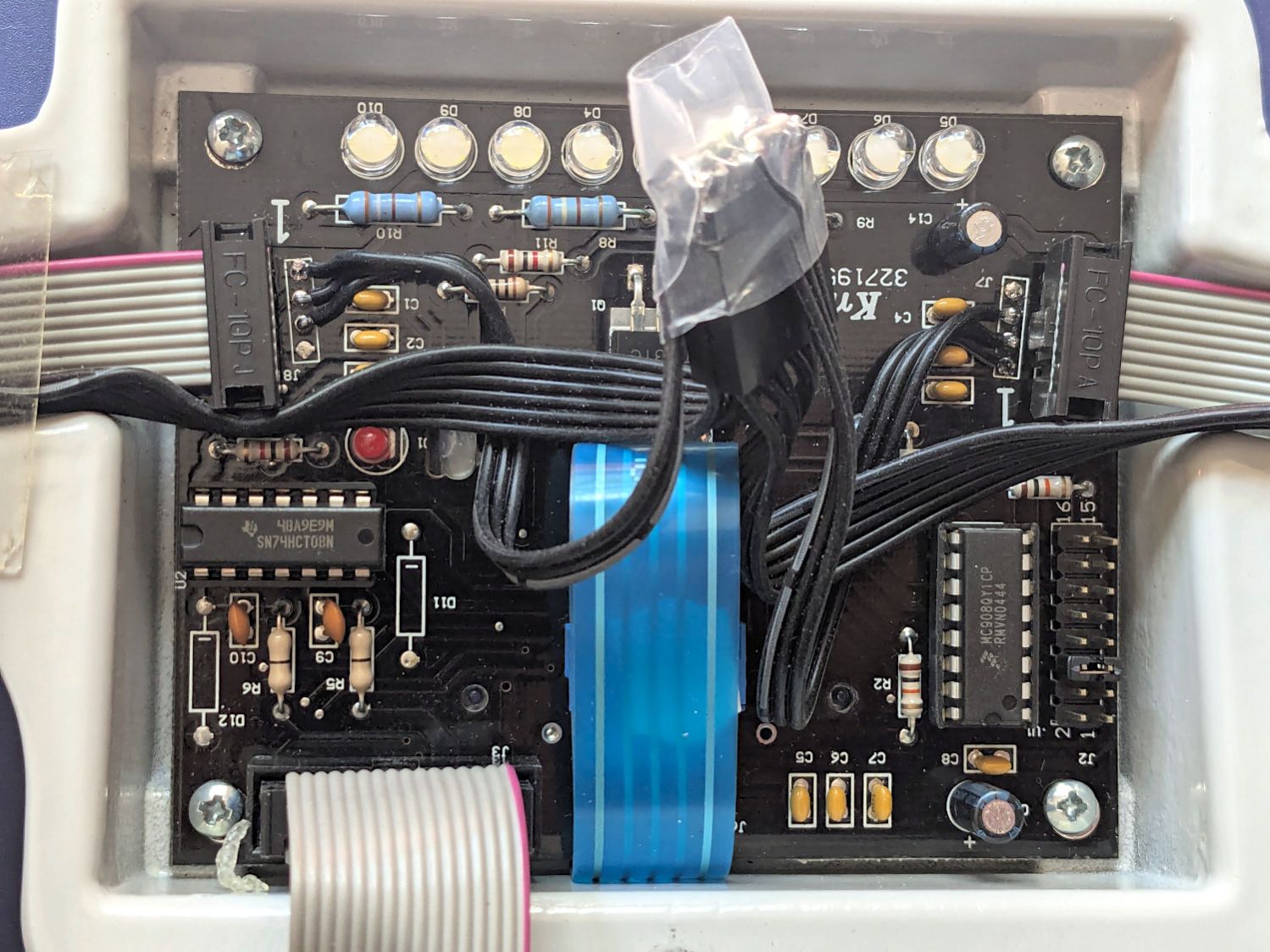
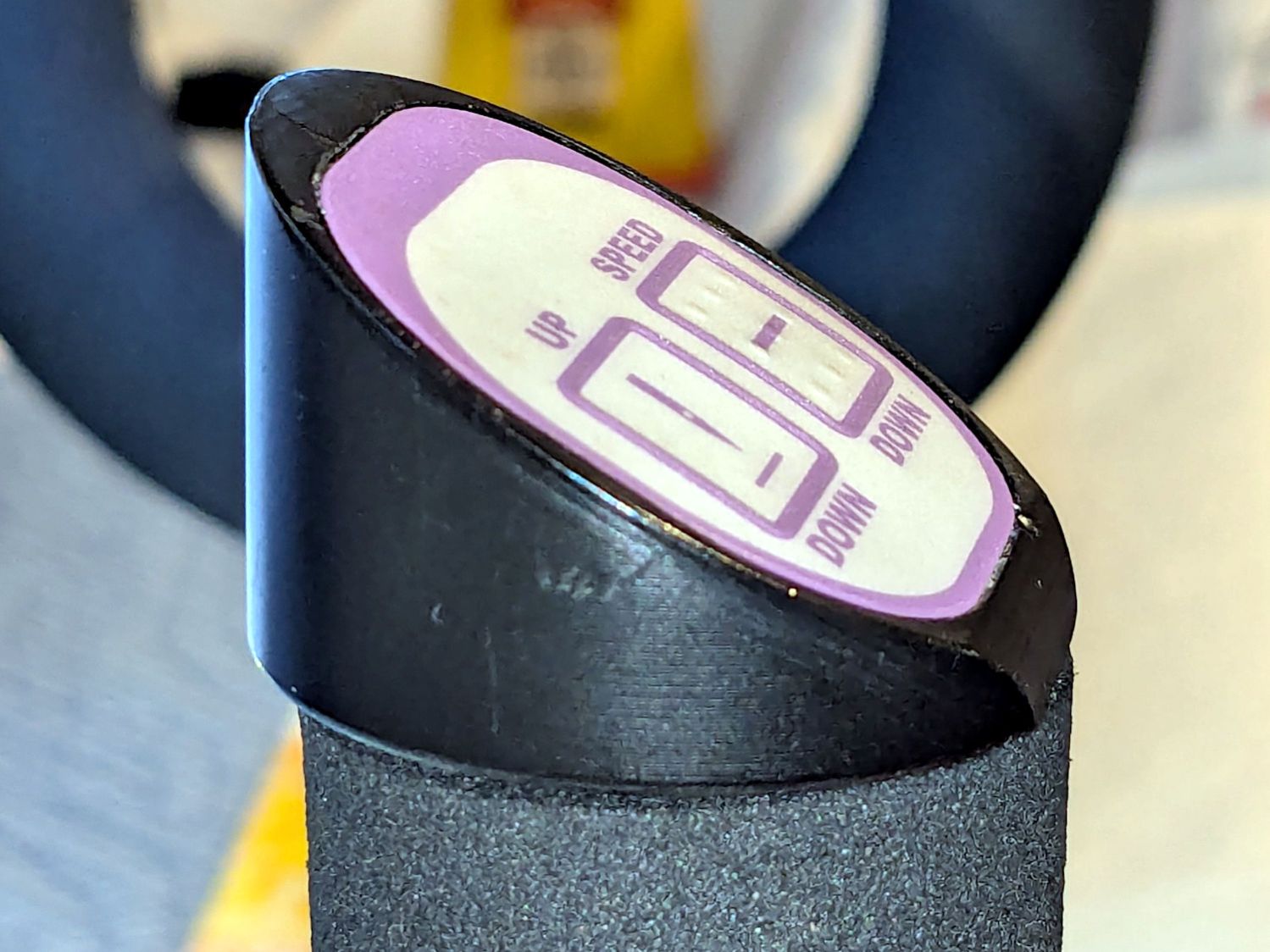
    Each of the HQ Sixteen’s handlebars has a cap with control buttons:

    HQ Sixteen control caps - side view
    HQ Sixteen control caps – side view

    The left cap:

    HQ Sixteen control caps - left
    HQ Sixteen control caps – left

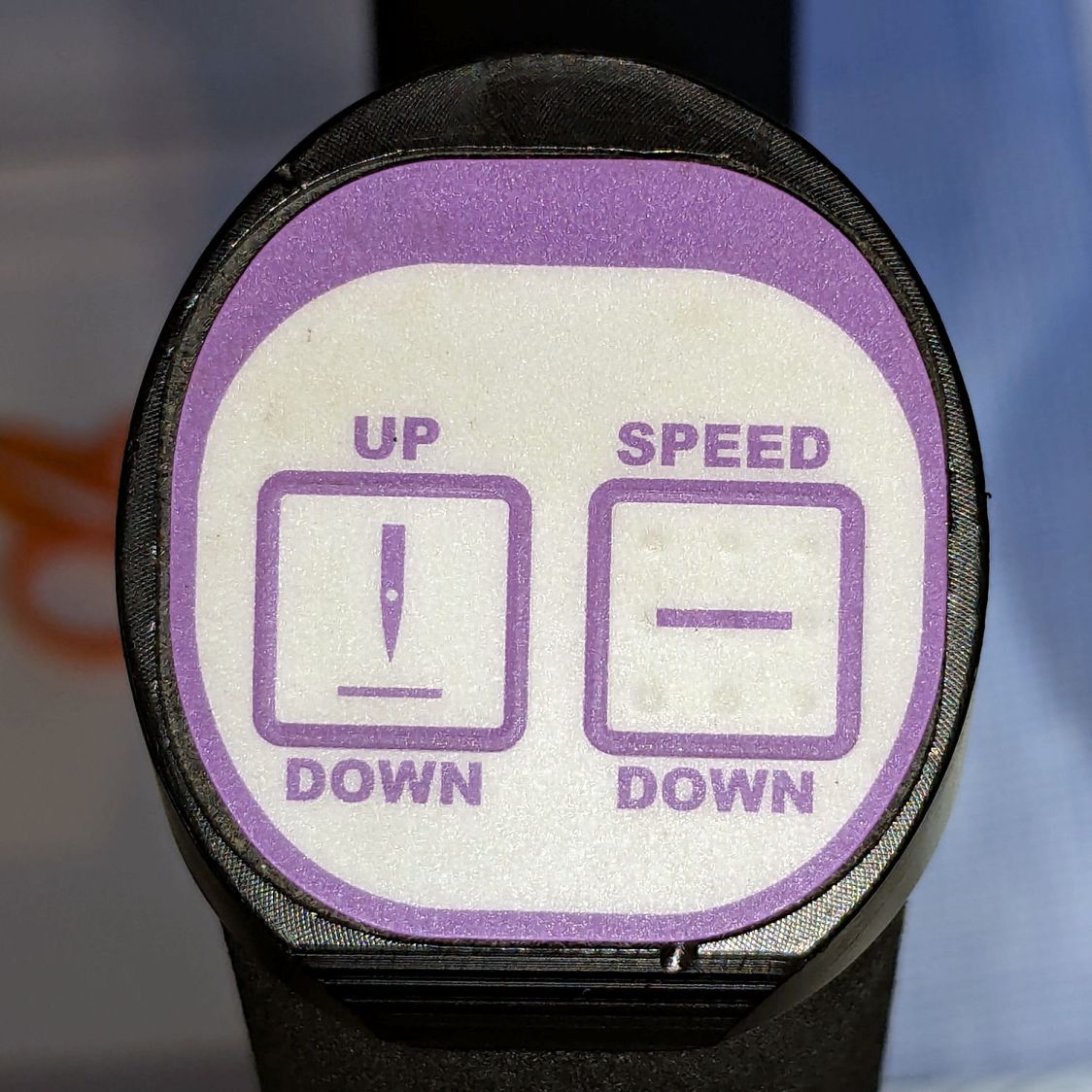
    The right cap:

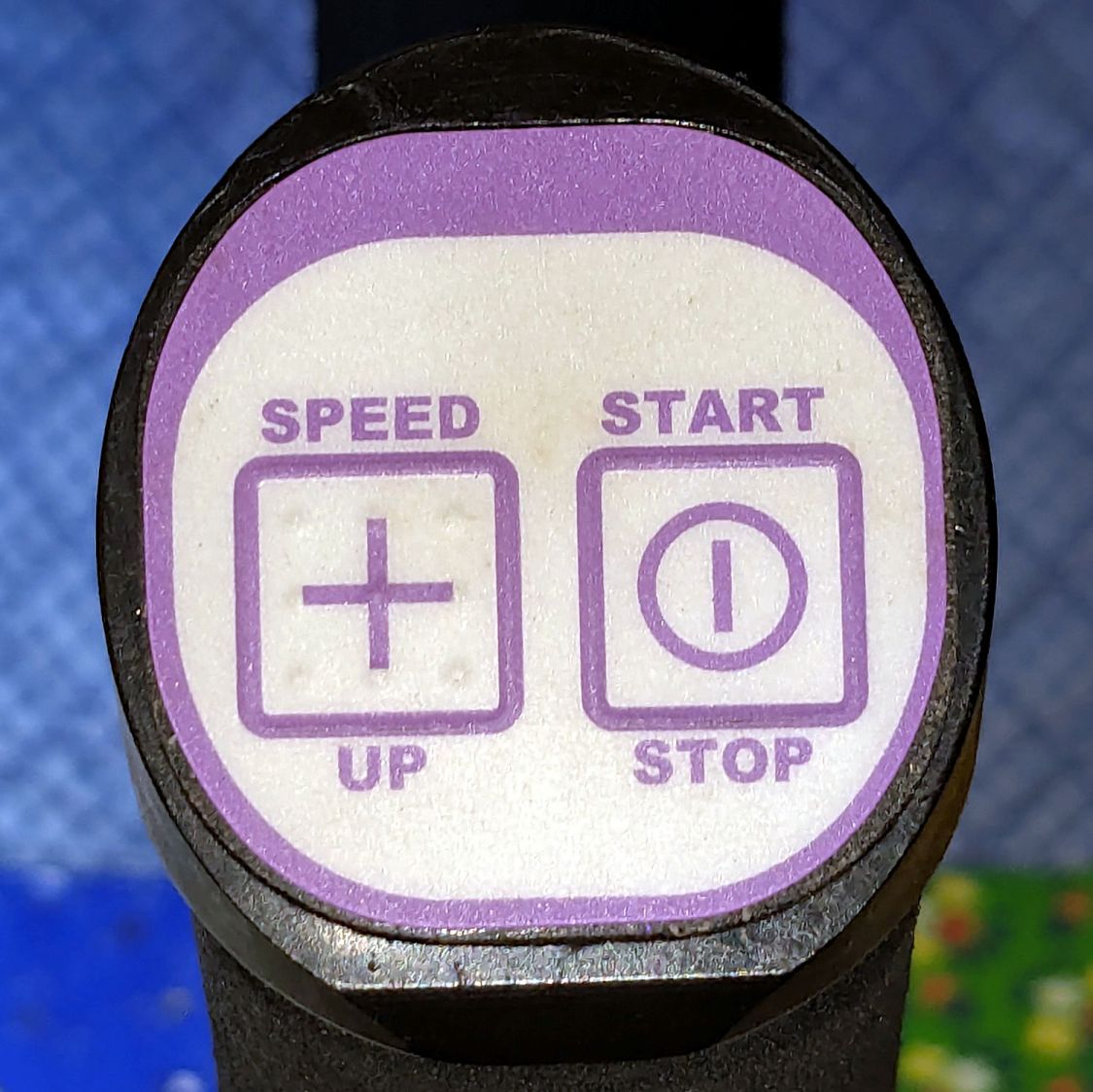
    HQ Sixteen control caps - OEM right
    HQ Sixteen control caps – OEM right

    The membrane switch overlay has textured bumps, although both of us have trouble finding them.

    The Start / Stop switch gets the most use and, as you’d expect, has become intermittent after two decades of use.

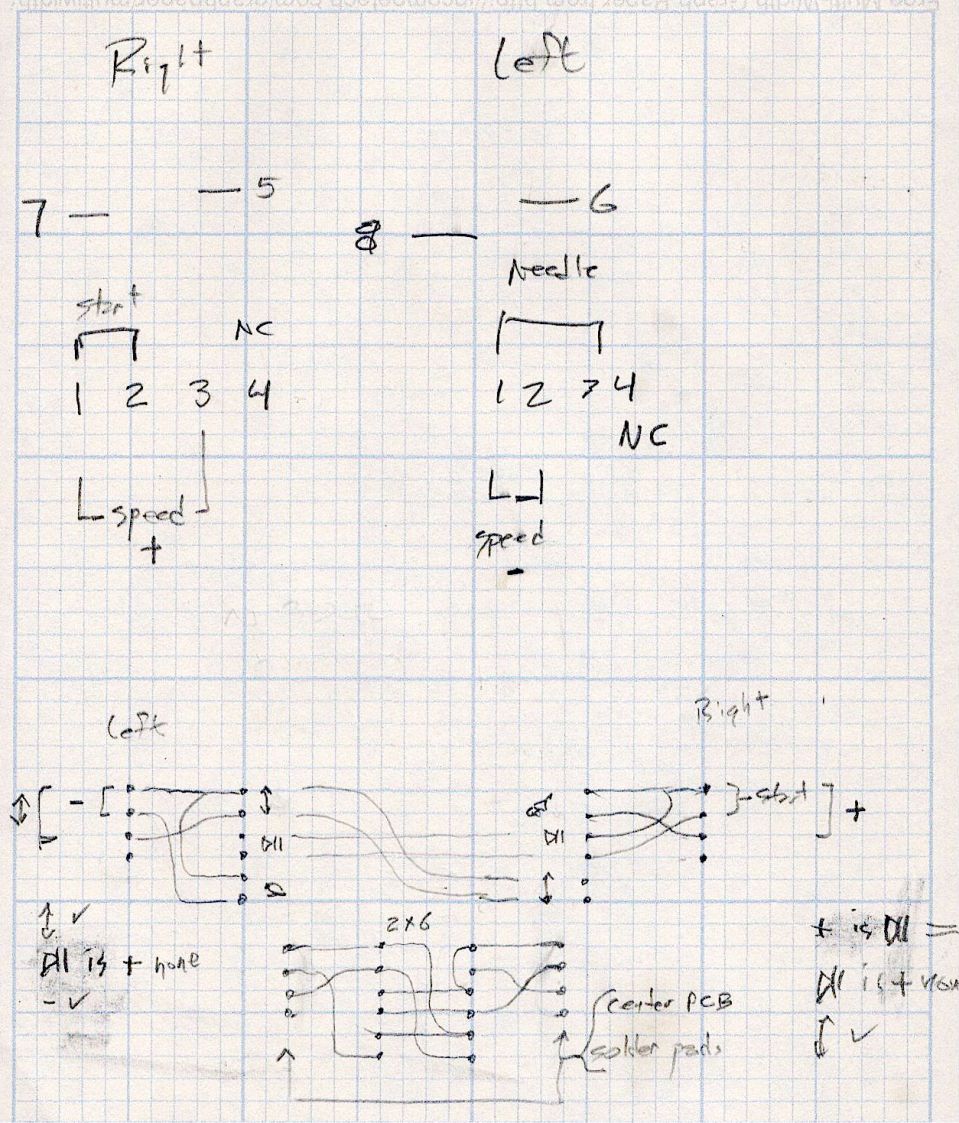
    Mary thinks a Start / Stop switch on both caps would be an improvement, letting her position quilting rulers with her right hand and run the machine with her left hand & thumb. I don’t know how the switches are wired, but the wiring suggests either simple single-bit inputs or a small matrix.

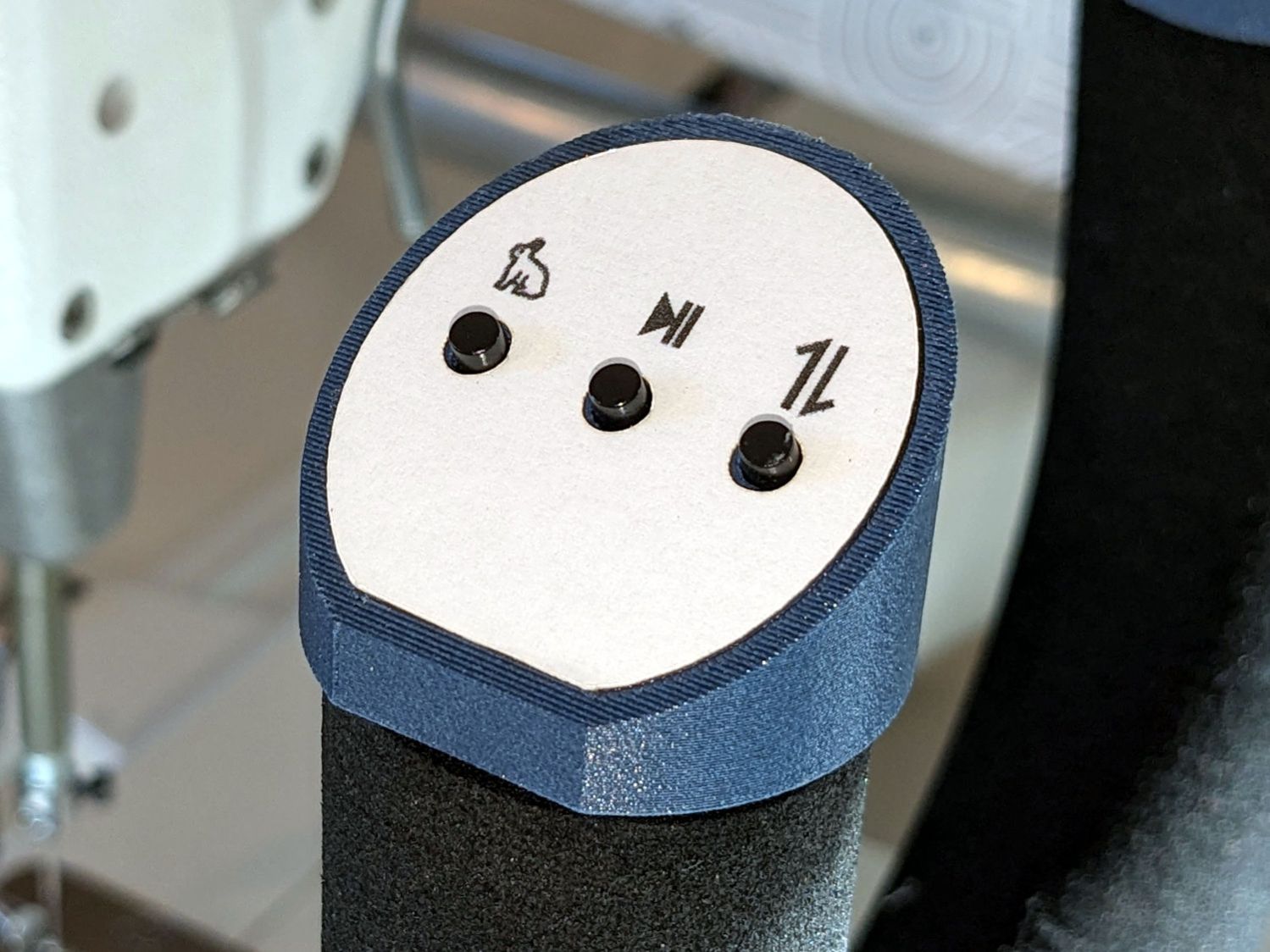
    She also finds membrane switches difficult to press, so I’m in the process of replacing the control caps with something more to her liking.

    The current concept goes a little something like this:

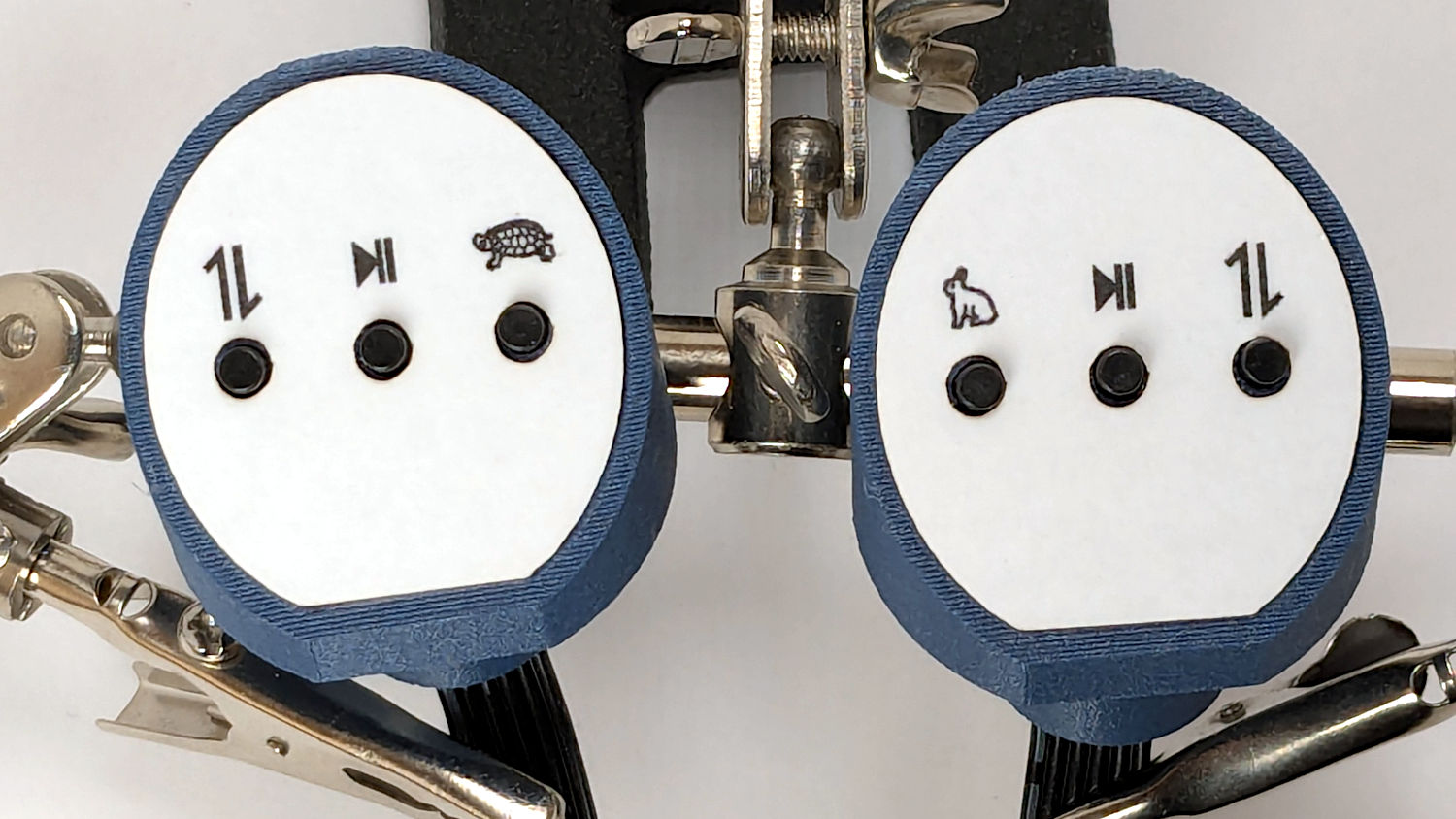
    HQ Sixteen control caps - new caps
    HQ Sixteen control caps – new caps

    Stipulated: my art hand is weak.

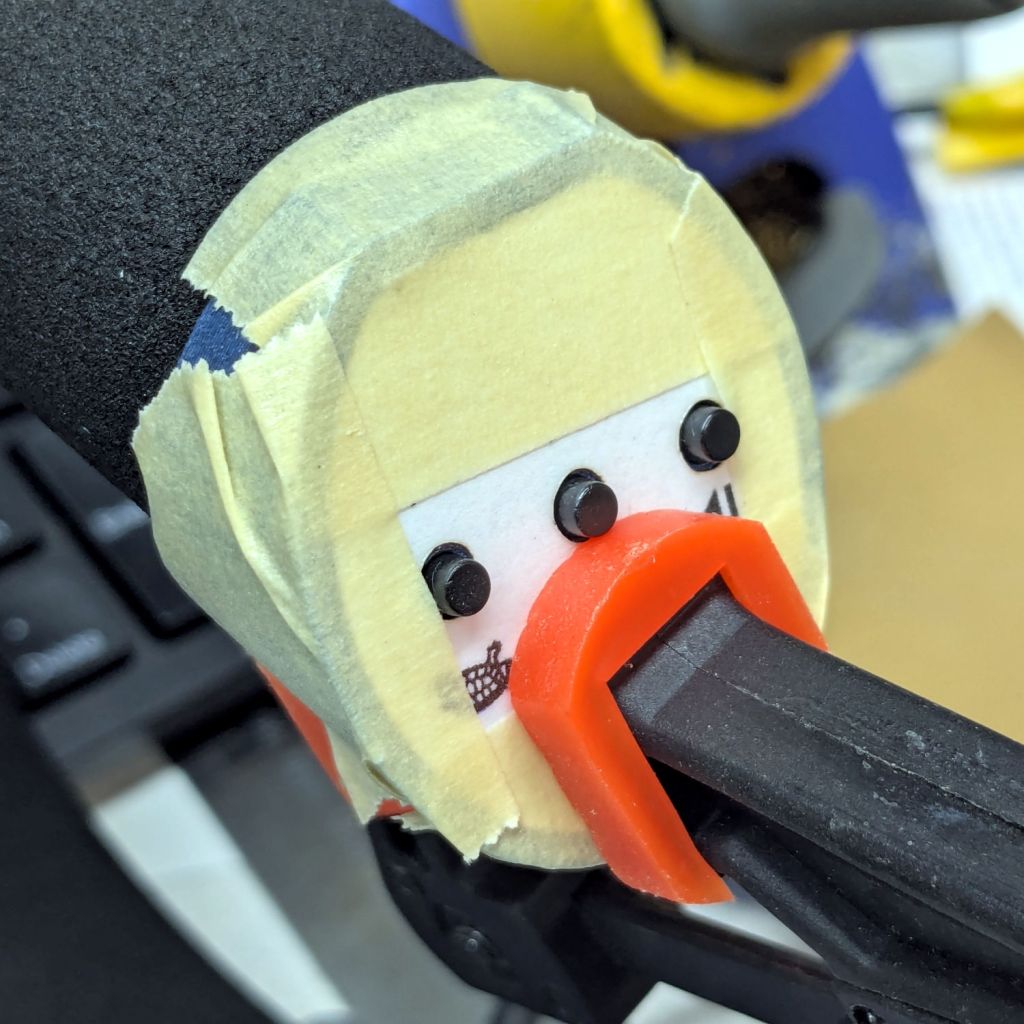
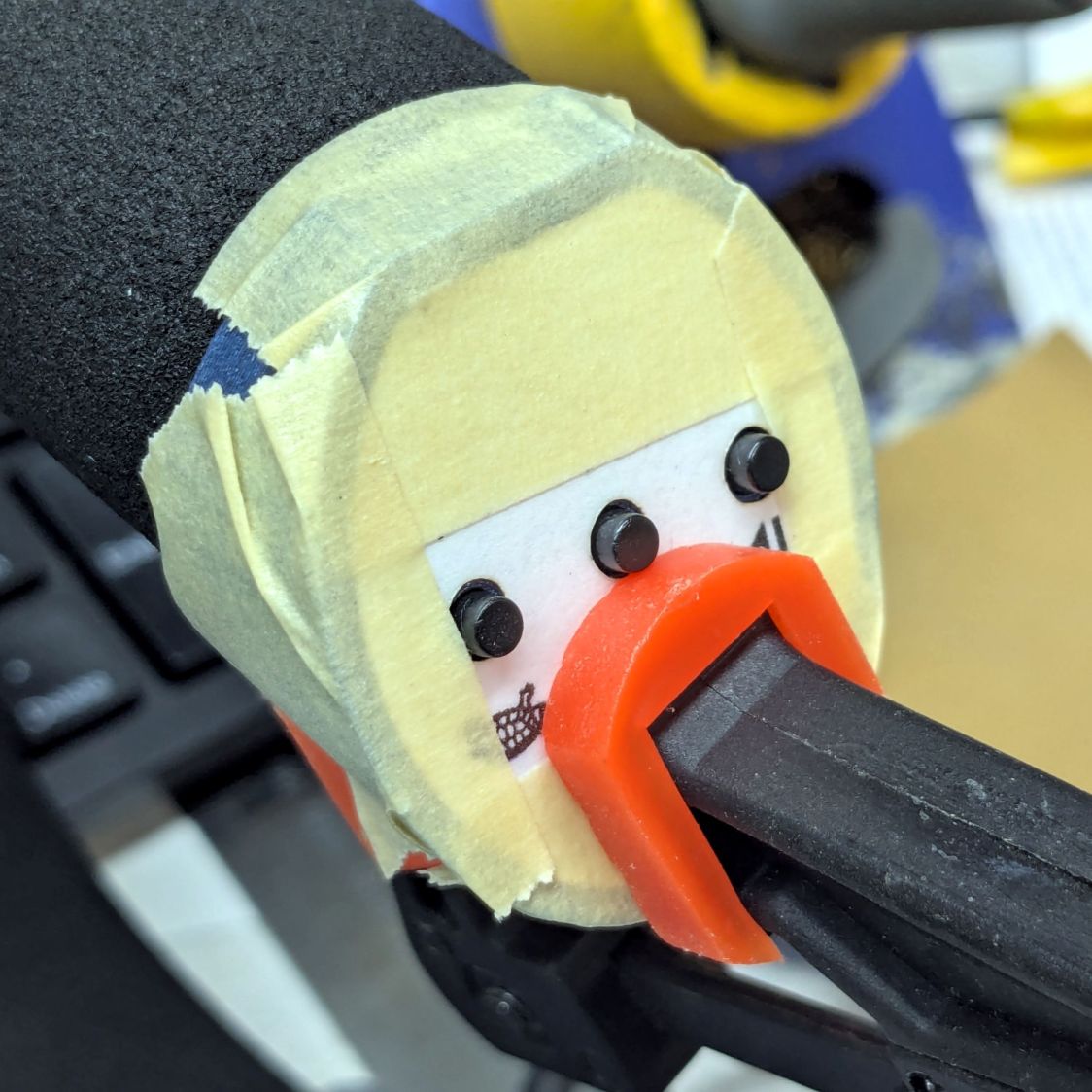
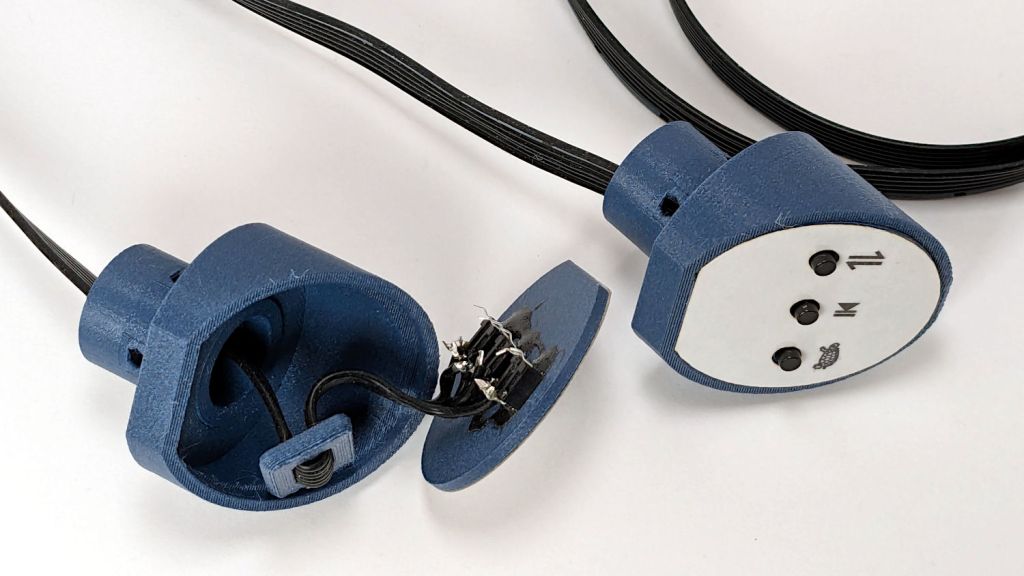
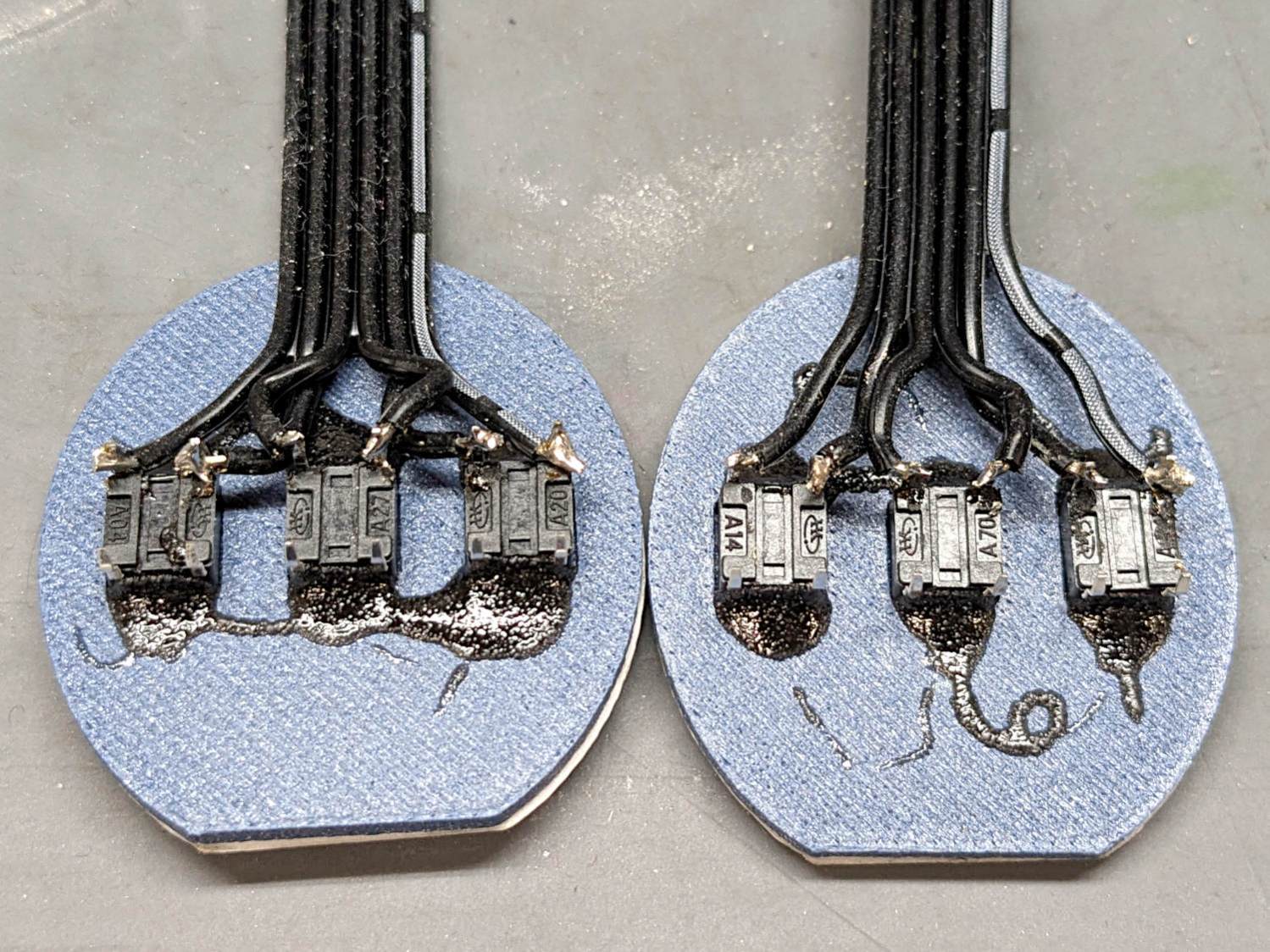
    Those are little bitty SMD switches:

    HQ Sixteen control caps - new caps overview
    HQ Sixteen control caps – new caps overview

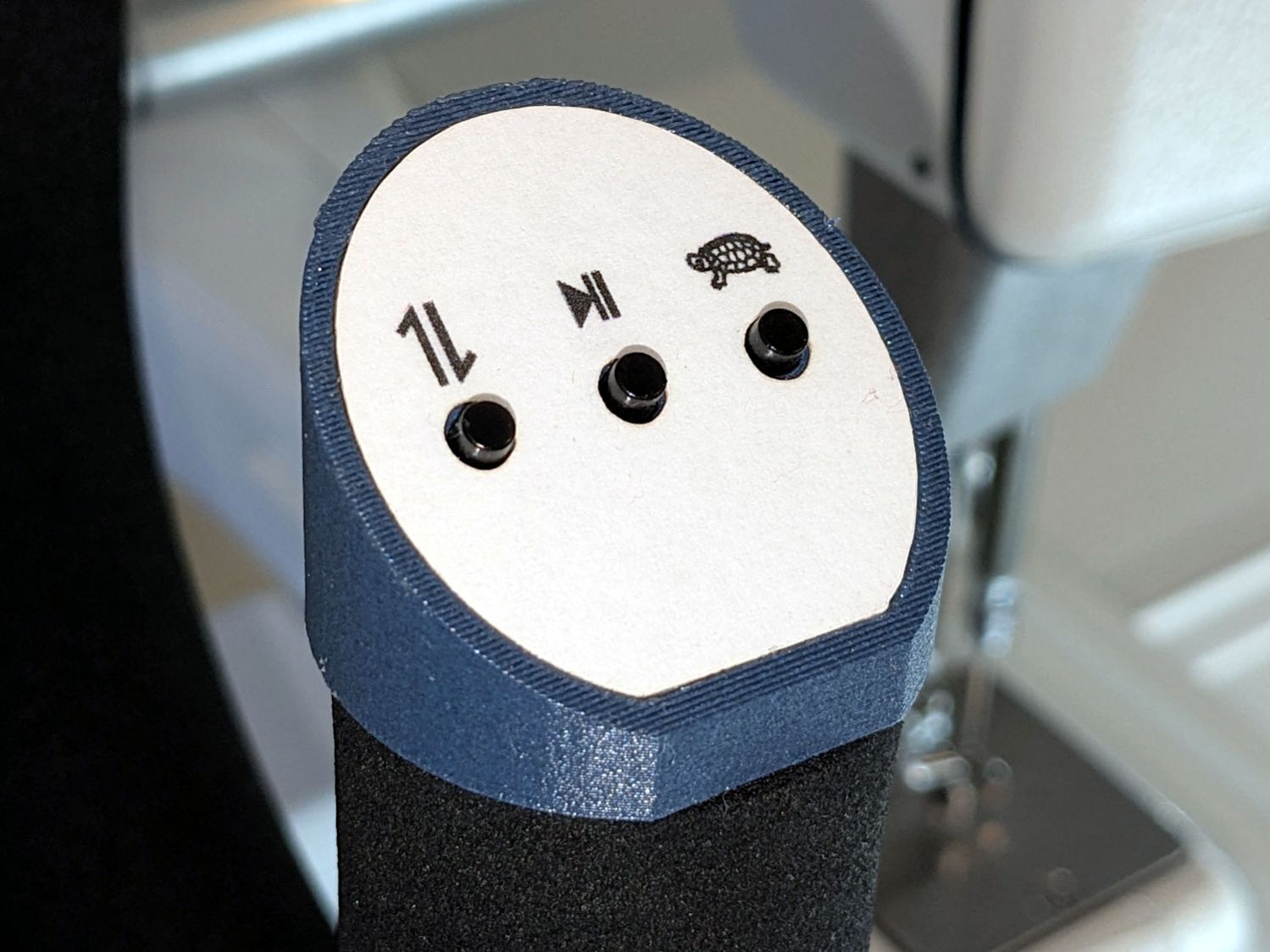
    They’re easy to locate by touch, with a stem length chosen to “feel right” when pushed.

    They have been grievously misapplied:

    HQ Sixteen control caps - switches
    HQ Sixteen control caps – switches

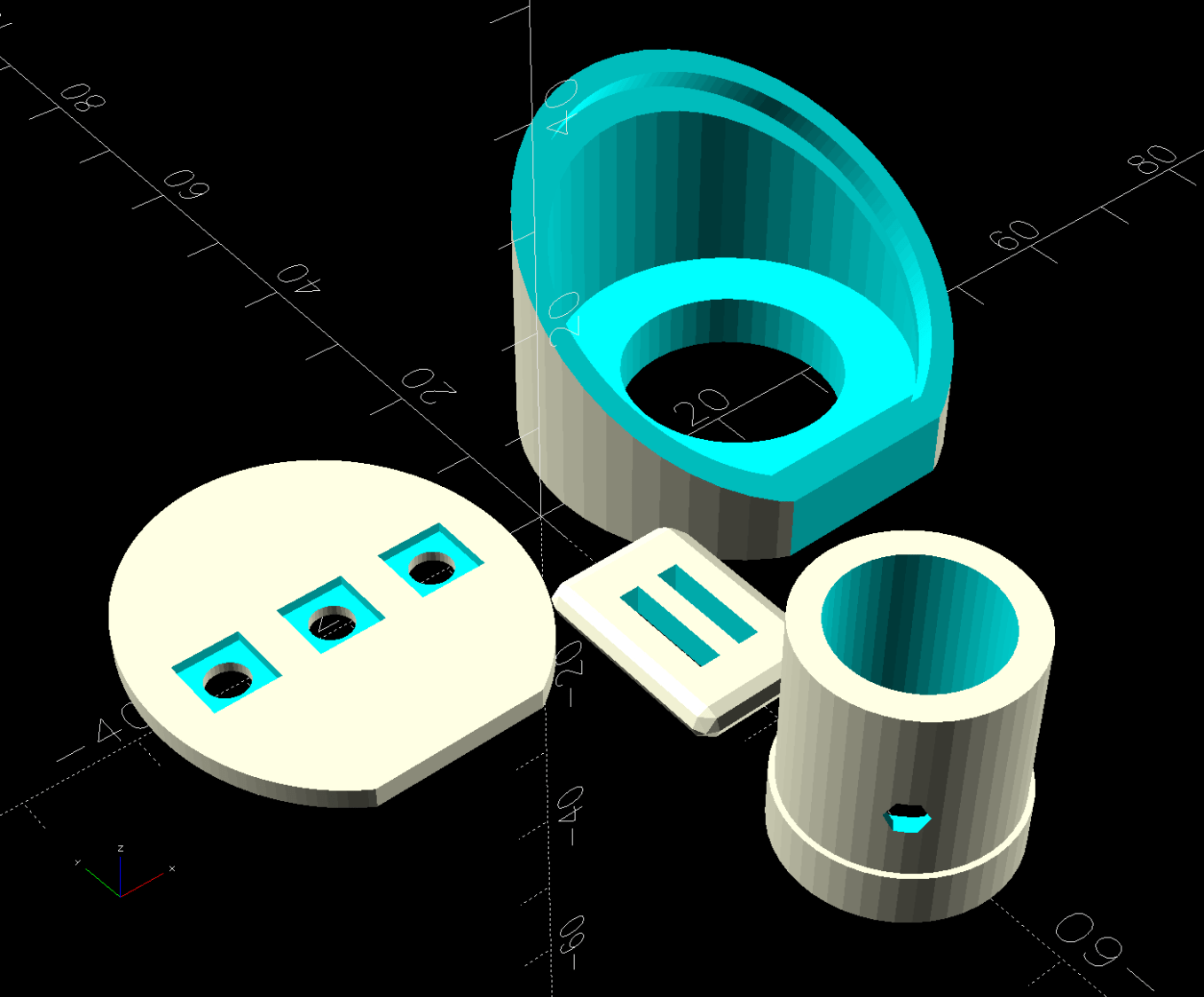
    The solid model has three main pieces and a lock for the ribbon cable:

    Control Button Caps - solid model - build view
    Control Button Caps – solid model – build view

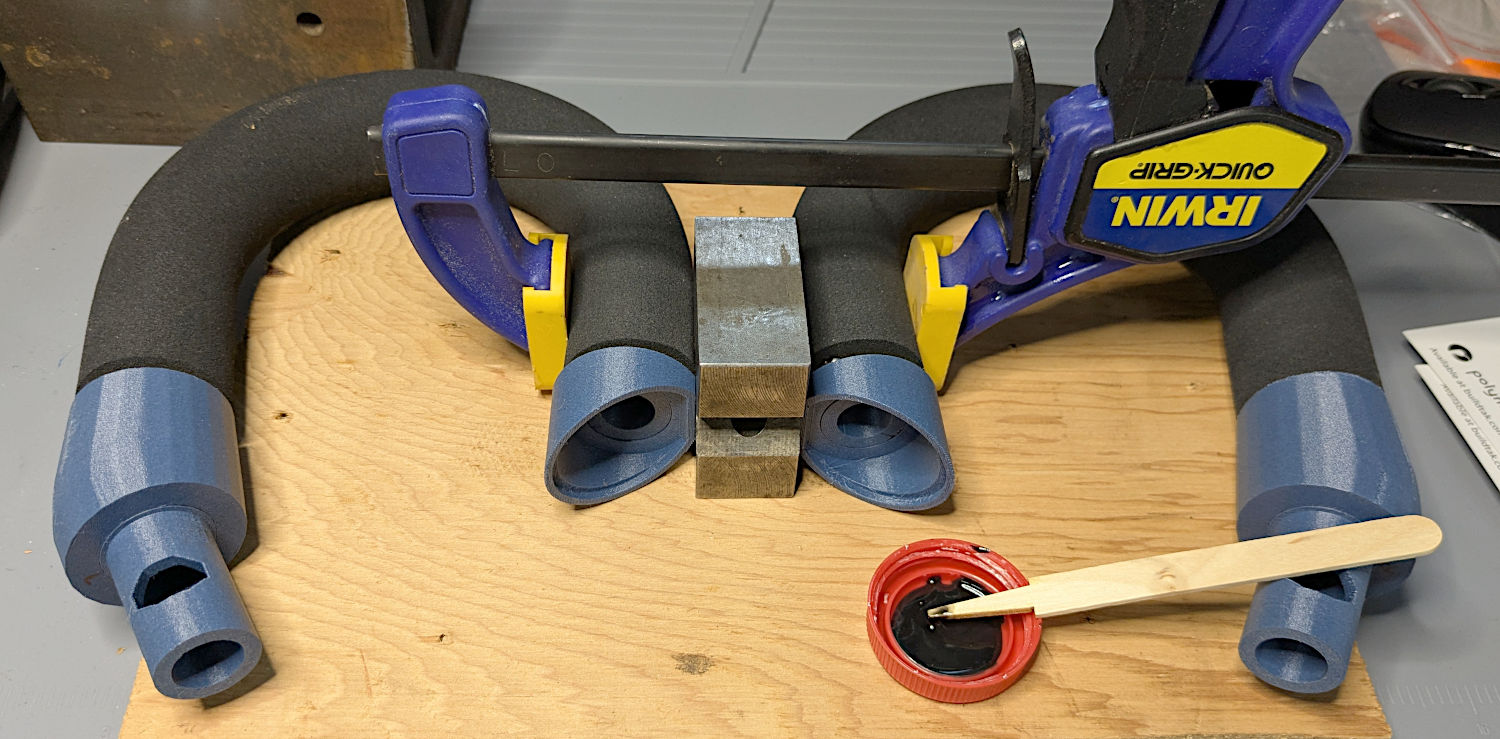
    Those pockets keep the switches oriented while the glue cures.

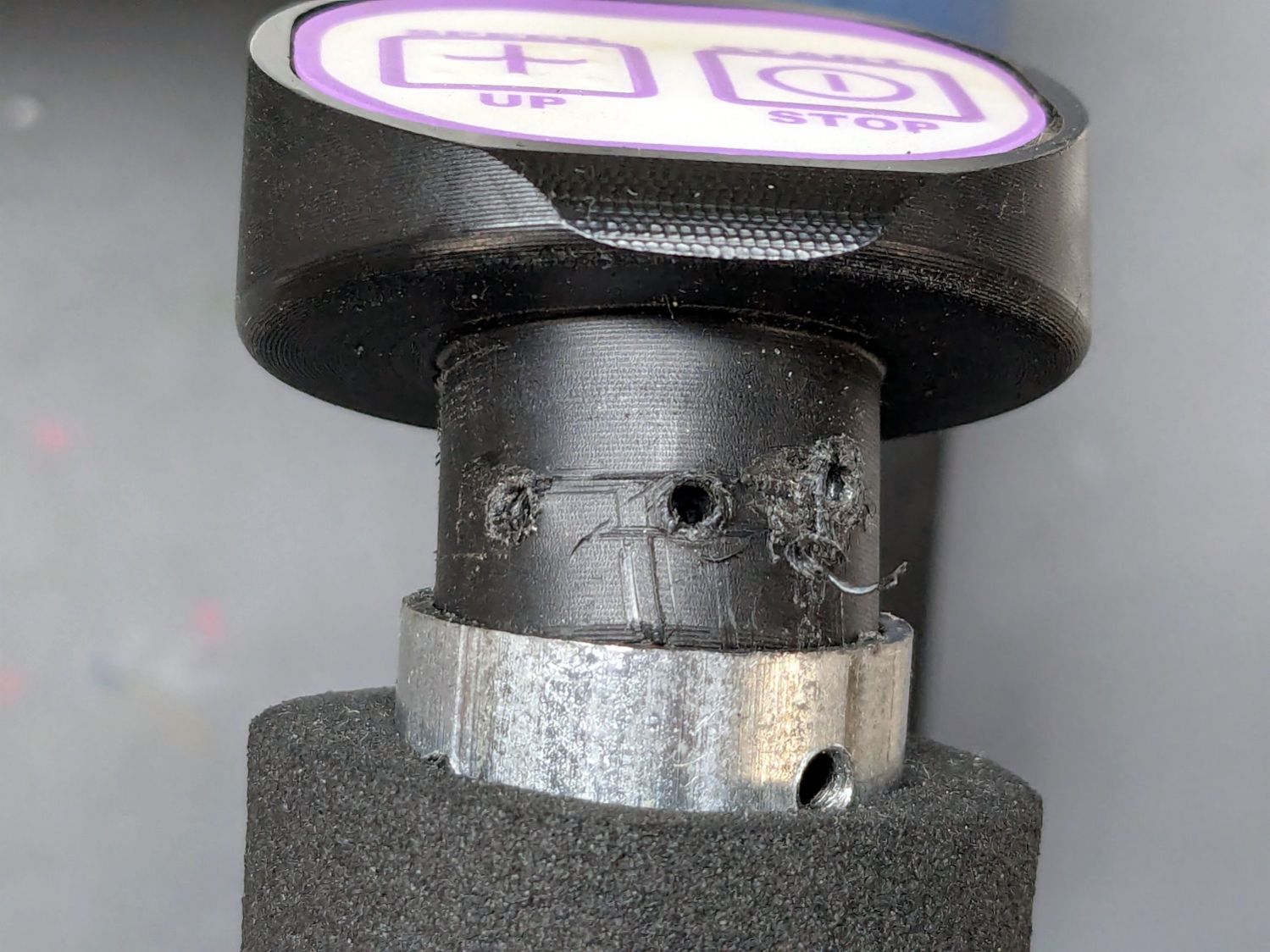
    Two screws through the handlebar secure each cap. Handi-Quilter drove sheet metal screws into their OEM caps, distorting them enough to jam solidly into the handlebars. I’ve been reluctant to apply enough force to loosen them, so they remain frozen in place until the current quilt is done.

    The new plugs have recesses for M3 square nuts to make them easily removable. As with the handlebar angle adapters, I’ll glue the plugs into the caps.

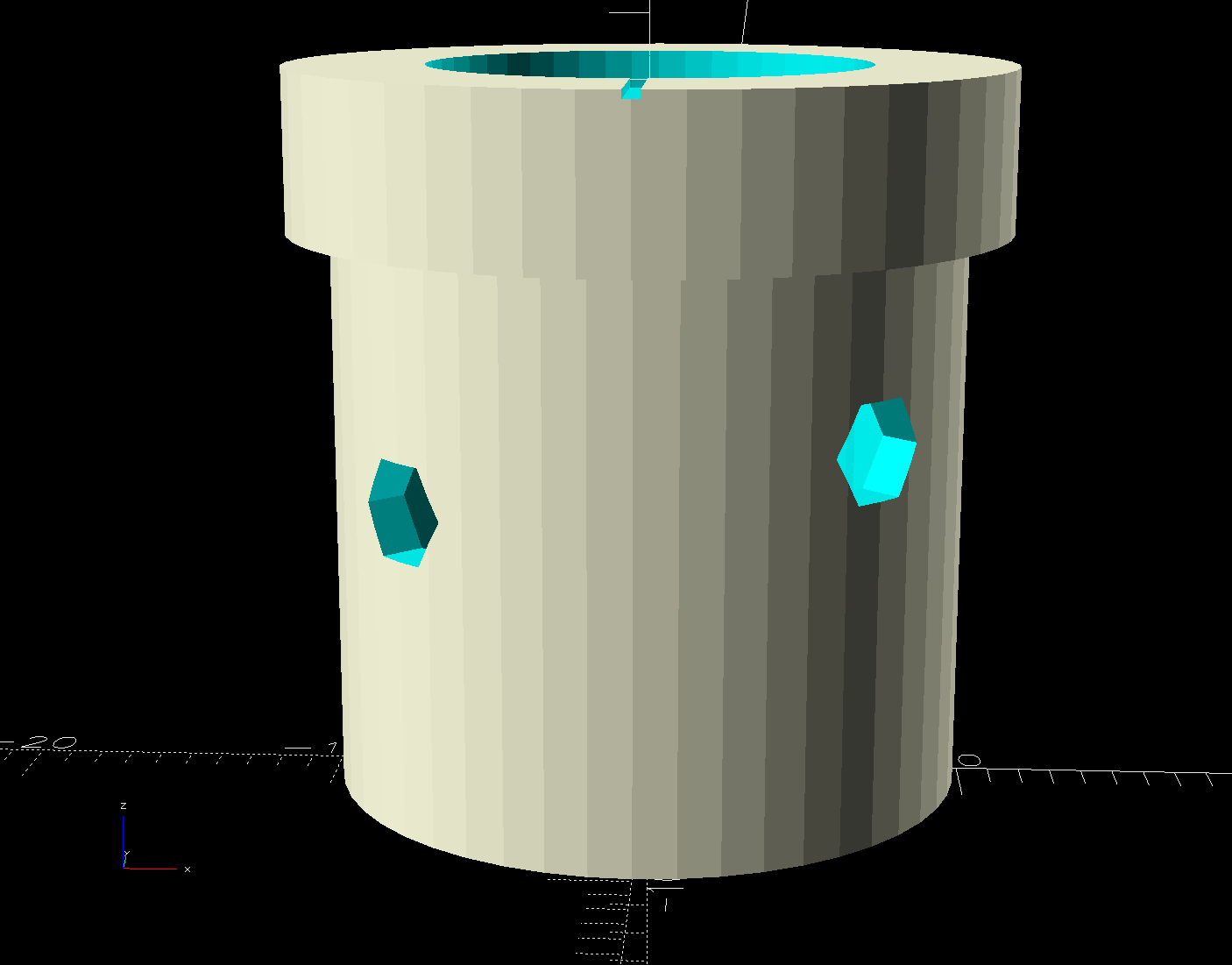
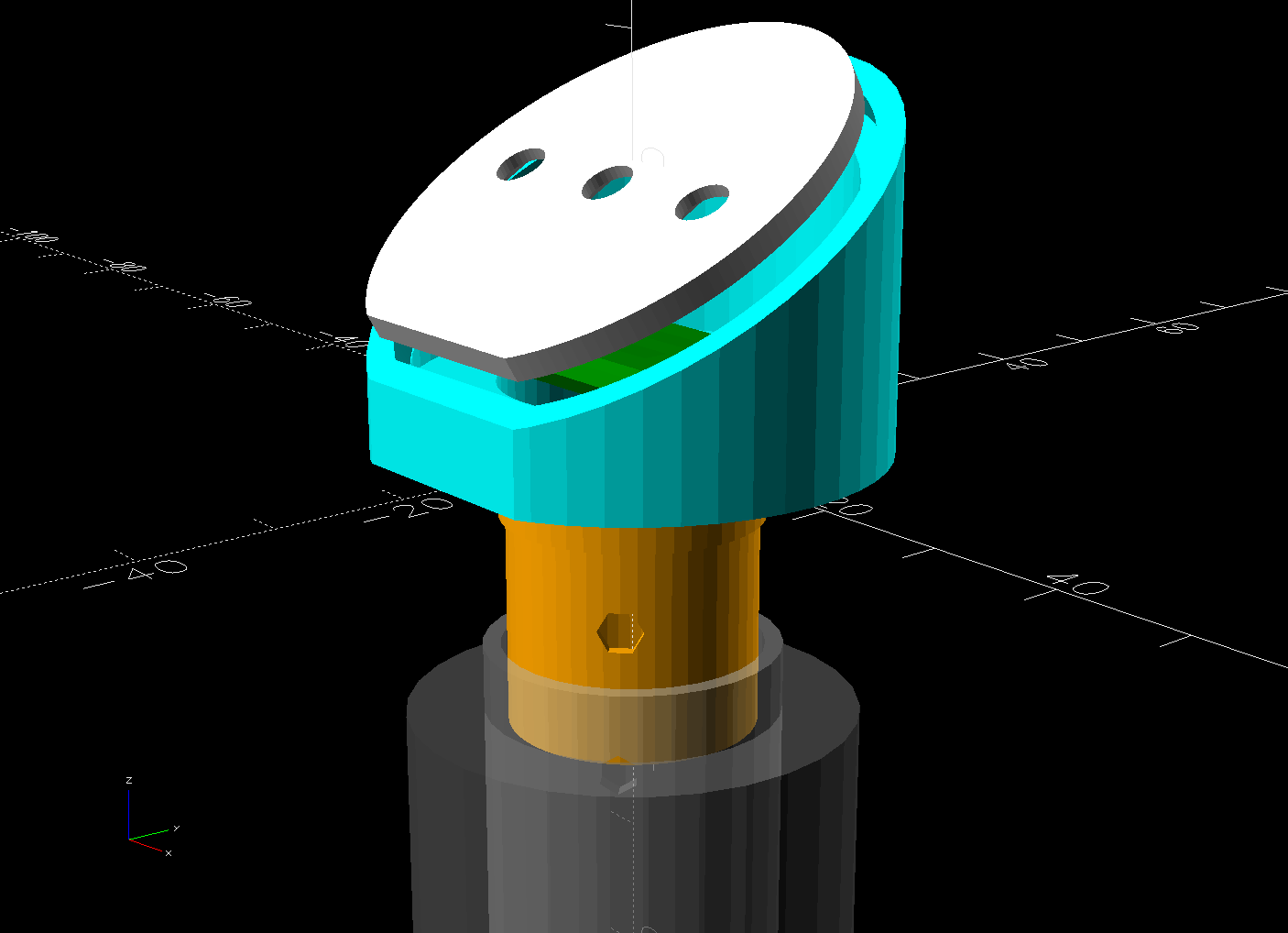
    A slightly exploded view shows how the pieces fit together:

    Control Button Caps - solid model - show view gapped
    Control Button Caps – solid model – show view gapped

    The switch plate sits recessed into the cap to allow room for the label (about which, more later):

    Control Button Caps - solid model - show view assembled
    Control Button Caps – solid model – show view assembled

    The OpenSCAD source code as a GitHub Gist:

    // Handiquilter HQ Sixteen handlebar control button caps
    // Ed Nisley – KE4ZNU
    // 2025-04-05
    include <BOSL2/std.scad>
    Layout = "Show"; // [Show,Build,Grip,Body,Face,FaceBack,Plug,CableLock]
    // Angle w.r.t. handlebar
    FaceAngle = 30; // [10:45]
    // Separation in Show display
    Gap = 5; // [0:20]
    /* [Hidden] */
    HoleWindage = 0.2;
    Protrusion = 0.1;
    NumSides = 2*3*4;
    WallThick = 3.0;
    ID = 0;
    OD = 1;
    LENGTH = 2;
    Grip = [19.7,22.4,15.0]; // (7/8)*INCH = 22.2 mm + roughness, LENGTH=OEM insertion depth
    GripRadius = Grip[OD]/2;
    FoamOD = 34.0; // handlebar foam
    FoamRadius = FoamOD/2;
    SwitchBody = [6.3,6.3,4.0]; // does not include SMD leads
    SwitchStemOD = 3.5 + 2*HoleWindage;
    SwitchOC = 10.0; // center-to-center switch spacing
    LabelThick = 0.5; // laminated overlay
    FaceRim = 2.0; // rim around faceplate
    FaceThick = 2.0; // … plate thickness
    FaceDepth = FaceThick + LabelThick; // inset allowing for faceplate label
    CapOD = 38.0; // overall cap diameter
    CapTrim = FoamRadius; // flat trim on front
    CapBase = 5.0; // bottom thickness
    Cap = [FoamOD – FaceRim,CapOD,CapBase + CapOD*tan(FaceAngle)];
    echo(Cap=Cap);
    TargetSize = 4.0; // laser alignment targets
    TargetsOC = [40.0,40.0];
    Cable = [10.0,2.0,WallThick]; // aperture for cable lock
    ScrewAngles = [-45,45]; // mounting screws
    Screw = [2.0,3.0,7.0]; // OEM = sheet metal screw
    ScrewOffset = 6.0; // from top of grip tube
    SquareNut = [3.0,5.5,2.3 + 0.4]; // M3 square nut OD = side, LENGTH + inset allowance
    NutInset = GripRadius – sqrt(pow(GripRadius,2) – pow(SquareNut[OD],2)/4);
    PlugOA = [(Grip[ID] – 2*WallThick),(Grip[ID] – 1.0),(CapBase + ScrewOffset + 10.0)];
    echo(PlugOA=PlugOA);
    //———-
    // Define objects
    //—–
    // Handlebar tube
    module GripTube() {
    difference() {
    tube(3*Grip[LENGTH],GripRadius,Grip[ID]/2,anchor=TOP);
    for (a = ScrewAngles) {
    down(ScrewOffset) zrot(a-90)
    right(GripRadius)
    yrot(90) cylinder(d=Screw[OD],h=Screw[LENGTH],center=true,$fn=6);
    }
    }
    }
    //—–
    // SVG outline of faceplate for laser cuttery
    module FaceShape(Holes=true,Targets=false) {
    difference() {
    scale([1,1/cos(FaceAngle)])
    difference() {
    circle(d=(Cap[OD] – 2*FaceRim),$fn=144);
    fwd(CapTrim – FaceRim)
    square(Cap[OD],anchor=BACK);
    }
    if (Holes)
    for (i=[-1:1]) // arrange switch stem holes
    right(i*SwitchOC)
    zrot(180/8) circle(d=SwitchStemOD,$fn=32);
    }
    if (Targets)
    for (i = [-1,1], j = [-1,1])
    translate([i*TargetsOC.x/2,j*TargetsOC.y/2])
    square(2.0,center=true);
    }
    //—–
    // Faceplate backing sheet
    // Switch bodies indented into bottom, so flip to build
    module FacePlate(Thick=FaceThick,Holes=true) {
    difference() {
    linear_extrude(height=Thick,convexity=5)
    FaceShape(Holes);
    up(SwitchBody.z/4)
    for (i = [-1:1])
    right(i*SwitchOC)
    cube(SwitchBody,anchor=TOP);
    }
    }
    //—–
    // Cap body
    module CapBody() {
    $fn=48;
    up(CapBase + (Cap[OD]/2)*tan(FaceAngle)) xrot(FaceAngle)
    difference() {
    xrot(-FaceAngle)
    down(CapBase + (Cap[OD]/2)*tan(FaceAngle))
    difference() {
    cylinder(d=Cap[OD],h=Cap[LENGTH]);
    fwd(CapTrim) down(Protrusion)
    cube(2*Cap[LENGTH],anchor=BACK+BOTTOM);
    up(CapBase)
    difference() {
    cylinder(d=Cap[ID],h=Cap[LENGTH]);
    fwd(CapTrim – 2*FaceRim)
    cube(2*Cap[LENGTH],anchor=BACK+BOTTOM);
    }
    down(Protrusion)
    cylinder(d=Grip[ID],h=Cap[LENGTH]);
    }
    cube(2*Cap[OD],anchor=BOTTOM);
    down(FaceDepth)
    FacePlate(FaceDepth + Protrusion,Holes=false);
    }
    }
    //—–
    // Plug going into grip handlebar
    module CapPlug() {
    $fn=48;
    difference() {
    tube(PlugOA[LENGTH],id=PlugOA[ID],od=PlugOA[OD],anchor=BOTTOM)
    position(TOP)
    tube(CapBase,id=PlugOA[ID],od=Grip[ID],anchor=TOP);
    for (a = ScrewAngles)
    up(PlugOA.z – CapBase – ScrewOffset) zrot(a-90)
    right(PlugOA[ID]/2)
    yrot(90) {
    cube([SquareNut[OD],SquareNut[OD],SquareNut[LENGTH] + NutInset],center=true);
    zrot(180/6)
    cylinder(d=(SquareNut[ID] + 2*HoleWindage),h=PlugOA[ID],center=true,$fn=6);
    }
    }
    }
    //—–
    // Lock plate for ribbon cable
    module CableLock() {
    difference() {
    cuboid([2*Cable.x,PlugOA[ID],WallThick],rounding=WallThick/2,anchor=BOTTOM);
    for (j = [-1,1])
    back(j*Cable.y) down(Protrusion)
    cube(Cable + [0,0,2*Protrusion],anchor=BOTTOM);
    }
    }
    //———-
    // Build things
    if (Layout == "Grip") {
    color("Silver",0.5)
    GripTube();
    }
    if (Layout == "Face")
    FaceShape(Targets=true);
    if (Layout == "FaceBack")
    FacePlate();
    if (Layout == "Body")
    CapBody();
    if (Layout == "Plug")
    CapPlug();
    if (Layout == "CableLock")
    CableLock();
    if (Layout == "Show") {
    color("Green")
    up(CapBase)
    CableLock();
    color("Orange")
    down(Gap)
    down(PlugOA[LENGTH] – CapBase)
    CapPlug();
    color("Cyan",(Gap > 4)? 1.0 : 0.2)
    CapBody();
    color("White",(Gap > 4)? 1.0 : 0.5)
    up(Gap*cos(FaceAngle)) fwd(Gap*sin(FaceAngle))
    up(CapBase + (Cap[OD]/2)*tan(FaceAngle) – FaceDepth)
    back(FaceDepth*sin(FaceAngle)) xrot(FaceAngle)
    FacePlate();
    down(3*Gap) {
    color("Silver",0.5)
    GripTube();
    down(Gap)
    color("Gray",0.5)
    tube(3*Grip[LENGTH],FoamRadius,Grip[OD]/2,anchor=TOP);
    }
    }
    if (Layout == "Build") {
    right((Gap + Cap[OD])/2)
    CapBody();
    left((Gap + Cap[OD])/2)
    zrot(180) up(FaceThick) xrot(180)
    FacePlate();
    fwd(Gap + Cap[OD])
    up(PlugOA[LENGTH]) xrot(180) zrot(180)
    CapPlug();
    fwd(Cap[OD]/2)
    zrot(90)
    CableLock();
    }

  • Wrights SideWinder Bobbin Winder: Laying On Of Hands

    Wrights SideWinder Bobbin Winder: Laying On Of Hands

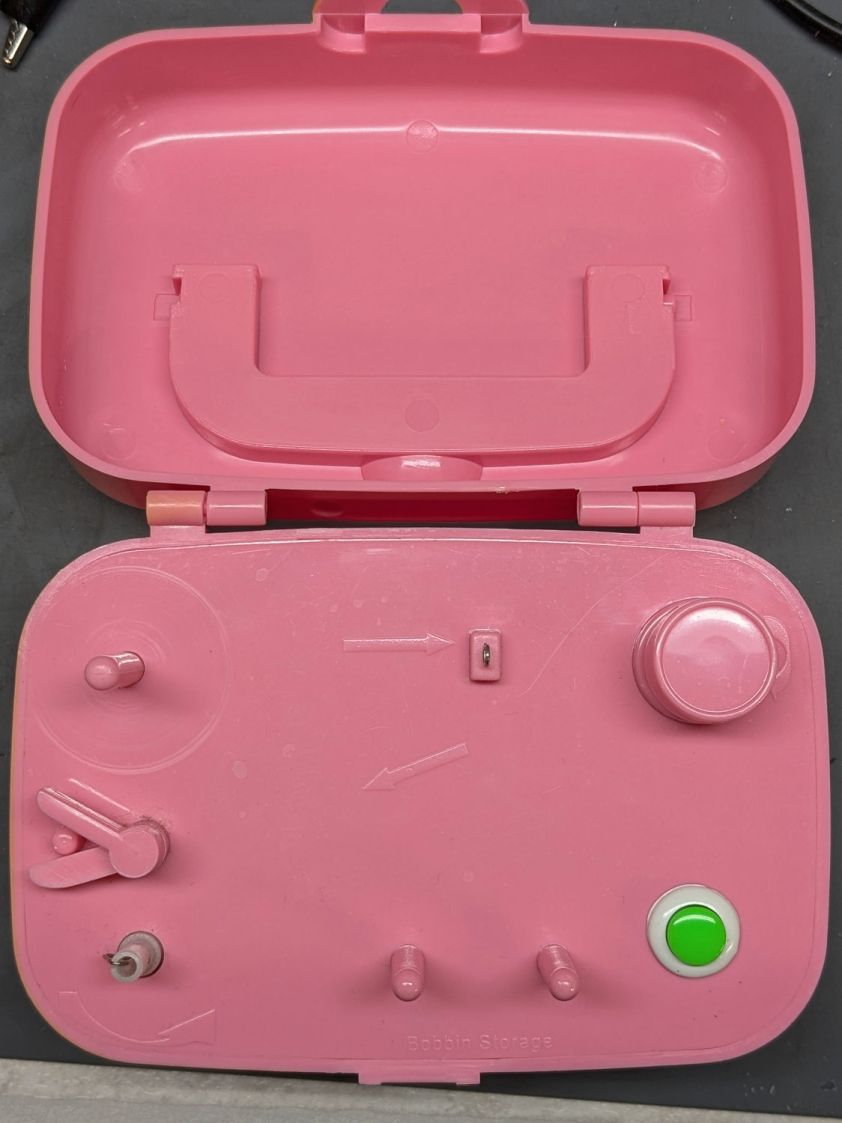
    Mary attempted to wind a bobbin using the Wrights SideWinder Bobbin Winder she got from a friend:

    Sidewinder bobbin winder - top
    Sidewinder bobbin winder – top

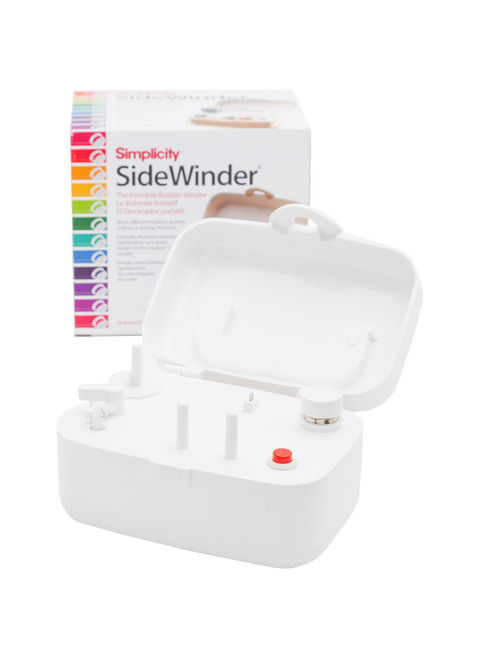
    The URL in the instructions is dead, but the Sidewinder lives on as the Simplicity SideWinder Portable Bobbin Winder:

    Simplicity Sidewinder Bobbin Winder
    Simplicity Sidewinder Bobbin Winder

    Looks kinda pallid to me, too, although hardcore BarbieCore is also most definitely not our thing.

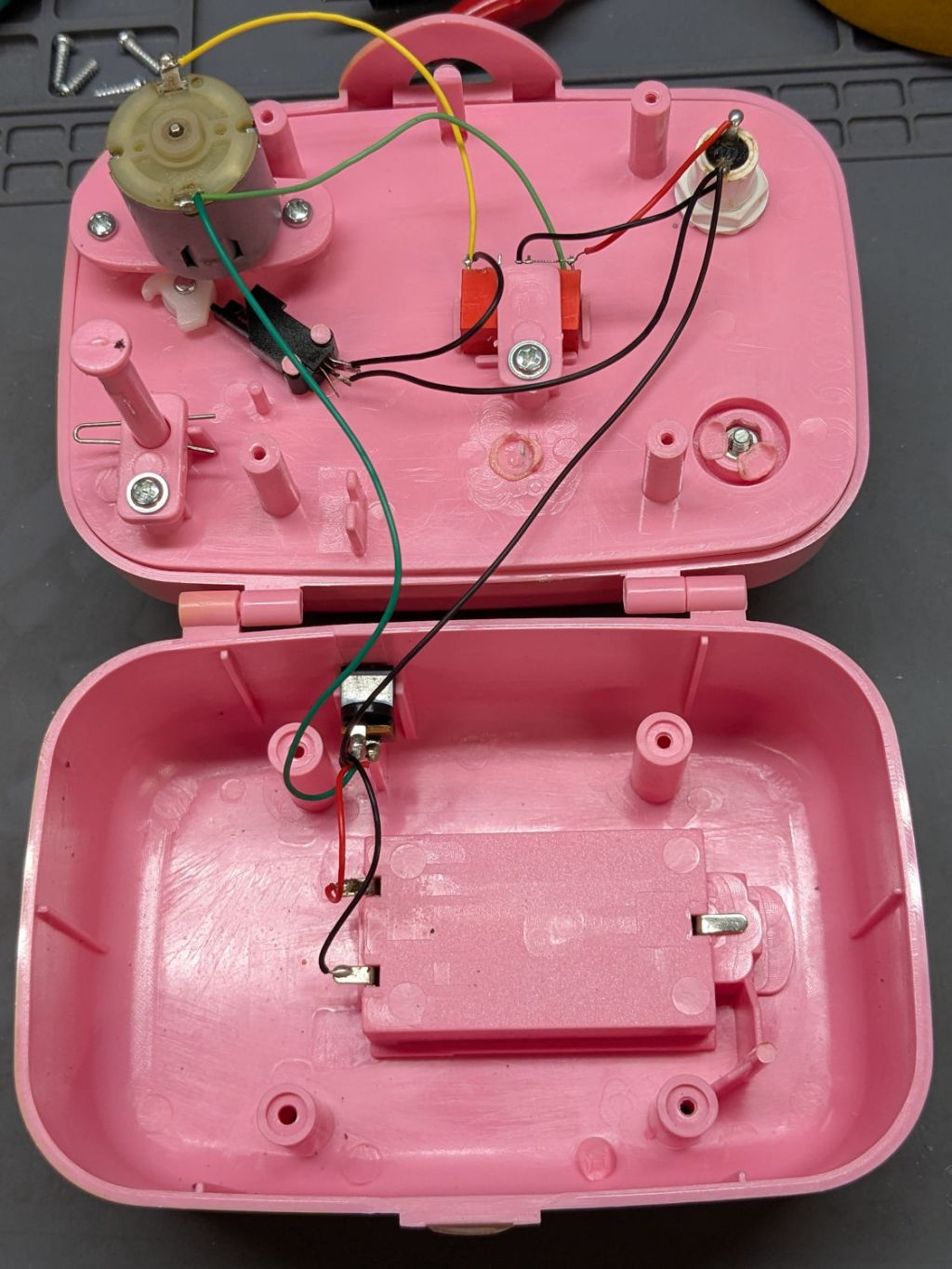
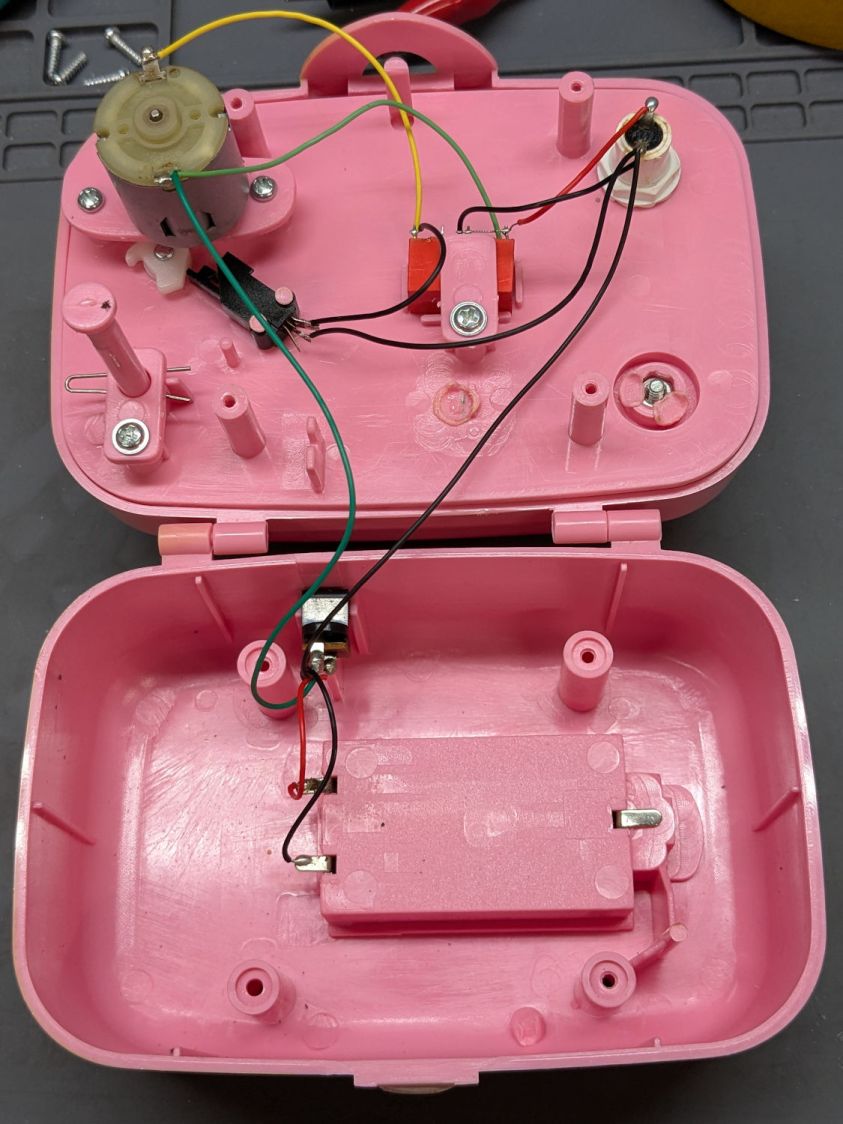
    Anyhow, the motor didn’t even twitch when pressing the button, so after I verified the two AA alkaline cells were Just Fine, I laid it on the Electronics Bench and popped the top to see what was the matter:

    Sidewinder bobbin winder - interior wiring
    Sidewinder bobbin winder – interior wiring

    For the record, the red and black wires at the battery compartment are exactly reversed from what you might expect based on, say, the colors of your multimeter probes. I know better, but it comes as a surprise every time.

    The pushbutton switch pulls in the relay (red block in the middle), which latches on until the bobbin fills and the accumulated thread lifts the finger riding on the bobbin to rotate the white cam (under the motor), thus opening the switch (black block), releasing the relay, and shutting off the motor.

    Which, of course, worked perfectly after I stuck the alkalines back in place on the bench and poked the button to watch the proceedings.

    It’s all back together again and continues to run, so I’ll declare victory until the next time she fills a bobbin and, predictably, it doesn’t start.

  • LED Strip Lights: Shade Adhesive

    LED Strip Lights: Shade Adhesive

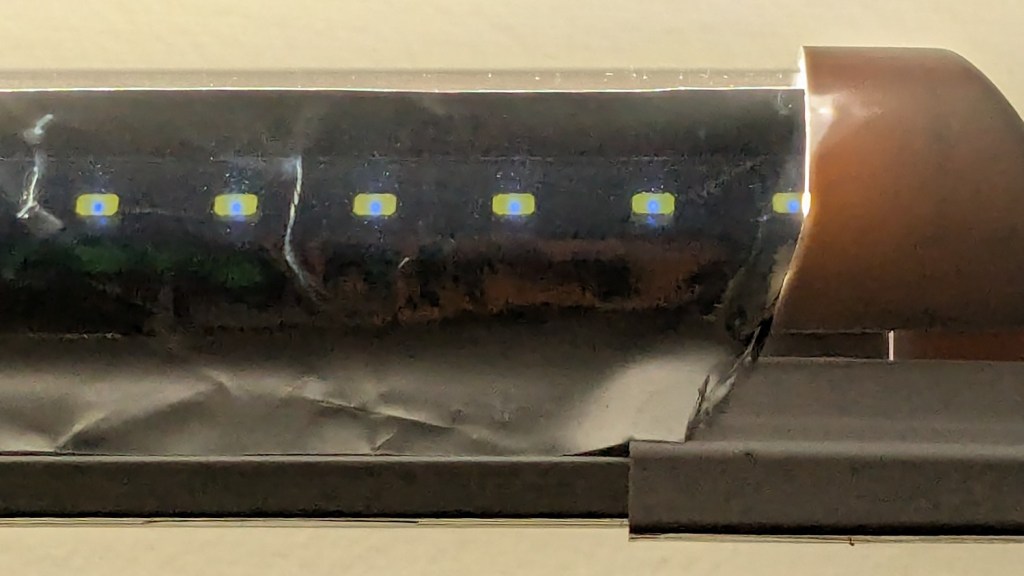
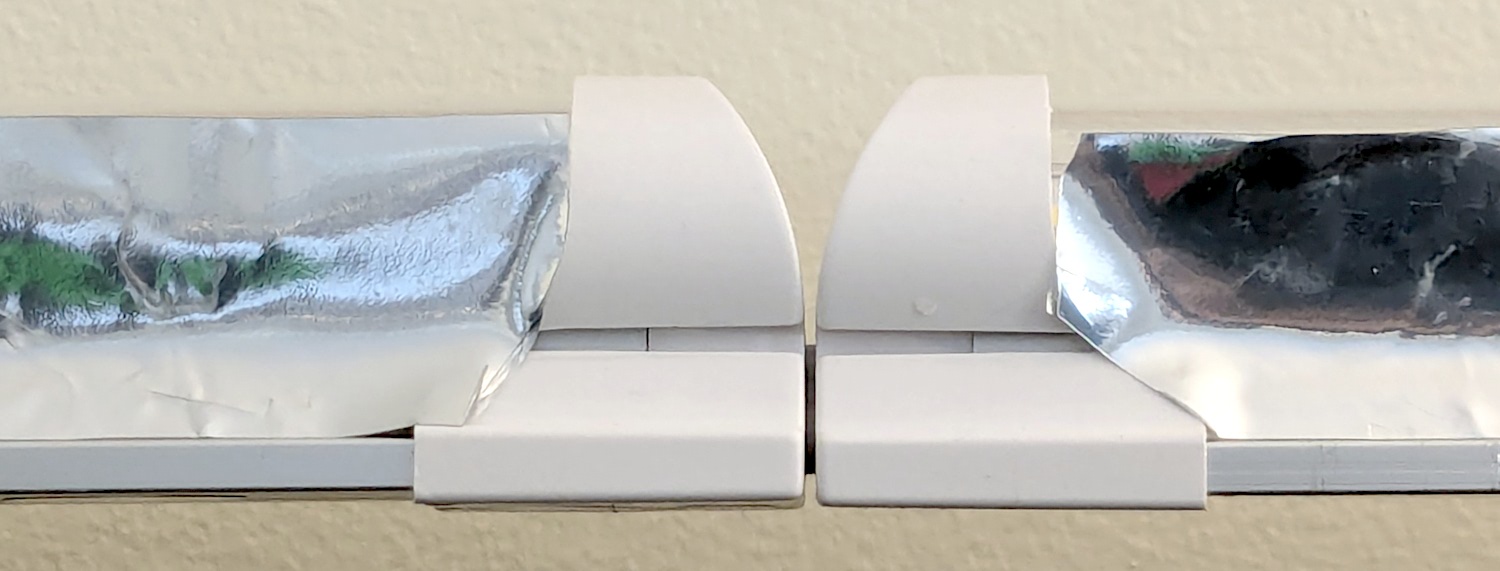
    This is a quick-and-ugly test to see how well aluminized Mylar will work as a reflective shade for some LED light bars eventually washing the Living / Sewing room ceiling with enough light to brighten the Sewing Table:

    LED strip light - Mylar reflector - ugly fit
    LED strip light – Mylar reflector – ugly fit

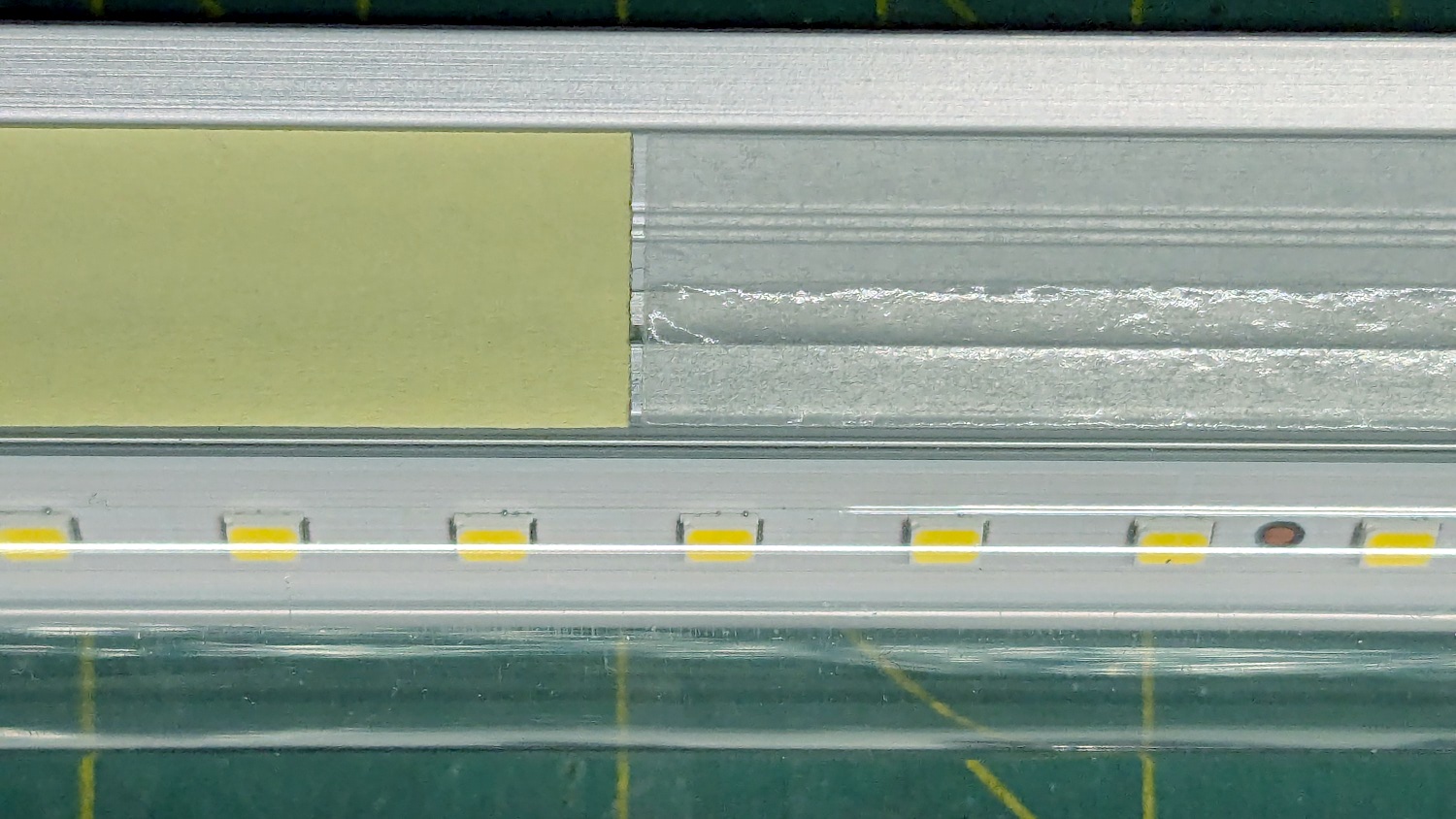
    The key question: how well adhesive adheres Mylar to the pleasantly warm aluminum extrusion serving as the heatsink for 40 W of LEDs:

    LED strip light - Mylar reflector - adhesive strips
    LED strip light – Mylar reflector – adhesive strips

    Perhaps surprisingly, those ½ inch strips come from an A4 sheet by way of a paper cutter.

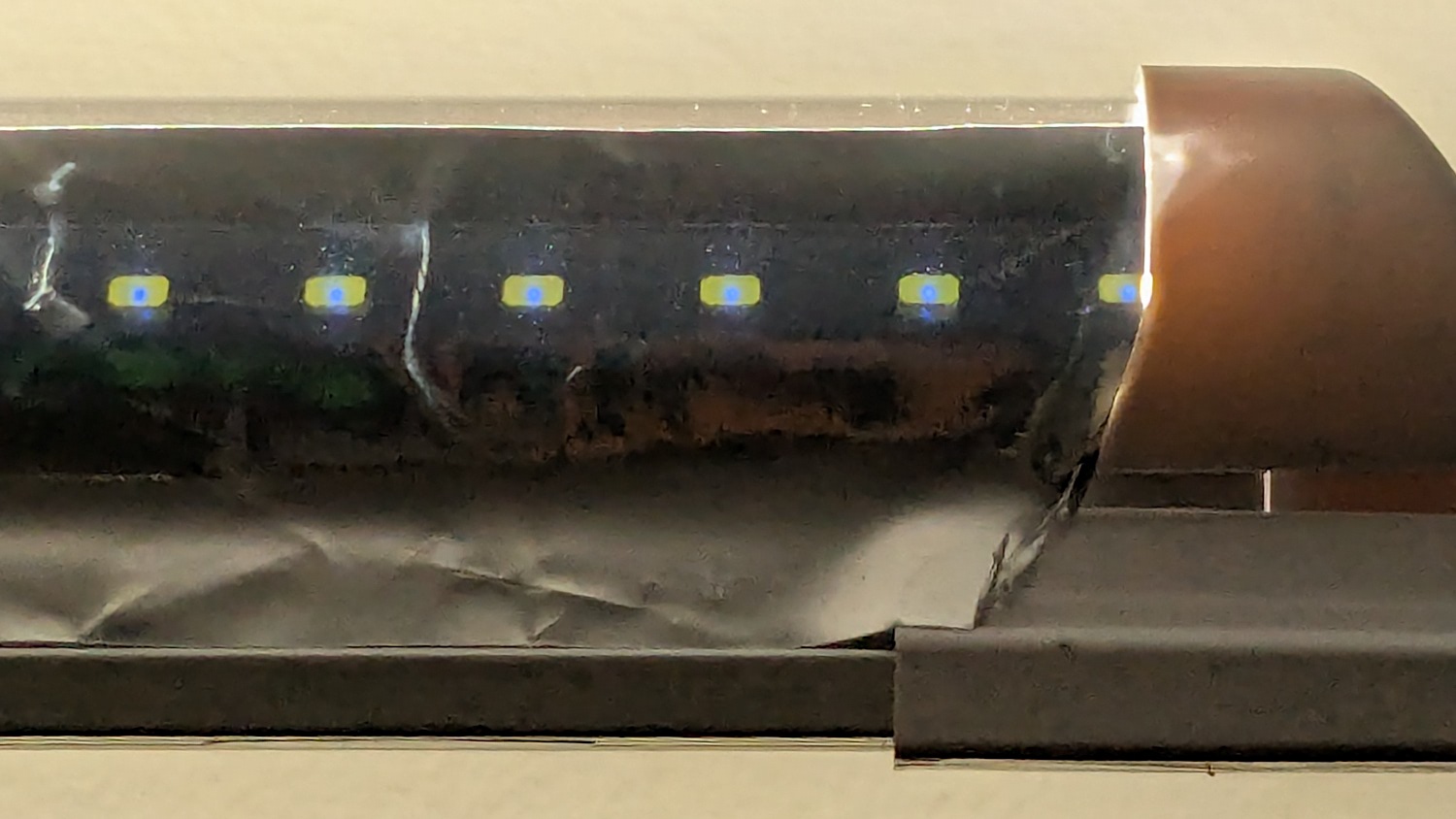
    As with the Mylar shades over the COB LED strips in the laser, the LEDs remain through the aluminized layer:

    LED strip light - Mylar reflector - overexposed
    LED strip light – Mylar reflector – overexposed

    The LED bars will be directly visible, so bouncing the direct light against the wall reduces glare and puts it to good use.

    The Mylar strips are 1 inch wide, cut with a utility knife against a straightedge, although ⅞ inch seems adequate. The last LED over on the right sits at the endcap, so I will (try to) tuck the Mylar ends under the caps for a cleaner fit.

    The bars have two 4 foot strips of LEDs in series, with a lump of circuitry buried in the aluminum extrusion that seems be a bridge rectifier and a small electrolytic capacitor. There’s not nearly enough capacitance to knock down the 120 Hz flicker and I have an uneasy expectation of stroboscopic effects on the sewing machines.

    This is a test. […] This is only a test.

    Now, to model angle brackets fitting the strips to the window moulding.

  • HQ Sixteen: Ball-mounted Stylus Laser

    HQ Sixteen: Ball-mounted Stylus Laser

    Installing the new ball-mount laser stylus on the HQ Sixteen’s electronics pod required nothing more than two strips of good foam tape:

    HQ Sixteen - Stylus Laser - installed - overview
    HQ Sixteen – Stylus Laser – installed – overview

    In actual use, you would:

    • Lay down a “pantograph” pattern on a paper strip along the rear track under the machine’s carriage
    • Position the needle at the appropriate spot on the quilt
    • Aim the laser at the corresponding point on the pattern
    • Start the machine!
    • Move the laser spot along the pattern while the machine stitches that pattern in the quilt

    Mary thinks free-motion quilting is easier and I’m not in a position to argue the point.

    Anyhow, the key feature of my ball mount is that it’s completely out of the way:

    HQ Sixteen - Stylus Laser - installed - front
    HQ Sixteen – Stylus Laser – installed – front

    Which looks comfortingly like the original solid model:

    HQ Sixteen - Stylus Laser Mount - solid model - show
    HQ Sixteen – Stylus Laser Mount – solid model – show

    Minus the vivid red death ray and pew! pew! pew!

    Power comes from a barrel jack in the back intended for the original stylus laser; all small lasers, unless otherwise noted, run from 5 VDC. The jack is 3.5×1.3 mm, but the Drawer o’ Weird Barrel Plugs disgorged a matching right-angle plug. Unsurprisingly, such things are readily available these days.

    Splice the laser leads to the plug and cover the evidence with a braided loom + heatshrink tubing:

    HQ Sixteen - Stylus Laser - installed - rear
    HQ Sixteen – Stylus Laser – installed – rear

    I considered a switch, but the anticipated low duty cycle suggested just unplugging it, so that’s that.

    And It Just Worked™.

    The backstory begins There and continues to now.

  • Ooma Telo2: Speaker2 Failure

    Ooma Telo2: Speaker2 Failure

    After not quite six years, the replacement speaker I hacked into our Ooma Telo2 VOIP gadget failed:

    Ooma Telo 2 - replacement speaker installed
    Ooma Telo 2 – replacement speaker installed

    Quite by coincidence, a few days earlier a friend reported the speaker in her Ooma Telo2 had failed. This seems to be a common failure mode, with the rest of the gadget continuing to work fine.

    The failed speaker showed continuity through its coil and, in fact, still had the same 8 Ω DC resistance as an identical speaker pulled from the Drawer o’ Small Speakers. It did not, however, make a sound when connected to a signal generator, where the new speaker squeaked happily.

    So it seems the speaker failed by a mechanical jam, rather than an electrical / wiring failure. It’s not as though we play thrash metal music through the thing, but apparently the magnet disintegrated:

    Samsung speaker magnet disintegration
    Samsung speaker magnet disintegration

    Yes, the coil gap is full of nicely oriented magnetic particles:

    Samsung speaker magnet disintegration - detail
    Samsung speaker magnet disintegration – detail

    If Samsung (or whoever built the speaker) used a poorly sealed neodymium magnet, then it would crumble exactly as shown.

    I wonder if that’s how the original speaker failed.

    Installing the identical replacement speaker involved more hot melt glue and, as expected, restored the Telo2 to normal operation:

    Ooma Telo - second speaker installed
    Ooma Telo – second speaker installed

    I can do that repair eight more times …

  • Pride Lift Chair Control Pinout Probing

    Pride Lift Chair Control Pinout Probing

    The ↓ (“down”) button on one of our lift chairs stopped working, although the ↑ (“up”) button worked fine and, as you’d expect, verifying this problem left the chair in a rather awkward position.

    The usual power cycle and unplugging / replugging the control had no effect.

    This control is the one I couldn’t pry apart to dim its LEDs, so I tried various combinations of pins until this scribble emerged:

    Pride Lift Chair - control pinout doodle
    Pride Lift Chair – control pinout doodle

    I have no idea of the correct pin numbering, but the scribble looks into the connector pins with the keyway on top:

    Pride lift chair control
    Pride lift chair control

    The more intricate control for the other Pride lift chair has only four pins in its connector, so I couldn’t just swap them to see what happened.

    The polarities are for the continuity / resistance test probes.

    The takeaway: The two buttons did similar things to two different connector pins, so the control seemed to be working correctly and the fault lies elsewhere.

    The control sports a USB jack for powering / charging your favorite device and I’m reasonably sure the control has a microcontroller tucked in there for good reason, implying the circuitry is surely more complex than maybe a rectifier bridge and some resistors.

    So I shoved the chair into the middle of the room, deployed some test equipment, reconnected the control, plugged the chair power supply into the outlet strip, and … of course both buttons worked perfectly.

    Soooo the chair is back in place and we’ll see what happens next.

    Speaking of Heisenbugs, the HQ Sixteen continues to work fine, too.

  • HQ Sixteen: Heisenbug vs. Schematic

    HQ Sixteen: Heisenbug vs. Schematic

    After running reliably for a few weeks, the HQ Sixteen Heisenbug returned, displaying a Motor Stall error on the first attempt to run the motor. This gave me the opportunity to extract the PCB, compare it with the first rough schematic, then correct a few resistor values and connections.

    Redrewing (most of) it in somewhat canonical form:

    HQ Sixteen - Power PCB - schematic 2025-01-14
    HQ Sixteen – Power PCB – schematic 2025-01-14

    As before:

    • Do not assume any connections or components are correct or correctly drawn.
    • !!CAUTION!! The motor supply is direct-from-the-AC-line non-isolated +160 VDC.
    • !!CAUTION!! The GND traces are not isolated from the AC line and are not at the normal “0 V” AC neutral potential.

    When the machine operates normally, the relay pulls in with a distinct click slightly after the power switch closed. With the Heisenbug in full effect, the relay does not click, suggesting a fault in its driver circuitry.

    With the motor pod resting on a box beside the machine, I gingerly measured the voltage at various points on the top of the PCB. As far as I could tell, the entire +15 VDC power supply was dead: no voltage at either the input or output terminal of the LM7815 regulator!

    NOTE: The obvious screws along the top edge of the PCB are not connected to the power PCB circuit GND. Instead, they’re part of the controller’s power circuitry from the isolated power supply produced by rectifier bridge B3 and passed through J1 in the upper left corner of the PCB. Instead, the left lead on R1 (the 5W sandbox resistor) is a convenient GND terminal.

    So I hauled the little DSO150 battery-powered oscilloscope and a handful of clip leads up from the Basement Laboratory, got everything arranged, turned on the power, and the machine worked perfectly again.

    That’s why it’s called a Heisenbug: look at it and it vanishes.

    Given a faint indication of power supply problems, I verified all four diodes in Bridge Rectifier B21 are OK and the Skynet transformer windings were solid. I resoldered all the PCB connections from the transformer to U2, the LM7815 regulator, plus the green jumper wires.

    The machine is now back together, it continues to work, and all my test equipment is back in the basement.

    If it happens again, I’ll mount a cheerful LED on the pod to show the supply is working.