The Smell of Molten Projects in the Morning

Ed Nisley's Blog: Shop notes, electronics, firmware, machinery, 3D printing, laser cuttery, and curiosities. Contents: 100% human thinking, 0% AI slop.

Category: Electronics Workbench

Electrical & Electronic gadgets

  • RPi HQ Camera: 4.8 mm Computar Video Lens

    RPi HQ Camera: 4.8 mm Computar Video Lens

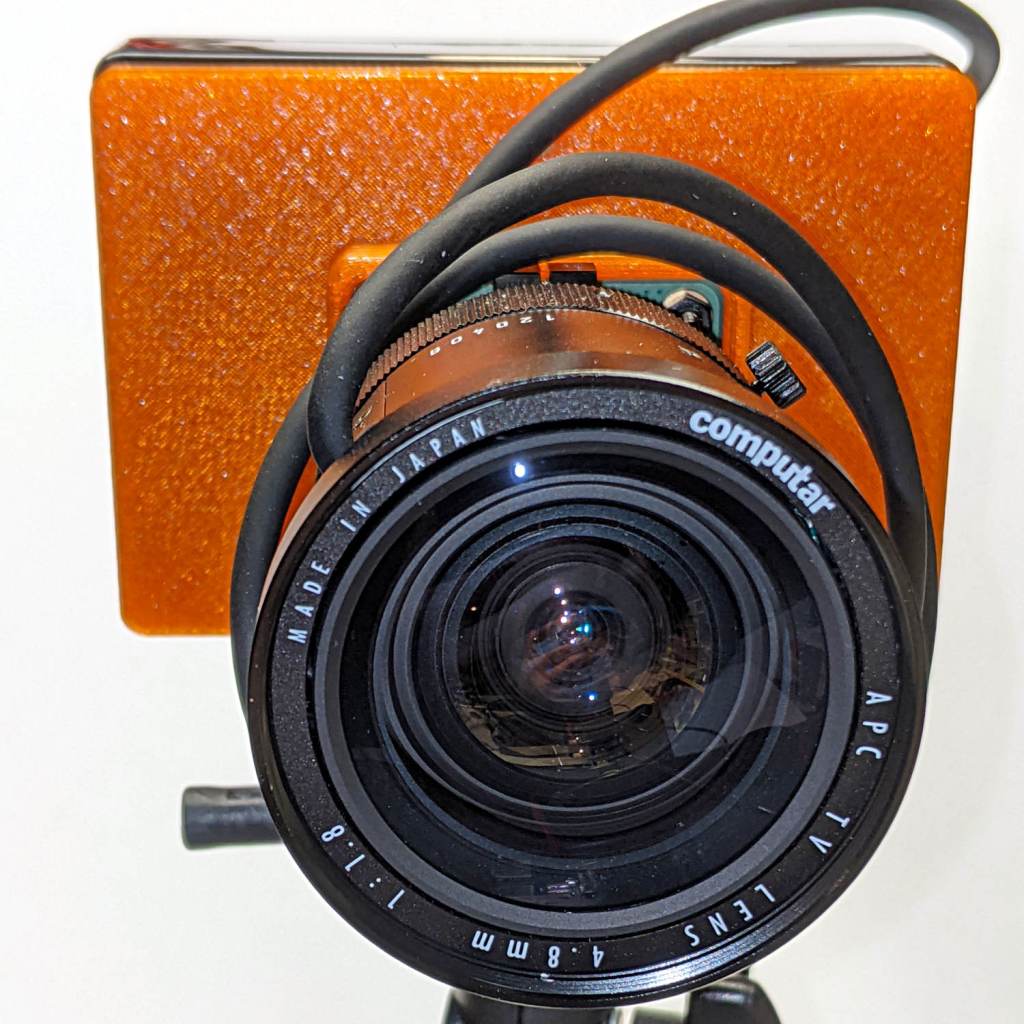
    The Big Box o’ Optics disgorged an ancient new-in-box Computar 4.8 mm lens, originally intended for a TV camera, with a C mount perfectly suited for the Raspberry Pi HQ camera:

    RPi HQ Camera - Computar 4.8mm - front view
    RPi HQ Camera – Computar 4.8mm – front view

    Because it’s a video lens, it includes an aperture driver expecting a video signal from the camera through a standard connector:

    Computar 4.8 mm lens - camera plug
    Computar 4.8 mm lens – camera plug

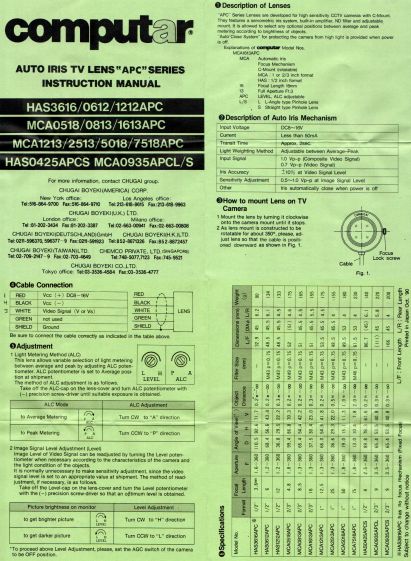
    The datasheet tucked into the box (!) says it expects 8 to 16 V DC on the red wire (with black common) and video on white:

    Computar Auto Iris TV Lens Manual
    Computar Auto Iris TV Lens Manual

    Fortunately, applying 5 V to red and leaving white unconnected opens the aperture all the way. Presumably, the circuitry thinks it’s looking at a really dark scene and isn’t fussy about the missing sync pulses.

    Rather than attempt to find / harvest a matching camera connector, the cord now terminates in a JST plug, with the matching socket hot-melt glued to the Raspberry Pi case:

    RPi HQ Camera - 4.8 mm Computar lens - JST power
    RPi HQ Camera – 4.8 mm Computar lens – JST power

    The Pi has +5 V and ground on the rightmost end of its connector, so the Computar lens will be jammed fully open.

    I gave it something to look at:

    RPi HQ Camera - Computar 4.8mm - overview
    RPi HQ Camera – Computar 4.8mm – overview

    With the orange back plate about 150 mm from the RPi, the 4.8 mm lens delivers this scene:

    RPi HQ Camera - 4.8 mm Computar lens - 150mm near view
    RPi HQ Camera – 4.8 mm Computar lens – 150mm near view

    The focus is on the shutdown / startup button just to the right of the heatsink, so the depth of field is maybe 25 mm front-to-back.

    For comparison, the official 16 mm lens stopped down to f/8 has a tighter view with good depth of field:

    RPi HQ Camera - 16 mm lens - 150mm near view
    RPi HQ Camera – 16 mm lens – 150mm near view

    It’d be nice to have a variable aperture, but it’s probably not worth the effort.

  • Discrete LM3909: Green LED at 1.15 V

    Discrete LM3909: Green LED at 1.15 V

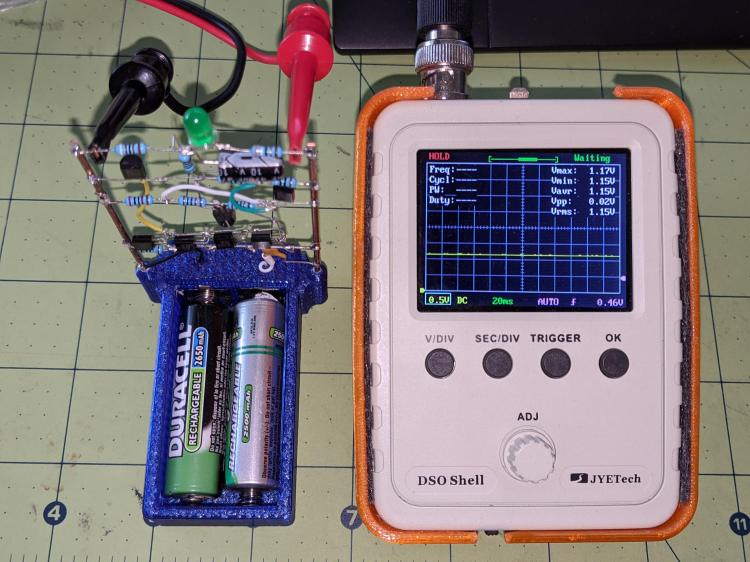
    The green-LED discrete LM3909 is still flashing, even with its AA NiMH cells burned down to 1.15 V:

    LM3909 green LED - 1.15 V NiMH
    LM3909 green LED – 1.15 V NiMH

    If the truth be known, one of the cells is now reverse-charged to 200 mV, so that’s a bit beyond as low as it can go.

    The flash period has stretched to 8.7 s:

    LM3909 green LED - 1.17 V - 8.7s period
    LM3909 green LED – 1.17 V – 8.7s period

    The circuit boosts the battery by 800 mV to put 1.94 V across the green LED at the start of each flash:

    LM3909 green LED - 1.15 V - V LED
    LM3909 green LED – 1.15 V – V LED

    Admittedly, the LED isn’t particularly bright at 2.8 mA:

    LM3909 green LED - 1.15 V - LED current
    LM3909 green LED – 1.15 V – LED current

    But it’s still flashing!

    Swapping the cells into the LM3909 with a blue LED doesn’t produce any blinking, which is about what the earlier tests showed.

  • Arducam Motorized Focus Camera Control

    Arducam Motorized Focus Camera Control

    Despite the company name name, the Arducam 5 MP Motorized Focus camera plugs into a Raspberry Pi’s camera connector and lives on a PCB the same size as ordinary RPi cameras:

    Arducam Motorized Focus RPi Camera - test overview
    Arducam Motorized Focus RPi Camera – test overview

    That’s a focus test setup to get some idea of how the control values match up against actual distances.

    It powers up focused at infinity (or maybe a bit beyond):

    Arducam Motorized Focus RPi Camera - default focus
    Arducam Motorized Focus RPi Camera – default focus

    In practice, it’s a usable, if a bit soft, at any distance beyond a couple of meters.

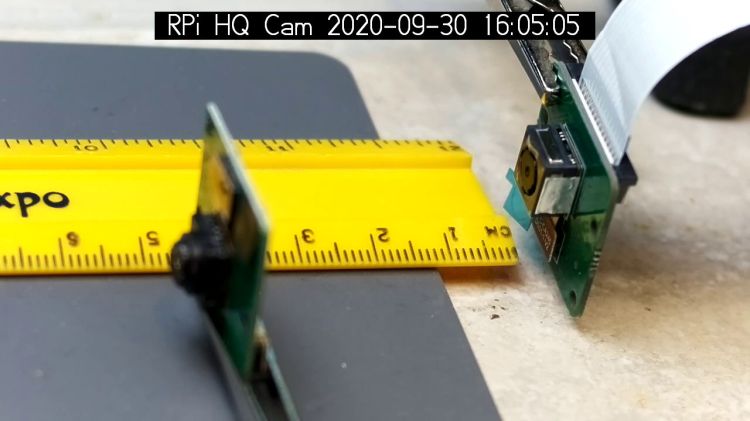
    The closest focus is around 40 mm, depending on where you set the ruler’s zero point:

    Arducam Motorized Focus RPi Camera - near focus
    Arducam Motorized Focus RPi Camera – near focus

    That’s the back side of the RPi V1 camera PCB most recently seen atop the mystery microscope objective illuminator.

    Pondering the sample code shows the camera focus setting involves writing two bytes to an I²C address through the video controller’s I²C bus. Enable that bus with a line in /boot/config.txt:

    dtparam=i2c_vc=on

    If you’re planning to capture 1280×720 or larger still images, reserve enough memory in the GPU:

    gpu_mem=512

    I don’t know how to determine the correct value.

    And, if user pi isn’t in group i2c, make it so, then reboot.

    The camera must be running before you can focus it, so run raspivid and watch the picture. I think you must do that in order to focus a (higher-res) still picture, perhaps starting a video preroll (not that kind) in a different thread while you fire off a (predetermined?) focus value, allow time for the lens to settle, then acquire a still picture with the video still running.

    The focus value is number between 0 and 1023, in two bytes divided, written in big-endian order to address 0x0c on bus 0:

    i2cset -y 0 0x0c 0x3f 0xff

    You can, of course, use decimal numbers:

    i2cset -y 0 0x0c 63 255

    I think hex values are easier to tweak by hand.

    Some tinkering gives this rough correlation:

    Focus value (hex)Focus distance (mm)
    3FFF45 (-ish)
    300055
    200095
    1000530
    0800850
    Arducam Motorized Focus Camera – numeric value vs mm

    Beyond a meter, the somewhat gritty camera resolution gets in the way of precise focusing, particularly in low indoor lighting.

    A successful write produces a return code of 0. Sometimes the write will inexplicably fail with an Error: Write failed message, a return code of 1, and no focus change, so it’s Good Practice to retry until it works.

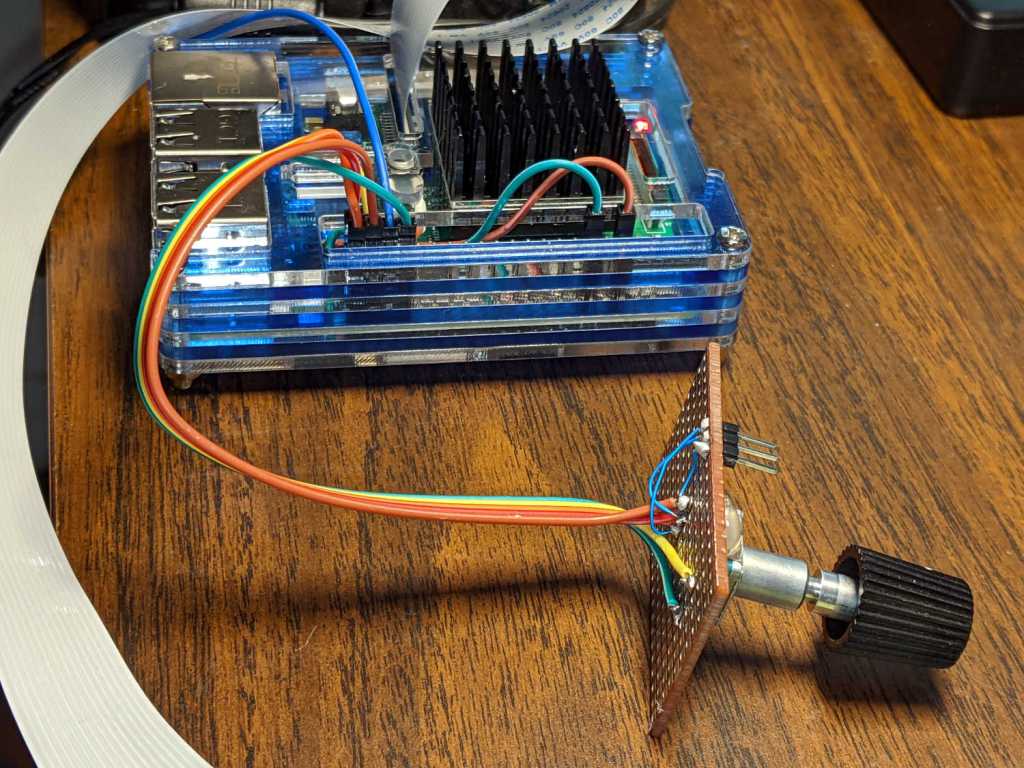
    This obviously calls for a knob and a persistent value!

  • Tour Easy: PTT Switch Cleaning

    Tour Easy: PTT Switch Cleaning

    The switch I installed on Mary’s bike a year ago was intended for indoor use only and, without any trace of weather sealing, recently became intermittent. No surprise, as it’s happened before, but, by regarding my vast assortment of little switches as consumables, we get a low-profile / tactile / E-Z push PTT button without forming a deep emotional attachment.

    Anyhow, you can see the unsealed square perimeter of the switch actuator:

    Tour Easy - PTT button
    Tour Easy – PTT button

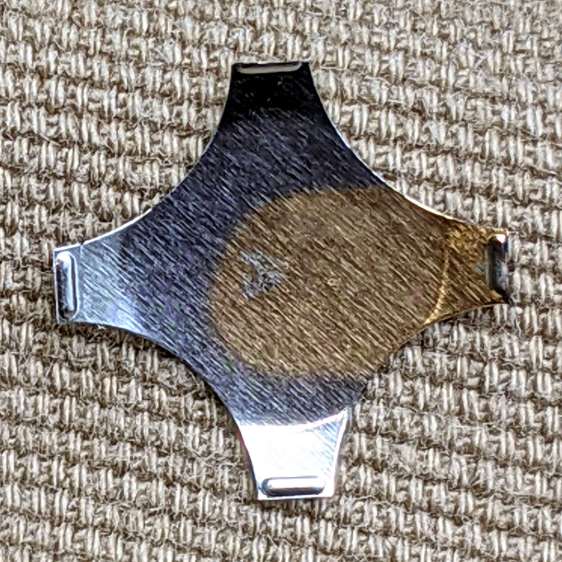
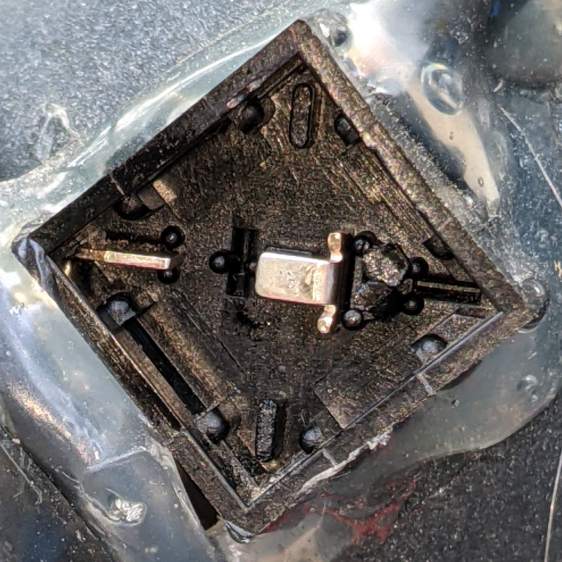
    The light-gray button sits on a post molded into the actuator. Pry the actuator out and the switch dome shows crud worn off the cross-shaped plunger:

    Tour Easy - PTT button - dome plate
    Tour Easy – PTT button – dome plate

    The underside of the dome has a weird golden discoloration that surely wasn’t original:

    Tour Easy - PTT button - dome plate discoloration
    Tour Easy – PTT button – dome plate discoloration

    I have no idea how a liquid (?) could have gotten in there and done that without leaving other traces along the way. The contact bump on the discolored leg had some crud built up around it which responded well to a small screwdriver.

    Contrary to what the symmetrical four-legged dome might suggest, only one leg rests on a contact in a corner:

    Tour Easy - PTT button - contacts
    Tour Easy – PTT button – contacts

    So, yes, a bit of dirt / corrosion / mystery juice in a single spot could render the whole thing intermittent.

    I removed the obvious crud from the obvious spots, wiped everything down with some Caig DeoxIT, reassembled in reverse order, and it seems to be all good again. Of course, these things only fail on the road, so it’ll take a few rides to verify the fix.

  • Raspberry Pi HQ Camera Mount

    Raspberry Pi HQ Camera Mount

    As far as I can tell, Raspberry Pi cases are a solved problem, so 3D printing an intricate widget to stick a Pi on the back of an HQ camera seems unnecessary unless you really, really like solid modeling, which, admittedly, can be a thing. All you really need is a simple adapter between the camera PCB and the case of your choice:

    HQ Camera Backplate - OpenSCAD model
    HQ Camera Backplate – OpenSCAD model

    A quartet of 6 mm M2.5 nylon spacers mount the adapter to the camera PCB:

    RPi HQ Camera - nylon standoffs
    RPi HQ Camera – nylon standoffs

    The plate has recesses to put the screw heads below the surface. I used nylon screws, but it doesn’t really matter.

    The case has all the right openings, slots in the bottom for a pair of screws, and costs six bucks. A pair of M3 brass inserts epoxied into the plate capture the screws:

    RPi HQ Camera - case adapter plate - screws
    RPi HQ Camera – case adapter plate – screws

    Thick washers punched from an old credit card go under the screws to compensate for the case’s silicone bump feet. I suppose Doing the Right Thing would involve 3D printed spacers matching the cross-shaped case cutouts.

    Not everyone agrees with my choice of retina-burn orange PETG:

    RPi HQ Camera - 16 mm lens - case adapter plate
    RPi HQ Camera – 16 mm lens – case adapter plate

    Yes, that’s a C-mount TV lens lurking in the background, about which more later.

    The OpenSCAD source code as a GitHub Gist:

    // Raspberry Pi HQ Camera Backplate
    // Ed Nisley KE4ZNU 2020-09
    //– Extrusion parameters
    /* [Hidden] */
    ThreadThick = 0.25;
    ThreadWidth = 0.40;
    HoleWindage = 0.2;
    function IntegerMultiple(Size,Unit) = Unit * ceil(Size / Unit);
    function IntegerLessMultiple(Size,Unit) = Unit * floor(Size / Unit);
    Protrusion = 0.1; // make holes end cleanly
    inch = 25.4;
    ID = 0;
    OD = 1;
    LENGTH = 2;
    //- Basic dimensions
    CamPCB = [39.0,39.0,1.5]; // Overall PCB size, plus a bit
    CornerRound = 3.0; // … has rounded corners
    CamScrewOC = [30.0,30.0,0]; // … mounting screw layout
    CamScrew = [2.5,5.0,2.2]; // … LENGTH = head thickness
    Standoff = [2.5,5.5,6.0]; // nylon standoffs
    Insert = [3.0,4.0,4.0];
    WallThick = IntegerMultiple(2.0,ThreadWidth);
    PlateThick = Insert[LENGTH];
    CamBox = [CamPCB.x + 2*WallThick,
    CamPCB.y + 2*WallThick,
    Standoff.z + PlateThick + CamPCB.z + 1.0];
    PiPlate = [90.0,60.0,PlateThick];
    PiPlateOffset = [0.0,(PiPlate.y – CamBox.y)/2,0];
    PiSlotOC = [0.0,40.0];
    PiSlotOffset = [3.5,3.5];
    NumSides = 2*3*4;
    TextDepth = 2*ThreadThick;
    //———————-
    // Useful routines
    module PolyCyl(Dia,Height,ForceSides=0) { // based on nophead's polyholes
    Sides = (ForceSides != 0) ? ForceSides : (ceil(Dia) + 2);
    FixDia = Dia / cos(180/Sides);
    cylinder(r=(FixDia + HoleWindage)/2,h=Height,$fn=Sides);
    }
    //———————-
    // Build it
    difference() {
    union() {
    hull() // camera enclosure
    for (i=[-1,1], j=[-1,1])
    translate([i*(CamBox.x/2 – CornerRound),j*(CamBox.y/2 – CornerRound),0])
    cylinder(r=CornerRound,h=CamBox.z,$fn=NumSides);
    translate(PiPlateOffset)
    hull()
    for (i=[-1,1], j=[-1,1]) // Pi case plate
    translate([i*(PiPlate.x/2 – CornerRound),j*(PiPlate.y/2 – CornerRound),0])
    cylinder(r=CornerRound,h=PiPlate.z,$fn=NumSides);
    }
    hull() // camera PCB space
    for (i=[-1,1], j=[-1,1])
    translate([i*(CamPCB.x/2 – CornerRound),j*(CamPCB.y/2 – CornerRound),PlateThick])
    cylinder(r=CornerRound,h=CamBox.z,$fn=NumSides);
    translate([0,-CamBox.y/2,PlateThick + CamBox.z/2])
    cube([CamScrewOC.x – Standoff[OD],CamBox.y,CamBox.z],center=true);
    for (i=[-1,1], j=[-1,1]) // camera screws with head recesses
    translate([i*CamScrewOC.x/2,j*CamScrewOC.y/2,-Protrusion]) {
    PolyCyl(CamScrew[ID],2*CamBox.z,6);
    PolyCyl(CamScrew[OD],CamScrew[LENGTH] + Protrusion,6);
    }
    for (j=[-1,1]) // Pi case screw inserts
    translate([0,j*PiSlotOC.y/2 + PiSlotOffset.y,-Protrusion] + PiPlateOffset)
    PolyCyl(Insert[OD],2*PiPlate.z,6);
    translate([-PiPlate.x/2 + (PiPlate.x – CamBox.x)/4,0,PlateThick – TextDepth/2] + PiPlateOffset)
    cube([15.0,30.0,TextDepth + Protrusion],center=true);
    }
    translate([-PiPlate.x/2 + (PiPlate.x – CamBox.x)/4 + 3,0,PlateThick – TextDepth – Protrusion] + PiPlateOffset)
    linear_extrude(height=TextDepth + Protrusion,convexity=2)
    rotate(-90)
    text("Ed Nisley",font="Arial:style=Bold",halign="center",valign="center",size=4,spacing=1.05);
    translate([-PiPlate.x/2 + (PiPlate.x – CamBox.x)/4 – 3,0,PlateThick – TextDepth – Protrusion] + PiPlateOffset)
    linear_extrude(height=TextDepth + Protrusion,convexity=2)
    rotate(-90)
    text("KE4ZNU",font="Arial:style=Bold",halign="center",valign="center",size=4,spacing=1.05);

  • Raspberry Pi Streaming Video Loopback

    Raspberry Pi Streaming Video Loopback

    As part of spiffing my video presence for SquidWrench Zoom meetings, I put a knockoff RPi V1 camera into an Az-El mount, stuck it to a Raspberry Pi, installed the latest OS Formerly Known as Raspbian, did a little setup, and perched it on the I-beam over the workbench:

    Raspberry Pi - workbench camera setup
    Raspberry Pi – workbench camera setup

    The toothbrush head has a convenient pair of neodymium magnets affixing the RPi’s power cable to the beam, thereby preventing the whole lashup from falling off. The Pi, being an old Model B V 1.1, lacks onboard WiFi and requires a USB WiFi dongle. The white button at the lower right of the heatsink properly shuts the OS down and starts it up again.

    Zoom can show video only from video devices / cameras attached to the laptop, so the trick is to make video from the RPi look like it’s coming from a local laptop device.

    Start by exporting video from the Raspberry Pi:

    raspivid --nopreview -t 0 -rot 180 -awb sun --sharpness -50 --flicker 60hz -w 1920 -h 1080 -ae 48 -a 1032 -a 'RPi Cam1 %Y-%m-%d %X'  -b 1000000 -l -o tcp://0.0.0.0:5000

    The -rot 180 -awb sun --sharpness -50 --flicker 60hz parameters make the picture look better. The bottom of the video image There is no way to predict which side of the video will be on the same side as the cable, if that’s any help figuring out which end is up, and the 6500 K LED tubes apparently fill the shop with “sun”.

    The -l parameter causes raspivid to wait until it gets an incoming tcp connection on port 5000 from any other IP address, whereupon it begins capturing video and sending it out.

    Then, on the laptop, create a V4L loopback device:

    sudo modprobe v4l2loopback devices=1 video_nr=10 exclusive_caps=1 card_label="Workbench"

    Zoom will then include a video source identified as “Workbench” in its list of cameras.

    Now fetch video from the RPi and ram it into the loopback device:

    ffmpeg -f h264 -i tcp://192.168.1.50:5000 -f v4l2 -pix_fmt yuv420p /dev/video10

    VLC knows it as /dev/video10:

    RPi - V4L loopback - screen grab
    RPi – V4L loopback – screen grab

    That’s the edge of the workbench over there on the left, looking distinctly like a cliff.

    The RPi will happily stream video all day long to ffmpeg while you start / stop the display program pulling the bits from the video device. However, killing ffmpeg also kills raspivid, requiring a manual restart of both programs. This isn’t a dealbreaker for my simple needs, but it makes unattended streaming from, say, a yard camera somewhat tricky.

    There appear to be an infinite number of variations on this theme, not all of which work, and some of which rest upon an unsteady ziggurat of sketchy / unmaintained software.

    Addendum: If you have a couple of RPi cameras, it’s handy to run the matching ssh and ffmpeg sessions in screen / tmux / whatever terminal multiplexer you prefer. I find it easier to flip through those sessions with Ctrl-A N, rather than manage half a dozen tabs in a single terminal window. Your mileage may differ.

  • Multimeter Current-sense Resistor

    Multimeter Current-sense Resistor

    Replacing the battery in an old Craftsman (!) multimeter brought its 10 A current-sense resistor into the light:

    Multimeter current resistor - nipped copper wire
    Multimeter current resistor – nipped copper wire

    Unlike the contemporary AN8008/9 meters, it looks like an ordinary copper wire trimmed to the proper resistance by nipping it with a cutter.

    It measures something under 10 mΩ, so I’m sure they adjusted the resistance by applying a known current and watching the meter reading while crunching the wire until the proper value appears.

    I may have actually used the 10 A range, but I’d be hard pressed to say when or why, so the resistor is at least as good as it needs to be!