The Smell of Molten Projects in the Morning

Ed Nisley's Blog: Shop notes, electronics, firmware, machinery, 3D printing, laser cuttery, and curiosities. Contents: 100% human thinking, 0% AI slop.

Category: Electronics Workbench

Electrical & Electronic gadgets

  • Laser Cutter: Rotary Stepper Driver

    Laser Cutter: Rotary Stepper Driver

    Having picked up a small rotary intended for Ortur diode laser machines during Black Friday, I knew using it with my OMTech 60 W CO₂ laser wasn’t going to be plug-n-play. The usual connection for a rotary in a CO₂ laser is directly into the stepper motor driver for the Y axis, so the stepper motor in the rotary must handle the same current as the Y axis motor. The OMTech laser has NEMA 23 steppers set for 3.5 A, which would quickly fry the NEMA 17 stepper in the Ortur rotary.

    So the general idea was to run the rotary from another stepper driver set for an amp or so. A separate driver would also let me choose microstep settings more suitable for a rotary.

    A simple SPDT switch enables the appropriate driver:

    Laser Rotary Enable doodle
    Laser Rotary Enable doodle

    NB: Leaving the ENA pins of a stepper driver disconnected enables the motor output and passing current through them disables the motor; why that function was not labeled DISABLE remains a mystery.

    So the switch looks bassakwards, but it connects the -ENA pin of the disabled driver to GND / common, with its +ENA pin tied to the supply.

    Translating that doodle into hardware required drilling holes in what passes for the laser’s front panel:

    Laser Rotary - control switch
    Laser Rotary – control switch

    The new driver stands up in bottom of the electronics bay:

    Laser Rotary - R driver - detail
    Laser Rotary – R driver – detail

    The loose wire over on the left is a remnant of the discovery that the KT332N controller’s General output bits do not behave as expected. While you (well, I) can set their state through the display’s MENU → DIAGNOSES screen, the controller unilaterally slams them low = active while running a job. To be fair, the manual does say “General output, reserved”, but I had to find out the hard way.

    The +ENA terminal comes from the +5V supply, along with the other + terminals. The -ENA terminal goes off to the switch, along with two wires from the existing Y axis stepper driver:

    Laser Rotary - Y driver wiring
    Laser Rotary – Y driver wiring

    The 1.8 kΩ resistor sticks out of a ferrule doubled up in the 24V terminal feeding the driver and connects to a wire into the +ENA terminal. Two wires from the switch connect to the -ENA and GND terminals, join the -ENA wire from the rotary driver, and crawl through the machine to the front panel.

    The new power supply on the far right completes the electronics bay installation:

    Laser Rotary - electronics bay
    Laser Rotary – electronics bay

    Obviously, the wiring situation is completely out of control.

    Up top, though, it looks like it grew there:

    Laser Rotary - on platform
    Laser Rotary – on platform

    Now, to figure out the settings …

  • Laser Cutter: New 24 V Power Supply

    Laser Cutter: New 24 V Power Supply

    Unlike the OEM 24 V supply in the laser, the “new” supply from my heap does not have mounting flanges; it’s intended to be attached to a mounting plate from the back side. It turns out the laser does have a mounting plate with All The Things screwed onto it, but there is no way I am going to disconnect all the wiring just to drill four more holes in that plate.

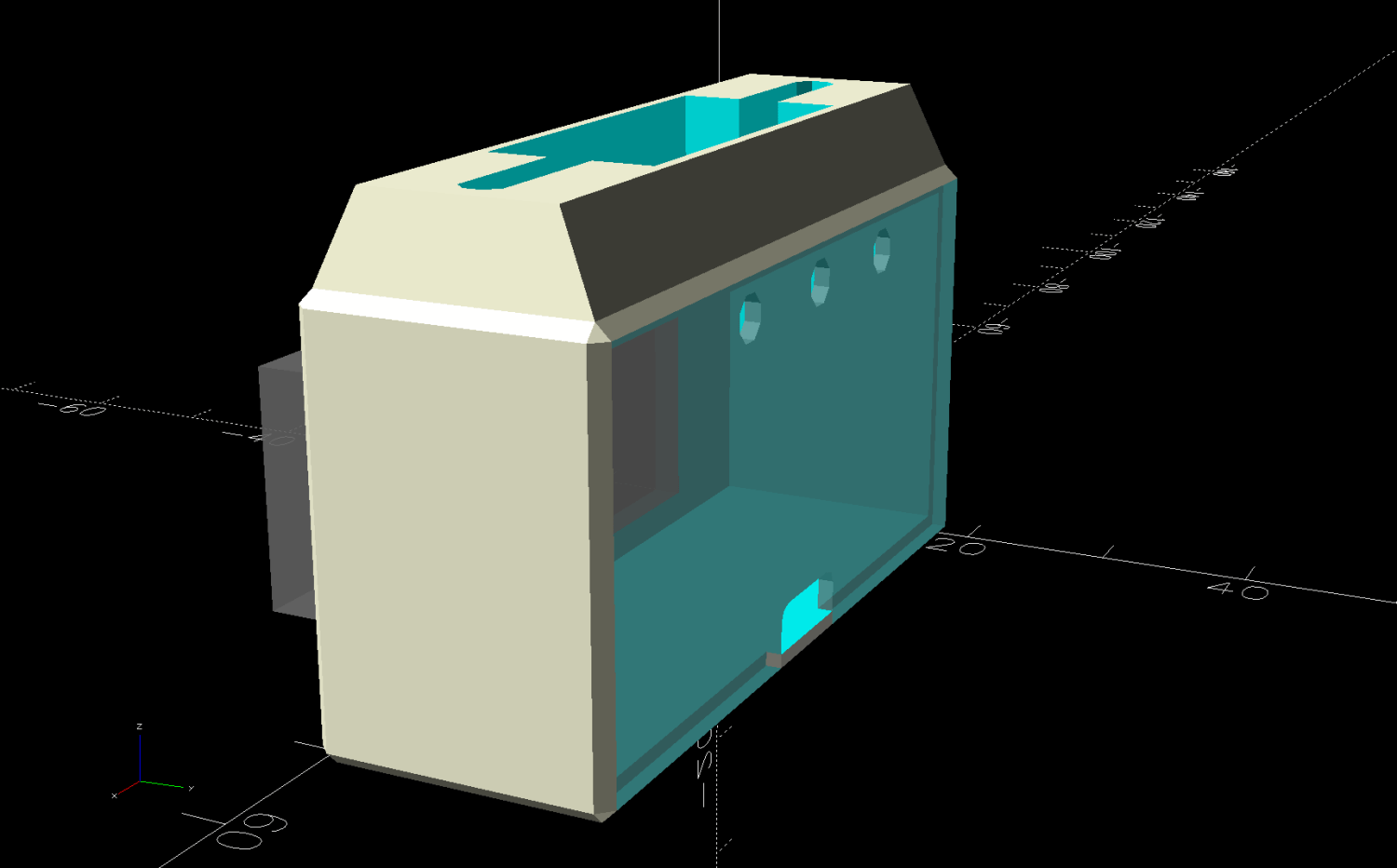
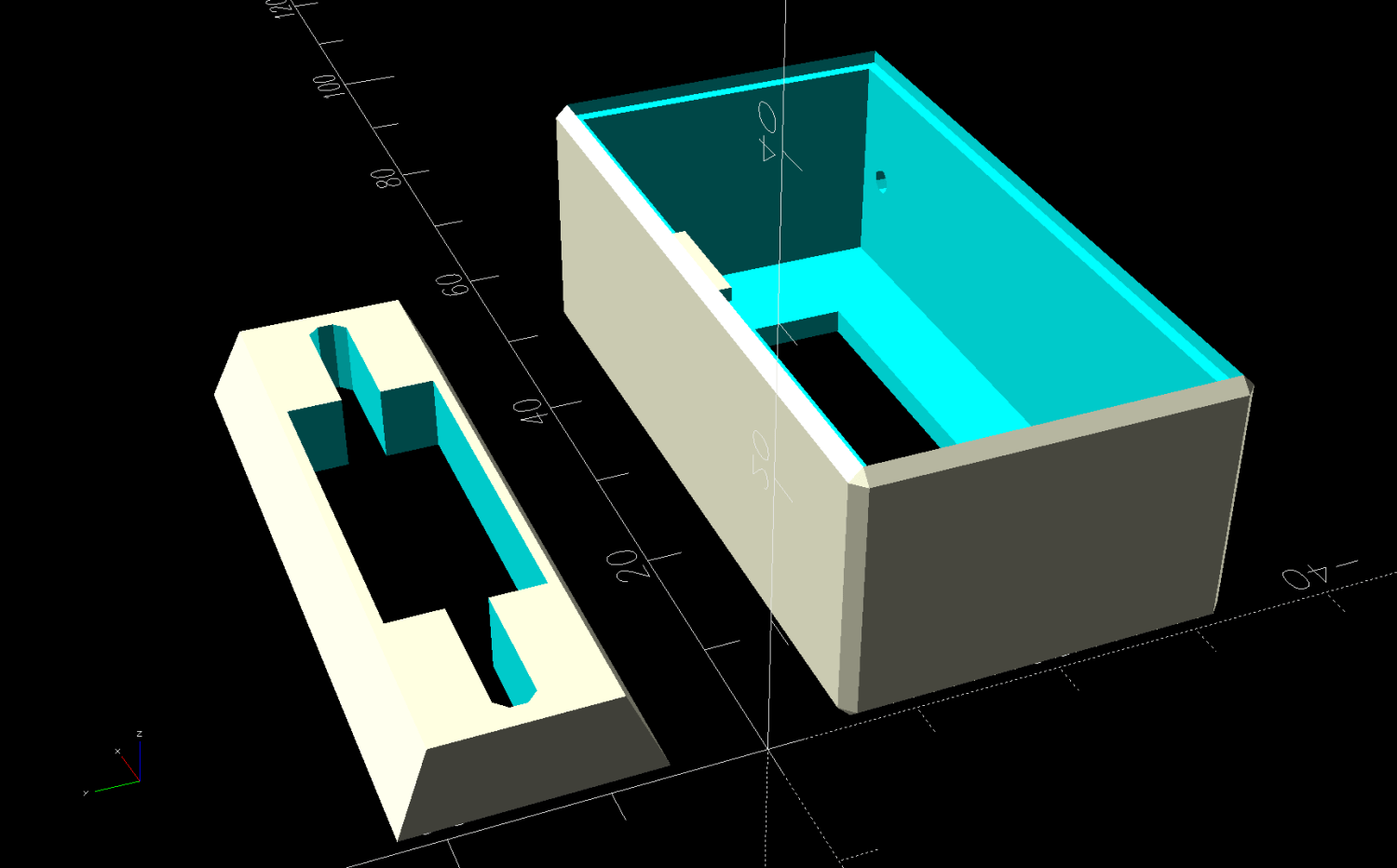
    So I made a pair of brackets to screw into the back of the supply and then into suitable holes in the mounting plate:

    Laser 24V Power Supply Mount - solid model
    Laser 24V Power Supply Mount – solid model

    Which look like this in real life:

    Laser 24V Power Suppy - mounts installed
    Laser 24V Power Suppy – mounts installed

    Those M4 rivnuts just beg for 6 mm holes in the mounting plate.

    However, it turns out that their unsquished length exceeds the distance behind the panel, which means there’s no way to install them flush to the panel with the proper backside squish.

    So:

    • Loosen the four bolts holding the panel to the machine frame
    • Ease it forward a bit
    • Tuck 6 mm acrylic scraps behind all four corners
    • Snug the bolts again to hold the plate against the acrylic with plenty of room behind it

    The OpenSCAD code generates a simpleminded drill template:

    Laser 24V Power Suppy - drill template
    Laser 24V Power Suppy – drill template

    Press a scrap of rubber firmly against the plate to dampen vibrations and thwack each hole with an automatic center punch set to stun. Deploy a succession of drills up through 6 mm, catching most of the swarf in tape strips:

    Laser 24V Power Suppy - drill chip catchers
    Laser 24V Power Suppy – drill chip catchers

    Squish the rivnuts in place:

    Laser 24V Power Suppy - rivnuts in place
    Laser 24V Power Suppy – rivnuts in place

    The small, vaguely tapped hole on the lower right was the “good” screw for the OEM power supply; the “bad” screw hole is invisible to the upper left, just under the raceway.

    Install the power supply and it looks like it grew there:

    Laser 24V Power Suppy - installed
    Laser 24V Power Suppy – installed

    The wires and Wago connectors scrunched underneath aren’t anything to be proud of, but longer wires didn’t seem likely to improve the outcome.

    The OpenSCAD source code as a GitHub Gist:

    // Mount for 24 V laser power supply
    // Ed Nisley – KE4ZNU
    // 2025-12-07
    include <BOSL2/std.scad>
    Layout = "Show"; // [Show,Build,Guide,Block]
    /* [Hidden] */
    ID = 0;
    OD = 1;
    LENGTH = 2;
    HoleWindage = 0.2;
    Protrusion = 0.1;
    NumSides = 2*3*4;
    $fn=NumSides;
    Gap = 5.0;
    Rivnut = [4.0,6.0,9.0]; // body + head OD
    RivnutHead = [6.0,10.0,1.0]; // flat head
    WallThick = 6.0; // a bit more than half rivnut head OD
    SupplyCase = [50.0,215.0,112.0]; // power supply case size
    SupplyOC = [25.0,150.0,0]; // power supply mounting screw centers
    SupplyOffset = -1.0; // the screws are not centered on the case!
    SupplyScrew = [4.0,9.0,4.0]; // … LENGTH outside supply case
    MountOC = SupplyCase.x + 2*WallThick;
    MountScrewLength = 8.0; // … head-to-baseplate
    MountRadius = 0.5;
    BlockOA = [MountOC + 2*WallThick, 2*WallThick, MountScrewLength];
    GuideOD = 2.0;
    //—–
    // Single mounting block
    module MountBlock() {
    difference() {
    cuboid(BlockOA,chamfer=MountRadius,except=BOTTOM,anchor=BOTTOM);
    for (i = [-1,1]) {
    right(i*MountOC/2) {
    cyl(2*RivnutHead[LENGTH],d=RivnutHead[OD],circum=true,anchor=CENTER);
    cyl(2*BlockOA.z,d=Rivnut[ID] + HoleWindage,circum=true,anchor=BOTTOM);
    }
    right(i*SupplyOC.x/2 + SupplyOffset) {
    down(SupplyScrew[LENGTH])
    cyl(BlockOA.z,d=SupplyScrew[OD] + HoleWindage,circum=true,anchor=BOTTOM);
    cyl(2*BlockOA.z,d=SupplyScrew[ID] + HoleWindage,circum=true,anchor=BOTTOM);
    }
    }
    }
    }
    //—–
    // Guide holes in a 2D layout
    module DrillGuide() {
    difference() {
    square([BlockOA.x,SupplyOC.y + BlockOA.y],center=true);
    for (j=[-1,1])
    fwd(j*SupplyOC.y/2)
    for (i = [-1,1]) {
    right(i*MountOC/2) {
    circle(d=GuideOD);
    }
    }
    }
    }
    //—–
    // Build things
    if (Layout == "Block")
    MountBlock();
    if (Layout == "Guide")
    DrillGuide();
    if (Layout == "Show") {
    for (j=[-1,1])
    fwd(j*SupplyOC.y/2)
    MountBlock();
    color("Gray",0.5)
    up(BlockOA.z)
    cuboid(SupplyCase,anchor=BOTTOM);
    }
    if (Layout == "Build") {
    for (j=[-1,1])
    fwd(j*(BlockOA.y/2 + Gap/2))
    up(BlockOA.z) zflip()
    MountBlock();
    }

  • Laser Cutter: OEM 24 V Power Supply Annoyances

    Laser Cutter: OEM 24 V Power Supply Annoyances

    In the process of replacing the laser cutter’s OEM 24 V 6 A power supply with a 15 A supply, one of the two screws holding it in place remained stuck in the underlying sheet metal plate:

    Laser OEM 24V Power Suppy - installed
    Laser OEM 24V Power Suppy – installed

    You can’t see either of the screws from that position, but they’re in the upper-left and lower-right corners. The offending screw is, of course, on the top, tucked between the top of the supply and the wire raceway. The bottom screw came out easily and I could maneuver the supply out of the way.

    Vigorous persuasion involving a bent-nose pliers and muttering got the screw out and revealed the problem:

    Laser OEM 24V Power Suppy - stripped screw
    Laser OEM 24V Power Suppy – stripped screw

    The reason why the screwdriver didn’t get much traction in the head also became obvious:

    Laser OEM 24V Power Suppy - goobered screw head
    Laser OEM 24V Power Suppy – goobered screw head

    Folks on the LightBurn forum seem astonished when they discover their fresh-from-the-factory has loose screws, missing screws, and occasionally the wrong screws.

    I always wondered where the switch pointed to by the conspicuous label might be:

    Laser OEM 24V Power Suppy - voltage label
    Laser OEM 24V Power Suppy – voltage label

    Unlike most supplies, it’s inside the case:

    Laser OEM 24V Power Suppy - voltage switch
    Laser OEM 24V Power Suppy – voltage switch

    After you spot it, you can also find it just below the tip of the arrow in the previous picture. I suppose putting it inside the case prevents it from being inadvertently flipped, but somebody had to dismantle All. The. Supplies. to flip that switch for the USA-ian market.

    The dataplate also became visible:

    Laser OEM 24V Power Suppy - dataplate
    Laser OEM 24V Power Suppy – dataplate

    You’ll recall the 5 V 2 A output was dedicated to the red-dot pointer drawing about 20 mA.

    In contrast, the 24 V 6 A output handled:

    • X axis stepper driver: 3.5 A peak
    • Y axis stepper driver: 3.5 A peak
    • U axis stepper driver: 5.1 A peak
    • KT332N controller &c: 1 or 2 A
    • Gantry LED strip: 0.25 A

    The stepper drivers are set to drop the motor current by half when they’re idle, which means their load would be only around 6 A. That’s as delivered to the motor windings, with the power supply’s average current being lower by roughly the ratio between the motor’s rated voltage and the power supply voltage. The instantaneous peak current, however, is the sum of all those currents.

    At some point I must measure all that, but for now I want to shoehorn a bigger supply in there to take care of the additional load of the rotary stepper driver, plus the existing platform lighting and improved electronics bay blower.

  • OMTech 60 W Laser: Revised Red-Dot Pointer Power

    OMTech 60 W Laser: Revised Red-Dot Pointer Power

    The OMTech 60 W laser has a 24 V + 5 V power supply for the stepper motors and, I had always assumed, the feeble LED strip light on the gantry:

    OMTech 60W laser - OEM lighting
    OMTech 60W laser – OEM lighting

    The stepper motor driver settings, plus a few amps for the controller and suchlike, added up to something over 12 A, far more than the 24 V supply’s 6 A spec should produce. When I added the COB strip lights around the platform, I dropped a 24 V wall wart into the electronics bay to avoid abusing that poor supply:

    OMTech 60W laser - COB LED strips
    OMTech 60W laser – COB LED strips

    For reasons to be described later, it’s now time to upgrade that 24 V power supply to a 15 A supply that’s been on the shelf for far too long. However, it does not have a 5 V output, so it’s also time to figure out how much 5 V power the laser really needs.

    A quick measurement suggested the 5 V output delivered 20 mA to something. After convincing myself the multimeter was working and that the gantry LED strip was still lit, I finally tracked the wire pair to the red-dot pointer:

    OMTech red dot pointer - polarizing filter installed
    OMTech red dot pointer – polarizing filter installed

    Yeah, a whole dual-output power supply for one red-dot laser module.

    Conveniently, the KT332N controller has several 5 V outputs and the LIMIT terminal block even has a GND terminal on the other end:

    KT332N Limit Terminals - OEM
    KT332N Limit Terminals – OEM

    Prying off the hot melt glue, extracting the red-dot pointer wiring from the raceway, crimping ferrules on a couple of jumpers, and deploying a pair of Wago connectors:

    KT332N Limit Terminals - red dot wiring
    KT332N Limit Terminals – red dot wiring

    I am still not accustomed to the color code:

    • Black = signal
    • Brown = power
    • Blue = GND

    But it’s like that and that’s the way it is.

    The red dot lit right up, the gantry LED strip obviously uses 24 V power, and I must shoehorn a slightly larger 24 V supply into the space currently occupied by the old supply.

  • LED Failures Out On The Road

    LED Failures Out On The Road

    Perhaps there’s something to redundancy after all:

    Truck - failing LED brake lights
    Truck – failing LED brake lights

    The four light fixtures serve as both tail lights and brake lights. This was at an intersection, we were both stopped for the traffic signal, and all those LEDs should have been glowing brightly.

    AFAICT, each light fixture has 20 LEDs with a third to a half either dead or dying.

    I wonder if those are replacement fixtures, installed on the promise they’d last forever, when the original incandescent bulbs burned out …

  • AC Power / Energy Meter

    AC Power / Energy Meter

    A surprisingly competent AC power-line voltage / current / energy / power meter fits neatly into a mud ring atop a 4×4 inch square electrical box:

    AC Power Meter - assembled
    AC Power Meter – assembled

    The inside view shows the wiring, such as it is:

    AC Power Meter - interior
    AC Power Meter – interior

    The square black block is the split-core current transformer around the hot line wire, which sticks up just enough in any orientation to require an extension ring, thus a second trip to the Big Box store.

    The mud ring has two tabs with threaded screw holes for the device (switch / GFCI / whatever): grab those with a Vise-Grip, flex until they break off, then file down the stub.

    Generous globs of hot-melt glue secure the meter in the mud ring. I added a strip of duct tape under the connections in the hope it might avert disaster should either of the AC wires come loose, but my real hope is in the safety ground to the metal box.

    The line cord comes from the Box o’ IEC cords, minus its IEC connector, plus the bright yellow USA-ian connector.

    Yes, the three metal box pieces and the Leviton connector cost far more than the meter.

    Not to code, but good enough for my purposes.

  • Tour Easy: Garage Door Remote Mount

    Tour Easy: Garage Door Remote Mount

    It turns out that keeping the garage door remote clipped to the starboard underseat pack on my Tour Easy attenuated its RF enough that even the directed receiver antenna couldn’t grab enough signal until I rolled onto the end of the driveway.

    While contemplating what’s involved in making a 3D model of the remote’s curved backside, I realized the bike already had a perfect spot:

    Tour Easy Zzipper Fairing - block mount
    Tour Easy Zzipper Fairing – block mount

    A few strips of good outdoor-rated foam tape later:

    Tour Easy - garage door opener mount
    Tour Easy – garage door opener mount

    Believe it or not, the camera is looking through the year-old and unwashed fairing on my bike.

    Stipulated: aligning the PCB antenna flat against a small aluminum plate atop a bunch of aluminum bars isn’t perfect. However, enough RF wriggles out to trigger our opener from four houses down the hill, giving it plenty of time to haul the door out of my way.

    That was trivial …