The Smell of Molten Projects in the Morning

Ed Nisley's Blog: Shop notes, electronics, firmware, machinery, 3D printing, laser cuttery, and curiosities. Contents: 100% human thinking, 0% AI slop.

Author: Ed

  • Whirlpool Refrigerator: Replacement Freezer Shelf Bracket

    Somehow, one of the brackets that supports the small shelf inside the freezer of our Whirlpool refrigerator went missing over the many intervening years and repairs; we never used that shelf and stashed it in a closet almost immediately after getting the refrigerator, so not having the bracket didn’t matter. We recently set up a chest freezer in the basement for all the garden veggies that used to fill all the space available and decided to (re-)install the shelf, which meant we needed a bracket.

    It’s impossible to figure out exactly which “shelf stud” in that list would solve the problem, but one of the upper-left pair in that set seems to be about right. On the other paw, I don’t need all the other brackets and doodads and screws, sooo… I can probably make one.

    Start with a few measurements, then doodle up the general idea:
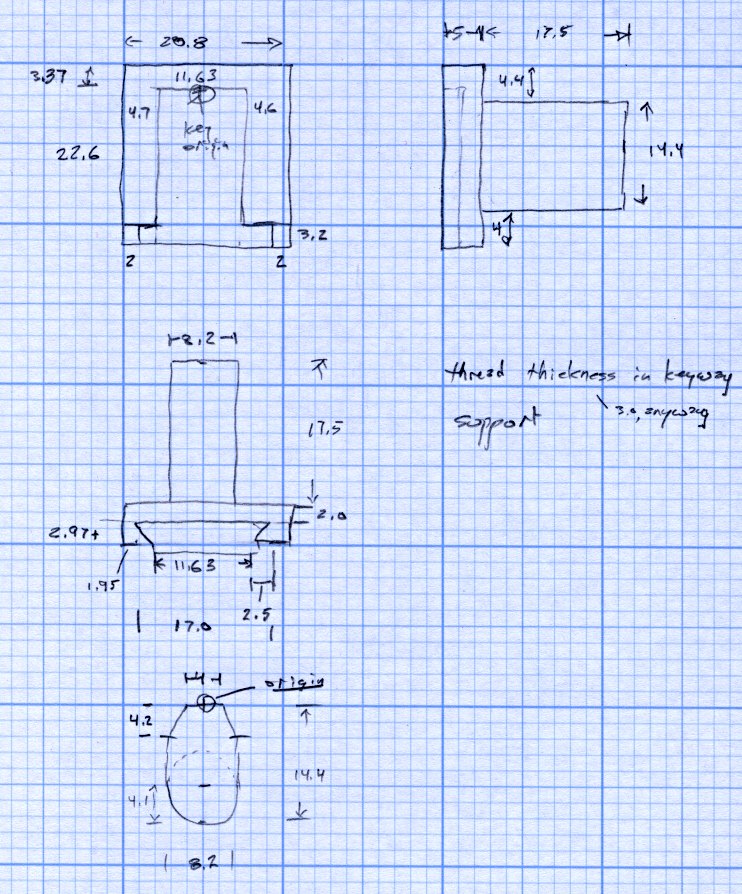
    Refrigerator Bracket - dimension doodle
    Refrigerator Bracket – dimension doodlet’s time to conjure up a solid model:

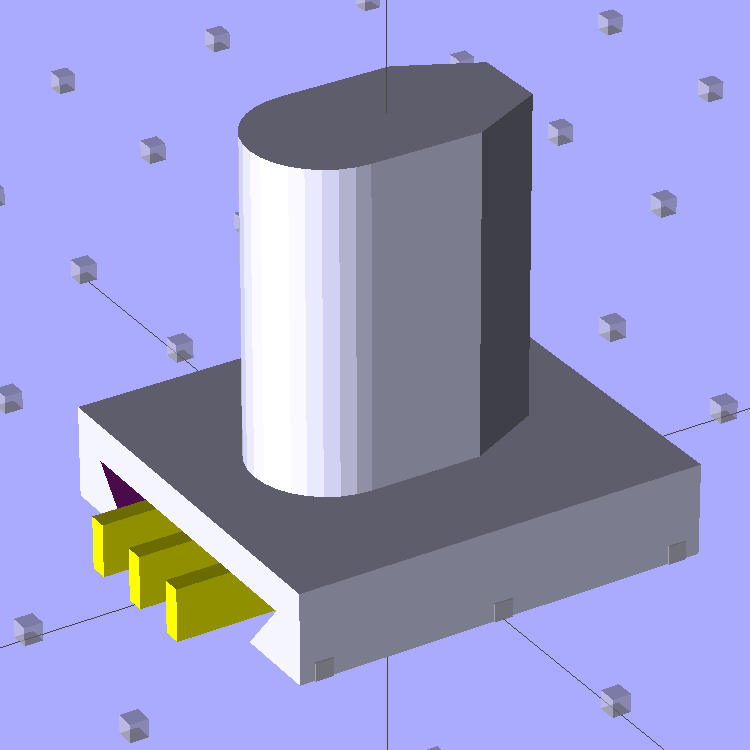
    A bit of OpenSCAD solid modeling:

    Refrigerator Bracket Pin - solid model
    Refrigerator Bracket Pin – solid model

    The yellow bars support the ceiling of that big dovetail, which would otherwise sag badly. The OEM bracket has nicely rounded corners on the base and a bit of an overall radius at the end of the post; this was pretty close and easier to do.

    Now it’s time to Fire the Thing-O-Matic…

    I switched from blue to white filament during the print, because I figured I’d print another one after I got the sizes right, so it emerged with an attractive blue base:
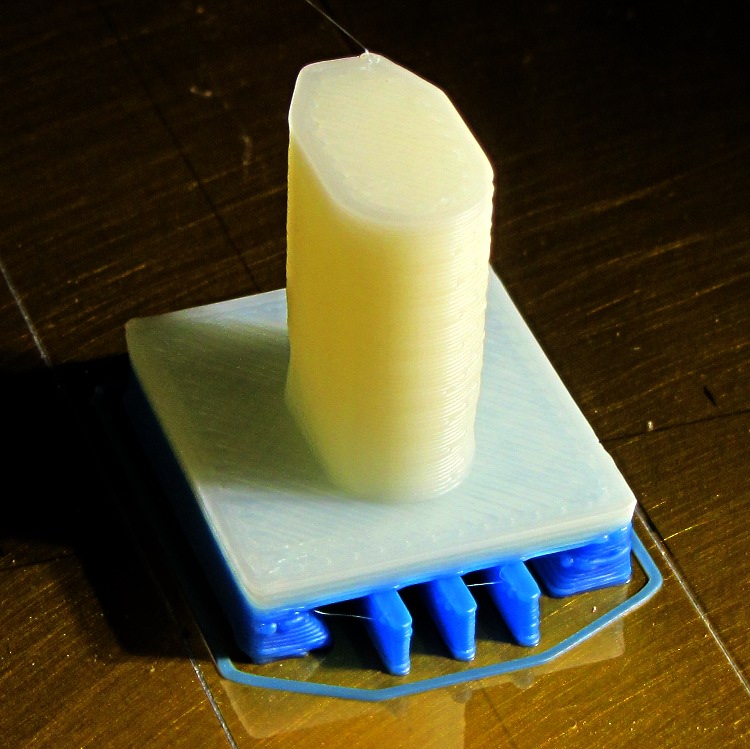
    Bracket on build platform
    Bracket on build platform

    A better view of the support structure:

    Bracket - dovetail support structure
    Bracket – dovetail support structure

    Two of the bars snapped off cleanly, but the third required a bit of scraping:
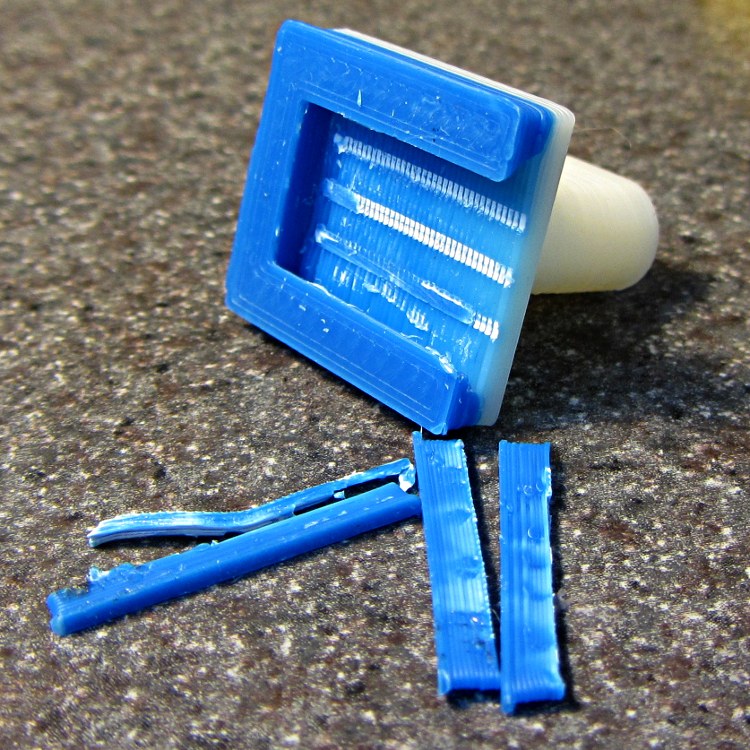
    Bracket - support scars
    Bracket – support scars

    Somewhat to my surprise, Prototype 001 slipped snugly over the matching dovetail on the freezer wall, with about the same firm fit as the OEM brackets:

    Refrigerator bracket - installed
    Refrigerator bracket – installed

    And it works perfectly, apart from that attractive blue base that I suppose we’ll get used to after a while:
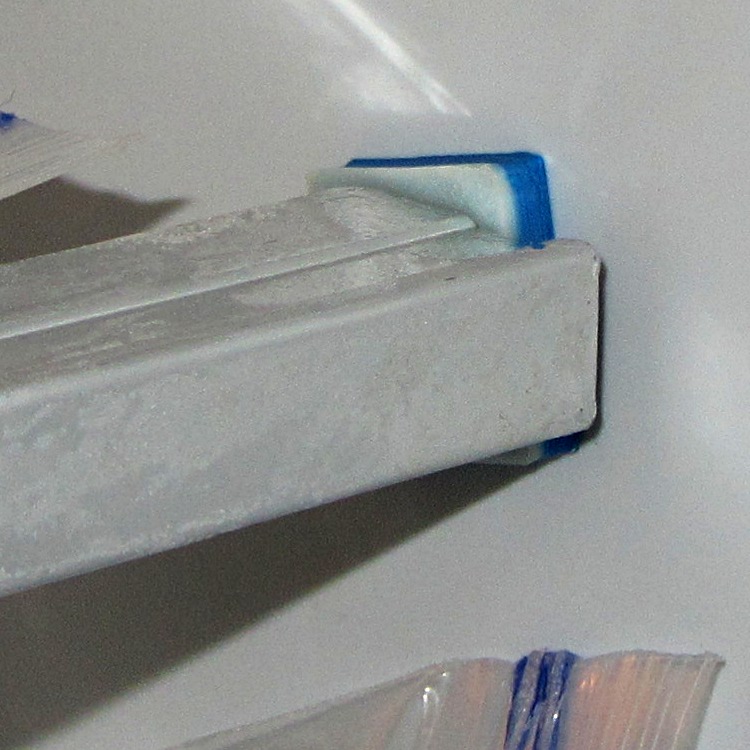
    Refrigerator bracket - in use
    Refrigerator bracket – in use

    I have no idea whether ABS is freezer-rated. It seems strong enough and hasn’t broken yet, so we’ll declare victory and keep the source code on tap.

    The whole project represents about an hour of hammering out OpenSCAD code for the solid model and another hour of printing, which means I’d be better off to just buy the parts kit and throw away the unused bits. Right?

    I loves me my Thing-O-Matic…

    The OpenSCAD source code:

    // Shelf support bracket
    // for Whirlpool freezer
    // Ed Nisley KE4ZNU Octoboer 2012
    
    //include </mnt/bulkdata/Project Files/Thing-O-Matic/MCAD/units.scad>
    //include </mnt/bulkdata/Project Files/Thing-O-Matic/Useful Sizes.scad>
    
    // Layout options
    
    Layout = "Build";
     // Overall layout: Show Build
     // Printing plates: Build
     // Parts: Post Base Keystone Support
    
    ShowGap = 10; // spacing between parts in Show layout
    
    //- Extrusion parameters must match reality!
    // Print with +1 shells and 3 solid layers
    
    ThreadThick = 0.25;
    ThreadWidth = 2.0 * ThreadThick;
    
    HoleWindage = 0.2;
    
    function IntegerMultiple(Size,Unit) = Unit * ceil(Size / Unit);
    
    Protrusion = 0.1; // make holes end cleanly
    
    //----------------------
    // Dimensions
    
    PostLength = 17.5;
    PostWidth = 8.2;
    PostHeight = 14.4;
    PostOffset = 4.4;
    
    PostTopWidth = 4.0;
    PostTopHeight = 4.2;
    
    BaseLength = 22.6;
    BaseWidth = 20.8;
    BaseThick = 5.0;
    
    KeystoneOffset = 3.4;
    KeyThick = IntegerMultiple(3.0,ThreadThick);
    KeyBase = 2.5;
    SlotOpening = 11.63;
    //----------------------
    // Useful routines
    
    module PolyCyl(Dia,Height,ForceSides=0) { // based on nophead's polyholes
    
    Sides = (ForceSides != 0) ? ForceSides : (ceil(Dia) + 2);
    
    FixDia = Dia / cos(180/Sides);
    
    cylinder(r=(FixDia + HoleWindage)/2,
     h=Height,
     $fn=Sides);
    }
    
    module ShowPegGrid(Space = 10.0,Size = 1.0) {
    
     Range = floor(50 / Space);
    
     for (x=[-Range:Range])
     for (y=[-Range:Range])
     translate([x*Space,y*Space,Size/2])
     %cube(Size,center=true);
    
    }
    
    //-------------------
    // Component parts
    
    //--- Post
    
    module Post(h=PostLength) {
    
    PostTopAngle = atan((PostWidth - PostTopWidth)/(2*PostTopHeight));
    PostBottomRadius = PostWidth/2;
    
    PostPolyTop = [PostTopWidth/2,0];
    PostPolyBottom = [PostWidth/2,-PostTopHeight];
    
    hull() {
     linear_extrude(height=h) {
     polygon(points=[
     [-PostPolyTop[0],PostPolyTop[1]],
     PostPolyTop,
     PostPolyBottom,
     [-PostPolyBottom[0],PostPolyBottom[1]]
     ]);
     translate([0,-PostHeight + PostBottomRadius])
     circle(r=PostBottomRadius,$fn=4*8);
     }
     }
    }
    
    //--- Base block
    
    module Base() {
    
     linear_extrude(height=BaseThick)
     square([BaseWidth,BaseLength],center=true);
    
    }
    
    //-- Keystone slot
    
    module Keystone() {
    
    Tx = SlotOpening/2 + KeyBase;
    
     rotate([90,0,0])
     linear_extrude(height=BaseLength)
     polygon(points=[
     [-Tx,KeyThick],
     [ Tx,KeyThick],
     [ SlotOpening/2,0],
     [ SlotOpening/2,-Protrusion],
     [-SlotOpening/2,-Protrusion],
     [-SlotOpening/2,0]
     ]);
    }
    
    //--- Support structure
    
    module Support() {
    
    SupportLength = BaseLength - 2*ThreadWidth;
    SupportWidth = 2*ThreadWidth;
    SupportHeight = KeyThick - Protrusion;
    
    SupportPeriod = 7.0*ThreadWidth;
    
    SupportBeams = 3; // must be odd -- choose to fit
    SIndex = floor((SupportBeams - 1)/2);
    
    for (i=[-SIndex:SIndex])
     translate([(i*SupportPeriod - SupportWidth/2),-(SupportLength + ThreadWidth),0])
     color("Yellow") cube([SupportWidth,SupportLength,SupportHeight]);
    }
    
    //--- The whole thing!
    
    module Bracket(ShowSupp) {
    
     union() {
     difference() {
     Base();
     translate([0,(BaseLength/2 - KeystoneOffset),0])
     Keystone();
     }
     translate([0,(BaseLength/2 - PostOffset),BaseThick - Protrusion])
     Post(h=(PostLength + Protrusion));
     }
    
     if (ShowSupp)
     translate([0,(BaseLength/2 - KeystoneOffset),0])
     Support();
    
    }
    
    //----------------------
    // Build it!
    
    ShowPegGrid();
    
    if (Layout == "Show")
     Bracket(false);
    
    if (Layout == "Build")
     Bracket(true);
    
    if (Layout == "Post")
     Post();
    
    if (Layout == "Base")
     Base();
    
    if (Layout == "Keystone")
     Keystone();
    
    if (Layout == "Support") {
     Support();
    % Keystone();
    }
    
  • Arduino Digital Output Drive vs. Direct-connected LEDs

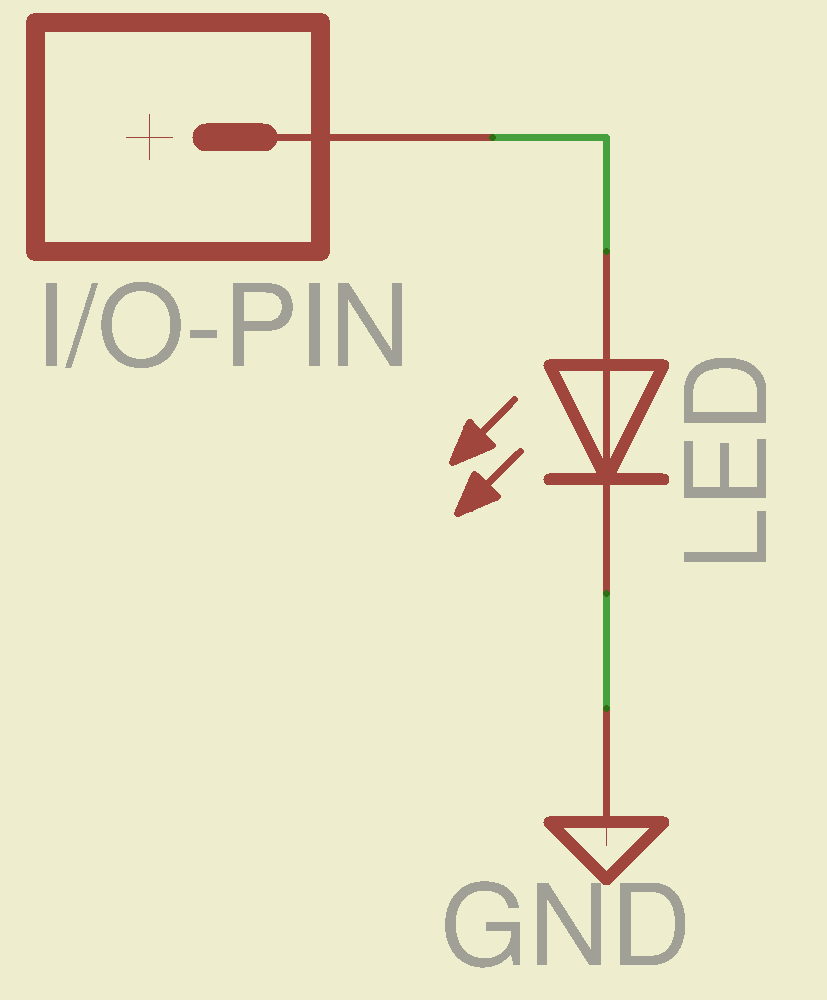
    What happens when you jam an LED into an Arduino digital output and turn it on?

    Direct LED drive - no ballast resistor
    Direct LED drive – no ballast resistor

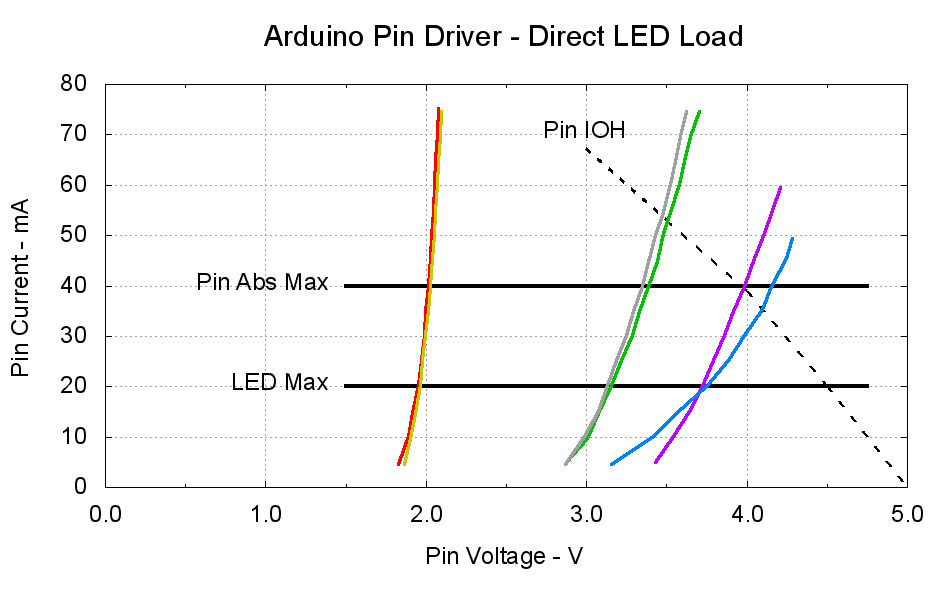
    This plot gives the load-line solution for that situation:

    Arduino Pin Driver - Direct LED Load
    Arduino Pin Driver – Direct LED Load

    The dotted curve comes from Figure 29-22 of the ATmega168 datatsheet and shows the typical source current vs. voltage for a digital output pin on your favorite Arduino.

    The cheerful colored curves show the current vs. voltage characteristics of some random LEDs, with data from the same curve tracer setup as those.

    Given a particular LED directly connected between an Arduino output pin and circuit common (without the formality of a current-limiting ballast resistor), the intersection of the dotted output pin curve with the colored LED curve gives you the current & voltage at the pin. For example, the violet LED would operate at 4 V and 40 mA.

    Some gotchas:

    • Typical 5 mm LEDs, of the sort one might use for this experiment, have a maximum DC current limit of 20 mA
    • Arduino output pins have an absolute maximum current limit of 40 mA

    So all of the direct solutions drive too much current through the LED. Although the blue and violet LEDs don’t quite exceed the output pin limit, the others certainly do. Those old standby red & amber LEDs would have absurdly high intercepts, well beyond the limit of sanity, in the region where the data you see here breaks down, where the pin driver gives up and goes poof, not that that ever stopped anybody from trying.

    You’ve probably seen somebody do it. Next time, aim ’em here in a non-confrontational manner… [grin]

    My Arduino Survival Guide presentation has other info that may help that poor sweating Arduino survive. You don’t get my performance-art patter, but the pictures and captions should carry the tale…

    As part of conjuring up this plot, I discovered that, for whatever reason, Gnuplot’s TrueType font rendering (via gdlib) no longer works in Xubuntu 12.04: the font name has no effect whatsoever, but the point size does.

    The Gnuplot source code:

    #!/bin/sh
    #-- overhead
    export GDFONTPATH="/usr/share/fonts/truetype/msttcorefonts"
    Pinfile="ATmega Pin Driver Data - Source.csv"
    LEDfile="LED Data.csv"
    base="Arduino Pin Driver - Direct LED Load"
    Outfile="${base}.png"
    echo Output file: ${Outfile}
    fontname="Arial"
    echo Font: ${fontname}
    #-- do it
    gnuplot << EOF
    #set term x11
    set term png font "${fontname},18" size 950,600
    set output "${Outfile}"
    set title "${base}" font "${fontname},22"
    set key noautotitles
    unset mouse
    set bmargin 4
    set grid xtics ytics
    set xlabel "Pin Voltage - V"
    set format x "%4.1f"
    set xrange [0:${vds_max}]
    #set xtics 0,5
    set mxtics 2
    #set ytics nomirror autofreq
    set ylabel "Pin Current - mA"
    #set format y "%4.1f"
    set yrange [0:80]
    #set mytics 2
    #set y2label "Drain Resistance - RDS - mohm"
    #set y2tics nomirror autofreq ${rds_tics}
    #set format y2 "%3.0f"
    #set y2range [0:${rds_max}]
    #set y2tics 32
    #set rmargin 9
    set datafile separator "\t"
    set label "Pin IOH" at 3.0,70 center font "${fontname},18"
    set label "Pin Abs Max" at 1.4,40 right font "${fontname},18"
    set arrow from 1.5,40 to 4.75,40 lw 4 nohead
    set label "LED Max" at 1.4,20 right font "${fontname},18"
    set arrow from 1.5,20 to 4.75,20 lw 4 nohead
    plot \
    "${Pinfile}" using 1:3 with lines lt 0 lw 3 lc -1 ,\
    "${LEDfile}" using (\$5/1000):((\$1>0)?\$2/1000:NaN) index 0:0 with lines lw 3 lc 1 ,\
    "${LEDfile}" using (\$5/1000):((\$1>0)?\$2/1000:NaN) index 1:1 with lines lw 3 lc 2 ,\
    "${LEDfile}" using (\$5/1000):((\$1>0)?\$2/1000:NaN) index 2:2 with lines lw 3 lc 0 ,\
    "${LEDfile}" using (\$5/1000):((\$1>0)?\$2/1000:NaN) index 3:3 with lines lw 3 lc 4 ,\
    "${LEDfile}" using (\$5/1000):((\$1>0)?\$2/1000:NaN) index 4:4 with lines lw 3 lc 3 ,\
    "${LEDfile}" using (\$5/1000):((\$1>0)?\$2/1000:NaN) index 5:5 with lines lw 3 lc 7
    EOF
    

    A few early risers got to see a completely broken listing, with all the quotes and brackets and suchlike reduced to the usual HTML escaped gibberish…

  • Monthly Subconscious: Rubbery Worm

    I would Just Say No:

    Smoke rubbery worm & twitch
    Smoke rubbery worm & twitch

    In text:

    smoke rubbery worm & twitch

  • Philips Sonicare: Replacement Battery Life

    After that rebuild, the first five recharges went like this: 21, 21, 21, 23, and 20 days. The last interval included seven days of vacation, during which the battery suffered just the usual self-discharge common to NiMH cells.

    That’s about what the OEM battery delivered, back when it was new, so the new 600 mA·h cells seem to be about the right capacity. Obviously, the end of the OEM battery wasn’t nearly so pretty.

    In round numbers, the wireless charger requires one hour to restore the energy drawn by one two-minute brushing: the thing charges for about 21 hours. There’s additional loss from three weeks of self-discharge in there: if 7 days of non-use = 1 brushing, then the usual 21 days = 3 brushings -> 14% loss due to self-discharge.

    I’d take a large grain of salt with those numbers…

  • Recommended Tool: Bosch GLR225 Laser Rangefinder

    I’ve been doing some amateur surveying in preparation for the long-awaited driveway paving project, just to see where the property boundaries might be, and this Bosch GLR225 laser rangefinder makes it wonderfully easy to measure distances:

    Bosch GLR225 Laser Rangefinder
    Bosch GLR225 Laser Rangefinder

    It’s good up to 230 feet = 70 meters, which means you can measure a sizable chunk of property in one shot. It reads down to 2 inches with 1/16 inch accuracy / resolution (call it 50 mm and 1.5 mm), so one could use it for setups in the shop. It can solve right triangles, which means you can measure distances with an obstruction in the middle, and has a few other tricks. Other rangefinders evidently have more tricks, but I favor writing direct measurements on paper and making computations based those values, rather than using mysterious results direct from the field that can’t be easily verified at the desk.

    I tried measuring the nominal 212 foot distance to the Hudson River from the center of the Walkway, but it reported an error. Most likely, specular reflections from water don’t work well, at least not at that distance.

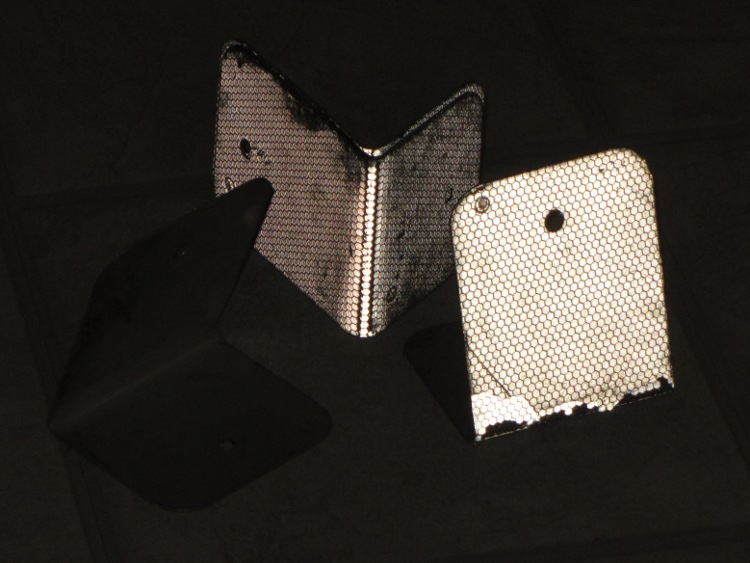
    You can buy retroreflective targets, but the Basement Laboratory Warehouse Wing disgorged what looks like roadside border markers, pre-bent into a useful shape:

    Laser targets - normal
    Laser targets – normal

    Seen by reflected light, they’re much more impressive:

    Laser targets - flash
    Laser targets – flash

    They came with the house, so I don’t know their provenance. What I do know is that I can’t hold the rangefinder steady enough to keep the spot on the target at much more than 100 feet. If I get around to doing much more surveying, I must conjure up a tripod mount; the base has a 1/4-20 socket in an awkward location and can measure relative to the screw centerline. Perhaps a rifle stock with a spotting scope would be handy, too, although I’d certainly acquire another black spot on my record.

    If you were going to use it in the shop, you’d want a rotating pivot aligned at the intersection of the tripod socket and sensor port to get a known center point.

    You can get one on eBay at a substantial discount, of course…

  • Inkjet Colors vs. Time

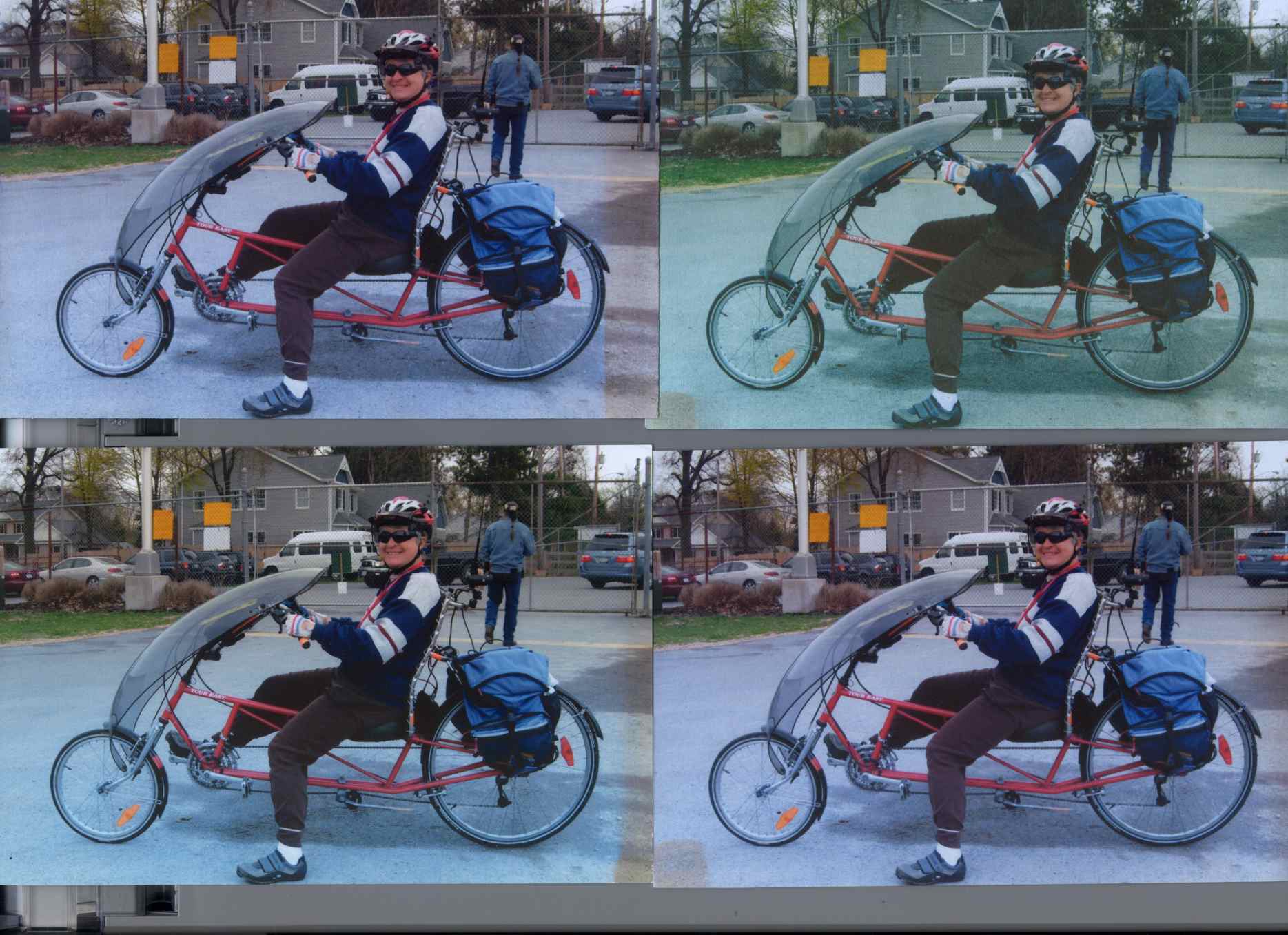
    Back in December 2007 I printed four copies of a picture on various papers with the Canon S630 and hung them on a floor joist over my workbench, directly below a fluorescent shop light. Having just hung those screwdrivers where the pictures used to be, it’s time to see what’s happened.

    The pictures, scanned on an HP C7670A (aka Scanjet 6300C) against the neutral gray of the ADF platen:

    Inkjet Colors vs. Paper vs. Time
    Inkjet Colors vs. Paper vs. Time

    The papers, clockwise from lower left:

    • Glossy
    • Matte
    • Plain
    • Inkjet

    While the scanner isn’t renown for its color fidelity, the overall results look about right; the platen really is that shade of gray and the upper-right picture has a sickly green hue.

    The faded edges along the right side of the left-hand image show where the adjacent sheet overlapped: the colors didn’t fade nearly as much. The small rectangles on the lower left corners of the right-hand images show where I put clothes pins to keep the sheets from curling.

    All of the images have a blue overtone; the magenta dye fades out with exposure to UV from the fluorescent fixture.

    As you’d expect, the glossy paper looks best, with very crisp detail. The inkjet paper is next, followed by the matte, and the plain paper in the upper right obviously doesn’t support the ink well at all.

    Of course, after five years I no longer have any of those papers and am using entirely different ink

    To show that the scanner really does matter, here’s the same set of images from a Canon LiDE 30:

    Inkjet Colors - Canon LiDE30
    Inkjet Colors – Canon LiDE30

    In both cases. that’s without any color correction / gamma compensation / whatever. I should fish out my scanner calibration targets and go through the whole color calibration dance again; with any luck, the Linux color management infrastructure will be less inadequate by now.

    IIRC, we were doing public safety radio at an event at the Dutchess County Fairgrounds with the Mt Beacon Amateur Radio Club. This was before the Diamond antenna mounts disintegrated, too.

    Memo to Self: If you love it, don’t expose it to UV.

  • Coopers Hawk

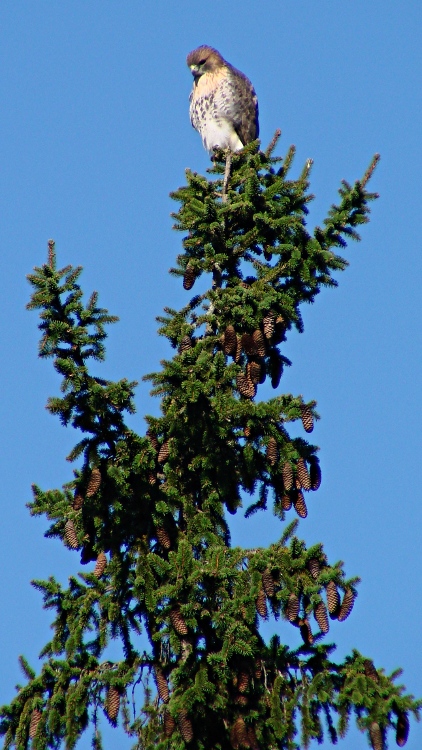
    Coopers Hawk atop pine tree
    Coopers Hawk atop pine tree

    This looks like a juvenile Cooper’s Hawk, perched high atop that tree. It seems the pair we spotted last year had a successful hatching!

    We always wish “our” hawks, whatever and wherever they may be, good hunting…

    This came from the first set of real pictures using the repaired Sony DSC-H5 zoomed to 12× with the 1.7× tele conversion lens, cropped down a bit: plenty of artifacts to choose from.