The Smell of Molten Projects in the Morning

Ed Nisley's Blog: Shop notes, electronics, firmware, machinery, 3D printing, laser cuttery, and curiosities. Contents: 100% human thinking, 0% AI slop.

Author: Ed

  • RayTek IR Thermometer: Trigger Switch Replacement

    According to the sticker inside, I’ve been using my RayTek IR Thermometer since 2000. At some point in the last dozen or so year, Fluke Borged RayTek, which means yellow plastic instead of gray.

    The pushbutton switch behind the trigger has recently gone from intermittent to nonfunctional, but everything else still works fine: some simple surgery should suffice…

    The handle has a flip-down cover, for the battery compartment and °C/°F switch, that pivots on molded hinges.  The cover’s hinge pins are rectangular with a slight bevel and the case sockets have a notch that will just clear a properly aligned pin. Given this hint, you’ll get the cover off much faster than I did:

    RayTek IR Thermometer - handle joint
    RayTek IR Thermometer – handle joint

    Remove the obvious screw and press the latches while prying the two halves apart. A small screwdriver helps persuade the latches to release their death grip:

    RayTek IR Thermometer - case latches
    RayTek IR Thermometer – case latches

    The parts heap didn’t have any suitable through-hole pushbutton switches, but I managed to solder an SMD switch in place; the original switch is parked atop the IC for reference. Yes, the white button is slightly taller than the original black one, but it doesn’t matter:

    RayTek IR Thermometer - new switch installed
    RayTek IR Thermometer – new switch installed

    Then it’s just a matter of tucking everything in place:

    RayTek IR Thermometer - contents
    RayTek IR Thermometer – contents

    There. That was easy.

  • LibreOffice 3.6: Fixing Font Selection Problems

    This may not be a LibreOffice problem, but that’s where it shows up: the font selection dialog won’t display fonts with nonstandard Style names. There is, of course, no documentation anywhere (that I can find, anyway) on what Style names are permitted, so you discover this only when a font style that’s properly installed and accessible by other programs (like, say, Inkscape or Scribus) doesn’t render properly and doesn’t appear in the list.

    In Xubuntu 12.10, LibreOffice 3.6.2.2 can’t handle the American Typewriter font style called Medium, which is what I’ve been using for the return address field on my (very few, these days) mail envelopes. Over the years, various versions of OpenOffice and LibreOffice have alternately accepted and rejected the Medium style, so this isn’t exactly a regression. It is, however, Yet Another Annoyance.

    The solution, hinted at in that thread, involves using FontForge to rename the offending Style to, say, Regular, then saving the font. It’s actually the Weight property, hidden in Element → Font Info → PS Names tab. In this case, I changed the word “Medium” in the Fontname, Name for Humans, and Weight fields to “Regular”, which also updates the values in the TTF Names tab.

    I save the modified font files in ~/.local/share/fonts using TrueType format, just to be sure I don’t confuse them with the original Postscript version in /usr/share/fonts/custom, delete the original, and then run fc-cache -v -f to update the caches. This surely isn’t the cleanest way to make it happen and almost certainly isn’t allowed by the Adobe EULA I agreed to, back when I actually bought the fonts, but so it goes.

    And then It Just Works…

    LibreOffice vs American Typewriter font
    LibreOffice vs American Typewriter font
  • Force-fitting a PCI-E Video Card in an Optiplex 780 SFF

    I bought an off-lease Optiplex 780 in the Small Form Factor (SFF) version to replace my ancient Pentium D; it’s also available in Small Desktop Tower (SDT) and Ultra-SFF variations. The SFF box has two PCI slots and one PCI-E slot, which let me install a half-height dual-output video card, with results described yesterday. I innocently believed the PCI-E slot would have enough clearance for the video card, what with these things being standardized and all.

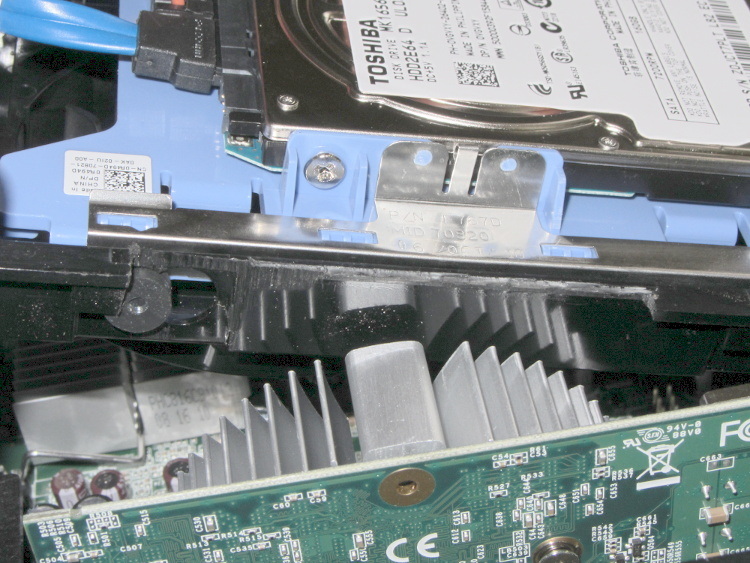
    Turns out that the heatsink collided with a flange on the hard drive carrier, with about 5 mm of overlap. Fortunately, the bracket is plastic and I have no qualms about chopping up the hardware. A few minutes of Quality Shop Time removed a section of the offending flange and gave the video card just enough clearance:

    Optiplex 780 SFF drive bracket
    Optiplex 780 SFF drive bracket

    The heatsink reflects in the shiny surface of the carrier, with the scar from the missing flange just above that. The small dark-gray disk on the far left is a grommet holding a pin that supports the drive; it installs through the larger circular opening and snaps leftward.

    You must install the video card and then snap the drive carrier into place. The heatsink protrudes above the flange, with the left side just barely clearing that grommet.

  • Xubuntu 12.10 vs. Dual Monitors: Regression

    It used to be that using two monitors with two separate X sessions in Linux actually worked. Then they improved things so it stopped working out of the box, but you could force it to work with a bit of effort. Further improvements made the workarounds more difficult. Now, with Xubuntu 12.10, it seems impossible.

    This. Is. Not. Progress.

    Experimenting will require considerable restarting of the X server, which nowadays requires, by default, rebooting the box. In the Bad Old Days, you could hit Ctrl-Alt-Backspace to restart the X server (and, en passant, blow away all unsaved data in your session). My suggestions about re-enabling it no longer work and, worse, the suggestions there about:

    • Pressing Right-Alt + Sysreq + K
    • Enabling DontZap

    do not work, either. I’m no longer surprised by any of this.

    Fortunately, as suggested at the same spot, this works:

    • Create if missing: ~/.xprofile
    • Add: setxkbmap -option terminate:ctrl_alt_bksp
    • Make it executable: chmod u+x .xprofile

    But it’s per-user, so it works only while you’re logged in, which means you can’t restart X from the login screen. This is marginally OK.

    So. We begin.

    This box (an off-lease Dell Optiplex 780, Core 2 Duo E8400 3.0 GHz) now has a Jaton GeForce GT430 nVidia video card with two DVI outputs.

    In order to get decent performance, you must use the nVidia proprietary driver. Installing the nvidia-current package pulls in, as of this writing, 304. The nVidia driver now ignores the rotate option and the randrrotation option in xorg.conf. Adding the {Rotation=Left} meta-option to the portrait monitor or enabling Xinerama kills xrandr.

    Not having xrandr used to not be fatal, but now OpenSCAD (among others) requires xrandr to be both present and active. Any solution that doesn’t allow xrandr isn’t feasible.

    Despite notes suggesting that nVidia’s TwinView kills xrandr, it doesn’t (perversely, Xinerama should allow it and doesn’t; perhaps I misunderstand what’s going on). Add another line to .xprofile:
    xrandr --output DVI-I-3 --rotate left
    You discover which output to use by parsing the output of xrandr without any parameters:

    $ xrandr
    Screen 0: minimum 8 x 8, current 2650 x 1680, maximum 16384 x 16384
    DVI-I-0 disconnected (normal left inverted right x axis y axis)
    DVI-I-1 disconnected (normal left inverted right x axis y axis)
    DVI-I-2 connected 1600x1200+0+0 (normal left inverted right x axis y axis) 367mm x 275mm
       1600x1200      60.0*+
       1280x1024      75.0     60.0
       1152x864       75.0
       1024x768       75.0     60.0
       800x600        75.0     60.3
       640x480        75.0     59.9
    DVI-I-3 connected 1050x1680+1600+0 left (normal left inverted right x axis y axis) 434mm x 270mm
       1680x1050      59.9*+
       1280x1024      75.0     60.0
       1152x864       75.0
       1024x768       75.0     60.0
       800x600        75.0     60.3
       640x480        75.0     59.9
    HDMI-0 disconnected (normal left inverted right x axis y axis)
    

    Why DVI-I-0 and DVI-I-1 are disconnected is not explained. There is an HDMI jack that I’m not using, so that one does make sense. The output shows the portrait monitor on DVI-I-3 as rotated.

    This is a single X session, so the two monitors show sections of a larger workspace. The cursor moves freely across the junction, it doesn’t vanish below the landscape montitor, and windows maximize properly to fill the single monitor they start in.

    This is not what I want, because I cannot independently flip the workspaces on the two monitors. It’s possible to force one of the windows on the portrait monitor to “always on top”, but that means I have only one program accessible on that monitor, which isn’t usually the case.

    This. Is. Not. Progress.

    But it seems to be as good as it gets these days…

  • Fixing LibreOffice Document Graphic File Paths

    It turns out that if you put convenient symlinks in your directories, then use them to build a LibreOffice document, LO will cheerfully put those paths into the graphic file links inside its XML files. That will produce horrible breakage on a new system without those links. We’ve come to the conclusion that the only way to keep LO happy is to create a Pictures directory in whatever directory holds the document file, then put all of the document’s image files into that directory, and make sure LO stores relative paths. Of course, this leaves us with the prospect of updating a whole bunch of existing (and, alas, horribly broken) documents by hand, which is unappealing. My previous solution worked for a single file, but now it’s time for some scripting…

    This would probably be easier in Python, but Bash works fine after you get the quoting straightened out. This script builds several other scripts that actually do the heavy lifting, because that way you can inspect the scripts before running them to verify that you’re not about to make a bad situation much, much worse. I recommend copying the presentations into another directory, running this script, check the output scripts, run them by hand, and then copy the fixed files and the Pictures directory back where they belong.

    You must tweak the actual paths to the pictures to match your situation; for these documents, one simple change sufficed for all the image files. Those paths are not variables, because I can barely keep the quoting straight without adding another layer of indirection. Make sure all the paths match up, verify the scripts before you run them, and don’t trust anything you see.

    CAUTION: It’s highly likely that the multiple levels of character escaping required to make these listings appear correctly on the screen will produce incorrect results when copied-and-pasted. You can download the script file as FixGraphics.sh.odt, which is a bare-ASCII TXT file (which you must rename to eliminate the ODT extension, then make executable as a shell script), to see how it compares.

    The main FixGraphics.sh script, with some key lines highlighted:

    #!/bin/bash
    
    echo "Extract list of images from all ODP files"
    rm images.txt
    for f in *odp
    do
    	unzip -p "$f" content.xml | sed 's/></>\n</g' | grep Cameras | cut -d \" -f 2 | sort -u >> images.txt
    done
    
    echo "Make source file name list"
    # strip off leading relative pathing, set actual absolute path, un-quote blanks and special characters, add quotes
    sed 's/..\/..\/..\/../\/mnt/' images.txt | sed 's/%20/ /g' | sed 's/&amp;/\&/g' | sed 's/^.*/\"&\"/' > source.lst
    
    echo "Make target file name list"
    # set relative to current directory
    sed 's/\/mnt\/bulkdata\/Cameras\/MCWN/\.\/Pictures/' source.lst > target.lst
    
    echo "Make target directory list"
    # must add trailing quote stripped by dirname
    rm dirs.lst
    cat target.lst | while read tline ; do
    	tdir=`dirname "$tline"`
    	echo ${tdir}\"
    done > dirs.lst
    
    echo "Create target directory structure script"
    rm mkdirs.sh
    sort -u dirs.lst | while read dline ; do
    	echo mkdir --parents ${dline}
    done > mkdirs.sh
    chmod u+x mkdirs.sh
    
    echo "Create image file copy script"
    rm cpjpgs.sh
    cat dirs.lst | while read dline ; do
    	echo cp -n -t ${dline}
    done > cptemp.txt
    paste cptemp.txt source.lst > cpjpgs.sh
    chmod u+x cpjpgs.sh
    
    echo "Create ODP fixup script"
    echo "for f in *odp ; do" > fixodp.sh
    echo "unzip -p \"\$f\" content.xml > raw.xml" >> fixodp.sh
    echo "sed 's/..\/..\/..\/..\/bulkdata\/Cameras\/MCWN/\.\.\/Pictures/g' raw.xml > content.xml"  >> fixodp.sh
    echo "zip \"\$f\" content.xml"  >> fixodp.sh
    echo "done" >> fixodp.sh
    echo "rm raw.xml content.xml" >> fixodp.sh
    chmod u+x fixodp.sh
    

    Run mkdirs.sh, cpjpgs.sh, and fixodp.sh: then it Just Works.

    Some of the tricky parts:

    The content.xml file may be stored in unformatted mode, with everything mushed together into one huge line. To make it readable and parse-able, insert a newline between each pair of adjoining angle brackets:

    sed 's/></>\n</g'
    

    This burst of line noise un-escapes the file name from the way LO stores it internally. Note that the middle sed command really does have the literal escape sequence ampersand-amp-semicolon in it and the ampersand in the last one is the sed-ism for “the whole matching string”:

    sed 's/%20/ /g' | sed 's/&amp;/\&/g' | sed 's/^.*/\"&\"/'
    

    The difference between these two sed strings indicates the actual relative path to the Pictures subdirectory in the filesystem and the faked relative path from the LO pseudo-subdirectory where the document stores its internal state. The string of periods in the second command shows what LO stored for the original files in our documents; your mileage will certainly differ:

    sed 's/\/mnt\/bulkdata\/Cameras\/MCWN/\.\/Pictures/' source.lst > target.lst
    sed 's/..\/..\/..\/..\/bulkdata\/Cameras\/MCWN/\.\.\/Pictures/' raw.xml > content.xml
    

    I don’t know how they could make the file linkages work better, but it’d be really nice if there were a less horrible way to fix the breakage.
  • Long-term Paint Storage: Just Don’t

    We probably should have noticed this sooner, but …

    Leaking paint can
    Leaking paint can

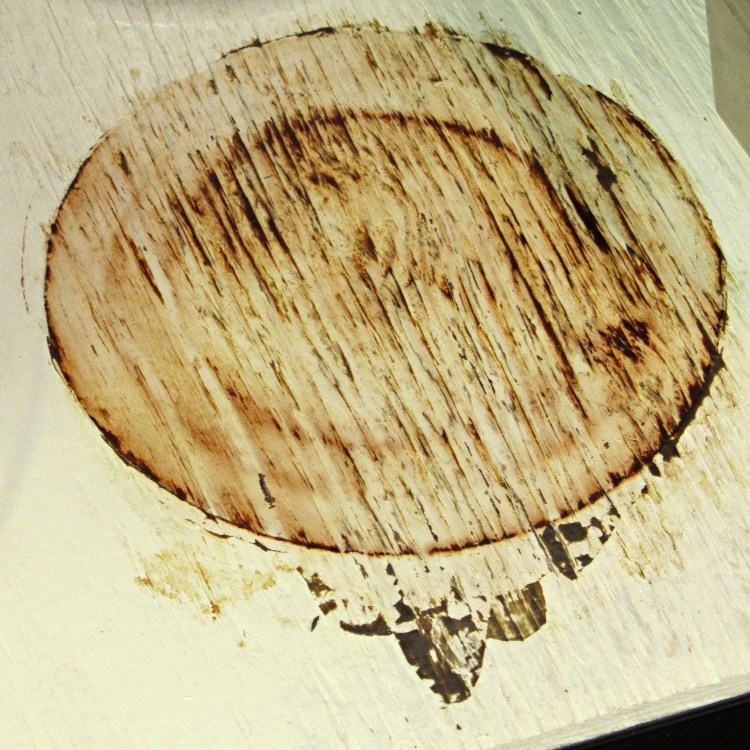
    Yes, that can really does did contain white paint!

    It cleaned up about as well as you’d expect, which is to say not very well at all:

    Leaking paint can - residue
    Leaking paint can – residue

    Fortunately, we’re not particularly fussy about shelves in the Basement Laboratory Paint Storage Wing.

    Memo to Self: Just throw the nearly empty paint cans out, OK?

  • X10 Controller Lid Hinge Repair

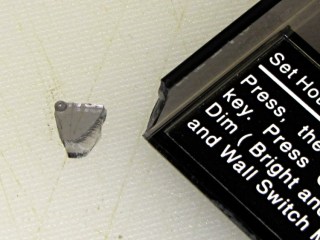
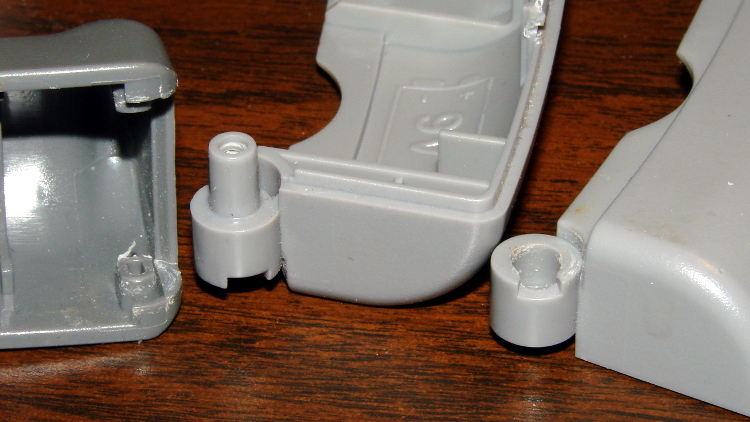
    The modified lid for our X10 controller didn’t quite survive a fall from the dresser to a wood floor:

    X10 controller - hinge chip
    X10 controller – hinge chip

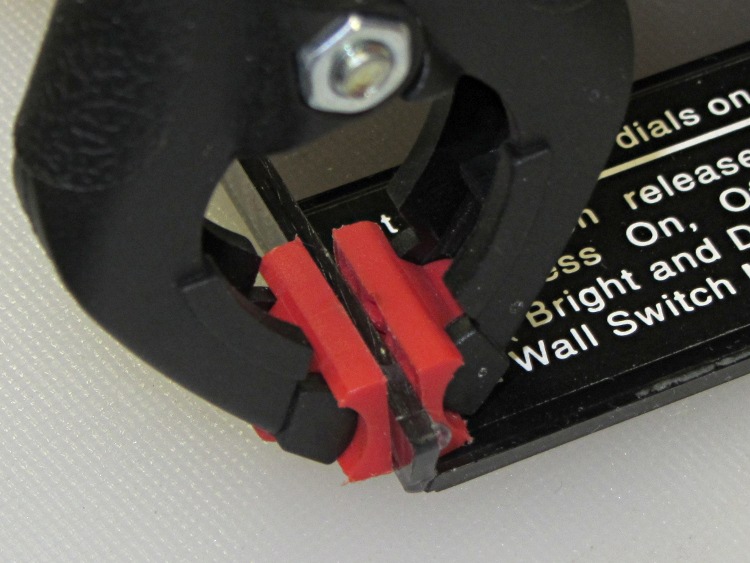
    Not even I could use more than one clamp on this job:

    X10 controller - hinge clamping
    X10 controller – hinge clamping

    Sometimes, it’s OK to do easy ones…