Ed Nisley's Blog: Shop notes, electronics, firmware, machinery, 3D printing, laser cuttery, and curiosities. Contents: 100% human thinking, 0% AI slop.
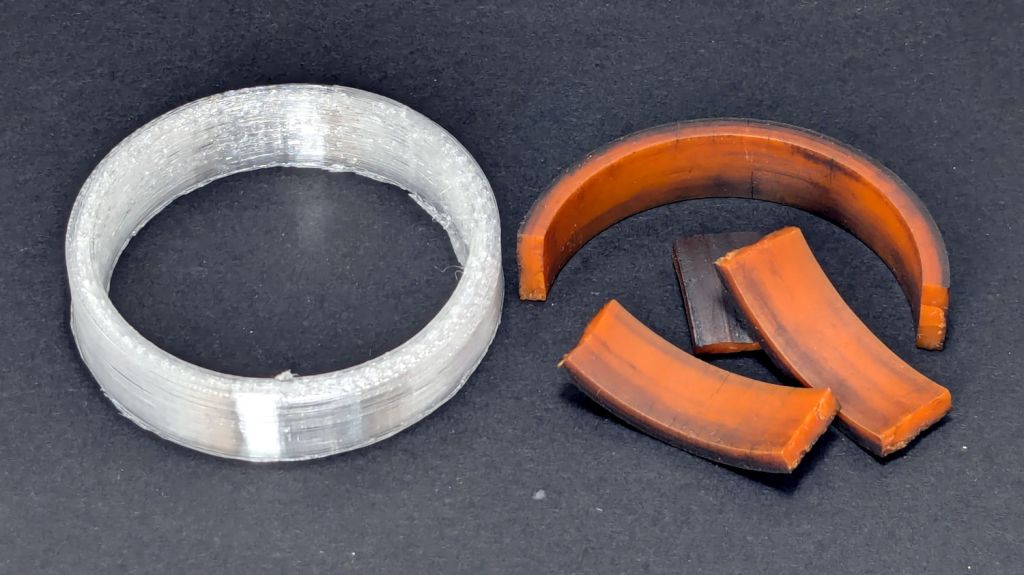
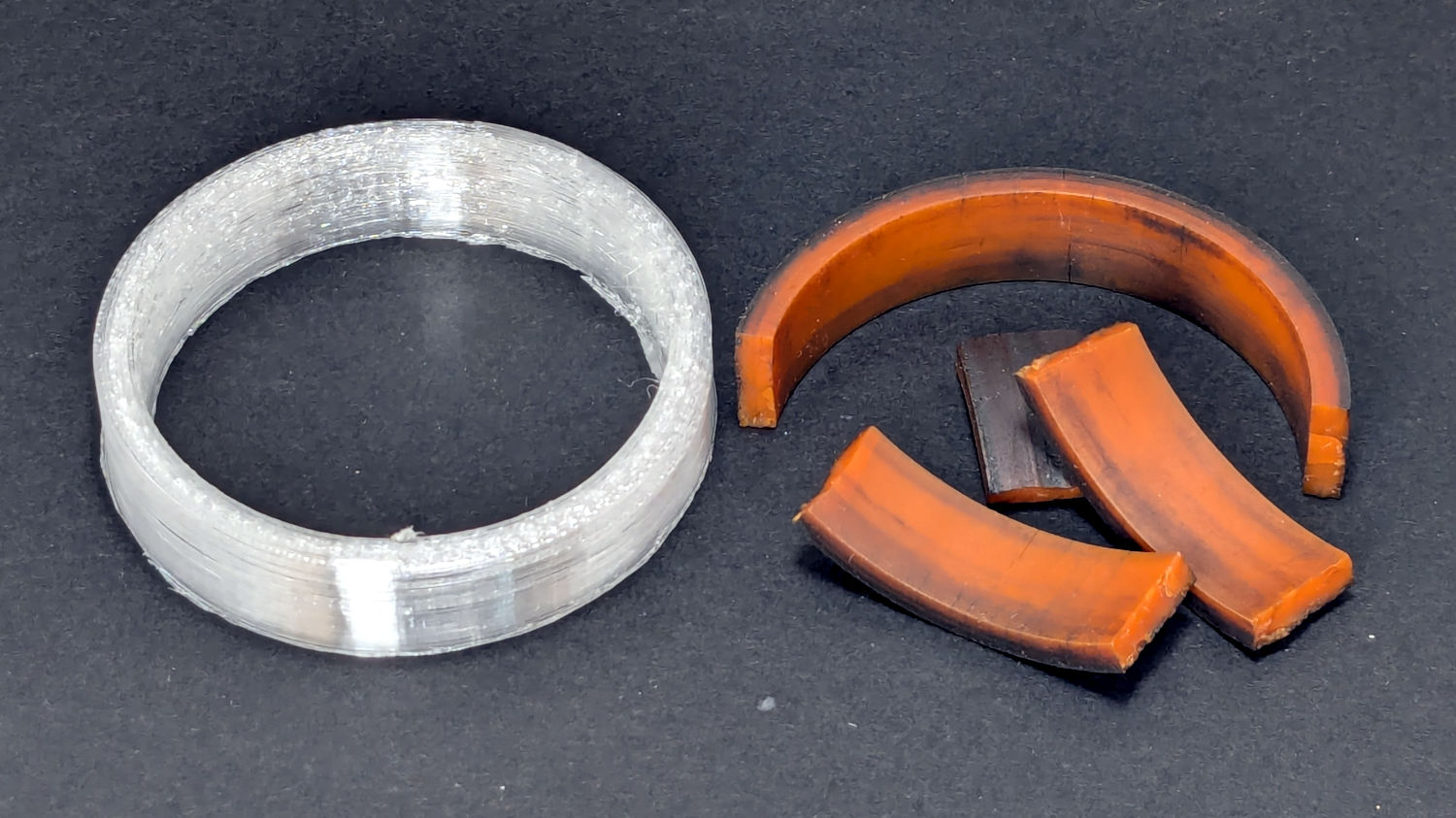
The Terracycle (now T-cycle, for reasons presumably involving the transfer of money) chain return idlers on our Tour Easy bikes developed hardening of their urethane tires:
Terracycle Idler tire – printed vs OEM
Urethane shouldn’t crack like that, but after more than fifteen years, stuff wears out.
The white ring is 95A TPU printed on the Makergear M2, which is definitely more flexy than the original tire, but has the redeeming feature of being both Good Enough and trivially easy to model:
include <BOSL2/std.scad>

NumSides = 4*3*2*4;
$fn=NumSides;

Thick = 3.5;
ID = 46.4;
OD = ID + 2*Thick;
Length = 11.2;

tube(Length,id=ID,od=OD,anchor=BOTTOM);
It printed with 5 mm brims on both the ID and OD, because TPU has the barest adhesion to the M2’s glass plate + hair glue. There’s a long-unopened box now on the bench with a BuildTak PEI surface (thank you: you know who you are!) that should improve the situation.
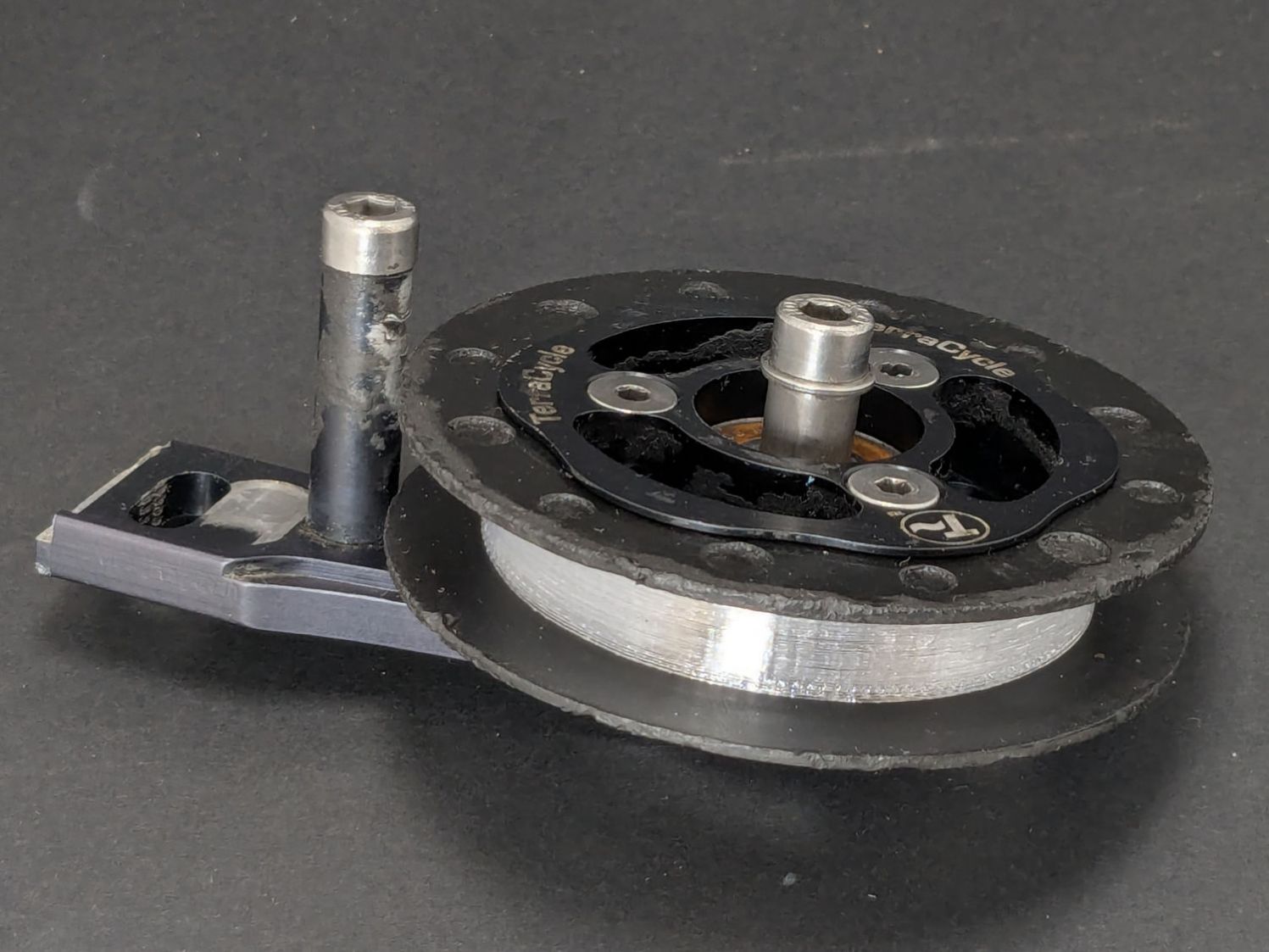
In any event, the tires fit well:
Terracycle Idler tire – installed
The layer-to-layer adhesion isn’t as good as I think it should be, so I’ll likely use those tires as testcases for tweaking the new build plate & settings.
The motivation for making Yet Another Coaster was to see if combining a few techniques I’ve recently learned would produce a nicer result.
Spoiler: Yup, with more to be learned and practiced.
This is a somewhat nonlinear narrative reminding me of things to do and not do in the future, so don’t treat it as a direct how-to set of instructions.
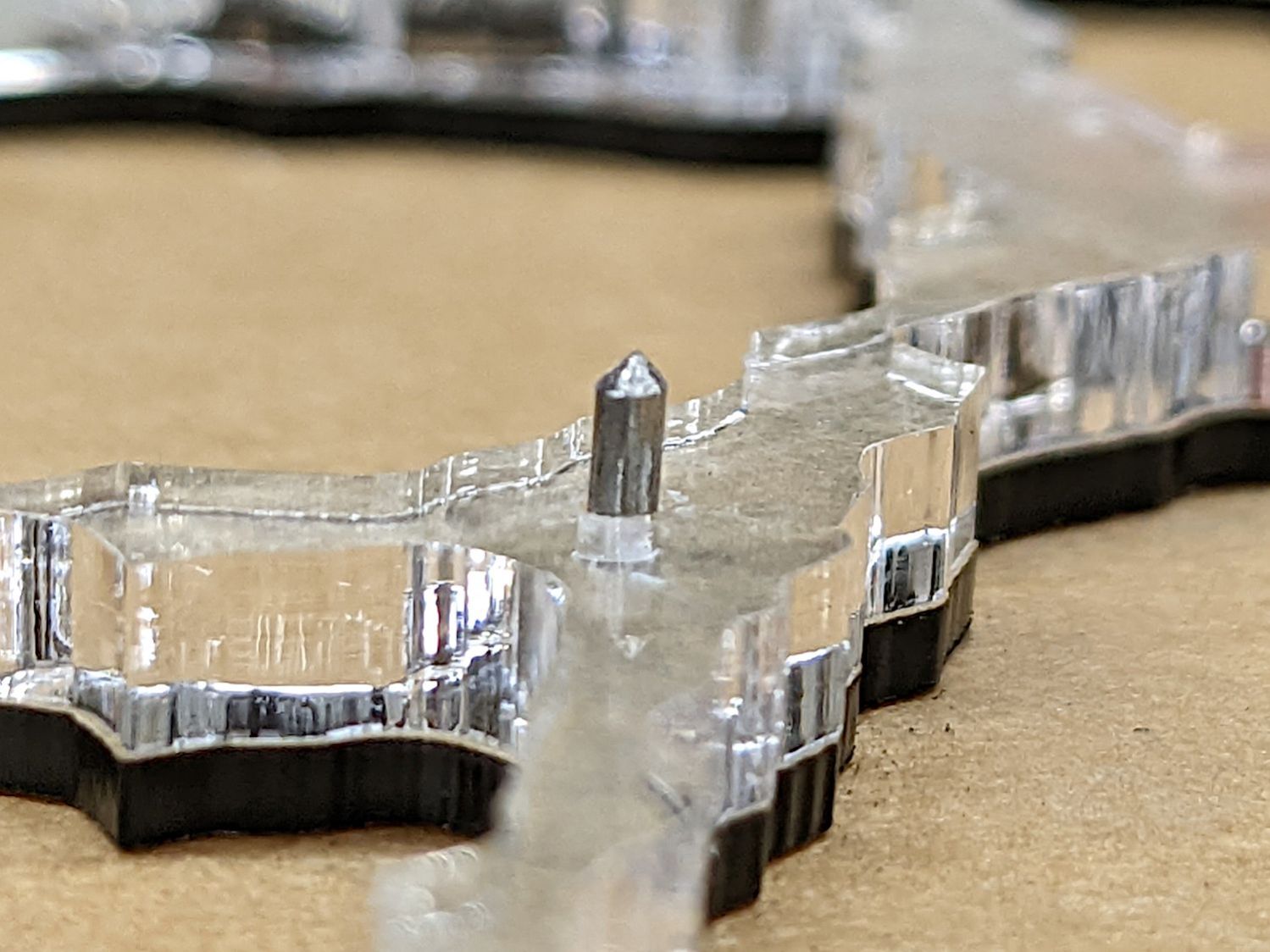
The glass fragments sit inside holes in the next two (or three or whatever) acrylic layers, which must have a total thicknesses slightly more than the glass thickness andremain properly aligned while assembling the whole stack:
Smashed Glass Coaster 5 – alignment pin
Bonus: all that cutting generates an absurd amount of acrylic scrap. I eventually put much of it to good use, but not producing it in the first place would be a Good Thing …
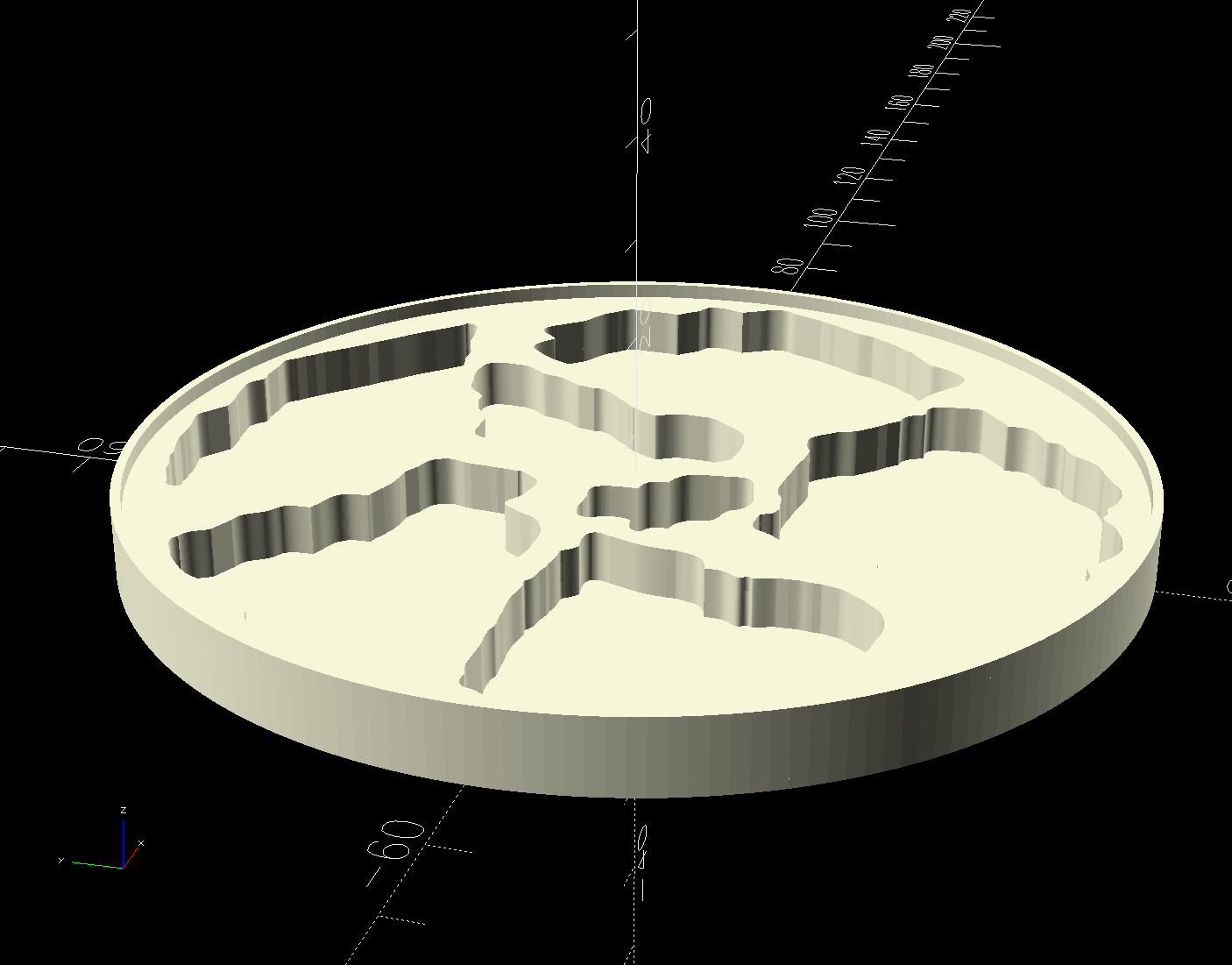
So 3D print the entire base, which requires generating a solid model with recesses for the fragments:
Printed Coaster Layout – solid model
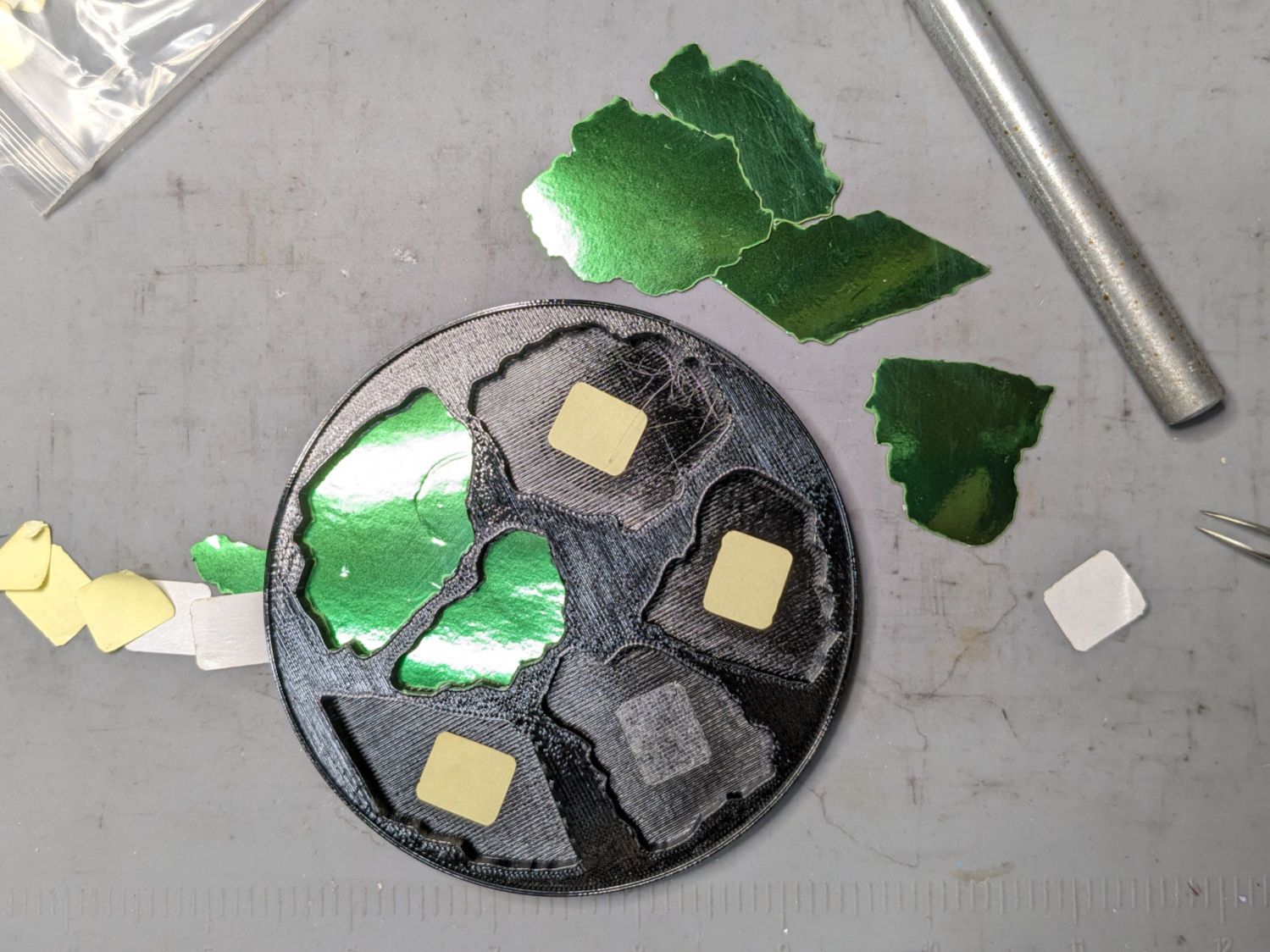
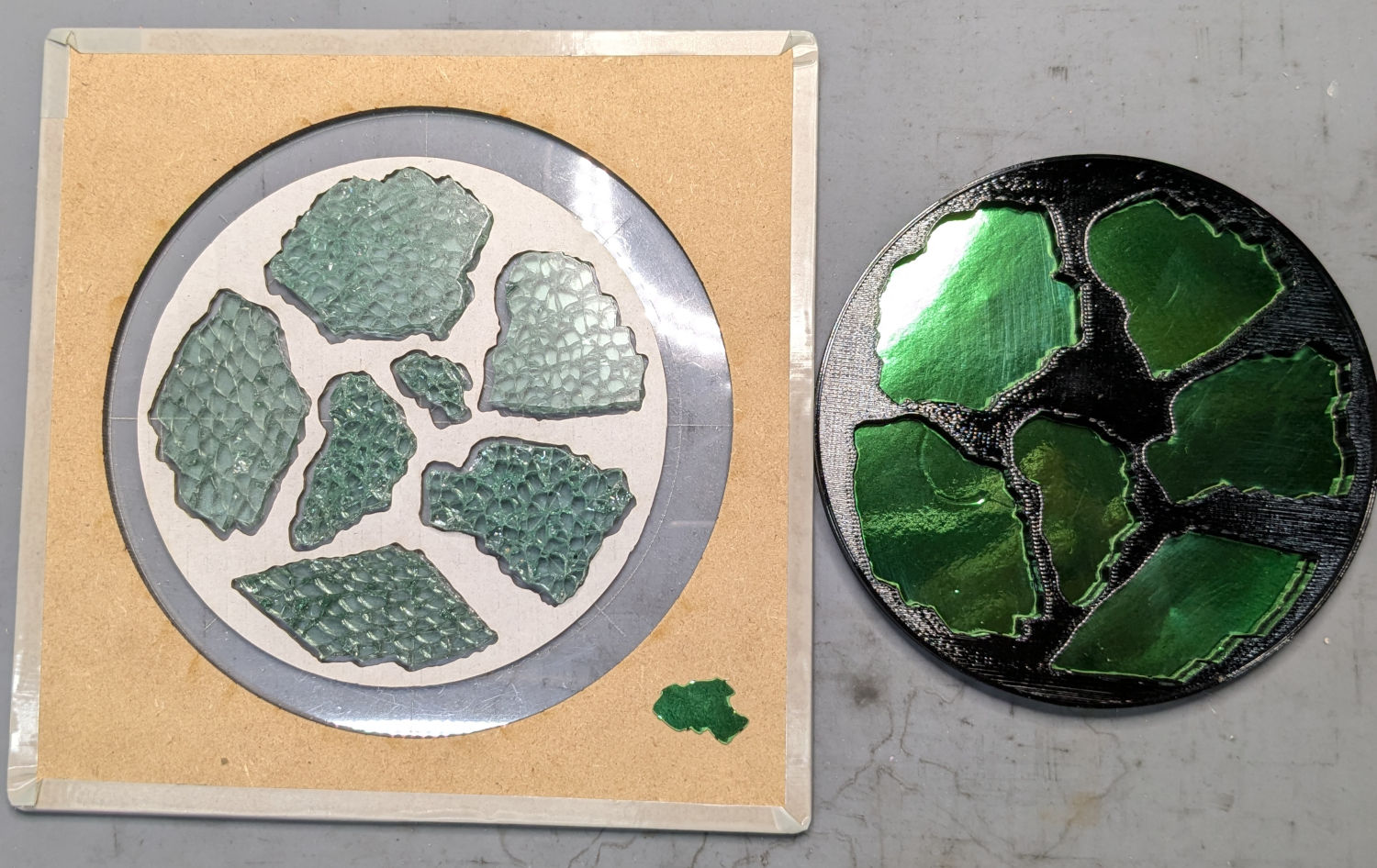
Because there’s no real justification for an optical-quality mirror under smashed glass, use reflective metallized paper in the recesses as reflectors:
Smashed glass printed coaster – metallized paper assembly
The glass is more-or-less greenish-blueish, so I used a strip of green metallized paper that made the glass fragments green. Obviously there’s some room for choice down there.
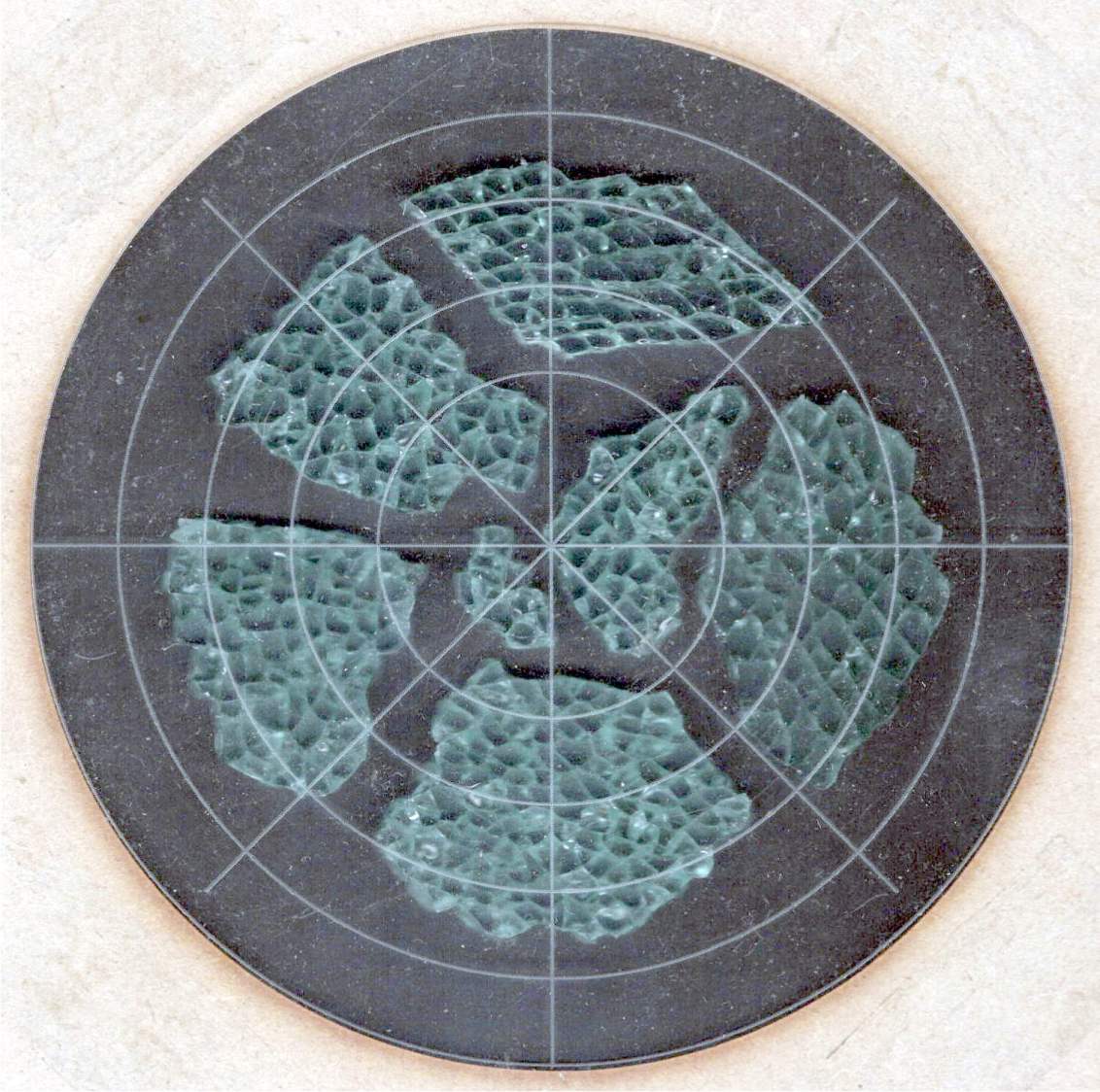
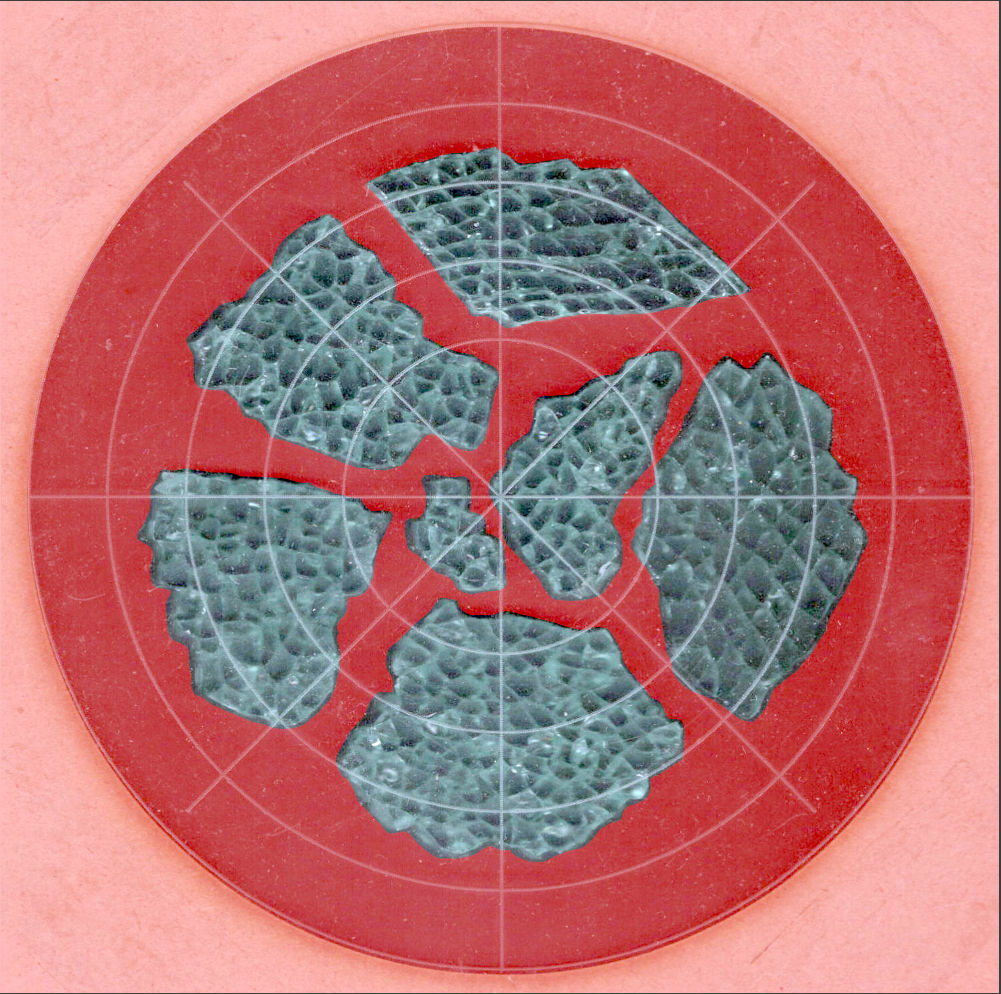
Both the base and the reflectors use outlines of the fragments, so I started with a scan of the approximate layout in GIMP:
Smashed Glass – 4in – group A – tweaked
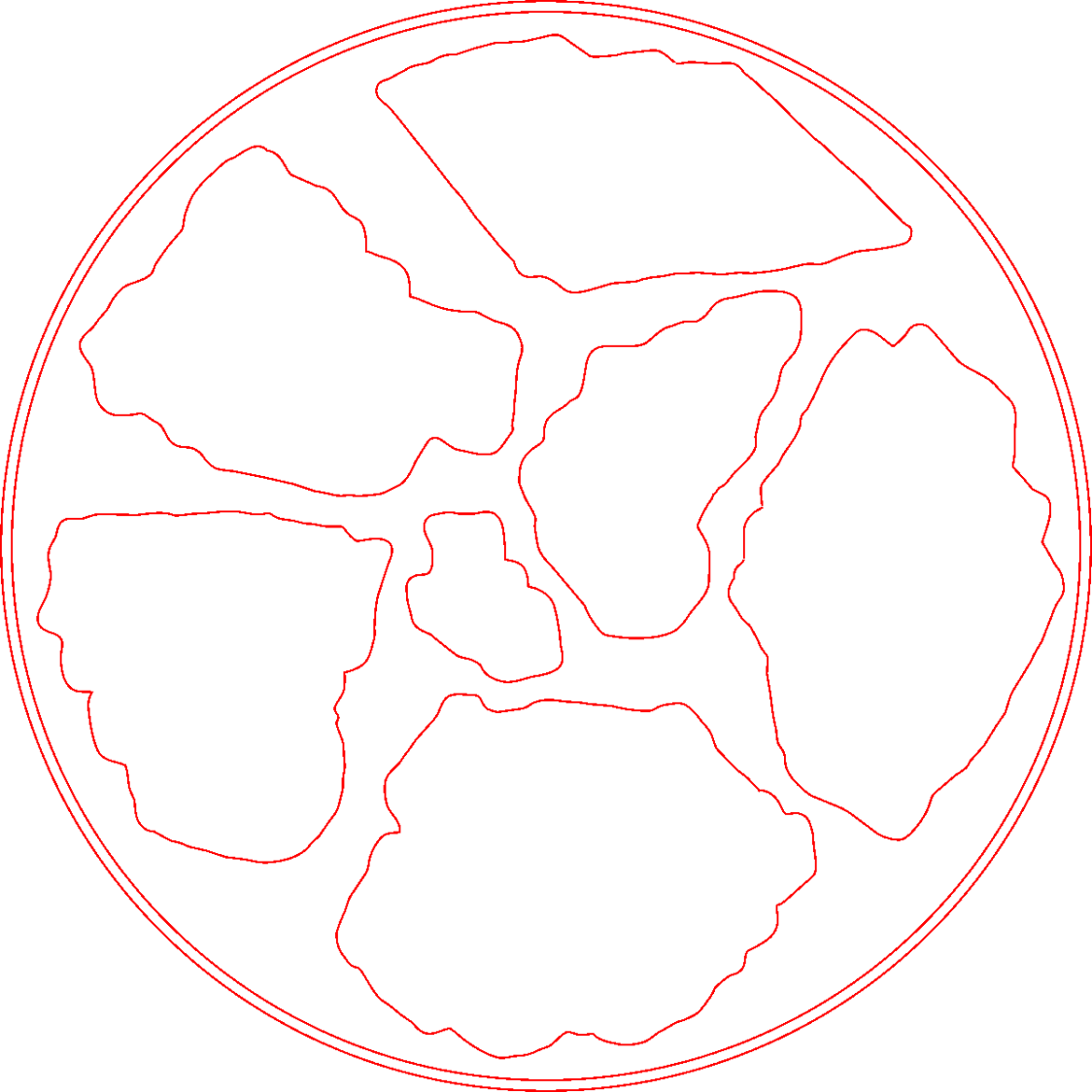
I traced the outline of each fragment using the Scissors Select Tool, which lays line segments along the sharpest gradient between clicked points, then switched into Quick Mask mode to adjust & smooth the results:
Smashed Glass paths – quick mask
That’s the result after sketching & saving all the paths as separate SVG files to allow importing them individually into InkScape, OpenSCAD, and LightBurn.
Which turned out to be suboptimal, as it let me write an off-by-one blooper omitting the last file from the OpenSCAD model:
A better choice puts all the paths into a single named group, saved as a single SVG file, then importing that group from the file using its name, along these lines:
It’s not clear if I can do that directly from GIMP by saving all the paths in a single file, then importing that lump into Inkscape as a group, but it’ll go something like that.
After getting the fragment paths into Inkscape, add a 0.5 mm offset to each path to clear any non-vertical edges. This will be checked with the template cut using LightBurn as described below.
Add a 1 mm rim around the outside, with the 4 inch OD matching the usual PSA cork base:
Fragment layout – 4in
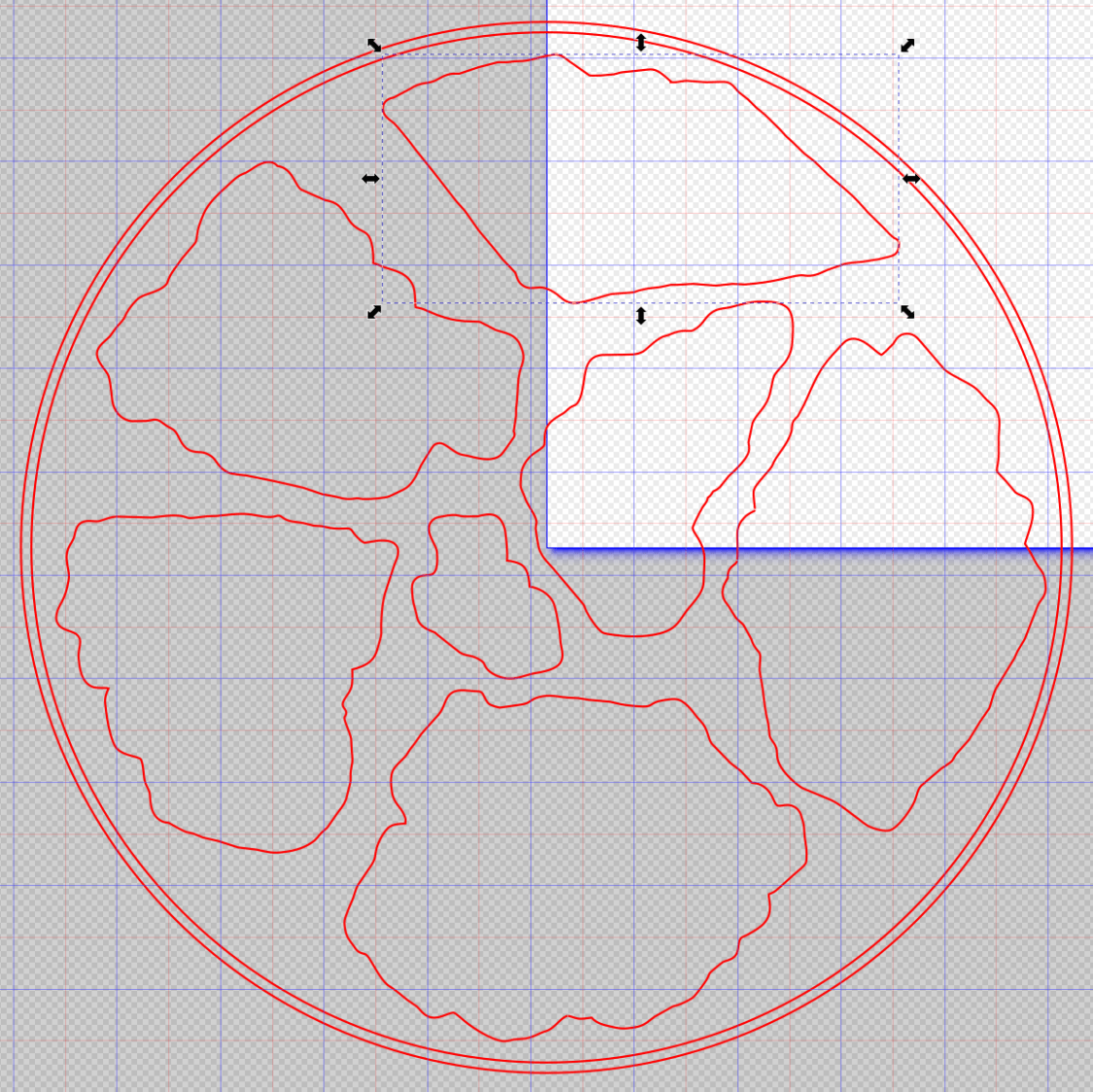
Now’s the time to nudge / rotate the outlines so they have at least a millimeter of clearance on all sides / ends, because that’s about as thin a section of printed plastic as you want.
Locating the center of the OD (and, thus, everything inside) at the lower-left corner of the Inkscape page will put them at the OpenSCAD origin. I have set Inkscape to have its origin at the lower left, rather than the default upper left, so your origin may vary.
Select one of the paths:
Fragment layout – Inkscape A
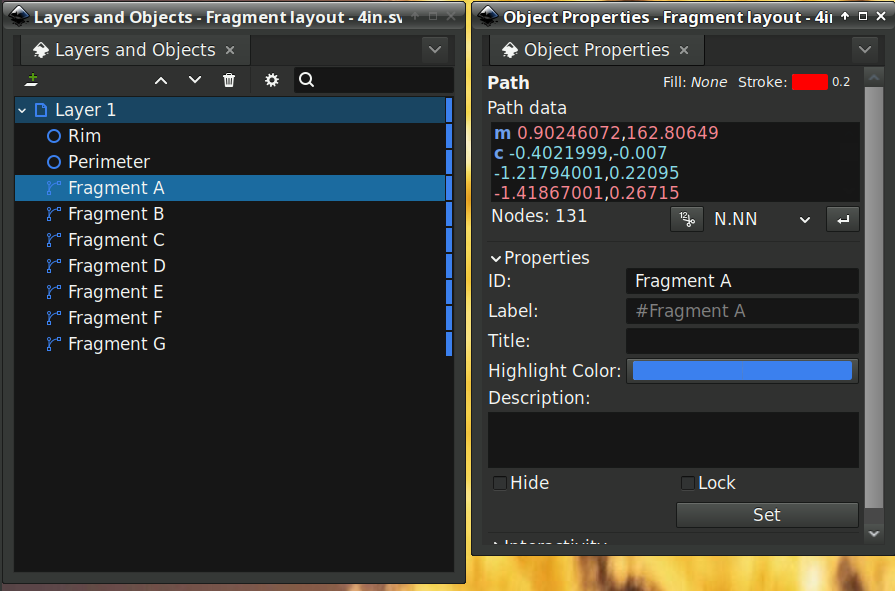
Then set the ID in its Object Properties:
Fragment layout – Inkscape A – properties
There is an interaction between the name over in the Layers and Objects window, which apparently comes from the GIMP path name for the imported fragments, and the resulting ID and Label in the Object Properties window. However, renaming an object on the left, as for the Rim and Perimeter circles, does not set their ID or Label on the right. Obviously, I have more learning to do before this goes smoothly.
With everything laid out and named and saved in an SVG file, the OpenSCAD program is straightforward (and now imports all the fragments):
Which squirts out the solid model appearing above.
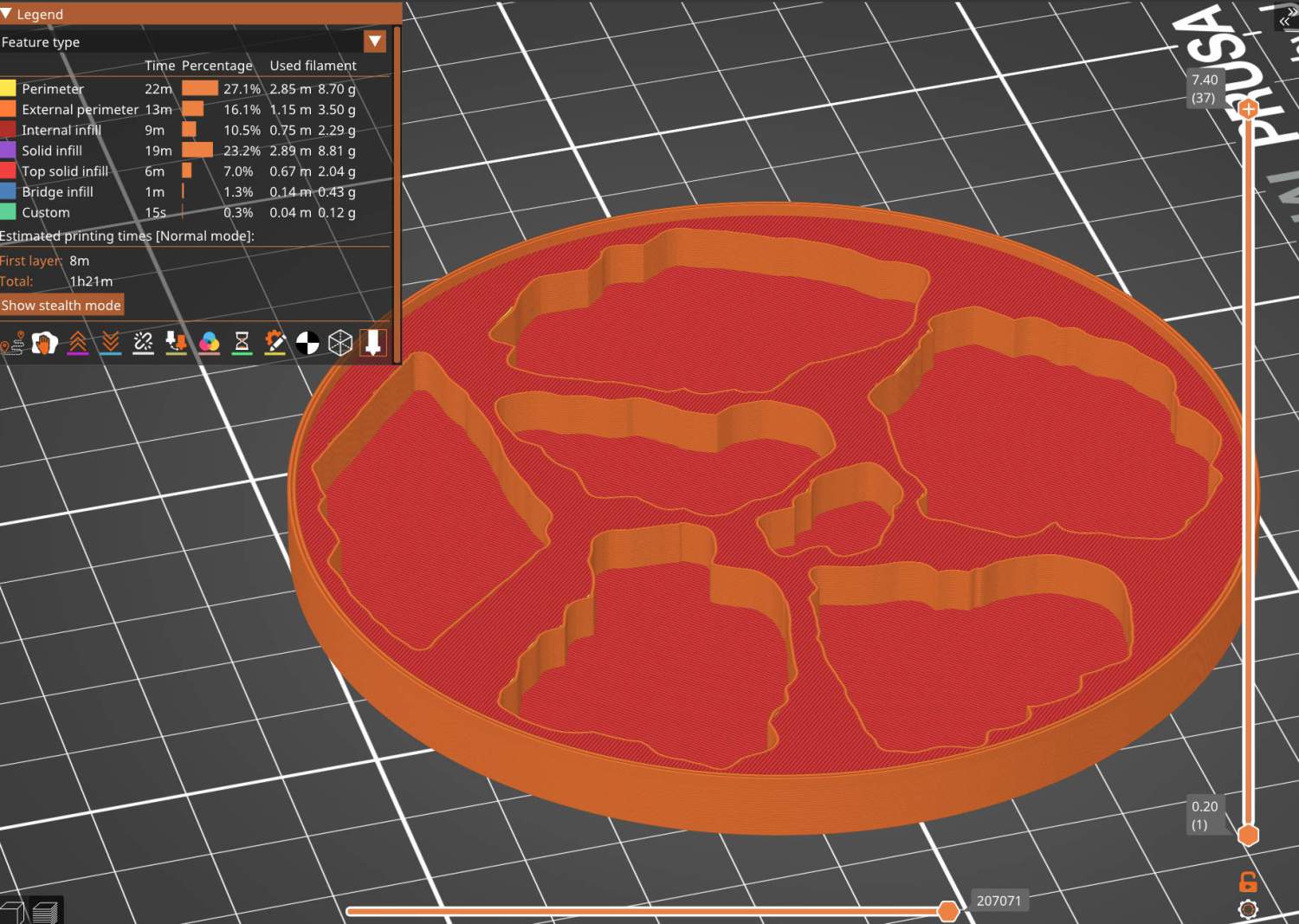
Feeding it into PrusaSlicer turns the model into something printable:
Printed Coaster Layout – slicer
And after supper I had one in my hands.
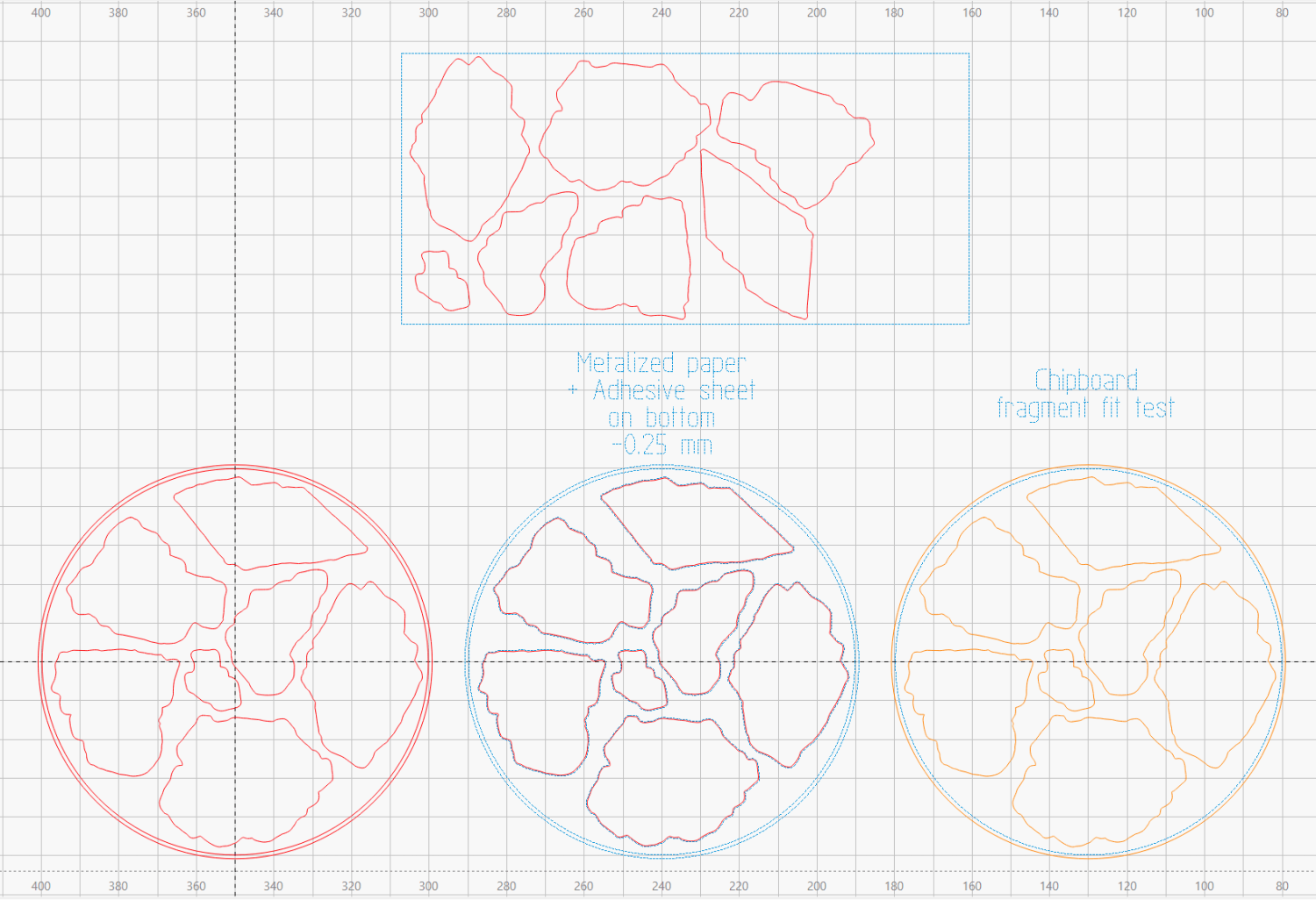
Before doing that, however, import the same SVG file into LightBurn, as on the left:
Printed Coaster Layout – LightBurn
On the right, duplicate it, put the inner Rim on a tool layer, put the rest on a layer set to cut chipboard, and make a template to verify those holes fit around the fragments:
Smashed glass printed coaster – fragment test fit
Which a few didn’t, explaining why I go to all that trouble. Iterate through GIMP → paths → SVG → Inkscape → LightBurn until it’s all good. Obviously, you do this before you get too far into OpenSCAD, but they all derive from the Inkscape layout, so there’s not a lot of wasted motion.
The middle LightBurn layout insets the fragment outlines by 0.25 mm to ensure the paper fits easily and puts them on a layer set to cut metallized paper. Those fragments then get duplicated and rearranged within the rectangle on the top to fit a strip of metallized paper from the scrap box. Fire The Laser to cut them out and stick them to the bottom of their corresponding 3D printed recesses with leftover snippets of craft adhesive sheet as shown above.
I had originally intended to cover the bottom of the entire sheet of metallized paper with an adhesive sheet, but realized the whole affair was going to be submerged in epoxy, so just making sure the paper didn’t float away would suffice.
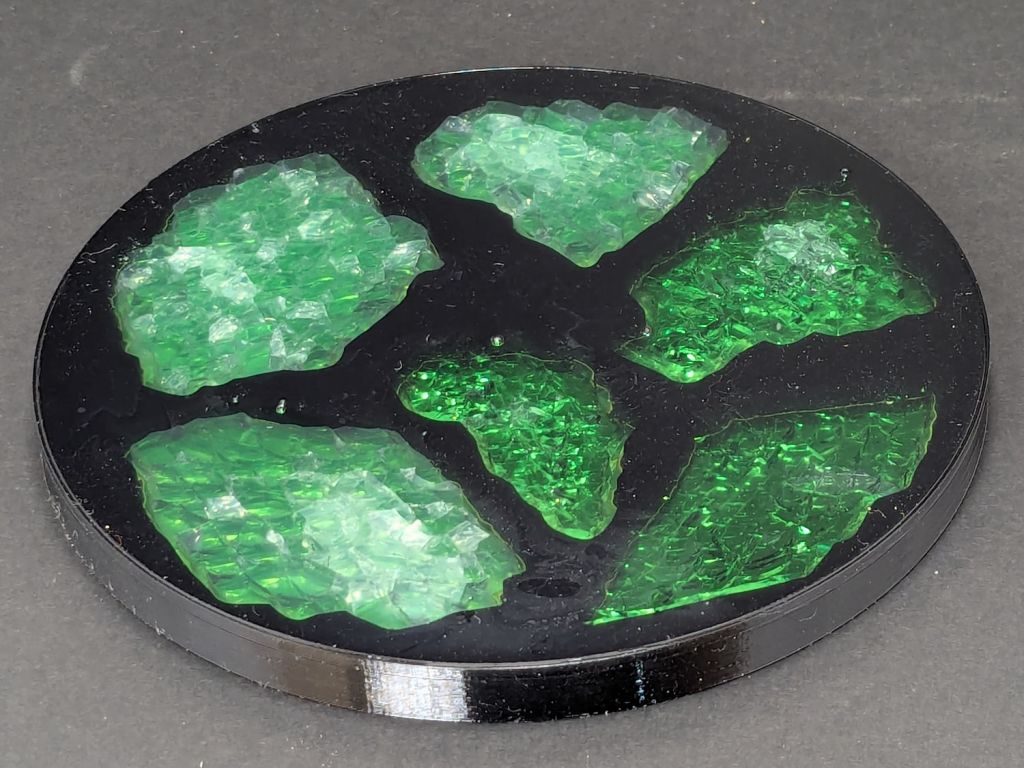
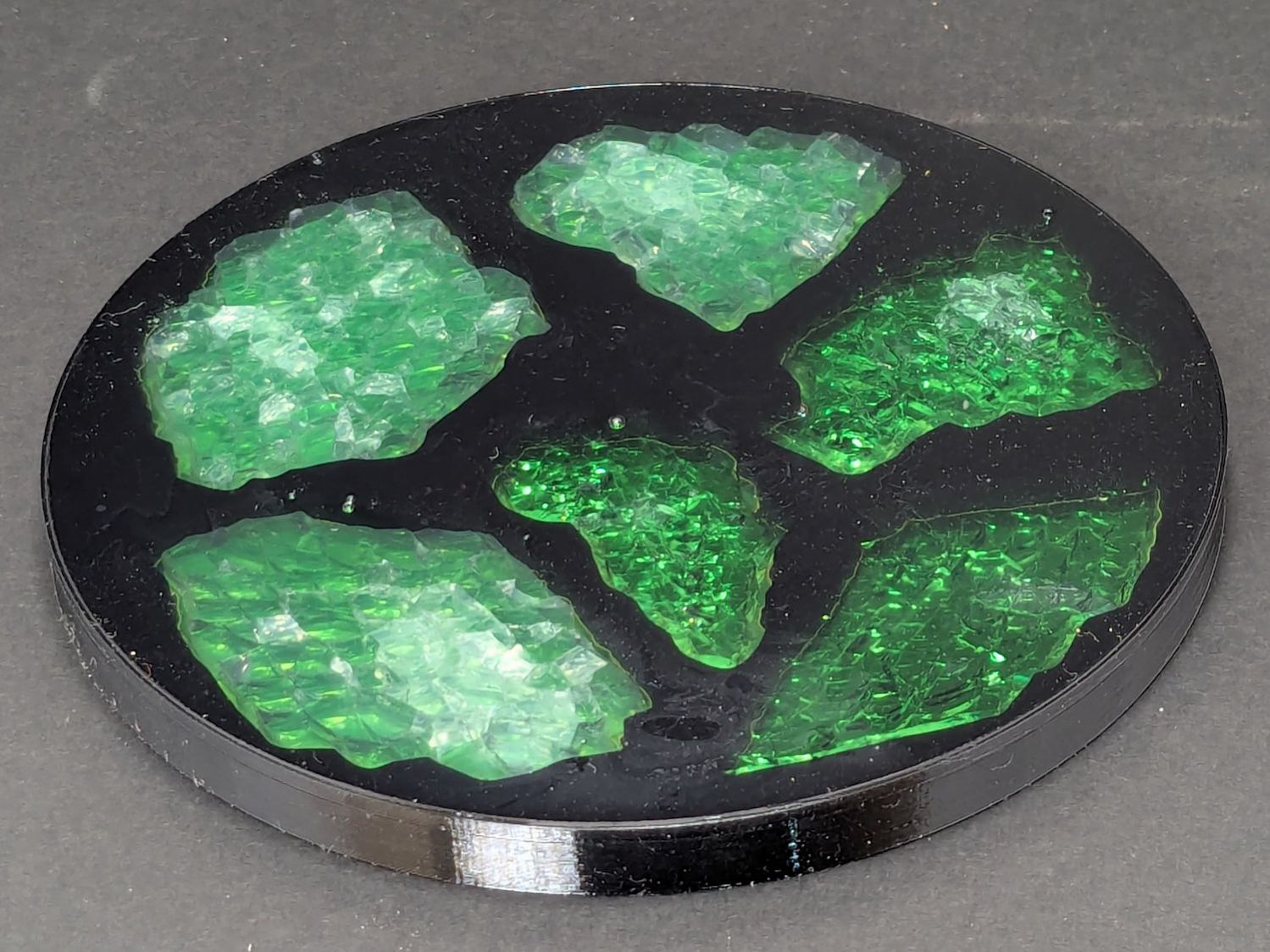
Having recently had to move the flat box of shattered glass to get something from behind it, I figured I could apply new techniques to old material :
Smashed glass printed coaster – oblique view
This is something of a test case to restart the whole process, so it has a few bloopers. This post covers the results, with more detail on the process to follow.
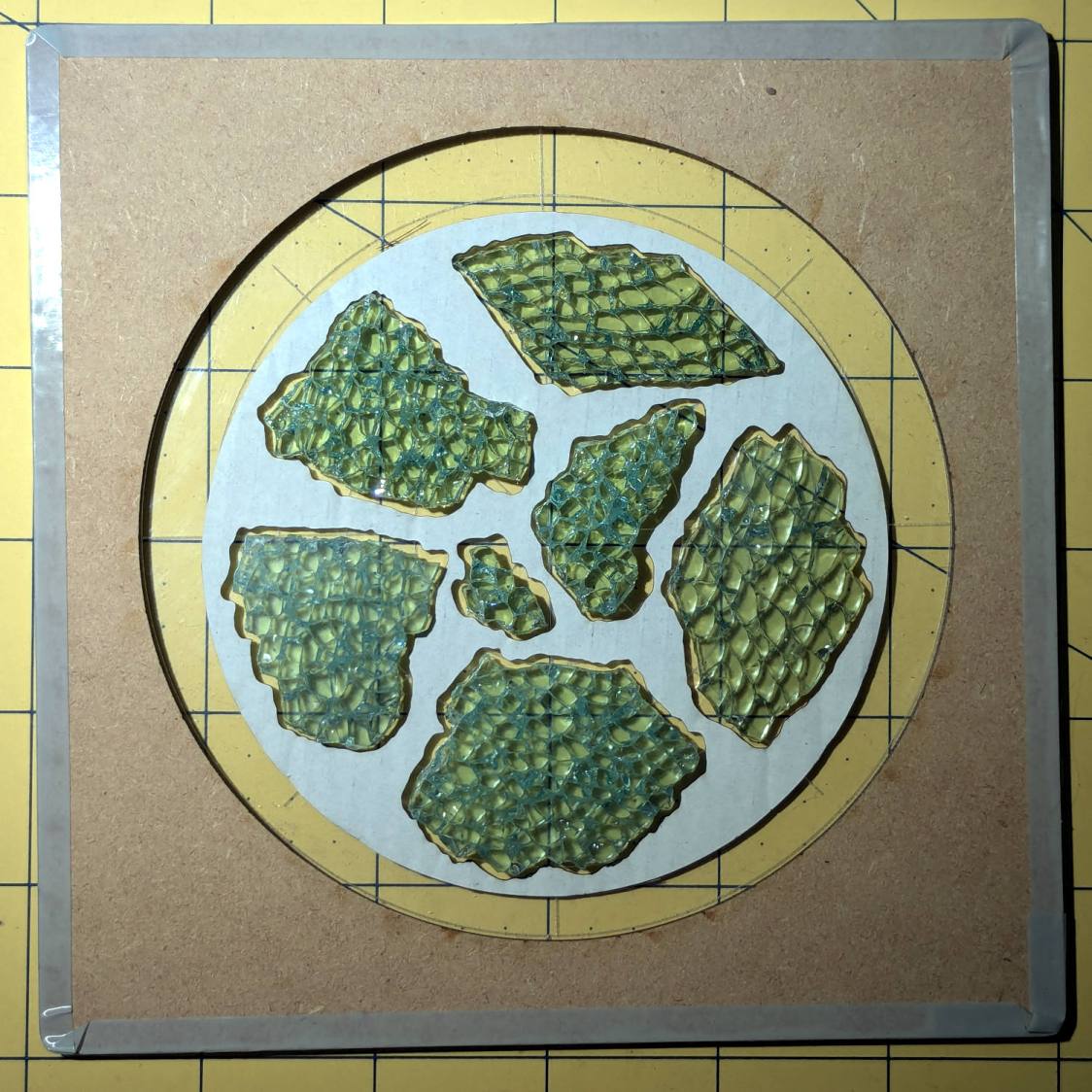
Arrange some good-looking shattered glass fragments within the 4 inch circle on the fixture:
Smashed glass printed coaster – fragment test fit
Scan it, trace the outlines into paths using GIMP, label the paths in Inkscape, import into LightBurn to laser-cut the chipboard disk in that picture to verify enough clearance around the fragments, import into OpenSCAD, and produce a solid model for PrusaSlicer:
Printed Coaster Layout – slicer
While it’s printing, laser-cut green metallized paper to serve as a reflecting layer below the glass, then affix the paper to the bottom of the recesses:
Smashed glass printed coaster – metallized paper assembly
During that process I discovered one of the fragment recesses didn’t make it from the Inkscape SVG file to the OpenSCAD model:
Smashed glass printed coaster – missing fragment
Like I said: bloopers. That fragment now has its place in the OpenSCAD code and the slicer preview above, not that I have matching fragments to build another one.
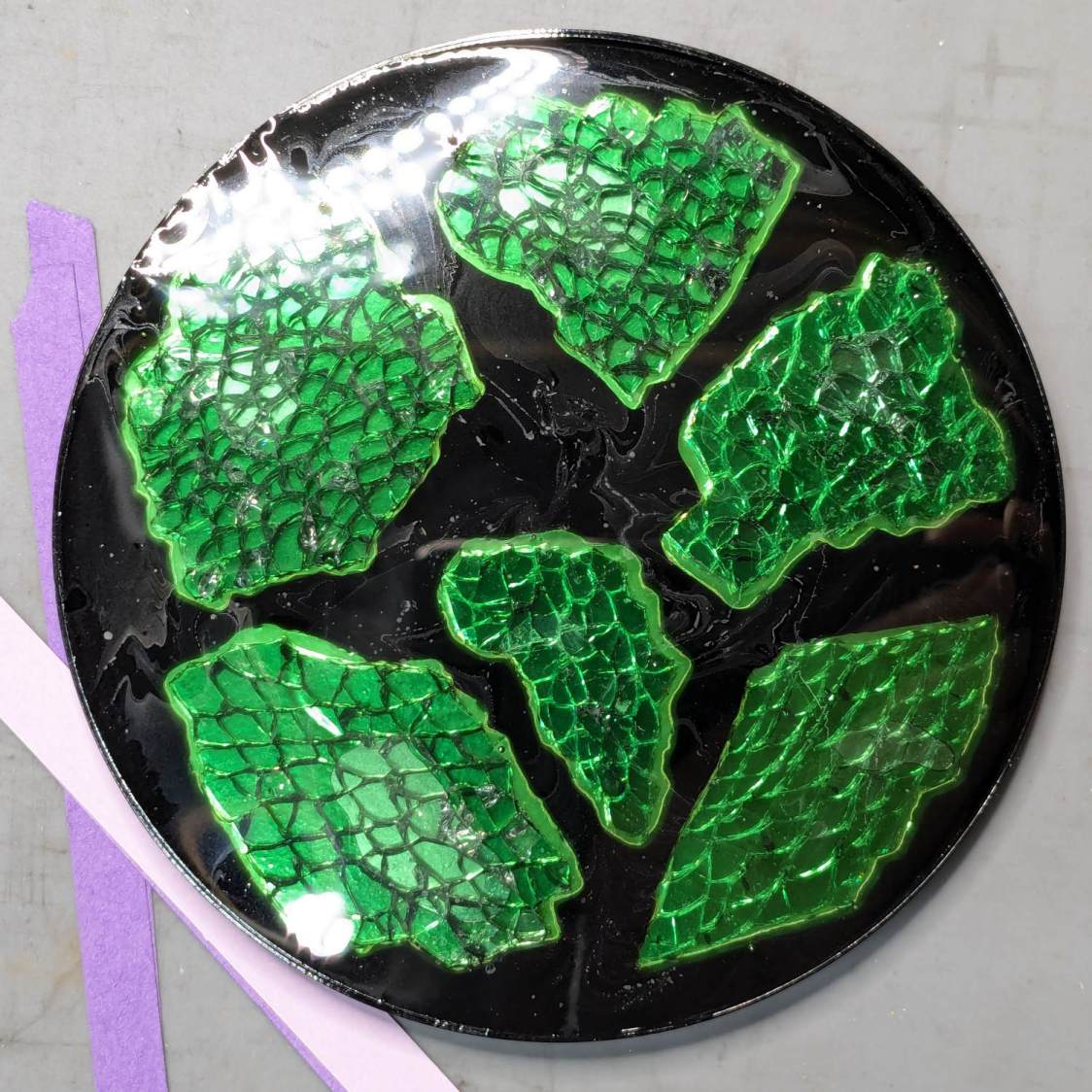
Put all but one fragment in their places, pour clear epoxy over everything, pop bubbles for a while, then let it cure overnight:
Smashed glass printed coaster – front view
Stick a PSA cork disk on the bottom and it’s ready for service.
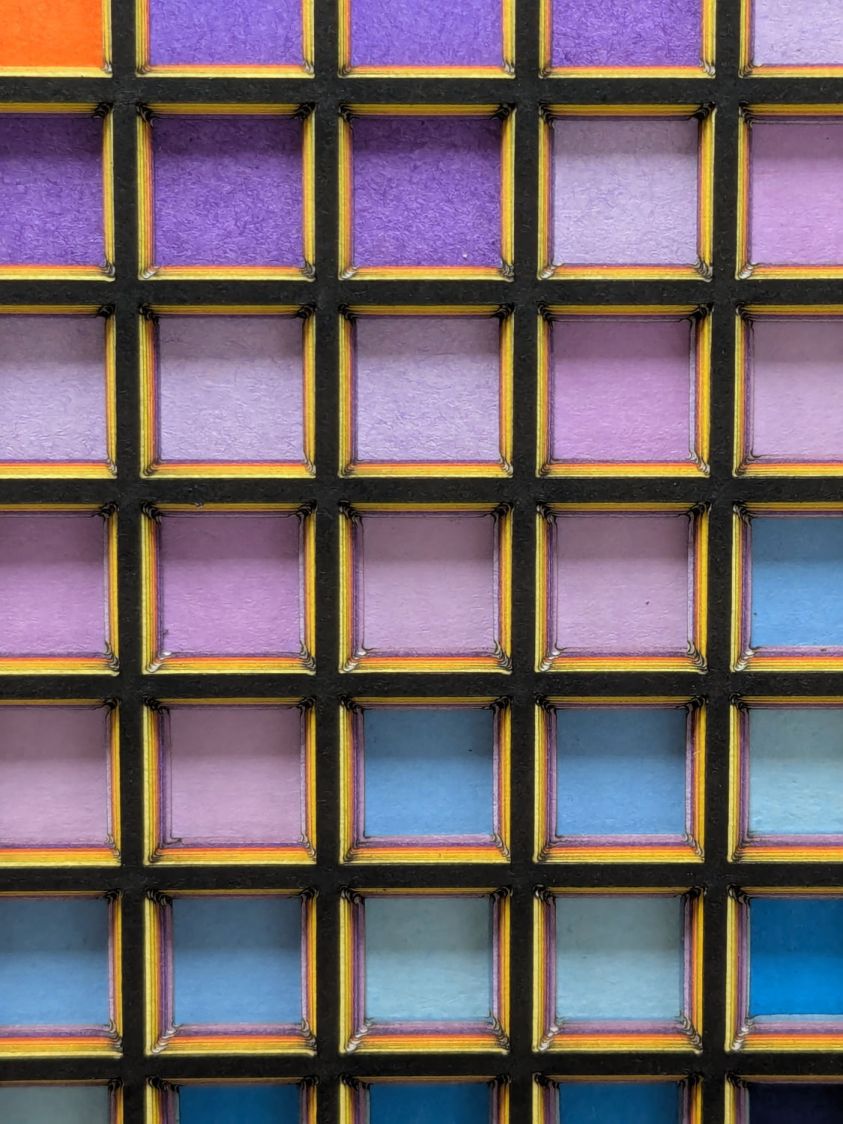
Which looks OK-ish, although not significantly different from the straight-hole versions:
Layered Paper – tapered blocks
The taper shows off the layer colors along the sides of the holes:
Layered Paper – tapered blocks – oblique detail
Unfortunately, it also makes the corner blemishes painfully obvious:
Layered Paper – tapered blocks – detail
My first attempt didn’t skootch the squares over by the size of the inset, thus neatly aligning the upper left corners and giving the bottom right corners twice the inset:
Layered Paper – tapered blocks – fixed origin – detail
Which made those gnarly corners painfully obvious.
I tried stacking the sheets with their bottom side upward, hoping to disguise the edge charring, but to no avail.
The inset code remains in place with a default of zero:
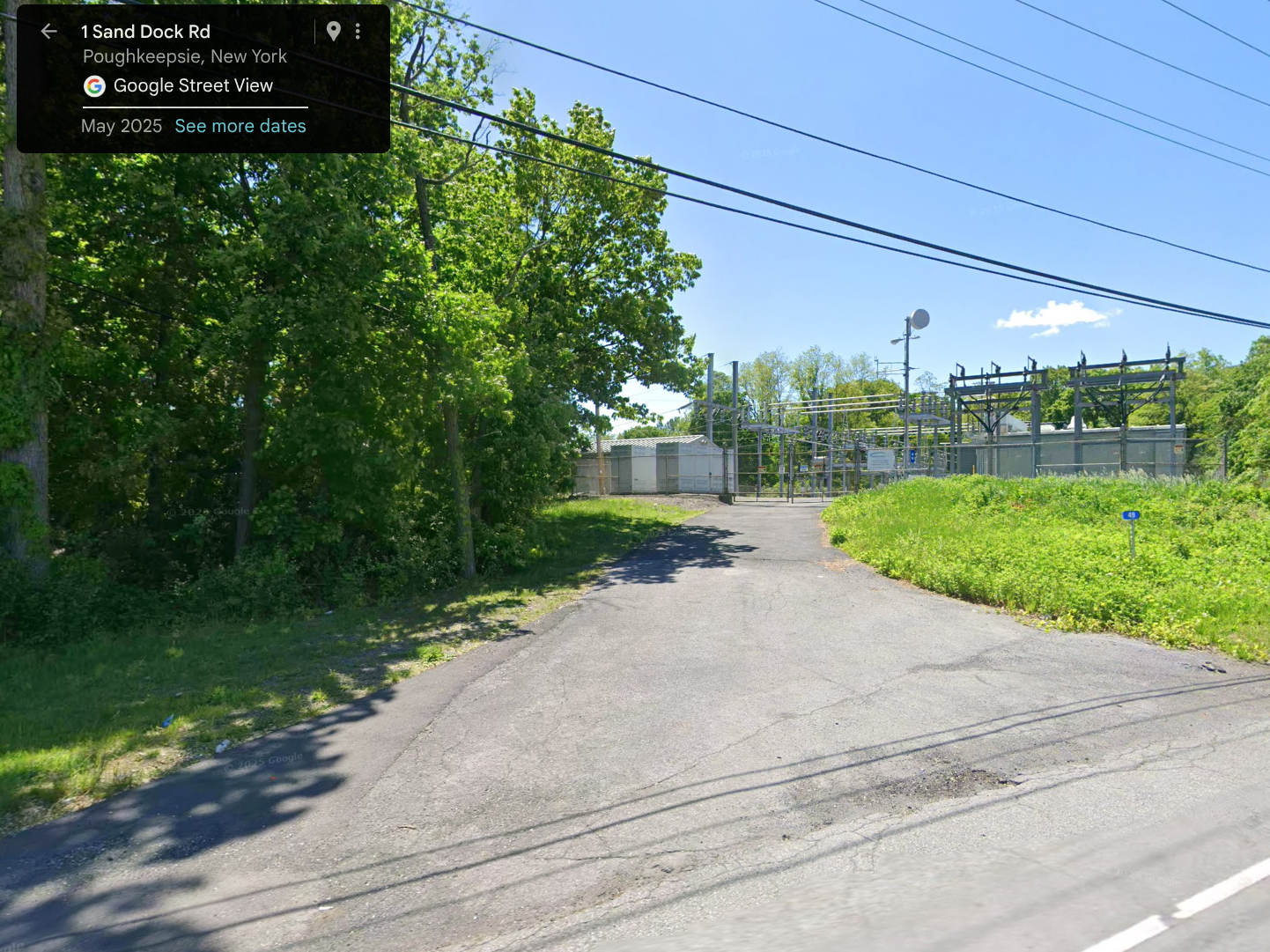
For reasons not relevant here, I walked along IBM Rd to the end of Sand Dock Rd and back, passing the switchyard serving the IBM Poughkeepsie site:
Street View – 1 Sand Dock Rd
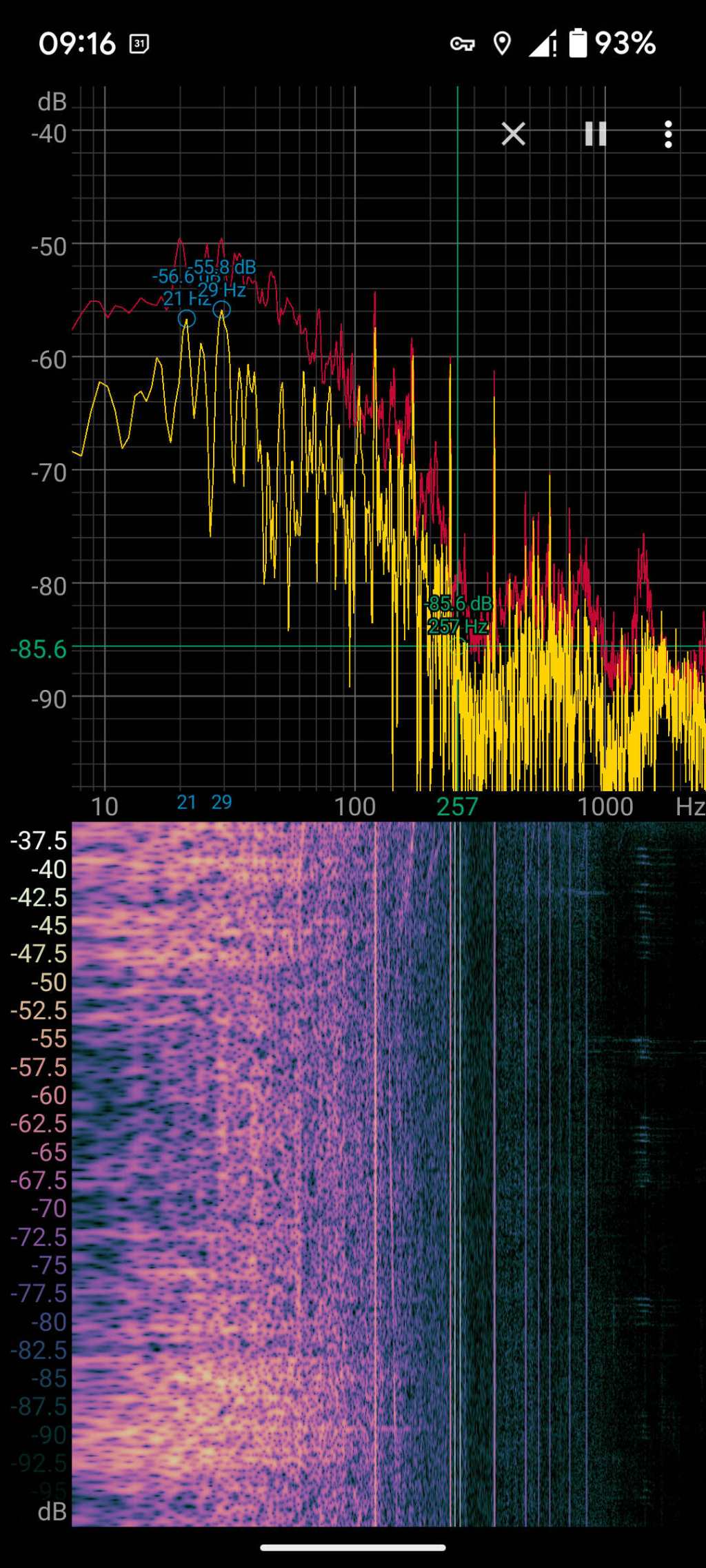
The overall capacity is surely in the tens of megawatts and there’s an overwhelming hum coming down that driveway:
Switchyard hum
Those peaks and the corresponding lines in the waterfall show the equipment emits acoustic energy all the way up to about 480 Hz, call it the eighth harmonic of 60 Hz.
Transformer steel has low magnetostriction, which produces most of the noise at even harmonics of the 60 Hz power line (because each cycle has two current maxima). The spectrogram shows the switchyard handles enough current to emit plenty of odd harmonic energy, with a notable peak at 180 Hz.
For comparison, standing a few feet from the transformer behind a medical office building along IBM Rd:
Transformer hum
No 180 Hz energy from that transformer!
Moving a few feet further away dropped those peaks into the background.
Even with my deflicted ears, I think can hear the switchyard hum from a considerable distance along the road, so maybe the background isn’t as quiet as I think.
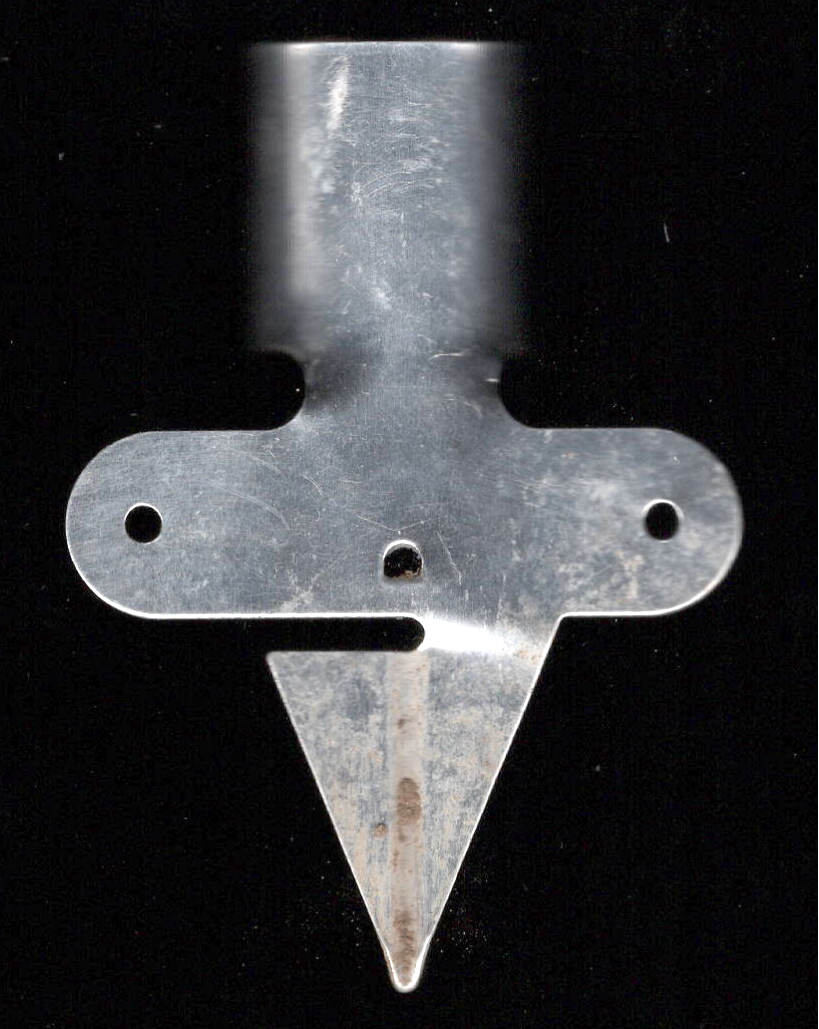
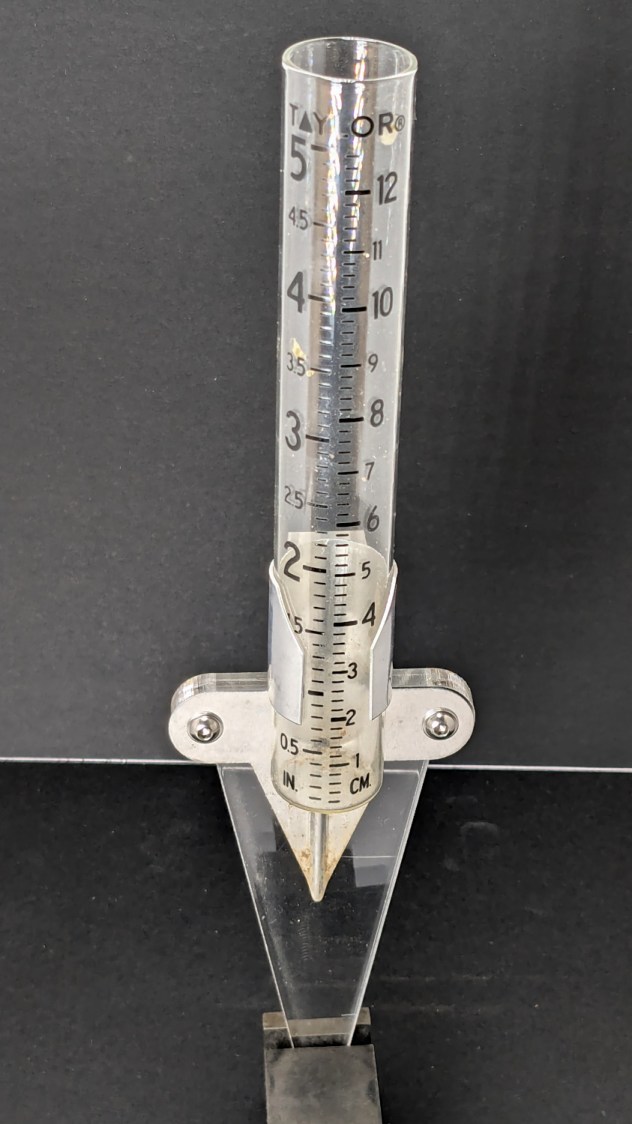
One of Mary’s gardening buddies gave her a Taylor rain gauge he picked up at a closeout sale, but the exceedingly thin aluminum holder obviously wasn’t up to the task:
Taylor Rain Gauge – OEM metal stake
I briefly considered 3D printing a better bracket, but came to my senses:
Taylor Rain Gauge holder – front
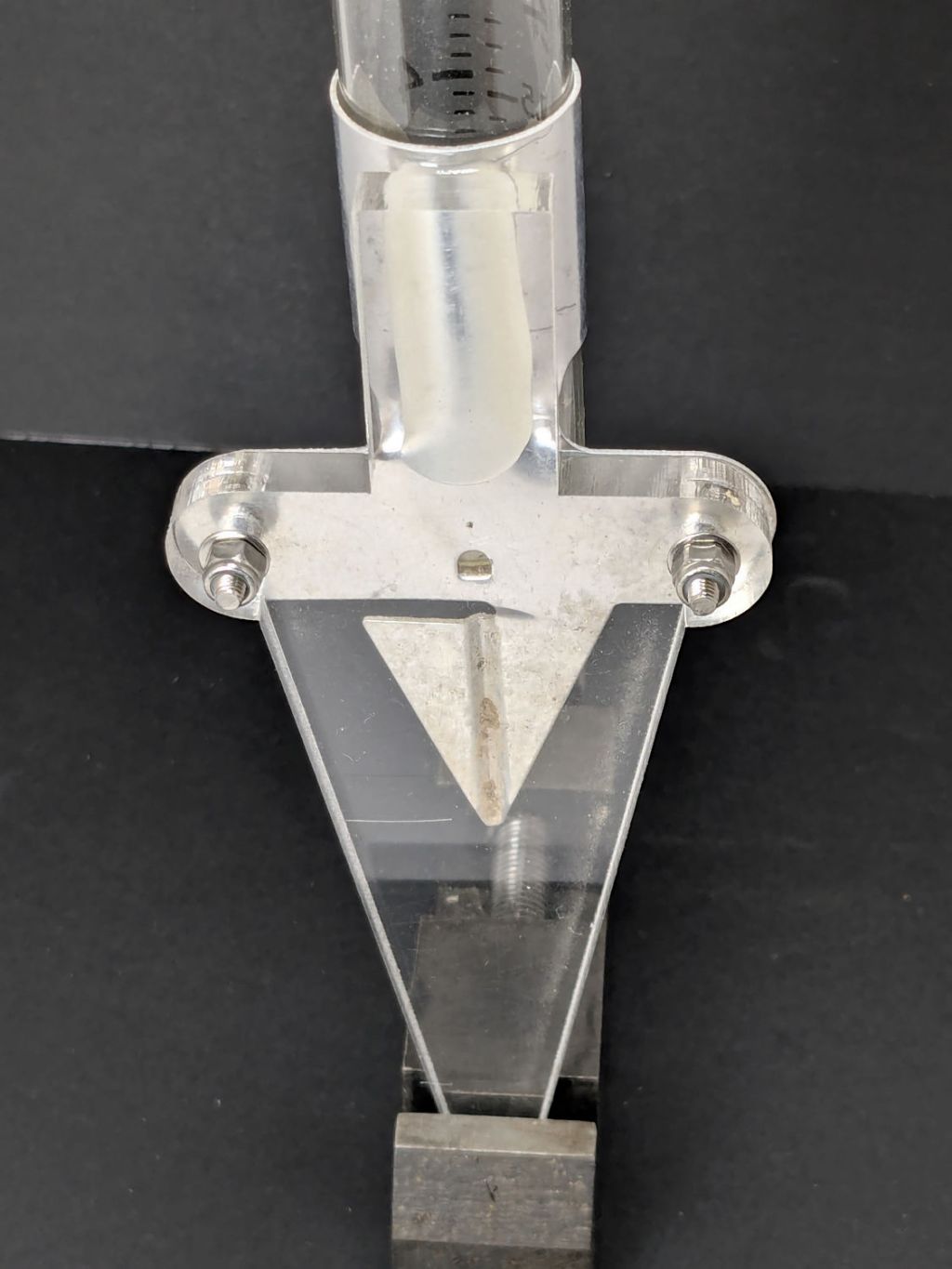
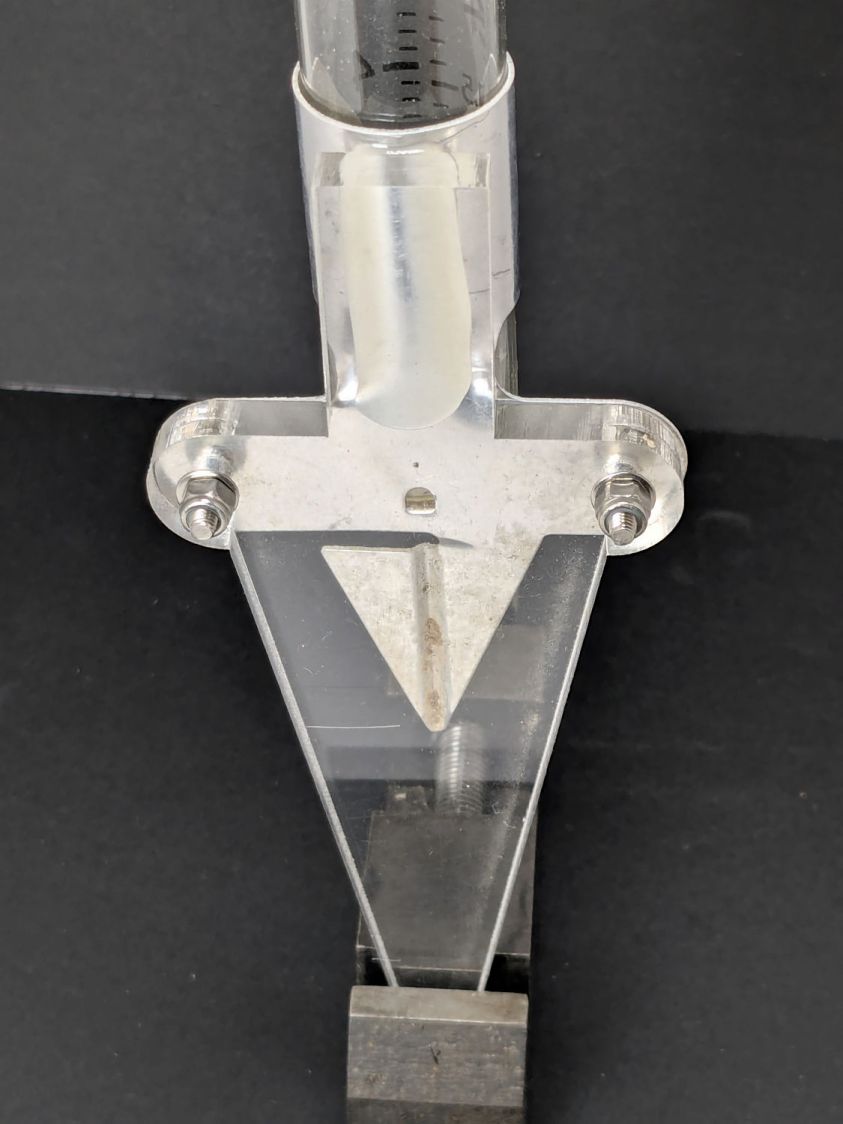
A generous fillet of tan JB PlasticBonder holds the thin aluminum clamp ring to the top of the dagger spike:
Taylor Rain Gauge holder – rear
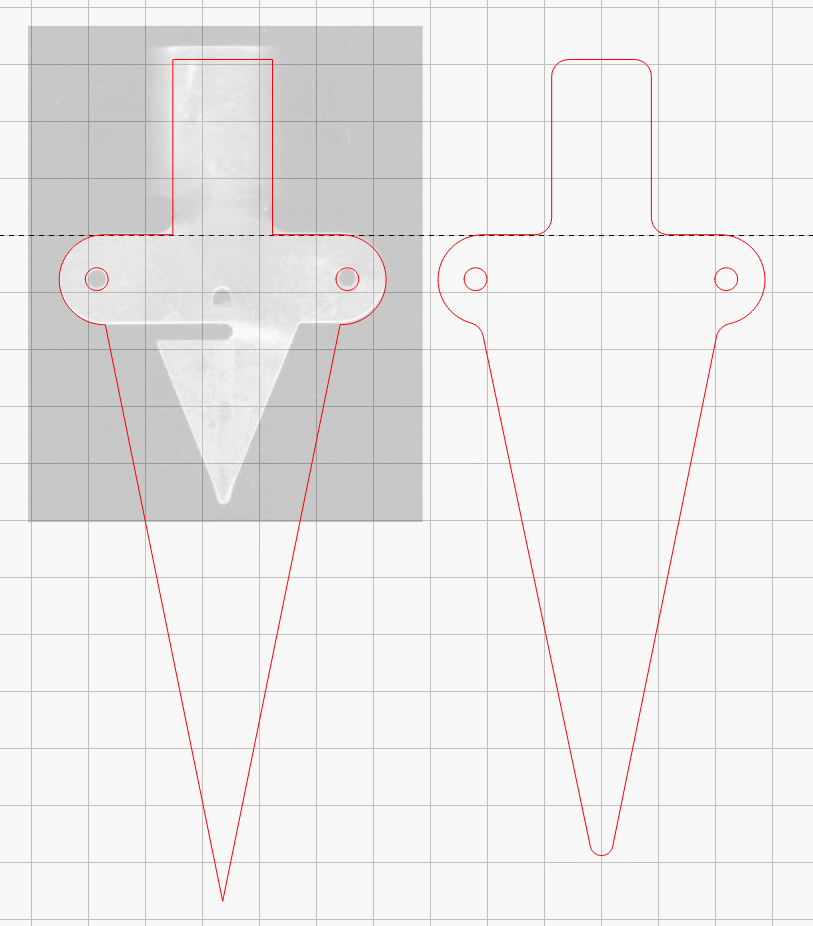
The spike is 6.3 mm acrylic and should survive for a while despite the stress-raiser corners. The next iteration will have radiused corners and could last longer:
Taylor Rain Gauge Holder – LightBurn layout
The holes will fit 4 mm screws, although the OEM holder isn’t good for more than 3 mm.





 The Smell of Molten Projects in the Morning
