Ed Nisley's Blog: Shop notes, electronics, firmware, machinery, 3D printing, laser cuttery, and curiosities. Contents: 100% human thinking, 0% AI slop.
Tag: Thing-O-Matic
Using and tweaking a Makerbot Thing-O-Matic 3D printer
With the thermistors nestled all snug in their wells, I turned on the heat and recorded the temperatures. I picked currents roughly corresponding to the wattages shown, only realizing after the fact that I’d been doing the calculation for the 5 Ω Thing-O-Matic resistors, not the 6 Ω resistor I was actually using. Doesn’t matter, as the numbers depend only on the temperatures, not the wattage.
This would be significantly easier if I had a thermocouple with a known-good calibration, but I don’t. Assuming that the real temperature lies somewhere near the average of the six measurements is the best I can do, so … onward!
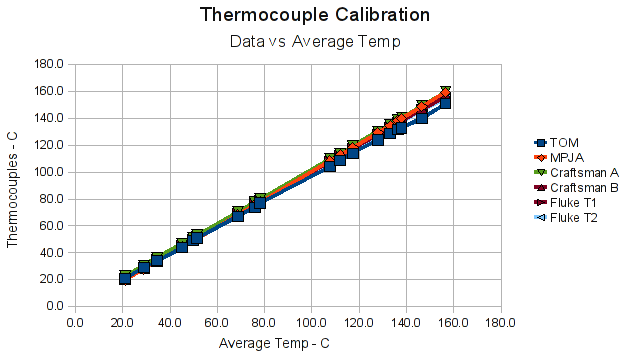
Plotting the data against the average at each measurement produces a cheerful upward-and-to-the-right graph:
Data vs Ensemble Average
So the thermocouples seem reasonably consistent.
Plotting the difference between each measurement and the average of all the measurements at that data point produces this disconcertingly jaggy result:
Difference from Ensemble Average
The TOM thermocouple seems, um, different, which is odd, because the MAX6675 converts directly from thermocouple voltage to digital output with no intervening software. It’s not clear what’s going on; I don’t know if the bead was slightly out of its well or if that’s an actual calibration difference. I’ll check it later, but for now I will simply run with the measurements.
Eliminating the TOM data from the average produces a better clustering of the remaining five readings, with the TOM being even further off. The regression lines show the least-squares fit to each set of points, which look pretty good:
Difference from Average without TOM
Those regression lines give the offset and slope of the best-fit line that goes from the average reading to the actual reading, but I really need an equation from the actual reading for each thermocouple to the combined average. Rather than producing half a dozen graphs, I applied the spreadsheet’s SLOPE() and INTERCEPT() functions with the average temperature as Y and the measured temperature as X.
That produced this table:
                    TOM     MPJA  Craftsman A  Craftsman B   Fluke T1  Fluke T2
M = slope        1.0534   0.5434       0.5551       0.5539     1.0112    1.0154
B = intercept   -1.6073 -15.3703     -19.4186     -16.9981    -0.7421   -0.3906
And then, given a reading from any of the thermocouples, converting that value to the average requires plugging the appropriate values from that table into good old
y = mx + b
For example, converting the Fluke 52 T1 readings produces this table of values. The Adjusted column shows the result of that equation and the Delta Avg column gives the difference from the average temperature (not shown here) for that reading.
The Max Avg Error (the largest value of the absolute difference from the average temperature at each point) after correction is 0.78 °C for this set. The others are less than that, with the exception of the TOM thermocouple, which differs by 1.81 °C.
So now I can make a whole bunch of temperature readings, adjust them to the same “standard”, and be off by (generally) less than 1 °C. That’s much better than the 10 °C of the unadjusted readings and seems entirely close enough for what I need…
The man with one thermometer knoweth the temperature
The man with many thermometers knoweth not the temperature
Drilling the isothermal block
Given the five thermocouples and their meters shown there, plus the Thing-O-Matic’s thermocouple, I had six different temperatures. They’re close, but we can do better than that.
The general idea is to put all the thermocouple beads in close proximity so they share the same temperature, record their opinions to various temperatures, then figure out an equation that adjusts their disparate opinions to reflect consensus reality.
I cranked out an isothermal block on the Sherline mill, using EMC2’s exceedingly handy polar coordinate notation to get a nice hexagon. Touch off XYZ=0 at the middle of the block, then center-drill and drill:
For lack of anything better, 3000 rpm with a drill matching the ID of the brass tubes, plus dripping cutting fluid as needed.
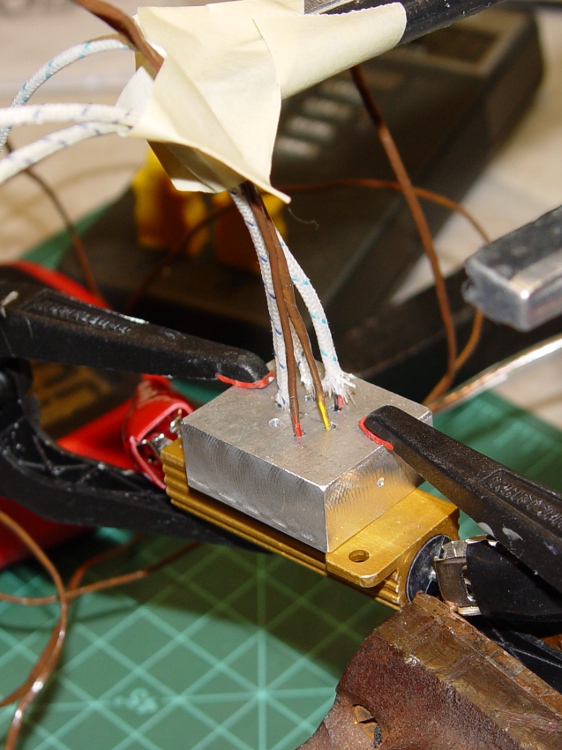
Thermocouples in block
I used a 6 Ω 50 W resistor (the adult version of the resistors on the Thing-O-Matic / MK5 head) as a heat source, clamping the block to the resistors with plastic clamps to provide mechanical force and thermal isolation. Good idea, bad implementation: as you’ll see, those little red tips melt at a rather low temperature.
The TOM thermocouple bead will fit into the empty hole.
Extruder head with thermocouple mounts – epoxy curing
As I described there, the resistors on the Thing-O-Matic MK5 Extruder Thermal Core operate in impossible conditions. To summarize, each resistor is rated to dissipate 10 W at 25 °C, but is actually dissipating nearly 30 W at well over 225 °C. Ouch!
I wanted to figure out just what was going on inside the Extruder Head, which means some instrumentation was in order, which meant I had to figure out how to attach a set of thermocouples to the Core. This picture shows one approach: epoxy a set of small brass tubes to various parts of the MK5 Extruder Head.
JB Industro-Weld epoxy is rated to 500 °F = 260 °C, which is barely adequate for the job at hand.
The general idea is that each tube provides an isothermal mount for a thermocouple bead, without the inconvenience of drilling holes in various metal bits and messing with high-temperature thermal compound. I am assuming that putting the beads inside the tubes, heating the Core, then waiting for the temperature to stabilize will produce meaningful results.
I have a motley assortment of meters that allegedly read temperature from Type K thermocouple beads. The business end of those thermocouples looks like this:
Thermocouple beads
The twisted one in the middle has a completely non-standard red-black insulation color code, but as long as the meter it came with is happy, I’m happy. The two on the right have industrial-strength wires, as befits the fact that they plug into a Fluke 52 dual-thermocouple meter; them, I trust.
I skinned down the insulation a bit so they’d all reach into the middle of the tubes and filed down the bead on the right just a smidge.
It shouldn’t come as any surprise that each of the five thermocouples reported a different number for the ambient temperature, which meant a calibration run was in order.
The Thing-O-Matic touches the plastic filament in three places:
Filament Drive Frame
Extruder Thermal Core
Automated Build Platform Belt
In each case, the plastic filament slides (or oozes) along another plastic surface, which is the classic way to generate a charge of static electricity. Think of a running a comb through your hair, rubbing a cat on a balloon, shuffling across a carpet in your fuzzy slippers, or pulling off an acrylic sweater.
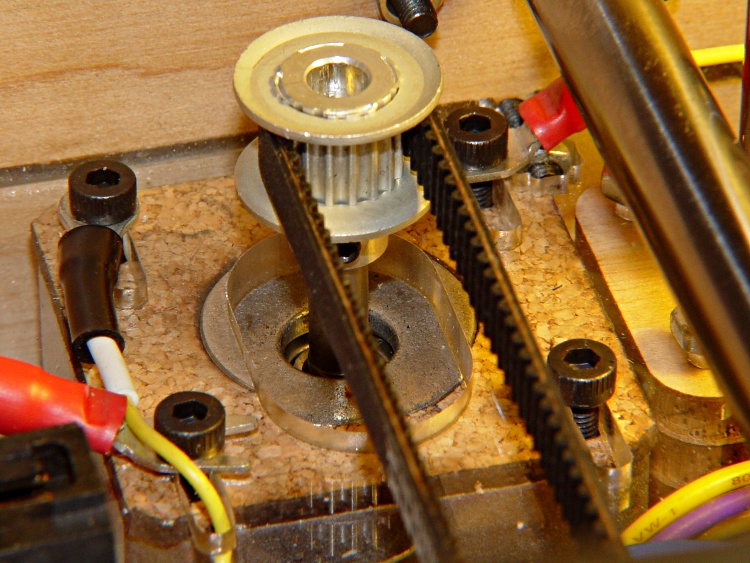
In addition, the X and Y stepper motors each drive a rubber-ish timing belt around a plastic roller. Non-conductive belt on plastic pulley = static charge, with metal motor pulley collecting it on the motor shaft, thence to the motor frame. The motor shafts and frames do not connect to any of the motor conductors, because in most machines the stepper motors mount to a metal chassis. The Thing-O-Matic insulates its motors on plywood or plastic sheets with no conductive path to ground.
None of those metal parts has any provision to control a static charge accumulation, which means the charge will increase until one of two events transpires:
The charge reaches an equilibrium with leakage through the air
The potential reaches air’s breakdown voltage and arcs to an adjoining metal object closer to ground potential
The former situation may be tolerable (and is most likely during the humid summer months), but the latter causes those annoying random crashes and, sometimes, hardware failures. In round numbers, air’s breakdown voltage exceeds 1 kV / mm (25 kV / inch), which explains that blue-hot spark from your fingertip to the screw on the light switch.
I added drain wires to all of those locations, using wire stripped from an old ribbon cable. There’s no particular current involved, so thin wire will work just fine. Double it over a few times to fill the barrel of the solderless connectors, though, and use some heatshrink tubing for strain relief.
The ABP platform heat spreader underneath the belt looks like a huge (and completely isolated) capacitor plate with respect to the plastic accumulating atop the belt. The wire attaches to the far right rear of the spreader and trails off with all the other ABP cabling. Yes, those are the wooden side plates, not the acrylic ones, for a reason I’ll explain when I work through my embarrassment.
ABP Heat Spreader static drain
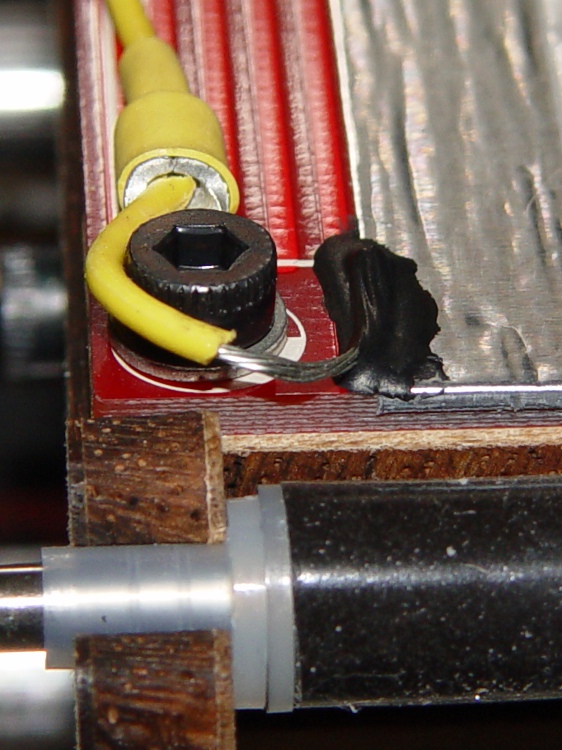
There’s no good way to attach a wire to the metal foil, so I used a dab of Wire Glue. The cured carbon-rich blob probably isn’t rated for protracted use at 125 °C, though, and perhaps a mechanical flange captured under one of the socket-head cap screws will be a better idea. This is a detail of the contact end; I threaded the wire through the solderless ring terminals for strain relief.
ABP static drain – detail
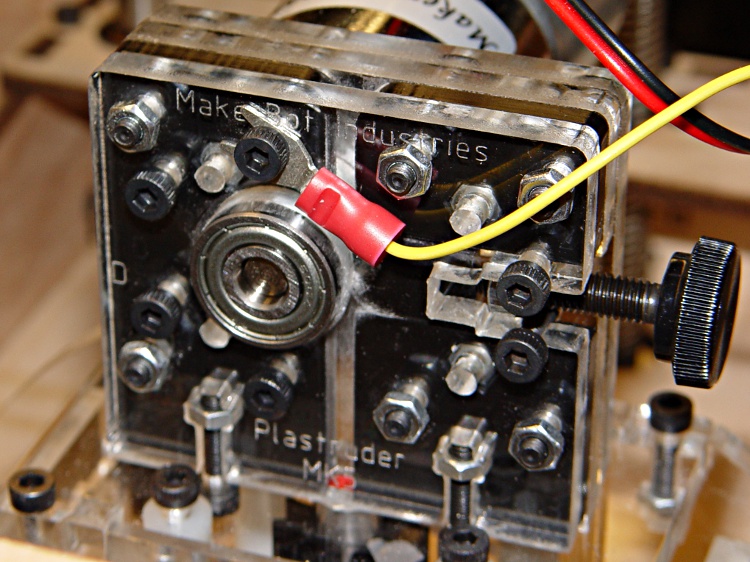
The Extruder DC motor has bolts passing entirely through the Filament Drive, so I captured a solderless connector under one head. After taking this picture, I realized that the lower motor bolt on the left side is a better location, as that one aims the connector’s open end up and to the right. Make it so.
Extruder motor static drain
The X axis stepper motor drain wire dunks down through a motor mount slot and follows the motor winding conductors out of the housing.
X Axis static drain
The Y axis stepper motor frame serves as the connection point for the Extruder Motor and X-axis drain wires, each secured under a separate motor mounting bolt. The third wire (with black and white heatstink tubing) snakes down through the left-front motor mounting slot in the acrylic sheet above the electronics bay.
Y Axis motor with static drains
The Z axis stepper has only metal-to-metal sliding contact, so it’s presumably free of static buildup. If you’re being fussy, ground that one, too.
The Extruder Thermal Core also requires a drain wire, but that one must also handle the fault current from a resistor failure that shorts the +12 V supply directly to the Thermal Core; I’ll discuss that situation separately in a few days.
The ABP and Y Axis drain wires join a hacked-together ground point secured to the metal case of the ATX power supply metal case. You could, of course, connect these to a DC common supply lead (any Black wire), but these are, by definition, non-current-carrying leads that ought not be mixed with the power distribution. The case is a known-good grounding point that’s bonded to the AC line’s earth-ground conductor, exactly where static charges want to go.
Static drain to ATX supply connector
The connector is obviously from a cut-off Molex-style hard drive power cable with all four sockets wired together; I sacrificed a handful of Y-splitter power cables for another project a while ago. The pins are lengths of 12 AWG copper wire harvested from a length of Romex house wire, with the drain wires soldered to one end, then covered with heatstink tubing. This is a kludge, but a workable solution.
Although I think static discharge is a relatively minor contributor to the random crashes and failures, it’s easy enough to eliminate with no side effects… as long as you leave enough wire to reach the far end of the axis travel range.
Just as with the Extruder Controller, the Thing-O-Matic stepper motor driver boards derive their logic supply from the +12 V line through a 7805 linear regulator. While that works in the ideal case, it makes the logic supply vulnerable to glitches induced by motor current switching.
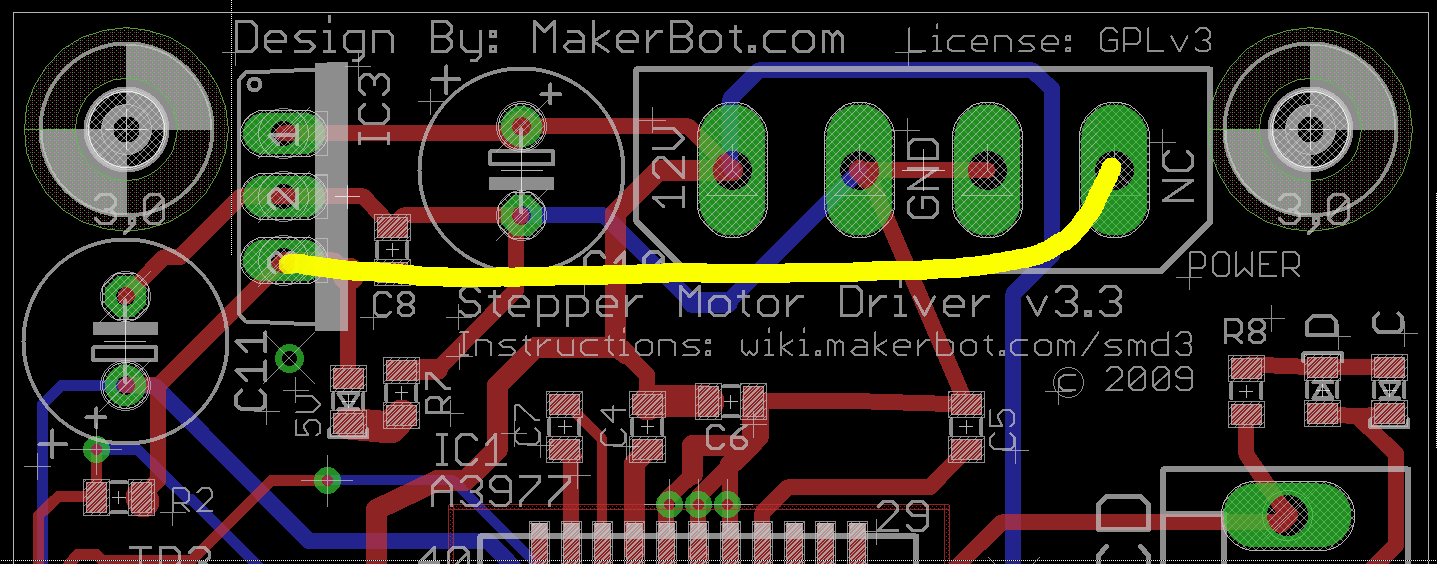
This modification gives the stepper controller chip a clean +5 V supply from the Thing-O-Matic’s ATX power supply, by the simple expedient of removing the 7805 regulator chip and connecting the +5 V from the power supply Molex-style connector to the circuit pad that was the regulator’s output pin.
This is what the modification looks like on the PCB layout.
Stepper driver board modification
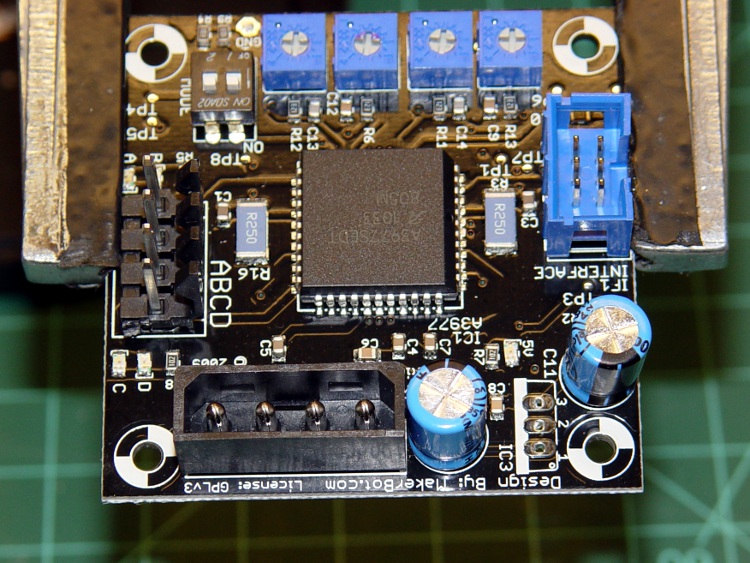
Use solder wick and a big soldering iron to de-solder the connections, then yank (gently!) the regulator off the board; you can see the outline printed on the board near the lower-right corner, between the two blue capacitors. This picture is rotated half a turn from the PCB layout shown above.
TOM stepper driver minus 7805 regulator
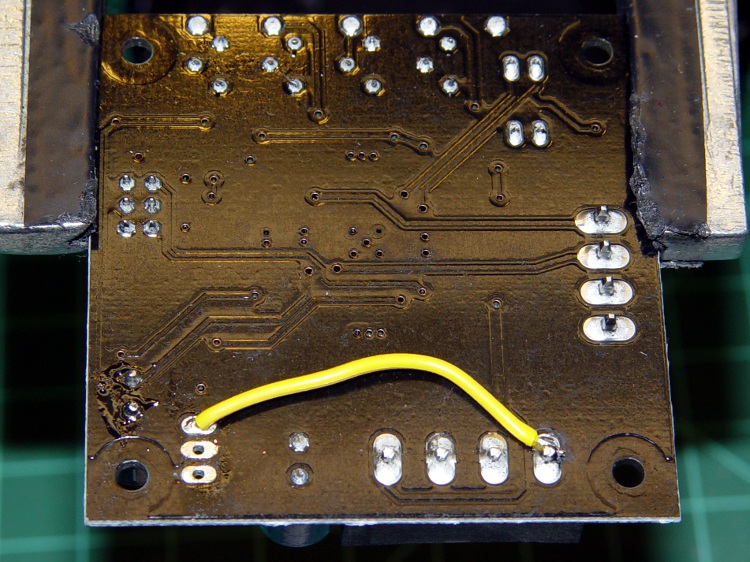
Connect a jumper from the Molex connector’s +5 V pin to Pin 3 of the 7805 regulator outline. The wire can be any size, because it carries minimal current to the driver chip’s logic circuitry; I used a strand stripped from a ribbon cable.
Put the wire on the bottom of the board, because the connector pin isn’t accessible from the top and the traces at the regulator output pad are on the top where they’ll be easy to solder.
TOM stepper driver with 5 V jumper
Repeat for all three stepper motor controller boards.
Reinstall in your Thing-O-Matic and rejoice that nothing seems to have changed. This modification should reduce the number of weird motor-control problems, although it will not prevent lost steps due to mechanical overload or excessive traverse speed.
As I described there, a single +12 V Molex connector pin must supply too much current to the Extruder Controller Board. Fortunately, the stock Thing-O-Matic ATX power supply has a 4-pin connector that, in its normal PC environment, provides +12 V power to a high-end video board. This modification hacks that connector to provide separate +12 V power wires to the Extruder and Heated Build Platform heater MOSFETs, thus removing 11 A of current from the Extruder Controller PCB.
That current normally passes from the +12 V pin of the Molex-style connector to the screw terminals securing the Red heater wires. The corresponding Black / Blue wires connect to screw terminals that pass the current to power MOSFETs that switch the heaters on and off. Disconnecting the “Red” screw terminals from their PCB traces and connecting them directly to the +12 V from the hacked video connector, then connecting the corresponding return wires to the PCB near the MOSFET Source pins, is what’s needed.
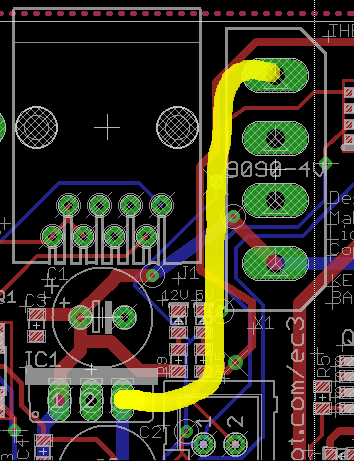
This is what the change looks like on the PCB layout. The four yellow angles mark pins soldered to the board, the yellow arc is a new jumper wire, and the three purple dashes represent trace cuts. It’s not all that complicated, but it will certainly void whatever warranty you think might otherwise apply to the board.
Extruder Controller MOSFET modifications
The blue line between the row of screw terminal pins and the edge of the circuit board conducts +12 V power from the Molex connector to the A3949 DC motor driver chip. This modification doesn’t affect that connection: you must not sever that PCB trace.
Disconnected +12 V screw terminal pin
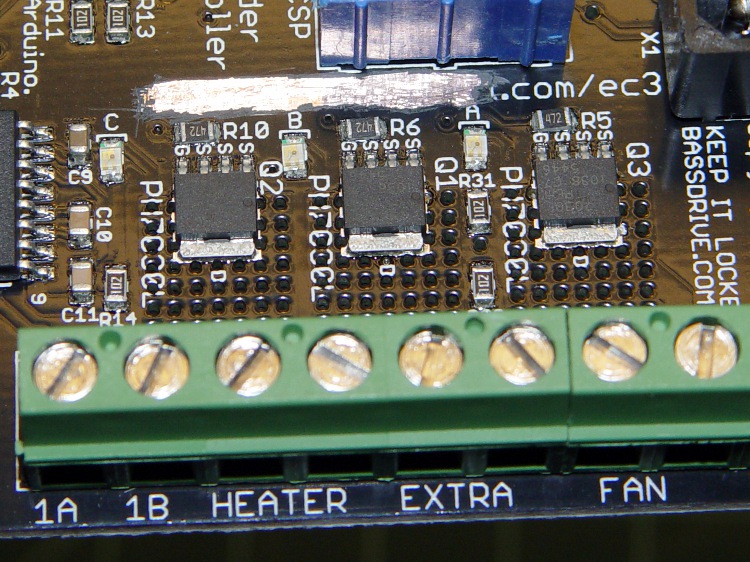
Cut the short traces between the screw terminal pins and the adjacent +12 V trace along the edge; I used a scalpel blade while watching through a microscope. You’ll certainly cut into the ground plane on either side of the trace, so you’ll see copper on all sides. Use a multimeter to verify that the terminal pin no longer connects to the +12 V Molex pin (the leftmost one as shown above) and that a stray copper curl hasn’t shorted it to the ground plane (either of the two center Molex pins). The result will look like this at each of the three screw terminal pins.
You should fill the gouges with an insulator to prevent future heartache and confusion. I used some of my shop assistant’s Citrus Punch nail polish; the glitter is entirely gratuitous. Wrap a narrow strip of Kapton tape along the edge to prevent shorts to the PCB ground planes from the pins you’re about to add.
Insulated PCB trace cuts
The corresponding ground connections go on the top surface of the board, near the MOSFET Source pins. There’s just enough space between the ICSP connector and the Gate traces to make this happen. Scrape the black solder mask off the PCB to reveal the clean copper ground plane below, leaving a narrow strip along the edge of the ICSP connector. Basically, you’re obliterating the URL that aims you at the board’s documentation.
Extruder Controller with scraped-off solder mask
Take care to not gouge through the copper plane and take extreme care to avoid the Gate traces and vias. I ground a flat end on that scalpel blade and used it as a scraper.
Lay the board aside and work on the ATX supply’s four-pin video power connector, which looks like this.
ATX power supply video connector
Note that there’s another four-pin connector that you removed from the end of the hulking 20-pin connector that plugs into the Thing-O-Matic Motherboard. That one has four different wire colors (black, red, orange, yellow) and won’t work here!
Remove the pins from the connector housing. There’s a special tool that does this, but I used a defunct crochet needle. The trick is to poke a very skinny tool between the stamped-metal socket and the plastic housing to push in the spring tab that locks the socket in place. There are two spring tabs on opposite sides of each socket. This operation goes smoothly if you pull gently on the wire while poking the tabs; you can feel the socket move when the tab slides out of position.
The end result will look like this, with a tab on the top surface.
Dismantled video power connector
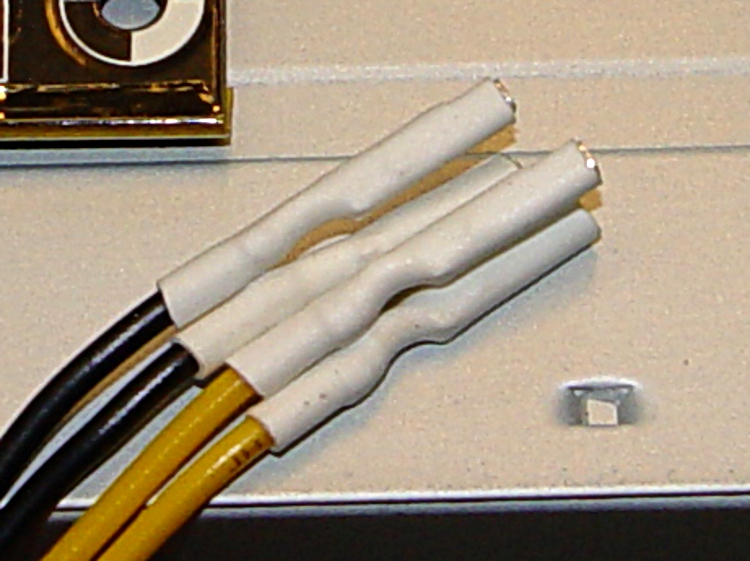
Clip off the two protruding tabs that hold the socket in the plastic housing against the tabs. Apply some heat-shrink tubing around each socket to get four little teeny connectors:
Insulated video connector sockets
The sockets mate, albeit with some persuasion, to 45-mil (1.14 mm) square pins that are not the smaller 25-mil pins found on pin header strips. My parts heap disgorged a handful of suitable right-angle pins in plastic strips, something like those; failing that, I’d harvest and gut a connector from dead PC system board. You could probably use some 16 or 18 AWG solid wire in a pinch, but the current is rather high for an impromptu arrangement.
Solder two pins to the screw terminals on bottom of the PCB, angled slightly so the upright parts pass between the screw terminal openings on the side. The pins are on the Heater (for Extruder head) and Extra (for Heated Platform) terminals, with the jumper wire connecting the latter to the Fan (ABP belt motor) terminal; all are on the +12 V terminal of their respective pairs.
The ABP belt motor connects to the other terminal of the Fan pair, which leads directly to the MOSFET Drain. You could omit the yellow jumper wire, but that’d be confusing if you ever wanted to use that MOSFET in the same way as the others.
Extruder Controller with +12 V to screw terminals
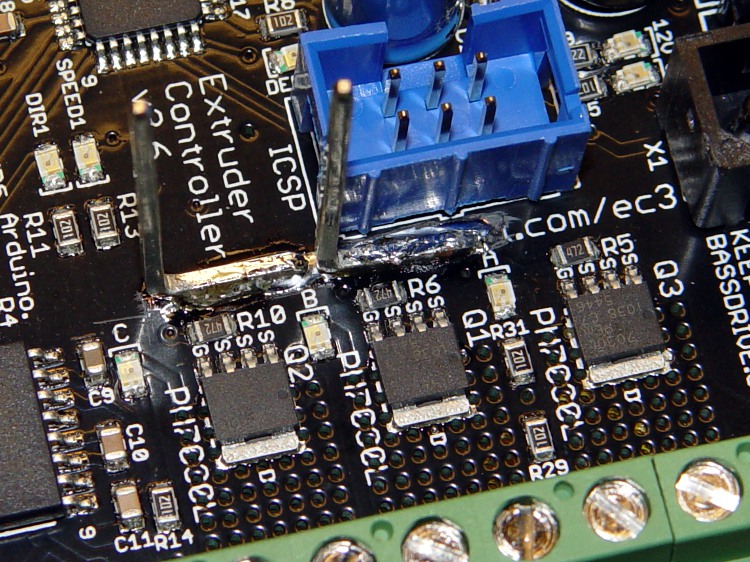
Solder the other two right-angle pins to the cleared strip on the top of the board, tinning the ground plane and pins before you solder them together. Don’t block access to the ICSP connector; you never know when you might need it! I put the angled ends of the pins to the right, as viewed from the screw terminal strip, which put the right-most pin exactly at the corner of the connector shell with barely enough room for the wire with socket + heatshrink. The end result should look like this:
Extruder Controller with added ground pins
Do a trial fit: plug in the four wires from the video power cable, noting that the Black wires connect to the top-side pins and the Yellow wires connect to the pins at the screw terminals. I trimmed the pins so they exactly fit into their sockets.
Extruder Controller with separate +12 V supplies
This is certainly not the most robust construction method in the world. In particular, the pins on the top surface depend on structural solder to the ground plane; they have a fairly large area in contact with the board, but if you manage to apply enough force you can probably wreck the Extruder Controller board.
Put the board back in the Thing-O-Matic, connect the modified video power wires, and plug / screw all the usual connections. Button it up, fire it up, and it should work exactly as before… but with better reliability.
This modification should reduce the number of glitch-induced transient failures by moving most of the transient energy off the board; the remaining paths are very short. It will not correct excessive heat in the MOSFETS and does not cure the DC motor overcurrent jam / driver failure problems.
The Thing-O-Matic Extruder Controller uses a 7805 linear regulator to produce +5 V logic power from the +12 V input. Unfortunately, the board’s +12 V supply input is grossly overloaded: a single 20 AWG wire and Molex-style connector pin must supply several simultaneously active high-power loads:
5 A → Extruder heater
6 A → Build Platform heater
1-2 A → Extruder motor
The return current path to the ATX supply uses two pins and wires, so it contributes half as much to the problem. Molex connector pins aren’t rated for that much current (11 A @ 30 °C rise), so the +12 V supply arrives at the board in poor condition.
Worse, the brushes on the DC Extruder motor introduce large switching transients, even without PWM speed-control chopping. The Extruder and Build Platform heaters also present somewhat inductive loads to their MOSFET switches that create significant switching transients. The 7805 regulator isn’t well-suited to removing high-voltage transients; its bandwidth isn’t high enough.
This modification gives the Extruder Controller clean +5 V logic power by removing the 7805 regulator chip and connecting the +5 V pin at the power supply Molex-style connector directly to the PCB pad that was the regulator’s output pin.
This is what the modification looks like on the PCB layout.
Extruder Controller board modification
Unsolder the regulator and remove it, which will reveal the outline printed on the circuit board. This picture is rotated a quarter-turn counterclockwise from the PCB layout shown above.
Extruder Controller minus 7805 regulator
You’ll need a beefy soldering iron or an Old Skool soldering gun to make headway on the 7805′s center pin, because it’s firmly attached to the ground plane on both sides of the circuit board. A solder sucker and desoldering braid will come in handy to remove excess solder before extracting the regulator.
Then connect a jumper from the Molex connector’s +5 V pin to Pin 3 of the 7805 regulator outline. The wire can be any size, because it carries minimal current to the logic circuitry; I used a strand stripped from a ribbon cable.
Put the wire on the bottom of the board, because the connector pin isn’t accessible from the top. However, the trace at the regulator output pad is on the bottom where it’ll butt against the wire insulation, so make sure there’s a solder fillet between the wire and the pad.
Extruder Controller with 5 V jumper
Reinstall the Extruder controller and marvel that nothing seems to have changed.
The next modification to this board will move the heater power supplies off the board, but it’s a much more aggressive hack. This simple change should eliminate the random resets and crashes that seem to be plaguing the stock Extruder Controller board; it will not prevent burning out the DC motor controller chip.














 The Smell of Molten Projects in the Morning