Ed Nisley's Blog: Shop notes, electronics, firmware, machinery, 3D printing, laser cuttery, and curiosities. Contents: 100% human thinking, 0% AI slop.
The next step in the process for this board: toner transfer masking.
What you see here follows the basic process given by the folks at Pulsar, so go there for the instructions & supplies. The overall flow is:
Print the PCB trace pattern on the special paper
Align to the circuit board
Tape in place
Fuse toner to PCB
Apply green sealant film
Etch
Repeat for the other side
Some tricks:
An Eagle CAM file (found there in Useful Stuff) creates Postscript files for the top & bottom copper (and the silkscreen, although I don’t use that).
I load those PS files in The GIMP at 600 dpi with mild antialiasing, crop (autoshrink!), combine into a single image, then print on a single sheet of paper using an HP Laserjet 1200 (obsolete, but pretty nearly any laser printer should work).
Turn off all the toner saving features; you want a really dark image with plenty of toner!
I run a sheet of paper through to find out exactly where the images will wind up, then tape the transfer paper atop the images (shiny side up!) using laser address labels (because they can take the heat) on the first-to-enter end of the transfer paper.
Vital step: run that whole assembly through the printer to print a blank page. This cooks the moisture out of the transfer paper and pre-shrinks it for the next step. This might not matter for very small circuit boards, but if you’re doing anything over an inch or so, it makes a big difference.
Run it through the printer again to print the trace patterns. They should wind up exactly in the middle of the transfer papers, although you’ll be surprised at how far off they can be from the patterns on the sheet underneath. Lasers have great dot resolution, but are not particularly accurate at locating the paper relative to the printing drum. That doesn’t matter for ordinary documents, but be sure you leave more margin on the transfer paper around your patterns than you think necessary.
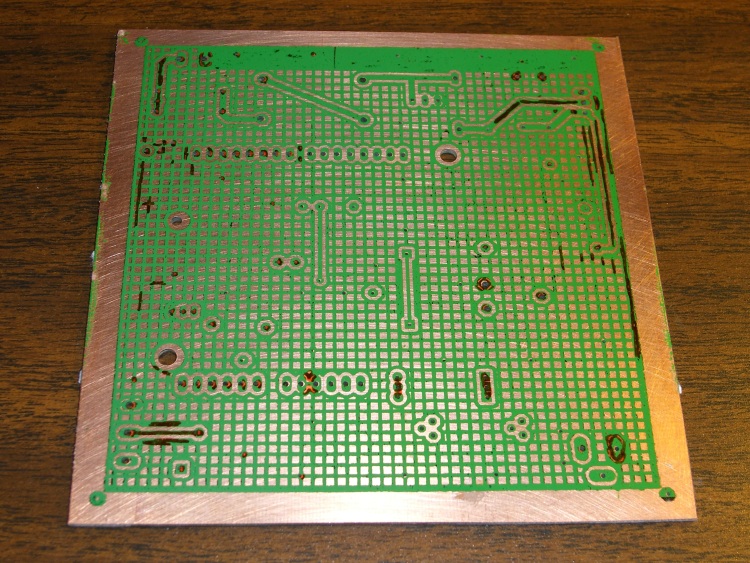
PCB Masked – Rear
Use the printer’s manual-feed feature to queue up all three prints at once. My printer is in the basement laboratory and my comfy chair is upstairs, so that saves several trips up & down the stairs. Not that I can’t use the exercise, mind you, but it’s the principle of the thing.
Cut the transfer paper off the backing sheet. Don’t bother trying to un-stick the labels; they’re fused solid. Stick another label on the back side of the transfer paper along shortest side.
Alignment trick: now lay the paper pattern-side-up on a light table (I use an old fluorescent fixture with a frosted-glass lens), lay the board atop it, and adjust for best hole alignment over the whole board. The trace patterns on the paper form very nice bright spots that shine up through the holes in the circuit board. You can do it with the board on the bottom, but this way works better.
You’ll be dismayed at how far off some of the holes are, but you should get within perhaps 10 mils all across the board. Squish the board down on the sticky side of the label and fold the label over the top of the board. That anchors the paper to the board and, because the label is fairly wide, keeps the paper from twisting relative to the board.
Flip it over, verify that the holes still line up by looking through the paper, then apply labels to the sides to hold the transfer paper flat and in alignment. I’ve tried it without the side attachments and the result is, ahem, not quite as good. You can see the label residue on the front side in the photo above; obvously, you’ll be cleaning the gunk off before doing that side.
I’ve tried the clothes-iron technique with little success, so I have one of the heated roller fusers. Works pretty well, although it requires some fiddling to get the proper combination of heat and spacing.
Add water, let the paper soften, peel it off.
Run it through the fuser again with the green sealer film. I get better results with a layer of ordinary paper atop the green film, perhaps because that prevents the film from touching anything inside the fuser. Without the paper, the film sometimes transfers lengthwise scratches to the toner.
Peel off the film and touch up any imperfections with an Ultra-Fine-Point Sharpie; I use orange to make the corrections easy to see against the green background. Those are the highly visible ugly marks on the bottom mask.
Having masked one side, etch it. Then you mask the other side and etch that. Don’t try to get clever and do both sides at once; it doesn’t work. Ask me how I know.
Next step: etching. More on that later…
Suggestions: after you etch the first side, leave the mask in place to protect the copper. When you run the board through the fuser, add a sheet of paper on the masked side to keep the film and toner from coming off on the rollers.
Memo to self: always pre-shrink the transfer paper.
I use Cadsoft’s Eagle for schematics & circuit board layouts, then build the boards in my basement laboratory using Pulsar’s laser toner transfer and ferric-chloride etching. My Sherline CNC milling machine pokes the holes in the board, which means they actually wind up in the right places. I don’t mill the outline into any fancy shapes, generally using a tin snip and maybe a little filing; glass-fiber dust is a nuisance.
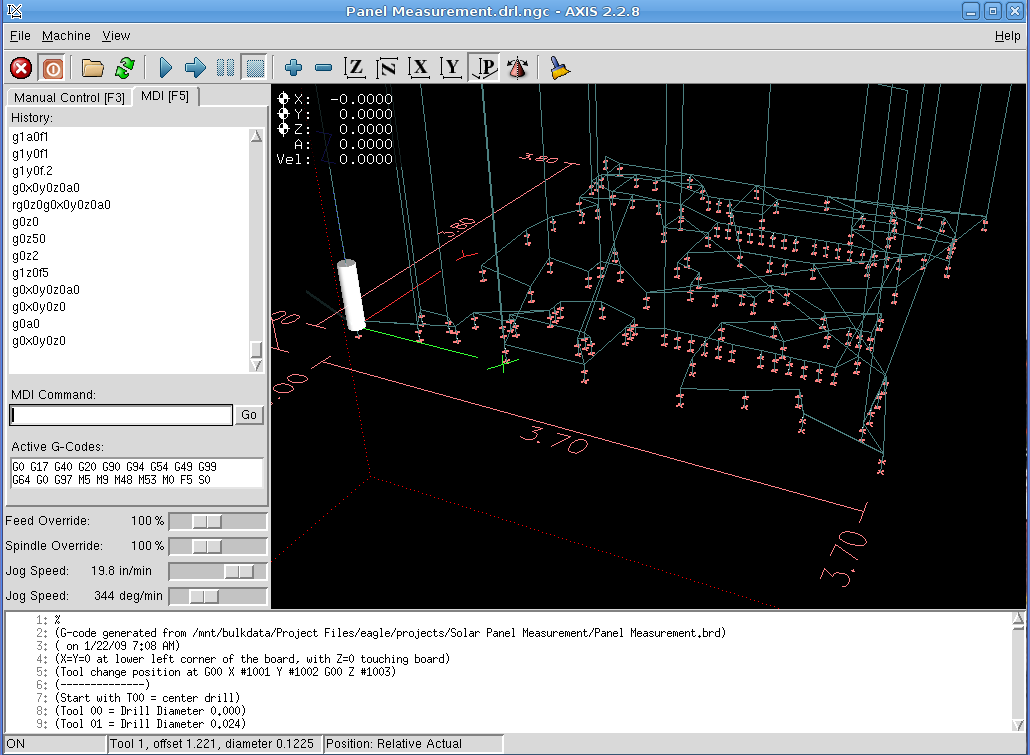
AXIS hole-drilling screenshot
My Eagle ulp routine (in the Useful Stuff page) extracts the holes from the circuit board layout, sorts by drill size, then visits each hole in nearest-neighbor order. It starts by touching each hole with a center drill, which probably isn’t necessary, but it makes me feel good and provides a last-minute check that everything is lined up properly.
Figuring the tool path is obviously the traveling-salesman problem in disguise, but a strict nearest-neighbor order is close enough for boards of this size. You could probably optimize it by brute-force exhaustion and that would be appropriate for production use, but I rarely make more than one version of each board.
Eagle’s standard part libraries use a weird set of hole diameters, which my routine rounds off to the nearest mil. I don’t have a vast array of drills, so I don’t pay much attention to the differences between, say, 0.024, 0.025, and 0.027 inch drills. Tool changes are strictly manual and I don’t have to change the drill if I don’t want to!
Got a bunch of teeny carbide drills as resharps from DrillBitCity a long time ago.
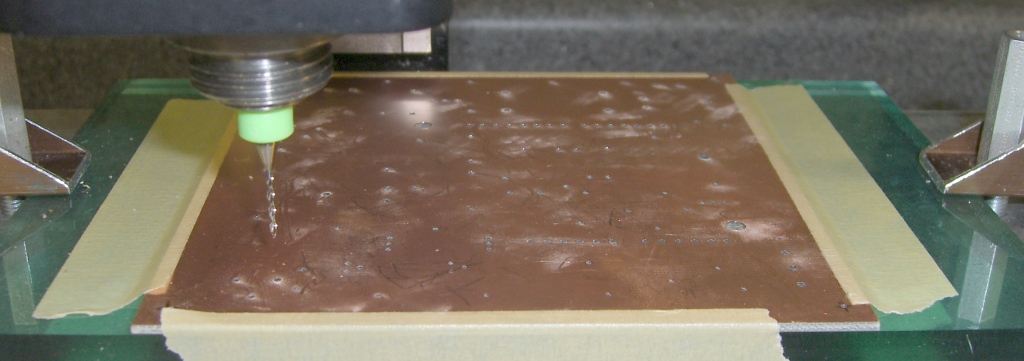
I double-stick-tape the board (center and corners) to a flycut sacrificial plate, which makes it flat enough for these purposes.The pic below shows a 60-mil board held down with masking tape; it’s the same layout as in the screen shot above.
Tool changes use a 2-inch block (plus a sheet of paper) as a height reference. You can tweak the ulp file for your setup.
My board layouts have a giant via at each corner, with the lower-left corner at (0,0). Drilling doesn’t require any fussy alignment, because I etch the board after drilling: the holes serve as bright lights to line up the pads & vias. I’ll have more to say about this elsewhere.
Speeds and feeds are on the sissy side; I crank the 10k rpm head up to a dangerous chattering whine and feed the drills at 5 inches/min (call it 125 mm/min). Both of those are far too slow, but work OK.
Run a shop vac to suck up the dust as you drill! I doubt that a typical shopvac filter removes the fines, but it’s better than letting all the dust settle on the mill and in my lungs.
Circuit board drilling
The clamps are these, mounted on studs screwed into the tooling plate.
Incidentally, the Sherline mill’s throat depth and Y-axis travel limits the board to about 4 inches along the Y axis; yes, with the spacer block installed. That’s just about exactly the maximum size the low-end version of Eagle can produce, so it’s a nice match.
There are other ways of doing PCBs. I haven’t tried trace-isolation milling, but PCB-Gcode looks like the ticket if you want to generate a breathtaking amount of glass-fiber dust. My quick check shows that it inserts semicolon-delimited comments into the tool-change commands, which EMC 2.2.8 promptly chokes upon, but that’s probably a quick configuration tweak and will change with EMC 2.3 anyway.
If you’ve got the scratch, there are commercial solutions: Chris Daniel (who was also at the Cabin Fever EMC booth) uses a T-Tech gantry router at work.
Memo to Self: Expect a call from a patent lawyer either telling me that I’m infringing somebody’s Nearest Neighbor Algorithm claims or asking me for my design notebooks to establish me as the Prior Artist.
Adding those grounding wires from my desk lamp and the aluminum plate under the keyboard / trackballs to the PC case reduced the problem, but didn’t eliminate it.
Grounding Wire on Desk Lamp
Logging all that data, though, pointed to what (I think) is the cause: static discharge. I’ve been touching the screws on the wall switch before sitting down, which pretty much made the problem Go Away. Touching the (now-grounded) desk lamp or the keyboard plate still kills the hub, so the hub inside the PC must be way sensitive.
The disconnect follows the external hub’s cable, which means (I think) the jolt’s entering through that wire. I’ve already tried different cables, but perhaps different routing will help; there’s a huge tangle of wires behind the desk.
After adding ground connections to the lamp and keyboard / trackball tray (doodling off to the PC case), another disconnect after a day of rising expectations:
[37681.592585] hub 3-0:1.0: port 1 disabled by hub (EMI?), re-enabling...
[37681.592595] usb 3-1: USB disconnect, address 4
[37681.592598] usb 3-1.1: USB disconnect, address 5
[37681.644329] usb 3-1.3: USB disconnect, address 6
[37681.720326] usb 3-1.4: USB disconnect, address 7
[37681.875555] usb 3-1: new full speed USB device using uhci_hcd and address 8
[37682.044444] usb 3-1: configuration #1 chosen from 1 choice
[37682.047403] hub 3-1:1.0: USB hub found
[37682.049363] hub 3-1:1.0: 4 ports detected
[37682.371776] usb 3-1.1: new low speed USB device using uhci_hcd and address 9
[37682.508656] usb 3-1.1: configuration #1 chosen from 1 choice
[37682.511687] input: Wacom Graphire3 6x8 as /devices/pci0000:00/0000:00:1d.2/usb3/3-1/3-1.1/3-1.1:1.0/input/input10
[37682.759115] usb 3-1.3: new low speed USB device using uhci_hcd and address 10
[37682.902996] usb 3-1.3: configuration #1 chosen from 1 choice
[37682.920106] input: Microsoft Comfort Curve Keyboard 2000 as /devices/pci0000:00/0000:00:1d.2/usb3/3-1/3-1.3/3-1.3:1.0/input/input11
[37682.957903] input,hidraw2: USB HID v1.11 Keyboard [Microsoft Comfort Curve Keyboard 2000] on usb-0000:00:1d.2-1.3
[37682.977914] input: Microsoft Comfort Curve Keyboard 2000 as /devices/pci0000:00/0000:00:1d.2/usb3/3-1/3-1.3/3-1.3:1.1/input/input12
[37683.033615] input,hidraw3: USB HID v1.11 Device [Microsoft Comfort Curve Keyboard 2000] on usb-0000:00:1d.2-1.3
[37683.238299] usb 3-1.4: new low speed USB device using uhci_hcd and address 11
[37683.377195] usb 3-1.4: configuration #1 chosen from 1 choice
[37683.398232] input: Kensington      Kensington Expert Mouse as /devices/pci0000:00/0000:00:1d.2/usb3/3-1/3-1.4/3-1.4:1.0/input/input13
[37683.436882] input,hidraw4: USB HID v1.10 Mouse [Kensington      Kensington Expert Mouse] on usb-0000:00:1d.2-1.4
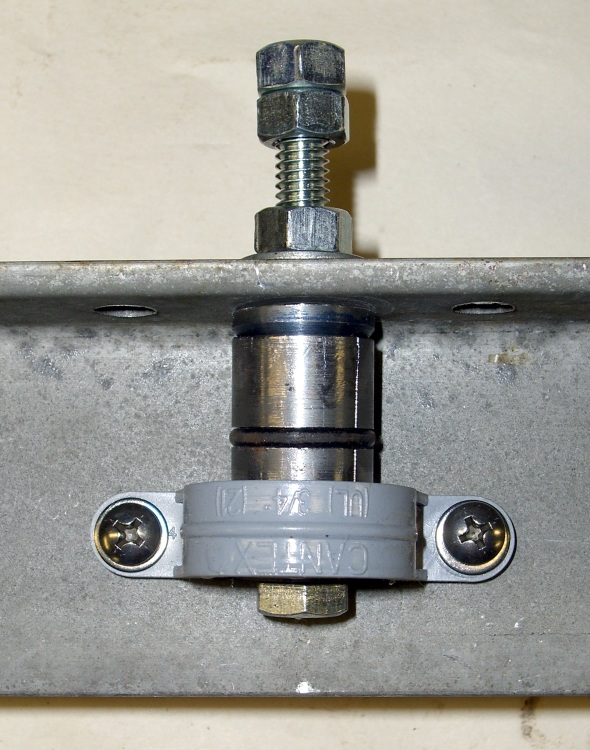
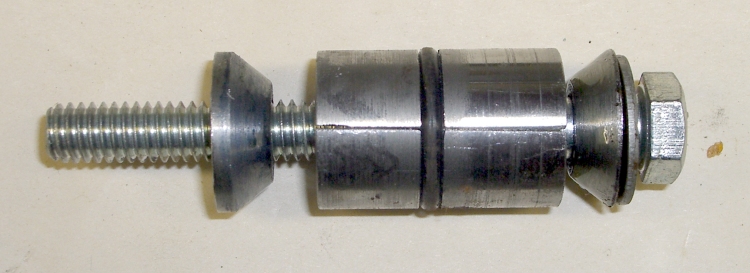
This is the dingus that attaches the crossbeam to the central pipe rising up from the table for my counterweight gantry. I discarded a whole bunch of elaborate construction ideas in favor of just jamming a plug in the pipe and cranking down on a nut to tighten it.
Expanding plug overview
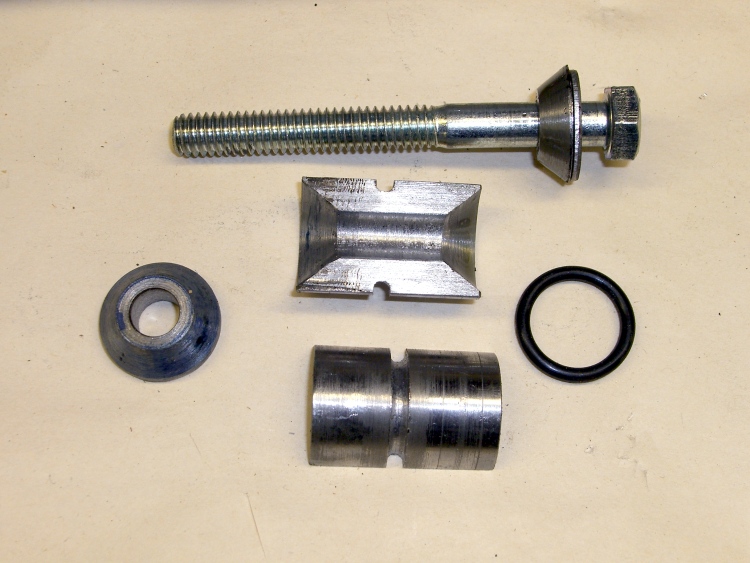
It’s pretty much self-explanatory; I cut everything to fit, cleaned up the cuts with a file, and added some lube to the tapers so as to make it nice & slippery.
The need for an O-ring to hold the halves together occurred to me after I’d bandsawed a 1 mm trench in the side of the plug. I chucked it up in the lathe again and used a round-nose tool to carve a groove around its belly. If you try this, do the groove first: an interrupted cut is murder on what’s basically a parting-off tool.
Expanding plug parts
While I know (thanks to Guy Lautard’s invaluable Machinist’s Bedside Reader books) that a self-releasing plug must have a taper angle with a tangent greater than the joint’s coefficient of friction, that really wasn’t much help here. I picked 40 degrees and, yup, it’s self-releasing, but not really slippery enough. Takes a bit of torque to expand the plug enough for a good grip.
Perhaps my grubby surface finish has something to do with it?
Memo to self: find out how to figure the taper angle correctly, then do better finishing.
This is a nuisance you gotta do once in a while. The symptom today was that the mill axis didn’t line up at all with the laser aimer I have mounted on the ceiling; it’s supposed to point right down the spindle bore, but the bore wandered all over the place. Took me a while to realize it was really that bad…
Basically, you must take the headstock off, unplug the axis motors, and put the mill on the workbench so you can get convenient access to the back of the column. Unscrew the cap screw holding the Z-axis backlash lock plate and disconnect the saddle nut. Make sure the lock doesn’t engage.
Loosen the gib lock, remove the gib, clean the crap off the mating dovetail surfaces & gib, add a touch of their approved silicone lube, slide the gib back & lock it in place. Slide the saddle up & down (that’s why you want the saddle nut disconnected) and tweak the gib until it slides more-or-less freely along the entire length without binding or being too loose. My saddle gets stiff near the very bottom of the column, but it never gets that low in actual use. Make sure the gib lock is tight.
Run the saddle nut to the top of the leadscrew, slide the saddle in place, back those two tiny setscrews out, secure the saddle nut to the saddle with a short cap screw, then turn the setscrews until they just touch the nut.
At this point, the nut should be in its nominal position, centered on the leadscrew and aligned concentric with its axis. If you turn the Z-axis knob and it binds, then you get to loosen the cap screw, futz with the setscrews, tighten the cap screw, check for binding, and iterate until it works properly.When it’s OK at the top, crank it all the way to the bottom and verify that it doesn’t bind elsewhere.
Mine took one iteration this time, which is just sheer blind good fortune. Or maybe the saddle nut is wearing out and getting sloppy?
Then adjust the backlash lock to reduce the backlash to whatever you think is appropriate. My Z-axis has a few mils unless that thing is way too snug.
Sherline’s instructions for aligning the saddle nut screw that connects the leadscrew to the saddle are on Sherline’s site, hidden in the instructions for the “new” Z-axis backlash adjustment: http://www.sherline.com/4017Zinst.htm.
For the last few months, one of the USB hubs in my PC has been disabling a port connected to an external USB hub. The external hub re-establishes communication with all the devices, but the X server doesn’t take kindly to having devices yanked out from underneath it. After this glitch, my left-hand trackball and tablet are dead in the water; the only way to get ’em working is to log out, restart X, and log back in again. Not pleasant.
Oddly, the keyboard continues to function.
Note that it’s the hub in the PC that’s complaining, not the external hub.
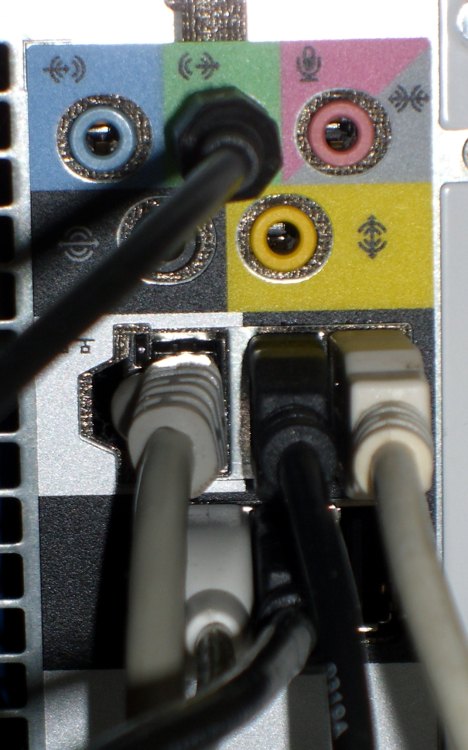
USB connections at PC
I’ve tweaked the obvious things: switched USB ports on the PC, replaced the external hub, powered and un-powered the external hub, rearranged the devices on the hub, moved other devices away from the hub, and so forth and so on.
Now it’s time to start taking notes. The current external hub is a cheap, no-name gadget direct from China that bears a striking resemblance to the tchotchke HP-branded “Made In China” hub a friend picked up at SC06.
Both hubs have a cut-out in the case for a power plug, but the internal circuit boards lack the requisite jack to actually make use of external power.
Here’s the current dmesg dump.
[ 2917.702975] hub 1-0:1.0: port 2 disabled by hub (EMI?), re-enabling...
[ 2917.702986] usb 1-2: USB disconnect, address 3
[ 2917.702989] usb 1-2.2: USB disconnect, address 4
[ 2917.712300] /build/buildd/linux-2.6.24/drivers/input/tablet/wacom_sys.c: wacom_sys_irq - usb_submit_urb failed with result -19
[ 2917.787223] usb 1-2.3: USB disconnect, address 5
[ 2917.831161] usb 1-2.4: USB disconnect, address 6
[ 2918.002420] usb 1-2: new full speed USB device using uhci_hcd and address 7
[ 2918.165658] usb 1-2: configuration #1 chosen from 1 choice
[ 2918.170675] hub 1-2:1.0: USB hub found
[ 2918.172533] hub 1-2:1.0: 4 ports detected
[ 2918.502967] usb 1-2.2: new low speed USB device using uhci_hcd and address 8
[ 2918.662816] usb 1-2.2: configuration #1 chosen from 1 choice
[ 2918.679915] input: Microsoft Comfort Curve Keyboard 2000 as /devices/pci0000:00/0000:00:1d.0/usb1/1-2/1-2.2/1-2.2:1.0/input/input10
[ 2918.721211] input,hidraw2: USB HID v1.11 Keyboard [Microsoft Comfort Curve Keyboard 2000] on usb-0000:00:1d.0-2.2
[ 2918.751759] input: Microsoft Comfort Curve Keyboard 2000 as /devices/pci0000:00/0000:00:1d.0/usb1/1-2/1-2.2/1-2.2:1.1/input/input11
[ 2918.793088] input,hidraw3: USB HID v1.11 Device [Microsoft Comfort Curve Keyboard 2000] on usb-0000:00:1d.0-2.2
[ 2919.010108] usb 1-2.3: new low speed USB device using uhci_hcd and address 9
[ 2919.165963] usb 1-2.3: configuration #1 chosen from 1 choice
[ 2919.187020] input: Kensington      Kensington Expert Mouse as /devices/pci0000:00/0000:00:1d.0/usb1/1-2/1-2.3/1-2.3:1.0/input/input12
[ 2919.244778] input,hidraw4: USB HID v1.10 Mouse [Kensington      Kensington Expert Mouse] on usb-0000:00:1d.0-2.3
[ 2919.465338] usb 1-2.4: new low speed USB device using uhci_hcd and address 10
[ 2919.617208] usb 1-2.4: configuration #1 chosen from 1 choice
[ 2919.625530] input: Wacom Graphire3 6x8 as /devices/pci0000:00/0000:00:1d.0/usb1/1-2/1-2.4/1-2.4:1.0/input/input13
The external hub is on the white cable (a USB extender cable, which may contribute to the problem) plugged into the port at the far right from the network cable. But i’ve used an external hub with a different and very official USB A-B cable.
The USB connections on the back panel:
Top row: Zire 71 PDA cradle | External USB hub (the offending one)
[10625.203907] usb 1-2.2: USB disconnect, address 8
[10625.970605] usb 1-2.3: USB disconnect, address 9
[10626.865087] usb 1-2.4: USB disconnect, address 10
[10627.880887] usb 1-2: USB disconnect, address 7
[10638.410365] usb 1-2: new full speed USB device using uhci_hcd and address 11
[10638.579231] usb 1-2: configuration #1 chosen from 1 choice
[10638.582167] hub 1-2:1.0: USB hub found
[10638.584118] hub 1-2:1.0: 4 ports detected
[10638.898574] usb 1-2.1: new low speed USB device using uhci_hcd and address 12
[10639.035458] usb 1-2.1: configuration #1 chosen from 1 choice
[10639.038484] input: Wacom Graphire3 6x8 as /devices/pci0000:00/0000:00:1d.0/usb1/1-2/1-2.1/1-2.1:1.0/input/input14
[10639.301891] usb 1-2.3: new low speed USB device using uhci_hcd and address 13
[10639.445768] usb 1-2.3: configuration #1 chosen from 1 choice
[10639.466865] input: Microsoft Comfort Curve Keyboard 2000 as /devices/pci0000:00/0000:00:1d.0/usb1/1-2/1-2.3/1-2.3:1.0/input/input15
[10639.505029] input,hidraw2: USB HID v1.11 Keyboard [Microsoft Comfort Curve Keyboard 2000] on usb-0000:00:1d.0-2.3
[10639.525686] input: Microsoft Comfort Curve Keyboard 2000 as /devices/pci0000:00/0000:00:1d.0/usb1/1-2/1-2.3/1-2.3:1.1/input/input16
[10639.572404] input,hidraw3: USB HID v1.11 Device [Microsoft Comfort Curve Keyboard 2000] on usb-0000:00:1d.0-2.3
[10639.777083] usb 1-2.4: new low speed USB device using uhci_hcd and address 14
[10639.917975] usb 1-2.4: configuration #1 chosen from 1 choice
[10639.934026] input: Kensington      Kensington Expert Mouse as /devices/pci0000:00/0000:00:1d.0/usb1/1-2/1-2.4/1-2.4:1.0/input/input17
[10639.971692] input,hidraw4: USB HID v1.10 Mouse [Kensington      Kensington Expert Mouse] on usb-0000:00:1d.0-2.4
[10962.110496] usb 5-5.2: new high speed USB device using ehci_hcd and address 8
[10962.219819] usb 5-5.2: configuration #1 chosen from 1 choice
[12290.756701] usb 5-5.2: USB disconnect, address 8
[54272.946992] hub 1-0:1.0: port 2 disabled by hub (EMI?), re-enabling...
[54272.947001] usb 1-2: USB disconnect, address 11
[54272.947003] usb 1-2.1: USB disconnect, address 12
[54273.003212] usb 1-2.3: USB disconnect, address 13
[54273.071171] usb 1-2.4: USB disconnect, address 14
[54273.214485] usb 1-2: new full speed USB device using uhci_hcd and address 15
[54273.383873] usb 1-2: configuration #1 chosen from 1 choice
[54273.386778] hub 1-2:1.0: USB hub found
[54273.388736] hub 1-2:1.0: 4 ports detected
[54273.699213] usb 1-2.1: new low speed USB device using uhci_hcd and address 16
[54273.840096] usb 1-2.1: configuration #1 chosen from 1 choice
So replacing the hub seems to have not done anything useful, as expected.
Next step: plug the hub cable into the right-hand port on the bottom row.
Update: Time passes and another disconnect pops up. I’d just poked the USB button on my pocket camera’s cradle. Coincidence? Sometimes it disconnects when I sit down, which suggests a static discharge.
The dmesg dump:
[ 1275.088536] hub 3-0:1.0: port 2 disabled by hub (EMI?), re-enabling...
[ 1275.088547] usb 3-2: USB disconnect, address 5
[ 1275.088549] usb 3-2.1: USB disconnect, address 6
[ 1275.132321] usb 3-2.3: USB disconnect, address 7
[ 1275.220223] usb 3-2.4: USB disconnect, address 8
[ 1275.371502] usb 3-2: new full speed USB device using uhci_hcd and address 9
[ 1275.541198] usb 3-2: configuration #1 chosen from 1 choice
[ 1275.544148] hub 3-2:1.0: USB hub found
[ 1275.546102] hub 3-2:1.0: 4 ports detected
[ 1275.856554] usb 3-2.1: new low speed USB device using uhci_hcd and address 10
[ 1275.993439] usb 3-2.1: configuration #1 chosen from 1 choice
[ 1275.997194] input: Wacom Graphire3 6x8 as /devices/pci0000:00/0000:00:1d.2/usb3/3-2/3-2.1/3-2.1:1.0/input/input10
[ 1276.259871] usb 3-2.3: new low speed USB device using uhci_hcd and address 11
[ 1276.406735] usb 3-2.3: configuration #1 chosen from 1 choice
[ 1276.423836] input: Microsoft Comfort Curve Keyboard 2000 as /devices/pci0000:00/0000:00:1d.2/usb3/3-2/3-2.3/3-2.3:1.0/input/input11
[ 1276.469640] input,hidraw2: USB HID v1.11 Keyboard [Microsoft Comfort Curve Keyboard 2000] on usb-0000:00:1d.2-2.3
[ 1276.490647] input: Microsoft Comfort Curve Keyboard 2000 as /devices/pci0000:00/0000:00:1d.2/usb3/3-2/3-2.3/3-2.3:1.1/input/input12
[ 1276.545539] input,hidraw3: USB HID v1.11 Device [Microsoft Comfort Curve Keyboard 2000] on usb-0000:00:1d.2-2.3
[ 1276.746036] usb 3-2.4: new low speed USB device using uhci_hcd and address 12
[ 1276.896906] usb 3-2.4: configuration #1 chosen from 1 choice
[ 1276.912985] input: Kensington      Kensington Expert Mouse as /devices/pci0000:00/0000:00:1d.2/usb3/3-2/3-2.4/3-2.4:1.0/input/input13
[ 1276.960781] input,hidraw4: USB HID v1.10 Mouse [Kensington      Kensington Expert Mouse] on usb-0000:00:1d.2-2.4
[ 1280.734257] usb 5-5.2: new high speed USB device using ehci_hcd and address 7
[ 1280.843575] usb 5-5.2: configuration #1 chosen from 1 choice
Bottom Row: Logitech trackball | External USB hub (the offending one) | empty port
Methinks it’s time to start yanking the SD card out of the camera and poking it into the PC’s media reader. That should eliminate one possible source of bus confusion.
Time to reset…
Update: time passes and it’s been working OK… up until I zapped the desk lamp with a teeny static spark, at which moment dmesg reports this:
[49077.518404] hub 3-0:1.0: port 1 disabled by hub (EMI?), re-enabling...
[49077.518413] usb 3-1: USB disconnect, address 2
[49077.518416] usb 3-1.1: USB disconnect, address 3
[49077.562470] usb 3-1.3: USB disconnect, address 4
[49077.658411] usb 3-1.4: USB disconnect, address 5
[49077.805865] usb 3-1: new full speed USB device using uhci_hcd and address 6
[49077.974924] usb 3-1: configuration #1 chosen from 1 choice
[49077.982443] hub 3-1:1.0: USB hub found
[49077.983860] hub 3-1:1.0: 4 ports detected
[49078.302253] usb 3-1.1: new low speed USB device using uhci_hcd and address 7
[49078.439141] usb 3-1.1: configuration #1 chosen from 1 choice
[49078.442156] input: Wacom Graphire3 6x8 as /devices/pci0000:00/0000:00:1d.2/usb3/3-1/3-1.1/3-1.1:1.0/input/input10
[49078.709567] usb 3-1.3: new low speed USB device using uhci_hcd and address 8
[49078.853443] usb 3-1.3: configuration #1 chosen from 1 choice
[49078.875540] input: Microsoft Comfort Curve Keyboard 2000 as /devices/pci0000:00/0000:00:1d.2/usb3/3-1/3-1.3/3-1.3:1.0/input/input11
[49078.920499] input,hidraw2: USB HID v1.11 Keyboard [Microsoft Comfort Curve Keyboard 2000] on usb-0000:00:1d.2-1.3
[49078.941372] input: Microsoft Comfort Curve Keyboard 2000 as /devices/pci0000:00/0000:00:1d.2/usb3/3-1/3-1.3/3-1.3:1.1/input/input12
[49078.999851] input,hidraw3: USB HID v1.11 Device [Microsoft Comfort Curve Keyboard 2000] on usb-0000:00:1d.2-1.3
[49079.212710] usb 3-1.4: new low speed USB device using uhci_hcd and address 9
[49079.351593] usb 3-1.4: configuration #1 chosen from 1 choice
[49079.367726] input: Kensington      Kensington Expert Mouse as /devices/pci0000:00/0000:00:1d.2/usb3/3-1/3-1.4/3-1.4:1.0/input/input13
[49079.411112] input,hidraw4: USB HID v1.10 Mouse [Kensington      Kensington Expert Mouse] on usb-0000:00:1d.2-1.4
So it looks like there’s really something EMI-ish going on. Perhaps it’s time to look into grounding all the exposed metal around here.
Update: It really was static electricity. More discussion there.


 The Smell of Molten Projects in the Morning