Ed Nisley's Blog: Shop notes, electronics, firmware, machinery, 3D printing, laser cuttery, and curiosities. Contents: 100% human thinking, 0% AI slop.
Somewhat against the recommendations of the experts on the EMC2 mailing list, I bought a Foxconn R30-D2 with an Intel Atom D520 from Newegg during a sale: add 2 GB of memory from Crucial, a spare SATA drive from my collection, and it’s ready to go. I also bashed a spare parallel printer port card into the box, although it isn’t really needed right now: unlike the Intel system board, Foxconn brings the on-board parallel port directly to the back panel.
The Foxconn support site is a nightmare and was, AFAICT, dead for the first few weeks I had the box. The key fact to remember is that the -D2 part of the number specifies the system board / CPU, so the same downloads / BIOS updates apply to the R10, R20, R30, and R40 models. There is no new BIOS available to fix the “fan runs all the time” problem reported by so many people.
I installed Ubuntu 10.04 LTS from the distro CD, then ran the EMC2 installation script. All that is routine, as described there. You probably want to install the EMC2 Live CD, though, and to get much the same result with less fiddling.
Turn off Hyperthreading in the BIOS, which seems to make the RTAI real-time hypervisor happier. Under those conditions, the default install has an interrupt latency of about 13 µs.
The Atom D520 is a dual-core processor and you can devote one core to EMC2’s real-time functions, thus eliminating much of the usual contention and interrupt latency. That works surprisingly well and is completely automagic after you add the isolcpus=1 kernel option to the appropriate line in /boot/grub/grub.cfg. Thusly:
linux /boot/vmlinuz-2.6.32-122-rtai root=UUID=57fe2b04-ffe4-4de3-a597-89bd4ed01018 ro vga=758 noquiet nosplash isolcpus=1
With that done, the latency drops down under 8 µs, which is entirely satisfactory. I can push it to 10 µs by doing stupid things: scrubbing a glxgears window over a Flash video in Firefox, for example.
The catch is that the wonderful new grub2 bootloader rewrites its boot configuration file on the fly, based on a set of rules that, evidently, cannot apply different kernel configuration parameters to different kernels within the same partition. As a result, you must choose between:
Running stock Ubuntu on one core
Manually tweaking grub.cfg after every kernel update
Given that an Atom isn’t exactly a blinding flash and a deafening report in the performance department, I opted for the second method. If Ubuntu was still using Legacy Grub, then I’d just tweak menu.lst and be done with it. This is, I suppose, progress.
Memo to Self: Adjust grub.cfg every mumble time.
[Update: There’s now a fix for that, as described in the EMC2 wiki. Go for it!]
CDs being such a useful source of raw material, I cooked this up on the lathe while puttering around in the shop thinking about something else. The general idea is to align a short stack of CDs on the Sherline rotary table, close enough to the center, so that you can gnaw away on the top platter and get nearly concentric results. If you really care about concentricity, this isn’t the way to go, but …
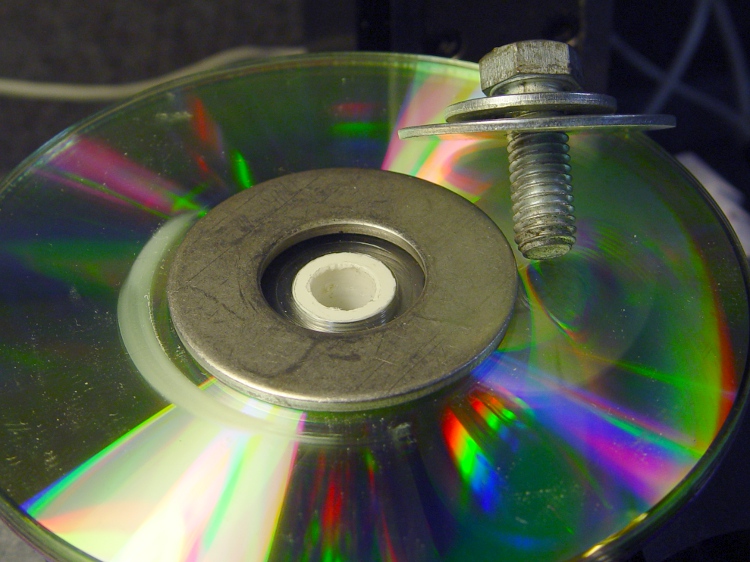
CD adapter bushing in place
The washer clamps the CDs in place with the bushing sticking up a bit from the top layer, so it need not be more than eyeball-aligned; the air gap eliminates the need to get the bushing height Exactly Right. If you’re perpetrating fancy machining on the CD, you probably want a form-fitting metal plate atop the stack to hold it down near the perimeter to prevent getting swarf jammed underneath. Note the stack of washers require to reduce that gaping hole to meet a 3/8-16 bolt threaded into the table.
All by itself, the bushing looks like this:
CD Adapter Bushing
The dimensions, roughly as-built:
Rotary Table CD Adapter Bushing
I used a random plastic cylinder from the scrap pile and cleaned up the edges with a razor knife. Next time, I’d put the fat end near the lathe tailstock, so as to make the chamfer easier.
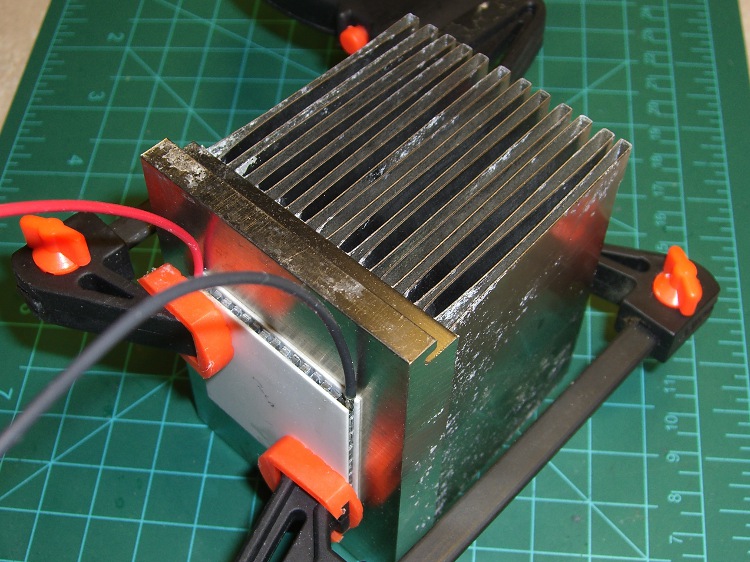
This Peltier cooler just emerged from a pile o’ stuff on the Electronics Workbench, so I combined it with a scrap CPU heatsink (using plain old water as “thermal grease”) and fired it up to get some quick numbers for future reference.
Peltier cooler test lashup
It draws 3 A (the bench supply’s current limit) at 5 V. The cold side got down to 19 °F with the hot side at 75 °F: ΔT = 56 °F.
That’s with zero thermal load, other than whatever arrives from plain old air and those two plastic clamps. It looks like a nice one, so it’s maybe 10% efficient and could pump a watt, barely enough to cool a simple circuit.
Freezes a drop of water just fine, though.
The I-V curve is nearly bar-straight over the first five volts: call it 620 mΩ. The thing would draw 7.5 A at 12 V, call it 90 W, and could pump maybe a whopping 9 W from the cold side.
Actually getting good numbers would require some serious work that I’m not up for. In particular, everything has a serious temperature coefficient, so nothing would be the way it looks. I have doubts about the efficiency guesstimate; I’d like to actually measure that sometime.
But it confirms my opinion of Peltier coolers between hundred-watt CPUs and water-cooled heatsinks: pure delusion.
While I was fiddling with the camera to get that first spectrograph, it began coughing up an assortment of Memory Stick errors, including the dreaded C:13:01 error. Having had this happen several years ago, I knew it came from the ribbon cable contacts in the Memory Stick socket and the only way to fix it involves taking the camera apart.
Anyhow, here’s my version of the teardown and fix. This is a bit more aggressive than what you’ll read above, in that I disconnect all the cables to get straightforward access to the guts of the camera, but I think it makes everything easier. In any event, re-plugging the cables in those connectors will probably be a Good Thing.
Remove the battery, Memory Stick, and all the straps and doodads. This fix will reset the camera to its factory defaults; you must eventually reset everything, so review your settings.
If your filing system depends on the camera’s numbering system: heads up! This will reset the image sequence numbers; the next picture will be DSC00001.JPG.
Remove the four Philips-00 screws that hold the rear case in place. Note that they are not identical…
Two on the left.
DSC-F717 case screws – left side
The rear screw on the right side.
DSC-F717 case screws – right side
The screw on the right side of the bottom passes through the front part of the case.
DSC-F717 case screws – bottom
Ease the whole rear half of the case, display and all, away from the front half, until you can disconnect the three-wire cable from the power jack. A needle-nose pliers may be helpful, but be gentle!
DSC-F717 internal power cable
Now things get nasty.
The flat paddle in the lower right plugs into a socket on the display board in the rear case: pry it out if it hasn’t popped out of its own accord.
Disconnect the ribbon cable on the left side by prying the gray latch away from the cable; the ribbon will pop out with no effort.
Put the rear part of the case somewhere out of the way.
DSC-F717 main board cables
Peel the static shield off the main circuit board. The black strip is a surprisingly strong adhesive tape that’s stuck to the ribbon cables along the top edge of the board. Peel gently!
DSC-F717 static shield
Pull the three cables out of the sockets along the top of the board. The blue cable seems to be much more fragile than the others, but they all come out by just pulling directly upward: parallel to the board.
Unscrew the two P-00 screws holding the main board in place: upper left and center of the board.
DSC-F717 main board cables – top
Flip the camera over and ease the main board away from the case to expose the white connector on the bottom. This is stuck firmly in place, so try to not brutalize anything around the connector when it pops out.
DSC-F717 main board cables – bottom
That leaves only the ribbon cable on the right of this picture (left of the camera) connecting the optical section to the main board. Push the two ends of the gray latch bar parallel to the cable (it is not the same as the connector on the other side of the board shown above) away from the connector until the bar releases the cable and it pops out.
Put the main board somewhere safe.
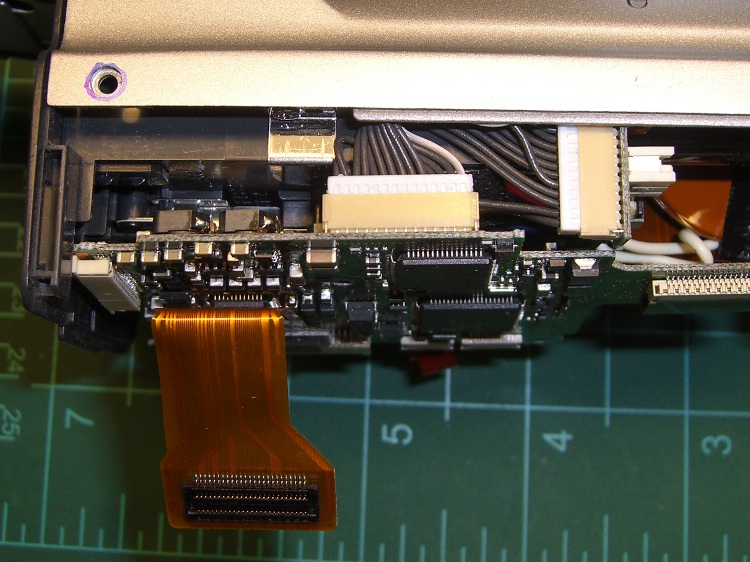
DSC-F717 main board cables – rear
Now you can actually see the Memory Stick socket behind all the ribbon cables!
DSC-F717 Memory Stick socket – exposed
Remove the two P-00 mounting screws, one to the upper right and the other to the lower right in the steel retaining bar.
Remove the socket from the camera. Whew!
DSC-F717 Memory Stick socket – retaining screws
Here is the offending cable entry into the Memory Stick socket. Pull the mumble cable out.
DSC-F717 Memory Stick socket – cable entry
The socket pins evidently move just a little bit, every time you put in a Memory Stick, eroding teeny divots in the cable contact pads. I generally use the USB connection, so the socket doesn’t see a lot of motion. Your mileage may vary.
DSC-F717 Memory Stick cable indentations
I cleaned off the ribbon cable pads with Caig DeoxIT, although I’m not convinced that really does anything in this situation.
This guy dismantled the socket to clean the internal contacts, which would probably make sense while you’ve got the hood up. I didn’t do that this time, though.
Then you reassemble everything in reverse order, after which the camera Just Works. Probably for another few years.
The puzzling part of this failure: the camera has literally hundreds of ribbon cable contacts, but only the Memory Stick cable goes bad. If any other cable failed, the camera would go Toes Up, right? Next time around I may try soldering thin copper pads on the cable or applying a thin backing layer to improve the resilience, but that sounds pretty risky even to me.
If you haven’t done so already, put a write-protected image of your biz card / contact info on every Memory Stick you use with your cameras to make it easy for an honest person who finds your camera to get in touch with you. The dishonest ones won’t change their behavior one way or the other.
Take a picture of your card now: the camera will set up the folders and name it DSC00001.JPG. If you’ve already got such a file, take a picture anyway, delete it, then copy your existing file to the camera as DSC00001.JPG. In either case, write-protect the file.
Memo to Self: next time, take the socket apart and cast some epoxy around the contacts to prevent further motion.
Minor tweaks to the Lyx document settings I used there for the Trinity robot contest rules.
Controlling line numbering with the lineno package:
\linenumbers
\nolinenumbers
A two-column layout with change bars seems to stretch the machinery to the limit; the varioref package (sucked in automagically by something else) often complains (quite properly) about changed blocks spanning boundaries that might cause an infinite loop. Save the file, then turn the error message into a non-fatal warning to see what actually happens. Turn it back into a fatal error when done:
\vrefwarning
\vrefshowerrors
It seems impossible to alter change bar colors from the default blue and red in PDF documents, so I tweaked the PDF link colors instead. Use the xcolors package in place of colors, then pick a different color from the Base Colors set (to avoid having to figure out how to specify another set) in the Additional options part of the PDF Properties tab:
urlcolor=teal,linkcolor=teal
In principle, changing the \dvipost options should work, but not with PDFs created through pdflatex. For example, this has no effect:
\dvipost{cbstart color push Magenta}
\dvipost{cbend color pop}
Saving a file under a new name with File → Save As completely confuses a subsequent HTML conversion; the .html file loses all the internal formatting and becomes one giant line of text. Save the .lyx file with the new name, close Lyx, start it up again, reload the file, and it’s all good.
Memo to Self: Convert \vrefwarning back to \vrefshowerrors before it bites you!
The preamble turns on line numbers for proofing; remove those lines to turn them off.
\usepackage{ragged2e}
\usepackage{lastpage}
\usepackage{url}
\usepackage{dvipost}
\usepackage{breakurl}
\usepackage[labelfont={bf,sf}]{caption}
\usepackage{listings}
\usepackage{color}
\usepackage{lineno}
\linenumbers
\renewcommand{\bottomfraction}{0.7}
\pagestyle{fancyplain}
\fancyhf{}
\lhead{\fancyplain{}{Trinity College Home Robot Contests}}
\rhead{\fancyplain{}{2011 Rules}}
\lfoot{\fancyplain{Modified \today}{Modified \today}}
\cfoot{Copyright 2010 by Trinity College}
\rfoot{\fancyplain{\thepage\ of \pageref{LastPage}}{\thepage\ of \pageref{LastPage}}}
\RaggedRight
\dvipostlayout
\dvipost{cbstart color push Blue}
\dvipost{cbend color pop}
There’s no obvious documentation for the Document → Settings → PDF Properties → Addition Options values, but these make the crossref links look better:
urlcolor=blue,linkcolor=blue
For what it’s worth, LyX is still the right hammer for this job, although when something goes wrong, the error messages are truly oracular…
Memo to Self: no line numbers in the final version!








 The Smell of Molten Projects in the Morning