The Smell of Molten Projects in the Morning

Ed Nisley's Blog: Shop notes, electronics, firmware, machinery, 3D printing, laser cuttery, and curiosities. Contents: 100% human thinking, 0% AI slop.

Tag: Laser Cutter

  • Smashed Glass: 3D Printed Coaster Base & Metallized Paper Reflectors

    Smashed Glass: 3D Printed Coaster Base & Metallized Paper Reflectors

    The motivation for making Yet Another Coaster was to see if combining a few techniques I’ve recently learned would produce a nicer result.

    Spoiler: Yup, with more to be learned and practiced.

    This is a somewhat nonlinear narrative reminding me of things to do and not do in the future, so don’t treat it as a direct how-to set of instructions.

    Thus far, the best way to highlight fragments of smashed glass has been to put them atop an acrylic mirror:

    Smashed Glass Coaster 2 - fragment detail
    Smashed Glass Coaster 2 – fragment detail

    But a 3 mm acrylic mirror layer makes for a rather thick coaster:

    Smashed Glass Coaster 5 - edge alignment A
    Smashed Glass Coaster 5 – edge alignment A

    The glass fragments sit inside holes in the next two (or three or whatever) acrylic layers, which must have a total thicknesses slightly more than the glass thickness and remain properly aligned while assembling the whole stack:

    Smashed Glass Coaster 5 - alignment pin
    Smashed Glass Coaster 5 – alignment pin

    Bonus: all that cutting generates an absurd amount of acrylic scrap. I eventually put much of it to good use, but not producing it in the first place would be a Good Thing …

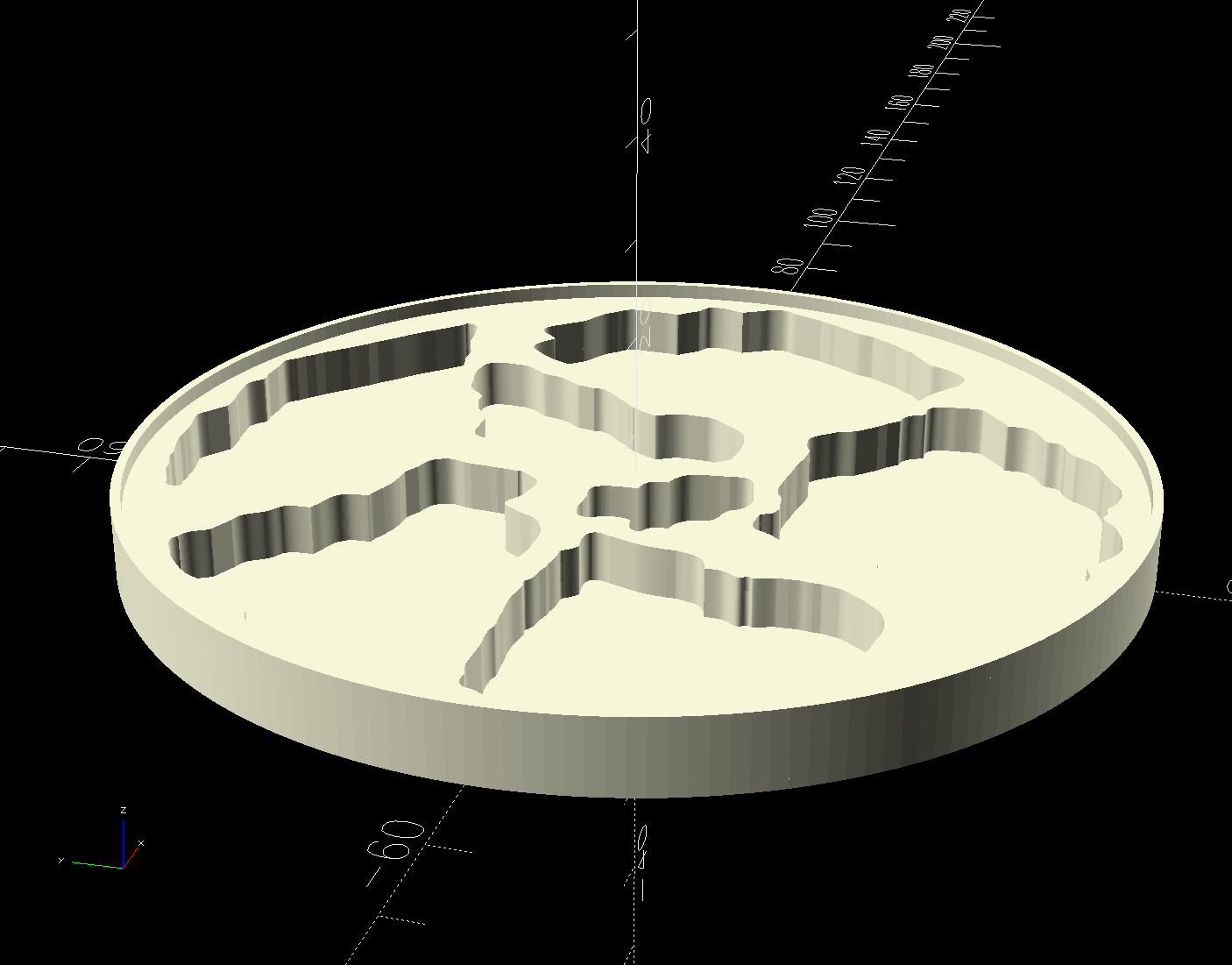
    So 3D print the entire base, which requires generating a solid model with recesses for the fragments:

    Printed Coaster Layout - solid model
    Printed Coaster Layout – solid model

    Because there’s no real justification for an optical-quality mirror under smashed glass, use reflective metallized paper in the recesses as reflectors:

    Smashed glass printed coaster - metallized paper assembly
    Smashed glass printed coaster – metallized paper assembly

    The glass is more-or-less greenish-blueish, so I used a strip of green metallized paper that made the glass fragments green. Obviously there’s some room for choice down there.

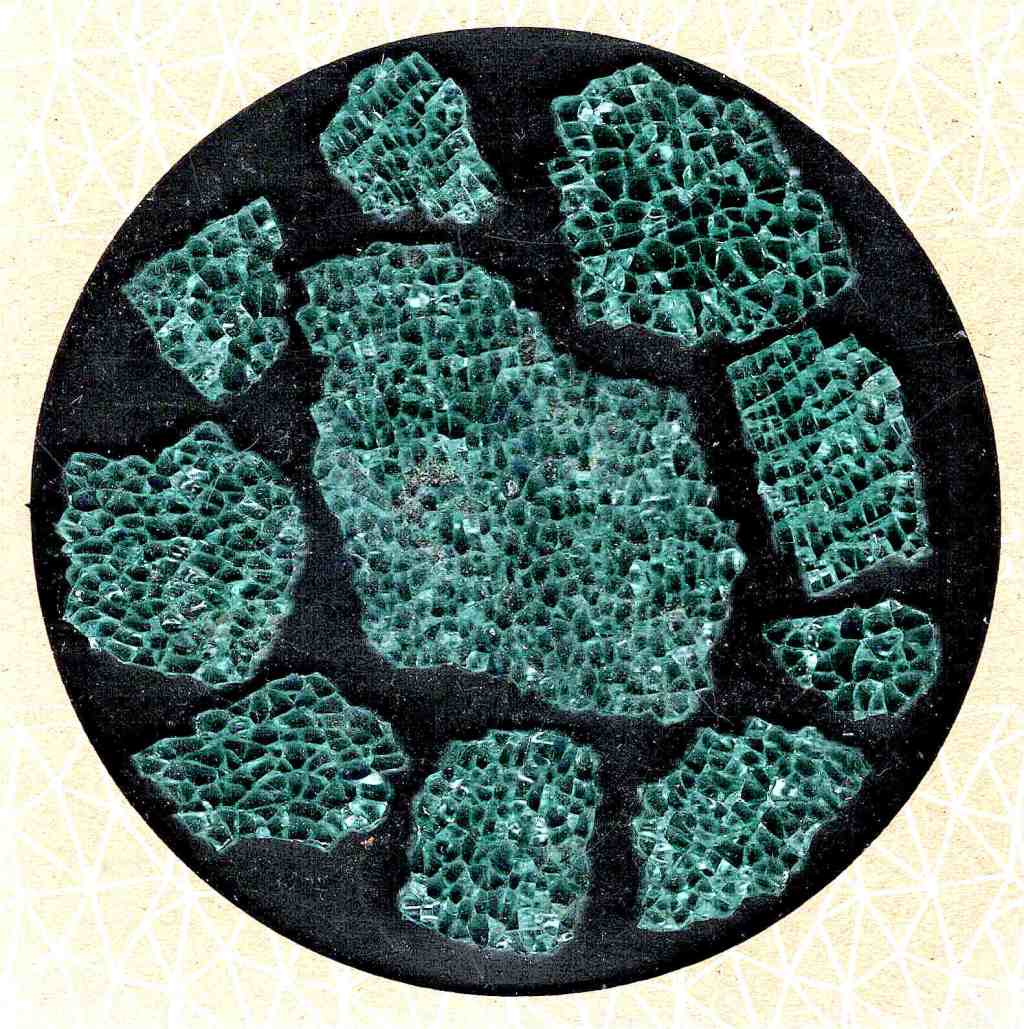
    Both the base and the reflectors use outlines of the fragments, so I started with a scan of the approximate layout in GIMP:

    Smashed Glass - 4in - group A - tweaked
    Smashed Glass – 4in – group A – tweaked

    I traced the outline of each fragment using the Scissors Select Tool, which lays line segments along the sharpest gradient between clicked points, then switched into Quick Mask mode to adjust & smooth the results:

    Smashed Glass paths - quick mask
    Smashed Glass paths – quick mask

    That’s the result after sketching & saving all the paths as separate SVG files to allow importing them individually into InkScape, OpenSCAD, and LightBurn.

    Which turned out to be suboptimal, as it let me write an off-by-one blooper omitting the last file from the OpenSCAD model:

    fn = "Fragment layout - 4in.svg";
    fp = ["A","B","C","D","E","F"];
    <snippage>
            for (p = fp)
              import(fn,id=str("Fragment ",p));


    A better choice puts all the paths into a single named group, saved as a single SVG file, then importing that group from the file using its name, along these lines:

    fn = "Fragment layout - 4in.svg";
    fg = ["Fragments"];
    <snippage>
            import(fn,id=fg);
    

    It’s not clear if I can do that directly from GIMP by saving all the paths in a single file, then importing that lump into Inkscape as a group, but it’ll go something like that.

    After getting the fragment paths into Inkscape, add a 0.5 mm offset to each path to clear any non-vertical edges. This will be checked with the template cut using LightBurn as described below.

    Add a 1 mm rim around the outside, with the 4 inch OD matching the usual PSA cork base:

    Fragment layout - 4in
    Fragment layout – 4in

    Now’s the time to nudge / rotate the outlines so they have at least a millimeter of clearance on all sides / ends, because that’s about as thin a section of printed plastic as you want.

    Locating the center of the OD (and, thus, everything inside) at the lower-left corner of the Inkscape page will put them at the OpenSCAD origin. I have set Inkscape to have its origin at the lower left, rather than the default upper left, so your origin may vary.

    Select one of the paths:

    Fragment layout - Inkscape A
    Fragment layout – Inkscape A

    Then set the ID in its Object Properties:

    Fragment layout - Inkscape A - properties
    Fragment layout – Inkscape A – properties

    There is an interaction between the name over in the Layers and Objects window, which apparently comes from the GIMP path name for the imported fragments, and the resulting ID and Label in the Object Properties window. However, renaming an object on the left, as for the Rim and Perimeter circles, does not set their ID or Label on the right. Obviously, I have more learning to do before this goes smoothly.

    With everything laid out and named and saved in an SVG file, the OpenSCAD program is straightforward (and now imports all the fragments):

    include <BOSL2/std.scad>
    
    NumSides = 4*4*3*4;
    
    fn = "Fragment layout - 4in.svg";
    fp = ["A","B","C","D","E","F","G"];
    
    FragmentThick = 5.0;
    
    BaseThick = 1.0;
    RimHeight = 1.5;
    
    union() {
      linear_extrude(h=BaseThick)
        import(fn,id="Perimeter",$fn=NumSides);
      linear_extrude(h=BaseThick + FragmentThick + RimHeight)
        difference() {
          import(fn,id="Perimeter",$fn=NumSides);
          import(fn,id="Rim",$fn=NumSides);
      }
      up(BaseThick - 0.05)
        linear_extrude(h=FragmentThick)
          difference() {
            import(fn,id="Perimeter",$fn=NumSides);
            for (p = fp)
              import(fn,id=str("Fragment ",p));
          }
    }


    Which squirts out the solid model appearing above.

    Feeding it into PrusaSlicer turns the model into something printable:

    Printed Coaster Layout - slicer
    Printed Coaster Layout – slicer

    And after supper I had one in my hands.

    Before doing that, however, import the same SVG file into LightBurn, as on the left:

    Printed Coaster Layout - LightBurn
    Printed Coaster Layout – LightBurn

    On the right, duplicate it, put the inner Rim on a tool layer, put the rest on a layer set to cut chipboard, and make a template to verify those holes fit around the fragments:

    Smashed glass printed coaster - fragment test fit
    Smashed glass printed coaster – fragment test fit

    Which a few didn’t, explaining why I go to all that trouble. Iterate through GIMP → paths → SVG → Inkscape → LightBurn until it’s all good. Obviously, you do this before you get too far into OpenSCAD, but they all derive from the Inkscape layout, so there’s not a lot of wasted motion.

    The middle LightBurn layout insets the fragment outlines by 0.25 mm to ensure the paper fits easily and puts them on a layer set to cut metallized paper. Those fragments then get duplicated and rearranged within the rectangle on the top to fit a strip of metallized paper from the scrap box. Fire The Laser to cut them out and stick them to the bottom of their corresponding 3D printed recesses with leftover snippets of craft adhesive sheet as shown above.

    I had originally intended to cover the bottom of the entire sheet of metallized paper with an adhesive sheet, but realized the whole affair was going to be submerged in epoxy, so just making sure the paper didn’t float away would suffice.

    Next, mix up some epoxy …

  • Smashed Glass: 3D Printed Coaster

    Smashed Glass: 3D Printed Coaster

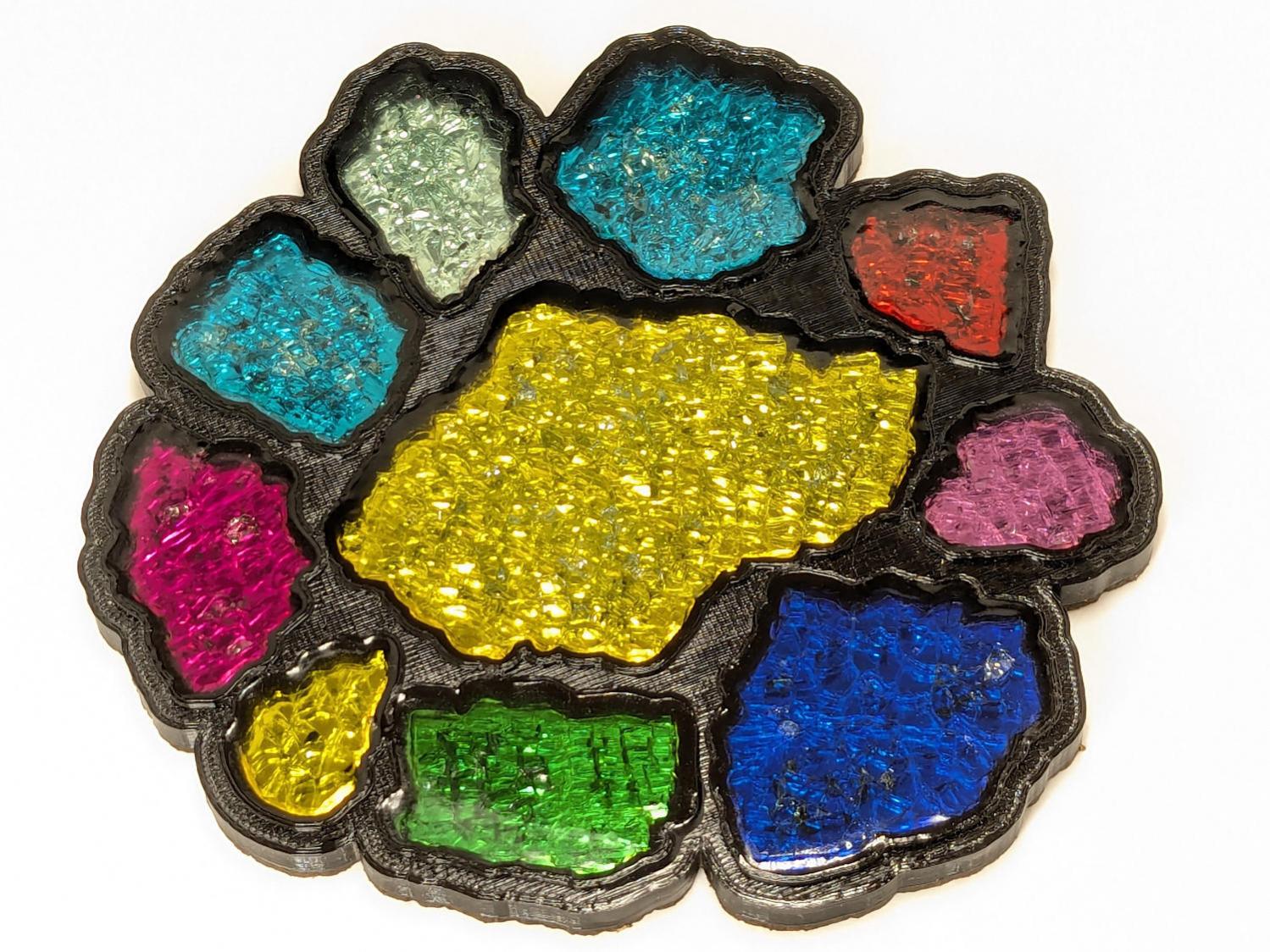
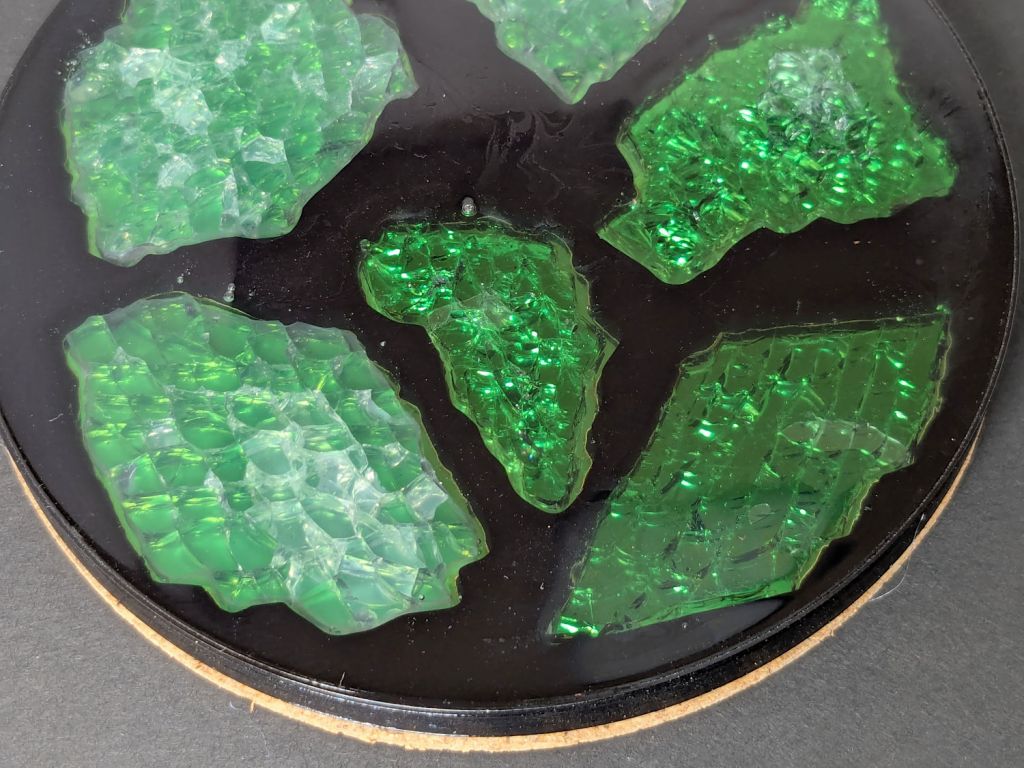
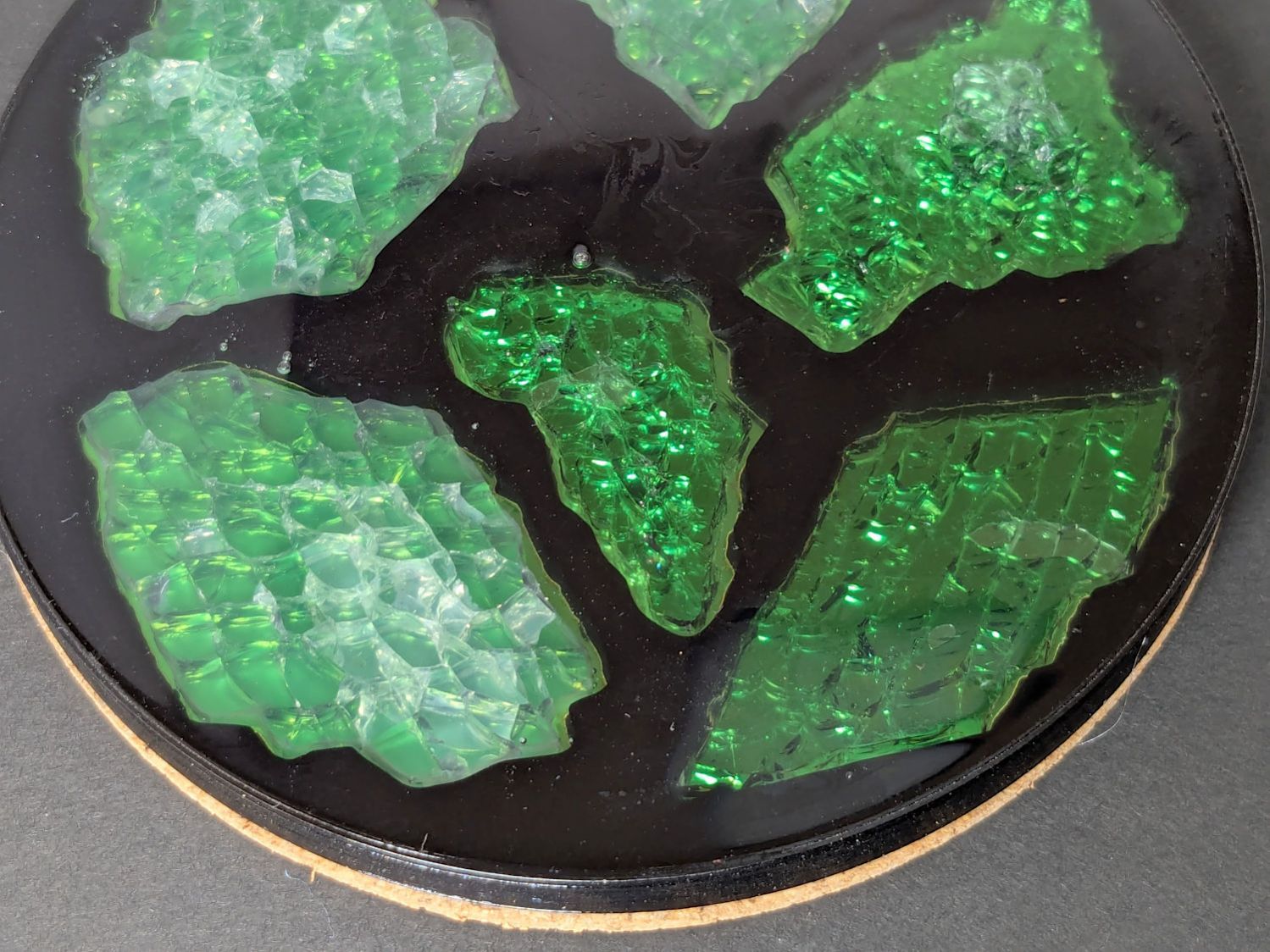
    Having recently had to move the flat box of shattered glass to get something from behind it, I figured I could apply new techniques to old material :

    Smashed glass printed coaster - oblique view
    Smashed glass printed coaster – oblique view

    This is something of a test case to restart the whole process, so it has a few bloopers. This post covers the results, with more detail on the process to follow.

    Arrange some good-looking shattered glass fragments within the 4 inch circle on the fixture:

    Smashed glass printed coaster - fragment test fit
    Smashed glass printed coaster – fragment test fit

    Scan it, trace the outlines into paths using GIMP, label the paths in Inkscape, import into LightBurn to laser-cut the chipboard disk in that picture to verify enough clearance around the fragments, import into OpenSCAD, and produce a solid model for PrusaSlicer:

    Printed Coaster Layout - slicer
    Printed Coaster Layout – slicer

    While it’s printing, laser-cut green metallized paper to serve as a reflecting layer below the glass, then affix the paper to the bottom of the recesses:

    Smashed glass printed coaster - metallized paper assembly
    Smashed glass printed coaster – metallized paper assembly

    During that process I discovered one of the fragment recesses didn’t make it from the Inkscape SVG file to the OpenSCAD model:

    Smashed glass printed coaster - missing fragment
    Smashed glass printed coaster – missing fragment

    Like I said: bloopers. That fragment now has its place in the OpenSCAD code and the slicer preview above, not that I have matching fragments to build another one.

    Put all but one fragment in their places, pour clear epoxy over everything, pop bubbles for a while, then let it cure overnight:

    Smashed glass printed coaster - front view
    Smashed glass printed coaster – front view

    Stick a PSA cork disk on the bottom and it’s ready for service.

    I’ve seen worse … :grin:

  • Layered Paper: Tapered Blocks

    Layered Paper: Tapered Blocks

    Just to see what it’d look like, I tweaked the SVG generator to reduce the size of the square blocks on successive layers:

            MatrixEls.append(
                svg.Rect(
                    x=as_mm(SheetCenter[X] - MatrixOA[X]/2 + x + ThisLayer*args.inset),
                    y=as_mm(SheetCenter[Y] - MatrixOA[Y]/2 + y + ThisLayer*args.inset),
                    width=as_mm(CellSize[X] - 2*ThisLayer*args.inset),
                    height=as_mm(CellSize[Y] - 2*ThisLayer*args.inset),
                    stroke=s,
                    stroke_width=DefStroke,
                    fill="none",
                )
            )


    Which looks OK-ish, although not significantly different from the straight-hole versions:

    Layered Paper - tapered blocks
    Layered Paper – tapered blocks

    The taper shows off the layer colors along the sides of the holes:

    Layered Paper - tapered blocks - oblique detail
    Layered Paper – tapered blocks – oblique detail

    Unfortunately, it also makes the corner blemishes painfully obvious:

    Layered Paper - tapered blocks - detail
    Layered Paper – tapered blocks – detail

    My first attempt didn’t skootch the squares over by the size of the inset, thus neatly aligning the upper left corners and giving the bottom right corners twice the inset:

    Layered Paper - tapered blocks - fixed origin - detail
    Layered Paper – tapered blocks – fixed origin – detail

    Which made those gnarly corners painfully obvious.

    I tried stacking the sheets with their bottom side upward, hoping to disguise the edge charring, but to no avail.

    The inset code remains in place with a default of zero:

    parser.add_argument('--inset', type=float, default=0.0)


    Sometimes the simplest choice is the right one.

  • Taylor Rain Gauge Holder Spike

    Taylor Rain Gauge Holder Spike

    One of Mary’s gardening buddies gave her a Taylor rain gauge he picked up at a closeout sale, but the exceedingly thin aluminum holder obviously wasn’t up to the task:

    Taylor Rain Gauge - OEM metal stake
    Taylor Rain Gauge – OEM metal stake

    I briefly considered 3D printing a better bracket, but came to my senses:

    Taylor Rain Gauge holder - front
    Taylor Rain Gauge holder – front

    A generous fillet of tan JB PlasticBonder holds the thin aluminum clamp ring to the top of the dagger spike:

    Taylor Rain Gauge holder - rear
    Taylor Rain Gauge holder – rear

    The spike is 6.3 mm acrylic and should survive for a while despite the stress-raiser corners. The next iteration will have radiused corners and could last longer:

    Taylor Rain Gauge Holder - LightBurn layout
    Taylor Rain Gauge Holder – LightBurn layout

    The holes will fit 4 mm screws, although the OEM holder isn’t good for more than 3 mm.

    The LightBurn SVG layout as a GitHub Gist:

    Loading
    Sorry, something went wrong. Reload?
    Sorry, we cannot display this file.
    Sorry, this file is invalid so it cannot be displayed.

    Took longer to write it up than to do it, even counting mixing the adhesive.

  • Wasp Blower

    Wasp Blower

    A colony of Yellowjacket wasps moved into a gap somewhere inside our front door, which we noticed only after they set up a heavy traffic pattern over the front step. The nest is far enough up inside the door frame (or, shudder, the wall) to be immune to rattlecan insecticide spray and the wasps simply tiptoe across sticky-trap sheets laid on their entrance paths.

    Taking a hint from the comments to our long-ago fruit fly adventure, I conjured a Wasp Blower from available materials:

    Wasp Blower - installed
    Wasp Blower – installed

    That’s a hulking 12 V electronics case fan mounted on a cardboard bulkhead inside what’s basically a tunnel, with its power supply plugged into a widowmaker extension cord screwed into the light fixture next to the door.

    The fan blows away from the door, with the general idea of killing wasps leaving the nest. Arriving wasps can walk home around the box, but departing wasps always take flight from the small crack under the door sill, whereupon they’re sucked into the fan, shattered by the blades, and blown out onto the step.

    A Yellowjacket can make headway into a 1 m/s wind, but not for very long, which explains why most of them prefer walking home.

    The carnage looks awful, so it seems to be working …

  • Layered Paper: Going Big

    Layered Paper: Going Big

    Change the physical sizes in the SVG layered paper generator to match 24×18 inch construction paper:

    PageSize = (round(24*INCH,3), round(18*INCH,3))
    
    SheetCenter = (PageSize[X]/2,PageSize[Y]/2)
    
    SheetSize = (610,450)           # overall sheet
    
    AlignOC = (600,440)             # alignment pins in corners
    AlignOD = 5.0                    #  … pin diameter
    
    MatrixOA = (590,430)            # outer limit of cell matrix


    Tweak the defaults for 59×43 squares:

    parser = ArgumentParser()
    parser.add_argument('--layernum', type=int, default=0)
    parser.add_argument('--colors', type=int, default=8)
    parser.add_argument('--seed', type=int, default=1)
    parser.add_argument('--width', type=int, default=59)
    parser.add_argument('--height', type=int, default=43)
    args = parser.parse_args()


    Run the program ten times to generate ten SVG images:

    for i in {00..09} ; do python Layers\ -\ 24x18.py --layernum=$i --colors=9 > Test_$i.svg ; done
    

    The LightBurn layout dwarfs the machine platform:

    Layered Paper - circular colors - 24x18in - LightBurn layout
    Layered Paper – circular colors – 24x18in – LightBurn layout

    Fire The Laser ten times and you get a wall hanging:

    Layered Paper - 24x18 - trial alignment
    Layered Paper – 24×18 – trial alignment

    That’s a trial alignment atop a cardboard box on the Basement Shop floor, because gluing those 24×18 inch sheets of paper requires time on the Sewing Table, which is currently occupied by a much higher priority project. The brown innermost circle in the design is entirely separate from the brown Amazon cardboard box underneath everything.

    Fairly obviously, you’d want something other than brown at the focal point of that design, but following the EIA color code gives me some confidence the result matches the intention. Feel free to tart it up with your own colors.

    I laid a 29×23 inch sheet of sketch paper on the honeycomb, distributed neodymium bar magnets around the perimeter, and cut a 24×18 rectangle out of the middle:

    Layered Paper - 24x18 - brown squares
    Layered Paper – 24×18 – brown squares

    Those squares are the cutouts from the brown sheet, minus what you see in the lead picture.

    The black rectangle on the left of the LightBurn layout above is the 24×18 inch cut for the fixture. Centering that rectangle on the LightBurn layout (click-select, Ctrl-D to duplicate, then hit P to move it to the center) means aligning each of the ten patterns requires nothing more than the same click-select / dupe / P, with no delicate fiddling.

    Then just lay each colored sheet into the hole and it’s properly aligned. Because the machine homes to the same physical location every time it’s turned on and the fixture is mmm fixed to the platform, cutting all ten sheets over the course of two days proceeded smoothly.

    Cutting 2537 holes in the black mask takes a little under an hour:

    Layered Paper - 24x18 - cutting black
    Layered Paper – 24×18 – cutting black

    The other sheets have fewer holes and go progressively faster:

    Layered Paper - 24x18 - cutting yellow
    Layered Paper – 24×18 – cutting yellow

    The white sheet on the bottom has four alignment holes and four layer ID holes, so the cuts take a few seconds.

    That was easy …

  • Layered Paper: SVG Generator

    Layered Paper: SVG Generator

    Changing the formula generating the matrix values and cleaning up some infelicitous code choices produces a much more pleasing result:

    Layered paper - circular rainbow
    Layered paper – circular rainbow

    The random squares still look OK, though:

    Layered Paper - SVG generator results
    Layered Paper – SVG generator results

    Thresholding the distance from a randomly chosen point creates circular rainbows:

    CenterPoint = (choice(range(args.width)),choice(range(args.height)))
    
    CellMatrix = [[math.hypot(x - CenterPoint[X],y - CenterPoint[Y])
                    for y in range(args.height)]
                    for x in range(args.width)]
    
    dmax = max(list(chain.from_iterable(CellMatrix)))
    
    LayerThreshold = (ThisLayer/Layers)*dmax
    

    The Python program generates one SVG image file representing a single layer, as determined by the Bash one-liner invoking it:

    for i in {00..16} ; do python Layers\ -\ 200mm.py > Test_$i.svg ; done
    

    In real life you’d also use a different random seed for each set of layers, but that’s just another command line optIon.

    Import those 17 SVG images into LightBurn, arrange neatly, snap each one to the middle of the workspace grid (and thus the aligned template), then Fire The Laser:

    Layered Blocks - circular colors - 200mm 16x16 - LightBurn layout
    Layered Blocks – circular colors – 200mm 16×16 – LightBurn layout

    Feeding paper into the laser in rainbow (actually, heavily augmented / infilled EIA color code) order, plus the black mask, produces the aforementioned pleasing result:

    Layered Paper - rainbow oblique view
    Layered Paper – rainbow oblique view

    Glue the sheets in the assembly fixture:

    Layered Paper - gluing fixture side view
    Layered Paper – gluing fixture side view

    The white layer is uncut, other than the four alignment holes (with a rivnut poking up) and its binary layer number (16, backwards because upside-down), and appears in only the farthest corners of the rainbow.

    Protip: doing the stack upside-down means you smear glue stick on the hidden side of each sheet. If you avoid slobbering glue into the cut square holes, nothing can go wrong.

    Making these things produces the happiest chip tray ever:

    Layered Paper - rainbow chip tray
    Layered Paper – rainbow chip tray

    I swept half a dozen pictures worth of squares into a small box and gave it away to someone with a larger small-child cross-section than mine, whereupon a slight finger fumble turned the contents into a glitter bomb. Sorry ’bout that.

    The Python source code as a GitHub Gist:

    # Generator for rainbow block layered paper
    # Ed Nisley – KE4ZNU
    # 2025-08-03 cargo-culted from svg library examples
    import svg
    import math
    from argparse import ArgumentParser
    from random import randint, choice, seed
    from itertools import chain
    from pprint import pprint
    INCH = 25.4
    X = 0
    Y = 1
    def as_mm(number):
    return repr(number) + "mm"
    parser = ArgumentParser()
    parser.add_argument('–layernum', type=int, default=0)
    parser.add_argument('–colors', type=int, default=16)
    parser.add_argument('–seed', type=int, default=1)
    parser.add_argument('–width', type=int, default=16)
    parser.add_argument('–height', type=int, default=16)
    parser.add_argument('–debug', default=False)
    args = parser.parse_args()
    PageSize = (round(8.5*INCH,3), round(11.0*INCH,3))
    SheetCenter = (PageSize[X]/2,PageSize[X]/2) # symmetric on Y!
    SheetSize = (200,200) # overall sheet
    AlignOC = (180,180) # alignment pins in corners
    AlignOD = 5.0 # … pin diameter
    MatrixOA = (170,170) # outer limit of cell matrix
    CellCut = "black" # C00 Black
    SheetCut = "red" # C02 Red
    HeavyCut = "rgb(255,128,0)" # C05 Orange black mask paper is harder
    HeavyCellCut = "rgb(0,0,160)" # C09 Dark Blue ditto
    Tooling = "rgb(12,150,217)" # T2 Tool
    DefStroke = "0.2mm"
    DefFill = "none"
    ThisLayer = args.layernum # determines which cells get cut
    Layers = args.colors # black mask = 0, color n = not perforated
    SashWidth = 1.5 # between adjacent cells
    CellSize = ((MatrixOA[X] – (args.width – 1)*SashWidth)/args.width,
    (MatrixOA[Y] – (args.height – 1)*SashWidth)/args.height)
    CellOC = (CellSize[X] + SashWidth,CellSize[Y] + SashWidth)
    if args.seed:
    seed(args.seed)
    #— accumulate tooling layout
    ToolEls = []
    # mark center of sheet for drag-n-drop location
    ToolEls.append(
    svg.Circle(
    cx=SheetCenter[X],
    cy=SheetCenter[Y],
    r="2mm",
    stroke=Tooling,
    stroke_width=DefStroke,
    fill="none",
    )
    )
    # mark page perimeter for alignment check
    if False:
    ToolEls.append(
    svg.Rect(
    x=0,
    y=0,
    width=as_mm(PageSize[X]),
    height=as_mm(PageSize[Y]),
    stroke=Tooling,
    stroke_width=DefStroke,
    fill="none",
    )
    )
    # center huge box on matrix center
    if False:
    ToolEls.append(
    svg.Rect(
    x=as_mm(SheetCenter[X] – 2*SheetSize[X]/2),
    y=as_mm(SheetCenter[Y] – 2*SheetSize[Y]/2),
    width=as_mm(2*SheetSize[X]),
    height=as_mm(2*SheetSize[Y]),
    stroke=Tooling,
    stroke_width=DefStroke,
    fill="none",
    )
    )
    #— accumulate sheet cuts
    SheetEls = []
    # cut perimeter
    SheetEls.append(
    svg.Rect(
    x=as_mm(SheetCenter[X] – SheetSize[X]/2),
    y=as_mm(SheetCenter[Y] – SheetSize[Y]/2),
    width=as_mm(SheetSize[X]),
    height=as_mm(SheetSize[Y]),
    stroke=SheetCut if ThisLayer > 0 else HeavyCut,
    stroke_width=DefStroke,
    fill="none",
    ),
    )
    # cut layer ID holes except on mask layer
    if ThisLayer > 0:
    c = ((1,1))
    h = f'{ThisLayer:0{Layers.bit_length()}b}'
    for i in range(Layers.bit_length()):
    SheetEls.append(
    svg.Circle(
    cx=as_mm(SheetCenter[X] + c[X]*AlignOC[X]/2 – (i + 2)*AlignOD),
    cy=as_mm(SheetCenter[Y] + c[Y]*AlignOC[Y]/2),
    r=AlignOD/4 if h[-(i + 1)] == '1' else AlignOD/8,
    stroke=SheetCut,
    stroke_width=DefStroke,
    fill="none",
    )
    )
    # cut alignment pin holes except on mask layer
    if ThisLayer > 0:
    for c in ((1,1),(-1,1),(-1,-1),(1,-1)):
    SheetEls.append(
    svg.Circle(
    cx=as_mm(SheetCenter[X] + c[X]*AlignOC[X]/2),
    cy=as_mm(SheetCenter[Y] + c[Y]*AlignOC[Y]/2),
    r=as_mm(AlignOD/2),
    stroke=SheetCut,
    stroke_width=DefStroke,
    fill="none",
    )
    )
    #— calculate matrix contents
    CenterPoint = (choice(range(args.width)),choice(range(args.height)))
    CellMatrix = [[math.hypot(x – CenterPoint[X],y – CenterPoint[Y])
    for y in range(args.height)]
    for x in range(args.width)]
    dmax = max(list(chain.from_iterable(CellMatrix)))
    if args.debug:
    print(CenterPoint)
    print(dmax)
    pprint(CellMatrix)
    print()
    #— accumulate matrix cuts
    LayerThreshold = (ThisLayer/Layers)*dmax
    if args.debug:
    print(LayerThreshold)
    MatrixEls = []
    for i in range(args.width):
    x =i*CellOC[X]
    for j in range(args.height):
    y = j*CellOC[Y]
    if args.debug:
    print(i)
    print(j)
    print(CellMatrix[i][j])
    if ThisLayer == 0: # black mask
    s = HeavyCellCut
    elif LayerThreshold < CellMatrix[i][j]: # rest of sheets above color layer
    s = CellCut
    else:
    s = Tooling # at or below color layer
    MatrixEls.append(
    svg.Rect(
    x=as_mm(SheetCenter[X] – MatrixOA[X]/2 + x),
    y=as_mm(SheetCenter[Y] – MatrixOA[Y]/2 + y),
    width=as_mm(CellSize[X]),
    height=as_mm(CellSize[Y]),
    stroke=s,
    stroke_width=DefStroke,
    fill="none",
    )
    )
    #— assemble and blurt out the SVG file
    if not args.debug:
    canvas = svg.SVG(
    width=as_mm(PageSize[X]),
    height=as_mm(PageSize[Y]),
    elements=[
    ToolEls,
    SheetEls,
    MatrixEls
    ],
    )
    print(canvas)