Ed Nisley's Blog: Shop notes, electronics, firmware, machinery, 3D printing, laser cuttery, and curiosities. Contents: 100% human thinking, 0% AI slop.
Tag: Improvements
Making the world a better place, one piece at a time
The black knobs on our black-front Kenmore stove have slightly raised pointer extensions. At a glance, you cannot tell whether the knob points upward to OFF or downward to 5.
Oddly, the oven temperature knob has a nice white index line engraved (well, molded) in the pointer extension. So it’s not like they didn’t know how to do index lines. I’m guessing they had to take a buck out of the build cost and omitting four index lines added up to just the right amount.
I added tape markers shortly after we got the thing. The previous tape was fluorescent orange; the adhesive lasts several years before turning gummy. These new markers are snippets of outdoor-rated retroreflective tape and should last longer.
Run the knobs through the dishwasher occasionally to get ’em nice & shiny. Surprisingly, that doesn’t seem to bother the tape.
The trick to measuring small capacitance values is to get your body out of the loop: this fixture holds a crystal rigidly and makes solid contacts to both the case and leads while measuring the internal crystal-to-case capacitance. It’s sized for wire-terminated HC-49/U and HC-49/US cases, but you could obviously adapt it to other cases.
The meter is an AADE L/C Meter IIB, with binding posts on 3/4″ centers. The post caps are plastic, so the only reliable connection is on the bottom surface. I used double-sided 62-mil PCB material for the fixture base plate, with copper-foil tape wrapped around the sides and soldered along the top edge; the adhesive is allegedly conductive, but I suspect that’s for static dissipation and shielding, rather than for actually conducting signal current. Kapton tape over the copper foil prevents gashes on the sharp edges.
Notes:
Run a 1/8″ end mill across (both sides of!) the PCB and drill 1/4″ holes with a step drill at the appropriate spots.
A 25-mil brass shim stock rectangle soldered to the right half supports the crystal case to get the flange off the board.
Slice up an alligator clip with a Dremel cutoff wheel, drill a hole in the board to mount it with the screw that’s supposed to secure its wire, and it’ll hold crystal cans down with grim determination.
A snippet of phosphor bronze spring stock, bent in a slight arc with a tab soldered to the board at the far end, holds the crystal leads against the PCB. You could probably use brass shim stock.
The black strip on the far side of the binding posts is half of a wire-wrap IC socket, leads bent & clipped appropriately, then soldered to the underside foil. That’s where you stick crystals to measure their lead-to-lead capacitance (aka Co or C0). Works fine for through-hole caps, too.
A detail view…
Crystal Capacitance Fixture – Detail
Typical crystal case-to-lead capacitance is on the order of a few pF, so zeroing the fixture capacitance is important: (meter + fixture) weighs in at about 6 pF.
There’s another half pF of crystal-lead-to-fixture capacitance that’s nullable by positioning the cap leads just over the spring contact when zeroing the meter.
There’s essentially no stray capacitance due to a crystal in the socket strip along the back; zeroing the meter without the crystal seems to be adequate.
I find that pressing the Zero button with a screwdriver while bracing the other side of the case with another screwdriver gives the best results; doing it with fingers produces about +0.5 pF offset.
Done right, the meter reads within ±0.03 pF of zero and remains stable as long as you stay away while reading the digits!
I’m building a crystal parameter measurement fixture and decided to use Manhattan wiring, rather than an etched circuit board, because I think this will be a rarely used gadget… and it’s RF, so air-wiring is a Good Thing.
The key to Manhattan construction is having a pile of little circuit-board pads that you glue to a ground plane, then solder component leads to the pads. A bit of rummaging turned up an old leather punch / snap crimping tool that’s probably older than I am. After punching a few pads, though, I realized that the die hole had a constant diameter: no relief behind the cutting edge.
Aligning to the die
That meant the circuit board pads jammed tight in the hole. Extracting them required a pin punch and far more hammering than seemed reasonable, not to mention far more force to operate the punch than I was willing to apply.
So I found the largest transfer punch that would fit in the die hole, chucked it in the drill press, and aligned the table so the vise grabbed the tool directly in line with the spindle.
The tool is soft steel, intended for leather, so I could get away with the next step: chuck up a drill a few mils larger than the die hole and drill it out to within about 1/8 inch of the cutting edge.
Worked like a champ: the pads no longer jammed in the hole and the tool operated with much less force.
Nevertheless, I shrank some glue-lined heat stink shrink tubing around the handles to cushion the sharp inner edges. The handles are just folded steel, as nobody expected the retraction stroke to require much effort at all.
Padded handles
That helped a lot, as did a few drops of oil in the obvious spots.
The end result was a pile of punchies poked from a chunk of 32-mil double-sided circuit board.
The classic failure mode for a Palm Zire 71 is to stop charging. This might happen when the lithium-ion battery craps out and needs replacing, but the flex circuit between the cradle connector and the main board seem to go bad around that time, too. That’s what eventually killed my first Zire, so after I stuffed a new battery in the second, I tried fixing the first.
Here’s the flex circuit in its natural habitat (photo from the second Zire).
Flex Circuit and Components
Here’s a picture looking down along the inside edge of the connector at the the flex circuit in the photo above. Notice the cracks at the junction of the soldered terminals and the copper flex traces. Click the pic for more detail…
Cracked Flex Traces
I suspect some of those cracks came from my ham-fisted repairs over the years of owning the thing, but the fact of the matter is that many other owners who didn’t take their Zire apart have much the same charging / USB problems. I think the connector moves slightly when it’s jammed into the charging cradle and that’s enough to fracture those joints over the course of a few years.
Anyhow, cutting the flex just beyond the connector pins and scraping off the insulating layer with a sharp razor knife reveals the traces.
Flex Traces Exposed
This end of the flex circuit has two additional ground traces bracketing the 16 traces leading to the exposed connector pins. As a result, the connector body is firmly grounded. The fat trace on the top is a paired ground conductor. The fat trace in the middle is another ground.
Here are some of the connections at the other end of the circuit, where it plugs into the Zire PCB. Note that the shutter button traces wind up in the midst of all the traces with numbers corresponding to the external connector pinout found there. The speaker traces lie outside the ground at the bottom edge of the picture above.
Flex connector pinout at main PCB
With that in hand, I untwisted a hunk of stranded hookup wire to get some fine copper wires and soldered them to the flex circuit traces. Note that the two outermost traces are soldered directly to the metal shell around the alignment / latch holes. The red stuff at the very end of the flex circuit is orange nail polish that will, in theory, keep the new wires from shorting to the copper shield layer in the flex. The silvery shape at the lower middle is the shutter button.
New Leads in Place
The wires turned out to be just slightly too long; were I to do it again, I’d pay more attention to getting the edge of the flex exactly where it was when I cut it off.
A layer of Kapton tape insulates and stabilizes the wires. A layer of copper foil tape atop the Kapton gets soldered to the connector shell for static dissipation, but I’m not convinced it was necessary. This view is from the other side of the flex, with more nail polish along the edge to glue things down.
Flex with Nail Polish on Kapton
A layer of Kapton on that side pretty well finished it off; I took some pains to press the two adhesive layers together around each of the wires.
Solder the speaker back in place and reinstall in reverse order, folding the new wires gently into position. That’s when I found out they were a few millimeters too long. I left ’em be.
Here’s the final result, minus the shutter button and bezel.
Repaired Flex in Place
From this point, all the bits fit back together the way they used to.
While all this was going on, I won a pair of Zire 71s on eBay, plus a wireless keyboard (which solves a problem I don’t have), plus a known-bad Z22 (dead digitizer), plus a bunch of other odds and ends, for a whopping $25 delivered. I was so hot to get the pair that I even upped my bid to $45… there were no other bidders.
Now I have a cold backup for the hot backup for my PDA!
Amazingly enough, the (presumably OEM) batteries in the new-to-me Zires charged up and work fine, so I need not meddle with them for a year or two.
I’ve seen all manner of exceedingly fancy and painstakingly constructed tool length switch stations, but it seems ordinary snap-action / tactile-feedback switches are repeatable enough for most purposes. I selected a switch from my stash with these qualifications:
physically small — fits on Sherline table
plastic button — avoid nicking the cutters
many more in the stash — not a special-order item
cheap – ’nuff said
A few snippets of heat stink shrink tubing later…
Switch detail
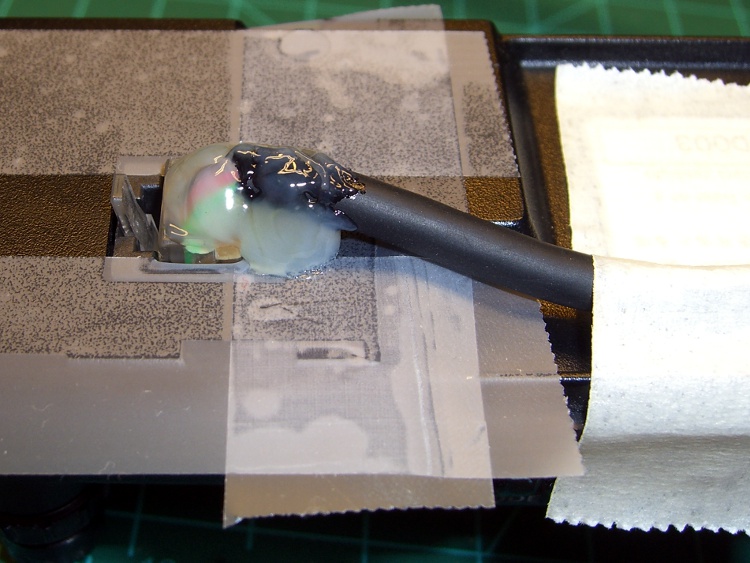
After puzzling over the mounting, I snagged a chunk of aluminum U-channel from the heap, poked a 10-32 clearance hole in one end, and held the switch in place while slobbering brown hot-melt glue over it. The glue is rigid when cool, so the switch isn’t going anywhere, but it’s mounted with some air space below to allow crushing when the probe routine screws up.
The button stands slightly proud of the U-channel, so even wide tools have side clearance. If the tool doesn’t stop when the switch trips (it could happen!), the entire switch will bend downward until the Z-axis drive stalls as the tool crushes the rubble or snags on the side of the U-channel.
At which point I just cut the cable, hammer the hot-melt glue and switch rubble out of the U-channel, solder up another switch, blob it in place, and continue the mission… from scratch, though, because the stored tool height reference value will be kaput.
The U-channel can be screwed down to a T-nut, clamped directly to the table, or affixed wherever it’s needed. If the Sherline had home switches, it’d be better to mount the probe switch in a fixed location somewhere, then use a fixture offset for the part, but I’m not there yet.
The switch doesn’t have much overtravel: when the contacts activate with a tactile click, the button is pretty much bottomed out. However, unless you’re driving the tool into the switch at a dead run, it ought to stop moving fairly quickly.
Back of the envelope: I have the Z axis acceleration set to (a sluggish) 3.0 in/s/s. Approaching the switch at 12 in/min = 0.2 in/s , it’ll screech to a halt in 67 ms = (0.2 in/s)/(3.0 in/s/s). Assuming the average velocity while stopping is 0.1 in/s, the distance works out to 7 mils, which shouldn’t pose a problem.
Then drive up off the switch enough to clear the backlash and drive down at nose-pickin’ speed, so the axis stops pretty much instantly when the switch clicks.
Some not-very-exhaustive testing suggests the repeatability for a single tool is well within 0.03 mm, about 0.001 inch, which is entirely satisfactory for my purposes.
[Update: It’s pretty good, all things considered. A simple experiment is there.]
The overall procedure:
Laser align XY to the part origin, home X&Y axes
Execute G49 to clear any existing tool length compensation
Insert first tool, align to Z=0 on part, home Z axis
Eyeball align XY to the switch with the tool just above
Jog Z comfortably high, execute G30.1 to set tool change location
Fire up your program!
The program probes the first tool length and saves that as the reference length. Each subsequent tool change gets probed and the tool offset becomes the difference between the new length and the reference length.
The initial probing routine:
O<Probe_Init> SUB
G49 ( clear tool length compensation)
G30 ( to probe switch)
G91 ( relative mode for probing)
G38.2 Z-90 F300 ( trip switch on the way down)
G0 Z1 ( back off the switch)
G38.2 Z-10 F10 ( trip switch slowly)
#<_ToolRefZ> = #5063 ( save trip point)
G90 ( absolute mode)
G30 ( return to safe level)
O<Probe_Init> ENDSUB
Note that the G30 coordinates are stored in native units, which are inches for my Sherline mill. To get to that Z height (for safety, before moving) while using metric units:
G0 Z[#5183 * 25.4]
The G38.2 coordinates are stored in whatever units the G20/G21 mode calls for, so they can be applied directly to tool length compensation. That seems odd, as EMC assumes the tool table uses native units.
There does not seem to be any way to determine which unit mode is active, although the probe speed depends on that setting. although I suppose I could set a global variable to the desired probe speed and leave it up to the G-Code program(mer) to get it right. Yeah, like that’ll work…
Anyhow, each subsequent tool gets probed thusly:
O<Probe_Tool> SUB
G49 ( clear tool length compensation)
G30 ( to probe switch)
G91 ( relative mode for probing)
G38.2 Z-90 F300 ( trip switch on the way down)
G0 Z1 ( back off the switch)
G38.2 Z-10 F10 ( trip switch slowly)
#<_ToolZ> = #5063 ( save new tool length)
G43.1 K[#<_ToolZ> - #<_ToolRefZ>] ( set new length)
G90 ( absolute mode)
G30 ( return to safe level)
O<Probe_Tool> ENDSUB
With those two routines in hand, this demo code shows how it’s done…
G21 ( metric units)
(msg,Verify origin at proper location, hit Resume)
M0
(msg,Verify G30.1 at tool change switch, hit Resume)
M0
(msg,Verify first tool installed, hit Resume)
M0
O<Probe_Init> CALL
G0 X0 Y0 Z0
(msg,Verify return to origin, hit Resume)
M0
M6 T2
O<Probe_Tool> CALL
G0 X0 Y0 Z0
(msg,Verify return to origin, hit Resume)
M0
M6 T3
O<Probe_Tool> CALL
G0 X0 Y0 Z0
(msg,Verify return to origin, hit Resume)
M0
M6 T4
O<Probe_Tool> CALL
G0 X0 Y0 Z0
(msg,Verify return to origin...)
M2
The M6 Tx commands make use of a
TOOL_CHANGE_AT_G30 = 1
line in Sherline.ini, which tells the Axis automagic manual tool changer routine to traverse to the G30 position and pop up a prompt to (manually) change the tool. When you click OK, the subsequent CALL command invokes the tool length probe routine and away it goes.
This whole lashup doesn’t have a lot of power-on hours, but I really like how it works!
A tip o’ the cycling helmet to the folks behind EMC2…
The first time my first Zire 71 crapped out, I hacked this charging current display into the cradle so I could see when the mumble thing was actually charging. It turns out that the PDA makes its happy “I’m charging!” beep and overlays the charging indicator on the battery symbol even when there’s no +5 V connection to the PDA: you can leave it in the cradle all night and wake up to a dead battery in the morning.
I hate it when that happens…
The charging current meter is a classic LM3914 LED display driver and a surplus HP (from back when they were HP) 10-LED bargraph module.
Here’s the schematic, such as it is, reverse-engineered from the as-built gadget…
Charge current bargraph circuit
[Update: Something went wrong with the upload for that sketch; I think it’s OK now.]
The general idea is to insert a 1-Ω resistor in the common return from the Zire’s charging contacts. The total current through the Zire, which is mostly battery charging current when it’s off, generates a voltage across the resistor. That voltage feeds the LM3914’s input, so the LEDs directly indicate the charging current.
Fairly obviously, that resistor drops the external voltage by a smidge. As nearly as I can tell, the drop adds up to maybe a third of a volt, so the charging voltage is a tad lower than they expect. Seems to work just fine; the maximum charging voltage for a 3.7 V Li-Ion cell is pretty close to 4.2 V, so they’ve still got half a volt to play with.
The two resistors and the trimpot add up to 1240 Ω, which sets the LED current to about 10 mA. The trimpot sets the voltage at the top of the LM3914’s internal resistor string to about 290 mV, although I measure the all-LEDs-on current at about 380 mA.
Current meter overview
Here’s what it looks like inside.
The sense resistor hangs off the power input jack’s common pin, with the common lead from the PDA contact pins and the LM3914 input lead connected to the other end. The LM3914 common goes directly to the power supply common, not the hot end of the sense resistor.
The 5.1 V lead from the power input jack still goes directly to the PDA contact pins, as well as the LM3914. I put a 22 Ω resistor in series with the LEDs to cut their power dissipation a bit. They’re plenty bright at 10 mA, so you might want to cut that down.
Bargraph display detail
The LED bargraph module fits neatly in a rectangular hole painstakingly drilled, sawed, and filed into the case, then held in place with a generous dollop of JB Weld epoxy. I taped it in place to keep the epoxy from oozing out while it was curing.
The LM3914 is soldered directly to the display module, with flying wires and components soldered to the remaining pins.
If I recall correctly, I held the Zire in position on the connector strip, got it charging, and then tweaked the trimpot until the display showed full scale.
This was done in an absolute white-heat frenzy with the PDA’s battery going dead, but at least the exterior looks pretty good. The circuitry inside is a genuine hairball that has been working fine ever since, which makes it Good Enough.
I’ve been mulling over adding a tool length probe for a while and finally decided that the simplest approach might be the best: a momentary-contact pushbutton switch that pulls a parallel port input pin to ground.
The motivation is that a simple switch seems to be repeatable enough for tool length probing and it’s cheap enough that I won’t form a deep emotional bond to it. When a probe crashes the switch, I can just pop another one in place without any heartache or putzing around for a day or three to build another over-elaborate probe station.
The catch is that the Sherline motor driver box doesn’t include connections for any of the parallel port input pins.
The choices seem to boil down to:
Adding a breakout board between the parallel port and the driver box or
Hacking the driver box to get access to the port pins
Well, I’ve already pretty well hacked up my controller, as I wrote up in Circuit Cellar magazine (Aug & Oct 2004), so I don’t have much to lose… and the box is already in the shop!
Probe to port pin 15
This picture shows the connection to pin 15 of the parallel port on the Sherline driver PCB. The driver doesn’t use that input pin (or any of the others, for that matter), which means the PCB doesn’t have a trace leading anywhere convenient. I ran the new wires through the connector mounting hole, rather than around the edge, and soldered them directly to the connector pins on the bottom of the board.
The jack is an ordinary 1/8″ (3.5 mm, these days) stereo (3 conductor) jack, with lah-dee-dah gratuitous gold-flavored flashed plating; anything similar will work just fine.
Connections:
Sleeve -> driver box
Ring -> circuit ground (pin 19 is convenient)
Tip -> pin 15, the probe input
The cable shield connects only at the plug into the driver box, not at the switch end. That ensures there’s no current flowing through it and it can do a marginally better job of shielding the two conductors within. I’m reasonably sure that makes no difference whatsoever in this application.
The cable got chopped out of an AV-interconnect dingus with all sorts of fancy connectors on the other end. It’s a surplus find, cost maybe a buck, and has the redeeming feature of sporting molded plugs that I don’t have to solder.
The switch connections are soldered and insulated with heat stink shrink tubing. The general idea is that the driver box provides all the power, there’s no electrical contact with the mill table or spindle, and thus no reason to use fancy circuitry to solve a problem that’s not there.
I did not add a capacitor across the switch contacts, figuring that I’d solve that problem when it happened. The common practice of putting a honkin’ big cap across switch contacts is bad practice: it effectively shorts the power supply across the contacts for a brief moment every time the switch closes. Some stored energy is good (it keeps the contacts clean), too much simply burns them away. ‘Nuff said.
Probe jack – inside
I marked a hole on the front panel symmetric with the LED, eased the circuit board out of the case and wrapped it in a shop rag to keep the swarf out, propped the case on the drill press table, and rammed a 1/4″ hole through the spot marked X with a step drill. Yeah, hand-held on the table, just like you’re never supposed to do.
The force is strong with me…
The (well, my) Sherline.hal file connects pin 15 to the probe sense input (maybe I defined that when I set things up; I don’t recall now), but it assumes the pin will be high when active. The parallel port pin has a built-in pullup resistor and a switch to ground makes it active when low. These two lines in my custom_postgui.hal file disconnect the high-active pin signal and connect the low-active pin signal.
unlinkp parport.0.pin-15-in
net probe-in parport.0.pin-15-in-not
You do it that way to avoid changing the Sherline.hal file, which will be overwritten if you ever run the automagic configuration program again.
If you’re doing this from scratch, just configure the whole thing using the configuration tool, it’ll set the HAL file properly and you won’t need any of that fiddling around.
Tweak the Sherline.ini file to add support for tool changing with the G30 command:
[EMCIO]
TOOL_CHANGE_AT_G30 = 1
Button everything up, then do a quick
G91 G38.2 Z-10 F10
and poke the button while the Z axis is in motion. The Z axis should stop instantly. If not, check your wiring.
Now, some Orc Engineering is in order: I need a low-budget fixture to put the switch in harm’s way.