After pondering the stepper motor data collected there and the driver data there, plus running some experiments with different motors, I’ve concluded that the MBI stepper motors aren’t appropriate for the Thing-O-Matic. This post summarizes my doodles and provides some background and justification for what I’ve been doing…
During the next week or two I’ll continue writing up the results of installing better stepper motors in my TOM, plus some mods required to take advantage of the improved performance. I’ll do a wrapup of the new motors when everything’s settled down and I (think I) understand what’s going on.
The ideal situation
This diagram from page 15 of the Allegro A3977 datasheet shows how the current varies in each winding during the course of 32 microsteps. The motors have 200 full steps/rev and 1600 microsteps/rev, so this diagram repeats 50 times during the course of one complete shaft rotation.
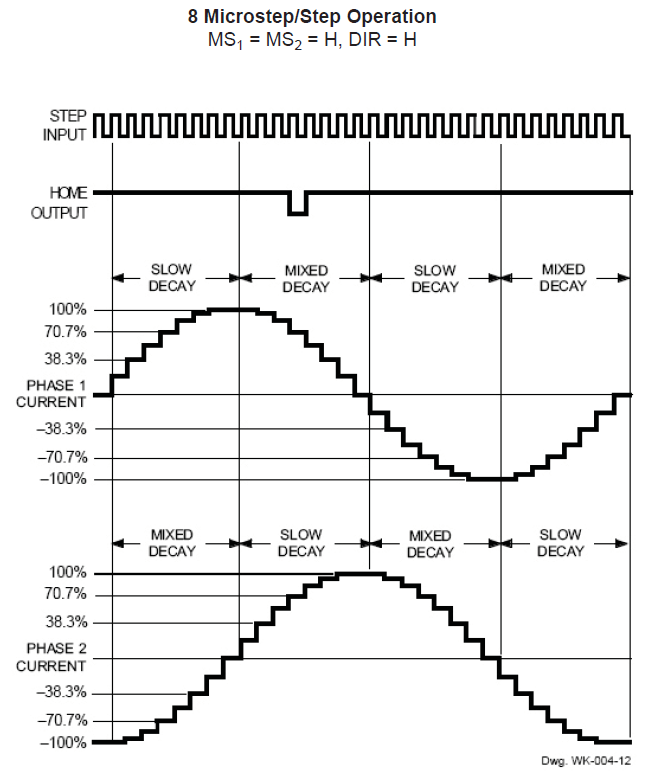
The peak current of each waveform corresponds to the REF pot setting on the MBI driver board:
current in amperes = (REF pot voltage) / 2
That peak current must not exceed the motor’s rated Maximum Current, because the winding resistance dissipates that much power as heat. The maximum temperature occurs deep in the windings, far from the metal part of the armature, so blowing air on the motor helps, but does not cure, an overtemperature problem.
The driver adjusts the current in each winding to generate an approximation of a sinusoid waveform for each microstep. Because the motor torque varies directly with the winding current, the REF pot sets the maximum torque available from the motor.
The A3977 driver controls the current by switching the MOSFETs on and off: on = increasing current, off = decreasing current. You can fiddle with the rates of increase and decrease, but those are all in the nature of fine tuning. What’s important is that the A3977 shuts off the winding current when it exceeds the product of the REF pot setting and the sinusoidal value for the microstep, then turns it back on when it falls below a somewhat lower level.
Therefore, the current isn’t actually constant: the whine you hear when the motors are standing still is an audible harmonic or sub-harmonic of the switching frequency. That’s not a bug, it’s a feature!
At the microsteps corresponding to the peaks of each sinusoidal waveform, one winding carries the maximum current and the other winding carries zero current. There are 200 such positions, each corresponding to one full motor step. At those points, the armature holds the rotor in position with the much-quoted Holding Torque.
For all other microsteps, the A3977 controls the Pythagorean sum of the two currents to equal the maximum current setting. The two currents pull the rotor toward two adjacent full-step positions, with the actual (nominal) rotor position determined by a bit of trig.
The power dissipation in the motor at every microstep is therefore:
(peak current)2 x (winding resistance)
All that applies to the DC situation with the motor halted at a particular microstep. In order to turn the rotor, the drive must change the winding currents to the values for the next microstep.
The motor windings are basically inductors with energy stored in their magnetic field, so the current cannot change instantly. The ratio of the inductance (L) and the total circuit resistance (R) is the time constant, abbreviated with a Greek tau (τ):
τ = L/R
The current change from one microstep to the next requires 3 time constants to settle within 5% of the final value and 5 time constants to settle within 1%. Those are characteristics of the exponential function and have nothing to do with the particular circuit; once you know the time constant, you know what’s going to happen.
The voltage applied to the motor winding determines the final value of the current that you use with the time constant. Microstepping drivers expect to apply a voltage far higher than the winding’s rated voltage, then limit the current to the winding’s rated value: the current never reaches the “final value”, but that’s still what you use in the computation. If the supply voltage equals the winding’s rated voltage, then the final value is simply the winding’s rated current.
The MBI Situation
The MBI motors (all of them, XYZ and Stepstruder) in a Thing-O-Matic do not operate like that. I’ll use the XY motors as examples, but feel free to run the same analysis on the others.
To summarize the datasheet values:
- Inductance L = 44 mH
- Resistance = 35 Ω
- Rated voltage = 14 V
- Rated current = 400 mA
The motors operate from a +12 V supply, so the maximum winding current will be at most 12 / 35 = 340 mA. The actual power supply voltage seems to around 11.5 V with the heaters running, the A3977 MOSFETs (inside the chip) have a total on-state resistance of about 800 mΩ, and I’ll assume another ohm of wiring resistance along the way. All that reduces the actual maximum current to around 300 mA; I’ll use that, because it’s within 10% off the actual value.
The MBI-recommended REV voltage setting of 1.5 V sets a 750 mA output current. However, there’s no magic involved: the motors cannot draw more than 300 mA in a Thing-O-Matic, no matter what the REF trimpot may call for.
With the REF trimpot set to 750 mA and the maximum current limited to 300 mA by the circuit, the A3977 cannot produce the correct current for most of the microsteps. Whenever the microstep current exceeds 300 mA, the A3977 cannot make that happen.
This diagram shows the actual winding current in the MBI motors for each of the 32 microsteps in four full motor steps:

The 100% level corresponds to the 750 mA set by the REF trimpot and, as above, the nice sinusoids show the target current for each microstep. The red line shows the actual current for each microstep, none of which can exceed the 300 mA limit. That limit corresponds to 300/750 = 40% of the maximum, just slightly over the 38.3% for the second microstep in each sequence.
The pink zones mark the microsteps where both windings become current-limited to 300 mA. During those microsteps, the current in the windings doesn’t change and the motor cannot move. Of the 32 microsteps in each group of four full steps, the motor can move during only 16.
The horrible sounds you hear from an MBI motor happen as the rotor encounters those pink zones: the rotor literally jams to a stop when both windings limit at 300 mA, remains immobile while the currents remain steady, then jerks across the 4 microsteps in the pink zone when the current in one winding drops below 300 mA. This is obviously not conducive to smooth motion or high torque.
Try this: reduce REF to, say, 400 mV to limit the peak current to 200 mA. Run the motor slowly, because it won’t have much torque, and listen. Set REF back to 1.5 V, run it at the same speed, and listen.
The power dissipation for all the microsteps in the pink rectangles is:
2 x (300 mA)2 x 35 = 6.4 W
The factor of 2 comes from the fact that both windings carry 300 mA in that condition.
The motor’s rated maximum power is:
(400 mA)2 x 35 = 5.6 W
There’s no factor of 2 because the rating applies to one winding carrying the rated current.
During the other microsteps the power drops slightly, with the best case when one winding carries zero current:
(300 mA)2 x 35 = 3.2 W
That’s why MBI motors overheat: they operate at the ragged edge of their power limit while tucked inside a thermally insulating plywood box. If the motor stops on a microstep inside those pink zones, it’ll dissipate 6.4/5.6 = 114% of its rated power.
Changing the current between microsteps also poses a problem. The time constant for the MBI XY motors is:
τ = 44 mH / 35 Ω = 1.3 ms
That means the current settles within 5% in 4 ms and 1% in 6 ms.
Stock Thing-O-Matics move at about 30 mm/s. The motor pulley has 17 teeth and the belt has teeth on a 2 mm pitch, so the motor must turn at 1 rev/s to move the stage at 34 mm/s. With 1600 microsteps/rev, each microstep takes 625 µs, which is half the time constant.
I think you can see where this is going…
The microsteps outside the pink zones could have active current limiting, because the A3977 has some voltage headroom. The first microstep has a current limit 20% of the 750 mA maximum (set by the trimpot = what you want) = 150 mA.
The current starts rising toward the actual 300 mA maximum (set by the supply voltage and winding resistance = what you get) and after 625 µs it reaches:
300 mA × (1 - e-0.5) = 120 mA
So the current doesn’t quite reach the target and the A3977 doesn’t get a chance to do active current limiting.
The next microstep has a 38% current limit that sets a target of 285 mA, marginally below the 300 mA limit set by the winding resistance. The A3977 continues to apply the full supply voltage, so the winding doesn’t notice anything’s changed and the current continues to rise. At the end of the second microstep the current has reached:
300 mA × (1 - e-1) = 190 mA
Which is about 2/3 of the target and the A3977 still doesn’t do active current limiting.
The full analysis is messier than that, but what you see is pretty close. I won’t go into what happens when the A3977 is trying to reduce the winding current, but a similar analysis applies.
Also, when the motor rotates slower the microsteps last longer and the current can get closer to the target value. Print at 15 mm/s to get microsteps about 1 time constant long; that’s still short, but it’s better.
If the motor stops on a microstep outside the pink zones, then the two winding currents will eventually exceed the values for that microstep and the A3977 will begin active current limiting: that’s when you hear the chopper whine. However, if the motor stops on a microstep inside the zones, then it’s dead silent: the currents never reach the level where the A3977 can apply active current limiting.
Because torque is proportional to current, the motor never delivers its rated torque in any microstep while it’s turning. The motor datasheet includes this torque-speed curve:
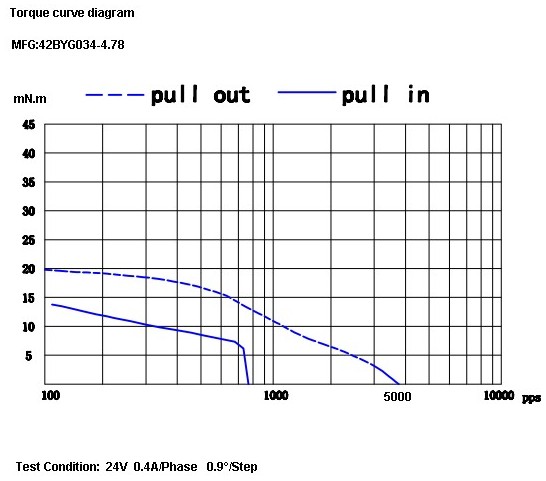
The much-quoted Holding Torque is irrelevant. That measures the motor’s ability to hold its position with an external torque applied to the shaft. Unlike CNC milling machines, 3D printers do not impose torques on the XY motors due to forces from a cutting tool.
What’s important is the bottom curve showing the pull-in torque: the torque available to accelerate the load from a dead stop to the speed shown along the bottom, given in full-step pulses per second.
At 1 rev/sec the motor sees 200 full steps/sec, at which speed the pull-in torque is about 12 mN·m. However, that’s at the 400 mA full rated current applied from a 24 V source through a current-limiting driver. Because the maximum torque depends on the current and the resistance limits the maximum current to 300 mA, the maximum pull-in torque scales to 9 mN·n.
I’ll grant the possibility that there’s a misprint and Kysan simply dropped a zero. Pull-in torque around 150 mM·m seems more common with short NEMA 17 motors, but the data sheet is what the data sheet is. The motors behave as though they have no mojo, which leads me to believe the printed word.
Anyhow, that torque assumes the driver applies the proper winding current in each microstep, which, as you’ve just seen, doesn’t happen. Oddly, the MBI motors provide the highest torque in the pink zones, where the Pythagorean sum of the resistance-limited winding currents is:
√(2 x 300 mA2) = 420 mA
So the motors run in a crippled full-step mode that produces more-or-less the rated torque only when the motor isn’t moving, while dissipating too much power. When the motor is moving, the current never reaches the proper level.
The measurements I made when I had the printer apart indicate that the X and Y stages require far more torque than the MBI motors can provide, even if they were driven correctly. The fact that they work at all has more to do with good luck and spec tolerances than anything else.
The inadequate torque also answers the question of whether a higher power supply voltage will improve things: no, not much. A 24 V supply (as specified in the datasheet!) will permit operation at the rated current with correct microstepping, but that torque is still far too low.
I don’t have any inside knowledge, but I think what happened is that these motors date back to the Cupcake printer, which used a simple H-bridge without active current limiting. For that type of driver, the rated voltage of the winding must equal the supply voltage, because the winding resistance provides the current limiting.
Using A3977 drivers seemed like a simple upgrade to produce the Thing-O-Matic, but a microstepping driver must apply a voltage much higher than the winding’s rated voltage in order to get fast current changes and apply active current limiting. The old motors simply aren’t suited for the new drivers.
Tomorrow: what better motors can do for a Thing-O-Matic.
I’m certain I’ve made at least one error in what you’ve just read; comments, criticisms, and corrections are welcome. However, before you comment, RTFM for the A3977 driver, the MBI stepper motors, and any other hardware you’re proposing. Run the numbers first, OK?
Update: A reader suggests a rule of thumb relating voltage to inductance …
Marris Friemannis of Gecko drive fame quotes this rule of thumb (http://www.mechmate.com/forums/showthread.php?t=1618)
Drive Supply Voltage = 32 * √mH Inductance of the motorSo in case of 44mH motor, correct voltage would be in excess of 200V, which I choose read as “the motor is junk” :)
In the stuff 3D printers use, single digit mH values at 24V seem to work fine.





 The Smell of Molten Projects in the Morning