The Smell of Molten Projects in the Morning

Ed Nisley's Blog: Shop notes, electronics, firmware, machinery, 3D printing, laser cuttery, and curiosities. Contents: 100% human thinking, 0% AI slop.

Tag: Arduino

All things Arduino

  • Arduino Snippets: Vibrating Motor

    A small buzzer motor should come in handy for something. Perhaps alerting you to the presence of AC magnetic fields? Anyhow, driving a pager motor from one of the spare bits on the DL1414 display control shift register worked out well enough:

    Motor Driver with LED Character Display
    Motor Driver with LED Character Display

    These cute little surplus motors expect a 2.5 V supply and buzz overenthusiastically at 5 V; the 100 Ω resistor reduces the current to about 30 mA. That says the motor now runs on about 2 V and I admit picking the resistor became totally empirical, because starting even a little teeny motor requires more current than keeping it running and my first guess was far too high. The 1N4148 diode can handle a few tens of milliamps and will become inadequate for larger motors.

    The MOSFET driver resides between the LED displays, with the motor hanging in mid-air on a long wire and the diode hiding behind the motor terminals:
    Buzzer Motor Driver - breadboard
    Buzzer Motor Driver – breadboard

    Dropping the motor control bit into the DL1414 struct suggested that renaming the whole affair would be a Good Idea:

    union CONTROLBITS_ {
    	word ShiftWord;				// word overlay
    	struct {					// bitfield sent to the display
    		unsigned int Addr:2;
    		unsigned int NotWrite:1;
    		unsigned int Ctl3_6:4;			// unused bits
    		unsigned int Motor:1;			// buzzer motor drive
    		unsigned int Data:7;
    		unsigned int Data7:1;			// unused bit
    	} ShiftBits;
    };
    

    Controlling the motor requires changing only that single bit in the shift register:

    void MotorControl(byte State) {
    
    	ControlBits.ShiftBits.Motor = State ? 1 : 0;
    
    	shiftOut(PIN_MOSI,PIN_SCK,MSBFIRST,ControlBits.ShiftWord >> 8);
    	shiftOut(PIN_MOSI,PIN_SCK,MSBFIRST,ControlBits.ShiftWord & 0x00ff);
    	PulsePinHigh(PIN_RCKC);
    
    }
    

    We assume that the DL1414 control bits remain properly configured from the previous operation. The variable holding that struct (actually, the union wrapped around it), must have global scope so everybody uses the most recent bits. Global variables are obviously fraught with peril; hide it inside a method or other fancy construct, as you prefer.

    The demo code alternates the motor between on and off as you press Button 1 and shows the current status on the DL1414 display. I mashed up the button demo code with the LED character code, then sprinkled the motor on top:

    	Button = ReadButtons(PIN_BUTTONS);
    
    	if (PrevButton != Button) {
    		if (Button == N_BUTTONS) {
    			printf("Button %d released\n",PrevButton);
    		}
    		else {
    			printf("Button %d pressed\n",Button);
    			if (Button == B_1) {
    				ControlBits.ShiftBits.Motor = ~ControlBits.ShiftBits.Motor;
    				sprintf(LEDCharBuffer,"%";,
    					ControlBits.ShiftBits.Motor?"ON  ":"OFF ");
    				WriteLEDString(LEDCharBuffer);
    			}
    		}
    		PrevButton = Button;
    	}
    
    	if (PrevKnobCounter != KnobCounter) {
    		printf("Knob count: %d\n",KnobCounter);
    		sprintf(LEDCharBuffer,"%c%3d",
    			ControlBits.ShiftBits.Motor?'*':'_',
    			KnobCounter);
    		WriteLEDString(LEDCharBuffer);
    		PrevKnobCounter = KnobCounter;
    	}
    

    The picture shows the motor sitting idle and the DL1414 reporting OFF.

    When you turn the knob, that display shows the value of the knob click counter, with the first character indicating the motor state.

    If you ran the motor directly from an Arduino PWM output, you might get some speed control, but I think the dynamic range wouldn’t justify the effort. Buzzing in patterns of a few hundred milliseconds over the course of a second might be more distinctive; you could even do Morse code.

    The Arduino source code:

    // Quadrature knob with switch
    // Ed Nisley - KE4ANU - November 2012
    // Based on:
    // https://softsolder.com/2009/03/03/reading-a-quadrature-encoded-knob-in-double-quick-time/
    
    //----------
    // Pin assignments
    
    const byte PIN_KNOB_A = 2;			// knob A switch - must be on ext interrupt 2
    const byte PIN_KNOB_B = 4;			//  .. B switch
    const byte PIN_BUTTONS = A5;		//  .. push-close momentary switch
    
    const byte PIN_MOSI = 8;			// data to shift reg
    const byte PIN_SCK  = 6;			// shift clock to shift reg
    const byte PIN_RCKB  = 7;			// latch clock for LED Bargraph
    const byte PIN_RCKC  = 12;			// latch clock for LED character display
    
    const byte PIN_SYNC = 13;			// scope sync
    
    //----------
    // Constants
    
    const int UPDATEMS = 10;				// update LEDs only this many ms apart
    
    #define TCCRxB 0x02						// Timer prescaler
    
    enum KNOB_STATES {KNOB_CLICK_0,KNOB_CLICK_1};
    
    enum BUTTONS {SW_KNOB, B_1, B_2, B_3, B_4, N_BUTTONS};
    
    #define LED_SIZE		4				// chars per LED
    #define LED_DISPLAYS	1				// number of displays
    #define LED_CHARS		(LED_DISPLAYS * LED_SIZE)
    
    union CONTROLBITS_ {
    	word ShiftWord;				// word overlay
    	struct {					// bitfield sent to the display
    		unsigned int Addr:2;
    		unsigned int NotWrite:1;
    		unsigned int Ctl3_6:4;			// unused bits
    		unsigned int Motor:1;			// buzzer motor drive
    		unsigned int Data:7;
    		unsigned int Data7:1;			// unused bit
    	} ShiftBits;
    };
    
    
    //----------
    // Globals
    
    volatile char KnobCounter = 0;
    volatile char KnobState;
    
    char PrevKnobCounter = 0;
    
    byte Button, PrevButton;
    
    // ButtonThreshold must have N_BUTTONS elements, last = 1024
    
    word ButtonThreshold[] = {265/2, (475+265)/2, (658+475)/2, (834+658)/2, (1023+834)/2, 1024};
    
    union CONTROLBITS_ ControlBits;
    
    char LEDCharBuffer[LED_CHARS + 1] = "HELO";		// raw char buffer, can be used as a string
    
    unsigned long MillisNow;
    unsigned long MillisThen;
    
    //-- Helper routine for printf()
    
    int s_putc(char c, FILE *t) {
      Serial.write(c);
    }
    
    //-- Pulse selected pin high
    
    void PulsePinHigh(byte PinID) {
    	digitalWrite(PinID,HIGH);
    	digitalWrite(PinID,LOW);
    }
    
    //-- Write single char to DL1414, other control bits as defined
    
    void WriteLEDChar(char Char,char CharID) {
    
    	ControlBits.ShiftBits.Data = Char & 0x7F;
    	ControlBits.ShiftBits.Addr = ~CharID & 0x03;		// reverse order of chars
    
    	ControlBits.ShiftBits.NotWrite = 1;				// set up data and address
    
    	shiftOut(PIN_MOSI,PIN_SCK,MSBFIRST,ControlBits.ShiftWord >> 8);
    	shiftOut(PIN_MOSI,PIN_SCK,MSBFIRST,ControlBits.ShiftWord & 0x00ff);
    	PulsePinHigh(PIN_RCKC);
    
    	//	delay(1000);
    
    	ControlBits.ShiftBits.NotWrite = 0;				// write the character
    
    	shiftOut(PIN_MOSI,PIN_SCK,MSBFIRST,ControlBits.ShiftWord >> 8);
    	shiftOut(PIN_MOSI,PIN_SCK,MSBFIRST,ControlBits.ShiftWord & 0x00ff);
    	PulsePinHigh(PIN_RCKC);
    
    	//	delay(1000);
    
    	ControlBits.ShiftBits.NotWrite = 1;				// disable write
    
    	shiftOut(PIN_MOSI,PIN_SCK,MSBFIRST,ControlBits.ShiftWord >> 8);
    	shiftOut(PIN_MOSI,PIN_SCK,MSBFIRST,ControlBits.ShiftWord & 0x00ff);
    	PulsePinHigh(PIN_RCKC);
    
    	//	delay(1000);
    
    }
    
    void WriteLEDString(char *pString) {
    
    	for (byte i=0; (i < LED_CHARS) && *pString; ++i)
    		WriteLEDChar(*pString++,i);
    
    	return;
    }
    
    void MotorControl(byte State) {
    
    	ControlBits.ShiftBits.Motor = State ? 1 : 0;
    
    	shiftOut(PIN_MOSI,PIN_SCK,MSBFIRST,ControlBits.ShiftWord >> 8);
    	shiftOut(PIN_MOSI,PIN_SCK,MSBFIRST,ControlBits.ShiftWord & 0x00ff);
    	PulsePinHigh(PIN_RCKC);
    
    }
    
    //-- Knob interrupt handler
    
    void KnobHandler(void)
    {
    	byte Inputs;
    	Inputs = digitalRead(PIN_KNOB_B) << 1 | digitalRead(PIN_KNOB_A);  // align raw inputs
    //	Inputs ^= 0x02;                             // fix direction
    
    	switch (KnobState << 2 | Inputs) {
    	case 0x00 : 				// 0 00 - glitch
            break;
    	case 0x01 : 				 // 0 01 - UP to 1
            KnobCounter++;
    		KnobState = KNOB_CLICK_1;
    		break;
    	case 0x03 : 				 // 0 11 - DOWN to 1
            KnobCounter--;
    		KnobState = KNOB_CLICK_1;
    		break;
    	case 0x02 : 				 // 0 10 - glitch
            break;
    	case 0x04 : 				 // 1 00 - DOWN to 0
            KnobCounter--;
    		KnobState = KNOB_CLICK_0;
    		break;
    	case 0x05 : 				 // 1 01 - glitch
            break;
    	case 0x07 : 				 // 1 11 - glitch
            break;
    	case 0x06 : 				 // 1 10 - UP to 0
            KnobCounter++;
    		KnobState = KNOB_CLICK_0;
    		break;
    	default :  					// something is broken!
            KnobCounter = 0;
    		KnobState = KNOB_CLICK_0;
    	}
    }
    
    
    //-- Read and decipher analog switch inputs
    //		returns N_BUTTONS if no buttons pressed
    
    byte ReadButtons(int PinNumber) {
    
    word RawButton;
    byte ButtonNum;
    
    	RawButton = analogRead(PinNumber);
    
    //	printf("RawButton: %d ",RawButton);
    
    	for (ButtonNum = 0; ButtonNum <= N_BUTTONS; ButtonNum++){
    //		printf(" (%d:%d)",ButtonNum,ButtonThreshold[ButtonNum]);
    		if (RawButton < ButtonThreshold[ButtonNum])
    			break;
    	}
    
    //	printf(" ButtonNum %d\n",ButtonNum);
    
    	return ButtonNum;
    
    }
    
    //------------------
    // Set things up
    
    void setup() {
    	pinMode(PIN_SYNC,OUTPUT);
    	digitalWrite(PIN_SYNC,LOW);	// show we arrived
    
    //	TCCR1B = TCCRxB;					// set frequency for PWM 9 & 10
    //	TCCR2B = TCCRxB;					// set frequency for PWM 3 & 11
    
    	pinMode(PIN_KNOB_B,INPUT_PULLUP);
    	pinMode(PIN_KNOB_A,INPUT_PULLUP);
    
    	pinMode(PIN_MOSI,OUTPUT);
    	digitalWrite(PIN_MOSI,LOW);
    
    	pinMode(PIN_SCK,OUTPUT);
    	digitalWrite(PIN_SCK,LOW);
    
    	pinMode(PIN_RCKB,OUTPUT);
    	digitalWrite(PIN_RCKB,LOW);
    
    	pinMode(PIN_RCKC,OUTPUT);
    	digitalWrite(PIN_RCKB,LOW);
    
    	KnobState = digitalRead(PIN_KNOB_A);
    	Button = PrevButton = ReadButtons(PIN_BUTTONS);
    
    	attachInterrupt((PIN_KNOB_A - 2),KnobHandler,CHANGE);
    
    	Serial.begin(9600);
    	fdevopen(&s_putc,0);				// set up serial output for printf()
    
    	printf("Motor, knob, and buttons\r\nEd Nisley - KE4ZNU - December 2012\r\n");
    
    	ControlBits.ShiftWord = 0x0000;
    	WriteLEDString(LEDCharBuffer);
    
    	delay(1000);
    
    	MillisThen = millis();
    
    }
    
    //------------------
    // Run the test loop
    
    void loop() {
    
    	MillisNow = millis();
    
    	if ((MillisNow - MillisThen) > UPDATEMS) {
    
    		digitalWrite(PIN_SYNC,HIGH);
    
    		Button = ReadButtons(PIN_BUTTONS);
    
    		if (PrevButton != Button) {
    			if (Button == N_BUTTONS) {
    				printf("Button %d released\n",PrevButton);
    			}
    			else {
    				printf("Button %d pressed\n",Button);
    				if (Button == B_1) {
    					ControlBits.ShiftBits.Motor = ~ControlBits.ShiftBits.Motor;
    					sprintf(LEDCharBuffer,"%s",
    						ControlBits.ShiftBits.Motor?"ON  ":"OFF ");
    					WriteLEDString(LEDCharBuffer);
    				}
    			}
    			PrevButton = Button;
    		}
    
    		if (PrevKnobCounter != KnobCounter) {
    			printf("Knob count: %d\n",KnobCounter);
    			sprintf(LEDCharBuffer,"%c%3d",
    					ControlBits.ShiftBits.Motor?'*':'_',
    					KnobCounter);
    			WriteLEDString(LEDCharBuffer);
    			PrevKnobCounter = KnobCounter;
    		}
    
    		digitalWrite(PIN_SYNC,LOW);
    
    		MillisThen = MillisNow;
    	}
    }
    
  • Arduino Snippets: Analog Button Input

    Reading more than a few pushbuttons requires multiplexing, with a parallel-in shift register similar to the old 74LS166 being popular (and supported by the shiftIn() function). You can also use an Arduino analog input to multiplex the buttons, at the cost of a resistor string that probably draws more current and costs more than a logic IC:

    Knob and Buttons
    Knob and Buttons

    The switches produce voltages at the analog input which are not the evenly spaced 1 V increments you might expect: the 10 kΩ pullup appears in parallel with the sum of all the resistors above the closed switch, so the voltages come out a bit higher. The notation to the right of each switch indicates the voltage and equivalent ADC value, assuming a 5.0 V AVREF that won’t be quite right for your circuit. The analog input spec recommends less than 10 kΩ source resistance, but you could probably go much higher without any problem; the ADC output value need not be particularly accurate.

    If you happen to have a SIP resistor pack containing five separate resistors (not the usual nine resistors in a 10 lead SIP), then the circuitry doesn’t amount to much:

    Knob and Buttons - breadboard
    Knob and Buttons – breadboard

    It’s sitting in front of the ZNVL110A MOSFETs driving the RGB LED strip light. Those flat blue surplus buttons came in pairs pre-configured with wire leads and just begged to get out of the heap for this occasion. The encoder knob remains as before, with its shaft push-on momentary switch still going directly to analog input A5. The new button circuitry connects to that switch lead, ungainly though it may appear, with the gray wire bringing VCC from the cluster of sensor inputs.

    To simplify reading the buttons, build an array of threshold voltages about halfway between the calculated switch voltages:

    enum BUTTONS {SW_KNOB, B_1, B_2, B_3, B_4, N_BUTTONS};
    word ButtonThreshold[] = {265/2, (475+265)/2, (658+475)/2, (834+658)/2, (1023+834)/2, 1024};
    

    You could do the circuit calculation and VCC calibration in there, too, but those widely spaced increments don’t pose much of a problem. The table must include an end marker of 1024, greater than any possible analog input.

    Then you read the button input voltage and walk upward through the table until the value falls below a threshold, a process I find much cleaner and easier than a pile of conditionals sprinkled with fiddly constants.

    byte ReadButtons(byte PinNumber) {
    
    word RawButton;
    byte ButtonNum;
    
    	RawButton = analogRead(PinNumber);
    
    	for (ButtonNum = 0; ButtonNum <= N_BUTTONS; ButtonNum++){
    		if (RawButton < ButtonThreshold[ButtonNum])
    			break;
    	}
    
    	return ButtonNum;
    }
    

    As long as the button stays down, that function returns its ID number. You can detect both edges of a button press:

    	Button = ReadButtons(PIN_BUTTONS);
    	if (PrevButton != Button) {
    		if (Button == N_BUTTONS) {
    			printf("Button %d released\n",PrevButton);
    		}
    		else
    			printf("Button %d pressed\n",Button);
    		PrevButton = Button;
    	}
    

    The demo code produces results like this:

    Ed Nisley - KE4ZNU - December 2012
    Knob encoder and buttons
    Ed Nisley - KE4ZNU - December 2012
    Knob count: 2
    Knob count: 3
    Knob count: 4
    Knob count: 3
    Knob count: 2
    Knob count: 1
    Knob count: 0
    Knob count: 2
    Knob count: 4
    Knob count: 5
    Knob count: 6
    Knob count: 7
    Knob count: 8
    Knob count: 11
    Knob count: 15
    Knob count: 16
    Knob count: 17
    Button 0 pressed
    Button 0 released
    Button 1 pressed
    Button 1 released
    Button 2 pressed
    Button 2 released
    Button 3 pressed
    Button 3 released
    Button 4 pressed
    Button 4 released
    Button 2 pressed
    Button 2 released
    

    This scheme works for a single button pressed at a time, which is generally how you use discrete buttons. It’s not appropriate for keyboards or multi-axis joystick button arrays, which you could multiplex using resistors that produce accurate binary steps, but that’s fraught with peril and error.

    As with all non-interrupt-driven buttons, you must poll the button input at a reasonable rate to have a responsive UI. Non-blocking loop() code will be your friend.

    It made sense to exercise the new buttons in the encoder knob demo code, so this will look familiar…

    The Arduino source code:

    // Quadrature knob with switch
    // Ed Nisley - KE4ANU - November 2012
    // Based on:
    // https://softsolder.com/2009/03/03/reading-a-quadrature-encoded-knob-in-double-quick-time/
    
    //----------
    // Pin assignments
    
    const byte PIN_KNOB_A = 2;			// knob A switch - must be on ext interrupt 2
    const byte PIN_KNOB_B = 4;			//  .. B switch
    const byte PIN_BUTTONS = A5;		//  .. push-close momentary switch
    
    const byte PIN_SYNC = 13;			// scope sync
    
    //----------
    // Constants
    
    const int UPDATEMS = 10;				// update LEDs only this many ms apart
    
    #define TCCRxB 0x02						// Timer prescaler
    
    enum KNOB_STATES {KNOB_CLICK_0,KNOB_CLICK_1};
    
    enum BUTTONS {SW_KNOB, B_1, B_2, B_3, B_4, N_BUTTONS};
    
    //----------
    // Globals
    
    volatile char KnobCounter = 0;
    volatile char KnobState;
    
    char PrevKnobCounter = 0;
    
    byte Button, PrevButton;
    
    // ButtonThreshold must have N_BUTTONS elements, last = 1024
    
    word ButtonThreshold[] = {265/2, (475+265)/2, (658+475)/2, (834+658)/2, (1023+834)/2, 1024};
    
    unsigned long MillisNow;
    unsigned long MillisThen;
    
    //-- Helper routine for printf()
    
    int s_putc(char c, FILE *t) {
      Serial.write(c);
    }
    
    //-- Knob interrupt handler
    
    void KnobHandler(void)
    {
    	byte Inputs;
    	Inputs = digitalRead(PIN_KNOB_B) << 1 | digitalRead(PIN_KNOB_A);  // align raw inputs
    //	Inputs ^= 0x02;                             // fix direction
    
    	switch (KnobState << 2 | Inputs) {
    	case 0x00 : 				// 0 00 - glitch
            break;
    	case 0x01 : 				 // 0 01 - UP to 1
            KnobCounter++;
    		KnobState = KNOB_CLICK_1;
    		break;
    	case 0x03 : 				 // 0 11 - DOWN to 1
            KnobCounter--;
    		KnobState = KNOB_CLICK_1;
    		break;
    	case 0x02 : 				 // 0 10 - glitch
            break;
    	case 0x04 : 				 // 1 00 - DOWN to 0
            KnobCounter--;
    		KnobState = KNOB_CLICK_0;
    		break;
    	case 0x05 : 				 // 1 01 - glitch
            break;
    	case 0x07 : 				 // 1 11 - glitch
            break;
    	case 0x06 : 				 // 1 10 - UP to 0
            KnobCounter++;
    		KnobState = KNOB_CLICK_0;
    		break;
    	default :  					// something is broken!
            KnobCounter = 0;
    		KnobState = KNOB_CLICK_0;
    	}
    }
    
    //-- Read and decipher analog switch inputs
    //		returns N_BUTTONS if no buttons pressed
    
    byte ReadButtons(int PinNumber) {
    
    word RawButton;
    byte ButtonNum;
    
    	RawButton = analogRead(PinNumber);
    
    //	printf("RawButton: %d ",RawButton);
    
    	for (ButtonNum = 0; ButtonNum <= N_BUTTONS; ButtonNum++){
    //		printf(" (%d:%d)",ButtonNum,ButtonThreshold[ButtonNum]);
    		if (RawButton < ButtonThreshold[ButtonNum])
    			break;
    	}
    
    //	printf(" ButtonNum %d\n",ButtonNum);
    
    	return ButtonNum;
    
    }
    
    //------------------
    // Set things up
    
    void setup() {
    	pinMode(PIN_SYNC,OUTPUT);
    	digitalWrite(PIN_SYNC,LOW);	// show we arrived
    
    //	TCCR1B = TCCRxB;					// set frequency for PWM 9 & 10
    //	TCCR2B = TCCRxB;					// set frequency for PWM 3 & 11
    
    	pinMode(PIN_KNOB_B,INPUT_PULLUP);
    	pinMode(PIN_KNOB_A,INPUT_PULLUP);
    
    	KnobState = digitalRead(PIN_KNOB_A);
    	Button = PrevButton = ReadButtons(PIN_BUTTONS);
    
    	attachInterrupt((PIN_KNOB_A - 2),KnobHandler,CHANGE);
    
    	Serial.begin(9600);
    	fdevopen(&s_putc,0);				// set up serial output for printf()
    
    	printf("Knob encoder and buttons\r\nEd Nisley - KE4ZNU - December 2012\r\n");
    
    	MillisThen = millis();
    
    }
    
    //------------------
    // Run the test loop
    
    void loop() {
    
    	MillisNow = millis();
    
    	if ((MillisNow - MillisThen) < UPDATEMS) {
    
    		digitalWrite(PIN_SYNC,HIGH);
    
    		Button = ReadButtons(PIN_BUTTONS);
    		if (PrevButton != Button) {
    			if (Button == N_BUTTONS) {
    				printf("Button %d released\n",PrevButton);
    			}
    			else
    				printf("Button %d pressed\n",Button);
    			PrevButton = Button;
    		}
    
    		if (PrevKnobCounter != KnobCounter) {
    			printf("Knob count: %d\n",KnobCounter);
    			PrevKnobCounter = KnobCounter;
    		}
    
    		digitalWrite(PIN_SYNC,LOW);
    
    		MillisThen = MillisNow;
    	}
    
    }
    
  • Arduino Snippets: Bare-naked Passive IR Sensor

    The heap disgorged some bare passive IR / pyroelectric elements that, IIRC, came from Electronic Goldmine, described as SDA02-54 dual-element sensors. A bit of rummaging and a glance at Nicera’s Fine Datasheet says that can’t possibly be true: the SDA02-54 has a square window. The nearby SSAC10-11, however, has a round window and looks like a better match. Incidentally, that means the Fresnel IR lenses on the Electronic Goldmine site probably won’t work as intended, because the lenses typically produce multiple beams intended to focus on dual (or quad) elements. I suppose you could convert one Fresnel pattern into an IR telescope…

    For my present purpose, however, a bare single-element pyroelectric detector will work just fine: the general idea is to detect things out there in front, not make decisions about what’s going on.

    Under normal circumstances, where you want decisions, you’d use a module (from, say, Sparkfun) with a passive IR sensor in front of some circuitry that conditions the output and produces yes-no detections. LadyAda has a good description of the workings thereof & interfacings thereto, including a link to the BISS0001 analog chip that does most of the heavy lifting in low-end PIR modules.

    What’s the fun in that?

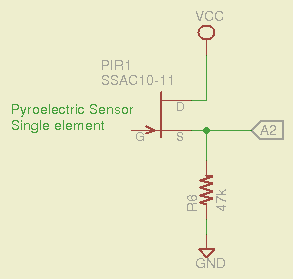
    A pyroelectric detector is basically a high-impedance element buffered by a JFET, with its drain and source terminals brought out. IR radiation produces a bias change on the gate, which connects to the (grounded) case through a very very very large-value resistor. That means we can build what amounts to a source follower around the JFET (with all the PIR stuff to the left of the gate not shown):

    Passive IR Sensor
    Passive IR Sensor

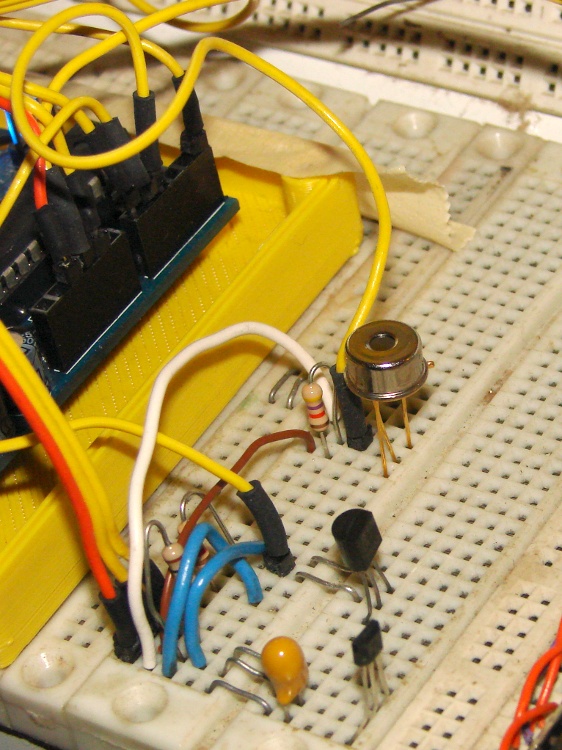
    The output runs around half a volt, which is a bit low. If you were serious, you’d pass it through an op-amp to boost it by a factor of four or five to around 2.5 V, which would have the additional benefit of lowering the impedance to work better with the Arduino’s ADC input circuitry. For now, I’ll pipe the voltage directly to an Arduino analog input:

    SSAC10-11 PIR Sensor - breadboard
    SSAC10-11 PIR Sensor – breadboard

    The linear Hall effect magnetic sensor and LM335 temperature sensor live just this side of the PIR can, sharing their VCC and ground connections in a most intimate manner. Remember, this is a breadboard, not a finished circuit… [grin]

    The SSAC10-11 (if, indeed, that’s what it is) reports the voltage difference between a reference element shielded within the can and an active element exposed to incoming IR. The DC bias for that lashup produces 650 mV on the 47 kΩ source resistor (about 14 μA) and the internal arrangement produces a lower voltage (and thus current) when the exposed element sees a warmer object, which isn’t quite what I expected. Warming the can by direct finger contact produces an increasing voltage, due to heating the reference element and leaving the sensing element (relatively) cool, at least until conduction equalizes the elements.

    I threw in a bit of averaging for each reading, not that it really matters:

    #define PAVG 3
    
    word ReadPIR(byte Pin) {
    word Sense;
    
    	Sense = analogRead(Pin);
    	for (byte i = 1; i < PAVG; i++)
    		Sense += analogRead(Pin);
    
    	return Sense / PAVG;
    }
    

    The LED bargraph shows the current input as a single bar scaled between the minimum and maximum values, so that the display automatically adjusts to changing conditions. The boolean shift direction sends the bar upward on the breadboard LEDs as the PIR element sees warmer objects, which makes much more sense than showing the actual decreasing sensor voltage. The input generally rests in the green zone and both extremes show nice red bars:

    	PIRSense = ReadPIR(PIN_PIR);
    	PIRDelta = PIRSense - PIRMin;
    
    	PIRMin = min(PIRMin,PIRSense);
    	PIRMax = max(PIRMax,PIRSense);
    	PIRRange = PIRMax - PIRMin;
    
    	PIRShift = (9 * PIRDelta)/PIRRange;
    	LEDBits = 0x00001 << PIRShift;
    	SetBarBits(LEDBits);
    

    In real life, you’d want a reset button, or some code that gradually drifts the extrema toward the running average of the input, so they’re not stuck forever.

    Dumping the raw ADC reading on the LED character display is easy:

    	sprintf(LEDCharBuffer,"%4d",PIRSense);
    	WriteLEDString(LEDCharBuffer);
    

    Updating the displays every 100 ms seems about right. It’s crazy sensitive to anything within its field of view; sitting down two feet away is good for a few counts and a palm at 30 cm gives you 15 counts. As expected, the increases and decreases fade away exponentially over the course of a few tens of seconds.

    If you wanted to do it right, you’d put a shutter or rotating aperture wheel in front, then track the AC signal difference between “scene” and “reference” views. A tiny Peltier module to stabilize the can temperature would make a lot of sense, too. Or, hey, that LM335 could report the actual can temperature, perhaps with everything embedded in a big thermal mass inside an insulating jacket with a peephole to the outside world. All that’s in the nature of fine tuning…

    The Arduino source code:

    // Nicera SSAC10-11 Single PIR Sensor
    // Ed Nisley - KE4ANU - November 2012
    
    //#include <stdio.h>
    //#include <math.h>
    
    //----------
    // Pin assignments
    
    const byte PIN_PIR = A2;			// Passive IR sensor
    
    const byte PIN_MOSI = 8;			// data to shift reg
    const byte PIN_SCK  = 6;			// shift clock to shift reg
    const byte PIN_RCKB  = 7;			// latch clock for LED Bargraph
    const byte PIN_RCKC  = 12;			// latch clock for LED character display
    
    const byte PIN_HEARTBEAT = 13;				// DO - Arduino LED
    
    //----------
    // Constants
    
    const int UPDATEMS = 100;					// update LEDs only this many ms apart
    
    #define TCCRxB 0x02							// Timer prescaler
    
    #define LED_SIZE		4				// chars per LED
    #define LED_DISPLAYS	1				// number of displays
    #define LED_CHARS		(LED_DISPLAYS * LED_SIZE)
    
    union DL1414_ {
    	word ShiftWord;				// word overlay
    	struct {					// bitfield sent to the display
    	unsigned int Addr:2;
    	unsigned int NotWrite:1;
    	unsigned int Ctl3_7:5;			// unused bits
    	unsigned int Data:7;
    	unsigned int Data7:1;			// unused bit
    	} ShiftBits;
    };
    
    //----------
    // Globals
    
    int PIRBase, PIRSense, PIRMin, PIRMax, PIRRange, PIRDelta;
    int PIRShift;
    
    word LEDBits = 0x5555;
    
    char LEDCharBuffer[LED_CHARS + 1] = "HELO";		// raw char buffer, can be used as a string
    
    unsigned long MillisNow;
    unsigned long MillisThen;
    
    //-- Helper routine for printf()
    
    int s_putc(char c, FILE *t) {
      Serial.write(c);
    }
    
    //-- Send bits to LED bar driver register
    
    void SetBarBits(word Pattern) {
    
    	shiftOut(PIN_MOSI,PIN_SCK,MSBFIRST,Pattern >> 8);
    	shiftOut(PIN_MOSI,PIN_SCK,MSBFIRST,Pattern & 0x00ff);
    
    	digitalWrite(PIN_RCKB,HIGH);
    	digitalWrite(PIN_RCKB,LOW);
    
    }
    
    void PulsePinHigh(byte PinID) {
    	digitalWrite(PinID,HIGH);
    	digitalWrite(PinID,LOW);
    }
    
    //-- Write single char to DL1414
    
    void WriteLEDChar(char Char,char CharID) {
    
    	union DL1414_ DL1414;
    
    	DL1414.ShiftBits.Data = Char & 0x7F;
    	DL1414.ShiftBits.Addr = ~CharID & 0x03;		// reverse order of chars
    
    	DL1414.ShiftBits.NotWrite = 1;				// set up data and address
    
    	shiftOut(PIN_MOSI,PIN_SCK,MSBFIRST,DL1414.ShiftWord >> 8);
    	shiftOut(PIN_MOSI,PIN_SCK,MSBFIRST,DL1414.ShiftWord & 0x00ff);
    	PulsePinHigh(PIN_RCKC);
    
    	//	delay(1000);
    
    	DL1414.ShiftBits.NotWrite = 0;				// write the character
    
    	shiftOut(PIN_MOSI,PIN_SCK,MSBFIRST,DL1414.ShiftWord >> 8);
    	shiftOut(PIN_MOSI,PIN_SCK,MSBFIRST,DL1414.ShiftWord & 0x00ff);
    	digitalWrite(PIN_RCKC,HIGH);
    	PulsePinHigh(PIN_RCKC);
    
    	//	delay(1000);
    
    	DL1414.ShiftBits.NotWrite = 1;				// disable write
    
    	shiftOut(PIN_MOSI,PIN_SCK,MSBFIRST,DL1414.ShiftWord >> 8);
    	shiftOut(PIN_MOSI,PIN_SCK,MSBFIRST,DL1414.ShiftWord & 0x00ff);
    	PulsePinHigh(PIN_RCKC);
    
    	//	delay(1000);
    
    }
    
    void WriteLEDString(char *pString) {
    
    	for (byte i=0; (i < LED_CHARS) && *pString; ++i)
    		WriteLEDChar(*pString++,i);
    
    	return;
    }
    
    //-- Sample PIR with a dab of averaging
    
    #define PAVG 3
    
    word ReadPIR(byte Pin) {
    word Sense;
    
    	Sense = analogRead(Pin);
    	for (byte i = 1; i < PAVG; i++)
    		Sense += analogRead(Pin);
    
    	return Sense / PAVG;
    }
    
    //------------------
    // Set things up
    
    void setup() {
    	pinMode(PIN_HEARTBEAT,OUTPUT);
    	digitalWrite(PIN_HEARTBEAT,LOW);	// show we arrived
    
    //  TCCR1B = TCCRxB;					// set frequency for PWM 9 & 10
    //  TCCR2B = TCCRxB;					// set frequency for PWM 3 & 11
    
    	pinMode(PIN_MOSI,OUTPUT);
    	digitalWrite(PIN_MOSI,LOW);
    
    	pinMode(PIN_SCK,OUTPUT);
    	digitalWrite(PIN_SCK,LOW);
    
    	pinMode(PIN_RCKB,OUTPUT);
    	digitalWrite(PIN_RCKB,LOW);
    
    	pinMode(PIN_RCKC,OUTPUT);
    	digitalWrite(PIN_RCKB,LOW);
    
    	Serial.begin(9600);
    	fdevopen(&s_putc,0);				// set up serial output for printf()
    
    	printf("Passive IR sensor - SSAC10-11\r\nEd Nisley - KE4ZNU - November 2012\r\n");
    
    	WriteLEDString(LEDCharBuffer);
    	SetBarBits(LEDBits);
    
    	PIRBase = ReadPIR(PIN_PIR);
    	PIRMin = PIRBase - 5;
    	PIRMax = PIRBase + 5;
    	PIRRange = PIRMax - PIRMin;
    	printf("Passive IR base: %d\n",PIRBase);
    
    	delay(1000);
    
    	MillisThen = millis();
    
    }
    
    //------------------
    // Run the test loop
    
    void loop() {
    
    	MillisNow = millis();
    
    	if ((MillisNow - MillisThen) > UPDATEMS) {
    		digitalWrite(PIN_HEARTBEAT,HIGH);
    
    		PIRSense = ReadPIR(PIN_PIR);
    		PIRDelta = PIRSense - PIRMin;
    
    		PIRMin = min(PIRMin,PIRSense);
    		PIRMax = max(PIRMax,PIRSense);
    		PIRRange = PIRMax - PIRMin;
    
    //		printf("PIR: %d Min: %d Max: %d Range: %d Delta: %d\n",
    //			PIRSense,PIRMin,PIRMax,PIRRange,PIRDelta);
    
    		PIRShift = (9 * PIRDelta)/PIRRange;
    		LEDBits = 0x00001 << PIRShift;
    		SetBarBits(LEDBits);
    
    		sprintf(LEDCharBuffer,"%4d",PIRSense);
    		WriteLEDString(LEDCharBuffer);
    
    		digitalWrite(PIN_HEARTBEAT,LOW);
    
    		MillisThen = MillisNow;
    	}
    
    }
    
  • Arduino Snippets: Temperature Measurement

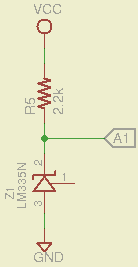
    Temperature seems an obvious thing to measure, so a bit of rummaging disgorged a classic LM335 temperature sensor that produce an output voltage directly calibrated in Kelvin at 10 mV/K: room temperature runs 296 K = 2.96 V. Nothing could be easier than this:

    LM335 Temperature Sensor

    The downside: a 1 °C temperature change corresponds to only 10 mV, which is barely two LSB of the Arduino ADC. In round numbers, a 1 °F change = 1 LSB, which doesn’t leave much room for measurement noise. I average five successive readings, which may be excessive, but the result seems stable enough:

    const float AVREF = 4.94;                    // Arduino analog reference
    
    #define TAVG 5
    
    float ReadLM335(byte Pin) {
    float Kelvin;
    
    	Kelvin = (float)analogRead(Pin);
    	for (byte i = 1; i < TAVG; i++)
    		Kelvin += (float)analogRead(Pin);
    
    	return Kelvin * (100.0 * AVREF) / (TAVG * 1024.0);
    }
    

    For better accuracy, you must measure VCC on the Arduino board and plug that into the AVREF constant, because the ADC reference voltage comes from the power supply. If you’re powering the Arduino from a USB port, then don’t bother worrying about analog conversion accuracy, because VCC depends on which PC you use, the USB cable length, what load current you draw from the regulator, and probably the phase of the moon.

    The magic number 100.0 converts 10 mV/K to K.

    The four character DL1414 LED display works well enough for the kind of temperatures you might find around a human being and, if you have an LED bargraph display, you may as well throw that into the mix, too.

    LM335 Temperature Sensor – 19 C

    The bargraph has RRYYGGYYRR LEDs, so I scaled the temperature at 5 °C/bar and put 0 °C on the bottom of the display, which means 15-19 and 20-24 °C occupy the green bars in the middle. Fingertip temperatures light up the two yellow bars and body heat gets you into the red, so it’s a reasonable display. Just to show it works, here’s a closer look (0 °C is on the right, but you can reverse that easily enough):

    LM335 Temperature Sensor – 25 C

    The Arduino source code:

    // LM335 Temperature sensor sensor
    // Ed Nisley - KE4ANU - November 2012
    
    //#include <stdio.h>
    //#include <math.h>
    
    //----------
    // Pin assignments
    
    const byte PIN_TEMPERATURE = A1;			// Temperature sensor - LM335 = 10 mV/K
    
    const byte PIN_MOSI = 8;			// data to shift reg
    const byte PIN_SCK  = 6;			// shift clock to shift reg
    const byte PIN_RCKB  = 7;			// latch clock for LED Bargraph
    const byte PIN_RCKC  = 12;			// latch clock for LED character display
    
    const byte PIN_HEARTBEAT = 13;				// DO - Arduino LED
    
    //----------
    // Constants
    
    const int UPDATEMS = 1000;					// update LEDs only this many ms apart
    
    const float AVREF = 4.94;					// Arduino analog reference
    const float KTOC = -273.2;					// Kelvin to Centigrade offset
    
    const float BARSCALE = 5.0;					// degrees per bar increment
    
    #define TCCRxB 0x02							// Timer prescaler
    
    #define LED_SIZE		4				// chars per LED
    #define LED_DISPLAYS	1				// number of displays
    #define LED_CHARS		(LED_DISPLAYS * LED_SIZE)
    
    union DL1414_ {
    	word ShiftWord;				// word overlay
    	struct {					// bitfield sent to the display
    	unsigned int Addr:2;
    	unsigned int NotWrite:1;
    	unsigned int Ctl3_7:5;			// unused bits
    	unsigned int Data:7;
    	unsigned int Data7:1;			// unused bit
    	} ShiftBits;
    };
    
    //----------
    // Globals
    
    int Temperature, BaseTemperature;
    
    word LEDBits;
    
    char LEDCharBuffer[LED_CHARS + 1] = "HELO";		// raw char buffer, can be used as a string
    
    unsigned long MillisNow;
    unsigned long MillisThen;
    
    //-- Helper routine for printf()
    
    int s_putc(char c, FILE *t) {
      Serial.write(c);
    }
    
    //-- Send bits to LED bar driver register
    
    void SetBarBits(word Pattern) {
    
    	shiftOut(PIN_MOSI,PIN_SCK,MSBFIRST,Pattern >> 8);
    	shiftOut(PIN_MOSI,PIN_SCK,MSBFIRST,Pattern & 0x00ff);
    
    	digitalWrite(PIN_RCKB,HIGH);
    	digitalWrite(PIN_RCKB,LOW);
    
    }
    
    void PulsePinHigh(byte PinID) {
    	digitalWrite(PinID,HIGH);
    	digitalWrite(PinID,LOW);
    }
    
    //-- Write single char to DL1414
    
    void WriteLEDChar(char Char,char CharID) {
    
    	union DL1414_ DL1414;
    
    	DL1414.ShiftBits.Data = Char & 0x7F;
    	DL1414.ShiftBits.Addr = ~CharID & 0x03;		// reverse order of chars
    
    	DL1414.ShiftBits.NotWrite = 1;				// set up data and address
    
    	shiftOut(PIN_MOSI,PIN_SCK,MSBFIRST,DL1414.ShiftWord >> 8);
    	shiftOut(PIN_MOSI,PIN_SCK,MSBFIRST,DL1414.ShiftWord & 0x00ff);
    	PulsePinHigh(PIN_RCKC);
    
    	//	delay(1000);
    
    	DL1414.ShiftBits.NotWrite = 0;				// write the character
    
    	shiftOut(PIN_MOSI,PIN_SCK,MSBFIRST,DL1414.ShiftWord >> 8);
    	shiftOut(PIN_MOSI,PIN_SCK,MSBFIRST,DL1414.ShiftWord & 0x00ff);
    	digitalWrite(PIN_RCKC,HIGH);
    	PulsePinHigh(PIN_RCKC);
    
    	//	delay(1000);
    
    	DL1414.ShiftBits.NotWrite = 1;				// disable write
    
    	shiftOut(PIN_MOSI,PIN_SCK,MSBFIRST,DL1414.ShiftWord >> 8);
    	shiftOut(PIN_MOSI,PIN_SCK,MSBFIRST,DL1414.ShiftWord & 0x00ff);
    	PulsePinHigh(PIN_RCKC);
    
    	//	delay(1000);
    
    }
    
    void WriteLEDString(char *pString) {
    
    	for (byte i=0; (i < LED_CHARS) && *pString; ++i)
    		WriteLEDChar(*pString++,i);
    
    	return;
    }
    
    //-- Sample temperature with a dab of averaging
    
    #define TAVG 5
    
    float ReadLM335(byte Pin) {
    float Kelvin;
    
    	Kelvin = (float)analogRead(Pin);
    	for (byte i = 1; i < TAVG; i++)
    		Kelvin += (float)analogRead(Pin);
    
    	return Kelvin * (100.0 * AVREF) / (TAVG * 1024.0);
    }
    
    //------------------
    // Set things up
    
    void setup() {
      pinMode(PIN_HEARTBEAT,OUTPUT);
      digitalWrite(PIN_HEARTBEAT,LOW);	// show we arrived
    
    //  TCCR1B = TCCRxB;					// set frequency for PWM 9 & 10
    //  TCCR2B = TCCRxB;					// set frequency for PWM 3 & 11
    
      pinMode(PIN_MOSI,OUTPUT);
      digitalWrite(PIN_MOSI,LOW);
    
      pinMode(PIN_SCK,OUTPUT);
      digitalWrite(PIN_SCK,LOW);
    
      pinMode(PIN_RCKB,OUTPUT);
      digitalWrite(PIN_RCKB,LOW);
    
      pinMode(PIN_RCKC,OUTPUT);
      digitalWrite(PIN_RCKB,LOW);
    
      Serial.begin(9600);
      fdevopen(&s_putc,0);				// set up serial output for printf()
    
      printf("Temperature sensor - LM335\r\nEd Nisley - KE4ZNU - November 2012\r\n");
    
      BaseTemperature = KTOC + ReadLM335(PIN_TEMPERATURE);
    
      WriteLEDString(LEDCharBuffer);
    
      LEDBits = 0x5555;
      SetBarBits(LEDBits);
    
      printf("Base Temperature: %d C\n",(int)BaseTemperature);
    
      delay(1000);
    
      MillisThen = millis();
    
    }
    
    //------------------
    // Run the test loop
    
    void loop() {
    
    	MillisNow = millis();
    
    	if ((MillisNow - MillisThen) > UPDATEMS) {
    		digitalWrite(PIN_HEARTBEAT,HIGH);
    
    		Temperature = KTOC + ReadLM335(PIN_TEMPERATURE);
    
    		printf("Temperature: %d C\n",(int)Temperature);
    
    		LEDBits = 0x0200 >> (1 + (int)(Temperature/BARSCALE));	// move upward on display!
    		SetBarBits(LEDBits);
    
    		sprintf(LEDCharBuffer,"%-3dC",(int)Temperature);
    		WriteLEDString(LEDCharBuffer);
    
    		digitalWrite(PIN_HEARTBEAT,LOW);
    
    		MillisThen = MillisNow;
    	}
    
    }
    
  • Arduino Snippets: Quadrature Knob

    Any gadget goes better with a knob and what better knob than one with detents all the way around? This one even has a push-on momentary switch on the shaft, so you can switch gain / change modes / control power while turning:

    Quadrature Knob with Push Switch
    Quadrature Knob with Push Switch

    Using the Arduino’s internal pullups means you just plug the wires into the header sockets and it works:

    Quadrature Knob and Switch - breadboard
    Quadrature Knob and Switch – breadboard

    The code uses the same interrupt-driven state machine I described there to avoid glitches and twitches. The test code dumps the accumulated knob rotation count and switch state out the serial port:

    Knob encoder
    Ed Nisley - KE4ZNU - November 2012
    Knob count: 0 Switch: 0
    Knob count: 0 Switch: 1
    Knob count: 1 Switch: 1
    Knob count: 1 Switch: 0
    Knob count: 2 Switch: 0
    Knob count: 3 Switch: 0
    Knob count: 4 Switch: 0
    Knob count: 4 Switch: 1
    Knob count: 3 Switch: 1
    Knob count: 2 Switch: 1
    Knob count: 1 Switch: 1
    Knob count: 0 Switch: 1
    Knob count: -1 Switch: 1
    Knob count: -2 Switch: 1
    Knob count: -3 Switch: 1
    Knob count: -4 Switch: 1
    Knob count: -5 Switch: 1
    Knob count: -5 Switch: 0
    Knob count: -4 Switch: 0

    Yes, you (well, I) can spin the knob fast enough to accumulate a few counts between the 10 ms updates and it will return to zero at the same physical location, so it’s not losing any counts in the process.

    Knob encoder
    Ed Nisley - KE4ZNU - November 2012
    Knob count: 0 Switch: 0
    Knob count: -4 Switch: 0
    Knob count: -6 Switch: 0
    Knob count: -7 Switch: 0
    Knob count: -6 Switch: 0
    Knob count: -4 Switch: 0
    Knob count: -3 Switch: 0
    Knob count: -6 Switch: 0
    Knob count: -8 Switch: 0
    Knob count: -9 Switch: 0
    Knob count: -10 Switch: 0
    Knob count: -12 Switch: 0
    Knob count: -18 Switch: 0
    Knob count: -19 Switch: 0
    Knob count: -20 Switch: 0
    Knob count: -19 Switch: 0
    Knob count: -18 Switch: 0
    Knob count: -15 Switch: 0
    Knob count: -9 Switch: 0
    Knob count: -7 Switch: 0
    Knob count: -6 Switch: 0
    Knob count: -4 Switch: 0
    Knob count: -3 Switch: 0
    Knob count: -2 Switch: 0
    Knob count: -1 Switch: 0
    Knob count: 0 Switch: 0

    Not very exciting as it stands, but it’s got plenty of upside potential.

    The Arduino source code:

    // Quadrature knob with switch
    // Ed Nisley - KE4ANU - November 2012
    // Based on:
    // https://softsolder.com/2009/03/03/reading-a-quadrature-encoded-knob-in-double-quick-time/
    
    //----------
    // Pin assignments
    
    const byte PIN_KNOB_A = 2;			// knob A switch - must be on ext interrupt 2
    const byte PIN_KNOB_B = 4;			//  .. B switch
    const byte PIN_KNOB_SW  = A5;		//  .. push-close momentary switch
    
    const byte PIN_SYNC = 13;			// scope sync
    
    //----------
    // Constants
    
    const int UPDATEMS = 10;				// update LEDs only this many ms apart
    
    #define TCCRxB 0x02						// Timer prescaler
    
    //----------
    // Globals
    
    enum KNOB_STATES {KNOB_CLICK_0,KNOB_CLICK_1};
    
    volatile char KnobCounter = 0;
    volatile char KnobState;
    
    char PrevKnobCounter = 0;
    char KnobSwitch, PrevSwitch = 0;
    
    unsigned long MillisNow;
    unsigned long MillisThen;
    
    //-- Helper routine for printf()
    
    int s_putc(char c, FILE *t) {
      Serial.write(c);
    }
    
    //-- Knob interrupt handler
    
    void KnobHandler(void)
    {
    	byte Inputs;
    	Inputs = digitalRead(PIN_KNOB_B) << 1 | digitalRead(PIN_KNOB_A);  // align raw inputs
    //	Inputs ^= 0x02;                             // fix direction
    
    	switch (KnobState << 2 | Inputs) {
    	case 0x00 : 				// 0 00 - glitch
            break;
    	case 0x01 : 				 // 0 01 - UP to 1
            KnobCounter++;
    		KnobState = KNOB_CLICK_1;
    		break;
    	case 0x03 : 				 // 0 11 - DOWN to 1
            KnobCounter--;
    		KnobState = KNOB_CLICK_1;
    		break;
    	case 0x02 : 				 // 0 10 - glitch
            break;
    	case 0x04 : 				 // 1 00 - DOWN to 0
            KnobCounter--;
    		KnobState = KNOB_CLICK_0;
    		break;
    	case 0x05 : 				 // 1 01 - glitch
            break;
    	case 0x07 : 				 // 1 11 - glitch
            break;
    	case 0x06 : 				 // 1 10 - UP to 0
            KnobCounter++;
    		KnobState = KNOB_CLICK_0;
    		break;
    	default :  					// something is broken!
            KnobCounter = 0;
    		KnobState = KNOB_CLICK_0;
    	}
    }
    
    //-- Read switch, flip sense
    
    char ReadSwitch(int PinNumber) {
    	return !digitalRead(PinNumber);
    }
    
    //------------------
    // Set things up
    
    void setup() {
    	pinMode(PIN_SYNC,OUTPUT);
    	digitalWrite(PIN_SYNC,LOW);	// show we arrived
    
    //	TCCR1B = TCCRxB;					// set frequency for PWM 9 & 10
    //	TCCR2B = TCCRxB;					// set frequency for PWM 3 & 11
    
    	pinMode(PIN_KNOB_B,INPUT_PULLUP);
    	pinMode(PIN_KNOB_A,INPUT_PULLUP);
    	pinMode(PIN_KNOB_SW,INPUT_PULLUP);
    
    	KnobState = digitalRead(PIN_KNOB_A);
    	PrevSwitch = digitalRead(PIN_KNOB_SW);
    	attachInterrupt((PIN_KNOB_A - 2),KnobHandler,CHANGE);
    
    	Serial.begin(9600);
    	fdevopen(&s_putc,0);				// set up serial output for printf()
    
    	printf("Knob encoder\r\nEd Nisley - KE4ZNU - November 2012\r\n");
    
    	MillisThen = millis();
    
    }
    
    //------------------
    // Run the test loop
    
    void loop() {
    
    	MillisNow = millis();
    
    	if ((MillisNow - MillisThen) &amp;gt; UPDATEMS) {
    
    		digitalWrite(PIN_SYNC,HIGH);
    
    		KnobSwitch = ReadSwitch(PIN_KNOB_SW);
    		if ((PrevKnobCounter != KnobCounter) || (PrevSwitch != KnobSwitch)) {
    			printf("Knob count: %d Switch: %d\n",KnobCounter,KnobSwitch);
    			PrevKnobCounter = KnobCounter;
    			PrevSwitch = KnobSwitch;
    		}
    
    		digitalWrite(PIN_SYNC,LOW);
    
    		MillisThen = MillisNow;
    	}
    
    }
    
  • Arduino Snippets: Hall Effect Sensor

    Attaching a linear Hall effect sensor to an Arduino doesn’t require much effort at all:

    Linear Hall Sensor
    Linear Hall Sensor

    Despite what I observed on that breadboard lashup, the output will need a load resistor (output-to-ground, across pins 3 and 2) if there’s no internal constant-current sink; anything around 10 kΩ should suffice. The one I have works fine with or without the resistor; I added a 10 KΩ resistor that’s not shown here. The output voltage does, as you’d expect, change slightly with the resistor in place.

    The sensor lives on a different part of the same breadboard now:

    49E Linear Hall Effect Sensor - breadboard
    49E Linear Hall Effect Sensor – breadboard

    The test code drives the RGB LED strip: red for positive field strength and blue for negative. The maximum and minimum values track the extremes, for plenty of color regardless of how weak a magnet it sees. It works great with the one on my fingernail… and random screwdrivers, digital calipers, scissors, and suchlike.

    The OpenSCAD source code:

    // Hall sensor
    // Ed Nisley - KE4ANU - November 2012
    
    //----------
    // Pin assignments
    
    const byte PIN_RED = 9;				// PWM - LED driver outputs +active
    const byte PIN_GREEN = 10;
    const byte PIN_BLUE = 11;
    
    const byte PIN_FIELD = A0;			// Hall sensor input, 0 field = 2.5 v, more or less
    
    const byte PIN_HEARTBEAT = 13;		// DO - Arduino LED
    
    //----------
    // Constants
    
    const int UPDATEMS = 5;					// update LEDs only this many ms apart
    
    #define TCCRxB 0x02						// Timer prescaler
    
    //----------
    // Globals
    
    float FieldHigh, FieldLow, FieldRange, FieldBase, Field;
    
    byte Red,Blue,Green;
    
    unsigned long MillisNow;
    unsigned long MillisThen;
    
    //-- Helper routine for printf()
    
    int s_putc(char c, FILE *t) {
      Serial.write(c);
    }
    
    int sign_float(float val) {
    	if (val < 0.0)
    		return -1;
    	else if (val > 0.0)
    		return 1;
    
    	return 0;
    }
    
    //-- Sample magnetic field with a dab of averaging
    
    #define FIELDAVERAGE 5
    
    float ReadSensor(byte Pin) {
    float Field;
    
    	Field = (float)analogRead(Pin);
    	for (byte i = 1; i < FIELDAVERAGE; i++)
    		Field += (float)analogRead(Pin);
    
    	return Field / (FIELDAVERAGE * 1024.0);
    }
    
    //------------------
    // Set things up
    
    void setup() {
      pinMode(PIN_HEARTBEAT,OUTPUT);
      digitalWrite(PIN_HEARTBEAT,LOW);	// show we arrived
    
      TCCR1B = TCCRxB;					// set frequency for PWM 9 & 10
      TCCR2B = TCCRxB;					// set frequency for PWM 3 & 11
    
      pinMode(PIN_RED,OUTPUT);
      analogWrite(PIN_RED,0);			// force gate voltage = 0
    
      pinMode(PIN_GREEN,OUTPUT);
      analogWrite(PIN_GREEN,0);
    
      pinMode(PIN_BLUE,OUTPUT);
      analogWrite(PIN_BLUE,0);
    
      Serial.begin(9600);
      fdevopen(&s_putc,0);				// set up serial output for printf()
    
      printf("Hall effect sensor\r\nEd Nisley - KE4ZNU - November 2012\r\n");
    
      Field = ReadSensor(PIN_FIELD);	// prime the field sensor pump
      FieldBase = Field;
      FieldHigh = 1.1 * Field;
      FieldLow = 0.9 * Field;
      FieldRange = FieldHigh - FieldLow;
    
      printf("Average field: %d\n",(int)(1024.0 * Field));
    
      MillisThen = millis();
    
    }
    
    //------------------
    // Run the test loop
    
    void loop() {
    
    	MillisNow = millis();
    
    	if ((MillisNow - MillisThen) > UPDATEMS) {
    		digitalWrite(PIN_HEARTBEAT,HIGH);
    
    		Field = ReadSensor(PIN_FIELD);
    		FieldHigh = max(FieldHigh,Field);
    		FieldLow = min(FieldLow,Field);
    		FieldRange = FieldHigh - FieldLow;
    
    //		printf("Field: %d\n",(int)(1024.0 * Field));
    
    		switch (sign_float(Field - FieldBase)) {
    			case -1:
    				Blue = (byte)(255.0*(FieldBase - Field)/FieldRange);
    				Red = 0;
    				break;
    			case 1:
    				Red = (byte)(255.0*(Field - FieldBase)/FieldRange);
    				Blue = 0;
    				break;
    			case 0:
    				Red = Blue = 0;
    				break;
    			default:
    				printf("Whoops!\n");
    				delay(1000);
    		}
    		Green = 0;
    
    		analogWrite(PIN_RED, Red);
    		analogWrite(PIN_BLUE,Blue);
    		analogWrite(PIN_GREEN,Green);
    
    		digitalWrite(PIN_HEARTBEAT,LOW);
    
    		MillisThen = MillisNow;
    	}
    
    }
    
    
  • Arduino Snippets: DL1414 LED Character Display

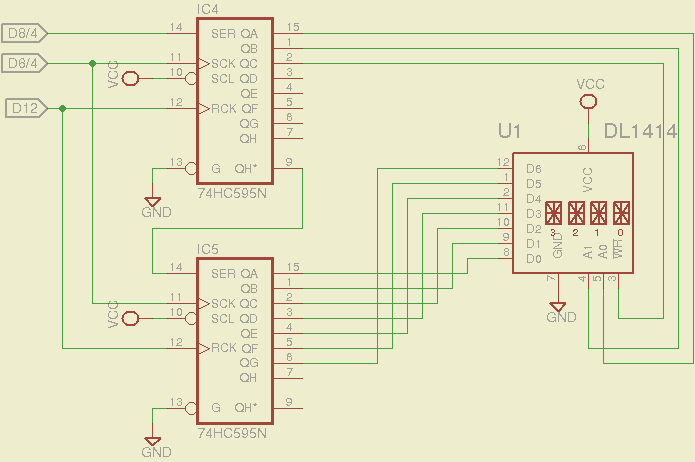
    OK, I couldn’t help myself… running two more ‘595 shift registers in parallel with the ones for the LED bargraph provides enough bits for a DL1414 four character ASCII display:

    LED Character Display
    LED Character Display

    The serial data input (SER) and serial clock (SCK) lines drive both shift register strings with the same values at the same time. The two strings have different parallel register clocks (RCK), so you twiddle only the one you want; the other string gets the same data, but it never reaches those parallel outputs.

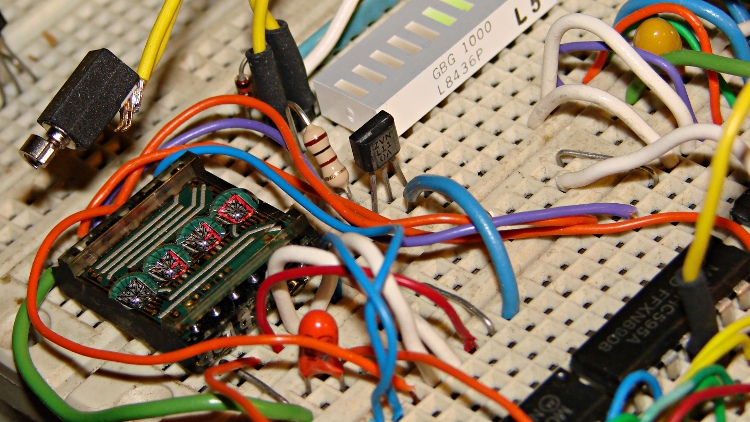
    This being a breadboard lashup, there’s no red filter to boost the contrast; :

    DL1414 LED Character Display - breadboard
    DL1414 LED Character Display – breadboard

    A red filter would really help, as shown on my old Tek ROM readout board.

    The DL1414 datasheet seems very hard to find; that’s a clean version I fetched from datasheetarchive.com.

    They’ve also become insanely expensive these days and you don’t want to use them for a new design, but if you happen to have a NOS tube lying around and hadn’t thought of monetizing your assets, well…

    To simplify debugging, the test code blips both RCK lines after shifting the data out, which means the LED bargraph shows the actual bits driving the DL1414. Slow down the update rate, un-comment the delay(1000) statements, and you can watch the DL1414 pins in “real time”. Cheaper than a logic analyzer…

    The test routine displays HELO, then shows the low word of the running millis() value in hex every 100 ms, for lack of anything smarter.

    You could use a single shift register string with two ‘595 chips driving both the LED bargraph and the DL1414; the bars would flicker briefly when updating the DL1414, but that might not be even slightly objectionable for some geek-chic projects.

    You could put the two shift registers in series, which means you must shift twice as many bits to update the DL1414 display; you’d need only one  RCK line for both sets if you shifted the unchanging bits every time. That might not be such a big deal, even though writing each character requires three complete shift sequences.

    I used a union to overlay a word variable with a bitfield structure:

    union DL1414_ {
    	word ShiftWord;				// word overlay
    	struct {					// bitfield sent to the display
    		unsigned int Addr:2;
    		unsigned int NotWrite:1;
    		unsigned int Ctl3_7:5;			// unused bits
    		unsigned int Data:7;
    		unsigned int Data7:1;			// unused bit
    	} ShiftBits;
    };
    

    Bit-twiddling operations then work on the bitfield elements and shifting uses byte-wide chunks:

    union DL1414_ DL1414;
    
    	DL1414.ShiftBits.Data = Char & 0x7F;
    	DL1414.ShiftBits.Addr = ~CharID & 0x03;		// reverse order of chars
    
    	DL1414.ShiftBits.NotWrite = 1;				// set up data and address
    
    	shiftOut(PIN_MOSI,PIN_SCK,MSBFIRST,DL1414.ShiftWord >> 8);
    	shiftOut(PIN_MOSI,PIN_SCK,MSBFIRST,DL1414.ShiftWord & 0x00ff);
    

    I briefly thought about overlaying two bytes instead of a word, but came to my senses. I assume the compiler can optimize those byte-sized shifts out of existence, but it doesn’t really matter.

    The DL1414 address layout puts character 0 on the right, but we want it on the left to match the string subscript; just invert the address bits and move on.

    The complete Arduino source code:

    // LED Character Display
    // Ed Nisley - KE4ANU - November 2012
    // Uses obsolete DL1414 LED displays
    // Display pinout:
    // https://softsolder.com/2009/08/05/arduino-using-ancient-litronix-dl-1414-led-displays/
    // https://softsolder.com/2012/12/07/arduino-snippets-dl1414-led-character-display/
    //----------
    // Pin assignments
    // These are *software* pins for shiftOut(), not the *hardware* SPI functions
    
    const byte PIN_MOSI = 8;			// data to shift reg
    const byte PIN_SCK  = 6;			// shift clock to shift reg
    
    const byte PIN_RCKC  = 12;			// latch clock for LED character shift reg
    
    const byte PIN_RCKB  = 7;			// latch clock for LED bar bits shift reg
    
    const byte PIN_SYNC = 13;			// scope sync
    
    //----------
    // Constants
    
    const int UPDATEMS = 100;				// update LEDs only this many ms apart
    
    #define TCCRxB 0x02						// Timer prescaler
    
    #define LED_SIZE		4				// chars per LED
    #define LED_DISPLAYS	1				// number of displays
    #define LED_CHARS		(LED_DISPLAYS * LED_SIZE)
    
    //----------
    // Globals
    
    char LEDCharBuffer[LED_CHARS + 1] = "HELO";		// raw char buffer, can be used as a string
    
    union DL1414_ {
    	word ShiftWord;				// word overlay
    	struct {					// bitfield sent to the display
    		unsigned int Addr:2;
    		unsigned int NotWrite:1;
    		unsigned int Ctl3_7:5;			// unused bits
    		unsigned int Data:7;
    		unsigned int Data7:1;			// unused bit
    	} ShiftBits;
    };
    
    unsigned long MillisNow;
    unsigned long MillisThen;
    
    //-- Helper routine for printf()
    
    int s_putc(char c, FILE *t) {
      Serial.write(c);
    }
    
    //-- Write single char to DL1414
    
    void WriteLEDChar(char Char,char CharID) {
    
    union DL1414_ DL1414;
    
    	DL1414.ShiftBits.Data = Char & 0x7F;
    	DL1414.ShiftBits.Addr = ~CharID & 0x03;		// reverse order of chars
    
    	DL1414.ShiftBits.NotWrite = 1;				// set up data and address
    
    	shiftOut(PIN_MOSI,PIN_SCK,MSBFIRST,DL1414.ShiftWord >> 8);
    	shiftOut(PIN_MOSI,PIN_SCK,MSBFIRST,DL1414.ShiftWord & 0x00ff);
    	digitalWrite(PIN_RCKC,HIGH);
    	digitalWrite(PIN_RCKC,LOW);
    	digitalWrite(PIN_RCKB,HIGH);
    	digitalWrite(PIN_RCKB,LOW);
    
    //	delay(1000);
    
    	DL1414.ShiftBits.NotWrite = 0;				// write the character
    
    	shiftOut(PIN_MOSI,PIN_SCK,MSBFIRST,DL1414.ShiftWord >> 8);
    	shiftOut(PIN_MOSI,PIN_SCK,MSBFIRST,DL1414.ShiftWord & 0x00ff);
    	digitalWrite(PIN_RCKC,HIGH);
    	digitalWrite(PIN_RCKC,LOW);
    	digitalWrite(PIN_RCKB,HIGH);
    	digitalWrite(PIN_RCKB,LOW);
    
    //	delay(1000);
    
    	DL1414.ShiftBits.NotWrite = 1;				// disable write
    
    	shiftOut(PIN_MOSI,PIN_SCK,MSBFIRST,DL1414.ShiftWord >> 8);
    	shiftOut(PIN_MOSI,PIN_SCK,MSBFIRST,DL1414.ShiftWord & 0x00ff);
    	digitalWrite(PIN_RCKC,HIGH);
    	digitalWrite(PIN_RCKC,LOW);
    	digitalWrite(PIN_RCKB,HIGH);
    	digitalWrite(PIN_RCKB,LOW);
    
    //	delay(1000);
    
    }
    
    //------------------
    // Set things up
    
    void setup() {
    	pinMode(PIN_SYNC,OUTPUT);
    	digitalWrite(PIN_SYNC,LOW);	// show we arrived
    
    //	TCCR1B = TCCRxB;					// set frequency for PWM 9 & 10
    //	TCCR2B = TCCRxB;					// set frequency for PWM 3 & 11
    
    	pinMode(PIN_MOSI,OUTPUT);
    	digitalWrite(PIN_MOSI,LOW);
    
    	pinMode(PIN_SCK,OUTPUT);
    	digitalWrite(PIN_SCK,LOW);
    
    	pinMode(PIN_RCKC,OUTPUT);
    	digitalWrite(PIN_RCKC,LOW);
    
    	pinMode(PIN_RCKB,OUTPUT);
    	digitalWrite(PIN_RCKB,LOW);
    
    	Serial.begin(9600);
    	fdevopen(&s_putc,0);				// set up serial output for printf()
    
    	printf("LED Character Display - DL1414\r\nEd Nisley - KE4ZNU - November 2012\r\n");
    
    	for (byte i=0; i < LED_CHARS; ++i)
    		WriteLEDChar(LEDCharBuffer[i],i);
    	delay(1000);
    
    	MillisThen = millis();
    
    }
    
    //------------------
    // Run the test loop
    
    void loop() {
    
    	MillisNow = millis();
    
    	if ((MillisNow - MillisThen) > UPDATEMS) {
    
    		digitalWrite(PIN_SYNC,HIGH);
    		sprintf(LEDCharBuffer,"%04X",(word)MillisNow);
    		for (byte i=0; i < LED_CHARS; ++i)
    			WriteLEDChar(LEDCharBuffer[i],i);
    
    		digitalWrite(PIN_SYNC,LOW);
    
    		MillisThen = MillisNow;
    	}
    
    
    }
    

    Update: A question arrived about power for those displays …

    In your older post about driving ancient DL1414s from Arduino, did you manage to drive these solely from a USB-powered Arduino, or did they need some external power supply help?

    I got a couple of 2416s from A1, Toronto’s last surviving major surplus store. For the life of me, they won’t light. Looking back at the failure, I’m guessing the total current draw is hitting the Uno’s USB “MaxPower” [sic; it’s what lsusb says] of 100 mA.

    Still looking out for the rare DL3422, which now commands utterly pointless pricing. It can do lower case, though …

    As it happens, those displays suck juice like nothing else around!

    I have two datasheets offering either 65 or 130 mA for a DL-1414 with all the lights on; the HP datasheet says their HPDL-2416 displays cook at 170 mA and 232 mA (!) when showing four block cursors. Take your pick, any of those will drain a piddly Pi USB port dry.

    Having been burned often enough, I run Arduinos from the wall wart that also powers whatever gimmick I’m building. If the gimmick requires a relatively high voltage (9-ish V and up), I put a 7 V pre-regulator in front of the Arduino’s SMD regulator to reduce its power dissipation.

    For the vacuum tube lights I’m using now, I jam +5 V into the Nano’s VCC pin, straight into the regulator’s /output/, and just hold my nose. It works well enough for my simple needs, even if I’d have a hard time justifying that sort of thing as “common engineering practice”.

    So, yeah, you’re gonna need a separate supply for those puppies.