The Smell of Molten Projects in the Morning

Ed Nisley's Blog: Shop notes, electronics, firmware, machinery, 3D printing, laser cuttery, and curiosities. Contents: 100% human thinking, 0% AI slop.

Tag: Arduino

All things Arduino

  • Kenmore 158 UI: Button Commands

    The button definition table now includes a string that becomes the button’s command to the sewing machine motor controller:

    #define MAXCMDLEN 2
    
    enum bstatus_t {BT_DISABLED,BT_UP,BT_DOWN};
    
    typedef void (*pBtnFn)(byte BID);		// button action function called when hit
    
    struct button_t {
    	byte ID;					// button identifier, 0 unused
    	byte Group;					// radio button group, 0 for none
    	byte Status;				// button status
    	word ulX,ulY;				// origin: upper left
    	word szX,szY;				// button image size
    	pBtnFn pAction;				// button function
    	char Cmd[MAXCMDLEN + 1];	// command string
    	char NameStem[9];			// button BMP file name - stem only
    };
    
    struct button_t Buttons[] = {
    	{ 1,	1, BT_UP,		  0,0,		 80,80,	DefaultAction,	"Nu",	"NdUp"},
    	{ 2,	1, BT_UP,		  0,80,		 80,80,	DefaultAction,	"Na",	"NdAny"},
    	{ 3,	1, BT_DOWN,		  0,160,	 80,80,	DefaultAction,	"Nd",	"NdDn"},
    
    	{ 4,	2, BT_DOWN,		 80,0,		120,80,	DefaultAction,	"Pr",	"PdRun"},
    	{ 5,	2, BT_UP,		 80,80,		120,80,	DefaultAction,	"P1",	"PdOne"},
    	{ 6,	2, BT_UP,		 80,160,	120,80,	DefaultAction,	"Pf",	"PdFol"},
    
    	{ 7,	3, BT_DOWN,		200,0,		 80,80,	DefaultAction,	"Sh",	"SpMax"},
    	{ 8,	3, BT_UP,		200,80,		 80,80,	DefaultAction,	"Sm",	"SpMed"},
    	{ 9,	3, BT_UP,		200,160,	 80,80,	DefaultAction,	"Sl",	"SpLow"},
    
    //	{10,	0, BT_UP,	311,0,		  8,8,	CountColor,	'\0',	'\0',	"Res"}
    };
    
    byte NumButtons = sizeof(Buttons) / sizeof(struct button_t);
    

    The default button handler now sends the button’s command string whenever it finds the button down after all the processing:

    #define TRACEACTION false
    
    void DefaultAction(byte BID) {
    
    byte i,BX;
    byte Group;
    
    	if (!BID) {											// not a valid ID
    		printf("** Button ID zero in DefaultAction\r\n");
    		return;
    	}
    
    	BX = FindButtonIndex(BID);
    	if (BX == NumButtons) {								// no button for that ID
    //		printf("** No table entry for ID: %d\r\n",BID);
    		return;
    	}
    
    #if TRACEACTION
    	printf("Default action: BID %d St %d -- ",BID,Buttons[BX].Status);
    #endif
    
    	if (Buttons[BX].Status == BT_DISABLED) {		// cannot do anything to disabled buttons
    #if TRACEACTION
    		printf("disabled\r\n");
    #endif
    		return;
    	}
    
    	Group = Buttons[BX].Group;
    
    	if (Group) {									// member of group?
    		if (Buttons[BX].Status == BT_DOWN) {		//  if down, remain that way
    #if TRACEACTION
    			printf("already down\r\n");
    #endif
    		}
    		else {										//  is up
    			for (i=0; i<NumButtons; i++) {			//   so unpush other buttons in group
    				if ((Buttons[i].Group == Group) && (Buttons[i].Status == BT_DOWN) && (i != BX)) {
    #if TRACEACTION
    					printf("release ID %d - ",Buttons[i].ID);
    #endif
    					Buttons[i].Status = BT_UP;
    					DrawButton(Buttons[i].ID,Buttons[i].Status);
    				}
    			}
    #if TRACEACTION
    			printf("push\r\n");
    #endif
    			Buttons[BX].Status = BT_DOWN;			//   and push this button down
    		}
    	}
    	else {											// not a group, so just toggle
    #if TRACEACTION
    		printf("toggle\r\n");
    #endif
    		Buttons[BX].Status = (Buttons[BX].Status == BT_DOWN) ? BT_UP : BT_DOWN;
    	}
    
    	DrawButton(BID,Buttons[BX].Status);
    
    	if (Buttons[BX].Status == BT_DOWN) {			// is this button now (or still) pressed?
    		SendCmd(Buttons[BX].Cmd);
    	}
    
    }
    

    That means the controller will see identical commands each time the button gets pressed, which doesn’t have any downsides. You could build an increment / decrement speed function without much trouble, although there’s still no way to display any returned values on the LCD.

    Working under the possibly unwarranted assumption that serial communications between the two Arduinos won’t encounter any errors, I just wrap the command string in a distinctive marker and send it off:

    void SendCmd(char *pCmd) {
    
    char Msg[MAXCMDLEN + 3];
    
    	strcpy(Msg,"[");
    	strcat(Msg,pCmd);
    	strcat(Msg,"]");
    
    	Serial.print("Cmd: ");							// copy to console
    	Serial.println(Msg);
    
    	Serial1.println(Msg);							// send command!
    
    }
    

    The Serial1 port runs at a nose-pickin’ 9600 baud, because the motor controller often gets wrapped up in what it’s doing. On the other paw, when the controller gets distracted, the operator will be feeding fabric past the needle at a pretty good clip and won’t have a finger to spare for the UI buttons, so it would probably work no matter what.

    That mismatch, however, allows the motor controller to babble on at length, without overruning the UI’s console output. This routine collects lines from the controller:

    char GetStatLine(void) {
    
    static byte Index = 0;
    char NewChar;
    
    	if (!Serial1.available()) {					// return if no chars in queue
    		return 0;
    	}
    
    	do {
    		NewChar = Serial1.read();
    		switch (NewChar) {
    		case '\r':								// end-of-line on CR
    			MCtlBuffer[Index] = 0;
    			Index = 0;
    			return strlen(MCtlBuffer);			// return from mid-loop
    			break;								//  unnecessary
    		case '\n':								// discard NL
    			break;
    		default:
    			MCtlBuffer[Index] = NewChar;		// store all others
    			Index += (Index < STATMAXLEN) ? 1 : 0;
    		}
    	} while (Serial1.available());
    
    	return 0;
    
    }
    

    A call in the main loop dumps each line after the terminating CR:

    char GetStatLine(void) {
    
    static byte Index = 0;
    char NewChar;
    
    	if (!Serial1.available()) {					// return if no chars in queue
    		return 0;
    	}
    
    	do {
    		NewChar = Serial1.read();
    		switch (NewChar) {
    		case '\r':								// end-of-line on CR
    			MCtlBuffer[Index] = 0;
    			Index = 0;
    			return strlen(MCtlBuffer);			// return from mid-loop
    			break;								//  unnecessary
    		case '\n':								// discard NL
    			break;
    		default:
    			MCtlBuffer[Index] = NewChar;		// store all others
    			Index += (Index < STATMAXLEN) ? 1 : 0;
    		}
    	} while (Serial1.available());
    
    	return 0;
    
    }
    

    Which produces output like this:

    Kenmore Model 158 User Interface
     Compiled: Jan 26 2015 at 15:33:52
    Ed Nisley - KE4ZNU
    TS... OK
    SD... OK
    LCD... should be active
    Cmd: [Nd]
    Cmd: [Pr]
    Cmd: [Sh]
    MC |** Bad command string: [--]
    MC |  540, 65535,   194
    MC |  610,     0,   194
    MC |  783,    55,   236
    MC | 1262,    84,   391
    MC | 1452,   116,   394
    MC | 1633,   123,   394
    MC | 1494,   132,   405
    MC | 1768,   126,   406
    MC | 1488,   126,   406
    MC | 1425,   137,   406
    MC | 1517,   132,   406
    MC | 1461,   126,   209
    MC |Coast: 1099
    MC |Parking Stop down: Done
    MC | stopped
    

    The “bad command string” isn’t actually an error. The first outbound line consists of [--] and a carriage return, which isn’t a valid command, just to make sure that the motor controller’s incoming serial port buffer doesn’t contain any junk. Obviously, I should add that string to the command decoder…

  • Kenmore 158 UI: Power & Data Cable

    The Arduino Mega behind the LCD panel communicates serially through the Serial1 hardware, leaving the USB connection available for its usual console + program loading functions. The cable also carries +7 VDC for the Mega’s on-board regulator, plus a few bits that might prove useful, and enough grounds to be meaningful.

    The pinout on the DE-9 female back-panel connector:

    1. TX (Mini -> Mega)
    2. RX (Mini <- Mega)
    3. Current sense amp
    4. D4 Enable ATX
    5. Gnd
    6. +7V regulator
    7. Gnd
    8. Gnd
    9. Gnd

    Which looks like this:

    Kenmore 158 UI - cable at motor controller
    Kenmore 158 UI – cable at motor controller

    One could argue that I should use insulation-displacement connectors and pin headers, but there’s something to be said for a bit of meditative hand-soldering.

    The 7 V supply drops about 90 mV through its slightly too thin wire. With current around 100 mA, that works out to 900 mΩ, including all the connectors and gimcrackery along the way. Close enough.

    More cogently, one could argue that I should have used a DE-9 male connector, so as to remove the possibility of swapping the cables. So it goes. The pinout attempts to minimize damage, but ya never know.

    The green jumper on the Mini’s serial pins reminds me to unplug the UI cable, lest I plug the USB adapter into it and put the serial drivers in parallel.

    The 7 V regulator stands over on the left, powering both the Arduino Pro Mini and the Mega + LCD panel. My thumb tells me that piddly little heatsink isn’t quite up to its new responsibilities, unlike the now vastly overqualified heatsink on the ET227. On the other paw, that’s why I used a pre-regulator: so that same heat isn’t burning up the SMD regulators on the Arduino PCBs. Time to rummage in the Big Box o’ Heatsinks again.

  • Adafruit Touch-screen TFT LCD Rotation

    The alert reader will have noted that the Kenmore 158 UI twisted around to a new orientation atop its fancy holder, with the USB port now poking out from the right side:

    Kenmore 158 UI - PCB holder
    Kenmore 158 UI – PCB holder

    That lets me position the whole affair to the right of the sewing machine, in what seems to be its natural position, without having the cable form a loop that would push it off the platform. It’s not entirely clear how we’ll keep a straight cable from pulling it off, but that’s in the nature of fine tuning.

    Anyhow, rotating the LCD isn’t a big deal, because the Adafruit library does all the heavy lifting:

    // LCD orientation: always landscape, 1=USB upper left / 3=USB lower right
    #define LCDROTATION 3
    
    ... snippage ...
    tft.begin();
    tft.setRotation(LCDROTATION);	// landscape, 1=USB upper left / 3=USB lower right
    

    Flipping the touch screen coordinates required just interchanging the “to” bounds of the map() functions, with a conditional serving as institutional memory in the not-so-unlikely event I must undo this:

    #if LCDROTATION == 1
    	p->x = map(t.y, TS_Min.y, TS_Max.y, 0, tft.width());	// rotate & scale to TFT boundaries
    	p->y = map(t.x, TS_Min.x, TS_Max.x, tft.height(), 0);	//   ... USB port at upper left
    #elif LCDROTATION == 3
    	p->x = map(t.y, TS_Min.y, TS_Max.y, tft.width(), 0);	// rotate & scale to TFT boundaries
    	p->y = map(t.x, TS_Min.x, TS_Max.x, 0, tft.height());	//   ... USB port at lower right
    #endif
    

    And then It Just Worked.

  • Arduino Mega PCB Holder

    Flushed with success from making the boost power supply mount, here’s a holder for the Arduino Mega that’s supporting the Kenmore 158 sewing machine UI:

    Kenmore 158 UI - PCB holder
    Kenmore 158 UI – PCB holder

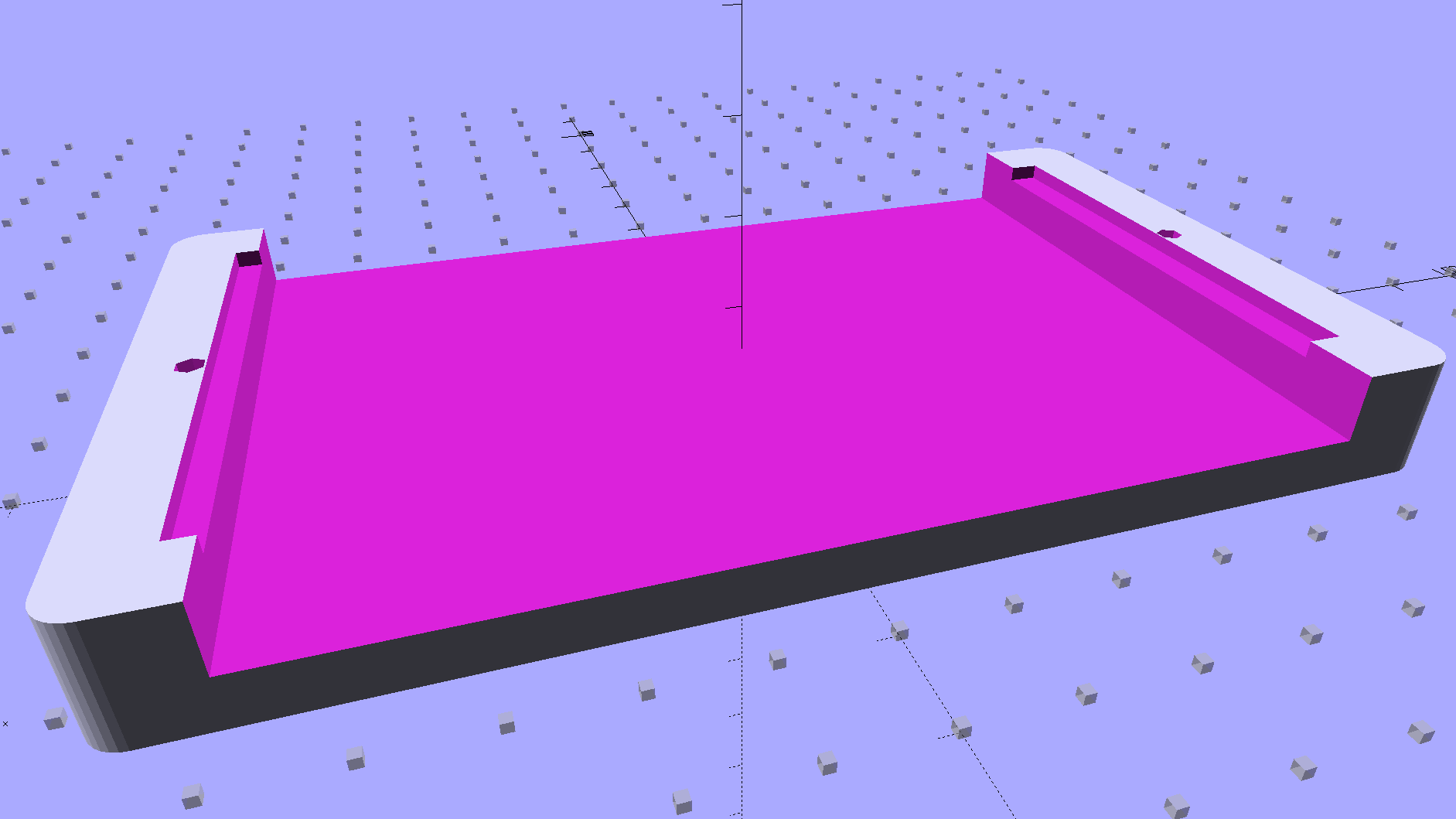
    The solid model shows two screws holding the PCB in place:

    Arduino Mega PCB Mount
    Arduino Mega PCB Mount

    I decided to edge-clamp the board, rather than fuss with the built-in screws, just because 3D printing makes it so easy.

    Of course, the UI needs a real case that will hold it at an angle, so as to make the LCD and touch screen more visible and convenient; this mount just keeps the PCB up off the conductive surface of the insulating board we’re using in lieu of a Real Sewing Platform.

    This sewing machine project involves a lot of parts…

    The OpenSCAD source code:

    // PCB mounting bracket for Arduino Mega
    // Ed Nisley - KE4ZNU - January 2015
    
    Layout = "Build";			// PCB Block Mount Build
    
    //- Extrusion parameters must match reality!
    //  Print with 4 shells and 3 solid layers
    
    ThreadThick = 0.20;
    ThreadWidth = 0.40;
    
    HoleWindage = 0.2;			// extra clearance
    
    Protrusion = 0.1;			// make holes end cleanly
    
    AlignPinOD = 1.70;			// assembly alignment pins: filament dia
    
    function IntegerMultiple(Size,Unit) = Unit * ceil(Size / Unit);
    
    X = 0;						// useful subscripts
    Y = 1;
    Z = 2;
    
    //----------------------
    // Dimensions
    
    inch = 25.4;
    
    Tap4_40 = 0.089 * inch;
    Clear4_40 = 0.110 * inch;
    Head4_40 = 0.211 * inch;
    Head4_40Thick = 0.065 * inch;
    Nut4_40Dia = 0.228 * inch;
    Nut4_40Thick = 0.086 * inch;
    Washer4_40OD = 0.270 * inch;
    Washer4_40ID = 0.123 * inch;
    
    PCBoard = [102,54,IntegerMultiple(1.8,ThreadThick)];
    
    BottomParts = [[2.5,-5.0,0,0],				// xyz offset of part envelope
    				[96,80,IntegerMultiple(5.0,ThreadThick)]];			// xyz envelope size (z should be generous)
    
    Margin = IntegerMultiple(Washer4_40OD,ThreadWidth);
    
    MountBase = [PCBoard[X] + 2*Margin,
    			PCBoard[Y] + 2*Margin,
    			IntegerMultiple(5.0,ThreadThick) + PCBoard[Z] + BottomParts[1][Z]
    			];
    echo("Mount base: ",MountBase);
    
    ScrewOffset = Clear4_40/2;
    
    Holes = [									// PCB mounting screw holes: XY + rotation
    		[Margin - ScrewOffset,MountBase[Y]/2,180/6],
    		[MountBase[X] - Margin + ScrewOffset,MountBase[Y]/2,180/6],
    		];
    
    CornerRadius = Washer4_40OD / 2;
    
    //----------------------
    // Useful routines
    
    module PolyCyl(Dia,Height,ForceSides=0) {			// based on nophead's polyholes
    
      Sides = (ForceSides != 0) ? ForceSides : (ceil(Dia) + 2);
    
      FixDia = Dia / cos(180/Sides);
    
      cylinder(r=(FixDia + HoleWindage)/2,
               h=Height,
               $fn=Sides);
    }
    
    module ShowPegGrid(Space = 10.0,Size = 1.0) {
    
      RangeX = floor(100 / Space);
      RangeY = floor(125 / Space);
    
    	for (x=[-RangeX:RangeX])
    	  for (y=[-RangeY:RangeY])
    		translate([x*Space,y*Space,Size/2])
    		  %cube(Size,center=true);
    
    }
    
    //----------------------
    // Build things
    
    module PCB() {
    
    	union() {
    		cube(PCBoard);
    		translate(BottomParts[X] - [0,0,BottomParts[1][Z]])
    			cube(BottomParts[Y] + [0,0,Protrusion]);
    	}
    
    }
    
    module Block() {
    	translate([MountBase[X]/2,MountBase[Y]/2,0])
    		hull()
    			for (i = [-1,1], j = [-1,1])
    				translate([i*(MountBase[X]/2 - CornerRadius),j*(MountBase[Y]/2 - CornerRadius)],0)
    					cylinder(r=CornerRadius,h=MountBase[Z] - Protrusion,$fn=8*4);
    }
    
    module Mount() {
    
    	difference() {
    		Block();
    
    		translate([MountBase[X]/2 - PCBoard[X]/2 + BottomParts[0][X] - Protrusion,
    					-MountBase[Y]/2,
    					MountBase[Z] - PCBoard[Z] - BottomParts[1][Z]])
    			cube([BottomParts[1][X] + 2*Protrusion,
    					2*MountBase[Y],
    					2*BottomParts[1][Z]]);
    
    		translate([MountBase[X]/2 - PCBoard[X]/2,		// PCB recess
    					MountBase[Y]/2 - PCBoard[Y]/2,
    					MountBase[Z] - PCBoard[Z]])
    			PCB();
    		for (h = Holes) {
    			translate([h[X],h[Y],-Protrusion]) rotate(h[Z])
    				PolyCyl(Tap4_40,MountBase[Z] + 2*Protrusion,6);
    		}
    	}
    
    }
    
    ShowPegGrid();
    
    if (Layout == "PCB")
    	PCB();
    
    if (Layout == "Block")
    	Block();
    
    if (Layout == "Mount")
    	Mount();
    
    if (Layout == "Build")
    	translate([-MountBase[X]/2,-MountBase[Y]/2,0])
    	Mount();
    
  • Kenmore 158 UI: Button Framework Functions

    Given the data structures defining the buttons, this code in the main loop() detects a touch, identifies the corresponding button, and does what’s needed:

    if (CleanTouch(&pt)) {
    	BID = FindHit(pt);
    	if (BID) {
    		HitButton(BID);
    	}
    	while(ts.touched())				// stall waiting for release
    		ts.getPoint();
    }
    

    The CleanTouch() function handles touch detection, cleanup, and rotation, delivering a coordinate that matches one of the LCD pixels. Given that you’re using a fingertip, errors caused by poor calibration or nonlinearities Just Don’t Matter.

    This function matches that coordinate against the target region of each button, draws a white rectangle on the first matching button, and returns that button ID:

    byte FindHit(TS_Point hit) {
    
    byte i;
    TS_Point ul,lr;
    
    #define MARGIN 12
    
    //	printf("Hit test: (%d,%d)\r\n",hit.x,hit.y);
    
    	for (i=0; i<NumButtons ; i++) {
    		ul.x = Buttons[i].ulX + Buttons[i].szX/MARGIN;
    		ul.y = Buttons[i].ulY + Buttons[i].szY/MARGIN;
    		lr.x = Buttons[i].ulX + ((MARGIN - 1)*Buttons[i].szX)/MARGIN;
    		lr.y = Buttons[i].ulY + ((MARGIN - 1)*Buttons[i].szY)/MARGIN;
    //		printf(" i: %d BID: %d S: %d ul=(%d,%d) sz=(%d,%d)\r\n",
    //			   i,Buttons[i].ID,Buttons[i].Status,ul.x,ul.y,lr.x,lr.y);
    		if ((hit.x >= ul.x && hit.x < lr.x) &&
    			(hit.y >= ul.y && hit.y <= lr.y)) {
    			// should test for being disabled and discard hit
    //			printf(" Hit i: %d ",i);
    			break;
    		}
    	}
    
    	if (i < NumButtons) {
    		tft.drawRect(ul.x,ul.y,lr.x-ul.x,lr.y-ul.y,ILI9341_WHITE);
    		return Buttons[i].ID;
    	}
    	else {
    		printf(" No hit!\r\n");
    		return 0;
    	}
    
    }
    

    You can enable as much debugging as you need by fiddling with the commented-out lines.

    After some empirical fiddling, a non-sensitive margin of 1/12 the button size helped prevent bogus hits. There’s no real need to draw the target rectangle, other than for debugging:

    Kenmore 158 UI buttons - hit target
    Kenmore 158 UI buttons – hit target

    The target shows the button graphics aren’t quite centered, because that’s how the ImageMagick script placed them while generating the shadow effect, but it still works surprisingly well. The next version of the buttons will center the graphics, specifically so I don’t have to explain what’s going on.

    Because the margin is 1/12 the size of the button, it rounds off to zero for the tiny button in the upper right corner, so that the touch target includes the entire graphic.

    The return value will be zero if the touch missed all the buttons, which is why a button ID can’t be zero.

    Given the button ID, this function un-pushes the other button(s) in its radio button group, then pushes the new button:

    byte HitButton(byte BID) {
    
    byte i,BX;
    byte Group;
    
    	if (!BID)											// not a valid ID
    		return 0;
    
    	BX = FindButtonIndex(BID);
    	if (BX == NumButtons)								// no button for that ID
    		return 0;
    
    	Group = Buttons[BX].Group;
    
    //	printf(" Press %d X: %d G: %d\r\n",BID,BX,Group);
    
    // If in button group, un-push other buttons
    
    	if (Group) {
    		for (i=0; i<NumButtons; i++) {
    			if ((Group == Buttons[i].Group) && (BT_DOWN == Buttons[i].Status)) {
    				if (i == BX) {							// it's already down, fake going up
    					Buttons[i].Status = BT_UP;
    				}
    				else {									// un-push other down button(s)
    //					printf(" unpress %d X: %d \r\n",Buttons[i].ID);
    					Buttons[i].pAction(Buttons[i].ID);
    				}
    			}
    		}
    	}
    
    	Buttons[BX].pAction(BID);
    
    	return 1;
    }
    

    The ID validation shouldn’t be necessary, but you know how things go. A few messages in there would help debugging.

    The default button action routine that I use for all the buttons just toggles the button’s Status and draws the new button graphic:

    void DefaultAction(byte BID) {
    
    byte i,BX;
    
    	if (!BID) {											// not a valid ID
    		printf("** Button ID zero in DefaultAction\r\n");
    		return;
    	}
    
    	BX = FindButtonIndex(BID);
    	if (BX == NumButtons) {								// no button for that ID
    		printf("** No table entry for ID: %d\r\n",BID);
    		return;
    	}
    
    	Buttons[BX].Status = (Buttons[BX].Status == BT_DOWN) ? BT_UP : BT_DOWN;
    
    	printf("Button %d hit, now %d\r\n",BID,Buttons[BX].Status);
    	DrawButton(BID,Buttons[BX].Status);
    
    }
    

    The little color indicator button has a slightly different routine to maintain a simple counter stepping through all ten resistor color codes in sequence:

    void CountColor(byte BID) {
    
    byte i,BX;
    static byte Count = 0;
    
    	if (!BID) {											// not a valid ID
    		printf("** Zero button ID\r\n");
    		return;
    	}
    
    	BX = FindButtonIndex(BID);
    	if (BX == NumButtons) {								// no button for that ID
    		printf("** No entry for ID: %d\r\n",BID);
    		return;
    	}
    
    	Buttons[BX].Status = BT_DOWN;						// this is always pressed
    
    	Count = (Count < 9) ? ++Count : 0;					// bump counter & wrap
    
    //	printf("Indicator %d hit, now %d\r\n",BID,Count);
    	DrawButton(BID,Count);
    
    }
    

    The indicator “button” doesn’t go up when pressed and its function controls what’s displayed.

    I think the button action function should have an additional parameter giving the next Status value, so that it knows what’s going on, thus eliminating the need to pre-push & redraw buttons in HitButton(), which really shouldn’t peer inside the button data.

    It needs more work and will definitely change, but this gets things started.

  • Kenmore 158 UI: Button Framework Data Structures

    The trouble with grafting a fancy LCD on an 8 bit microcontroller like an Arduino is that there’s not enough internal storage for button images and barely enough I/O bandwidth to shuffle bitmap files from the SD card to the display. Nevertheless, that seems to be the least awful way of building a serviceable UI that doesn’t involve drilling holes for actual switches, indicators, and ugly 2×20 character LCD panels.

    Rather than hardcoding the graphics into the Arduino program, though, it makes sense to build a slightly more general framework to handle button images and overall UI design, more-or-less independently of the actual program. I haven’t been able to find anything that does what I need, without doing a whole lot more, sooooo here’s a quick-and-dirty button framework.

    Calling it a framework might be overstating the case: it’s just a data structure and some functions. It really should be a separate library, but …

    After considerable discussion with the user community, the first UI can control just three functions:

    • Needle stop position: up, down, don’t care
    • Operating mode: follow pedal position, triggered single-step, normal run
    • Speed: slow, fast, ultra-fast

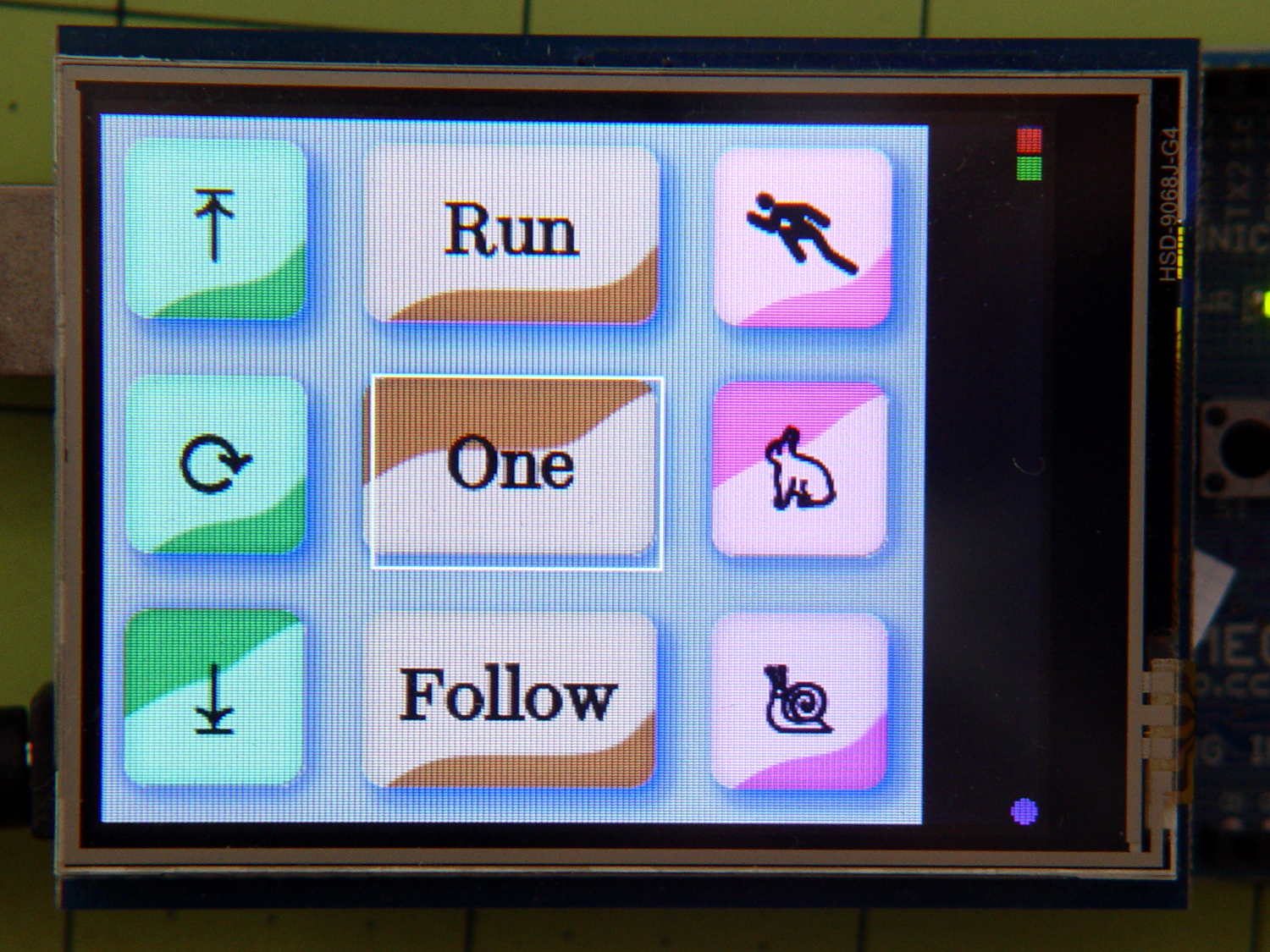
    That boils down into a simple nine-button display, plus a tiny tenth button (in brown that looks red) at the top right:

    Kenmore 158 UI buttons - first pass
    Kenmore 158 UI buttons – first pass

    The viciously skeuomorphic button shading should show the button status. For example, in the leftmost column:

    • The two upper button are “up”, with light glinting from upward-bulging domes
    • The lower button is “down”, with light glinting from its pushed-in dome

    Frankly, that works poorly for me and the entire user community. The whole point of this framework is to let me re-skin the UI without re-hacking the underlying code; the buttons aren’t the limiting factor right now.

    Anyhow.

    The three buttons in each column are mutually exclusive radio buttons, but singleton checkbox buttons for firmware switches / modes would also be helpful, so there’s motivation to be a bit more general.

    A struct defines each button:

    enum bstatus_t {BT_DISABLED,BT_UP,BT_DOWN};
    
    typedef void (*pBtnFn)(byte BID);		// button action function called when hit
    
    struct button_t {
    	byte ID;					// button identifier, 0 unused
    	byte Group;					// radio button group, 0 for none
    	byte Status;				// button status
    	word ulX,ulY;				// origin: upper left
    	word szX,szY;				// button image size
    	pBtnFn pAction;				// button function
    	char NameStem[9];			// button BMP file name - stem only
    };
    

    The ID uniquely identifies each button in the rest of the code. That should be an enum, but for now I’m using an unsigned integer.

    The Group integer will be zero for singleton buttons and a unique nonzero value for each radio button group. Only one button in each Group can be pressed at a time.

    The Status indicates whether the button can be pushed and, if so, whether it’s up or down. Right now, the framework doesn’t handle disabled buttons at all.

    The next four entries define the button’s position and size.

    The pAction entry contains a pointer to the function that handles the button’s operation. It gets invoked whenever the touch screen registers a hit over the button, with an ID parameter identifying the button so you can use a single function for the entire group. I think it’ll eventually get another parameter indicating the desired Status, but it’s still early.

    The NameStem string holds the first part of the file name on the SD card. The framework prefixes the stem with a default directory (“/UserIntf/”), suffixes it with the Status value (an ASCII digit ‘0’ through ‘9’), tacks on the extension (“.bmp”), and comes up with the complete file name.

    An array of those structs defines the entire display:

    struct button_t Buttons[] = {
    	{ 1,	0, BT_UP,	  0,0,		 80,80,	DefaultAction,	"NdUp"},
    	{ 2,	0, BT_UP,	  0,80,		 80,80,	DefaultAction,	"NdAny"},
    	{ 3,	0, BT_DOWN,	  0,160,	 80,80,	DefaultAction,	"NdDn"},
    
    	{ 4,	2, BT_DOWN,	 80,0,		120,80,	DefaultAction,	"PdRun"},
    	{ 5,	2, BT_UP,	 80,80,		120,80,	DefaultAction,	"PdOne"},
    	{ 6,	2, BT_UP,	 80,160,	120,80,	DefaultAction,	"PdFol"},
    
    	{ 7,	3, BT_UP,	200,0,		 80,80,	DefaultAction,	"SpMax"},
    	{ 8,	3, BT_DOWN,	200,80,		 80,80,	DefaultAction,	"SpMed"},
    	{ 9,	3, BT_UP,	200,160,	 80,80,	DefaultAction,	"SpLow"},
    
    	{10,	0, BT_UP,	311,0,		  8,8,	CountColor,		"Res"}
    };
    
    byte NumButtons = sizeof(Buttons) / sizeof(struct button_t);
    

    Those values produce the screen shown in the picture. The first three buttons should be members of radio button group 1, but they’re singletons here to let me test that path.

    Contrary to what you see, the button ID values need not be in ascending order, consecutive, or even continuous. The IDs identify a specific button, so as long as they’re a unique number in the range 1 through 255, that’s good enough. Yes, I faced down a brutal wrong-variable error and then fixed a picket-fence error.

    The file name stems each refer to groups of BMP files on the SD card. For example, NdUp (“Needle stop up”) corresponds to the three files NdUp0.bmp, NdUp1.bmp, and NdUp2.bmp, with contents corresponding to the bstatus_t enumeration.

    The constant elements of that array should come from a configuration file on the SD card: wrap a checksum around it, stuff it in EEPROM, and then verify it on subsequent runs. A corresponding array in RAM should contain only the Status values, with the array index extracted from the EEPROM data. That would yank a huge block of constants out of the all-too-crowded RAM address space and, even better, prevents problems from overwritten values; a trashed function pointer causes no end of debugging fun.

    A more complex UI would have several such arrays, each describing a separate panel of buttons. There’s no provision for that right now.

    Next: functions to make it march…

  • Adafruit TFT LCD: Touch Screen Interface

    The Adafruit STMPE610 touch screen library wrangles data from the touch screen interface, but the raw results require cleanup before they’re useful. Here’s a start on the problem.

    Incidentally, the resistive touch screen works better than the capacitive one for a sewing machine interface used by a quilter, because cotton mesh quilter gloves have grippy silicone fingertips.

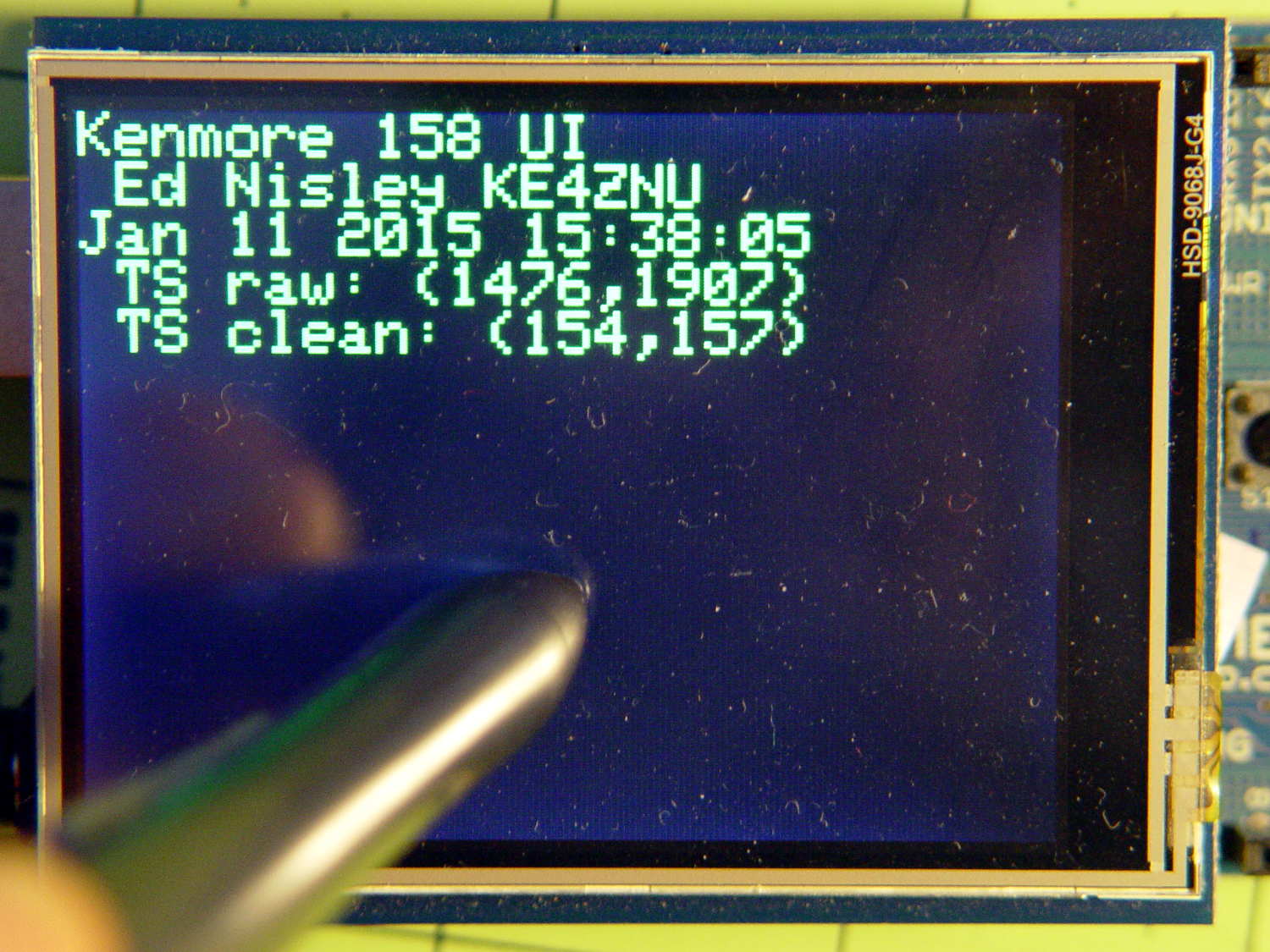
    During startup, my code dumps the touch values if it detects a press and stalls until the touch goes away:

    Kenmore 158 UI - startup
    Kenmore 158 UI – startup

    That’s actually green-on-black, the only colors a dot-matrix character display should have, but the image came out a bit overexposed.

    In this landscape orientation, the touch digitizer coordinate system origin sits in the lower left, with X vertical and Y horizontal, as shown by the (1476,1907) raw coordinate; that matches the LCD’s default portrait orientation. The digitizer’s active area is bigger than the LCD, extending a smidge in all directions and 6 mm to the right.

    The rotated LCD coordinate system has its origin in the upper left corner, with dot coordinates from (0,0) to (319,239); note that Y increases downward. The touch point sits about the same distance from the left and top edges, as indicated by the (154,157) cleaned coordinate.

    How this all works…

    This chunk defines the hardware and calibration constants, with the touch screen set up to use hardware SPI on an Arduino Mega1280:

    // Adafruit ILI9341 TFT LCD ...
    #define TFT_CS 10
    #define TFT_DC 9
    
    // ... with STMPE610 touch screen ...
    #define STMPE_CS 8
    
    // ... and MicroSD Card slot
    #define SD_CS 4
    
    //------------------
    // Globals
    
    Adafruit_STMPE610 ts =  Adafruit_STMPE610(STMPE_CS);
    Adafruit_ILI9341  tft = Adafruit_ILI9341(TFT_CS, TFT_DC);
    
    // Touchscreen extents in unrotated digitizer values
    // These should be in EEPROM to allow per-unit calibration
    
    TS_Point TS_Min(220,220,0);
    TS_Point TS_Max(3800,3700,0);
    

    The TS_Min and TS_Max values come from experimental twiddling with the Adafruit TouchTest demo code and correspond to the LCD’s active area in the digitizer’s raw coordinate system.

    Although the digitizer also produces a Z axis value corresponding to the touch pressure, I don’t use it, and, in any event, it has a tiny dynamic range.

    The initialization goes in setup():

    	Serial.print(F("TS... "));	// start touch screen early to let it wake up
    	if (ts.begin()) {
    		Serial.println(F("OK"));
    	}
    	else {
    		Serial.println(F("** NG"));
    		while(1) continue;
    	}
    

    As noted, the digitizer takes a while to wake up from a cold start, so I overlapped that time with the SD card and LCD initializations. Most likely, I should use a fixed delay, but I don’t know what would be a good value.

    With the LCD up & running, this code produces the touch screen values shown in the picture:

    	if (ts.touched() && !ts.bufferEmpty()) {	// hold display while touched
    		tp = ts.getPoint();
    		tft.print(" TS raw: (");
    		tft.print(tp.x);
    		tft.print(',');
    		tft.print(tp.y);
    		tft.println(')');
    		CleanTouch(&tp);						// different point, but should be close
    		tft.print(" TS clean: (");
    		tft.print(tp.x);
    		tft.print(',');
    		tft.print(tp.y);
    		tft.println(')');
    		while (ts.touched()) continue;
    		while (!ts.bufferEmpty()) ts.getPoint();
    	}
    

    The first while stalls until you stop pressing on the screen, whereupon the second drains the digitizer’s queue. You can reach inside the digitizer and directly reset the hardware, but that seems overly dramatic.

    CleanTouch() fetches the next point from the digitizer and returns a boolean indicating whether it got one. If it did, you also get back touch point coordinates in the LCD’s rotated coordinate system:

    #define TS_TRACE true
    
    boolean CleanTouch(TS_Point *p) {
    
    TS_Point t;
    
    // Sort out possible touch and data queue conditions
    
    	if (ts.touched())							// screen touch?
    		if (ts.bufferEmpty())					//  if no data in queue
    			return false;						//   bail out
    		else									//  touch and data!
    			t = ts.getPoint();					//   so get it!
    	else {										// no touch, so ...
    		while (!ts.bufferEmpty())				//  drain the buffer
    			ts.getPoint();
    		return false;
    	}
    
    #if TS_TRACE
    	printf("Raw touch (%d,%d)\r\n",t.x,t.y);
    #endif
    
    	t.x = constrain(t.x,TS_Min.x,TS_Max.x);					// clamp to raw screen area
    	t.y = constrain(t.y,TS_Min.y,TS_Max.y);
    
    #if TS_TRACE
        printf(" constrained (%d,%d)\r\n",t.x,t.y);
        printf(" TFT (%d,%d)\r\n",tft.width(),tft.height());
    #endif
    
    	p->x = map(t.y, TS_Min.y, TS_Max.y, 0, tft.width());		// rotate & scale to TFT boundaries
    	p->y = map(t.x, TS_Min.x, TS_Max.x, tft.height(), 0);		//   ... flip Y to put (0,0) in upper left corner
    
    	p->z = t.z;
    
    #if TS_TRACE
    	printf(" Clean (%d,%d)\r\n",p->x,p->y);
    #endif
    
    	return true;
    }
    

    The hideous conditional block at the start makes sure that the point corresponds to the current touch coordinate, by the simple expedient of tossing any and all stale data overboard. I think you could trick the outcome by dexterous finger dancing on the screen, but (so far) it delivers the expected results.

    The constrain() functions clamp the incoming data to the boundaries, to prevent the subsequent map() functions from emitting values beyond the LCD coordinate system.

    Note that t is in raw digitizer coordinates and p is in rotated LCD coordinates. The simple transform hardcoded into the map() functions sorts that out; you get to figure out different rotations on your own.

    The results of touching all four corners, starting in the upper left near the LCD origin and proceeding counterclockwise:

    Raw touch (3750,258)
     constrained (3750,258)
     TFT (320,240)
     Clean (3,4)
     No hit!
    Raw touch (274,231)
     constrained (274,231)
     TFT (320,240)
     Clean (1,237)
     No hit!
    Raw touch (145,3921)
     constrained (220,3700)
     TFT (320,240)
     Clean (320,240)
     No hit!
    Raw touch (3660,3887)
     constrained (3660,3700)
     TFT (320,240)
     Clean (320,10)
     No hit!
    

    The No hit! comments come from the button handler, which figures out which button sits under the touch point: all four touches occur outside of all the buttons, so none got hit. More on that later.

    Inside the main loop(), it goes a little something like this:

    if (CleanTouch(&pt)) {
    	BID = FindHit(pt);
    	if (BID) {
    		HitButton(BID);
    	}
    	while (ts.touched())									// stall waiting for release
    		ts.getPoint();
    	}
    

    The while() loop stalls until the touch goes away, which ensures that you don’t get double taps from a single press; it may leave some points in the queue that CleanTouch() must discard when it encounters them without a corresponding touch.

    All in all, it seems to work pretty well…