Ed Nisley's Blog: Shop notes, electronics, firmware, machinery, 3D printing, laser cuttery, and curiosities. Contents: 100% human thinking, 0% AI slop.
Category: Software
General-purpose computers doing something specific
The pgm_read_whatever() functions/macros require the address of the variable stored in PROGMEM (the program Flash ROM), not the variable’s value. More on that in the Arduino doc there.
So, for example, this does not work, no matter how easy it might be to type:
I just figured out how to use the WordPress “sourcecode” formatting and applied it to my software-related posts. It produces much nicer results than the manual formatting I was using, mostly by preventing long lines from jamming into the right column.
The catch: WordPress imposes a round trip from my original text to the screen encoding and back, which sometimes randomly mangles special symbols. Angle brackets and double-quotes, in particular, take serious damage.
If you happen to remember a favorite chunk of code in a previous post, please take a look at it and see if I missed any of the obvious text-replacement errors. Trawling through the Software category should turn up most of the posts.
As is always the case with program listings, the errors will be really obvious to everyone except me.
Linear Technology’s LTSpice generic capacitor model has all the parts you need to synthesize a crystal, which is pointed out in the help file and various spots around the web. What’s missing is the relation between all the parts and the values you have in hand for an arbitrary crystal.
SPICE Capacitor Model
The crystal capacitor model looks like this…
Cpar (usually C0) along the right edge is the inter-electrode capacitance, on the order of a few pF.
Rpar (usually R0) along the left edge is the parasitic resistance across the case, on the order of hundreds of MΩ.
The RCL string in the middle is the “motional” part of the crystal model, generally found with a subscript “m” in the specs.
Rser (Rm or ESR) is on the order of 100 Ω
Capacitance (Cm) is the motional capacitance, on the order of fF (that’s femtofarad: 10-15)
Lser (Lm) is tens to thousands of mH
RLshunt is something I haven’t seen in any other model and, in fact, it doesn’t appear in the properties panel.
Crystal Properties
Now, the part I screwed up is that the capacitor’s value (the number appearing on the schematic) is Capacitance (in the angle brackets that royally screw up WordPress HTML), not Cpar. So the crystal capacitor properties panel looks like this…
That models a 10 MHz crystal, taken directly from a sidebar in Refinements in Crystal Ladder Filter Design by the legendary Wes Hayward W7ZOI, in the June 1995 issue of QEX.
Guess what? Plug it into a model of his crystal-measuring circuit and it works exactly like he says it should. No surprise there…
SPICE has a bit of trouble simulating high-Q oscillators; they tend to not start up properly. If nothing seems to be happening, wait for a few tens-to-hundreds of milliseconds before despairing. Try chopping Rser down by a factor of two or four to see if that improves its disposition.
You could try injecting a few (hundred thousand) cycles of a kickstart signal, but that’s fraught with peril: you’re simulating something even further from reality than usual.
Memo to Self: You can rename the cap from C2 (or whatever) to X1 (or whatever) and everything still works fine.
OK, this is shooting the low-hanging fish right off the barrel (or some such mixed metaphor), but why does anybody still use Internet Explorer and Windows for embedded systems?
The proximate cause is a dead Internet link, but somebody obviously didn’t take that problem into account during the design phase. I’m sure there’s a keyboard hidden inside the box, wherever the box might be, but the rest of us are left to snicker at a jammed display.
The problem resolved itself (or somebody plugged in the cable) by the time we walked past the display again.
While I’m thinking about instrument screen shots, this is the script for my Hewlett-Packard 8591E Spectrum Analyzer.
You’ll need C-Kermit, ImageMagick, and hp2xx for this one, too.
The cable must cross-connect RTS/CTS for hardware flow control.
Set the spectrum analyzer to
print-to-plotter
19200 b/s (limited by USB-to-RS-232 converter)
One plot per page
Turning menus off doesn’t seem to have any effect on screen captures from the serial port, so the script crops off that part of the image.
Copy-n-paste the following text into a file (gethp8591), make it executable (chmod u+x gethp8591), and run it with a file name (./gethp8591 test).
Unlike the (well, my) 54602 ‘scope, the 8591 responds to serial commands just like the Fine Manual says. So before you run this script, make sure the screen shows what you want.
#!/usr/bin/kermit +
# Fetches screen shot from HP8591E spectrum analyzer
# Presumes it's set up for plotter output...
# Converts HPGL to PNG image

set modem none
set line /dev/ttyUSB0
set speed 19200
set flow rts/cts
set carrier-watch off

# Make sure we have a param
if not defined \%1 ask \%1 {File name? }

set input echo off
set input buffer-length 200000

# Tell it what size to plot
echo Triggering plot output...
output plot 0,0,60000,40000;

log session "\%1.hgl"

# Wait for end of data stream
input 400 SP;

echo ... HPGL data captured

close session
close

echo Converting HPGL in
echo --\%1.hgl
echo to PNG in
echo --\%1.png

run hp2xx -m png -c 143 "\%1.hgl"

echo Cropping and resizing
run mogrify -crop "515x395+0+0!" "\%1.png"
run mogrify -density 300 -resize 200% "\%1.png"

echo Finished!

exit 0
Here’s a picture of the FM broadcast band, as seen from the Basement Laboratory. The marker looks a bit off from 104.7 MHz, but that’s a combination of broad span and skinny peaks.
Back in the early 90s I bought a Hewlett Packard 54602B digital oscilloscope: 150 MHz bandwidth, 4 channels. By and large, a fine piece of gear that’s been worth every penny.
Over the objections of the HP sales force, I got the HP 54651A RS-232 interface rather than the HP 54650A HPIB (aka GPIB, aka IEEE-488) interface. Reasoning: I’d need a matching interface on the PC side and PC architecture is anything but stable. Turns out that was a good decision, as you’ll realize if you count up the number of different buses since those days and factor in the cost of an IEEE-488 interface for each iteration. RS-232 is slow and not well-suited for complex arrays of test gear, but mostly I needed the scope for screen shots to go with my Circuit Cellar columns.
Here’s how that works…
Configure the scope by poking the RS-232 softkey in Print/Utility:
Connect to: HP Plot
Factors: On (this is absolutely vital)
Resolution: High
Baud Rate: 19200 (yes, “baud rate” is an oxymoron)
Handshake: DTR
Now the scope will dump HPGL to what it thinks is a plotter, so the trick is to make the PC look like a plotter. Turns out that’s not particularly difficult.
Despite the name, DTR handshaking does not use the scope’s DTR pin. The relevant manual section looks like this (click the thumbnail for full-size image):
HP54602B Oscilloscope Serial Port Pin Functions
So DTR remains high and the flow-control signaling actually uses the RTS/CTS pins. The cable I’ve been is basically a null modem connection with the appropriate gender on each end:
PC RS-232
HP 54602B Oscilloscope
9-pin F
Signal
25-pin M
Signal
1
DCD
20
DTR
2
RxD
2
TxD
3
TxD
3
RxD
4
DTR
6
DSR
also->
8
DCD
5
Gnd
7
GND
6
DSR
20
DTR
7
RTS
5
CTS
8
CTS
4
RTS
9
RI
n/c
Note:
PC 1 and 6 <- scope 20
PC 4 -> scope 6 and 8
I wired the cable like that mostly because I have a lifetime supply of nice 9-conductor shielded cable lying around. You could connect the scope’s DTR to its own DSR and DCD pins, apply similar trickery on the PC end, and everybody would be perfectly happy with 5-conductor cable, maybe even 4-conductor if you ran the ground through the shield.
Using XON/XOFF flow control seems to not work well, although I admit to not trying too hard to figure it out.
These days, I use a USB-to-RS-232 converter with the now-standard 9-pin connector. The port identifier may be nearly anything after udev/hotplug has its way with the hardware, but it usually works out to /dev/ttyUSB0.
The script requires C-Kermit (likely the ckermit package), ImageMagick, sed, and hp2xx (yes, spelled exactly like that), all of which should be packages in your favorite Linux distro. Haven’t a clue how this might work with Windows.
With all that in hand, copy-n-paste the following text into a file (I used gethp54602, for lack of anything more original), make it executable (chmod u+x gethp54602) and run it with a file name (./gethp54602 test). Poke the Print Screen softkey on the scope and settle back for a bit. The scope can’t keep up a steady flow of data at 19200 b/s, so the whole affair takes a minute or three for the 50-ish kB of text in a dual-trace image.
You’ll end up with three files:
test.hgl — raw HPGL text from the ‘scope
test.eps — raster conversion from HPGL
test.png — bitmapped screen-capture image
The magic script…
#!/usr/bin/kermit +
# Fetches screen shot from HP54602B oscilloscope
# Presumes it's set up for plotter output...
# Converts HPGL to PNG image

set modem none
set line /dev/ttyUSB0
set speed 19200
set flow rts/cts
set carrier-watch off

# Make sure we have a param
if not defined \%1 ask \%1 {File name? }

set input echo off
set input buffer-length 200000

# Wait for PRINT button to send the plot
echo Set HP54602B for HP Plotter, FACTORS OFF, 19200, DTR
echo Press PRINT SCREEN button on HP54602B...

log session "\%1.hgl"

# Wait for final character
input 480 \x03

close session
close

echo Converting HPGL in
echo --\%1.hgl
echo to PNG in
echo --\%1.png

# Without factors
#run hp2xx -m png -a 1.762 -h 91 -c 14 "\%1.hgl"
#run mogrify -density 300 -resize 200% "\%1.png"

# With factors
run sed '/lb/!d' "\%1.hgl" > "\%1-1.hgl"
run hp2xx -q -m eps -r 270 -a 0.447 -d 300 -w 130 -c 14 -p 34 -f "\%1.eps" "\%1-1.hgl"
run rm "\%1-1.hgl"
run convert -density 300 -resize 675x452+2+2 "\%1.eps" "\%1.png"

echo Finished!
exit 0
[Update: WordPress unpredictably and ruthlessly mangles source code by incorrectly escaping some symbols. The line with sed should have a greater-than symbol to pipe the result into the .hgl file. A more recent version (albeit using my SENA PS410 serial server) hosted as a GitHub gist may help.]
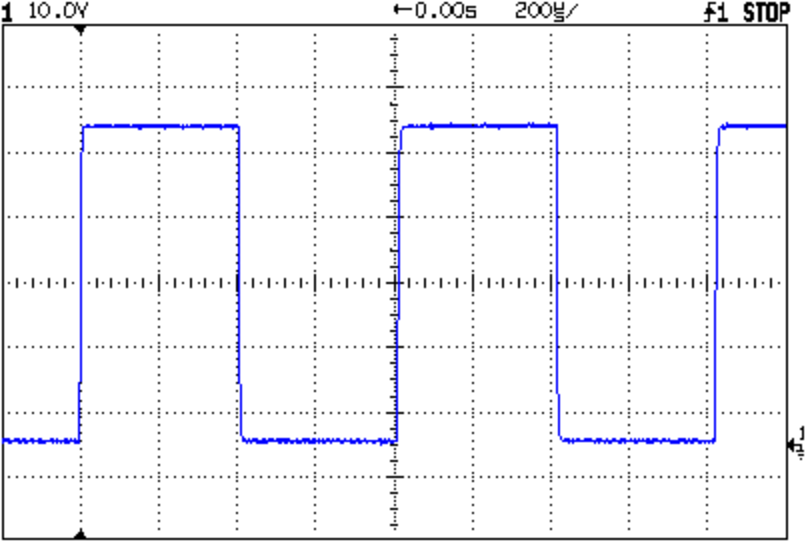
Here’s a sample of what pops out; it’s the scope’s own calibrator waveform, nothing exciting, but you get the general idea.
Screen Capture of Calibrator Signal
The commented-out section labeled “Without Factors” converts the format you get with Factors Off. Turns out that there’s no unique ending string without factors, which puts a real crimp in getting the data. The advantage is that the HPGL converts directly to PNG and looks good. The only way I’ve found to capture the scope data is to just time out after a while.
With Factors On, however, the image data has a unique ending character (ASCII ETX, 0x03) after the label text, but the layout is rotated to plot in landscape mode. A direct conversion to PNG looks awful, perhaps because hp2xx must do software character generation, and I eventually figured out that making a bank shot off EPS vector format produced much better results.
However, hp2xx dutifully renders the text into the EPS image, but it doesn’t inject a carriage return after each linefeed: the text dribbles off to the far right of the actual screen image. To fix that, the sed editor hacks off the label text following the lb command. Mercifully, hp2xx doesn’t choke on the incomplete command.
And then convert does its usual magic. The image size is just right to drop into my Circuit Cellar columns; you may want something different for your purposes.
[Update: The PNG has an alpha channel that selects only the traces, so the background color depends on where you put it. A small tweak is there.]
For reasons that I absolutely do not understand, I cannot control the oscilloscope through the serial interface. The scope sends data to the PC just fine and I can get the scope to complain about the character format if I send truly bogus junk (like, mismatching the baud settings), but it simply will not respond to commands. Maybe the interface is broken or, more likely, I’m screwing something up. Hasn’t been a problem, though, for my simple needs.
Memo to Self: One of these days, eBay will have a 54652B serial/parallel interface that might work better.
I needed the conversions for a WWVB simulator, so it knows when to twiddle the leap-year and leap-second bits.
The general notion is a table with the Day-of-Year values for the last day of each month. The most expedient way of doing this is with two columns: one for normal years and the other for leap years, thusly…
Month
EOM
EOM-LY
DOY
DOY-LY
0
0
0
0
0
1
31
31
31
31
2
28
29
59
60
3
31
31
90
91
4
30
30
120
121
5
31
31
151
152
6
30
30
181
182
7
31
31
212
213
8
31
31
243
244
9
30
30
273
274
10
31
31
304
305
11
30
30
334
335
12
31
31
365
366
Hint: even if you can recite the “Thirty days hath November …” jingle, it’s much better to build a spreadsheet so the additions all work out. It’s even better if you don’t attempt any of this with a late-summer head cold. You might want to check all my work, because I’m still stuffy.
With table in hand, the code is straightforward.
Define a structure with all the various bits & pieces of the current time, much of which isn’t used here. It’s all needed in the WWVB simulator:
enum EVENTSTATE {EVENT_INACTIVE,EVENT_PENDING,EVENT_ACTIVE};

struct timecode_ {			// The current moment in time...
  byte Year;				// 0 - 99
  word DayOfYear;			// 1 - 366
  byte Hour;				// 0 - 23
  byte Minute;				// 0 - 59
  byte Second;				// 0 - 60 (yes!)
  byte Tenth;				// 0 - 9
  enum EVENTSTATE LeapYear;		// 0 = no, 1 = pending, 2 = active
  enum EVENTSTATE LeapSecond;		// 0 = no, 1 = pending, 2 = active in this minute
  enum EVENTSTATE DaylightSavingTime;	// 0 = no, 1 = pending, 2 = active
  char UT1Correction;			// 100 ms units, -10 to +10 range (+/- 1 second)
  byte MinuteLength;			// 60 or 61
  byte Month;				// 1 - 12 (not sent in frame)
  byte DayOfMonth;			// 1 - 28..31	(not sent in frame)
};
That’s obviously overspecified, because DayOfYear with LeapYear uniquely determines Month and DayOfMonth. It’s handy to have both forms around, sooo there they are.
Then set up the table, glossing over the quick matrix transposition that turns the entries for each year into rows rather than columns:
Conversion from DayOfYear to Month and DayOfMonth requires searching backwards through the appropriate table row until you find the entry that’s smaller than the DayOfYear value, at which point you’ve found the right month.
void ConvertDOYtoDOM(struct timecode_ *pTime) {
byte Index,LY;
word EndOfMonth;
  LY = (EVENT_INACTIVE != pTime->LeapYear) ? 1 : 0;
  Index = 12;
  while ((EndOfMonth = pgm_read_word(&MonthEnds[LY][Index])) >= pTime->DayOfYear) {
	--Index;
  };
  pTime->Month = Index + 1;									// months start with 1, not 0
  pTime->DayOfMonth = (byte)(pTime->DayOfYear - EndOfMonth);
}
Converting from Month and DayOfMonth to DayOfYear is much easier, as it’s pretty much just a table lookup:
This code might actually work, but if I were you, I’d test it pretty thoroughly before lashing it into your project…
The PROGMEM and pgm_read_word() stuff is the Arduino mechanism that puts the lookup table into Flash program memory rather than the ATMega168’s exceedingly limited RAM space. The definitive word about that process resides there.
Memo to Self: Using const simply makes the variable kinda-sorta read-only, but still initializes RAM from Flash. The PROGMEM routines delete the RAM copy entirely.


 The Smell of Molten Projects in the Morning