Ed Nisley's Blog: Shop notes, electronics, firmware, machinery, 3D printing, laser cuttery, and curiosities. Contents: 100% human thinking, 0% AI slop.
Category: Software
General-purpose computers doing something specific
As part of the Kmail blank email problem, I conjured up a new, shrunken maildir structure with just the most recent 30 days of email. However, I want to keep all the same folders, even if they have no current email messages, so my filters can sort the incoming mail properly.
The sequence of events:
shut down Kmail!
move existing email directory out of the way
set up a new directory
copy the directory structure
copy the most recent 30 days of email
delete the existing index files
That’s straightforward, at least after you figure it out. Took me a while to get it right, but here ya go…
cd to the directory holding the Mail folder
mv Mail Mail.base
mkdir Mail
cd Mail.base
find . -type d -print0 | cpio --null -dmpv ../Mail
find . -type f -mtime -30 -print0 | cpio --null -apdv ../Mail
cd ../Mail
find . -type f -name ".*index" -print0 | xargs -0 rm
find . -type f -name ".*index.ids" -print0 | xargs -0 rm
Then fire up Kmail and let it rebuild all the index files.
You ought to try that out on a dummy version of your email, as something may have gotten clobbered in the transition from my terminal to your fingertips, OK?
Of late, Kmail has been turning email messages into complete blanks: the Subject, From, Date, and body are all completely blank. This is evidently a problem of long standing with Kmail and has something to do with fumbling the indexes that point to the emails within its maildir directory structure.
You have empty ‘ghost-mails’ in your inbox (or other folder)
Symptom: For some reason, certain messages aren’t accessible in KMail. They show up in the message list window but selecting them there results in a blank message window. I can’t open them or reply to them, etc.
Solution: This problem ist most likely due to corrupted index files, see issue ‘You are loosing mail’ above. So just follow the advice given there.
Well, yeah, except that rebuilding the indexes more than once a day seems excessive… and the problem is, intermittently, much worse than that.
I’m running KMail in XFCE, which introduces some complexity, but other folks with the same problem are running it in bone-stock KDE. Surprisingly the recent 4.x upheavals haven’t changed the problem in the least.
I’ve been keeping the maildir structure on the file server, rather than my local drive, and symlinking to it from my home directory through NFS. That also doesn’t seem to change the symptoms, although putting a heavy load on either the network or the server sometimes increases the number of blank emails.
Over the last few months I’ve tried a number of things, like tweaking NFS buffer sizes & timings, to no avail. Time to start writing this stuff down…
With that as prologue, here’s how to recover those blank emails.
Most important: when you see a blank email, get out of Kmail. Nothing you do within Kmail will help and many things will hurt, so just bail out.
Fire up a terminal window and cd to the directory representing that email folder. First-level folders have the obvious name, but all the second-level folders are in hidden directories. For example, I have a top-level folder called Bulk Stuff, with one sub-folder (among many) being EMC.
The directory structure:
Mail/Bulk Stuff/
Mail/.Bulk Stuff.directory/EMC/
Yeah, embedded blanks. Sue me.
Each of those directories has three subdirectories: cur, new, and tmp.
The problem seems to arise when a new message gets transferred from new to cur, although sometimes existing messages in cur go bad. The index entry seems to point to the wrong place; the actual mail message file is in cur, but the index points off into the bushes somewhere.
The solution is to manually move the file from cur back to new, then rebuild the offending index. Leaving it in cur and just rebuilding the index does not always work, for reasons I do not understand.
The easiest way to find the newest messages:
cd "Mail/.Bulk Stuff.directory/EMC"
ll cur | tail
This will show the most recent few entries, which will look something like this:
-rw-r--r-- 1 ed ed 22256 2010-04-19 20:48 1271724492.2194.DbdZD:2,S
-rw-r--r-- 1 ed ed 23513 2010-04-20 13:09 1271783386.2232.jxmG6:2,S
-rw-r--r-- 1 ed ed 20901 2010-04-20 17:10 1271797805.2232.i6fP3
The last line shows the most recent files hasn’t been read yet, which is a tipoff that something’s wrong. If you have an older message with a rotten index entry, use grep (or some such) to find it.
Move the file back to new and delete the corresponding index files:
mv cur/1271797805.2232.i6fP3 new
cd ..
rm ".Bulk Stuff.index*"
Then fire up Kmail again and it’ll automagically rebuild the indexes. That’ll work fine for a while, then it’ll screw up again.
I suspect that the problem is related to either the number of messages or the index file size for each maildir directory. I have, in round numbers, 3 GB of mail stashed away. As with anything, most of it is useless , but I occasionally need one of those messages ever so urgently.
I set up a new maildir structure with only the last 30 days of email transactions, which should be enough to either eliminate the problem or show that Too Many Messages is just another dead end.
This useful comment thread showed up in relation to a post about a chainsaw repair, which would hide it from any rational collection of search terms. Here’s the thread in all its glory, as there doesn’t seem to be a way to move comments from one post to another.
Feel free to continue the topic in the comments to this post…
randomdreams
Offtopic: have you ever used gEDA for schematic or pcb? I’m looking for something with reasonable abilities, and the crippled demo versions of orcad, eagle, and winqcad all look fairly crippled. I’ve zero use for autorouters and autoplacers (because they suck for analog design) but it’d be nice to have something that’s fairly usable for schematic and layout.
Ed
used gEDA for schematic or pcb?
Nope. Every time I’ve looked at it, the status seems to be heartbreakingly close to being useful by someone who really doesn’t want to work around a morass of limitations. That’s becoming less true and maybe by now it’s practical… but I haven’t done a serious examination for maybe a year.
I actually coughed up half a kilobuck for the Standard version of Eagle schematic & layout, as an autorouter doesn’t do much for the little bitty boards I build. Works fine, no complaints, but if I weren’t doing columns and suchlike, it’d be hard to justify.
It is quite usable, but the version that ships with most linux distros is pretty old, I had much better luck building it from source following the instructions on the gEDA homepage. The hardest part is creating symbols for the PCB tool, that is a little tricky to learn, but there are a lot of them pre-created for you on gedasymbols.org.
randomdreams
Thanks to both of you. I’ll probably give it a run. I currently spend much of my day creating symbols for Cadence, and I consider it impossible for any other part-creation process to be as painful or difficult as that. I’m more worried about general usability. Eagle’s the back-up plan.
John Rehwinkel
I still haven’t found a PCB layout program I like (and I’ve gotten tired of the truly primitive one I wrote 20 years ago). For schematics, I use DesignWorks Lite, which is apparently no longer offered (though DesignWorks Professional is still available).
John Rehwinkel
Ah, it is still offered (only $40), just not at the main Capilano site. The companion PCB layout program is Osmond ($200), which I keep meaning to try out. You can download the trial version at designworks4.com.
I have an X10 CM11A “Two Way Computer Interface” handling the very very very few scheduled events for our house. Basically, it turns the living room lights on in the evening and everything off much later.
As a result, I tend to ignore it for years at a time. A recent power outage killed the regularly scheduled events, which suggested that the backup batteries needed changing… and, yes, they were pretty well corroded.
With that out of the way, I discovered that the last time I’d loaded a program into the thing was so long ago that the heyu config files had either gone missing or were on a system not near the top of my heap. It’s easy enough to configure, so I installed heyu and spun up a new set of config files.
All the doc I can find says the CM11A has an RJ11 modular phone jack, which mates with the standard 6-position 4-conductor dingus found on the end of every phone in this part of the world. My CM11A, however, has a 4P4C jack, the narrower dingus found on phone handsets. Given that heyu reports
Firmware revision Level = 1
I suspect that this thing is slightly older than some of the folks reading this post and the X10 factory switched to a somewhat less bizarre connector in mid-stream.
Anyhow, the DB9 (yeah, it’s a DE9, but nobody calls it that) connector has “X10 Active Home” printed on it in my very own handwriting, with a standard RJ11 plug on the end. A double-jack adapter connects a hank of cable with an RJ11 plug on one end and a 4P4C connector on the other. I have no idea where that cable came from; perhaps I replaced the 4P4C plug with something less bizarre to add that extension so the cable would stretch from PC to wall outlet?
I plugged the thing into a USB-RS232 adapter and heyu had no trouble talking to the CM11A. However, trying to execute
heyu dim n13 10
produced the discouraging report
RI serial line may be stuck.
A bit of deft multimeter work produced this pinout list, which agrees with most of the doc you’ll find elsewhere. Hold the 4P4C connector with the tab down and the cable away from you: the pin numbers are 4 3 2 1 from left to right. The RS-232 pins are printed right on the DB-9 connector.
4P4C   DB9
 1      2 RxD
 2      9 RI
 3      3 TxD
 4      5 Gnd
It’s entirely possible the USB converter doesn’t support RI or it doesn’t do a good job of it. I jammed the cable into the serial port on the back of the PC and shazam it works perfectly.
The x10.conf file, for the next time around
TTY /dev/ttyS0

HOUSECODE N

LATITUDE 	41:40N
LONGITUDE	73:53W

ALIAS MBR_Dresser	N1
ALIAS Front_Hall	N5
ALIAS RV_XCVR		N9
ALIAS Couch		N10
ALIAS Mary_Reading	N11
ALIAS LR_Ceiling	N12
ALIAS Fireplace		N13
ALIAS Kitchen		N14
ALIAS Patio		N15
ALIAS Garage_Spots	N16

START_ENGINE	AUTO

LOG_DIR		/var/log/heyu/

DATE_FORMAT	YMD '-'
Nothing like sleeping on a problem. It turns out that a chunk of HAL code can do a nice job of locking out an inactive joystick axis.
The general idea:
A priority encoder selects one axis when both go active simultaneously
The prioritized outputs set flipflops that remember the active axis
The active axis locks out the other one until they’re both inactive
That way, you can start to jog either axis on a knob without worrying about accidentally jogging the other axis by moving the knob at a slight diagonal. I hate it when that happens.
The other tweak is that the quartet of buttons on the right act as a “hat” for the Z and A axes, jogging them at the current maximum speed.
Because it’s tough to accidentally push two buttons at once, there’s no need to lock them out. So you can jog diagonally by deliberately pushing adjoining buttons, but you must want to do that.
Rather than dumping the whole program again, here are the key parts…
Figuring out if a joystick axis is active uses the window comparators. It seems the idle counts value varies slightly around 127, so I relaxed the window limits. Should the window comparator go active with the knob centered, the buttons for that axis won’t produce any motion.
net		x-jog-count-int	input.0.abs-x-counts	conv-s32-float.0.in
net		x-jog-count-raw	conv-s32-float.0.out	wcomp.0.in
setp	wcomp.0.min		125
setp	wcomp.0.max		130
net		X-inactive		wcomp.0.out				not.0.in
net		X-active		not.0.out
The priority encoder is just a gate that prevents Y (or A) from being selected if X (or Z) is simultaneously active. Here’s a sketch for the ZA knob:
Axis priority encoder
The active and inactive signals come from the window detectors. The sketch gives the K-map layout, although there’s not a whole lot of optimization required.
The corresponding code:
net		Z-inactive		and2.5.in0
net		A-active		and2.5.in1
net		A-select		and2.5.out				# select A only when Z inactive

net		Z-inactive		and2.6.in0
net		A-inactive		and2.6.in1
net		ZA-Deselect		and2.6.out				# reset flipflops when both inactive

net		Z-active		and2.7.in0				# set Z gate when knob is active
net		A-gate-not		and2.7.in1				# and A is not already gated
net		Z-set			and2.7.out					flipflop.2.set

net		ZA-Deselect		flipflop.2.reset		# reset when neither is active
net		Z-gate			flipflop.2.out				not.6.in
net		Z-gate-not		not.6.out

net		A-select		and2.8.in0				# set A gate when knob is active
net		Z-gate-not		and2.8.in1				# and Z is not already gated
net		A-set			and2.8.out					flipflop.3.set

net		ZA-Deselect		flipflop.3.reset		# reset flipflop when both inactive
net		A-gate			flipflop.3.out				not.7.in
net		A-gate-not		not.7.out
The flipflops remember which axis went active first and lock out the other one. When both axes on a knob return to center, the flipflops reset.
The quartet of buttons produce binary outputs, rather than the floats from the Hat, so a pair of multiplexers emit -1.0, 0.0, or +1.0, depending on the state of the buttons, for each axis.
setp	mux2.6.in0	0.0
setp	mux2.6.in1	-1.0
net		A-btn-neg		input.0.btn-trigger		mux2.6.sel
net		A-btn-neg-value	mux2.6.out				sum2.1.in0

setp	mux2.7.in0	0.0
setp	mux2.7.in1	1.0
net		A-btn-pos		input.0.btn-thumb2		mux2.7.sel
net		A-btn-pos-value	mux2.7.out				sum2.1.in1

net		A-jog-button	sum2.1.out

net		A-btn-neg		or2.1.in0
net		A-btn-pos		or2.1.in1

net		A-btn-any		or2.1.out				or2.2.in0
net		A-gate			or2.2.in1
net		A-motion		or2.2.out
The A-motion signal is true when either of the A jog buttons or the A joystick axis is active. That gates the MAX_ANGULAR_VELOCITY value to halui.jog-speed, rather than the default MAX_LINEAR_VELOCITY. Or, depending on the state of the toggle from the two joystick push switches, 5% of that maximum. A mere 5% may be too slow for the A axis, but it’ll take some experience to determine that.
With that in hand, the final step is gating either the knob or the button values to halui.jog.*.analog.
net		Z-jog-button	mux2.8.in0
net		Z-jog-knob-inv	mux2.8.in1
net		Z-gate			mux2.8.sel
net		Z-jog			mux2.8.out				halui.jog.2.analog

net		A-jog-button	mux2.9.in0
net		A-jog-knob		input.0.abs-z-position	mux2.9.in1
net		A-gate			mux2.9.sel
net		A-jog			mux2.9.out				halui.jog.3.analog
The Hat jogs X and Y at the current maximum speed.
The Left Knob jogs X and Y proportionally to the Knob displacement.
The Right Knob jogs Z (Up-Down) and A (Left-Right) proportionally to the Knob displacement.
Press either Knob downward to toggle the maximum jog speed between MAX_LINEAR_VELOCITY (as defined in the Sherline.ini file) and 5% of that value. The slow speed is useful for creeping up on alignment points: the first active level of the joysticks runs at a nose-pickin’ pace.
The left little button (labeled 9) switches to Manual mode, although the AXIS display does not update to indicate this. Same as “F3” on keyboard, minus the GUI update.
The right little button (labeled 10) continues a G-Code program by activating the Resume function. Same as “S” on the keyboard.
The Mode button switches the functions of the Hat and Left Knob. That button does not generate an output and the Mode cannot be controlled programmatically. Swapping those functions doesn’t seem particularly useful in this application, so the LED should never be ON.
Buttons 1-4 are not used for anything yet.
On the back:
Pressing the left-hand pair of buttons (labeled 5 and 7) activates E-stop. Yes, I know all about why you shouldn’t have E-stop run through software. This is a Sherline mill. Work with me here.
The right-hand buttons (labeled 6 and 8) do nothing yet.
The code…
In Sherline.ini:
[HAL]
HALUI=halui
In custom.hal:
loadusr -W hal_input -KA Dual
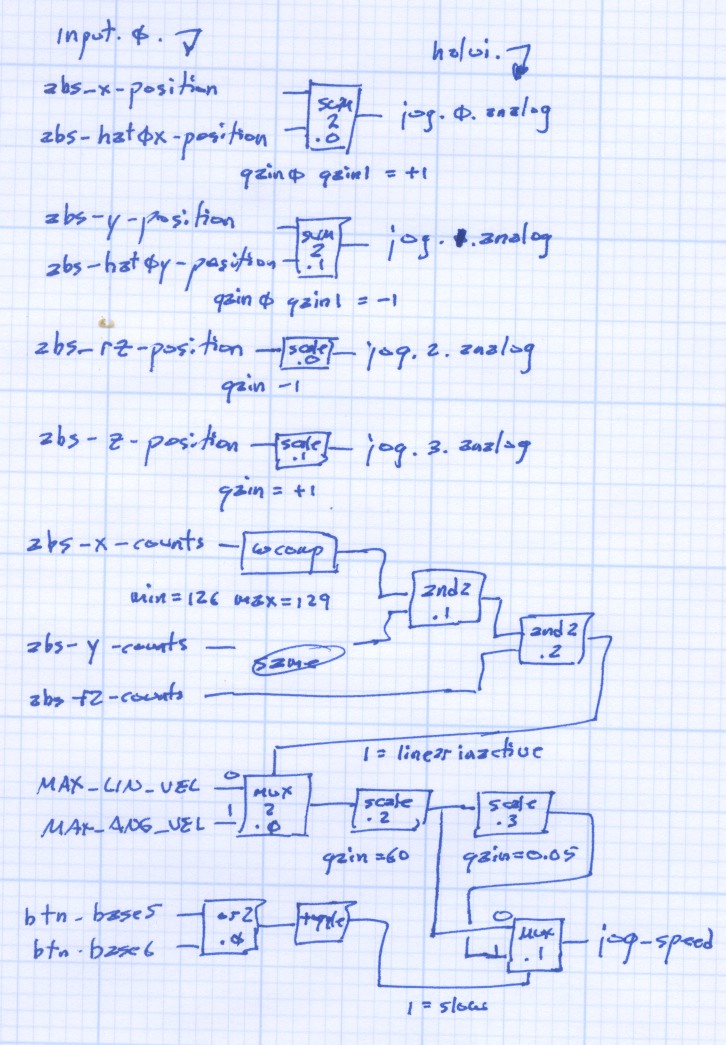
All the heavy lifting happens in custom_postgui.hal. As nearly as I can tell, HAL is basically a write-only language, so there’s block diagram of the major chunks of “circuitry” down at the bottom.
First, some setup and the simple buttons:
#--------------
# Logitech Dual Action joypad

loadrt	and2 count=3
loadrt	conv_s32_float count=3
loadrt	mux2 count=2
loadrt	or2 count=1
loadrt	scale count=4
loadrt	sum2 count=2
loadrt	toggle count=1
loadrt	wcomp count=3

#-- central buttons activate manual mode and restart the program

net 	mode-manual		input.0.btn-base3		halui.mode.manual

net		pgm-resume		input.0.btn-base4		halui.program.resume

#-- left-hand rear buttons active estop

addf	and2.0 servo-thread

net		pgm-estop-0		input.0.btn-base		and2.0.in0
net		pgm-estop-1		input.0.btn-top2		and2.0.in1
net		pgm-estop		and2.0.out				halui.estop.activate
Because the Left Knob and Hat will never be active at the same time, a sum2 block combines the two controls into single value (separate for X and Y, of course). Each sum2 input has a separate gain setting, which is a convenient place to adjust the Y axis sign.
#-- left knob runs XY at variable rate
#   hat runs XY at full throttle

addf	sum2.0 servo-thread

net		x-jog-knob		input.0.abs-x-position		sum2.0.in0
setp	sum2.0.gain0	+1.0
net		x-jog-hat		input.0.abs-hat0x-position	sum2.0.in1
setp	sum2.0.gain1	+1.0
net		x-jog-total		sum2.0.out				halui.jog.0.analog

addf	sum2.1 servo-thread

net		y-jog-knob		input.0.abs-y-position		sum2.1.in0
setp	sum2.1.gain0	-1.0
net		y-jog-hat		input.0.abs-hat0y-position	sum2.1.in1
setp	sum2.1.gain1	-1.0
net		y-jog-total		sum2.1.out				halui.jog.1.analog
The Right Knob values go through scale blocks to adjust the polarity. Note that the Gamepad’s rz axis controls the EMC2 Z axis and Gamepad z controls the EMC2 A axis. Basically, it made more sense to have up-down control Z and left-right control A.
#-- right knob runs Z at variable rate (front-back)
#                   A                 (left-right)

addf	scale.0 servo-thread

net		z-jog-knob		input.0.abs-rz-position		scale.0.in
setp	scale.0.gain	-1

net		z-jog-total		scale.0.out				halui.jog.2.analog

addf	scale.1 servo-thread

net		a-jog-knob		input.0.abs-z-position		scale.1.in
setp	scale.1.gain	+1

net		a-jog-total		scale.1.out				halui.jog.3.analog
There’s only a single halui.jog-speed setting, but the jog speeds for the linear axes and the angular axes differ by so much that Something Had To Be Done. As above, I assumed that only one of the axes would be jogging at any one time, so I could set halui.jog-speed to match the active axis.
A window comparator on each linear axis detects when the joystick is off-center; the output is 1 when the axis is centered and 0 when it’s pushed. Combining those three signals with and2 gates gives a combined linear-inactive signal.
A mux2 block selects the MAX_ANGULAR_VELOCITY from the ini file when linear-inactive = 1 (linear not active) and MAX_LINEAR_VELOCITY when it is 0 (any linear axis off-center).
Done that way, rather than detecting when the angular axis is off-center, means that inadvertently activating the angular axis during a linear jog doesn’t suddenly boost the linear speed. Given that the max linear is about 28 inch/minute and the max angular is 2700 degree/min, it’s a pretty abrupt change.
I’m thinking about adding + shaped gates to at least the Right Knob so I can’t inadvertently activate both Z and A. I’m sure there’s a HAL lashup to do the same thing, though.
#-- set jog speed by toggle from either knob button
#   press any knob button to toggle

addf	and2.1 servo-thread
addf	and2.2 servo-thread
addf	conv-s32-float.0 servo-thread
addf	conv-s32-float.1 servo-thread
addf	conv-s32-float.2 servo-thread
addf	mux2.0 servo-thread
addf	mux2.1 servo-thread
addf	or2.0 servo-thread
addf	scale.2 servo-thread
addf	scale.3 servo-thread
addf	toggle.0 servo-thread
addf	wcomp.0 servo-thread
addf	wcomp.1 servo-thread
addf	wcomp.2 servo-thread

#-- determine if any linear knob axis is active

net		x-jog-count-int	input.0.abs-x-counts	conv-s32-float.0.in
net		x-jog-count-raw	conv-s32-float.0.out	wcomp.0.in
setp	wcomp.0.min		126
setp	wcomp.0.max		128
net		x-jog-inactive	wcomp.0.out				and2.1.in0

net		y-jog-count-int	input.0.abs-y-counts	conv-s32-float.1.in
net		y-jog-count-raw	conv-s32-float.1.out	wcomp.1.in
setp	wcomp.1.min		126
setp	wcomp.1.max		128
net		y-jog-inactive	wcomp.1.out				and2.1.in1

net		xy-active		and2.1.out				and2.2.in0

net		rz-jog-count-int	input.0.abs-rz-counts	conv-s32-float.2.in
net		rz-jog-count-raw	conv-s32-float.2.out	wcomp.2.in
setp	wcomp.2.min		126
setp	wcomp.2.max		128
net		z-jog-inactive	wcomp.2.out				and2.2.in1

#-- convert ini file unit/sec to unit/min and scale for slow jog

setp	mux2.0.in0 [TRAJ]MAX_LINEAR_VELOCITY
setp	mux2.0.in1 [TRAJ]MAX_ANGULAR_VELOCITY
net		linear-inactive	and2.2.out				mux2.0.sel
The ini file velocities are in units/second, so a scale block multiplies by 60 to get units/minute.
Another scale block multiplies by 0.05 to get slow-speed jogging. Obviously, that value is a matter of taste: tune for best picture.
Those two values go into a mux2 driven by the output of a toggle triggered by the or2 of the two buttons under the Knobs. Pushing either Knob down flips the toggle.
setp	scale.2.gain	60
net		jog-per-sec		mux2.0.out				scale.2.in
net		jog-per-min		scale.2.out				mux2.1.in0
net		jog-per-min		scale.3.in

setp	scale.3.gain	0.05
net		jog-per-min-slow scale.3.out			mux2.1.in1

net		xy-button		input.0.btn-base5		or2.0.in0
net		za-button		input.0.btn-base6		or2.0.in1
net		xyza-button		or2.0.out				toggle.0.in

net		xyza-slowmode	toggle.0.out			mux2.1.sel

net		axis-jog-speed	mux2.1.out				halui.jog-speed
When the jog speed is at the maximum allowed, it still gets trimmed by the per-axis limits, so you can’t over-rev the motors no matter how hard you try. Even better, changing the values in the ini file automagically affect the gamepad jog speeds.
Here are the pin names for a Logitech Dual Action USB (wired) gamepad, according to EMC2 2.3.4. You’ll need these to wire it up as a control pendant for your EMC2 CNC milling machine…
There’s no need for -KRAL because it has no programmable LEDs.
Prefix all these with input.0. to get the complete name.
Hat Left-Right
abs-hat0x-counts
abs-hat0x-position
Hat Up-Down
abs-hat0y-counts
abs-hat0y-position
Hat Push
none
Left Knob Left-Right
abs-x-counts
abs-x-position
Left Knob Up-Down
abs-y-counts
abs-y-position
Left Knob Push
btn-base5
Right Knob Left-Right
abs-z-counts
abs-z-position
Right Knob Up-Down
abs-rz-counts
abs-rz-position
Right Knob Push
btn-base6
Button 1
btn-trigger
Button 2
btn-thumb
Button 3
btn-thumb2
Button 4
btn-top
Button 5
btn-top2
Button 6
btn-pinkie
Button 7
btn-base
Button 8
btn-base2
Button 9
btn-base3
Button 10
btn-base4
Mode button
swap Hat & Left Knob
lights red LED
All of the buttons have -not output pins.
The Knob position values run from -1.0 to +1.0 (float) and rest (almost) at 0.0 when centered. Their counts (s32) run from 0 to 255 and rest at 127 when centered.
The Hat button position values are only -1.0 and +1.0, centered at 0.0. The counts are only -1 and +1, with 0 when un-pushed. Although they take on only integer values, the position values are floats.
Both Knobs and the Hat have -Y position values at the top and +Y values at the bottom, exactly backwards from what you want. Expect to reverse the Y axis sign when you write the HAL code.
The -X position values are to the left, where you want them.
Although there’s a tactile click when pushing the Hat straight down, there is no corresponding button output. I don’t know if this is an oversight in the HAL interface or if there’s no actual switch in there.
The Mode button swaps the Hat and Left Knob functions. With the red LED on, both the Hat and Knob axes produce only -1 and +1 position and counts values.
A guide to figuring this stuff out is there, with useful pointers elsewhere on the main doc page.


 The Smell of Molten Projects in the Morning