The Smell of Molten Projects in the Morning

Ed Nisley's Blog: Shop notes, electronics, firmware, machinery, 3D printing, laser cuttery, and curiosities. Contents: 100% human thinking, 0% AI slop.

Category: Photography & Images

Taking & making images.

  • Extracting Digital Camera Multi-burst Images

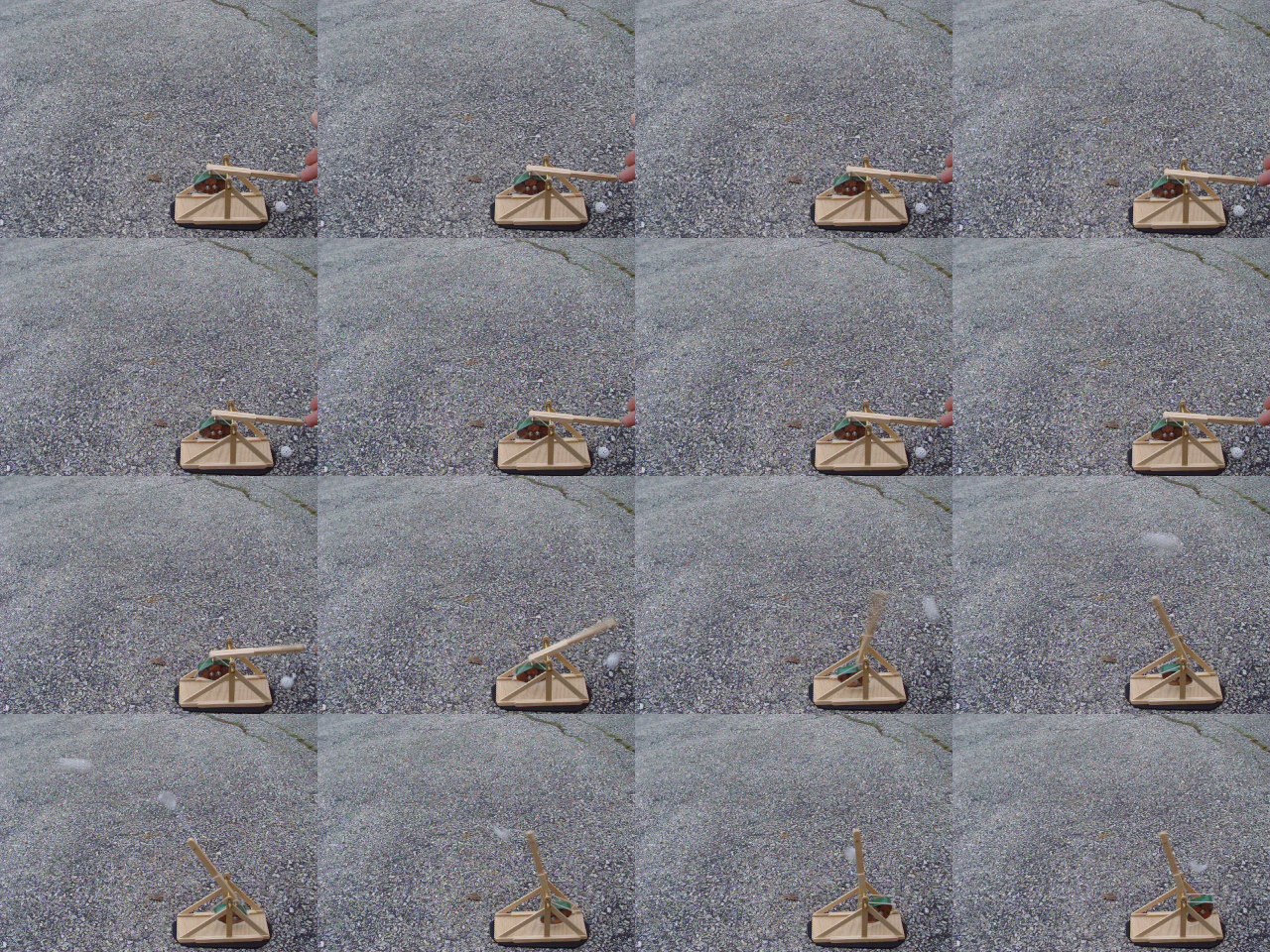
    Multi-burst image of trebuchet firing
    Multi-burst image of trebuchet firing

    Digital camera, at least the ones I have, include a “multi-burst” (Sony DSC-H5 and DSC-F717) or “multi-continuous” (Casio EX-Z850) shutter mode that takes a bunch of pictures in quick succession, then combines them into a single JPG image file.

    The Sony cameras create a 4×4 array. This image of a small trebuchet comes from the F717 and is 1280×960, so each sub-image is 320×240. The time between images is 1/30 second and the shutter speed is 1/125 second.

    Extracting the sub-images is trivially easy with the ImageMagick convert function:

    convert -crop 320x240 dsc02594.jpg shot-%02d.jpg
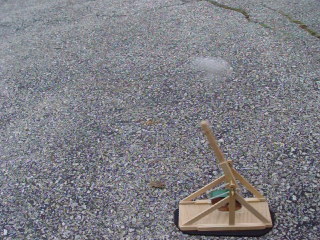
    Sub-image shot-11.jpg from the sequence
    Sub-image shot-11.jpg from the sequence

    You must specify the size of the sub-images to extract, which you can determine by RTFM or simple division, and convert extracts all the tiles into files named, in this case, shot-00.jpg through shot-15.jpg. The files appear in left-to-right, top-to-bottom order, which is most likely the sensible way for cameras to store them.

    The C printf-style format string %02d forces two-digit sequence numbers. You can omit that and the sequence will start with shot-0.jpg, but you must then contend with the usual hassles of shot-1.jpg and shot-10.jpg.

    Can you tell the designers were computer geeks?

    With 16 separate images in hand, you can have your way with them, using all your usual image-manipulation tools.

    ImageMagick can convert the images into an animated GIF:

    convert -delay 50 shot-*jpg shot-ani.gif
    Animated GIF from separate images
    Animated GIF from separate images

    That’s nigh onto 7 MB of image, which seems excessive for what it is, but there you have it. Obviously, you can de-res the images to fit the space available.

    The -delay 50 option should set the frame delay to 50 ticks at the default 100 ticks per second, but some display software ignores the frame rate within the file. Assuming, that is, that the usual spam filters don’t swat animated GIFs right out of the bitstream.

    You can also convert the images into a movie, as I discussed in more detail there. The ffmpeg program does a fine job of it:

    ffmpeg -r 3 -i shot-%02d.jpg shot.mp4

    Actually, convert can do that all by itself if you install mpeg2encode.

    One cannot upload movies to one’s free WordPress blog without buying a space expansion, so you’ll have to take my word that it works.

    The Sony cameras provide control over the interval between the images, allowing 1/30, 1/15, and 1/7.5 second intervals, but the Casio evidently just does the best it can. If you know the interval, you can determine interesting things like velocity and acceleration, so that’s something to look for when you’re buying a camera.

    Perhaps you can calibrate your camera using a pendulum?

    Memo to Self: Use the tripod!

  • Photo Tweakage: Mouse Tunnels in the Snow

    Mouse tunnels in the snow
    Mouse tunnels in the snow

    As the snow cover melts away in the spring, you discover how much activity has been going on.

    The mice make elaborate tunnels with spaces for seed stores, latrines, and numereous secret entrances near the bushes. For a few months, at least, they can scamper all over the yard without worrying about becoming snacks for owls and hawks.

    This kind of picture requires a bit of tweakage, because the default camera settings deliver an essentially gray picture with no contrast. The usual auto-exposure settings assume a more-or-less neutral background, so the camera adjusts the exposure to deliver a neutral result. Unfortunately, you really want most of the background to be white, so the default snow image will be grossly underexposed.

    Set the camera to overexpose the picture by 1 or 2 EV; if your camera has a histogram display, adjust the exposure to put that huge bump on the white end close to the right side of the histogram. It helps if you frame the picture before doing this, as the LCD monitor will be pretty much retina-burn white.

    Take the picture and get it into your PC.

    GIMP Level Adjustment Window
    GIMP Level Adjustment Window

    Now, in your favorite photo-editing software (The GIMP on our desktops), adjust the photo’s levels & contrast. This screen shot shows the logarithmic histogram; the linear one is basically just one peak 3/4 of the way to the right side with a little grass on the rest of the chart. The two little buttons in the upper-right choose linear or log.

    Drag the white point (the teeny white triangle on the right, just below the histogram) until it’s just a bit to the right of the abrupt dropoff’s foot. That sets the whitest part of the picture to real white, not half-a-stop-down light gray.

    You can do the same with the black point (the black triangle on the left), setting it to just left of the black dropoff. In this case, we have some genuinely dark areas, so leave it alone.

    Now, the key part: drag the middle triangle to adjust the gamma. Move it rightward to darken the overall image by decreasing the gamma and emphasize small differences on the bright end of the histogram. That makes the tunnels pop out of the image, although it also tends to make the snow look very contrasty.

    Don’t go overboard with this sort of thing, but a little adjustment can reveal details and bring pictures back to life. It’s not for Ansel Adams quality pix, that’s for sure.

    Here’s possibly more than you want to know about levels & gamma & contrast, but with much better illustrations and more descriptions: Unai Garro’s Blog. He has other useful tutorials, too.

  • Digital Camera Resolution: It’s Not The Dots

    Overview of the scene - 8 MP image
    Overview of the scene – 8 MP image

    A rule of thumb for cameras is that more glass is better, so I’ve always been skeptical of those little bitty chips o’ glass in front of all those pocket-sized camera CCDs.

    A while ago I took some shots with my Casio EX-Z850 at various resolutions, chopped out a chunk with some good detail from the middle of the images, and resized (cubic interpolation) the smaller ones to match the 8 MP image. The exposure was automagic: 1/200 sec at f/7.4. Zoomed as far as the optical zoom would go, hand-held ’cause at that shutter speed it’s OK, sharpness and contrast one click higher than the default.

    As nearly as I can tell, there’s only a slight difference between 8 & 6 MP, enough to be noticeable at 4 MP, and it’s getting on toward icky at 2 MP. The picture isn’t any bigger because I wanted to preserve the actual dots in the 8 MP image.

    Resolution Test - Shield
    Resolution Test – Shield

    Notice the weird color gradations in the shields with bright primary colors. This was hand-held, so the camera reached the same image conversion conclusions each time, starting with different physical pixels. A bit of rummaging turns up the Island Coffee Co logo at http://www.islandcoffee.net/.

    Just to show that resolution doesn’t matter in real life, check out the snail. Zoomed all the way out, macro focus, 1/125 f/2.8 (wide open), hand held, resized as above.

    Snail
    Resolution Test Images: Snail

    As nearly as I can tell, the 2 MP image is the only one that’s noticeably worse and it’s still just fine. The other three are different, but even the 2 MP one isn’t bad.

    Moral of the story: lots o’ dots is good, but beyond a few MP it just doesn’t matter. I think 4 MP is the sweet spot, based on an entirely insufficient sample, with 8 MP if you’re planning tight cropping. Otherwise, save 2 MB per image: 8 MP -> 4-5 MB, 4 MP -> 2-3 MB.

    The other High Truth: lots of light is a Good Thing. You get really crappy pictures when there’s not enough light, but it seems that’s where all the interesting stuff happens.

    Update: Uploaded the PNG version of the shield resolution test, as the JPG was fairly crappy, plus 8 MP overviews of the scenes. The text is antialiased and looks awful when you zoom in, but the whole point is to show the actual dots produced by the camera: there aren’t that many dots for the letters.

    Snail overview - 8 MP image
    Snail overview – 8 MP image
  • Pocket Camera: Griptivity Thereof

    Casio EX-Z850 and homebrew case
    Casio EX-Z850 and homebrew case

    I carry a small camera with me at all times and find it invaluable for recording details and documenting events; now I never say “I wish I had a camera!”

    This one is a Casio EX-Z850, which trades off nearly everything in favor of compact size. It has great battery life, enough resolution (the optics could be better), and manual controls (so it serves nicely as a microscope camera). It’s obsolete, of course, but you get the idea.

    I have bigger & better cameras, but this one is always with me and that counts for nearly everything. The camera in a cellphone or PDA is not the same as a real camera.

    Unfortunately, the thing has the griptivity of a bar of soap: all stylin’ metal and plastic. The black nubbly surfaces in the photo are my idea of a Good Thing: chunks of stair-tread tape providing enough traction that the camera no longer flies out of my hand with the greatest of ease.

    Despite that, I always slip the lanyard over my wrist when I take it out of my pocket; often I do that before removing it from the case. That nervous tic saves me the cost of a new camera about twice a year.

    If your camera fits into a desktop charging / USB cradle, as this one does, make sure you don’t stick the tape where the cradle fits against the camera. It’s really tough to peel off after the adhesive sets up…

    Mary made that nice packcloth (she says “Cordura“) case, with a fuzzy fleece liner facing the LCD panel. The hook-and-loop closure is a tad noisy in quiet places, but it’s better than buttons or a zipper for this application.

    I’ve learned to not keep tissues in the same pocket as the camera.

  • Daily Yard Picture

    5 November 2008
    5 November 2008

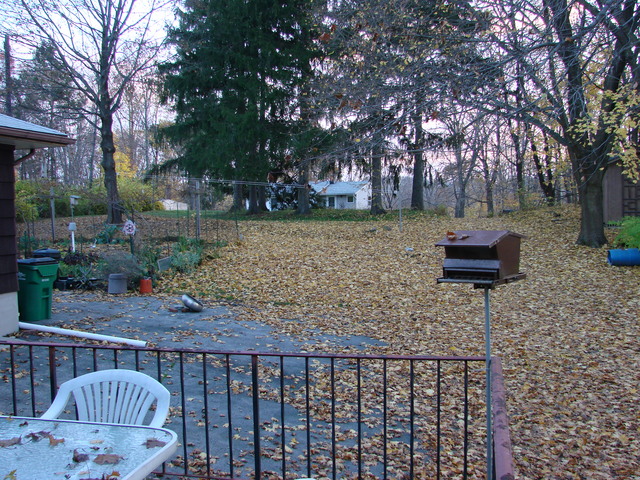
    Being that sort of bear, I took a picture of the back yard from our patio every day at 7 am wall-clock time. DST/EST changeovers threw their usual monkey wrenches into the mix, not to mention my lack of attention to the camera’s internal clock settings, but I eventually got 321 pictures of the same scene at more or less the same time of day.

    That’s all well and good, but this is the movie age…

    The plan: use ffmpeg or maybe mencoder to convert the still images into a movie.

    • Zero: copy the files to a unique subdirectory to protect the originals!
    • One: sort & rename by date
    • Two: resize images
    • Three: convert to a movie
    • Four: . . . profit!
    10 November 2008
    10 November 2008

    I’d uploaded the files whenever I used the camera for something else, so the actual file dates were fairly well scrambled and didn’t correspond to the EXIF data inside the image file. Digikam‘s batch file rename operation can sort out the files in ascending order of EXIF date and rename them into something a bit more uniform & boring like 0001.jpg, which is vital for ffmpeg.

    I used the camera’s full resolution, which is much too large for video, so I created Yet Another Subdirectory called Smaller to hold the reduced-size images. Imagemagick‘s convert program then squishes them down:

    for f in *jpg ; do convert -verbose -resize 640x480 $f Smaller/$f; done

    You can smash them even further to get a teeny postage-stamp movie for your media player.

    Make the movie:

    ffmpeg -r 3 -i %04d.jpg daily-3.mp4

    The file specifier %04d must exactly match the filename sequence and a missing file will stop ffmpeg dead in its tracks. The file names coming out of your camera won’t work if they’re not exactly sequential, which is highly unlikely over the course of the year.

    You can use mencoder:

    mencoder "mf://*.jpg" -mf fps=10 -o daily800.avi -ovc lavc -lavcopts vcodec=msmpeg4v2:vbitrate=800

    Then it’s showtime! I’d upload it, but you don’t have a need to know for our backyard activiites.

    There, now, wasn’t that easy?

    I didn’t actually figure all this out from first principles, of course. The basics are out there if you rummage around for a while with the obvious keywords.

    Memo to self: affix a stable camera platform to the side of the house!

  • Oscilloscope Screen Shots

    A long time ago I got an HP54602B oscilloscope with a serial port data link. HP provided a sample app that snarfed screenshots & data from the scope, but it wasn’t really ready for prime time and, besides, I vastly preferred to use OS/2 (!) and then Linux rather than Windows.

    Here’s my Kermit script to fetch screenshots. All the software comes more-or-less standard in Ubuntu Linux and (I presume) in most others. If you’re running Windows, you’re on your own.

    Scope Setup

    HP54602B Serial Setup Screenshot
    HP54602B Serial Setup Screenshot

    The oscilloscope’s HP Plotter setting spits out bog-standard HPGL commands in flat ASCII. I’ve always meant to investigate what HP Printer does, but …

    I wish the scope ran faster than 19200 b/s, but that speed works reliably over generic USB-to-serial converters (and the scope can’t feed data that fast, anyway). The other choice, back in the day, was HPIB / GPIB; I’d have had to buy three or four different adapters to suit all the PC data buses since then: ISA, EISA, VLB, PCI …

    Xon/Xoff flow control (a.k.a. handshaking) works better than hardware flow control, simply because the cable’s easier to build.

    The Factors setting adds a bunch of text to the end of the data stream that’s not useful, except for the fact that an HPGL LB instruction follows all of the useful data and gives the Kermit script something to look for. Otherwise, the only way to detect the end of the stream is to time out after a looong time.

    I haven’t the foggiest idea what Resolution does, but High seems appropriate.

    Hardware Notes

    The scope requires a Null Modem in front of a standard DB-25 to DB-9 cable. I’ve been meaning to rewire my standard cable to eliminate the Null Modem, but …

    Adding an LED breakout / monitoring adapter to the serial port loads the signals too much and can lead to puzzling errors. Maybe it’s just my adapter: YMMV.

    I’ve run the cable all the way across my basement lab with no problem. This is, after all, good old RS-232, not some high-falutin’ USB or Firewire interconnect.

    Taking the Shot

    Get a picture you like, poke the Print Screen button, then quick like a bunny run the script. The scope copies the current screen into an internal buffer, then sends out a torrent of HPGL commands. The script will capture the data and eventually spit out a PNG file.

    You may want to Stop the trace, rather than leave it running.

    In XY mode, the scope seems to have trouble copying the entire trace. I tap Auto Store twice, then Stop, then Print Screen. It’s fuzzier, but copies the whole thing.

    What Happens

    The script captures the incoming serial data into a log file, processes that text through the hp2xx program to get an Encapsulated Postscript EPS file, then runs that though convert to get a PNG file. The bank shot off EPS results in better-looking output, for reasons I don’t understand.

    The 240-second timeout value for the Input command seems long, but it takes a lot of plotter commands to define a four-trace plot. A too-short timeout chops off the tail end of the HPGL stream and prompts bizarre error messages from hp2xx.

    The parameters for hp2xx and convert came from protracted and tedious twiddling. The ‘scope image is 512 dots across and 300-some-ish vertically; the output mimics the not-quite-square graticule aspect ratio on the actual screen. If HP thinks it looks good, then it looks good to me.

    The active (bright) traces use Pen 2, which I’ve set to Blue (color 4). The graticule, annotations, and stored traces all use Pen 1, which appears as Black (color 1). Tweak -c 14 as you wish.

    The pen widths (set by -p 34) don’t actually seem to do very much, although I vaguely recall that using the default width of 1 makes the output entirely too faint.

    The PNG has a transparent background that turns white when you actually use it in a document; I suppose you could overlay it atop a background image if you wanted to get cute.

    When the dust settles and the smoke clears, you get PNG images like this. It’s an XY plot, so the blue section appears as a bright trace on the oscilloscope’s screen.

    BH curve for LC0263-A coil
    BH curve for LC0263-A coil

    Kermit Script

    #!/usr/bin/kermit +
    # Fetches screen shot from HP54602B oscilloscope
    # Presumes it's set up for plotter output...
    # Converts HPGL to PNG image

    set modem none
    set line /dev/ttyS0
    set speed 19200
    set flow xon/xoff
    set carrier-watch off

    # Make sure we have a param
    if not defined %1 ask %1 {File name? }

    set input echo off
    set input buffer-length 150000

    # Wait for PRINT button to send the plot
    echo Set HP54602B for HP Plotter, FACTORS ON, 19200, XON/XOFF
    echo Press PRINT SCREEN button on HP54602B…

    log session “%1.hgl”

    # Wait for end of data stream
    input 240 lb

    echo … got final lb command

    close session
    close

    echo Converting HPGL in
    echo — %1.hgl
    echo to PNG in
    echo — %1.png

    # without labels = no terminating lb info
    #run hp2xx -m png -a 1.762 -h 91 -c 14 “%1.hgl”
    #run mogrify -density 300 -resize 200% “%1.png”

    # with labels = terminating lb
    run hp2xx -q -m eps -r 270 -a 0.447 -d 300 -w 130 -c 14 -p 34 “%1.hgl”
    run convert -density 300 -resize 675×452+2+2 “%1.eps” “%1.png”

    echo Finished!

    exit 0

  • Camera Microscope Adapter

    Microscope Eyepiece Adapter Parts
    Microscope Eyepiece Adapter Parts
    Mount and Camera
    Mount and Camera
    Camera on Microscope Eyepiece
    Camera on Microscope Eyepiece

    This worked out surprisingly well…

    The project was to mount my pocket camera on the stereo zoom microscope, so I can take decent pix of small stuff.

    The entrance pupil of the camera is about the same size as that of a human eyeball: focus at infinity, tune for best picture, and you’re set. Best of all, no microscope mods other than a wrap of tape around the eyepiece to prevent scratching.

    My heap disgorged two tubes that were exactly the right diameter and length with finished ends (evidently stubs left over from a previous lathe project), so all I had to do was turn the adapter ring between them. The heap even had a slightly-too-long 1/4-20 thumbscrew with a boss below the thread. Ya gotta have stuff!

    I set the ‘scope up with the eyepiece exactly vertical, put the tubes on the eyepiece, screwed the T-bracket to the camera,  squooshed a J-B Weld epoxy putty turd between the T and the tube, then boresighted the camera to the ‘scope axis by centering the light on the LCD. Shazam: nearly perfect alignment with no fussy machining. I added two machine screws through the blob: I don’t trust the camera to an epoxy-PVC joint.

    The smallest field looks like 2 mm, so the resolution is about 2 mm/2400 = 800 nm, which I don’t believe for an instant. Maybe a micron or three, at best, limited far more by the camera than the ‘scope. Widest is >15 mm, a more reasonable and still unbelievable 6 microns. The lens just ain’t that good.

    The eggs are from our stick insect, with a millimeter scale.

    cimg0139-stick-insect-eggs
    Stick Insect Eggs – 1 mm scale

    [Update: This post seems to pop up in response to searches for stick insect eggs. One of my rather more interesting pictures is there.]