Ed Nisley's Blog: Shop notes, electronics, firmware, machinery, 3D printing, laser cuttery, and curiosities. Contents: 100% human thinking, 0% AI slop.
Just got a new pocket camera (a Canon SX230HS) to replace that one, read the manual (I can’t help it), and discovered that they recommend turning image stabilization off for tripod shots. A bit of rummaging turns up conflicting advice, so I figured a quick test was in order.
[Edit: it’s really the Canon SX230HS, not the 320 as I originally mistyped. I’m not changing the post’s permalink, for obvious reasons, and I’m stuck with bogus filenames. Grumble, etc.]
This is a dot-for-dot crop from two images of the torso of the Pink Panther Woman in black ABS, showing the rather nasty seam produced with Clip = 0.1. The pix are seconds apart at f/8 with manual focus and flash illumination, so they’re as alike as I can make them. Clicky for more dots.
Pop quiz: which side has stabilization turned on?
Canon SX320HS Image Stabilization
Answer: left = ON, right = OFF. Yeah, I was surprised, too; even the dust specks look the same.
So, as nearly as I can tell, image stabilization doesn’t add any jitter to a tripod shot. At least not on the scale I’m using, which is a Good Thing: turning it on & off requires a trip through the menus.
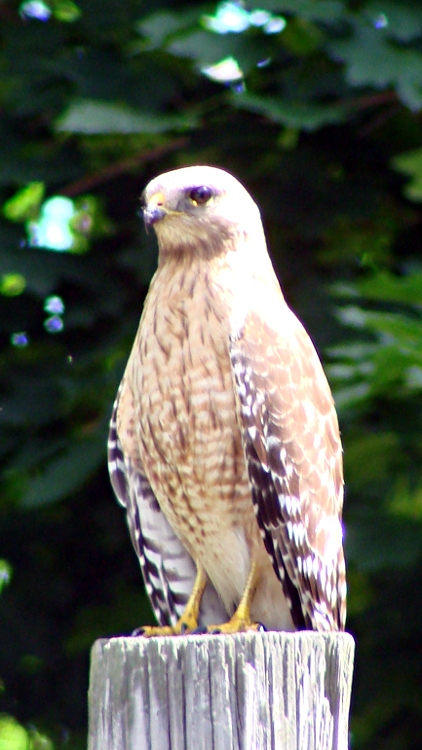
The hawk who’s been keeping the chipmunks and squirrels under control paused for a moment atop the utility pole out by the garden. He left instantly after I appeared around the edge of the roof, leaving me no time to fight the camera automation into a better exposure, but it’s good to know he’s on patrol.
A few months ago he had a squirrel in a Mexican standoff inside a pine tree, circling the trunk amid all the branches. Eventually the squirrel made a break for it, got about five feet out from the trunk, and wham that was the end of the story: once those claws go in, they don’t come back out.
Notice the noonday sun refracted through his cornea onto his upper cheek (or whatever it is that birds have there). This was with the 1.7X tele-extender on the Sony DSC-H5 zoomed in pretty nearly all the way; if it weren’t for all fringing and blown highlights, it’d be a neat picture.
Some upcoming presentations on 3D printing need a way to show what’s going on inside the box. I’ve had various webcams affixed to various parts of the Thing-O-Matic, but nothing worked quite right: the camera was either in the wrong spot, at the wrong angle, or just flat-out in the way.
The helmet mirror project produced a trio of three-draw telescoping shafts that looked promising, so I drilled suitable holes in two chunks of scrap make-from plastic and produced a pole mount for a Logitech camera without doing a bit of machining. The camera wants to clamp onto a notebook and works fine atop a block of acrylic, with the cable secured to the base of the pole to prevent the whole thing from falling over at the slightest tug.
I briefly considered printing a nice clip to hold the cable to the pole, then came to my senses and used a cable tie. After all, that’s what they’re for, right?
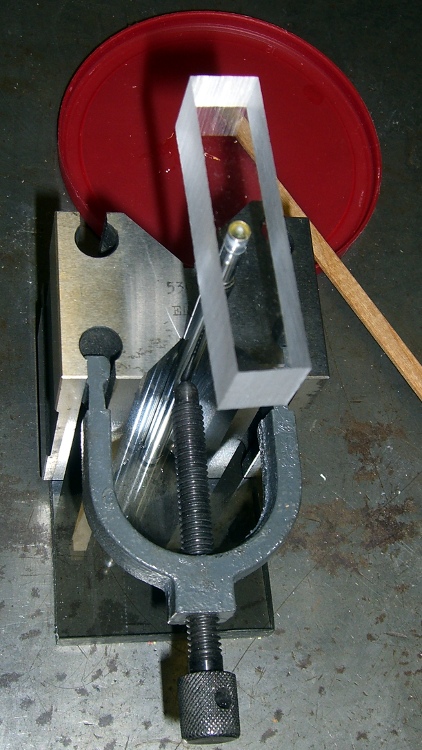
A dot of clear epoxy in each hole prevents the blocks from rotating on the shafts; they’re sufficiently un-round to give it a decent grip. I clamped the pole in a V-block to keep it perpendicular to the base while the epoxy cured:
Webcam pole – clamping
The white LEDs under the Z-stage produce far too much glare and reflect in the Kapton tape; a switch to knock ’em off for video viewing seems in order.
(If anybody else is keeping track, this is Post 1000. Although we humans love numbers with plenty of zeroes, Post 10000 will pose a challenge…)
The Casio EX-Z850 camera living in my pocket finally developed a problem. Two buttons on the back select the Review and Camera modes; the former stopped working, which means I can’t see pictures after I take them. The Camera button may still work, but because I can’t display pix, that’s pretty much moot.
Taking the camera apart require a Philips 00 screwdriver bit and some care, but eventually you’re confronted with this:
Casio EX-Z850 camera – opened
The buttons and the mode selector dial all connect to the same flexible PCB substrate, which ends up in this connector. You should ease the black pressure bar (seen edge-on here) upward to release the flex PCB:
Casio EX-Z850 button connector
As it turns out, the two buttons have a common contact that’s the second trace from the top in the flat cable. Both buttons have good snap action, good conductivity, and seem to work fine. That puts the problem deeper inside the camera, where I don’t see much point in going; I can certainly make things much worse and likely not make them any better.
In fact, it turns out that the two buttons on the USB/charging cradle don’t work now, either, which implies that the camera buttons run in parallel with those. So there’s something blown in the camera’s guts, which is definitely Bad News.
Back in the Bad Old Days, you used to take a picture and wait a week or two to get the results back from the drug store. Perhaps it’s fashionably retro to have a digital camera without a Review mode?
A batch of LED ring lights arrived from halfway around the planet and I’d earmarked one for a microscope ring illuminator, despite the crappy color spectrum of white LEDs. It’s better than the fluorescent desk lamp I’d been using up to this point.
This shows the business end of the LED ring light, which would probably look better more professional without the full-frontal Barbie color scheme:
Microscope LED Ring light – snout view
It’s less overwhelming from the top:
Microscope with LED illuminator
The power cable came with the ring. I unsoldered it, fed the end through the shade, resoldered it, snipped off the automobile lamp adapter, wired it to a switch and a 12 V 200 mA wall wart, and hot-melt-glued the switch to the microscope. Yet another vampire load, alas.
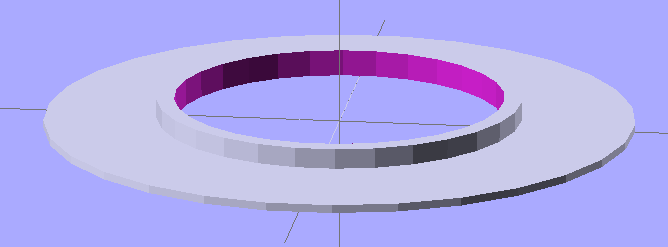
The two parts must be printed separately to eliminate any problem with overhang, as the finished widget would have vertical walls on both sides. I thought about support material, realized that would be a lot like work, and split the thing into two parts.
LED ring light – mounting plate and shade
The walls on the shade ring show the same backlash problem that cropped up there; I built these before tweaking the belts.
The mounting plate screws into the microscope’s accessory thread:
Microscope LED Ring Light – Mount Plate
Admittedly, “screws into” may be an exaggeration: the mount is just a cylindrical feature slightly larger than the microscope’s minor thread diameter; it’s barely more than a snug friction fit. I clipped out four small sections to allow that ring to bend slightly as it engages the threads.
A shade contains the LED ring and keeps direct light off the objective lenses. There’s a tiny hole on one side to let the power wires out:
Microscope LED Ring Light – Shade
The two parts got glued together with the same ABS-in-MEK gunk that I apply to the aluminum build plate:
Clamping LED ring light parts
I applied three blobs of hot-melt glue inside the shade, lined up the LED ring’s power wire with the exit hole, and smooshed it into place. Pause for a breath and it’s done!
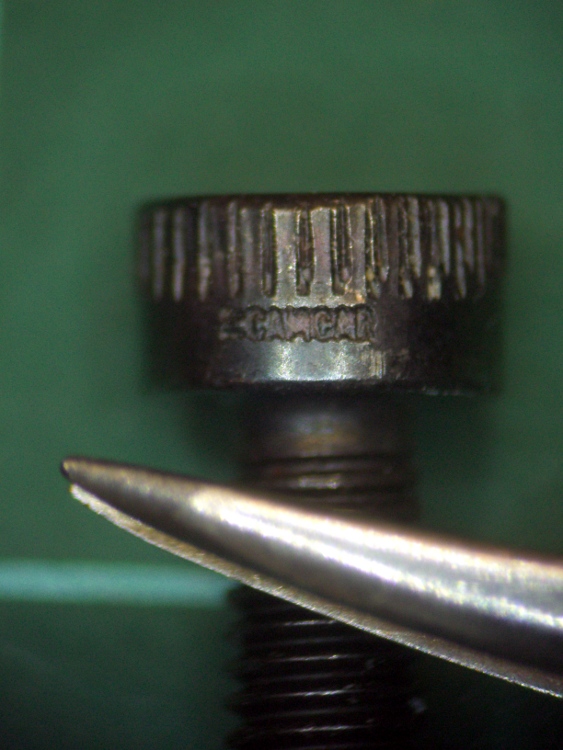
The result actually looks pretty good, despite the weird yellow-and-blue spectrum you get free with every “white” LED. I reset the camera’s color correction using a white sheet of paper. This is an ordinary M3 socket head cap screw, familiar to Thing-O-Matic owners everywhere, and a tweaked needle-point tweezer:
Sample image using LED ring light
The microscope camera mount works surprisingly well, particularly given how simple it was to build.
The OpenSCAD source makes the shade walls a bit taller than you see above. When I run out of pink filament, this one’s on the rebuild list!
// Microscope LED Ring Illuminator Mount
// Ed Nisley - KE4ZNU - Mar 2011

// Build with...
//	extrusion parameters matching the values below
//	2 extra shells
//	3 solid surfaces at top + bottom

Build = "Ring";					// Mount or Ring

// Extrusion parameters for successful building

ThreadZ = 0.33;						// should match extrusion thickness
WT = 1.75;							// width over thickness
ThreadWidth = ThreadZ * WT;			// should match extrusion width

HoleWindage = ThreadWidth;			// enlarge hole dia by extrusion width

// Screw mount dimensions

MountOD = 46.85 - ThreadWidth;		// Microscope thread diameter (thread minor)
MountDepth = 2.5;					// ... length
MountID = MountOD - 6*ThreadWidth;	// ID of mount body -- must clear lenses

echo(str("Mount ID: ",MountID));
echo(str("Mount OD: ",MountOD));

PlateThick = 3*ThreadZ;				// Thickness of mounting plate beyond rings

echo(str("Plate: ",PlateThick));

// LED Ring holder dimensions

RingID = 54.0;
RingOD = 71.0;
RingFit = 0.5;						// radial gap from ID and OD

InnerShade = 6.0;					// Shade walls around ring
OuterShade = 10.0;
ShadeWall = 4*ThreadWidth;			//  wall thickness

HolderID = RingID - 2*RingFit - 2*ShadeWall;
HolderOD = RingOD + 2*RingFit + 2*ShadeWall;

echo(str("Holder ID:",HolderID));
echo(str("Holder OD:",HolderOD));

LeadWidth = 4.0 + HoleWindage;		// LED power lead hole
LeadTall = 2.0 + HoleWindage;

Protrusion = 0.1;					// extend holes beyond surfaces for visibility

//---------------
// Create thread gripper and plate

module Mount() {

  difference() {
	union() {
	  translate([0,0,PlateThick])
		cylinder(r=(MountOD/2 + HoleWindage),h=MountDepth);
	  cylinder(r=HolderOD/2,h=PlateThick);
	}

	translate([0,0,-Protrusion])
	  cylinder(r=MountID/2,h=(PlateThick + MountDepth + 2*Protrusion));
  }

}

//----------------
// Create LED ring holder

module Ring() {

  difference() {
	union() {
	  cylinder(r=HolderOD/2,h=PlateThick);

	  translate([0,0,PlateThick]) {
		difference() {
		  cylinder(r=HolderOD/2,h=OuterShade);
		  cylinder(r=(HolderOD/2 - ShadeWall),h=(OuterShade + Protrusion));
		}

		cylinder(r=(HolderID/2 + ShadeWall),h=InnerShade);
	  }
	}

	translate([0,0,-Protrusion])
	  cylinder(r=HolderID/2,h=(InnerShade + PlateThick + 2*Protrusion));

	translate([(HolderOD/2 - ShadeWall/2),0,(PlateThick + ShadeWall/2 + LeadTall/2)]) {
	  scale([ShadeWall*2,LeadWidth,LeadTall])
		rotate(a=[0,90,0])
		  cylinder(r=0.5,h=1.0,center=true,$fn=12);
	}
  }

}

//---------------
// Build what's needed

if (Build == "Mount") {
  Mount();
}
else {
  Ring();
}
A display across the aisle from the CNC Ghetto at Cabin Fever featured a nice Laser Center Edge Finder with their new polarizing attachment. I played with it for a while and decided that, although my crude lashup gave similar results, I just had to have a polarizing filter, too.
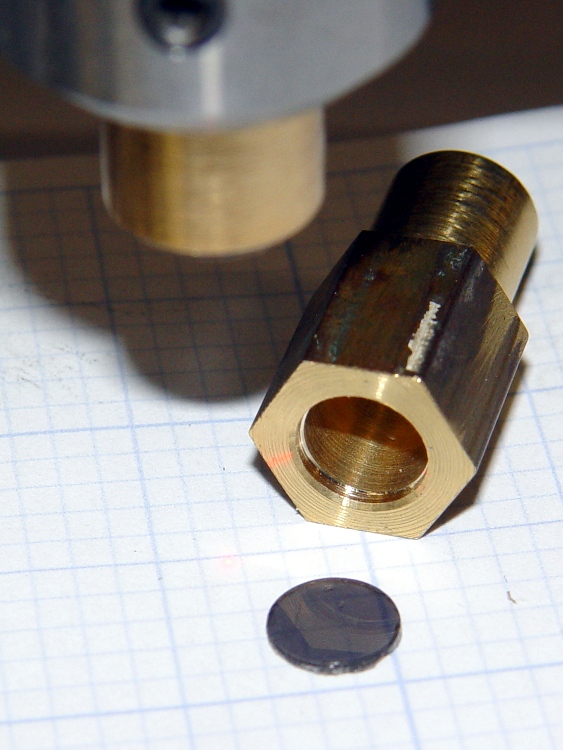
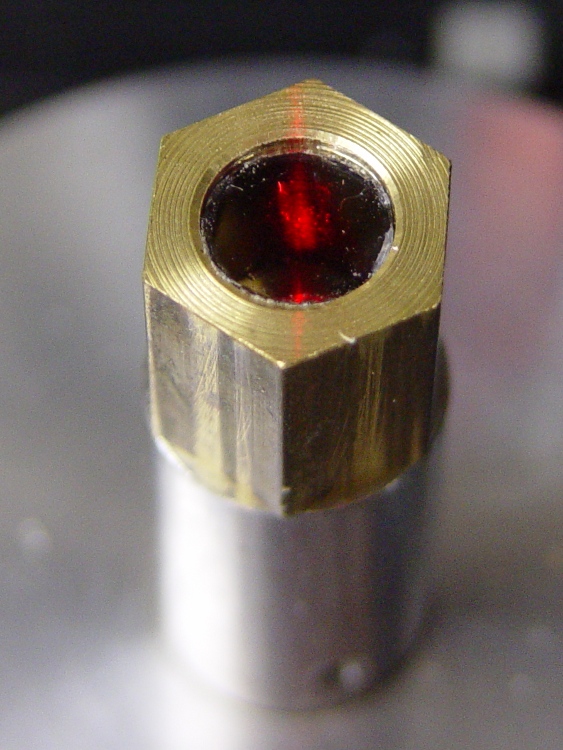
I’d already made a bushing to fit the top of the spindle bore with a small aperture that aids in lining up the laser, so I just added a small recess for a disk of polarizing film. I have, for reasons that should not require any explanation by now, a lifetime supply of polarizing film…
Anyhow, the new polarizing filter sits neatly atop the spindle. The main laser beam lights up the middle of the filter, with junk light spilling on the bushing to the front and rear.
Polarizing film in upper bushing
Getting a good photograph of the spot size poses some problems, but here goes. This is the original, un-attenuated spot on a scale with 0.5 mm divisions: in round numbers, it’s half a millimeter across.
Normal laser spot size
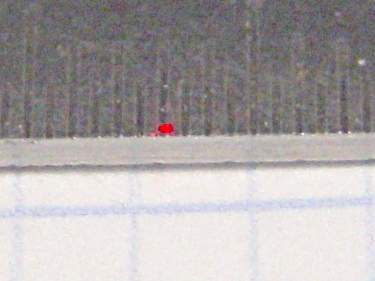
Cross-polarizing the beam produces this attenuated spot on the same scale: it’s 0.25 mm in diameter, maybe a bit less. Call it 10 mils.
Attenuated laser spot size
Obviously, what you’re seeing are overexposed more-or-less Gaussian spots, so their diameters aren’t fixed numbers. But at this level, the inaccuracies of my Orc Engineering lens mount are comparable to the spot size, so reducing the spot any further isn’t going to improve the overall positioning accuracy.
It’s worth noting that the spot size isn’t the same as the positioning accuracy: you can visually align a workpiece mark to less than 1/4 the spot diameter. Claiming 1/10 the diameter would be more brag than fact, at least for me, but somewhere around 2 mils is close. That’s good enough for most of what I do.