The Smell of Molten Projects in the Morning

Ed Nisley's Blog: Shop notes, electronics, firmware, machinery, 3D printing, laser cuttery, and curiosities. Contents: 100% human thinking, 0% AI slop.

Category: Photography & Images

Taking & making images.

  • Hawk With Snake

    Hawk With Snake

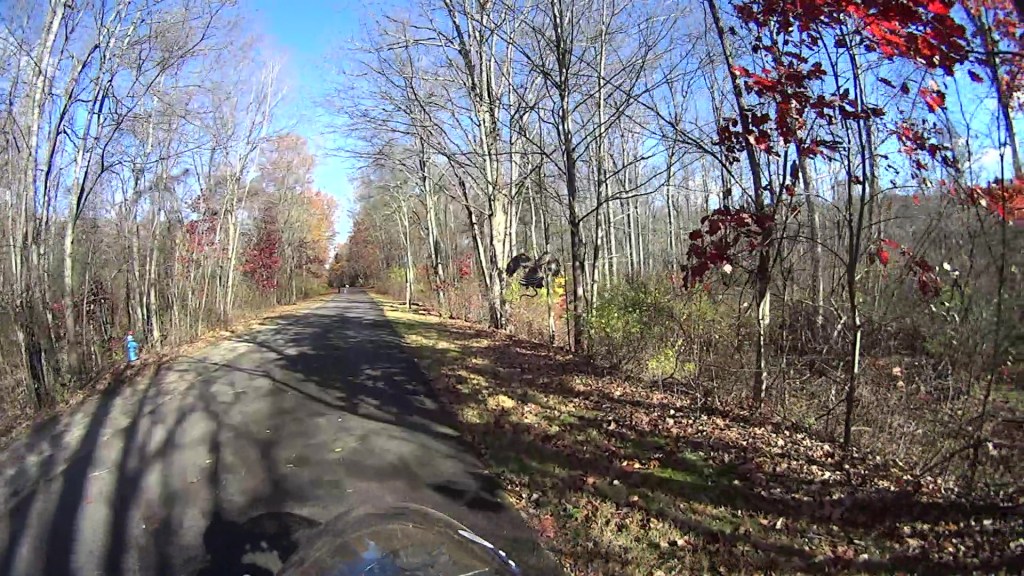
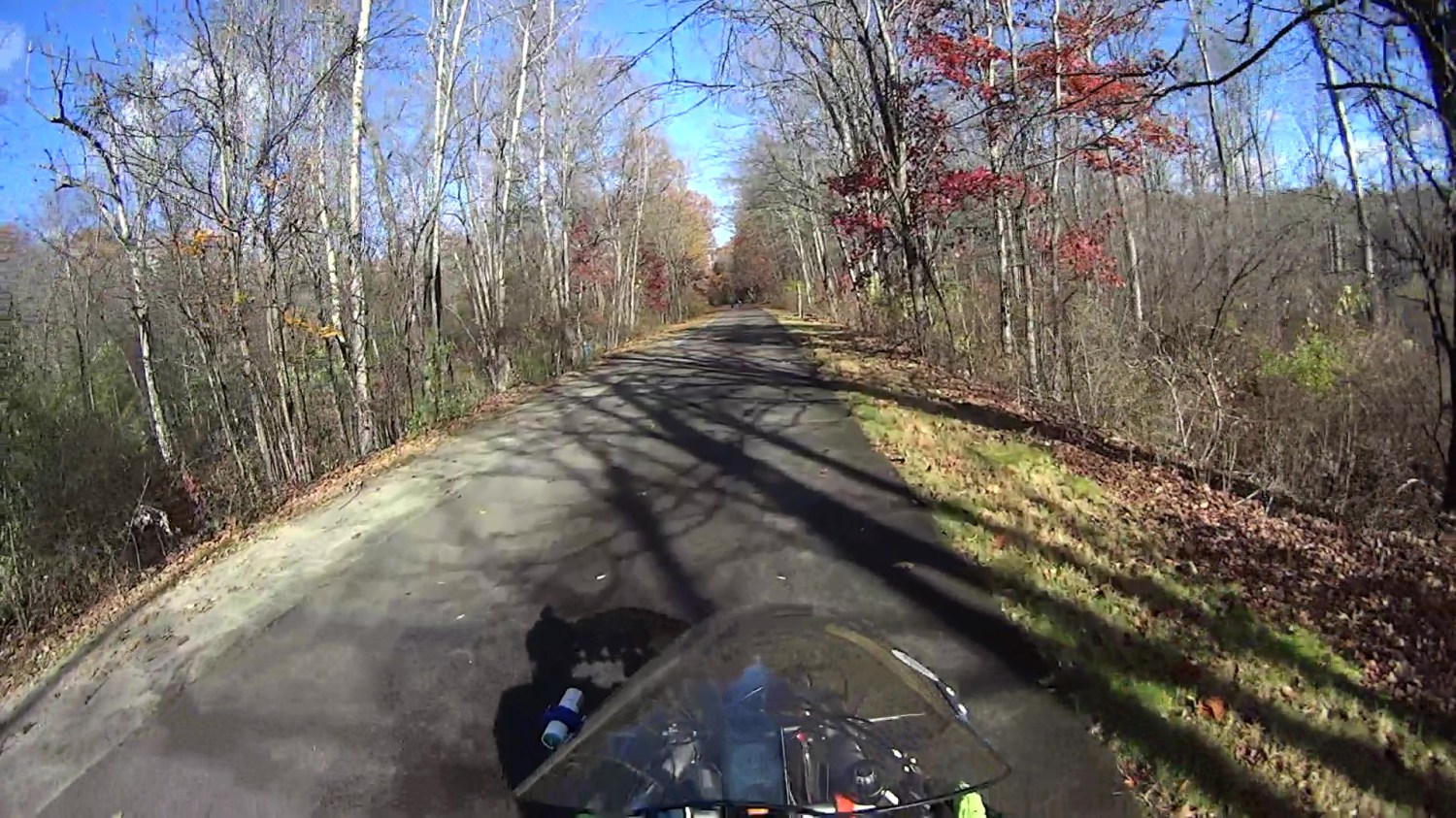
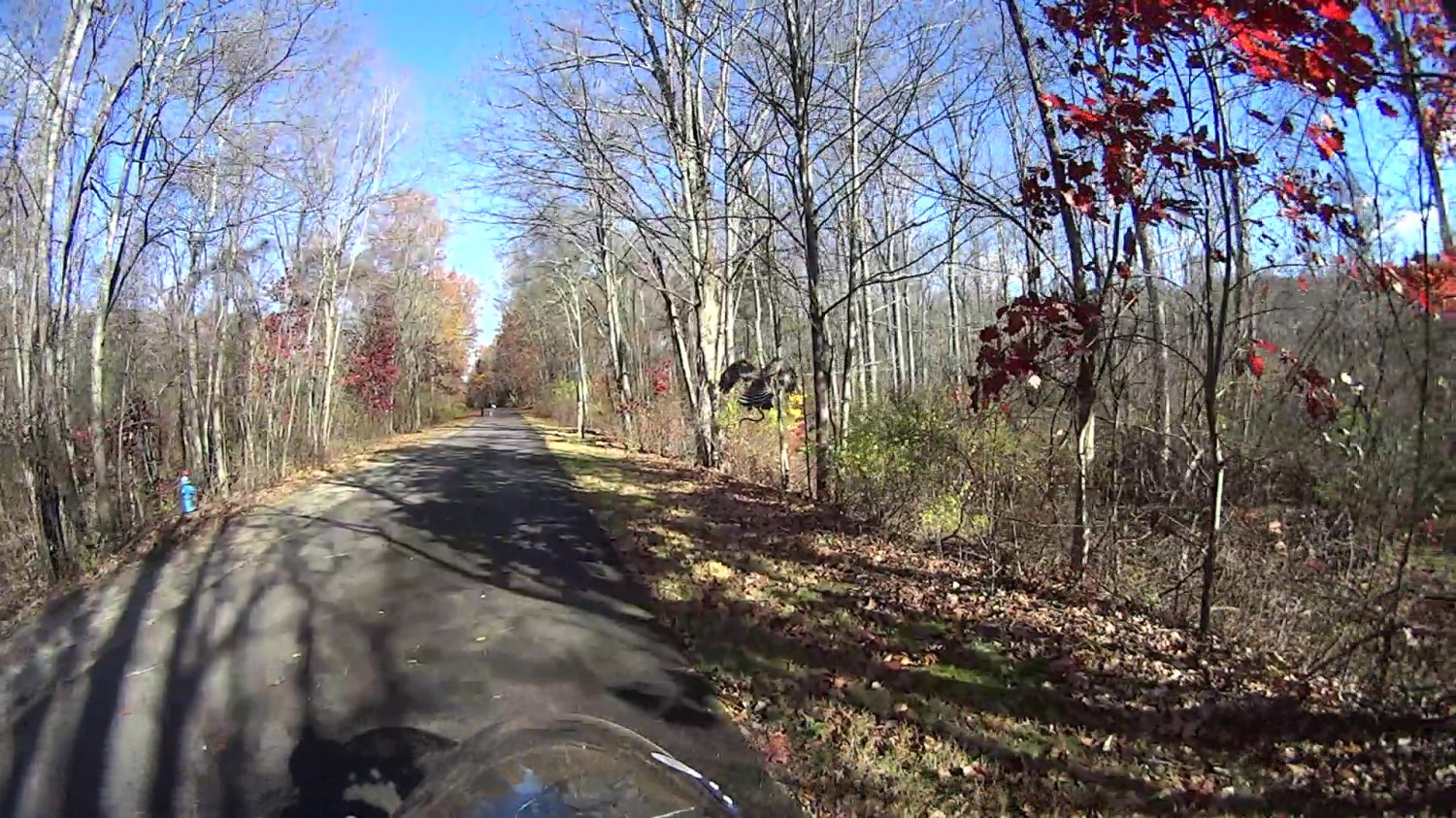
    Do you see the Cooper’s Hawk?

    Hawk with snake 2025-11-04 - 082
    Hawk with snake 2025-11-04 – 082

    Neither did I!

    (The last three digits in the caption tick along at 60 frame/s. Opening each iamge in a new tab will let you embiggen the details, although the images aren’t all that great.)

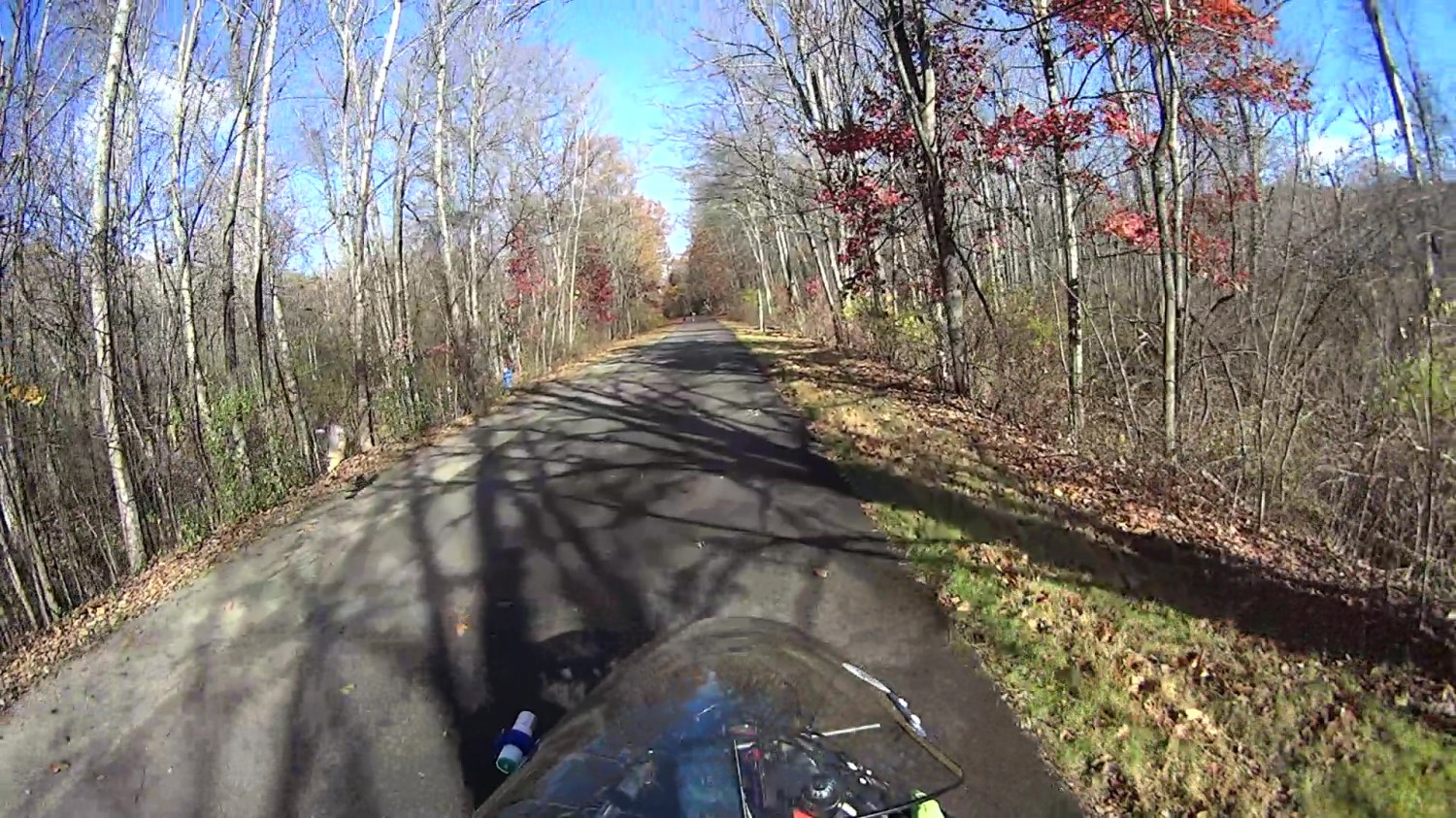
    The second wingbeat, over on the left, is more visible as the hawk lifts off:

    Hawk with snake 2025-11-04 - 112
    Hawk with snake 2025-11-04 – 112

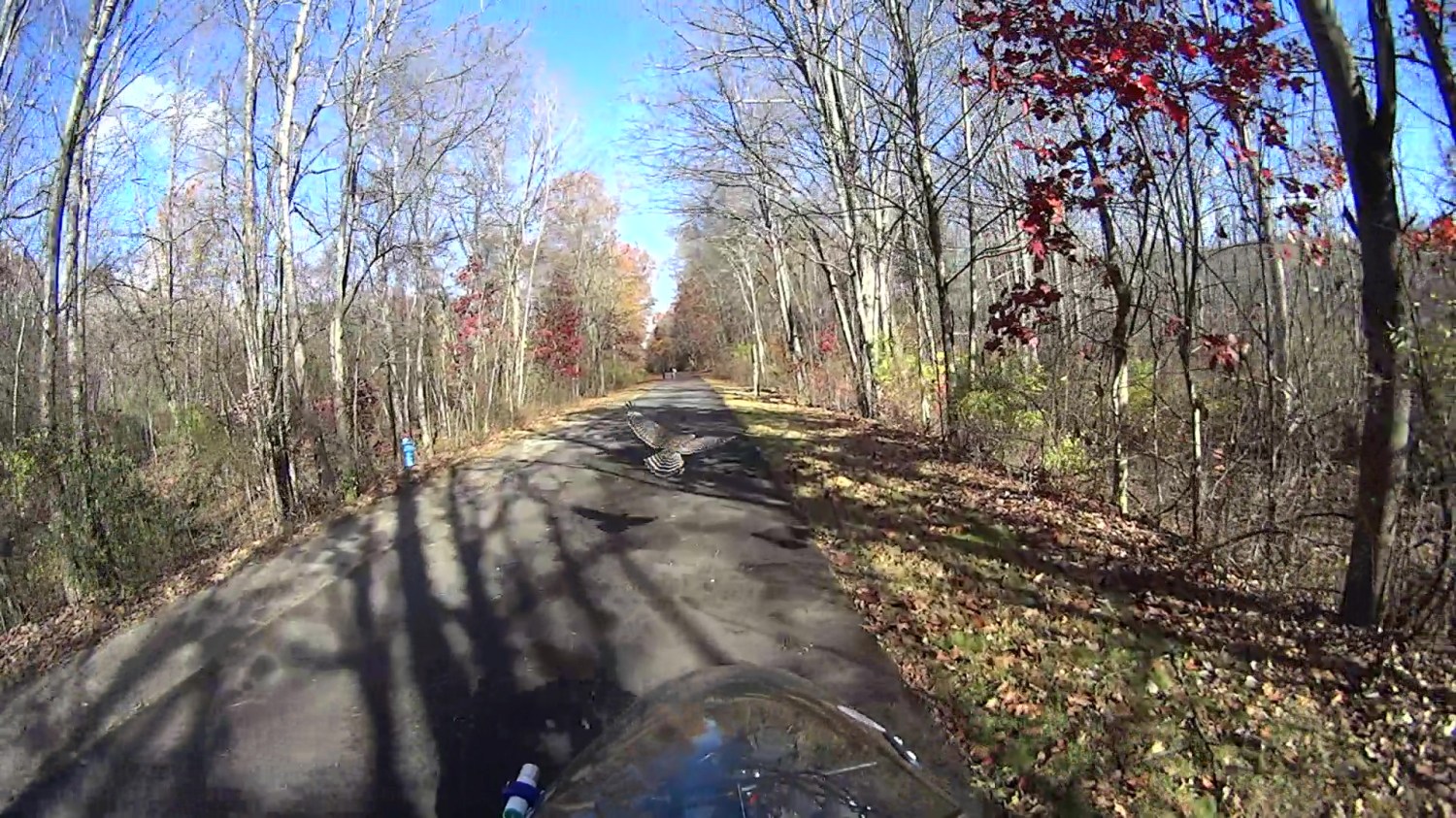
    This was about when I figured out what was going on:

    Hawk with snake 2025-11-04 - 151
    Hawk with snake 2025-11-04 – 151

    A hawk can easily outfly me!

    Hawk with snake 2025-11-04 - 207
    Hawk with snake 2025-11-04 – 207

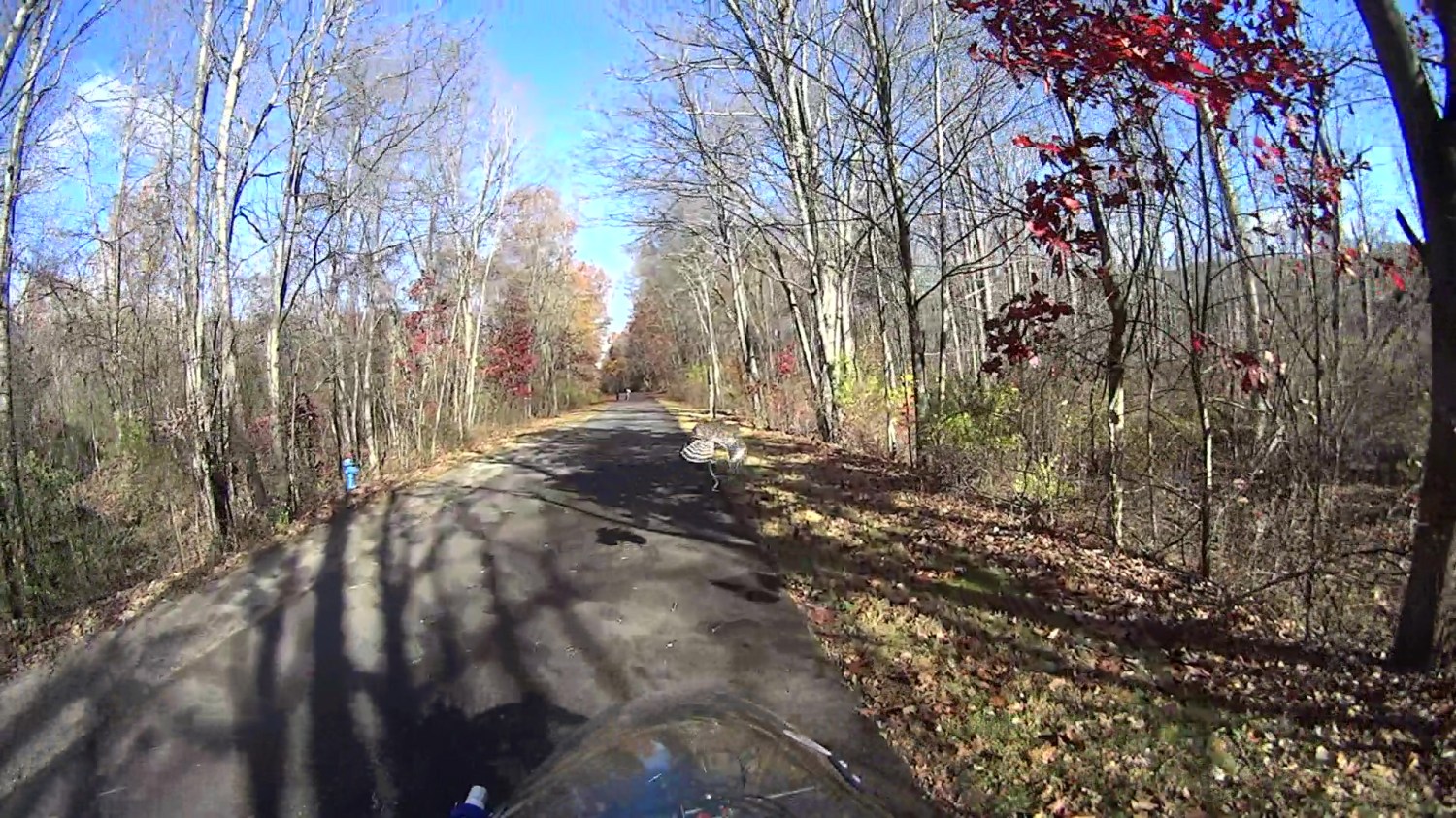
    The snake dangling from the hawk’s talons didn’t see it coming, either:

    Hawk with snake 2025-11-04 - 213
    Hawk with snake 2025-11-04 – 213

    Up and away!

    Hawk with snake 2025-11-04 - 225
    Hawk with snake 2025-11-04 – 225

    About 2.3 s of elapsed time: plenty for a hawk and not nearly enough for me. Or the snake, for that matter.

  • Mostly Removing Acrylic Scratches

    Mostly Removing Acrylic Scratches

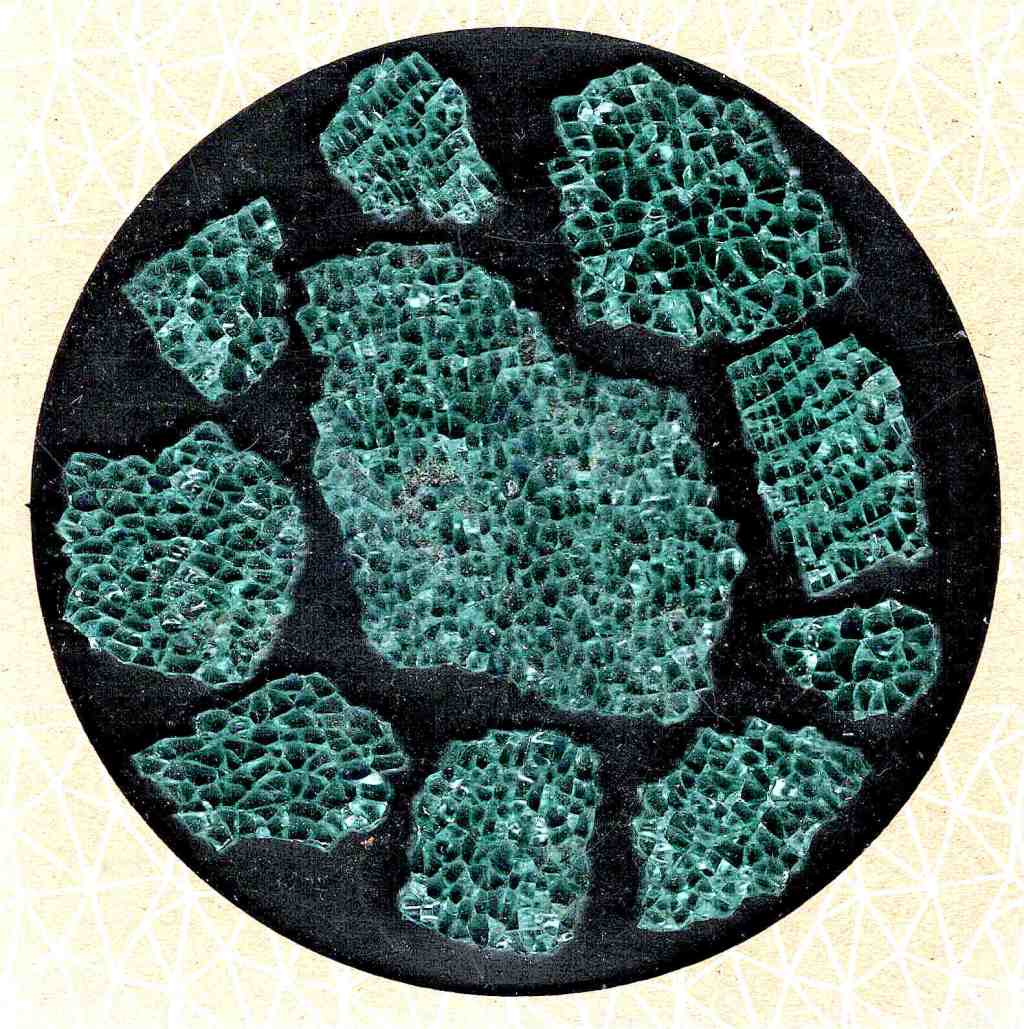
    Some time ago I made a simple guide / carrier to help select & arrange smashed glass fragments to fit within a given diameter:

    Coaster Layout - selected fragments
    Coaster Layout – selected fragments

    The laser-engraved guide lines confused GIMP’s edge detection to no end.

    It came from a large sheet of 1 mm acrylic, formerly a poster cover, bearing scars of its long history in the “might be useful someday” stash. I wondered if I could remove enough scratches and scuffs to ease GIMP’s workload.

    Stipulated: I am a cheapskate.

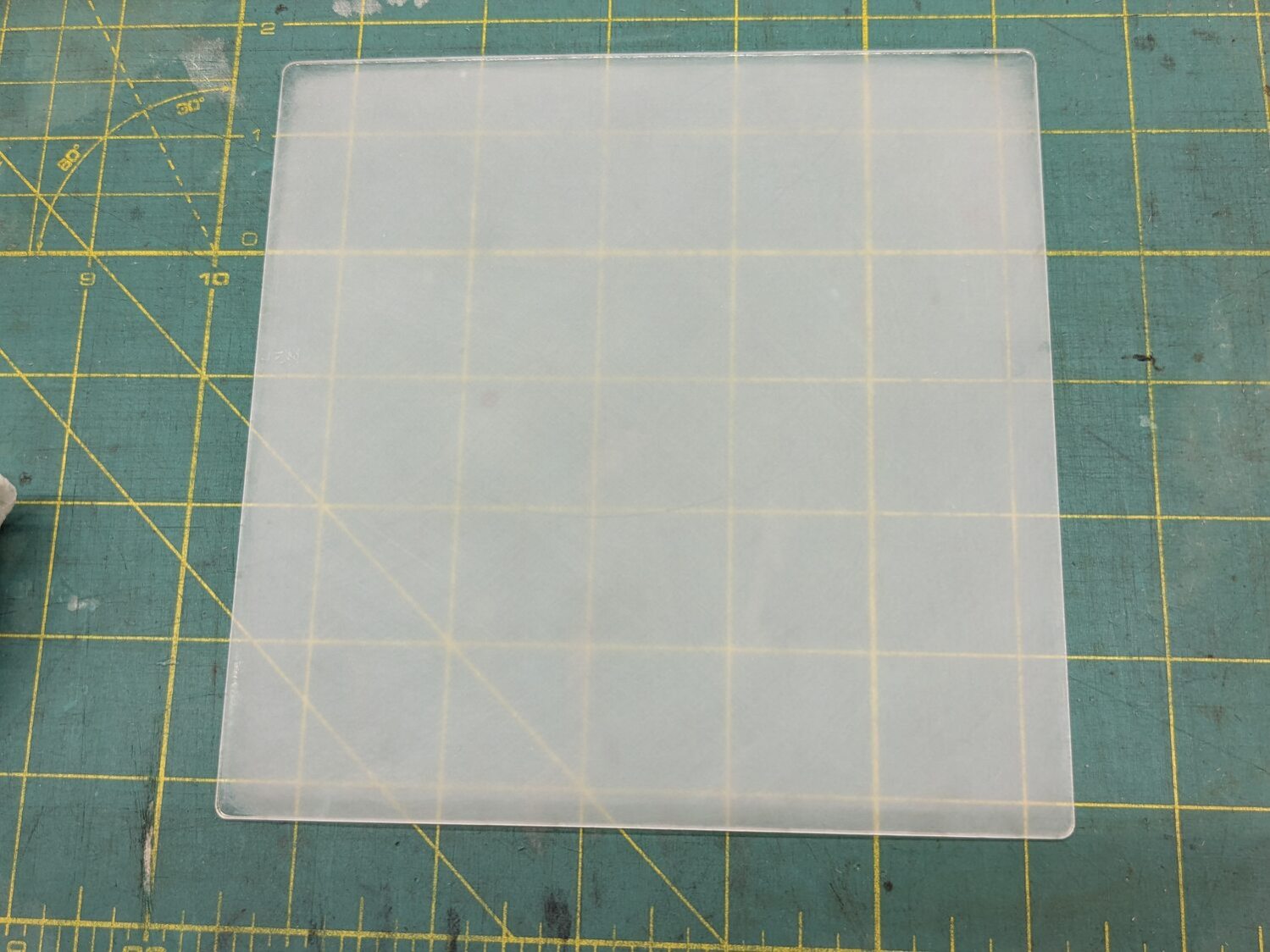
    Laser-cut a suitable sheet and sand both sides with 220 grit paper to what looked like a uniform surface:

    Acrylic polishing - 220
    Acrylic polishing – 220

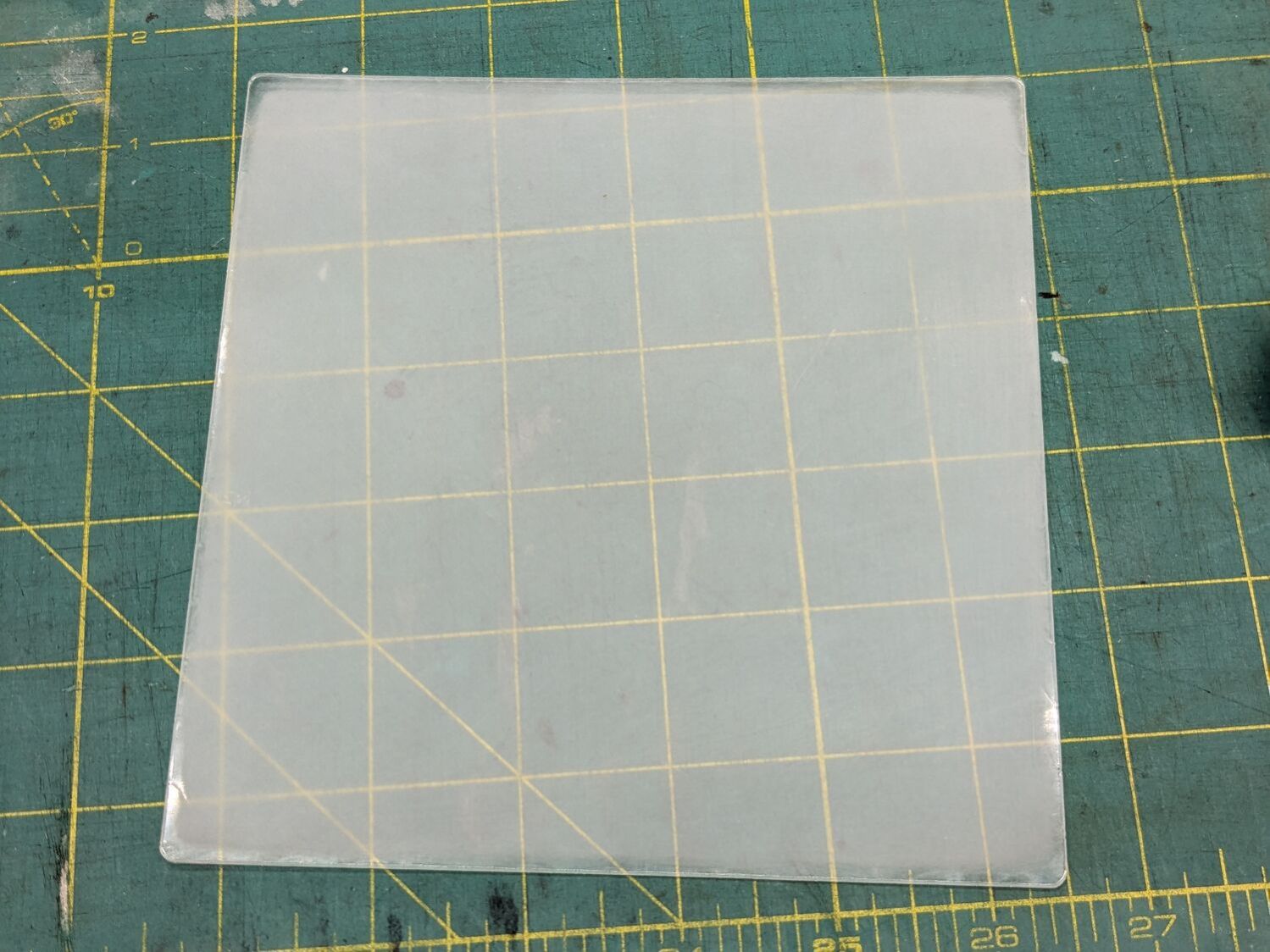
    Continue scrubbing with 400, 800, 1000, 1500, and 3000 grit papers:

    Acrylic polishing - 3000
    Acrylic polishing – 3000

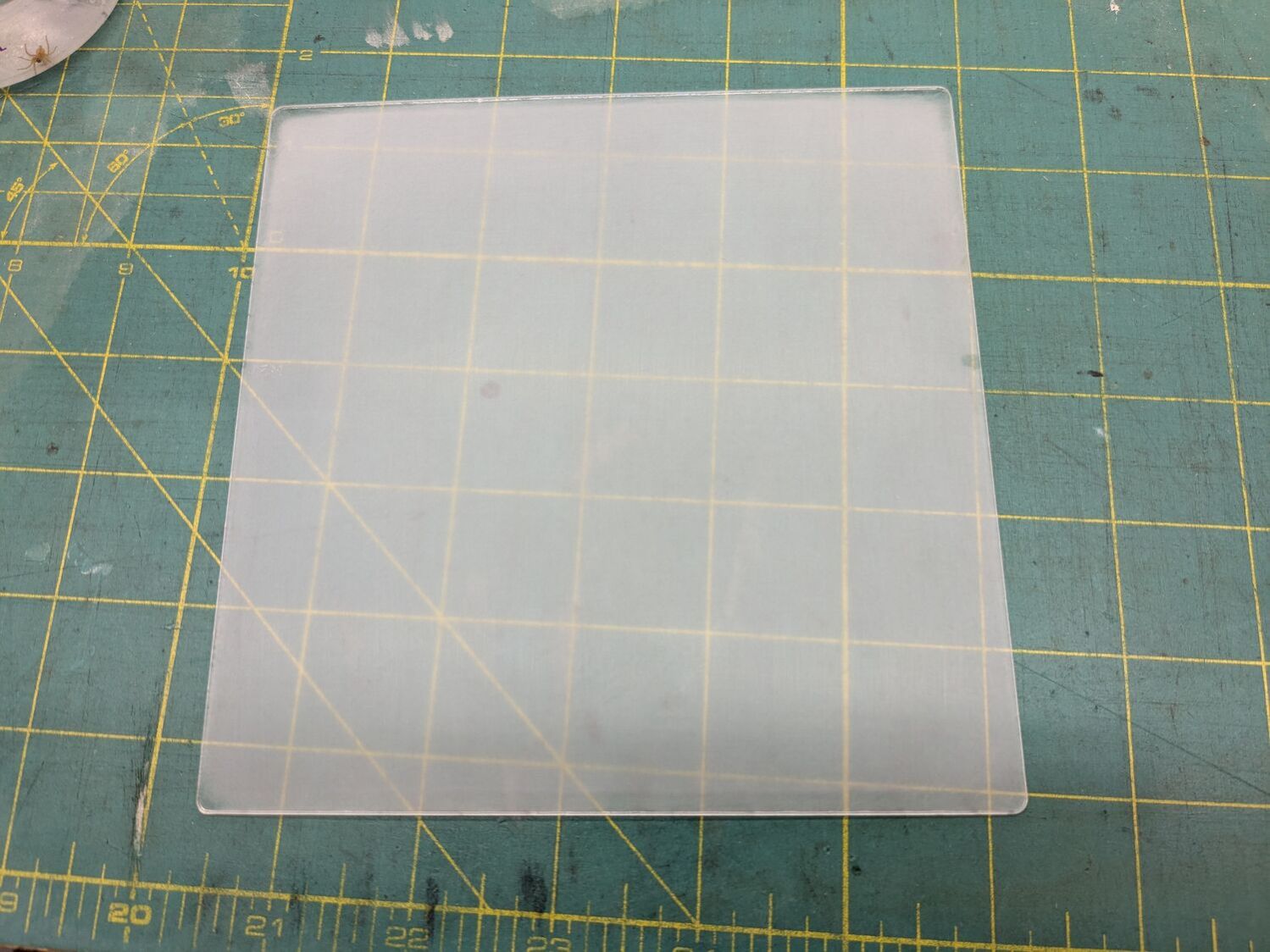
    Massage it with Novus Polish 3, 2, and 1:

    Acrylic polishing - Novus 1
    Acrylic polishing – Novus 1

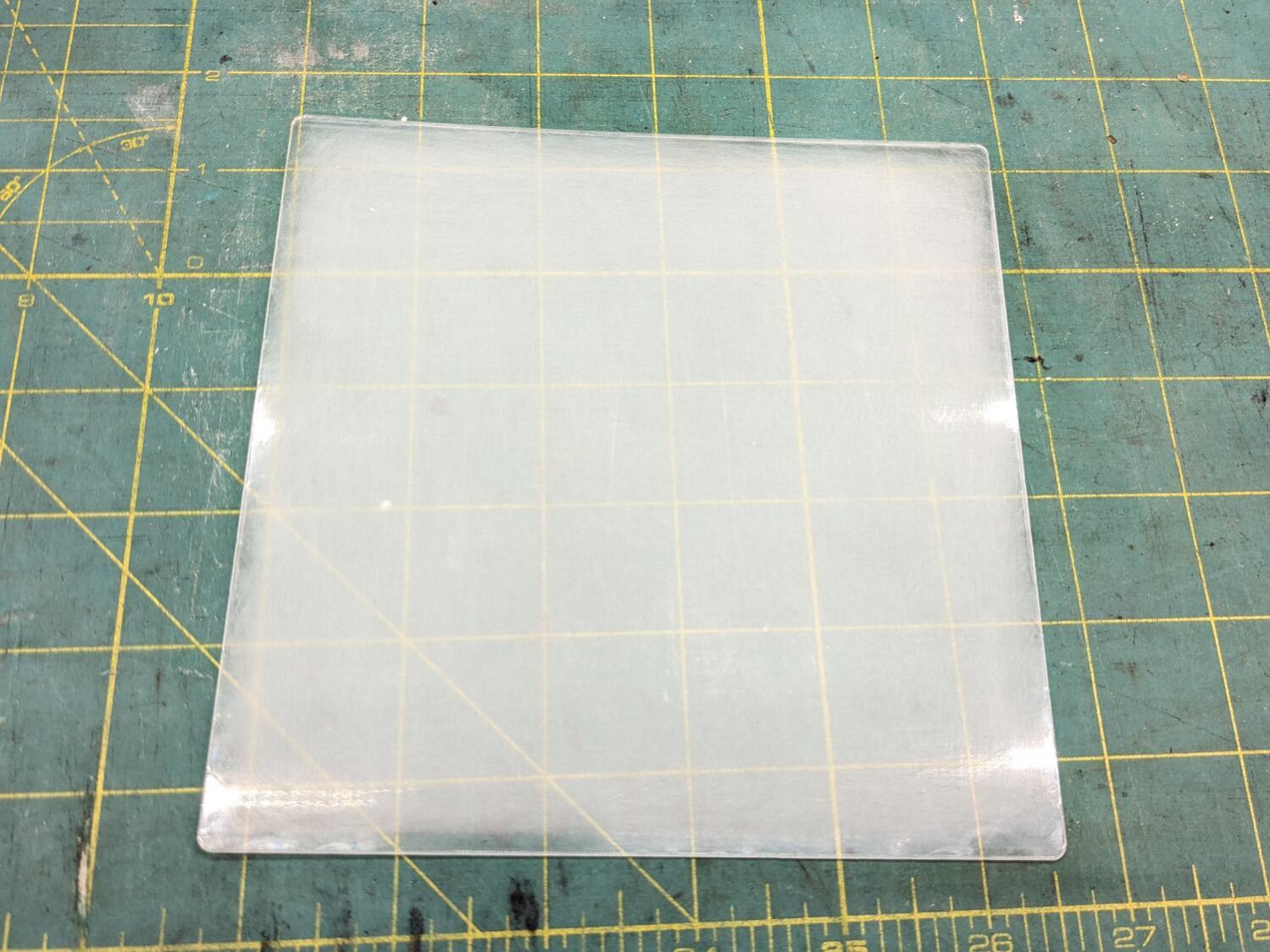
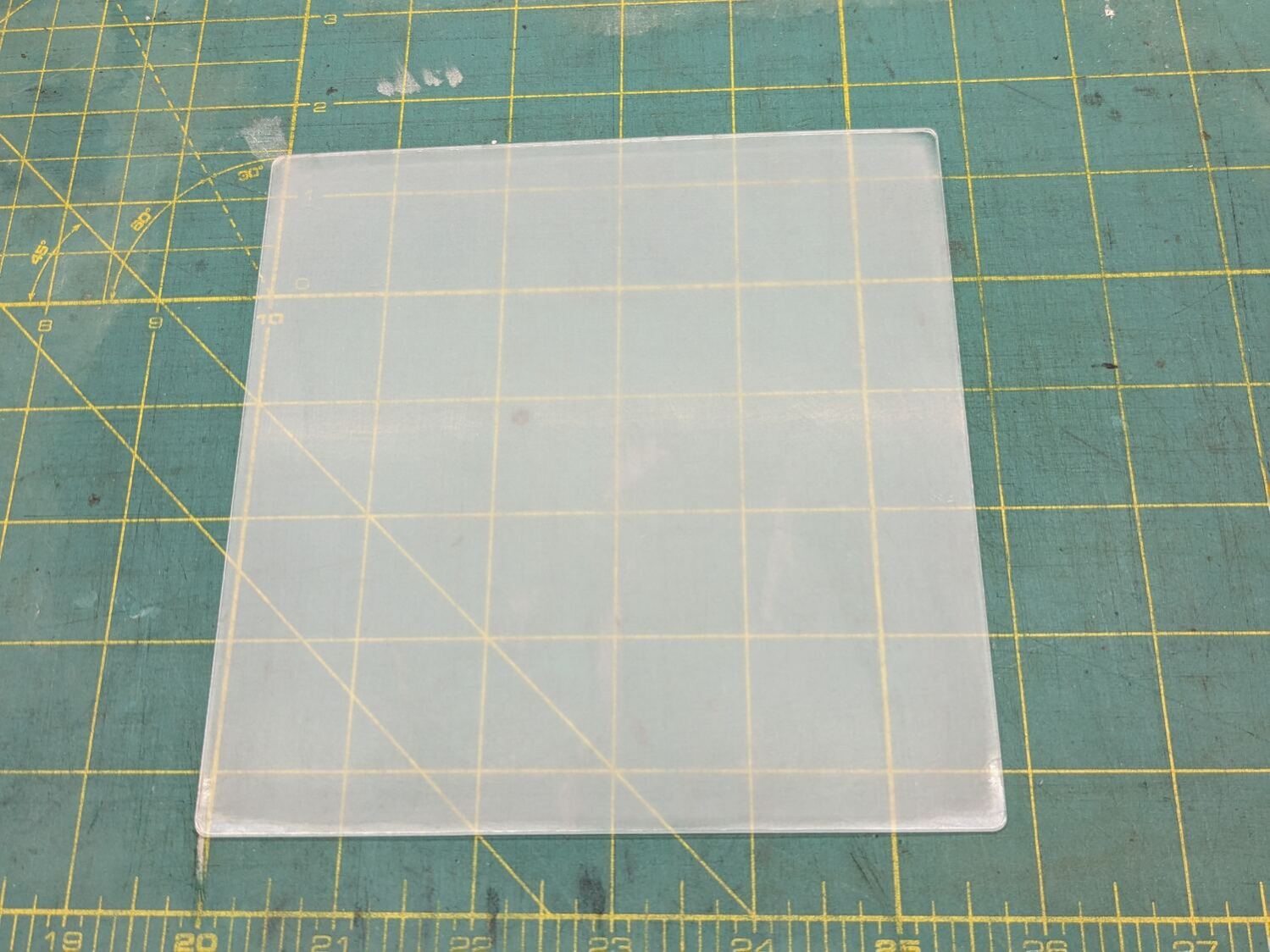
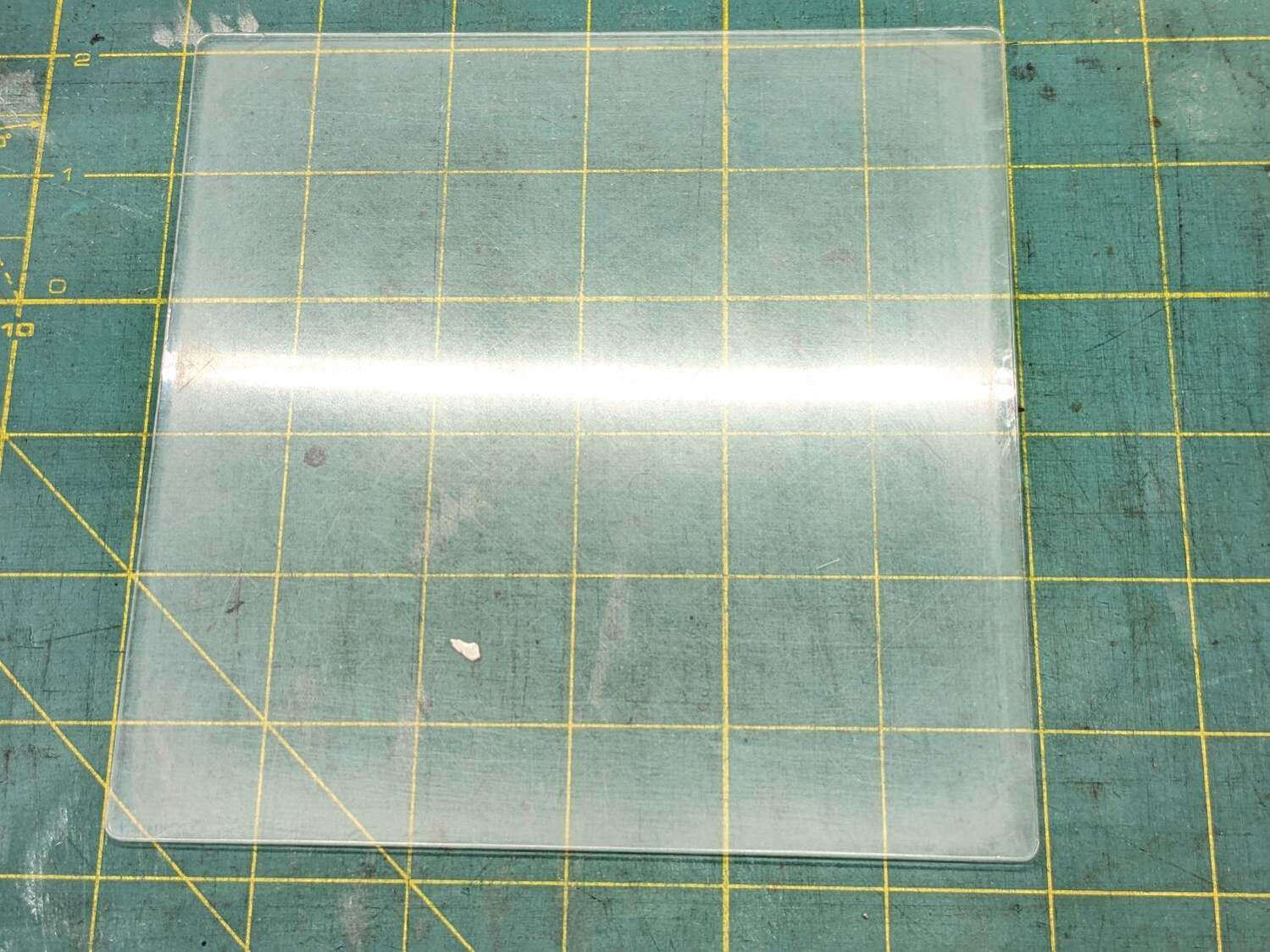
    At best, it’s more translucent than transparent and definitely not an optical-quality polishing job:

    Acrylic polishing - translucency
    Acrylic polishing – translucency

    Fortunately, I need not care about the edges, because it goes in a square frame with a circular cutout.

    Tape it into that cardboard frame, scan it against a black background, and blow out the contrast to show I should have started with 100 grit paper and paid more attention to that “uniform surface” thing:

    Acrylic polishing - scratches
    Acrylic polishing – scratches

    In use, though, it doesn’t look all that bad:

    Fragment layout - 5in Set B - scan tweaked
    Fragment layout – 5in Set B – scan tweaked

    Come to find out those glittery cracks between all the cuboids still confuse GIMP’s edge detection, but at least hand-tracing the outline is easier without all the lines.

    The entire “polishing” series as a slideshow for your amusement:

    • Acrylic polishing - 220
    • Acrylic polishing - 400
    • Acrylic polishing - 800
    • Acrylic polishing - 1000
    • Acrylic polishing - 1500
    • Acrylic polishing - 3000
    • Acrylic polishing - Novus 3
    • Acrylic polishing - Novus 2
    • Acrylic polishing - Novus 1

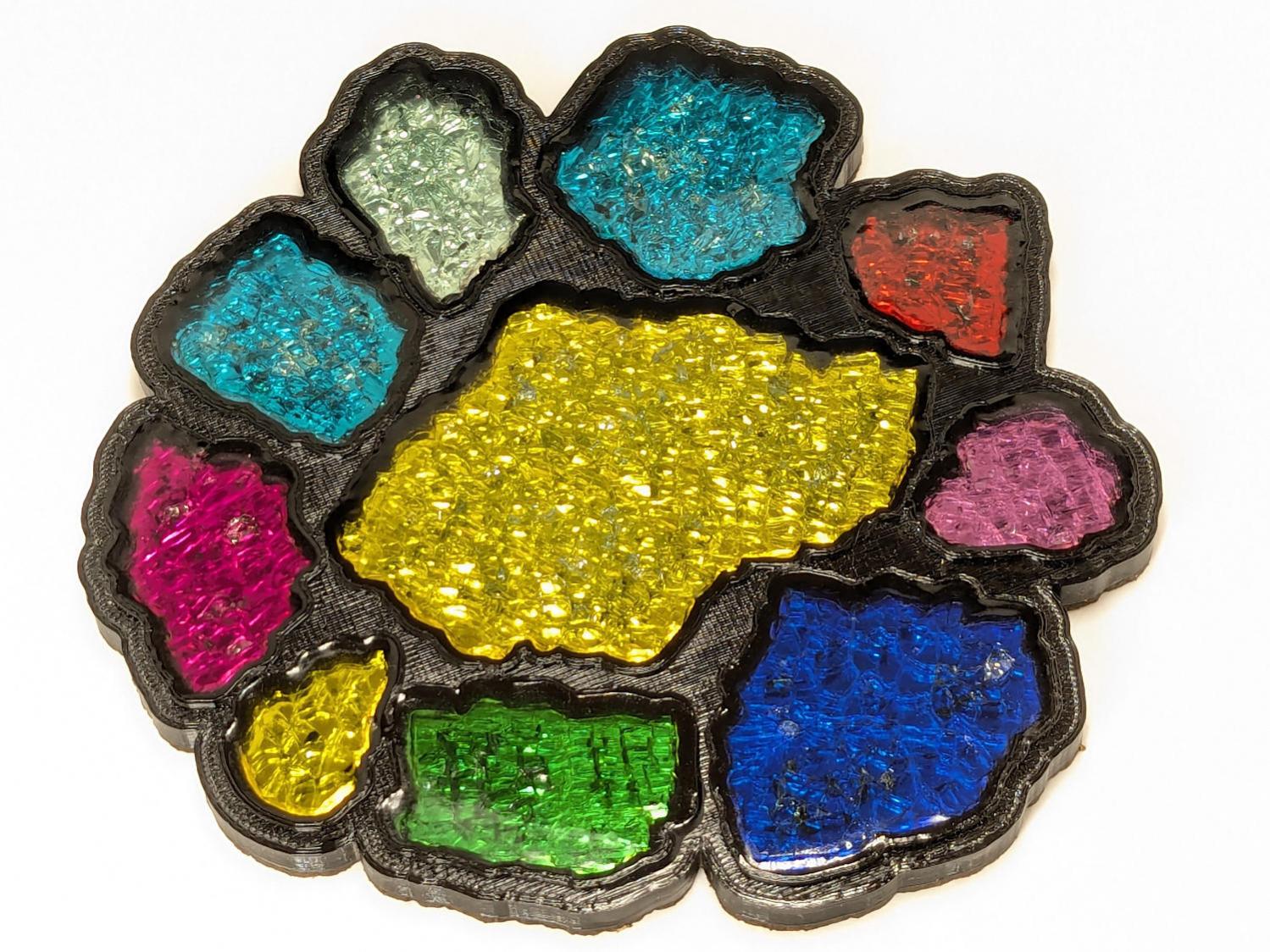
    FWIW, those fragments turned out nicely:

    Smashed Glass 3D Printed Coaster - Set B
    Smashed Glass 3D Printed Coaster – Set B

    More on that later …

  • Layered Paper: SVG Generator

    Layered Paper: SVG Generator

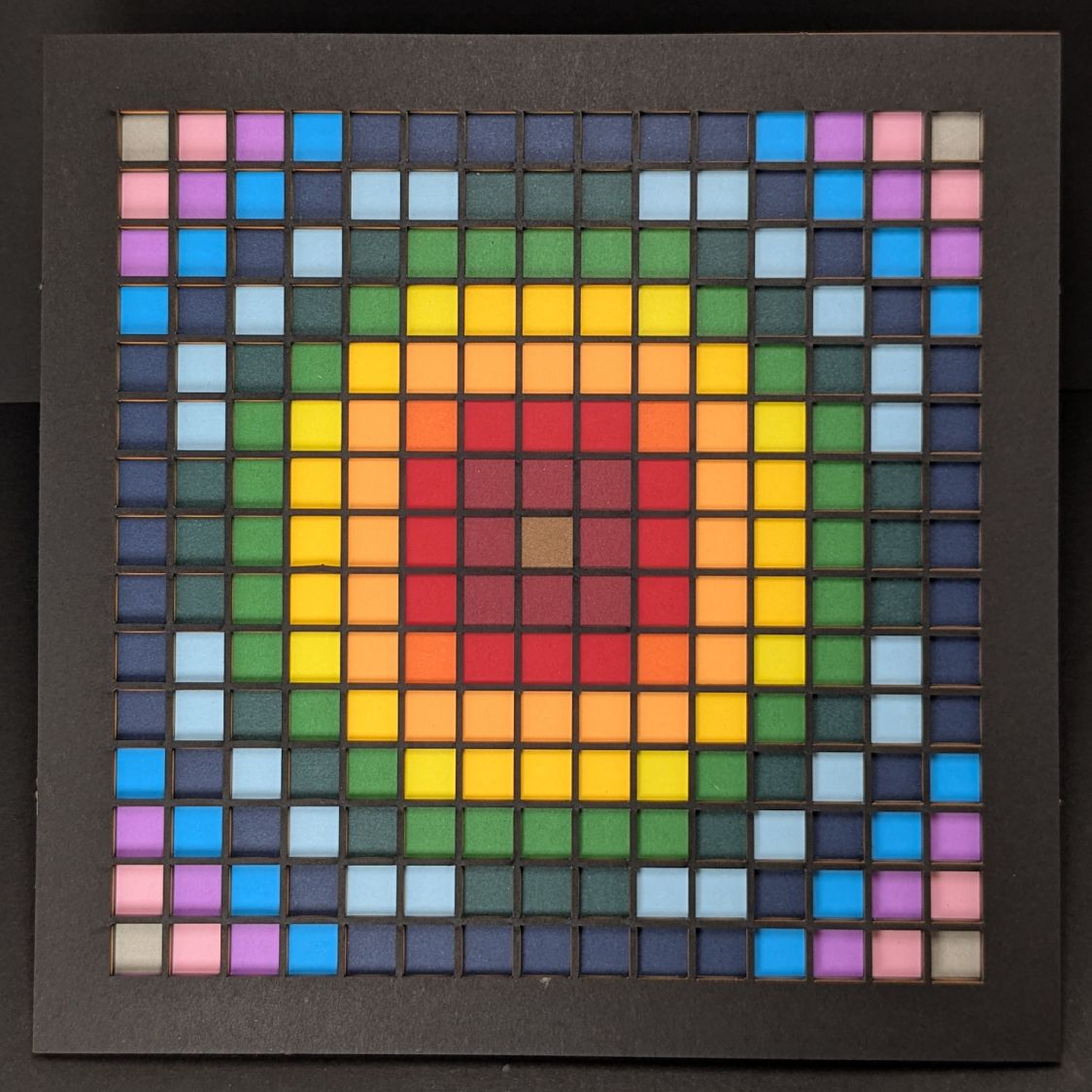
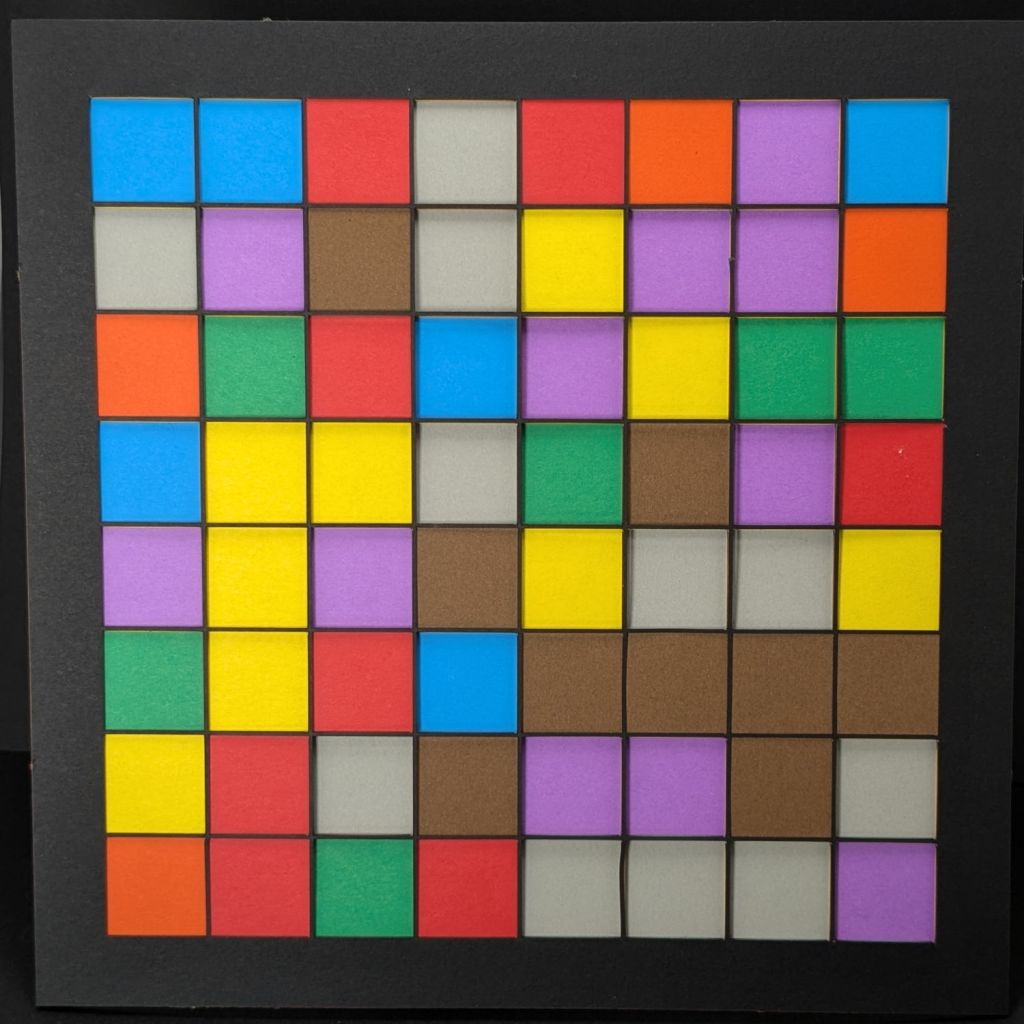
    Changing the formula generating the matrix values and cleaning up some infelicitous code choices produces a much more pleasing result:

    Layered paper - circular rainbow
    Layered paper – circular rainbow

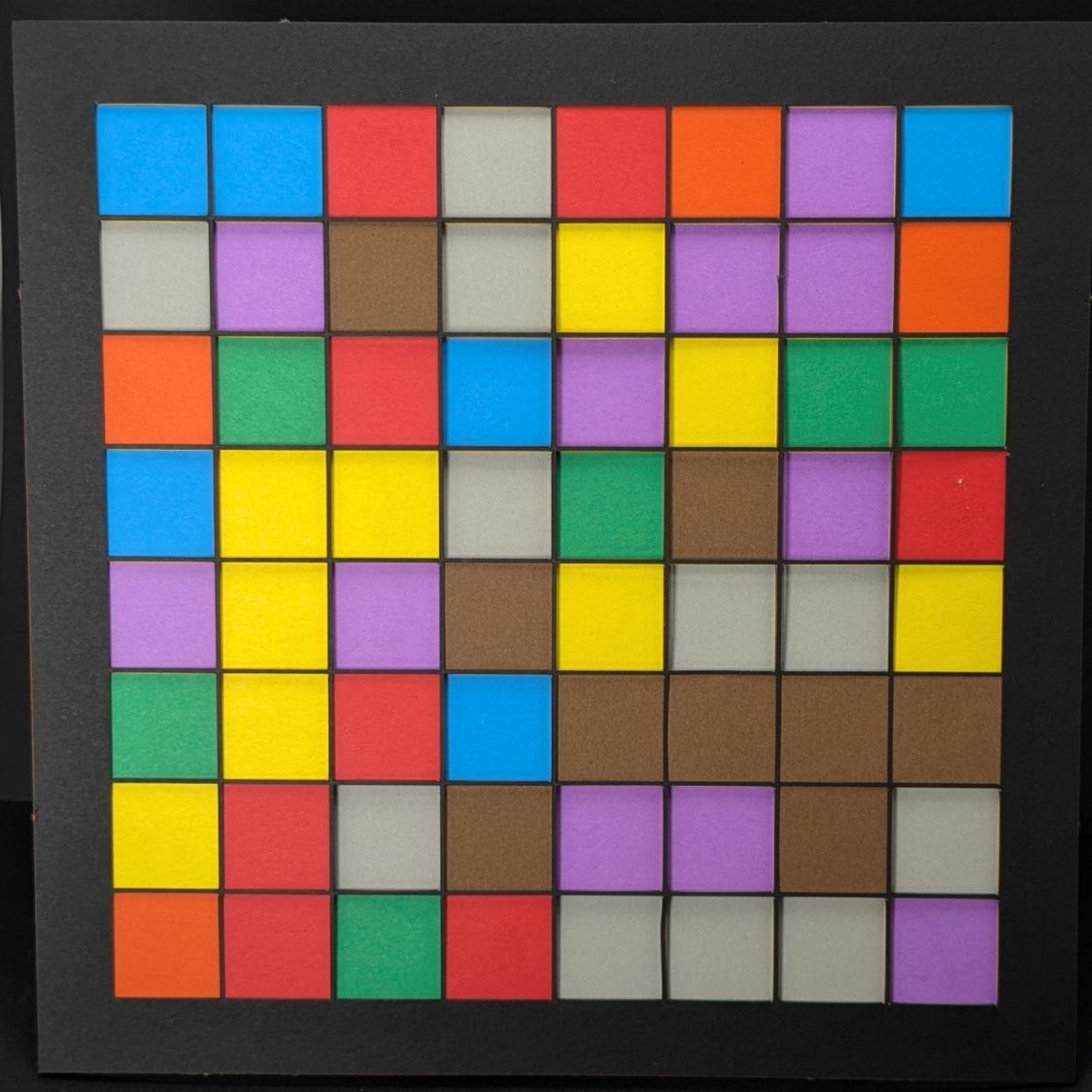
    The random squares still look OK, though:

    Layered Paper - SVG generator results
    Layered Paper – SVG generator results

    Thresholding the distance from a randomly chosen point creates circular rainbows:

    CenterPoint = (choice(range(args.width)),choice(range(args.height)))
    
    CellMatrix = [[math.hypot(x - CenterPoint[X],y - CenterPoint[Y])
                    for y in range(args.height)]
                    for x in range(args.width)]
    
    dmax = max(list(chain.from_iterable(CellMatrix)))
    
    LayerThreshold = (ThisLayer/Layers)*dmax
    

    The Python program generates one SVG image file representing a single layer, as determined by the Bash one-liner invoking it:

    for i in {00..16} ; do python Layers\ -\ 200mm.py > Test_$i.svg ; done
    

    In real life you’d also use a different random seed for each set of layers, but that’s just another command line optIon.

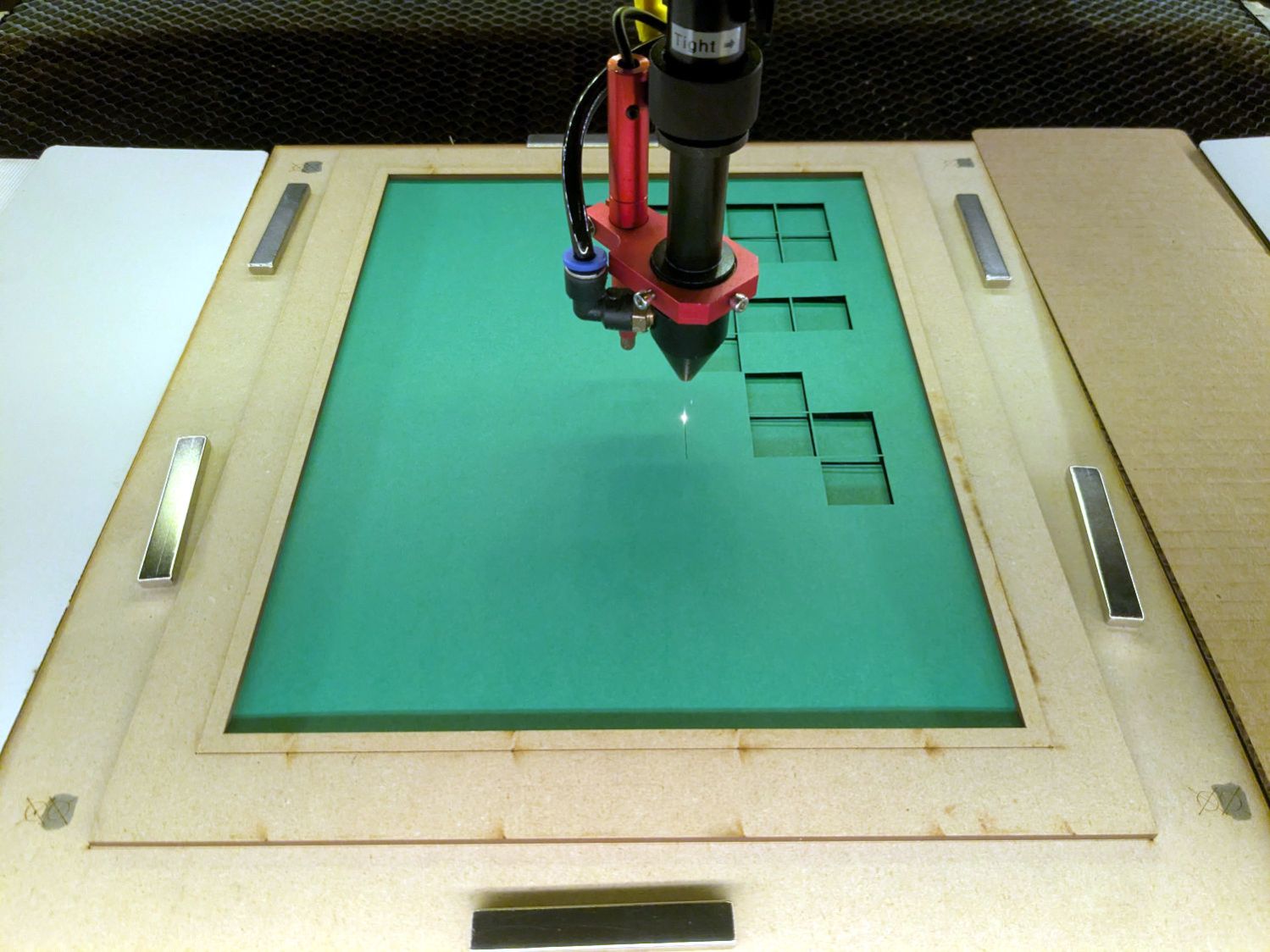
    Import those 17 SVG images into LightBurn, arrange neatly, snap each one to the middle of the workspace grid (and thus the aligned template), then Fire The Laser:

    Layered Blocks - circular colors - 200mm 16x16 - LightBurn layout
    Layered Blocks – circular colors – 200mm 16×16 – LightBurn layout

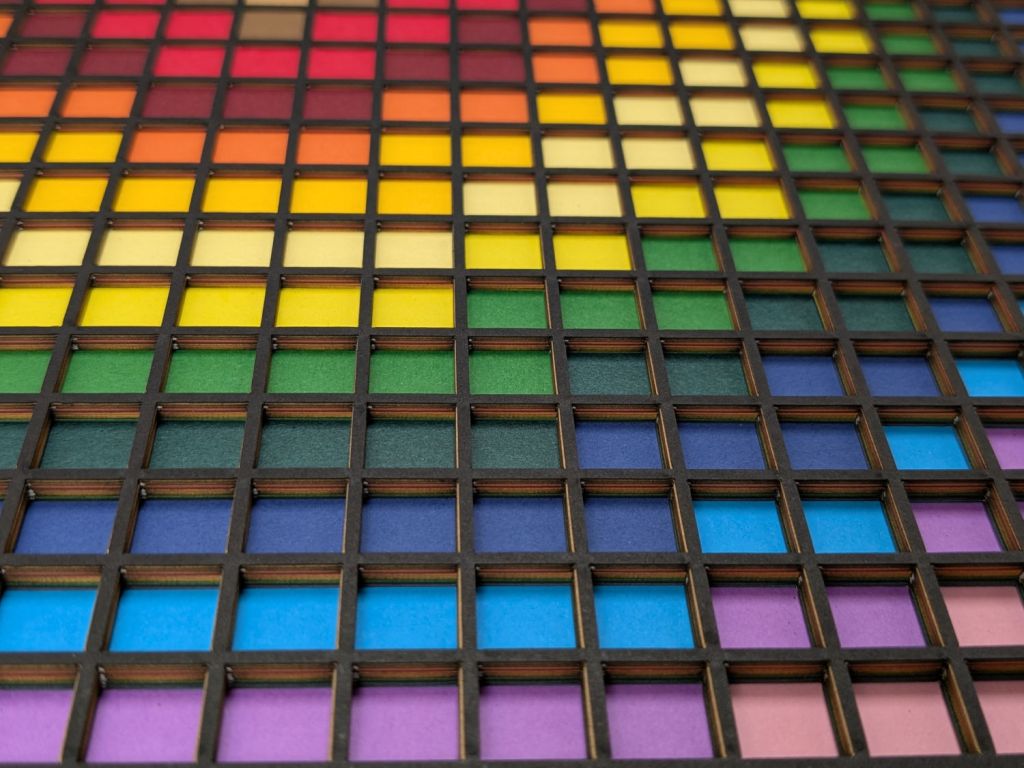
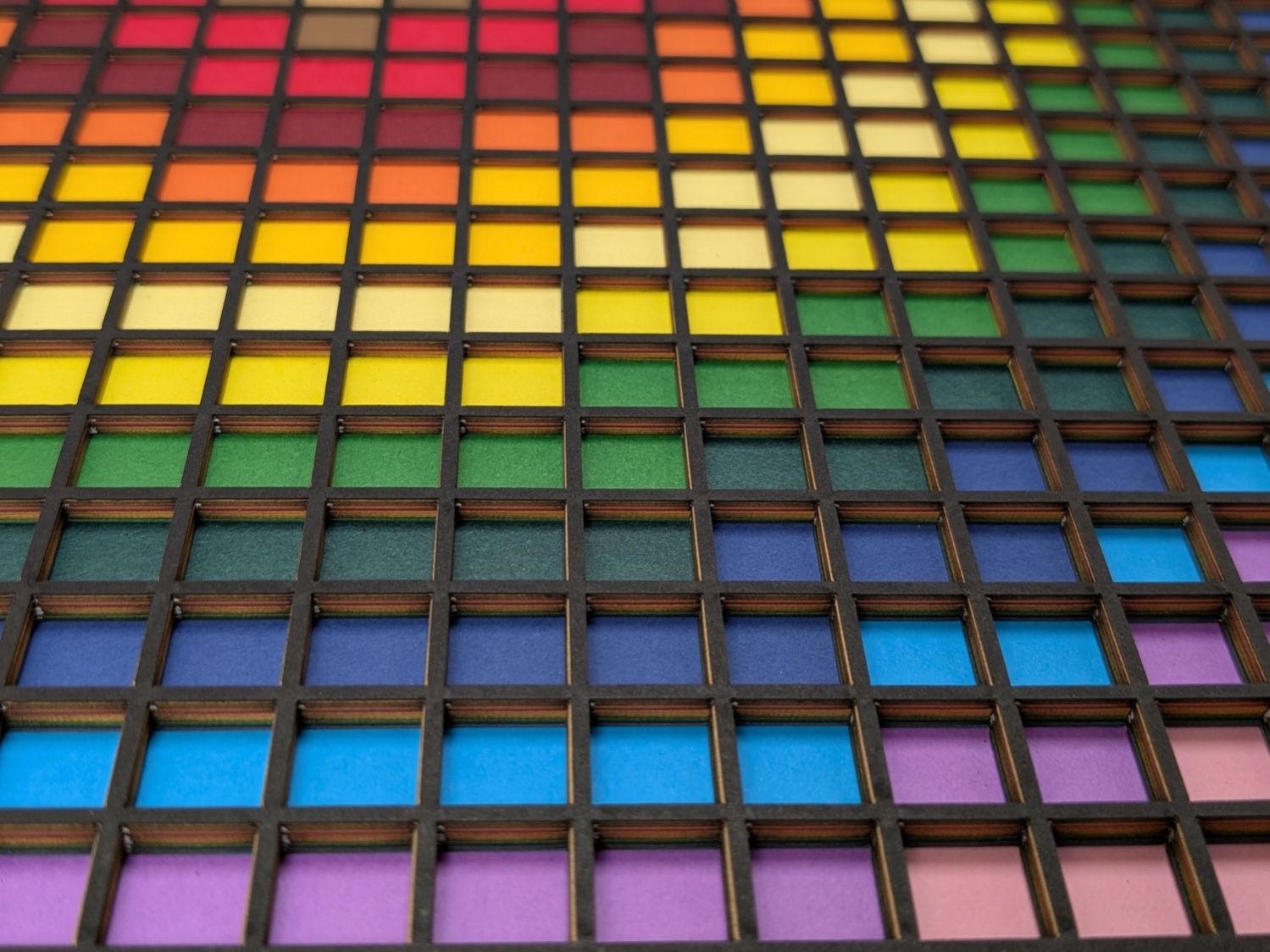
    Feeding paper into the laser in rainbow (actually, heavily augmented / infilled EIA color code) order, plus the black mask, produces the aforementioned pleasing result:

    Layered Paper - rainbow oblique view
    Layered Paper – rainbow oblique view

    Glue the sheets in the assembly fixture:

    Layered Paper - gluing fixture side view
    Layered Paper – gluing fixture side view

    The white layer is uncut, other than the four alignment holes (with a rivnut poking up) and its binary layer number (16, backwards because upside-down), and appears in only the farthest corners of the rainbow.

    Protip: doing the stack upside-down means you smear glue stick on the hidden side of each sheet. If you avoid slobbering glue into the cut square holes, nothing can go wrong.

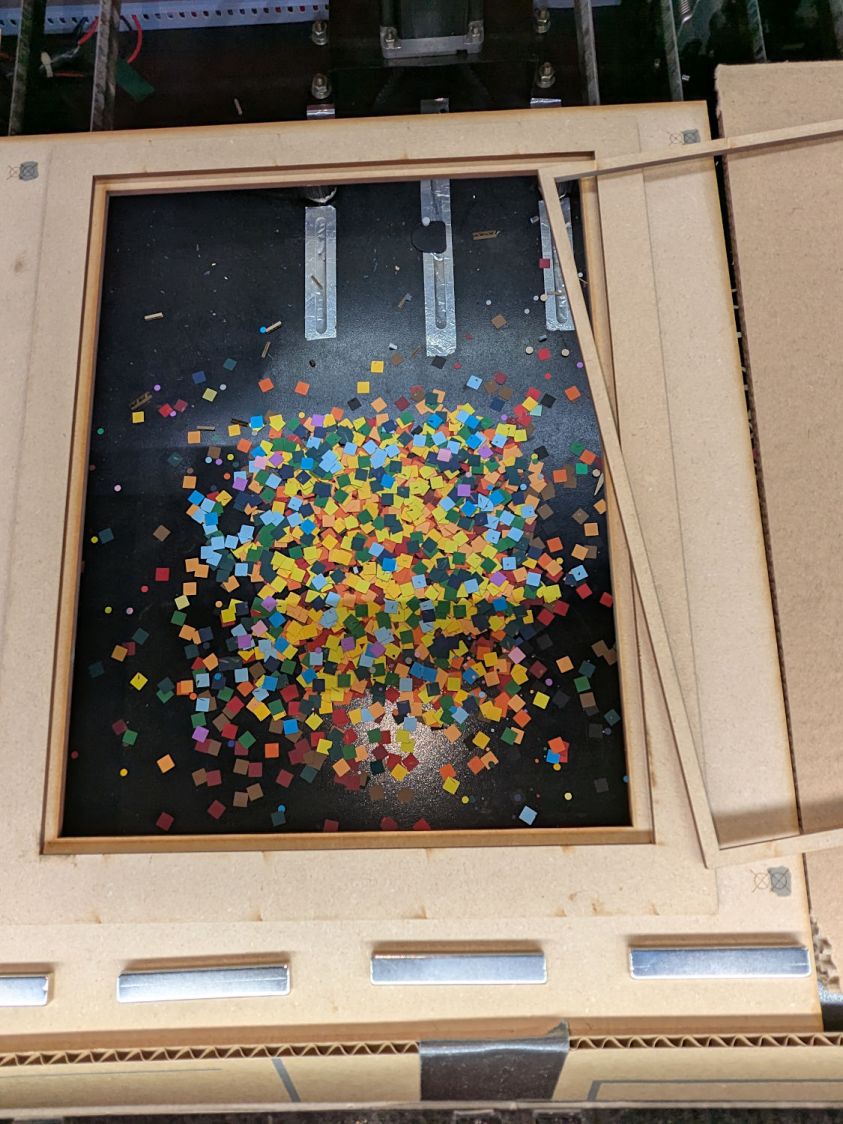
    Making these things produces the happiest chip tray ever:

    Layered Paper - rainbow chip tray
    Layered Paper – rainbow chip tray

    I swept half a dozen pictures worth of squares into a small box and gave it away to someone with a larger small-child cross-section than mine, whereupon a slight finger fumble turned the contents into a glitter bomb. Sorry ’bout that.

    The Python source code as a GitHub Gist:

    # Generator for rainbow block layered paper
    # Ed Nisley – KE4ZNU
    # 2025-08-03 cargo-culted from svg library examples
    import svg
    import math
    from argparse import ArgumentParser
    from random import randint, choice, seed
    from itertools import chain
    from pprint import pprint
    INCH = 25.4
    X = 0
    Y = 1
    def as_mm(number):
    return repr(number) + "mm"
    parser = ArgumentParser()
    parser.add_argument('–layernum', type=int, default=0)
    parser.add_argument('–colors', type=int, default=16)
    parser.add_argument('–seed', type=int, default=1)
    parser.add_argument('–width', type=int, default=16)
    parser.add_argument('–height', type=int, default=16)
    parser.add_argument('–debug', default=False)
    args = parser.parse_args()
    PageSize = (round(8.5*INCH,3), round(11.0*INCH,3))
    SheetCenter = (PageSize[X]/2,PageSize[X]/2) # symmetric on Y!
    SheetSize = (200,200) # overall sheet
    AlignOC = (180,180) # alignment pins in corners
    AlignOD = 5.0 # … pin diameter
    MatrixOA = (170,170) # outer limit of cell matrix
    CellCut = "black" # C00 Black
    SheetCut = "red" # C02 Red
    HeavyCut = "rgb(255,128,0)" # C05 Orange black mask paper is harder
    HeavyCellCut = "rgb(0,0,160)" # C09 Dark Blue ditto
    Tooling = "rgb(12,150,217)" # T2 Tool
    DefStroke = "0.2mm"
    DefFill = "none"
    ThisLayer = args.layernum # determines which cells get cut
    Layers = args.colors # black mask = 0, color n = not perforated
    SashWidth = 1.5 # between adjacent cells
    CellSize = ((MatrixOA[X] – (args.width – 1)*SashWidth)/args.width,
    (MatrixOA[Y] – (args.height – 1)*SashWidth)/args.height)
    CellOC = (CellSize[X] + SashWidth,CellSize[Y] + SashWidth)
    if args.seed:
    seed(args.seed)
    #— accumulate tooling layout
    ToolEls = []
    # mark center of sheet for drag-n-drop location
    ToolEls.append(
    svg.Circle(
    cx=SheetCenter[X],
    cy=SheetCenter[Y],
    r="2mm",
    stroke=Tooling,
    stroke_width=DefStroke,
    fill="none",
    )
    )
    # mark page perimeter for alignment check
    if False:
    ToolEls.append(
    svg.Rect(
    x=0,
    y=0,
    width=as_mm(PageSize[X]),
    height=as_mm(PageSize[Y]),
    stroke=Tooling,
    stroke_width=DefStroke,
    fill="none",
    )
    )
    # center huge box on matrix center
    if False:
    ToolEls.append(
    svg.Rect(
    x=as_mm(SheetCenter[X] – 2*SheetSize[X]/2),
    y=as_mm(SheetCenter[Y] – 2*SheetSize[Y]/2),
    width=as_mm(2*SheetSize[X]),
    height=as_mm(2*SheetSize[Y]),
    stroke=Tooling,
    stroke_width=DefStroke,
    fill="none",
    )
    )
    #— accumulate sheet cuts
    SheetEls = []
    # cut perimeter
    SheetEls.append(
    svg.Rect(
    x=as_mm(SheetCenter[X] – SheetSize[X]/2),
    y=as_mm(SheetCenter[Y] – SheetSize[Y]/2),
    width=as_mm(SheetSize[X]),
    height=as_mm(SheetSize[Y]),
    stroke=SheetCut if ThisLayer > 0 else HeavyCut,
    stroke_width=DefStroke,
    fill="none",
    ),
    )
    # cut layer ID holes except on mask layer
    if ThisLayer > 0:
    c = ((1,1))
    h = f'{ThisLayer:0{Layers.bit_length()}b}'
    for i in range(Layers.bit_length()):
    SheetEls.append(
    svg.Circle(
    cx=as_mm(SheetCenter[X] + c[X]*AlignOC[X]/2 – (i + 2)*AlignOD),
    cy=as_mm(SheetCenter[Y] + c[Y]*AlignOC[Y]/2),
    r=AlignOD/4 if h[-(i + 1)] == '1' else AlignOD/8,
    stroke=SheetCut,
    stroke_width=DefStroke,
    fill="none",
    )
    )
    # cut alignment pin holes except on mask layer
    if ThisLayer > 0:
    for c in ((1,1),(-1,1),(-1,-1),(1,-1)):
    SheetEls.append(
    svg.Circle(
    cx=as_mm(SheetCenter[X] + c[X]*AlignOC[X]/2),
    cy=as_mm(SheetCenter[Y] + c[Y]*AlignOC[Y]/2),
    r=as_mm(AlignOD/2),
    stroke=SheetCut,
    stroke_width=DefStroke,
    fill="none",
    )
    )
    #— calculate matrix contents
    CenterPoint = (choice(range(args.width)),choice(range(args.height)))
    CellMatrix = [[math.hypot(x – CenterPoint[X],y – CenterPoint[Y])
    for y in range(args.height)]
    for x in range(args.width)]
    dmax = max(list(chain.from_iterable(CellMatrix)))
    if args.debug:
    print(CenterPoint)
    print(dmax)
    pprint(CellMatrix)
    print()
    #— accumulate matrix cuts
    LayerThreshold = (ThisLayer/Layers)*dmax
    if args.debug:
    print(LayerThreshold)
    MatrixEls = []
    for i in range(args.width):
    x =i*CellOC[X]
    for j in range(args.height):
    y = j*CellOC[Y]
    if args.debug:
    print(i)
    print(j)
    print(CellMatrix[i][j])
    if ThisLayer == 0: # black mask
    s = HeavyCellCut
    elif LayerThreshold < CellMatrix[i][j]: # rest of sheets above color layer
    s = CellCut
    else:
    s = Tooling # at or below color layer
    MatrixEls.append(
    svg.Rect(
    x=as_mm(SheetCenter[X] – MatrixOA[X]/2 + x),
    y=as_mm(SheetCenter[Y] – MatrixOA[Y]/2 + y),
    width=as_mm(CellSize[X]),
    height=as_mm(CellSize[Y]),
    stroke=s,
    stroke_width=DefStroke,
    fill="none",
    )
    )
    #— assemble and blurt out the SVG file
    if not args.debug:
    canvas = svg.SVG(
    width=as_mm(PageSize[X]),
    height=as_mm(PageSize[Y]),
    elements=[
    ToolEls,
    SheetEls,
    MatrixEls
    ],
    )
    print(canvas)
  • Layered Paper: Random Block Generator MVP

    Layered Paper: Random Block Generator MVP

    This definitely isn’t ready for prime time, but it’s already much better than the manual process and a few notes are in order.

    The general idea is to have a Python program generate a set of SVG images, each one describing a single layer of paper in the stack:

    Layered Paper - Random Blocks - MVP - single layer
    Layered Paper – Random Blocks – MVP – single layer

    As expected, there’s a Python SVG library handling the details of creating SVG images.

    Define a bunch of “constants” with all the physical measurements and suchlike:

    PageSize = (round(8.5*INCH,3), round(11.0*INCH,3))
    
    SheetCenter = (PageSize[X]/2,PageSize[X]/2)     # symmetric on Y!
    
    SheetSize = (200,200)           # overall sheet
    
    AlignOC = (180,180)             # alignment pins in corners
    AlignOD = 5.0                    #  … pin diameter
    
    MatrixOA = (170,170)            # outer limit of cell matrix
    
    CellCut = "black"               # C00 Black
    SheetCut = "red"                # C02 Red
    HeavyCut = "rgb(255,128,0)"     # C05 Orange        black mask paper is harder
    HeavyCellCut = "rgb(0,0,160)"   # C09 Dark Blue     ditto
    Tooling = "rgb(12,150,217)"     # T2  Tool
    
    DefStroke = "0.2mm"
    DefFill = "none"
    

    Then marking the middle of the layout with that little circle looks like this:

    ToolEls = []                    # accumulates tooling layout
    # mark center of sheet for drag-n-drop location
    ToolEls.append(
        svg.Circle(
            cx=SheetCenter[X],
            cy=SheetCenter[Y],
            r="2mm",
            stroke=Tooling,
            stroke_width=DefStroke,
            fill="none",
        )
    )
    

    Cutting the perimeter and four alignment holes:

    SheetEls = []                   # accumulates sheet cuts
    # cut perimeter
    SheetEls.append(
        svg.Rect(
            x=as_mm(SheetCenter[X] - SheetSize[X]/2),
            y=as_mm(SheetCenter[Y] - SheetSize[Y]/2),
            width=as_mm(SheetSize[X]),
            height=as_mm(SheetSize[Y]),
            stroke=SheetCut if ThisLayer > 0 else HeavyCut,
            stroke_width=DefStroke,
            fill="none",
        ),
    )
    # cut alignment pin holes except on mask layer
    if ThisLayer > 0:
        for c in ((1,1),(-1,1),(-1,-1),(1,-1)):
            SheetEls.append(
                svg.Circle(
                    cx=as_mm(SheetCenter[X] + c[X]*AlignOC[X]/2),
                    cy=as_mm(SheetCenter[Y] + c[Y]*AlignOC[Y]/2),
                    r=as_mm(AlignOD/2),
                    stroke=SheetCut,
                    stroke_width=DefStroke,
                    fill="none",
                )
            )
    

    Burning the layer ID in binary:

    # cut layer ID holes except on mask layer
    if ThisLayer > 0:
        c = ((1,1))
        h = f'{ThisLayer:0{Layers.bit_length()}b}'
        for i in range(Layers.bit_length()):
            SheetEls.append(
                svg.Circle(
                    cx=as_mm(SheetCenter[X] + c[X]*AlignOC[X]/2 - (i + 2)*AlignOD),
                    cy=as_mm(SheetCenter[Y] + c[Y]*AlignOC[Y]/2),
                    r=AlignOD/4 if h[-(i + 1)] == '1' else AlignOD/8,
                    stroke=SheetCut,
                    stroke_width=DefStroke,
                    fill="none",
                 )
            )
    

    Filling the matrix of blocks with random numbers turned out to be a one-liner:

    CellMatrix = [[randint(1,args.colors) for _ in range(args.height)] for _ in range(args.width)]


    That matrix is a constant for all the layers, which is why you must feed the program the same random number seed to generate the layers.

    Given the layer number and that matrix, deciding what to do for each hole is a walk through the cells:

    MatrixEls = []                  # accumulates matrix cuts
    for i in range(args.width):
        x =i*CellOC[X]
        for j in range(args.height):
            y = j*CellOC[Y]
    
            if ThisLayer == 0:                          # black mask
                s = HeavyCellCut
            elif ThisLayer < CellMatrix[i][j]:          # rest of sheets above color layer
                s = CellCut
            else:
                s = Tooling                             # at or below color layer
    
            MatrixEls.append(
                svg.Rect(
                    x=as_mm(SheetCenter[X] - MatrixOA[X]/2 + x),
                    y=as_mm(SheetCenter[Y] - MatrixOA[Y]/2 + y),
                    width=as_mm(CellSize[X]),
                    height=as_mm(CellSize[Y]),
                    stroke=s,
                    stroke_width=DefStroke,
                    fill="none",
                )
            )
    

    After accumulating all the other elements in similar lists, this creates and emits the entire SVG file to stdout:

    canvas = svg.SVG(
        width=as_mm(PageSize[X]),
        height=as_mm(PageSize[Y]),
        elements=[
            ToolEls,
            SheetEls,
            MatrixEls
        ],
    )
    
    print(canvas)
    

    The whole program has a bit more going on, but those are the high points.

    Invoke the program with a Bash one-liner:

    for i in {00..08} ; do python Layers.py --layernum=$i > Test_$i.svg ; done
    

    That produces nine SVG image files that you import into LightBurn and arrange in a tidy array:

    Layered Paper - Random Blocks - MVP - LightBurn import
    Layered Paper – Random Blocks – MVP – LightBurn import

    I discovered that holding down the Shift key while importing the SVG files stacks them at the workspace origin (the upper-right corner for my machine) in the order of the file names, so clicking on the stack selects successive layers in the right order; just drop each one wherever you need it, then tidy the lineup.

    The Python program sets the vector stroke colors using LightBurn palette values, so that LightBurn automagically assigns them to the appropriate layers. It turns out the black paper I used for the mask requires different speed / power values than the other colored paper.

    I put the alignment features on a different layer than the matrix holes to make them more visible, even though they have the same speed / power values.

    Align the template so the middle of the layer pattern is in the middle of the grid, then use LightBurn’s Print and Cut to align the template with the fixture on the laser platform:

    Layered Paper - Random Blocks - MVP - template
    Layered Paper – Random Blocks – MVP – template

    Then the process requires just a few clicks per layer:

    • Drop a sheet of paper into the fixture
    • Click to select a layer layout
    • Ctrl-D to duplicate it
    • P to snap it to the middle of the grid
    • Alt-S to Fire The Laser
    • Del to delete that layer (which is why it’s a duplicate!)
    • Iterate until done!

    Which looks pretty much like you’d expect:

    Layered Paper - Random Blocks - cutting
    Layered Paper – Random Blocks – cutting

    Take the stack of paper to the workbench, use an Xacto knife to cut the tabs holding the square into the Letter page, apply glue stick, stack in the fixture, and iterate to create a solid sheet with lots of holes:

    Layered Paper - Random Blocks - MVP
    Layered Paper – Random Blocks – MVP

    More refinement is in order, but that’s the overview …

  • Be Careful Where You Hide

    Be Careful Where You Hide

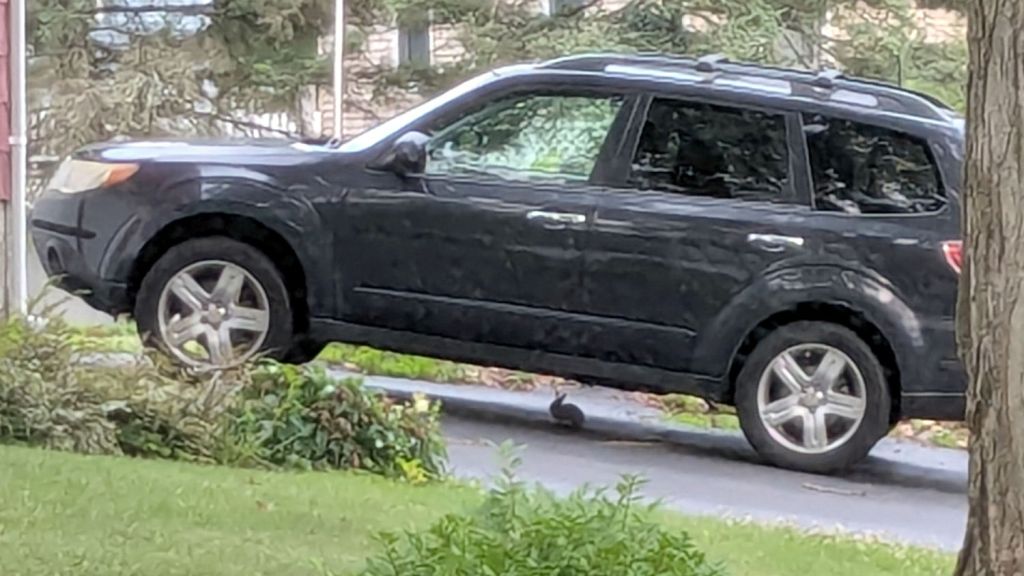
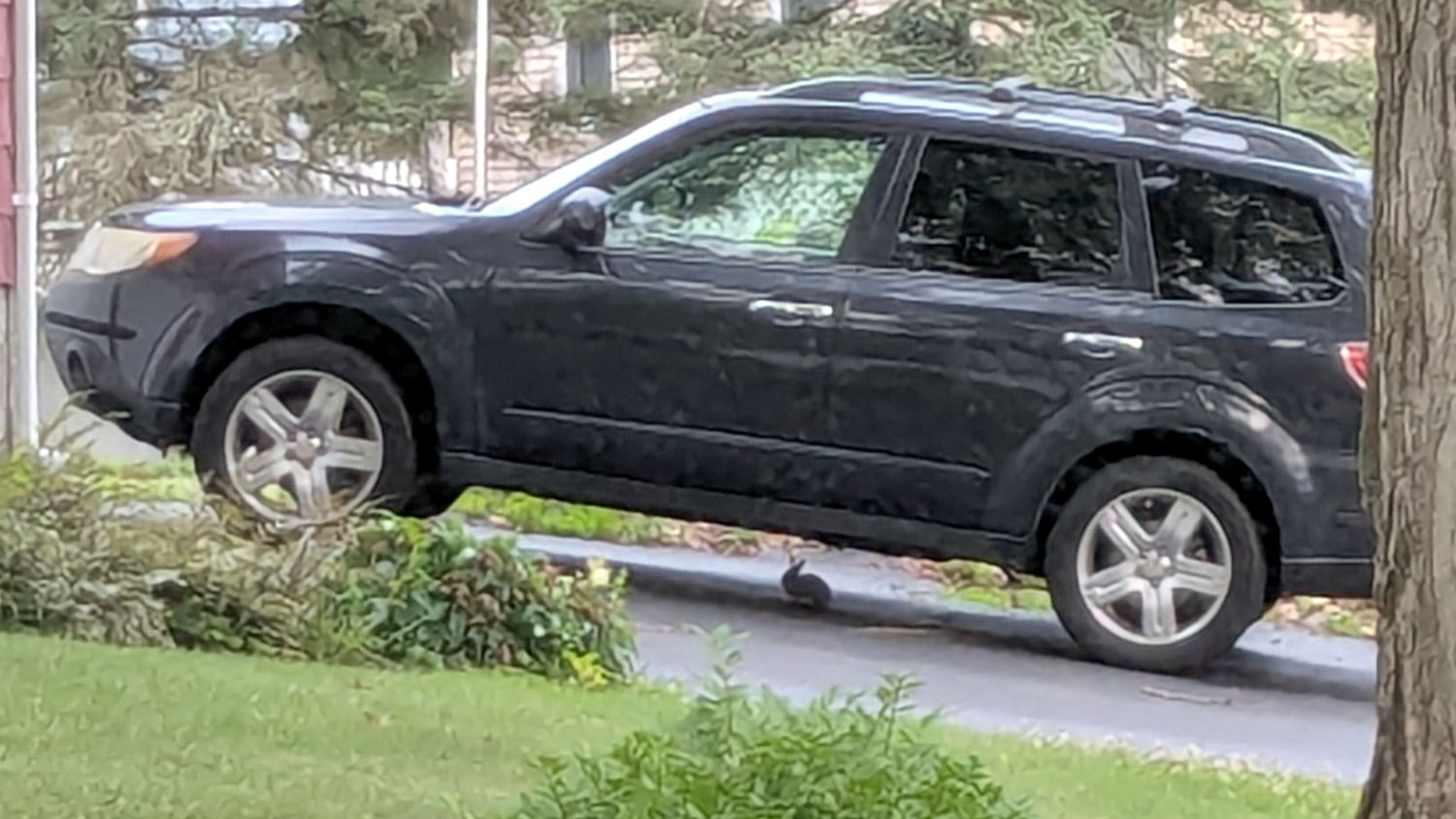
    We’ve seen several new rabbits munching greenery in the back yard, but this little one may be studying auto repair under our neighbor’s car:

    Rabbit - automotive hiding place
    Rabbit – automotive hiding place

    Unlike mice, even a small rabbit won’t take up residence in the air cleaner.

    The weird granulated look comes from a Pixel 6a camera zoomed all the way tight through two layers of 1960-era window glass at an acute angle. The bad camera you have is always better than the good camera you don’t.
  • Newmowa NP-BX1: 2025 Batteries

    Newmowa NP-BX1: 2025 Batteries

    A new sextet of NP-BX1 batteries for the Sony AS-30V helmet camera arrived:

    Newmowa NP-BX1 - 2022 vs 2025
    Newmowa NP-BX1 – 2022 vs 2025

    The traces:

    • Blue = 2025 batteries
    • Red = 2022 batteries when new

    I don’t know what the bump in the middle of the new battery discharge curve means. Something weird in the chemistry, I suppose. Getting good batteries from Amazon surely remains a crapshoot and I now have four chargers.
    Recharging all six batteries required 5488 mA·hr, just over 900 mA·hr apiece. Running the camera on a one-hour bike ride burns 600-ish mA·hr, so that’s comforting.

    Comparing the new results with the 2022 batteries tested last month:

    NP-BX1 - Newmowa 2022 in 2025-06
    NP-BX1 – Newmowa 2022 in 2025-06

    The upper traces appear in red in the first plot, the lower curves come from three years of use.

    I’ll deploy the two best 2022 batteries (D and F) in the SJCAM M20 keeping watch from the Forester’s dashboard.

  • Plastic Spring Clamp Jaw Rod Replacement

    Plastic Spring Clamp Jaw Rod Replacement

    A recent quilt photo shoot degenerated into me chasing several bright orange clamp jaws across the deck as they popped off their clamps hanging from the photo backdrop scaffold. Most clamps have jaws snapping onto actual rods, but these clamps have molded-in-place “rods” much smaller than the 2 mm expected by the jaws and much more irregular than seems reasonable.

    Trace and scan the nose of a clamp:

    Large spring clamp nose outline
    Large spring clamp nose outline

    Curiously, the molded rod is not centered in the nose:

    Large spring clamp nose - pin locatIon
    Large spring clamp nose – pin locatIon

    Use LightBurn to coerce a scan of the first sketch into a suitable path, laser-cut some MDF, and glue up a drill fixture:

    Spring clamp jaw pins - fixture gluing
    Spring clamp jaw pins – fixture gluing

    Align the drill to the center of the off-center hole marked on the bottom layer:

    Spring clamp jaw pins - drill alignment
    Spring clamp jaw pins – drill alignment

    The drilling setup looks casual, but hand-holding the clamps against the rear wall and into the form-fitting nose recess sufficed:

    Spring clamp jaw pins - fixture overview
    Spring clamp jaw pins – fixture overview

    I snipped the plastic “rods” out before drilling the holes, then rammed 2 mm steel rods in place:

    Spring clamp jaw pins - steel
    Spring clamp jaw pins – steel

    They’re really 5/64 inch = 1.98 mm rods from the oil-hardening drill rod stash, but entirely sufficient for the purpose.

    With one clamp in hand, though, there was obviously no reason for the rods to be off-center. So I centered the drill in the nose, punctured the rest of the clamps, and pressed 2 mm carbon fiber rods in place:

    Spring clamp jaw pins - steel vs carbon fiber
    Spring clamp jaw pins – steel vs carbon fiber

    The rods were cut to 20 mm by rolling them across a pad with firm pressure from a utility knife. That was mostly to get some experience cutting carbon fiber, which is obviously overqualified for the job.

    Snap the orange jaws in place and I shall never suffer the embarrassment of chasing them again …