For the last few months, one of the USB hubs in my PC has been disabling a port connected to an external USB hub. The external hub re-establishes communication with all the devices, but the X server doesn’t take kindly to having devices yanked out from underneath it. After this glitch, my left-hand trackball and tablet are dead in the water; the only way to get ’em working is to log out, restart X, and log back in again. Not pleasant.
Oddly, the keyboard continues to function.
Note that it’s the hub in the PC that’s complaining, not the external hub.
I’ve tweaked the obvious things: switched USB ports on the PC, replaced the external hub, powered and un-powered the external hub, rearranged the devices on the hub, moved other devices away from the hub, and so forth and so on.
Now it’s time to start taking notes. The current external hub is a cheap, no-name gadget direct from China that bears a striking resemblance to the tchotchke HP-branded “Made In China” hub a friend picked up at SC06.
Both hubs have a cut-out in the case for a power plug, but the internal circuit boards lack the requisite jack to actually make use of external power.
Here’s the current dmesg dump.
[ 2917.702975] hub 1-0:1.0: port 2 disabled by hub (EMI?), re-enabling...
[ 2917.702986] usb 1-2: USB disconnect, address 3
[ 2917.702989] usb 1-2.2: USB disconnect, address 4
[ 2917.712300] /build/buildd/linux-2.6.24/drivers/input/tablet/wacom_sys.c: wacom_sys_irq - usb_submit_urb failed with result -19
[ 2917.787223] usb 1-2.3: USB disconnect, address 5
[ 2917.831161] usb 1-2.4: USB disconnect, address 6
[ 2918.002420] usb 1-2: new full speed USB device using uhci_hcd and address 7
[ 2918.165658] usb 1-2: configuration #1 chosen from 1 choice
[ 2918.170675] hub 1-2:1.0: USB hub found
[ 2918.172533] hub 1-2:1.0: 4 ports detected
[ 2918.502967] usb 1-2.2: new low speed USB device using uhci_hcd and address 8
[ 2918.662816] usb 1-2.2: configuration #1 chosen from 1 choice
[ 2918.679915] input: Microsoft Comfort Curve Keyboard 2000 as /devices/pci0000:00/0000:00:1d.0/usb1/1-2/1-2.2/1-2.2:1.0/input/input10
[ 2918.721211] input,hidraw2: USB HID v1.11 Keyboard [Microsoft Comfort Curve Keyboard 2000] on usb-0000:00:1d.0-2.2
[ 2918.751759] input: Microsoft Comfort Curve Keyboard 2000 as /devices/pci0000:00/0000:00:1d.0/usb1/1-2/1-2.2/1-2.2:1.1/input/input11
[ 2918.793088] input,hidraw3: USB HID v1.11 Device [Microsoft Comfort Curve Keyboard 2000] on usb-0000:00:1d.0-2.2
[ 2919.010108] usb 1-2.3: new low speed USB device using uhci_hcd and address 9
[ 2919.165963] usb 1-2.3: configuration #1 chosen from 1 choice
[ 2919.187020] input: Kensington      Kensington Expert Mouse as /devices/pci0000:00/0000:00:1d.0/usb1/1-2/1-2.3/1-2.3:1.0/input/input12
[ 2919.244778] input,hidraw4: USB HID v1.10 Mouse [Kensington      Kensington Expert Mouse] on usb-0000:00:1d.0-2.3
[ 2919.465338] usb 1-2.4: new low speed USB device using uhci_hcd and address 10
[ 2919.617208] usb 1-2.4: configuration #1 chosen from 1 choice
[ 2919.625530] input: Wacom Graphire3 6x8 as /devices/pci0000:00/0000:00:1d.0/usb1/1-2/1-2.4/1-2.4:1.0/input/input13
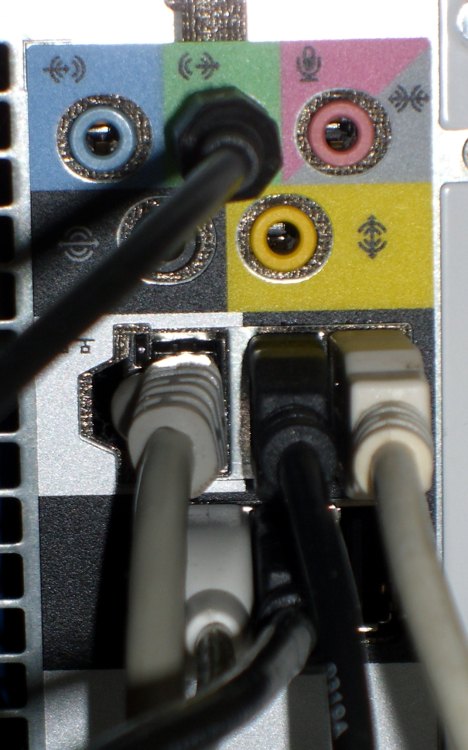
The external hub is on the white cable (a USB extender cable, which may contribute to the problem) plugged into the port at the far right from the network cable. But i’ve used an external hub with a different and very official USB A-B cable.
The USB connections on the back panel:
Top row: Zire 71 PDA cradle | External USB hub (the offending one)
Bottom Row: Logitech trackball | Dell 2001 monitor hub | empty port
What I changed after this glitch:
HP SC06 hub replaces no-name hub.
Update: Time passes… and it craps out twice.
The dmesg dump:
[10625.203907] usb 1-2.2: USB disconnect, address 8
[10625.970605] usb 1-2.3: USB disconnect, address 9
[10626.865087] usb 1-2.4: USB disconnect, address 10
[10627.880887] usb 1-2: USB disconnect, address 7
[10638.410365] usb 1-2: new full speed USB device using uhci_hcd and address 11
[10638.579231] usb 1-2: configuration #1 chosen from 1 choice
[10638.582167] hub 1-2:1.0: USB hub found
[10638.584118] hub 1-2:1.0: 4 ports detected
[10638.898574] usb 1-2.1: new low speed USB device using uhci_hcd and address 12
[10639.035458] usb 1-2.1: configuration #1 chosen from 1 choice
[10639.038484] input: Wacom Graphire3 6x8 as /devices/pci0000:00/0000:00:1d.0/usb1/1-2/1-2.1/1-2.1:1.0/input/input14
[10639.301891] usb 1-2.3: new low speed USB device using uhci_hcd and address 13
[10639.445768] usb 1-2.3: configuration #1 chosen from 1 choice
[10639.466865] input: Microsoft Comfort Curve Keyboard 2000 as /devices/pci0000:00/0000:00:1d.0/usb1/1-2/1-2.3/1-2.3:1.0/input/input15
[10639.505029] input,hidraw2: USB HID v1.11 Keyboard [Microsoft Comfort Curve Keyboard 2000] on usb-0000:00:1d.0-2.3
[10639.525686] input: Microsoft Comfort Curve Keyboard 2000 as /devices/pci0000:00/0000:00:1d.0/usb1/1-2/1-2.3/1-2.3:1.1/input/input16
[10639.572404] input,hidraw3: USB HID v1.11 Device [Microsoft Comfort Curve Keyboard 2000] on usb-0000:00:1d.0-2.3
[10639.777083] usb 1-2.4: new low speed USB device using uhci_hcd and address 14
[10639.917975] usb 1-2.4: configuration #1 chosen from 1 choice
[10639.934026] input: Kensington      Kensington Expert Mouse as /devices/pci0000:00/0000:00:1d.0/usb1/1-2/1-2.4/1-2.4:1.0/input/input17
[10639.971692] input,hidraw4: USB HID v1.10 Mouse [Kensington      Kensington Expert Mouse] on usb-0000:00:1d.0-2.4
[10962.110496] usb 5-5.2: new high speed USB device using ehci_hcd and address 8
[10962.219819] usb 5-5.2: configuration #1 chosen from 1 choice
[12290.756701] usb 5-5.2: USB disconnect, address 8
[54272.946992] hub 1-0:1.0: port 2 disabled by hub (EMI?), re-enabling...
[54272.947001] usb 1-2: USB disconnect, address 11
[54272.947003] usb 1-2.1: USB disconnect, address 12
[54273.003212] usb 1-2.3: USB disconnect, address 13
[54273.071171] usb 1-2.4: USB disconnect, address 14
[54273.214485] usb 1-2: new full speed USB device using uhci_hcd and address 15
[54273.383873] usb 1-2: configuration #1 chosen from 1 choice
[54273.386778] hub 1-2:1.0: USB hub found
[54273.388736] hub 1-2:1.0: 4 ports detected
[54273.699213] usb 1-2.1: new low speed USB device using uhci_hcd and address 16
[54273.840096] usb 1-2.1: configuration #1 chosen from 1 choice
So replacing the hub seems to have not done anything useful, as expected.
Next step: plug the hub cable into the right-hand port on the bottom row.
Update: Time passes and another disconnect pops up. I’d just poked the USB button on my pocket camera’s cradle. Coincidence? Sometimes it disconnects when I sit down, which suggests a static discharge.
The dmesg dump:
[ 1275.088536] hub 3-0:1.0: port 2 disabled by hub (EMI?), re-enabling...
[ 1275.088547] usb 3-2: USB disconnect, address 5
[ 1275.088549] usb 3-2.1: USB disconnect, address 6
[ 1275.132321] usb 3-2.3: USB disconnect, address 7
[ 1275.220223] usb 3-2.4: USB disconnect, address 8
[ 1275.371502] usb 3-2: new full speed USB device using uhci_hcd and address 9
[ 1275.541198] usb 3-2: configuration #1 chosen from 1 choice
[ 1275.544148] hub 3-2:1.0: USB hub found
[ 1275.546102] hub 3-2:1.0: 4 ports detected
[ 1275.856554] usb 3-2.1: new low speed USB device using uhci_hcd and address 10
[ 1275.993439] usb 3-2.1: configuration #1 chosen from 1 choice
[ 1275.997194] input: Wacom Graphire3 6x8 as /devices/pci0000:00/0000:00:1d.2/usb3/3-2/3-2.1/3-2.1:1.0/input/input10
[ 1276.259871] usb 3-2.3: new low speed USB device using uhci_hcd and address 11
[ 1276.406735] usb 3-2.3: configuration #1 chosen from 1 choice
[ 1276.423836] input: Microsoft Comfort Curve Keyboard 2000 as /devices/pci0000:00/0000:00:1d.2/usb3/3-2/3-2.3/3-2.3:1.0/input/input11
[ 1276.469640] input,hidraw2: USB HID v1.11 Keyboard [Microsoft Comfort Curve Keyboard 2000] on usb-0000:00:1d.2-2.3
[ 1276.490647] input: Microsoft Comfort Curve Keyboard 2000 as /devices/pci0000:00/0000:00:1d.2/usb3/3-2/3-2.3/3-2.3:1.1/input/input12
[ 1276.545539] input,hidraw3: USB HID v1.11 Device [Microsoft Comfort Curve Keyboard 2000] on usb-0000:00:1d.2-2.3
[ 1276.746036] usb 3-2.4: new low speed USB device using uhci_hcd and address 12
[ 1276.896906] usb 3-2.4: configuration #1 chosen from 1 choice
[ 1276.912985] input: Kensington      Kensington Expert Mouse as /devices/pci0000:00/0000:00:1d.2/usb3/3-2/3-2.4/3-2.4:1.0/input/input13
[ 1276.960781] input,hidraw4: USB HID v1.10 Mouse [Kensington      Kensington Expert Mouse] on usb-0000:00:1d.2-2.4
[ 1280.734257] usb 5-5.2: new high speed USB device using ehci_hcd and address 7
[ 1280.843575] usb 5-5.2: configuration #1 chosen from 1 choice
Next step: rearrange cables thusly…
Top row: Zire 71 PDA cradle | Dell 2001 monitor hub
Bottom Row: Logitech trackball | External USB hub (the offending one) | empty port
Methinks it’s time to start yanking the SD card out of the camera and poking it into the PC’s media reader. That should eliminate one possible source of bus confusion.
Time to reset…
Update: time passes and it’s been working OK… up until I zapped the desk lamp with a teeny static spark, at which moment dmesg reports this:
[49077.518404] hub 3-0:1.0: port 1 disabled by hub (EMI?), re-enabling...
[49077.518413] usb 3-1: USB disconnect, address 2
[49077.518416] usb 3-1.1: USB disconnect, address 3
[49077.562470] usb 3-1.3: USB disconnect, address 4
[49077.658411] usb 3-1.4: USB disconnect, address 5
[49077.805865] usb 3-1: new full speed USB device using uhci_hcd and address 6
[49077.974924] usb 3-1: configuration #1 chosen from 1 choice
[49077.982443] hub 3-1:1.0: USB hub found
[49077.983860] hub 3-1:1.0: 4 ports detected
[49078.302253] usb 3-1.1: new low speed USB device using uhci_hcd and address 7
[49078.439141] usb 3-1.1: configuration #1 chosen from 1 choice
[49078.442156] input: Wacom Graphire3 6x8 as /devices/pci0000:00/0000:00:1d.2/usb3/3-1/3-1.1/3-1.1:1.0/input/input10
[49078.709567] usb 3-1.3: new low speed USB device using uhci_hcd and address 8
[49078.853443] usb 3-1.3: configuration #1 chosen from 1 choice
[49078.875540] input: Microsoft Comfort Curve Keyboard 2000 as /devices/pci0000:00/0000:00:1d.2/usb3/3-1/3-1.3/3-1.3:1.0/input/input11
[49078.920499] input,hidraw2: USB HID v1.11 Keyboard [Microsoft Comfort Curve Keyboard 2000] on usb-0000:00:1d.2-1.3
[49078.941372] input: Microsoft Comfort Curve Keyboard 2000 as /devices/pci0000:00/0000:00:1d.2/usb3/3-1/3-1.3/3-1.3:1.1/input/input12
[49078.999851] input,hidraw3: USB HID v1.11 Device [Microsoft Comfort Curve Keyboard 2000] on usb-0000:00:1d.2-1.3
[49079.212710] usb 3-1.4: new low speed USB device using uhci_hcd and address 9
[49079.351593] usb 3-1.4: configuration #1 chosen from 1 choice
[49079.367726] input: Kensington      Kensington Expert Mouse as /devices/pci0000:00/0000:00:1d.2/usb3/3-1/3-1.4/3-1.4:1.0/input/input13
[49079.411112] input,hidraw4: USB HID v1.10 Mouse [Kensington      Kensington Expert Mouse] on usb-0000:00:1d.2-1.4
So it looks like there’s really something EMI-ish going on. Perhaps it’s time to look into grounding all the exposed metal around here.
Update: It really was static electricity. More discussion there.


 The Smell of Molten Projects in the Morning