Ed Nisley's Blog: Shop notes, electronics, firmware, machinery, 3D printing, laser cuttery, and curiosities. Contents: 100% human thinking, 0% AI slop.
While excavating the top of my workbench and putting things away, I managed to drop my favorite needle-nose tweezers… which, of course, landed point-down on the concrete floor:
Mismatched tweezer jaw
Well, that gave me an excuse to match up the jaws. If you take a close look at most of your tweezers, they’ll have jaws that don’t quite come together evenly, so you’re trying to grab things with a single point instead of between two flat surfaces.
A brief session with coarse and medium diamond files produced this pleasing result (with a mm scale for size):
Matching tweezer jaws
Much better!
Another trick that works well: grab a piece of fine sandpaper in the tweezers, scrub sideways, and repeat for the other jaw. That’ll flatten out the jaws, make them reasonably parallel, and put the scratches in the direction that helps the most when you’re pulling something. Works best if the jaws are already pretty well aligned.
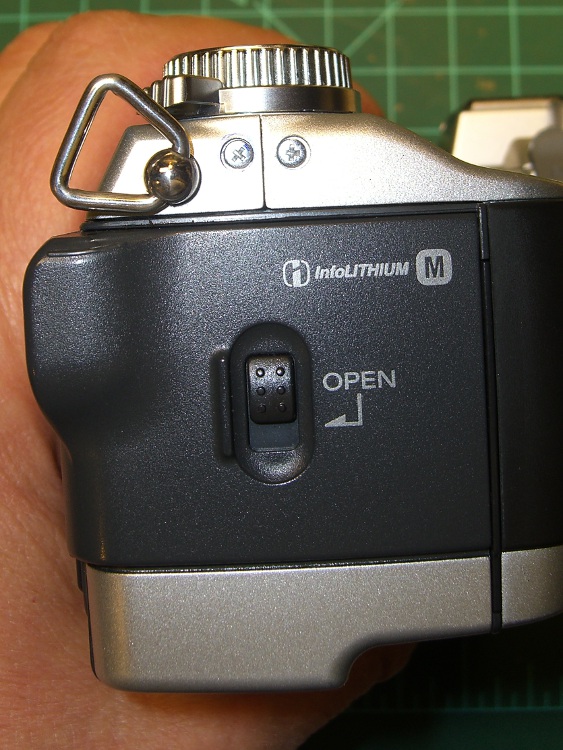
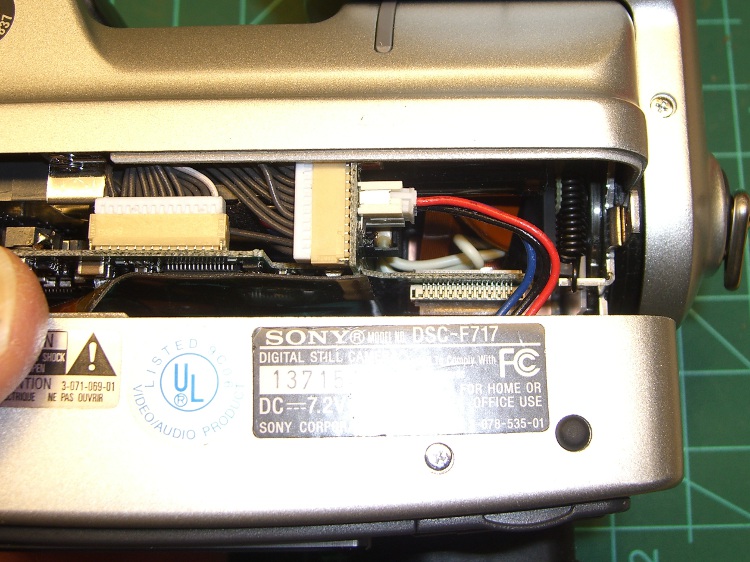
While I was fiddling with the camera to get that first spectrograph, it began coughing up an assortment of Memory Stick errors, including the dreaded C:13:01 error. Having had this happen several years ago, I knew it came from the ribbon cable contacts in the Memory Stick socket and the only way to fix it involves taking the camera apart.
Anyhow, here’s my version of the teardown and fix. This is a bit more aggressive than what you’ll read above, in that I disconnect all the cables to get straightforward access to the guts of the camera, but I think it makes everything easier. In any event, re-plugging the cables in those connectors will probably be a Good Thing.
Remove the battery, Memory Stick, and all the straps and doodads. This fix will reset the camera to its factory defaults; you must eventually reset everything, so review your settings.
If your filing system depends on the camera’s numbering system: heads up! This will reset the image sequence numbers; the next picture will be DSC00001.JPG.
Remove the four Philips-00 screws that hold the rear case in place. Note that they are not identical…
Two on the left.
DSC-F717 case screws – left side
The rear screw on the right side.
DSC-F717 case screws – right side
The screw on the right side of the bottom passes through the front part of the case.
DSC-F717 case screws – bottom
Ease the whole rear half of the case, display and all, away from the front half, until you can disconnect the three-wire cable from the power jack. A needle-nose pliers may be helpful, but be gentle!
DSC-F717 internal power cable
Now things get nasty.
The flat paddle in the lower right plugs into a socket on the display board in the rear case: pry it out if it hasn’t popped out of its own accord.
Disconnect the ribbon cable on the left side by prying the gray latch away from the cable; the ribbon will pop out with no effort.
Put the rear part of the case somewhere out of the way.
DSC-F717 main board cables
Peel the static shield off the main circuit board. The black strip is a surprisingly strong adhesive tape that’s stuck to the ribbon cables along the top edge of the board. Peel gently!
DSC-F717 static shield
Pull the three cables out of the sockets along the top of the board. The blue cable seems to be much more fragile than the others, but they all come out by just pulling directly upward: parallel to the board.
Unscrew the two P-00 screws holding the main board in place: upper left and center of the board.
DSC-F717 main board cables – top
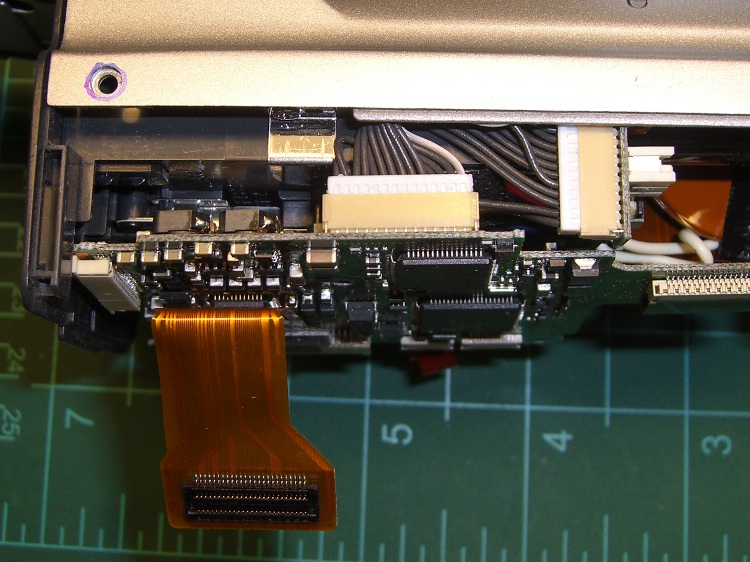
Flip the camera over and ease the main board away from the case to expose the white connector on the bottom. This is stuck firmly in place, so try to not brutalize anything around the connector when it pops out.
DSC-F717 main board cables – bottom
That leaves only the ribbon cable on the right of this picture (left of the camera) connecting the optical section to the main board. Push the two ends of the gray latch bar parallel to the cable (it is not the same as the connector on the other side of the board shown above) away from the connector until the bar releases the cable and it pops out.
Put the main board somewhere safe.
DSC-F717 main board cables – rear
Now you can actually see the Memory Stick socket behind all the ribbon cables!
DSC-F717 Memory Stick socket – exposed
Remove the two P-00 mounting screws, one to the upper right and the other to the lower right in the steel retaining bar.
Remove the socket from the camera. Whew!
DSC-F717 Memory Stick socket – retaining screws
Here is the offending cable entry into the Memory Stick socket. Pull the mumble cable out.
DSC-F717 Memory Stick socket – cable entry
The socket pins evidently move just a little bit, every time you put in a Memory Stick, eroding teeny divots in the cable contact pads. I generally use the USB connection, so the socket doesn’t see a lot of motion. Your mileage may vary.
DSC-F717 Memory Stick cable indentations
I cleaned off the ribbon cable pads with Caig DeoxIT, although I’m not convinced that really does anything in this situation.
This guy dismantled the socket to clean the internal contacts, which would probably make sense while you’ve got the hood up. I didn’t do that this time, though.
Then you reassemble everything in reverse order, after which the camera Just Works. Probably for another few years.
The puzzling part of this failure: the camera has literally hundreds of ribbon cable contacts, but only the Memory Stick cable goes bad. If any other cable failed, the camera would go Toes Up, right? Next time around I may try soldering thin copper pads on the cable or applying a thin backing layer to improve the resilience, but that sounds pretty risky even to me.
If you haven’t done so already, put a write-protected image of your biz card / contact info on every Memory Stick you use with your cameras to make it easy for an honest person who finds your camera to get in touch with you. The dishonest ones won’t change their behavior one way or the other.
Take a picture of your card now: the camera will set up the folders and name it DSC00001.JPG. If you’ve already got such a file, take a picture anyway, delete it, then copy your existing file to the camera as DSC00001.JPG. In either case, write-protect the file.
Memo to Self: next time, take the socket apart and cast some epoxy around the contacts to prevent further motion.
Now, having seen what we’ve been living through, you might ask yourself
Wouldn’t It Be Nice If there was some way to be absolutely sure that mumble does not happen to me?
There isn’t, but you can stack the odds in your favor by disinsecting everything that enters your house. In particular, when you return from a trip, you must treat your luggage with the same casual regard as you apply to any lump of highly radioactive waste.
Because all bed bug stages die when exposed to temperatures over 45°C (113°F, which I round to 120°F), the simplest way to ensure that you’re not bringing any passengers home is to heat your luggage / packages / clothing / whatever to an internal temperature around 120°F, then let it soak for maybe an hour to ensure all the occupants get the message.
What you need is a box that gets hot on the inside, but not hot enough to set your luggage on fire. As with all things sold for bed bug problems, the commercial solution seems grossly overpriced for what looks like an uninsulated ripstop nylon bag containing a rack, a heater, and a fan.
It should come as no surprise that I built something that’s bigger, uglier, and harder to use… but it produces data and you can do science. And, with liberal use of my parts heap, the overall price is maybe 10 dB down from the commercial version…
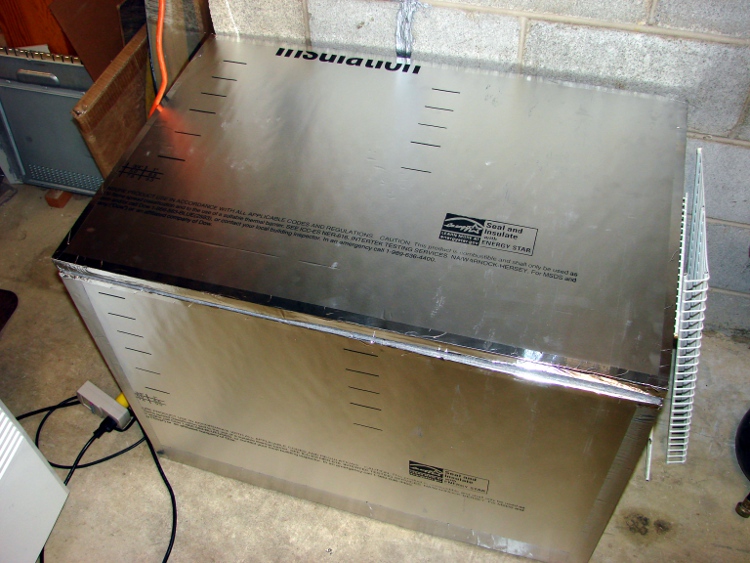
Hot box exterior
I figured that this widget is going to be a major part of our lives from now on, so a foldable / storable heater wasn’t particularly useful. In point of fact, we’ve been using it heavily and I don’t expect that to stop any time soon.
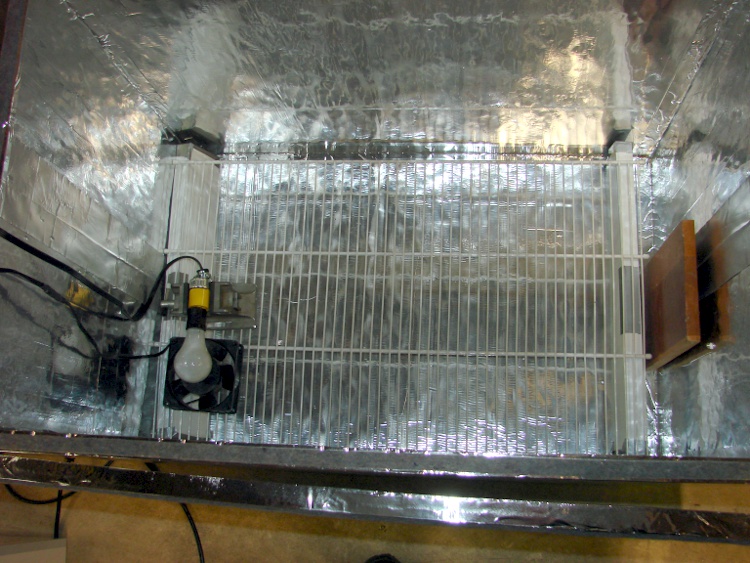
Inside, I used lengths of wire shelving to support the thing-to-be-baked. After we’ve used it a bit more, I’ll conjure up permanent supports for the second level shelving (stacked on the right of the exterior picture); right now, they’re supported on wood blocks as needed.
Hot box interiorHot Box – Dimension sketch
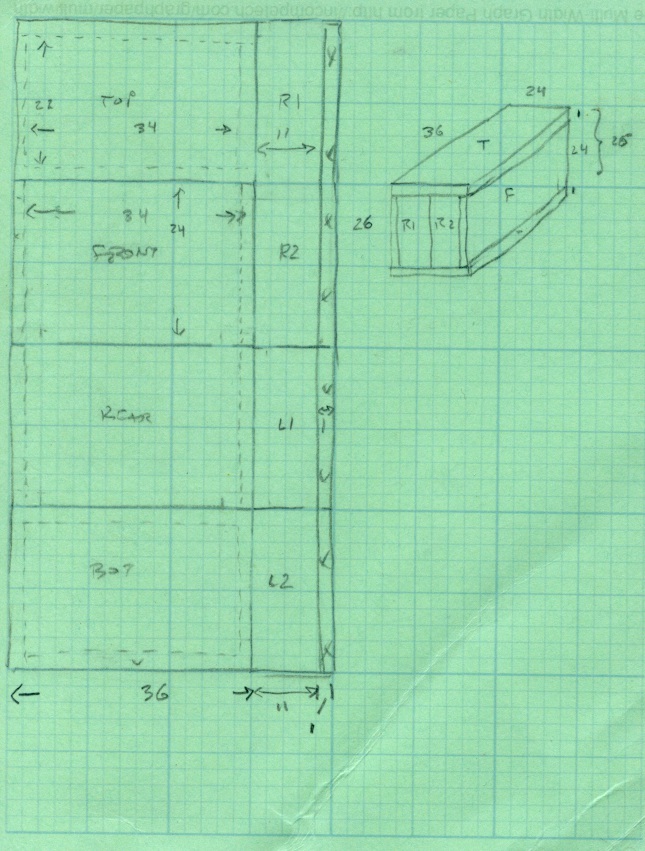
The interior dimensions work out to 34x22x24 inches: it’s made from a single 4×8 foot sheet of insulating board. Here’s my working sketch showing how the parts lay out and fit together. (clicky the pic for more dots).
The only waste is the 1-inch strip along the right edge; the slab I bought came with a molding imperfection, so discarding that edge was OK.
I cut the sheet into four 2×4 foot strips, cut a 13-inch strip off each plank, then trimmed the 1 inch waste. That seemed less prone to catastrophic blundering than (trying to) make a pair of 8-foot cuts and whack each resulting strip in quarters. An ordinary razor utility knife worked fine, although I found that making two passes along each cut produced cleaner results than trying to do it all in one.
I assembled it with the heavy / shiny aluminum foil side inward, although I doubt it makes any difference. Cover all the edges with tape, tape all the joints both inside and outside, and it becomes a nice rigid box when you’re done. Pay attention to getting the sides at right angles; I used a framing square.
The board allegedly has an insulating mojo of:
R = 6.5 ft2 • h • °F/Btu
Figuring a surface area of 32 ft2 and a temperature differential of 120 – 60 = 60°F, the box should require 295 BTU/hr = 87 W to maintain that temperature.
Which, as it turns out, is pretty close to how it worked out:
Hot Box – Temp vs Time – First light
The lower curve shows a 60 W bulb with a 10 W 120 VAC fan heats the interior to a bit over 100°F in 100 minutes, where it looks to be stabilizing. That was the first test and showed that I was on the right track.
The second test, with a pair of 60 W bulbs and the fan produced the two upper curves: one for air, the other inside some cloth jammed inside a plastic bucket to simulate a (tiny) suitcase. The combined 130 W heats the box over 150°F in two hours, with the somewhat insulated bucket trailing neatly behind as you’d expect.
Without opening the box, I connected the bulbs and fan to a Variac plugged into my Kill-A-Watt meter and dialed it for 100 W total dissipation. The temperature fell to slightly over 130°F in 80 minutes and looks like it would stabilize near there.
Ambient temperature was 67°F, so
R = 32 ft2 • 67°F / (341 BTU/hr) = 6.3
Close enough, I’d say. Given those few data points, it looks like the temperature sensitivity around 130°F is 0.7°F / W. [Update: typo in the equation. Doesn’t change the answer much at all.]
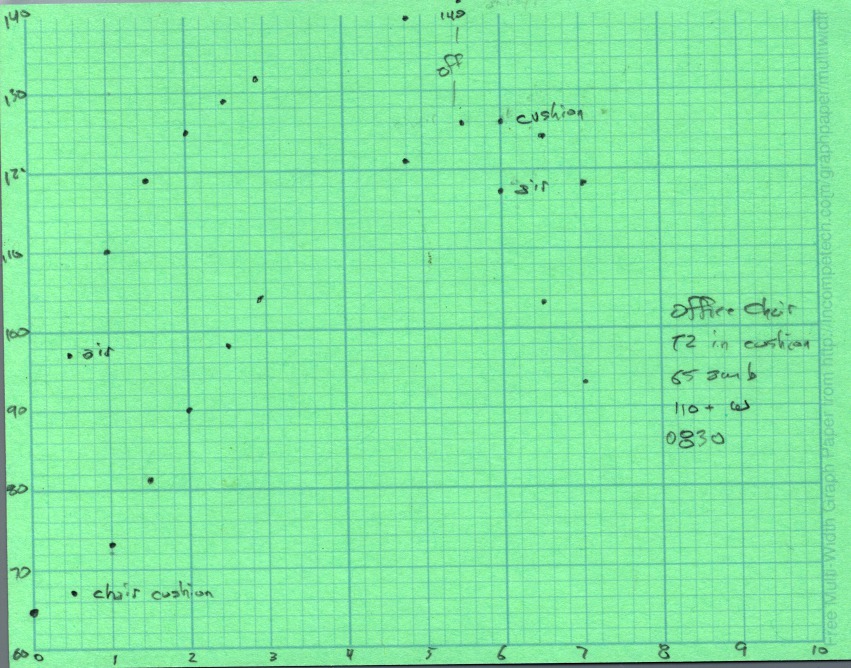
I swapped in a 100 W bulb, removed the Variac, and heated the cushions from my office chair.
Hot Box – Chair cushions
One thermocouple is hanging in mid-air, the other is wedged inside one of the cushions. After nearly 5 hours the cushion is up to killing temperature and I turned the heater off. The air temperature drops rapidly, but the cushion stays over 120°F for another two hours.
The light bulb is just a proof of concept, because it’s entirely too hot: if the fan fails, your luggage ignites. I plan to build a rather subdued heater with a surface temperature around 140°F and a controller that monitors several sensors to ensure the contents reach killing temperatures and stay there long enough.
But that’s a project for another day…
[Update: If you’re arriving from a link, start at the overview to get The Whole Story.]
So I stuck a CD-RW drive into the Foxconn Atom box and discovered that the pushbutton on the front panel doesn’t move quite far enough to actually hit the corresponding button on the drive.
Popped another drive off the heap and tried it out, just for grins, with the same result. Evidently the cute little ribbed back on the silvered panel button (near the bottom of the picture) isn’t quite long enough.
Solution: a bit of rubberized high-traction tape stuck to the drive button (near the top of the picture).
This is a black-on-black situation, so I pushed the contrast enough that you can actually see it.
Another pass at my Logitech Dual-Action Gamepad used as an EMC2 control pendant, but this time using an Eagle ULP (User Language Program) that converts a schematic into EMC2 HAL code.
I tweaked Martin Schöneck’s original ULP a bit, added (some of the) new devices found in EMC2.4, added the corresponding Eagle symbols & devices to the library, then drew up a schematic based on my hand-hewn HAL code with some improvements. Ran the script and shazam the HAL code worked just fine (after a bit of debugging the infrastructure, of course).
The new ULP and library are not quite ready for prime time, but this is a stick in the ground to mark some progress. You can certainly use the HAL code directly, without fiddling around in the schematic: stuff the whole program (at the end of the post) in your existing (but likely empty) custom_postgui.hal file.
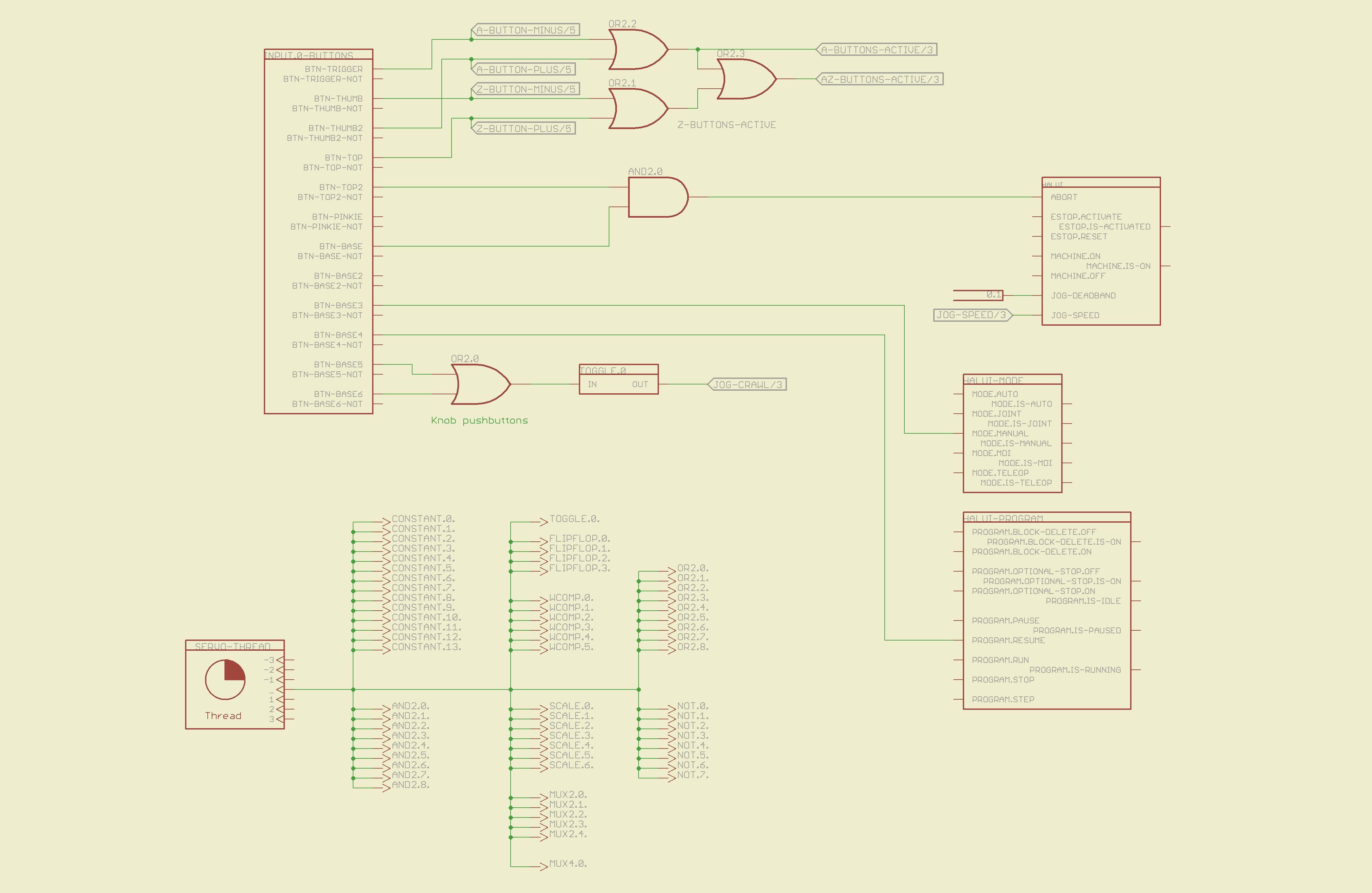
The schematic is, of course, much fluffier than the corresponding code, particularly because I chopped it into five easily printed pages. Here’s the Big Picture overview of what’s going on in each page; click the pix for bigger images.
The servo thread interface device in the lower left provides the halui timing. The big block in the upper left has all the Logitech gamepad buttons, including the four big ones used for Z and A axis jogging. I changed the two left-rear buttons to activate the Abort signal rather than Estop, not that I use them all that much anyway.
The two joystick knobs have pushbuttons, which I combine and use to toggle a flipflop that will select the jogging speed: fast or crawl.
I also cut the jog deadband from 0.2 to 0.1, which makes the joysticks much more responsive.
Logitech Gamepad HAL Schematic – Page 1
The big block on the left has all the gamepad’s analog axes. The HAT0X and HAT0Y axes correspond to the top-hat pushbuttons; they’re not really analog at all, although they take on -1.0 / 0.0 / + 1.0 floating point values. The window comparators determine which joystick axes are active, which comes in handy later on.
Logitech Gamepad HAL Schematic – Page 2
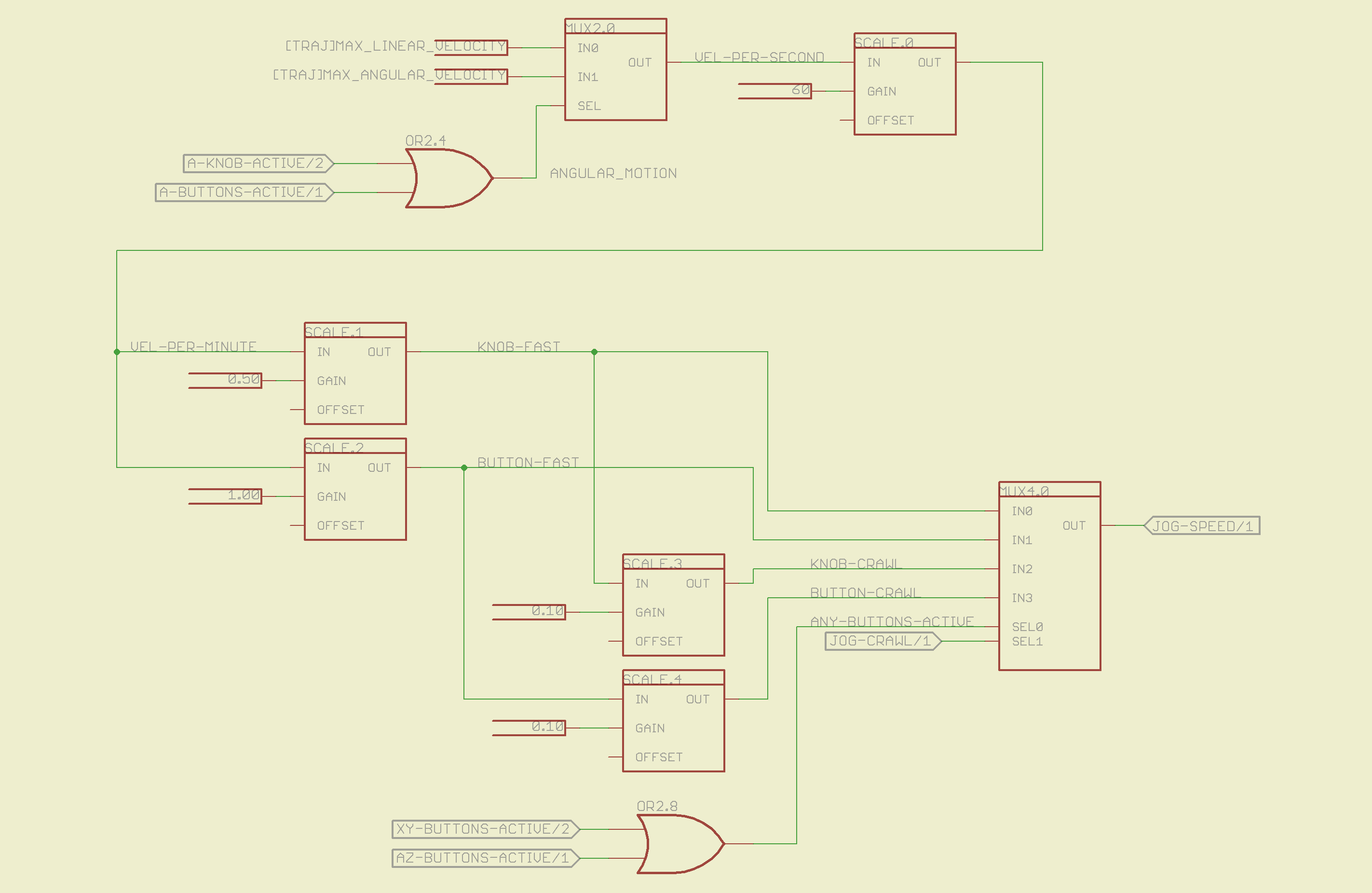
The HAL jogging control has a single input that sets the default speed, but the proper value is vastly different depending on whether you’re jogging with linear or angular motion. This page picks out which ini file MAX_VELOCITY value to use, converts from units/sec to units/min, then does Cool Thing #1: scales the speed so that the fast/crawl speeds work out nicely.
I use the buttons to jog rapidly from here to there, then creep up on the alignment point using the joysticks. Pressing the joysticks downward switches from Fast to Crawl speeds, which provides sort of a gearshift that’s useful for coarse / fine adjustments.
The buttons run at two speeds:
Fast: the maximum speed for the axis
Crawl: 10% of that value
The joysticks have a lower top speed:
Fast: half the maximum speed of the axis
Crawl: 10% of that value
All those values go into the mux4 block and thence to the HAL jog speed control.
Logitech Gamepad HAL Schematic – Page 3
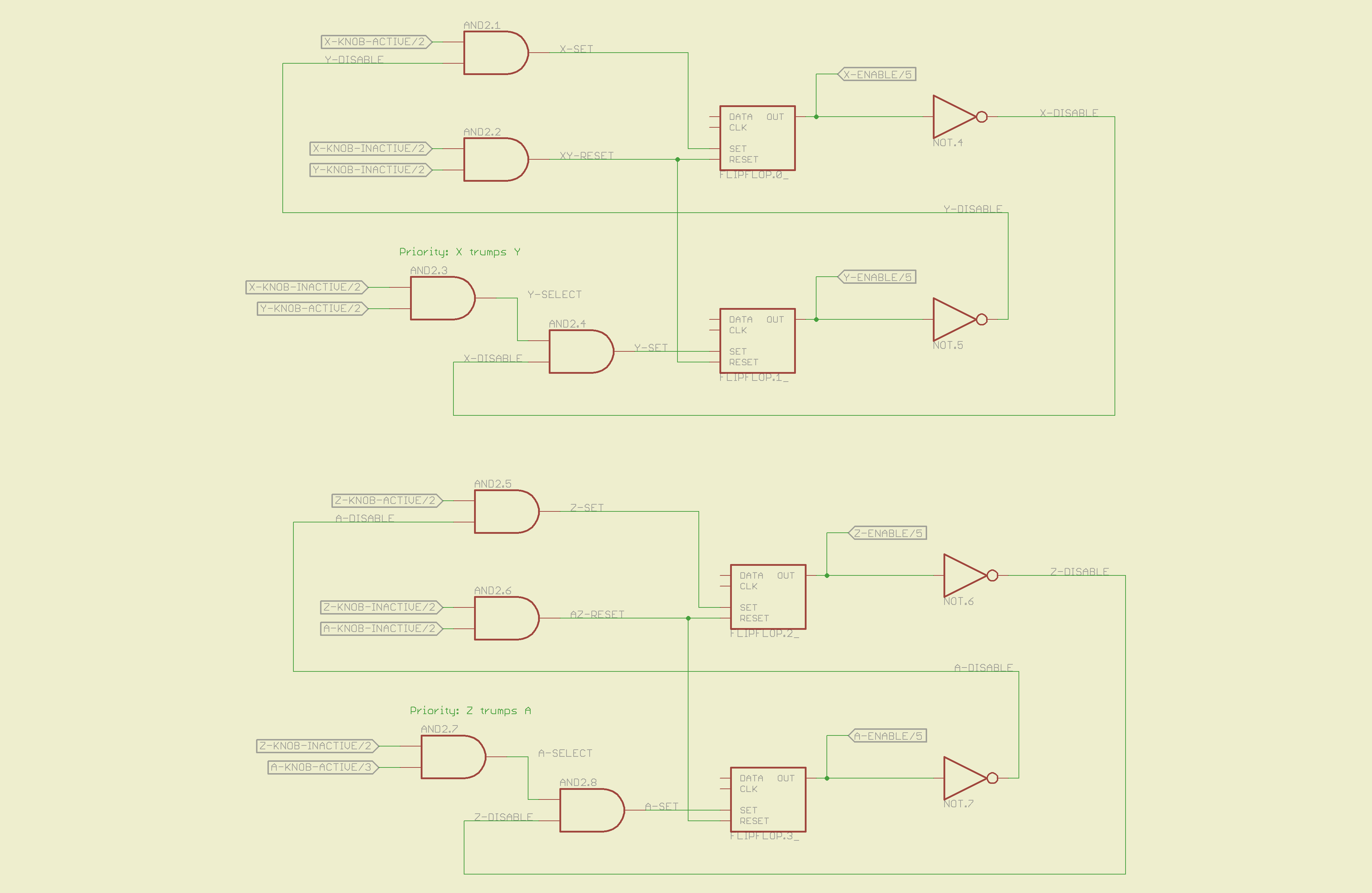
This page does Cool Thing #2: prioritize the joystick axes and lock out the one that started moving last. The general idea is that it’s painfully easy to move the joysticks diagonally, which is great for gaming and terrible for milling machine control. A pair of flipflops for each joystick remember which axis started moving first.
If you want to move diagonally, just press the buttons; they’re not locked out, so you can do what you want.
Logitech Gamepad HAL Schematic – Page 4
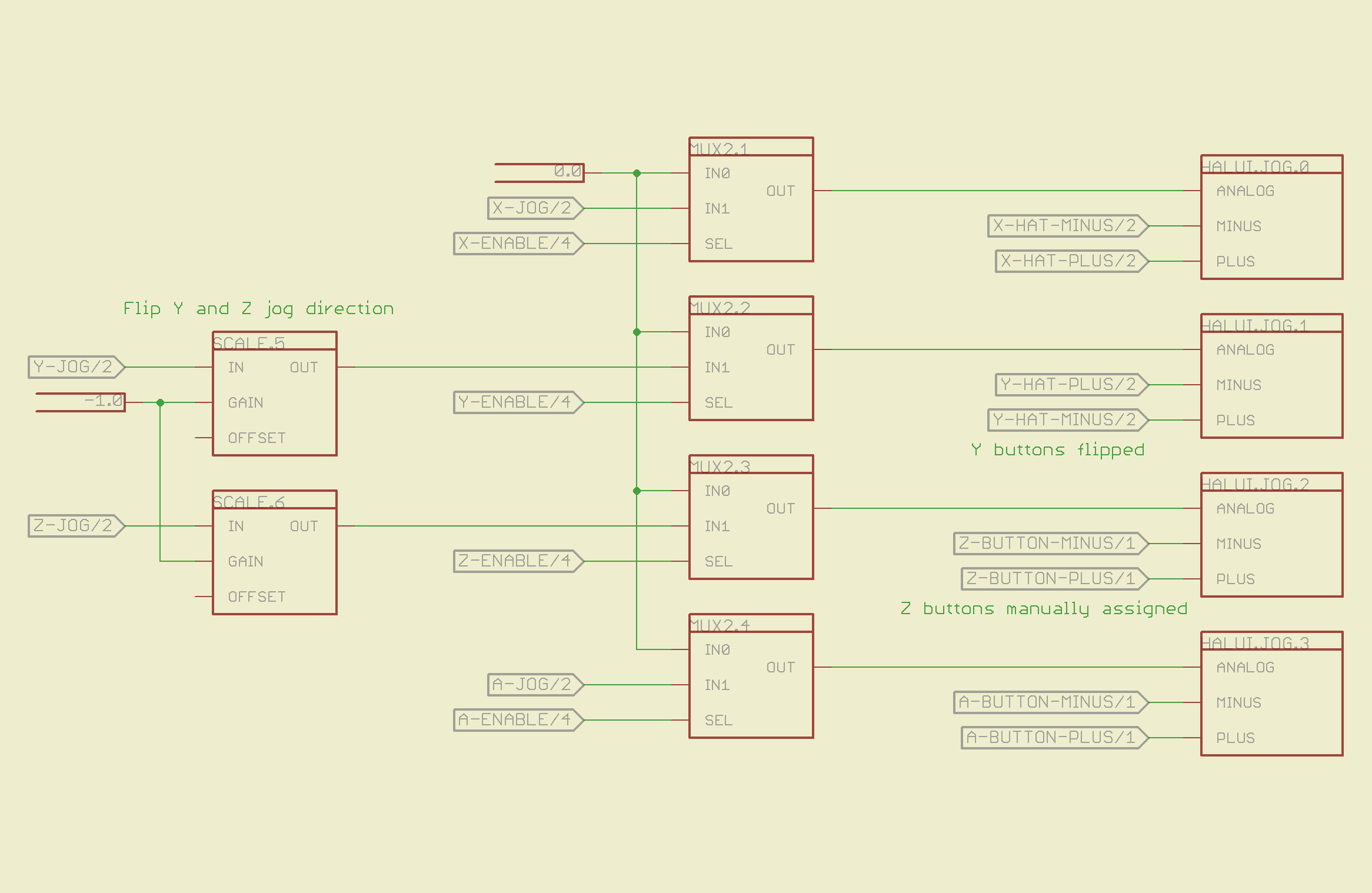
The motion comes together on the last page, where scale blocks flip the direction of the Y and Z joystick axes so positive motion is upward. The multiplexers allow only the active axis of each joystick to reach the HAL analog jog inputs; you can vary the speed of that axis up to the maximum as you’d expect. The buttons drive the digital inputs that jog at that maximum speed; the Y and Z button directions get sorted out appropriately.
Logitech Gamepad HAL Schematic – Page 5
Those five pages boil down into the following code, which I manually insert into my custom_postgui.hal file, along with the tool length probe pin definition.
# HAL config file automatically generated by Eagle-CAD hal-write.ulp
# (C) Martin Schoeneck.de 2008
# Mods Ed Nisley 2010

# Path: [/mnt/bulkdata/Project Files/eagle/projects/EMC2 HAL Configuration/]
# ProjectName: [Logitech Gamepad]
# File name: [/mnt/bulkdata/Project Files/eagle/projects/EMC2 HAL Configuration/Logitech Gamepad.hal]

####################################################
# Load realtime and userspace modules
loadrt constant	count=14
loadrt and2	count=9
loadrt flipflop	count=4
loadrt mux2	count=5
loadrt mux4	count=1
loadrt not	count=8
loadrt or2	count=9
loadrt scale	count=7
loadrt toggle	count=1
loadrt wcomp	count=6

####################################################
# Hook functions into threads
addf toggle.0	servo-thread
addf wcomp.1	servo-thread
addf wcomp.2	servo-thread
addf wcomp.3	servo-thread
addf and2.0	servo-thread
addf and2.4	servo-thread
addf and2.3	servo-thread
addf and2.2	servo-thread
addf and2.1	servo-thread
addf constant.6	servo-thread
addf constant.5	servo-thread
addf constant.4	servo-thread
addf constant.3	servo-thread
addf constant.2	servo-thread
addf constant.1	servo-thread
addf constant.0	servo-thread
addf constant.7	servo-thread
addf constant.8	servo-thread
addf scale.1	servo-thread
addf scale.2	servo-thread
addf scale.3	servo-thread
addf mux4.0	servo-thread
addf mux2.0	servo-thread
addf scale.4	servo-thread
addf scale.0	servo-thread
addf wcomp.5	servo-thread
addf wcomp.4	servo-thread
addf wcomp.0	servo-thread
addf flipflop.1	servo-thread
addf flipflop.0	servo-thread
addf and2.5	servo-thread
addf and2.6	servo-thread
addf and2.7	servo-thread
addf and2.8	servo-thread
addf flipflop.2	servo-thread
addf flipflop.3	servo-thread
addf or2.4	servo-thread
addf or2.8	servo-thread
addf or2.7	servo-thread
addf or2.6	servo-thread
addf or2.5	servo-thread
addf or2.3	servo-thread
addf or2.2	servo-thread
addf or2.1	servo-thread
addf or2.0	servo-thread
addf not.1	servo-thread
addf not.2	servo-thread
addf not.3	servo-thread
addf not.4	servo-thread
addf not.5	servo-thread
addf not.6	servo-thread
addf not.7	servo-thread
addf not.0	servo-thread
addf constant.9	servo-thread
addf mux2.1	servo-thread
addf mux2.2	servo-thread
addf mux2.3	servo-thread
addf mux2.4	servo-thread
addf constant.10	servo-thread
addf constant.11	servo-thread
addf scale.5	servo-thread
addf scale.6	servo-thread
addf constant.12	servo-thread
addf constant.13	servo-thread

####################################################
# Set parameters

####################################################
# Set constants
setp constant.0.value	+0.02
setp constant.1.value	-0.02
setp constant.2.value	60
setp constant.3.value	1.00
setp constant.4.value	0.10
setp constant.5.value	0.50
setp constant.6.value	0.10
setp constant.7.value	+0.5
setp constant.8.value	-0.5
setp constant.9.value	0.0
setp constant.10.value	[TRAJ]MAX_LINEAR_VELOCITY
setp constant.11.value	[TRAJ]MAX_ANGULAR_VELOCITY
setp constant.12.value	-1.0
setp constant.13.value	0.1

####################################################
# Connect Modules with nets
net a-button-minus input.0.btn-trigger or2.2.in0 halui.jog.3.minus
net a-button-plus input.0.btn-thumb2 or2.2.in1 halui.jog.3.plus
net a-buttons-active or2.2.out or2.3.in0 or2.4.in1
net a-disable not.7.out and2.5.in1
net a-enable flipflop.3.out not.7.in mux2.4.sel
net a-jog wcomp.2.in input.0.abs-z-position mux2.4.in1
net a-knob-active not.2.out or2.4.in0 and2.7.in1
net a-knob-inactive wcomp.2.out not.2.in and2.6.in1
net a-select and2.8.in0 and2.7.out
net a-set flipflop.3.set and2.8.out
net angular_motion or2.4.out mux2.0.sel
net any-buttons-active mux4.0.sel0 or2.8.out
net az-buttons-active or2.3.out or2.8.in1
net az-reset flipflop.2.reset and2.6.out flipflop.3.reset
net button-crawl scale.4.out mux4.0.in3
net button-fast scale.2.out mux4.0.in1 scale.4.in
net jog-crawl toggle.0.out mux4.0.sel1
net jog-speed halui.jog-speed mux4.0.out
net knob-crawl mux4.0.in2 scale.3.out
net knob-fast mux4.0.in0 scale.1.out scale.3.in
net n_1 constant.10.out mux2.0.in0
net n_2 and2.0.in0 input.0.btn-top2
net n_3 and2.0.in1 input.0.btn-base
net n_4 and2.0.out halui.abort
net n_5 halui.mode.manual input.0.btn-base3
net n_6 wcomp.0.max wcomp.1.max wcomp.2.max wcomp.3.max constant.0.out
net n_7 halui.program.resume input.0.btn-base4
net n_8 wcomp.0.min wcomp.1.min wcomp.2.min wcomp.3.min constant.1.out
net n_9 mux2.0.in1 constant.11.out
net n_10 constant.12.out scale.5.gain scale.6.gain
net n_11 input.0.btn-base5 or2.0.in0
net n_12 input.0.btn-base6 or2.0.in1
net n_13 constant.9.out mux2.1.in0 mux2.2.in0 mux2.3.in0 mux2.4.in0
net n_14 mux2.1.out halui.jog.0.analog
net n_15 toggle.0.in or2.0.out
net n_16 constant.2.out scale.0.gain
net n_17 constant.5.out scale.1.gain
net n_18 constant.3.out scale.2.gain
net n_19 constant.4.out scale.3.gain
net n_20 scale.4.gain constant.6.out
net n_21 halui.jog.1.analog mux2.2.out
net n_22 mux2.2.in1 scale.5.out
net n_23 scale.6.out mux2.3.in1
net n_24 constant.13.out halui.jog-deadband
net n_25 wcomp.4.max constant.7.out wcomp.5.max
net n_26 constant.8.out wcomp.4.min wcomp.5.min
net n_27 mux2.3.out halui.jog.2.analog
net n_28 halui.jog.3.analog mux2.4.out
net vel-per-minute scale.0.out scale.1.in scale.2.in
net vel-per-second mux2.0.out scale.0.in
net x-buttons-active or2.7.in0 or2.5.out
net x-disable not.4.out and2.4.in1
net x-enable not.4.in flipflop.0.out mux2.1.sel
net x-hat-jog wcomp.4.in input.0.abs-hat0x-position
net x-hat-minus wcomp.4.under or2.5.in1 halui.jog.0.minus
net x-hat-plus or2.5.in0 wcomp.4.over halui.jog.0.plus
net x-jog wcomp.0.in input.0.abs-x-position mux2.1.in1
net x-knob-active not.0.out and2.1.in0
net x-knob-inactive wcomp.0.out not.0.in and2.2.in0 and2.3.in0
net x-set and2.1.out flipflop.0.set
net xy-buttons-active or2.7.out or2.8.in0
net xy-reset flipflop.0.reset and2.2.out flipflop.1.reset
net y-buttons-active or2.6.out or2.7.in1
net y-disable not.5.out and2.1.in1
net y-enable flipflop.1.out not.5.in mux2.2.sel
net y-hat-jog input.0.abs-hat0y-position wcomp.5.in
net y-hat-minus wcomp.5.under or2.6.in1 halui.jog.1.plus
net y-hat-plus or2.6.in0 wcomp.5.over halui.jog.1.minus
net y-jog wcomp.1.in input.0.abs-y-position scale.5.in
net y-knob-active not.1.out and2.3.in1
net y-knob-inactive not.1.in wcomp.1.out and2.2.in1
net y-select and2.4.in0 and2.3.out
net y-set flipflop.1.set and2.4.out
net z-button-minus input.0.btn-thumb or2.1.in0 halui.jog.2.minus
net z-button-plus input.0.btn-top or2.1.in1 halui.jog.2.plus
net z-buttons-active or2.1.out or2.3.in1
net z-disable not.6.out and2.8.in1
net z-enable not.6.in flipflop.2.out mux2.3.sel
net z-jog wcomp.3.in input.0.abs-rz-position scale.6.in
net z-knob-active not.3.out and2.5.in0
net z-knob-inactive not.3.in wcomp.3.out and2.7.in0 and2.6.in0
net z-set and2.5.out flipflop.2.set
The ULP script that eats the schematic and poots out the HAL code:
/******************************************************************************
 * HAL-Configurator
 *
 * Author: Martin Schoeneck 2008
 * Additional gates & tweaks: Ed Nisley KE4ZNU 2010
 *****************************************************************************/
#usage "<h1>HAL-Configurator</h1>Start from a Schematic where symbols from hal-config.lbr are used!";

string output_path =    "./";
string dev_loadrt =     "LOADRT";
string dev_loadusr =    "LOADUSR";
string dev_thread =     "THREAD";
string dev_parameter =  "PARAMETER";

string dev_names[] = {
"CONSTANT",								// must be first entry to make set_constants() work
"ABS",				// 2.4
"AND2",
"BLEND",			// 2.4
"CHARGE-PUMP",		// 2.4
"COMP",
"CONV_S32_FLOAT",	// 2.4
"DDT",				// 2.4
"DEADZONE",			// 2.4
"DEBOUNCE",			// 2.4
"EDGE",
"ENCODER",			// 2.4
"ENCODER-RATIO",	// 2.4
"ESTOP-LATCH",
"FLIPFLOP",
"FREQGEN",			// 2.4
"LOWPASS",
"MULT2",			// 2.4
"MUX2",
"MUX4",				// 2.4
"MUX8",				// 2.4
"NEAR",				// 2.4
"NOT",
"ONESHOT",
"OR2",
"SAMPLER",			// 2.4
"SCALE",			// 2.4
"SELECT8",			// 2.4
"SUM2",
"TIMEDELAY",		// 2.4
"TOGGLE",			// 2.4
"WCOMP",			// 2.4
"XOR2",				// 2.4
""					// end flag
};

string init = "# HAL config file automatically generated by Eagle-CAD hal-write.ulp\n# (C) Martin Schoeneck.de 2008\n# Mods Ed Nisley 2010\n";

/*******************************************************************************
 * Global Stuff
 ******************************************************************************/

string FileName;
string ProjectPath;
string ProjectName;

void Info(string Message) {
	dlgMessageBox(";<b>Info</b><p>\n" + Message);
}

void Warn(string Message) {
	dlgMessageBox("!<b>Warning</b><p>\n" + Message + "<p>see usage");
}

void Error(string Message) {
	dlgMessageBox(":<hr><b>Error</b><p>\n" + Message + "<p>see usage");
	exit(1);
}

string replace(string str, char a, char b) {
	// in string str replace a with b
	int pos = -1;
	do {
		// find that character
		pos = strchr(str, a);
		// replace if found
		if(pos >= 0) {
			str[pos] = b;
		}
	} while(pos >= 0);

	return str;
}

// the part name contains an index and is written in capital letters
string get_module_name(UL_PART P) {
	// check module name, syntax: INDEX:NAME
	string mod_name = strlwr(P.name);
	// split string at the : if exists
	string a[];
	int c = strsplit(a, mod_name, ':');
	mod_name = a[c-1];
	// if name starts with '[' we need uppercase letters
	if(mod_name[0] == '[') {
		mod_name = strupr(mod_name);
	}

	return mod_name;
}

string comment(string mess) {
	string str = "\n\n####################################################\n";
	if(mess != "") {
		str += "# " + mess + "\n";
	}

	return str;
}

// if this is a device for loading a module, load it (usr/rt)
string load_module(UL_PART P) {
	string str = "";

	// it's a module if the device's name starts with LOADRT/LOADUSR
	if((strstr(P.device.name, dev_loadrt) == 0) ||
	   (strstr(P.device.name, dev_loadusr) == 0)) {

		// now add the string to our script
		str += P.value + "\n";
	}

	return str;
}

// count used digital gates (and, or, etc) and load module if neccessary
string load_blocks() {
	string str = "";

	int index;

	int dev_counters[];
	string dname[];

	// count the gates that are used
	schematic(S) { S.parts(P) {
		strsplit(dname,P.device.name,'.');		// extract first part of name
		if ("" != lookup(dev_names,dname[0],0)) {
			for (index = 0;  (dname[0] != dev_names[index]) ; index++) {
				continue;
			}
			dev_counters[index]++;
		}
	} }

// force lowercase module names...

	for (index = 0; ("" != dev_names[index]) ; index++) {
		if (dev_counters[index]) {
			sprintf(str,"%sloadrt %s\tcount=%d\n",str,strlwr(dev_names[index]),dev_counters[index]);
		}
	}

	return str;
}

string hook_function(UL_NET N) {
	string str = "";

	// is this net connected to a thread (work as functions here)?
	int    noclkpins       = 0;
	string thread_name     = "";  // this net should be connected to a thread
	string thread_position = "";
	N.pinrefs(PR) {
		// this net is connected to a clk-pin
		if(PR.pin.function == PIN_FUNCTION_FLAG_CLK) {
			// check the part: is it a thread-device?
			if(strstr(PR.part.device.name, dev_thread) == 0) {
				// we need the name of the thread
				thread_name = strlwr(PR.part.name);
				// and we need the position (position _ is ignored)
				thread_position = strlwr(PR.pin.name);
				thread_position = replace(thread_position, '_', ' ');
			}
		} else {
			// no clk-pin, this is no function-net
			noclkpins++;
			break;
		}
	}

	// found a thread?
	if(noclkpins == 0 && thread_name != "") {
		// all the other pins are interesting now
		N.pinrefs(PR) {
			// this pin does not belong to the thread
			if(strstr(PR.part.device.name, dev_thread) != 0) {
				// name of the pin is name of the function
				//string function_name = strlwr(PR.pin.name);
				string function_name = strlwr(PR.instance.gate.name);
				// if functionname starts with a '.', it will be appended to the modulename
				if(function_name[0] == '.') {
					// if the name is only a point, it will be ignored
					if(strlen(function_name) == 1) {
						function_name = "";
					}
					function_name = get_module_name(PR.part) + function_name;
				}
				str += "addf " + function_name + "\t" + thread_name + "\t" + thread_position + "\n";
			}
		}
	}

	return str;
}

string set_parameter(UL_NET N) {
	string str = "";

	// is this net connected to a parameter-device?
	int    nodotpins       = 0;
	string parameter_value = "";
	N.pinrefs(PR) {
		// this net is connected to a dot-pin
		if(PR.pin.function == PIN_FUNCTION_FLAG_DOT) {
			// check the part: is it a parameter-device?
//			str += "** dev name [" + PR.part.device.name + "] [" + dev_parameter + "]\n";
			if(strstr(PR.part.device.name, dev_parameter) == 0) {
				// we need the value of that parameter
				parameter_value = PR.part.value;
//				str += "**  value [" + PR.part.value +"]\n";
			}
		} else {
			// no clk-pin, this is no function-net
			nodotpins++;
			break;
		}
	}

	// found a parameter?
	if(nodotpins == 0 && parameter_value != "") {
		// all the other pins are interesting now
		N.pinrefs(PR) {
//			str += "** dev name [" + PR.part.device.name + "] [" + dev_parameter + "]\n";
			// this pin does not belong to the parameter-device
			if(strstr(PR.part.device.name, dev_parameter) != 0) {
				// name of the pin is name of the function
				//string parameter_name = strlwr(PR.pin.name);
				string parameter_name = strlwr(PR.instance.gate.name);
				// if functionname starts with a '.', it will be appended to the modulename
//				str += "** param (gate) name [" + parameter_name + "]\n";
				if(parameter_name[0] == '.') {
					// if the name is only a point, it will be ignored
					if(strlen(parameter_name) == 1) {
						parameter_name = "";
					}
					parameter_name = get_module_name(PR.part) + parameter_name;
//					str += "** param (part) name [" + parameter_name + "]\n";
				}
				str += "setp " + parameter_name + "\t" + parameter_value + "\n";
			}
		}
	}

	return str;
}

// if this is a 'constant'-device, set its value
// NOTE: this is hardcoded to use the first entry in the dev_names[] array!
string set_constants(UL_PART P) {
	string str = "";

	// 'constant'-device?
	if(strstr(P.device.name, dev_names[0]) == 0) {
		str += "setp " + get_module_name(P) + ".value\t" + P.value + "\n";
	}

	return str;
}

string connect_net(UL_NET N) {
	string str = "";

	// find all neccessary net-members
	string pins = "";
	N.pinrefs(P) {
		// only non-functional pins are connected
		if(P.pin.function == PIN_FUNCTION_FLAG_NONE) {
			string pin_name =  strlwr(P.pin.name);
			string part_name = strlwr(P.part.name);
			pin_name =  replace(pin_name,  '$', '_');
			part_name = replace(part_name, '$', '_');
			pins += part_name + "." + pin_name + " ";
		}
	}

	if(pins != "") {
		string net_name = strlwr(N.name);
		net_name = replace(net_name, '$', '_');
		str += "net " + net_name + " " + pins + "\n";
	}

	return str;
}

/*******************************************************************************
 * Main program.
 ******************************************************************************/
// is the schematic editor running?
if (!schematic) {
	Error("No Schematic!<br>This program will only work in the schematic editor.");
}

schematic(S) {
	ProjectPath = filedir(S.name);
	ProjectName = filesetext(filename(S.name), "");
}

// build configuration
string cs = init + "\n\n";

FileName = ProjectPath + ProjectName + ".hal";

cs += "# Path: [" + ProjectPath + "]\n";
cs += "# ProjectName: [" + ProjectName + "]\n";
//cs += "# File name: [" + FileName + "]\n\n";

// ask for a filename: where should we write the configuration?

FileName = dlgFileSave("Save Configuration", FileName, "*.hal");

if(!FileName) {
	exit(0);
}

cs += "# File name: [" + FileName + "]\n\n";

schematic(S) {
	// load modules
	cs += comment("Load realtime and userspace modules");
	S.parts(P) {
		cs += load_module(P);
	}

	// load blocks
	cs += load_blocks();

	// add functions
	cs += comment("Hook functions into threads");
	S.nets(N) {
		cs += hook_function(N);
	}

	// set parameters
	cs += comment("Set parameters");
	S.nets(N) {
		cs += set_parameter(N);
	}

	// set constant values
	cs += comment("Set constants");
	S.parts(P) {
		cs += set_constants(P);
	}

	// build nets and connect them
	cs += comment("Connect Modules with nets");
	S.nets(N) {
		cs += connect_net(N);
	}
}

// open/overwrite the target file to save the configuration
output(FileName, "wt") {
	printf(cs);
}
Most of that script is Martin’s work; I just cleaned it up. You can download it by hovering over the code to make the little toolbar pop up near the upper-right corner of the text, then:
click a little button to copy it to the clipboard or
click another little button to view the source, then save that file
You’ll also need the Eagle library that goes along with the script, but WordPress doesn’t like .lbr files. Here’s the hal-config-2.4.lbr file with a totally bogus odt extension. Download it, rename it to remove the .odt extension, and it’s all good.
There is basically no documentation for any of this. I figured out what to do by looking at the source and Martin’s sample schematic, but now you have two sample schematics: the situation is definitely improving!
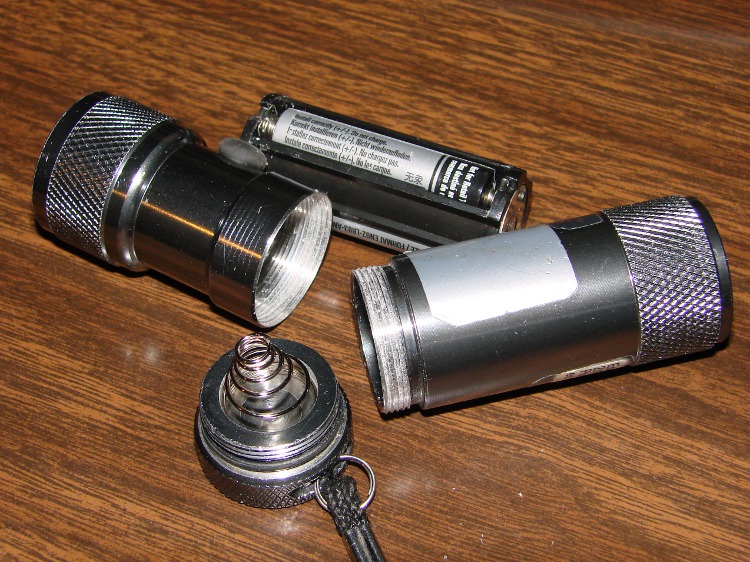
Of late I’ve been toting an LED flashlight / laser pointer around in my pocket for peering into dark corners and highlighting interesting objects. It started flickering and I discovered the joint just aft of the switch had become slightly loose.
Disassembled LED Flashlight
Well, I always wondered how the thing came apart and now I know!
The threadlocking compound seems to have turned into dusty white powder, although my pocket doesn’t seem all that hostile an environment.
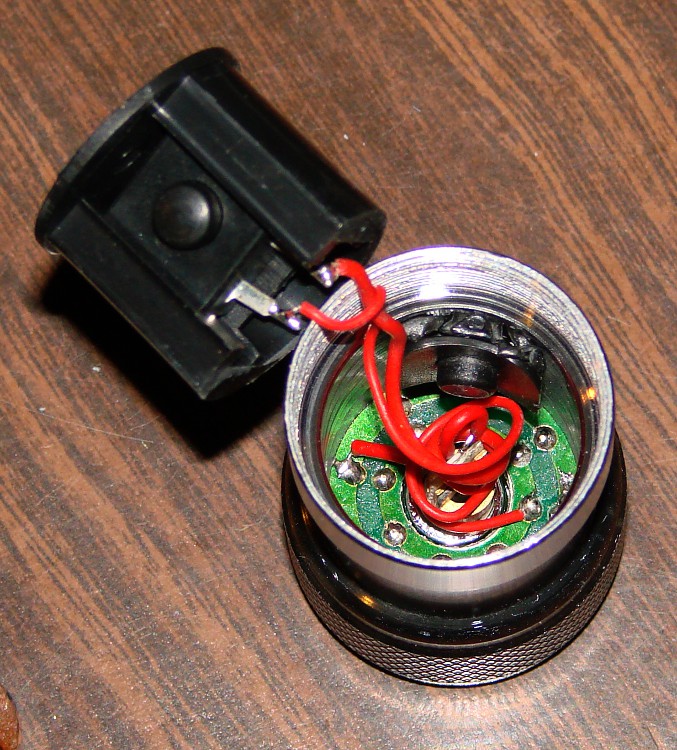
Flashlight innards
The switch assembly pulls out, revealing the LED circuit board with the laser module in the middle. The two wires correspond to the two ON states: flashlight and laser.
For what it’s worth, the 8 LEDs draw 130 mA (16 mA each), far more than the 3 mA each in that pathetic work light.
The laser draws 20 mA.
Screwed everything back together and it works fine again…
The Arduino Mega has an SMD voltage regulator soldered to a copper pad connected with thermal vias to a similar pad on the bottom surface. The datasheet says the (roughly) 10×10 mm copper pad sets RθJA=55 °C/W, more or less; probably a bit less with the double-sided setup.
It’s the chubby black slab snuggled up just to the right of coaxial power input jack. The four vias on each side go to an isolated copper pad under the solder mask on the other side.
Arduino Mega voltage regulator
The board draws about 75 mA with nothing fancy on the I/O pins, so the regulator dissipates half a watt with a 12 VDC input supply. Figuring an ambient of 30 °C, the junction temperature is ticking along at 50-60 °C.
That’s all well and good, but my rule of thumb for semiconductors is:
If you can’t hold your thumb on it for any length of time, it’s too damn hot.
That regulator fails my rule of thumb even before I start adding LEDs and other doodads.
A bit of rummaging turned up an old Thermalloy sample box with a DIP heatsink. A dab of quick-setting epoxy and there it is:
Arduino Mega regulator with heatsink
Now, I’ll grant you there are a number of things wrong with that approach, but my thumb is much happier. If it gets unhappy, I’ll just crack that puppy off and stick something larger in its place.











 The Smell of Molten Projects in the Morning