Ed Nisley's Blog: Shop notes, electronics, firmware, machinery, 3D printing, laser cuttery, and curiosities. Contents: 100% human thinking, 0% AI slop.
The Casio EX-Z850 camera living in my pocket finally developed a problem. Two buttons on the back select the Review and Camera modes; the former stopped working, which means I can’t see pictures after I take them. The Camera button may still work, but because I can’t display pix, that’s pretty much moot.
Taking the camera apart require a Philips 00 screwdriver bit and some care, but eventually you’re confronted with this:
Casio EX-Z850 camera – opened
The buttons and the mode selector dial all connect to the same flexible PCB substrate, which ends up in this connector. You should ease the black pressure bar (seen edge-on here) upward to release the flex PCB:
Casio EX-Z850 button connector
As it turns out, the two buttons have a common contact that’s the second trace from the top in the flat cable. Both buttons have good snap action, good conductivity, and seem to work fine. That puts the problem deeper inside the camera, where I don’t see much point in going; I can certainly make things much worse and likely not make them any better.
In fact, it turns out that the two buttons on the USB/charging cradle don’t work now, either, which implies that the camera buttons run in parallel with those. So there’s something blown in the camera’s guts, which is definitely Bad News.
Back in the Bad Old Days, you used to take a picture and wait a week or two to get the results back from the drug store. Perhaps it’s fashionably retro to have a digital camera without a Review mode?
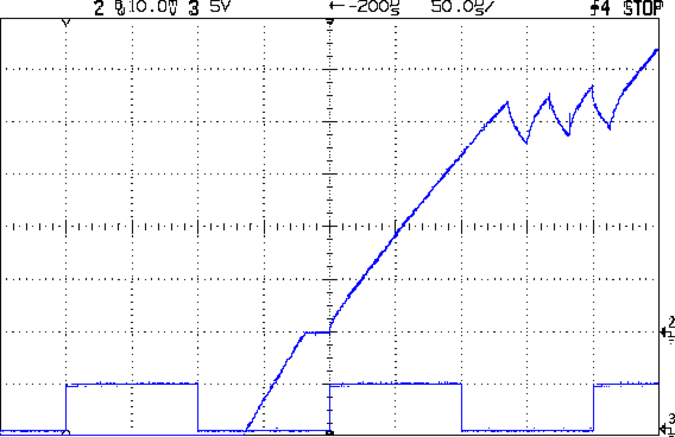
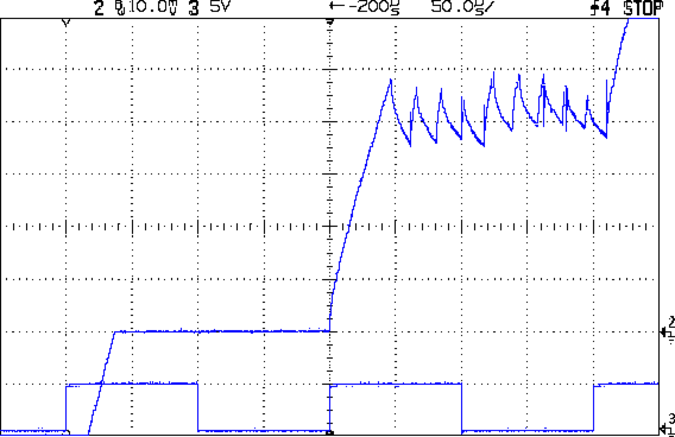
Here’s how the stepper drive voltage affects the current rise, using that kludge to sync the scope on one of those motors with L=2.6 mH and R=2.2 Ω. The peak winding current is 1 A, so the first step current-limits at 200 mA.
At 9 V:
Current Rise – 9 V 1A 3 RPS
At 18 V:
Current Rise – 18 V 1A 3 RPS
Knowing the rise time and current change, you can calculate the actual voltage across the inductor using:
VL = L di/dt
With 9 V drive the motor sees:
4.4 V = 2.6 mH x 220 mA / 130 us
With 18 V drive the motor sees:
14 V = 2.6 mH x 240 mA / 45 us
So, in round numbers, the driver MOSFETs, winding resistance, and all the crappy solderless breadboard connections soak up about 4 V of the available supply voltage. There’s some back EMF in there, too, but I haven’t measured that part of the puzzle yet.
The motor is turning at 3 rev/s in 1/8 microstepping mode, so each microstep is:
A small tweak to that code produces a sync pulse for each full sine wave of microstepping current, aligned with the step pulses. The sync pulse occurs on the rising edge of the current waveform (because I set it up that way) and has 50% duty cycle to allow triggering at either zero-current microstep.
Then pix like this happen:
Microstepping Group Sync
The traces:
top = 1/group sync
middle = winding current at 500 mA/div
bottom = step pulse, 1/microstep
The big jump just before the zero-current microstep on the decreasing-current sides of the sine wave indicates that it’s hard to get all the current out of the windings at 12 V. A detail view of those steps shows that the current is 50% higher than it should be at the start of the zero-current microstep, having completely missed the last microstep:
Decreasing Current
Which, of course, is why I’m doing all this: to explore that kind of behavior.
You may find the generated sync pulses are off by ±1 microstep from the expected start of the zero-current microstep, because the optical 1/rev signal threshold may line up perversely with the start of a microstep. You can twist the sync wheel just slightly on the shaft, but it’s pretty much a matter of shaking the dice to see if a better combination comes up. Doesn’t make any real difference to the scope triggering, though, as any stable sync alignment is as good as any other.
The code uses the 1/rev optical sync pulse once, to get the initial alignment, so whacking the wheel as it rotates may cause the generated sync pulses to skip a beat or twenty. The result remains stable, just at a different alignment.
One could argue that you really don’t need the 1/rev optical signal at all, but I find it comforting to use an absolute rotational reference to lock the pulses in (pretty nearly) the same place every time. If you’re stuck with an in-place motor, then you probably don’t have a 1/rev signal and you must wing it.
The Arduino source code:
// Stepper motor driver synchronization
// Ed Nisley KE4ZNU June 2011

//-- Stepper parameters

#define SYNC_OFFSET            8        // steps from 1/rev pulse to start of first 4-full-step group

#define FULL_STEPS_PER_REV    200
#define MICROSTEPPING        8

#define GROUPS_PER_REV (FULL_STEPS_PER_REV / 4)
#define STEPS_PER_GROUP (MICROSTEPPING * 4)

//-- Pin definitions, all of which depend on internal hardware: do *not* change

#define PIN_REV        2                // INT0 = positive 1/rev pulse from optical switch
#define PIN_STEP    5                // T1 = positive 1/step pulse from stepper driver
#define PIN_TRIGGER    9                // OC1A = positive trigger pulse to scope

//-- Trace outputs may be chosen freely

#define PIN_TRACE_A    10
#define PIN_TRACE_B    11
#define PIN_TRACE_C    12

#define PIN_LED        13                // standard Arduino LED

//---------------------
// State Variables

word PulseCounter;

//---------------------
// Useful routines

//--- Input & output pins

void TogglePin(char bitpin) {
digitalWrite(bitpin,!digitalRead(bitpin));    // toggle the bit based on previous output
}

//----------------
// Initializations

void setup() {

pinMode(PIN_REV,INPUT);        // INT0 1/rev pulse from wheel

pinMode(PIN_STEP,INPUT);        // T1 step pulse from stepper driver

pinMode(PIN_LED,OUTPUT);
digitalWrite(PIN_LED,LOW);

pinMode(PIN_TRACE_A,OUTPUT);
pinMode(PIN_TRACE_B,OUTPUT);
pinMode(PIN_TRACE_C,OUTPUT);

//--- Prepare Timer1 to count external stepper drive pulses

TCCR1B = B00001000;                // Timer1: Mode 4 = CTC, TOP = OCR1A, clock stopped

pinMode(PIN_TRIGGER,OUTPUT);        // OC1A to scope trigger

//-- Wait for rising edge of 1/rev pulse from optical switch

TCCR1A = B11000000;                        // COM1A set on compare
TCNT1 = 0;                                // ensure we start from zero
OCR1A = SYNC_OFFSET;                        // set step counter

while(!digitalRead(PIN_REV)) {            // stall until 1/rev input rises
TogglePin(PIN_TRACE_A);
}

//-- Got it, fire up the timer to count steps to start of first group

TCCR1B |= B00000111;                        // enable clock from T1 pin, rising edge

digitalWrite(PIN_LED,HIGH);                // show we got here
digitalWrite(PIN_TRACE_A,LOW);

while(!(TIFR1 & _BV(OCF1A))) {            // wait for compare
digitalWrite(PIN_TRACE_B,digitalRead(PIN_STEP));
continue;
}
TIFR1 |= _BV(OCF1A);                        // clear match flag

//-- Scope sync pulse is now active, we can enter the main loop

}

//----------------
// The main event

void loop() {

//-- Scope sync pulse active

digitalWrite(PIN_LED,LOW);                // show we got here
digitalWrite(PIN_TRACE_B,LOW);

//-- Set up for first half of the group, sync high -> low

TCCR1A = B10000000;                        // COM1A clear on compare
OCR1A = (STEPS_PER_GROUP / 2) - 1;

while(!(TIFR1 & _BV(OCF1A))) {            // wait for compare
digitalWrite(PIN_TRACE_B,digitalRead(PIN_STEP));
continue;
}
TIFR1 |= _BV(OCF1A);                        // clear match flag
digitalWrite(PIN_TRACE_B,LOW);

//-- Set up for the second half, sync low -> high

TCCR1A = B11000000;                        // COM1A set on compare
OCR1A = (STEPS_PER_GROUP - (STEPS_PER_GROUP / 2)) - 1;    // may be odd, so allow for that

while(!(TIFR1 & _BV(OCF1A))) {            // wait for compare
digitalWrite(PIN_TRACE_B,digitalRead(PIN_STEP));
continue;
}
TIFR1 |= _BV(OCF1A);                        // clear match flag
digitalWrite(PIN_TRACE_B,LOW);

//-- Shut down counter and wait for end of 1/rev pulse

#if 0
TCCR1B &= ~B00000111;                        // turn off timer clock

while(digitalRead(PIN_REV)) {                // stall until 1/rev pulse goes low again
TogglePin(PIN_TRACE_C);
}
digitalWrite(PIN_TRACE_B,LOW);
#endif

}
The supply voltage for that picture came from a bench supply and, having confirmed that the initial slope of the current waveform matched the voltage, I twiddled the knob while watching the slope change.
As expected, lower voltage = lower slope and higher voltage = higher slope. That worked fine, right up until a firecracker popped about a foot in front of my face, launched a missile over my left shoulder, and filled the Basement Laboratory with the pungent smell of electrical death.
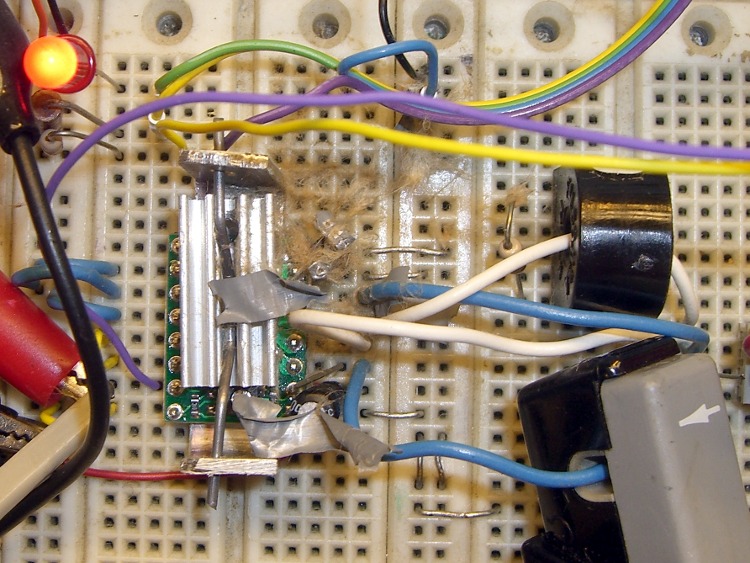
Detonated electrolytic cap
While wiring up a hairball test circuit for that Pololu driver, I’d put a pair of electrolytic caps on the +5 and +12 V supply lines, seeing as how solderless breadboards aren’t all that great for power distribution. The brown fur growing just to the upper right of the heatsink is what’s left of a 16 V cap that had 25 V applied for a few seconds: I’d wired in the bench supply in place of the breadboard’s fixed +12 V output and forgot all about the caps.
The cap body departed for the far reaches of the Basement Laboratory, leaving behind shredded cardboard and unrolled plastic strips. I’m sure it’ll turn up some day.
Nothing else took any damage, but for a few minutes I thought I’d killed Eks’ AM503 current probe, which pokes in from the lower right.
The black lump just above the probe is an ordinary AC current transformer that didn’t work well at all: the 1/rev frequency was just too low.
If you don’t always wear glasses at the workbench, start now.
Eks loaned me a Tek AM503 Current Probe Amplifier, one of those gorgeous instruments that Just Works: a clamp-on DC to 50 MHz Hall Effect current meter. Because it’s electrically isolated from all the hideous electrical hash that surrounds any stepper motor driver circuit, it doesn’t see much of the garbage that pollutes any current sensor depending on a series resistance and a differential amplifier.
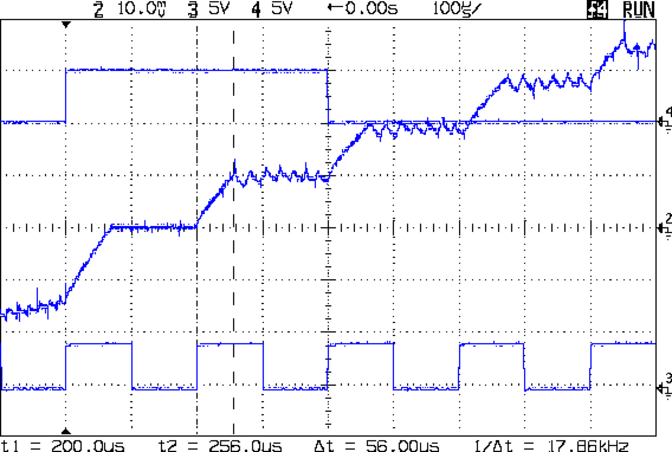
The initial ramp occupying the first third of each step comes from the motor’s L/R time constant coupled with the 9 V supply I was using. Back of the envelope: 2 mH / 2 Ω = 1 ms. With 8 V (9 V less MOSFET drops &c) applied, the initial slope = 8 V / 2 mH = 2500 A/s, so in 75 ms it rises 187 mA: close enough.
The small ripples show the A4988 chopping the current to maintain the proper value for each microstep.
Looks just like the pretty pictures in the datasheet, doesn’t it?
Those cute little Pololu stepper driver boards using the Allegro A4988 chip have one conspicuous problem: there’s no good way to heatsink the chip. The doc recommends heatsinking for currents around 1 A and some informal testing shows it will trip out on thermal protect around 800 mA, so heatsinking really isn’t optional.
A thermal pad from the chip bonds to vias that conduct heat through the PCB to the bottom surface copper layer: putting a heatsink on the top doesn’t help as much as one on the bottom. What I’m doing here is a first pass at a bulk heatsink that would work with several of the driver chips lined up in a row; this one is ugly and doesn’t work well, but it should let me do some further electrical tests.
The general idea is to clamp the heatsink around the board, with the chip as the top-side pressure point. The catch: no room for an actual heatsink underneath, because that’s where the connector pins live. You could mount the board upside-down, but then there’s no good way to tweak the stepper current trimpot. That may not be a problem after you get things set up, although I’d hate to unplug and replug the board for each adjustment.
So I think a reasonable solution involves a metal strip to conduct the heat out the ends and up to the heatsink. What I’ve done here does not accomplish that; I’m just feeling around the parameter space.
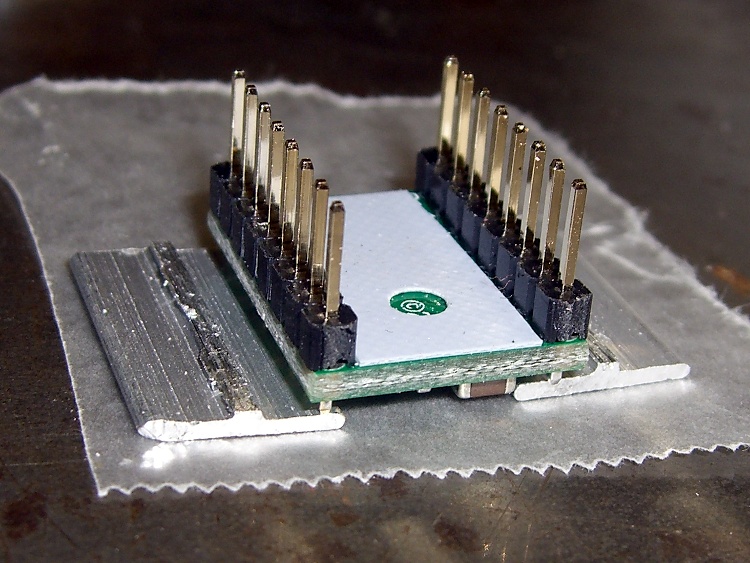
You can’t get too enthusiastic with the clamping force, lest you crush the chip, so moderate pressure is the rule of the day. However, the chip sits low on the board, surrounded by taller components, so I put a drop of epoxy on top and flipped it over to produce a short thermally conductive column that’s higher than everything else:
Pololu stepper board – epoxy curing
The blue sheet comes from a trimmed-down TO-220 transistor heatsink pad; it’s thermally conductive silicone, provides a bit of compliance against the PCB, and insulates the REF trimpot test point from the heatsink.
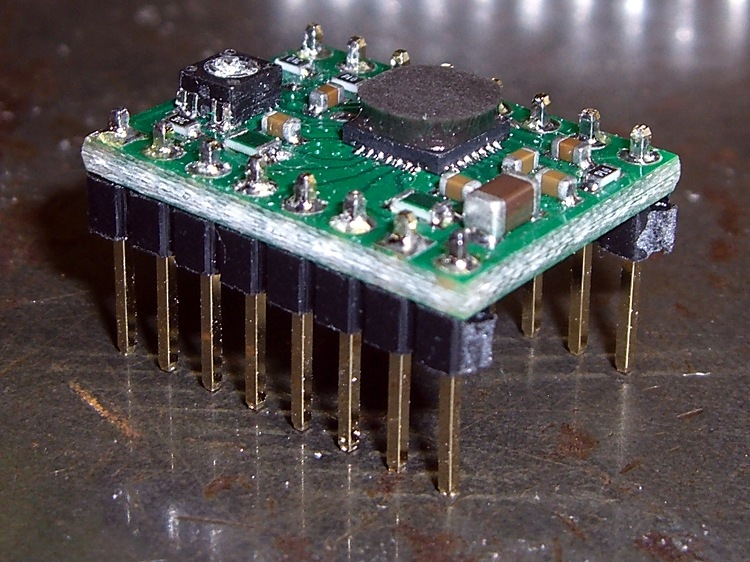
The result looks OK, but it would be better to embed a small metal block between thinner epoxy layers to get better thermal conductivity:
Pololu stepper board – epoxy blob on driver chip
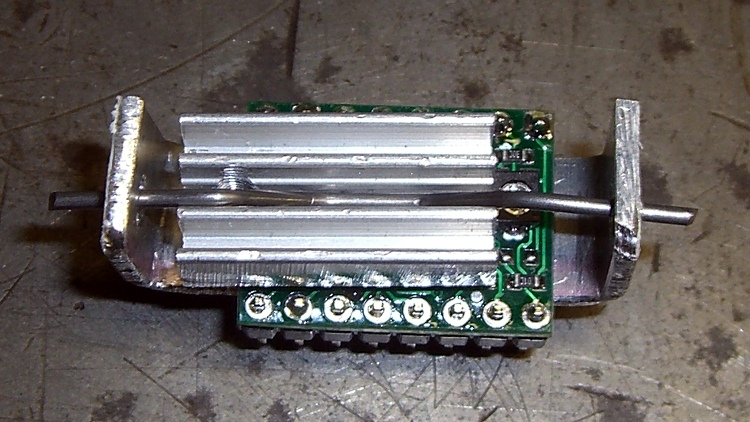
Although most of the heat goes out the bottom, you still need something on the top to take the spring pressure. I trimmed down the TO-220 heatsink that came with that silicone pad; it must mount off-center to permit access to the trimpot but, alas, blocks the voltage monitoring pad and both sense resistors. A length of 45-mil music wire bent into a flat M provides the spring:
Pololu stepper board – heatsink top view
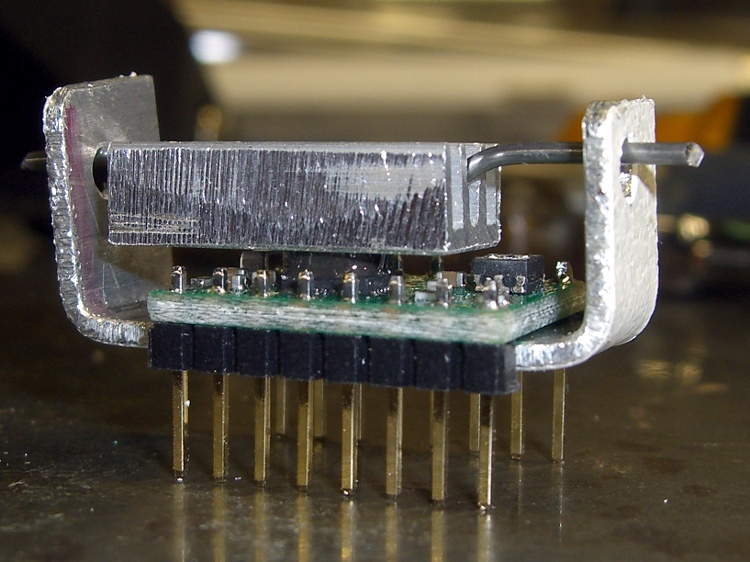
The side view show how the kludge fits together:
Pololu stepper board – crude heatsink
The final result is truly ugly. The epoxy column didn’t turn out nearly as parallel to the PCB as I’d like, so some filing and finishing will be in order.
Now, to find out if it’ll allow the chip to run above 1 A for at least a while.
The switch on that screwdriver failed again, this time by having the internal switch mounting bosses disintegrate:
Cordless screwdriver – broken switch mounts
Not being one to worry about outside appearances, I simply drilled out the bosses to fit a pair of 4-40 screws, put the nuts inside, and it was all good:
Cordless screwdriver – switch with screws
Except that the switch now required an unseemly amount of force to operate in the forward direction. The switch is the cheapest possible collection of bent metal strips and injection molded plastic bits you can imagine, but with some bending and re-staking and general futzing around, it works fine again.