Ed Nisley's Blog: Shop notes, electronics, firmware, machinery, 3D printing, laser cuttery, and curiosities. Contents: 100% human thinking, 0% AI slop.
Two lots of linear Hall Effect sensors arrived from halfway around the planet, labeled AH49E and OH49E, and roughly corresponding to the original Honeywell SS49E. The Honeywell datasheet has a non-obvious pinout diagram (that one is better), so I poked one of them into a breadboard and tried it out.
Fortunately, I got it on the first try. Facing the tapered side, with the leads downward, pin 1 is on your left:
Power – typically +5 V
Ground
Output – 0 gauss = 2.5 V
The chip [may | may not], depending on which datasheet you use and which part you have, include an internal 65 μA load on the current source, so you [may not | may] need an external load resistor.
Without a load resistor, this one worked fine. Old-school ferrite and ceramic magnets push it about 1 V off-center, neodymium magnets saturate the output.
Corroded Grounding Strap – Walkway Over the Hudson
Spotted this through the railing on the north side of the Walkway Over the Hudson:
I’m not sure what it’s bonding to the bridge structure, but the corrosion where the braid touches the I-beam suggests an electrical potential drives the reaction. There’s stout bonding braid connecting all the railing sections together, but this braid wanders off below the decking and seems too casual / flimsy for lightning protection.
The rivets date back to the late 1800s. I suspect that bolt won’t last nearly as long…
Although the contacts passing power to the Wouxun HT worked well, they were obviously (in retrospect, as always) in the wrong place. Recently I rode the bike over a major bump and heard the radio reboot (it gives off two low-speed Morse “M” characters), which suggests at least one of the screw heads just barely touches the radio’s spring contacts.
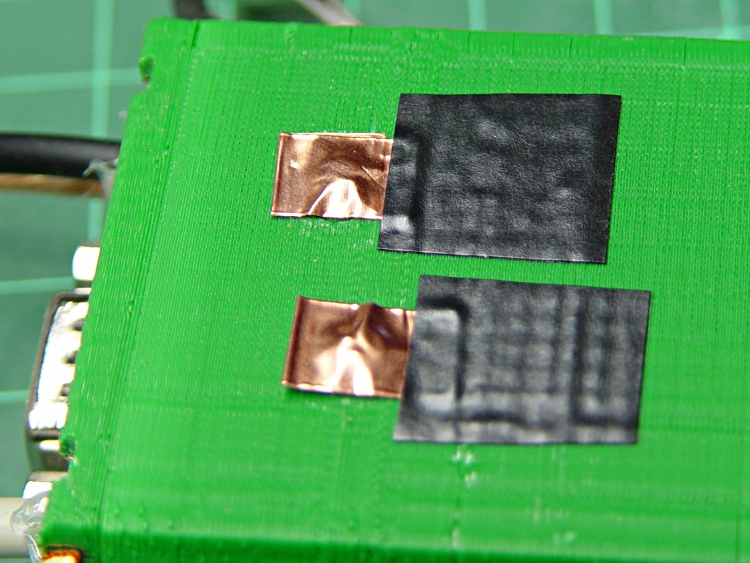
Two folded-under strips of copper tape may work around that problem until I build a whole ‘nother interface:
Copper foil on power contacts
The black tape adds emphasis to the lightly sticky end of the copper tape. The folded-under ends lie to the left in the picture, so there’s a continuous copper sheet connecting the radio battery contacts to the screw heads on the green case. It’s not a huge cross-sectional area, but … it’s better than no area at all.
The last time I tried this fix, I used woven copper mesh tape. This time, the solid copper tape was on top of the TLB (Tape Lookaside Buffer) holding the specialty tapes. Either should work fine.
So the outdoor thermometer hanging over my desk became very, very faint, which suggested it was time for a new alkaline cell. The last time that happened, the insides were pretty bad, so I expected the worst, but, surprisingly, neither the cell nor the negative contact spring were corroded. So I popped in a new cell, buttoned it up, and … it didn’t work. At all. As in: blank display.
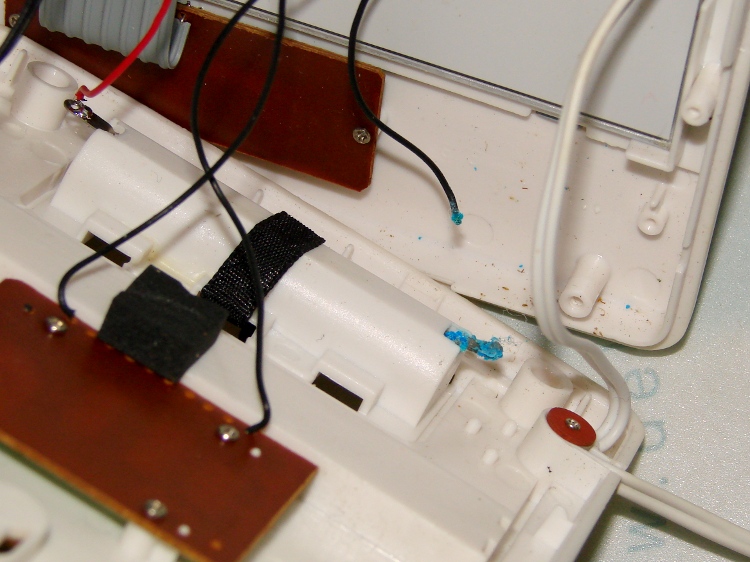
Taking the back off revealed the simple cause:
Outdoor thermometer – corroded battery lead
Evidently, the negative terminal wire had corroded completely through and popped off when I replaced the cell. There’s plenty of green-blue corrosion on the terminal inside the case, where it can’t be seen from outside; three years ago I cleaned up both the outside and inside, so this is new news.
The negative wire was discolored all the way from end to end and couldn’t be soldered. I think the corrosion products are just slightly hygroscopic and wick their way along the copper strands inside the insulation: the solder pad on the circuit board was also discolored.
I removed the terminal, neutralized the alkaline corrosion, ran it through an Evapo-Rust bath, scrubbed it clean, installed it, replaced both the positive and negative wires, resoldered everything, and it works perfectly again.
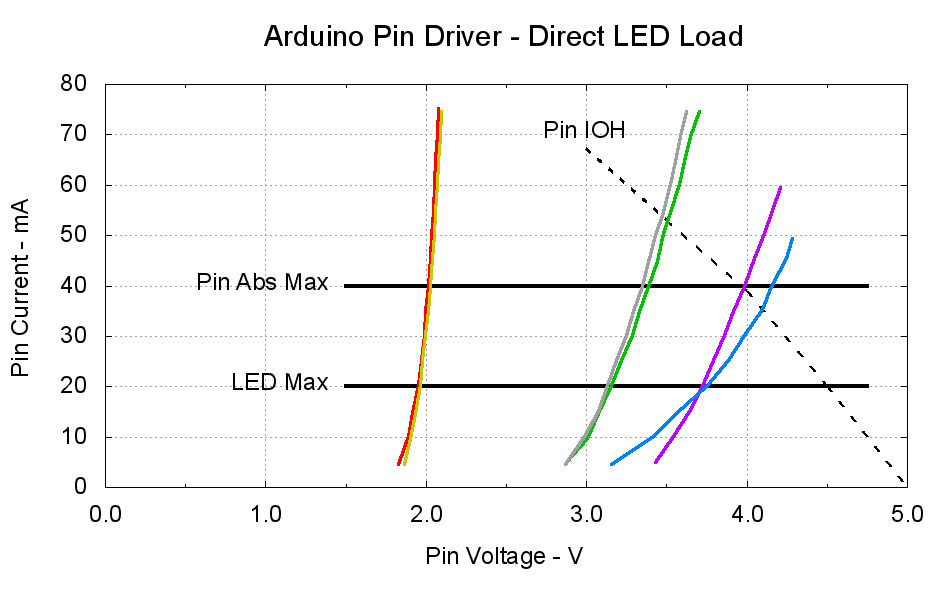
The dotted curve comes from Figure 29-22 of the ATmega168 datatsheet and shows the typical source current vs. voltage for a digital output pin on your favorite Arduino.
The cheerful colored curves show the current vs. voltage characteristics of some random LEDs, with data from the same curve tracer setup as those.
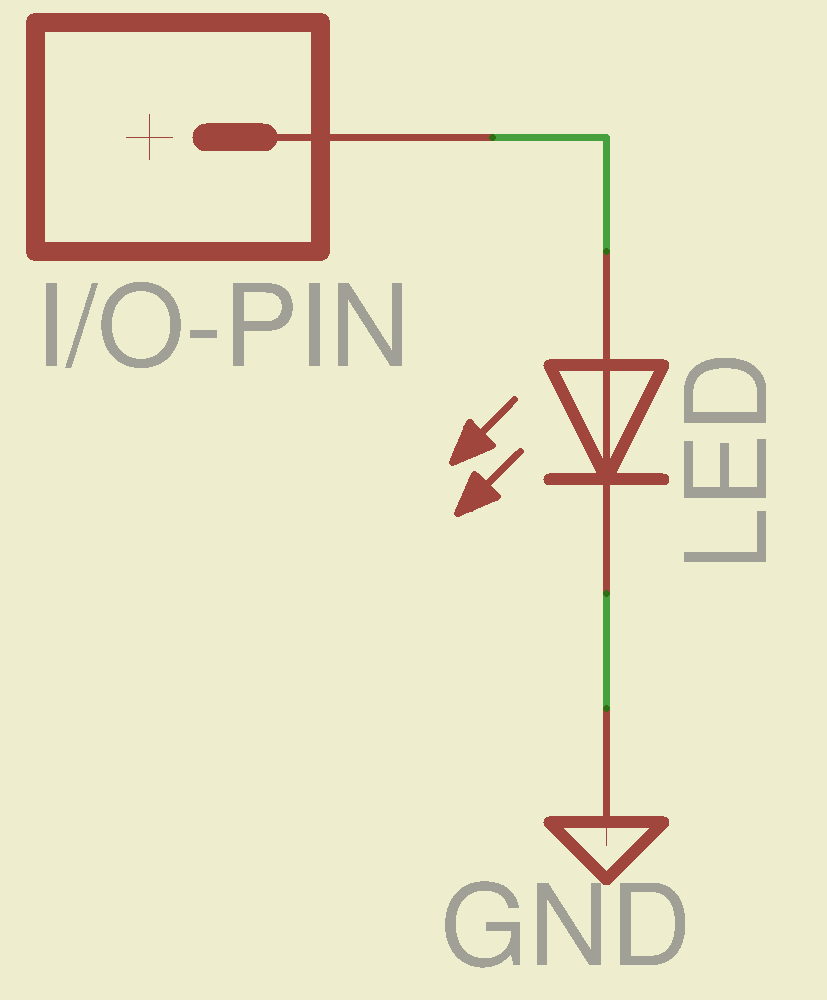
Given a particular LED directly connected between an Arduino output pin and circuit common (without the formality of a current-limiting ballast resistor), the intersection of the dotted output pin curve with the colored LED curve gives you the current & voltage at the pin. For example, the violet LED would operate at 4 V and 40 mA.
Some gotchas:
Typical 5 mm LEDs, of the sort one might use for this experiment, have a maximum DC current limit of 20 mA
Arduino output pins have an absolute maximum current limit of 40 mA
So all of the direct solutions drive too much current through the LED. Although the blue and violet LEDs don’t quite exceed the output pin limit, the others certainly do. Those old standby red & amber LEDs would have absurdly high intercepts, well beyond the limit of sanity, in the region where the data you see here breaks down, where the pin driver gives up and goes poof, not that that ever stopped anybody from trying.
You’ve probably seen somebody do it. Next time, aim ’em here in a non-confrontational manner… [grin]
My Arduino Survival Guide presentation has other info that may help that poor sweating Arduino survive. You don’t get my performance-art patter, but the pictures and captions should carry the tale…
As part of conjuring up this plot, I discovered that, for whatever reason, Gnuplot’s TrueType font rendering (via gdlib) no longer works in Xubuntu 12.04: the font name has no effect whatsoever, but the point size does.
The Gnuplot source code:
#!/bin/sh
#-- overhead
export GDFONTPATH="/usr/share/fonts/truetype/msttcorefonts"
Pinfile="ATmega Pin Driver Data - Source.csv"
LEDfile="LED Data.csv"
base="Arduino Pin Driver - Direct LED Load"
Outfile="${base}.png"
echo Output file: ${Outfile}
fontname="Arial"
echo Font: ${fontname}
#-- do it
gnuplot << EOF
#set term x11
set term png font "${fontname},18" size 950,600
set output "${Outfile}"
set title "${base}" font "${fontname},22"
set key noautotitles
unset mouse
set bmargin 4
set grid xtics ytics
set xlabel "Pin Voltage - V"
set format x "%4.1f"
set xrange [0:${vds_max}]
#set xtics 0,5
set mxtics 2
#set ytics nomirror autofreq
set ylabel "Pin Current - mA"
#set format y "%4.1f"
set yrange [0:80]
#set mytics 2
#set y2label "Drain Resistance - RDS - mohm"
#set y2tics nomirror autofreq ${rds_tics}
#set format y2 "%3.0f"
#set y2range [0:${rds_max}]
#set y2tics 32
#set rmargin 9
set datafile separator "\t"
set label "Pin IOH" at 3.0,70 center font "${fontname},18"
set label "Pin Abs Max" at 1.4,40 right font "${fontname},18"
set arrow from 1.5,40 to 4.75,40 lw 4 nohead
set label "LED Max" at 1.4,20 right font "${fontname},18"
set arrow from 1.5,20 to 4.75,20 lw 4 nohead
plot \
"${Pinfile}" using 1:3 with lines lt 0 lw 3 lc -1 ,\
"${LEDfile}" using (\$5/1000):((\$1>0)?\$2/1000:NaN) index 0:0 with lines lw 3 lc 1 ,\
"${LEDfile}" using (\$5/1000):((\$1>0)?\$2/1000:NaN) index 1:1 with lines lw 3 lc 2 ,\
"${LEDfile}" using (\$5/1000):((\$1>0)?\$2/1000:NaN) index 2:2 with lines lw 3 lc 0 ,\
"${LEDfile}" using (\$5/1000):((\$1>0)?\$2/1000:NaN) index 3:3 with lines lw 3 lc 4 ,\
"${LEDfile}" using (\$5/1000):((\$1>0)?\$2/1000:NaN) index 4:4 with lines lw 3 lc 3 ,\
"${LEDfile}" using (\$5/1000):((\$1>0)?\$2/1000:NaN) index 5:5 with lines lw 3 lc 7
EOF
A few early risers got to see a completely broken listing, with all the quotes and brackets and suchlike reduced to the usual HTML escaped gibberish…
After that rebuild, the first five recharges went like this: 21, 21, 21, 23, and 20 days. The last interval included seven days of vacation, during which the battery suffered just the usual self-discharge common to NiMH cells.
That’s about what the OEM battery delivered, back when it was new, so the new 600 mA·h cells seem to be about the right capacity. Obviously, the end of the OEM battery wasn’t nearly so pretty.
In round numbers, the wireless charger requires one hour to restore the energy drawn by one two-minute brushing: the thing charges for about 21 hours. There’s additional loss from three weeks of self-discharge in there: if 7 days of non-use = 1 brushing, then the usual 21 days = 3 brushings -> 14% loss due to self-discharge.
I’d take a large grain of salt with those numbers…
The plunger is basically a pin that eventually deforms the top of the switch membrane. Tee’s DSC-H1 had an exposed switch, although this picture shows that membrane was still in reasonably good condition:
Shutter Switch Closeup
My DSC-H5 has a thin black protective disk atop the switch, but the disk wasn’t particularly protective and developed a dimple that held the contacts closed even with the shutter button released (which is why I’m tearing the camera apart in the first place):
DSC-H5 Shutter Switch – dimpled protector
The C-clip around the plunger is now plastic, rather than metal, making it less likely to erode the thin plastic shaft. Pulling the clip off while holding the button down releases all the parts:
DSC-H5 Shutter Button – components
A few measurements from an intact shutter button, which may come in handy if you don’t have one:
DSC-H5 Shutter Button – plunger measurements
Mount three-jaw chuck on the Sherline table, laser-align chuck to spindle, grab shutter button by its shaft in a Jacobs chuck, grab shutter button in three-jaw chuck, release from Jacobs chuck:
DSC-H5 Shutter Button – in Sherline chuck
That’s not particularly precise, but it’s close enough for this purpose. I used manual jogging while testing the fit with a paper shim until all three jaws had the same clearance, then tightened the jaws.
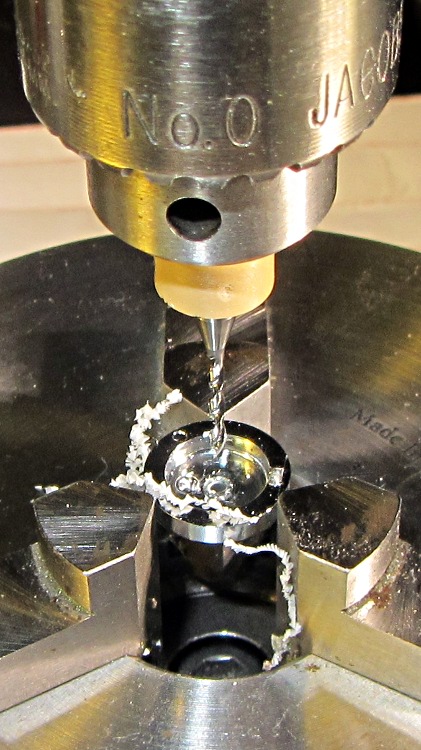
I nicked the plunger at its base with a flush-cutting diagonal cutter, snapped off the plunger, and drilled a #56 hole through the button:
DSC-H5 Shutter Button – cap drilling
For reasons that made sense at the time, I repaired Tee’s DSC-H1 with a 1-72 brass screw. This time, I used an 0-80 (which I learned as ought-eighty, if you’re wondering about the indefinite article) screw and nut, because the screw head fit neatly into the bezel recess and I had a better idea of how to smooth out the threads.
This being plastic, I used the chuck to hold the tap in the proper alignment, then turned the tap through by finger pressure. This trial fit showed it worked:
DSC-H5 Shutter Button – 0-80 screw
Milling the nut down to a 2.8 mm cylinder required the usual manual CNC, with repeated iterations of this chunk of code in the MDI panel:
The 2.8 in the first line is the current OD and the 3.11 is the measured diameter of the 1/8 inch end mill. I started from a 5.0 mm OD that just kissed the nut, then worked inward by 0.2 mm at a time for very shallow 0.1 mm cuts:
DSC-H5 Shutter Button – 0-80 nut milling
The alert reader will notice, as did I, that the head isn’t quite centered: the cut trimmed the left side and left the right untouched, with an offset far larger than the centering error. As nearly as I can tell, the heads of those screws aren’t exactly centered on their threaded shafts, but the final result fixed that… and the overall error is a few tenths of a millimeter = maybe 10 mils, tops, so it’s no big deal.
With all that in hand, I applied a very very thin layer of epoxy to fill the threads below the now-cylindrical nut and convert the screw into a rod:
DSC-H5 Shutter Button – 0-80 plunger
My original intent was to use the screw head as-is atop the PET shield (per those instructions) on the switch membrane, but after reassembling enough of the camera to try that out, it didn’t work correctly: the half-pressed switch didn’t activate reliably before the full-pressed switch tripped.
The PET shield I used came from the side of a 1 liter soda bottle and turned out to be 0.27 mm thick:
DSC-H5 Shutter Switch – cover removed
I think the PET shield would work with the original plunger shape concentrating the force in the middle of the shield, but the nice flat screw head spreads the force out over a wider area. As a result, the force required to close the half-pressed switch contacts was roughly the same as that required to close the full-pressed contacts; remember the nub on the bottom of the black plastic tray concentrates the force in the middle of the full-pressed switch membrane.
So I removed the PET shield, added a dot of epoxy to fill the screw slot and compensate for the missing shield thickness, then filed a flat to make a nice pad:
DSC-H5 Shutter Button – epoxy on plunger
Reassembling the camera once more showed it worked exactly the way it should. In fact, the button seems more stable than the OEM version, probably because the slightly enlarged plunger shaft fits better in the bezel. Too bad about those scuffs on that nice shiny button dome, though:
DSC-H5 – repaired shutter button
Tossing the leftover parts seems entirely appropriate…






 The Smell of Molten Projects in the Morning