Ed Nisley's Blog: Shop notes, electronics, firmware, machinery, 3D printing, laser cuttery, and curiosities. Contents: 100% human thinking, 0% AI slop.
Being that sort of bear, I must carry paper for notes, sketches, and suchlike. Years ago the Levenger catalog tempted me with the notion of 3×5-inch stationery, but the notion of paying 5 cents per piece of scratch paper just didn’t titilate my inner cheapskate.
Part of my chandelier o’ gear (props to Neal Stevenson) is an ancient Zire 71 PDA that’s about the right size to sit atop a 3×5-inch sheet of paper. Some experimentation showed that five cuts could produce six sheets of pocket stationery from a single letter-size page. I used QCAD to lay down a nice 200-mil grid with my contact info on the top, duplicated it six times, and added cut lines.
Part of the trick is figuring out how to get the cut lines at the right spot so the paper divides neatly into thirds and halves. Trial and error is your friend.
Print it on heavy card stock, whack the paper cutter along the lines, and it’s all good.
After a while, you’ll realize you can print it to a PostScript file, then just print that without firing up QCAD every time.
QCAD screen with stationery
Better than scribbling on the back of a biz card, as there’s plenty of room, and my contact info is right on the front where it won’t get lost.
Actually, the real reason my Zire 71 case fits that paper is because Mary made it years ago for my HP-15C calculator. The stationery fit that case, so when the Zire came out, well, why change anything else?
Of course I do remote admin for my mother’s PC, which means I must know its IP address, which means it’s running ddclient and updating an entry at dyndns.
The setup seems straightforward. In /etc/ddclient.conf you find:
[Update: Something about checkip changed enough that the old line didn’t work. The web-skip made it work again. ]
But, as the comment in that file shows, that’s not where you configure ddclient in (K)Ubuntu. You actually tweak the entries in /etc/default/ddclient so the right answer pops out when ddclient gets reconfigured by something or another.
It’s not clear to me how ddclient figures out when to update the DNS entry (when an update is “necessary”), so I also force an update by putting this in /etc/rc.local:
ddclient -force
Actually, I added that tweak when I was setting up another, slightly newer, PC for her and managed to fire off ddclient from my network. That aimed the DNS entry at my IP address and, had I not already been signed into her system, would have locked me until her ddclient grabbed it back.
I hate it when that happens.
Memo to self: make sure the defaults match the current configuration.
A long time ago I got an HP54602B oscilloscope with a serial port data link. HP provided a sample app that snarfed screenshots & data from the scope, but it wasn’t really ready for prime time and, besides, I vastly preferred to use OS/2 (!) and then Linux rather than Windows.
Here’s my Kermit script to fetch screenshots. All the software comes more-or-less standard in Ubuntu Linux and (I presume) in most others. If you’re running Windows, you’re on your own.
Scope Setup
HP54602B Serial Setup Screenshot
The oscilloscope’s HP Plotter setting spits out bog-standard HPGL commands in flat ASCII. I’ve always meant to investigate what HP Printer does, but …
I wish the scope ran faster than 19200 b/s, but that speed works reliably over generic USB-to-serial converters (and the scope can’t feed data that fast, anyway). The other choice, back in the day, was HPIB / GPIB; I’d have had to buy three or four different adapters to suit all the PC data buses since then: ISA, EISA, VLB, PCI …
Xon/Xoff flow control (a.k.a. handshaking) works better than hardware flow control, simply because the cable’s easier to build.
The Factors setting adds a bunch of text to the end of the data stream that’s not useful, except for the fact that an HPGL LB instruction follows all of the useful data and gives the Kermit script something to look for. Otherwise, the only way to detect the end of the stream is to time out after a looong time.
I haven’t the foggiest idea what Resolution does, but High seems appropriate.
Hardware Notes
The scope requires a Null Modem in front of a standard DB-25 to DB-9 cable. I’ve been meaning to rewire my standard cable to eliminate the Null Modem, but …
Adding an LED breakout / monitoring adapter to the serial port loads the signals too much and can lead to puzzling errors. Maybe it’s just my adapter: YMMV.
I’ve run the cable all the way across my basement lab with no problem. This is, after all, good old RS-232, not some high-falutin’ USB or Firewire interconnect.
Taking the Shot
Get a picture you like, poke the Print Screen button, then quick like a bunny run the script. The scope copies the current screen into an internal buffer, then sends out a torrent of HPGL commands. The script will capture the data and eventually spit out a PNG file.
You may want to Stop the trace, rather than leave it running.
In XY mode, the scope seems to have trouble copying the entire trace. I tap Auto Store twice, then Stop, then Print Screen. It’s fuzzier, but copies the whole thing.
What Happens
The script captures the incoming serial data into a log file, processes that text through the hp2xx program to get an Encapsulated Postscript EPS file, then runs that though convert to get a PNG file. The bank shot off EPS results in better-looking output, for reasons I don’t understand.
The 240-second timeout value for the Input command seems long, but it takes a lot of plotter commands to define a four-trace plot. A too-short timeout chops off the tail end of the HPGL stream and prompts bizarre error messages from hp2xx.
The parameters for hp2xx and convert came from protracted and tedious twiddling. The ‘scope image is 512 dots across and 300-some-ish vertically; the output mimics the not-quite-square graticule aspect ratio on the actual screen. If HP thinks it looks good, then it looks good to me.
The active (bright) traces use Pen 2, which I’ve set to Blue (color 4). The graticule, annotations, and stored traces all use Pen 1, which appears as Black (color 1). Tweak -c 14 as you wish.
The pen widths (set by -p 34) don’t actually seem to do very much, although I vaguely recall that using the default width of 1 makes the output entirely too faint.
The PNG has a transparent background that turns white when you actually use it in a document; I suppose you could overlay it atop a background image if you wanted to get cute.
When the dust settles and the smoke clears, you get PNG images like this. It’s an XY plot, so the blue section appears as a bright trace on the oscilloscope’s screen.
BH curve for LC0263-A coil
Kermit Script
#!/usr/bin/kermit +

# Fetches screen shot from HP54602B oscilloscope

# Presumes it's set up for plotter output...

# Converts HPGL to PNG image
set modem none
set line /dev/ttyS0
set speed 19200
set flow xon/xoff
set carrier-watch off
# Make sure we have a param
if not defined %1 ask %1 {File name? }
set input echo off
set input buffer-length 150000
# Wait for PRINT button to send the plot
echo Set HP54602B for HP Plotter, FACTORS ON, 19200, XON/XOFF
echo Press PRINT SCREEN button on HP54602B…
log session “%1.hgl”
# Wait for end of data stream
input 240 lb
echo … got final lb command
close session
close
echo Converting HPGL in
echo — %1.hgl
echo to PNG in
echo — %1.png
# without labels = no terminating lb info
#run hp2xx -m png -a 1.762 -h 91 -c 14 “%1.hgl”
#run mogrify -density 300 -resize 200% “%1.png”
# with labels = terminating lb
run hp2xx -q -m eps -r 270 -a 0.447 -d 300 -w 130 -c 14 -p 34 “%1.hgl”
run convert -density 300 -resize 675×452+2+2 “%1.eps” “%1.png”
While writing a column for Circuit Cellar, I managed to utterly botch the choice of a boost converter inductor. The inductor (the rightmost one in the lineup) was a common-mode choke from a power supply, so I figured it had enough meat for 300 mA of boost current.
Salvaged Inductors
Bzzzzt! Wrong choice!
So it’s time to document how to measure this stuff. The intent is to plot a BH curve: core flux density B versus magnetizing force H.
Quick inductor tutorial using (ptooie) Imperial units and avoiding Greek letters for simplicity:
Magnetomotive force mmf = 0.4 * pi * (N = turns) * (I = current)
induced voltage e = – N * (d phi / d t) * (10^-8) where phi = flux linking the N turns
Magnetizing force H = mmf / (MPL = mean path length around core)
Flux density B = phi / (Ac = effective core area)
also B = (mu = permeability) * H
You might think that B & H are lashed linearly together, but mu is most savagely nonlinear. It depends on H, temperature, core material, and a bunch of other stuff you don’t want to know about. So, by and large, plotting B against H shows you how mu varies: it’s the slope of the curve at any point. Vertical slope = high mu (good), horizontal slope = zero mu (bad).
Stirring all that together, you get the Fundamental Transformer Equation:
E in RMS volts = 4 * F * f * N * Ac * B * (10^-8)
F = form factor = rms / average
sine = 1.11
bipolar square = 1.00
unipolar square = 1.41
So…
H is proportional to mmf and thus to primary current
B is proportional to phi and thus the integral of secondary voltage
Sounds scary, but primary current & secondary voltage are easy to measure.
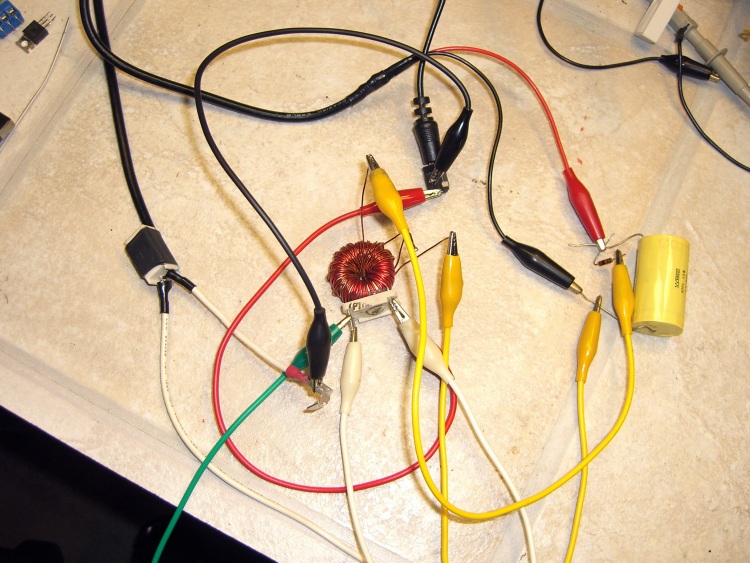
Inductor measurement test setup
The basic lashup goes a little something like this: stick a sampling resistor in the primary, run the secondary through an RC integrator, feed both into an oscilloscope that can do XY plotting, drive the primary from a Variac, turn the knob, and watch at the results. You might want a bit more finesse than this, but, eh, it works.
The primary voltage will be relatively low, so plug a 12 VAC wall wart into the Variac. This gives you galvanic isolation from the power line, finer control over the primary voltage (more of a full turn on the Variac), and will prevent you from killing yourself or burning out your basement laboratory. You want a fairly husky wart if you’re measuring husky inductors. Remember: this is an AC measurement, so you want an AC wall wart, not one with a nice filtered DC output.
The resistance of the sampling resistor should be much less than the inductive reactance of the coil. We’ll measure it at 60 Hz because that’s easy, so for a coil of inductance L, the reactance at 60 Hz is 2 * pi * 60 * L. That simplifies to 377 * L, so a 1 mH coil has about 400 m-ohm reactance. I have a nearly infinite stash of 100 m-ohm sandbox power resistors, so that’s what we’ll use; you’d want less, but this is quick & easy.
If the inductor doesn’t have a secondary, poke some magnet wire through the core. Use some simple number of turns and remember that number, just in case you want to calibrate the results.
The time constant of the RC integrator must be a lot bigger than the frequency you’re integrating. For a 60 Hz signal, you want maybe a 6 Hz integrator: 60 Hz -> 17 ms, so pick 200 ms. Having a nice 1 uF film cap in my heap, the resistor works out to (200×10^-3) / (1×10^-6) = 200 k. Anything in that range will work fine. A larger cap gives you a smaller resistor and more signal to the scope.
Wired it up about like that and here’s what happens for the inductor I picked
BH curve for Bel 0571-0033-02 choke (rightmost)
The calibration of H is 100 mV / amp (from the 100 m-ohm resistor) and the scope display is thus 2 A/div. The calibration for B is whatever the secondary winding provides, scaled by 1/RC from the integrator.
For this coil, the value of mu is essentially infinite (B rises vertically for changes in H), but the core saturates at very small values of H (and thus primary current). It was a common-mode choke for a power supply, so that’s exactly what you want: high inductance for very small currents and no need for much in the way of core flux because the opposing line currents in the windings cancel.
I harvested some inductors from a bunch of dead power supplies in my heap and measured them similarly, using an existing winding as the secondary wherever possible. The results look like this:
BH curve for for coil with blue dot (3rd left)BH curve for 40580-R01 coil (2nd left)BH curve for LC0263-A coil (leftmost)
The area inside the loop is proportional to the core power loss, so it’s obvious that some inductors are better than others.
If you’re going to do this for real, you’ll want actual calibrations for both axes. You can work the numbers out from the equations and read real values for both B and H directly from the ‘scope graticule. Pretty slick, mmm?
The primary current can get surprisingly high, so turn the Variac knob up, make your measurement, and turn it back down again. The sampling resistor and the core can get scary hot if you let ’em cook while pondering the ‘scope display. A storage scope is most helpful, which comes pretty much for free with digital scopes these days.
I wrote about all this in more detail in the context of a resistance soldering unit in my February 08 Circuit Cellar column, so I should have known better.
Memo to self: measure first, write later.
And remember to turn off the WordPress Smiley option (Dashboard → Settings → Writing) so equations don’t get cutsy artwork instead of numbers. Feh!
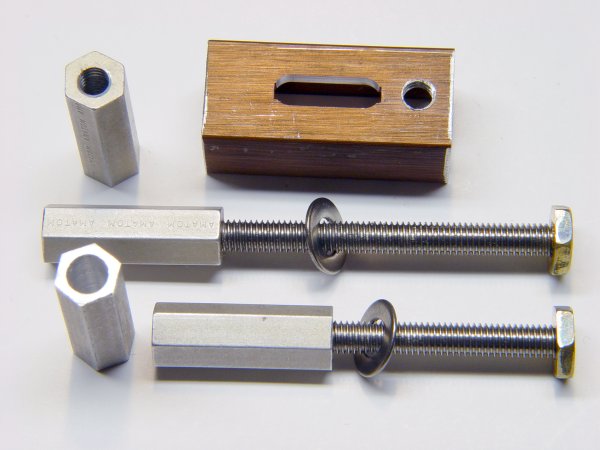
He used steel clamps, brazed on little brass snippets, and used brass hex rod for the nuts. I hate machining steel, particularly in teeny pieces, and didn’t have any brass hex stock that small: improvisation was in order!
So I sawed up an old aluminum bookshelf rail, CNC-ed the slot (more practice writing G-code), sawed the heads off some stainless 10-32 screws, and produced something that might work just as well.
My stash has a lifetime supply of 10-24 brass nuts, so I jammed them on the end of the 10-32 screws in the back to act as pads against the mill table top. No finesse there…
The T-slots aren’t quite deep enough for the nuts, though, so I milled 15 thou off each side of another six nuts and discovered, once again, that you can’t take an arbitrarily thin cut unless you have an arbitrarily sharp cutter… which, of course, I don’t. Made a plastic spacer to hold the nuts just high enough to nibble off the excess and just low enough to grip ’em in the mill vise. Did the whole thing without leaving embarrassing scars on the vise or ruining the cutter, much to my delight.
Tapped the slenderized nuts 10-32 (how crude!) and applied green Loctite to the three goobered threads to lock the screws in place. The flats just clear the T-slots and the thickness is just barely OK, so I declared success.
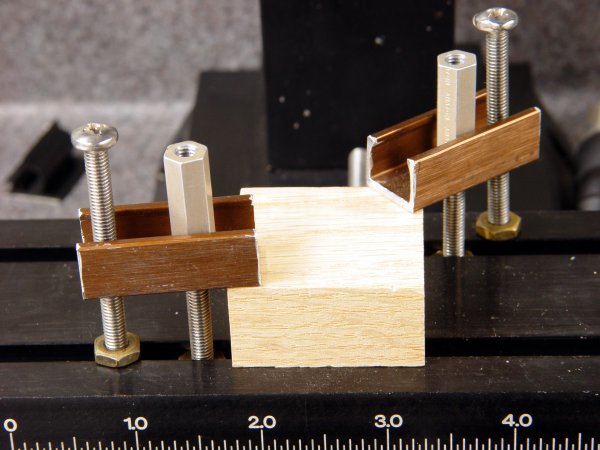
Clamps In Action
The Good Idea in the original project lies in the long hex nuts. They’re drilled out about 3/4 of their length to clear the 10-32 screws, so you can just drop them on and spin a few times rather than tediously twisting them all the way down. My stash yielded some 2-inch aluminum standoffs tapped for 4-40 screws on each end; cut ’em in half, drilled out the raw end, drilled-and-tapped the existing holes to 10-32, and there they were.
And, best of all, my fingers will smell like tapping lube for the rest of the month… ah, shop time!
Update: You can cut a nice taper on the nose if you don’t like the relentless square aspect of those things or need a bit more clearance. They’re peeking into the sides of the bottom picture there, holding the sacrificial plate in place.
Once upon a time I deployed the 6 mm hex wrench on my trusty Park MTB-7 Rescue Tool, applied some torque to a handebar stem bolt, and crunch something broke inside the tool.
[Update: Fixed a dead link; Park evidently reshuffled their website.]
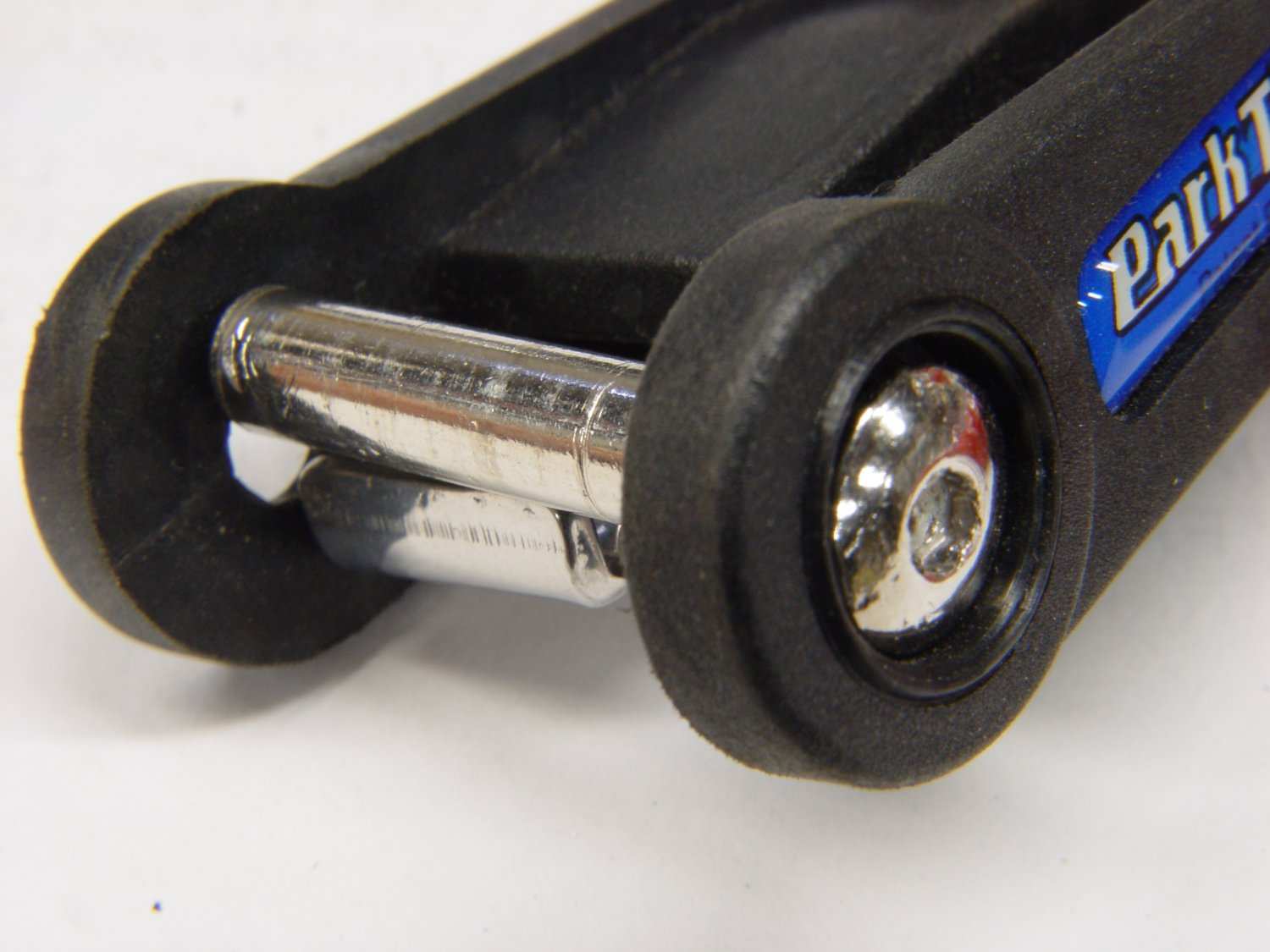
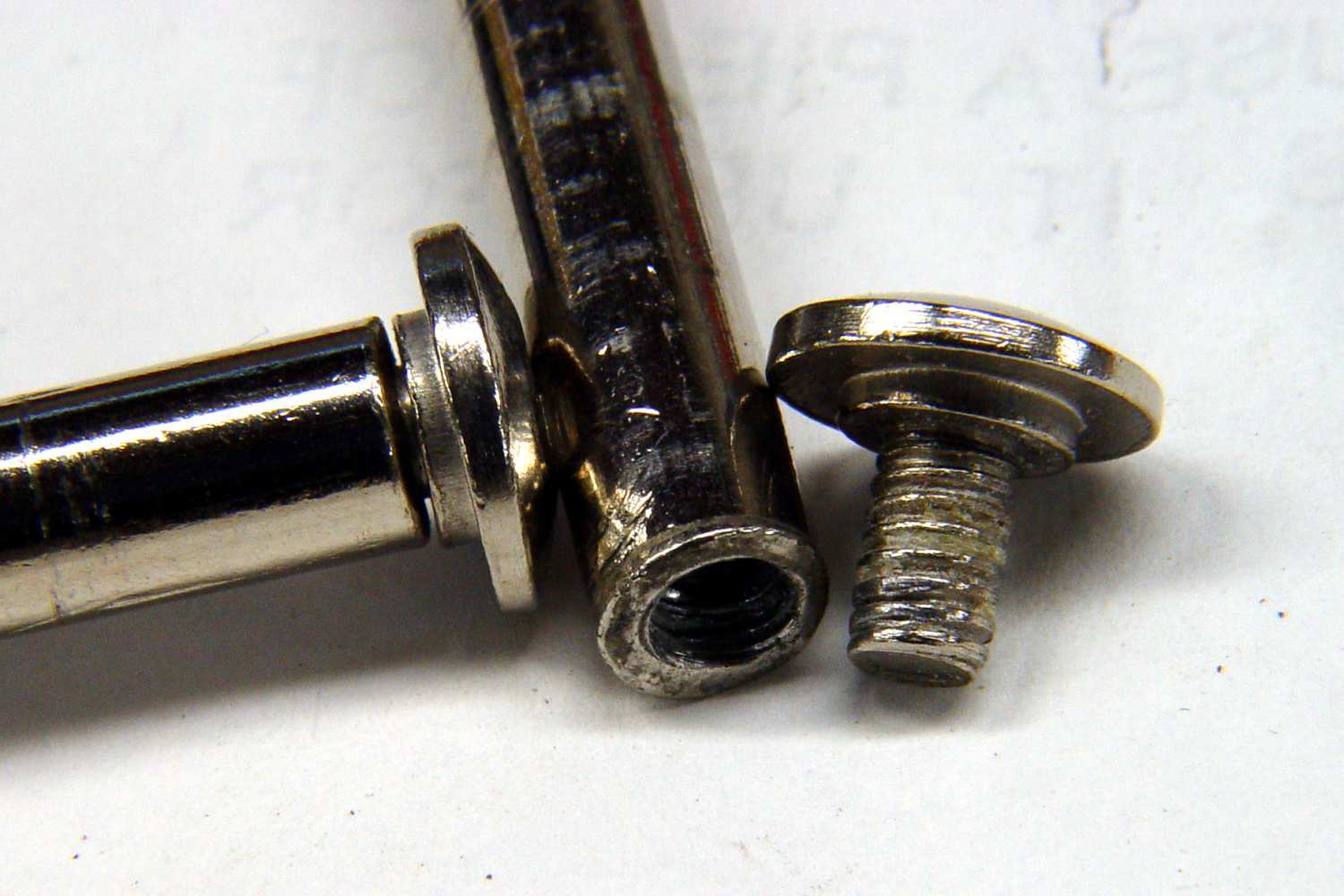
The essential problem is that the studs holding the tools in place are too short: they don’t seat fully into the plastic housing at the far end, because they’re 2 mm too short. The photo showing the stud at an angle gives an idea of the situation I saw when I took the tool apart.
The crunching sound I heard was the screw tearing out as the stud shifted in the housing. The studs seem to be swaged into shape in one operation, but without quite enough material: the threaded end isn’t flat and the internal threads are crap. The photo showing the studs and screws can’t really show how off-center and feeble the internal threads really are, but you can see the junk lodged in the external screw’s threads where it tore out. Note the poor fit between the other stud’s end and its screw: it’s firmly seated against the stud, so that’s how far off square the end is!
Better Screw and Sleeve
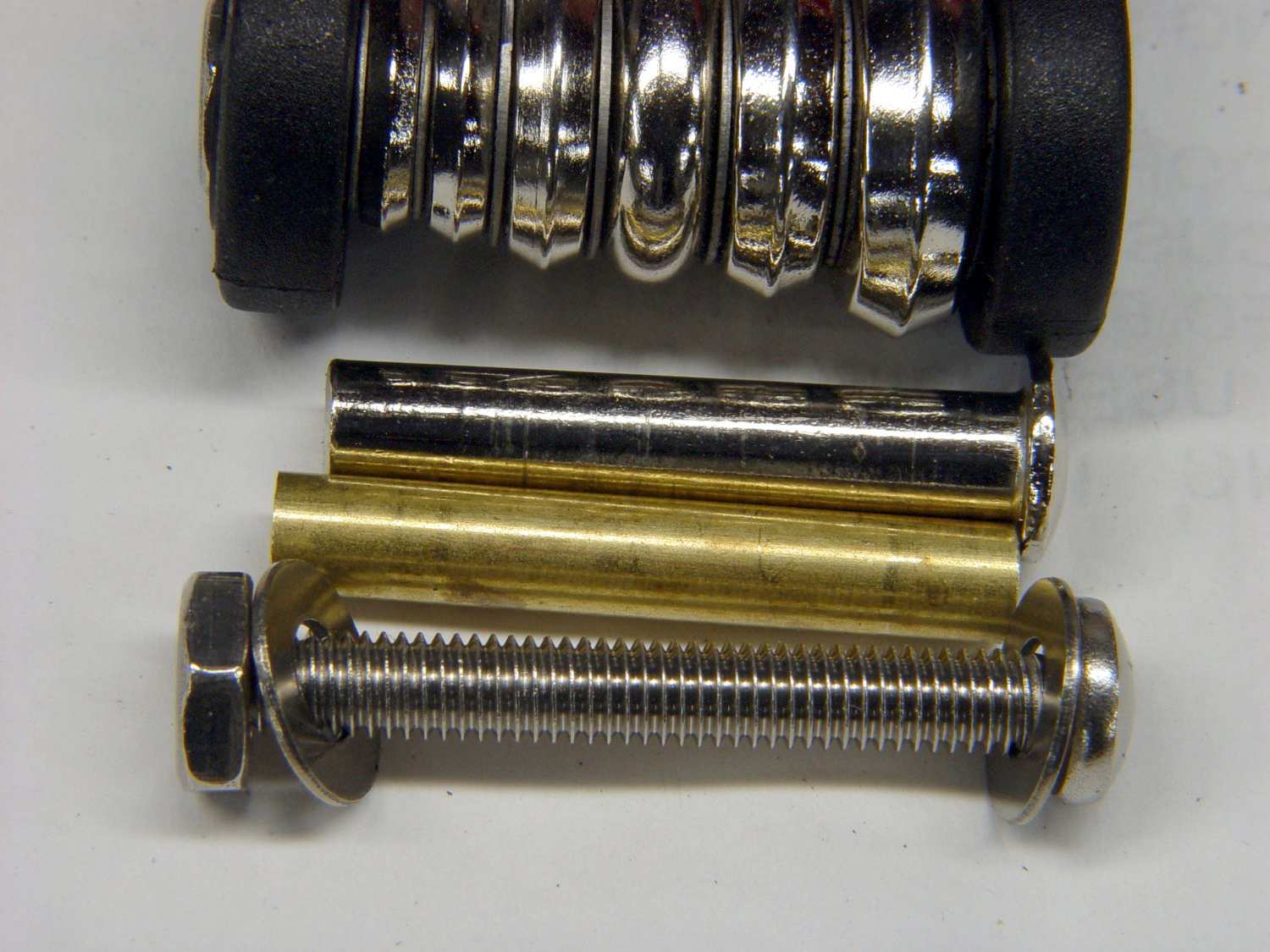
The fix was easy enough. I cut some brass tubing to the proper length, trimmed stainless-steel 10-32 screws to fit, and put everything together with red Loctite. The photo showing the all the parts indicates how much longer my sleeves are than the original studs: basically, that’s the thickness of the plastic housing on one side.
But, sheesh, you’d expect a Park tool to be better than that. I sent ’em a note with pictures and maybe they’ll smack the factor who shorted ’em on the Quality bullet item upside the head.
I got to spend some time playing with my toys, so it wasn’t a dead loss.
Remember when they said CDs would last for a hundred years?
Some years back, a bit o’ PC shuffling around here spat out a 60 GB hard drive and brought the Big Box of CDs up from the fireproof safe at the same time. A little mental math: hey, why not?
Turns out that all 130+ of my “purchased” CDs, mostly with Windows programs & device drivers, add up to 42 GB of ISO images. Creating ISOs is trivial with Linux:
dd if=/dev/cdrecorder of=image.iso
and you’re done. Depending on your system, you’ll get faster transfer with a bigger blocksize: bs=1M is more than enough.
I used the two upstairs PCs as readers, with the hard drive installed in the milling-machine PC downstairs. It took the better part of a day to think up file names and feed CDs into the slots. Typical speeds were 3 MB/s, dropping dramatically with read retries: a minute or two or three per CD. The average CD is half-full.
I wrote a trivial script to do the tedious work: loaded the CD, issued the dd command, computed MD5 checksums on the raw CD data and the stored file, and ejected the CD. The checksums always matched except when the disc had read errors, but gave me confidence I wasn’t losing any bits along the way, because the CD got read twice and any marginal sectors that were fixed-in-error would pop out.
One CD was completely unreadable because of a nasty scratch. Another, never used, turned out to be cracked in the sealed envelope.
What’s scary is the number of previously good, visibly undamaged, used-once-or-twice CDs that couldn’t be read in at least one drive. I don’t abuse the things and I -know- some of these haven’t seen the light of day more than once or twice.
Dozens (I lost count) weren’t readable in at least one drive and many weren’t readable in three drives. If you happened to have two of those drives in your one-and-only PC you’d be sunk without a trace.
I had a visibly undamaged CD that couldn’t be read in any of the four drives, although rubbing it down with toothpaste (got nothing to lose!) persuaded it to play in the CD burner. Perhaps a minute scratch? Dunno, but if that CD was damaged, then you can’t even look at ’em without damaging the things.
The most reliable drive was a CD-only burner. The DVD-ROM and DVD-burner drives could read most discs, but fell flat on others. There’s no obvious difference between a DVD+(only) burner and the DVD+/- burners.
Bottom line: maybe a quarter of those spendy pressed commercial CDs on your shelf won’t work when you really need to reinstall those programs. Should you happen to do an installation that doesn’t read the part of the CD with rotten bits, then you’ll never notice. I was copying the entire bit stream off the disc, so every single sector had to pass muster. How lucky do you feel?
If you think you’ll ever need ’em again, get ’em on a hard drive now. Then you can burn ’em as needed. Oh, yeah, put the serial number right in the file name, too, it’ll come in handy.
Update: Nowadays, I keep everything on a 500 GB drive in the file server, which does a daily backup to a 500 GB external drive. Once a month, more or less, I dump the contents of the daily backup drive to a similar drive that lives in the fireproof safe.
Tip: mounting an ISO is easier than finding & mounting the CD. They’re served up over an NFS share mounted locally at /mnt/diskimages, so it goes a little something like this:
mount -o loop,ro /mnt/diskimages/ISOs/name-of-CD.iso /mnt/loop/
and away you go. The ro option keeps you from screwing things up with an inadvertent write.
That doesn’t work in Windows, more’s the pity, but you can find GUI utilities that more-or-less do the same thing from a SAMBA share. Not that I care all that much.







 The Smell of Molten Projects in the Morning