The Smell of Molten Projects in the Morning

Ed Nisley's Blog: Shop notes, electronics, firmware, machinery, 3D printing, laser cuttery, and curiosities. Contents: 100% human thinking, 0% AI slop.

Author: Ed

  • Arduino Command Line Programming: Avrdude Puzzlement

    For all the usual reasons, I’d like to compile & download Arduino programs from the command line, rather than through the (excellent!) IDE. That is supposed to work and, for most folks, apparently it does.

    Not here, alas.

    I’ve installed the 0012 Arduino Java IDE (x86 or x86_64 as appropriate) from http://code.google.com/p/arduino/ on three different systems, all with Kubuntu 8.04:

    • Dell Dimension 9150 – x86_64, which seemed like a good idea at the time
    • Dell Inspiron E1405
    • Dell Inspiron 8100

    In all cases the IDE works perfectly, compiles & downloads programs just fine, and behaves exactly as you’d expect. I had a few minor quibbles with sorting out various paths & suchlike, but, on the whole, it has no troubles at all with either a Diecimila or a Sparkfun Arduino Pro (with a Sparkfun FTDI Basic USB gizmo).

    I tweaked ~/.arduino/preferences.txt to include:

    console.auto_clear=false
    build.verbose=true
    upload.verbose=true

    Here’s the final step in the IDE compile-and-download dance. Backslashes indicate continuations of the same line; the original is all on single line:

    hardware/tools/avrdude -Chardware/tools/avrdude.conf -v -v -v -v -pm168
    -cstk500v1 -P/dev/ttyUSB0 -b19200 -D
    -Uflash:w:/mnt/bulkdata/Above the Ground Plane/
    2009-06 Solar Data Logger/Firmware/Logger/applet/Logger.hex:i 
    
    avrdude: Version 5.4-arduino, compiled on Oct 22 2007 at 13:15:12
             Copyright (c) 2000-2005 Brian Dean, http://www.bdmicro.com/
    
             System wide configuration file is "hardware/tools/avrdude.conf"
             User configuration file is "/home/ed/.avrduderc"
             User configuration file does not exist or is not a regular file, skipping
    
             Using Port            : /dev/ttyUSB0
             Using Programmer      : stk500v1
             Overriding Baud Rate  : 19200
    avrdude: Send: 0 [30]   [20]
    avrdude: Send: 0 [30]   [20]
    avrdude: Send: 0 [30]   [20]
    avrdude: Recv: . [14]
    avrdude: Recv: . [10]
             AVR Part              : ATMEGA168

    The IDE evidently does the reset-from-USB trick through the standard USB hardware.

    I set up the command-line Makefile from http://www.arduino.cc/en/Hacking/CommandLine, although that’s for the 0011 IDE, then made the recommended tweaks. The make section does exactly what you’d expect: compiles the source program.

    Running make upload fails every time, on every PC, with both boards. Indeed, in all cases, running avrdude on the command line produces the dreaded “not in sync” errors, showing that it’s unable to communicate with the Arduino board. Blipping the reset button on the Arduino board generally makes the USB transfer work fine, with the failures most likely due to my lack of dexterity & timing precision.

    The usual debugging suggestions aren’t relevant, as they all assume there’s a basic communication failure caused by anything from a completely dead board to mysterious library incompatibilities. In this case, however, I have an existence theorem: the IDE works perfectly before and after the command-line failure.

    It turns out that the IDE includes a specially patched avrdude, so I tried running that version from the directory where the IDE lives, using exactly the same command-line flags as the IDE does. Surprisingly, that doesn’t work. Again, backslashes indicate continuations of the same line and I added quotes to the file name to protect the blanks…

    hardware/tools/avrdude -Chardware/tools/avrdude.conf -v -v -v -v -pm168
    -cstk500v1 -P/dev/ttyUSB0 -b19200 -D
    -Uflash:w:"/mnt/bulkdata/Above the Ground Plane/
    2009-06 Solar Data Logger/Firmware/Logger/applet/Logger.hex":i
    
    avrdude: Version 5.4-arduino, compiled on Oct 22 2007 at 13:15:12
             Copyright (c) 2000-2005 Brian Dean, http://www.bdmicro.com/
    
             System wide configuration file is "hardware/tools/avrdude.conf"
             User configuration file is "/home/ed/.avrduderc"
             User configuration file does not exist or is not a regular file, skipping
    
             Using Port            : /dev/ttyUSB0
             Using Programmer      : stk500v1
             Overriding Baud Rate  : 19200
    avrdude: Send: 0 [30]   [20]
    avrdude: Send: 0 [30]   [20]
    avrdude: Send: 0 [30]   [20]
    avrdude: Recv: . [1e]
    avrdude: stk500_getsync(): not in sync: resp=0x1e
    avrdude: Send: Q [51]   [20]
    avrdude: Recv: . [0f]
    avrdude: stk500_disable(): protocol error, expect=0x14, resp=0x0f

    There’s no difference between the /opt/arduino/lib/librxtxSerial.so and /usr/lib/librxtxSerial.so libraries, which normally causes some confusion on x86_64 systems. I think that means the x86_64 version of the IDE has the correct library.

    I’ve also tried the stock Kubuntu avrdude, which is at V 5.5, to no avail.

    Given that the IDE works, that I’m running the same avrdude executable, and that the libraries match, I’m not sure where to go from here.

    While I’m generally dexterous enough to run make upload and blip the Arduino board’s reset button with my other hand, I’m bringing up a shield-like board that plugs atop the Arduino and, alas, lacks both a reset button and a hole over the Arduino’s button.

    The board is, of course, that one.

    Update: As a reasonable workaround, I’ve set the IDE up to use an external editor. Then I can tweak the programming, flip to the IDE, click the Download button, and away it goes. Not quite as easy as a full command-line solution, but close enough.

  • New Theme

    Same content, different look…

    That monospace typewriter font was just too ugly for words.

    I figure you’d rather have the text flow as needed to fit your screen, rather than have me jam it in an arbitrary column down the middle of your monitor. Alas, WordPress has very few flexible-width themes, of which this (“Shocking Blue Green”) is the next-least-offensive.

    I just don’t want to fiddle with CSS…

    Memo to Self: the results of filtering the available themes excludes the one in use. Sort of makes sense, after you realize that’s what’s happening.

  • MAX4372 High-side Current Amp Gotcha

    MAX4372 output and boost transistor base drive
    MAX4372 output and boost transistor base drive

    Maxim’s MAX4372 is a high-side current sense amp that simplifies DC-DC converters, battery chargers / monitors, and stuff like that. It’s a nice gadget because it has a 28-V common-mode voltage rating that’s independent of the supply voltage. That means you can monitor the current from a relatively high voltage source with a low-resistance in series with the supply’s positive lead.

    I’m using it as part of a solar panel characterization circuit for a Circuit Cellar column, where it’s a key part of a simple DC-DC boost converter that will illustrate how maximum power point tracking works.

    The current sense resistor is a 0.5 Ω (that’s a capital Omega, if your browser just burped) resistor that produces 150 mV from the maximum 300 mA I’ll be drawing from the small panels in my collection. That’s the maximum rated full-scale sense voltage in the datasheet.

    The scope shot shows that it works like a champ, with the DC-DC converter’s transistor base drive toggling at the 100 and 200 mA setpoints. There’s a touch of deliberate hysteresis in the comparators, hence the overshoot.

    The datasheet has one Absolute Maximum Rating value that I’d managed to overlook:

    Differential Input Voltage (VRS+ - VRS-) ... ±0.3V

    What that means is that you must not, under any circumstances, apply more than 300 mV across the sense resistor. That translates into 600 mA for my circuit, which seems unlikely.

    I was bringing the board up with a bench power supply set to 4 V and connected through an 8-Ω resistor to simulate a solar panel’s declining voltage-vs-current characteristic, with the supply set to a 300 mA current limit. Worked fine until I managed to connect the power supply without the resistor, at which point the MAX4372 stopped working.

    What most likely happened was that the booster drive transistor stayed on a mite too long while the microcontroller was rebooting, which drove the inductor into saturation and put the supply directly across the sense resistor: 4 V / 0.5 Ω = 8 A, if the supply was up to it (which it isn’t). Not for very long, mind you, just long enough to kill the MAX4372 stone cold dead.

    The best solution, which doesn’t appear anywhere in the datasheet or the app notes, seems to be a Schottky diode across the sense resistor. When the sense voltage exceeds the more-or-less 300 mV diode forward threshold, it’s clamped to a (presumably) safe value.

    I haven’t tested this yet, but I don’t see any other way to prevent toasting the MAX4372 during the inevitable brief circuit glitches and faults. Even in an operational circuit, you might well see a brief short-to-ground that would apply the full supply voltage across the sense resistor: poof!

    Oh, yeah, if you’ve just blown your two samples, Maxim nails you with a $15 shipping charge (!) to order more. I picked up ten through DigiKey for 60% more per piece, but just $4 in USPS postage.

    I wanted to get some MAX4322 high-current op amps, but they’re non-stock items. Fooey!

    Memo to self: Use the diode, Ed!

    Update: see the comments for a better idea. More details later.

  • Dell GX270 Burn-in

    After describing the initial failure there, I’ve been having it boot at 6:15 am and shut down at 8:00 am; if it ever fails to shut down, I know it hasn’t started up correctly.

    As you might expect, it’s booted fine every morning for the last week. I think that’s good news…

    The /etc/crontab entry to make that happen is:

    00 08   * * *   root    shutdown -P now

    I suppose I should put a little script in /etc/cron.daily, rather than futzing with the main crontab file, but I’m lazy.

    The /etc/rc.local file starts up a few odds & ends:

    date >> /home/ed/startup.txt
    echo -n "starting rc.local ... " >> /home/ed/startup.txt
    ##-- update dyndns record of our external IP address
    echo -n "ddclient ... " >> /home/ed/startup.txt
    if [ -x /usr/sbin/ddclient ] ; then
             ddclient -force
    fi
    #-- fire off Primenet Mersenne Prime search
    echo -n "mprime ... " >> /home/ed/startup.txt
    /opt/primenet/mprime -t &
    echo -n "scanbuttond ... " >> /home/ed/startup.txt
    scanbuttond
    echo "done" >> /home/ed/startup.txt
    exit 0

    Most of that does some really crude logging to a file in my home directory. If it fails to start up, I’ll at least know when it last worked…

    As I mentioned earlier, I’ve disabled ddclient (to prevent it from snatching Mom’s current IP address out from under dyndns.com) by the simple expedient of renaming the file to ddclient.off. The script actually tests whether /usr/sbin/ddclient is executable, but changing the name makes it obvious why it’s not running.

    Just to keep the CPU heatsink warm, it runs GIMPS: The Great Internet Mersenne Prime Search. Admittedly, a 2.4 GHz Celeron isn’t exactly the ideal CPU for this task, but every little bit helps. Right now it’s running the torture test with all the memory it wants, but I’ll throttle that back when Mom gets it.

    Don’t know what I’ll do if it fails, to tell you the truth.

    Memo to self: remember to switch mprime back to normal mode with less memory.

  • Circuit Board Grounding Point

    Instrument grounding point
    Instrument grounding point

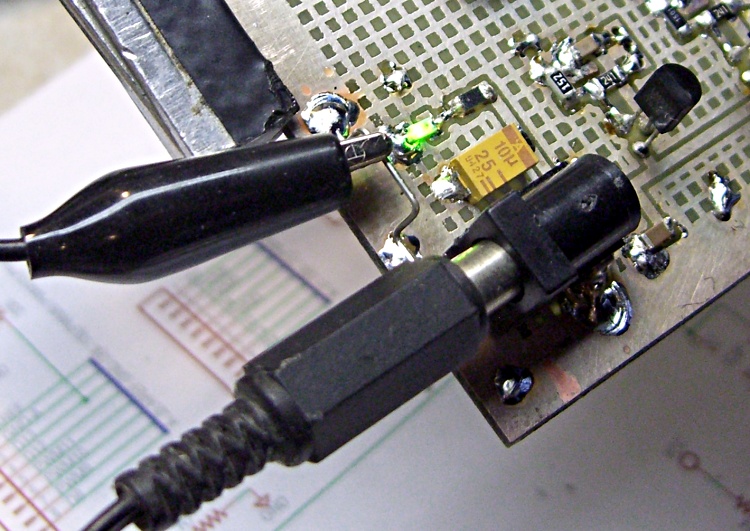
    When you’re bringing up a new circuit board, you need a place to attach test equipment ground clips.

    Take a resistor lead from that pile you’ve been collecting (you do save snipped-off through-hole component leads, don’t you?), bend it into a sort of flattened horseshoe with the ends pointing out, and firmly solder the ends to a convenient point on the board’s ground plane, ideally near the power entry point.

    It helps if you leave a nice spot for the thing; tiny boards with all surface-mount parts pose a problem.

    Long dangly ground leads clipped to a distant part of the board are definitely not adequate for low-level or high-frequency analog probing, but when you’re just trying to figure out if the mumble thing is alive, this hack will do the trick.

    Oscilloscope probe tip ground
    Oscilloscope probe tip ground

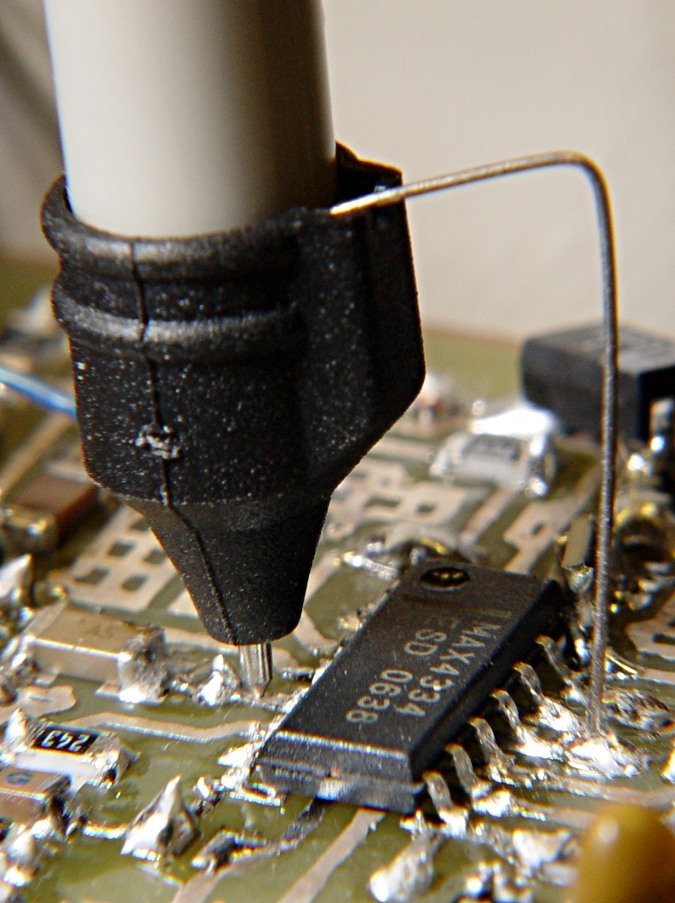
    For detailed stuff, get up close & personal with that odd little scope probe nosepiece you’ve been keeping in a bag for some reason.

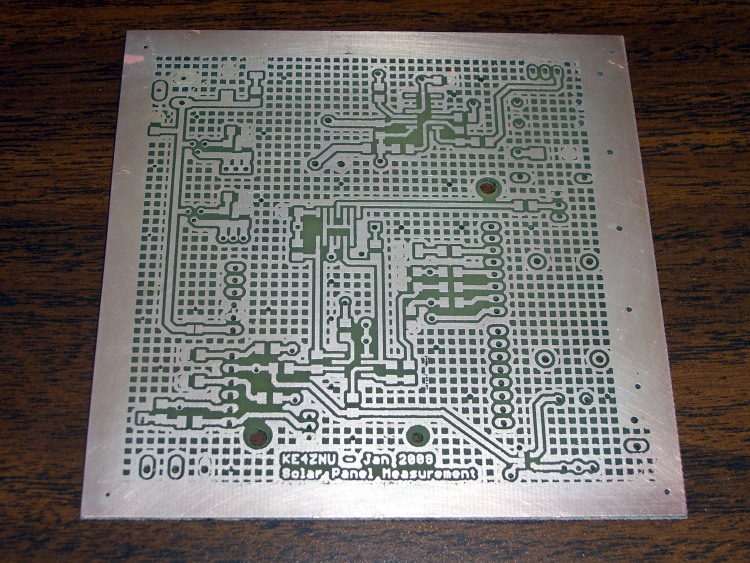
    The top board is, of course, the one you’ve seen earlier.

  • Making PCBs: Etching and Plating

    PCB Etched and Plated - Front
    PCB Etched and Plated – Front

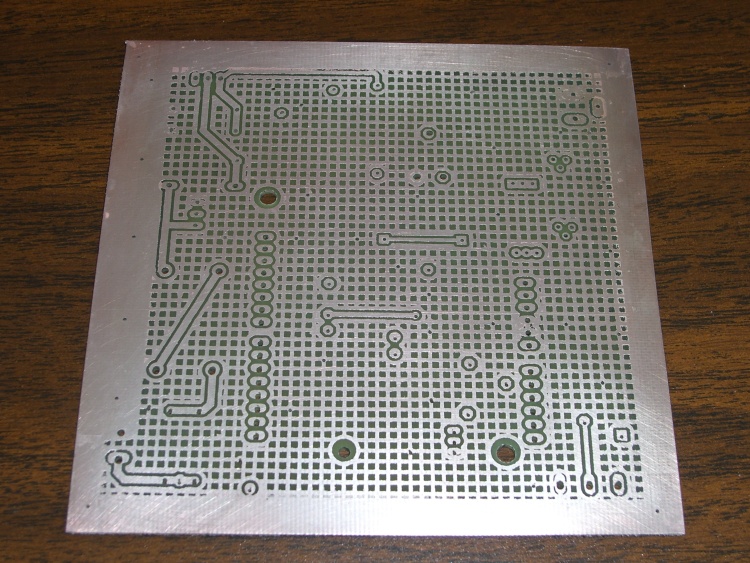
    Continuing the saga from there, this is the etched and plated board.

    I mask around the edges with ordinary masking tape and cover the back surface with duct tape. Basically, the less copper you remove, the better and faster the job.

    I use ferric chloride etchant, formerly available in nearby Radio Shack stores. These days it’s getting harder to find, so I picked up a few kilos of dry powder on eBay. Most likely that supply will vanish, too.

    The usual directions call for heating the etchant, submerging the board, bubbling or agitating, and so forth and so on. The folks at Pulsar suggest simply rubbing the etchant on the board with a sponge and, perhaps not surprisingly, that works perfectly with boards sealed using their green film.

    I hold the board horizontally in my left hand, pour a dollop of etchant on it, then rub it with a small sponge in my right hand. The etchant gradually turns into a gel as it removes copper from the board; when the gel becomes too stiff, I just wipe it off with the sponge.

    I do this over a small glass tray and scrape the accumulated gunk off the sponge into the tray. Pulsar recommends diluting the residue in a gallon of water, but I’d just as soon not have that much spent solution sitting around.

    PCB Etched and Plated - Rear
    PCB Etched and Plated – Rear

    Wear latex gloves, an apron, and eye protection. Expect that everything within a radius of two meters will accrue small spots of ferric chloride that will instantly produce a vivid, permanent yellow stain. Repeat: everything within two meters will sprout yellow spots.

    You have been warned!

    Even if you pay attention to the board’s edges and corners, those will still be the last areas to finish etching. You’ll also learn to not run fine lines parallel to the edges right next to the masking tape, as the tape protects adjacent areas from the sponge: no contact, no etching!

    Spent ferric chloride (most likely, it’s now copper chloride or some such) disposal occurs on our town’s Household Hazmat collection days, but direct etching leaves very little bulk waste. Although it’s not particularly hazardous, the rituals should be observed.

    After eching, rinse the board, remove all the tape, and rinse the board again.

    Acetone and paper towels remove the green sealant film and the laser toner from the board, an operation best done outdoors. I have yet to find protective gloves that don’t disintegrate in acetone, so I simply try to not soak my hands in the stuff. Remember: leave the mask on the back side of the board to help protect it from the etchant when you do the front side.

    Then I silver-plate the copper with Cool-Amp Silver Plating Powder, which makes the board look and solder better. Looks are important, as the boards sometimes wind up in my Circuit Cellar columns.

    That hasn’t stopped me from hand-soldering SMD parts: the bigger the blob, the better the job.

  • Pocket Camera: Griptivity Thereof

    Casio EX-Z850 and homebrew case
    Casio EX-Z850 and homebrew case

    I carry a small camera with me at all times and find it invaluable for recording details and documenting events; now I never say “I wish I had a camera!”

    This one is a Casio EX-Z850, which trades off nearly everything in favor of compact size. It has great battery life, enough resolution (the optics could be better), and manual controls (so it serves nicely as a microscope camera). It’s obsolete, of course, but you get the idea.

    I have bigger & better cameras, but this one is always with me and that counts for nearly everything. The camera in a cellphone or PDA is not the same as a real camera.

    Unfortunately, the thing has the griptivity of a bar of soap: all stylin’ metal and plastic. The black nubbly surfaces in the photo are my idea of a Good Thing: chunks of stair-tread tape providing enough traction that the camera no longer flies out of my hand with the greatest of ease.

    Despite that, I always slip the lanyard over my wrist when I take it out of my pocket; often I do that before removing it from the case. That nervous tic saves me the cost of a new camera about twice a year.

    If your camera fits into a desktop charging / USB cradle, as this one does, make sure you don’t stick the tape where the cradle fits against the camera. It’s really tough to peel off after the adhesive sets up…

    Mary made that nice packcloth (she says “Cordura“) case, with a fuzzy fleece liner facing the LCD panel. The hook-and-loop closure is a tad noisy in quiet places, but it’s better than buttons or a zipper for this application.

    I’ve learned to not keep tissues in the same pocket as the camera.